Mobile Application Development
Unit- 3
CONTROL FLOW
The control flow is the order in which the computer executes
statements .
COMPONENTS
The core components of an Android application include
1) Activities for UI screens
- Handle the User interaction with smart Phone screen.
2) Services for background tasks
- They handle background processing associated with an
application.
3) Broadcast Receivers for system messages
- Handle communication between Android OS and
applications.
4) Content provider:
- Handle data and DB management issues.
ANDROID APPLICATION DIRECTORY
STRUCTURE
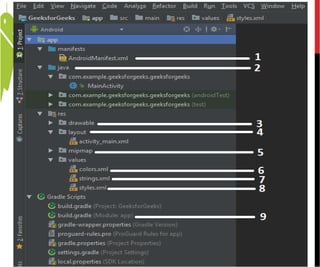
some important files/folders, and their for the easy
understanding of the Android studio work environment
are shown in following figure.
AndroidManifest.xml:
• Every project in Android includes a manifest file, which
is AndroidManifest.xml, stored in the root directory of its project
hierarchy.
• The manifest file is an important part of our app because it
defines the structure and metadata of our application, its
components, and its requirements.
• This file includes nodes for each of the Activities, Services,
Content Providers and Broadcast Receiver that make the
application and using Intent Filters and Permissions,
determines how they co-ordinate with each other and other
applications.
Android Manifest add all the Permissions and features
application
Specifies a system permission that the user must grant for
the app to operate correctly.
The user grants permissions when the application installs,
on devices
permission to access Android device capabilities such as
Internet access permission, phone permission etc.
For ex
android.permission.INTERNET
android.permission.READ_CONTACT
android. Permission.WRITE_CONTACT
android. Permission.ACCESS_MEDIA_LOCATION
Java:
The Java folder contains the Java source code files.
These files are used as a controller for controlled UI
(Layout file). It gets the data from the Layout file and
after processing that data output will be shown in the UI
layout. It works on the backend of an Android
application.
Each activity created with java files.
drawable:
A Drawable folder contains resource type file (something that
can be drawn). Drawables may take a variety of file like Bitmap
(PNG, JPEG), Nine Patch, Vector (XML), Shape, Layers, States,
Levels, and Scale.
layout:
A layout defines the visual structure for a user interface, such as
the UI for an Android application. This folder stores Layout files
that are written in XML language.
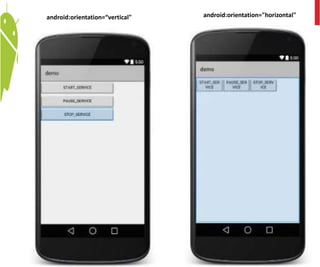
android:orientation=“vertical" android:orientation="horizontal"
mipmap:
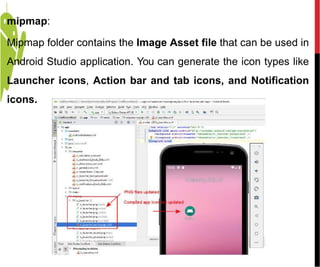
Mipmap folder contains the Image Asset file that can be used in
Android Studio application. You can generate the icon types like
Launcher icons, Action bar and tab icons, and Notification
icons.
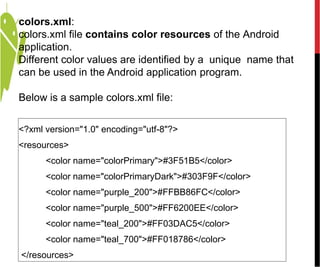
colors.xml:
colors.xml file contains color resources of the Android
application.
Different color values are identified by a unique name that
can be used in the Android application program.
Below is a sample colors.xml file:
<?xml version="1.0" encoding="utf-8"?>
<resources>
<color name="colorPrimary">#3F51B5</color>
<color name="colorPrimaryDark">#303F9F</color>
<color name="purple_200">#FFBB86FC</color>
<color name="purple_500">#FF6200EE</color>
<color name="teal_200">#FF03DAC5</color>
<color name="teal_700">#FF018786</color>
</resources>
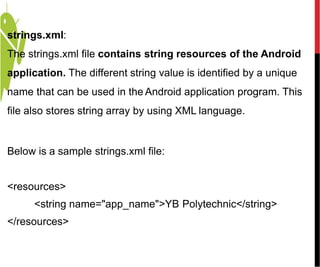
strings.xml:
The strings.xml file contains string resources of the Android
application. The different string value is identified by a unique
name that can be used in the Android application program. This
file also stores string array by using XML language.
Below is a sample strings.xml file:
<resources>
<string name="app_name">YB Polytechnic</string>
</resources>
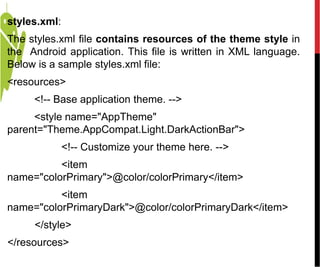
styles.xml:
The styles.xml file contains resources of the theme style in
the Android application. This file is written in XML language.
Below is a sample styles.xml file:
<resources>
<!-- Base application theme. -->
<style name="AppTheme"
parent="Theme.AppCompat.Light.DarkActionBar">
<!-- Customize your theme here. -->
<item
name="colorPrimary">@color/colorPrimary</item>
<item
name="colorPrimaryDark">@color/colorPrimaryDark</item>
</style>
</resources>
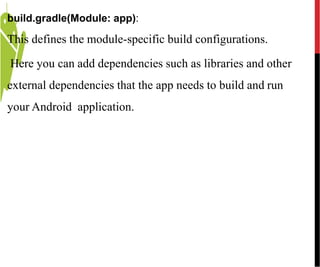
build.gradle(Module: app):
This defines the module-specific build configurations.
Here you can add dependencies such as libraries and other
external dependencies that the app needs to build and run
your Android application.
Components of Screen
Application components are the essential building blocks of an
Android application. These components are loosely coupled by
the application manifest file AndroidManifest.xml that describes
each component of the application and how they interact.
Interface elements include but are not limited to:
Input Controls: checkboxes, radio buttons, dropdown lists, list
boxes, buttons, toggles, text fields, date field
Navigational Components: breadcrumb, slider, search field,
pagination, slider, tags, icons
Informational Components: tooltips, icons, progress bar,
notifications, message boxes, modal windows
Containers: accordion
Android introduces some new terminology for familiar
programming metaphors
❑Views- Views are the basic User Interface class for visual
interface elements (commonly known as controls or widgets). All
User Interface controls, and the layout classes, are derived from
Views.
❑ ViewGroups- View Groups are extensions of the View class
that can contain multiple child Views. By extending the
ViewGroup class, you can create compound controls that are
made up of interconnected child Views. The ViewGroup class is
also extended to provide the layout managers, such as
LinearLayout, that help you compose User Interfaces.
❑Activities- Activities represent the window or screen being
displayed to the user. Activities are the Android equivalent of a
Form. To display a User Interface, you assign a View or layout to
an Activity. Android provides several common UI controls,
widgets, and layout managers.
Fundamentals of UI Design
It is a type of resource which gives definition on what is drawn on the
screen or how elements are placed on the device’s screen and stored as
XML files in the /res/layout resource directory for the application. It can also
be a type of View class to organize other controls.
There are many types of layout. Some of which are listed below −
• Linear Layout: is a View Group that aligns all children in a single direction,
vertically or horizontally
• Absolute Layout: allows us to specify the exact location of the child views
and widgets
• Table Layout: is a view that groups its child views into rows and columns
• Frame Layout: is a placeholder on screen that is used to display a single view
• Relative Layout: is a ViewGroup that displays child views in relative
positions.
Layouts
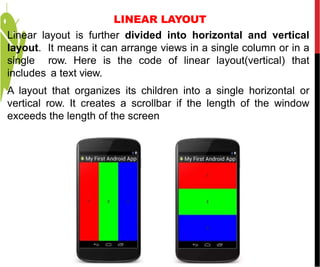
LINEAR LAYOUT
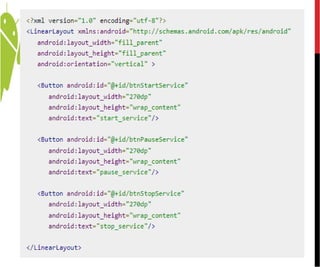
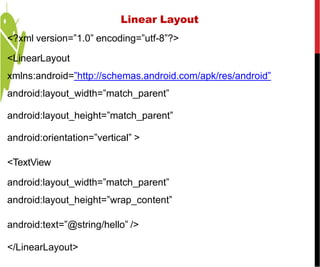
Linear layout is further divided into horizontal and vertical
layout. It means it can arrange views in a single column or in a
single row. Here is the code of linear layout(vertical) that
includes a text view.
A layout that organizes its children into a single horizontal or
vertical row. It creates a scrollbar if the length of the window
exceeds the length of the screen
<?xml version=”1.0” encoding=”utf-8”?>
<LinearLayout
xmlns:android=”http://schemas.android.com/apk/res/android”
android:layout_width=”match_parent”
android:layout_height=”match_parent”
android:orientation=”vertical” >
<TextView
android:layout_width=”match_parent”
android:layout_height=”wrap_content”
android:text=”@string/hello” />
</LinearLayout>
Linear Layout
ABSOLUTELAYOUT
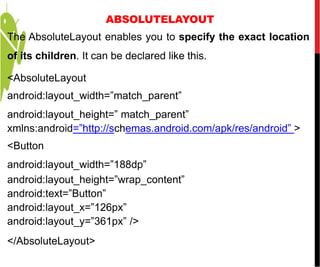
The AbsoluteLayout enables you to specify the exact location
of its children. It can be declared like this.
<AbsoluteLayout
android:layout_width=”match_parent”
android:layout_height=” match_parent”
xmlns:android=”http://schemas.android.com/apk/res/android” >
<Button
android:layout_width=”188dp”
android:layout_height=”wrap_content”
android:text=”Button”
android:layout_x=”126px”
android:layout_y=”361px” />
</AbsoluteLayout>
TABLELAYOUT
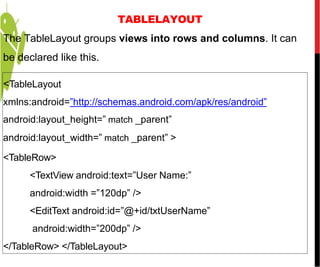
The TableLayout groups views into rows and columns. It can
be declared like this.
<TableLayout
xmlns:android=”http://schemas.android.com/apk/res/android”
android:layout_height=” match _parent”
android:layout_width=” match _parent” >
<TableRow>
<TextView android:text=”User Name:”
android:width =”120dp” />
<EditText android:id=”@+id/txtUserName”
android:width=”200dp” />
</TableRow> </TableLayout>
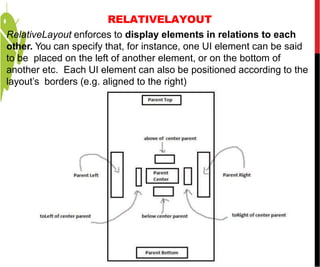
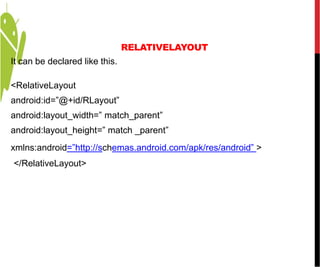
RelativeLayout enforces to display elements in relations to each
other. You can specify that, for instance, one UI element can be said
to be placed on the left of another element, or on the bottom of
another etc. Each UI element can also be positioned according to the
layout’s borders (e.g. aligned to the right)
RELATIVELAYOUT
RELATIVELAYOUT
It can be declared like this.
<RelativeLayout
android:id=”@+id/RLayout”
android:layout_width=” match_parent”
android:layout_height=” match _parent”
xmlns:android=”http://schemas.android.com/apk/res/android” >
</RelativeLayout>
FRAMELAYOUT
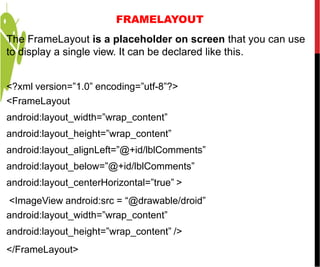
The FrameLayout is a placeholder on screen that you can use
to display a single view. It can be declared like this.
<?xml version=”1.0” encoding=”utf-8”?>
<FrameLayout
android:layout_width=”wrap_content”
android:layout_height=”wrap_content”
android:layout_alignLeft=”@+id/lblComments”
android:layout_below=”@+id/lblComments”
android:layout_centerHorizontal=”true” >
<ImageView android:src = “@drawable/droid”
android:layout_width=”wrap_content”
android:layout_height=”wrap_content” />
</FrameLayout>
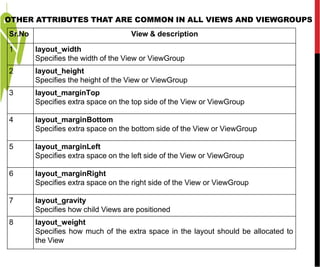
Sr.No View & description
1 layout_width
Specifies the width of the View or ViewGroup
2 layout_height
Specifies the height of the View or ViewGroup
3 layout_marginTop
Specifies extra space on the top side of the View or ViewGroup
4 layout_marginBottom
Specifies extra space on the bottom side of the View or ViewGroup
5 layout_marginLeft
Specifies extra space on the left side of the View or ViewGroup
6 layout_marginRight
Specifies extra space on the right side of the View or ViewGroup
7 layout_gravity
Specifies how child Views are positioned
8 layout_weight
Specifies how much of the extra space in the layout should be allocated to
the View
OTHER ATTRIBUTES THAT ARE COMMON IN ALL VIEWS AND VIEWGROUPS
mobile application development  -unit-3-

mobile application development -unit-3-

  • 1.
  • 2.
    CONTROL FLOW The controlflow is the order in which the computer executes statements . COMPONENTS The core components of an Android application include 1) Activities for UI screens - Handle the User interaction with smart Phone screen. 2) Services for background tasks - They handle background processing associated with an application. 3) Broadcast Receivers for system messages - Handle communication between Android OS and applications. 4) Content provider: - Handle data and DB management issues.
  • 3.
    ANDROID APPLICATION DIRECTORY STRUCTURE someimportant files/folders, and their for the easy understanding of the Android studio work environment are shown in following figure.
  • 5.
    AndroidManifest.xml: • Every projectin Android includes a manifest file, which is AndroidManifest.xml, stored in the root directory of its project hierarchy. • The manifest file is an important part of our app because it defines the structure and metadata of our application, its components, and its requirements. • This file includes nodes for each of the Activities, Services, Content Providers and Broadcast Receiver that make the application and using Intent Filters and Permissions, determines how they co-ordinate with each other and other applications.
  • 6.
    Android Manifest addall the Permissions and features application Specifies a system permission that the user must grant for the app to operate correctly. The user grants permissions when the application installs, on devices permission to access Android device capabilities such as Internet access permission, phone permission etc. For ex android.permission.INTERNET android.permission.READ_CONTACT android. Permission.WRITE_CONTACT android. Permission.ACCESS_MEDIA_LOCATION
  • 7.
    Java: The Java foldercontains the Java source code files. These files are used as a controller for controlled UI (Layout file). It gets the data from the Layout file and after processing that data output will be shown in the UI layout. It works on the backend of an Android application. Each activity created with java files.
  • 8.
    drawable: A Drawable foldercontains resource type file (something that can be drawn). Drawables may take a variety of file like Bitmap (PNG, JPEG), Nine Patch, Vector (XML), Shape, Layers, States, Levels, and Scale. layout: A layout defines the visual structure for a user interface, such as the UI for an Android application. This folder stores Layout files that are written in XML language.
  • 10.
  • 11.
    mipmap: Mipmap folder containsthe Image Asset file that can be used in Android Studio application. You can generate the icon types like Launcher icons, Action bar and tab icons, and Notification icons.
  • 12.
    colors.xml: colors.xml file containscolor resources of the Android application. Different color values are identified by a unique name that can be used in the Android application program. Below is a sample colors.xml file: <?xml version="1.0" encoding="utf-8"?> <resources> <color name="colorPrimary">#3F51B5</color> <color name="colorPrimaryDark">#303F9F</color> <color name="purple_200">#FFBB86FC</color> <color name="purple_500">#FF6200EE</color> <color name="teal_200">#FF03DAC5</color> <color name="teal_700">#FF018786</color> </resources>
  • 13.
    strings.xml: The strings.xml filecontains string resources of the Android application. The different string value is identified by a unique name that can be used in the Android application program. This file also stores string array by using XML language. Below is a sample strings.xml file: <resources> <string name="app_name">YB Polytechnic</string> </resources>
  • 14.
    styles.xml: The styles.xml filecontains resources of the theme style in the Android application. This file is written in XML language. Below is a sample styles.xml file: <resources> <!-- Base application theme. --> <style name="AppTheme" parent="Theme.AppCompat.Light.DarkActionBar"> <!-- Customize your theme here. --> <item name="colorPrimary">@color/colorPrimary</item> <item name="colorPrimaryDark">@color/colorPrimaryDark</item> </style> </resources>
  • 15.
    build.gradle(Module: app): This definesthe module-specific build configurations. Here you can add dependencies such as libraries and other external dependencies that the app needs to build and run your Android application.
  • 16.
    Components of Screen Applicationcomponents are the essential building blocks of an Android application. These components are loosely coupled by the application manifest file AndroidManifest.xml that describes each component of the application and how they interact. Interface elements include but are not limited to: Input Controls: checkboxes, radio buttons, dropdown lists, list boxes, buttons, toggles, text fields, date field Navigational Components: breadcrumb, slider, search field, pagination, slider, tags, icons Informational Components: tooltips, icons, progress bar, notifications, message boxes, modal windows Containers: accordion
  • 17.
    Android introduces somenew terminology for familiar programming metaphors ❑Views- Views are the basic User Interface class for visual interface elements (commonly known as controls or widgets). All User Interface controls, and the layout classes, are derived from Views. ❑ ViewGroups- View Groups are extensions of the View class that can contain multiple child Views. By extending the ViewGroup class, you can create compound controls that are made up of interconnected child Views. The ViewGroup class is also extended to provide the layout managers, such as LinearLayout, that help you compose User Interfaces. ❑Activities- Activities represent the window or screen being displayed to the user. Activities are the Android equivalent of a Form. To display a User Interface, you assign a View or layout to an Activity. Android provides several common UI controls, widgets, and layout managers. Fundamentals of UI Design
  • 18.
    It is atype of resource which gives definition on what is drawn on the screen or how elements are placed on the device’s screen and stored as XML files in the /res/layout resource directory for the application. It can also be a type of View class to organize other controls. There are many types of layout. Some of which are listed below − • Linear Layout: is a View Group that aligns all children in a single direction, vertically or horizontally • Absolute Layout: allows us to specify the exact location of the child views and widgets • Table Layout: is a view that groups its child views into rows and columns • Frame Layout: is a placeholder on screen that is used to display a single view • Relative Layout: is a ViewGroup that displays child views in relative positions. Layouts
  • 19.
    LINEAR LAYOUT Linear layoutis further divided into horizontal and vertical layout. It means it can arrange views in a single column or in a single row. Here is the code of linear layout(vertical) that includes a text view. A layout that organizes its children into a single horizontal or vertical row. It creates a scrollbar if the length of the window exceeds the length of the screen
  • 20.
  • 21.
    ABSOLUTELAYOUT The AbsoluteLayout enablesyou to specify the exact location of its children. It can be declared like this. <AbsoluteLayout android:layout_width=”match_parent” android:layout_height=” match_parent” xmlns:android=”http://schemas.android.com/apk/res/android” > <Button android:layout_width=”188dp” android:layout_height=”wrap_content” android:text=”Button” android:layout_x=”126px” android:layout_y=”361px” /> </AbsoluteLayout>
  • 22.
    TABLELAYOUT The TableLayout groupsviews into rows and columns. It can be declared like this. <TableLayout xmlns:android=”http://schemas.android.com/apk/res/android” android:layout_height=” match _parent” android:layout_width=” match _parent” > <TableRow> <TextView android:text=”User Name:” android:width =”120dp” /> <EditText android:id=”@+id/txtUserName” android:width=”200dp” /> </TableRow> </TableLayout>
  • 23.
    RelativeLayout enforces todisplay elements in relations to each other. You can specify that, for instance, one UI element can be said to be placed on the left of another element, or on the bottom of another etc. Each UI element can also be positioned according to the layout’s borders (e.g. aligned to the right) RELATIVELAYOUT
  • 24.
    RELATIVELAYOUT It can bedeclared like this. <RelativeLayout android:id=”@+id/RLayout” android:layout_width=” match_parent” android:layout_height=” match _parent” xmlns:android=”http://schemas.android.com/apk/res/android” > </RelativeLayout>
  • 25.
    FRAMELAYOUT The FrameLayout isa placeholder on screen that you can use to display a single view. It can be declared like this. <?xml version=”1.0” encoding=”utf-8”?> <FrameLayout android:layout_width=”wrap_content” android:layout_height=”wrap_content” android:layout_alignLeft=”@+id/lblComments” android:layout_below=”@+id/lblComments” android:layout_centerHorizontal=”true” > <ImageView android:src = “@drawable/droid” android:layout_width=”wrap_content” android:layout_height=”wrap_content” /> </FrameLayout>
  • 26.
    Sr.No View &description 1 layout_width Specifies the width of the View or ViewGroup 2 layout_height Specifies the height of the View or ViewGroup 3 layout_marginTop Specifies extra space on the top side of the View or ViewGroup 4 layout_marginBottom Specifies extra space on the bottom side of the View or ViewGroup 5 layout_marginLeft Specifies extra space on the left side of the View or ViewGroup 6 layout_marginRight Specifies extra space on the right side of the View or ViewGroup 7 layout_gravity Specifies how child Views are positioned 8 layout_weight Specifies how much of the extra space in the layout should be allocated to the View OTHER ATTRIBUTES THAT ARE COMMON IN ALL VIEWS AND VIEWGROUPS