Universal Design for Instruction (UDI)
A learner centered approach


  A faculty blueprint for student success
  Workshop 1: Print documents


  Marie S. Lewandowski| Center for Online Learning (COL)
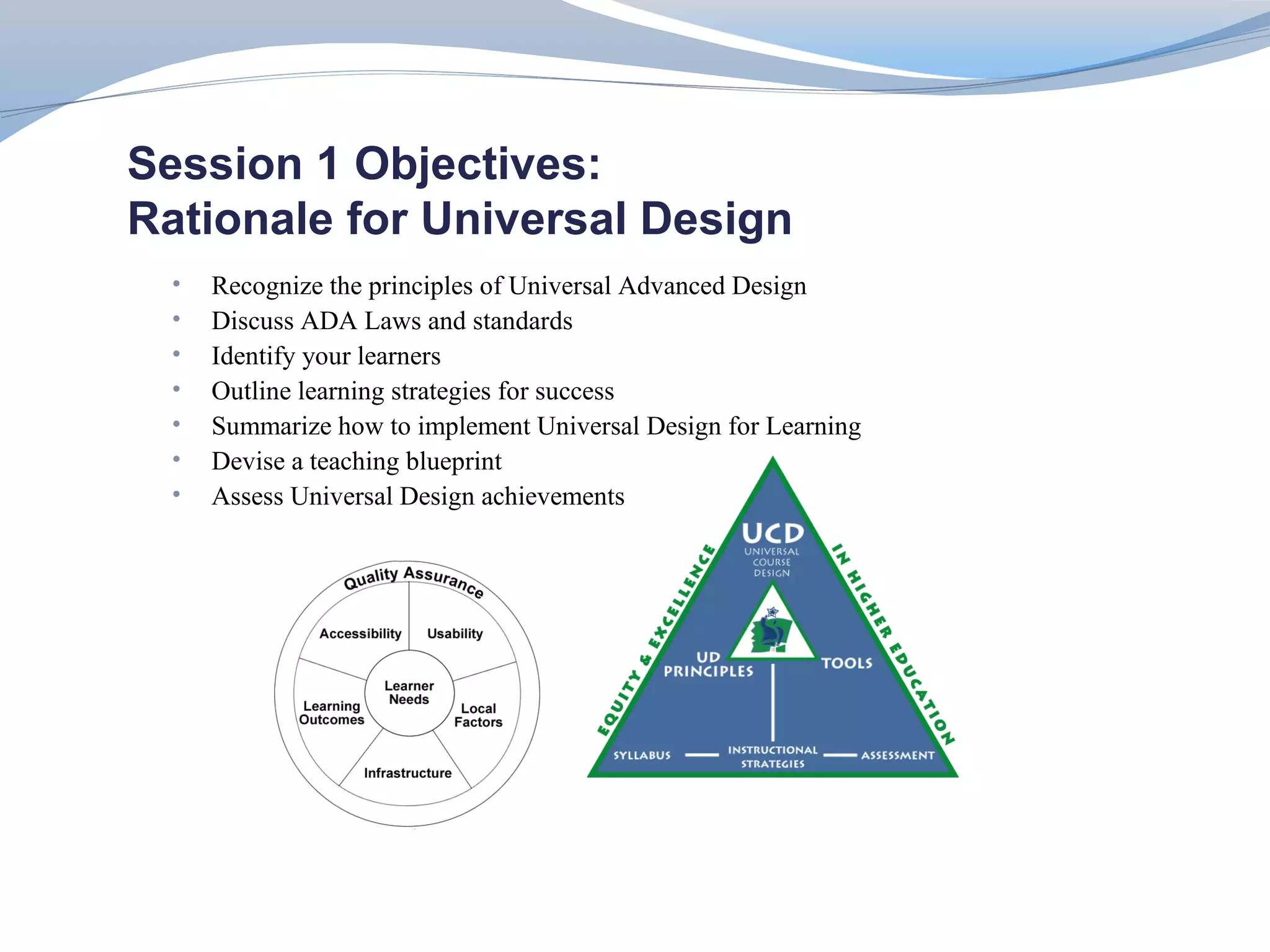
Session 1 Objectives:
Rationale for Universal Design
  •   Recognize the principles of Universal Advanced Design
  •   Discuss ADA Laws and standards
  •   Identify your learners
  •   Outline learning strategies for success
  •   Summarize how to implement Universal Design for Learning
  •   Devise a teaching blueprint
  •   Assess Universal Design achievements
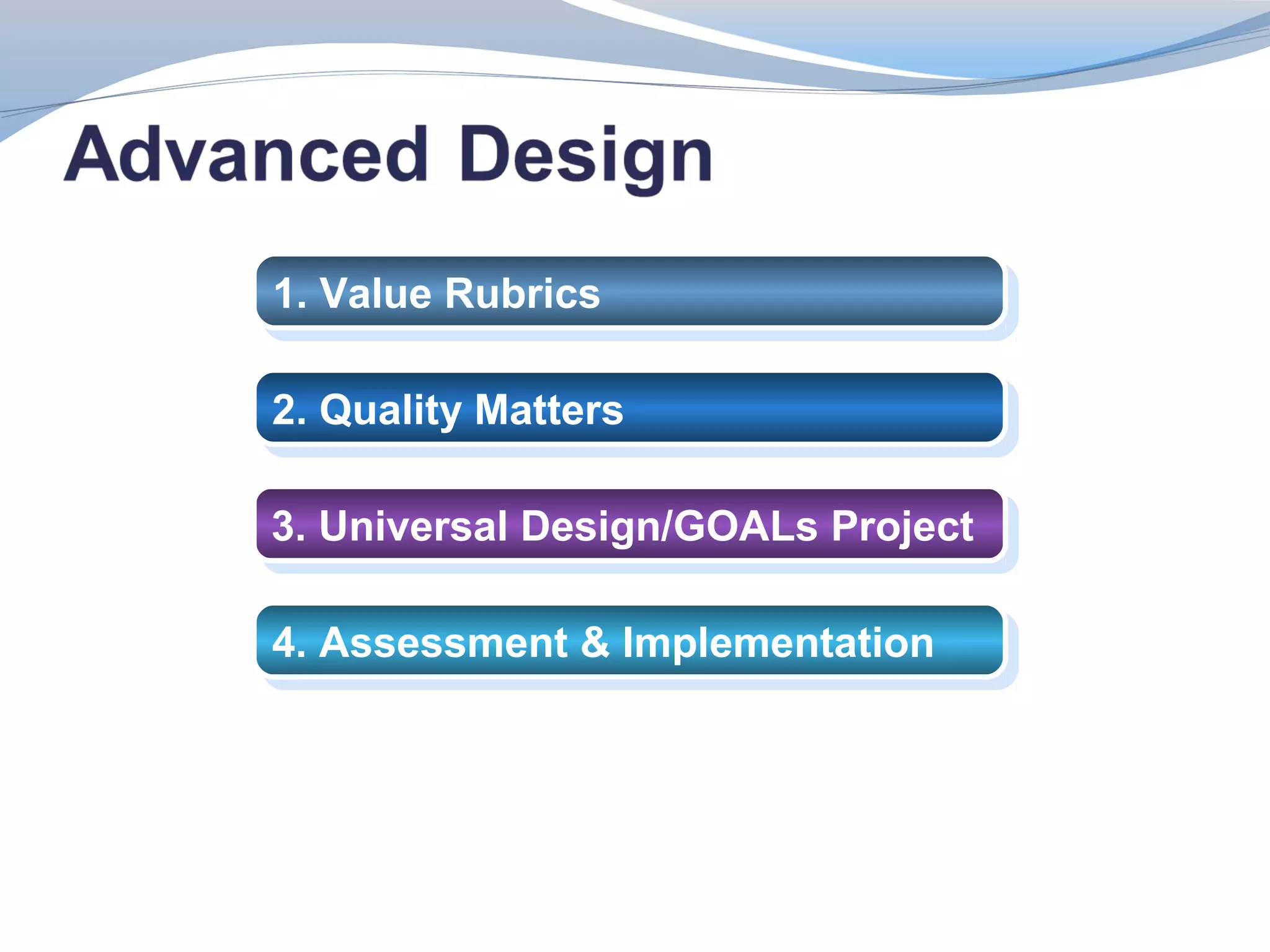
1. Value Rubrics
1. Value Rubrics

2. Quality Matters
2. Quality Matters

3. Universal Design/GOALs Project

4. Assessment & Implementation
“The basic idea is that if we design
Universal Design for learning                                                            learning environments with a full and
                                                                                         natural range of students in mind,
                                                                                         we reduce the need for
                                                                                         accommodation.”
Set of principles for curriculum development that give all individuals equal             ∼ Ron Mace, NC State University

opportunities to learn. UDL provides a blueprint for creating instructional goals,
methods, materials, and assessments that work for everyone--not a single, one-
size-fits-all solution but rather flexible approaches that can be customized and
adjusted for individual needs.

Inclusive approach – flexible

Proactive design that benefits a broad range of learners

Involves planning & delivery of instruction

Evaluates learning by incorporating inclusive attributes

That meet academic standards and meets the needs of a diversity of learners & styles.

http://www.cast.org/udl/
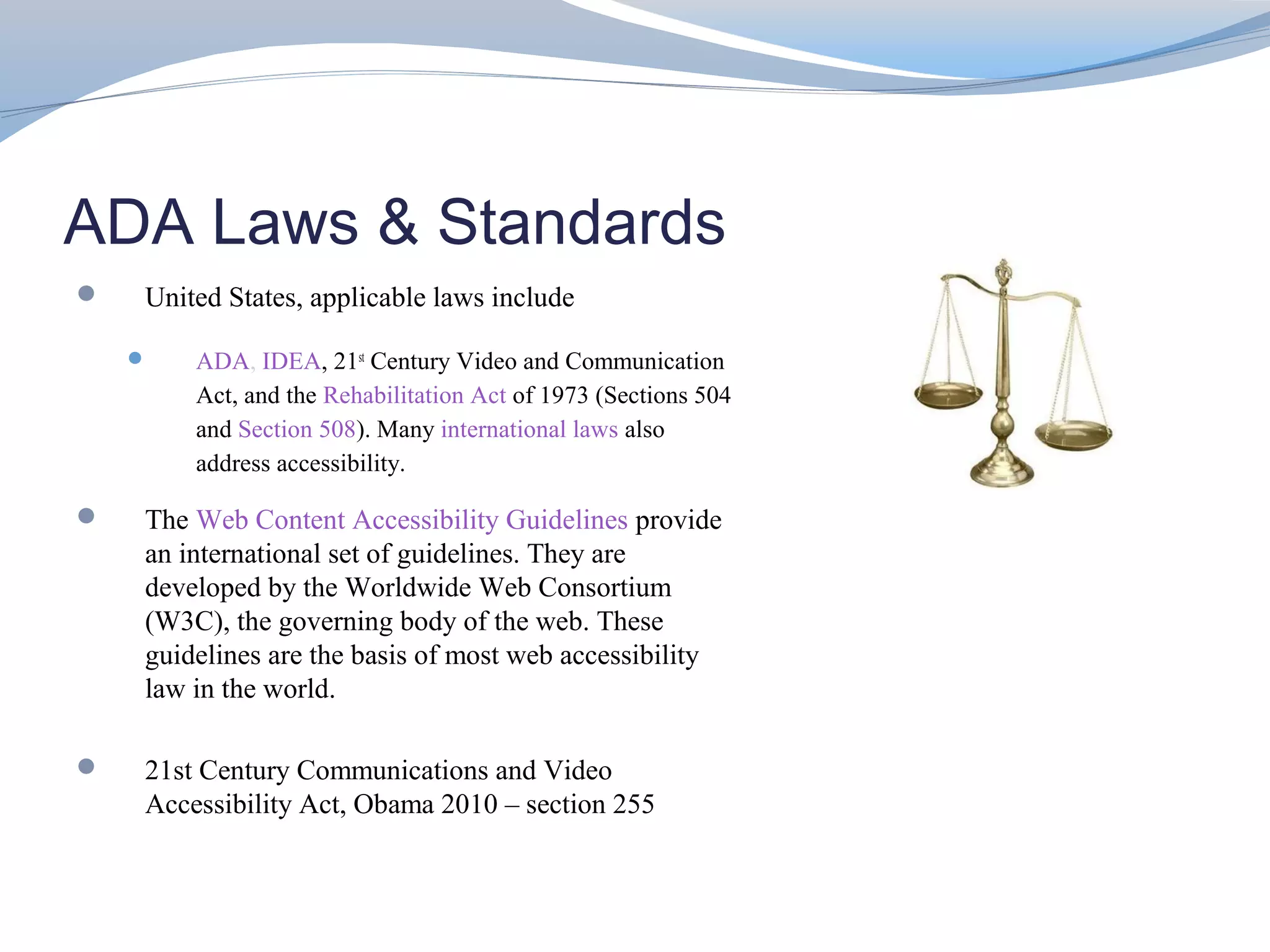
ADA Laws & Standards
   United States, applicable laws include

       ADA, IDEA, 21st Century Video and Communication
        Act, and the Rehabilitation Act of 1973 (Sections 504
        and Section 508). Many international laws also
        address accessibility.

   The Web Content Accessibility Guidelines provide
    an international set of guidelines. They are
    developed by the Worldwide Web Consortium
    (W3C), the governing body of the web. These
    guidelines are the basis of most web accessibility
    law in the world.

   21st Century Communications and Video
    Accessibility Act, Obama 2010 – section 255
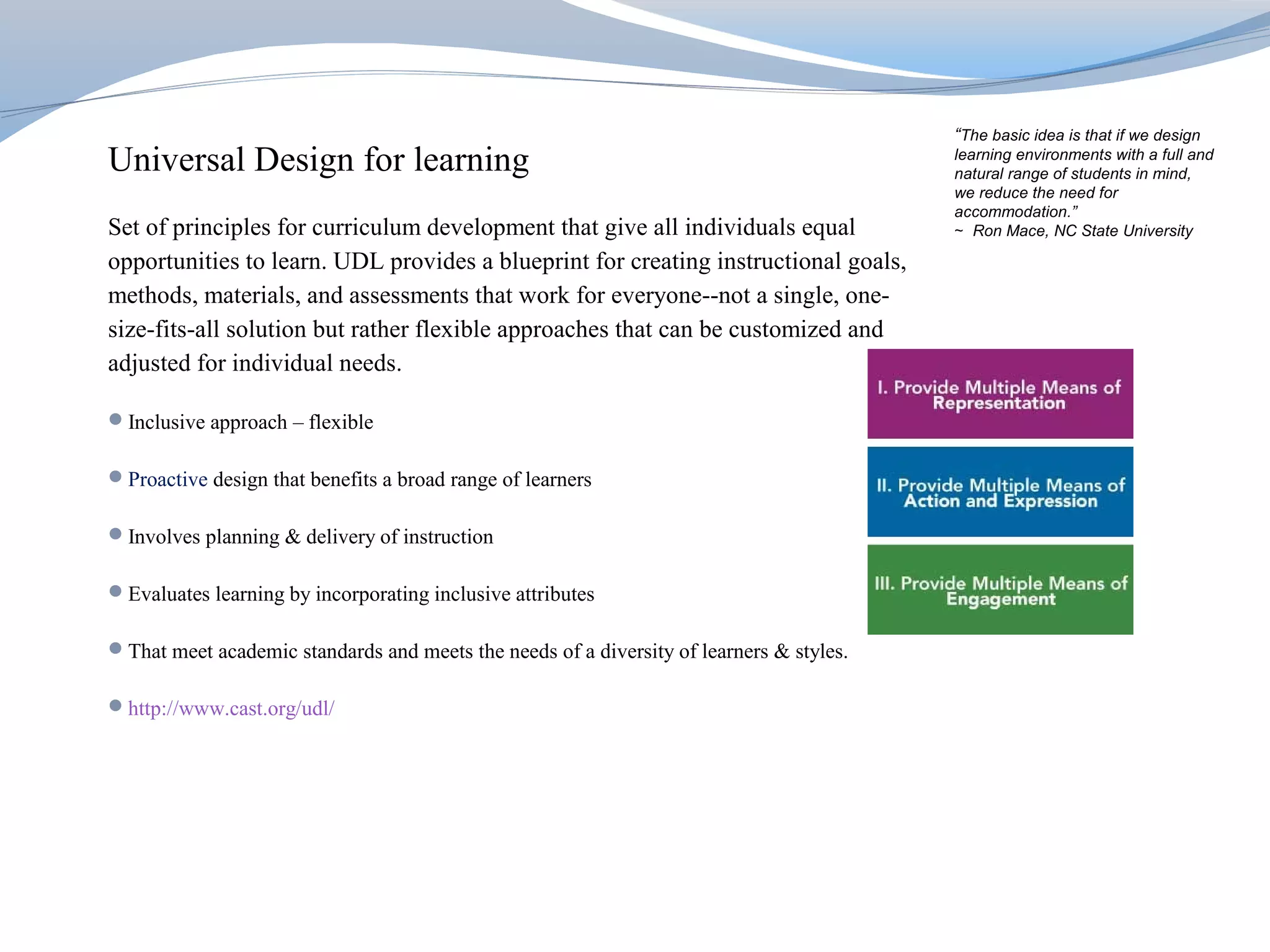
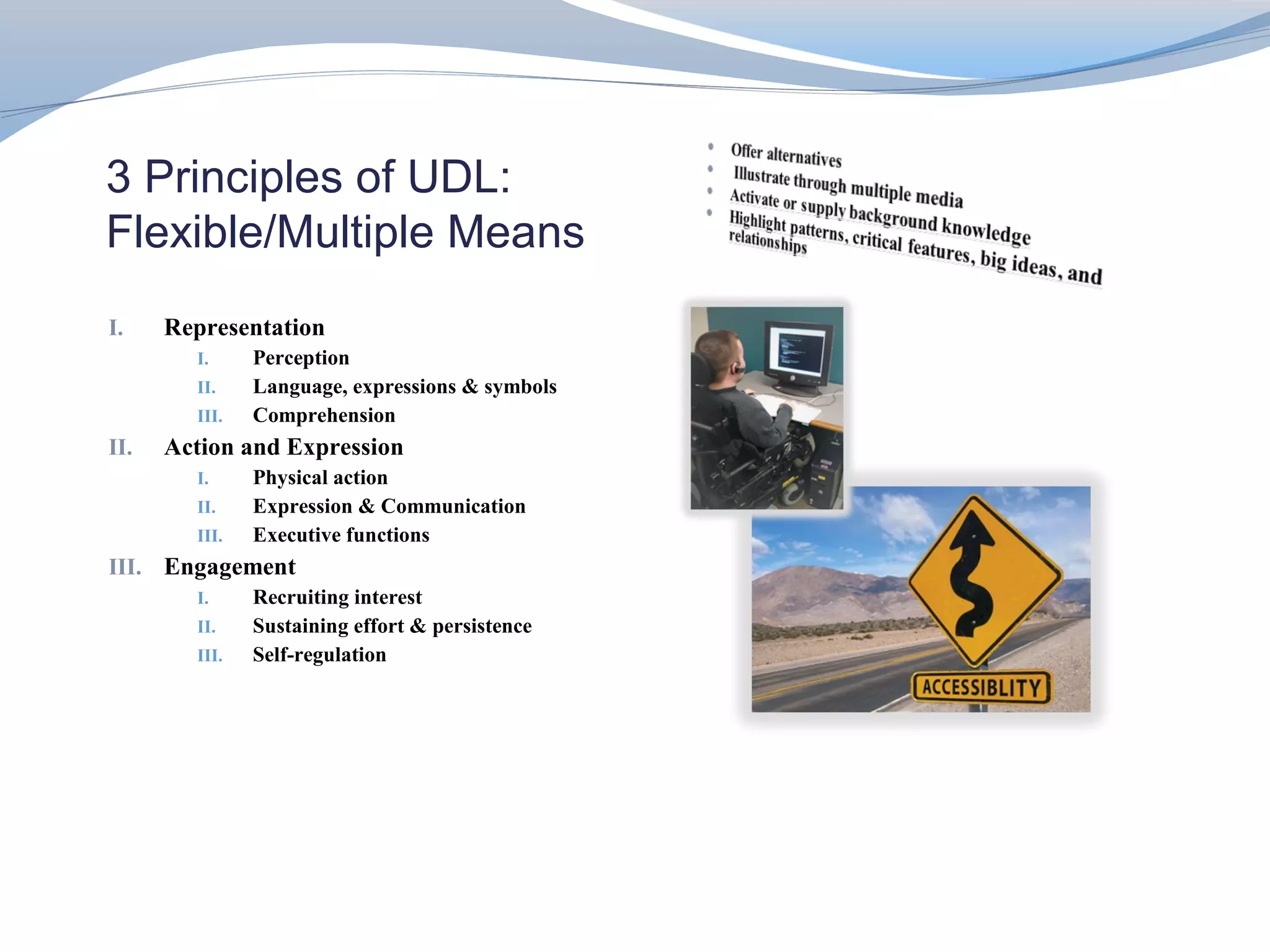
3 Principles of UDL:
Flexible/Multiple Means
I.    Representation
        I.     Perception
        II.    Language, expressions & symbols
        III.   Comprehension
II.   Action and Expression
        I.     Physical action
        II.    Expression & Communication
        III.   Executive functions
III. Engagement
        I.     Recruiting interest
        II.    Sustaining effort & persistence
        III.   Self-regulation
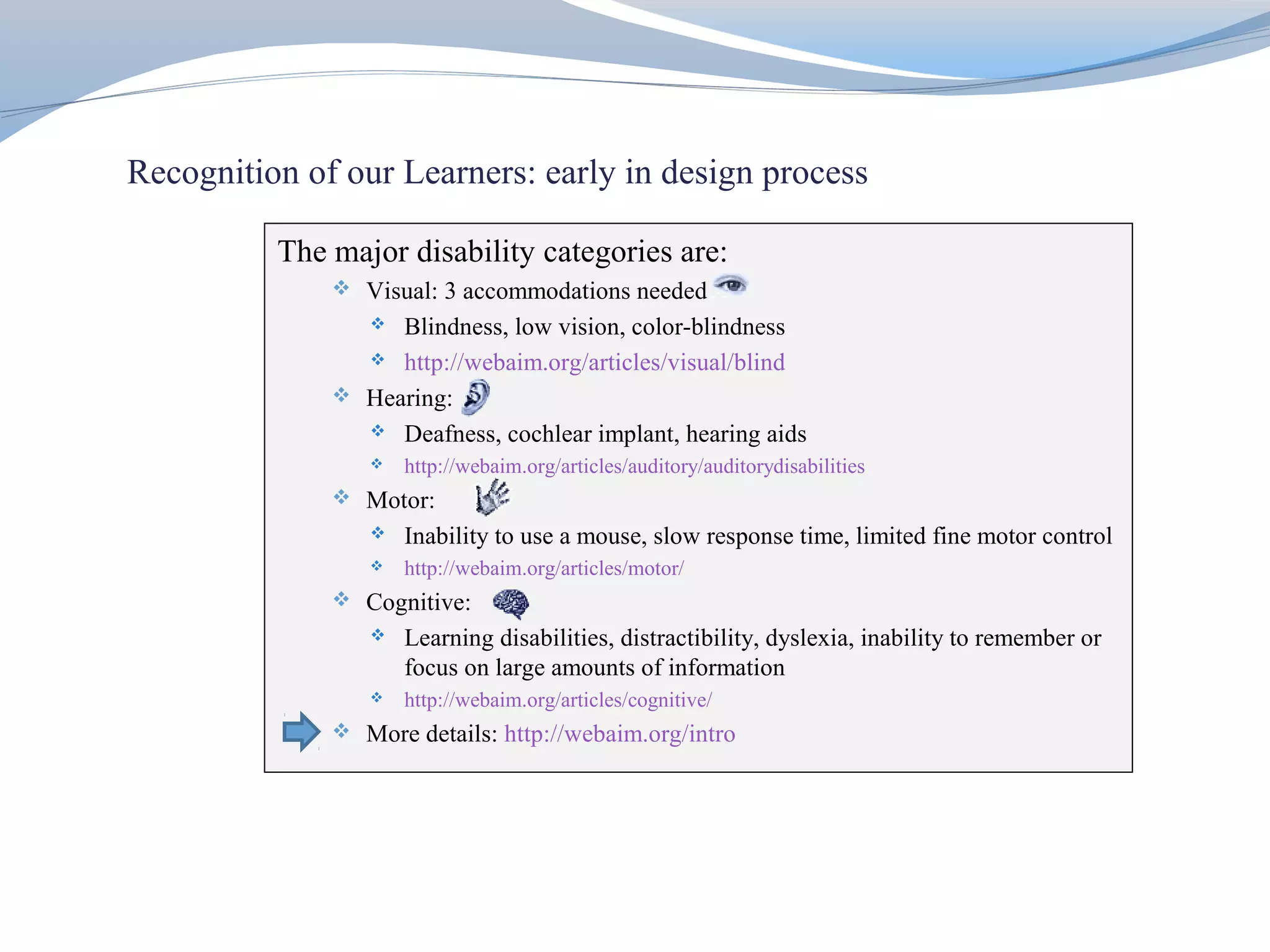
Recognition of our Learners: early in design process

          The major disability categories are:
               Visual: 3 accommodations needed
                  Blindness, low vision, color-blindness
                 http://webaim.org/articles/visual/blind

               Hearing:
                 Deafness, cochlear implant, hearing aids
                    http://webaim.org/articles/auditory/auditorydisabilities
               Motor:
                    Inability to use a mouse, slow response time, limited fine motor control
                    http://webaim.org/articles/motor/
               Cognitive:
                    Learning disabilities, distractibility, dyslexia, inability to remember or
                     focus on large amounts of information
                    http://webaim.org/articles/cognitive/
               More details: http://webaim.org/intro
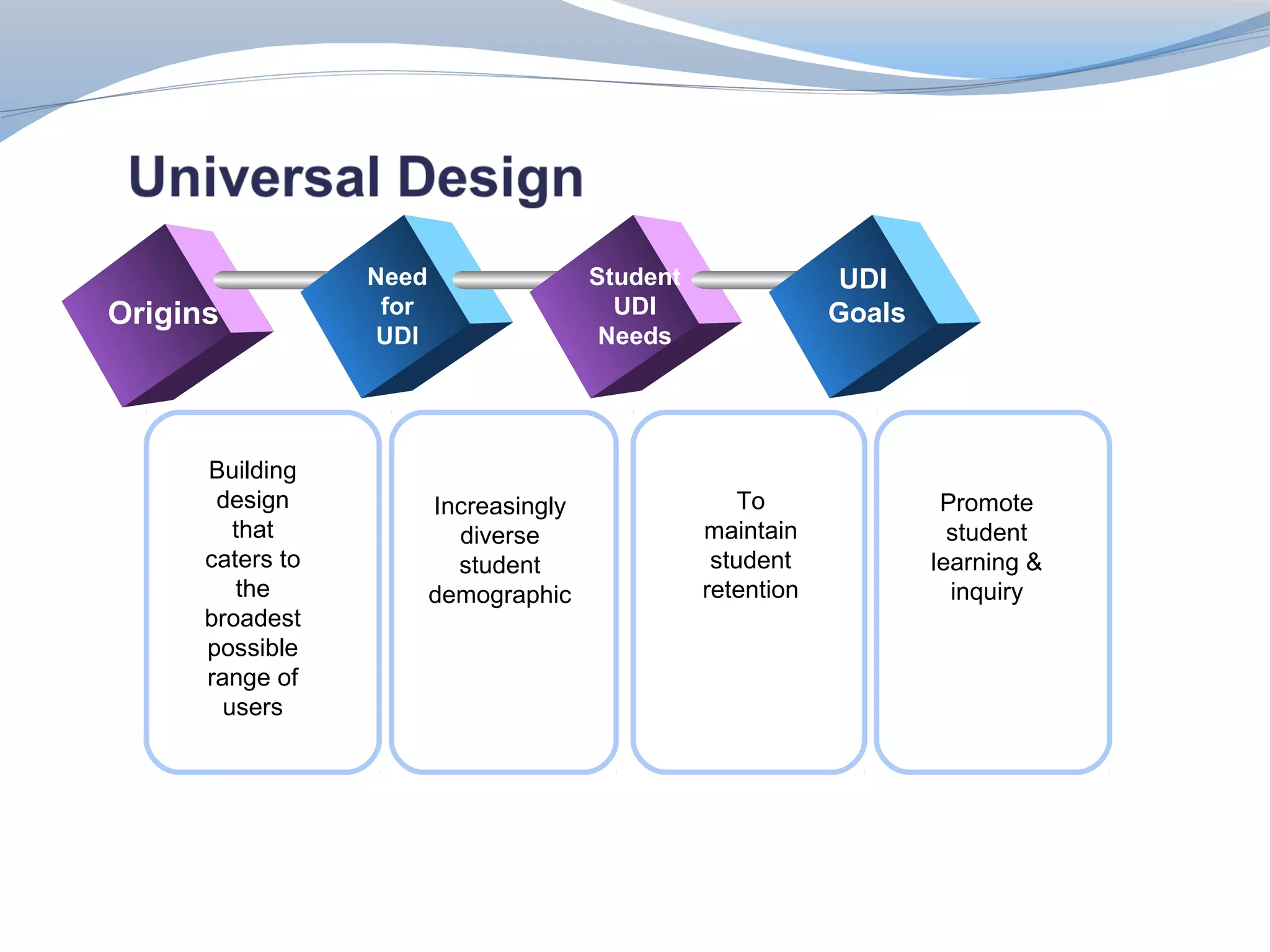
Need                  Student               UDI
Origins            for                    UDI                 Goals
                  UDI                    Needs


      Building
       design            Increasingly                 To               Promote
         that              diverse                maintain              student
      caters to            student                 student            learning &
          the            demographic              retention             inquiry
      broadest
      possible
      range of
        users
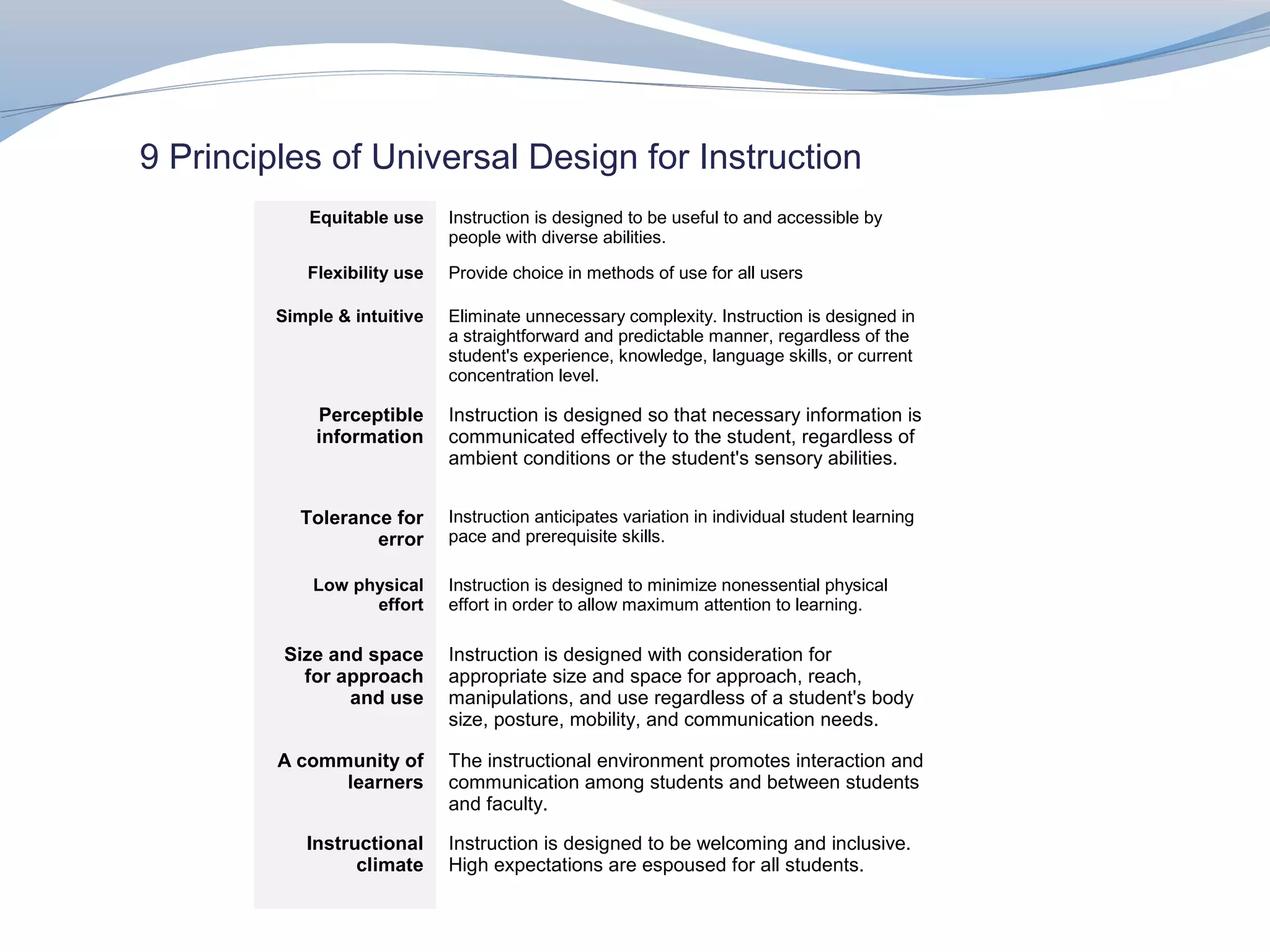
9 Principles of Universal Design for Instruction
             Equitable use    Instruction is designed to be useful to and accessible by
                              people with diverse abilities.

            Flexibility use   Provide choice in methods of use for all users

         Simple & intuitive   Eliminate unnecessary complexity. Instruction is designed in
                              a straightforward and predictable manner, regardless of the
                              student's experience, knowledge, language skills, or current
                              concentration level.

             Perceptible      Instruction is designed so that necessary information is
             information      communicated effectively to the student, regardless of
                              ambient conditions or the student's sensory abilities.


           Tolerance for      Instruction anticipates variation in individual student learning
                   error      pace and prerequisite skills.

             Low physical     Instruction is designed to minimize nonessential physical
                   effort     effort in order to allow maximum attention to learning.

          Size and space      Instruction is designed with consideration for
            for approach      appropriate size and space for approach, reach,
                 and use      manipulations, and use regardless of a student's body
                              size, posture, mobility, and communication needs.

         A community of       The instructional environment promotes interaction and
               learners       communication among students and between students
                              and faculty.

            Instructional     Instruction is designed to be welcoming and inclusive.
                  climate     High expectations are espoused for all students.
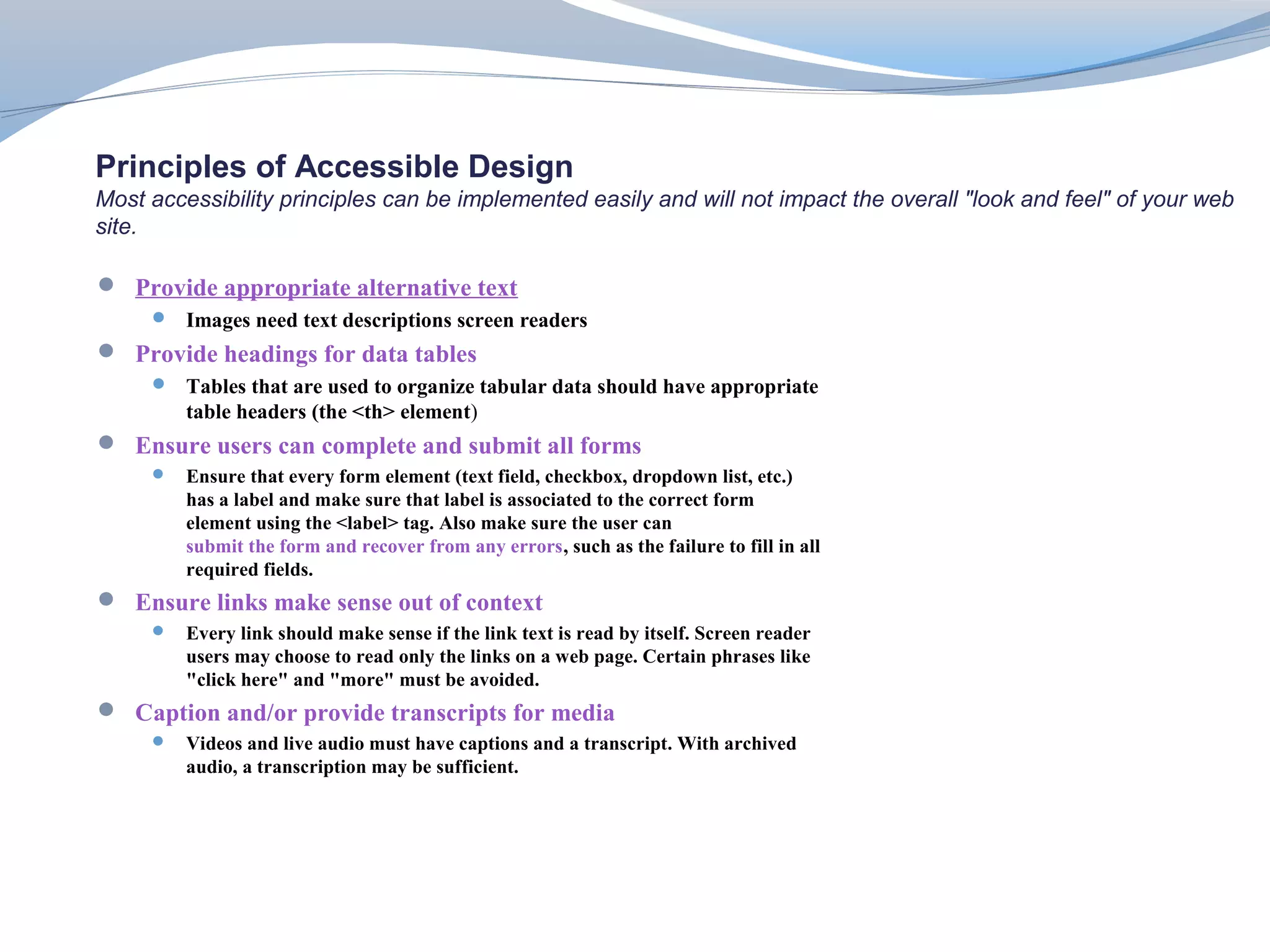
Principles of Accessible Design
Most accessibility principles can be implemented easily and will not impact the overall "look and feel" of your web
site.

 Provide appropriate alternative text
      Images need text descriptions screen readers
 Provide headings for data tables
      Tables that are used to organize tabular data should have appropriate
         table headers (the <th> element)
 Ensure users can complete and submit all forms
        Ensure that every form element (text field, checkbox, dropdown list, etc.)
         has a label and make sure that label is associated to the correct form
         element using the <label> tag. Also make sure the user can
         submit the form and recover from any errors, such as the failure to fill in all
         required fields.
 Ensure links make sense out of context
        Every link should make sense if the link text is read by itself. Screen reader
         users may choose to read only the links on a web page. Certain phrases like
         "click here" and "more" must be avoided.
 Caption and/or provide transcripts for media
        Videos and live audio must have captions and a transcript. With archived
         audio, a transcription may be sufficient.
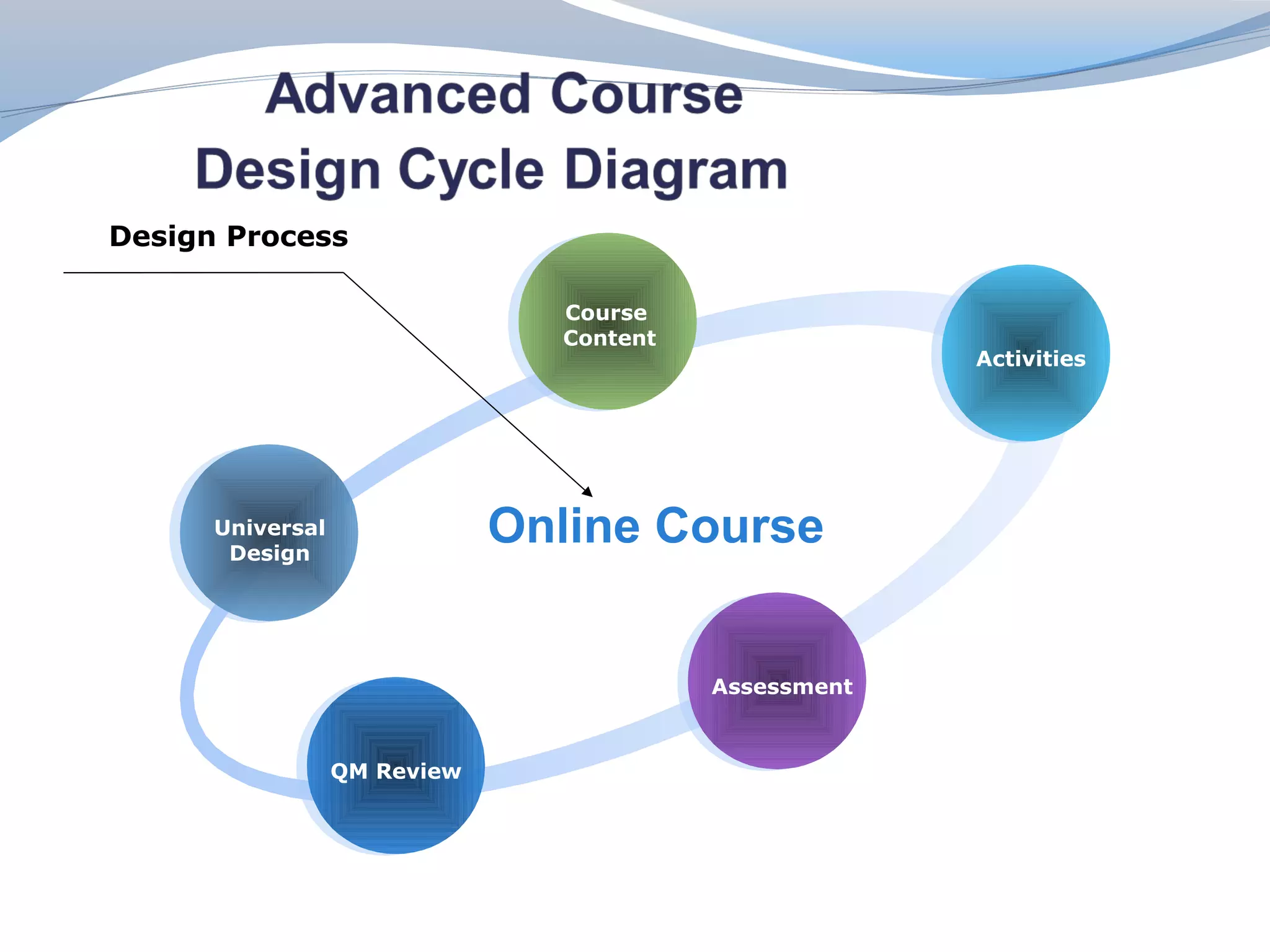
Design Process

                                Course
                                Content
                                                       Activities


      Universal
       Design
                              Online Course


                                          Assessment


                  QM Review
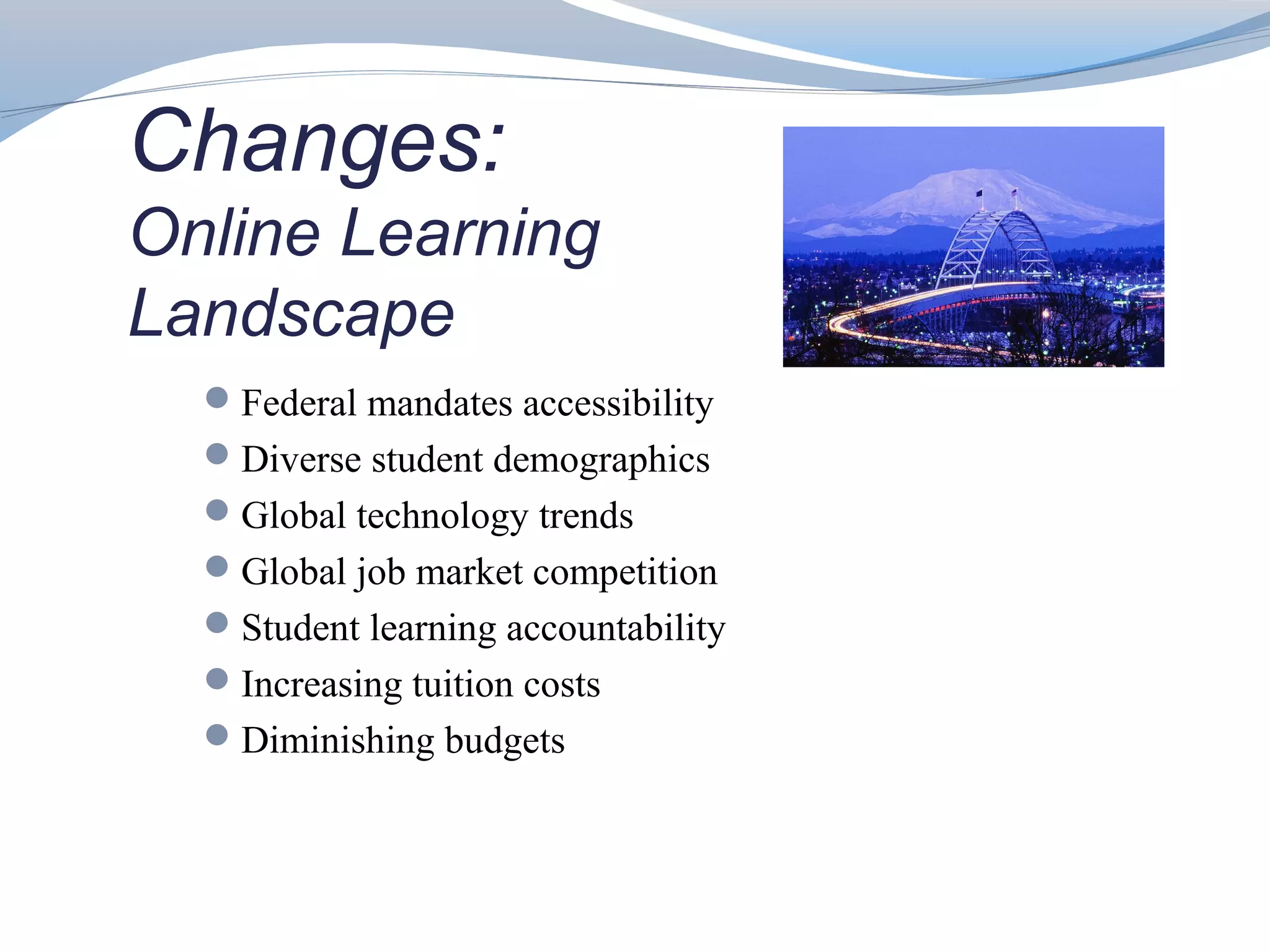
Changes:
Online Learning
Landscape
  Federal mandates accessibility
  Diverse student demographics
  Global technology trends
  Global job market competition
  Student learning accountability
  Increasing tuition costs
  Diminishing budgets
Session 2: Accessible Documents
1.   Three Terms used interchangeably                                   Adobe Reader is a free utility that allows
2.   Adobe: a company; creators of Acrobat.                              you to read and save, but not edit, PDF
3.   Acrobat: tool for creating, editing and viewing PDF                 files.
     files.                                                             http://webaim.org/resources/reader/
4.   PDF (Portable Document Format created by                           http://webaim.org/techniques/acrobat/converting
     Adobe) is a standardize format or type of document.
5.   The terms Adobe, Acrobat, and PDF are related in
     the same way as Microsoft, Word, and doc.
         1.   Acrobat 5 – began tag accessibility
         2.   Version 6 and 7 more recent accessibility
              improvements

6.   MS Word Windows: Office 2003, 2007, 2010
7.   MS Word Mac:

 Mac OS X 10.1-
                       Office v. X               January 9, 2007[27]
 10.5
 Mac OS X 10.2-
                       Office 2004              January 10, 2012[28]
 10.5
 Mac OS X 10.4-
                       Office 2008                April 9, 2013[29]
 10.6
 Mac OS X 10.5-
                       Office 2011              January 12, 2016[30
 10.8
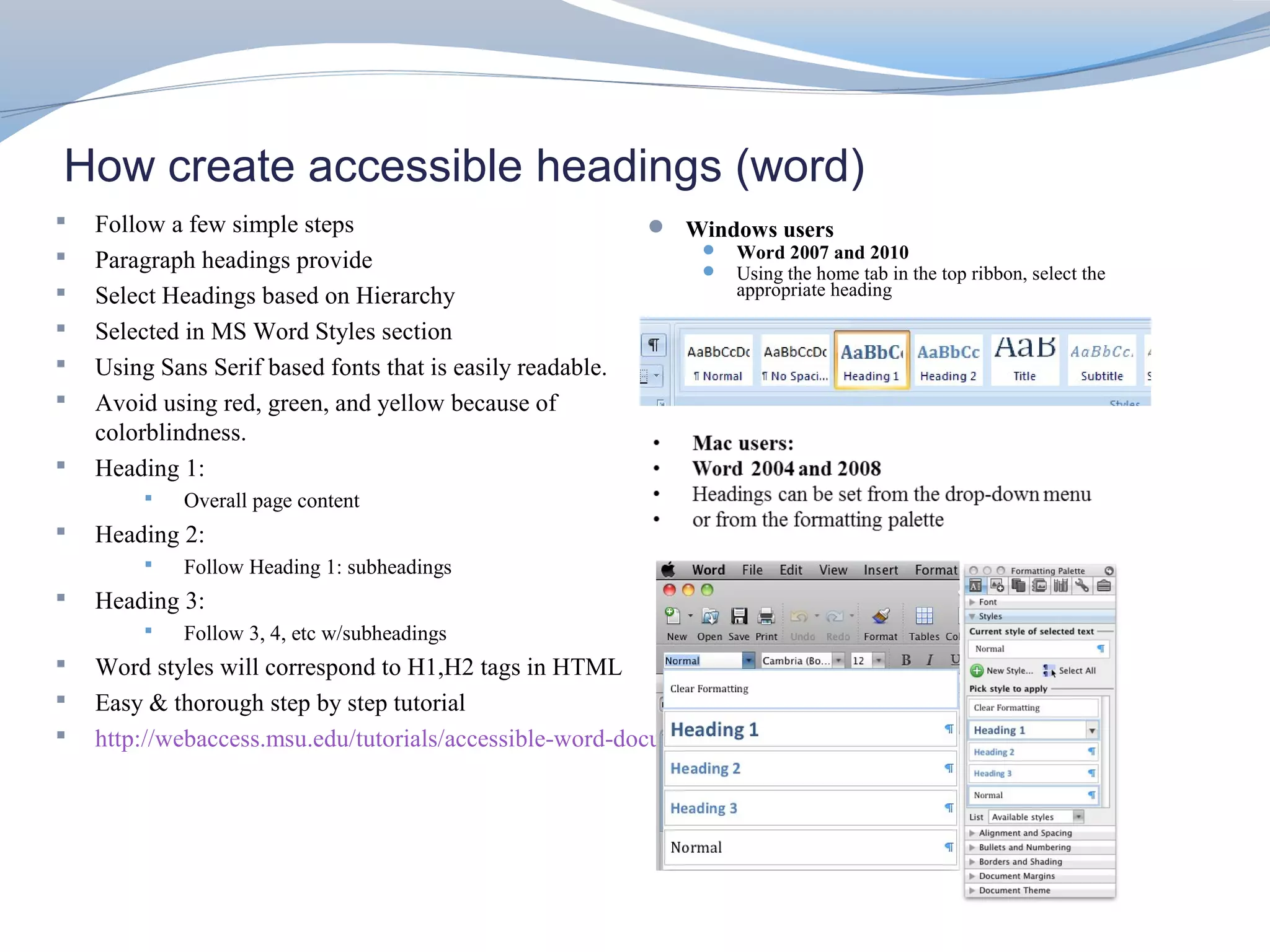
How create accessible headings (word)
   Follow a few simple steps                                Windows users
   Paragraph headings provide                                     Word 2007 and 2010
                                                                   Using the home tab in the top ribbon, select the
   Select Headings based on Hierarchy                              appropriate heading

   Selected in MS Word Styles section
   Using Sans Serif based fonts that is easily readable.
   Avoid using red, green, and yellow because of
    colorblindness.
   Heading 1:
            Overall page content
   Heading 2:
            Follow Heading 1: subheadings
   Heading 3:
            Follow 3, 4, etc w/subheadings
   Word styles will correspond to H1,H2 tags in HTML
   Easy & thorough step by step tutorial
   http://webaccess.msu.edu/tutorials/accessible-word-documents.html
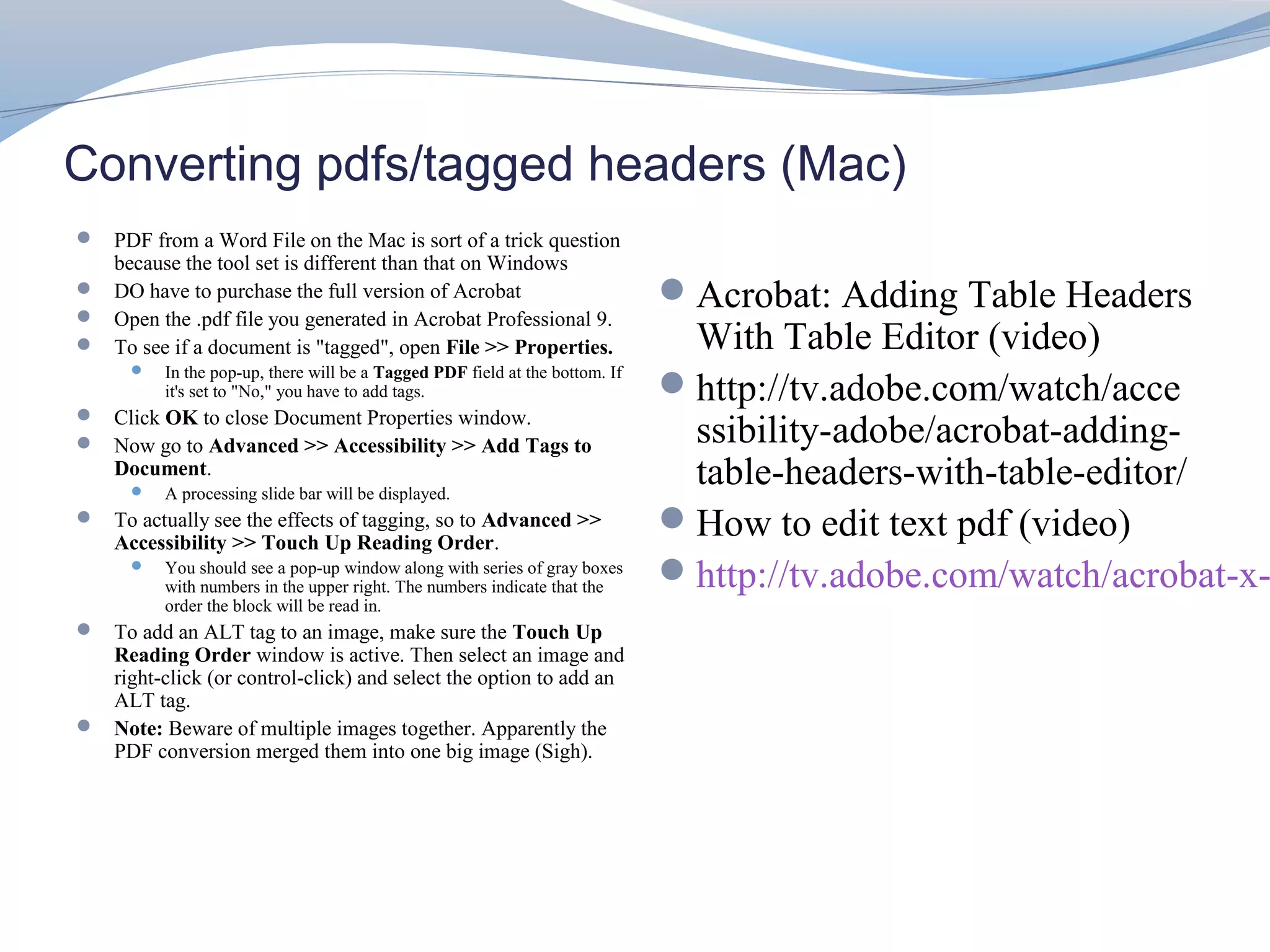
Converting pdfs/tagged headers (Mac)
 PDF from a Word File on the Mac is sort of a trick question
    because the tool set is different than that on Windows
 DO have to purchase the full version of Acrobat                             Acrobat: Adding Table Headers
 Open the .pdf file you generated in Acrobat Professional 9.
 To see if a document is "tagged", open File >> Properties.                   With Table Editor (video)
         In the pop-up, there will be a Tagged PDF field at the bottom. If
          it's set to "No," you have to add tags.                             http://tv.adobe.com/watch/acce
 Click OK to close Document Properties window.
 Now go to Advanced >> Accessibility >> Add Tags to                           ssibility-adobe/acrobat-adding-
    Document.
         A processing slide bar will be displayed.
                                                                               table-headers-with-table-editor/
 To actually see the effects of tagging, so to Advanced >>
    Accessibility >> Touch Up Reading Order.
                                                                              How to edit text pdf (video)
         You should see a pop-up window along with series of gray boxes
          with numbers in the upper right. The numbers indicate that the
                                                                              http://tv.adobe.com/watch/acrobat-x-
          order the block will be read in.
 To add an ALT tag to an image, make sure the Touch Up
  Reading Order window is active. Then select an image and
  right-click (or control-click) and select the option to add an
  ALT tag.
 Note: Beware of multiple images together. Apparently the
  PDF conversion merged them into one big image (Sigh).
HTML Heading Tags
Similar to MS Docs             <h1> Open tags
 HTML has hierarchal            </h1> bracket defines
 heading tags <h1> - <h6>         closed tags.
Heading tags use to define
 title of web page, subjects,    http://www.w3schools.com/tags/tag_hn.asp
 topics, sub heading, etc...
Structure
<h1> Subject or Title </h1>
Alternative Tags
When include image using       Structure
  alt increase web              <img src=“img1.jpg
  accessibility.                  alt=“Green PSU Logo on
                                  white background” />
Alt can provide a
  description of an image.

Alt is a attribute extension
  of an html tag.
Images: Basic protocol alt text
 Alternative text, as used in this article, refers to
    the text equivalent for an image, regardless of
    where that text resides. It does not refer solely to
    the alt attribute of the image tag. Alt attribute will
    be used when referring to the attribute itself,
    which often will, but does not exclusively,
    contain the alternative text.
   Every image must have an alt attribute. This is a
    requirement of HTML standards.
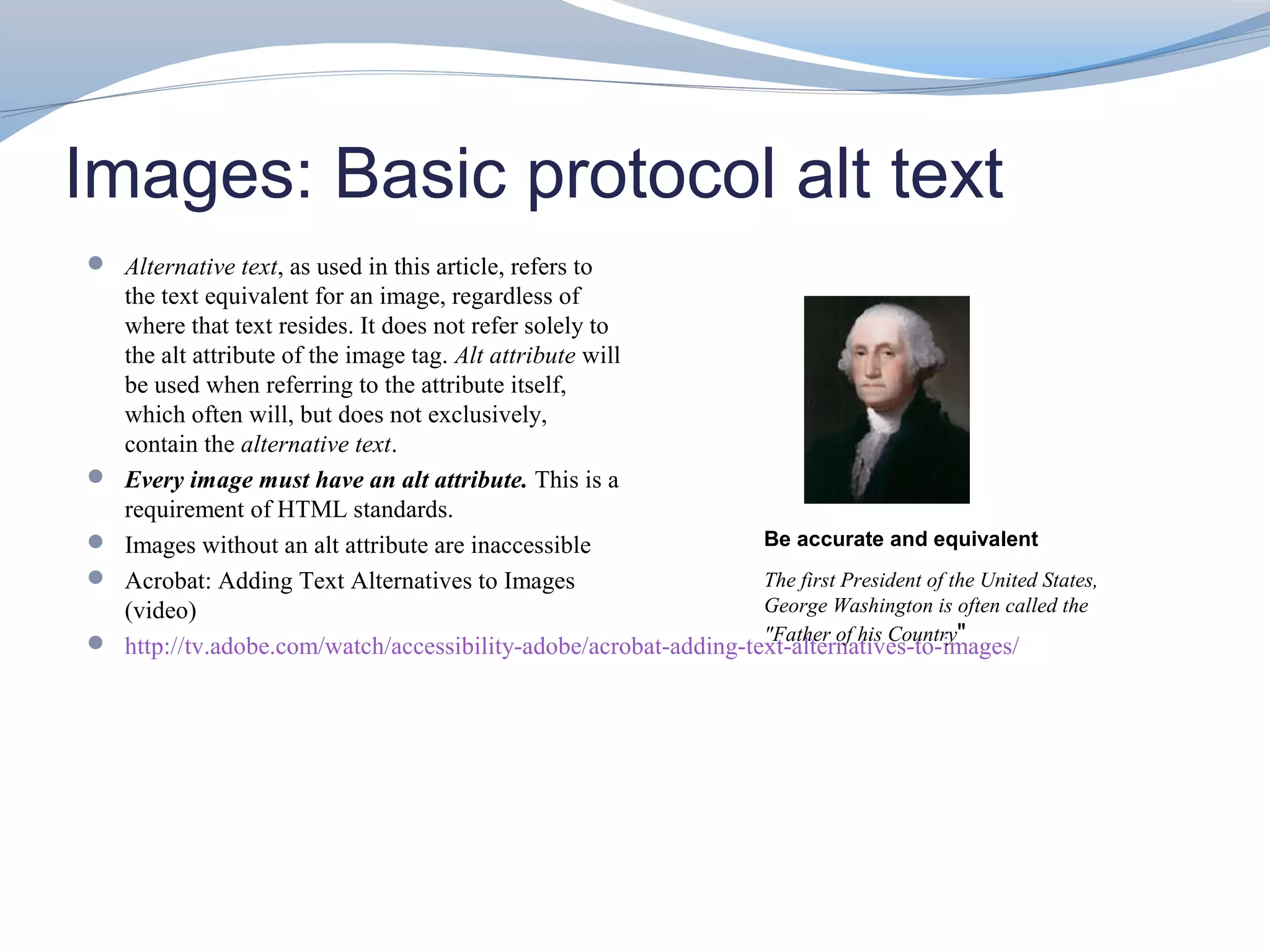
   Images without an alt attribute are inaccessible               Be accurate and equivalent
   Acrobat: Adding Text Alternatives to Images                    The first President of the United States,
    (video)                                                        George Washington is often called the
                                                                   "Father of his Country"
   http://tv.adobe.com/watch/accessibility-adobe/acrobat-adding-text-alternatives-to-images/
Video Captioning: 1 in 5 hearing impairment
  Captions are text versions of the
   spoken word.
  Benefits hard of hearing learners,
   reinforces content of video and
   second language
  Common web accessibility
   guidelines indicate that captions
   should be:
      Synchronized - the text content should
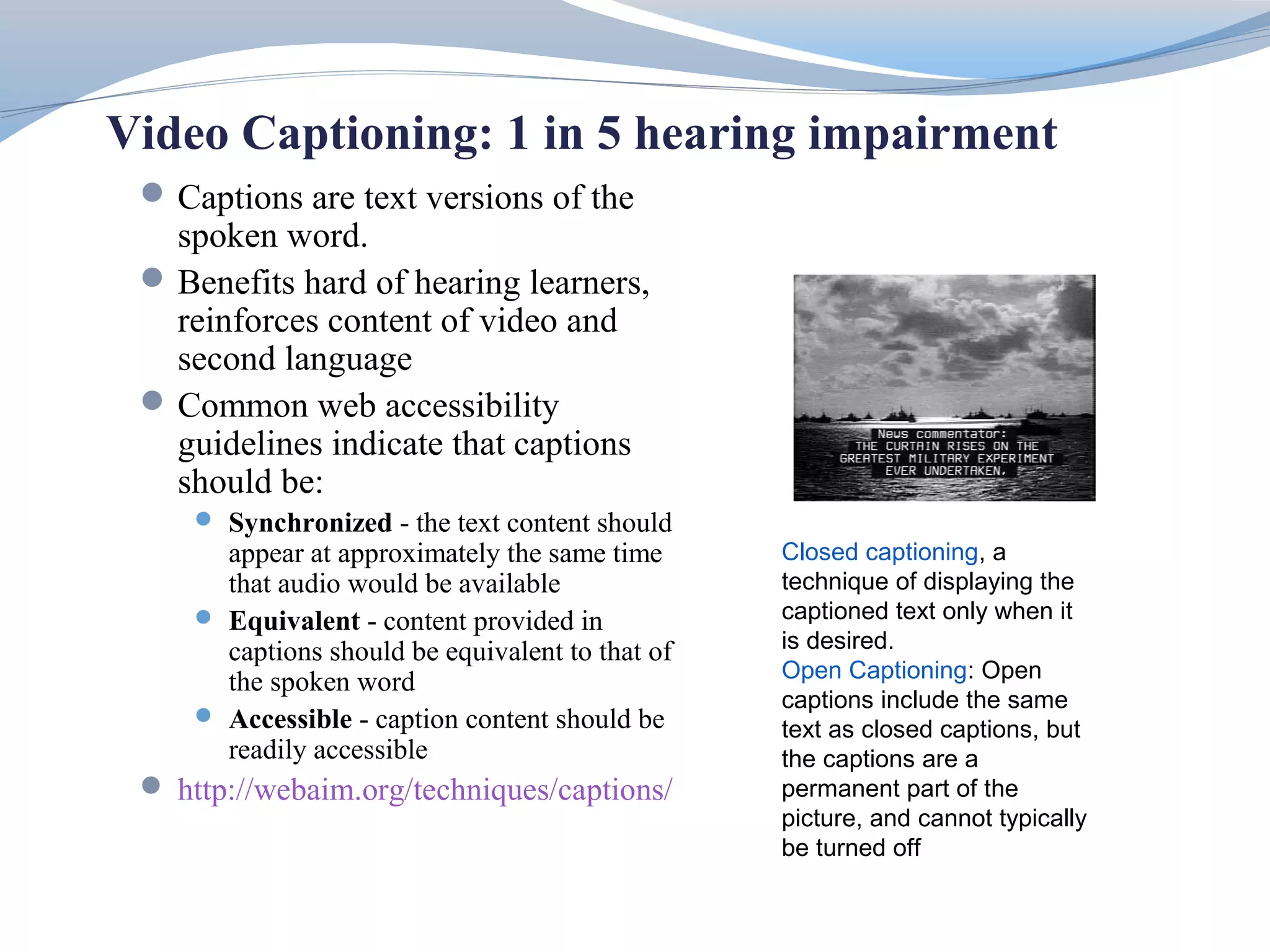
       appear at approximately the same time      Closed captioning, a
       that audio would be available              technique of displaying the
      Equivalent - content provided in           captioned text only when it
       captions should be equivalent to that of   is desired.
       the spoken word                            Open Captioning: Open
                                                  captions include the same
      Accessible - caption content should be
                                                  text as closed captions, but
       readily accessible                         the captions are a
  http://webaim.org/techniques/captions/         permanent part of the
                                                  picture, and cannot typically
                                                  be turned off
Video Closed Captioning
Closed captioning provide   Popular web video suchs
 synchronize text to video    as Youtube provide closed
 with sound.                  captioning capability.
Closed captioning can be    Web development with
 toggle on or off.            the use of web technology
Closed Captioning in         can provide closed
 video is under The 21st      captioning capability to
 Century Communication        web videos.
 Act.
Transcript for Closed Captioning and Audio

When working closed          Audio such as vocal
 captioning written            lecture or music with
 transcript would be           lyrics requires transcript.
 needed.
                              Transcript can be read
Transcript is synchronized    through a web browser or
 to the video through time     a printed transcript is
 codes.                        provided.
PSU Video options
 Films on Demand: library
 Echo 360
 Additional programs for purchase
    Adobe Captivate 6:
       Import Microsoft® PowerPoint slides and enrich with multimedia,
       interactive elements and quizzes. Deliver content to virtually any device,
       including iPads.
    Catamsia 8 – Techsmith
      Record your screen to capture PowerPoint slides, software demos, webpages

Ada workshop msl_8_24

  • 1.
    Universal Design forInstruction (UDI) A learner centered approach A faculty blueprint for student success Workshop 1: Print documents Marie S. Lewandowski| Center for Online Learning (COL)
  • 2.
    Session 1 Objectives: Rationalefor Universal Design • Recognize the principles of Universal Advanced Design • Discuss ADA Laws and standards • Identify your learners • Outline learning strategies for success • Summarize how to implement Universal Design for Learning • Devise a teaching blueprint • Assess Universal Design achievements
  • 3.
    1. Value Rubrics 1.Value Rubrics 2. Quality Matters 2. Quality Matters 3. Universal Design/GOALs Project 3. Universal Design/GOALs Project 4. Assessment & Implementation 4. Assessment & Implementation
  • 4.
    “The basic ideais that if we design Universal Design for learning learning environments with a full and natural range of students in mind, we reduce the need for accommodation.” Set of principles for curriculum development that give all individuals equal ∼ Ron Mace, NC State University opportunities to learn. UDL provides a blueprint for creating instructional goals, methods, materials, and assessments that work for everyone--not a single, one- size-fits-all solution but rather flexible approaches that can be customized and adjusted for individual needs. Inclusive approach – flexible Proactive design that benefits a broad range of learners Involves planning & delivery of instruction Evaluates learning by incorporating inclusive attributes That meet academic standards and meets the needs of a diversity of learners & styles. http://www.cast.org/udl/
  • 5.
    ADA Laws &Standards  United States, applicable laws include  ADA, IDEA, 21st Century Video and Communication Act, and the Rehabilitation Act of 1973 (Sections 504 and Section 508). Many international laws also address accessibility.  The Web Content Accessibility Guidelines provide an international set of guidelines. They are developed by the Worldwide Web Consortium (W3C), the governing body of the web. These guidelines are the basis of most web accessibility law in the world.  21st Century Communications and Video Accessibility Act, Obama 2010 – section 255
  • 6.
    3 Principles ofUDL: Flexible/Multiple Means I. Representation I. Perception II. Language, expressions & symbols III. Comprehension II. Action and Expression I. Physical action II. Expression & Communication III. Executive functions III. Engagement I. Recruiting interest II. Sustaining effort & persistence III. Self-regulation
  • 7.
    Recognition of ourLearners: early in design process The major disability categories are:  Visual: 3 accommodations needed  Blindness, low vision, color-blindness  http://webaim.org/articles/visual/blind  Hearing:  Deafness, cochlear implant, hearing aids  http://webaim.org/articles/auditory/auditorydisabilities  Motor:  Inability to use a mouse, slow response time, limited fine motor control  http://webaim.org/articles/motor/  Cognitive:  Learning disabilities, distractibility, dyslexia, inability to remember or focus on large amounts of information  http://webaim.org/articles/cognitive/  More details: http://webaim.org/intro
  • 8.
    Need Student UDI Origins for UDI Goals UDI Needs Building design Increasingly To Promote that diverse maintain student caters to student student learning & the demographic retention inquiry broadest possible range of users
  • 9.
    9 Principles ofUniversal Design for Instruction Equitable use Instruction is designed to be useful to and accessible by people with diverse abilities. Flexibility use Provide choice in methods of use for all users Simple & intuitive Eliminate unnecessary complexity. Instruction is designed in a straightforward and predictable manner, regardless of the student's experience, knowledge, language skills, or current concentration level. Perceptible Instruction is designed so that necessary information is information communicated effectively to the student, regardless of ambient conditions or the student's sensory abilities. Tolerance for Instruction anticipates variation in individual student learning error pace and prerequisite skills. Low physical Instruction is designed to minimize nonessential physical effort effort in order to allow maximum attention to learning. Size and space Instruction is designed with consideration for for approach appropriate size and space for approach, reach, and use manipulations, and use regardless of a student's body size, posture, mobility, and communication needs. A community of The instructional environment promotes interaction and learners communication among students and between students and faculty. Instructional Instruction is designed to be welcoming and inclusive. climate High expectations are espoused for all students.
  • 10.
    Principles of AccessibleDesign Most accessibility principles can be implemented easily and will not impact the overall "look and feel" of your web site.  Provide appropriate alternative text  Images need text descriptions screen readers  Provide headings for data tables  Tables that are used to organize tabular data should have appropriate table headers (the <th> element)  Ensure users can complete and submit all forms  Ensure that every form element (text field, checkbox, dropdown list, etc.) has a label and make sure that label is associated to the correct form element using the <label> tag. Also make sure the user can submit the form and recover from any errors, such as the failure to fill in all required fields.  Ensure links make sense out of context  Every link should make sense if the link text is read by itself. Screen reader users may choose to read only the links on a web page. Certain phrases like "click here" and "more" must be avoided.  Caption and/or provide transcripts for media  Videos and live audio must have captions and a transcript. With archived audio, a transcription may be sufficient.
  • 11.
    Design Process Course Content Activities Universal Design Online Course Assessment QM Review
  • 12.
    Changes: Online Learning Landscape Federal mandates accessibility Diverse student demographics Global technology trends Global job market competition Student learning accountability Increasing tuition costs Diminishing budgets
  • 13.
    Session 2: AccessibleDocuments 1. Three Terms used interchangeably  Adobe Reader is a free utility that allows 2. Adobe: a company; creators of Acrobat. you to read and save, but not edit, PDF 3. Acrobat: tool for creating, editing and viewing PDF files. files.  http://webaim.org/resources/reader/ 4. PDF (Portable Document Format created by  http://webaim.org/techniques/acrobat/converting Adobe) is a standardize format or type of document. 5. The terms Adobe, Acrobat, and PDF are related in the same way as Microsoft, Word, and doc. 1. Acrobat 5 – began tag accessibility 2. Version 6 and 7 more recent accessibility improvements 6. MS Word Windows: Office 2003, 2007, 2010 7. MS Word Mac: Mac OS X 10.1- Office v. X January 9, 2007[27] 10.5 Mac OS X 10.2- Office 2004 January 10, 2012[28] 10.5 Mac OS X 10.4- Office 2008 April 9, 2013[29] 10.6 Mac OS X 10.5- Office 2011 January 12, 2016[30 10.8
  • 14.
    How create accessibleheadings (word)  Follow a few simple steps  Windows users  Paragraph headings provide  Word 2007 and 2010  Using the home tab in the top ribbon, select the  Select Headings based on Hierarchy appropriate heading  Selected in MS Word Styles section  Using Sans Serif based fonts that is easily readable.  Avoid using red, green, and yellow because of colorblindness.  Heading 1:  Overall page content  Heading 2:  Follow Heading 1: subheadings  Heading 3:  Follow 3, 4, etc w/subheadings  Word styles will correspond to H1,H2 tags in HTML  Easy & thorough step by step tutorial  http://webaccess.msu.edu/tutorials/accessible-word-documents.html
  • 15.
    Converting pdfs/tagged headers(Mac)  PDF from a Word File on the Mac is sort of a trick question because the tool set is different than that on Windows  DO have to purchase the full version of Acrobat Acrobat: Adding Table Headers  Open the .pdf file you generated in Acrobat Professional 9.  To see if a document is "tagged", open File >> Properties. With Table Editor (video)  In the pop-up, there will be a Tagged PDF field at the bottom. If it's set to "No," you have to add tags. http://tv.adobe.com/watch/acce  Click OK to close Document Properties window.  Now go to Advanced >> Accessibility >> Add Tags to ssibility-adobe/acrobat-adding- Document.  A processing slide bar will be displayed. table-headers-with-table-editor/  To actually see the effects of tagging, so to Advanced >> Accessibility >> Touch Up Reading Order. How to edit text pdf (video)  You should see a pop-up window along with series of gray boxes with numbers in the upper right. The numbers indicate that the http://tv.adobe.com/watch/acrobat-x- order the block will be read in.  To add an ALT tag to an image, make sure the Touch Up Reading Order window is active. Then select an image and right-click (or control-click) and select the option to add an ALT tag.  Note: Beware of multiple images together. Apparently the PDF conversion merged them into one big image (Sigh).
  • 16.
    HTML Heading Tags Similarto MS Docs <h1> Open tags HTML has hierarchal </h1> bracket defines heading tags <h1> - <h6> closed tags. Heading tags use to define title of web page, subjects,  http://www.w3schools.com/tags/tag_hn.asp topics, sub heading, etc... Structure <h1> Subject or Title </h1>
  • 17.
    Alternative Tags When includeimage using Structure alt increase web <img src=“img1.jpg accessibility. alt=“Green PSU Logo on white background” /> Alt can provide a description of an image. Alt is a attribute extension of an html tag.
  • 18.
    Images: Basic protocolalt text  Alternative text, as used in this article, refers to the text equivalent for an image, regardless of where that text resides. It does not refer solely to the alt attribute of the image tag. Alt attribute will be used when referring to the attribute itself, which often will, but does not exclusively, contain the alternative text.  Every image must have an alt attribute. This is a requirement of HTML standards.  Images without an alt attribute are inaccessible Be accurate and equivalent  Acrobat: Adding Text Alternatives to Images The first President of the United States, (video) George Washington is often called the "Father of his Country"  http://tv.adobe.com/watch/accessibility-adobe/acrobat-adding-text-alternatives-to-images/
  • 19.
    Video Captioning: 1in 5 hearing impairment  Captions are text versions of the spoken word.  Benefits hard of hearing learners, reinforces content of video and second language  Common web accessibility guidelines indicate that captions should be:  Synchronized - the text content should appear at approximately the same time Closed captioning, a that audio would be available technique of displaying the  Equivalent - content provided in captioned text only when it captions should be equivalent to that of is desired. the spoken word Open Captioning: Open captions include the same  Accessible - caption content should be text as closed captions, but readily accessible the captions are a  http://webaim.org/techniques/captions/ permanent part of the picture, and cannot typically be turned off
  • 20.
    Video Closed Captioning Closedcaptioning provide Popular web video suchs synchronize text to video as Youtube provide closed with sound. captioning capability. Closed captioning can be Web development with toggle on or off. the use of web technology Closed Captioning in can provide closed video is under The 21st captioning capability to Century Communication web videos. Act.
  • 21.
    Transcript for ClosedCaptioning and Audio When working closed Audio such as vocal captioning written lecture or music with transcript would be lyrics requires transcript. needed. Transcript can be read Transcript is synchronized through a web browser or to the video through time a printed transcript is codes. provided.
  • 22.
    PSU Video options Films on Demand: library  Echo 360  Additional programs for purchase  Adobe Captivate 6:  Import Microsoft® PowerPoint slides and enrich with multimedia, interactive elements and quizzes. Deliver content to virtually any device, including iPads.  Catamsia 8 – Techsmith  Record your screen to capture PowerPoint slides, software demos, webpages

Editor's Notes

  • #3 Students have a wide variety of how they are engaged…applying universal design to learning and alternatives…everyone can get the curriculum and learning to build flexibility. http://ctfd.sfsu.edu/universal-design-for-learning-online-training-module.htm
  • #5 he bill is primarily targeted at communications and video equipment manufacturers, video service providers and producers of video content. The act requires that all communications and video programming service or equipment providers must provide services and equipment in an equally accessible manner to ensure compliance with government regulations for accessibility. The act builds on a variety of current pieces of legislation relating to accessibility including  Section 508  of the Rehabilitation Act and Section 255  of the Telecommunications Act amending and extending them as needed.
  • #7 http://www.udlcenter.org/aboutudl/udlguidelines/principle2#principle2_g5 http://www.udlcenter.org/print/221
  • #8 Though estimates vary, most studies find that about one fifth (20%) of the population has some kind of disability. Not all of these people have disabilities that make it difficult for them to access the internet, but it is still a significant portion of the population. Businesses would be unwise to purposely exclude 20, 10, or even 5 percent of their potential customers from their web sites. For schools, universities, and government entities it would not only be unwise, but in many cases, it would also break the law.
  • #11 http://www.microsoft.com/enable/
  • #12 Review the faculty members syllabus and provide the 15 value rubrics – Critical Thinking rubric is the baseline and then integrate another rubric that applies to the course content, in my first advanced designed rubric the civic engagement applies
  • #14 http://www.uaa.alaska.edu/dss/faculty/universal.cfm Acrobat Reader 6 (full version), Adobe embedded a scaled-down screen reader into the Reader software itself. This scaled-down screen reader (more accurately referred to as a text-to-speech synthesizer) can read aloud the text in nearly all PDF files, even older files that were not created with accessibility in mind. Adobe Reader 7 continues to improve the user&apos;s accessibility to PDF files. You are able to customize your preferences more than ever. This article will provide a step-by-step overview of most prominent accessibility features of Adobe Reader 7, including improved control over user preferences and new accessibility settings.
  • #15 Paragraph headings provide context and a way to navigate documents. By just making your text bold and increasing the font size, a screen reader does not &quot;see&quot; this and therefore does not know the difference between sections. Instead, transforming this text to a heading will allow a screen reader to easily navigate your page and provide accessibility for all.
  • #16 By ELIZABETH J PYATT http://www.personal.psu.edu/ejp10/blogs/tlt/2009/08/creating-an-accessible-pdf-fro.html http://webaim.org/techniques/acrobat/ http://webaim.org/techniques/acrobat/converting#in_acrobat http://www.csus.edu/accessibility/guides/creating_accessible_pdfs.pdf
  • #19 http://webaim.org/resources/opera/ http://webaim.org/articles/evaluatingwithfirefox/ http://webaim.org/techniques/alttext/#basics
  • #20 http://webaim.org/techniques/captions/
  • #23 http://help.adobe.com/en_US/captivate/cp/using/WSc1b83f70210cd101-157ec7f211c7ef6052c-7fff.html#WSc1b83f70210cd1011d7107e311c7efcf707-8000