A PowerPoint Tutorial
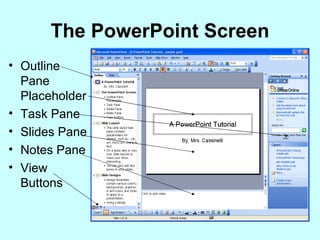
The PowerPoint Screen Outline Pane Placeholder Task Pane Slides Pane Notes Pane View Buttons
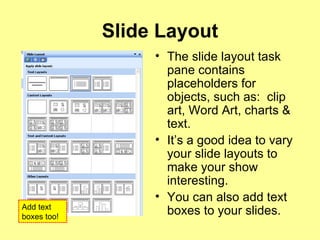
Slide Layout The slide layout task pane contains placeholders for objects, such as:  clip art, Word Art, charts & text. It’s a good idea to vary your slide layouts to make your show interesting. You can also add text boxes to your slides. Add text boxes too!
Slide Designs Design templates contain various colorful backgrounds, graphics & text colors and styles to apply to a presentation. Using a design template creates a professional looking presentation (but they can be overused).  Or you can apply a different one to each slide.
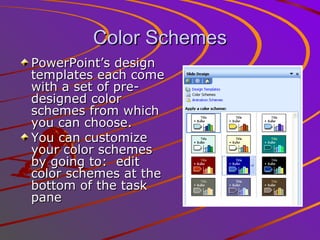
Color Schemes PowerPoint’s design templates each come with a set of pre-designed color schemes from which you can choose. You can customize your color schemes by going to:  edit color schemes at the bottom of the task pane
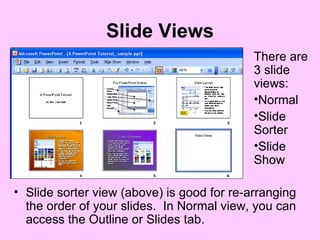
Slide Views Slide sorter view (above) is good for re-arranging the order of your slides.  In Normal view, you can access the Outline or Slides tab. There are 3 slide views: Normal Slide Sorter Slide Show
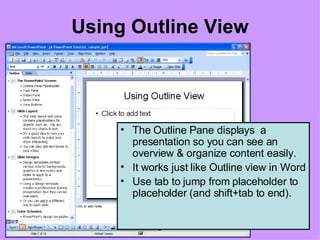
Using Outline View The Outline Pane displays  a presentation so you can see an overview & organize content easily. It works just like Outline view in Word Use tab to jump from placeholder to placeholder (and shift+tab to end).
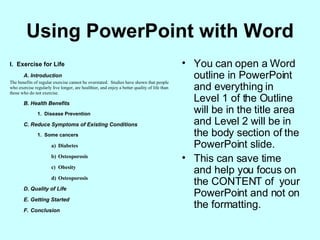
Using PowerPoint with Word You can open a Word outline in PowerPoint and everything in Level 1 of the Outline will be in the title area and Level 2 will be in the body section of the PowerPoint slide. This can save time and help you focus on the CONTENT of  your PowerPoint and not on the formatting.
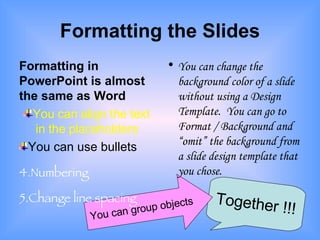
Formatting the Slides Formatting in PowerPoint is almost the same as Word You can align the text in the placeholders You can use bullets Numbering Change line spacing You can change the background color of a slide without using a Design Template.  You can go to Format / Background and “omit” the background from a slide design template that you chose. Together !!! You can group objects
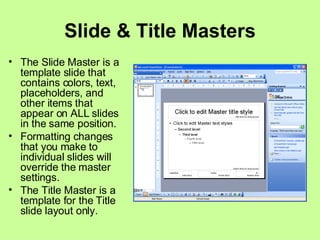
Slide & Title Masters The Slide Master is a template slide that contains colors, text, placeholders, and other items that appear on ALL slides in the same position. Formatting changes that you make to individual slides will override the master settings. The Title Master is a template for the Title slide layout only.
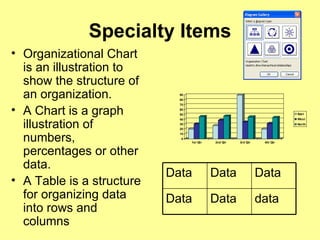
Specialty Items Organizational Chart is an illustration to show the structure of an organization. A Chart is a graph illustration of numbers, percentages or other data. A Table is a structure for organizing data into rows and columns data Data Data Data Data Data
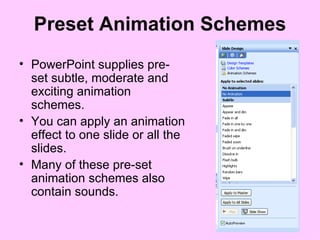
Preset Animation Schemes PowerPoint supplies pre-set subtle, moderate and exciting animation schemes. You can apply an animation effect to one slide or all the slides. Many of these pre-set animation schemes also contain sounds.
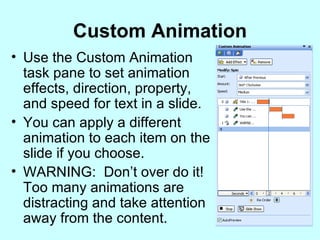
Custom Animation Use the Custom Animation task pane to set animation effects, direction, property, and speed for text in a slide. You can apply a different animation to each item on the slide if you choose. WARNING:  Don’t over do it!  Too many animations are distracting and take attention away from the content.
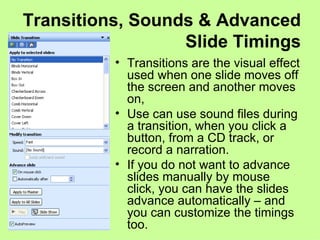
Transitions, Sounds & Advanced Slide Timings Transitions are the visual effect used when one slide moves off the screen and another moves on, Use can use sound files during a transition, when you click a button, from a CD track, or record a narration. If you do not want to advance slides manually by mouse click, you can have the slides advance automatically – and you can customize the timings too.
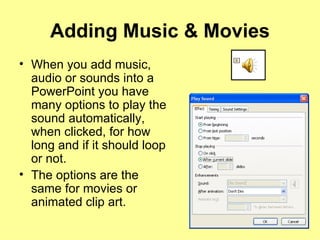
Adding Music & Movies When you add music, audio or sounds into a PowerPoint you have many options to play the sound automatically, when clicked, for how long and if it should loop or not. The options are the same for movies or animated clip art.
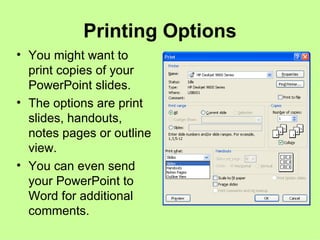
Printing Options You might want to print copies of your PowerPoint slides. The options are print slides, handouts, notes pages or outline view. You can even send your PowerPoint to Word for additional comments.
Thanks for watching!

A Power Point Tutorial

  • 1.
  • 2.
    The PowerPoint ScreenOutline Pane Placeholder Task Pane Slides Pane Notes Pane View Buttons
  • 3.
    Slide Layout Theslide layout task pane contains placeholders for objects, such as: clip art, Word Art, charts & text. It’s a good idea to vary your slide layouts to make your show interesting. You can also add text boxes to your slides. Add text boxes too!
  • 4.
    Slide Designs Designtemplates contain various colorful backgrounds, graphics & text colors and styles to apply to a presentation. Using a design template creates a professional looking presentation (but they can be overused). Or you can apply a different one to each slide.
  • 5.
    Color Schemes PowerPoint’sdesign templates each come with a set of pre-designed color schemes from which you can choose. You can customize your color schemes by going to: edit color schemes at the bottom of the task pane
  • 6.
    Slide Views Slidesorter view (above) is good for re-arranging the order of your slides. In Normal view, you can access the Outline or Slides tab. There are 3 slide views: Normal Slide Sorter Slide Show
  • 7.
    Using Outline ViewThe Outline Pane displays a presentation so you can see an overview & organize content easily. It works just like Outline view in Word Use tab to jump from placeholder to placeholder (and shift+tab to end).
  • 8.
    Using PowerPoint withWord You can open a Word outline in PowerPoint and everything in Level 1 of the Outline will be in the title area and Level 2 will be in the body section of the PowerPoint slide. This can save time and help you focus on the CONTENT of your PowerPoint and not on the formatting.
  • 9.
    Formatting the SlidesFormatting in PowerPoint is almost the same as Word You can align the text in the placeholders You can use bullets Numbering Change line spacing You can change the background color of a slide without using a Design Template. You can go to Format / Background and “omit” the background from a slide design template that you chose. Together !!! You can group objects
  • 10.
    Slide & TitleMasters The Slide Master is a template slide that contains colors, text, placeholders, and other items that appear on ALL slides in the same position. Formatting changes that you make to individual slides will override the master settings. The Title Master is a template for the Title slide layout only.
  • 11.
    Specialty Items OrganizationalChart is an illustration to show the structure of an organization. A Chart is a graph illustration of numbers, percentages or other data. A Table is a structure for organizing data into rows and columns data Data Data Data Data Data
  • 12.
    Preset Animation SchemesPowerPoint supplies pre-set subtle, moderate and exciting animation schemes. You can apply an animation effect to one slide or all the slides. Many of these pre-set animation schemes also contain sounds.
  • 13.
    Custom Animation Usethe Custom Animation task pane to set animation effects, direction, property, and speed for text in a slide. You can apply a different animation to each item on the slide if you choose. WARNING: Don’t over do it! Too many animations are distracting and take attention away from the content.
  • 14.
    Transitions, Sounds &Advanced Slide Timings Transitions are the visual effect used when one slide moves off the screen and another moves on, Use can use sound files during a transition, when you click a button, from a CD track, or record a narration. If you do not want to advance slides manually by mouse click, you can have the slides advance automatically – and you can customize the timings too.
  • 15.
    Adding Music &Movies When you add music, audio or sounds into a PowerPoint you have many options to play the sound automatically, when clicked, for how long and if it should loop or not. The options are the same for movies or animated clip art.
  • 16.
    Printing Options Youmight want to print copies of your PowerPoint slides. The options are print slides, handouts, notes pages or outline view. You can even send your PowerPoint to Word for additional comments.
  • 17.