IInnssttaalllliinngg aanndd 
UUppggrraaddiinngg WWiinnddoowwss
OOppeerraattiinngg SSyysstteemm 
 Provides the fundamental link between the 
hardware that makes up the PC and the 
user 
 OS should be able to do four things: 
– Communicate with hardware 
– Provide a user interface 
– Provide a structure for accessing applications 
– Enable users to manipulate programs and data
Microsoft Windows 
 MMiiccrroossoofftt WWiinnddoowwss 9955 
 MMiiccrroossoofftt WWiinnddoowwss 9988 
 MMiiccrroossoofftt WWiinnddoowwss NNTT 
 MMiiccrroossoofftt WWiinnddoowwss 22000000 
 MMiiccrroossoofftt WWiinnddoowwss XXPP 
 MMiiccrroossoofftt WWiinnddoowwss VViissttaa 
 MMiiccrroossoofftt WWiinnddoowwss 22000033 –– SSeerrvveerr OOss
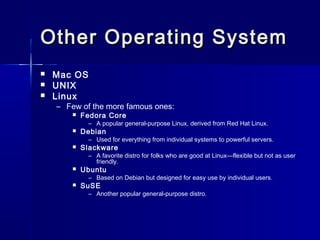
Other OOppeerraattiinngg SSyysstteemm 
 Mac OS 
 UNIX 
 Linux 
– Few of the more famous ones: 
 Fedora Core 
– A popular general-purpose Linux, derived from Red Hat Linux. 
 Debian 
– Used for everything from individual systems to powerful servers. 
 Slackware 
– A favorite distro for folks who are good at Linux—flexible but not as user 
friendly. 
 Ubuntu 
– Based on Debian but designed for easy use by individual users. 
 SuSE 
– Another popular general-purpose distro.
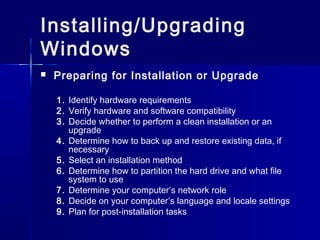
Installing/Upgrading 
Windows 
 Preparing for Installation or Upgrade 
1. Identify hardware requirements 
2. Verify hardware and software compatibility 
3. Decide whether to perform a clean installation or an 
upgrade 
4. Determine how to back up and restore existing data, if 
necessary 
5. Select an installation method 
6. Determine how to partition the hard drive and what file 
system to use 
7. Determine your computer’s network role 
8. Decide on your computer’s language and locale settings 
9. Plan for post-installation tasks
Post-Installation Tasks 
 Identifying Installation Problems 
 Patches, Service Packs, and 
Updates 
 Upgrading Drivers 
 Restoring User Data Files 
(if Applicable)
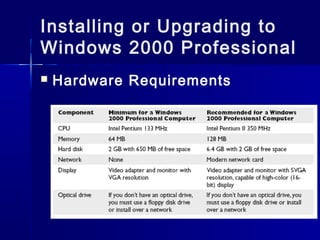
Installing or Upgrading to 
Windows 2000 Professional 
 Hardware Requirements
Installing or Upgrading 
to Windows XP 
Professional 
 Upgrade Paths 
– Windows 98 (all versions) 
– Windows Me 
– Windows NT 4.0 Workstation (Service 
Pack 5 and later) 
– Windows 2000 Professional (including 
service packs) 
– Windows XP Home Edition
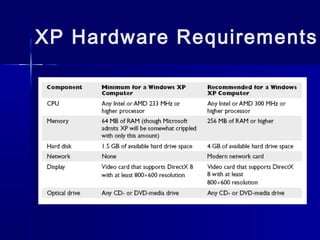
XP Hardware Requirements
Upgrading Issues for Windows 
2000 and Windows XP 
 Issues that you should be aware of before performing an 
upgrade: 
– You can upgrade directly to Windows 2000 Professional from 
Windows 95/98 (but not Windows Me) and Windows NT 
Workstation 
 Because of differences between Windows 9x and Windows 
2000/XP, you 
– might find that some programs that ran well under Windows 9x 
will not run under Windows 2000/XP 
– Not only does Windows 2000/XP have new hardware 
requirements, it also does not like a lot of Windows 9x software! 
– Third-party disk compression applications are not supported by 
Windows 2000/XP 
– Third-party power management applications are also likely to 
cause problems with a Windows 2000/XP installation
The Windows 2000/XP 
Clean Install Process 
 Manually 
– From CD-ROM 
– Over the Network Installation 
 Automating the Install 
– Scripting Installations with Setup 
Manager 
– Sysprep 
 Disk Cloning
Troubleshooting 
Installation Problems (Text 
Mode Errors) 
 No Boot Device Present When Booting Off the Startup 
Disk 
 Either the startup disk is bad or the CMOS is not set to look at that disk drive 
first 
 Windows Setup Requires XXXX Amount of Available Drive 
Space 
– You forgot to format the C: drive, or there’s a bunch of stuff on the drive 
already 
 Not Ready Error on Optical Drive 
– You probably just need to give the optical drive a moment to catch up. 
Press R for retry a few times. You may also have a damaged installation 
disc, or the optical drive may be too slow for the system 
 A Stop Error (Blue Screen of Death) After the Reboot at 
the End of Text Mode 
– This is most common during a Windows 2000/XP installation and may 
mean that you didn’t do your homework in checking hardware 
compatibility, especially the BIOS. I’ll tell you more about stop errors in 
Chapter 15, but if you encounter one of these errors during installation, 
check out the Microsoft Knowledge Base, especially article 165863, 
“Troubleshooting ‘Stop 0x0A’ Messages in Windows 2000 and Windows 
NT.”
Troubleshooting Installation 
Problems (Graphical Mode 
Errors) 
 Hardware Detection Errors 
 Can’t Read CAB Files 
 Lockups During Install 
 Smart Recovery, Repair Install 
 Optical Drive, Hard Drive

12 installing and upgrading windows

  • 1.
  • 2.
    OOppeerraattiinngg SSyysstteemm Provides the fundamental link between the hardware that makes up the PC and the user  OS should be able to do four things: – Communicate with hardware – Provide a user interface – Provide a structure for accessing applications – Enable users to manipulate programs and data
  • 3.
    Microsoft Windows MMiiccrroossoofftt WWiinnddoowwss 9955  MMiiccrroossoofftt WWiinnddoowwss 9988  MMiiccrroossoofftt WWiinnddoowwss NNTT  MMiiccrroossoofftt WWiinnddoowwss 22000000  MMiiccrroossoofftt WWiinnddoowwss XXPP  MMiiccrroossoofftt WWiinnddoowwss VViissttaa  MMiiccrroossoofftt WWiinnddoowwss 22000033 –– SSeerrvveerr OOss
  • 4.
    Other OOppeerraattiinngg SSyysstteemm  Mac OS  UNIX  Linux – Few of the more famous ones:  Fedora Core – A popular general-purpose Linux, derived from Red Hat Linux.  Debian – Used for everything from individual systems to powerful servers.  Slackware – A favorite distro for folks who are good at Linux—flexible but not as user friendly.  Ubuntu – Based on Debian but designed for easy use by individual users.  SuSE – Another popular general-purpose distro.
  • 5.
    Installing/Upgrading Windows Preparing for Installation or Upgrade 1. Identify hardware requirements 2. Verify hardware and software compatibility 3. Decide whether to perform a clean installation or an upgrade 4. Determine how to back up and restore existing data, if necessary 5. Select an installation method 6. Determine how to partition the hard drive and what file system to use 7. Determine your computer’s network role 8. Decide on your computer’s language and locale settings 9. Plan for post-installation tasks
  • 6.
    Post-Installation Tasks Identifying Installation Problems  Patches, Service Packs, and Updates  Upgrading Drivers  Restoring User Data Files (if Applicable)
  • 7.
    Installing or Upgradingto Windows 2000 Professional  Hardware Requirements
  • 8.
    Installing or Upgrading to Windows XP Professional  Upgrade Paths – Windows 98 (all versions) – Windows Me – Windows NT 4.0 Workstation (Service Pack 5 and later) – Windows 2000 Professional (including service packs) – Windows XP Home Edition
  • 9.
  • 10.
    Upgrading Issues forWindows 2000 and Windows XP  Issues that you should be aware of before performing an upgrade: – You can upgrade directly to Windows 2000 Professional from Windows 95/98 (but not Windows Me) and Windows NT Workstation  Because of differences between Windows 9x and Windows 2000/XP, you – might find that some programs that ran well under Windows 9x will not run under Windows 2000/XP – Not only does Windows 2000/XP have new hardware requirements, it also does not like a lot of Windows 9x software! – Third-party disk compression applications are not supported by Windows 2000/XP – Third-party power management applications are also likely to cause problems with a Windows 2000/XP installation
  • 11.
    The Windows 2000/XP Clean Install Process  Manually – From CD-ROM – Over the Network Installation  Automating the Install – Scripting Installations with Setup Manager – Sysprep  Disk Cloning
  • 12.
    Troubleshooting Installation Problems(Text Mode Errors)  No Boot Device Present When Booting Off the Startup Disk  Either the startup disk is bad or the CMOS is not set to look at that disk drive first  Windows Setup Requires XXXX Amount of Available Drive Space – You forgot to format the C: drive, or there’s a bunch of stuff on the drive already  Not Ready Error on Optical Drive – You probably just need to give the optical drive a moment to catch up. Press R for retry a few times. You may also have a damaged installation disc, or the optical drive may be too slow for the system  A Stop Error (Blue Screen of Death) After the Reboot at the End of Text Mode – This is most common during a Windows 2000/XP installation and may mean that you didn’t do your homework in checking hardware compatibility, especially the BIOS. I’ll tell you more about stop errors in Chapter 15, but if you encounter one of these errors during installation, check out the Microsoft Knowledge Base, especially article 165863, “Troubleshooting ‘Stop 0x0A’ Messages in Windows 2000 and Windows NT.”
  • 13.
    Troubleshooting Installation Problems(Graphical Mode Errors)  Hardware Detection Errors  Can’t Read CAB Files  Lockups During Install  Smart Recovery, Repair Install  Optical Drive, Hard Drive