OPERATING SY STEMS
      AND UTILITY PROGRAMS


Slides By Rana Usman Sattar
Student Of BBA(Hons)
PMAS Arid Agriculture University Rawalpindi
Gmail: ranaa.usman@gmail.com
Facebook: usman.shan86@yahoo.com
SY STEM SOFTWARE

 System software consists of the programs
that control or maintain the operations of the
computer and its devices. System software serves
as the interface between the user, the application
software, and the computer’s hardware.
Two types of system software are operating
systems and utility programs.
OPERATING SY STEMS
 An operating system (OS) is a set of programs containing
instructions that work together to coordinate all the activities
among computer hardware resources.
Most operating Systems perform similar functions that
include starting and shutting down a computer, providing a
user interface, managing programs, managing memory,
coordinating tasks, configuring devices, establishing an
Internet connection, Monitoring performance, providing file
management and other utilities, and automatically updating
itself and certain utility programs.
OPERATING SY STEMS
 The operating system is installed and resides on the computer’s hard
disk. On handheld computers and many mobile devices such as smart phones,
the operating system may reside on a ROM chip.
Different sizes of computers typically use different operating systems because


Operating systems generally are written to run on a specific type of computer.
The operating system that a computer uses sometimes is called the platform.
With purchased application software, the package or specifications identify
the required platform (operating system). A cross-platform program is one
that runs the same on multiple operating systems.
OPERATING SY STEM
          FUNCTIONS

Regardless of the size of the computer,

however, most operating systems provide

similar functions.

The operating system handles many of these

functions automatically, without requiring

any instructions from a user.
OPERATING SY STEM
                        FUNCTIONS
Starting and Shutting Down a Computer The process of starting or restarting a
computer is called booting. When turning on a computer that has been powered off
completely, you are performing a cold boot.
A warm boot, by contrast, is the process of using the operating system to restart a
computer.


Each time you boot a computer, the kernel and other frequently used operating
system instructions are loaded, or copied, from storage into the computer’s memory
(RAM). The kernel is the core of an operating system that manages memory and
devices, maintains the computer’s clock, starts programs, and assigns the computer’s
resources, such as devices, programs, data, and information.


The kernel is memory resident, which means it remains in memory while the computer
is running. Other parts of the operating system are nonresident, that is, these
instructions remain on a storage medium until They are needed.
BOOTING PROCESS
    Step 1: When you turn on the computer, the
power supply sends an electrical signal to the components in the
system unit.
    Step 2: The charge of electricity causes the
processor chip to reset itself and find the ROM chip(s) that contains
the BIOS.
    Step 3: The BIOS executes a series of tests
to make sure the computer hardware is connected properly and
operating correctly. The tests, collectively called the power-on self test
(POST ), check the various system components including the buses,
system clock, adapter cards, RAM chips, mouse, keyboard, and drives.
BOOTING PROCESS
 Step 4: The POST results are compared with data
in a CMOS chip.
The CMOS chip stores configuration information
about the computer, such as the amount of
memory type of disk drives, keyboard, and monitor.
the current date and time, and other startup
information.
It also detects any new devices connected to the
computer.
BOOTING PROCESS
Step 5: If the POST completes successfully, the BIOS searches
for specific operating system files called system files.
The BIOS may look first to see if a USB flash drive plugged in a
USB port or a disc in an optical disc drive contains the system
files, or it may look directly on drive C


Step 6: Once located, the system files load into
memory (RAM) from storage (usually the hard
disk) and execute. Next, the kernel of the operating
system loads into memory. Then, the operating
system in memory takes control of the computer.
BOOTING PROCESS

 Step 7: The operating system loads system
configuration information. In the latest Windows
versions, the registry consists of several files that
contain the system configuration information
Windows constantly accesses the registry during
the computer’s operation for information
such as installed hardware and software devices
and individual user preferences for mouse speed,
passwords, and other information.
SHUT DOWN OPTIONS

Shut down options including powering
off the computer, placing the computer in
sleep mode, and hibernating the computer.
Sleep mode saves any open documents and
programs to RAM, turns off all unneeded functions,
and then places the computer in a low-power state
Hibernate, by contrast, saves any open documents
and programs to a hard disk before removing power
from the computer.
PROVIDING A USER
            INTERFACE
That is, a user interface controls how you enter data and instructions
and how information is displayed on the screen. Two types of user
interfaces are graphical and command-line.
In a command-line interface, a user types commands or presses
special keys on the keyboard (such as function keys or key
combinations) to enter data and instructions.


With a graphical user interface (GUI), you interact with menus and
visual images such as buttons and other graphical objects to
issue commands.
MANAGING PROGRAMS
    Some operating systems support a single user and only one running
program at a time. Others support thousands of users running multiple
programs.
A single user/single tasking operating system allows only one user to run one
program at a time.
A multiuser operating system enables two or more users to run programs
simultaneously. Networks, servers, mainframes, and super computers allow
hundreds to thousands of users to connect at the same time, and thus are
multiuser.
A multiprocessing operating system supports two or more processors running
programs at the same time.
MANAGING MEMORY

 The purpose of memory management is to
optimize the use of random access memory (RAM).
The operating system allocates, or assigns, data and
instructions to an area of memory while they are
being processed. Then, it carefully monitors the
contents of memory.
Finally, the operating system releases these
items from being monitored in memory when the
processor no longer requires them.
COORDINATING TASKS

The operating system determines the order

in which tasks are processed. A task, or job, is an

operation the processor manages. Tasks include

receiving data from an input device, processing

instructions, sending information to an output

device, and transferring items from storage to

memory and from memory to storage.
CONFIGURING
                      DEVICES
A driver, short for device driver, is a small program that tells the
operating system how to communicate with a specific device.
Each device on a computer, such as the mouse, keyboard,
monitor, printer, card reader/writer, and scanner, has its own
specialized set of commands and thus requires its own specific driver.
When you boot a computer, the operating system loads each device’s
driver. These devices will not function without their correct drivers.
Plug and Play means the operating system automatically configures
new devices as you install them.
MONITORING
            PERFORMANCE

A performance monitor is a program that

assesses and reports information about various

Computer Resources and devices.

The information in performance reports helps

users and administrators identify a problem

with resources so that they can try to

resolve any problems.
ESTABLISHING AN
INTERNET CONNECTION

Internet connections as soon as you connect to

the broadband line. Otherwise, Windows

Includes a Set Up a Connection or Network

wizard that guides users through the process of

setting up a connection between a computer

and an Internet access provider.
PROVIDING FILE
       MANAGEMENT
    AND OTHER UTILITIES

Operating systems often provide users with the

capability of managing files, searching for files,

viewing images, securing a computer from

unauthorized access, uninstalling programs,

cleaning up disks, defragmenting disks,

diagnosing problems, backing up files and disks,

and setting up screen savers.
UPDATING SOFTWARE
     AUTOMATICALLY
Many popular programs, including most operating systems, include an
automatic update feature that automatically provides updates to the
program.
With an operating system, With Windows Update, you can
download and install important operating system and utility updates.
updates can include fixes to program bugs, or errors, enhancements to
security, modifications to device drivers, access to new or expanded
components such as desktop themes or games, and even updates to
application software on the computer such as a Web Browser or an
E-mail program.
CONTROLLING A
            NETWORK

Some operating systems have network features

built into them. In other cases, the server

operating system is a set of programs separate

from the operating system on the client

computers that access the network. When not

Connected to the network, the client computers

Use their own operating system.
ADMINISTERING
               SECURITY
Computer and network administrators typically
have an administrator account that enables them
to access all files and programs on the computer
or network, install programs, and specify settings
that affect all users on a computer or network.
Settings include creating user accounts and
Establishing permissions.
These permissions define who can access certain
resources and when they can access those
resources.
CONTROLLING A
             NETWORK

 A server operating system is an operating system that organizes
and coordinates how multiple users access and share resources on a
  network. Resources include hardware, software, data, and information.
Some operating systems have network features
built into them. In other cases, the server
operating system is a set of programs separate
from the operating system on the client computers
that access the network.
TYPES OF OPERATING
          SY STEMS
 The three basic categories of operating systems that exist today
are stand-alone, server, and embedded.
 Categories of Operating Systems
 Stand-alone
•             DOS
   Early Windows versions (Windows 3.x, Windows 95,
 Windows NT Workstation, Windows 98, Windows 2000
 Professional, Windows Millennium Edition, Windows XP,
 Windows Vista
   Windows 7
   Mac OS X
   UNIX
   Linux
TYPES OF OPERATING
          SY STEMS
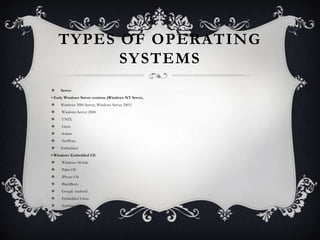
    Server
• Early Windows Server versions (Windows NT Server,
    Windows 2000 Server, Windows Server 2003)
    Windows Server 2008
    UNIX
    Linux
    Solaris
    NetWare
    Embedded
• Windows Embedded CE
    Windows Mobile
    Palm OS
    iPhone OS
    BlackBerry
    Google Android
    Embedded Linux
    Symbian OS
STAND-ALONE
   OPERATING SY STEMS

A stand-alone operating system is a

complete operating system that works on a

desktop computer, notebook computer, or

mobile computing device. Some stand-alone

operating systems are called client operating

systems because they also work in conjunction

with a server operating system.
SERVER OPERATING
             SY STEMS
A server operating system is an operating system That is designed specifically
to support a network.
A server operating system typically resides on a server. The client computers
on the network rely on the server(s) for resources.


Server versions, offers the following capabilities:
• Improved Web server management, enabling users to share data
• Enhanced server security
• Network Access Protection restricts computers that do not meet specified
requirements
• Protection against malicious software attacks
• Shares many technologies with Windows
• Client support using Windows, Mac OS, UNIX, and Linux
EMBEDDED
   OPERATING SY STEMS

The operating system on mobile devices and

many consumer electronics, called an

Embedded operating system, resides on a ROM

chip.
EMBEDDED
OPERATING SY STEMS


            Windows Embedded CE
UTILITY PROGRAMS
A utility program, also called a utility, is a type of system software that allows
a user to perform maintenance-type tasks, usually related to managing a
computer, its devices, or its programs.


Most operating systems include several built-in utility Programs Functions
provided by utility programs include the following:


    Managing files
    Searching for files
    Viewing images
    Uninstalling programs
    Cleaning up disks
    Defragmenting disks
    Backing up files and disks
UTILITY PROGRAMS

 Setting up screen savers
 Securing a computer from unauthorized access
 Protecting against viruses
 Removing spyware and adware
 Filtering Internet content
 Compressing files
 Playing media files
 burning optical discs
 Maintaining a personal computer

Operating systems

  • 1.
    OPERATING SY STEMS AND UTILITY PROGRAMS Slides By Rana Usman Sattar Student Of BBA(Hons) PMAS Arid Agriculture University Rawalpindi Gmail: ranaa.usman@gmail.com Facebook: usman.shan86@yahoo.com
  • 2.
    SY STEM SOFTWARE System software consists of the programs that control or maintain the operations of the computer and its devices. System software serves as the interface between the user, the application software, and the computer’s hardware. Two types of system software are operating systems and utility programs.
  • 3.
    OPERATING SY STEMS An operating system (OS) is a set of programs containing instructions that work together to coordinate all the activities among computer hardware resources. Most operating Systems perform similar functions that include starting and shutting down a computer, providing a user interface, managing programs, managing memory, coordinating tasks, configuring devices, establishing an Internet connection, Monitoring performance, providing file management and other utilities, and automatically updating itself and certain utility programs.
  • 4.
    OPERATING SY STEMS The operating system is installed and resides on the computer’s hard disk. On handheld computers and many mobile devices such as smart phones, the operating system may reside on a ROM chip. Different sizes of computers typically use different operating systems because Operating systems generally are written to run on a specific type of computer. The operating system that a computer uses sometimes is called the platform. With purchased application software, the package or specifications identify the required platform (operating system). A cross-platform program is one that runs the same on multiple operating systems.
  • 5.
    OPERATING SY STEM FUNCTIONS Regardless of the size of the computer, however, most operating systems provide similar functions. The operating system handles many of these functions automatically, without requiring any instructions from a user.
  • 6.
    OPERATING SY STEM FUNCTIONS Starting and Shutting Down a Computer The process of starting or restarting a computer is called booting. When turning on a computer that has been powered off completely, you are performing a cold boot. A warm boot, by contrast, is the process of using the operating system to restart a computer. Each time you boot a computer, the kernel and other frequently used operating system instructions are loaded, or copied, from storage into the computer’s memory (RAM). The kernel is the core of an operating system that manages memory and devices, maintains the computer’s clock, starts programs, and assigns the computer’s resources, such as devices, programs, data, and information. The kernel is memory resident, which means it remains in memory while the computer is running. Other parts of the operating system are nonresident, that is, these instructions remain on a storage medium until They are needed.
  • 7.
    BOOTING PROCESS  Step 1: When you turn on the computer, the power supply sends an electrical signal to the components in the system unit.  Step 2: The charge of electricity causes the processor chip to reset itself and find the ROM chip(s) that contains the BIOS.  Step 3: The BIOS executes a series of tests to make sure the computer hardware is connected properly and operating correctly. The tests, collectively called the power-on self test (POST ), check the various system components including the buses, system clock, adapter cards, RAM chips, mouse, keyboard, and drives.
  • 8.
    BOOTING PROCESS  Step4: The POST results are compared with data in a CMOS chip. The CMOS chip stores configuration information about the computer, such as the amount of memory type of disk drives, keyboard, and monitor. the current date and time, and other startup information. It also detects any new devices connected to the computer.
  • 9.
    BOOTING PROCESS Step 5:If the POST completes successfully, the BIOS searches for specific operating system files called system files. The BIOS may look first to see if a USB flash drive plugged in a USB port or a disc in an optical disc drive contains the system files, or it may look directly on drive C Step 6: Once located, the system files load into memory (RAM) from storage (usually the hard disk) and execute. Next, the kernel of the operating system loads into memory. Then, the operating system in memory takes control of the computer.
  • 10.
    BOOTING PROCESS  Step7: The operating system loads system configuration information. In the latest Windows versions, the registry consists of several files that contain the system configuration information Windows constantly accesses the registry during the computer’s operation for information such as installed hardware and software devices and individual user preferences for mouse speed, passwords, and other information.
  • 12.
    SHUT DOWN OPTIONS Shutdown options including powering off the computer, placing the computer in sleep mode, and hibernating the computer. Sleep mode saves any open documents and programs to RAM, turns off all unneeded functions, and then places the computer in a low-power state Hibernate, by contrast, saves any open documents and programs to a hard disk before removing power from the computer.
  • 13.
    PROVIDING A USER INTERFACE That is, a user interface controls how you enter data and instructions and how information is displayed on the screen. Two types of user interfaces are graphical and command-line. In a command-line interface, a user types commands or presses special keys on the keyboard (such as function keys or key combinations) to enter data and instructions. With a graphical user interface (GUI), you interact with menus and visual images such as buttons and other graphical objects to issue commands.
  • 14.
    MANAGING PROGRAMS  Some operating systems support a single user and only one running program at a time. Others support thousands of users running multiple programs. A single user/single tasking operating system allows only one user to run one program at a time. A multiuser operating system enables two or more users to run programs simultaneously. Networks, servers, mainframes, and super computers allow hundreds to thousands of users to connect at the same time, and thus are multiuser. A multiprocessing operating system supports two or more processors running programs at the same time.
  • 15.
    MANAGING MEMORY  Thepurpose of memory management is to optimize the use of random access memory (RAM). The operating system allocates, or assigns, data and instructions to an area of memory while they are being processed. Then, it carefully monitors the contents of memory. Finally, the operating system releases these items from being monitored in memory when the processor no longer requires them.
  • 16.
    COORDINATING TASKS The operatingsystem determines the order in which tasks are processed. A task, or job, is an operation the processor manages. Tasks include receiving data from an input device, processing instructions, sending information to an output device, and transferring items from storage to memory and from memory to storage.
  • 17.
    CONFIGURING DEVICES A driver, short for device driver, is a small program that tells the operating system how to communicate with a specific device. Each device on a computer, such as the mouse, keyboard, monitor, printer, card reader/writer, and scanner, has its own specialized set of commands and thus requires its own specific driver. When you boot a computer, the operating system loads each device’s driver. These devices will not function without their correct drivers. Plug and Play means the operating system automatically configures new devices as you install them.
  • 18.
    MONITORING PERFORMANCE A performance monitor is a program that assesses and reports information about various Computer Resources and devices. The information in performance reports helps users and administrators identify a problem with resources so that they can try to resolve any problems.
  • 19.
    ESTABLISHING AN INTERNET CONNECTION Internetconnections as soon as you connect to the broadband line. Otherwise, Windows Includes a Set Up a Connection or Network wizard that guides users through the process of setting up a connection between a computer and an Internet access provider.
  • 20.
    PROVIDING FILE MANAGEMENT AND OTHER UTILITIES Operating systems often provide users with the capability of managing files, searching for files, viewing images, securing a computer from unauthorized access, uninstalling programs, cleaning up disks, defragmenting disks, diagnosing problems, backing up files and disks, and setting up screen savers.
  • 21.
    UPDATING SOFTWARE AUTOMATICALLY Many popular programs, including most operating systems, include an automatic update feature that automatically provides updates to the program. With an operating system, With Windows Update, you can download and install important operating system and utility updates. updates can include fixes to program bugs, or errors, enhancements to security, modifications to device drivers, access to new or expanded components such as desktop themes or games, and even updates to application software on the computer such as a Web Browser or an E-mail program.
  • 22.
    CONTROLLING A NETWORK Some operating systems have network features built into them. In other cases, the server operating system is a set of programs separate from the operating system on the client computers that access the network. When not Connected to the network, the client computers Use their own operating system.
  • 23.
    ADMINISTERING SECURITY Computer and network administrators typically have an administrator account that enables them to access all files and programs on the computer or network, install programs, and specify settings that affect all users on a computer or network. Settings include creating user accounts and Establishing permissions. These permissions define who can access certain resources and when they can access those resources.
  • 24.
    CONTROLLING A NETWORK  A server operating system is an operating system that organizes and coordinates how multiple users access and share resources on a network. Resources include hardware, software, data, and information. Some operating systems have network features built into them. In other cases, the server operating system is a set of programs separate from the operating system on the client computers that access the network.
  • 25.
    TYPES OF OPERATING SY STEMS  The three basic categories of operating systems that exist today are stand-alone, server, and embedded.  Categories of Operating Systems  Stand-alone • DOS  Early Windows versions (Windows 3.x, Windows 95,  Windows NT Workstation, Windows 98, Windows 2000  Professional, Windows Millennium Edition, Windows XP,  Windows Vista  Windows 7  Mac OS X  UNIX  Linux
  • 26.
    TYPES OF OPERATING SY STEMS  Server • Early Windows Server versions (Windows NT Server,  Windows 2000 Server, Windows Server 2003)  Windows Server 2008  UNIX  Linux  Solaris  NetWare  Embedded • Windows Embedded CE  Windows Mobile  Palm OS  iPhone OS  BlackBerry  Google Android  Embedded Linux  Symbian OS
  • 27.
    STAND-ALONE OPERATING SY STEMS A stand-alone operating system is a complete operating system that works on a desktop computer, notebook computer, or mobile computing device. Some stand-alone operating systems are called client operating systems because they also work in conjunction with a server operating system.
  • 28.
    SERVER OPERATING SY STEMS A server operating system is an operating system That is designed specifically to support a network. A server operating system typically resides on a server. The client computers on the network rely on the server(s) for resources. Server versions, offers the following capabilities: • Improved Web server management, enabling users to share data • Enhanced server security • Network Access Protection restricts computers that do not meet specified requirements • Protection against malicious software attacks • Shares many technologies with Windows • Client support using Windows, Mac OS, UNIX, and Linux
  • 29.
    EMBEDDED OPERATING SY STEMS The operating system on mobile devices and many consumer electronics, called an Embedded operating system, resides on a ROM chip.
  • 30.
    EMBEDDED OPERATING SY STEMS Windows Embedded CE
  • 31.
    UTILITY PROGRAMS A utilityprogram, also called a utility, is a type of system software that allows a user to perform maintenance-type tasks, usually related to managing a computer, its devices, or its programs. Most operating systems include several built-in utility Programs Functions provided by utility programs include the following:  Managing files  Searching for files  Viewing images  Uninstalling programs  Cleaning up disks  Defragmenting disks  Backing up files and disks
  • 32.
    UTILITY PROGRAMS  Settingup screen savers  Securing a computer from unauthorized access  Protecting against viruses  Removing spyware and adware  Filtering Internet content  Compressing files  Playing media files  burning optical discs  Maintaining a personal computer