1
CSC 101
Introduction to Computing
Lecture 16
Wajiha Farooq
1
2
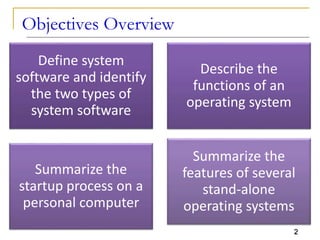
Objectives Overview
Define system
software and identify
the two types of
system software
Describe the
functions of an
operating system
Summarize the
startup process on a
personal computer
Summarize the
features of several
stand-alone
operating systems
3
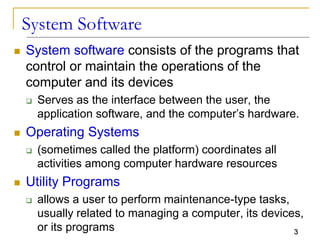
System Software
 System software consists of the programs that
control or maintain the operations of the
computer and its devices
 Serves as the interface between the user, the
application software, and the computer’s hardware.
 Operating Systems
 (sometimes called the platform) coordinates all
activities among computer hardware resources
 Utility Programs
 allows a user to perform maintenance-type tasks,
usually related to managing a computer, its devices,
or its programs
4
Operating System (OS)
 OS is the computer's master control program
 provides you with the tools (commands) that
enable you to interact with the PC
 When you issue a command, the OS translates
it into code that the machine can use.
 It ensures that the results of your actions are
displayed on screen, printed, and so on.
 Also acts as the primary controlling mechanism
for the computer's hardware.
5
Operating System
 Although an operating system can run from an
optical disc and/or flash memory mobile media,
in most cases, the operating system is installed
and resides on the computer’s hard disk.
 On handheld computers and many mobile
devices such as smart phones, the operating
system may reside on a ROM chip
 Different sizes of computers typically use
different operating systems because operating
systems generally are written to run on a
specific type of computer
6
Operating Systems
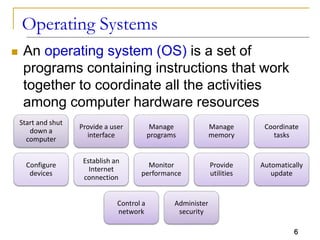
 An operating system (OS) is a set of
programs containing instructions that work
together to coordinate all the activities
among computer hardware resources
Start and shut
down a
computer
Provide a user
interface
Manage
programs
Manage
memory
Coordinate
tasks
Configure
devices
Establish an
Internet
connection
Monitor
performance
Provide
utilities
Automatically
update
Control a
network
Administer
security
7
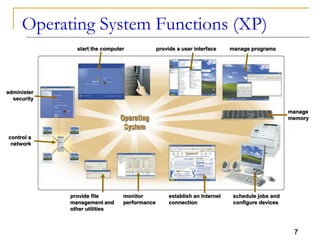
Operating System Functions (XP)
monitor
performance
provide a user interface
provide file
management and
other utilities
establish an Internet
connection
control a
network
administer
security
start the computer manage programs
schedule jobs and
configure devices
manage
memory
8
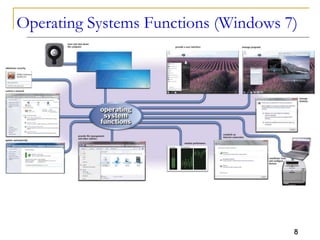
Operating Systems Functions (Windows 7)
9
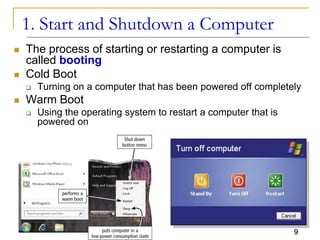
1. Start and Shutdown a Computer
 The process of starting or restarting a computer is
called booting
 Cold Boot
 Turning on a computer that has been powered off completely
 Warm Boot
 Using the operating system to restart a computer that is
powered on
10
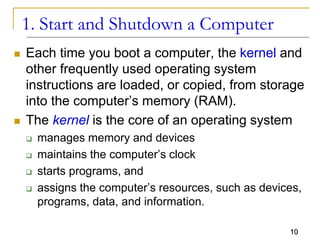
1. Start and Shutdown a Computer
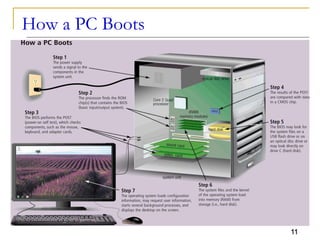
 Each time you boot a computer, the kernel and
other frequently used operating system
instructions are loaded, or copied, from storage
into the computer’s memory (RAM).
 The kernel is the core of an operating system
 manages memory and devices
 maintains the computer’s clock
 starts programs, and
 assigns the computer’s resources, such as devices,
programs, data, and information.
11
How a PC Boots
12
Shut Down Options
 An operating system includes various shut
down options
 Sleep mode saves any open documents and
programs to RAM, turns off all unneeded
functions, and then places the computer in a
low-power state
 Hibernate saves any open documents and
programs to a hard disk before removing power
from the computer
13
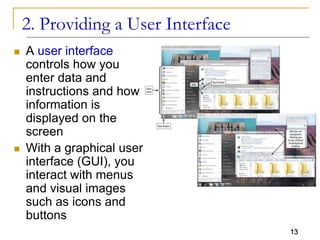
2. Providing a User Interface
 A user interface
controls how you
enter data and
instructions and how
information is
displayed on the
screen
 With a graphical user
interface (GUI), you
interact with menus
and visual images
such as icons and
buttons
14
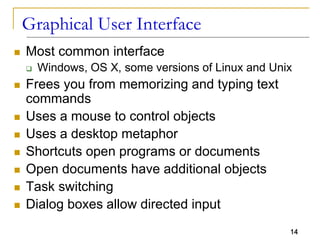
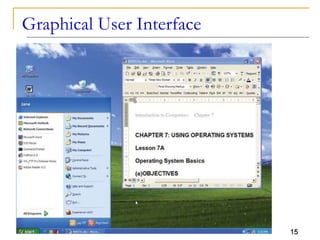
Graphical User Interface
 Most common interface
 Windows, OS X, some versions of Linux and Unix
 Frees you from memorizing and typing text
commands
 Uses a mouse to control objects
 Uses a desktop metaphor
 Shortcuts open programs or documents
 Open documents have additional objects
 Task switching
 Dialog boxes allow directed input
15
Graphical User Interface
16
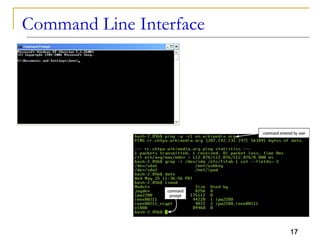
Command Line Interface
 Older interface
 DOS, Linux, UNIX
 With a command-line interface, a user uses the
keyboard to enter data and instructions
 User types commands at a prompt
 User must remember all commands
 Included in all GUIs
17
Command Line Interface
18
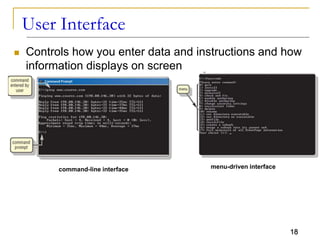
User Interface
 Controls how you enter data and instructions and how
information displays on screen
command-line interface menu-driven interface
19
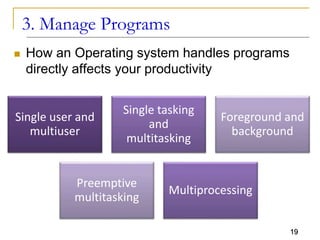
3. Manage Programs
 How an Operating system handles programs
directly affects your productivity
Single user and
multiuser
Single tasking
and
multitasking
Foreground and
background
Preemptive
multitasking
Multiprocessing
20
Single user/Single tasking OS
 One user works on the system
 Performs one task at a time
 MS-DOS and Palm OS
 Take up little space on disk
 Run on inexpensive computers
21
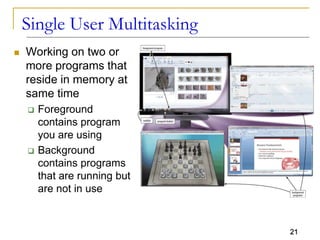
Single User Multitasking
 Working on two or
more programs that
reside in memory at
same time
 Foreground
contains program
you are using
 Background
contains programs
that are running but
are not in use
22
Real Time Operating Systems
 Very fast small OS
 Built into a device
 Respond quickly to user input
 MP3 players, Medical devices
23
Single User Multitasking OS
 User performs many tasks at once
 Most common form of OS
 Windows XP and OS X
 Require expensive computers
 Tend to be complex
24
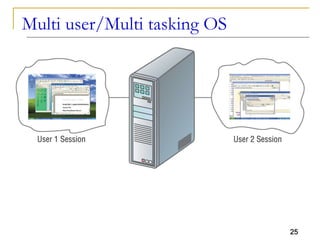
Multi User / Multitasking OS
 Enable two or more users to run programs
simultaneously
 Many users connect to one computer
 Each user has a unique session
 UNIX, Linux, and VMS
 Maintenance can be easy
 Requires a powerful computer
25
Multi user/Multi tasking OS
26
Other Program Management Features
 Multiprocessing
 Can support two or more processors running
programs at the same time
 Fault tolerant computer
 Continues to operate when one of its components
fails
 Has duplicate components such as processor,
memory and disk drives
27
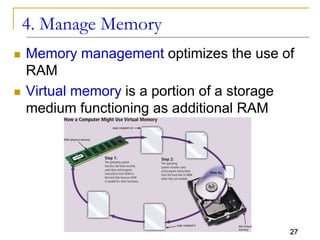
4. Manage Memory
 Memory management optimizes the use of
RAM
 Virtual memory is a portion of a storage
medium functioning as additional RAM
28
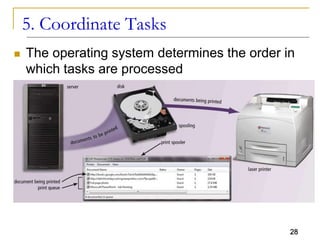
5. Coordinate Tasks
 The operating system determines the order in
which tasks are processed
29
Configuring Devices
 A device driver is a small program that tells the
operating system how to communicate with a
specific device
 Plug and Play operating system automatically
configures new devices as you install them
30
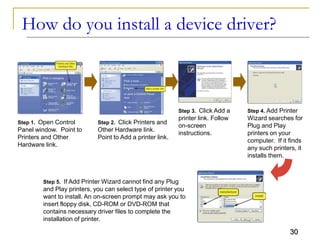
How do you install a device driver?
Step 1. Open Control
Panel window. Point to
Printers and Other
Hardware link.
Step 2. Click Printers and
Other Hardware link.
Point to Add a printer link.
Step 3. Click Add a
printer link. Follow
on-screen
instructions.
Step 4. Add Printer
Wizard searches for
Plug and Play
printers on your
computer. If it finds
any such printers, it
installs them.
Step 5. If Add Printer Wizard cannot find any Plug
and Play printers, you can select type of printer you
want to install. An on-screen prompt may ask you to
insert floppy disk, CD-ROM or DVD-ROM that
contains necessary driver files to complete the
installation of printer.
31
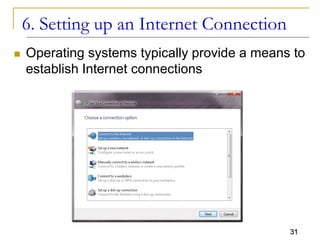
6. Setting up an Internet Connection
 Operating systems typically provide a means to
establish Internet connections
32
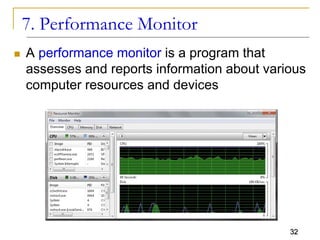
7. Performance Monitor
 A performance monitor is a program that
assesses and reports information about various
computer resources and devices
33
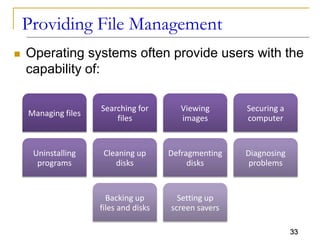
Providing File Management
 Operating systems often provide users with the
capability of:
Managing files
Searching for
files
Viewing
images
Securing a
computer
Uninstalling
programs
Cleaning up
disks
Defragmenting
disks
Diagnosing
problems
Backing up
files and disks
Setting up
screen savers
34
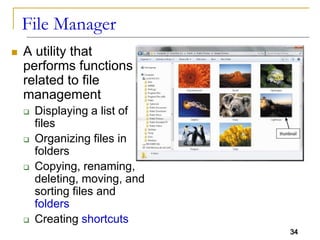
File Manager
 A utility that
performs functions
related to file
management
 Displaying a list of
files
 Organizing files in
folders
 Copying, renaming,
deleting, moving, and
sorting files and
folders
 Creating shortcuts
34
35
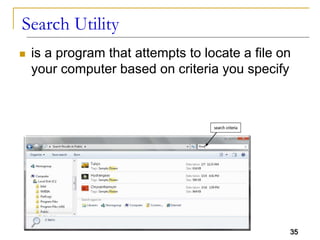
Search Utility
 is a program that attempts to locate a file on
your computer based on criteria you specify
35
36
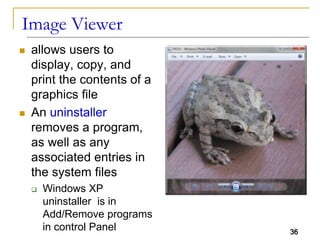
Image Viewer
 allows users to
display, copy, and
print the contents of a
graphics file
 An uninstaller
removes a program,
as well as any
associated entries in
the system files
 Windows XP
uninstaller is in
Add/Remove programs
in control Panel 36
37
Operating System Functions
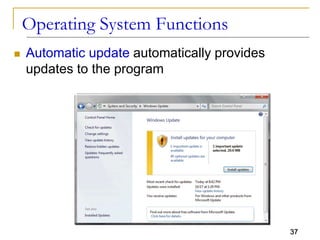
 Automatic update automatically provides
updates to the program
38
Operating System Functions
 Some operating systems
are designed to work with
a server on a network
 A server operating
system organizes and
coordinates how multiple
users access and share
resources on a network
 A network administrator
uses the server operating
system to:
 Add and remove users,
computers, and other
devices
 Install software and
administer network security
39
Operating System Functions
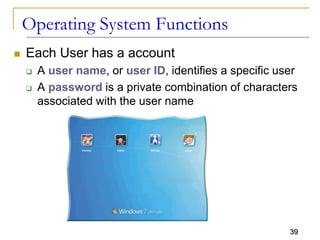
 Each User has a account
 A user name, or user ID, identifies a specific user
 A password is a private combination of characters
associated with the user name
40
Summary
 System software
 Operating systems
 Functions of Operating System
 Start and shut down
 Providing a user interface
 Managing programs
 Managing memory
 Coordinated tasks and Configure devices
 Internet connection
 Providing Utilities and automatic Update
40

lecture_16.operating system CUI/GUI.pptx

  • 1.
    1 CSC 101 Introduction toComputing Lecture 16 Wajiha Farooq 1
  • 2.
    2 Objectives Overview Define system softwareand identify the two types of system software Describe the functions of an operating system Summarize the startup process on a personal computer Summarize the features of several stand-alone operating systems
  • 3.
    3 System Software  Systemsoftware consists of the programs that control or maintain the operations of the computer and its devices  Serves as the interface between the user, the application software, and the computer’s hardware.  Operating Systems  (sometimes called the platform) coordinates all activities among computer hardware resources  Utility Programs  allows a user to perform maintenance-type tasks, usually related to managing a computer, its devices, or its programs
  • 4.
    4 Operating System (OS) OS is the computer's master control program  provides you with the tools (commands) that enable you to interact with the PC  When you issue a command, the OS translates it into code that the machine can use.  It ensures that the results of your actions are displayed on screen, printed, and so on.  Also acts as the primary controlling mechanism for the computer's hardware.
  • 5.
    5 Operating System  Althoughan operating system can run from an optical disc and/or flash memory mobile media, in most cases, the operating system is installed and resides on the computer’s hard disk.  On handheld computers and many mobile devices such as smart phones, the operating system may reside on a ROM chip  Different sizes of computers typically use different operating systems because operating systems generally are written to run on a specific type of computer
  • 6.
    6 Operating Systems  Anoperating system (OS) is a set of programs containing instructions that work together to coordinate all the activities among computer hardware resources Start and shut down a computer Provide a user interface Manage programs Manage memory Coordinate tasks Configure devices Establish an Internet connection Monitor performance Provide utilities Automatically update Control a network Administer security
  • 7.
    7 Operating System Functions(XP) monitor performance provide a user interface provide file management and other utilities establish an Internet connection control a network administer security start the computer manage programs schedule jobs and configure devices manage memory
  • 8.
  • 9.
    9 1. Start andShutdown a Computer  The process of starting or restarting a computer is called booting  Cold Boot  Turning on a computer that has been powered off completely  Warm Boot  Using the operating system to restart a computer that is powered on
  • 10.
    10 1. Start andShutdown a Computer  Each time you boot a computer, the kernel and other frequently used operating system instructions are loaded, or copied, from storage into the computer’s memory (RAM).  The kernel is the core of an operating system  manages memory and devices  maintains the computer’s clock  starts programs, and  assigns the computer’s resources, such as devices, programs, data, and information.
  • 11.
  • 12.
    12 Shut Down Options An operating system includes various shut down options  Sleep mode saves any open documents and programs to RAM, turns off all unneeded functions, and then places the computer in a low-power state  Hibernate saves any open documents and programs to a hard disk before removing power from the computer
  • 13.
    13 2. Providing aUser Interface  A user interface controls how you enter data and instructions and how information is displayed on the screen  With a graphical user interface (GUI), you interact with menus and visual images such as icons and buttons
  • 14.
    14 Graphical User Interface Most common interface  Windows, OS X, some versions of Linux and Unix  Frees you from memorizing and typing text commands  Uses a mouse to control objects  Uses a desktop metaphor  Shortcuts open programs or documents  Open documents have additional objects  Task switching  Dialog boxes allow directed input
  • 15.
  • 16.
    16 Command Line Interface Older interface  DOS, Linux, UNIX  With a command-line interface, a user uses the keyboard to enter data and instructions  User types commands at a prompt  User must remember all commands  Included in all GUIs
  • 17.
  • 18.
    18 User Interface  Controlshow you enter data and instructions and how information displays on screen command-line interface menu-driven interface
  • 19.
    19 3. Manage Programs How an Operating system handles programs directly affects your productivity Single user and multiuser Single tasking and multitasking Foreground and background Preemptive multitasking Multiprocessing
  • 20.
    20 Single user/Single taskingOS  One user works on the system  Performs one task at a time  MS-DOS and Palm OS  Take up little space on disk  Run on inexpensive computers
  • 21.
    21 Single User Multitasking Working on two or more programs that reside in memory at same time  Foreground contains program you are using  Background contains programs that are running but are not in use
  • 22.
    22 Real Time OperatingSystems  Very fast small OS  Built into a device  Respond quickly to user input  MP3 players, Medical devices
  • 23.
    23 Single User MultitaskingOS  User performs many tasks at once  Most common form of OS  Windows XP and OS X  Require expensive computers  Tend to be complex
  • 24.
    24 Multi User /Multitasking OS  Enable two or more users to run programs simultaneously  Many users connect to one computer  Each user has a unique session  UNIX, Linux, and VMS  Maintenance can be easy  Requires a powerful computer
  • 25.
  • 26.
    26 Other Program ManagementFeatures  Multiprocessing  Can support two or more processors running programs at the same time  Fault tolerant computer  Continues to operate when one of its components fails  Has duplicate components such as processor, memory and disk drives
  • 27.
    27 4. Manage Memory Memory management optimizes the use of RAM  Virtual memory is a portion of a storage medium functioning as additional RAM
  • 28.
    28 5. Coordinate Tasks The operating system determines the order in which tasks are processed
  • 29.
    29 Configuring Devices  Adevice driver is a small program that tells the operating system how to communicate with a specific device  Plug and Play operating system automatically configures new devices as you install them
  • 30.
    30 How do youinstall a device driver? Step 1. Open Control Panel window. Point to Printers and Other Hardware link. Step 2. Click Printers and Other Hardware link. Point to Add a printer link. Step 3. Click Add a printer link. Follow on-screen instructions. Step 4. Add Printer Wizard searches for Plug and Play printers on your computer. If it finds any such printers, it installs them. Step 5. If Add Printer Wizard cannot find any Plug and Play printers, you can select type of printer you want to install. An on-screen prompt may ask you to insert floppy disk, CD-ROM or DVD-ROM that contains necessary driver files to complete the installation of printer.
  • 31.
    31 6. Setting upan Internet Connection  Operating systems typically provide a means to establish Internet connections
  • 32.
    32 7. Performance Monitor A performance monitor is a program that assesses and reports information about various computer resources and devices
  • 33.
    33 Providing File Management Operating systems often provide users with the capability of: Managing files Searching for files Viewing images Securing a computer Uninstalling programs Cleaning up disks Defragmenting disks Diagnosing problems Backing up files and disks Setting up screen savers
  • 34.
    34 File Manager  Autility that performs functions related to file management  Displaying a list of files  Organizing files in folders  Copying, renaming, deleting, moving, and sorting files and folders  Creating shortcuts 34
  • 35.
    35 Search Utility  isa program that attempts to locate a file on your computer based on criteria you specify 35
  • 36.
    36 Image Viewer  allowsusers to display, copy, and print the contents of a graphics file  An uninstaller removes a program, as well as any associated entries in the system files  Windows XP uninstaller is in Add/Remove programs in control Panel 36
  • 37.
    37 Operating System Functions Automatic update automatically provides updates to the program
  • 38.
    38 Operating System Functions Some operating systems are designed to work with a server on a network  A server operating system organizes and coordinates how multiple users access and share resources on a network  A network administrator uses the server operating system to:  Add and remove users, computers, and other devices  Install software and administer network security
  • 39.
    39 Operating System Functions Each User has a account  A user name, or user ID, identifies a specific user  A password is a private combination of characters associated with the user name
  • 40.
    40 Summary  System software Operating systems  Functions of Operating System  Start and shut down  Providing a user interface  Managing programs  Managing memory  Coordinated tasks and Configure devices  Internet connection  Providing Utilities and automatic Update 40