Printers
How Printers Work 
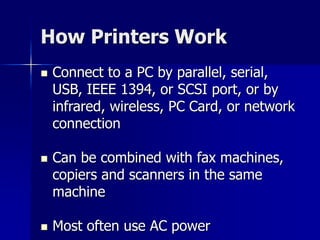
 Connect to a PC by parallel, serial, 
USB, IEEE 1394, or SCSI port, or by 
infrared, wireless, PC Card, or network 
connection 
 Can be combined with fax machines, 
copiers and scanners in the same 
machine 
 Most often use AC power
Major Categories of 
Printers 
 Impact printers 
– Dot-matrix – the noisiest 
 Non-impact printers 
– Laser (highest quality) 
– Inkjet 
– Solid ink 
– Dye-sublimation 
– Thermal
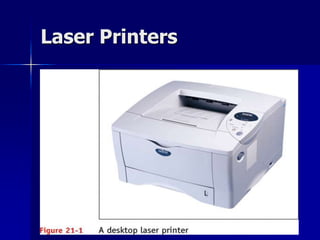
Laser Printers
How a Laser Printer 
Works 
 Places toner on electrically charged 
rotating drum 
 Deposits toner on paper as paper 
moves through system at same speed 
the drum is turning
Six Steps of Laser 
Printing 
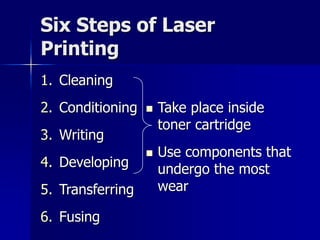
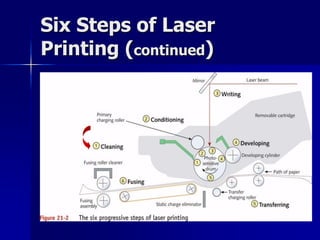
1. Cleaning 
2. Conditioning 
3. Writing 
4. Developing 
5. Transferring 
6. Fusing 
 Take place inside 
toner cartridge 
 Use components that 
undergo the most 
wear
7 
Six Steps of Laser Printing 
(continued) 
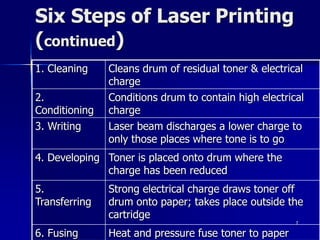
1. Cleaning Cleans drum of residual toner & electrical 
charge 
2. 
Conditioning 
Conditions drum to contain high electrical 
charge 
3. Writing Laser beam discharges a lower charge to 
only those places where tone is to go 
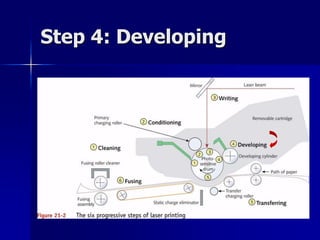
4. Developing Toner is placed onto drum where the 
charge has been reduced 
5. 
Transferring 
Strong electrical charge draws toner off 
drum onto paper; takes place outside the 
cartridge 
6. Fusing Heat and pressure fuse toner to paper
Six Steps of Laser 
Printing (continued)
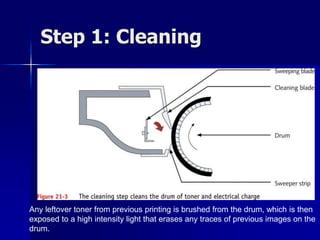
Step 1: Cleaning 
Any leftover toner from previous printing is brushed from the drum, which is then 
exposed to a high intensity light that erases any traces of previous images on the 
drum.
Step 2: Conditioning 
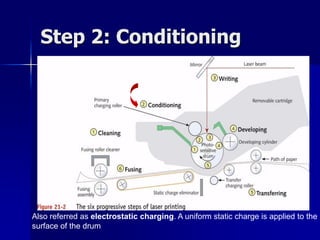
Also referred as electrostatic charging. A uniform static charge is applied to the 
surface of the drum
Step 3: Writing 
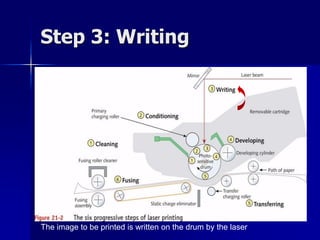
The image to be printed is written on the drum by the laser
Step 3: Writing 
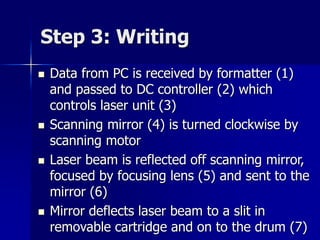
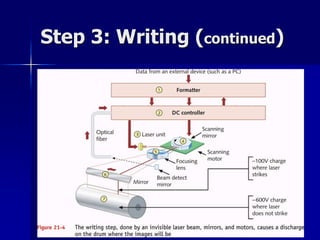
 Data from PC is received by formatter (1) 
and passed to DC controller (2) which 
controls laser unit (3) 
 Scanning mirror (4) is turned clockwise by 
scanning motor 
 Laser beam is reflected off scanning mirror, 
focused by focusing lens (5) and sent to the 
mirror (6) 
 Mirror deflects laser beam to a slit in 
removable cartridge and on to the drum (7)
Step 3: Writing (continued)
Step 4: Developing
Step 4: Developing 
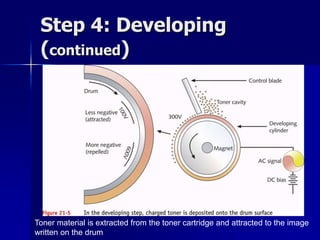
(continued) 
Toner material is extracted from the toner cartridge and attracted to the image 
written on the drum
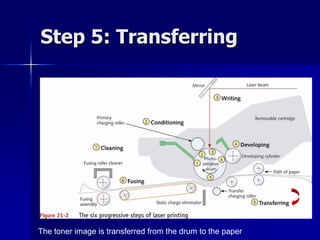
Step 5: Transferring 
The toner image is transferred from the drum to the paper
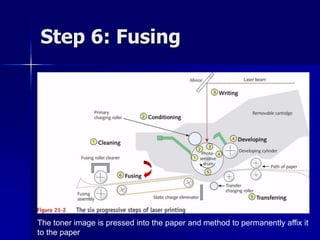
Step 6: Fusing 
The toner image is pressed into the paper and method to permanently affix it 
to the paper
Laser Printing Operations 
1. Cleaning – Any leftover toner from previous printing is brushed from the 
drum, which is then exposed to a high intensity light that erases any traces 
of previous images on the drum 
2. Conditioning – (also referred as electrostatic charging) A uniform static 
charge is applied to the surface of the drum 
3. Writing – The image to be printed is written on the drum by the laser 
4. Developing – Toner material is extracted from the toner cartridge and 
attracted to the image written on the drum 
5. Transferring – The toner image is transferred from the drum to the paper 
6. Fusing – The toner image is pressed into the paper and method to 
permanently affix it to the paper
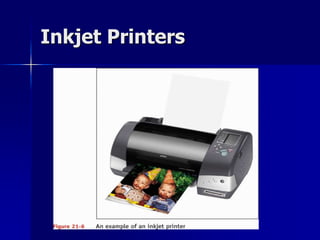
Inkjet Printers
Inkjet Printers (continued) 
 Use ink-dispersion printing 
 Popular: small and print color inexpensively 
 Most give photo-quality results 
(eg, PhotoREt II color technology) 
 Paper quality affects quality of printed 
output 
 Slower than lasers
How an Inkjet Printer 
Works 
 Print head moves across paper, creating 
one line of text with each pass 
 Shoots ionized ink at a sheet of paper in a 
matrix of small dots 
 Several technologies are used to form ink 
droplets (eg, bubble-jet) 
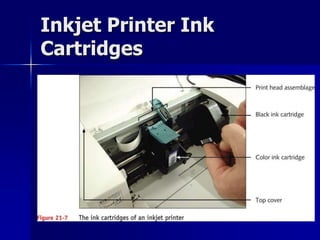
 Require ink cartridges 
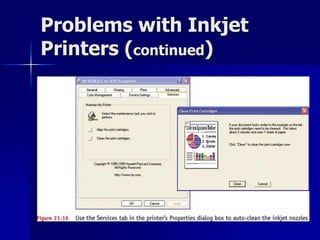
 Nozzles tend to clog or dry out 
– Can be cleaned automatically
Inkjet Printer Ink 
Cartridges
Dot-Matrix Printers 
 Less expensive; lesser quality 
 Print multicopy documents (impact printer) 
 Print head moves across the paper, using 
pins to shoot against a cloth ribbon and 
print a matrix of dots 
 If print head fails, buy a new printer
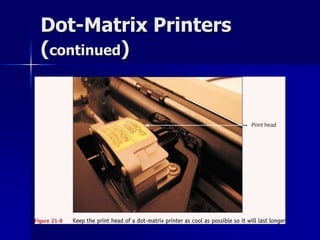
Dot-Matrix Printers 
(continued)
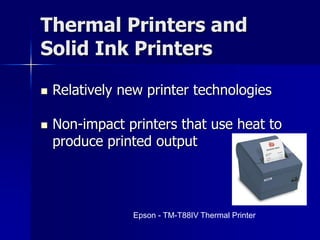
Thermal Printers and 
Solid Ink Printers 
 Relatively new printer technologies 
 Non-impact printers that use heat to 
produce printed output 
Epson - TM-T88IV Thermal Printer
Thermal Printers 
 Use wax-based ink heated by pins that 
melt ink onto paper 
 Popular in retail for printing bar codes 
and price tags 
 Variation: dye-sublimation printer
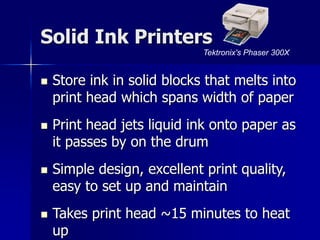
Solid Ink Printers 
Tektronix's Phaser 300X 
 Store ink in solid blocks that melts into 
print head which spans width of paper 
 Print head jets liquid ink onto paper as 
it passes by on the drum 
 Simple design, excellent print quality, 
easy to set up and maintain 
 Takes print head ~15 minutes to heat 
up
Installing and Sharing a 
Printer 
 Local printers 
 Network printers 
 Default printer
Installing a Local Printer 
 Physically attach printer to computer 
 Install printer drivers 
– Have Windows do it 
– Use printer manufacturer’s installation 
program (recommended) 
 Test the printer
Sharing a Printer with 
Others in a Workgroup 
 To share a local printer using Windows 
– File and Printer Sharing must be installed 
 To use a shared printer on a remote 
PC 
– Client for Microsoft Networks must be 
installed
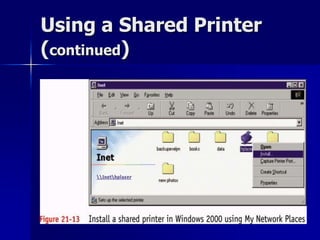
Using a Shared Printer 
 Approaches to installing shared 
network printer drivers on remote PC 
– Use drivers on CD 
– Use printer drivers on host PC
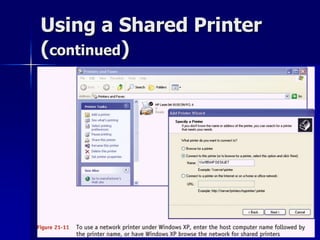
Using a Shared Printer 
(continued)
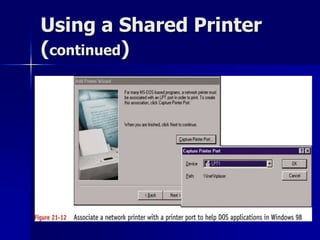
Using a Shared Printer 
(continued)
Using a Shared Printer 
(continued)
Ways to Make a Printer 
Available on a Network 
 Attach regular printer to a PC using a port 
on the PC 
– PC can share printer with network 
 Connect network printer with embedded 
logic to manage network communication 
directly to network with its own NIC 
 Use a print server to control several printers
Troubleshooting 
Guidelines for Printers 
 How Windows handles print jobs 
 Printer maintenance 
 General printer troubleshooting 
 How to troubleshoot problems specific 
to laser, inkjet, and dot-matrix printers
How Windows Handles 
Print Jobs 
 Windows NT/2000/XP or Windows 9x using a 
PostScript printer 
– Converts print job data to PostScript language 
– Windows 2000/XP can also use Printer Control 
Language (PCL) 
 Windows 9x using a non-PostScript printer 
– Converts print job data to Enhanced Metafile 
Format (EMF)
How Windows Handles 
Print Jobs (continued) 
 Text data lacking embedded control 
characters is sent as raw data (DOS) 
 Spooling
Printer Maintenance 
Procedures 
 Vary depending on manufacturer and printer 
 Make sure consumables for printer are on 
hand 
 Research printer documentation or 
manufacturer’s Web site for specific 
maintenance tips 
 During routine maintenance, clean inside 
and outside of the printer
Using Printer Manufacturer’s 
Web Site as a Resource 
 Online documentation 
 Knowledge base of common problems and 
what to do about them 
 Updated device drivers 
 Flash BIOS updates 
 Catalog of options and upgrades for 
purchase
Using Printer Manufacturer’s 
Web Site as a Resource 
(continued) 
 Replacement parts 
 Printer maintenance kits 
 Additional software
General Printer 
Troubleshooting 
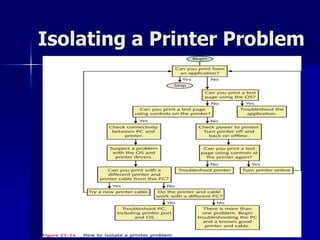
 Isolate the problem 
– Application attempting to use the printer 
– OS and printer drivers 
– Connectivity between PC and printer 
– Printer itself 
 Verify that a printer self-test page can print
Isolating a Printer Problem
Problems with Laser 
Printers 
 Poor print quality or a Toner Low 
message is displayed 
 Printer stays in warm-up mode 
 Paper jam occurs or Paper Out 
message appears 
 White streaks appear in the print
Problems with Laser 
Printers (continued) 
 Print appears speckled 
 Printed images are distorted 
 Printing is slow 
 Portion of the page does not print
Problems with Inkjet 
Printers 
 Poor print quality 
 Intermittent or absent printing 
 Lines or dots missing from printed 
page 
 Ink streaks appear on the printed 
page
Problems with Inkjet 
Printers (continued)
Problems with Dot-Matrix 
Printers 
 Print quality is poor 
 Print head moves back and forth but 
nothing prints
Troubleshooting Printer 
Problems 
 Problems printing from Windows 
 Troubleshooting printing from 
applications 
 Troubleshooting networked printers
Summary 
 Main types of printers and how they work 
– Laser 
– Inkjet 
– Dot-matrix 
 How to install a printer 
 How to share a printer with others on a 
network 
 How to troubleshoot printer problems

20 printers

  • 1.
  • 2.
    How Printers Work  Connect to a PC by parallel, serial, USB, IEEE 1394, or SCSI port, or by infrared, wireless, PC Card, or network connection  Can be combined with fax machines, copiers and scanners in the same machine  Most often use AC power
  • 3.
    Major Categories of Printers  Impact printers – Dot-matrix – the noisiest  Non-impact printers – Laser (highest quality) – Inkjet – Solid ink – Dye-sublimation – Thermal
  • 4.
  • 5.
    How a LaserPrinter Works  Places toner on electrically charged rotating drum  Deposits toner on paper as paper moves through system at same speed the drum is turning
  • 6.
    Six Steps ofLaser Printing 1. Cleaning 2. Conditioning 3. Writing 4. Developing 5. Transferring 6. Fusing  Take place inside toner cartridge  Use components that undergo the most wear
  • 7.
    7 Six Stepsof Laser Printing (continued) 1. Cleaning Cleans drum of residual toner & electrical charge 2. Conditioning Conditions drum to contain high electrical charge 3. Writing Laser beam discharges a lower charge to only those places where tone is to go 4. Developing Toner is placed onto drum where the charge has been reduced 5. Transferring Strong electrical charge draws toner off drum onto paper; takes place outside the cartridge 6. Fusing Heat and pressure fuse toner to paper
  • 8.
    Six Steps ofLaser Printing (continued)
  • 9.
    Step 1: Cleaning Any leftover toner from previous printing is brushed from the drum, which is then exposed to a high intensity light that erases any traces of previous images on the drum.
  • 10.
    Step 2: Conditioning Also referred as electrostatic charging. A uniform static charge is applied to the surface of the drum
  • 11.
    Step 3: Writing The image to be printed is written on the drum by the laser
  • 12.
    Step 3: Writing  Data from PC is received by formatter (1) and passed to DC controller (2) which controls laser unit (3)  Scanning mirror (4) is turned clockwise by scanning motor  Laser beam is reflected off scanning mirror, focused by focusing lens (5) and sent to the mirror (6)  Mirror deflects laser beam to a slit in removable cartridge and on to the drum (7)
  • 13.
    Step 3: Writing(continued)
  • 14.
  • 15.
    Step 4: Developing (continued) Toner material is extracted from the toner cartridge and attracted to the image written on the drum
  • 16.
    Step 5: Transferring The toner image is transferred from the drum to the paper
  • 17.
    Step 6: Fusing The toner image is pressed into the paper and method to permanently affix it to the paper
  • 18.
    Laser Printing Operations 1. Cleaning – Any leftover toner from previous printing is brushed from the drum, which is then exposed to a high intensity light that erases any traces of previous images on the drum 2. Conditioning – (also referred as electrostatic charging) A uniform static charge is applied to the surface of the drum 3. Writing – The image to be printed is written on the drum by the laser 4. Developing – Toner material is extracted from the toner cartridge and attracted to the image written on the drum 5. Transferring – The toner image is transferred from the drum to the paper 6. Fusing – The toner image is pressed into the paper and method to permanently affix it to the paper
  • 19.
  • 20.
    Inkjet Printers (continued)  Use ink-dispersion printing  Popular: small and print color inexpensively  Most give photo-quality results (eg, PhotoREt II color technology)  Paper quality affects quality of printed output  Slower than lasers
  • 21.
    How an InkjetPrinter Works  Print head moves across paper, creating one line of text with each pass  Shoots ionized ink at a sheet of paper in a matrix of small dots  Several technologies are used to form ink droplets (eg, bubble-jet)  Require ink cartridges  Nozzles tend to clog or dry out – Can be cleaned automatically
  • 22.
    Inkjet Printer Ink Cartridges
  • 23.
    Dot-Matrix Printers Less expensive; lesser quality  Print multicopy documents (impact printer)  Print head moves across the paper, using pins to shoot against a cloth ribbon and print a matrix of dots  If print head fails, buy a new printer
  • 24.
  • 25.
    Thermal Printers and Solid Ink Printers  Relatively new printer technologies  Non-impact printers that use heat to produce printed output Epson - TM-T88IV Thermal Printer
  • 26.
    Thermal Printers Use wax-based ink heated by pins that melt ink onto paper  Popular in retail for printing bar codes and price tags  Variation: dye-sublimation printer
  • 27.
    Solid Ink Printers Tektronix's Phaser 300X  Store ink in solid blocks that melts into print head which spans width of paper  Print head jets liquid ink onto paper as it passes by on the drum  Simple design, excellent print quality, easy to set up and maintain  Takes print head ~15 minutes to heat up
  • 28.
    Installing and Sharinga Printer  Local printers  Network printers  Default printer
  • 29.
    Installing a LocalPrinter  Physically attach printer to computer  Install printer drivers – Have Windows do it – Use printer manufacturer’s installation program (recommended)  Test the printer
  • 30.
    Sharing a Printerwith Others in a Workgroup  To share a local printer using Windows – File and Printer Sharing must be installed  To use a shared printer on a remote PC – Client for Microsoft Networks must be installed
  • 31.
    Using a SharedPrinter  Approaches to installing shared network printer drivers on remote PC – Use drivers on CD – Use printer drivers on host PC
  • 32.
    Using a SharedPrinter (continued)
  • 33.
    Using a SharedPrinter (continued)
  • 34.
    Using a SharedPrinter (continued)
  • 35.
    Ways to Makea Printer Available on a Network  Attach regular printer to a PC using a port on the PC – PC can share printer with network  Connect network printer with embedded logic to manage network communication directly to network with its own NIC  Use a print server to control several printers
  • 36.
    Troubleshooting Guidelines forPrinters  How Windows handles print jobs  Printer maintenance  General printer troubleshooting  How to troubleshoot problems specific to laser, inkjet, and dot-matrix printers
  • 37.
    How Windows Handles Print Jobs  Windows NT/2000/XP or Windows 9x using a PostScript printer – Converts print job data to PostScript language – Windows 2000/XP can also use Printer Control Language (PCL)  Windows 9x using a non-PostScript printer – Converts print job data to Enhanced Metafile Format (EMF)
  • 38.
    How Windows Handles Print Jobs (continued)  Text data lacking embedded control characters is sent as raw data (DOS)  Spooling
  • 39.
    Printer Maintenance Procedures  Vary depending on manufacturer and printer  Make sure consumables for printer are on hand  Research printer documentation or manufacturer’s Web site for specific maintenance tips  During routine maintenance, clean inside and outside of the printer
  • 40.
    Using Printer Manufacturer’s Web Site as a Resource  Online documentation  Knowledge base of common problems and what to do about them  Updated device drivers  Flash BIOS updates  Catalog of options and upgrades for purchase
  • 41.
    Using Printer Manufacturer’s Web Site as a Resource (continued)  Replacement parts  Printer maintenance kits  Additional software
  • 42.
    General Printer Troubleshooting  Isolate the problem – Application attempting to use the printer – OS and printer drivers – Connectivity between PC and printer – Printer itself  Verify that a printer self-test page can print
  • 43.
  • 44.
    Problems with Laser Printers  Poor print quality or a Toner Low message is displayed  Printer stays in warm-up mode  Paper jam occurs or Paper Out message appears  White streaks appear in the print
  • 45.
    Problems with Laser Printers (continued)  Print appears speckled  Printed images are distorted  Printing is slow  Portion of the page does not print
  • 46.
    Problems with Inkjet Printers  Poor print quality  Intermittent or absent printing  Lines or dots missing from printed page  Ink streaks appear on the printed page
  • 47.
    Problems with Inkjet Printers (continued)
  • 48.
    Problems with Dot-Matrix Printers  Print quality is poor  Print head moves back and forth but nothing prints
  • 49.
    Troubleshooting Printer Problems  Problems printing from Windows  Troubleshooting printing from applications  Troubleshooting networked printers
  • 50.
    Summary  Maintypes of printers and how they work – Laser – Inkjet – Dot-matrix  How to install a printer  How to share a printer with others on a network  How to troubleshoot printer problems