Portable Computing
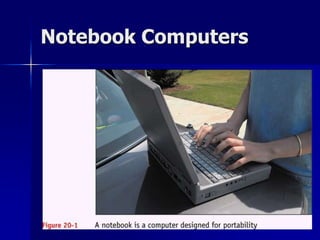
Notebook Computers
Notebook Computers 
(continued) 
 Same technology as PCs, with 
modifications for space, portability, and 
power conservation 
– Thin LCD panels (active matrix and passive 
matrix) 
– Compact hard drives 
– Small memory modules 
– CPUs that require less power
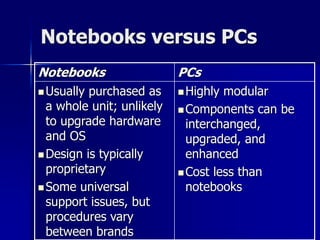
Notebooks versus PCs 
Notebooks PCs 
Usually purchased as 
a whole unit; unlikely 
to upgrade hardware 
and OS 
Design is typically 
proprietary 
Some universal 
support issues, but 
procedures vary 
between brands 
Highly modular 
Components can be 
interchanged, 
upgraded, and 
enhanced 
Cost less than 
notebooks
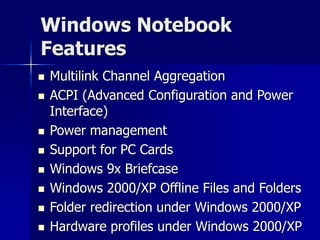
Windows Notebook 
Features 
 Multilink Channel Aggregation 
 ACPI (Advanced Configuration and Power 
Interface) 
 Power management 
 Support for PC Cards 
 Windows 9x Briefcase 
 Windows 2000/XP Offline Files and Folders 
 Folder redirection under Windows 2000/XP 
 Hardware profiles under Windows 2000/XP
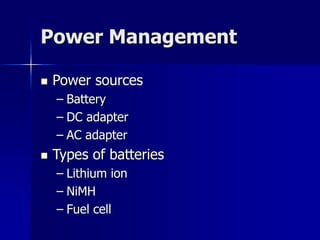
Power Management 
 Power sources 
– Battery 
– DC adapter 
– AC adapter 
 Types of batteries 
– Lithium ion 
– NiMH 
– Fuel cell
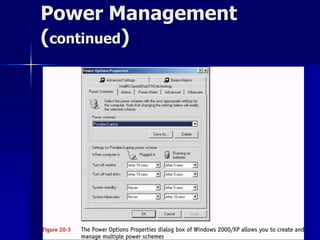
Power Management 
(continued)
Power Management
Power Management 
(continued)
Power Management 
(continued)
Power Management 
(continued)
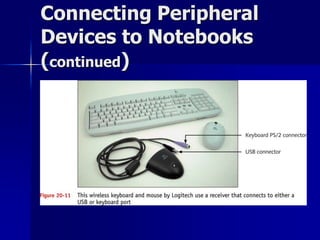
Connecting Peripheral 
Devices to Notebooks 
 Ports on the notebook 
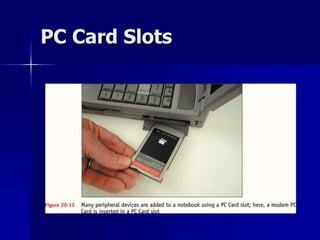
 PC Card slot with lock 
switch and eject button 
 Headphone jack 
 Microphone jack 
 Infrared port 
 Secure Digital (SD) 
card slot 
 CompactFlash Card slot 
 Wireless antenna 
on/off switch 
 Serial port
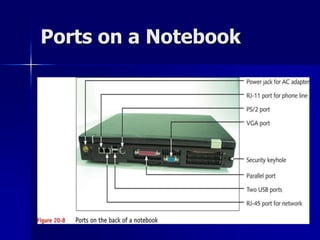
Ports on a Notebook
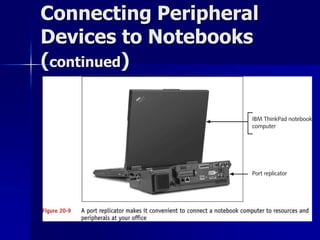
Connecting Peripheral 
Devices to Notebooks 
(continued)
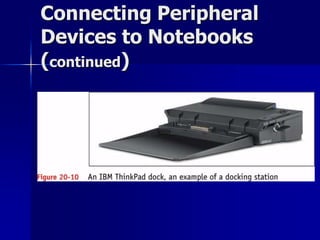
Connecting Peripheral 
Devices to Notebooks 
(continued)
Connecting Peripheral 
Devices to Notebooks 
(continued)
PC Card Slots
PC Card Slots (continued) 
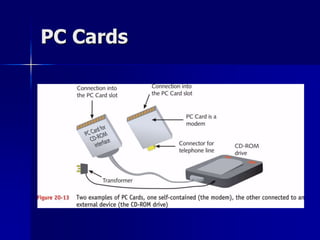
 Used by many devices 
 Connect to the 16-bit PCMCIA I/O bus on 
notebook motherboard 
 Might contain a data cable to an external 
drive, or might be self-contained 
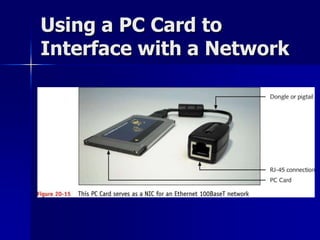
 Can interface with a network
PC Card Slot Standards 
 CardBus (latest spec) 
– Improves I/O speed 
– Increases bus width to 32 bits 
– Supports lower-voltage PC Cards while 
maintaining backward compatibility 
 Three other types (Type I, Type II, 
Type III), which vary in thickness
PCMCIA / PC Cards 
Short for Personal Computer Memory Card International 
Association, and pronounced as separate letters, PCMCIA 
is an organization consisting of some 500 companies that 
has developed a standard for small, credit card-sized 
devices, called PC Cards 
Originally designed for adding memory to portable 
computers, the PCMCIA standard has been expanded 
several times and is now suitable for many types of devices
PCMCIA / PC Cards – 
(Continued) 
There are in fact three types of PCMCIA cards. All three 
have the same rectangular size (85.6 by 54 millimeters), 
but different widths: 
Type I cards can be up to 3.3 mm thick, and are used 
primarily for adding additional ROM or RAM to a computer 
Type II cards can be up to 5.5 mm thick. These cards are 
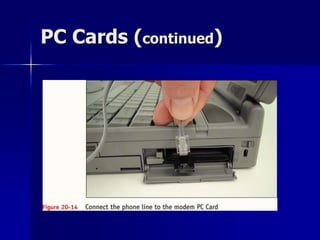
often used for modem and fax modem cards 
Type III cards can be up to 10.5 mm thick, which is 
sufficiently large for portable disk drives
PCMCIA / PC Cards – 
(Continued) 
As with the cards, PCMCIA slots also come in three sizes: 
A Type I slot can hold one Type I card 
A Type II slot can hold one Type II card or one Type I card 
A Type III slot can hold one Type III card or any combination of 
two Type I or II cards 
In general, you can exchange PC Cards on the fly (hot 
swappable), without rebooting your computer. For example, you 
can slip in a fax modem card when you want to send a fax and 
then, when you're done, replace the fax modem card with a 
memory card
PC Cards
PC Cards (continued)
Using a PC Card to 
Interface with a Network
Using PC Card Slots and 
Other Slots 
 OS must provide two (2) services 
– Socket service 
 Establishes communication between card and 
notebook when the card is first inserted 
 Disconnects communication when card is 
removed 
– Card service 
 Provides device driver to interface with the 
card once socket is created 
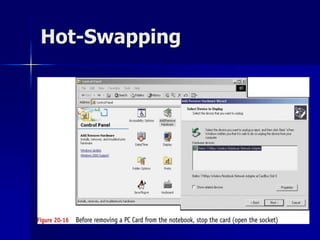
 Can be hot-swapped
Hot-Swapping
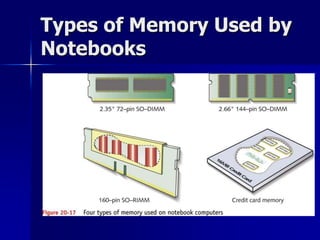
Types of Memory Used by 
Notebooks
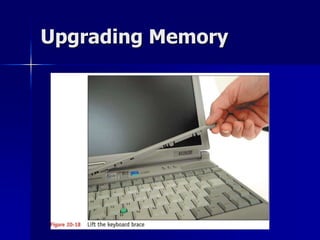
Upgrading Memory
Upgrading Memory 
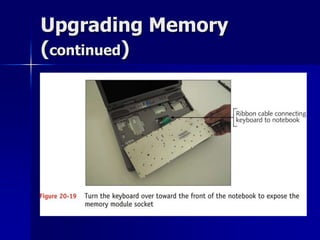
(continued)
Upgrading Memory 
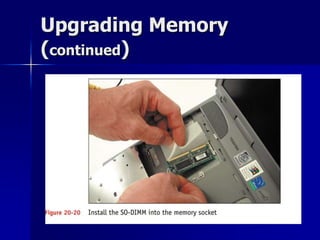
(continued)
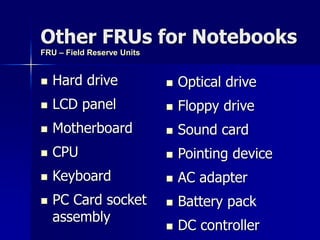
Other FRUs for Notebooks 
 Hard drive 
 LCD panel 
 Motherboard 
 CPU 
 Keyboard 
 PC Card socket 
assembly 
 Optical drive 
 Floppy drive 
 Sound card 
 Pointing device 
 AC adapter 
 Battery pack 
 DC controller 
FRU – Field Reserve Units
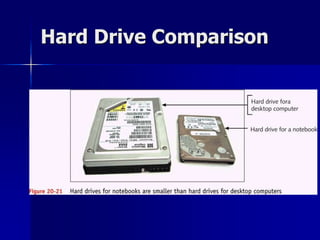
Hard Drive Comparison
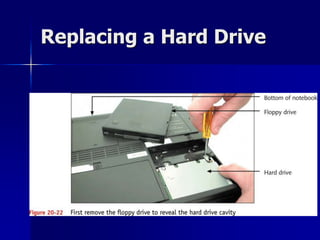
Replacing a Hard Drive
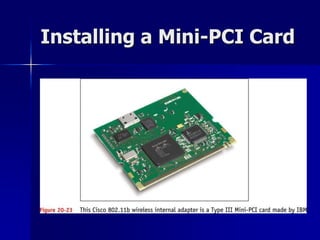
Installing a Mini-PCI Card
Resources for 
Troubleshooting Notebooks 
 Apply same troubleshooting guidelines as 
for desktop PCs 
 Be especially conscious of warranty issues 
 Loaded OS and hardware configuration are 
specific; see documentation for details 
 Support CDs bundled with notebook include 
device drivers for all embedded devices 
 Download additional or updated drivers 
from manufacturer’s Web site
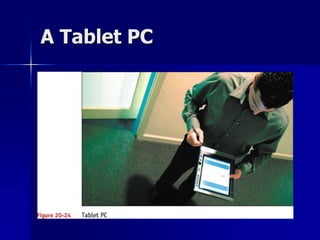
Tablet PCs 
 Type of notebook computer that is 
smaller, more graphical, more user 
friendly, and more portable 
 Has a touch screen 
 Cost about the same as notebooks
A Tablet PC
Three Tablet Form 
Factors 
 Convertible tablet PC 
 Slate model tablet PC 
 Tablet PC with a docking station
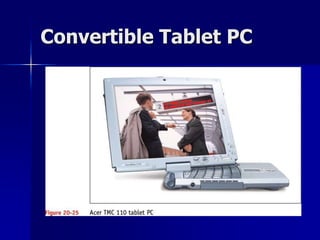
Convertible Tablet PC
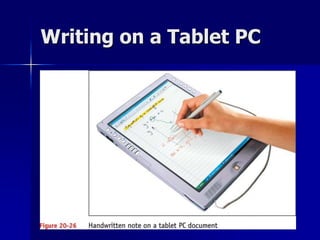
Features of a Tablet PC 
 Functioning Windows XP computer with the 
power of a full-sized notebook 
 Input can be by handwriting, voice, hardware 
keyboard, or on-screen keyboard 
 Built-in support for wireless, wired, and dial-up 
networking 
 AC power adapter and rechargeable battery 
 Windows XP Tablet PC Edition 
 PC Card, USB ports, and VGA port for 
peripheral devices
Writing on a Tablet PC
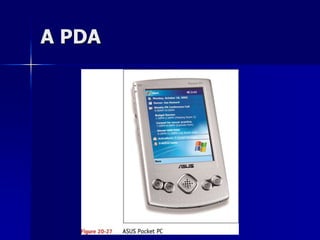
PDAs (Personal Digital 
Assistance) 
 Provide more portability than a notebook or 
tablet PC 
 Include a stylus 
 Powered using an AC adapter or battery 
 Use either a grayscale or color active matrix 
or dual-scan passive matrix display 
 Can interface with a desktop or notebook 
computer to transfer files and applications 
 Synchronize with PCs through a USB, serial, 
or wireless port
A PDA
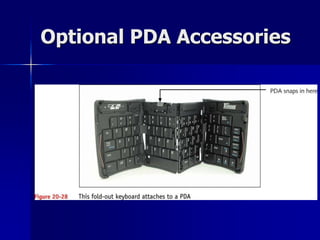
Optional PDA Accessories
Considerations When 
Purchasing a PDA 
 Applications that are included or can be 
added later 
 Ease of use; thoroughness of 
documentation 
 Ease of synchronization 
 Availability of manufacturer support 
 Type of batteries and anticipated battery life
Considerations When 
Purchasing a PDA 
(continued) 
 Ability to use e-mail and the Web 
without needing extra hardware or 
software 
 Availability of additional devices 
 Ease of use of OS 
 Warranty and price
Battery Life on a PDA 
 Varies by model 
 Short battery life is the largest 
complaint; 
– Risk of losing data and applications if 
battery runs all the way down 
 Use cradle and adapter
Variety of Ways Applications 
Are Provided on a PDA 
 All application software preinstalled 
 Require user to download applications 
at additional cost 
 Support only preinstalled applications 
and cannot download others 
 Allow downloading email or Web site 
content 
 Access Internet directly by way of a 
modem or wireless connection
Connecting a PDA to a PC 
 Synchronization 
– Process by which PDA and PC “talk” to each 
other through universal cradle, cable, and 
USB or serial connection – and occasionally, 
wireless technology 
– Capabilities 
 Backup information from PDA to PC 
 Work with PDA files on PC and download 
applications from Web
PDA Manufacturers and 
Operating Systems 
 Windows Mobile by Microsoft 
– More versatile 
– Better for downloading and running 
applications similar to Windows
PDA Manufacturers and 
Operating Systems 
(continued) 
 Palm OS by PalmSource 
– Less complex 
– Easier to use 
– Better choice when PDA is used for 
simple tasks 
 Principal difference between the two 
OSs is in the applications they support
Troubleshooting Portable 
Computers 
 Laptop Won’t Power On 
– Verify AC power by plugging another electronic device into the wall 
outlet. If the other device receives power, the outlet is good 
– If the outlet is good, connect the laptop to the wall outlet and try to 
power on. If no LEDs light up, you may have a bad AC adapter. Swap it 
out with a known-good power adapter 
– A faulty peripheral device might keep the laptop from powering up. 
Remove any peripherals such as USB or Firewire devices 
 Screen Doesn’t Come On Properly 
– If the laptop is booting (you hear the beeps and the drives), first make 
sure the display is on. Press the FN key and the key to activate the 
screen a number of times until the laptop display comes on 
– If the laptop display is very dim, you may have lost an inverter. The clue 
here is that inverters never go quietly. They can make a nasty hum as 
they are about to die and an equally nasty popping noise when they 
actually fail. Failure often occurs when you plug in the laptop’s AC 
adapter, as the inverters take power directly from the AC adapter
Troubleshooting Portable 
Computers 
 Wireless Networking Doesn’t Work 
– Check for a physical switch along the front, rear, or side edges of the 
laptop that toggles the internal wireless adapter on and off 
– Try the special key combination for your laptop to toggle the wireless 
adapter.You usually press the FN key in combination with another key 
– You might simply be out of range. Physically walk the laptop over to the 
wireless router or access point to ensure there are no “out of range” 
issues 
 Handwriting Is Not Recognized 
– If your PDA or tablet PC no longer recognizes your handwriting or stylus, 
you may need to retrain the digitizer. Look for an option in your PDA OS 
settings to “align the screen.” On Windows tablet PCs, you will find a 
similar option under Start | Settings | Control Panel
Troubleshooting Portable 
Computers 
 Keypad Doesn’t Work 
– If none of the keys work on your laptop, there’s a good chance you’ve 
unseated the keypad connector. These connectors are quite fragile and 
are prone to unseating from any physical stress on the laptop. Check the 
manufacturer’s disassembly procedures to locate and reseat the keypad 
– If you’re getting numbers when you’re expecting to get letters, the 
number lock (NUMLOCK) function key is turned on. Turn it off 
 Touchpad Doesn’t Work 
– A shot of compressed air does wonders for cleaning pet hair out of the 
touchpad sensors. You’ll get a cleaner shot if you remove the keyboard 
before using the compressed air. Remember to be gentle when lifting off 
the keyboard and make sure to follow the manufacturer’s instructions. 
– The touchpad driver might need to be reconfigured. Try the various 
options in the Control Panel | Mouse applet

19 portable computing

  • 1.
  • 2.
  • 3.
    Notebook Computers (continued)  Same technology as PCs, with modifications for space, portability, and power conservation – Thin LCD panels (active matrix and passive matrix) – Compact hard drives – Small memory modules – CPUs that require less power
  • 4.
    Notebooks versus PCs Notebooks PCs Usually purchased as a whole unit; unlikely to upgrade hardware and OS Design is typically proprietary Some universal support issues, but procedures vary between brands Highly modular Components can be interchanged, upgraded, and enhanced Cost less than notebooks
  • 5.
    Windows Notebook Features  Multilink Channel Aggregation  ACPI (Advanced Configuration and Power Interface)  Power management  Support for PC Cards  Windows 9x Briefcase  Windows 2000/XP Offline Files and Folders  Folder redirection under Windows 2000/XP  Hardware profiles under Windows 2000/XP
  • 6.
    Power Management Power sources – Battery – DC adapter – AC adapter  Types of batteries – Lithium ion – NiMH – Fuel cell
  • 7.
  • 8.
  • 9.
  • 10.
  • 11.
  • 12.
    Connecting Peripheral Devicesto Notebooks  Ports on the notebook  PC Card slot with lock switch and eject button  Headphone jack  Microphone jack  Infrared port  Secure Digital (SD) card slot  CompactFlash Card slot  Wireless antenna on/off switch  Serial port
  • 13.
    Ports on aNotebook
  • 14.
    Connecting Peripheral Devicesto Notebooks (continued)
  • 15.
    Connecting Peripheral Devicesto Notebooks (continued)
  • 16.
    Connecting Peripheral Devicesto Notebooks (continued)
  • 17.
  • 18.
    PC Card Slots(continued)  Used by many devices  Connect to the 16-bit PCMCIA I/O bus on notebook motherboard  Might contain a data cable to an external drive, or might be self-contained  Can interface with a network
  • 19.
    PC Card SlotStandards  CardBus (latest spec) – Improves I/O speed – Increases bus width to 32 bits – Supports lower-voltage PC Cards while maintaining backward compatibility  Three other types (Type I, Type II, Type III), which vary in thickness
  • 20.
    PCMCIA / PCCards Short for Personal Computer Memory Card International Association, and pronounced as separate letters, PCMCIA is an organization consisting of some 500 companies that has developed a standard for small, credit card-sized devices, called PC Cards Originally designed for adding memory to portable computers, the PCMCIA standard has been expanded several times and is now suitable for many types of devices
  • 21.
    PCMCIA / PCCards – (Continued) There are in fact three types of PCMCIA cards. All three have the same rectangular size (85.6 by 54 millimeters), but different widths: Type I cards can be up to 3.3 mm thick, and are used primarily for adding additional ROM or RAM to a computer Type II cards can be up to 5.5 mm thick. These cards are often used for modem and fax modem cards Type III cards can be up to 10.5 mm thick, which is sufficiently large for portable disk drives
  • 22.
    PCMCIA / PCCards – (Continued) As with the cards, PCMCIA slots also come in three sizes: A Type I slot can hold one Type I card A Type II slot can hold one Type II card or one Type I card A Type III slot can hold one Type III card or any combination of two Type I or II cards In general, you can exchange PC Cards on the fly (hot swappable), without rebooting your computer. For example, you can slip in a fax modem card when you want to send a fax and then, when you're done, replace the fax modem card with a memory card
  • 23.
  • 24.
  • 25.
    Using a PCCard to Interface with a Network
  • 26.
    Using PC CardSlots and Other Slots  OS must provide two (2) services – Socket service  Establishes communication between card and notebook when the card is first inserted  Disconnects communication when card is removed – Card service  Provides device driver to interface with the card once socket is created  Can be hot-swapped
  • 27.
  • 28.
    Types of MemoryUsed by Notebooks
  • 29.
  • 30.
  • 31.
  • 32.
    Other FRUs forNotebooks  Hard drive  LCD panel  Motherboard  CPU  Keyboard  PC Card socket assembly  Optical drive  Floppy drive  Sound card  Pointing device  AC adapter  Battery pack  DC controller FRU – Field Reserve Units
  • 33.
  • 34.
  • 35.
  • 36.
    Resources for TroubleshootingNotebooks  Apply same troubleshooting guidelines as for desktop PCs  Be especially conscious of warranty issues  Loaded OS and hardware configuration are specific; see documentation for details  Support CDs bundled with notebook include device drivers for all embedded devices  Download additional or updated drivers from manufacturer’s Web site
  • 37.
    Tablet PCs Type of notebook computer that is smaller, more graphical, more user friendly, and more portable  Has a touch screen  Cost about the same as notebooks
  • 38.
  • 39.
    Three Tablet Form Factors  Convertible tablet PC  Slate model tablet PC  Tablet PC with a docking station
  • 40.
  • 41.
    Features of aTablet PC  Functioning Windows XP computer with the power of a full-sized notebook  Input can be by handwriting, voice, hardware keyboard, or on-screen keyboard  Built-in support for wireless, wired, and dial-up networking  AC power adapter and rechargeable battery  Windows XP Tablet PC Edition  PC Card, USB ports, and VGA port for peripheral devices
  • 42.
    Writing on aTablet PC
  • 43.
    PDAs (Personal Digital Assistance)  Provide more portability than a notebook or tablet PC  Include a stylus  Powered using an AC adapter or battery  Use either a grayscale or color active matrix or dual-scan passive matrix display  Can interface with a desktop or notebook computer to transfer files and applications  Synchronize with PCs through a USB, serial, or wireless port
  • 44.
  • 45.
  • 46.
    Considerations When Purchasinga PDA  Applications that are included or can be added later  Ease of use; thoroughness of documentation  Ease of synchronization  Availability of manufacturer support  Type of batteries and anticipated battery life
  • 47.
    Considerations When Purchasinga PDA (continued)  Ability to use e-mail and the Web without needing extra hardware or software  Availability of additional devices  Ease of use of OS  Warranty and price
  • 48.
    Battery Life ona PDA  Varies by model  Short battery life is the largest complaint; – Risk of losing data and applications if battery runs all the way down  Use cradle and adapter
  • 49.
    Variety of WaysApplications Are Provided on a PDA  All application software preinstalled  Require user to download applications at additional cost  Support only preinstalled applications and cannot download others  Allow downloading email or Web site content  Access Internet directly by way of a modem or wireless connection
  • 50.
    Connecting a PDAto a PC  Synchronization – Process by which PDA and PC “talk” to each other through universal cradle, cable, and USB or serial connection – and occasionally, wireless technology – Capabilities  Backup information from PDA to PC  Work with PDA files on PC and download applications from Web
  • 51.
    PDA Manufacturers and Operating Systems  Windows Mobile by Microsoft – More versatile – Better for downloading and running applications similar to Windows
  • 52.
    PDA Manufacturers and Operating Systems (continued)  Palm OS by PalmSource – Less complex – Easier to use – Better choice when PDA is used for simple tasks  Principal difference between the two OSs is in the applications they support
  • 53.
    Troubleshooting Portable Computers  Laptop Won’t Power On – Verify AC power by plugging another electronic device into the wall outlet. If the other device receives power, the outlet is good – If the outlet is good, connect the laptop to the wall outlet and try to power on. If no LEDs light up, you may have a bad AC adapter. Swap it out with a known-good power adapter – A faulty peripheral device might keep the laptop from powering up. Remove any peripherals such as USB or Firewire devices  Screen Doesn’t Come On Properly – If the laptop is booting (you hear the beeps and the drives), first make sure the display is on. Press the FN key and the key to activate the screen a number of times until the laptop display comes on – If the laptop display is very dim, you may have lost an inverter. The clue here is that inverters never go quietly. They can make a nasty hum as they are about to die and an equally nasty popping noise when they actually fail. Failure often occurs when you plug in the laptop’s AC adapter, as the inverters take power directly from the AC adapter
  • 54.
    Troubleshooting Portable Computers  Wireless Networking Doesn’t Work – Check for a physical switch along the front, rear, or side edges of the laptop that toggles the internal wireless adapter on and off – Try the special key combination for your laptop to toggle the wireless adapter.You usually press the FN key in combination with another key – You might simply be out of range. Physically walk the laptop over to the wireless router or access point to ensure there are no “out of range” issues  Handwriting Is Not Recognized – If your PDA or tablet PC no longer recognizes your handwriting or stylus, you may need to retrain the digitizer. Look for an option in your PDA OS settings to “align the screen.” On Windows tablet PCs, you will find a similar option under Start | Settings | Control Panel
  • 55.
    Troubleshooting Portable Computers  Keypad Doesn’t Work – If none of the keys work on your laptop, there’s a good chance you’ve unseated the keypad connector. These connectors are quite fragile and are prone to unseating from any physical stress on the laptop. Check the manufacturer’s disassembly procedures to locate and reseat the keypad – If you’re getting numbers when you’re expecting to get letters, the number lock (NUMLOCK) function key is turned on. Turn it off  Touchpad Doesn’t Work – A shot of compressed air does wonders for cleaning pet hair out of the touchpad sensors. You’ll get a cleaner shot if you remove the keyboard before using the compressed air. Remember to be gentle when lifting off the keyboard and make sure to follow the manufacturer’s instructions. – The touchpad driver might need to be reconfigured. Try the various options in the Control Panel | Mouse applet