
Go Google
• Overview of Google products
• Drive, Docs, Forms & more
• Getting started
• Productivity tips
• Collaboration
• Storage
• Using Google on other devices
• Cheat sheet handouts – Shortcut keys,
search tips, etc.
Google
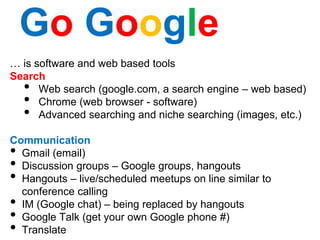
… is software and web based tools
Search
• Web search (google.com, a search engine – web based)
• Chrome (web browser - software)
• Advanced searching and niche searching (images, etc.)
Communication
• Gmail (email)
• Discussion groups – Google groups, hangouts
• Hangouts – live/scheduled meetups on line similar to
conference calling
• IM (Google chat) – being replaced by hangouts
• Google Talk (get your own Google phone #)
• Translate
Go Google
Cool things & projects
• Google Earth
• Google Glass
• Panoramio – share your images with the world via
Google Maps
• Google Loon (project to use weather balloons for
wifi)
• Trends – what’s trending
• Google Fiber (fiber optics & lots of other things)
• Google’s self driving car
Images + Video + Music!
• Picasa
• Google Play / Music
Google
Mobile
• Android
• Google drive
• Ask Google (Voice activated help)
Other products they have purchased
• Youtube
• Blogger
• Feedburner (works with blogs and rss feeds)
Google
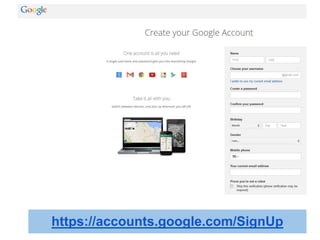
https://accounts.google.com/SignUp
• Free storage up to 15GB excludes youtube
• Can upload pdfs, office and openoffice formats
which can be edited online (Google Docs) ; can
download, too!
• Can share documents and work collaboratively
(even with non Googlers)
• Mobile friendly; cloud based
• Downloadable product also.
• Create a Google account – if you have a
GMAIL, Youtube or Blogger account, you have
a Google account
Drive
Drive
Let’s take a look at organization, searching, sharing a folder, uploading/converting document - Live
Demo covers slide 10-14
Other products…
Upload files and folders
Create folders to organize
Create new Google doc by
type – will open window
Drive
Sharing a folder
Drive
Sharing a folder
Drive
These apply to files
too except you have
more options - we’ll
cover files in Docs
Sharing options
Drive
You can also choose what people can do
Drive
To Upload a file:
Select ‘upload’ then ‘files’.
Choose your file from your computer.
Select ‘convert’ to Google Docs format.
Start upload. Once it is uploaded it will be converted to a
Google Docs format and you edit via the Google Docs
editor. (You can also create new, too!)
Docs
• Free, web-based application (cloud)
• Create, share and manage documents (docs).
• Can share documents and work collaboratively
(even with non Googlers)
• Productivity tools including Word Documents (letters,
flyers, essays; similar to Microsoft Word documents) ;
Spreadsheets (similar to Microsoft Excel worksheets);
Presentations (Creation and presentation slides similar to
Microsoft PowerPoint slideshows).
Also:
Forms: For collecting and organizing data (Create>Form).
Drawings: For creating simple vector graphics or diagrams.
(Create>Drawing)
Notice the toolbar
is similar to the
word processors.
Docs
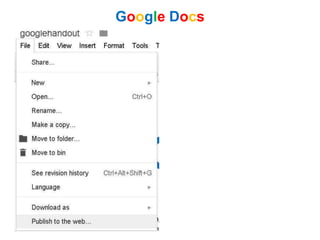
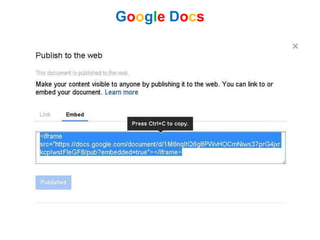
Live demo: Edit file, create a file, move to folder,
share, publish to web, embed, show revision -
slides 19-23
Google Docs
Google Docs
Google Docs
Can be pushed into
social media,
embedded in blogs,
etc.
Google Docs
Best practices:
● Give a descriptive title - it makes it easier to search and
find
● When sharing a doc, send an email message to notify
those you are sharing with. Use their GMail address
unless they ask otherwise.
● If you have trouble accessing a shared document, make
sure to check the email address used for you. (If you
are signed in under a different account, you will not be
able to access it)
● Starring documents can make them easier to find
● Formatting can get lost between Microsoft Office and
Google Docs
● Don’t forget about Spreadsheets, Presentations (like
Google Best practices
Revision history and the Bin
When you delete in Google Drive, it moves it to a
temporary trash (BIn) for 30 Days. You can recover it at
any time prior to that. It also holds revisions (the last
100), so you can restore from that as well
You can turn off autodeleting of revisions under
Manage Revisions.
Revisions: Ctrl + Alt +G or Edit>Revision History
To archive/download everything: Click on All Items
(multiple ways to get there) or select all and download.
Google Best practices
Use Google Docs to:
• Work together on a document (keep it draft until
complete); Revisions can be tracked, too!
• Take live collaborative notes at a conference
• Easily share conference notes, class materials, or other
items with others
• Publish to the web OR provide a private link that only
some people can see
• Store your files and get an embeddable link for use –
social media and elsewhere
• Store and edit videos (transcription too!) - Youtube
• Create a blog, survey, or drawing
• Backup and storage up to 15G
• Access shared docs from anywhere with internet
Google Collaboration
Google’s version of an online discussion
group, similar to a LISTSERV.
You can create them or just participate. They
can be closed or public.
Topics can contain multiple posts. Posts are
replies from readers to the topic.
They are searchable and archivable.
Google Groups
Create forms, surveys, invitations, signup sheets (send out
via email or embed in a site)
Results are automatically posted in a spreadsheet
Run reports and create graphs (can be embedded in a doc)
Google Forms
Google Forms
Create websites through a guided process, which can
include embedded Google docs, blogger posts, rss feeds
and more. FirstYear seminar portfolio is a simple Google
Site template.
Can be private, public, or shared with select individuals.
Templates are always public.
Can be used to organize resources, create pathfinders, and
other projects.
Google Sites
Let's look at Google+
(... what is it?)
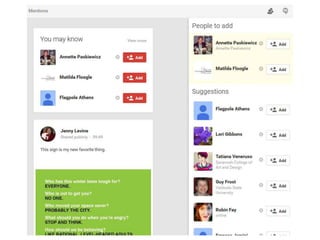
Google +
Have a social media presence
More control than facebook - can be
as public or private as you want
Rather than friends, “circles” or
groups of individuals
Has pages for organization and
community groups
Can easily share email, blogs, links,
and more.
http://plus.google.com
What is Google+?
Circles
News feed
Your
friends
Posts are
shared with
different
levels of
privacy... ... you
choose
Hangouts are replacing Chat (IM) -
don’t worry, it’s transparent…
In fact... you can
hang out from lots
of different places
Finally, you can insert files from drive into an email.Let’s take a look at the
Google search handout to explore advanced searching
http://tinyurl.com/qhd4gzo

Go google - tips and tricks for getting started with google

  • 1.
  • 2.
    • Overview ofGoogle products • Drive, Docs, Forms & more • Getting started • Productivity tips • Collaboration • Storage • Using Google on other devices • Cheat sheet handouts – Shortcut keys, search tips, etc. Google
  • 3.
    … is softwareand web based tools Search • Web search (google.com, a search engine – web based) • Chrome (web browser - software) • Advanced searching and niche searching (images, etc.) Communication • Gmail (email) • Discussion groups – Google groups, hangouts • Hangouts – live/scheduled meetups on line similar to conference calling • IM (Google chat) – being replaced by hangouts • Google Talk (get your own Google phone #) • Translate Go Google
  • 4.
    Cool things &projects • Google Earth • Google Glass • Panoramio – share your images with the world via Google Maps • Google Loon (project to use weather balloons for wifi) • Trends – what’s trending • Google Fiber (fiber optics & lots of other things) • Google’s self driving car Images + Video + Music! • Picasa • Google Play / Music Google
  • 5.
    Mobile • Android • Googledrive • Ask Google (Voice activated help) Other products they have purchased • Youtube • Blogger • Feedburner (works with blogs and rss feeds) Google
  • 6.
  • 7.
    • Free storageup to 15GB excludes youtube • Can upload pdfs, office and openoffice formats which can be edited online (Google Docs) ; can download, too! • Can share documents and work collaboratively (even with non Googlers) • Mobile friendly; cloud based • Downloadable product also. • Create a Google account – if you have a GMAIL, Youtube or Blogger account, you have a Google account Drive
  • 9.
    Drive Let’s take alook at organization, searching, sharing a folder, uploading/converting document - Live Demo covers slide 10-14
  • 10.
  • 11.
    Upload files andfolders Create folders to organize Create new Google doc by type – will open window Drive
  • 12.
  • 13.
    Sharing a folder Drive Theseapply to files too except you have more options - we’ll cover files in Docs
  • 14.
  • 15.
    You can alsochoose what people can do Drive
  • 16.
    To Upload afile: Select ‘upload’ then ‘files’. Choose your file from your computer. Select ‘convert’ to Google Docs format. Start upload. Once it is uploaded it will be converted to a Google Docs format and you edit via the Google Docs editor. (You can also create new, too!)
  • 17.
    Docs • Free, web-basedapplication (cloud) • Create, share and manage documents (docs). • Can share documents and work collaboratively (even with non Googlers) • Productivity tools including Word Documents (letters, flyers, essays; similar to Microsoft Word documents) ; Spreadsheets (similar to Microsoft Excel worksheets); Presentations (Creation and presentation slides similar to Microsoft PowerPoint slideshows). Also: Forms: For collecting and organizing data (Create>Form). Drawings: For creating simple vector graphics or diagrams. (Create>Drawing)
  • 18.
    Notice the toolbar issimilar to the word processors. Docs Live demo: Edit file, create a file, move to folder, share, publish to web, embed, show revision - slides 19-23
  • 19.
  • 20.
  • 21.
    Google Docs Can bepushed into social media, embedded in blogs, etc.
  • 22.
  • 23.
    Best practices: ● Givea descriptive title - it makes it easier to search and find ● When sharing a doc, send an email message to notify those you are sharing with. Use their GMail address unless they ask otherwise. ● If you have trouble accessing a shared document, make sure to check the email address used for you. (If you are signed in under a different account, you will not be able to access it) ● Starring documents can make them easier to find ● Formatting can get lost between Microsoft Office and Google Docs ● Don’t forget about Spreadsheets, Presentations (like Google Best practices
  • 24.
    Revision history andthe Bin When you delete in Google Drive, it moves it to a temporary trash (BIn) for 30 Days. You can recover it at any time prior to that. It also holds revisions (the last 100), so you can restore from that as well You can turn off autodeleting of revisions under Manage Revisions. Revisions: Ctrl + Alt +G or Edit>Revision History To archive/download everything: Click on All Items (multiple ways to get there) or select all and download. Google Best practices
  • 25.
    Use Google Docsto: • Work together on a document (keep it draft until complete); Revisions can be tracked, too! • Take live collaborative notes at a conference • Easily share conference notes, class materials, or other items with others • Publish to the web OR provide a private link that only some people can see • Store your files and get an embeddable link for use – social media and elsewhere • Store and edit videos (transcription too!) - Youtube • Create a blog, survey, or drawing • Backup and storage up to 15G • Access shared docs from anywhere with internet Google Collaboration
  • 26.
    Google’s version ofan online discussion group, similar to a LISTSERV. You can create them or just participate. They can be closed or public. Topics can contain multiple posts. Posts are replies from readers to the topic. They are searchable and archivable. Google Groups
  • 27.
    Create forms, surveys,invitations, signup sheets (send out via email or embed in a site) Results are automatically posted in a spreadsheet Run reports and create graphs (can be embedded in a doc) Google Forms
  • 28.
  • 29.
    Create websites througha guided process, which can include embedded Google docs, blogger posts, rss feeds and more. FirstYear seminar portfolio is a simple Google Site template. Can be private, public, or shared with select individuals. Templates are always public. Can be used to organize resources, create pathfinders, and other projects. Google Sites
  • 30.
    Let's look atGoogle+ (... what is it?) Google + Have a social media presence More control than facebook - can be as public or private as you want Rather than friends, “circles” or groups of individuals Has pages for organization and community groups Can easily share email, blogs, links, and more.
  • 31.
  • 32.
  • 33.
    Posts are shared with different levelsof privacy... ... you choose
  • 34.
    Hangouts are replacingChat (IM) - don’t worry, it’s transparent…
  • 38.
    In fact... youcan hang out from lots of different places
  • 39.
    Finally, you caninsert files from drive into an email.Let’s take a look at the Google search handout to explore advanced searching http://tinyurl.com/qhd4gzo