“GOOGLE DRIVE”
Introduction
History
 Versions
 Installation
How to use Google Drive
 Features
 To Upload file.
Technology
Advantages and Disadvantages
Competitors, DEMO
 Conclusion
2
INDEX
KEEP EVERYTHING, SHARE ANYTHING.
3
Google Drive is a file storage and
synchronization service provided by Google.
Used for cloud storage, file sharing and sync
documents.
Google Drive is now the home of Google Docs, that
offer collaborative editing on documents,
spreadsheets, presentations, and more.
4
History
5
 Google Drive originated from Writely and Google
Spreadsheets.
 Writely was a web-based word processor created by
Upstartle.
 Spreadsheets, launched on June 6, 2006, created
by 2Web Technologies
 On April 24, 2012, Google Launched Google Drive
ONLINE VERSIONS OF GOOGLE DRIVE
Drive services comes in two versions:
 Free vesrion : 5 gigabyte data storage.
 Premium: This gives from 25GB to 16TB
online data storage on monthly rental(2.49
USD/month )( 154.95 Rs /month).
6
Install Google Drive on your PC
 Go to http://drive.google.com .
 Click the Download Google Drive for your PC
button.
 Open googledrivesync.exe
 Enter your Google Account
username and password
 Complete the installation package instructions.
 Launch Google Drive. Drag files and folders into
your Google Drive folder to begin syncing items
to My Drive
7
HOW TO USE GOOGLE DRIVE?
There are two way to use Google Drive:
1. Online version.
2. Drive client software.
8
ONLINE VERSION
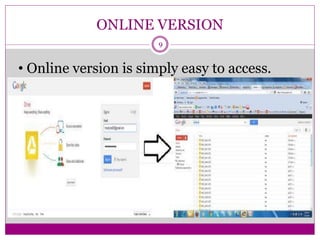
• Online version is simply easy to access.
9
Drive Client Software
 Drive client software which need to be installed in your system
to share and store stuff online
 Devices which support Google Drive client software are:
On PCs running Windows XP, Windows Vista and Windows 7,
or Mac OS X Lion (10.7) and Snow Leopard (10.6);
On Android smart phones and tablets with Eclair and newer
OSes (Android 2.1+);
On iPhones and iPads, iOS 3.0+.[7].
 Drive Client Software process in 3 steps:
Downloading and installation
Sign-up or sign-in in your account
Drag and drop(storing and sharing) of data
10
.
FEATURES OF GOOGLE DRIVE
11
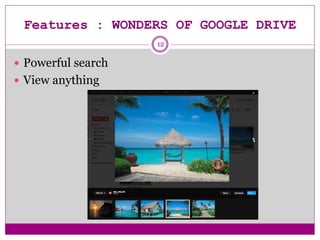
Features : WONDERS OF GOOGLE DRIVE
 Powerful search
 View anything
12
Features
13
 Get stuff done offline
 Chat, discuss & mentions
 Go back in time with revision history
Features
14
 Documents, spreadsheets, presentations can be
created with Google Drive.
.
 Docs are automatically store and syncs.
 Documents can be collaborated shared, opened, and
edited by multiple users at the same time.
Uploading Files and Folders to Google
Drive Software
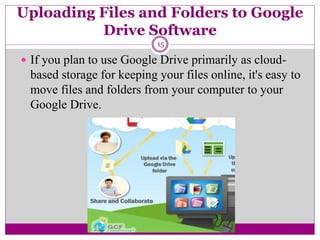
 If you plan to use Google Drive primarily as cloud-
based storage for keeping your files online, it's easy to
move files and folders from your computer to your
Google Drive.
15
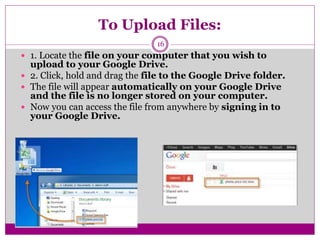
To Upload Files:
 1. Locate the file on your computer that you wish to
upload to your Google Drive.
 2. Click, hold and drag the file to the Google Drive folder.
 The file will appear automatically on your Google Drive
and the file is no longer stored on your computer.
 Now you can access the file from anywhere by signing in to
your Google Drive.
16
Supported file formats
17
 Image files (.JPEG, .PNG.,GIF, .BMP)
 Video files
 Text files (.TXT)
 Markup/Code (.CSS, .HTML, .PHP, .C, .CPP, .JS)
 Microsoft Word (.DOCX) Excel (.XLSX), (.PPT)
 Adobe Portable Document Format (.PDF)
 Adobe Photoshop (.PSD)
 Archive file types (.ZIPand .RAR)
Technology used in Google Drive
Cloud computing :
It is a technology that uses the internet and
central remote servers to maintain data and
applications.
It is a model of network storage where data is
stored.
Optical Character Recognition (OCR):
It enables you to convert different types of
documents into editable and searchable data.
18
Free of charge
Live changes
Anytime accessibility from anywhere
Device independency
Send large files
Social Integration
Control your files
Simplified navigation
Ease of browsing
Powerfull searching
19
DISADVANTAGES OF GOOGLE DRIVE:
Limited File Formats
Security Issue
Internet Dependency
20
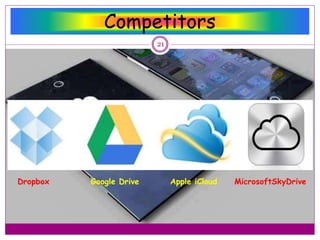
Competitors
Dropbox Google Drive Apple iCloud MicrosoftSkyDrive
21
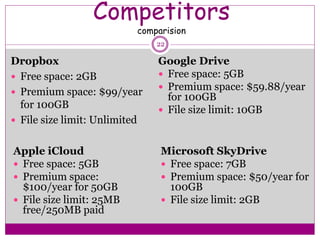
Competitors
comparision
Dropbox
 Free space: 2GB
 Premium space: $99/year
for 100GB
 File size limit: Unlimited
Apple iCloud
 Free space: 5GB
 Premium space:
$100/year for 50GB
 File size limit: 25MB
free/250MB paid
Google Drive
 Free space: 5GB
 Premium space: $59.88/year
for 100GB
 File size limit: 10GB
Microsoft SkyDrive
 Free space: 7GB
 Premium space: $50/year for
100GB
 File size limit: 2GB
22
Demo
23
CONCLUSON
Google Drive provides an easy solution for
online back-up of data to the users.
Especially, in emergency situations like
hard drive crash or data corruption,
Google drive provides great help to the
users because of the availability of all
time data back-up for the users.
24
References
 http://Drive.google.com
 http://en.wikipedia.org/wiki/google_drive
 http://itunes.apple.com
 http://www.geekinsider.com
 http://www.techradar.com
 http://www.theverge.com
25
.
26
 Stay Tuned stay connected :
 http://atharvajawalkar.blogspot.com
 http://www.linkedin.com/in/atharvajawalkar
 https://github.com/atharvajawalkar
 https://www.facebook.com/jawalkaratharva
 https://www.instagram.com/atharvajawalkar
 https://twitter.com/JawalkarAtharva
 https://www.slideshare.net/atharvaj1

Google Drive

  • 1.
  • 2.
    Introduction History  Versions  Installation Howto use Google Drive  Features  To Upload file. Technology Advantages and Disadvantages Competitors, DEMO  Conclusion 2 INDEX
  • 3.
  • 4.
    Google Drive isa file storage and synchronization service provided by Google. Used for cloud storage, file sharing and sync documents. Google Drive is now the home of Google Docs, that offer collaborative editing on documents, spreadsheets, presentations, and more. 4
  • 5.
    History 5  Google Driveoriginated from Writely and Google Spreadsheets.  Writely was a web-based word processor created by Upstartle.  Spreadsheets, launched on June 6, 2006, created by 2Web Technologies  On April 24, 2012, Google Launched Google Drive
  • 6.
    ONLINE VERSIONS OFGOOGLE DRIVE Drive services comes in two versions:  Free vesrion : 5 gigabyte data storage.  Premium: This gives from 25GB to 16TB online data storage on monthly rental(2.49 USD/month )( 154.95 Rs /month). 6
  • 7.
    Install Google Driveon your PC  Go to http://drive.google.com .  Click the Download Google Drive for your PC button.  Open googledrivesync.exe  Enter your Google Account username and password  Complete the installation package instructions.  Launch Google Drive. Drag files and folders into your Google Drive folder to begin syncing items to My Drive 7
  • 8.
    HOW TO USEGOOGLE DRIVE? There are two way to use Google Drive: 1. Online version. 2. Drive client software. 8
  • 9.
    ONLINE VERSION • Onlineversion is simply easy to access. 9
  • 10.
    Drive Client Software Drive client software which need to be installed in your system to share and store stuff online  Devices which support Google Drive client software are: On PCs running Windows XP, Windows Vista and Windows 7, or Mac OS X Lion (10.7) and Snow Leopard (10.6); On Android smart phones and tablets with Eclair and newer OSes (Android 2.1+); On iPhones and iPads, iOS 3.0+.[7].  Drive Client Software process in 3 steps: Downloading and installation Sign-up or sign-in in your account Drag and drop(storing and sharing) of data 10
  • 11.
  • 12.
    Features : WONDERSOF GOOGLE DRIVE  Powerful search  View anything 12
  • 13.
    Features 13  Get stuffdone offline  Chat, discuss & mentions  Go back in time with revision history
  • 14.
    Features 14  Documents, spreadsheets,presentations can be created with Google Drive. .  Docs are automatically store and syncs.  Documents can be collaborated shared, opened, and edited by multiple users at the same time.
  • 15.
    Uploading Files andFolders to Google Drive Software  If you plan to use Google Drive primarily as cloud- based storage for keeping your files online, it's easy to move files and folders from your computer to your Google Drive. 15
  • 16.
    To Upload Files: 1. Locate the file on your computer that you wish to upload to your Google Drive.  2. Click, hold and drag the file to the Google Drive folder.  The file will appear automatically on your Google Drive and the file is no longer stored on your computer.  Now you can access the file from anywhere by signing in to your Google Drive. 16
  • 17.
    Supported file formats 17 Image files (.JPEG, .PNG.,GIF, .BMP)  Video files  Text files (.TXT)  Markup/Code (.CSS, .HTML, .PHP, .C, .CPP, .JS)  Microsoft Word (.DOCX) Excel (.XLSX), (.PPT)  Adobe Portable Document Format (.PDF)  Adobe Photoshop (.PSD)  Archive file types (.ZIPand .RAR)
  • 18.
    Technology used inGoogle Drive Cloud computing : It is a technology that uses the internet and central remote servers to maintain data and applications. It is a model of network storage where data is stored. Optical Character Recognition (OCR): It enables you to convert different types of documents into editable and searchable data. 18
  • 19.
    Free of charge Livechanges Anytime accessibility from anywhere Device independency Send large files Social Integration Control your files Simplified navigation Ease of browsing Powerfull searching 19
  • 20.
    DISADVANTAGES OF GOOGLEDRIVE: Limited File Formats Security Issue Internet Dependency 20
  • 21.
    Competitors Dropbox Google DriveApple iCloud MicrosoftSkyDrive 21
  • 22.
    Competitors comparision Dropbox  Free space:2GB  Premium space: $99/year for 100GB  File size limit: Unlimited Apple iCloud  Free space: 5GB  Premium space: $100/year for 50GB  File size limit: 25MB free/250MB paid Google Drive  Free space: 5GB  Premium space: $59.88/year for 100GB  File size limit: 10GB Microsoft SkyDrive  Free space: 7GB  Premium space: $50/year for 100GB  File size limit: 2GB 22
  • 23.
  • 24.
    CONCLUSON Google Drive providesan easy solution for online back-up of data to the users. Especially, in emergency situations like hard drive crash or data corruption, Google drive provides great help to the users because of the availability of all time data back-up for the users. 24
  • 25.
    References  http://Drive.google.com  http://en.wikipedia.org/wiki/google_drive http://itunes.apple.com  http://www.geekinsider.com  http://www.techradar.com  http://www.theverge.com 25
  • 26.
    . 26  Stay Tunedstay connected :  http://atharvajawalkar.blogspot.com  http://www.linkedin.com/in/atharvajawalkar  https://github.com/atharvajawalkar  https://www.facebook.com/jawalkaratharva  https://www.instagram.com/atharvajawalkar  https://twitter.com/JawalkarAtharva  https://www.slideshare.net/atharvaj1