A Tutorial by John Oleksa
After watching this tutorial, I hope that you will 
be able to: 
 Log on to your Google account and find 
Google Drive 
 Locate where to create Google documents on 
Google Drive 
 Download Google Drive directly to your 
computer to use as you would any drive. 
Benefit: To be able to access your documents 
on Google Drive anywhere and anytime!
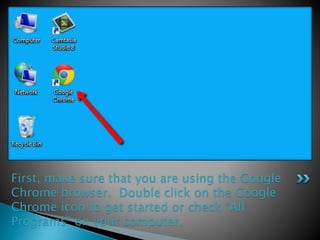
First, make sure that you are using the Google 
Chrome browser. Double click on the Google 
Chrome icon to get started or check “All 
Programs” on your computer.
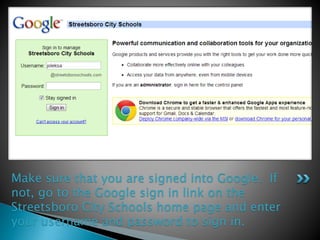
Make sure that you are signed into Google. If 
not, go to the Google sign in link on the 
Streetsboro City Schools home page and enter 
your username and password to sign in.
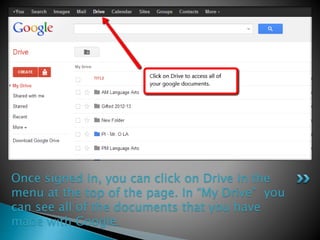
Once signed in, you can click on Drive in the 
menu at the top of the page. In “My Drive” you 
can see all of the documents that you have 
made with Google.
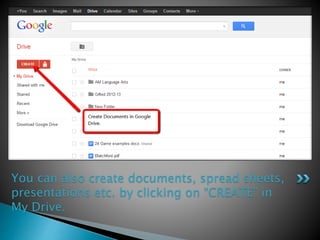
You can also create documents, spread sheets, 
presentations etc. by clicking on “CREATE” in 
My Drive.
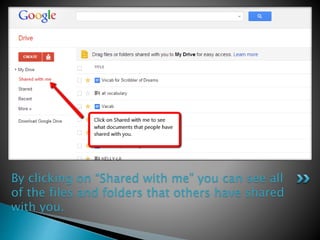
By clicking on “Shared with me” you can see all 
of the files and folders that others have shared 
with you.
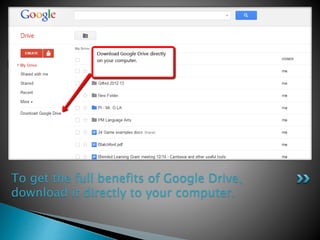
To get the full benefits of Google Drive, 
download it directly to your computer.
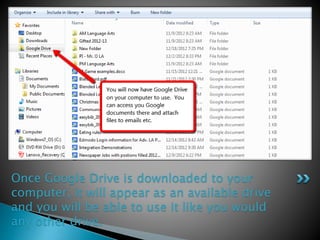
Once Google Drive is downloaded to your 
computer, it will appear as an available drive 
and you will be able to use it like you would 
any other drive.
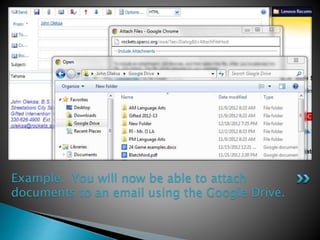
Example: You will now be able to attach 
documents to an email using the Google Drive.
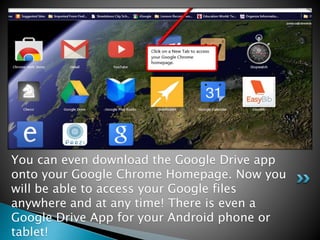
You can even download the Google Drive app 
onto your Google Chrome Homepage. Now you 
will be able to access your Google files 
anywhere and at any time! There is even a 
Google Drive App for your Android phone or 
tablet!
I hope that you will find that using 
Google Drive will be useful in your daily 
lessons!

google drive

  • 1.
    A Tutorial byJohn Oleksa
  • 2.
    After watching thistutorial, I hope that you will be able to:  Log on to your Google account and find Google Drive  Locate where to create Google documents on Google Drive  Download Google Drive directly to your computer to use as you would any drive. Benefit: To be able to access your documents on Google Drive anywhere and anytime!
  • 3.
    First, make surethat you are using the Google Chrome browser. Double click on the Google Chrome icon to get started or check “All Programs” on your computer.
  • 4.
    Make sure thatyou are signed into Google. If not, go to the Google sign in link on the Streetsboro City Schools home page and enter your username and password to sign in.
  • 5.
    Once signed in,you can click on Drive in the menu at the top of the page. In “My Drive” you can see all of the documents that you have made with Google.
  • 6.
    You can alsocreate documents, spread sheets, presentations etc. by clicking on “CREATE” in My Drive.
  • 7.
    By clicking on“Shared with me” you can see all of the files and folders that others have shared with you.
  • 8.
    To get thefull benefits of Google Drive, download it directly to your computer.
  • 9.
    Once Google Driveis downloaded to your computer, it will appear as an available drive and you will be able to use it like you would any other drive.
  • 10.
    Example: You willnow be able to attach documents to an email using the Google Drive.
  • 11.
    You can evendownload the Google Drive app onto your Google Chrome Homepage. Now you will be able to access your Google files anywhere and at any time! There is even a Google Drive App for your Android phone or tablet!
  • 12.
    I hope thatyou will find that using Google Drive will be useful in your daily lessons!