How to Use Google
Docs
What is Google Drive?
A free service from
Google which allows
storage of files…
online and can be
accessed using cloud
What is cloud?
It’s a virtual space where
files are stored…
and can be accessed
with web applications
Google Drive gives you
access to Google Docs
What is Google
Docs?
It’s a free online
program.
You can create
documents and
presentations online.
Share documents, files,
presentations with
others.
Others can edit shared
documents online.
Save and store
documents online.
You need to Create
Google Account to edit
documents online
and access Google Docs
If you have Google
account
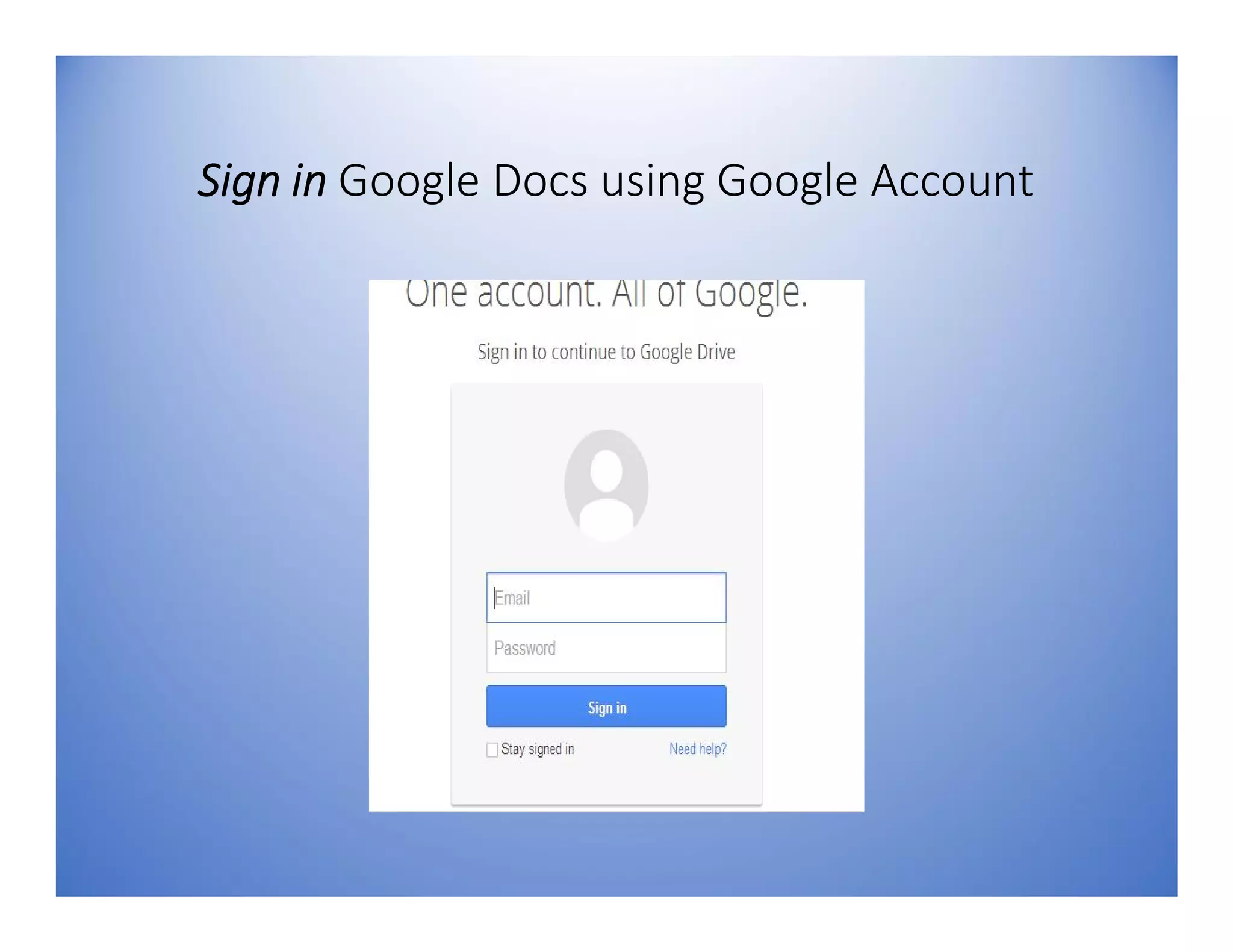
Sign in Google Docs using Google Account
If you have no Google
Account yet
Create a Google Account
Go to
www.google.com
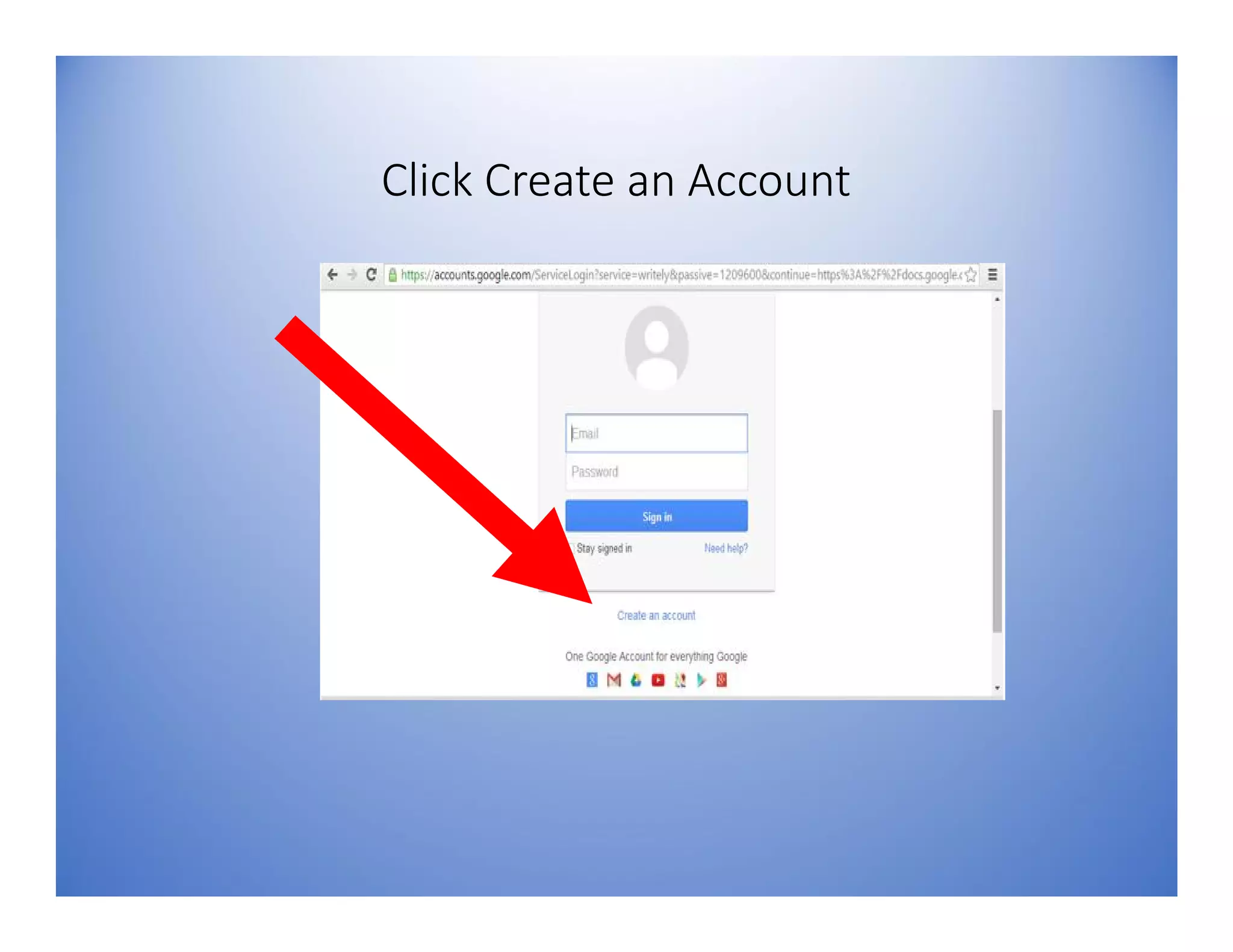
Click Create an Account
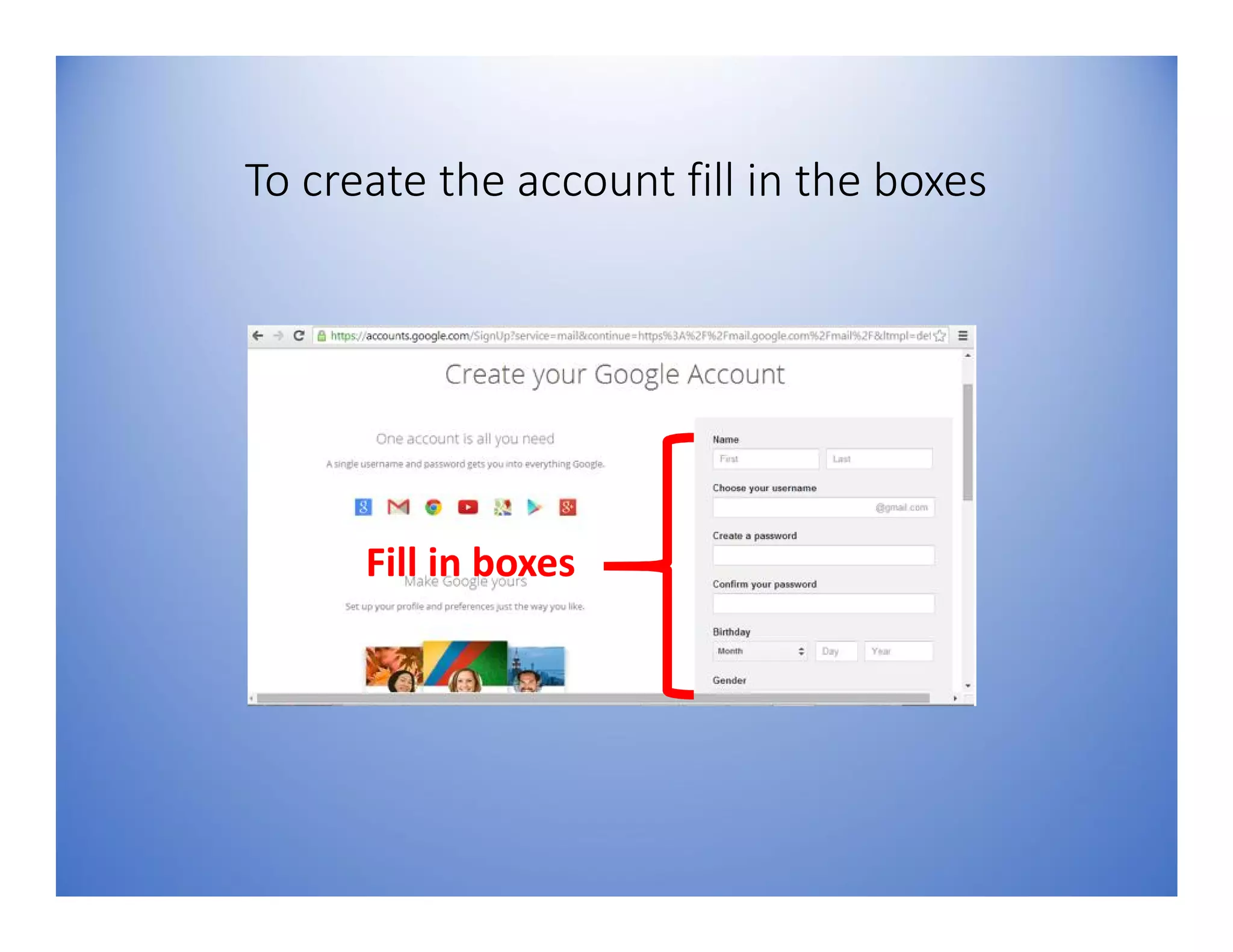
To create the account fill in the boxes
Fill in boxes
Can now access Google
drive after signing to
www.google.com
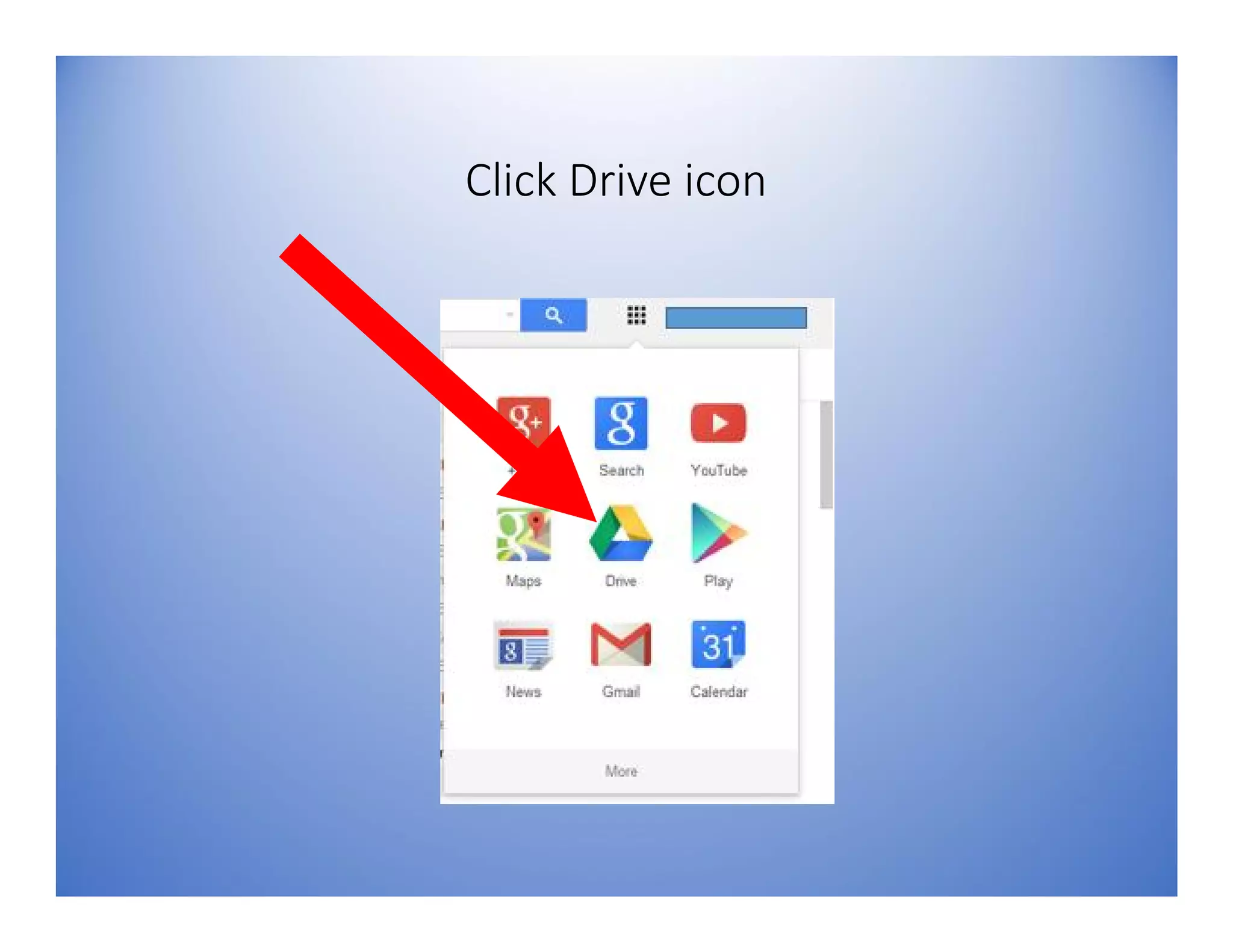
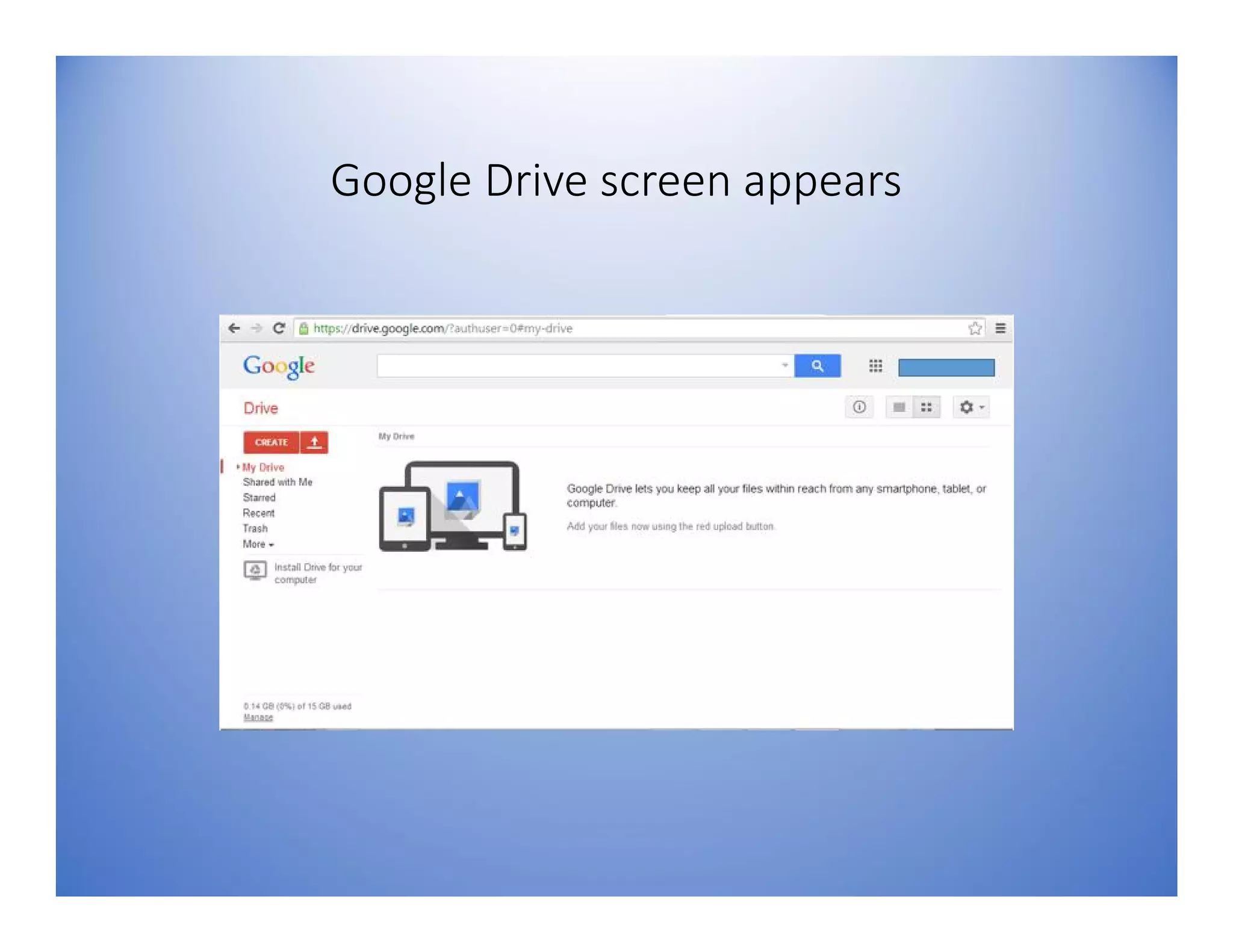
Click Drive icon
Google Drive screen appears
1. To Create a New
Document
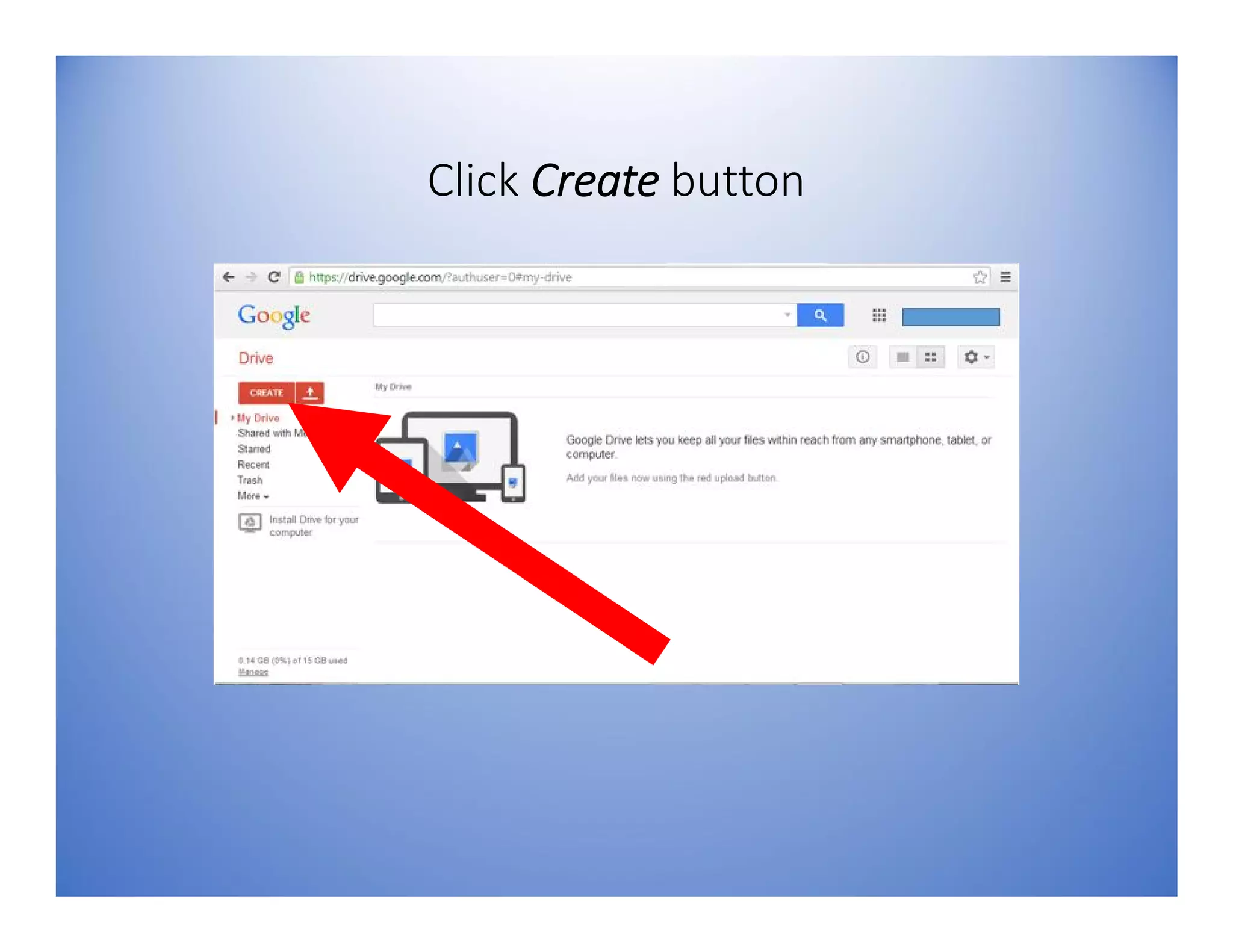
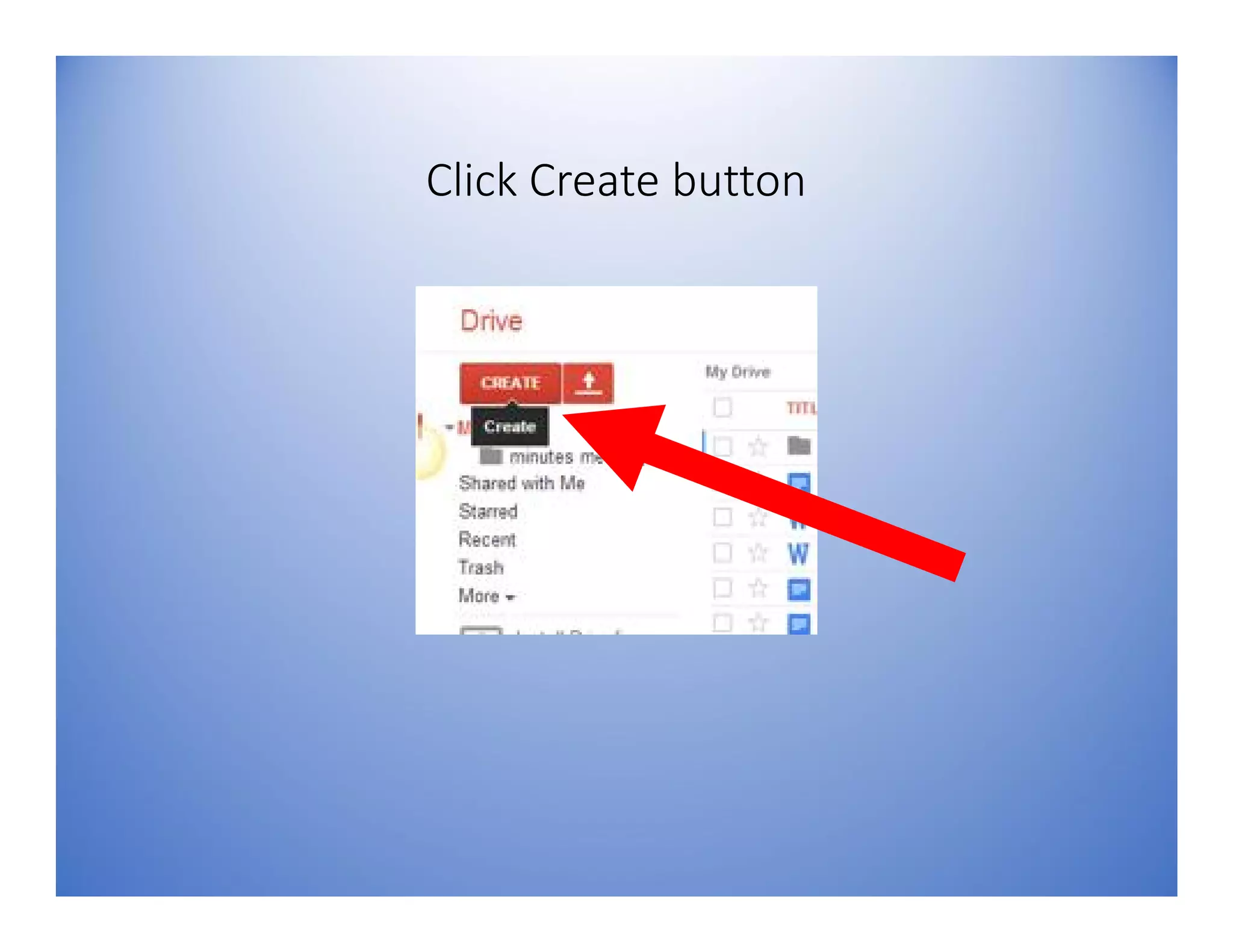
Click Create button
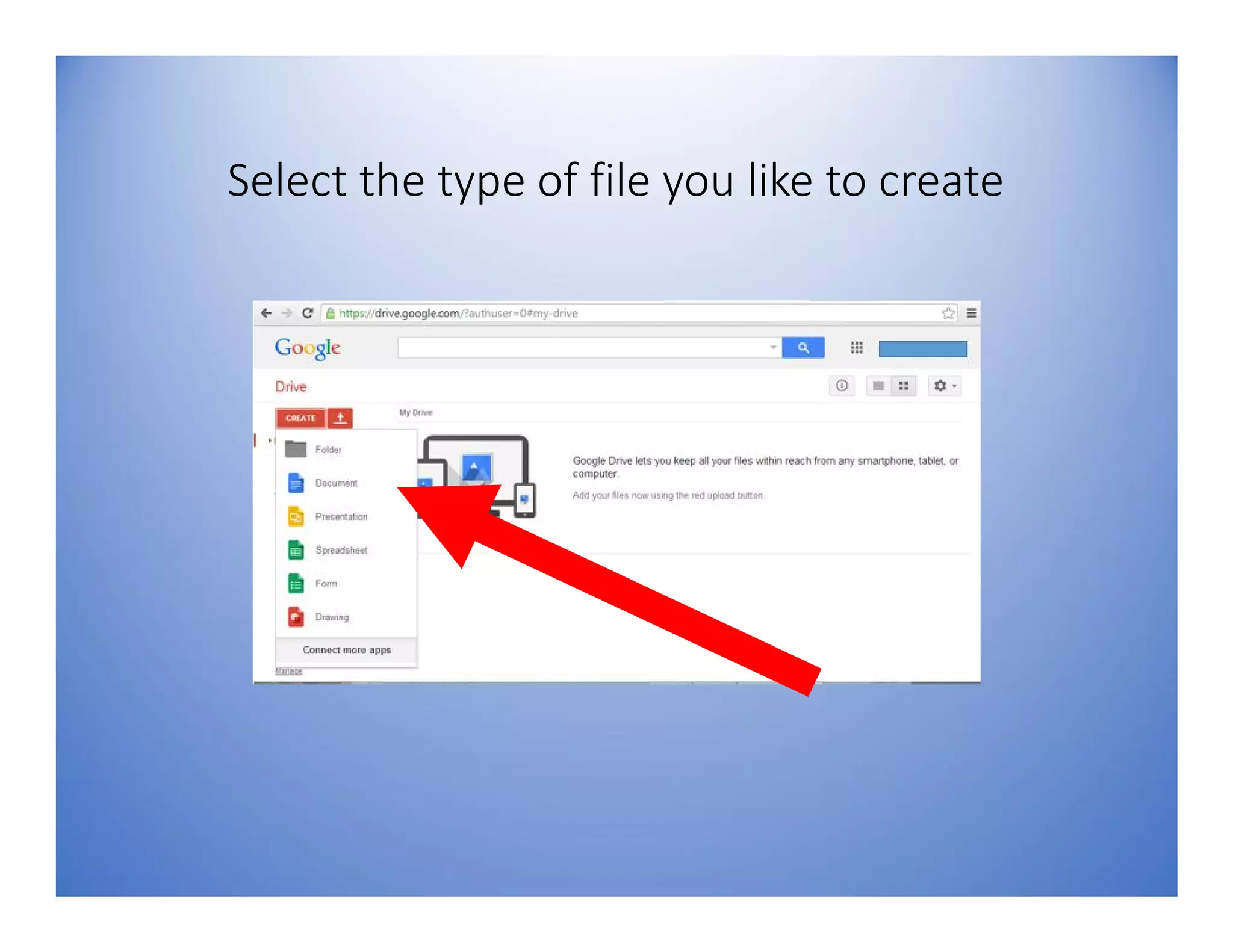
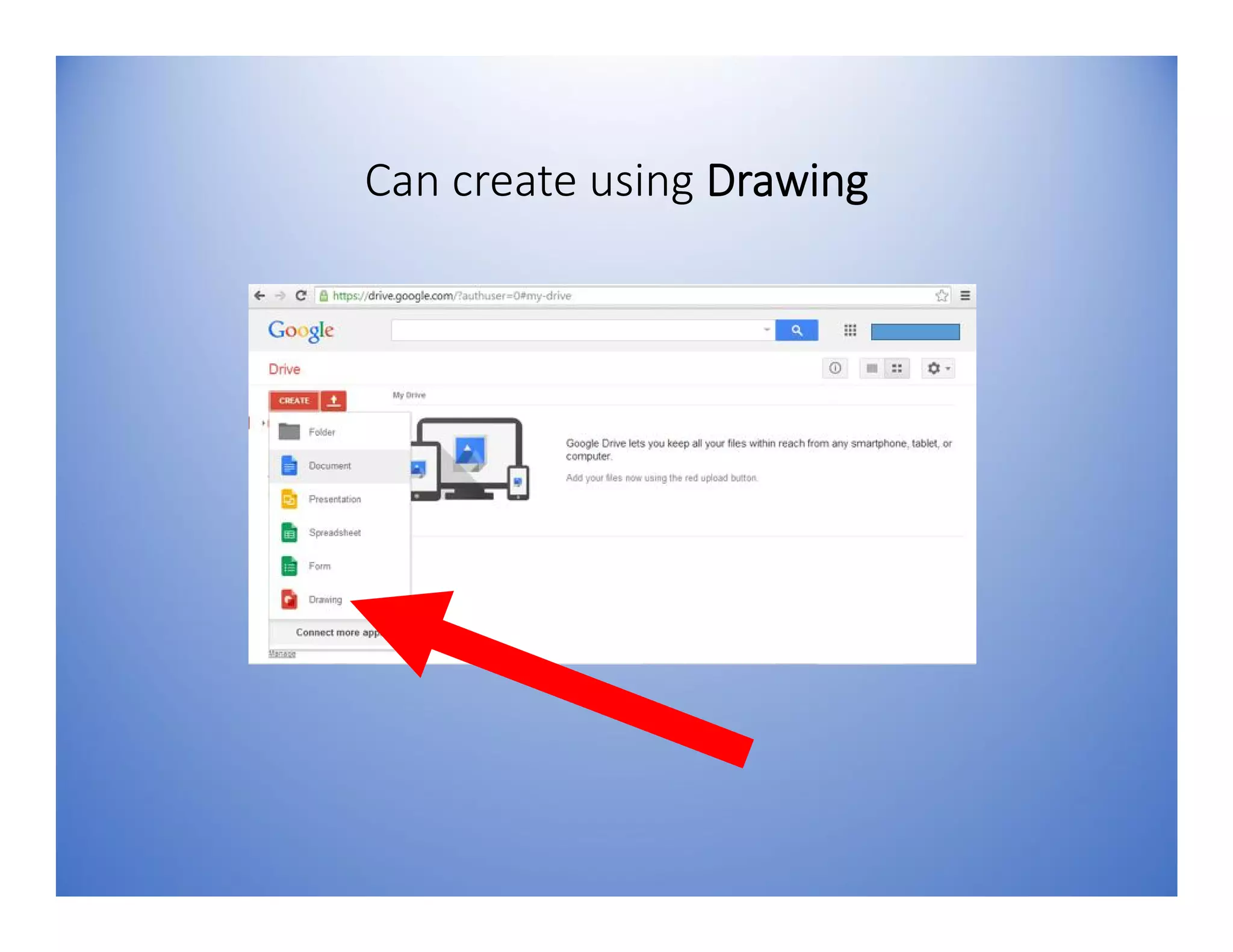
Select the type of file you like to create
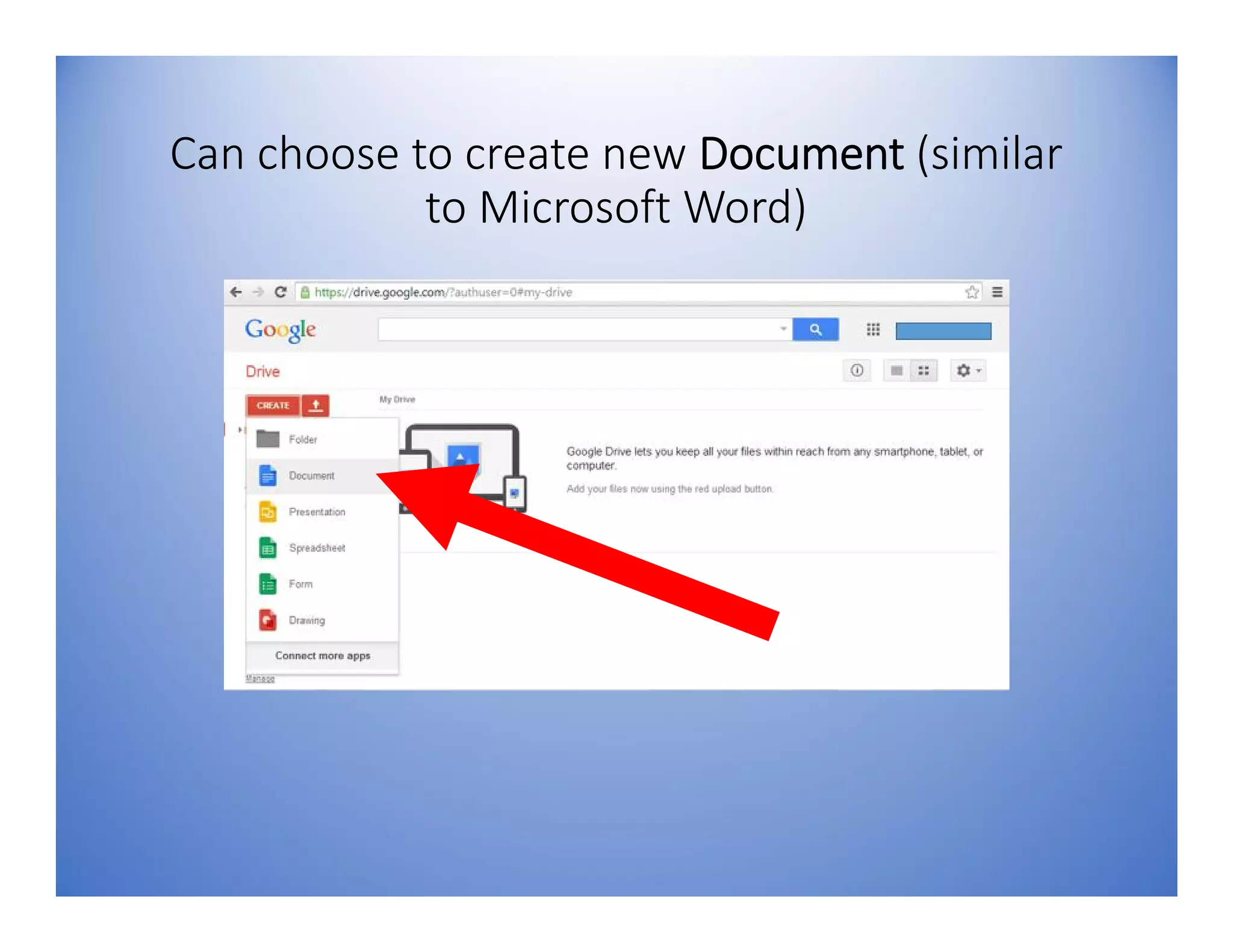
Can choose to create new Document (similar
to Microsoft Word)
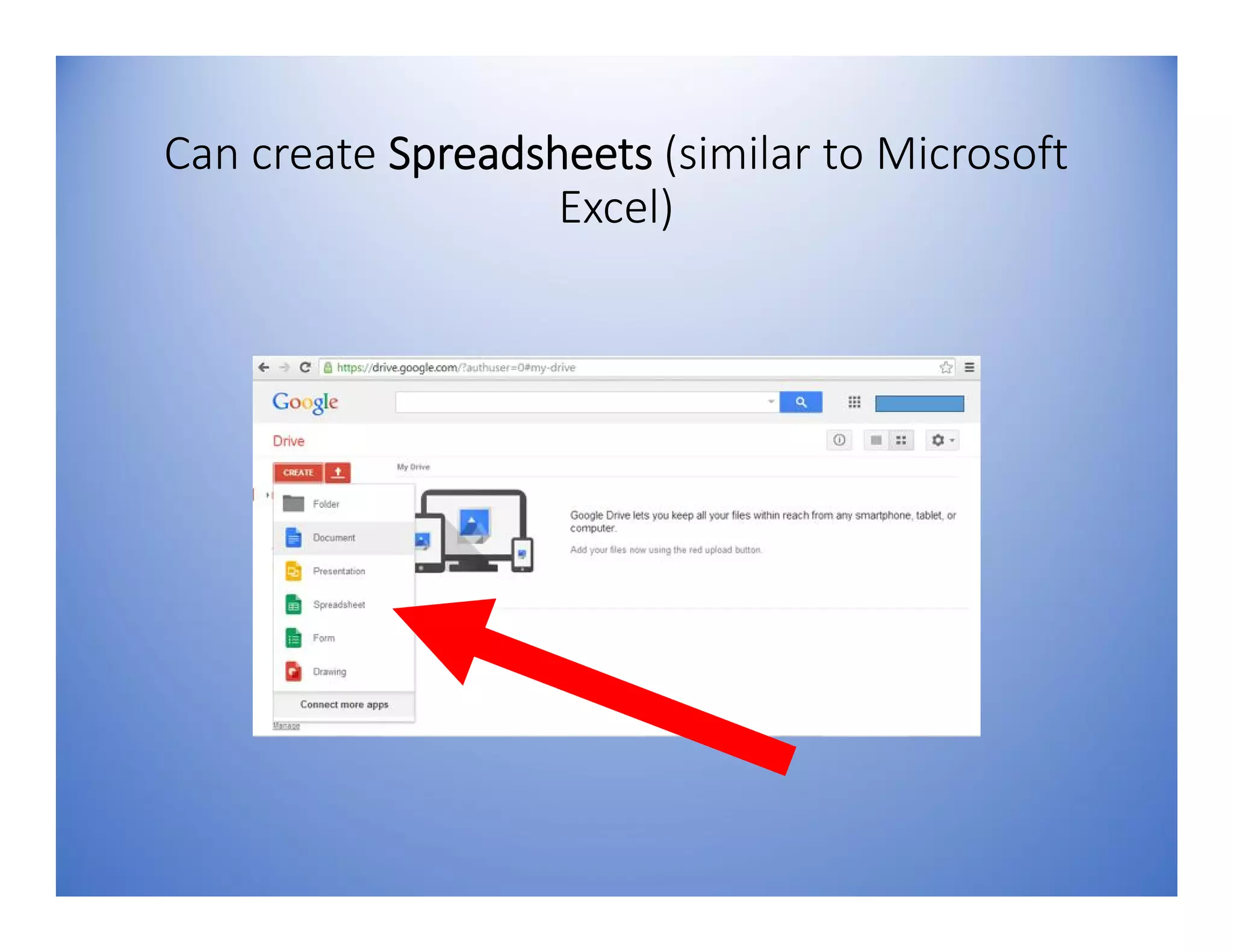
Can create Spreadsheets (similar to Microsoft
Excel)
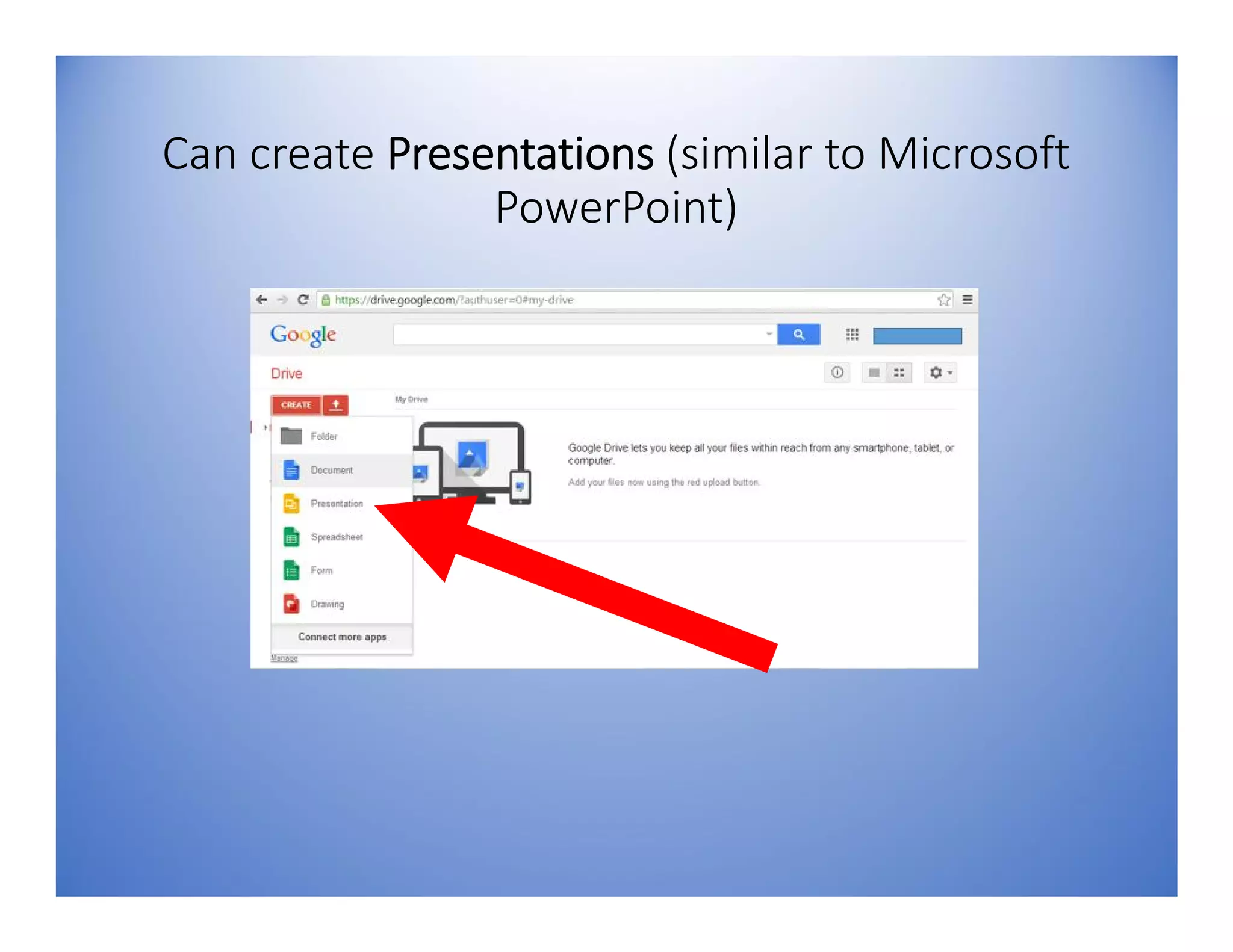
Can create Presentations (similar to Microsoft
PowerPoint)
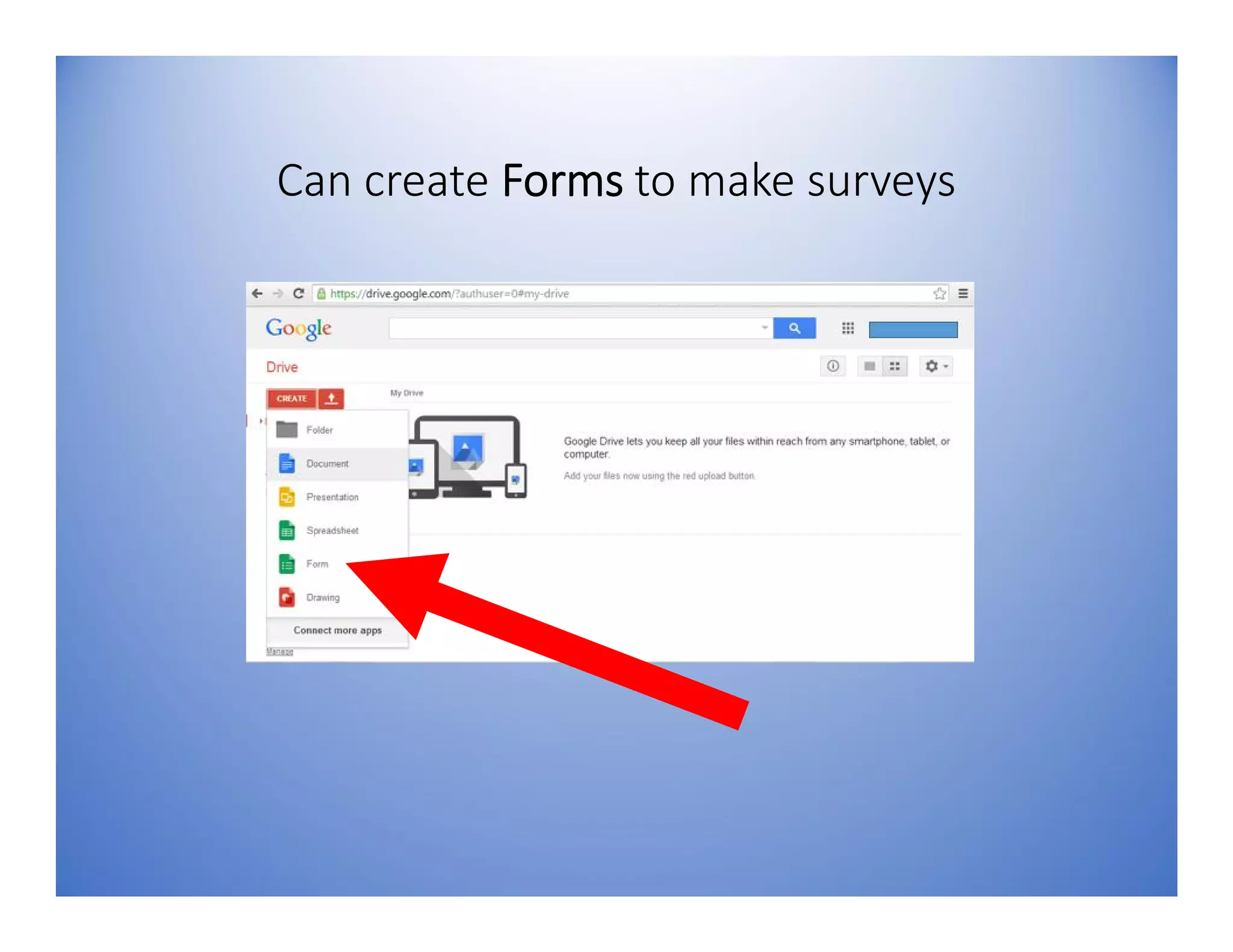
Can create Forms to make surveys
Can create using Drawing
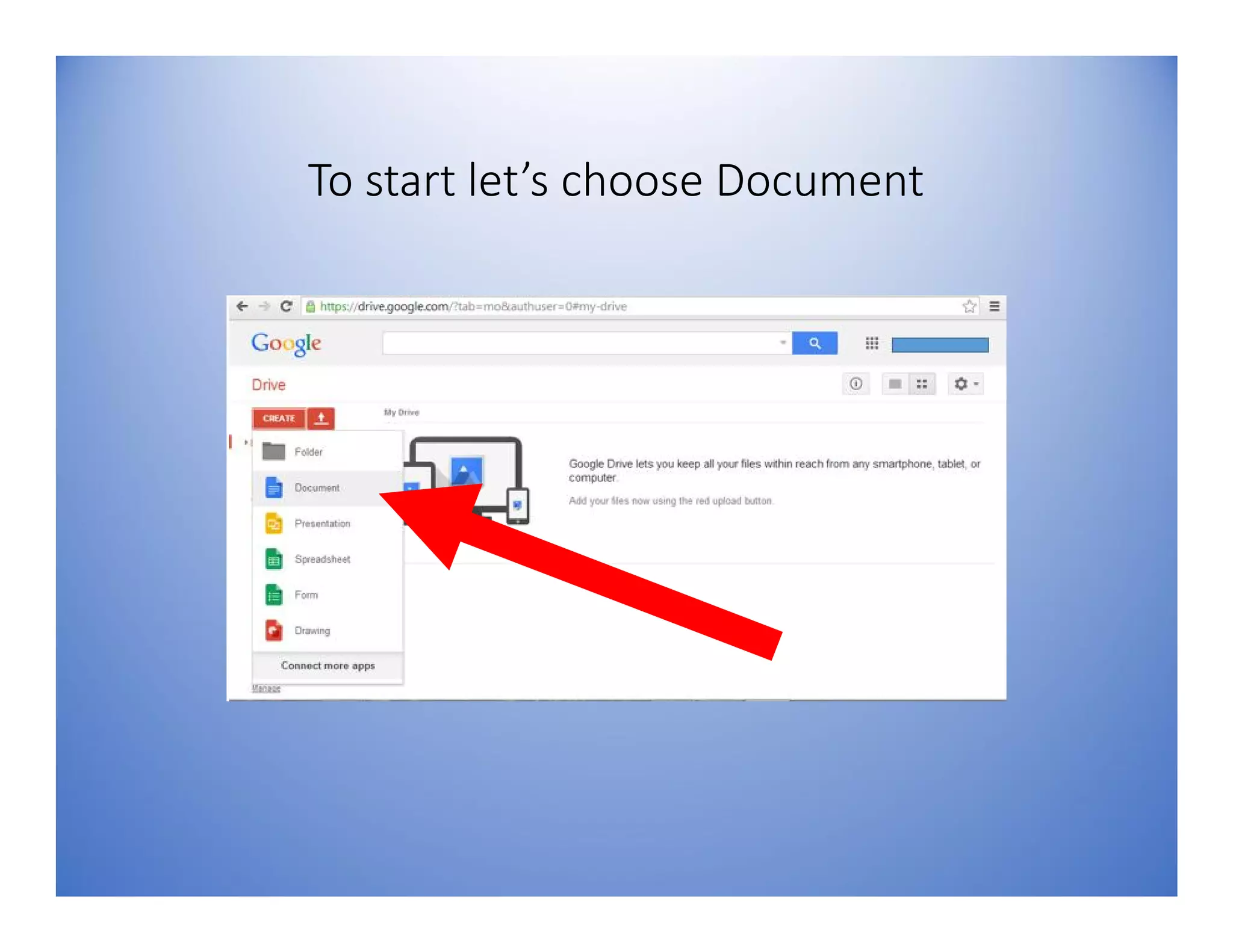
To start let’s choose Document
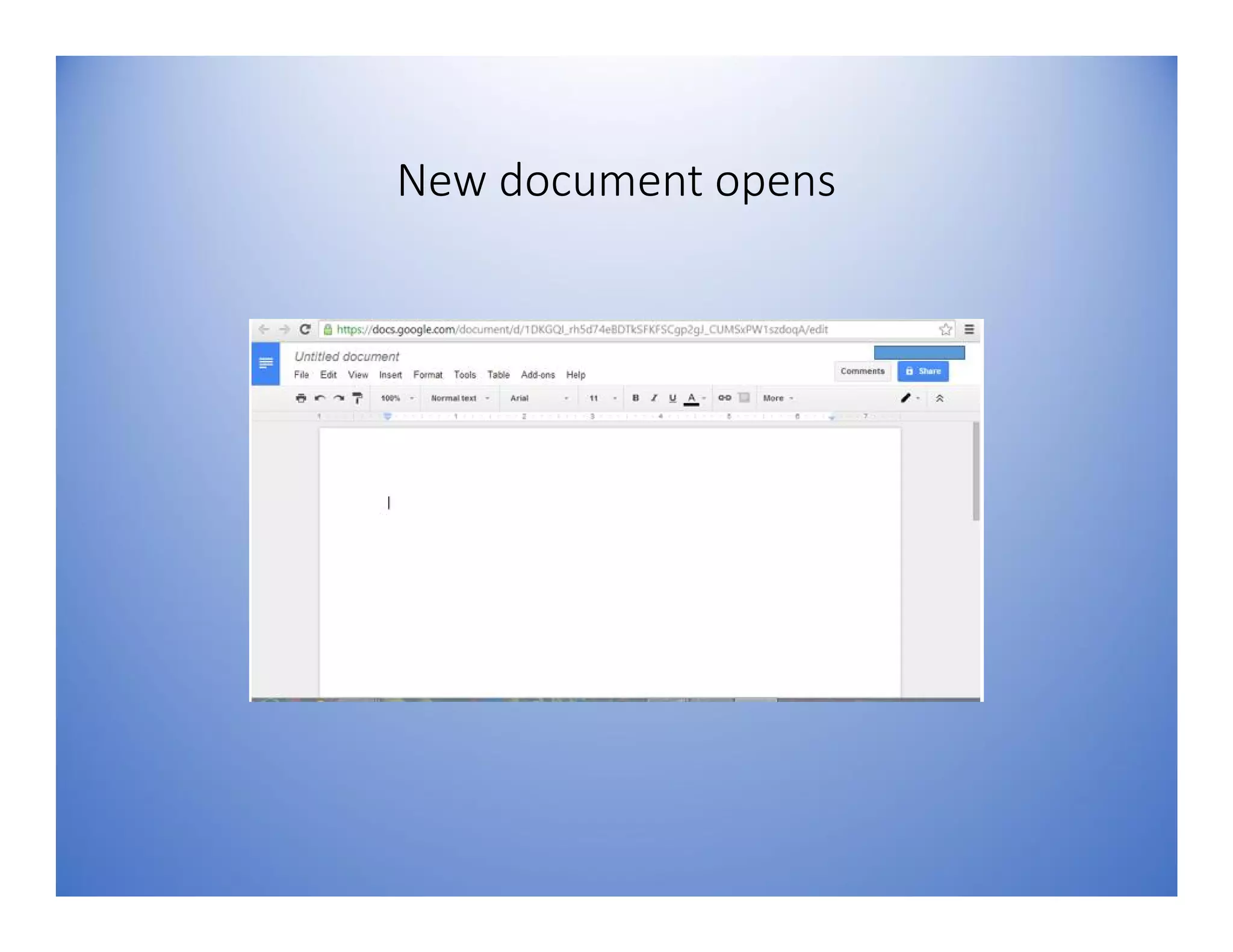
New document opens
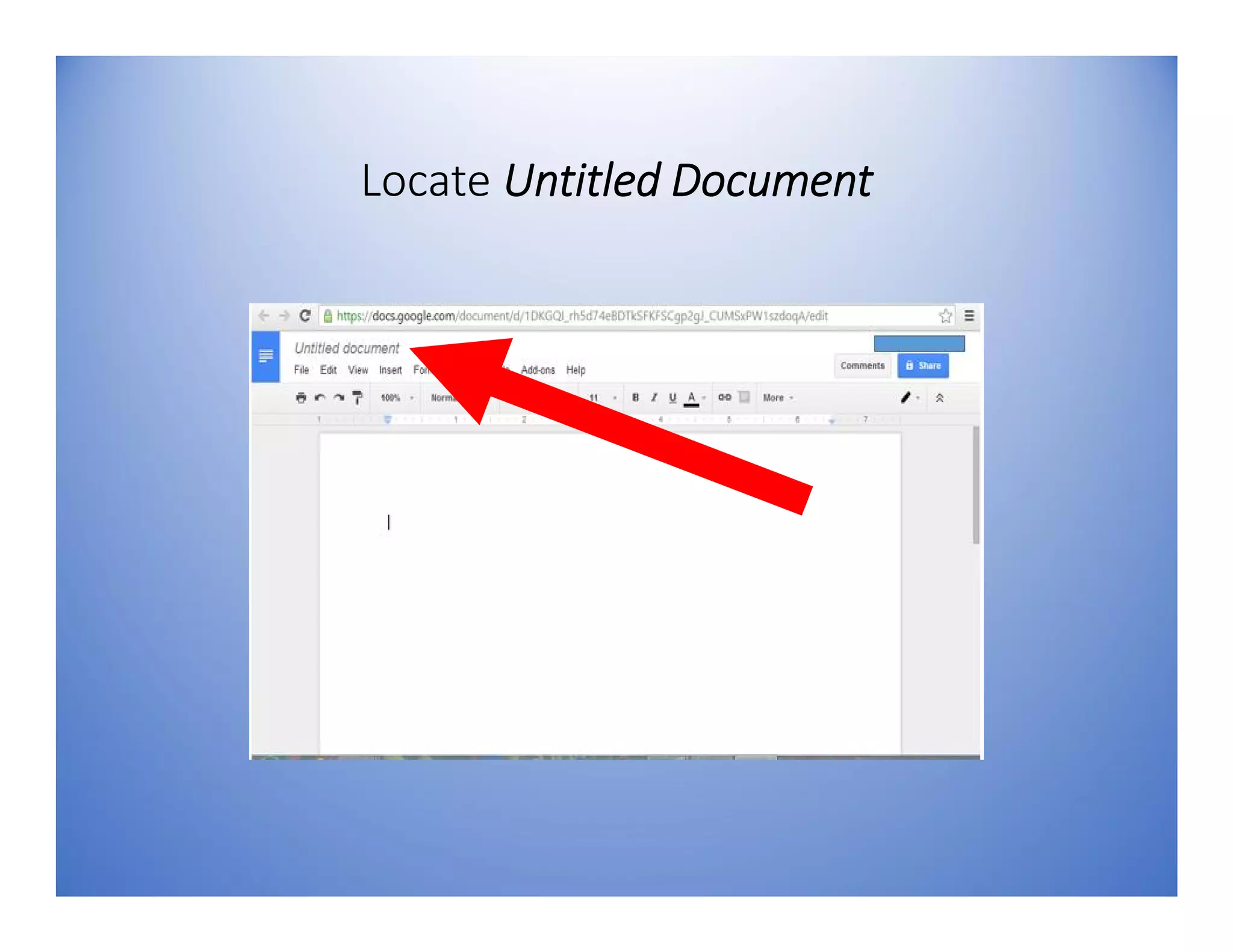
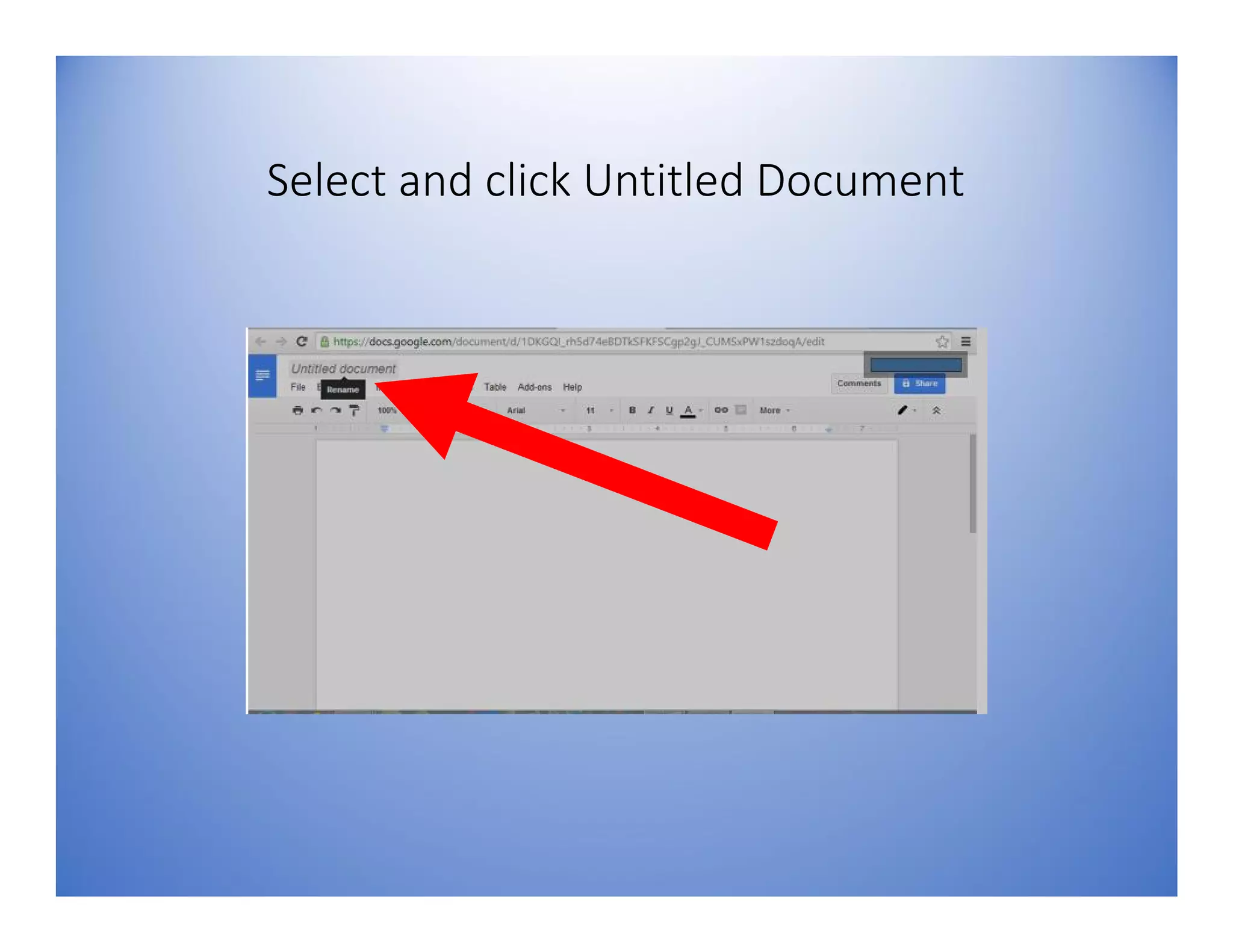
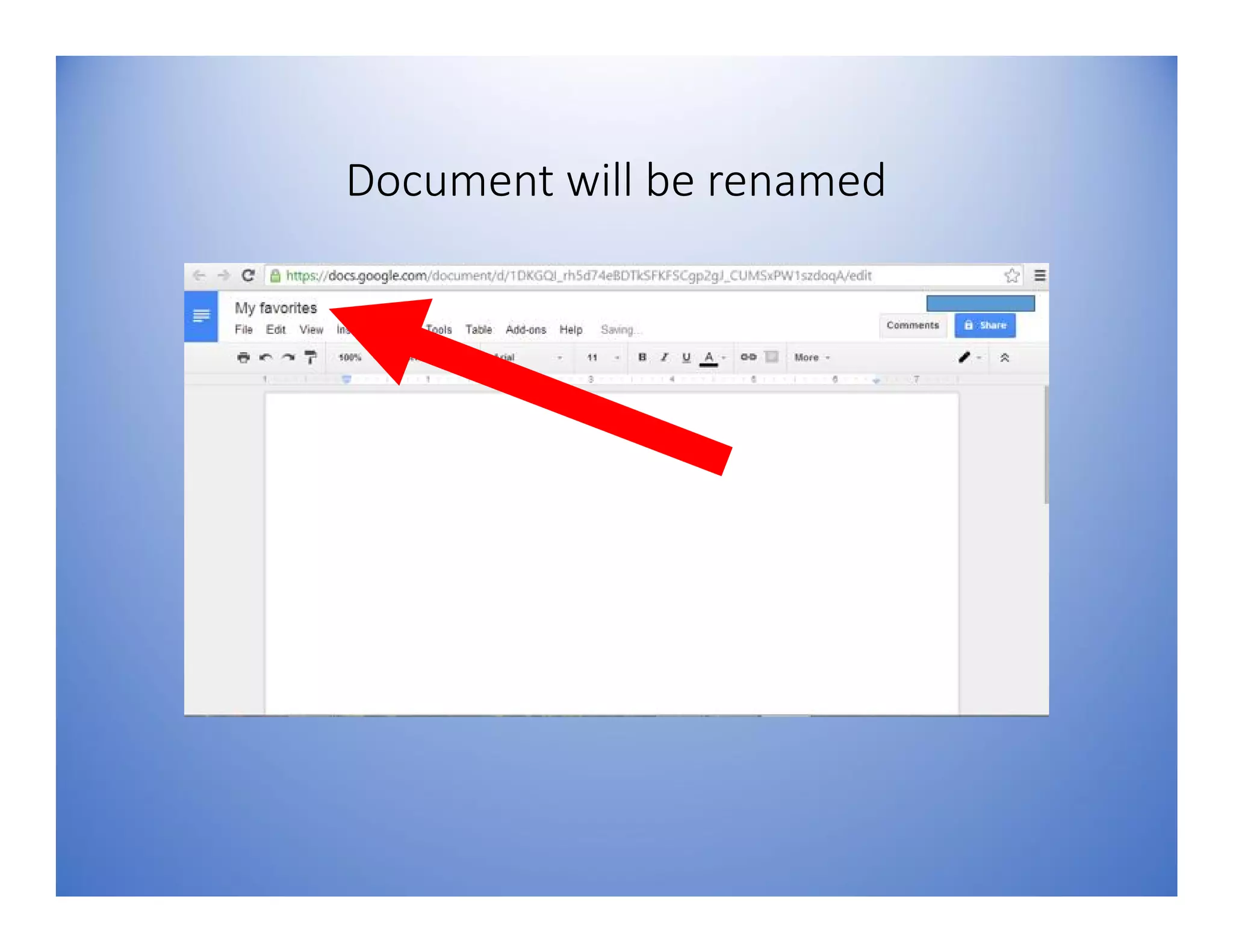
Locate Untitled Document
Select and click Untitled Document
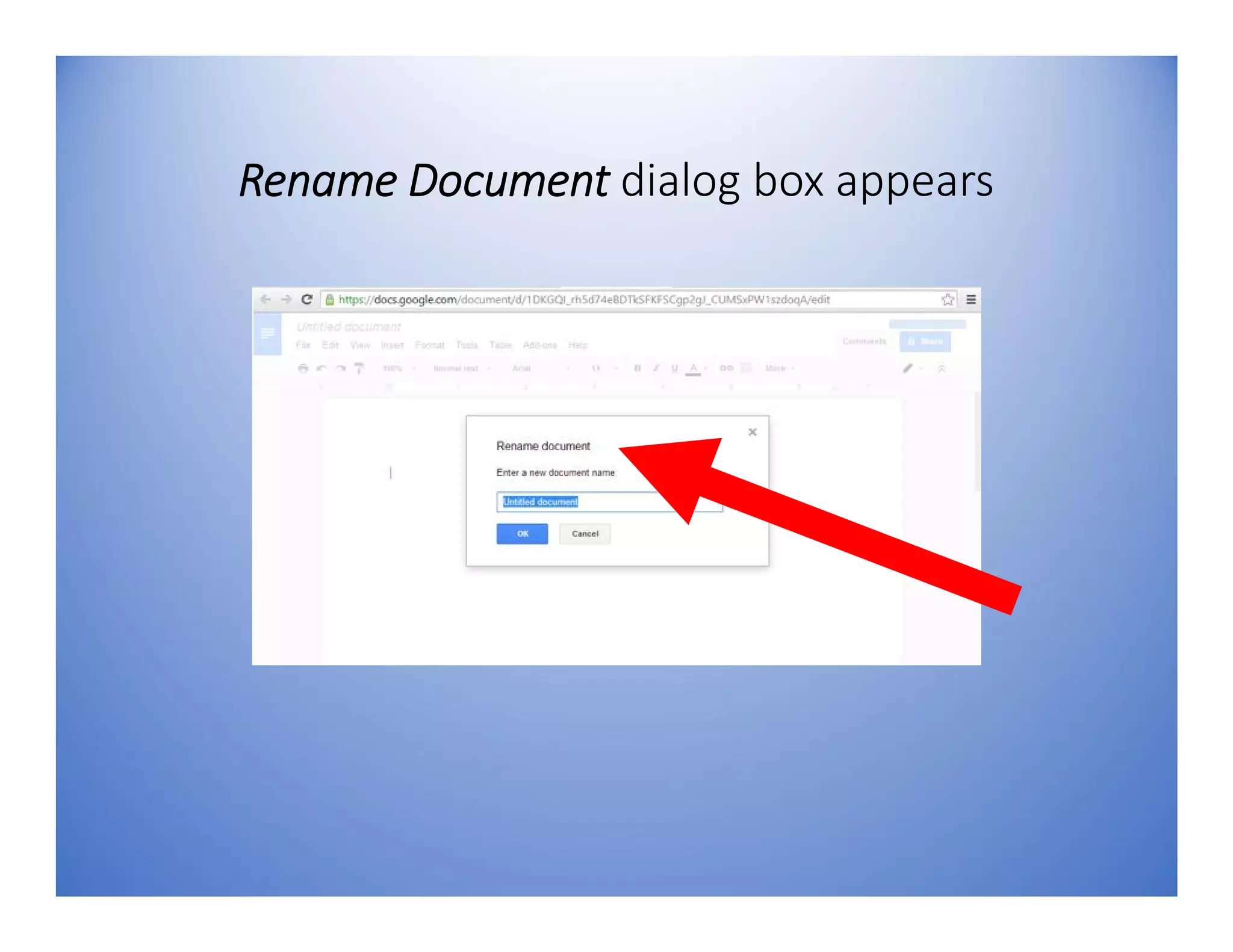
Rename Document dialog box appears
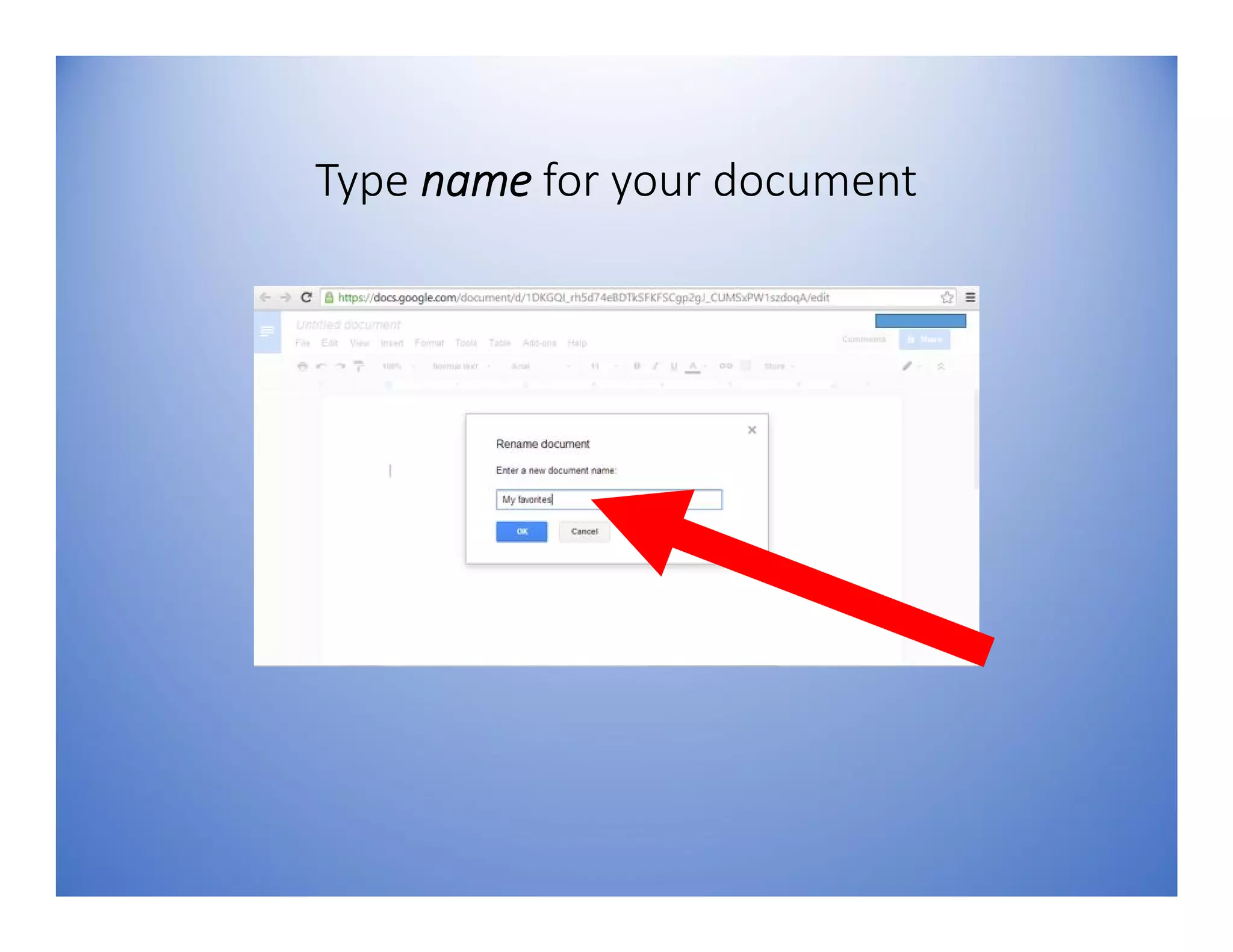
Type name for your document
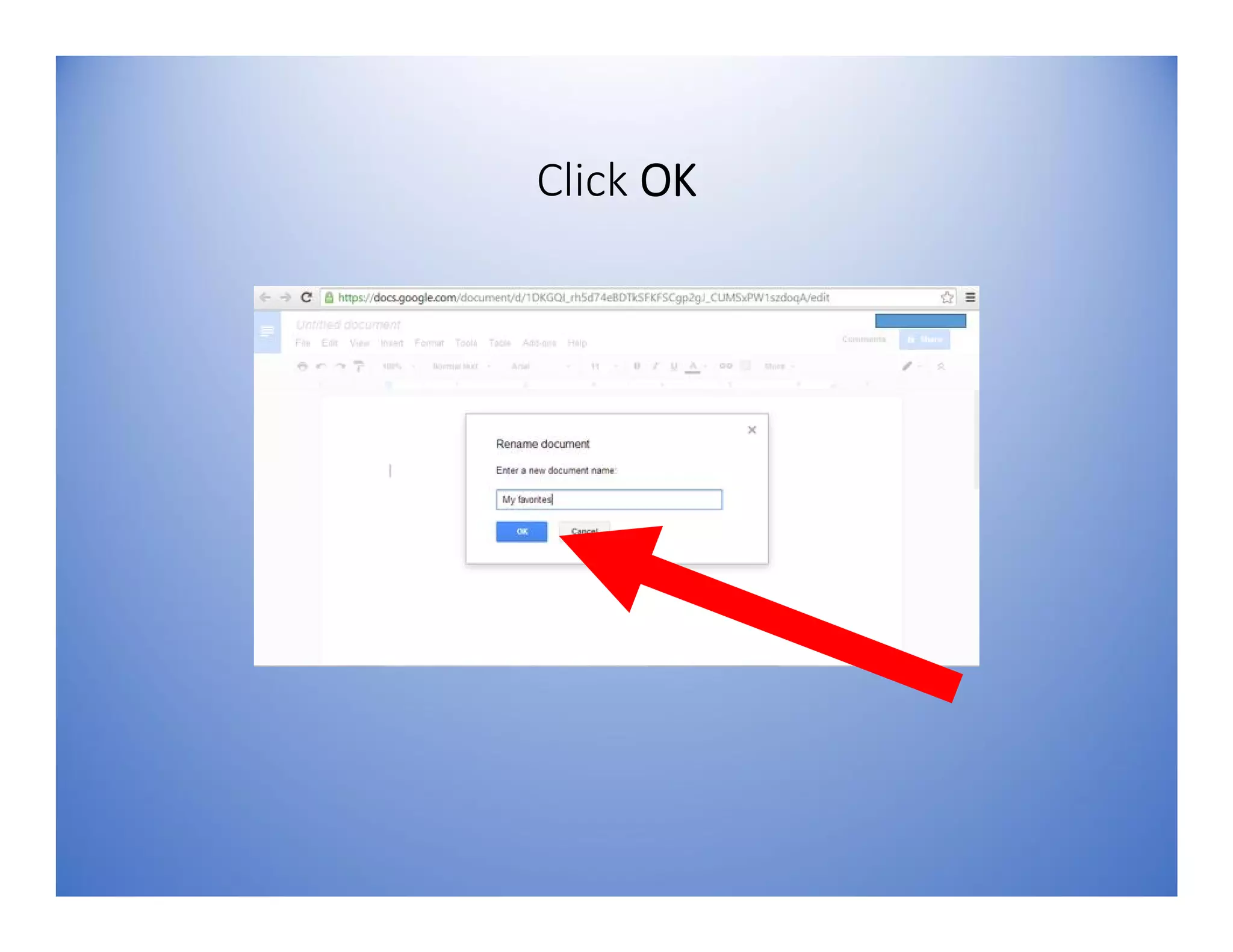
Click OK
Document will be renamed
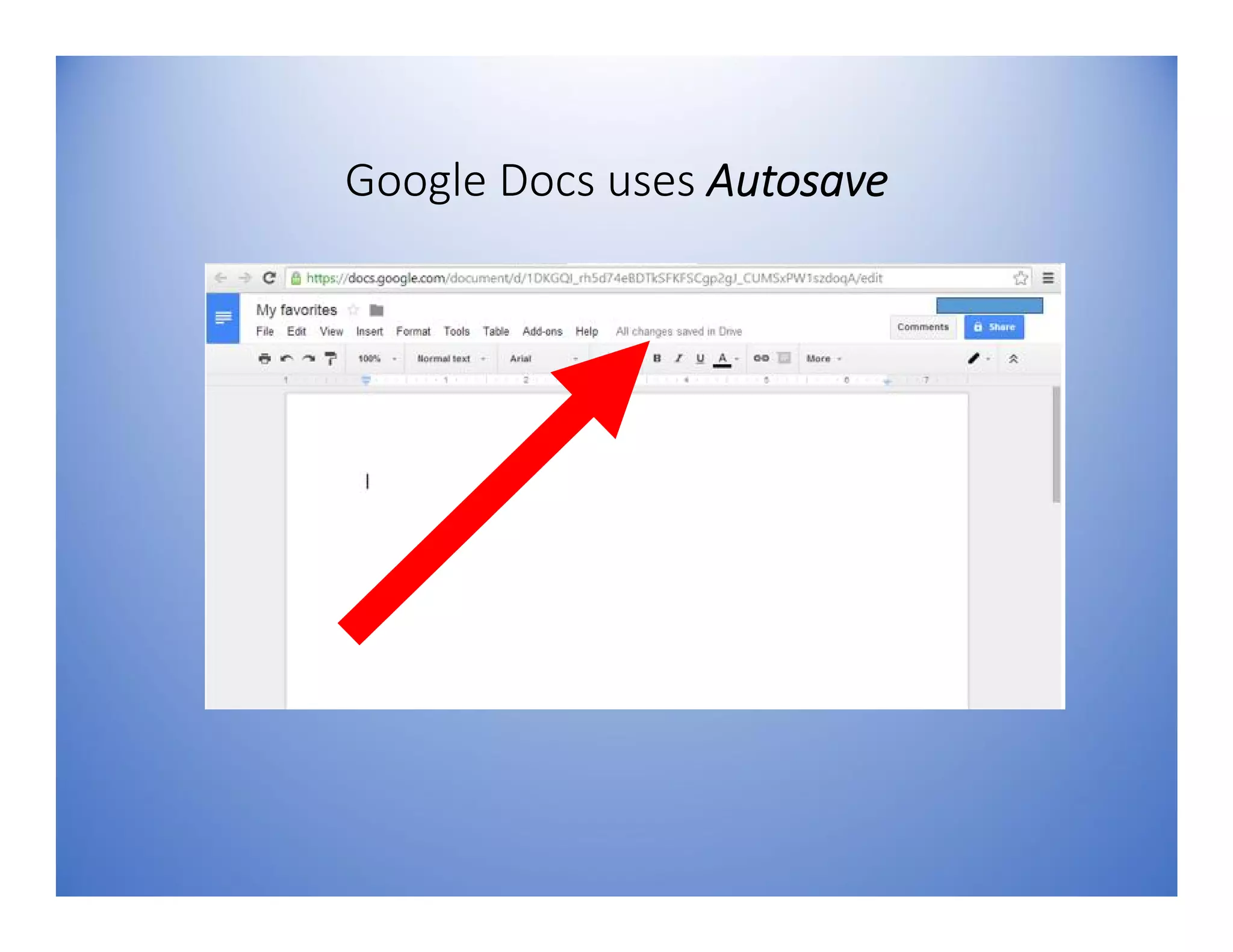
Google Docs
automatically saves file
as you edit
Google Docs uses Autosave
2. To Upload a
Document
You can access file
online in
cloud
using any computer with
internet connection
Use Google Docs to edit
uploaded files…
from your Microsoft
Word or Excel
Now to upload files in
Google Drive
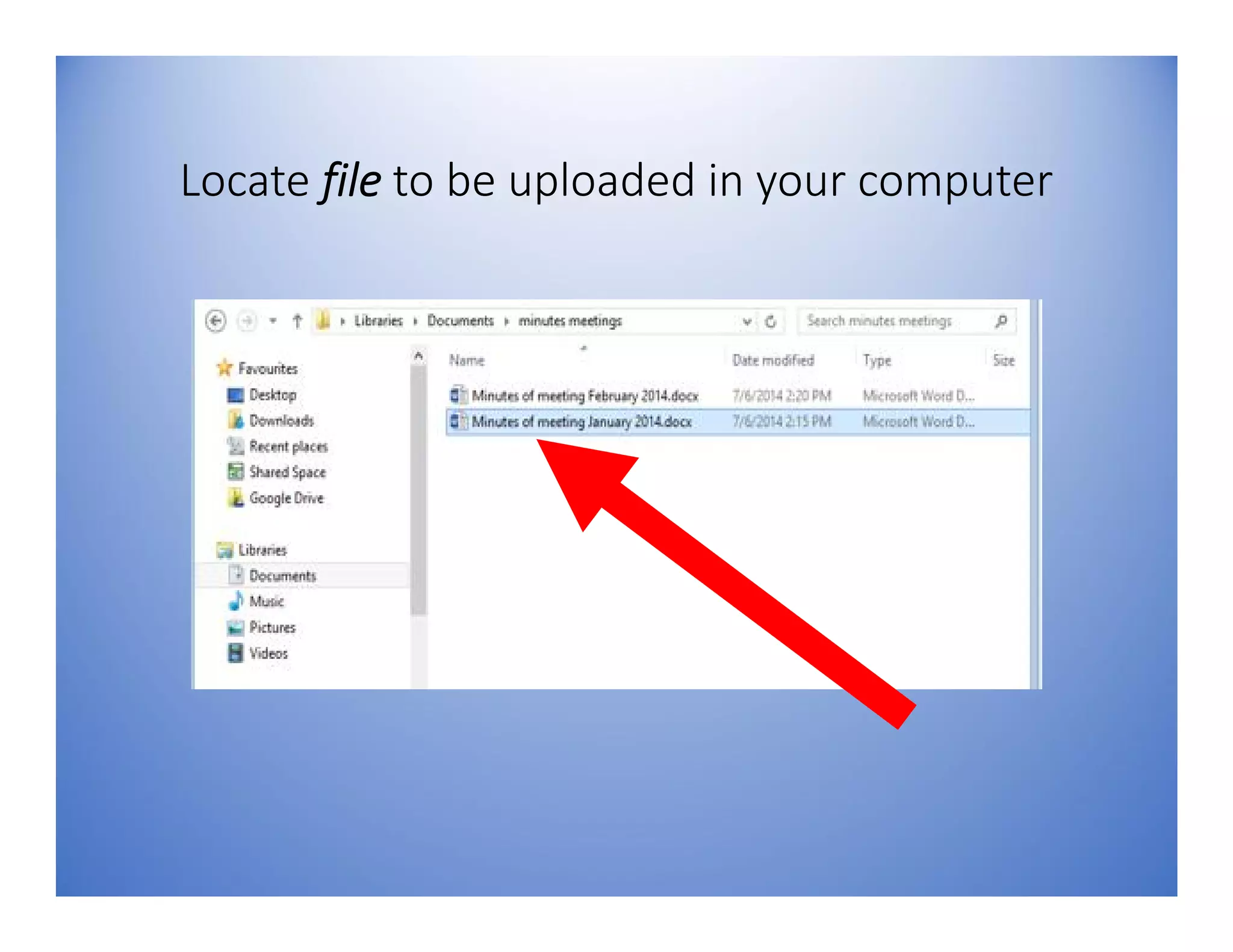
Locate file to be uploaded in your computer
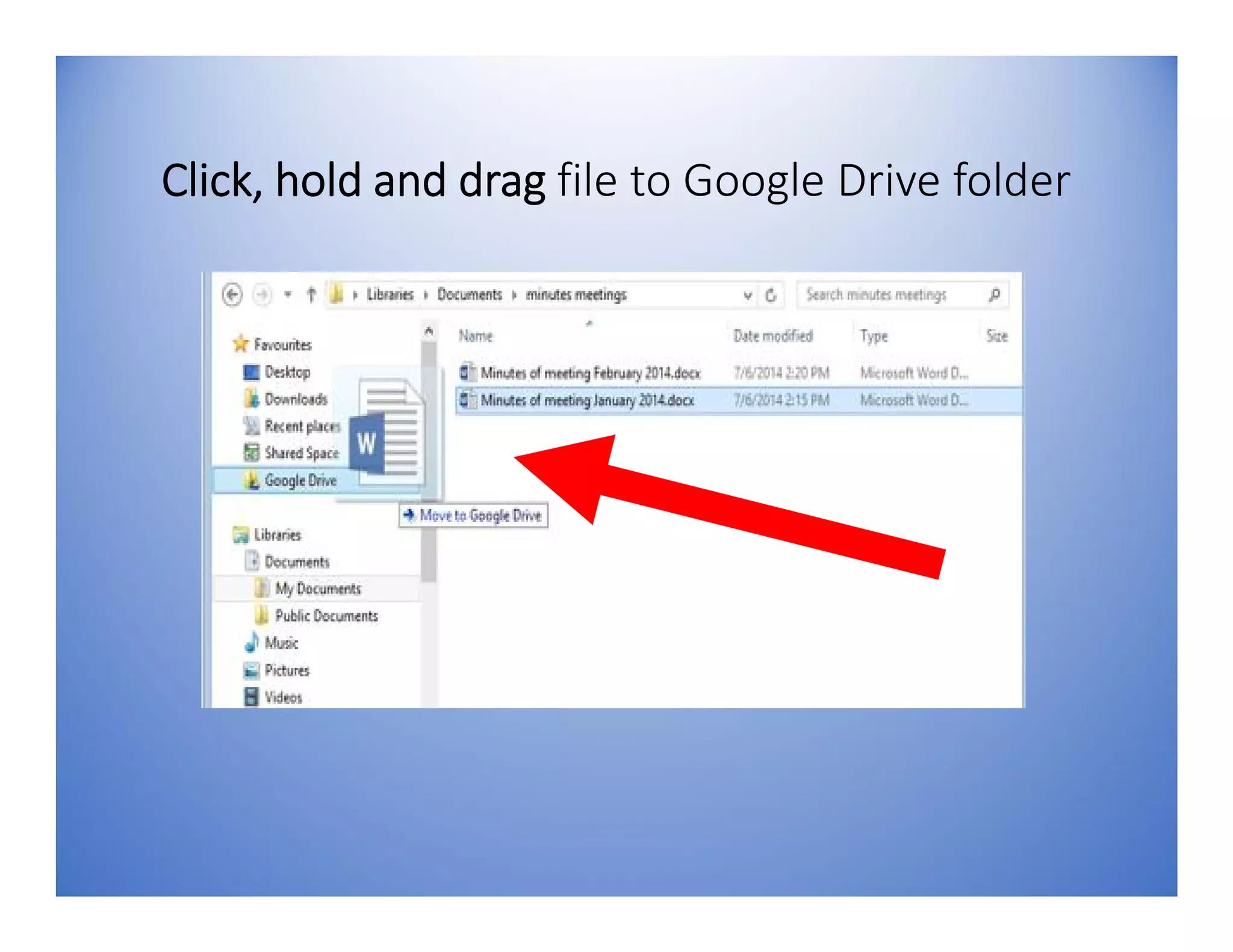
Click, hold and drag file to Google Drive folder
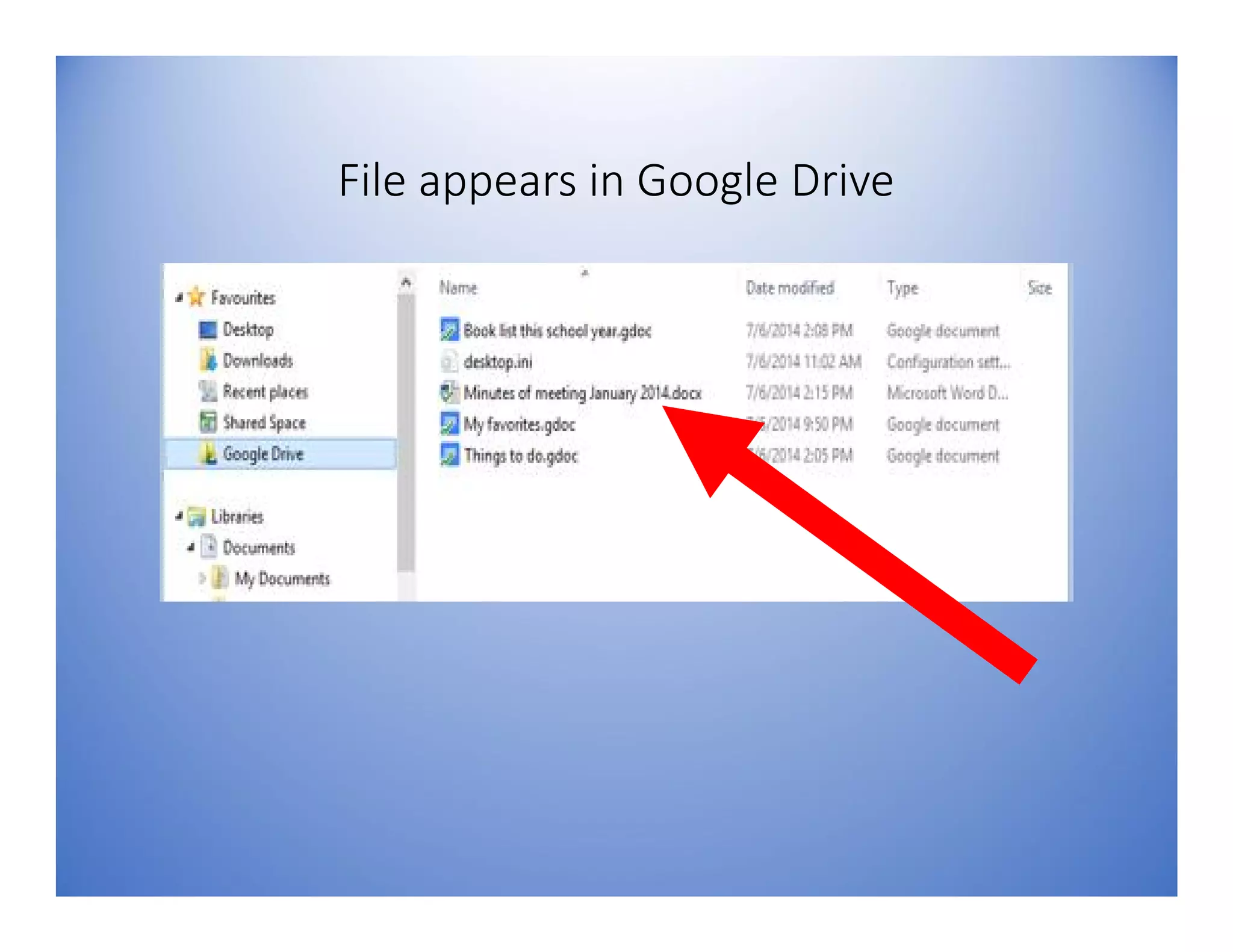
File appears in Google Drive
You can now access your
file ANYWHERE
by signing-in to your
Google Drive
You can also…
copy, paste, bold,
underline, italicize etc. a
document
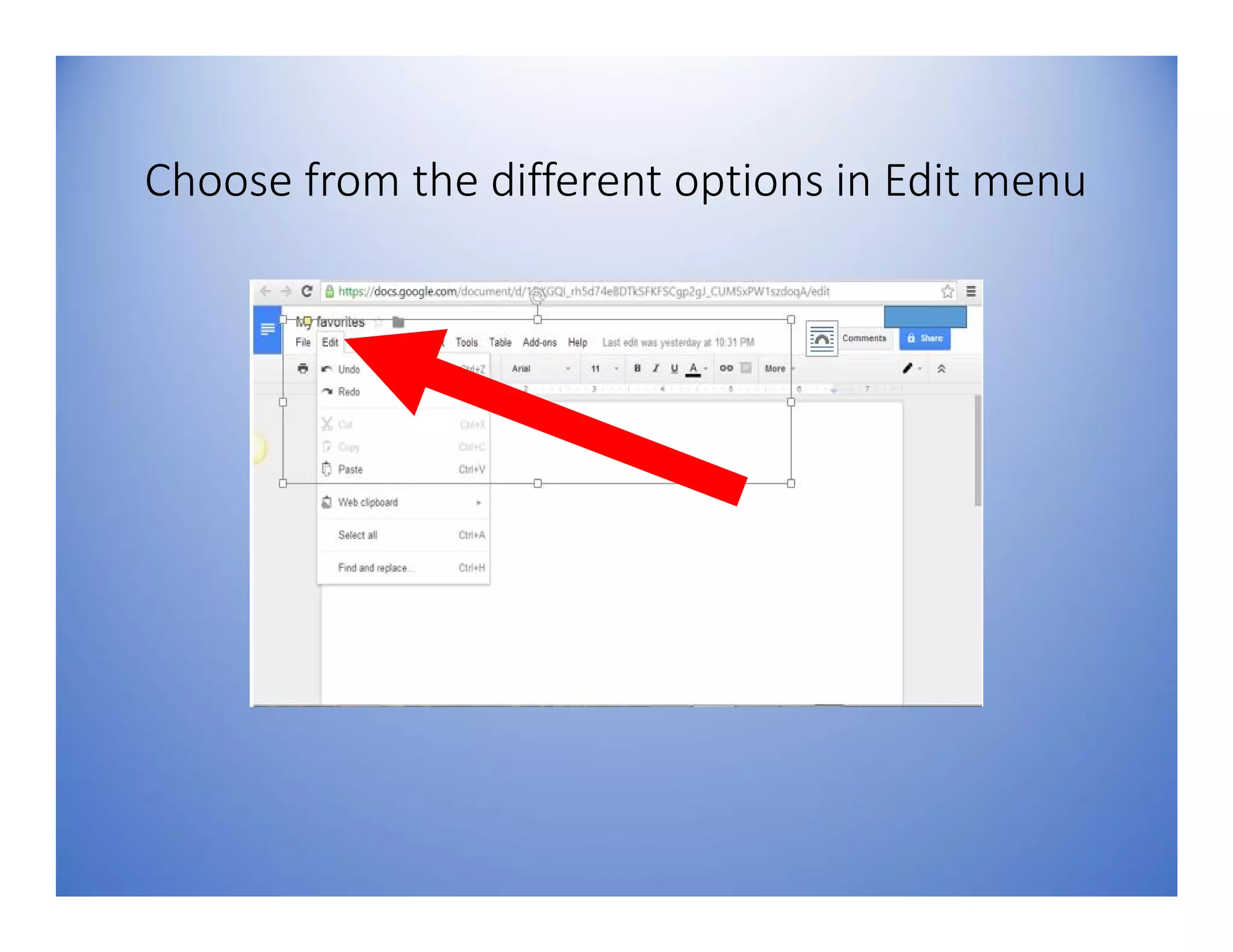
Choose from the different options in Edit menu
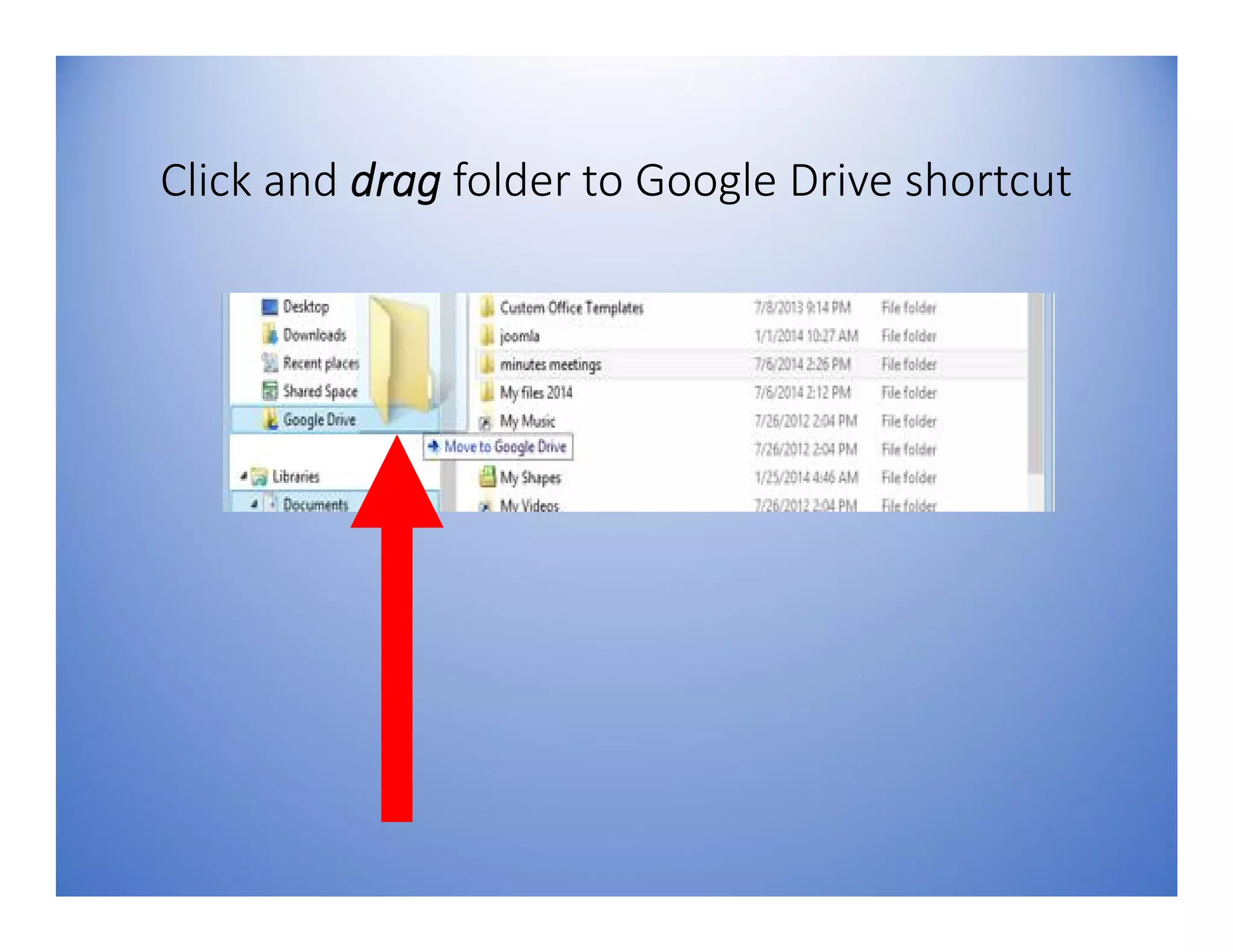
To upload folders
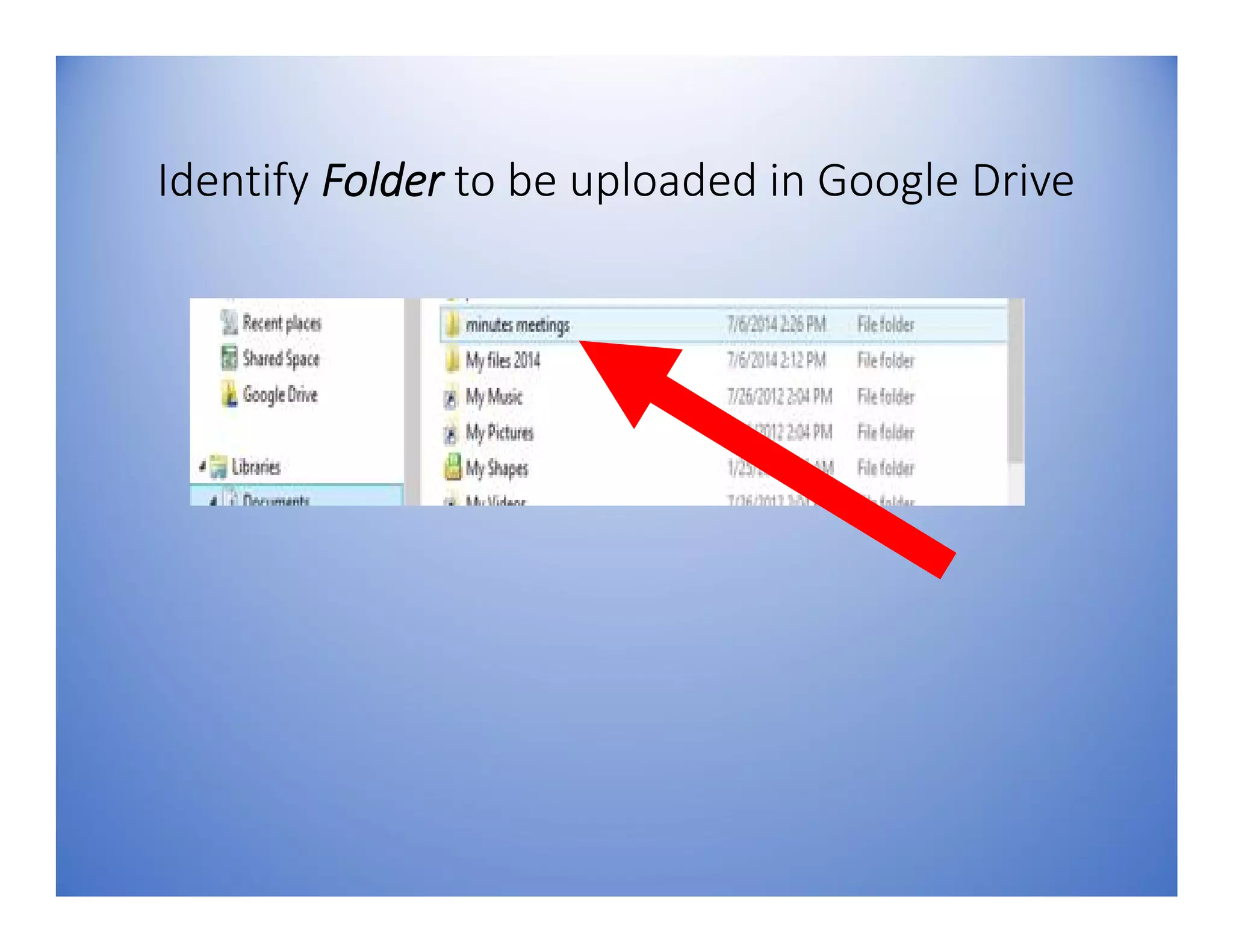
Identify Folder to be uploaded in Google Drive
Click and drag folder to Google Drive shortcut
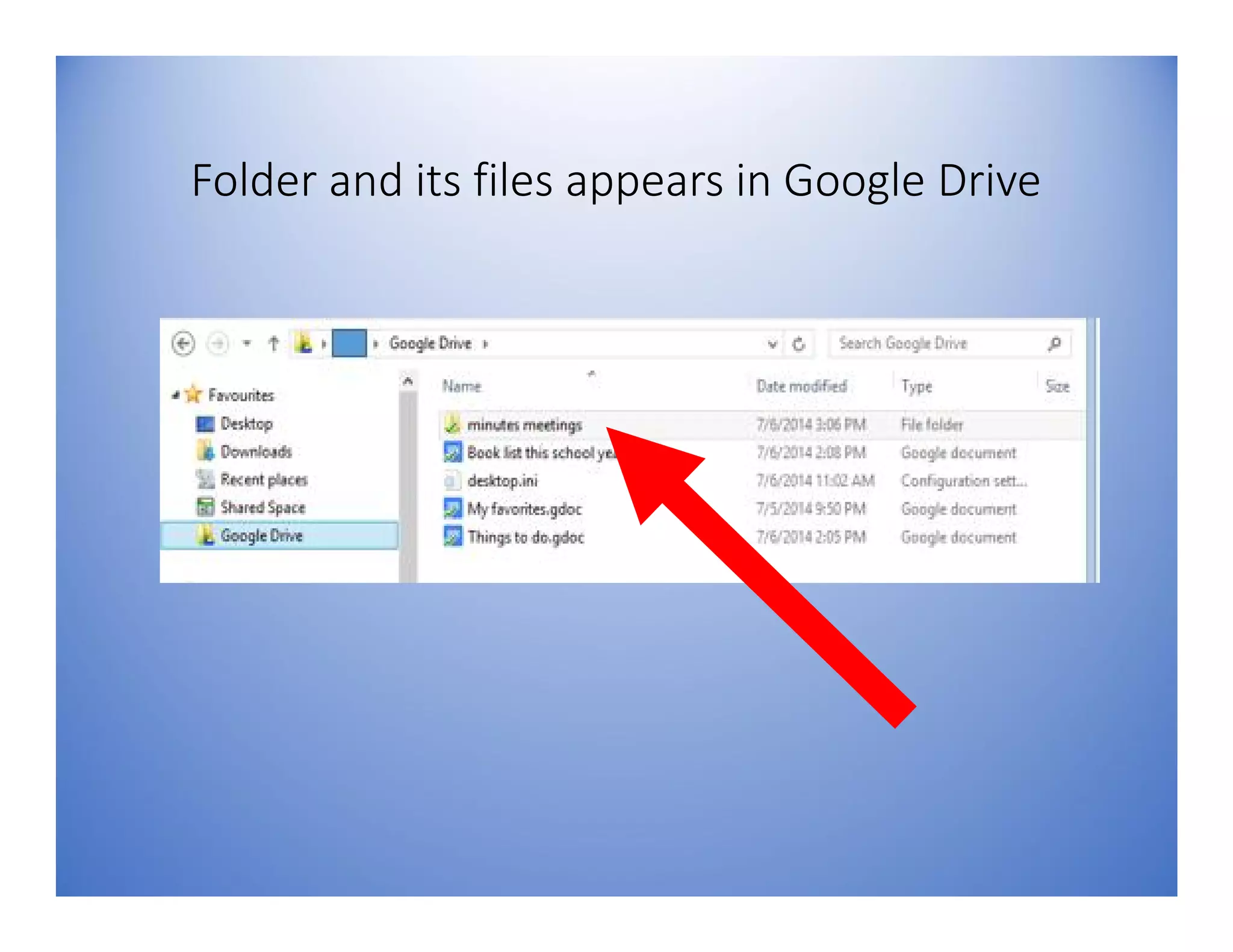
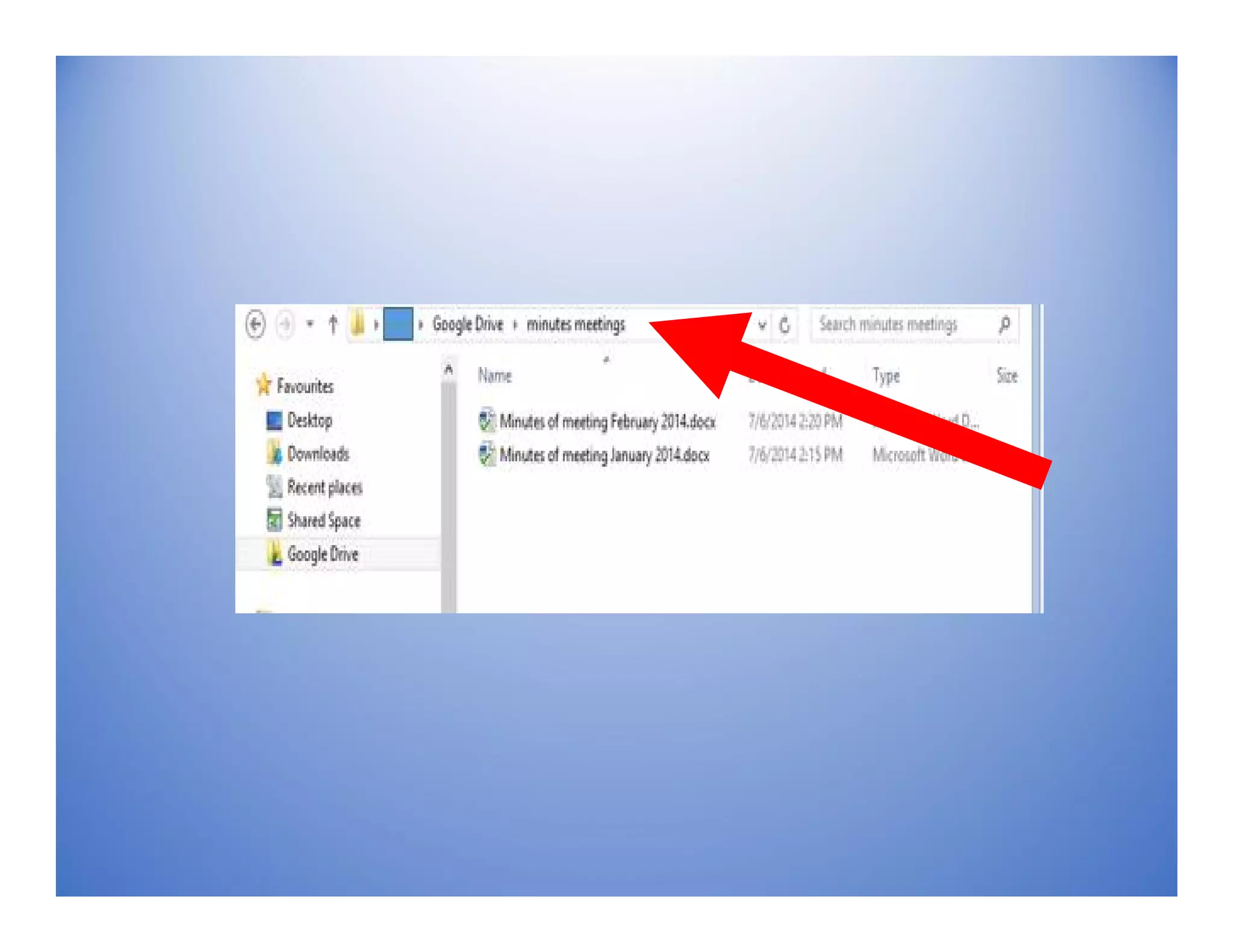
Folder and its files appears in Google Drive
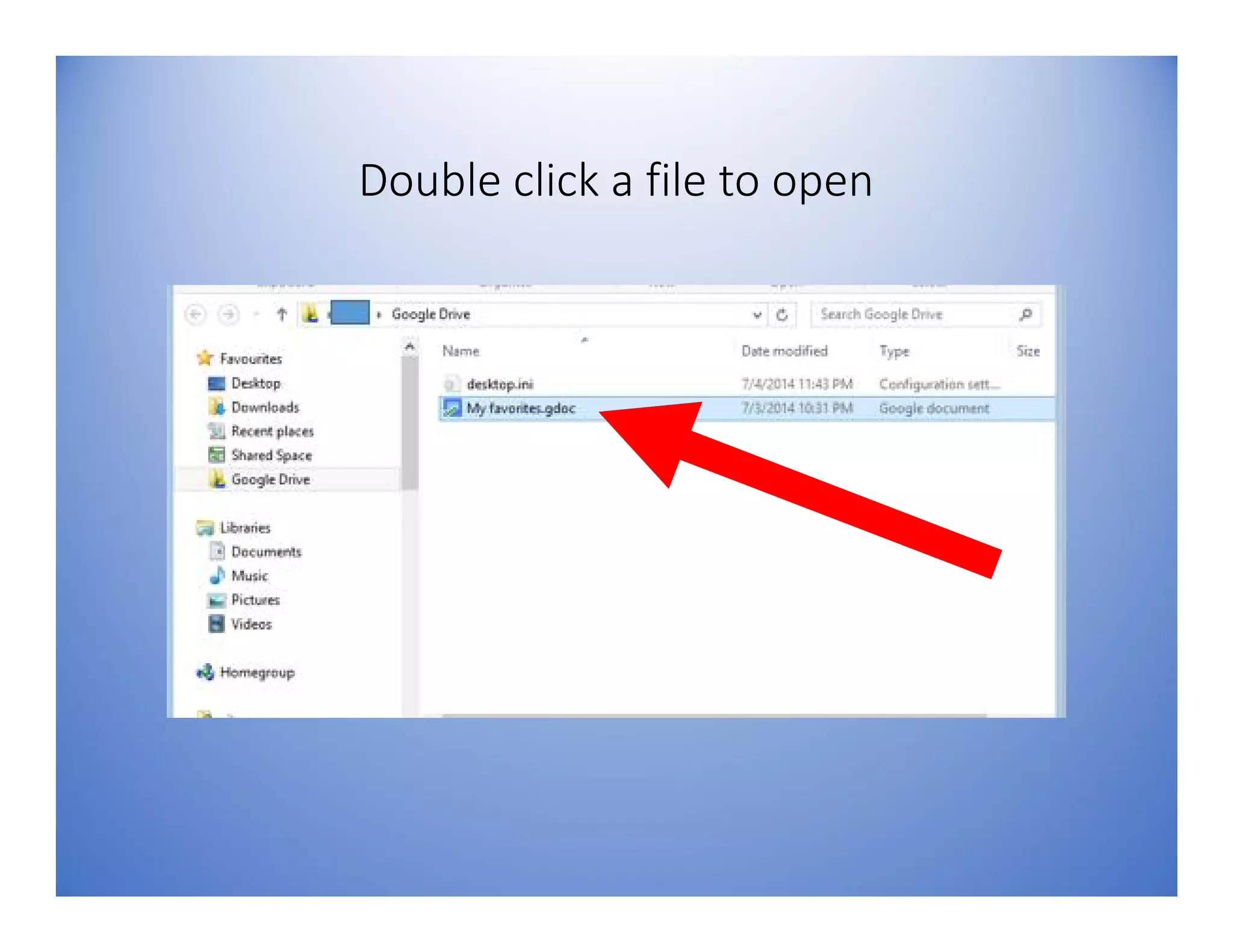
To open file
Double click a file to open
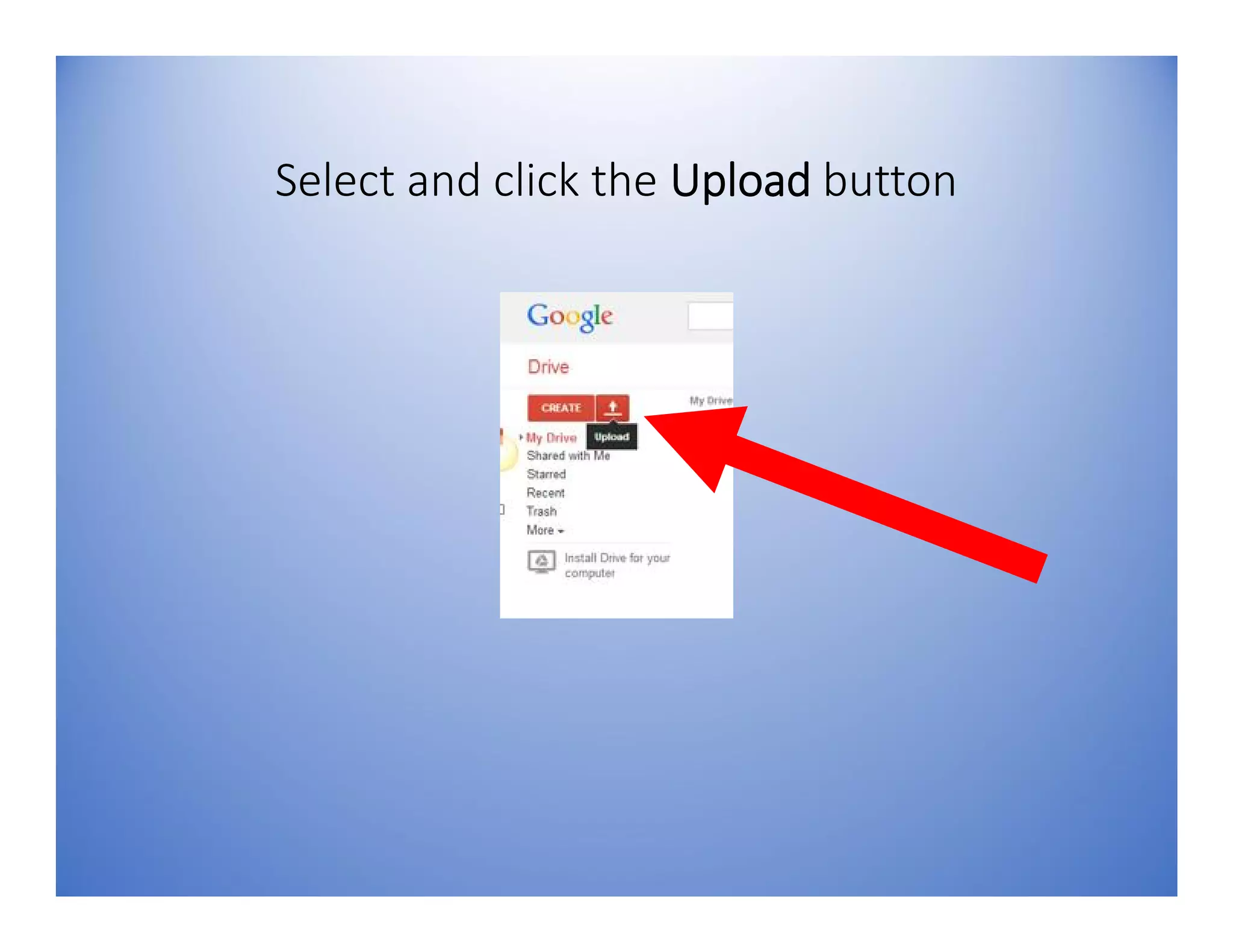
Upload file on the web
Select and click the Upload button
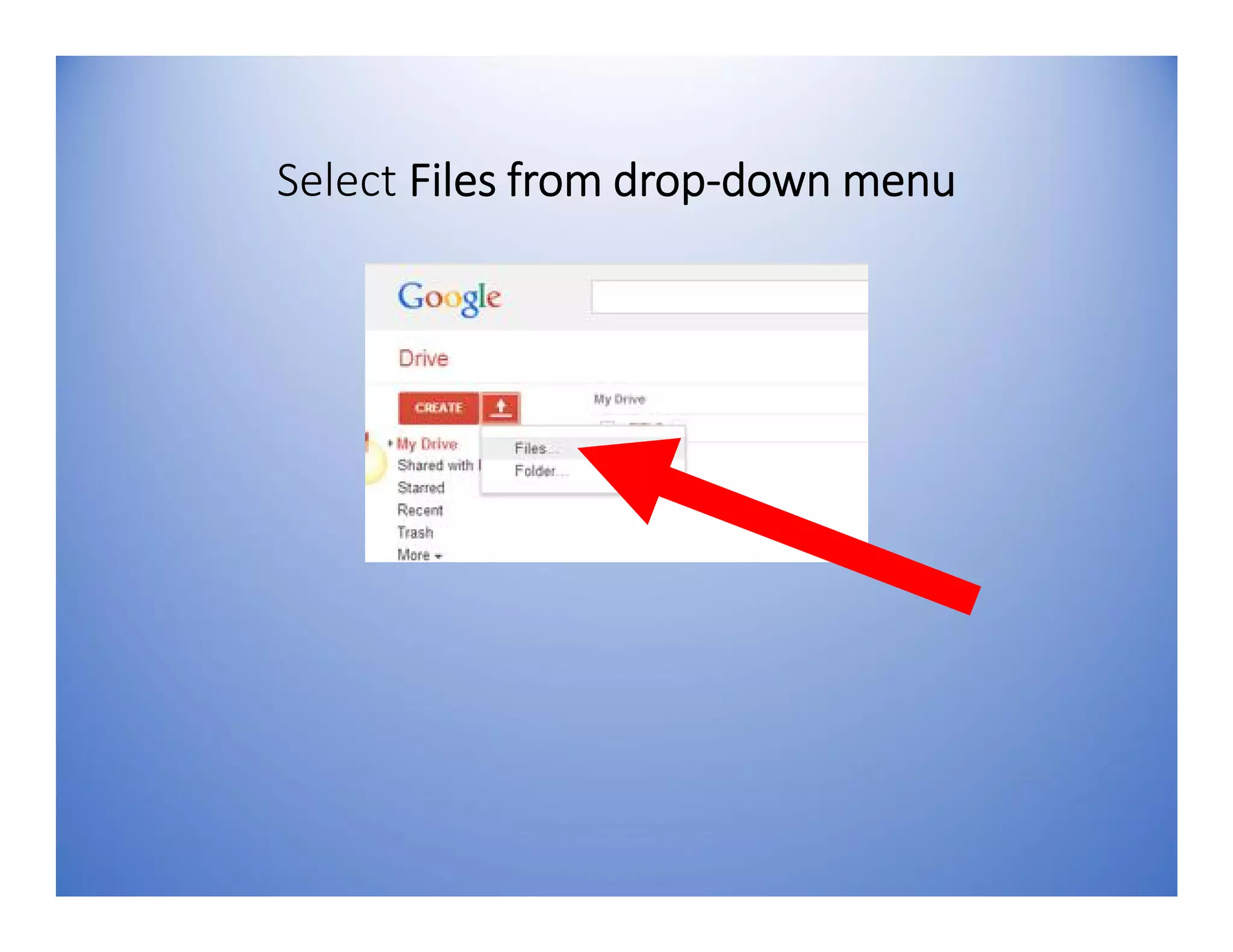
Select Files from drop-down menu
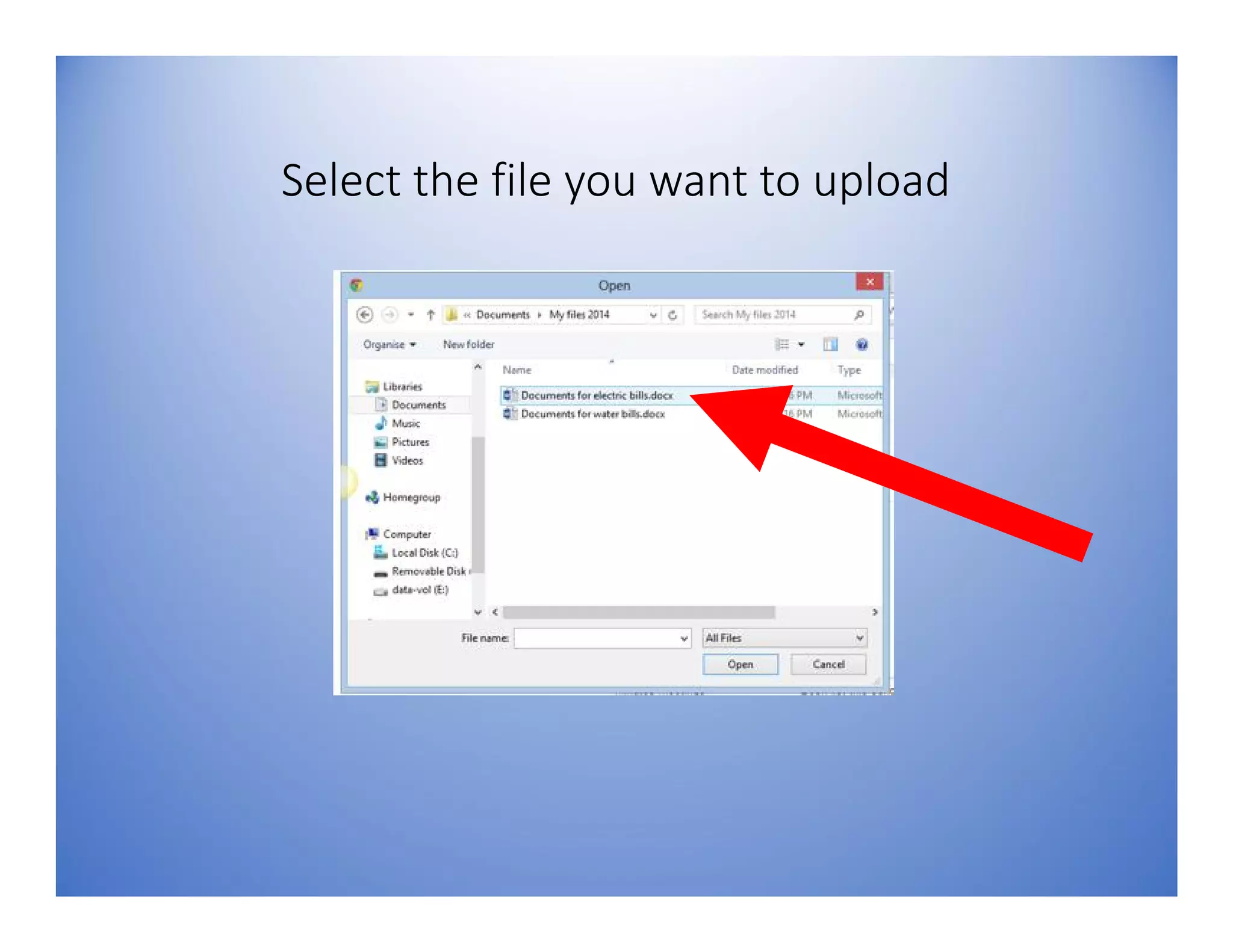
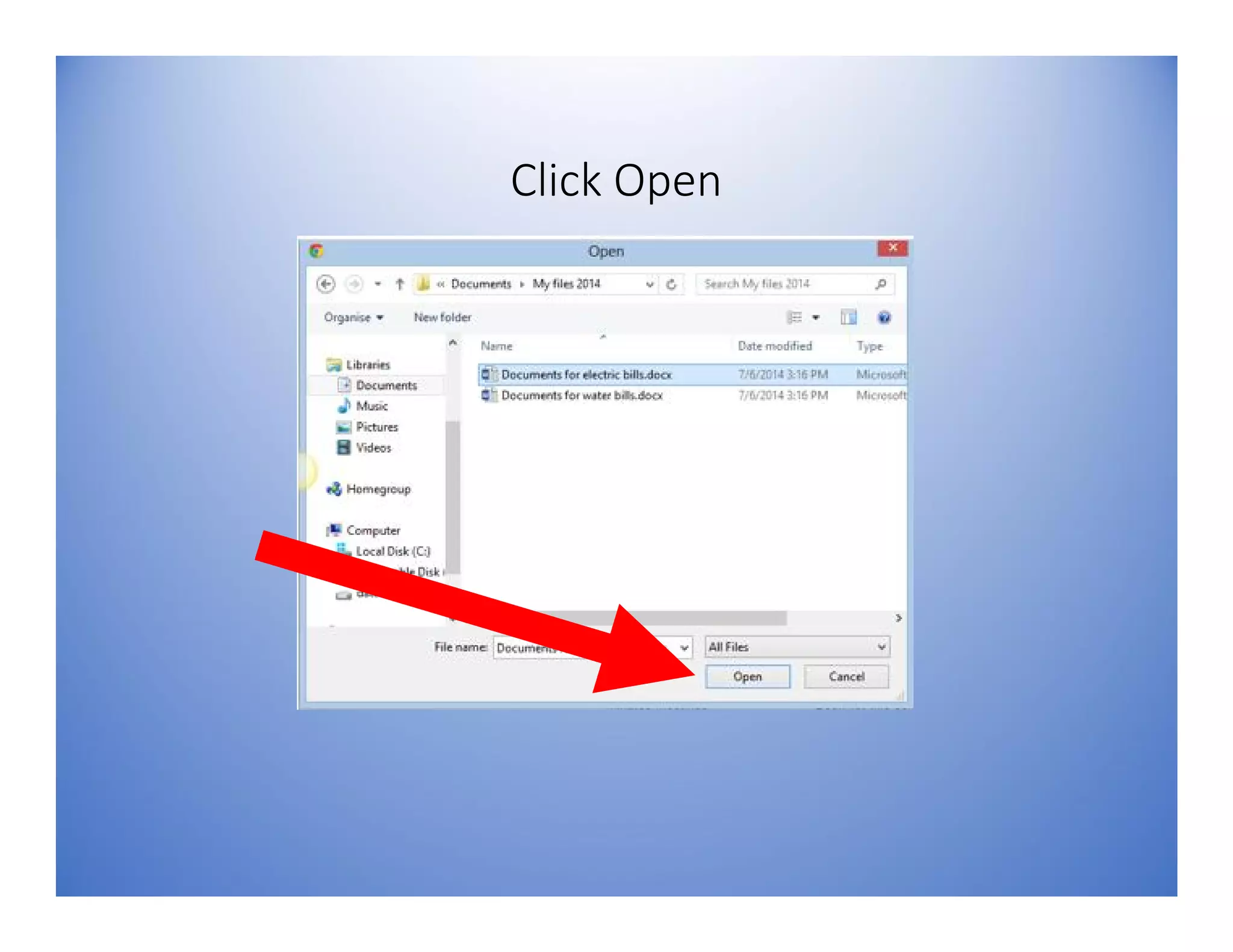
Select the file you want to upload
Click Open
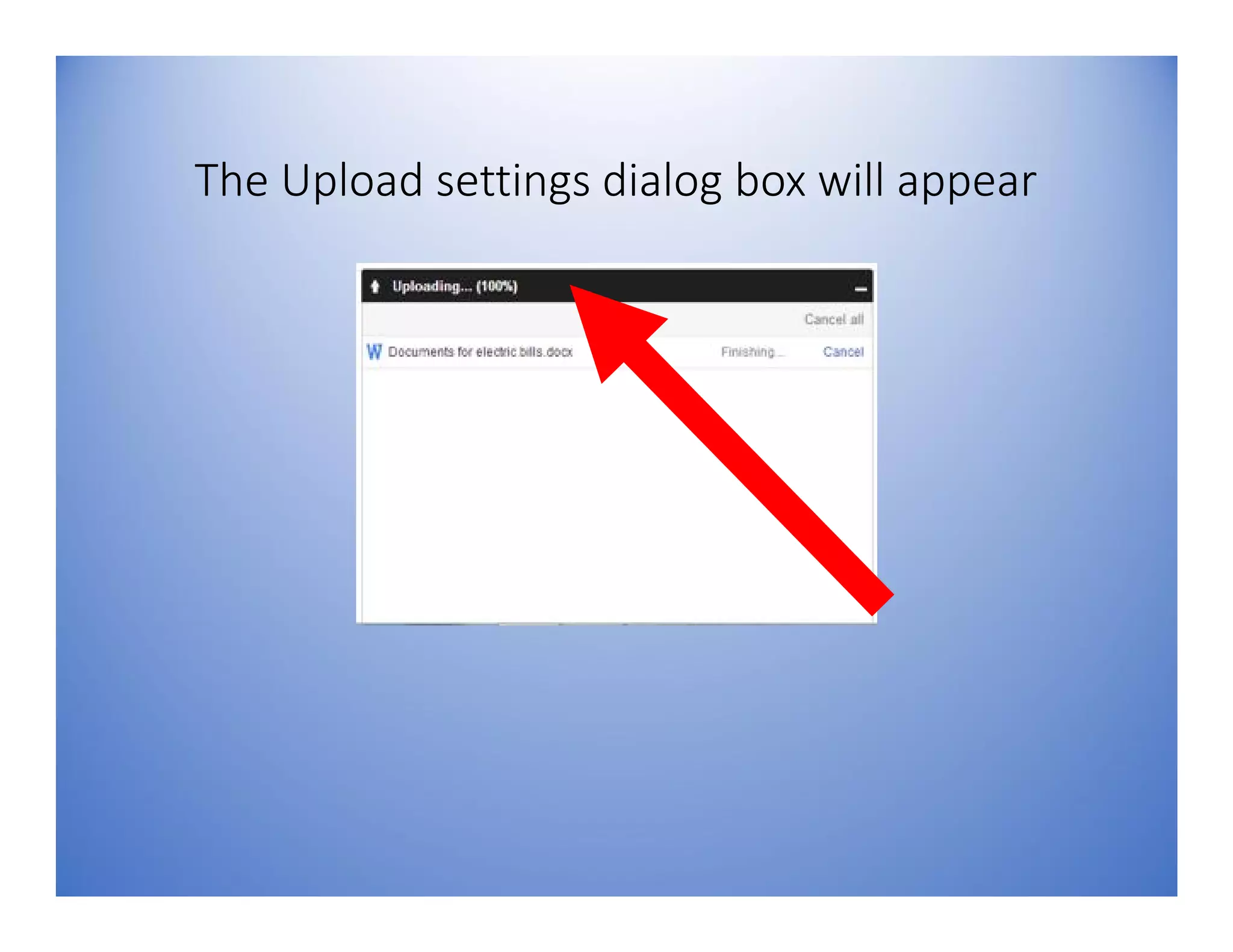
The Upload settings dialog box will appear
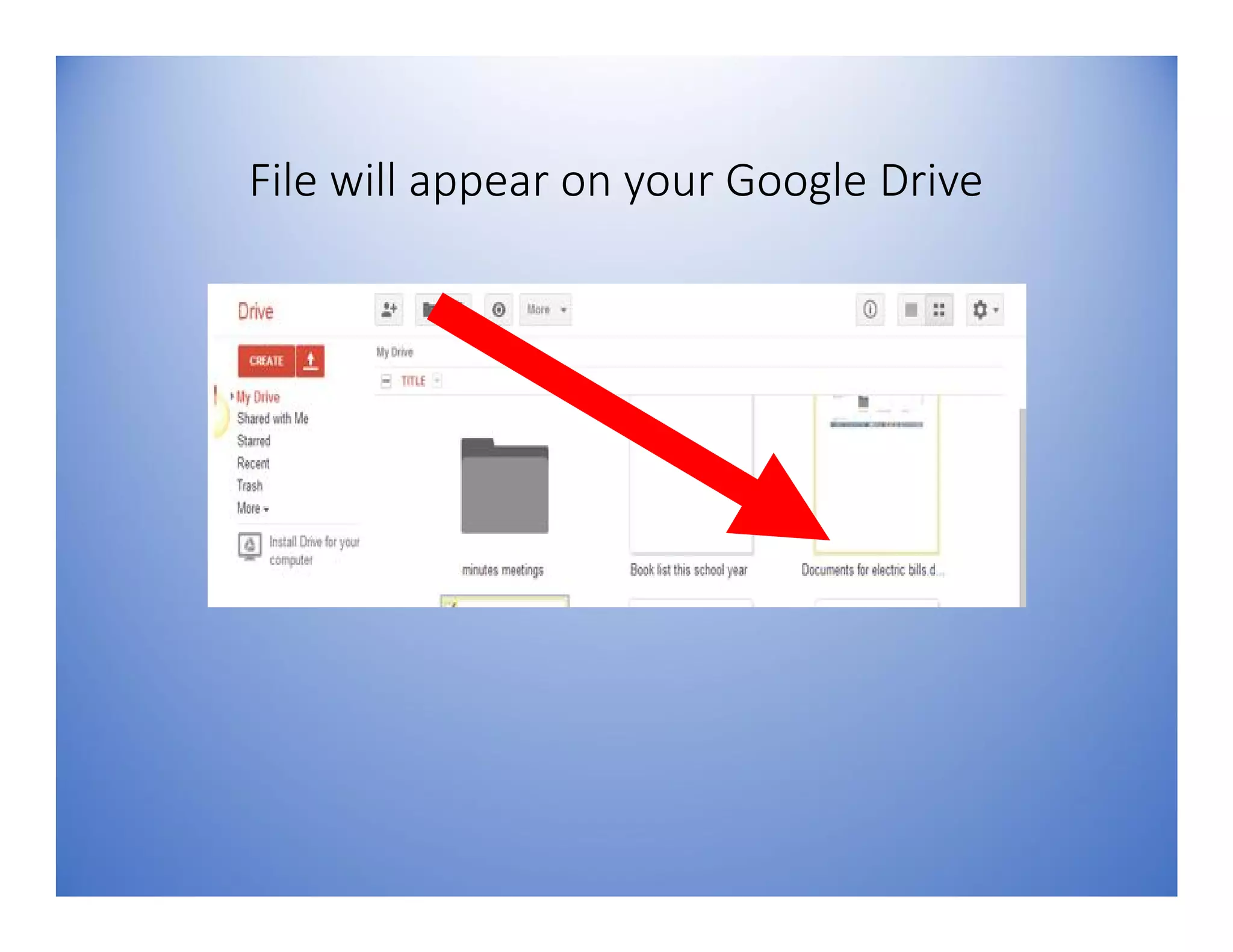
File will appear on your Google Drive
3. Share Files
Share work with others
through collaboration
where others can edit
your documents or…
share work with others
and just view
documents
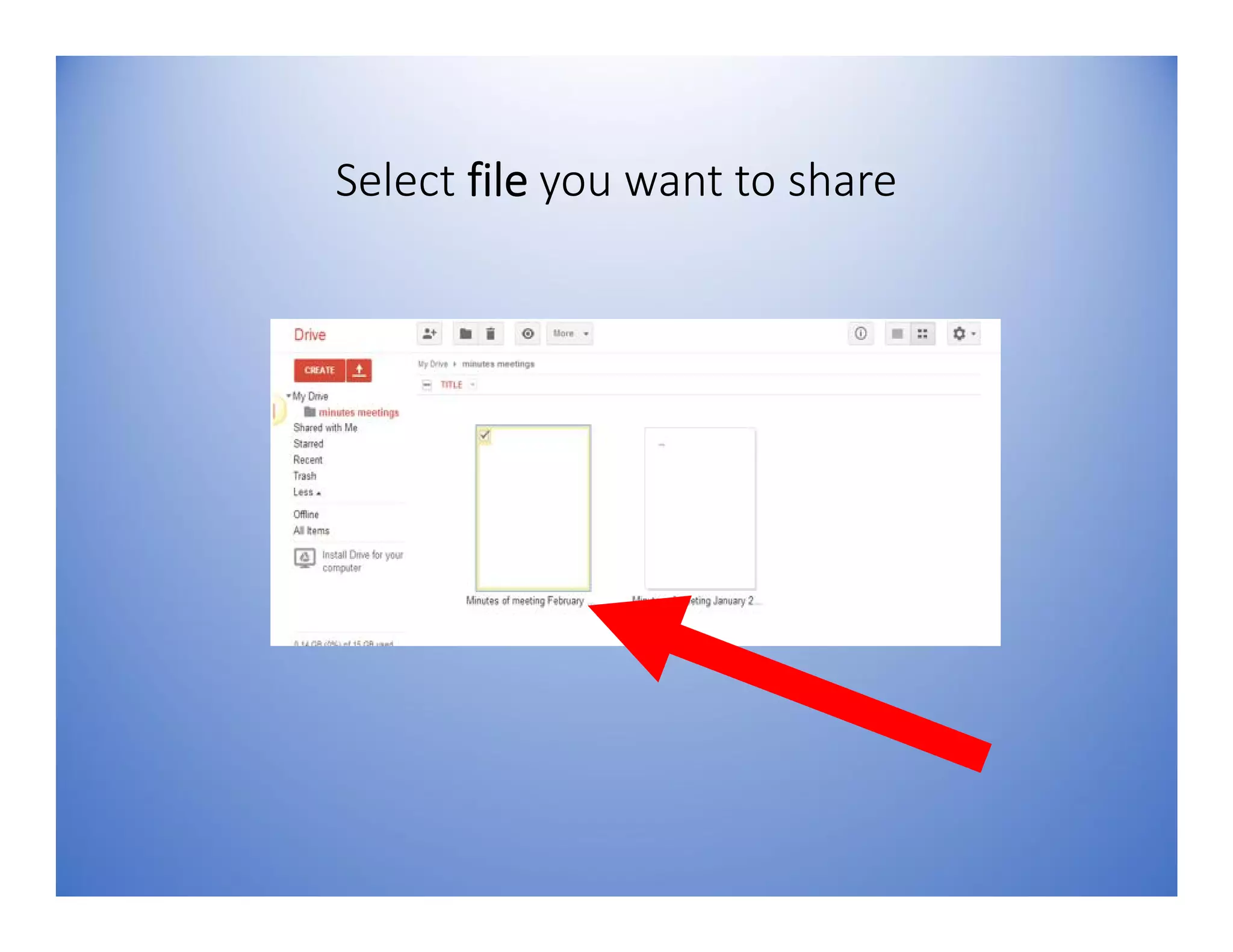
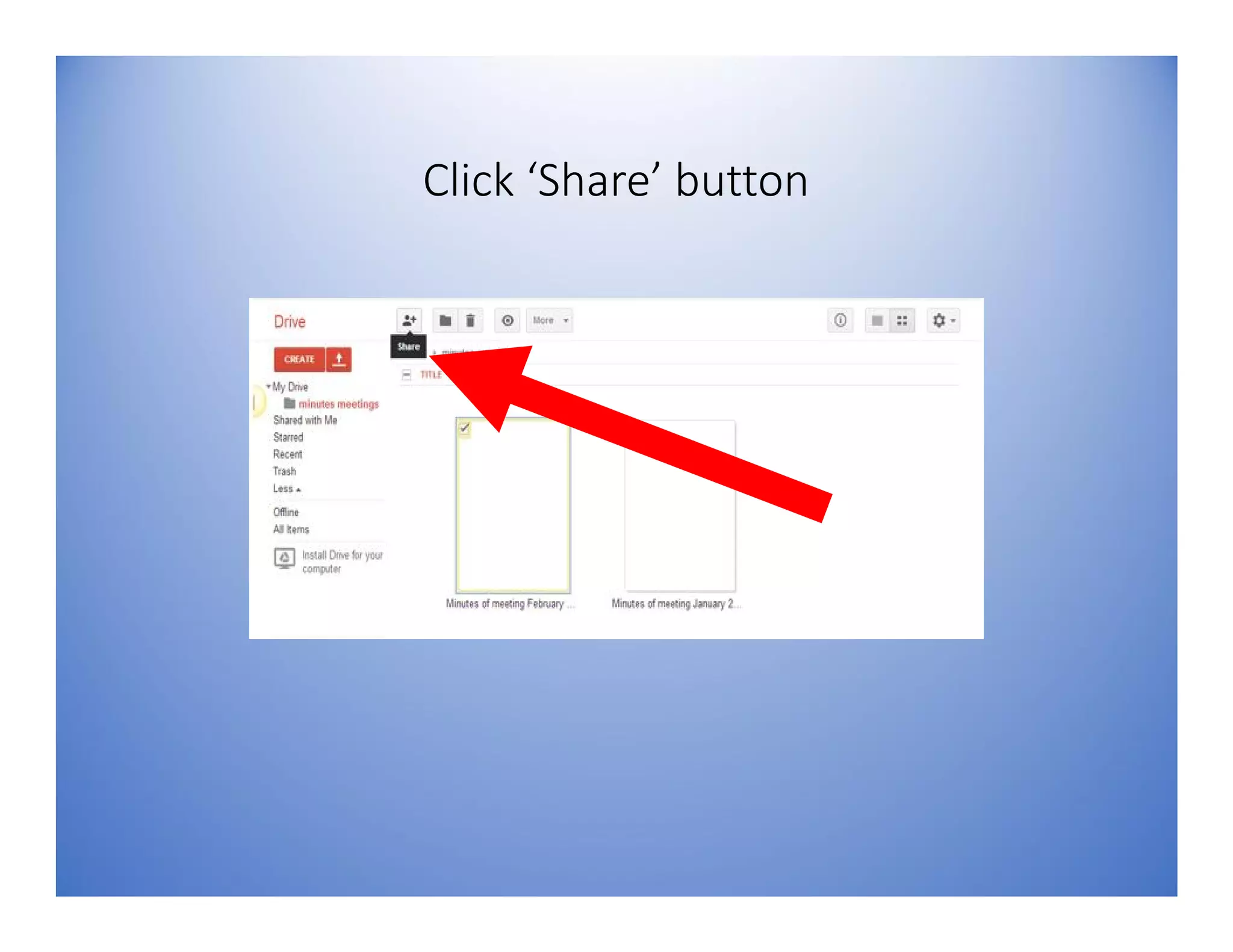
Select file you want to share
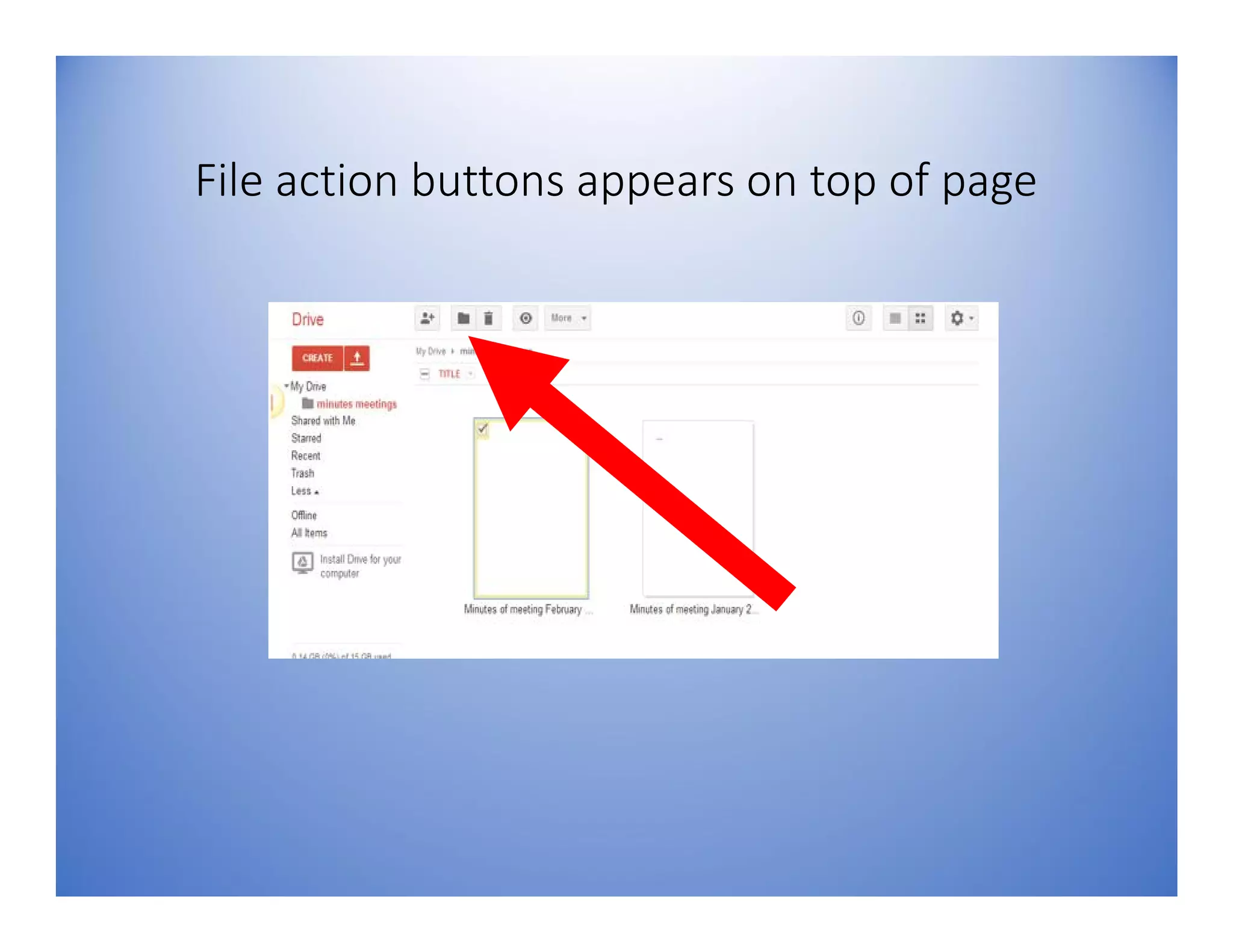
File action buttons appears on top of page
Click ‘Share’ button
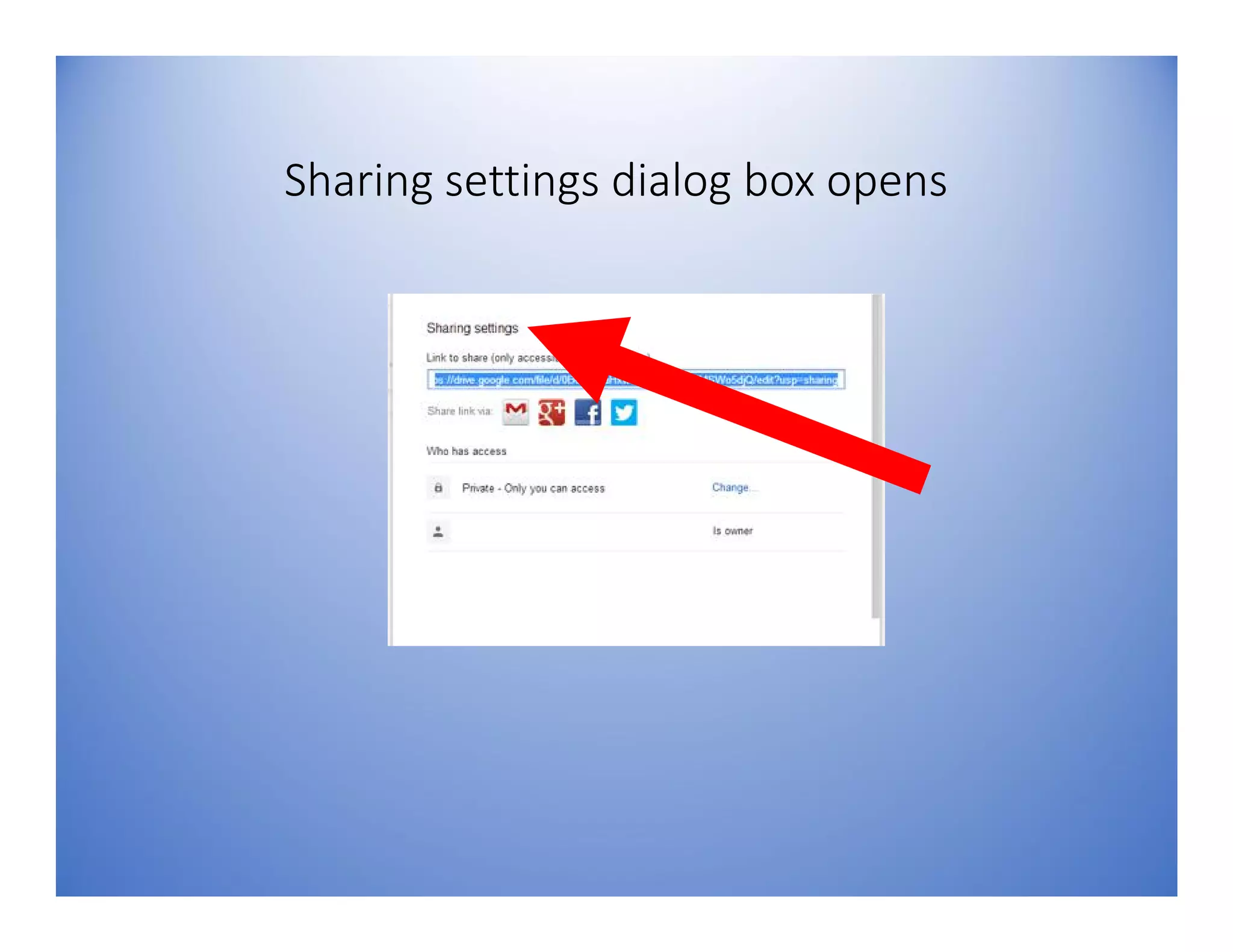
Sharing settings dialog box opens
Type email addresses of people you like to
share file
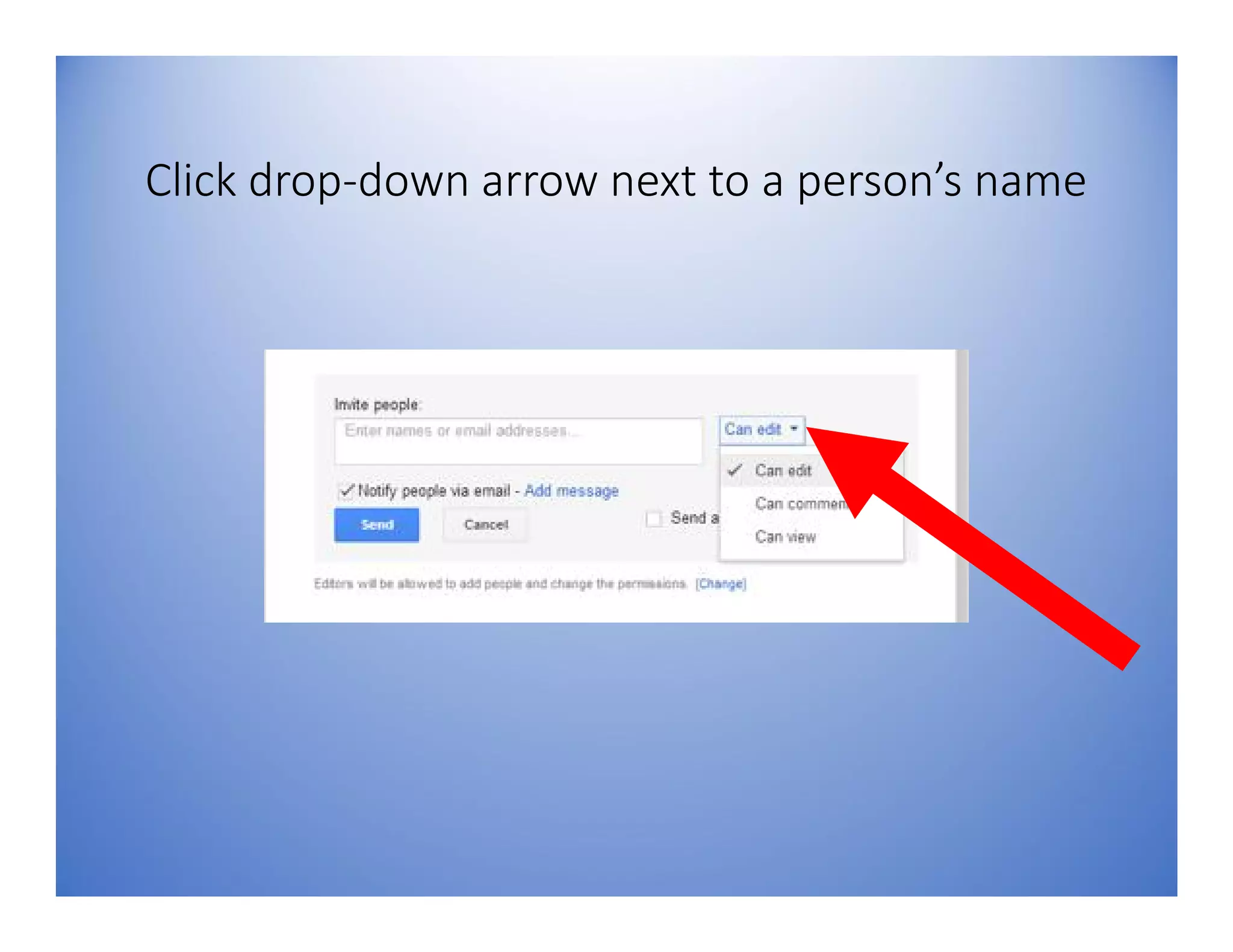
Click drop-down arrow next to a person’s name
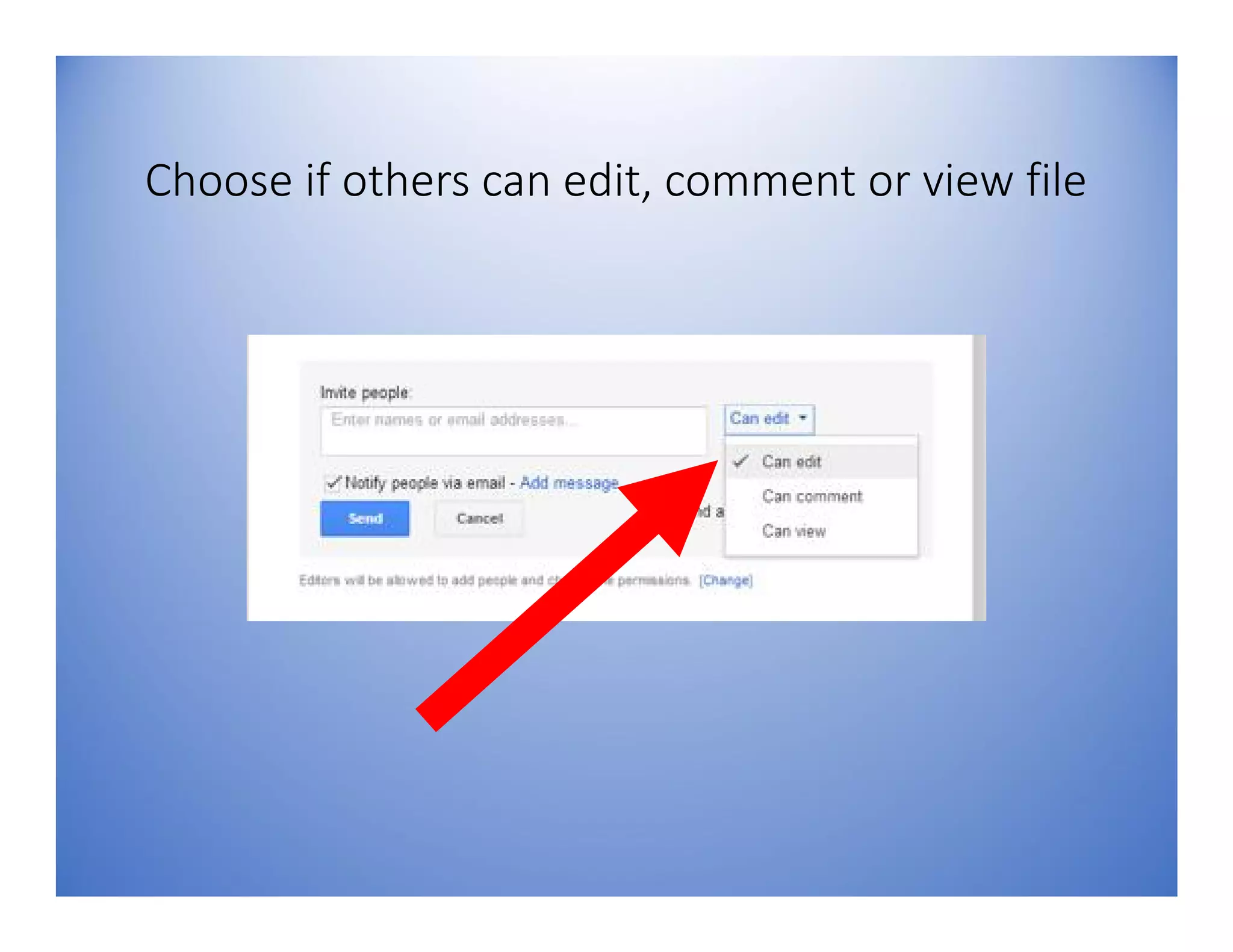
Choose if others can edit, comment or view file
Only files in Google Docs
format can be edited
online
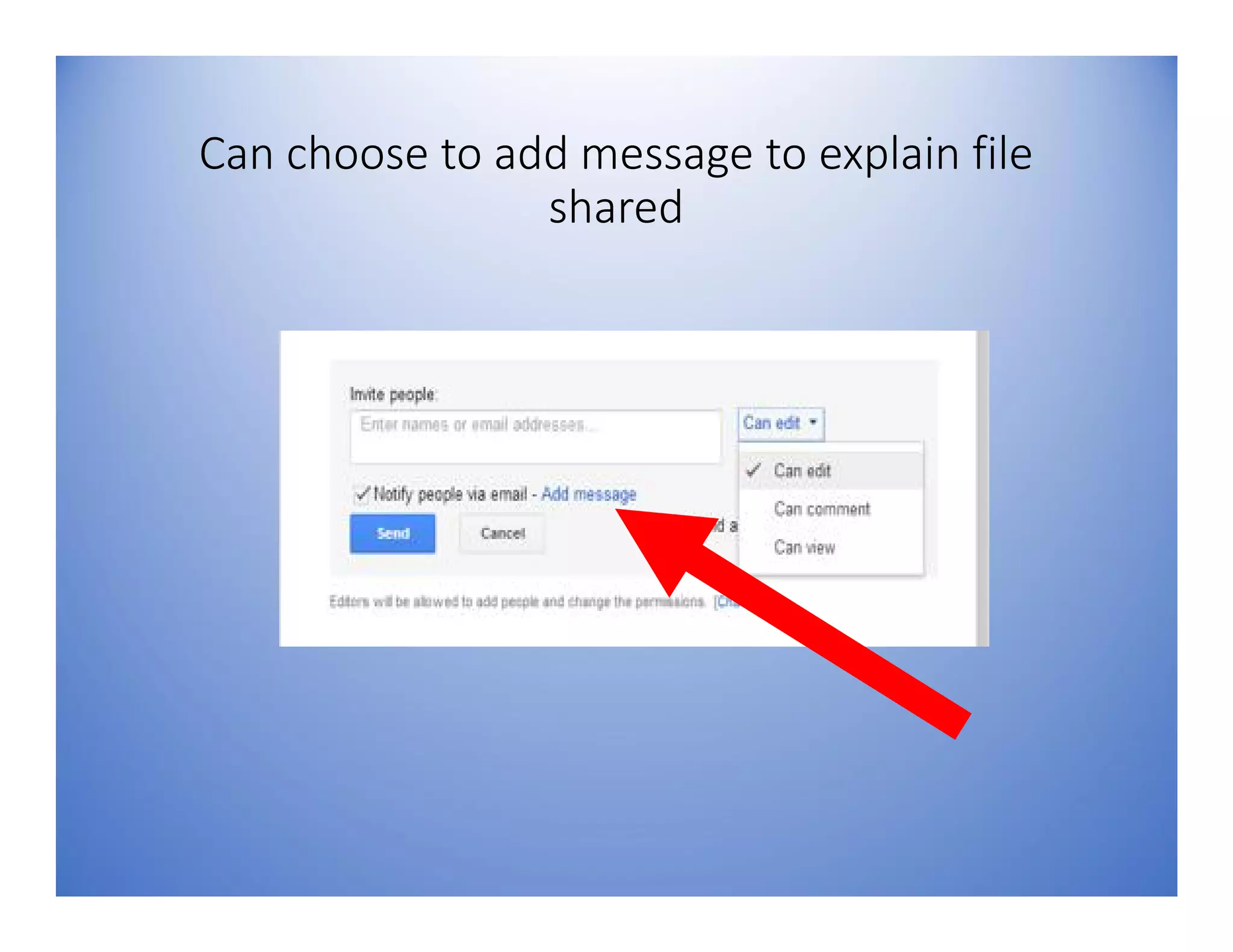
Can choose to add message to explain file
shared
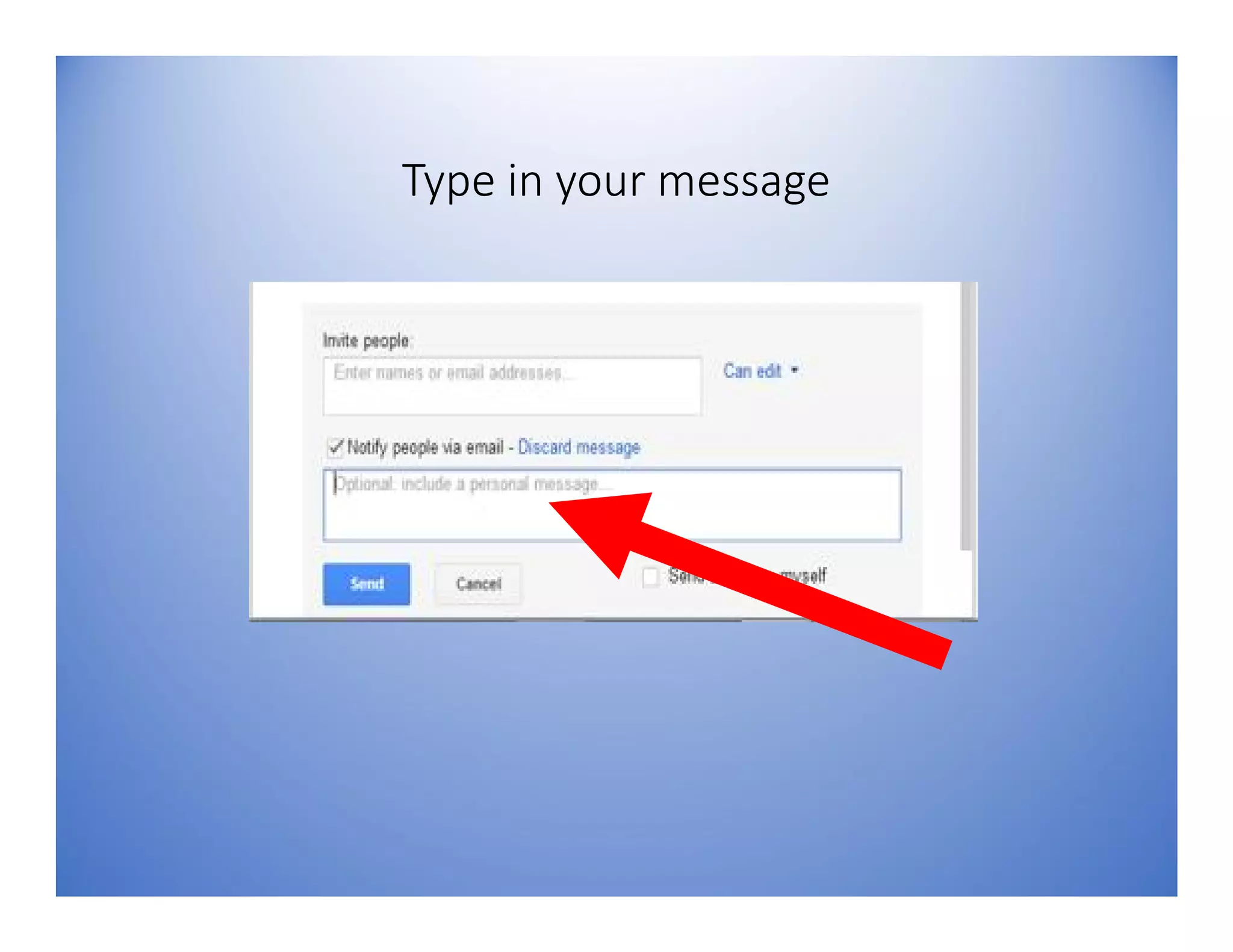
Type in your message
Editors are people you
shared your files with
Editors, by default are
allowed to invite people
to access the file
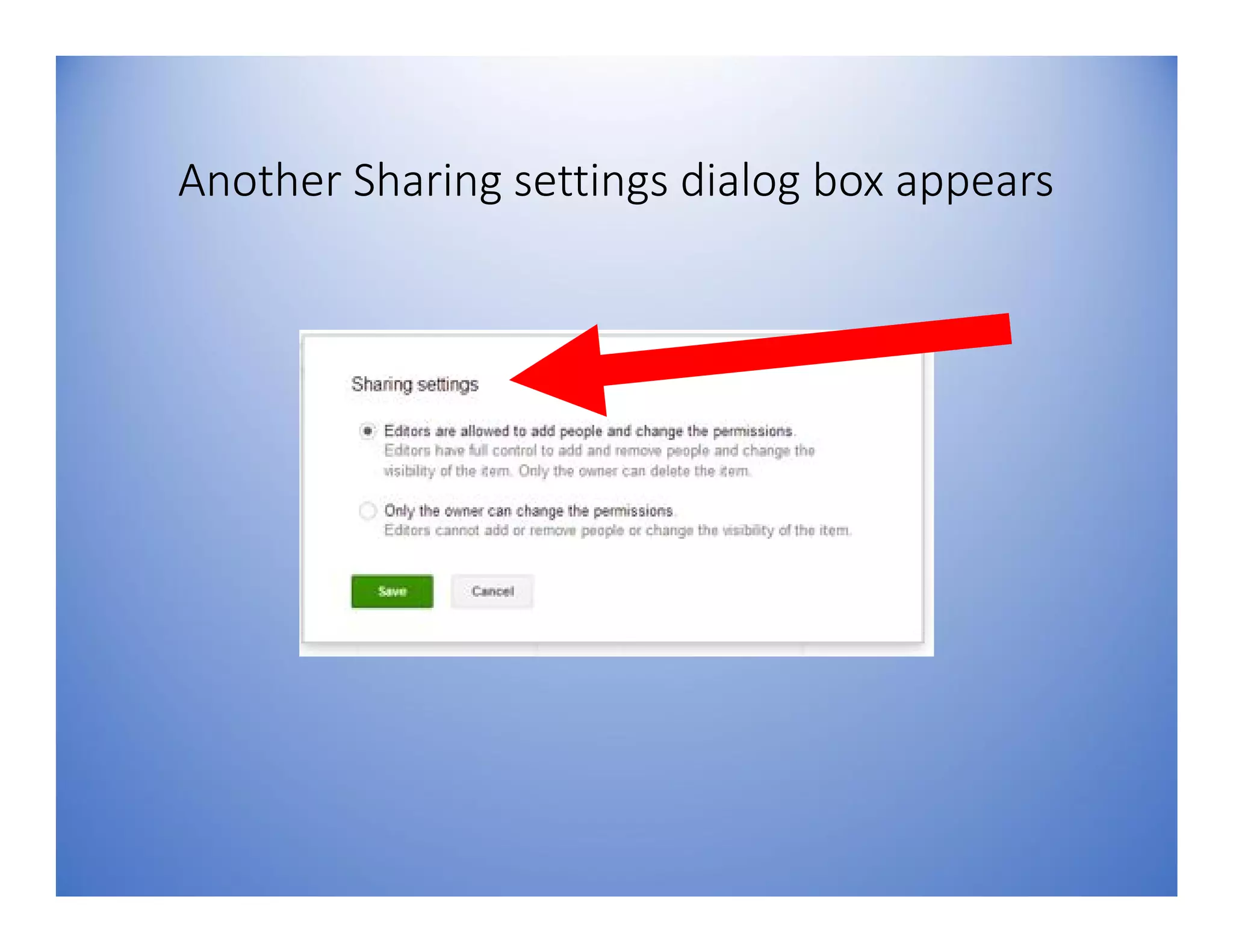
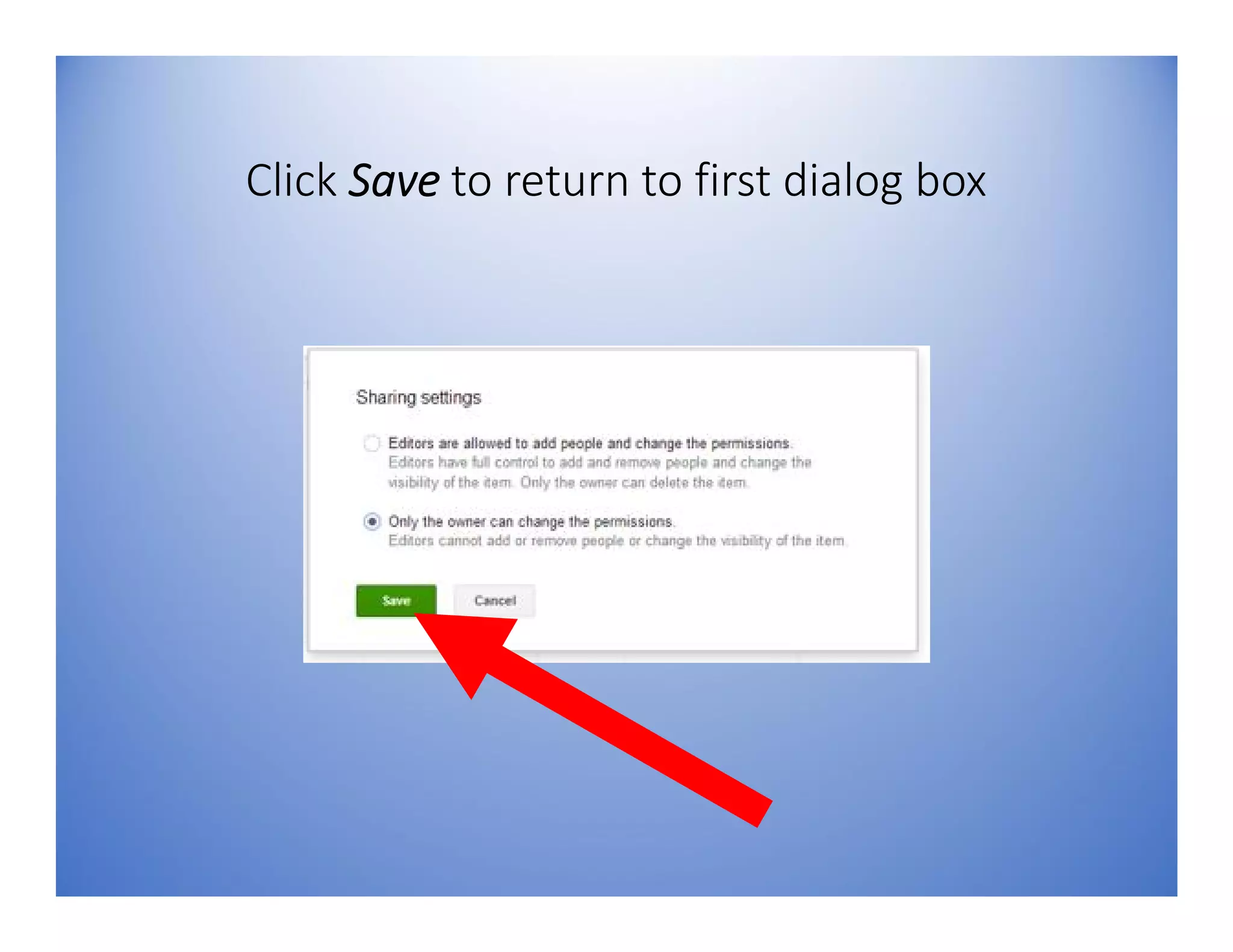
Click [Change] if you don’t want editors to
invite others
Another Sharing settings dialog box appears
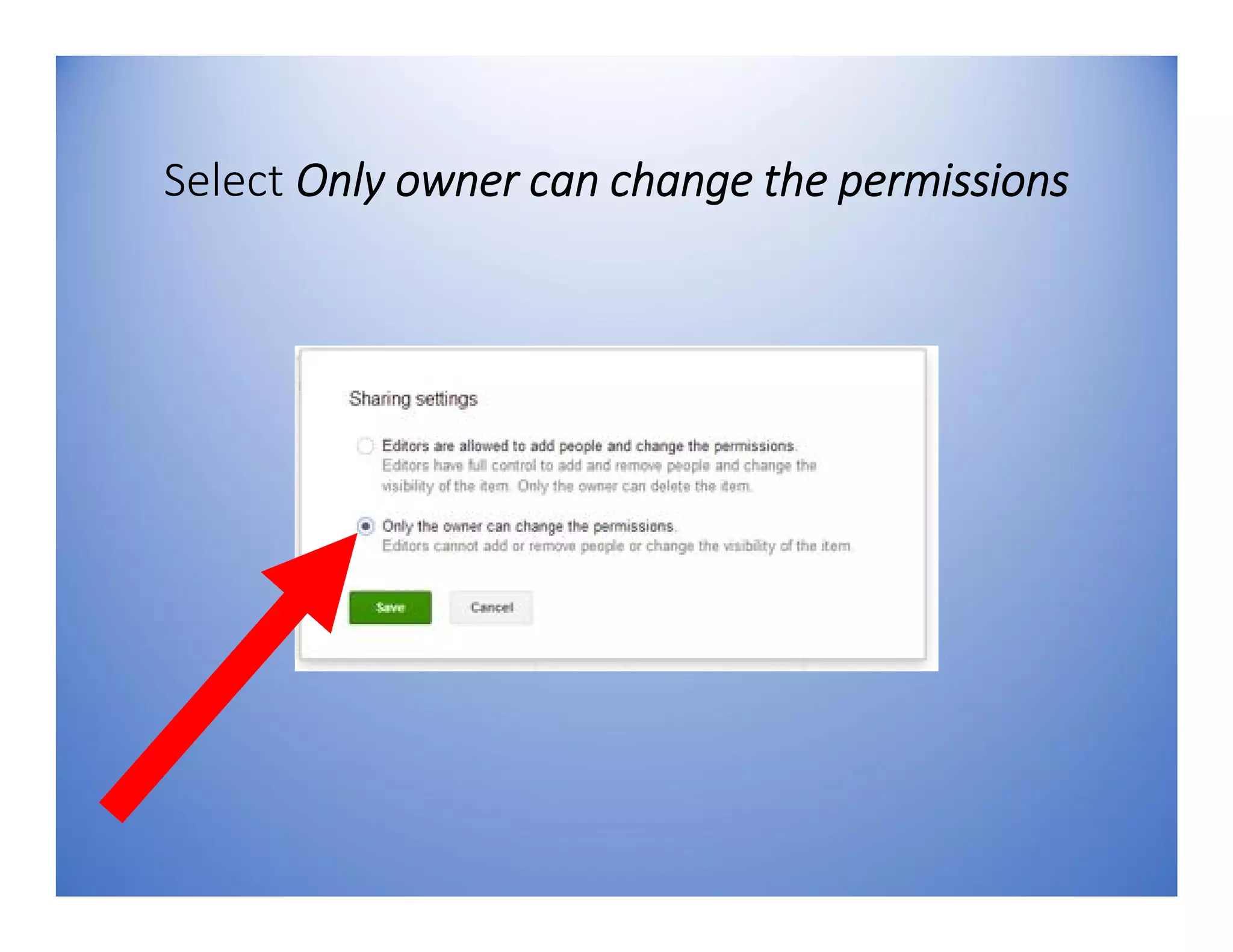
Select Only owner can change the permissions
Click Save to return to first dialog box
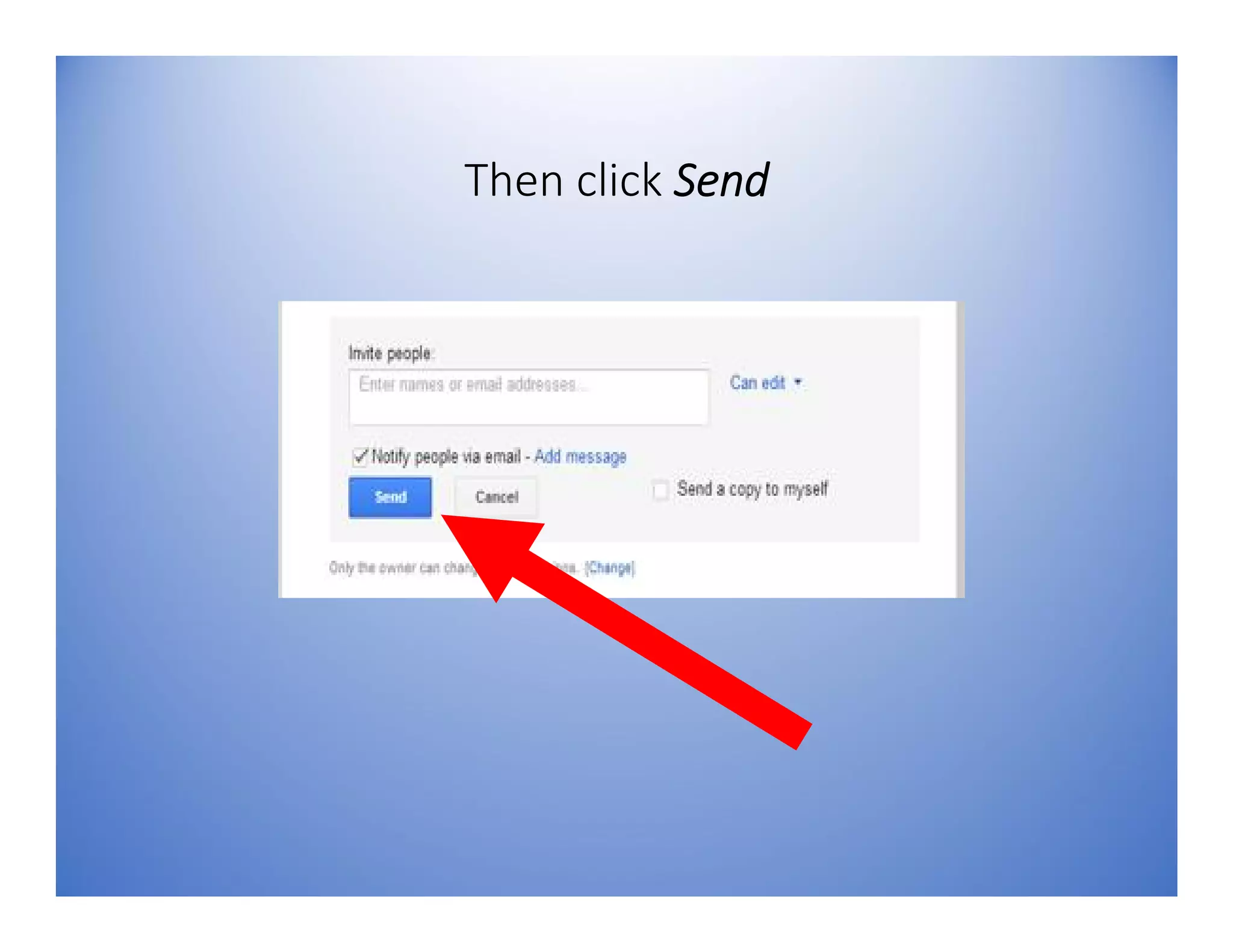
Then click Send
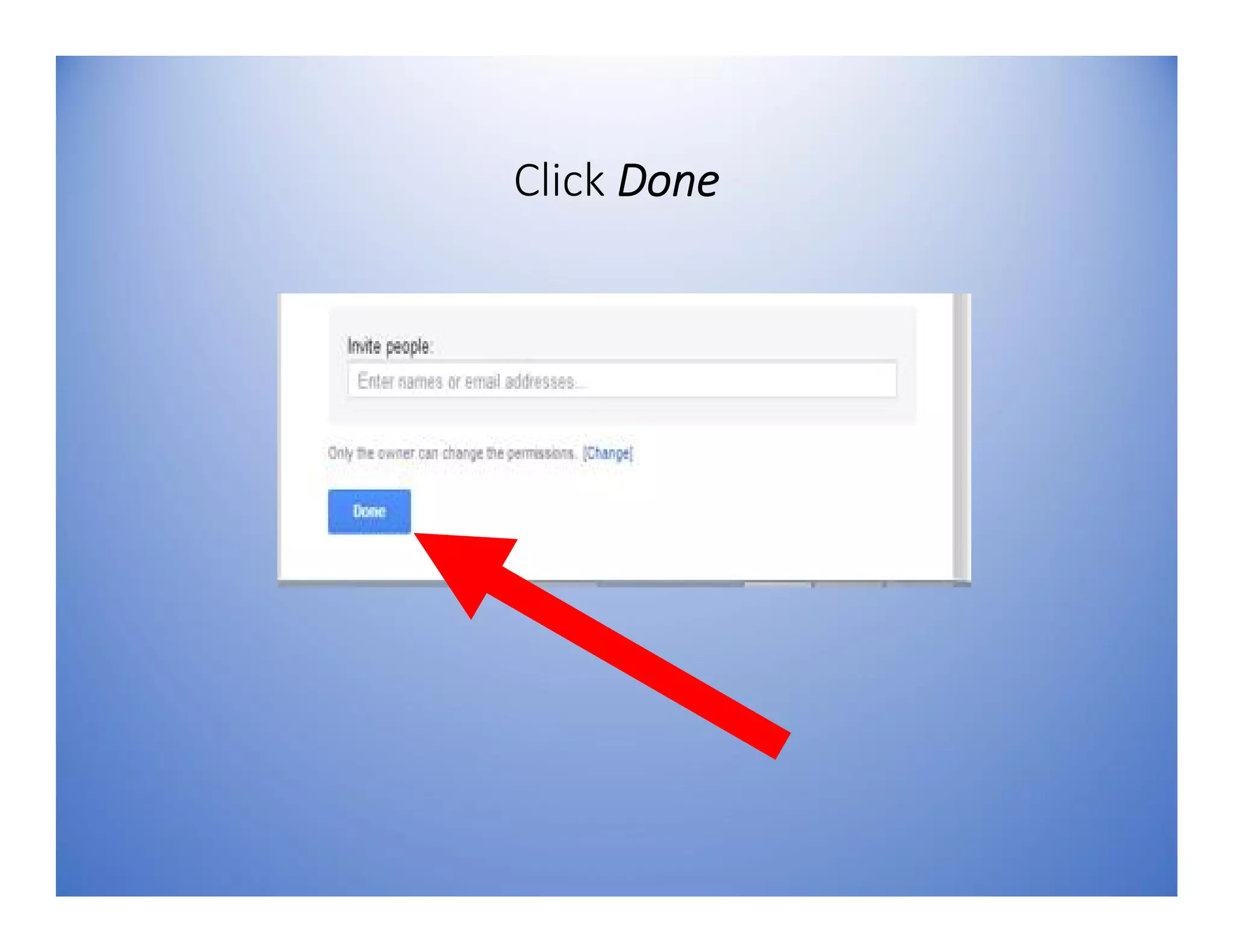
Click Done
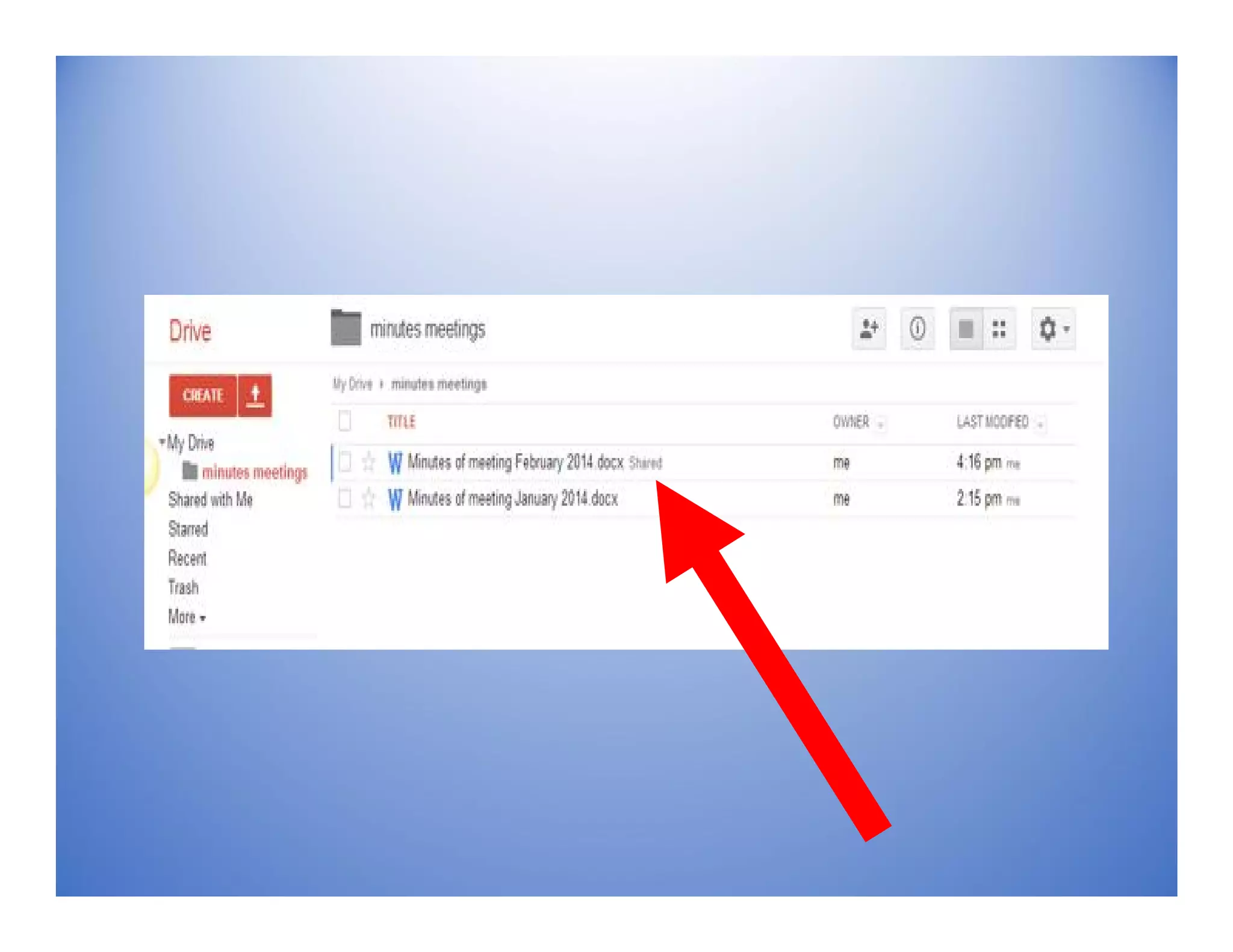
File will be shared and…
will be marked as
Shared in your Google
Drive
4. Creating Folders
Folders are used to
organize files
To Create a Folder
Click Create button
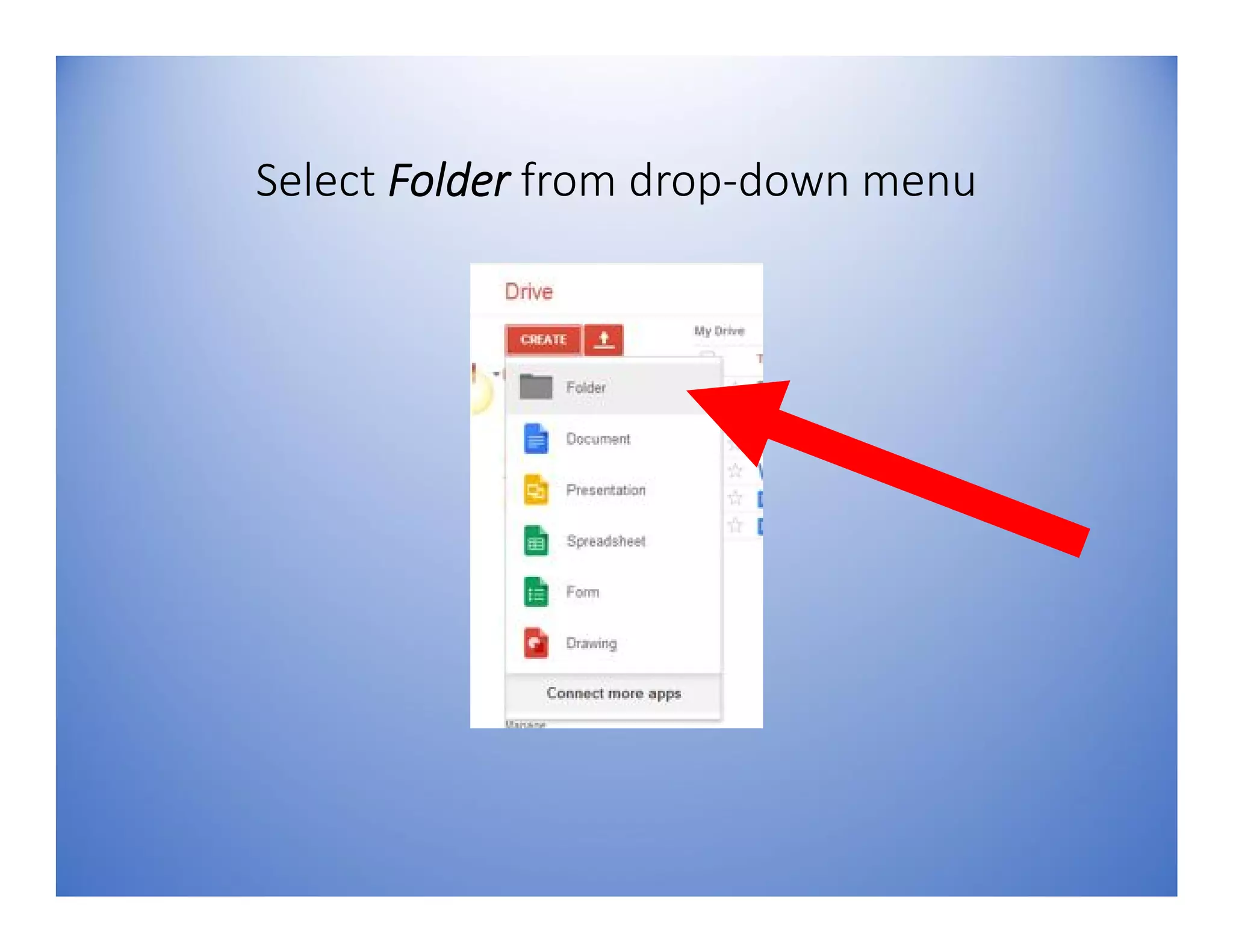
Select Folder from drop-down menu
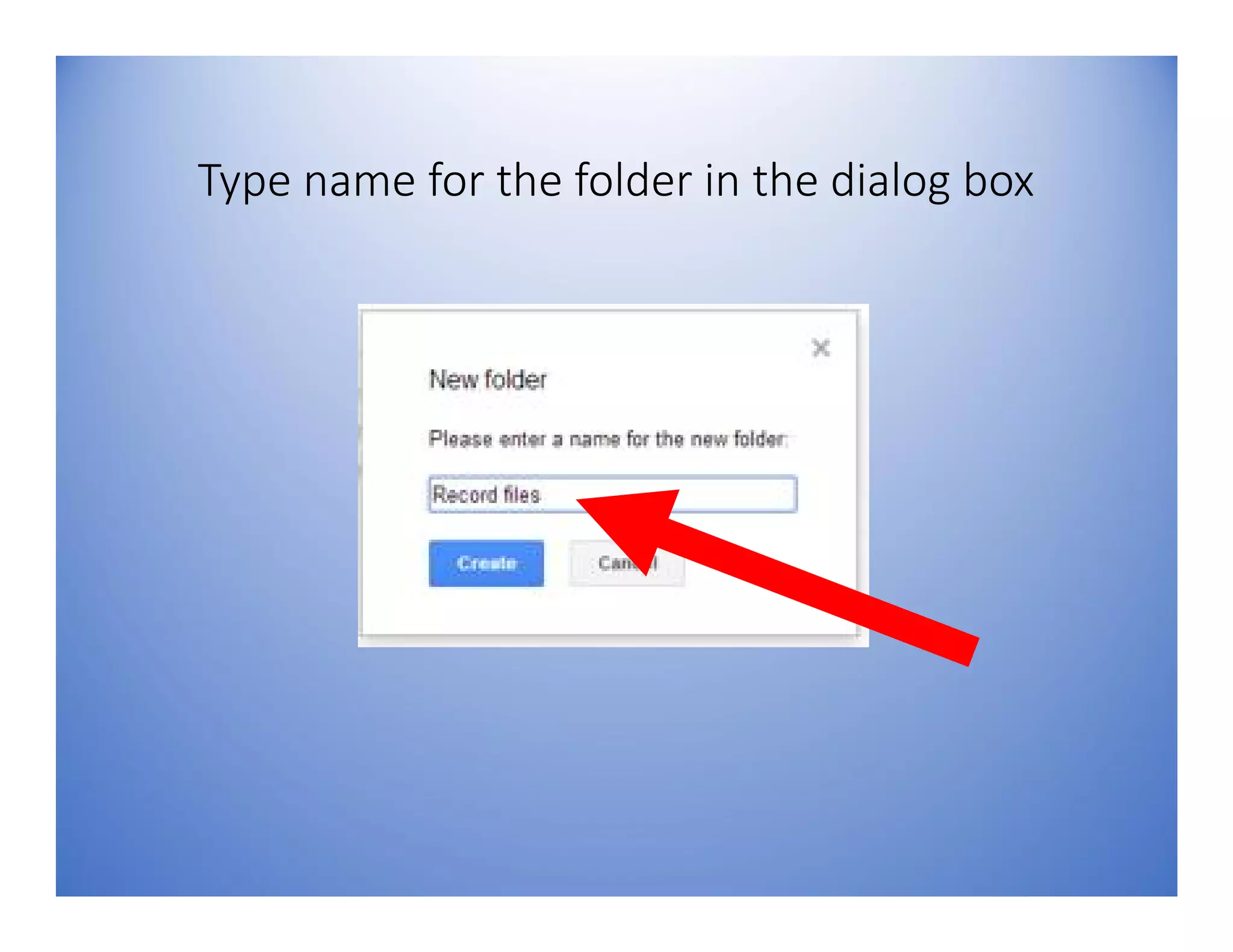
Type name for the folder in the dialog box
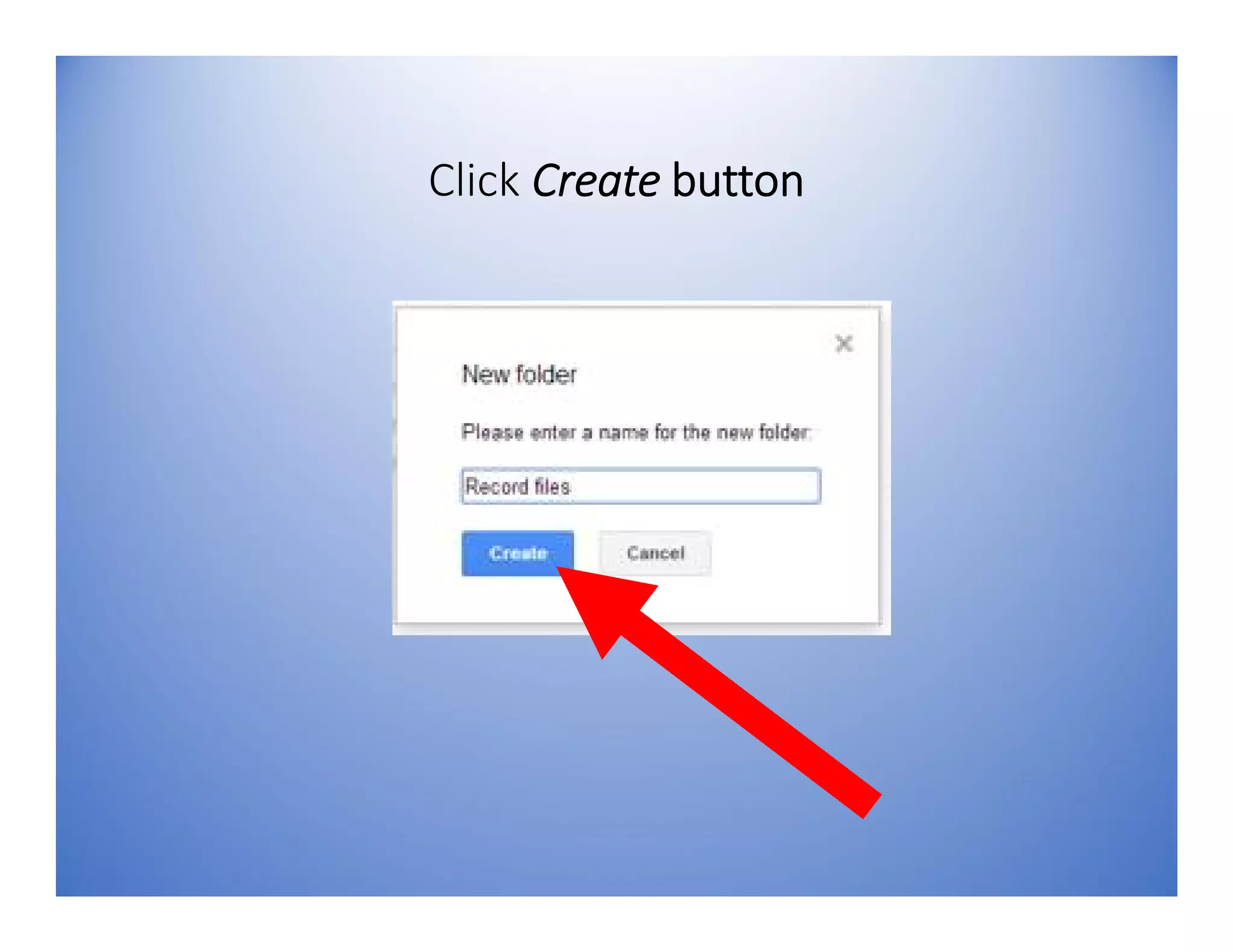
Click Create button
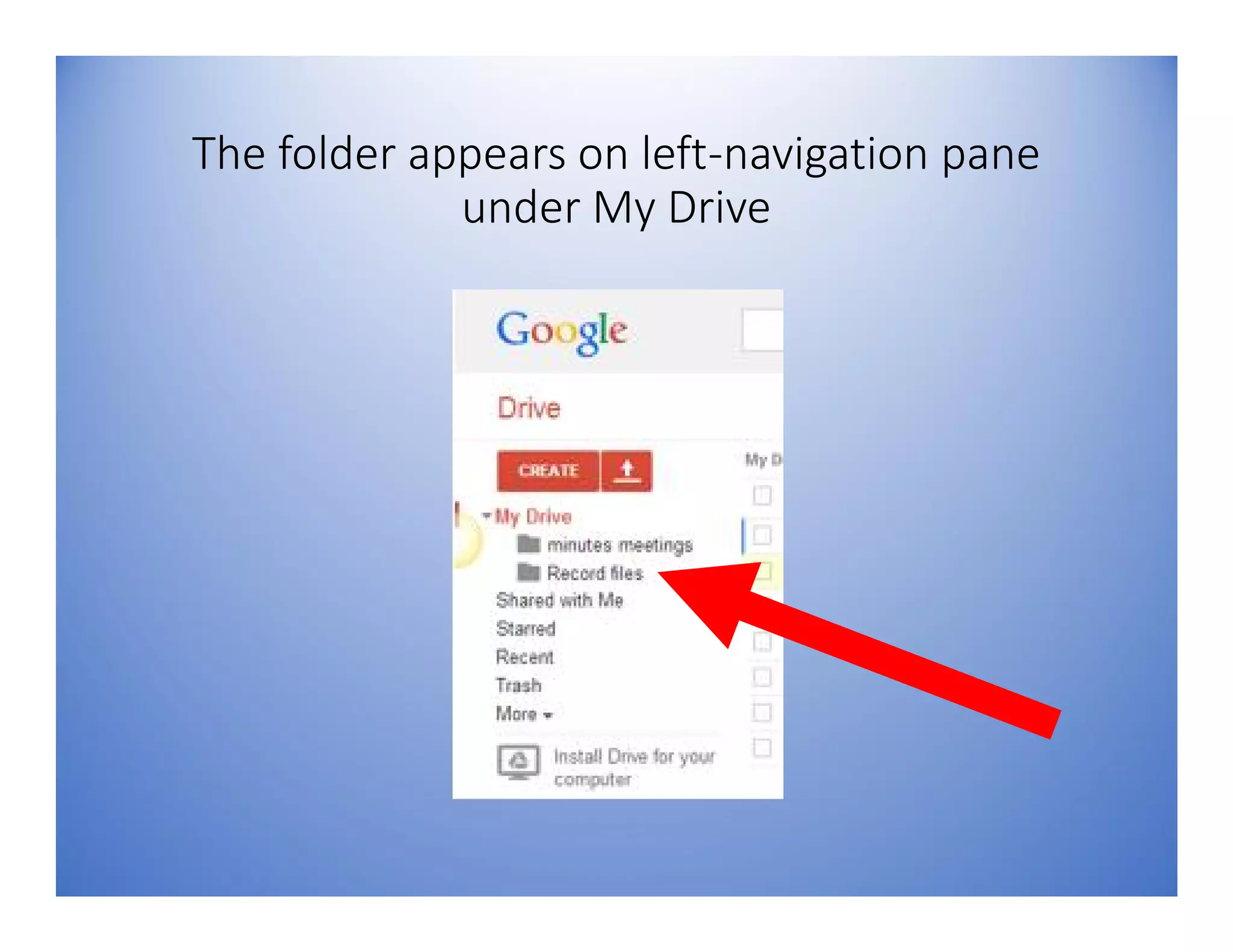
The folder appears on left-navigation pane
under My Drive
Create a folder within a
folder known as Nested
Folder
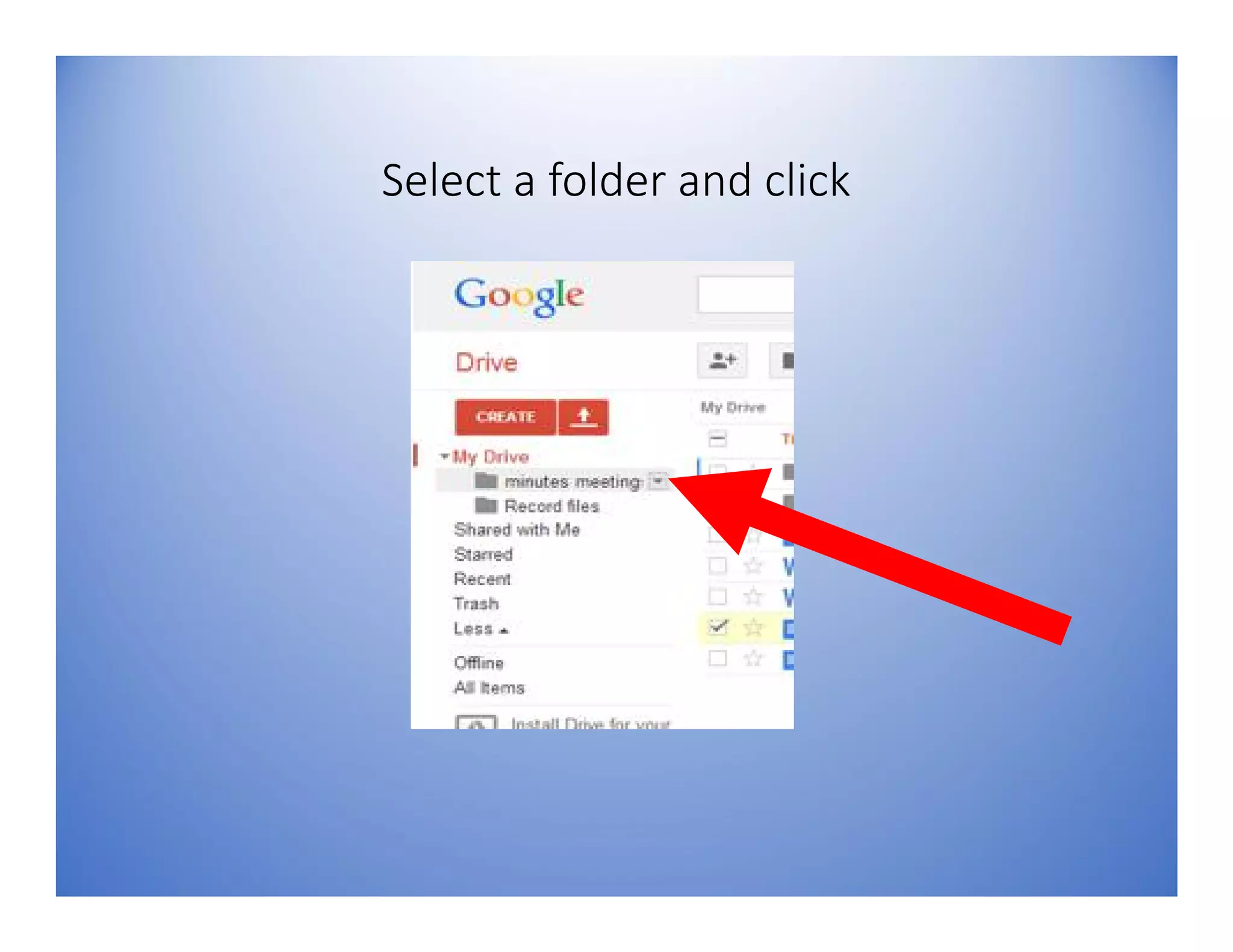
Select a folder and click
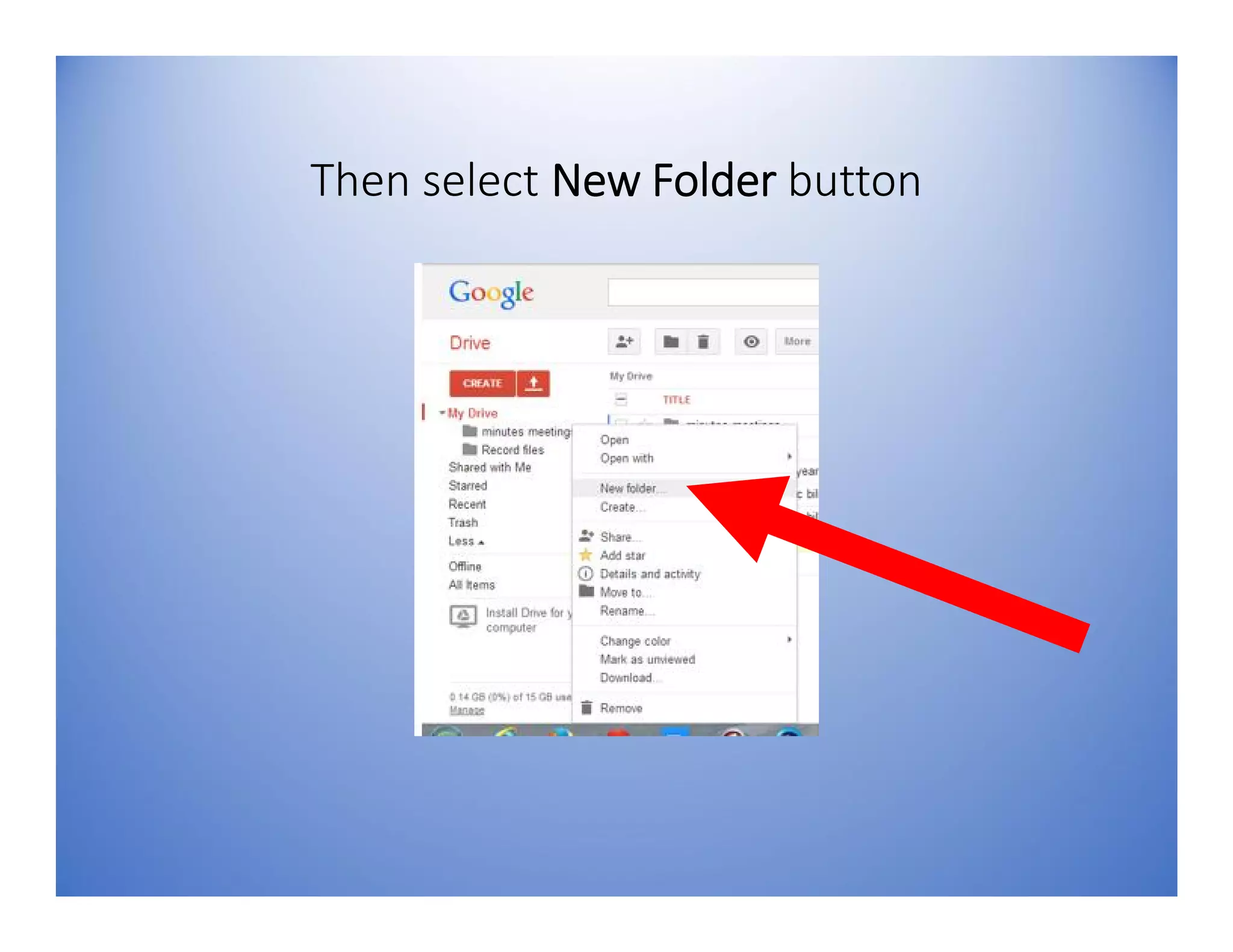
Then select New Folder button
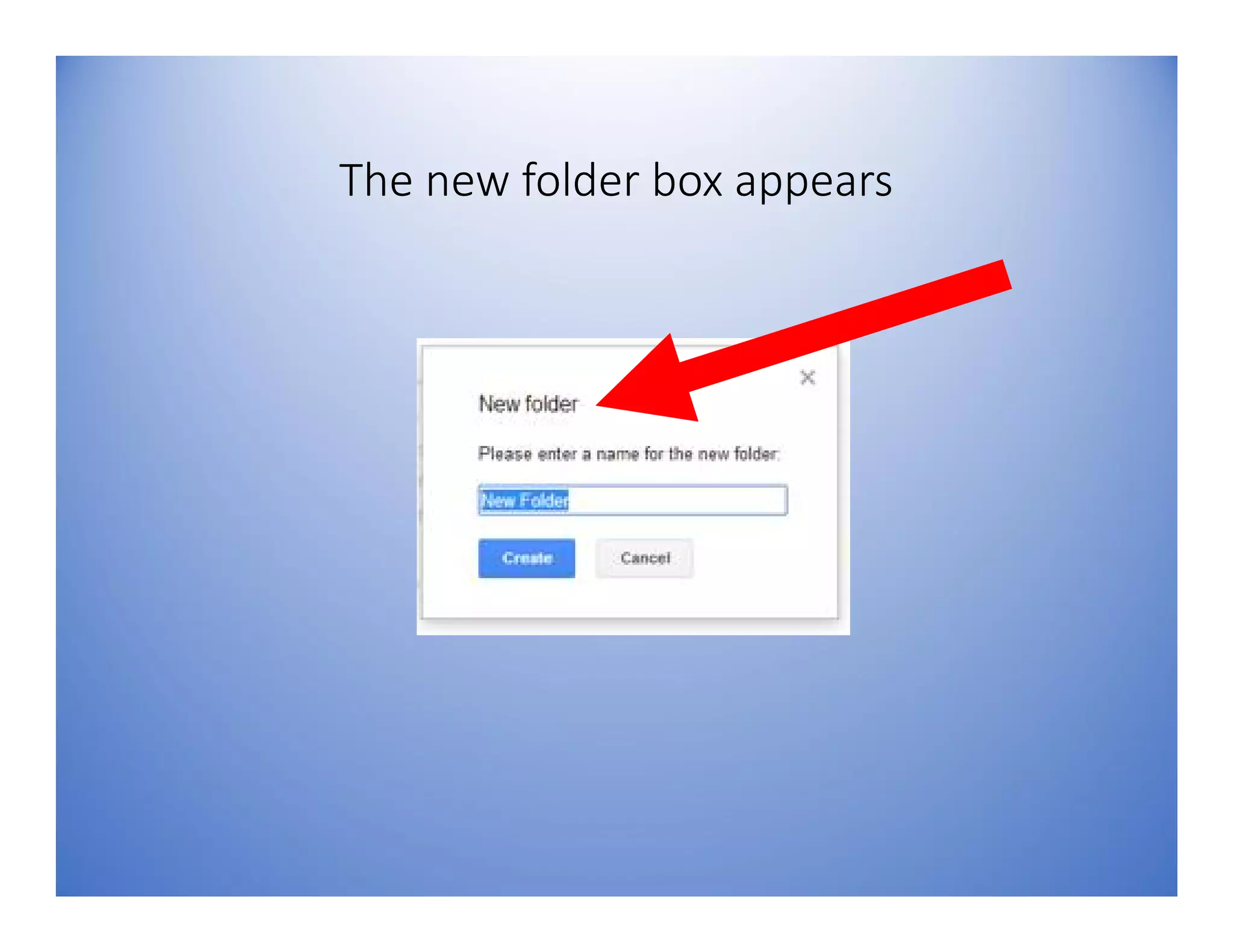
The new folder box appears
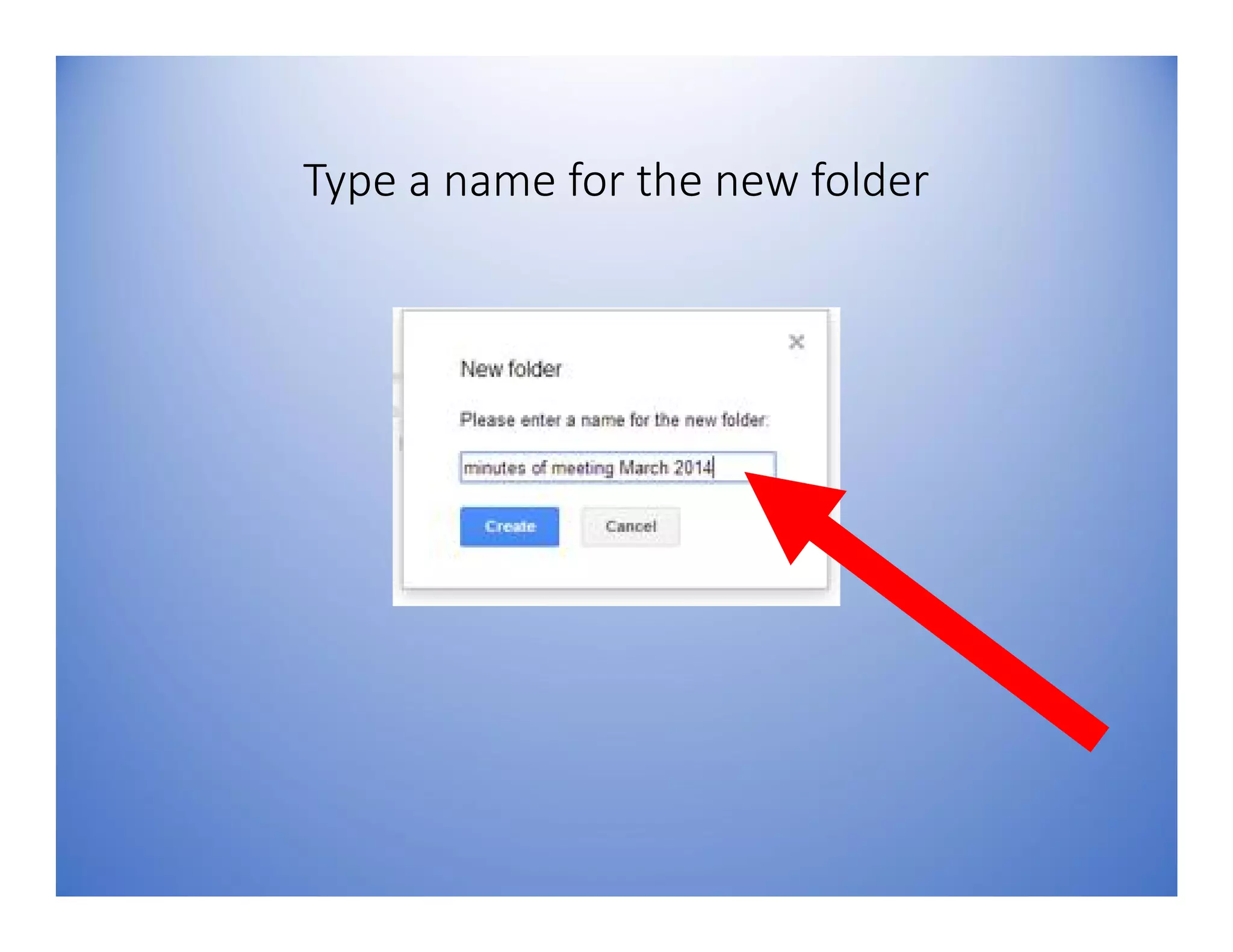
Type a name for the new folder
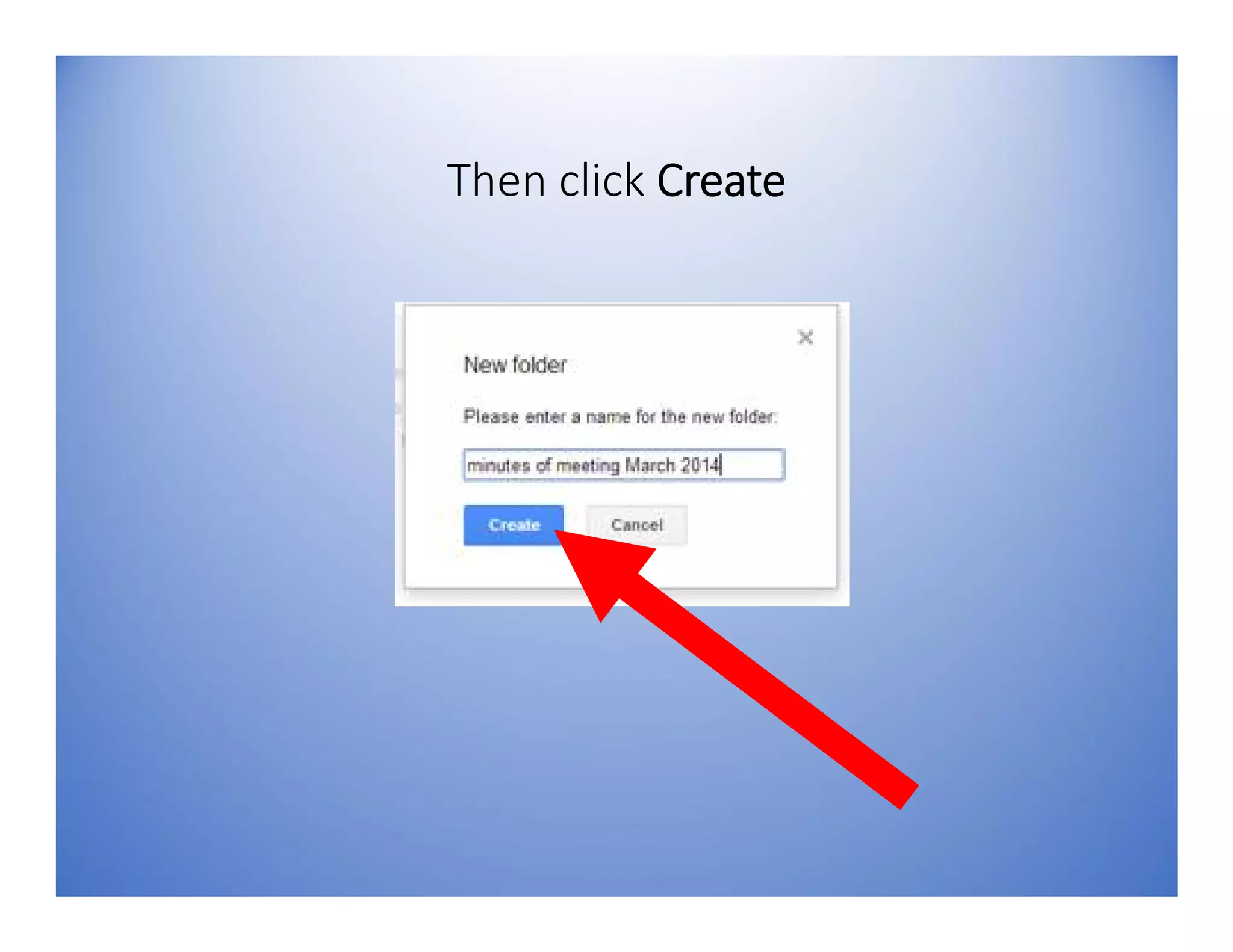
Then click Create
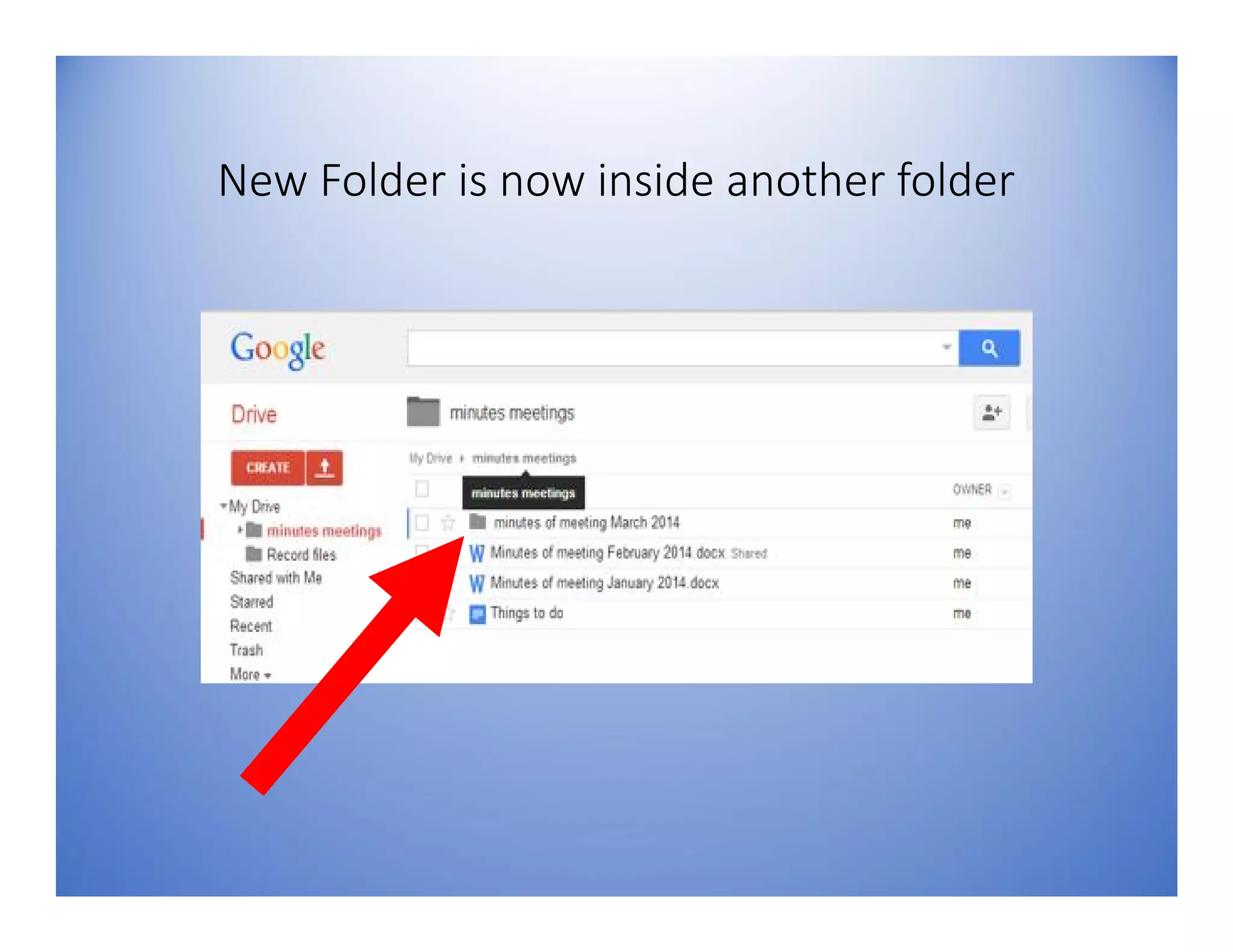
New Folder is now inside another folder
5. To add files to
folders
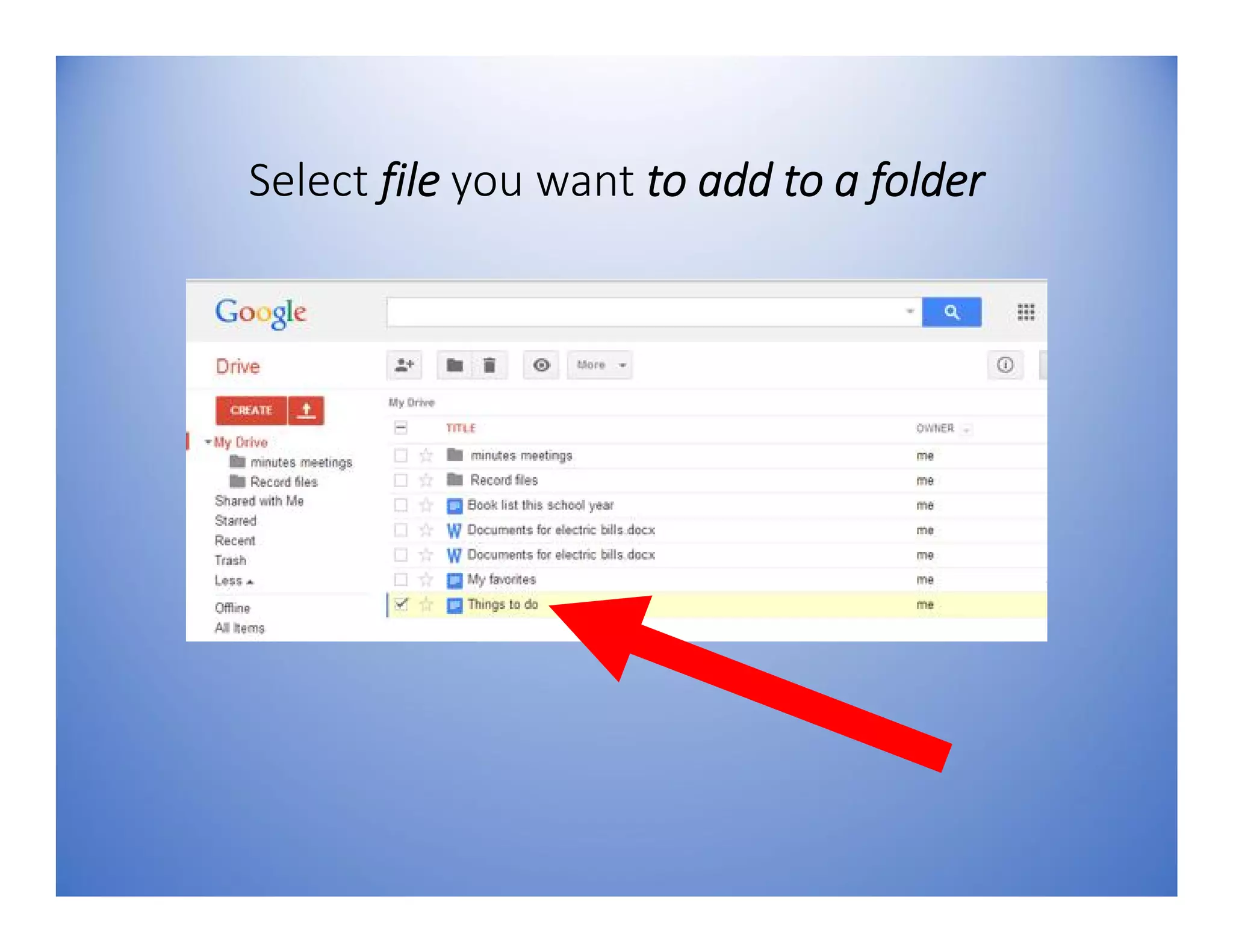
Select file you want to add to a folder
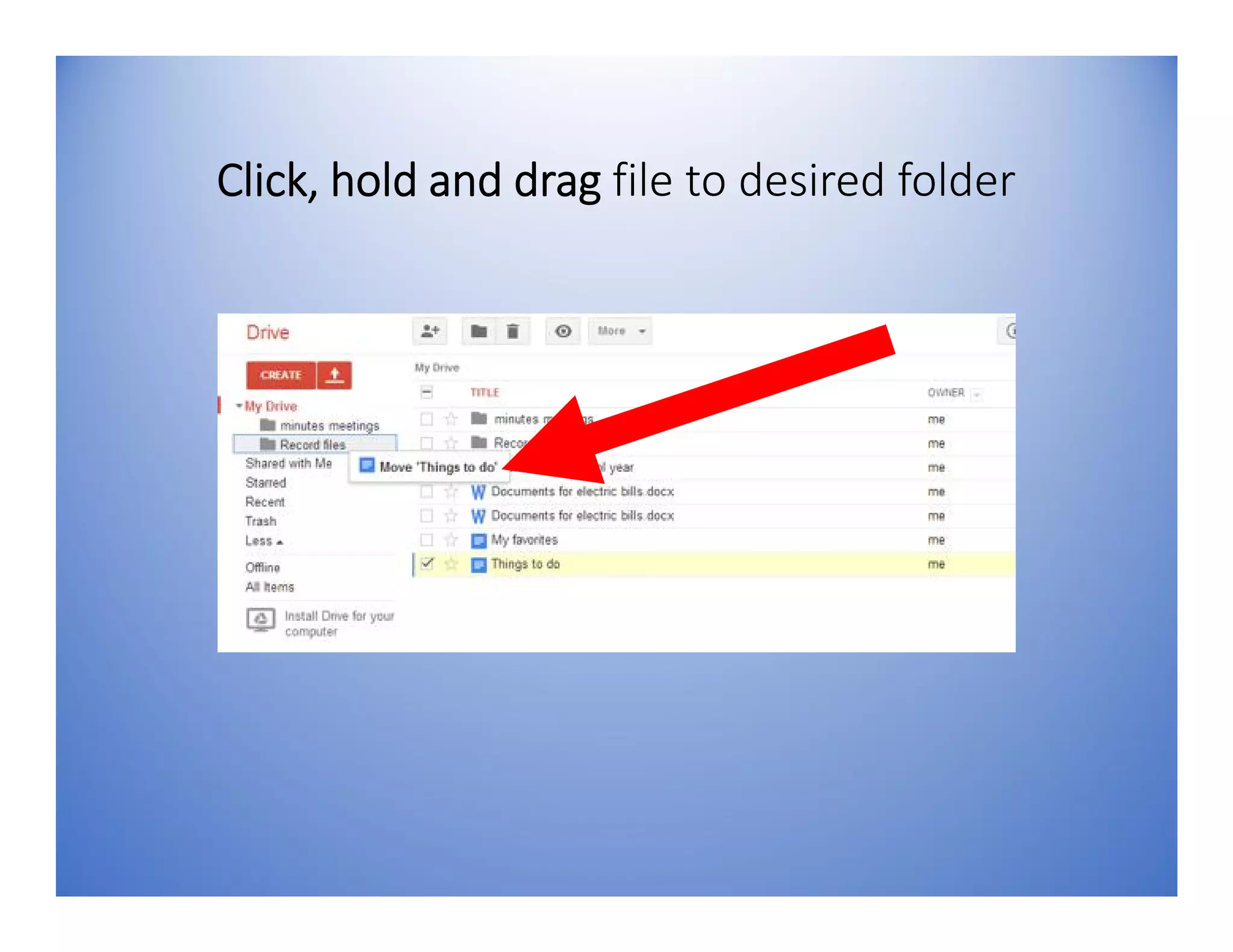
Click, hold and drag file to desired folder
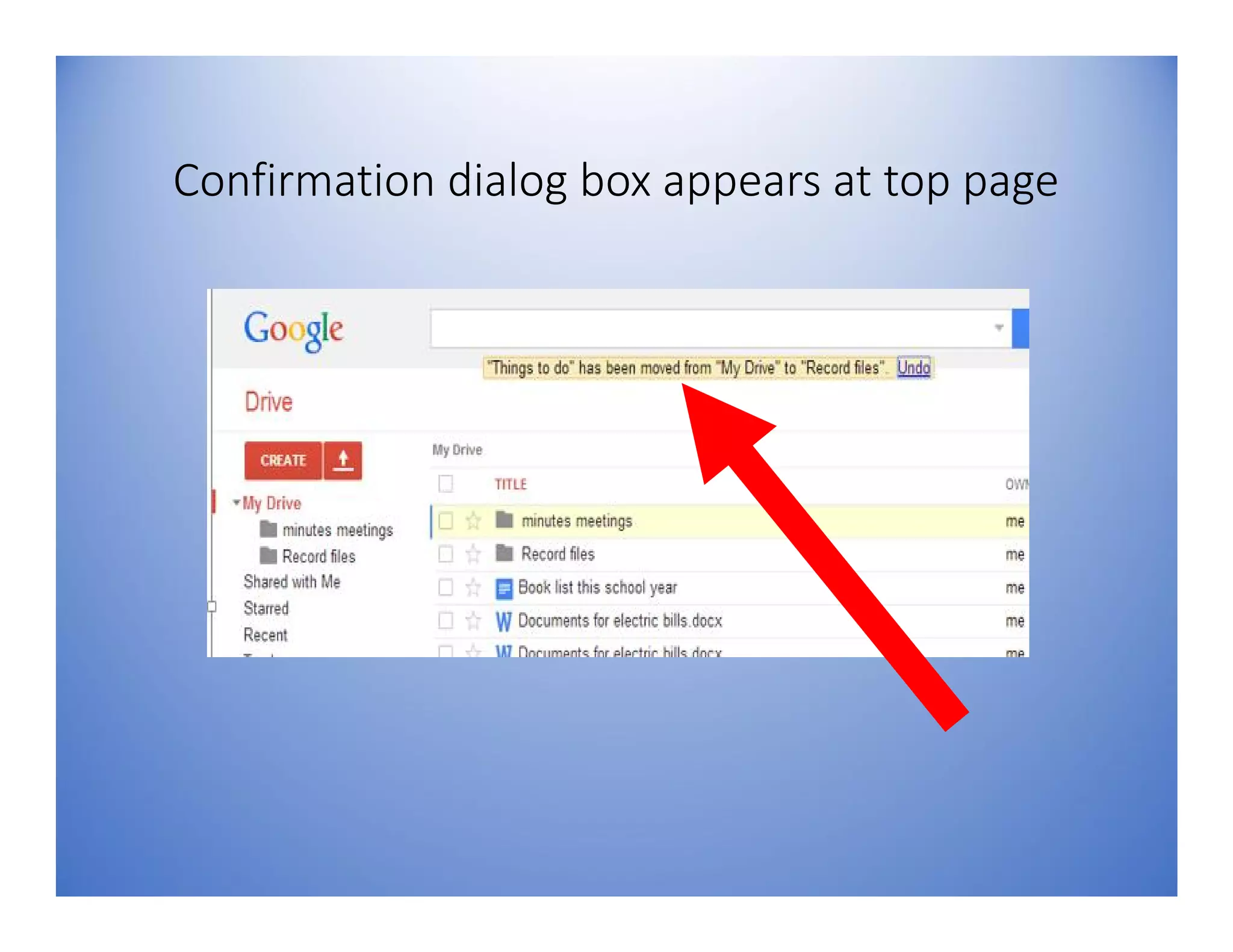
Confirmation dialog box appears at top page
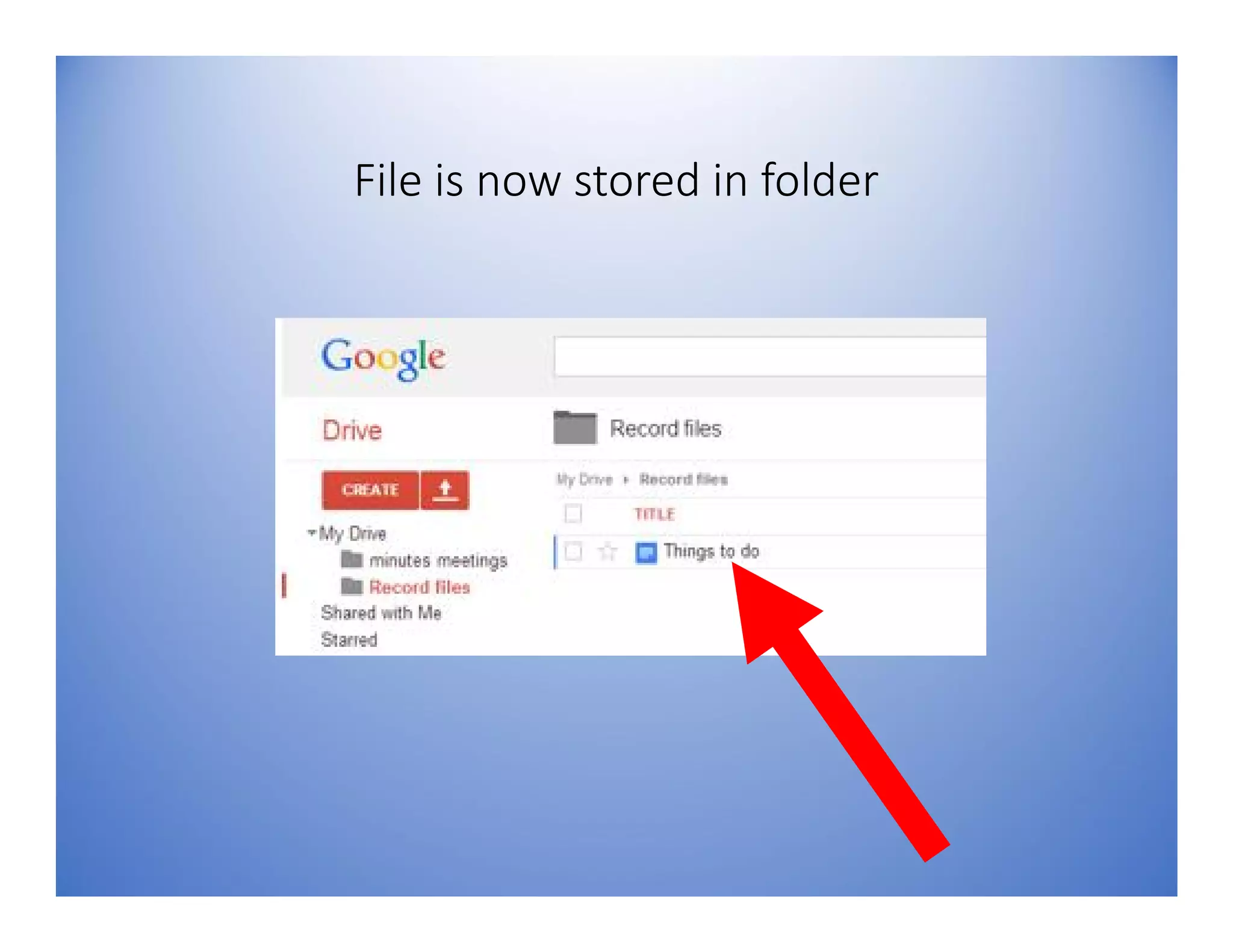
File is now stored in folder
Adding multiple files on
same folder
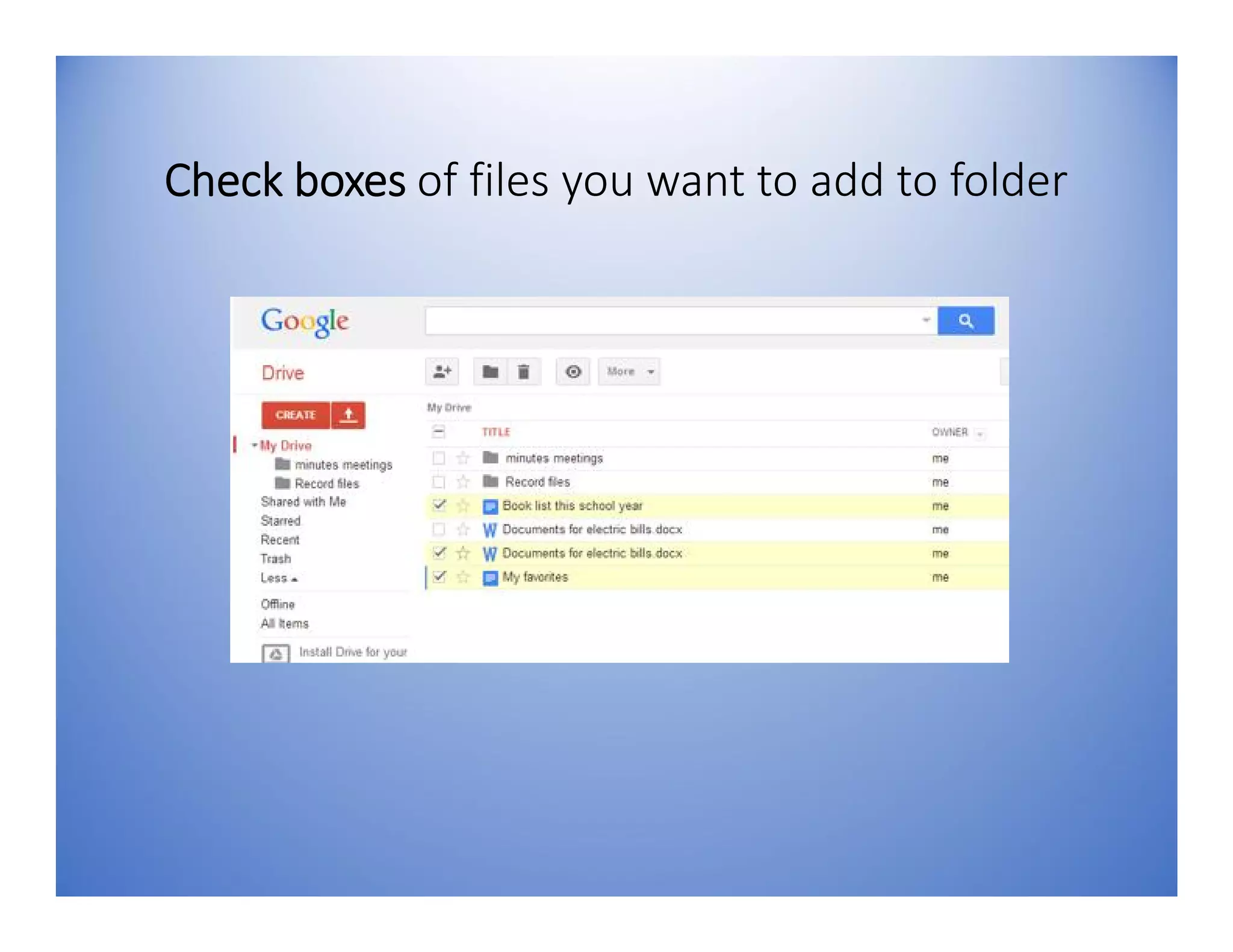
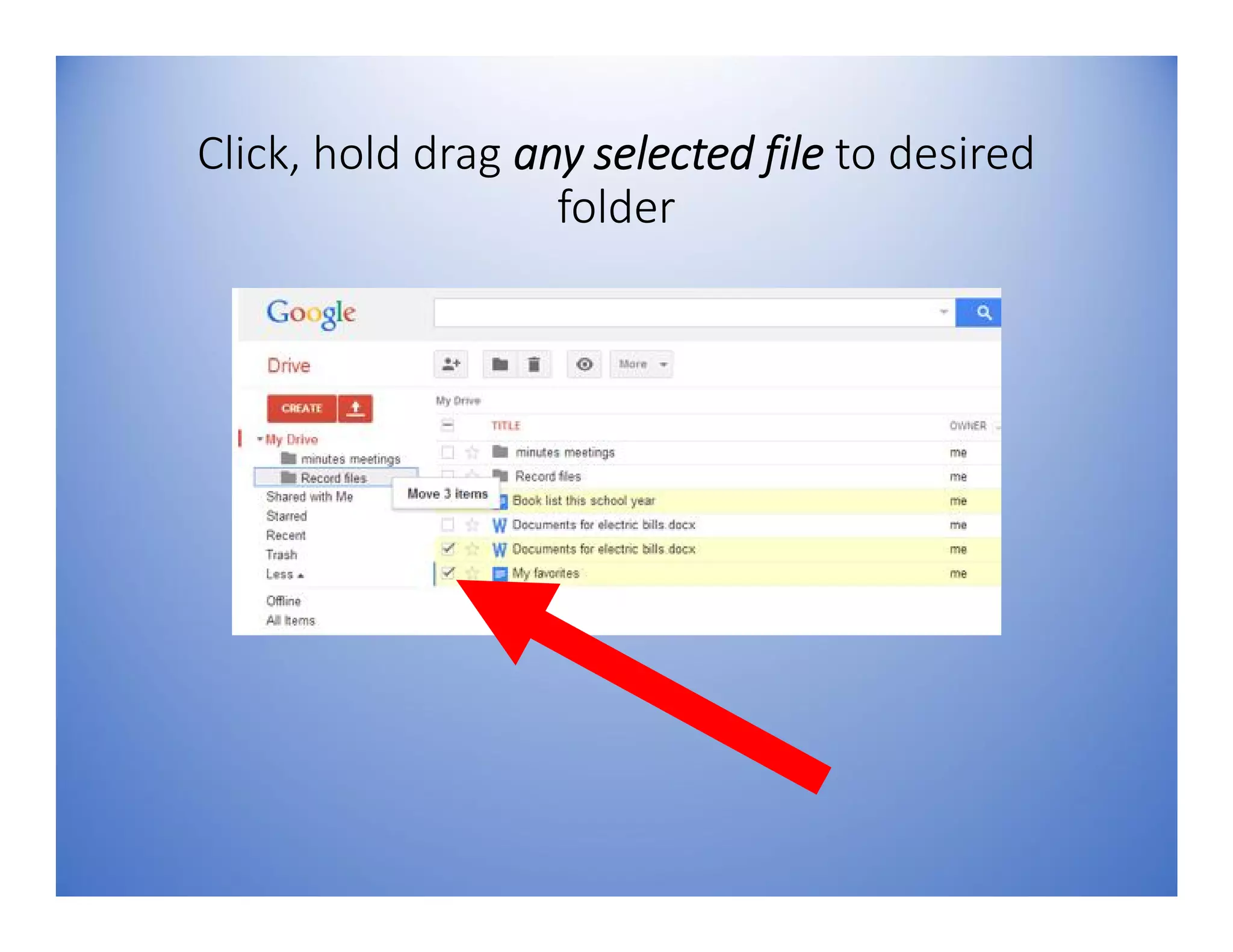
Check boxes of files you want to add to folder
After selecting files to be
stored in a folder…
Click, hold drag any selected file to desired
folder
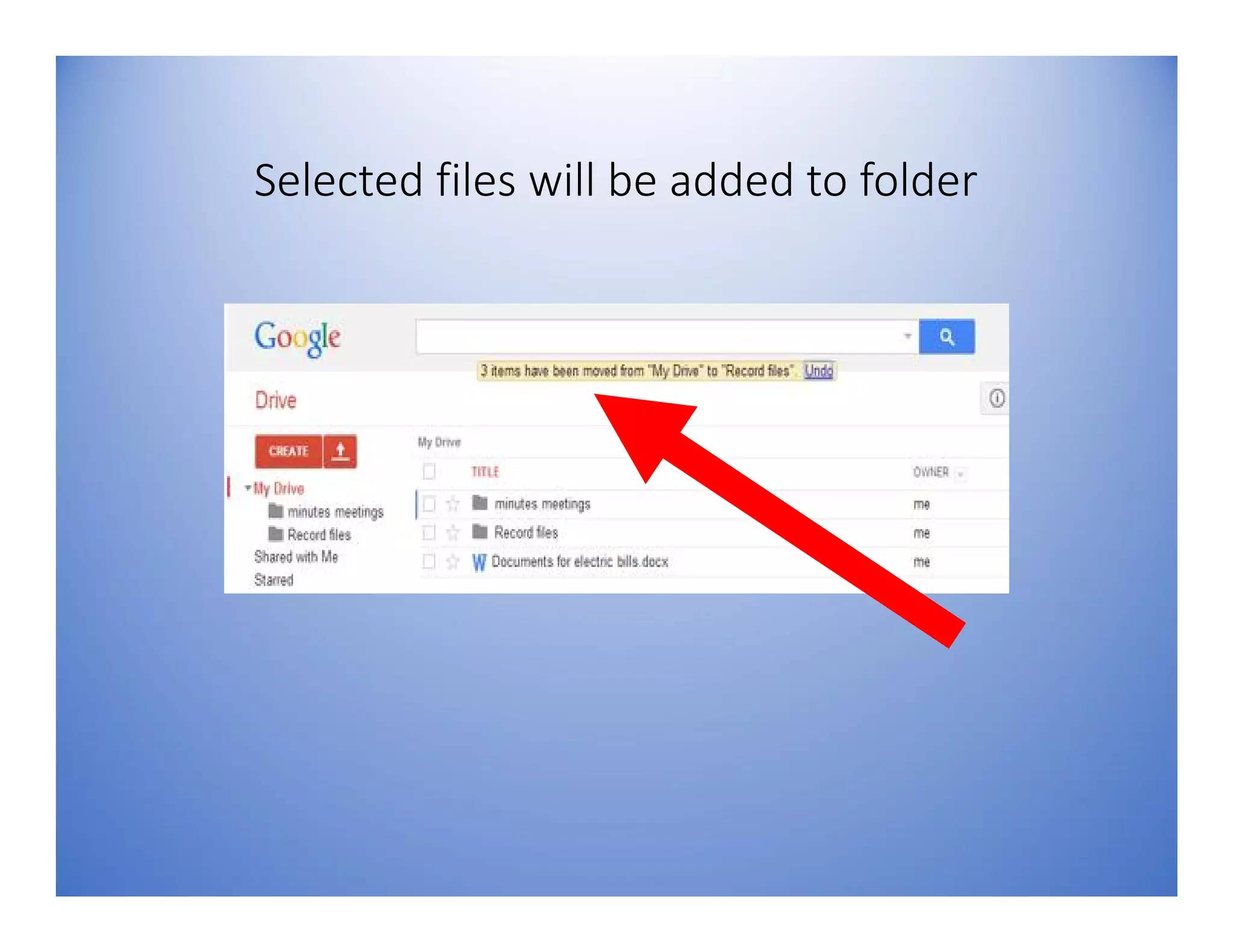
Selected files will be added to folder
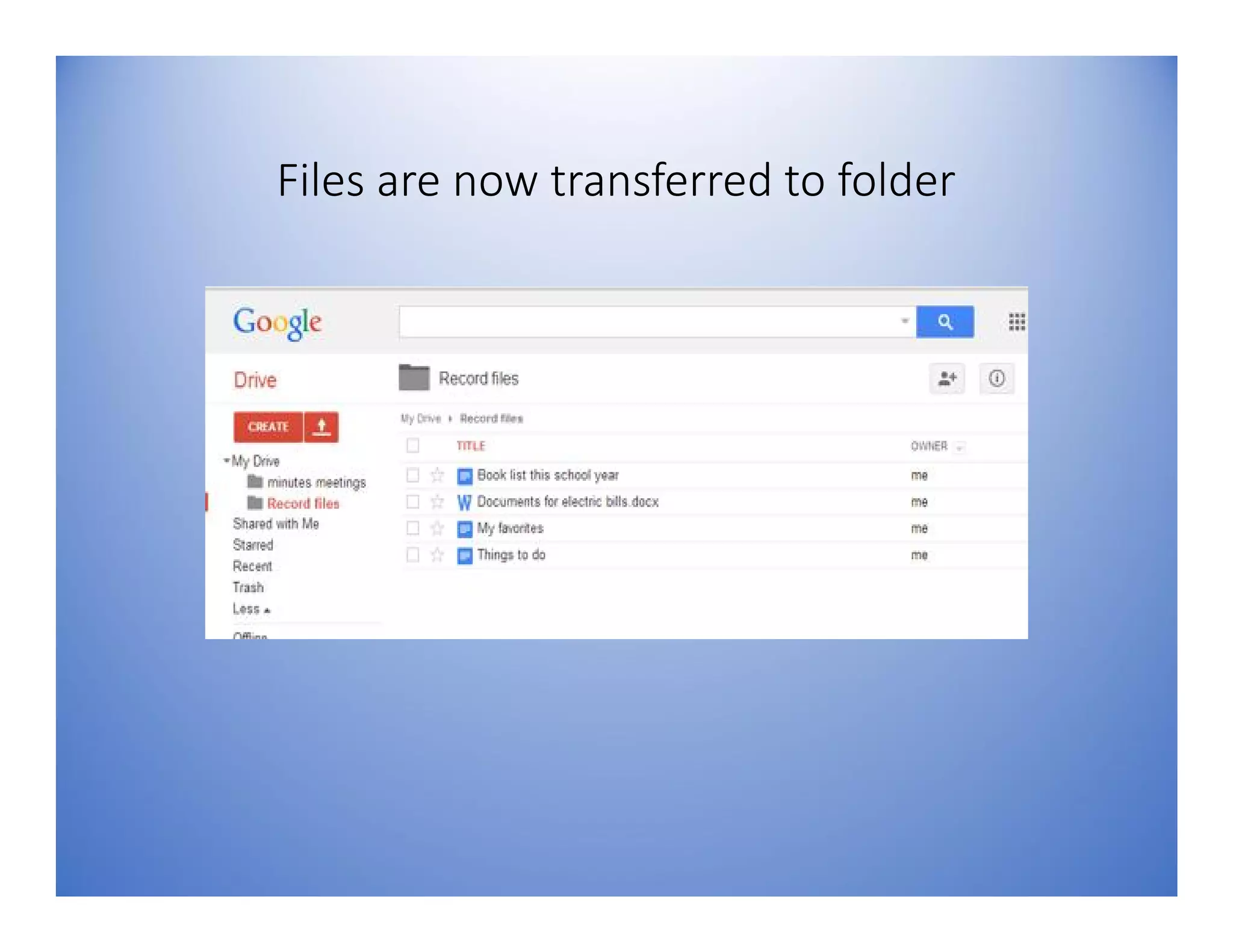
Files are now transferred to folder
Move file between
folders
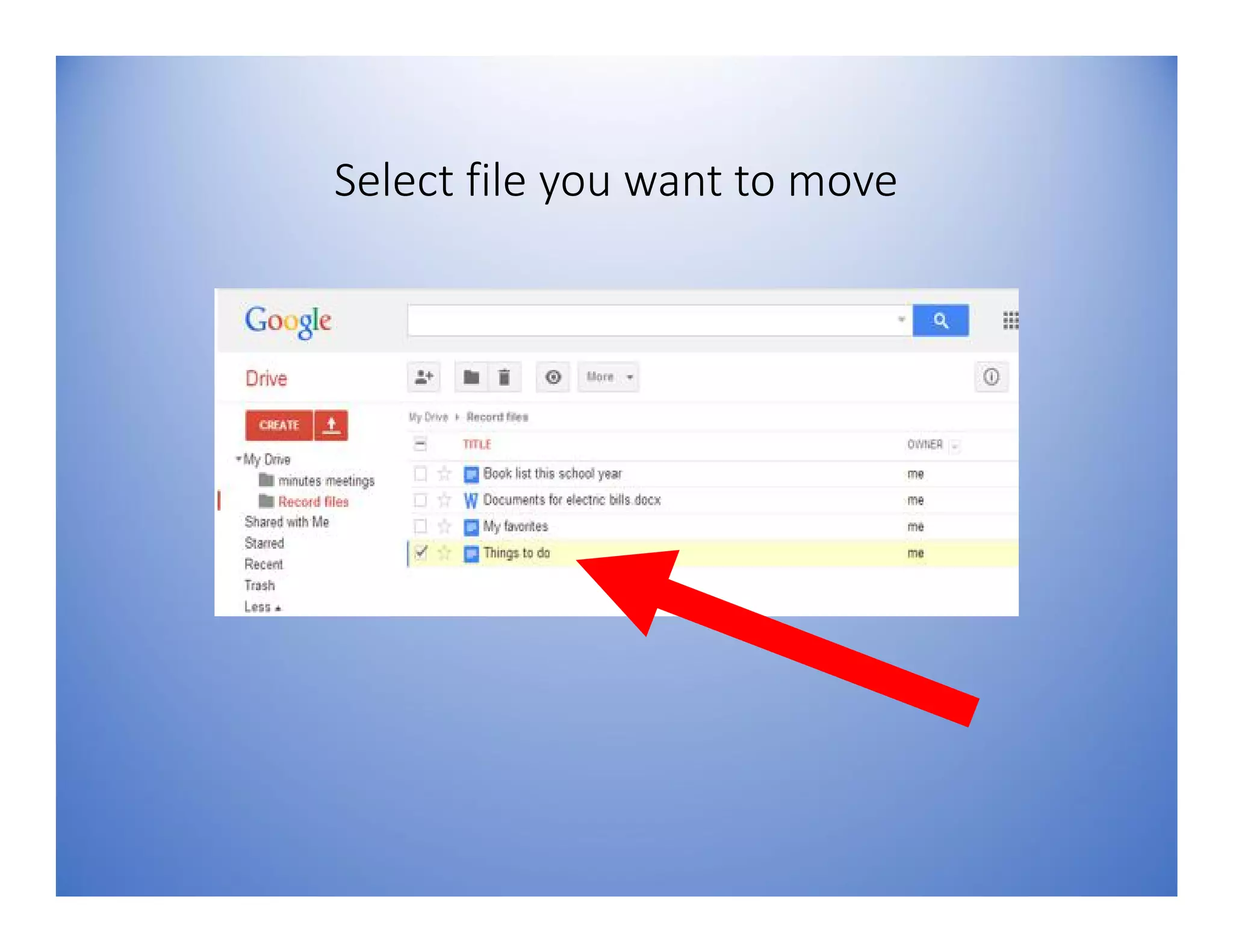
Select file you want to move
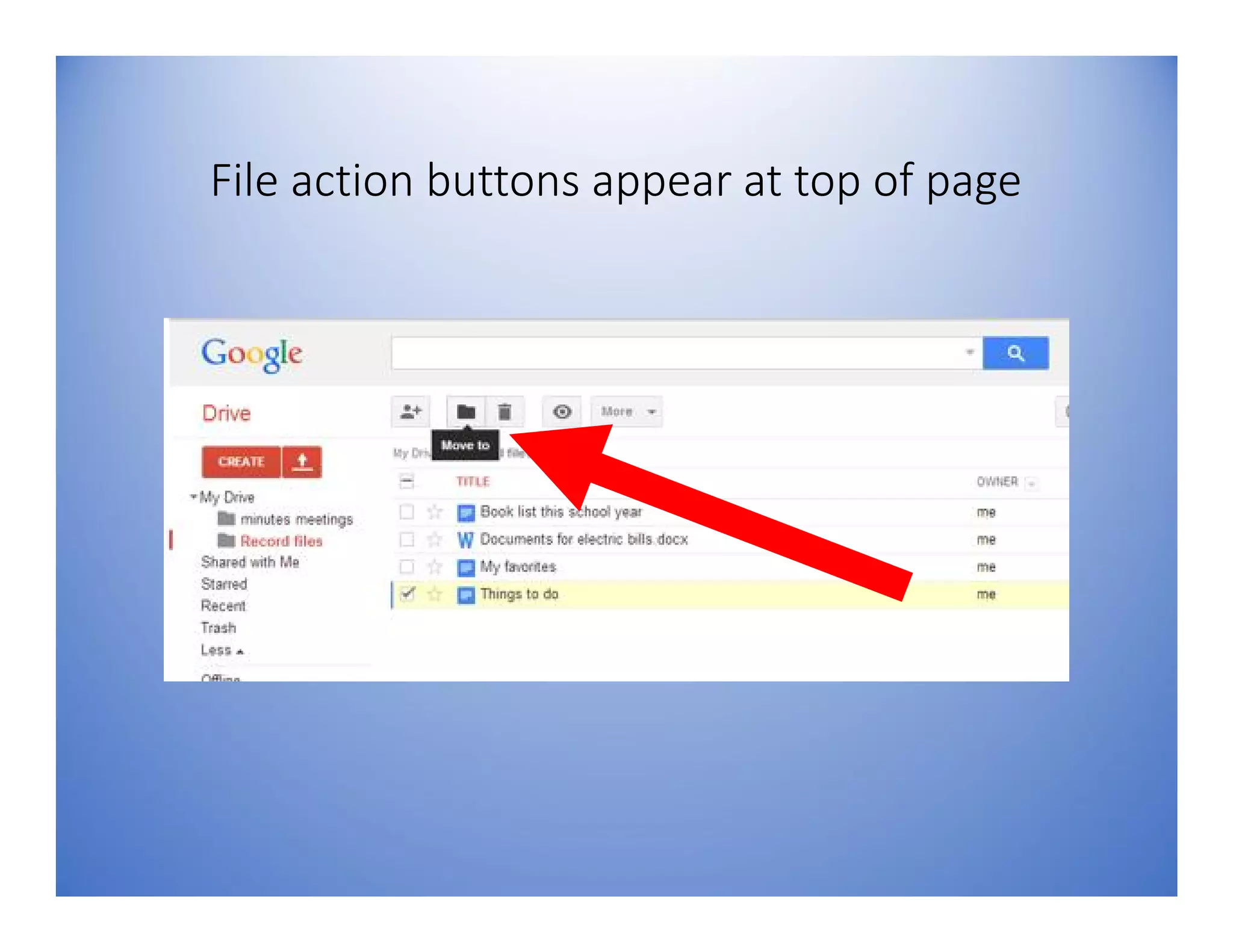
File action buttons appear at top of page
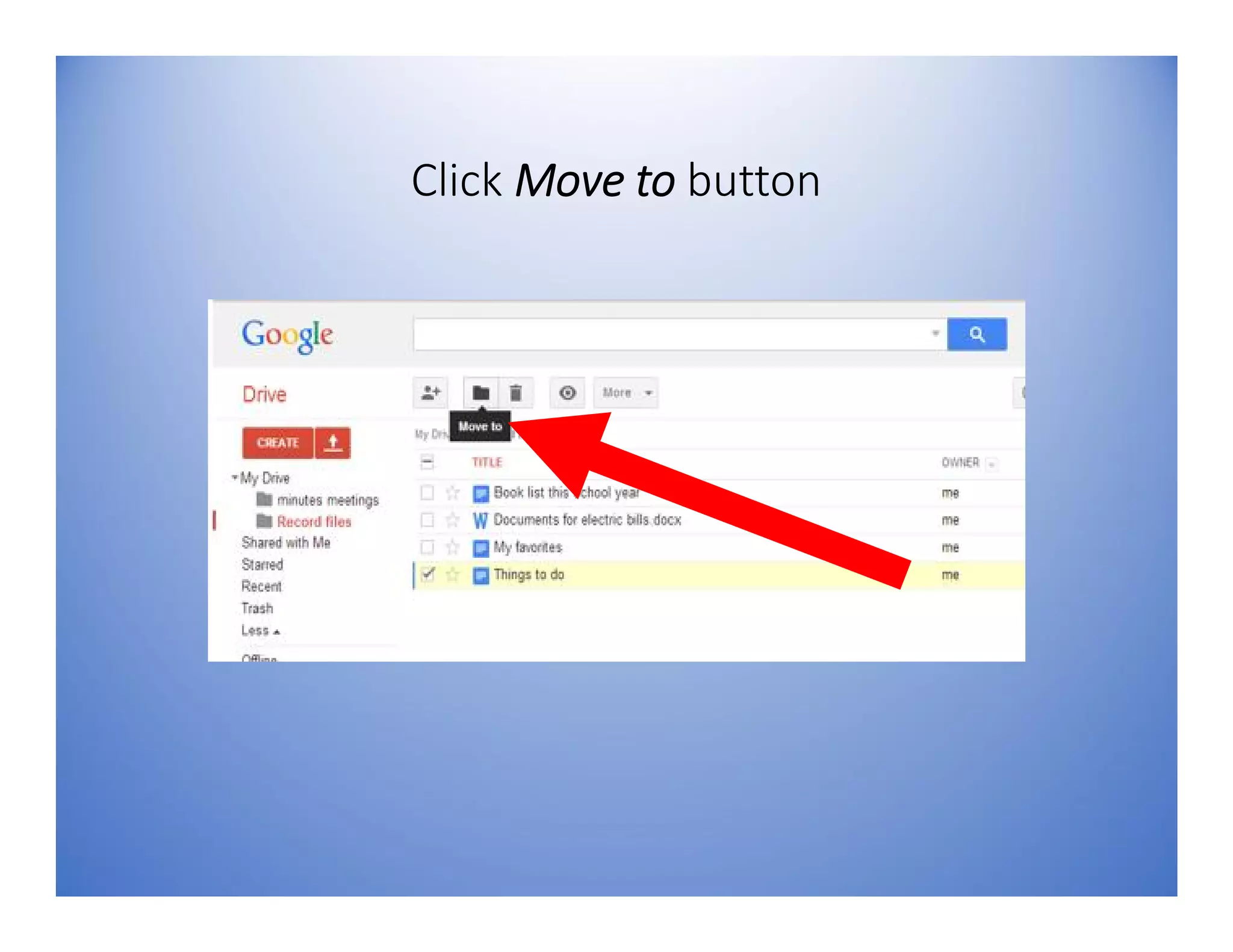
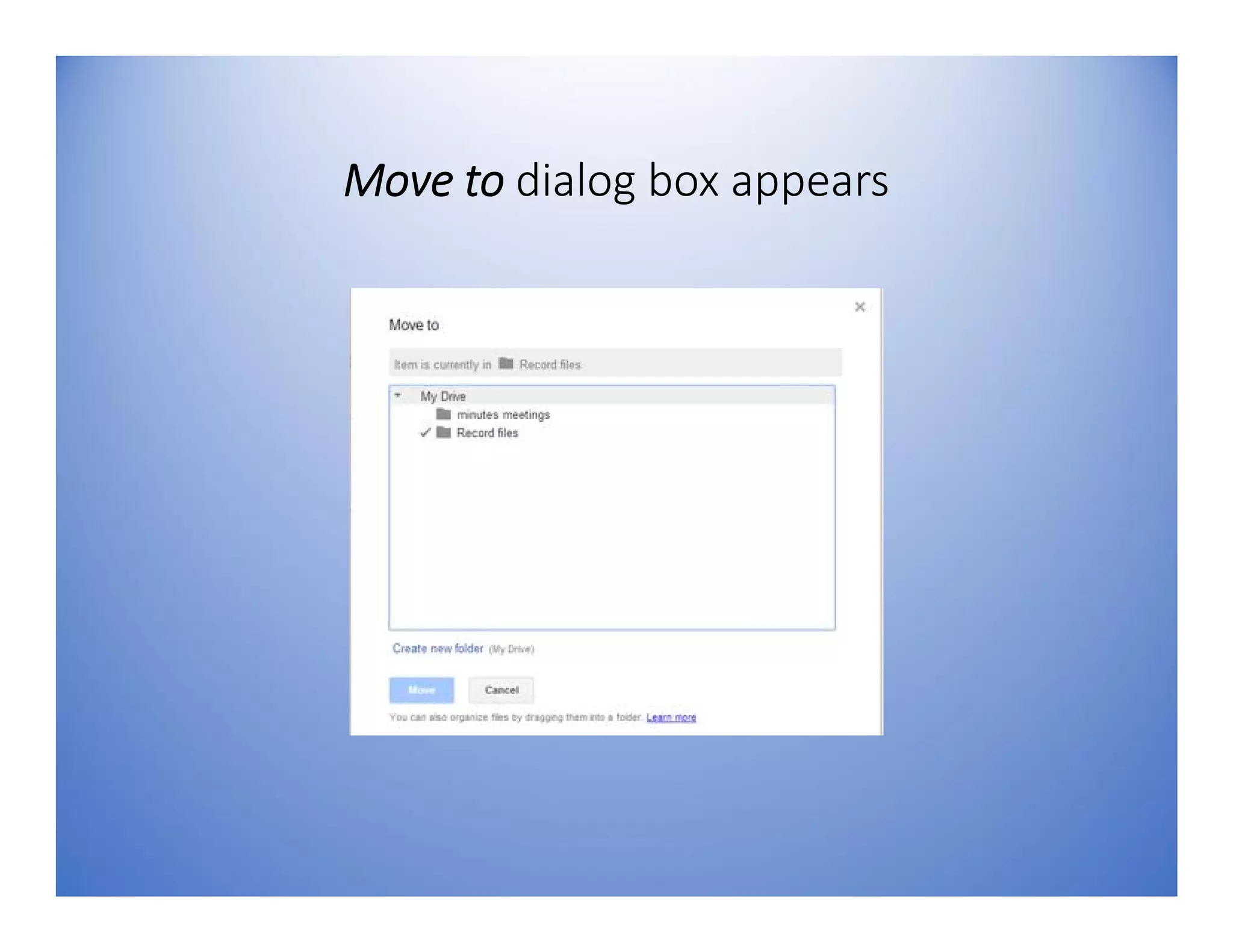
Click Move to button
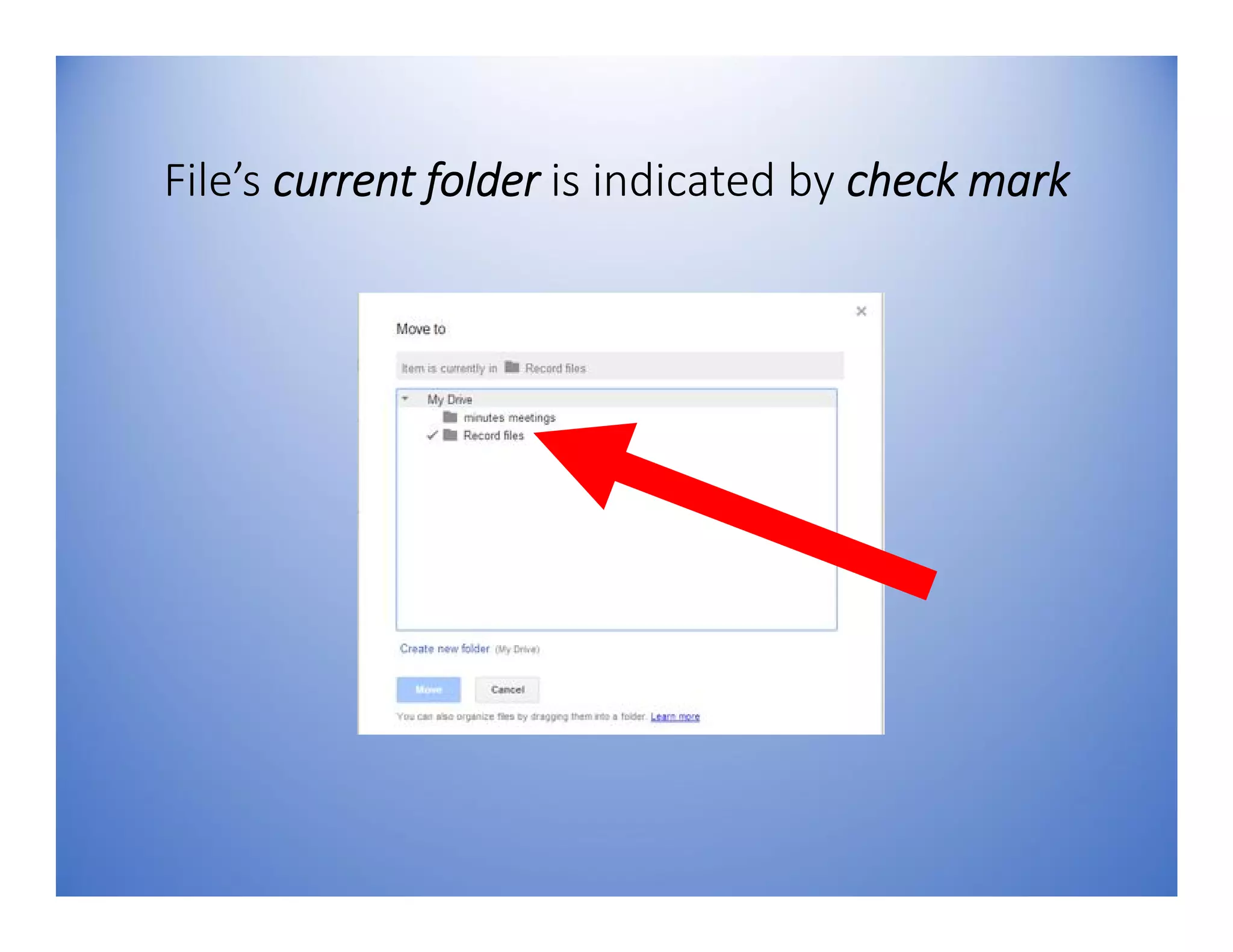
Move to dialog box appears
File’s current folder is indicated by check mark
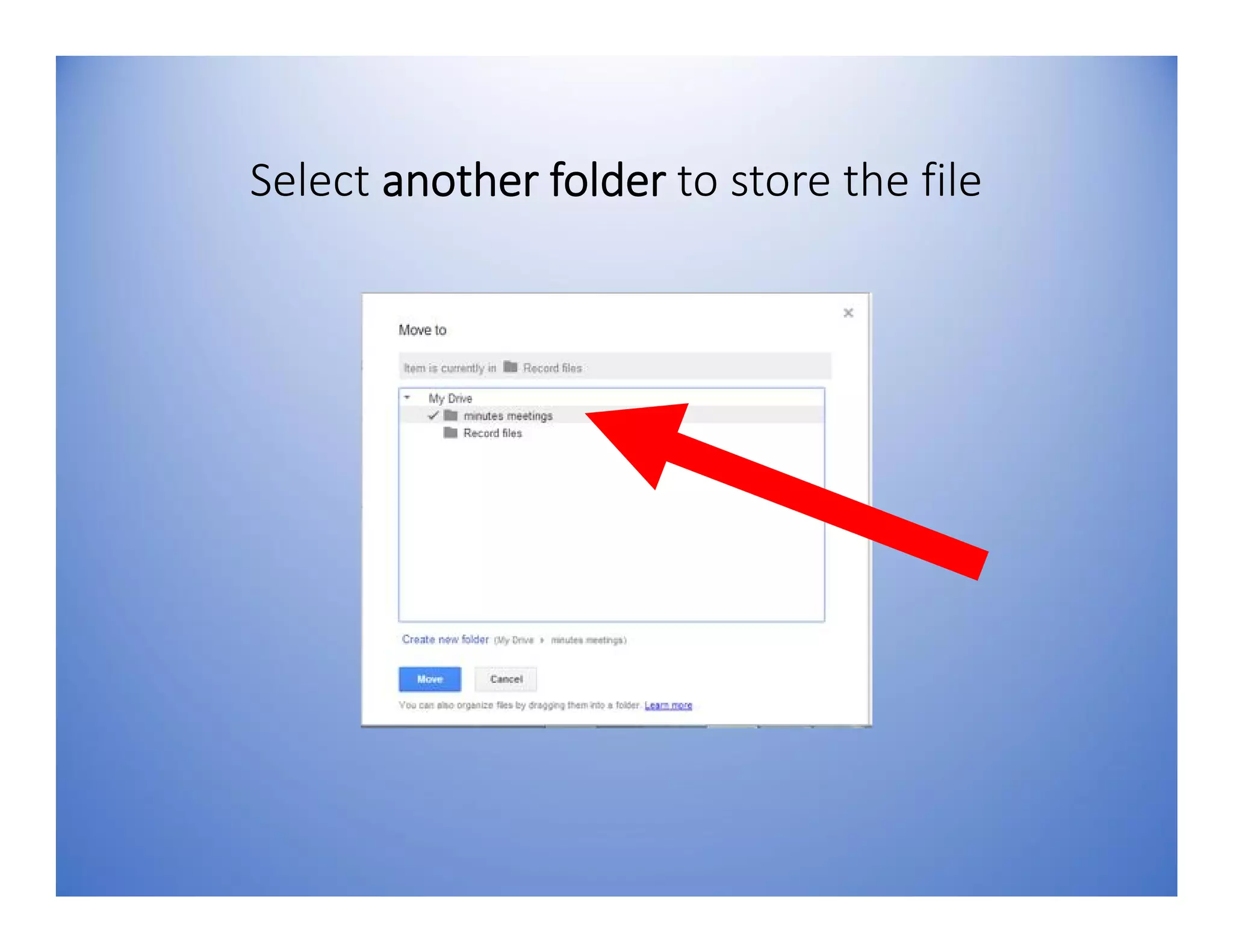
Select another folder to store the file
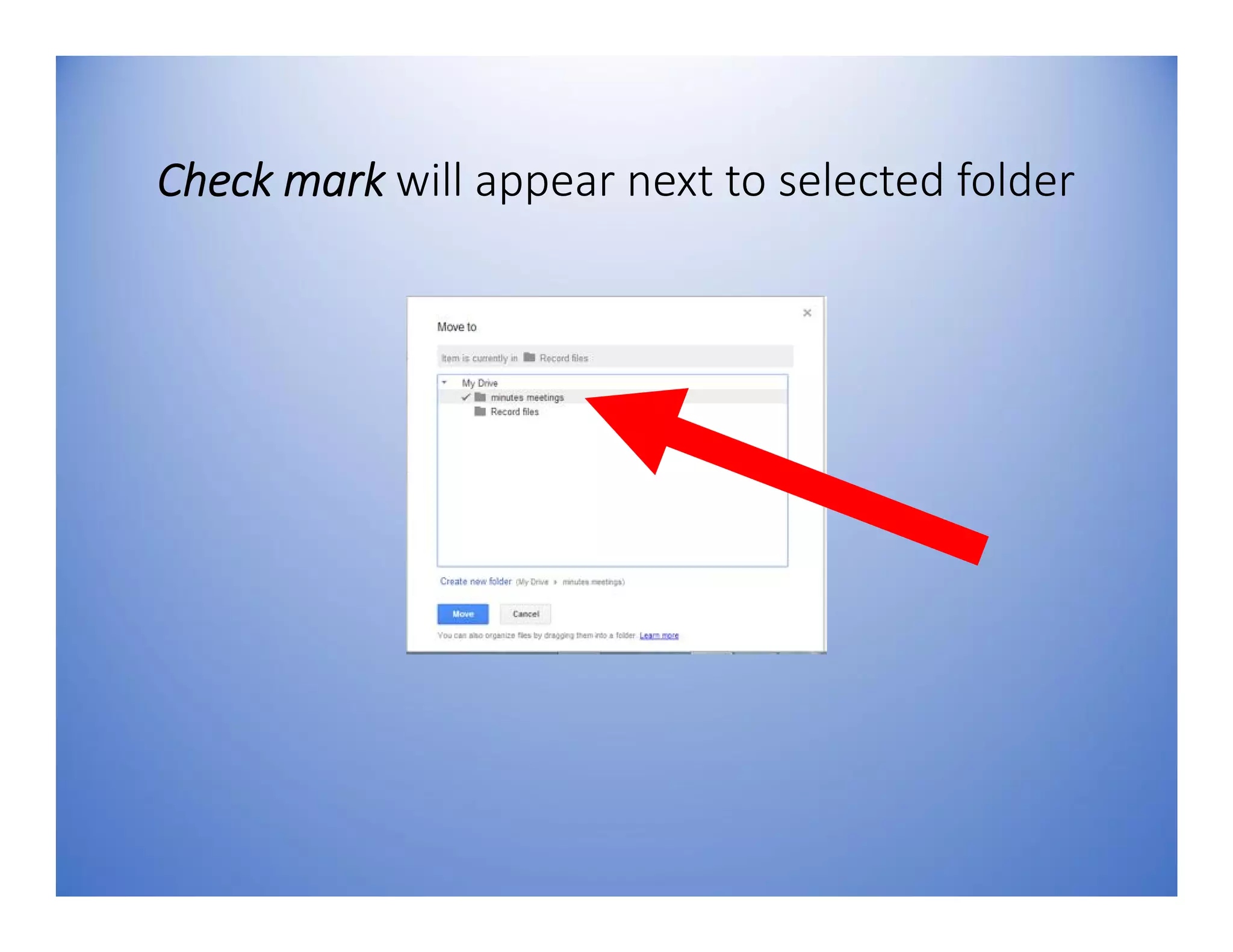
Check mark will appear next to selected folder
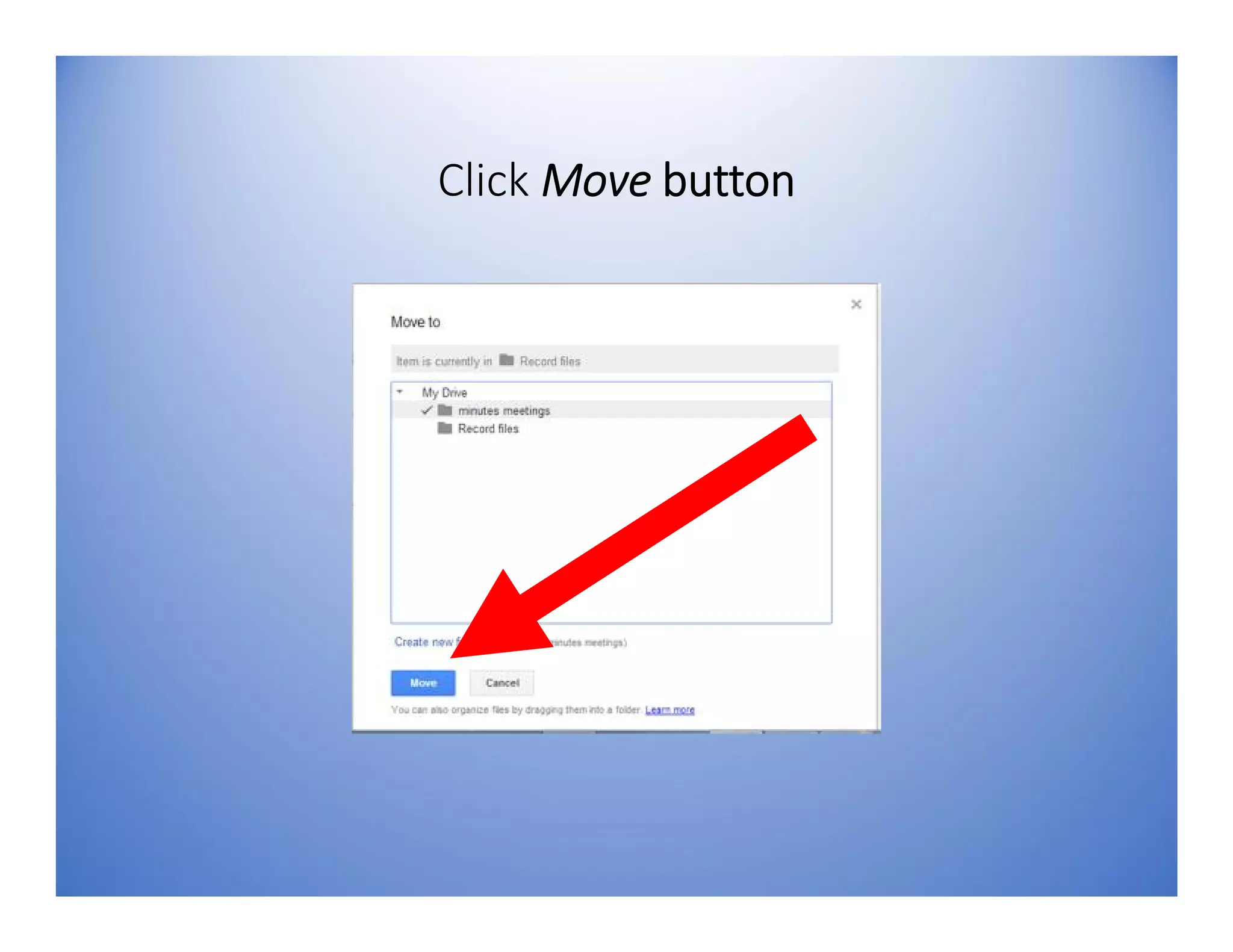
Click Move button
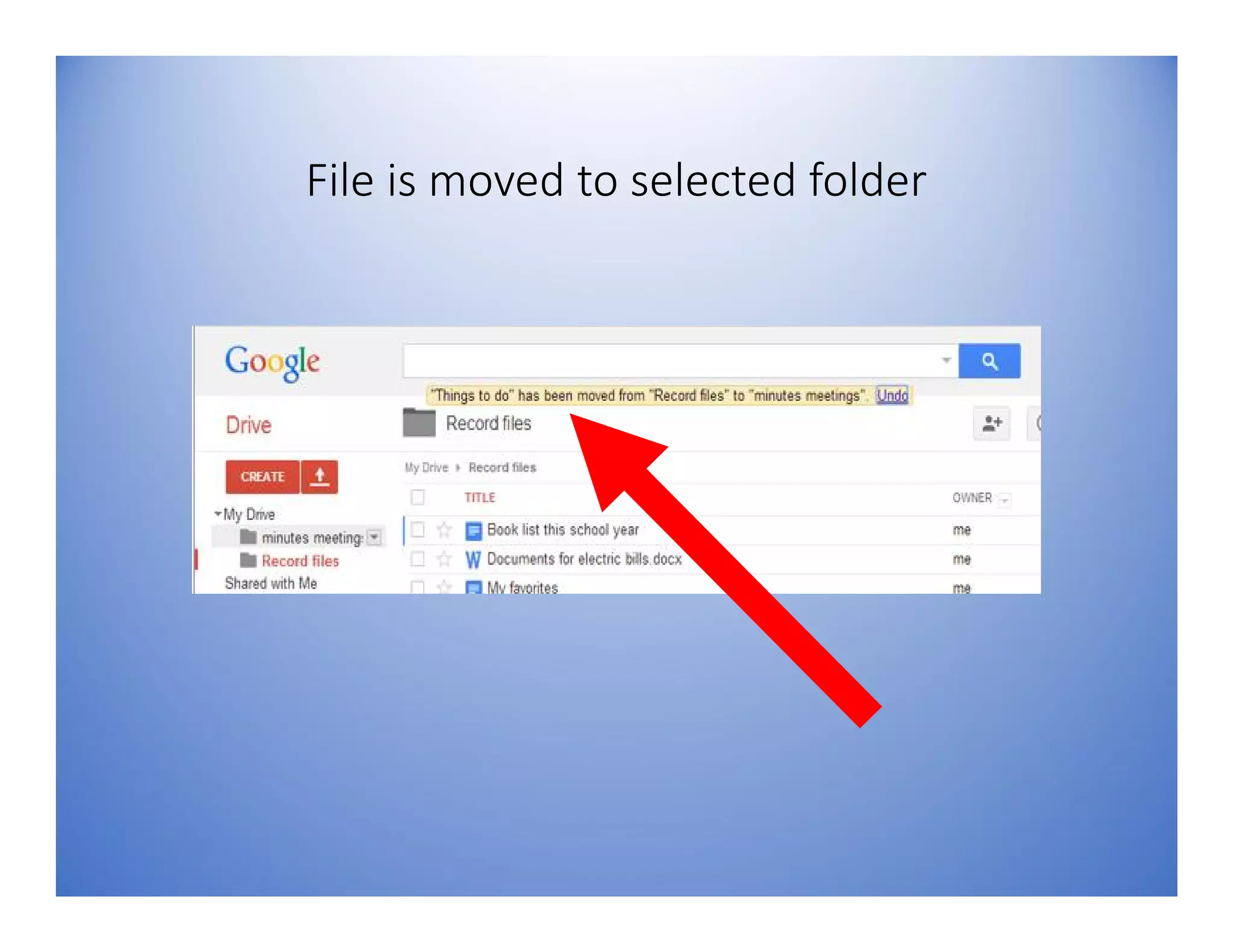
File is moved to selected folder
Thank you end of
presentation
Sources: www.google.com
www.gcflearnfree.org/googledriveanddocs
https://sites.google.com/site/gdocswebquest/
http://onlineconnections.wikispaces.com/file/view/Google+Docs+Tutorial.pdf
www.cctvcambridge.org

How to Use Google Docs