Google Drive and Google Docs
A Blended Learning Workshop
Link to slides: http://is.gd/htsdGoogleApps1
Link to recorded webinar: http://is.gd/htsdGoogleAppsVideo
Renee Rogers, Librarian
Hamilton High School East
Gerry Van Slooten, Librarian
Hamilton High School West
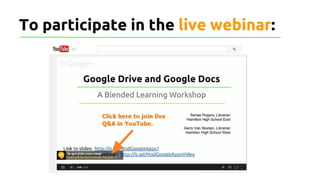
To participate in the live webinar:
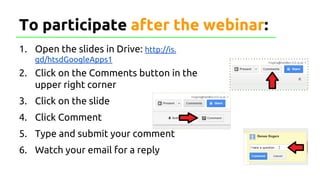
To participate after the webinar:
1. Open the slides in Drive: http://is.
gd/htsdGoogleApps1
2. Click on the Comments button in the
upper right corner
3. Click on the slide
4. Click Comment
5. Type and submit your comment
6. Watch your email for a reply
Format of this Workshop
☒ 0.5 hour webinar (live or recorded)
☐ 1.5 hours hands-on workshop
○ Wed. July 30, 2014, 9:30 am - 11:00 am in the Staff
PD room, Park Avenue
☐ 1.0 hours additional PD if assignment is shared via
Google Drive by midnight Wed. August 13, 2014
You choose how to participate.
Overview
What is Google Docs ?
● Google’s version of Microsoft Word
● Cloud-based software (A web document)
What is Google Drive?
● Free Online Storage (40GB for school and 15 GB for personal)
Why should we use?
● Ease of Access
● Sync across multiple devices
● Works in Hamilton (not Google Plus)
● Collaboration (Need gmail accounts)
Objectives
☐ Access and organize Google Drive
☐ Open and edit email attachments via Google Drive
☐ Create and format documents (Google Docs) in Google
Drive
☐ Share and collaborate via Google Docs
☐ Create a plan to use Google Docs with your students
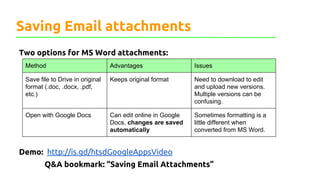
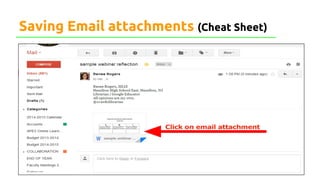
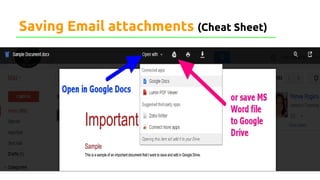
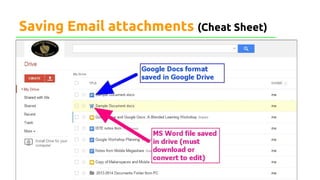
Saving Email attachments
Two options for MS Word attachments:
Demo: http://is.gd/htsdGoogleAppsVideo
Q&A bookmark: “Saving Email Attachments”
Method Advantages Issues
Save file to Drive in original
format (.doc, .docx, .pdf,
etc.)
Keeps original format Need to download to edit
and upload new versions.
Multiple versions can be
confusing.
Open with Google Docs Can edit online in Google
Docs, changes are saved
automatically
Sometimes formatting is a
little different when
converted from MS Word.
Saving Email attachments (Cheat Sheet)
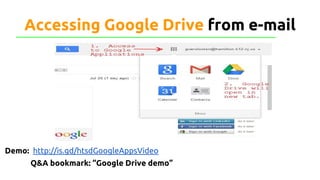
Accessing Google Drive from e-mail
Demo: http://is.gd/htsdGoogleAppsVideo
Q&A bookmark: “Google Drive demo”
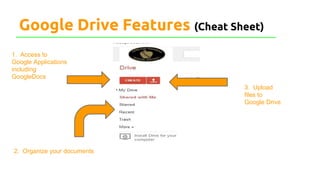
Google Drive Features (Cheat Sheet)
3. Upload
files to
Google Drive
1. Access to
Google Applications
including
GoogleDocs
2. Organize your documents
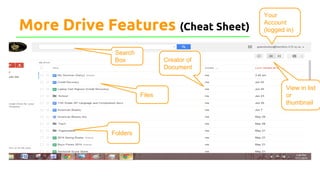
More Drive Features (Cheat Sheet)
Search
Box
Files
Folders
Creator of
Document
Your
Account
(logged in)
View in list
or
thumbnail
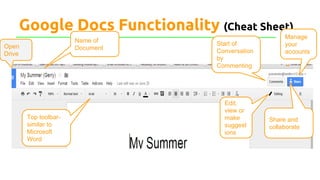
Google Docs Functionality (Cheat Sheet)
Name of
Document
Top toolbar-
similar to
Microsoft
Word
Edit,
view or
make
suggest
ions
Open
Drive
Start of
Conversation
by
Commenting
Share and
collaborate
Manage
your
accounts
Google Docs Demo
· Creating
· Editing
· Naming
· Sharing/Collaborating
· Advanced functions
(comment, suggest, research)
Demo: http://is.gd/htsdGoogleAppsVideo
Q&A bookmark: “Google Docs demo”
Questions
Live Q&A questions: http://is.gd/htsdGoogleAppsVideo
FAQ
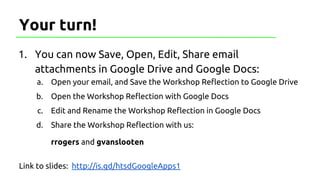
1. You can now Save, Open, Edit, Share email
attachments in Google Drive and Google Docs:
a. Open your email, and Save the Workshop Reflection to Google Drive
b. Open the Workshop Reflection with Google Docs
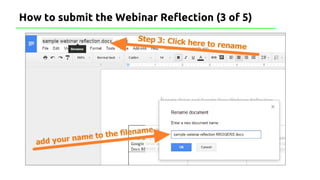
c. Edit and Rename the Workshop Reflection in Google Docs
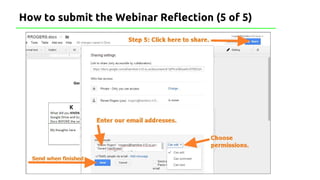
d. Share the Workshop Reflection with us:
rrogers and gvanslooten
Link to slides: http://is.gd/htsdGoogleApps1
Your turn!
Continue the fun!
☒ 0.5 hour webinar (live or recorded)
☐ 1.5 hours hands-on workshop
○ Wed. July 30, 2014, 9:30 am - 11:00 am in the Staff
PD room, Park Avenue
☐ 1.0 hours additional PD if assignment is shared via
Google Drive by midnight Wed. August 13, 2014
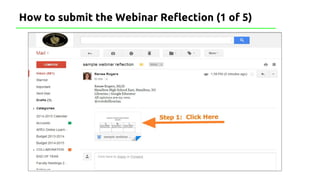
How to submit the Webinar Reflection (1 of 5)
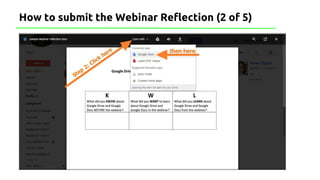
How to submit the Webinar Reflection (2 of 5)
How to submit the Webinar Reflection (3 of 5)
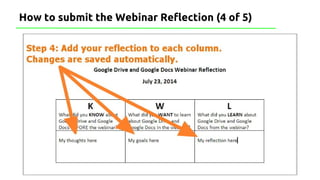
How to submit the Webinar Reflection (4 of 5)
How to submit the Webinar Reflection (5 of 5)

Google Drive & Google Docs: A Blended Learning Workshop

  • 1.
    Google Drive andGoogle Docs A Blended Learning Workshop Link to slides: http://is.gd/htsdGoogleApps1 Link to recorded webinar: http://is.gd/htsdGoogleAppsVideo Renee Rogers, Librarian Hamilton High School East Gerry Van Slooten, Librarian Hamilton High School West
  • 2.
    To participate inthe live webinar:
  • 3.
    To participate afterthe webinar: 1. Open the slides in Drive: http://is. gd/htsdGoogleApps1 2. Click on the Comments button in the upper right corner 3. Click on the slide 4. Click Comment 5. Type and submit your comment 6. Watch your email for a reply
  • 4.
    Format of thisWorkshop ☒ 0.5 hour webinar (live or recorded) ☐ 1.5 hours hands-on workshop ○ Wed. July 30, 2014, 9:30 am - 11:00 am in the Staff PD room, Park Avenue ☐ 1.0 hours additional PD if assignment is shared via Google Drive by midnight Wed. August 13, 2014 You choose how to participate.
  • 5.
    Overview What is GoogleDocs ? ● Google’s version of Microsoft Word ● Cloud-based software (A web document) What is Google Drive? ● Free Online Storage (40GB for school and 15 GB for personal) Why should we use? ● Ease of Access ● Sync across multiple devices ● Works in Hamilton (not Google Plus) ● Collaboration (Need gmail accounts)
  • 6.
    Objectives ☐ Access andorganize Google Drive ☐ Open and edit email attachments via Google Drive ☐ Create and format documents (Google Docs) in Google Drive ☐ Share and collaborate via Google Docs ☐ Create a plan to use Google Docs with your students
  • 7.
    Saving Email attachments Twooptions for MS Word attachments: Demo: http://is.gd/htsdGoogleAppsVideo Q&A bookmark: “Saving Email Attachments” Method Advantages Issues Save file to Drive in original format (.doc, .docx, .pdf, etc.) Keeps original format Need to download to edit and upload new versions. Multiple versions can be confusing. Open with Google Docs Can edit online in Google Docs, changes are saved automatically Sometimes formatting is a little different when converted from MS Word.
  • 8.
  • 9.
  • 10.
  • 11.
    Accessing Google Drivefrom e-mail Demo: http://is.gd/htsdGoogleAppsVideo Q&A bookmark: “Google Drive demo”
  • 12.
    Google Drive Features(Cheat Sheet) 3. Upload files to Google Drive 1. Access to Google Applications including GoogleDocs 2. Organize your documents
  • 13.
    More Drive Features(Cheat Sheet) Search Box Files Folders Creator of Document Your Account (logged in) View in list or thumbnail
  • 14.
    Google Docs Functionality(Cheat Sheet) Name of Document Top toolbar- similar to Microsoft Word Edit, view or make suggest ions Open Drive Start of Conversation by Commenting Share and collaborate Manage your accounts
  • 15.
    Google Docs Demo ·Creating · Editing · Naming · Sharing/Collaborating · Advanced functions (comment, suggest, research) Demo: http://is.gd/htsdGoogleAppsVideo Q&A bookmark: “Google Docs demo”
  • 16.
    Questions Live Q&A questions:http://is.gd/htsdGoogleAppsVideo FAQ
  • 17.
    1. You cannow Save, Open, Edit, Share email attachments in Google Drive and Google Docs: a. Open your email, and Save the Workshop Reflection to Google Drive b. Open the Workshop Reflection with Google Docs c. Edit and Rename the Workshop Reflection in Google Docs d. Share the Workshop Reflection with us: rrogers and gvanslooten Link to slides: http://is.gd/htsdGoogleApps1 Your turn!
  • 18.
    Continue the fun! ☒0.5 hour webinar (live or recorded) ☐ 1.5 hours hands-on workshop ○ Wed. July 30, 2014, 9:30 am - 11:00 am in the Staff PD room, Park Avenue ☐ 1.0 hours additional PD if assignment is shared via Google Drive by midnight Wed. August 13, 2014
  • 19.
    How to submitthe Webinar Reflection (1 of 5)
  • 20.
    How to submitthe Webinar Reflection (2 of 5)
  • 21.
    How to submitthe Webinar Reflection (3 of 5)
  • 22.
    How to submitthe Webinar Reflection (4 of 5)
  • 23.
    How to submitthe Webinar Reflection (5 of 5)