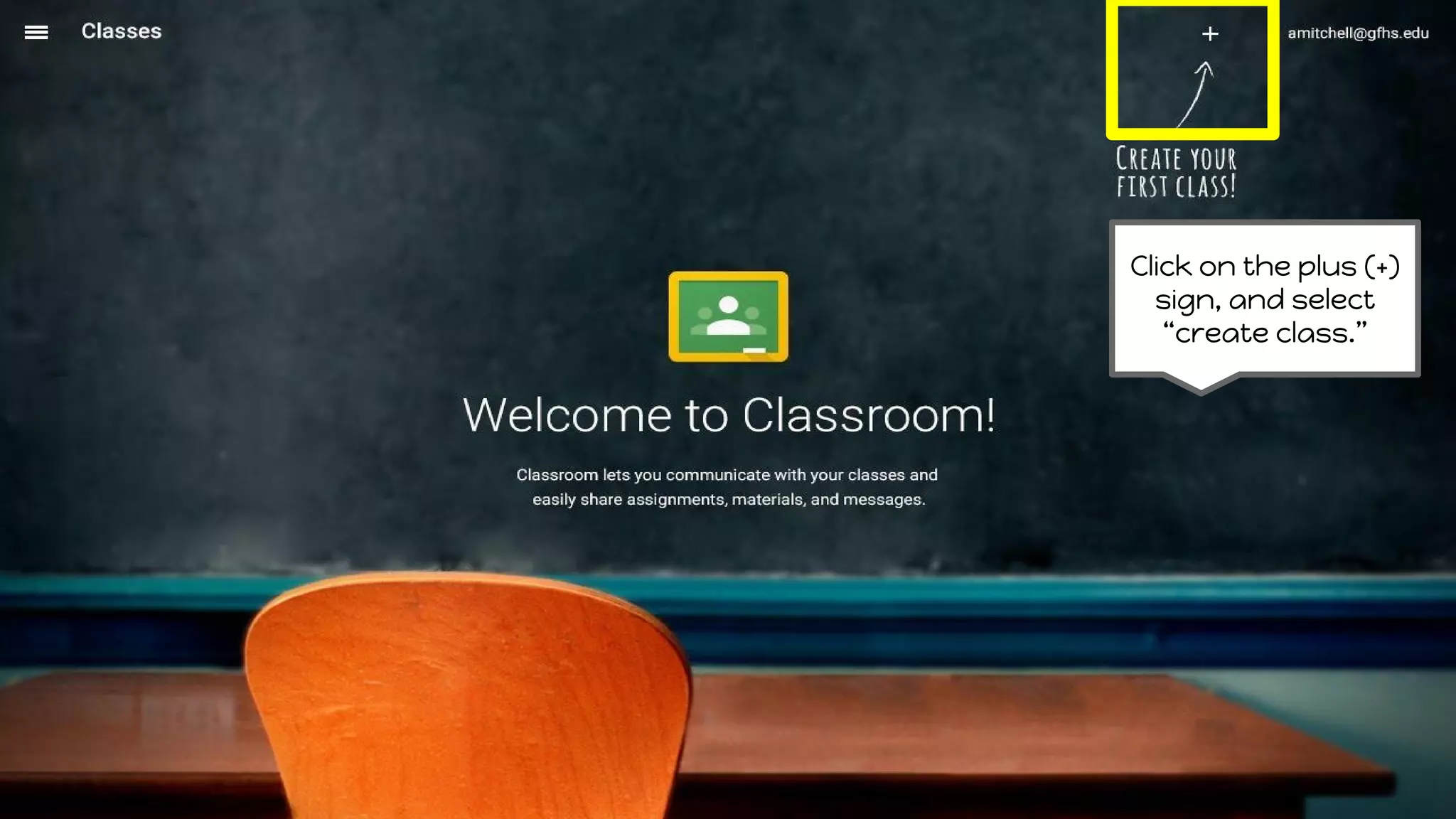
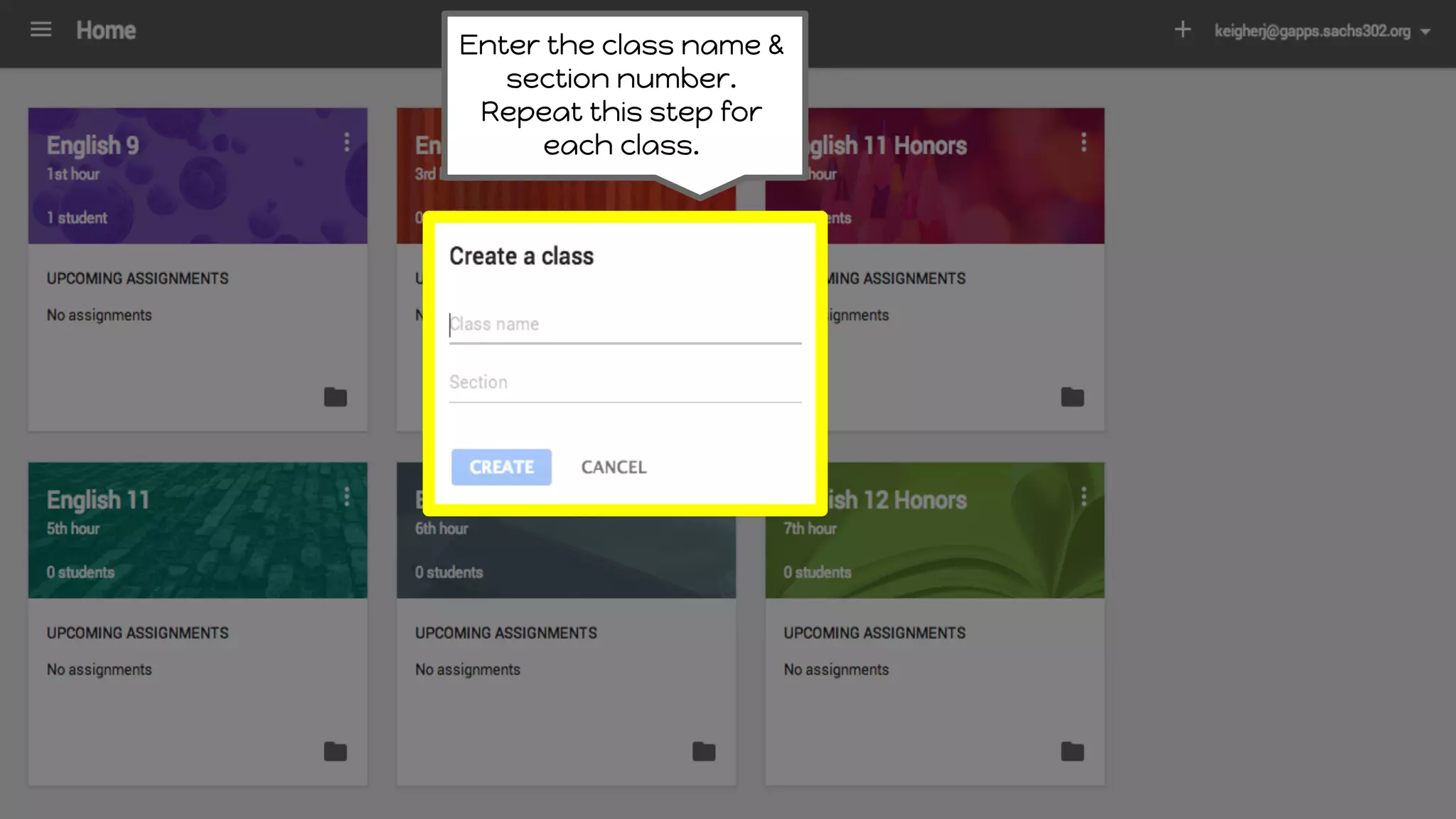
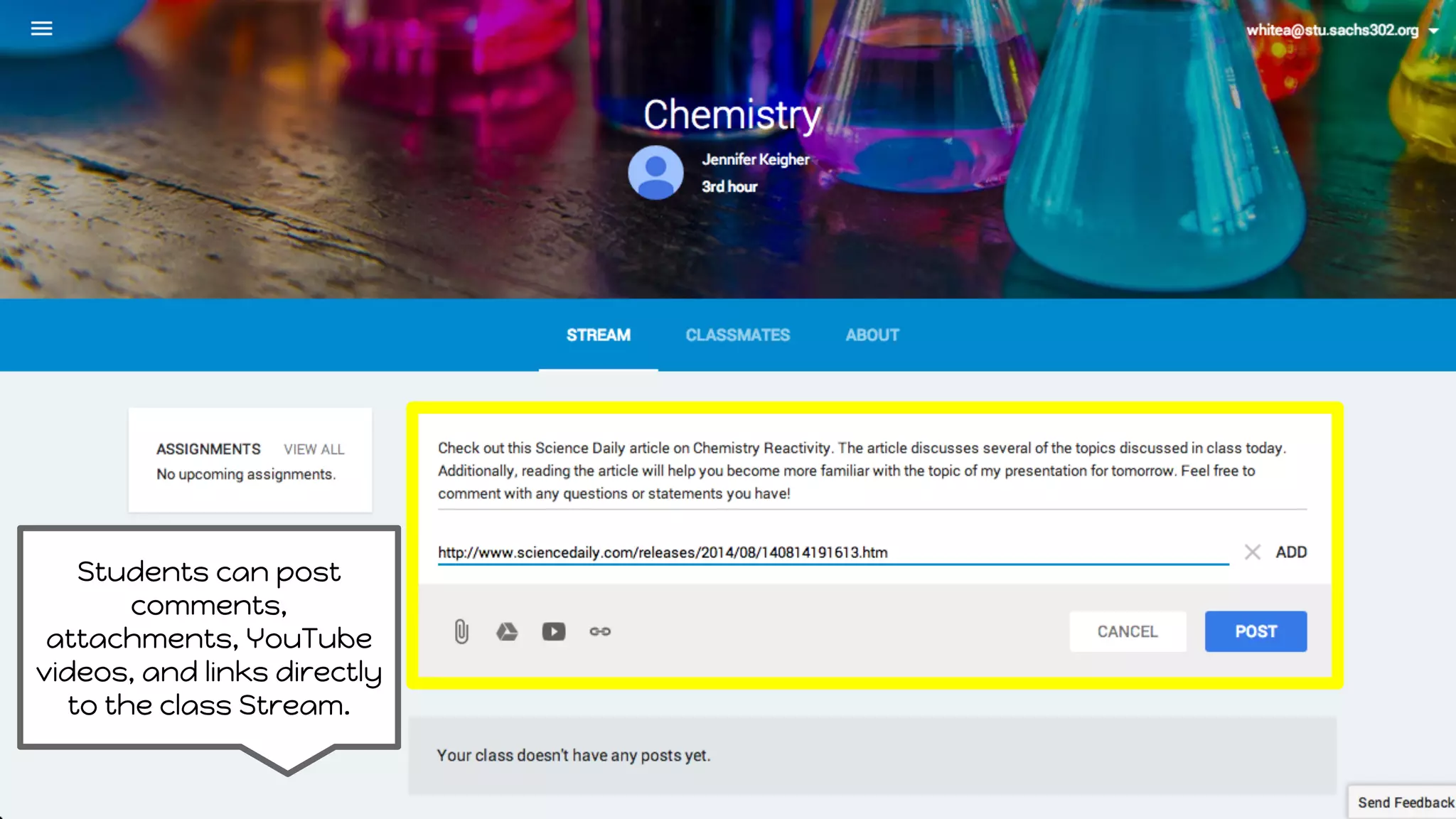
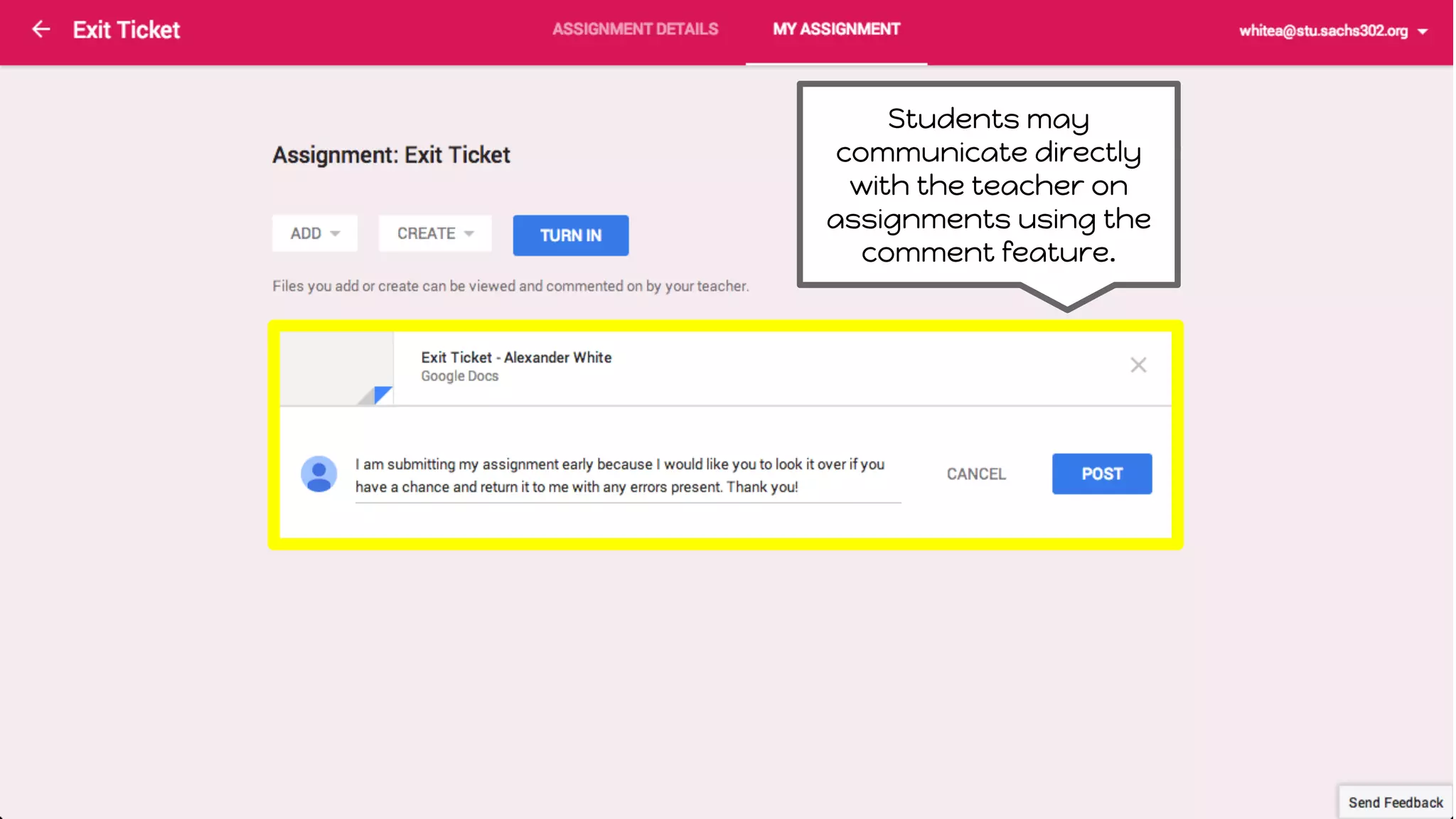
This document provides an overview of Google Classroom for both teachers and students. It outlines the key features and steps for using Classroom, including creating classes, adding students, posting assignments and announcements, grading work, and integrating with Google Drive. For teachers, it describes how to set up classes, digital workflows for assignments, and communication tools. For students, it explains how to join classes, submit and view assignments, communicate with teachers, and access work through Drive. The goal is to help participants effectively use Classroom for paperless assignment management and enhanced educator-student communication.
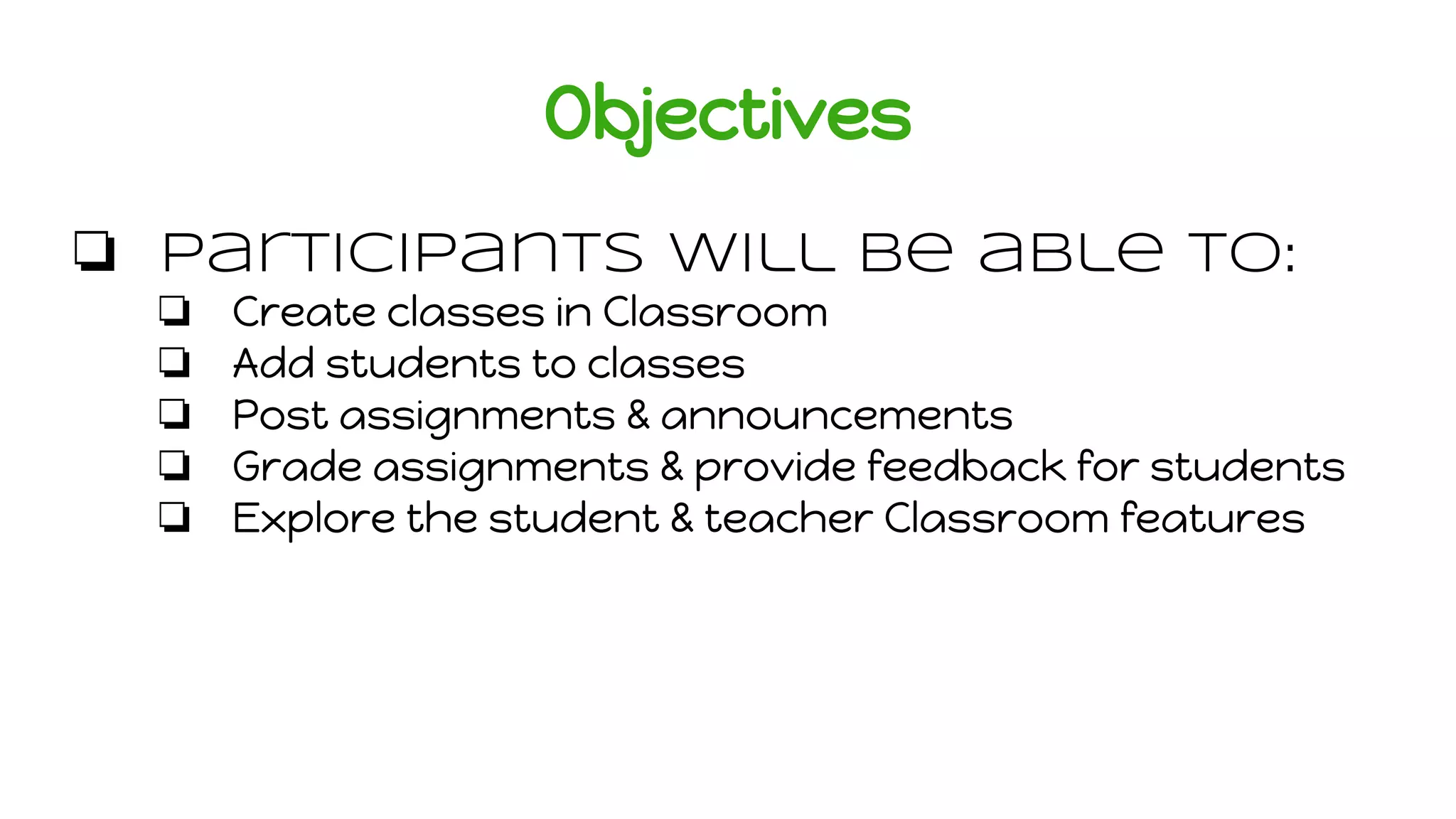
Objectives
❏ Participants willbe able to:
❏ Create classes in Classroom
❏ Add students to classes
❏ Post assignments & announcements
❏ Grade assignments & provide feedback for students
❏ Explore the student & teacher Classroom features
4.
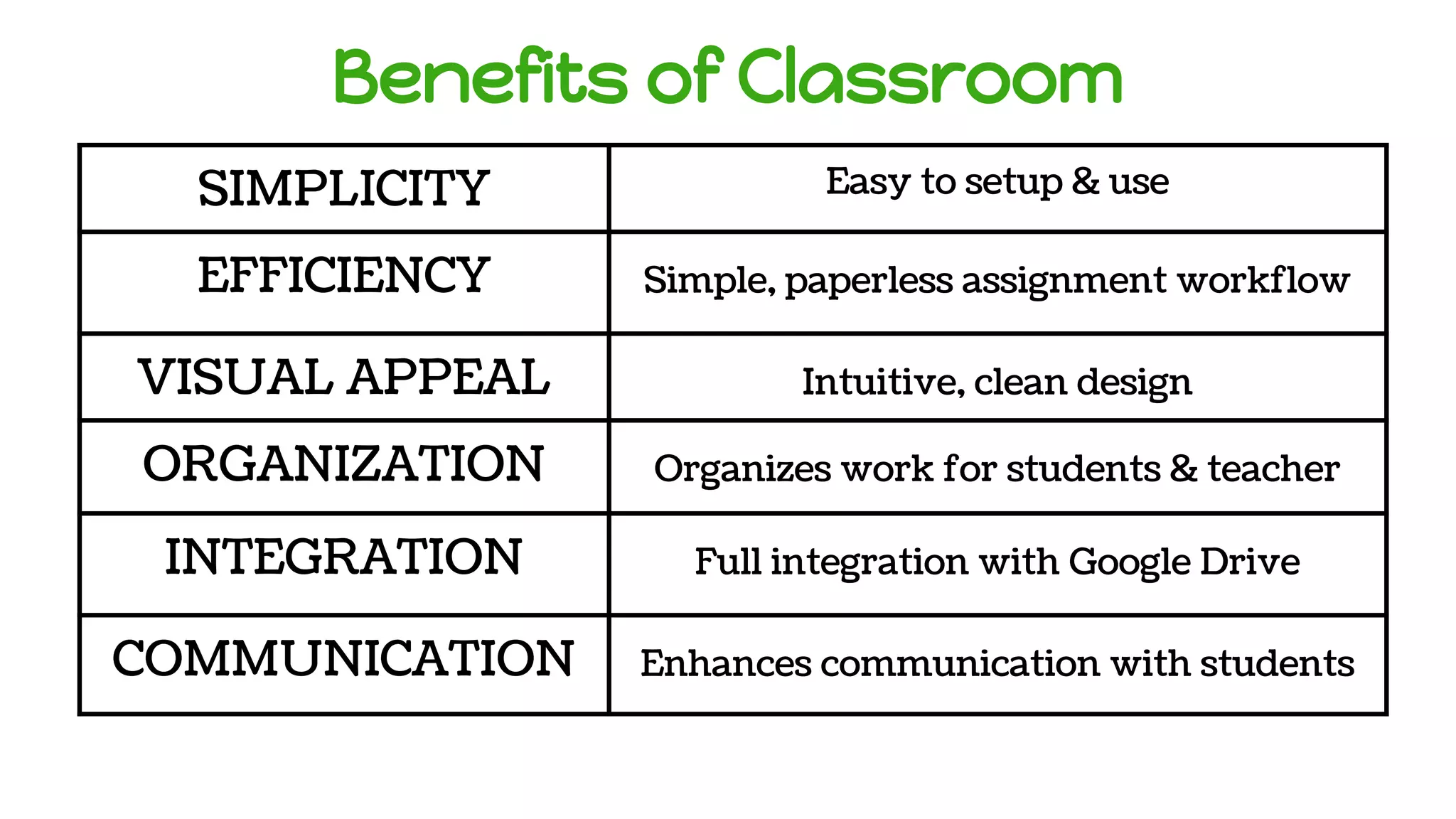
Benefits of Classroom
SIMPLICITYEasy to setup & use
EFFICIENCY Simple, paperless assignment workflow
VISUAL APPEAL Intuitive, clean design
ORGANIZATION Organizes work for students & teacher
INTEGRATION Full integration with Google Drive
COMMUNICATION Enhances communication with students
5.
Exploring Classroom
1. TeacherPerspective
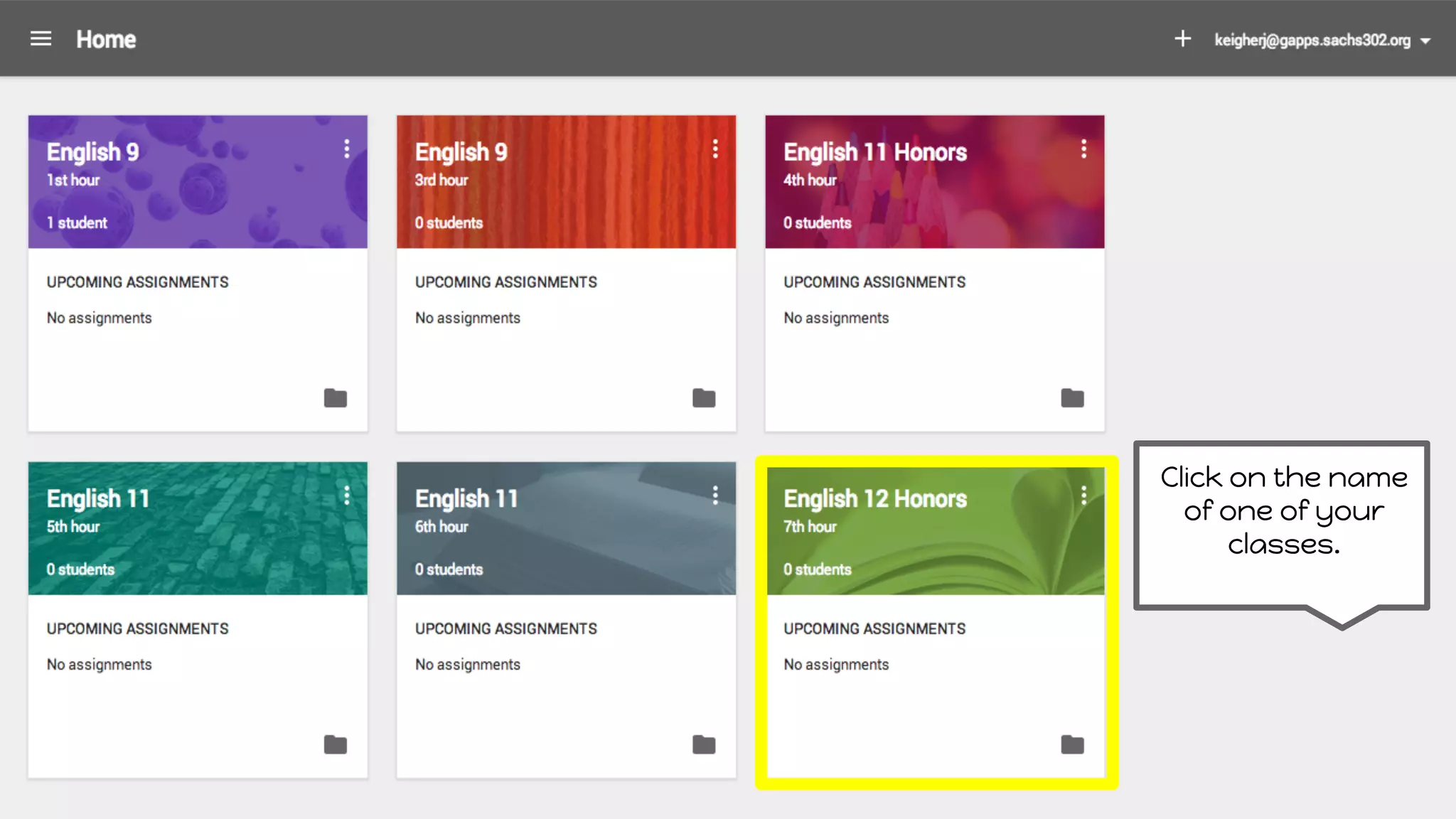
❏ Creating & customizing a new class
❏ Adding students
❏ Digital workflow - assignments
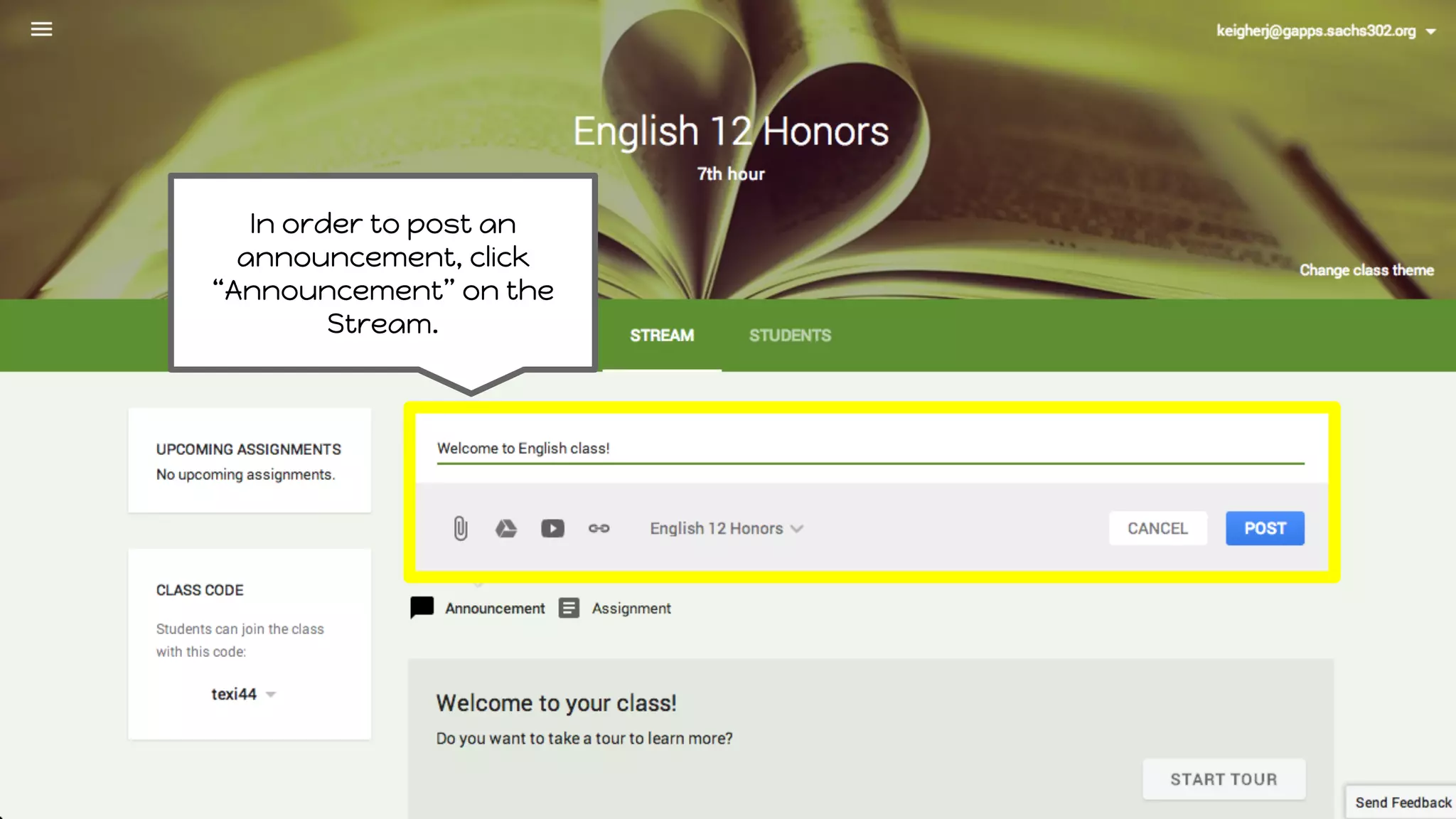
❏ Digital communication- announcements & email
❏ Integration with Google Drive
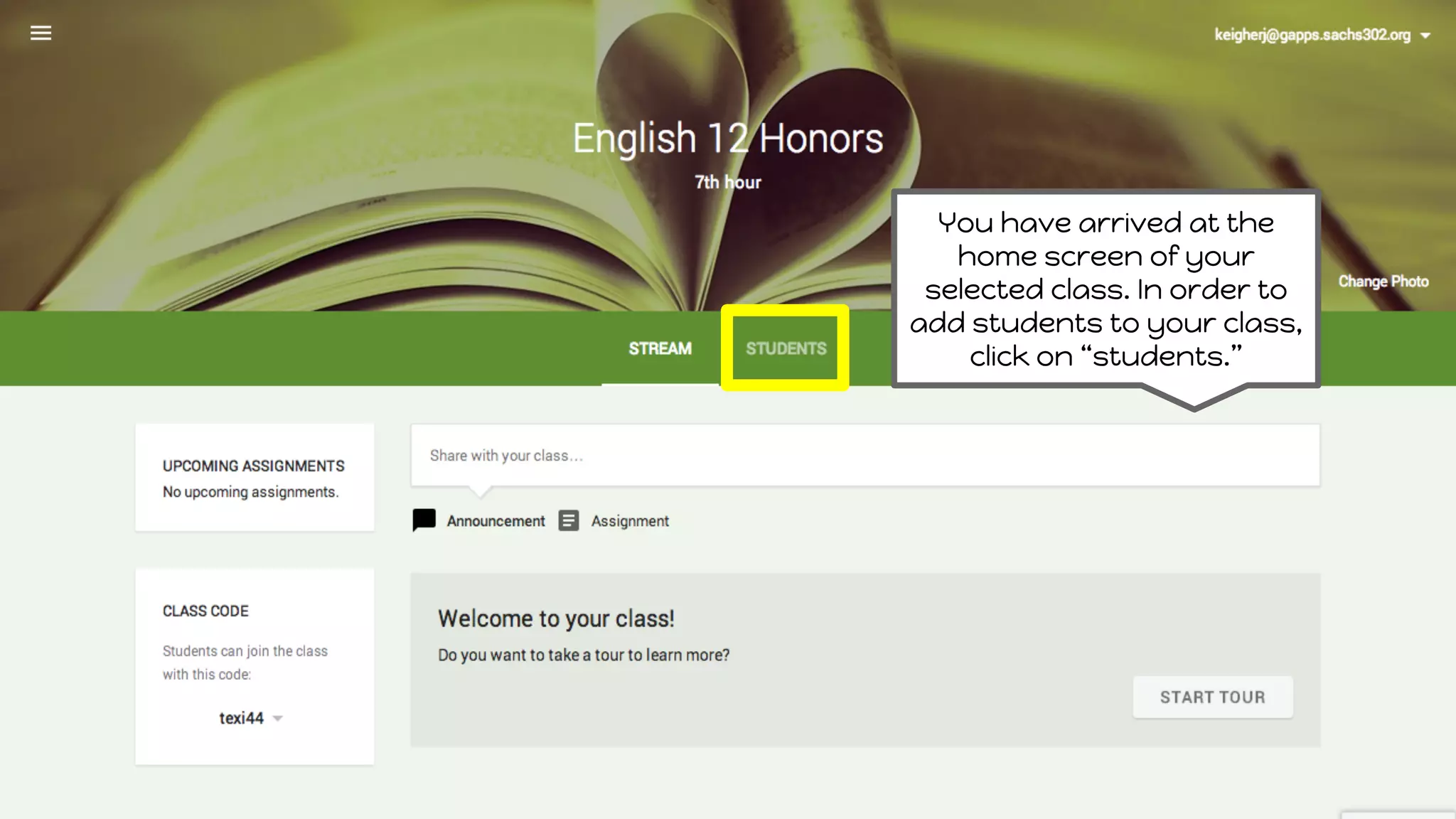
You have arrivedat the
home screen of your
selected class. In order to
add students to your class,
click on “students.”
15.
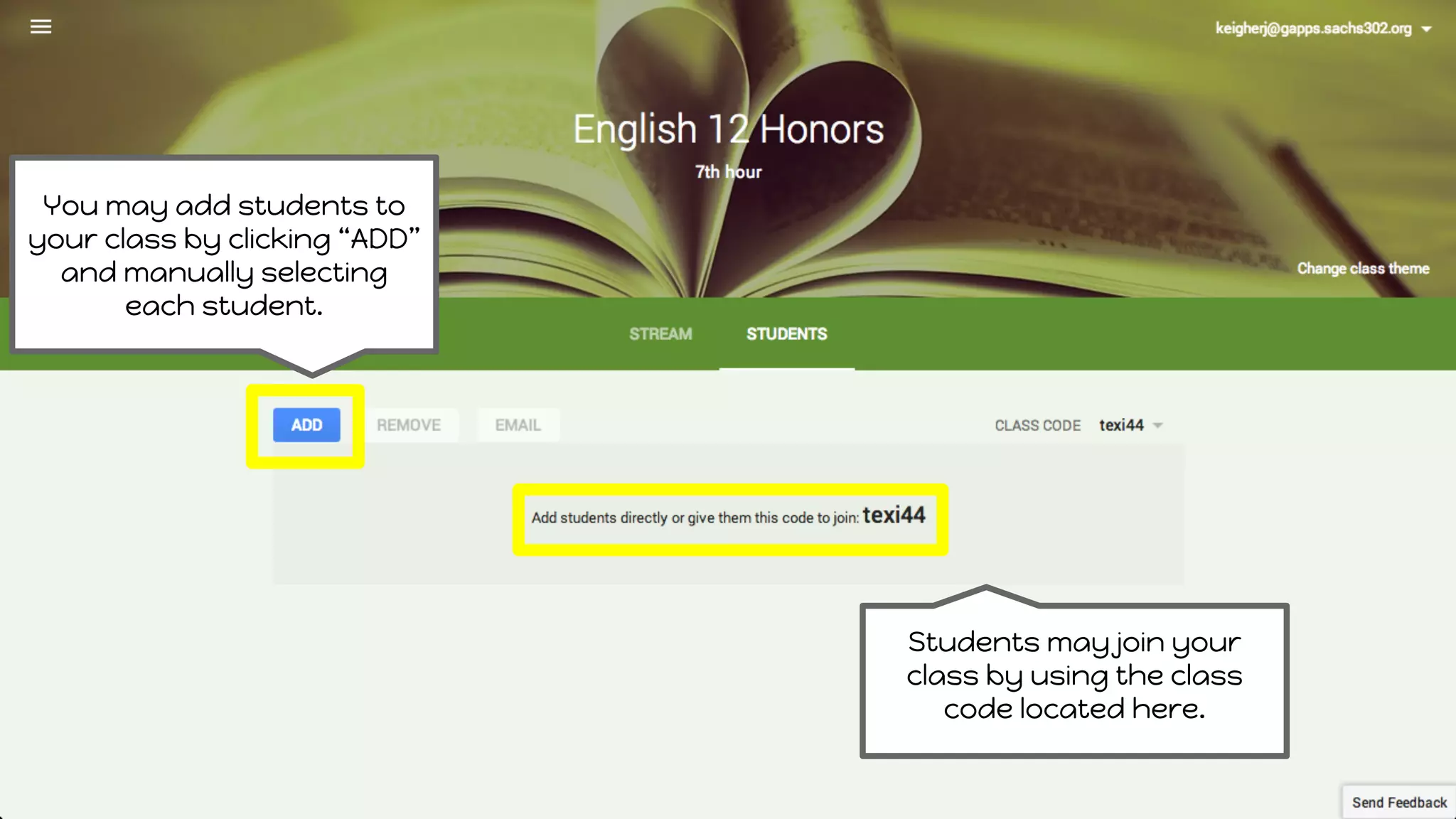
You may addstudents to
your class by clicking “ADD”
and manually selecting
each student.
Students may join your
class by using the class
code located here.
16.
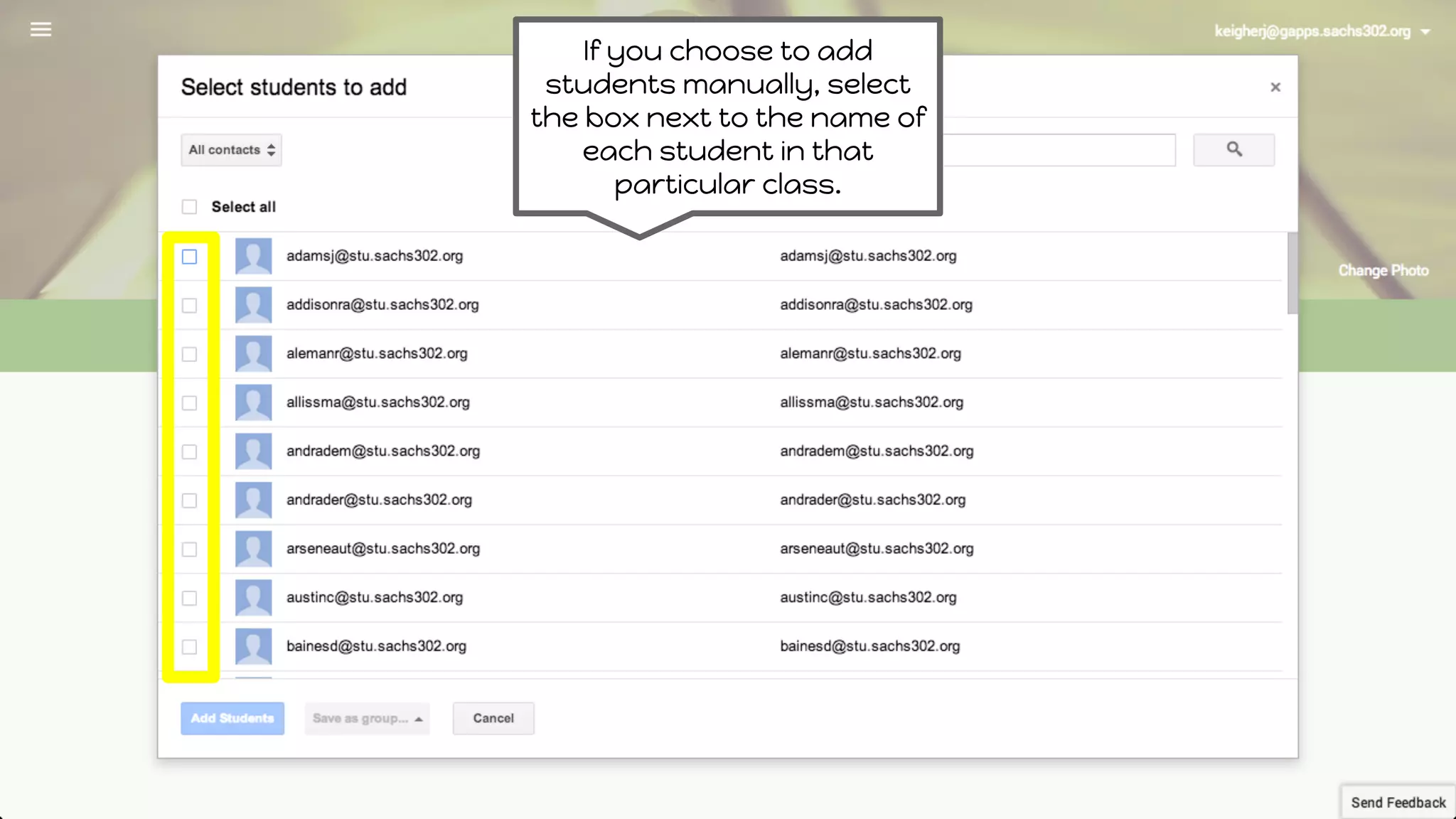
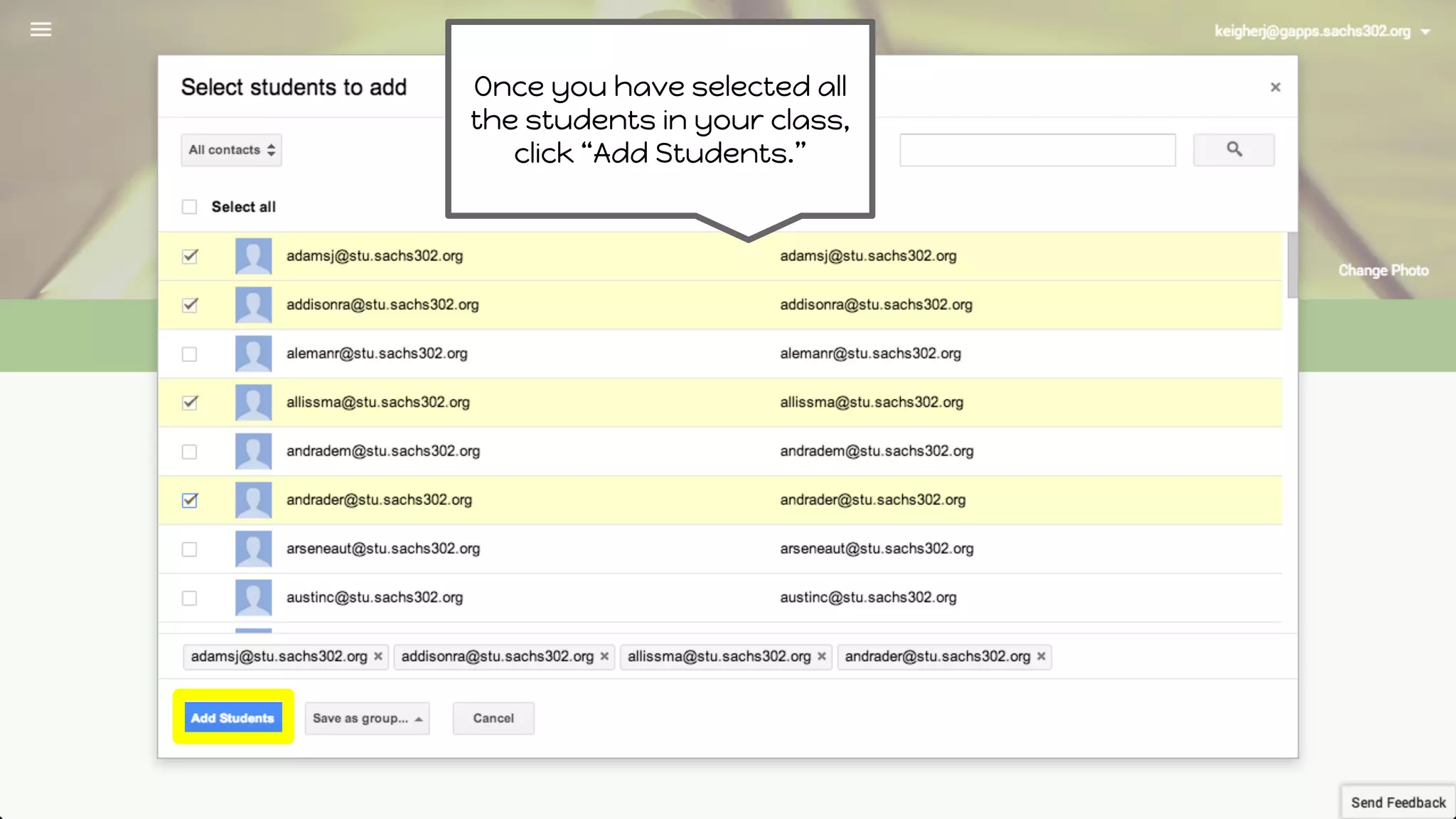
If you chooseto add
students manually, select
the box next to the name of
each student in that
particular class.
17.
Once you haveselected all
the students in your class,
click “Add Students.”
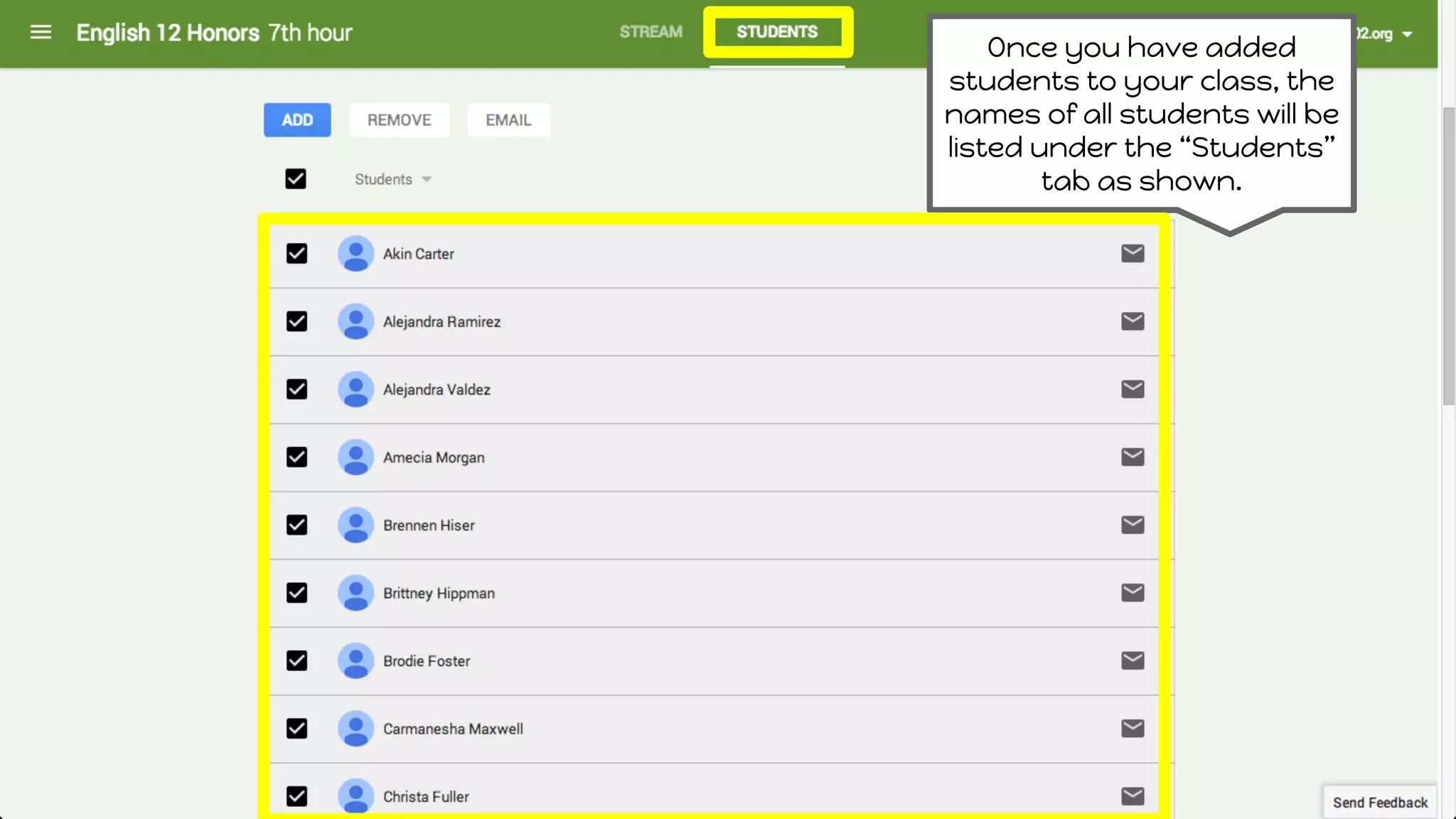
18.
Once you haveadded
students to your class, the
names of all students will be
listed under the “Students”
tab as shown.
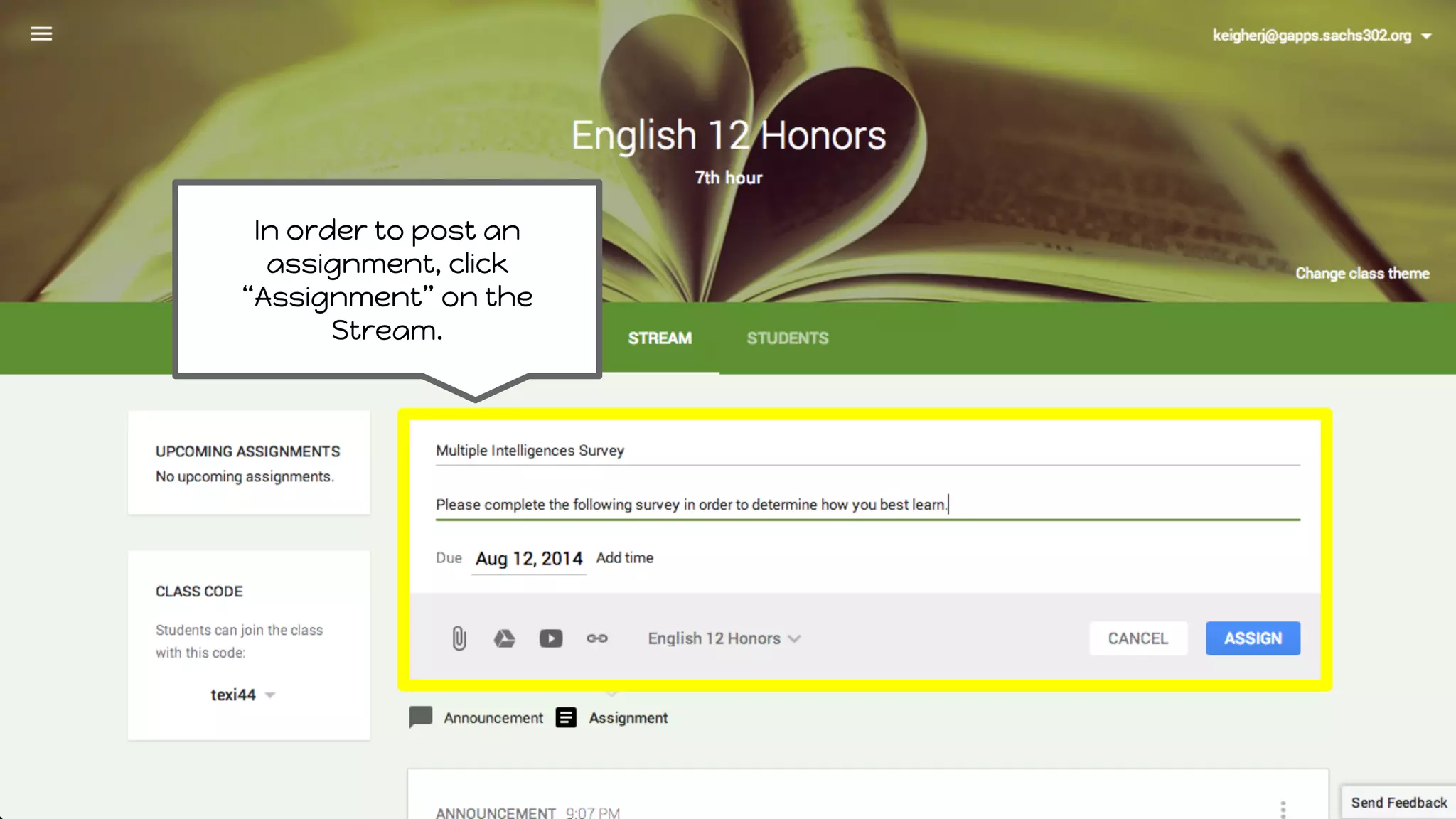
In order topost an
assignment, click
“Assignment” on the
Stream.
23.
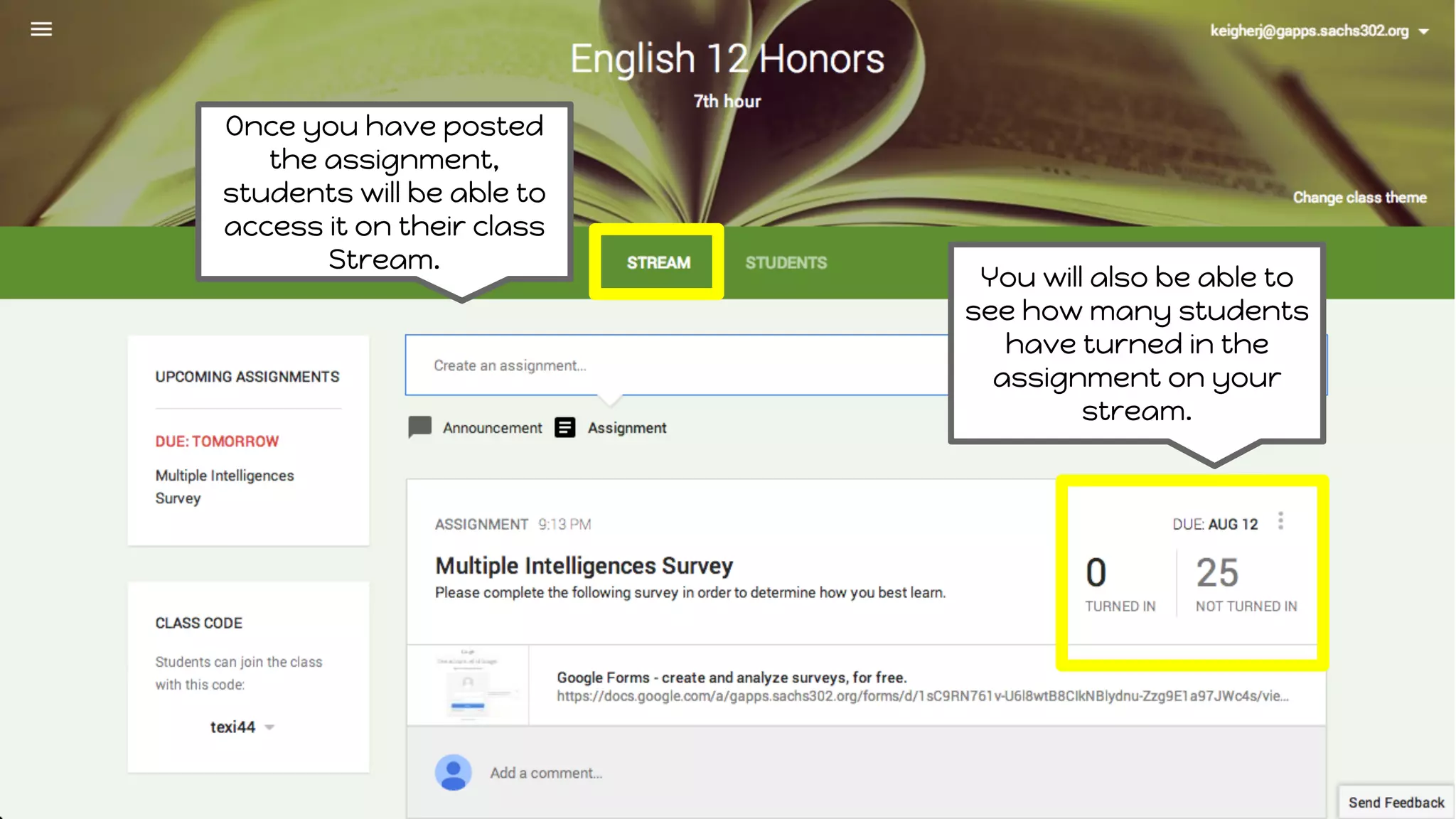
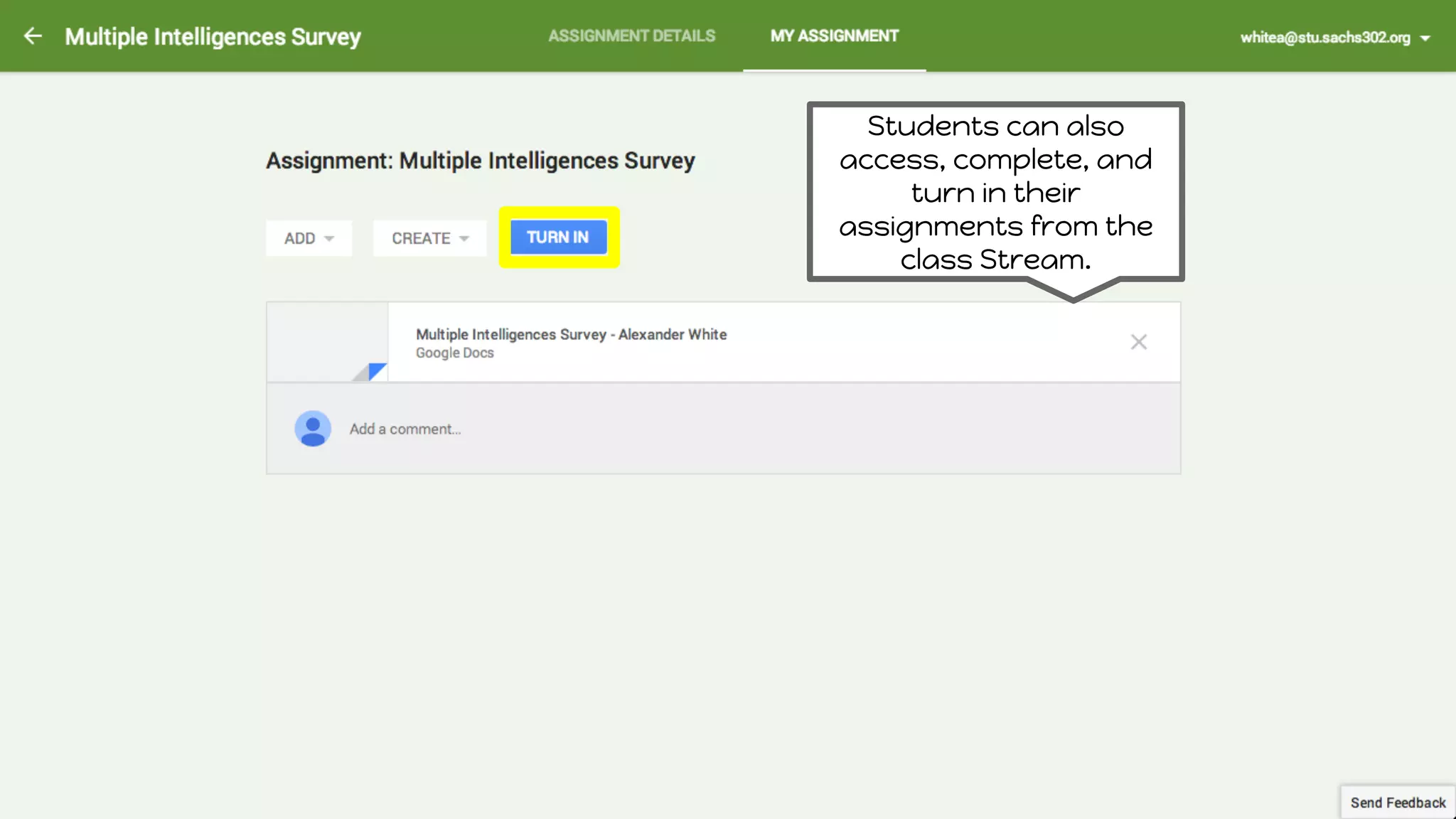
Once you haveposted
the assignment,
students will be able to
access it on their class
Stream.
You will also be able to
see how many students
have turned in the
assignment on your
stream.
24.
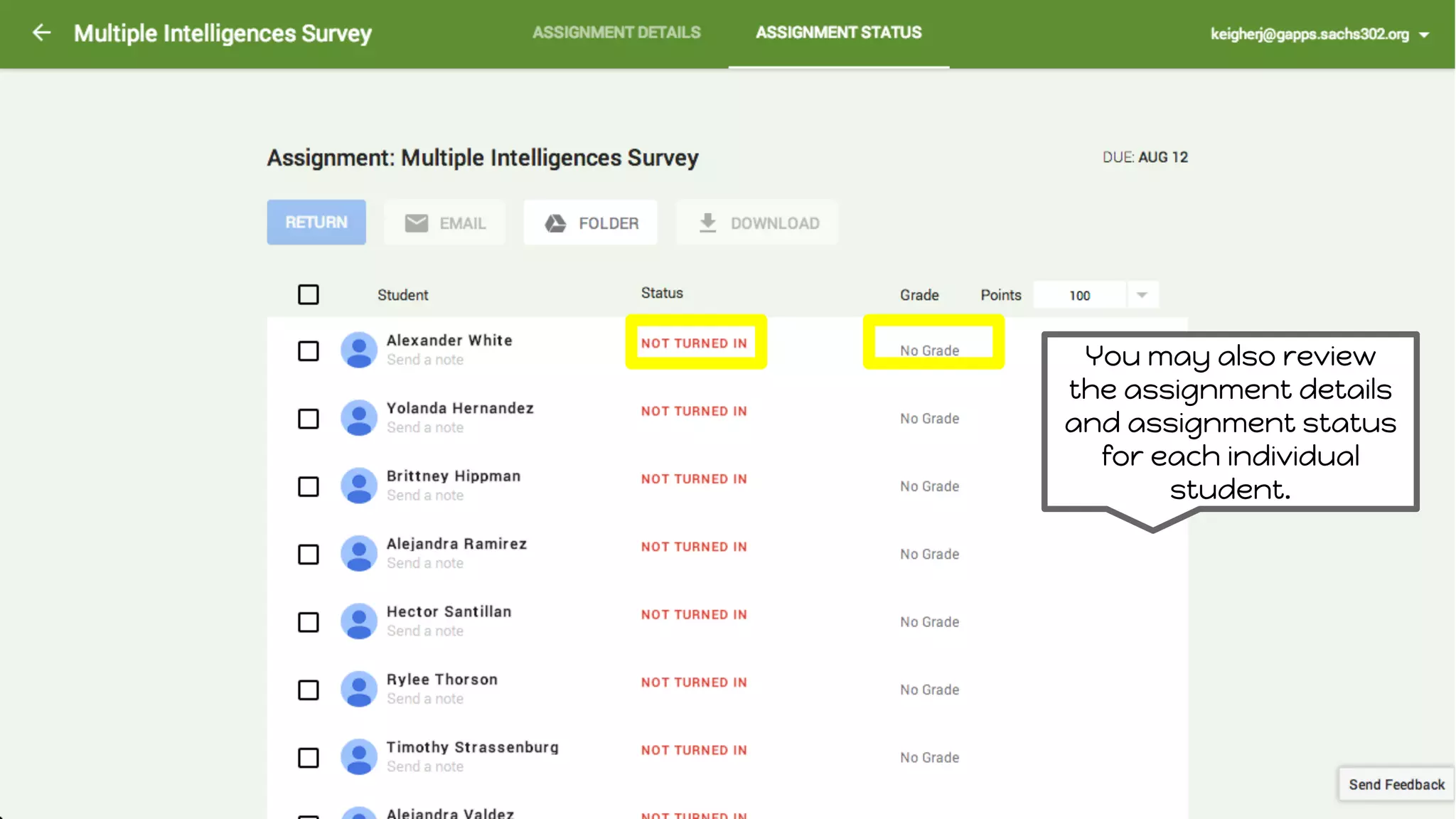
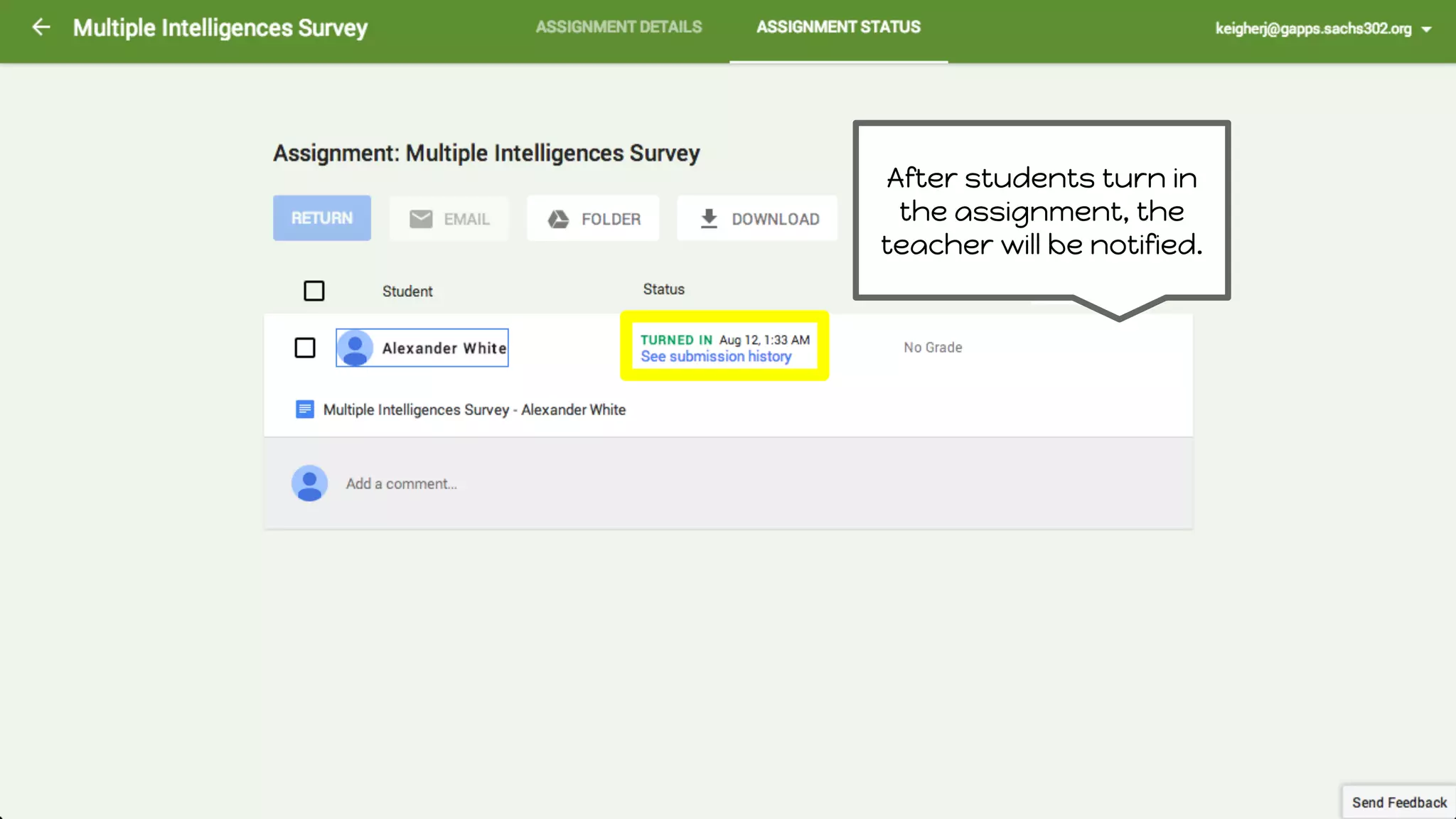
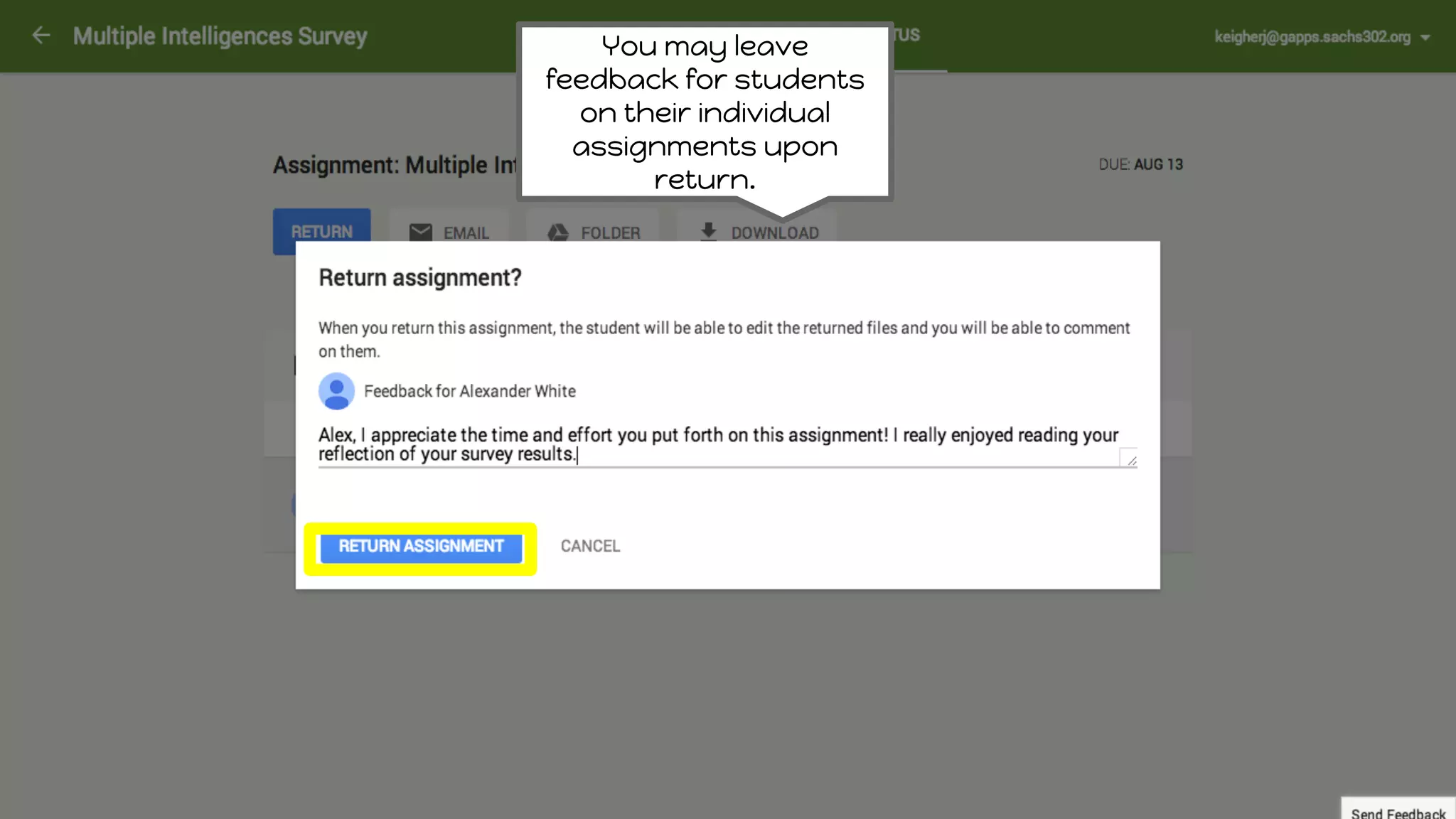
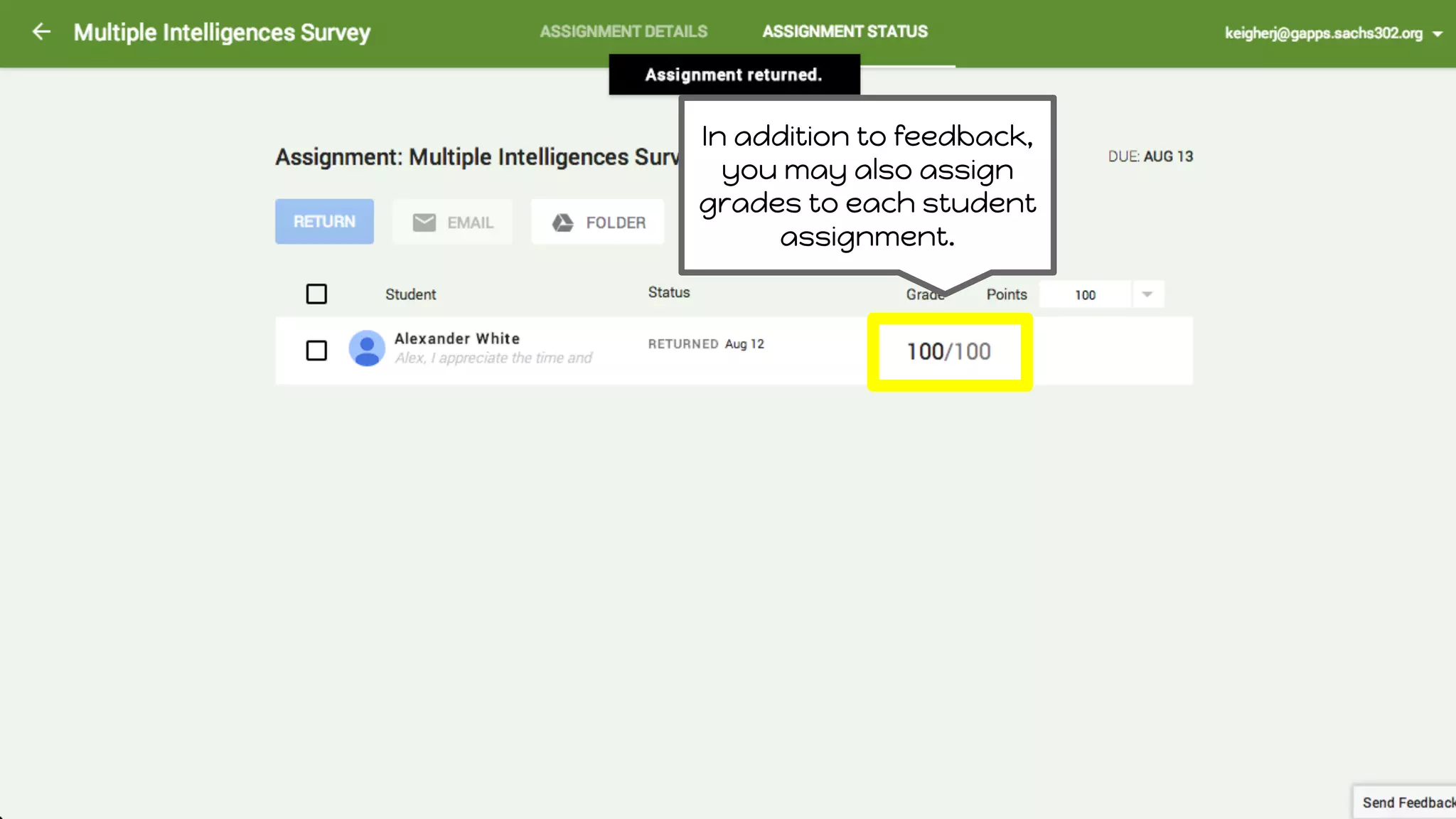
You may alsoreview
the assignment details
and assignment status
for each individual
student.
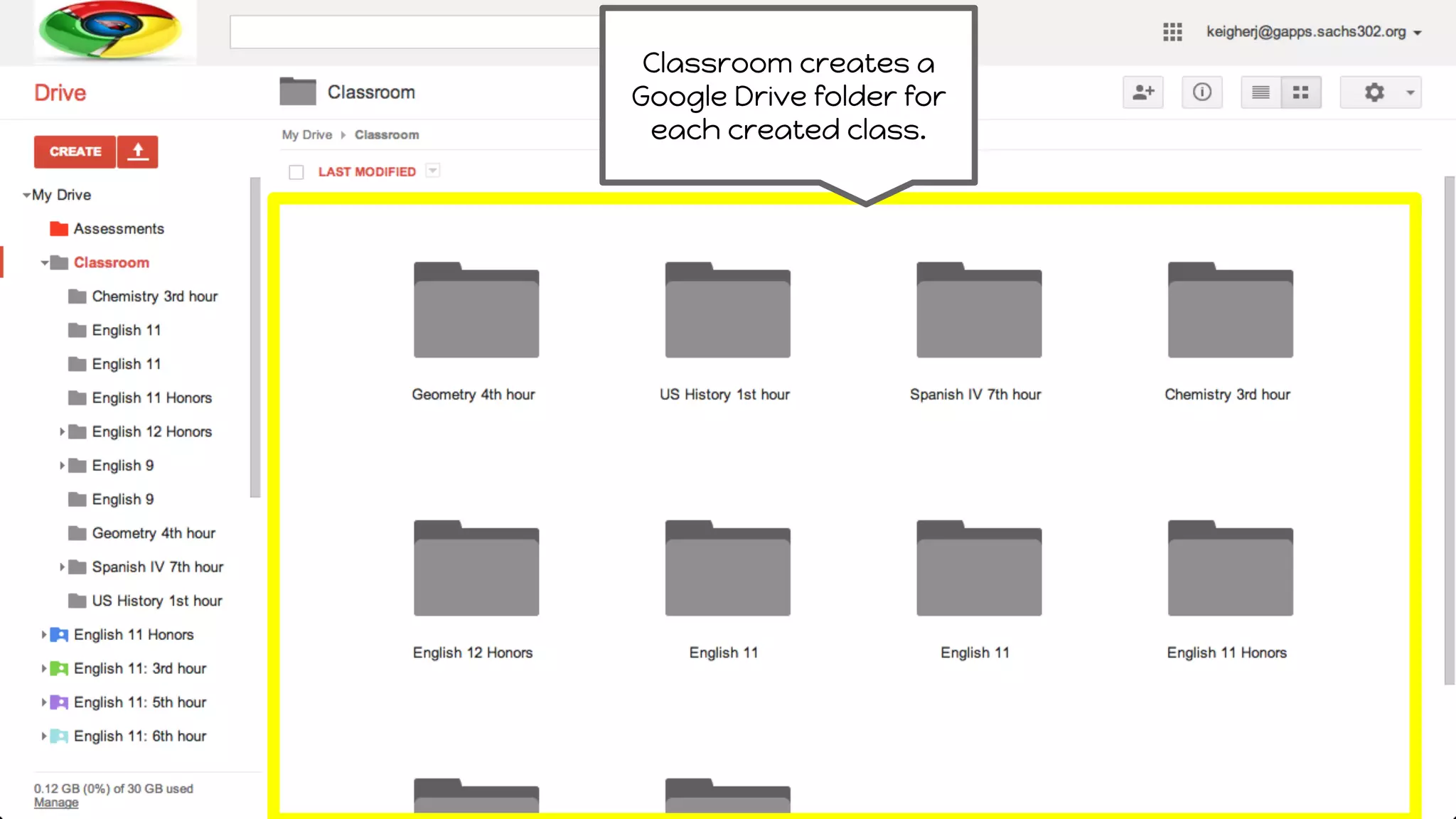
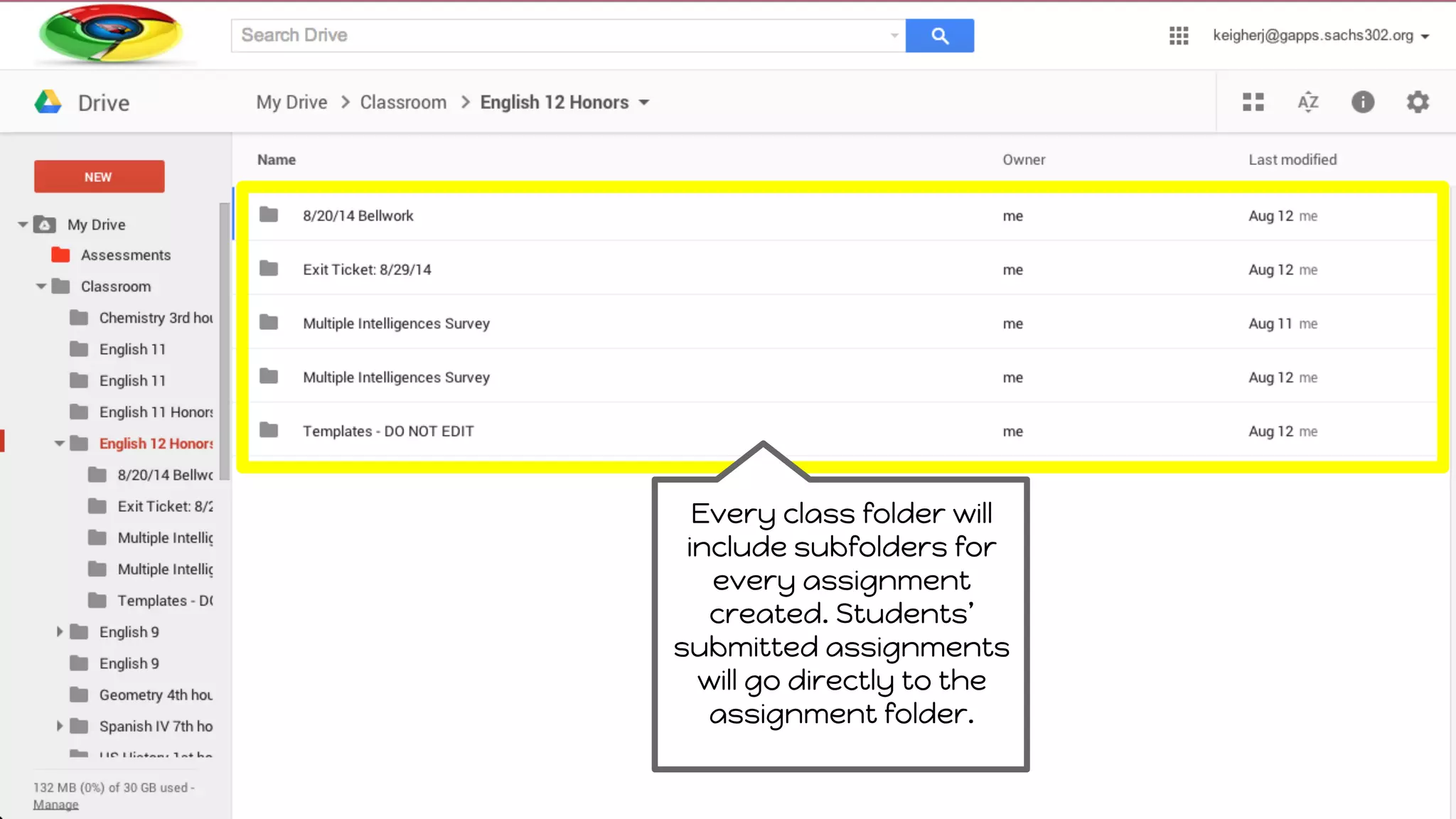
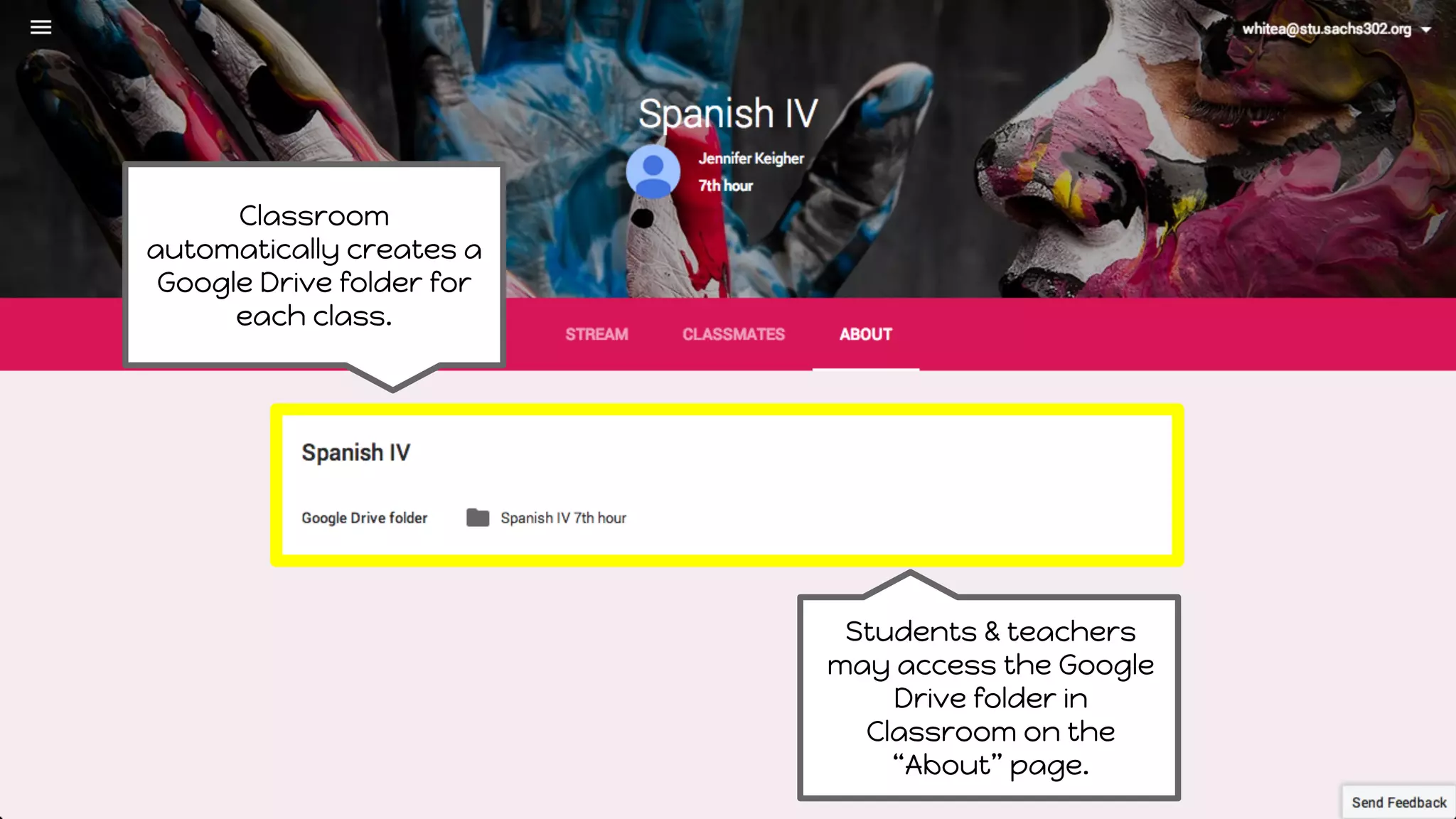
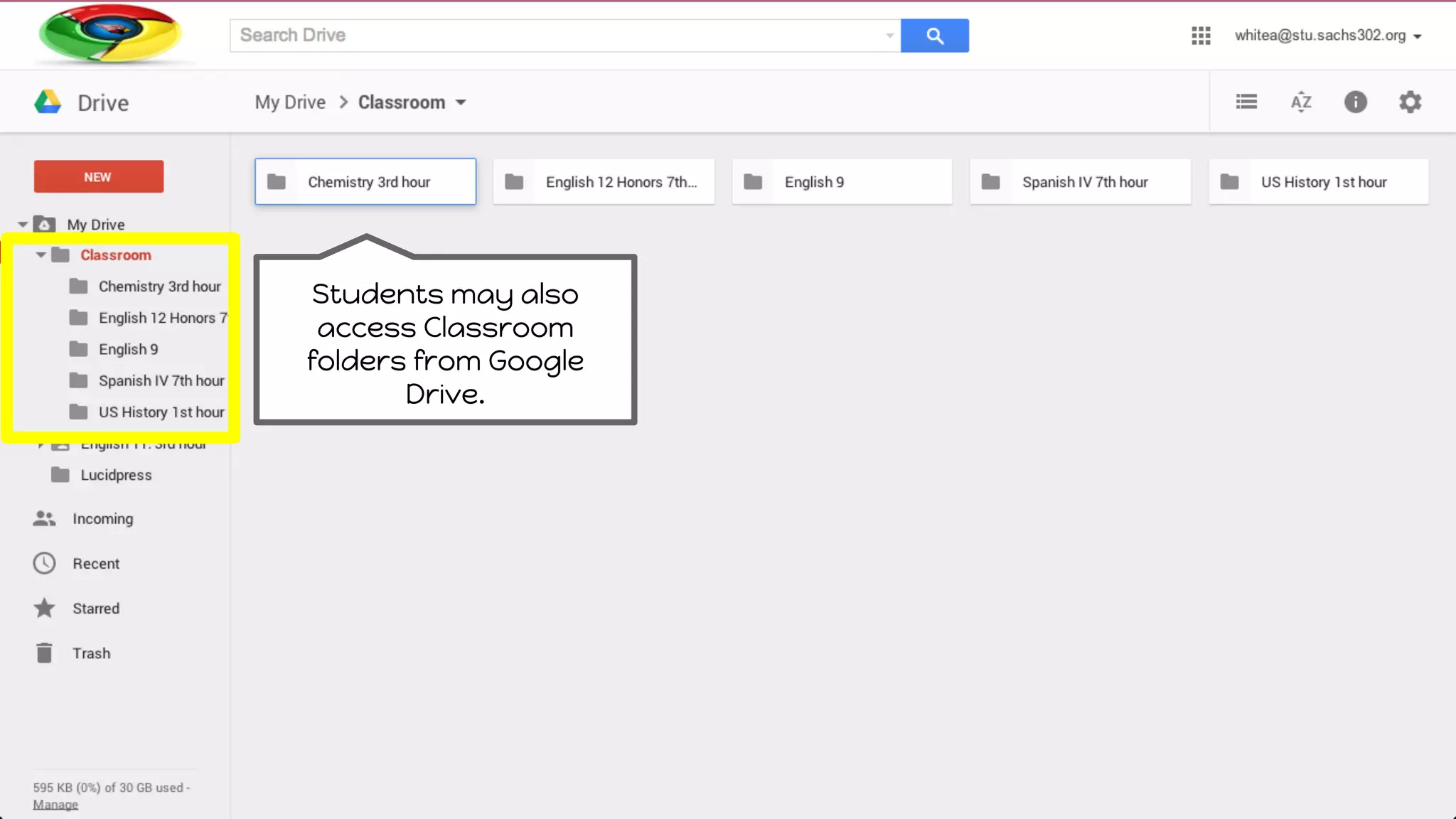
Every class folderwill
include subfolders for
every assignment
created. Students’
submitted assignments
will go directly to the
assignment folder.
31.
Exploring Classroom
2. StudentPerspective
❏ Joining a new class
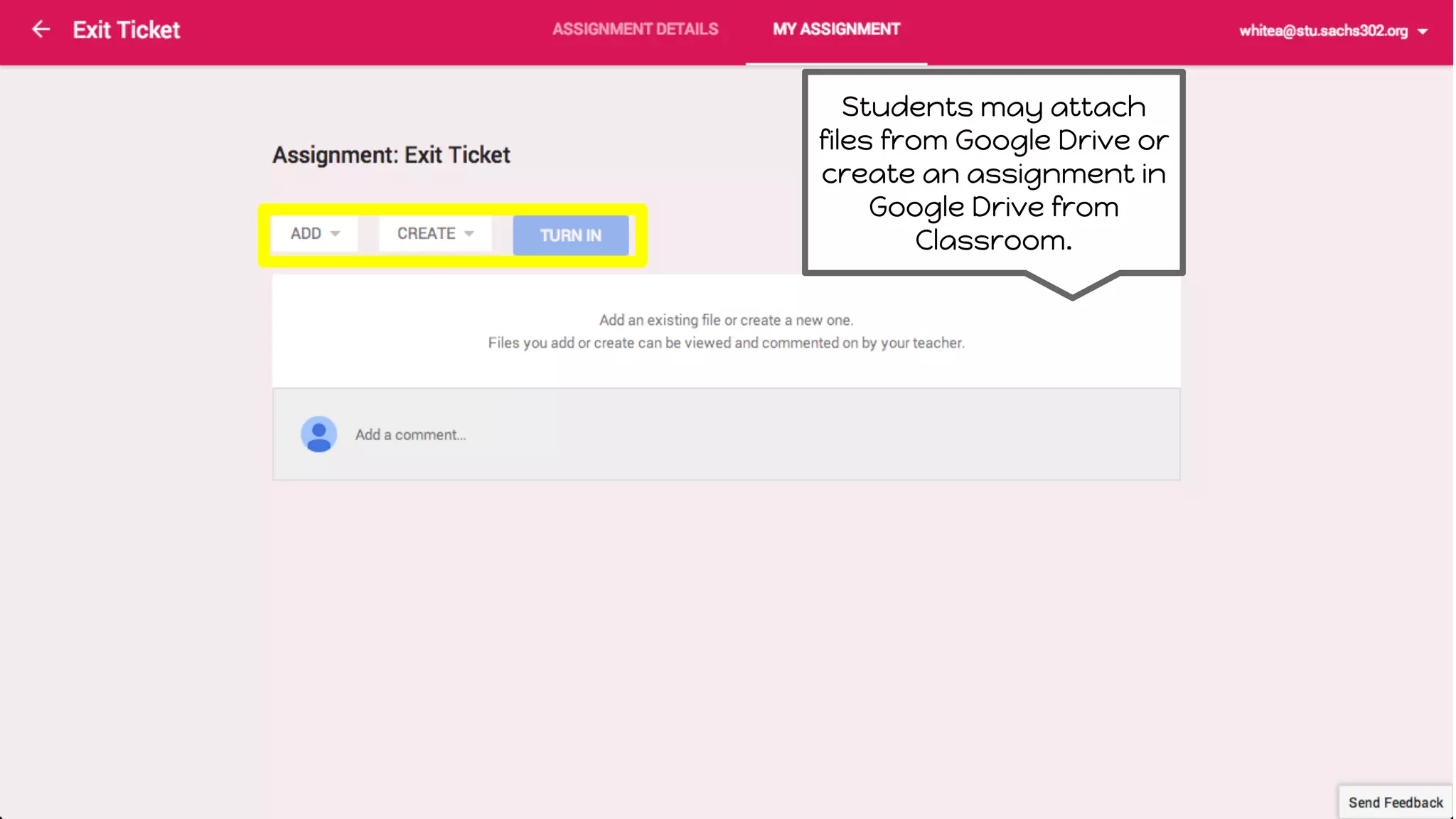
❏ DIgital workflow - complete & submit assignments
❏ Digital communication - discussion & email
❏ Integration with Drive
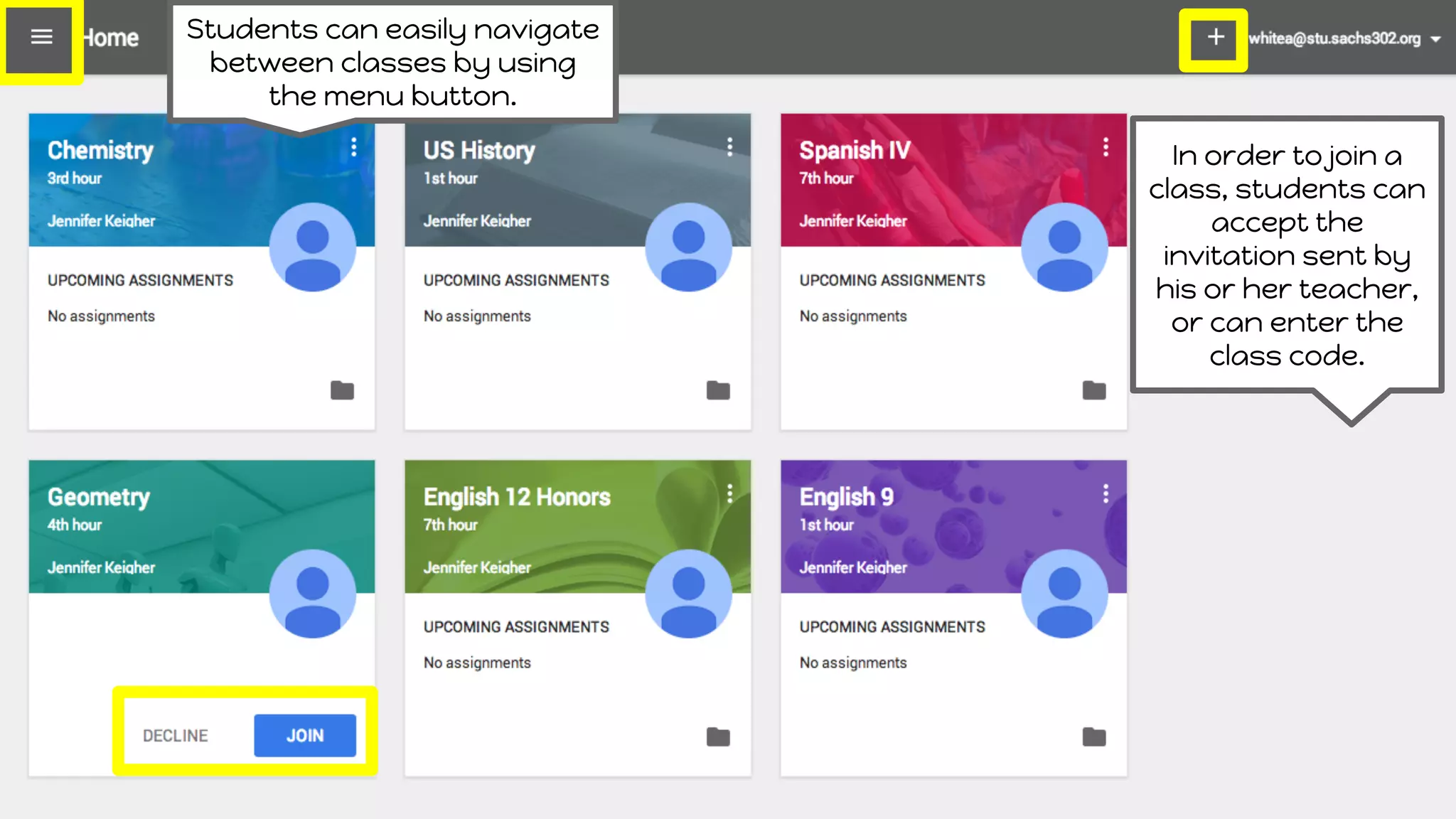
In order tojoin a
class, students can
accept the
invitation sent by
his or her teacher,
or can enter the
class code.
Students can easily navigate
between classes by using
the menu button.
34.
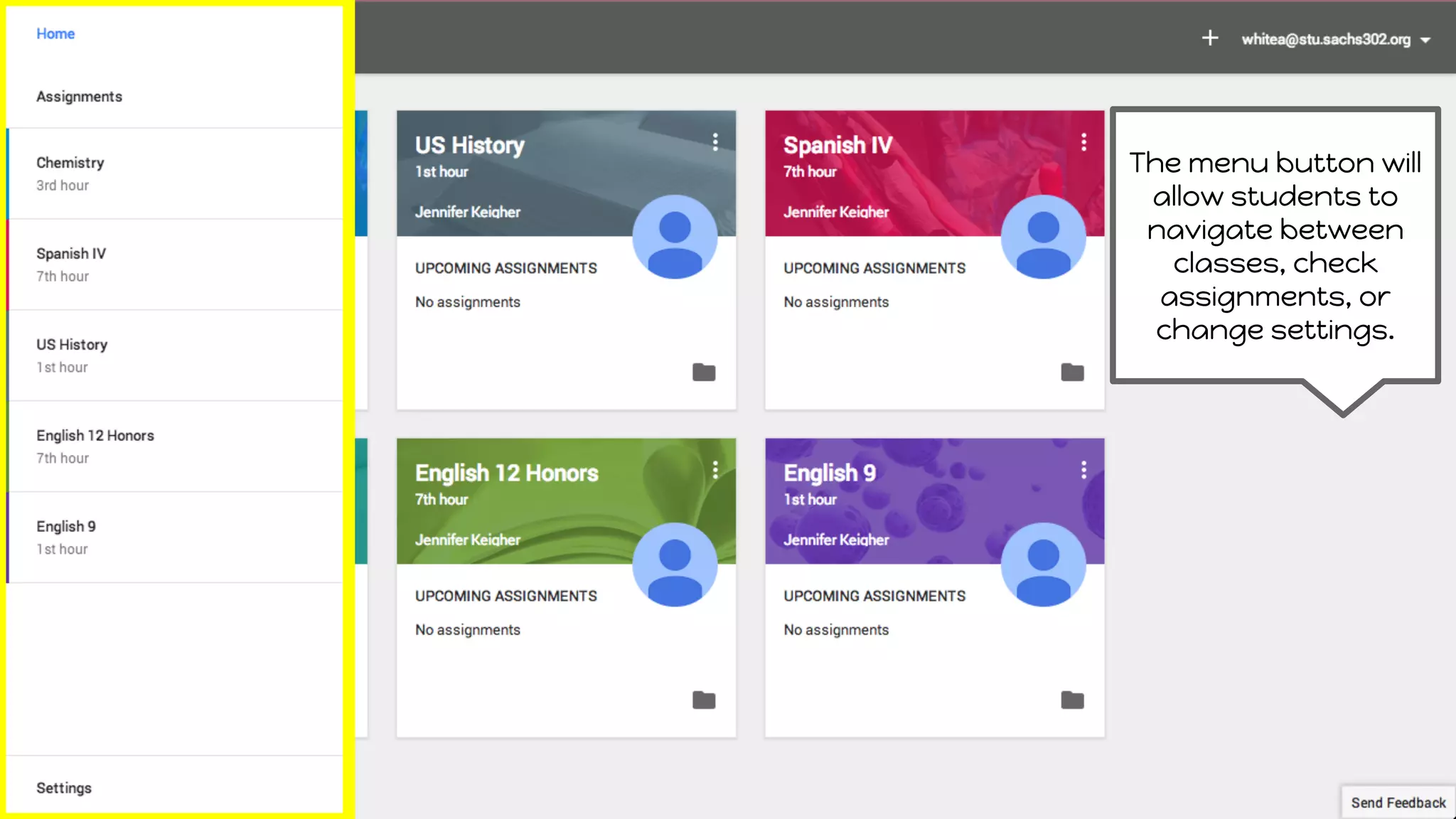
The menu buttonwill
allow students to
navigate between
classes, check
assignments, or
change settings.
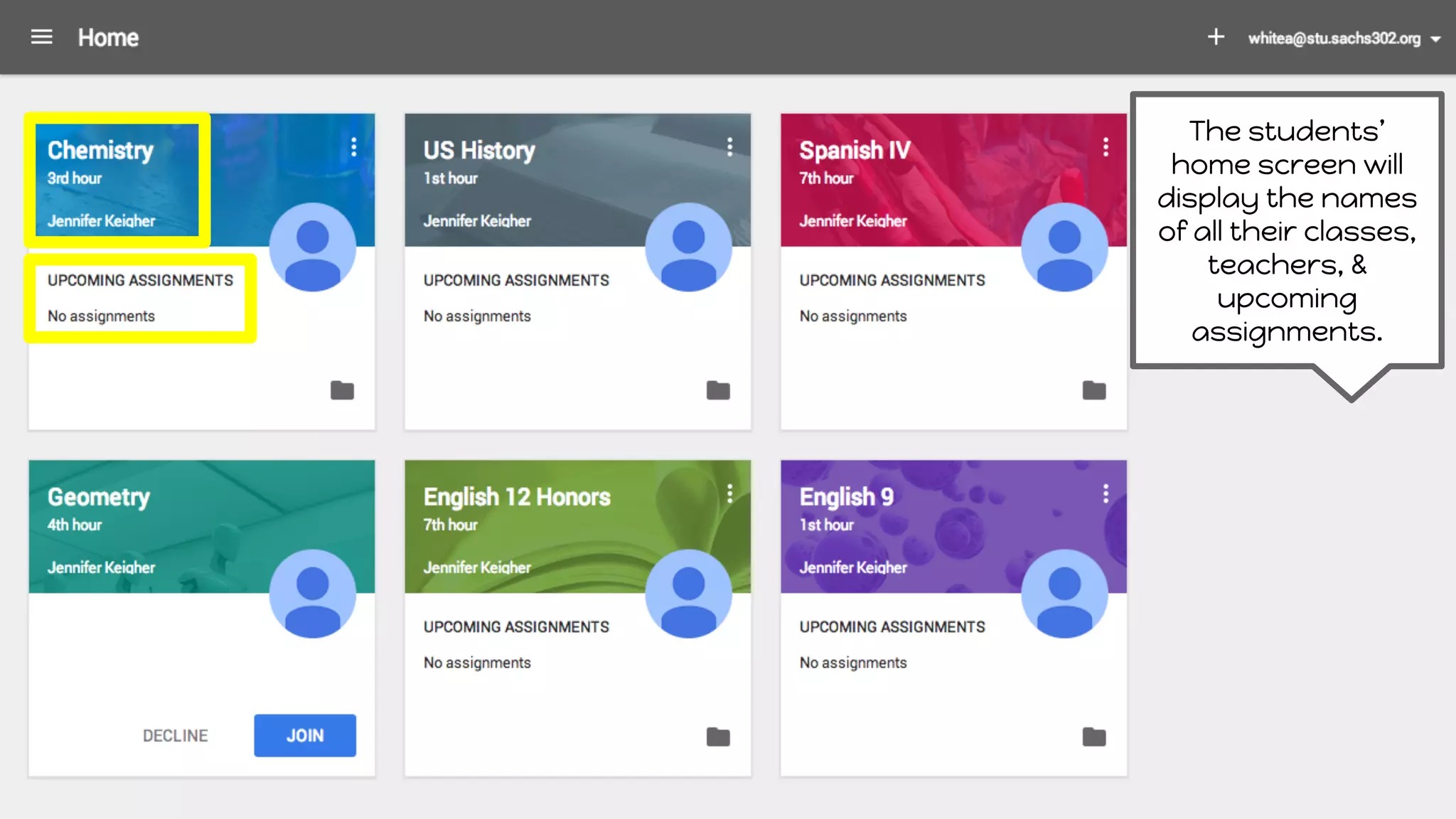
The students’
home screenwill
display the names
of all their classes,
teachers, &
upcoming
assignments.
37.
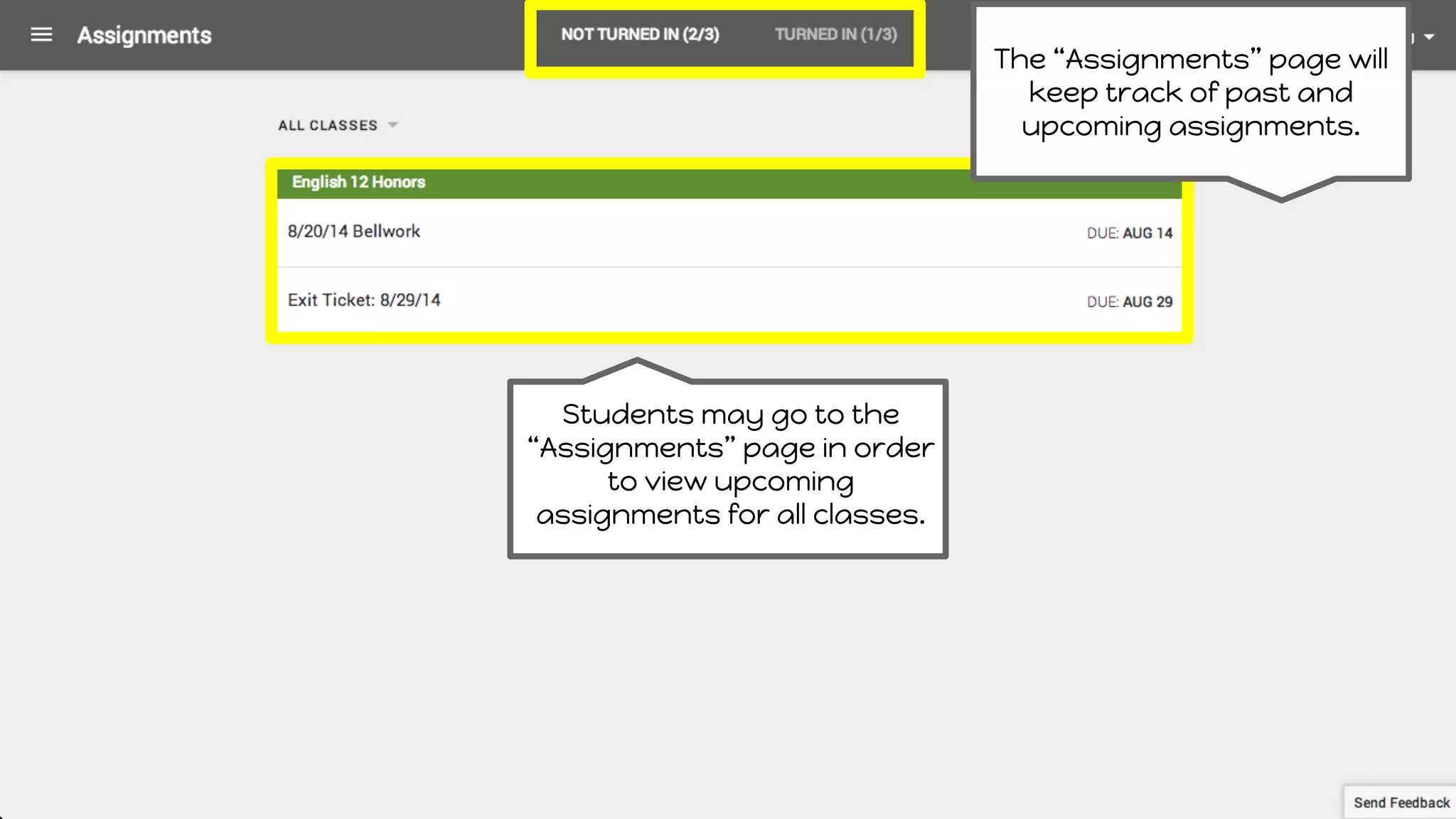
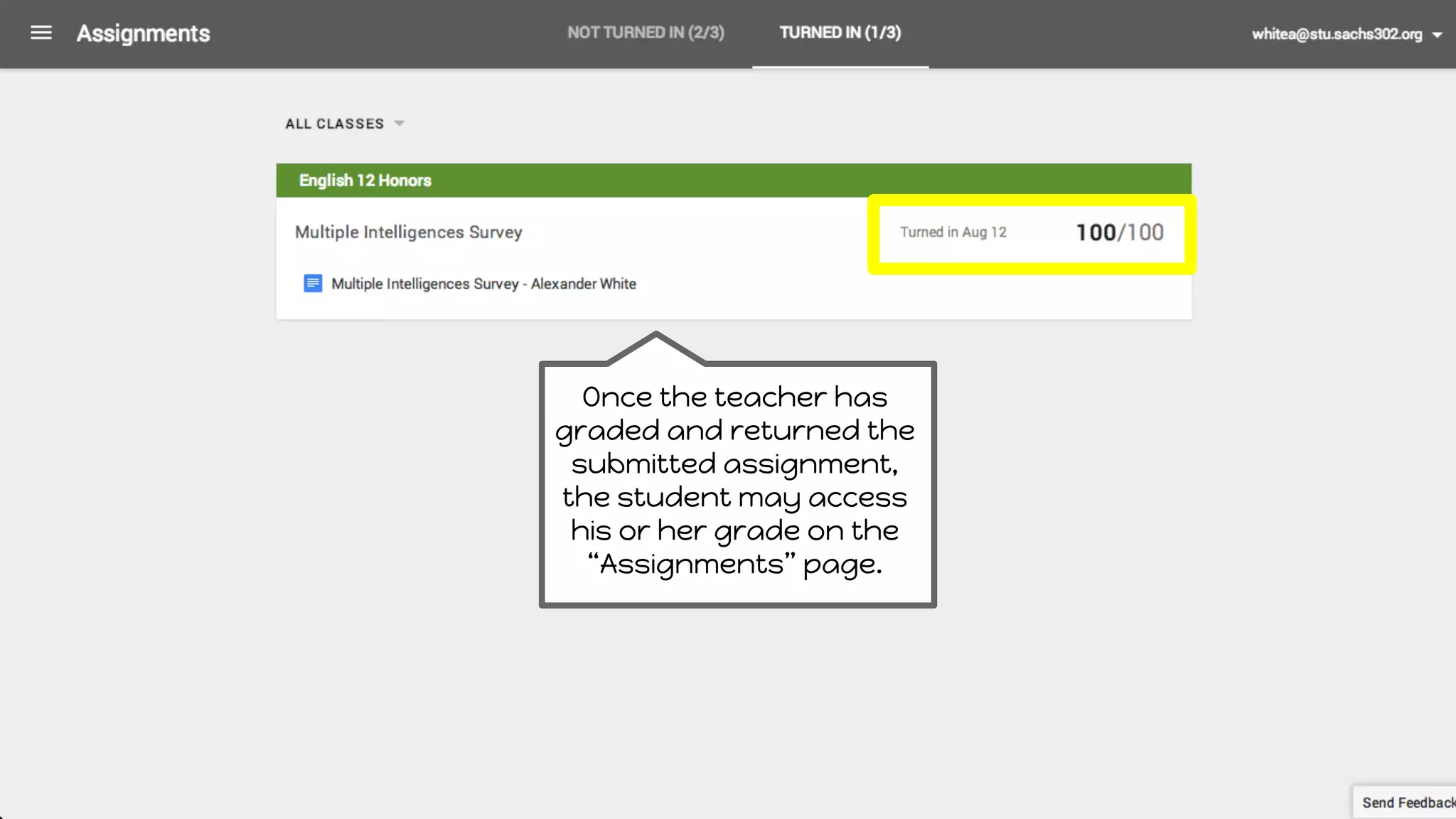
The “Assignments” pagewill
keep track of past and
upcoming assignments.
Students may go to the
“Assignments” page in order
to view upcoming
assignments for all classes.
Additional Resources
● ClassroomHelp Center
● Introduction to Google Classroom Article
● Teacher & Student Classroom Point of View Video
● Introduction to Google Classroom Video