
Google Classroom
By
Dr. Kailas K Mali
Professor,
Adarsh College of Pharmacy, Vita
Learning Objectives
 You will able to
• Understand concept of Google Classroom.
• Create your own class using Google Classroom.
• Invite students and teachers to join Google Class.
• Add topics and course content in Classroom.
• Create and conduct assignments for students.
• Post announcements and course material for
students.
2
What is Google Classroom?
 Free Google Apps for Education (GAfE)
domain.
Developed for schools and colleges
3
Aims of Google Classroom
 To simplify creating, distributing and grading
assignments in a paperless way.
 To streamline the process of sharing files
between teachers and students.
4
Benefits of Google Classroom
5
Why do we need technology in classrooms?
6
Why do we need technology in classrooms?
“We need technology in every classroom and in every student
and teacher’s hand, because it is the pen and paper of our
time, and it is the lens through which we experience much of
our world.” – David Warlick
7
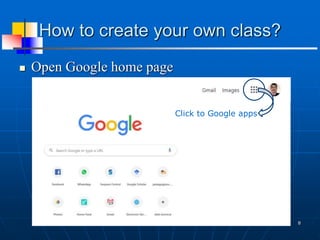
How to create your own class?
 Open Google home page
8
Click to Google apps
How to create your own class?
 Click to Google apps
9
Click to Classroom
How to create your own class?
 Click to + sign
10
Click to + sign
How to create your own class?
 Click to + sign
11
Click to Create class
How to create your own class?
 Click to Create class
12
Click to Continue
How to create your own class?
 Fill information
13
Fill the information
How to create your own class?
 Click to Create
14
Click to Create
How to create your own class?
 New class created
15
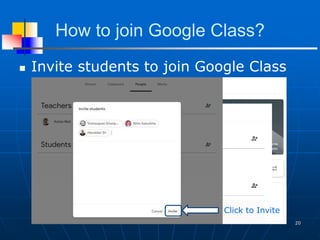
How to join Google Class?
 Invite students to join Google Class
16
Click to People
How to join Google Class?
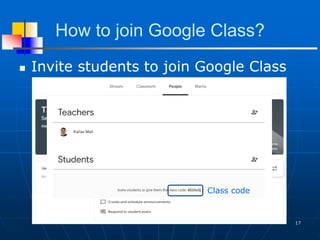
 Invite students to join Google Class
17
Class code
How to join Google Class?
 Invite students to join Google Class
18
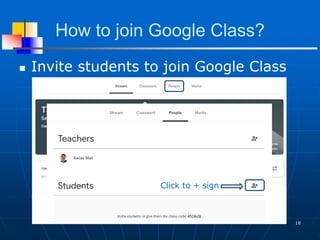
Click to + sign
How to join Google Class?
 Invite students to join Google Class
19
Click to + sign
How to join Google Class?
 Invite students to join Google Class
20
Click to + sign
Click to Invite
How to join Google Class?
 Invite students to join Google Class
21
Click to + sign
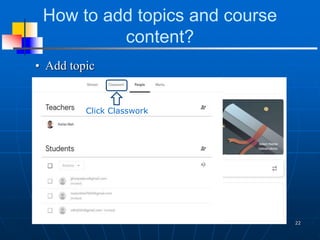
How to add topics and course
content?
• Add topic
22
Click to + sign
Click Classwork
How to add topics and course
content?
• Add topics
23
Click to + sign
Click ClassworkClick to Create
How to add topics and course
content?
• Add topics
24
Click to + sign
Click Classwork
Click to Topic
How to add topics and course
content?
• Add topics
25
Click to + sign
Click Classwork
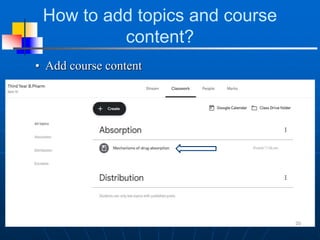
How to add topics and course
content?
• Add course content
26
Click to + sign
Click Classwork
How to add topics and course
content?
• Add course content
27
Click to Topic
Step 1
Step 2
Step 3
Step 4
How to add topics and course
content?
• Add course content
28
How to add topics and course
content?
• Add course content
29
Step 5
How to add topics and course
content?
• Add course content
30
How to create assignments?
• Creating assignments
31
Click to Assignment
How to create assignments?
• Creating assignments
32
How to create assignments?
• Creating assignments
33
How to create assignments?
• Creating assignments
34
Click to Quiz Assignment
How to create assignments?
• Creating assignments
35
Click to Question
How to create assignments?
• Creating assignments
36
How to create assignments?
• Creating assignments
37
How to create assignments?
• Creating assignments
38
How to Grade Students?
• Grading
39
How to Grade Students?
• Grading
40
How to Grade Students?
• Grading
41
How to Grade Students?
• Grading
42
How to check progress?
• Marks
43
How to post announcements?
• Announcements and notices
44
How to post announcements?
• Announcements and notices
45
How to post announcements?
• Announcements and notices
46
47
https://classroom.google.com

Google classroom

  • 1.
    Google Classroom By Dr. KailasK Mali Professor, Adarsh College of Pharmacy, Vita
  • 2.
    Learning Objectives  Youwill able to • Understand concept of Google Classroom. • Create your own class using Google Classroom. • Invite students and teachers to join Google Class. • Add topics and course content in Classroom. • Create and conduct assignments for students. • Post announcements and course material for students. 2
  • 3.
    What is GoogleClassroom?  Free Google Apps for Education (GAfE) domain. Developed for schools and colleges 3
  • 4.
    Aims of GoogleClassroom  To simplify creating, distributing and grading assignments in a paperless way.  To streamline the process of sharing files between teachers and students. 4
  • 5.
    Benefits of GoogleClassroom 5
  • 6.
    Why do weneed technology in classrooms? 6
  • 7.
    Why do weneed technology in classrooms? “We need technology in every classroom and in every student and teacher’s hand, because it is the pen and paper of our time, and it is the lens through which we experience much of our world.” – David Warlick 7
  • 8.
    How to createyour own class?  Open Google home page 8 Click to Google apps
  • 9.
    How to createyour own class?  Click to Google apps 9 Click to Classroom
  • 10.
    How to createyour own class?  Click to + sign 10 Click to + sign
  • 11.
    How to createyour own class?  Click to + sign 11 Click to Create class
  • 12.
    How to createyour own class?  Click to Create class 12 Click to Continue
  • 13.
    How to createyour own class?  Fill information 13 Fill the information
  • 14.
    How to createyour own class?  Click to Create 14 Click to Create
  • 15.
    How to createyour own class?  New class created 15
  • 16.
    How to joinGoogle Class?  Invite students to join Google Class 16 Click to People
  • 17.
    How to joinGoogle Class?  Invite students to join Google Class 17 Class code
  • 18.
    How to joinGoogle Class?  Invite students to join Google Class 18 Click to + sign
  • 19.
    How to joinGoogle Class?  Invite students to join Google Class 19 Click to + sign
  • 20.
    How to joinGoogle Class?  Invite students to join Google Class 20 Click to + sign Click to Invite
  • 21.
    How to joinGoogle Class?  Invite students to join Google Class 21 Click to + sign
  • 22.
    How to addtopics and course content? • Add topic 22 Click to + sign Click Classwork
  • 23.
    How to addtopics and course content? • Add topics 23 Click to + sign Click ClassworkClick to Create
  • 24.
    How to addtopics and course content? • Add topics 24 Click to + sign Click Classwork Click to Topic
  • 25.
    How to addtopics and course content? • Add topics 25 Click to + sign Click Classwork
  • 26.
    How to addtopics and course content? • Add course content 26 Click to + sign Click Classwork
  • 27.
    How to addtopics and course content? • Add course content 27 Click to Topic Step 1 Step 2 Step 3 Step 4
  • 28.
    How to addtopics and course content? • Add course content 28
  • 29.
    How to addtopics and course content? • Add course content 29 Step 5
  • 30.
    How to addtopics and course content? • Add course content 30
  • 31.
    How to createassignments? • Creating assignments 31 Click to Assignment
  • 32.
    How to createassignments? • Creating assignments 32
  • 33.
    How to createassignments? • Creating assignments 33
  • 34.
    How to createassignments? • Creating assignments 34 Click to Quiz Assignment
  • 35.
    How to createassignments? • Creating assignments 35 Click to Question
  • 36.
    How to createassignments? • Creating assignments 36
  • 37.
    How to createassignments? • Creating assignments 37
  • 38.
    How to createassignments? • Creating assignments 38
  • 39.
    How to GradeStudents? • Grading 39
  • 40.
    How to GradeStudents? • Grading 40
  • 41.
    How to GradeStudents? • Grading 41
  • 42.
    How to GradeStudents? • Grading 42
  • 43.
    How to checkprogress? • Marks 43
  • 44.
    How to postannouncements? • Announcements and notices 44
  • 45.
    How to postannouncements? • Announcements and notices 45
  • 46.
    How to postannouncements? • Announcements and notices 46
  • 47.