Innovation CPD:
Using Google Classroom
Kara Kellett and Tom Martin
Optional CPD:
Using Google Classroom
CPD Objectives:
1. To explore Google Classroom and its features, considering how it can support effective
teaching and learning and assists in integrating technology into the classroom.
1. To examine the features of setting questions and assignments through Classroom and also
adding resources and individual worksheets.
1. To consider the assessment and marking process used by Google Classroom.
1. To create your own Google Classroom, exploring the features and considering how it could
be used in your own subject area.
What is Google Classroom?
Future classroom?
Purpose of Google Classroom
Classroom allows teachers to create
and mark assignments, make
announcements and start class
discussions all in one place.
Benefits of using Google Classroom
● Easy to set up
● Saves time
● Improves organisation
● Enhances communication
● Secure - only class can access
● Paperless
What is Google Classroom?
“Google Classroom is considered as one of the best platforms out there for
enhancing teachers' workflow. It provides a set of powerful features that
make it an ideal tool to use with students. Classroom helps teachers save
time, keep classes organized, and improve communication with
students...Google Classroom is meant to help teachers manage the
creation and collection of student assignments in a paperless
environment, basically leveraging the framework of Google Docs, Drive and
other Apps. Google classroom allows teachers to spend more time with
their students and less time on the paperwork.”
Iftakhar, S. (2016) ‘Google Classroom: What Works and How?’ Journal of Education and Social Sciences. Vol 3. Dhaka, Bangladesh: Daffodil International University. ISSN 2289-9855 2016 12
Dr Heidi Hayes Jacobs
Education Leader in developing 21st Century approaches to T&L
“Teachers need to integrate technology
seamlessly into the curriculum instead of
viewing it as an add-on, an afterthought,
or an event.”
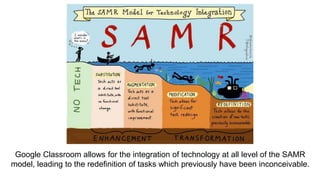
Google Classroom allows for the integration of technology at all level of the SAMR
model, leading to the redefinition of tasks which previously have been inconceivable.
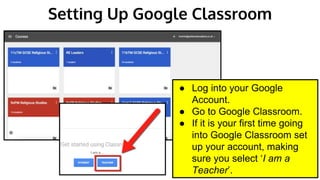
Setting Up Google Classroom
● Log into your Google
Account.
● Go to Google Classroom.
● If it is your first time going
into Google Classroom set
up your account, making
sure you select ‘I am a
Teacher’.
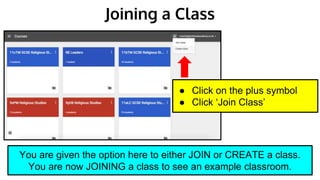
Joining a Class
● Click on the plus symbol
● Click ‘Join Class’
You are given the option here to either JOIN or CREATE a class.
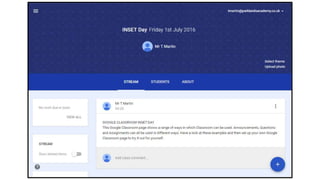
You are now JOINING a class to see an example classroom.
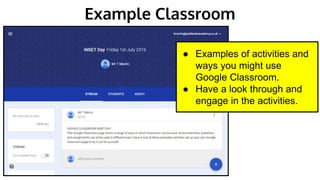
Example Classroom
● Examples of activities and
ways you might use
Google Classroom.
● Have a look through and
engage in the activities.
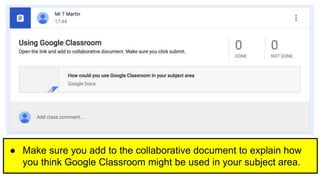
● Make sure you add to the collaborative document to explain how
you think Google Classroom might be used in your subject area.
Creating a Class
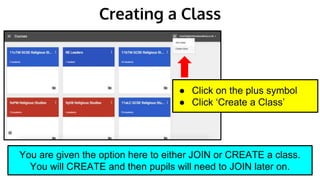
● Click on the plus symbol
● Click ‘Create a Class’
You are given the option here to either JOIN or CREATE a class.
You will CREATE and then pupils will need to JOIN later on.
Creating a Class
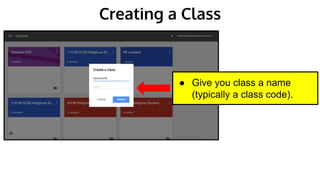
● Give you class a name
(typically a class code).
Setting Up Your Class
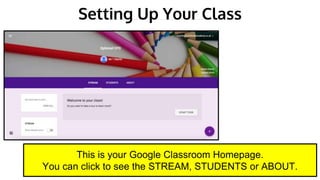
This is your Google Classroom Homepage.
You can click to see the STREAM, STUDENTS or ABOUT.
Setting Up Your Class
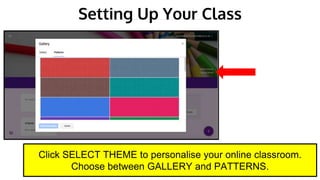
Click SELECT THEME to personalise your online classroom.
Choose between GALLERY and PATTERNS.
Setting Up Your Class
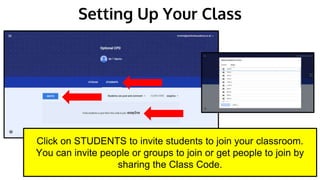
Click on STUDENTS to invite students to join your classroom.
You can invite people or groups to join or get people to join by
sharing the Class Code.
Setting Up Your Class
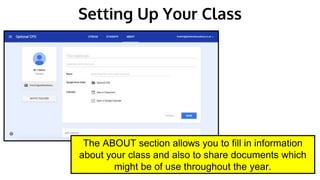
The ABOUT section allows you to fill in information
about your class and also to share documents which
might be of use throughout the year.
Completing the ‘About’ Section
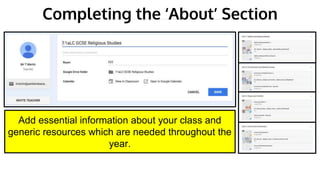
Add essential information about your class and
generic resources which are needed throughout the
year.
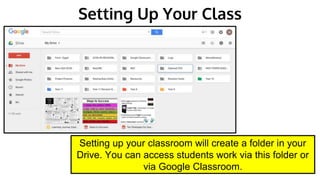
Setting Up Your Class
Setting up your classroom will create a folder in your
Drive. You can access students work via this folder or
via Google Classroom.
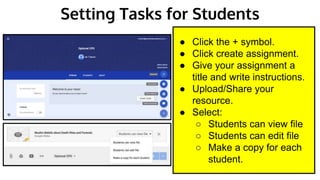
Setting Tasks for Students
● Click the + symbol.
● Click create assignment.
● Give your assignment a
title and write instructions.
● Upload/Share your
resource.
● Select:
○ Students can view file
○ Students can edit file
○ Make a copy for each
student.
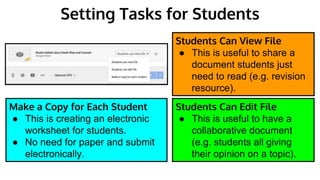
Setting Tasks for Students
Students Can View File
● This is useful to share a
document students just
need to read (e.g. revision
resource).
Students Can Edit File
● This is useful to have a
collaborative document
(e.g. students all giving
their opinion on a topic).
Make a Copy for Each Student
● This is creating an electronic
worksheet for students.
● No need for paper and submit
electronically.
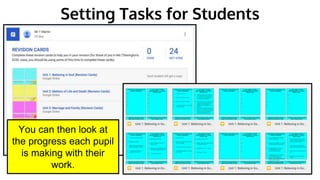
Setting Tasks for Students
You can then look at
the progress each pupil
is making with their
work.
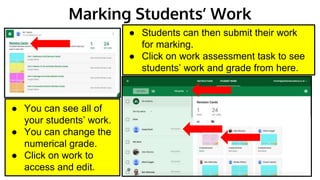
Marking Students’ Work
● Students can then submit their work
for marking.
● Click on work assessment task to see
students’ work and grade from here.
● You can see all of
your students’ work.
● You can change the
numerical grade.
● Click on work to
access and edit.
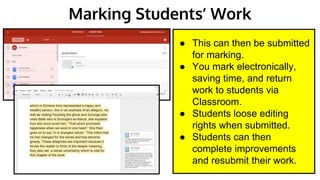
Marking Students’ Work
● This can then be submitted
for marking.
● You mark electronically,
saving time, and return
work to students via
Classroom.
● Students loose editing
rights when submitted.
● Students can then
complete improvements
and resubmit their work.
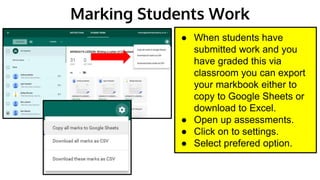
Marking Students Work
● When students have
submitted work and you
have graded this via
classroom you can export
your markbook either to
copy to Google Sheets or
download to Excel.
● Open up assessments.
● Click on to settings.
● Select prefered option.
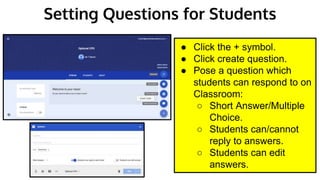
Setting Questions for Students
● Click the + symbol.
● Click create question.
● Pose a question which
students can respond to on
Classroom:
○ Short Answer/Multiple
Choice.
○ Students can/cannot
reply to answers.
○ Students can edit
answers.
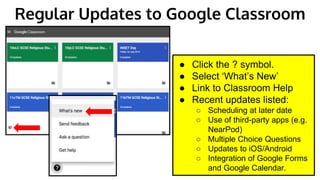
● Click the ? symbol.
● Select ‘What’s New’
● Link to Classroom Help
● Recent updates listed:
○ Scheduling at later date
○ Use of third-party apps (e.g.
NearPod)
○ Multiple Choice Questions
○ Updates to iOS/Android
○ Integration of Google Forms
and Google Calendar.
Regular Updates to Google Classroom
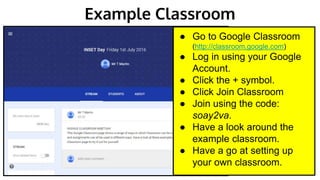
Example Classroom
● Go to Google Classroom
(http://classroom.google.com)
● Log in using your Google
Account.
● Click the + symbol.
● Click Join Classroom
● Join using the code:
soay2va.
● Have a look around the
example classroom.
● Have a go at setting up
your own classroom.
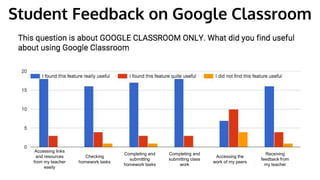
Accessing links
and resources
from my teacher
easily
Checking
homework tasks
Completing and
submitting
homework tasks
Completing and
submitting class
work
Accessing the
work of my peers
Receiving
feedback from
my teacher
Student Feedback on Google Classroom
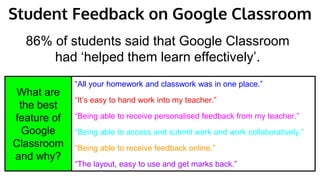
“All your homework and classwork was in one place.”
“It’s easy to hand work into my teacher.”
“Being able to receive personalised feedback from my teacher.”
“Being able to access and submit work and work collaboratively.”
“Being able to receive feedback online.”
“The layout, easy to use and get marks back.”
86% of students said that Google Classroom
had ‘helped them learn effectively’.
What are
the best
feature of
Google
Classroom
and why?
Student Feedback on Google Classroom
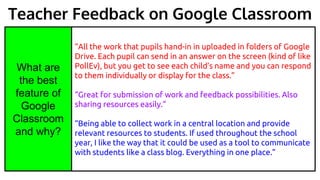
“All the work that pupils hand-in in uploaded in folders of Google
Drive. Each pupil can send in an answer on the screen (kind of like
PollEv), but you get to see each child’s name and you can respond
to them individually or display for the class.”
“Great for submission of work and feedback possibilities. Also
sharing resources easily.”
“Being able to collect work in a central location and provide
relevant resources to students. If used throughout the school
year, I like the way that it could be used as a tool to communicate
with students like a class blog. Everything in one place.”
What are
the best
feature of
Google
Classroom
and why?
Teacher Feedback on Google Classroom
Follow:
@GoogleForEdu

Google classroom optional cpd

  • 1.
    Innovation CPD: Using GoogleClassroom Kara Kellett and Tom Martin
  • 2.
    Optional CPD: Using GoogleClassroom CPD Objectives: 1. To explore Google Classroom and its features, considering how it can support effective teaching and learning and assists in integrating technology into the classroom. 1. To examine the features of setting questions and assignments through Classroom and also adding resources and individual worksheets. 1. To consider the assessment and marking process used by Google Classroom. 1. To create your own Google Classroom, exploring the features and considering how it could be used in your own subject area.
  • 3.
    What is GoogleClassroom? Future classroom?
  • 4.
    Purpose of GoogleClassroom Classroom allows teachers to create and mark assignments, make announcements and start class discussions all in one place. Benefits of using Google Classroom ● Easy to set up ● Saves time ● Improves organisation ● Enhances communication ● Secure - only class can access ● Paperless
  • 5.
    What is GoogleClassroom? “Google Classroom is considered as one of the best platforms out there for enhancing teachers' workflow. It provides a set of powerful features that make it an ideal tool to use with students. Classroom helps teachers save time, keep classes organized, and improve communication with students...Google Classroom is meant to help teachers manage the creation and collection of student assignments in a paperless environment, basically leveraging the framework of Google Docs, Drive and other Apps. Google classroom allows teachers to spend more time with their students and less time on the paperwork.” Iftakhar, S. (2016) ‘Google Classroom: What Works and How?’ Journal of Education and Social Sciences. Vol 3. Dhaka, Bangladesh: Daffodil International University. ISSN 2289-9855 2016 12
  • 6.
    Dr Heidi HayesJacobs Education Leader in developing 21st Century approaches to T&L “Teachers need to integrate technology seamlessly into the curriculum instead of viewing it as an add-on, an afterthought, or an event.”
  • 7.
    Google Classroom allowsfor the integration of technology at all level of the SAMR model, leading to the redefinition of tasks which previously have been inconceivable.
  • 9.
    Setting Up GoogleClassroom ● Log into your Google Account. ● Go to Google Classroom. ● If it is your first time going into Google Classroom set up your account, making sure you select ‘I am a Teacher’.
  • 10.
    Joining a Class ●Click on the plus symbol ● Click ‘Join Class’ You are given the option here to either JOIN or CREATE a class. You are now JOINING a class to see an example classroom.
  • 11.
    Example Classroom ● Examplesof activities and ways you might use Google Classroom. ● Have a look through and engage in the activities.
  • 12.
    ● Make sureyou add to the collaborative document to explain how you think Google Classroom might be used in your subject area.
  • 14.
    Creating a Class ●Click on the plus symbol ● Click ‘Create a Class’ You are given the option here to either JOIN or CREATE a class. You will CREATE and then pupils will need to JOIN later on.
  • 15.
    Creating a Class ●Give you class a name (typically a class code).
  • 16.
    Setting Up YourClass This is your Google Classroom Homepage. You can click to see the STREAM, STUDENTS or ABOUT.
  • 17.
    Setting Up YourClass Click SELECT THEME to personalise your online classroom. Choose between GALLERY and PATTERNS.
  • 18.
    Setting Up YourClass Click on STUDENTS to invite students to join your classroom. You can invite people or groups to join or get people to join by sharing the Class Code.
  • 19.
    Setting Up YourClass The ABOUT section allows you to fill in information about your class and also to share documents which might be of use throughout the year.
  • 20.
    Completing the ‘About’Section Add essential information about your class and generic resources which are needed throughout the year.
  • 21.
    Setting Up YourClass Setting up your classroom will create a folder in your Drive. You can access students work via this folder or via Google Classroom.
  • 22.
    Setting Tasks forStudents ● Click the + symbol. ● Click create assignment. ● Give your assignment a title and write instructions. ● Upload/Share your resource. ● Select: ○ Students can view file ○ Students can edit file ○ Make a copy for each student.
  • 23.
    Setting Tasks forStudents Students Can View File ● This is useful to share a document students just need to read (e.g. revision resource). Students Can Edit File ● This is useful to have a collaborative document (e.g. students all giving their opinion on a topic). Make a Copy for Each Student ● This is creating an electronic worksheet for students. ● No need for paper and submit electronically.
  • 24.
    Setting Tasks forStudents You can then look at the progress each pupil is making with their work.
  • 25.
    Marking Students’ Work ●Students can then submit their work for marking. ● Click on work assessment task to see students’ work and grade from here. ● You can see all of your students’ work. ● You can change the numerical grade. ● Click on work to access and edit.
  • 26.
    Marking Students’ Work ●This can then be submitted for marking. ● You mark electronically, saving time, and return work to students via Classroom. ● Students loose editing rights when submitted. ● Students can then complete improvements and resubmit their work.
  • 27.
    Marking Students Work ●When students have submitted work and you have graded this via classroom you can export your markbook either to copy to Google Sheets or download to Excel. ● Open up assessments. ● Click on to settings. ● Select prefered option.
  • 28.
    Setting Questions forStudents ● Click the + symbol. ● Click create question. ● Pose a question which students can respond to on Classroom: ○ Short Answer/Multiple Choice. ○ Students can/cannot reply to answers. ○ Students can edit answers.
  • 29.
    ● Click the? symbol. ● Select ‘What’s New’ ● Link to Classroom Help ● Recent updates listed: ○ Scheduling at later date ○ Use of third-party apps (e.g. NearPod) ○ Multiple Choice Questions ○ Updates to iOS/Android ○ Integration of Google Forms and Google Calendar. Regular Updates to Google Classroom
  • 30.
    Example Classroom ● Goto Google Classroom (http://classroom.google.com) ● Log in using your Google Account. ● Click the + symbol. ● Click Join Classroom ● Join using the code: soay2va. ● Have a look around the example classroom. ● Have a go at setting up your own classroom.
  • 31.
    Accessing links and resources frommy teacher easily Checking homework tasks Completing and submitting homework tasks Completing and submitting class work Accessing the work of my peers Receiving feedback from my teacher Student Feedback on Google Classroom
  • 32.
    “All your homeworkand classwork was in one place.” “It’s easy to hand work into my teacher.” “Being able to receive personalised feedback from my teacher.” “Being able to access and submit work and work collaboratively.” “Being able to receive feedback online.” “The layout, easy to use and get marks back.” 86% of students said that Google Classroom had ‘helped them learn effectively’. What are the best feature of Google Classroom and why? Student Feedback on Google Classroom
  • 33.
    “All the workthat pupils hand-in in uploaded in folders of Google Drive. Each pupil can send in an answer on the screen (kind of like PollEv), but you get to see each child’s name and you can respond to them individually or display for the class.” “Great for submission of work and feedback possibilities. Also sharing resources easily.” “Being able to collect work in a central location and provide relevant resources to students. If used throughout the school year, I like the way that it could be used as a tool to communicate with students like a class blog. Everything in one place.” What are the best feature of Google Classroom and why? Teacher Feedback on Google Classroom
  • 34.