Windows 8 Tips & Tricks: How To Getting Started
Windows 8 Tips & Tricks: How To Getting Started In essence, Windows 8 is very different from previous versions. So, if you install Windows Developer Preview 8 despite of the virtual machine, do not be afraid that 'get lost'. Because here are some tips and tricks for the beginner. Let's get it start.
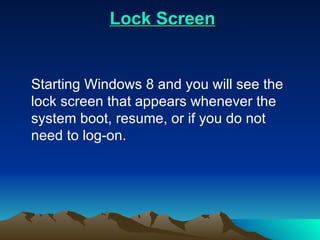
Lock Screen Starting Windows 8 and you will see the lock screen that appears whenever the system boot, resume, or if you do not need to log-on.
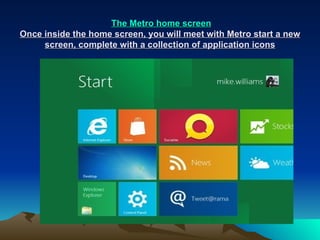
  The Metro home screen Once inside the home screen, you will meet with Metro start a new screen, complete with a collection of application icons
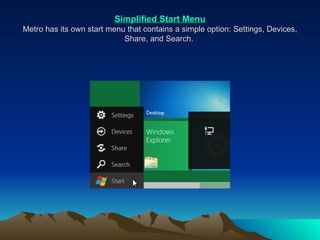
Simplified Start Menu Metro has its own start menu that contains a simple option: Settings, Devices, Share, and Search.
Run Anything To run the application, just press the Windows key and start typing the name of the application. Search Window will appear (it can be shown also by pressing Win + F) and click once to start running the application. Alternatively, press-hold the Windows key and press R to display the old Run box, enter the name of the application (eg notepad.exe), and began to run the application.
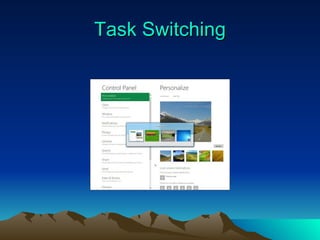
Task Switching   Metro was not equipped with a screen taskbar, so you will be confused to see what applications are being run. To see it just press Alt + Tab. Pressing Win + Tab will let you move from one application to the next.
Task Switching
Closing Time If you want to make the system clean, you must close any applications that are run manually. Press Ctrl + Alt + Esc to run Task Manager, right click on the intended application, and choose End Task.
   Log in Automatically   If you do not want logging in manually, simply press the Windows key, press R, type netplwiz and press Enter to launch the User Accounts Dialog.
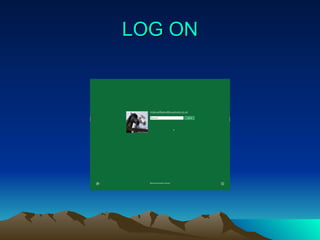
LOG ON
   Windows 8 Key Shortcuts    Win + C: show "Charms": Settings, Devices, Share, and Search Options Win + D: Display the desktop Win + E: Explorer displays Win + F: displays the Search Win + I: show Settings Win + L: lock the PC Win + P: switch the display into two or projector secreen Win + R: Run box displays Win + U: open the Ease of Access Centre Win + W: to find the system settings (example: type the POWER to view links to all related with power) Win + Z: right-click menu displays such as in full-screen mode app Metro Win + +: zoom in Win + -: zoom out Win + Tab: move between applications running
DESKTOP Now press-hold the Windows key, press 1, and you will see the desktop plus Media Player. You can do it for the Windows key and the number 2 to create a shortcut to other programs. 8 no longer have the Windows Start menu. That means you can no longer see the non-Metro programs in the system.
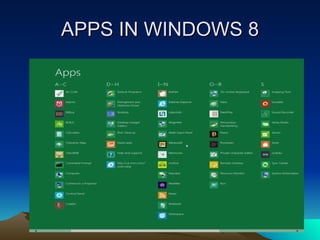
APPS IN WINDOWS 8
6.  Restore Start Menu     If you've explored the Metro, worn out, you can restore it to look old.
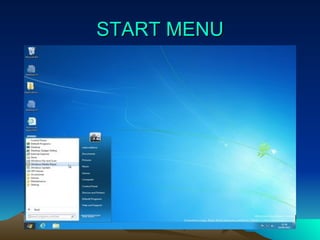
START MENU
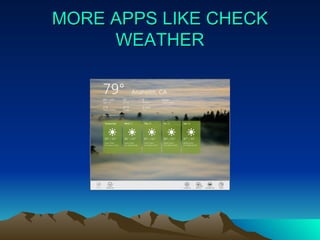
MORE APPS LIKE CHECK WEATHER
Spell Check    Metro apps has a spell-checker in accordance with user relevance. Appearance and its performance is similar to Microsoft Office. Mistakes are made will highlighted with a red line.
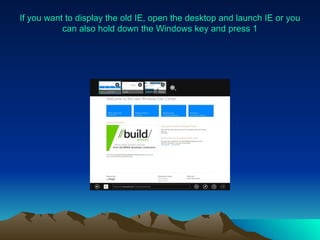
If you want to display the old IE, open the desktop and launch IE or you can also hold down the Windows key and press 1

Windows 8 tips & tricks

  • 1.
    Windows 8 Tips& Tricks: How To Getting Started
  • 2.
    Windows 8 Tips& Tricks: How To Getting Started In essence, Windows 8 is very different from previous versions. So, if you install Windows Developer Preview 8 despite of the virtual machine, do not be afraid that 'get lost'. Because here are some tips and tricks for the beginner. Let's get it start.
  • 3.
    Lock Screen StartingWindows 8 and you will see the lock screen that appears whenever the system boot, resume, or if you do not need to log-on.
  • 4.
    TheMetro home screen Once inside the home screen, you will meet with Metro start a new screen, complete with a collection of application icons
  • 5.
    Simplified Start MenuMetro has its own start menu that contains a simple option: Settings, Devices, Share, and Search.
  • 6.
    Run Anything Torun the application, just press the Windows key and start typing the name of the application. Search Window will appear (it can be shown also by pressing Win + F) and click once to start running the application. Alternatively, press-hold the Windows key and press R to display the old Run box, enter the name of the application (eg notepad.exe), and began to run the application.
  • 7.
    Task Switching Metro was not equipped with a screen taskbar, so you will be confused to see what applications are being run. To see it just press Alt + Tab. Pressing Win + Tab will let you move from one application to the next.
  • 8.
  • 9.
    Closing Time Ifyou want to make the system clean, you must close any applications that are run manually. Press Ctrl + Alt + Esc to run Task Manager, right click on the intended application, and choose End Task.
  • 10.
       Log inAutomatically   If you do not want logging in manually, simply press the Windows key, press R, type netplwiz and press Enter to launch the User Accounts Dialog.
  • 11.
  • 12.
       Windows 8Key Shortcuts   Win + C: show "Charms": Settings, Devices, Share, and Search Options Win + D: Display the desktop Win + E: Explorer displays Win + F: displays the Search Win + I: show Settings Win + L: lock the PC Win + P: switch the display into two or projector secreen Win + R: Run box displays Win + U: open the Ease of Access Centre Win + W: to find the system settings (example: type the POWER to view links to all related with power) Win + Z: right-click menu displays such as in full-screen mode app Metro Win + +: zoom in Win + -: zoom out Win + Tab: move between applications running
  • 13.
    DESKTOP Now press-holdthe Windows key, press 1, and you will see the desktop plus Media Player. You can do it for the Windows key and the number 2 to create a shortcut to other programs. 8 no longer have the Windows Start menu. That means you can no longer see the non-Metro programs in the system.
  • 14.
  • 15.
    6. RestoreStart Menu     If you've explored the Metro, worn out, you can restore it to look old.
  • 16.
  • 17.
    MORE APPS LIKECHECK WEATHER
  • 18.
    Spell Check   Metro apps has a spell-checker in accordance with user relevance. Appearance and its performance is similar to Microsoft Office. Mistakes are made will highlighted with a red line.
  • 19.
    If you wantto display the old IE, open the desktop and launch IE or you can also hold down the Windows key and press 1