
R.D.SIVAKUMAR, M.Sc.,M.Phil.,M.Tech.,
Assistant Professor of Computer Science &
Assistant Professor and Head, Department of M.Com.(CA),
Ayya Nadar Janaki Ammal College,
Sivakasi – 626 124.
Mobile: 099440-42243
e-mail : sivamsccsit@gmail.com
website: www.rdsivakumar.blogspot.in
Using Applications in Windows
Several useful applications come as part of Windows. Using them, you can
perform a wide variety of tasks. Discussed below are some of the commonly
used ones
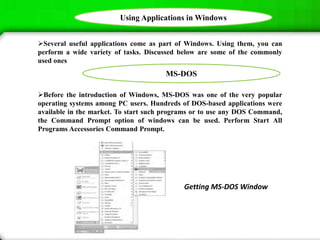
Before the introduction of Windows, MS-DOS was one of the very popular
operating systems among PC users. Hundreds of DOS-based applications were
available in the market. To start such programs or to use any DOS Command,
the Command Prompt option of windows can be used. Perform Start All
Programs Accessories Command Prompt.
Getting MS-DOS Window
MS-DOS
MS-DOS
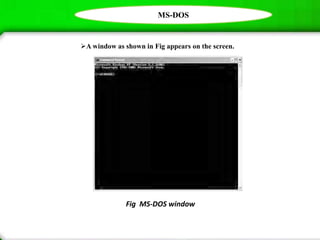
A window as shown in Fig appears on the screen.
Fig MS-DOS window
MS-DOS
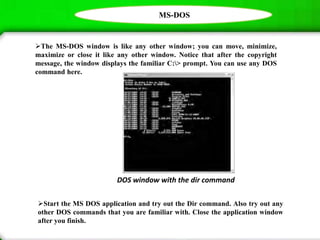
The MS-DOS window is like any other window; you can move, minimize,
maximize or close it like any other window. Notice that after the copyright
message, the window displays the familiar C:> prompt. You can use any DOS
command here.
DOS window with the dir command
Start the MS DOS application and try out the Dir command. Also try out any
other DOS commands that you are familiar with. Close the application window
after you finish.
Clock And Calendar
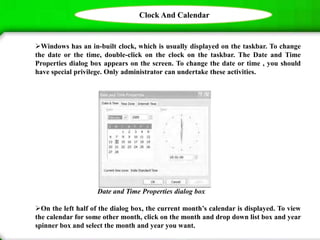
Windows has an in-built clock, which is usually displayed on the taskbar. To change
the date or the time, double-click on the clock on the taskbar. The Date and Time
Properties dialog box appears on the screen. To change the date or time , you should
have special privilege. Only administrator can undertake these activities.
Date and Time Properties dialog box
On the left half of the dialog box, the current month’s calendar is displayed. To view
the calendar for some other month, click on the month and drop down list box and year
spinner box and select the month and year you want.
Clock And Calendar
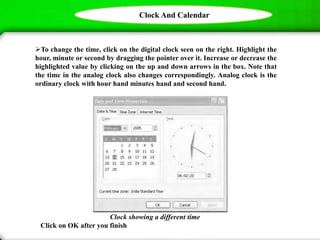
To change the time, click on the digital clock seen on the right. Highlight the
hour, minute or second by dragging the pointer over it. Increase or decrease the
highlighted value by clicking on the up and down arrows in the box. Note that
the time in the analog clock also changes correspondingly. Analog clock is the
ordinary clock with hour hand minutes hand and second hand.
Clock showing a different time
Click on OK after you finish
Calculator
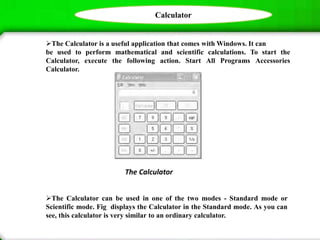
The Calculator is a useful application that comes with Windows. It can
be used to perform mathematical and scientific calculations. To start the
Calculator, execute the following action. Start All Programs Accessories
Calculator.
The Calculator can be used in one of the two modes - Standard mode or
Scientific mode. Fig displays the Calculator in the Standard mode. As you can
see, this calculator is very similar to an ordinary calculator.
The Calculator
Calculator
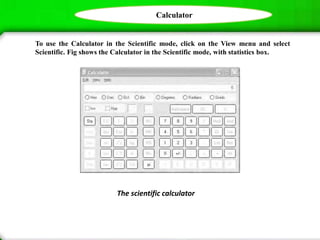
To use the Calculator in the Scientific mode, click on the View menu and select
Scientific. Fig shows the Calculator in the Scientific mode, with statistics box.
The scientific calculator
Calculator
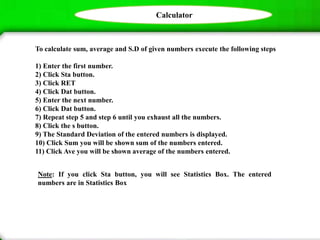
To calculate sum, average and S.D of given numbers execute the following steps
1) Enter the first number.
2) Click Sta button.
3) Click RET
4) Click Dat button.
5) Enter the next number.
6) Click Dat button.
7) Repeat step 5 and step 6 until you exhaust all the numbers.
8) Click the s button.
9) The Standard Deviation of the entered numbers is displayed.
10) Click Sum you will be shown sum of the numbers entered.
11) Click Ave you will be shown average of the numbers entered.
Note: If you click Sta button, you will see Statistics Box. The entered
numbers are in Statistics Box
Paint
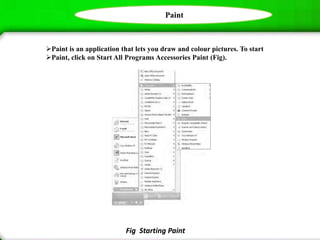
Paint is an application that lets you draw and colour pictures. To start
Paint, click on Start All Programs Accessories Paint (Fig).
Fig Starting Paint
Paint
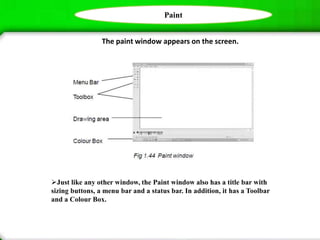
The paint window appears on the screen.
Just like any other window, the Paint window also has a title bar with
sizing buttons, a menu bar and a status bar. In addition, it has a Toolbar
and a Colour Box.
Paint
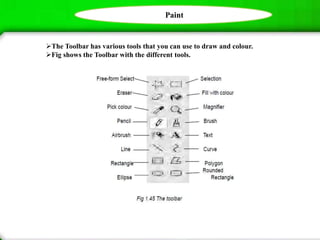
The Toolbar has various tools that you can use to draw and colour.
Fig shows the Toolbar with the different tools.
Paint
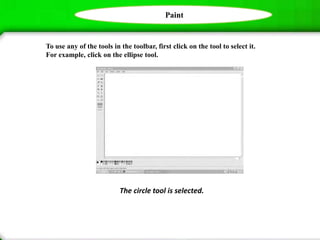
To use any of the tools in the toolbar, first click on the tool to select it.
For example, click on the ellipse tool.
The circle tool is selected.
Paint
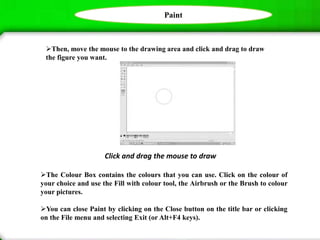
Then, move the mouse to the drawing area and click and drag to draw
the figure you want.
Click and drag the mouse to draw
The Colour Box contains the colours that you can use. Click on the colour of
your choice and use the Fill with colour tool, the Airbrush or the Brush to colour
your pictures.
You can close Paint by clicking on the Close button on the title bar or clicking
on the File menu and selecting Exit (or Alt+F4 keys).
WordPad
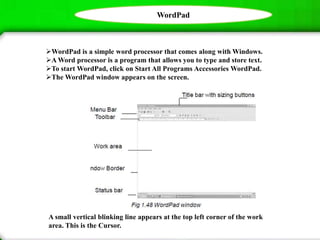
WordPad is a simple word processor that comes along with Windows.
A Word processor is a program that allows you to type and store text.
To start WordPad, click on Start All Programs Accessories WordPad.
The WordPad window appears on the screen.
A small vertical blinking line appears at the top left corner of the work
area. This is the Cursor.
WordPad
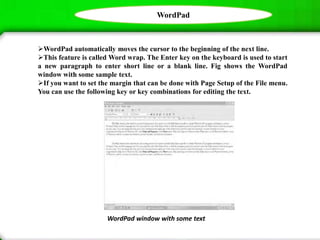
WordPad window with some text
WordPad automatically moves the cursor to the beginning of the next line.
This feature is called Word wrap. The Enter key on the keyboard is used to start
a new paragraph to enter short line or a blank line. Fig shows the WordPad
window with some sample text.
If you want to set the margin that can be done with Page Setup of the File menu.
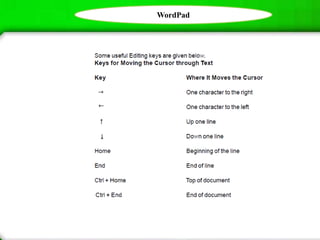
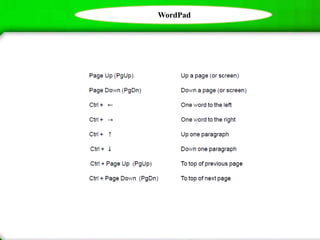
You can use the following key or key combinations for editing the text.
WordPad
WordPad
Thank you..!!

Using Applications in Windows - R.D.Sivakumar

  • 1.
    R.D.SIVAKUMAR, M.Sc.,M.Phil.,M.Tech., Assistant Professorof Computer Science & Assistant Professor and Head, Department of M.Com.(CA), Ayya Nadar Janaki Ammal College, Sivakasi – 626 124. Mobile: 099440-42243 e-mail : sivamsccsit@gmail.com website: www.rdsivakumar.blogspot.in Using Applications in Windows
  • 2.
    Using Applications inWindows Several useful applications come as part of Windows. Using them, you can perform a wide variety of tasks. Discussed below are some of the commonly used ones Before the introduction of Windows, MS-DOS was one of the very popular operating systems among PC users. Hundreds of DOS-based applications were available in the market. To start such programs or to use any DOS Command, the Command Prompt option of windows can be used. Perform Start All Programs Accessories Command Prompt. Getting MS-DOS Window MS-DOS
  • 3.
    MS-DOS A window asshown in Fig appears on the screen. Fig MS-DOS window
  • 4.
    MS-DOS The MS-DOS windowis like any other window; you can move, minimize, maximize or close it like any other window. Notice that after the copyright message, the window displays the familiar C:> prompt. You can use any DOS command here. DOS window with the dir command Start the MS DOS application and try out the Dir command. Also try out any other DOS commands that you are familiar with. Close the application window after you finish.
  • 5.
    Clock And Calendar Windowshas an in-built clock, which is usually displayed on the taskbar. To change the date or the time, double-click on the clock on the taskbar. The Date and Time Properties dialog box appears on the screen. To change the date or time , you should have special privilege. Only administrator can undertake these activities. Date and Time Properties dialog box On the left half of the dialog box, the current month’s calendar is displayed. To view the calendar for some other month, click on the month and drop down list box and year spinner box and select the month and year you want.
  • 6.
    Clock And Calendar Tochange the time, click on the digital clock seen on the right. Highlight the hour, minute or second by dragging the pointer over it. Increase or decrease the highlighted value by clicking on the up and down arrows in the box. Note that the time in the analog clock also changes correspondingly. Analog clock is the ordinary clock with hour hand minutes hand and second hand. Clock showing a different time Click on OK after you finish
  • 7.
    Calculator The Calculator isa useful application that comes with Windows. It can be used to perform mathematical and scientific calculations. To start the Calculator, execute the following action. Start All Programs Accessories Calculator. The Calculator can be used in one of the two modes - Standard mode or Scientific mode. Fig displays the Calculator in the Standard mode. As you can see, this calculator is very similar to an ordinary calculator. The Calculator
  • 8.
    Calculator To use theCalculator in the Scientific mode, click on the View menu and select Scientific. Fig shows the Calculator in the Scientific mode, with statistics box. The scientific calculator
  • 9.
    Calculator To calculate sum,average and S.D of given numbers execute the following steps 1) Enter the first number. 2) Click Sta button. 3) Click RET 4) Click Dat button. 5) Enter the next number. 6) Click Dat button. 7) Repeat step 5 and step 6 until you exhaust all the numbers. 8) Click the s button. 9) The Standard Deviation of the entered numbers is displayed. 10) Click Sum you will be shown sum of the numbers entered. 11) Click Ave you will be shown average of the numbers entered. Note: If you click Sta button, you will see Statistics Box. The entered numbers are in Statistics Box
  • 10.
    Paint Paint is anapplication that lets you draw and colour pictures. To start Paint, click on Start All Programs Accessories Paint (Fig). Fig Starting Paint
  • 11.
    Paint The paint windowappears on the screen. Just like any other window, the Paint window also has a title bar with sizing buttons, a menu bar and a status bar. In addition, it has a Toolbar and a Colour Box.
  • 12.
    Paint The Toolbar hasvarious tools that you can use to draw and colour. Fig shows the Toolbar with the different tools.
  • 13.
    Paint To use anyof the tools in the toolbar, first click on the tool to select it. For example, click on the ellipse tool. The circle tool is selected.
  • 14.
    Paint Then, move themouse to the drawing area and click and drag to draw the figure you want. Click and drag the mouse to draw The Colour Box contains the colours that you can use. Click on the colour of your choice and use the Fill with colour tool, the Airbrush or the Brush to colour your pictures. You can close Paint by clicking on the Close button on the title bar or clicking on the File menu and selecting Exit (or Alt+F4 keys).
  • 15.
    WordPad WordPad is asimple word processor that comes along with Windows. A Word processor is a program that allows you to type and store text. To start WordPad, click on Start All Programs Accessories WordPad. The WordPad window appears on the screen. A small vertical blinking line appears at the top left corner of the work area. This is the Cursor.
  • 16.
    WordPad WordPad window withsome text WordPad automatically moves the cursor to the beginning of the next line. This feature is called Word wrap. The Enter key on the keyboard is used to start a new paragraph to enter short line or a blank line. Fig shows the WordPad window with some sample text. If you want to set the margin that can be done with Page Setup of the File menu. You can use the following key or key combinations for editing the text.
  • 17.
  • 18.
  • 19.