Microsoft Office 2003 Illustrated Introductory Started with Windows XP Getting
Start Windows and view the desktop Use the mouse Start a program Move and resize windows Use menus, keyboard shortcuts, and toolbars Objectives
Use dialog boxes Use scroll bars Use Windows Help and Support Center Close a program and shut down Windows Objectives
Unit Introduction Microsoft Windows is an  operating system program  that controls: The operation of computer The display of information on your screen Programs you run on your computer Programs ,   also known as  applications , are task-oriented software that help you to accomplish tasks such as word processing or using a spreadsheet  Windows also coordinates the flow of information among the programs, printers, storage devices, and other components
Unit Introduction (cont.) Windows helps you save and organize the results of your work as files Files  are electronic collections of data, each with its own unique  filename Icons  in Windows are small pictures that are meaningful symbols of the items or tasks they represent You will also use rectangular-shaped work areas, known as  windows
Starting Windows and  Viewing the Desktop The  desktop  is an on-screen version of an actual desk, containing windows, icons, files and programs From the desktop, you can access, store, and share information on a computer, a network, or on the Internet When you start Windows for the first time, the  default  settings are used, which are preset by the operating system
Starting Windows and  Viewing the Desktop (cont.) Turn on your computer and monitor Windows automatically starts and displays the desktop, or a logon screen where you must enter a password, then press [Enter] Mouse pointer Start button Desktop background Taskbar Icon
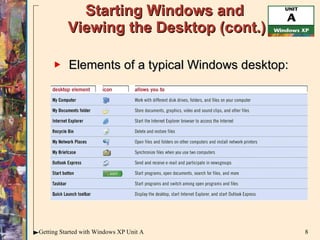
Starting Windows and  Viewing the Desktop (cont.) Elements of a typical Windows desktop:
Accessing the Internet  from the Desktop Windows XP provides a seamless connection between the desktop and the Internet with Internet Explorer (IE) IE is an example of a  browser , a program designed to access the  World Wide Web  (aka the Web, or WWW) You can access IE from the Start menu, or by clicking its icon on the desktop You can use it to access Web pages and to place Web content on the desktop
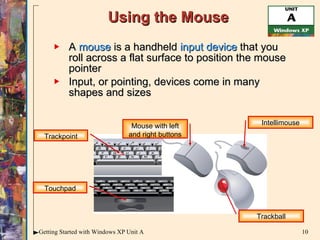
Using the Mouse A  mouse  is a handheld  input device  that you roll across a flat surface to position the mouse pointer Input, or pointing, devices come in many shapes and sizes Trackpoint Touchpad Mouse with left and right buttons Intellimouse Trackball
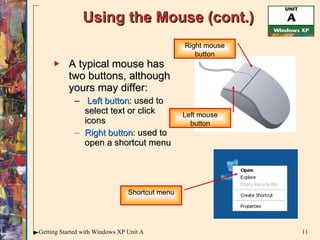
Using the Mouse (cont.) A typical mouse has two buttons, although yours may differ: Left button : used to select text or click icons Right button : used to open a shortcut menu Left mouse button Right mouse button Shortcut menu
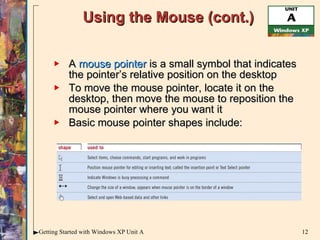
Using the Mouse (cont.) A  mouse pointer  is a small symbol that indicates the pointer’s relative position on the desktop To move the mouse pointer, locate it on the desktop, then move the mouse to reposition the mouse pointer where you want it Basic mouse pointer shapes include:
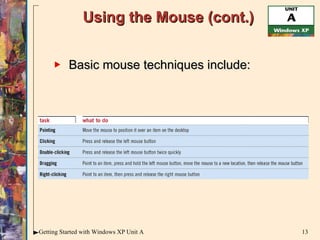
Using the Mouse (cont.) Basic mouse techniques include:
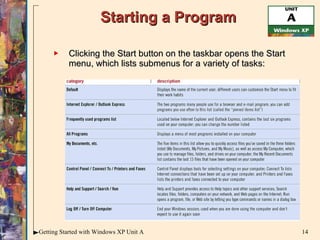
Starting a Program Clicking the Start button on the taskbar opens the Start menu, which lists submenus for a variety of tasks:
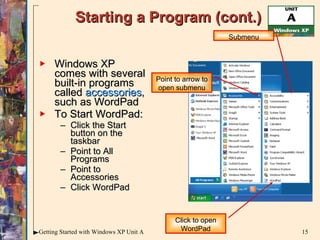
Starting a Program (cont.) Windows XP comes with several built-in programs called  accessories , such as WordPad To Start WordPad: Click the Start button on the taskbar Point to All Programs Point to Accessories Click WordPad Click to open WordPad Submenu Point to arrow to open submenu
Customizing the Start Menu You can change the way the Start menu looks and behaves, including making it have the look and feel of previous Windows versions (called Windows Classic) To customize the Start menu: Click the Start button on the taskbar, then click Control Panel In the Control Panel, click Switch to Classic View if necessary, then double-click the Taskbar and Start Menu icon
Moving and Resizing Windows You can open more than one window or program at a time You can identify a window by the title bar, which shows the program and filename if applicable  Each window has a border that you can use to resize it and buttons to maximize or minimize it The desktop can get cluttered, so you need to organize it by resizing or moving windows
Moving and Resizing Windows (cont.) To resize a window using buttons, click the appropriate button in the upper-right corner of the window. To make it:  An icon on the taskbar, click the Minimize button  Fill the screen, click the Maximize button  Closed, click the Close button
Moving and Resizing Windows (cont.) To move a window, position the mouse pointer over the title bar, click the left mouse button, then drag the window to the new location To resize a window using the mouse: Position the pointer over an edge or a corner of the window until the pointer becomes a double-sided arrow Click the left mouse button, then drag in the direction you want to resize the window
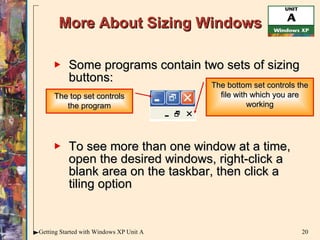
More About Sizing Windows Some programs contain two sets of sizing buttons: To see more than one window at a time, open the desired windows, right-click a blank area on the taskbar, then click a tiling option The top set controls the program The bottom set controls the file with which you are working
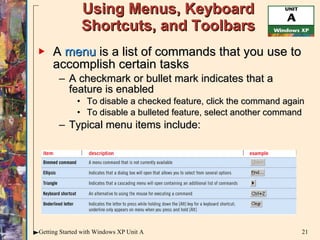
Using Menus, Keyboard Shortcuts, and Toolbars A  menu  is a list of commands that you use to accomplish certain tasks A checkmark or bullet mark indicates that a feature is enabled To disable a checked feature, click the command again To disable a bulleted feature, select another command Typical menu items include:
Using Menus, Keyboard Shortcuts, and Toolbars (cont.) A  keyboard shortcut  lets you press a button or combination of buttons to perform a task or navigate through a menu or dialog box For example, press [Ctrl][C] to copy selected text in a document On a menu,  keyboard navigation indicators , underlined letters in a command name, can be used instead of the mouse to select items For example, press [Alt][V] to open the View menu, then press [T] to open the Toolbars submenu
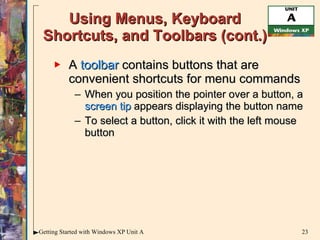
Using Menus, Keyboard Shortcuts, and Toolbars (cont.) A  toolbar  contains buttons that are convenient shortcuts for menu commands When you position the pointer over a button, a  screen tip  appears displaying the button name To select a button, click it with the left mouse button
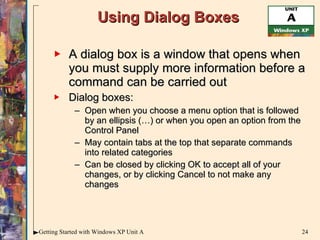
Using Dialog Boxes A dialog box is a window that opens when you must supply more information before a command can be carried out Dialog boxes: Open when you choose a menu option that is followed by an ellipsis (…) or when you open an option from the Control Panel May contain tabs at the top that separate commands into related categories Can be closed by clicking OK to accept all of your changes, or by clicking Cancel to not make any changes
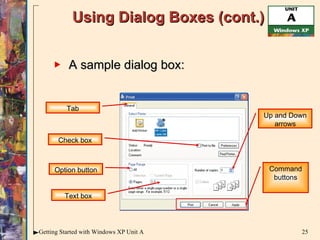
Using Dialog Boxes (cont.) A sample dialog box: Tab Check box Option button Text box Up and Down arrows Command buttons
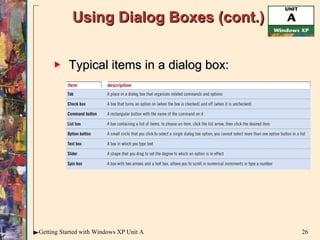
Using Dialog Boxes (cont.) Typical items in a dialog box:
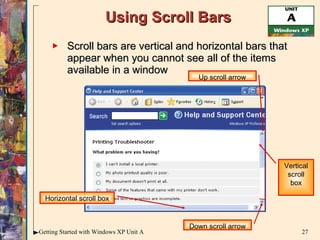
Using Scroll Bars Scroll bars are vertical and horizontal bars that appear when you cannot see all of the items available in a window Up scroll arrow Horizontal scroll box Down scroll arrow Vertical scroll box
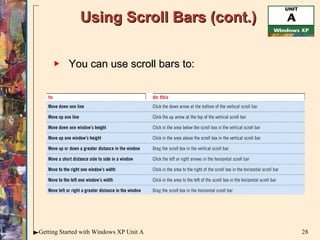
Using Scroll Bars (cont.) You can use scroll bars to:
Using Windows Help  and Support Center The Help and Support center is a complete resource of information, training, and support to help you use Windows XP Help and Support is like a book stored on your computer, with additional links to the Internet, a search features, an index, and a table of contents You can access  context-sensitive help , which is help specifically related to the task you are doing
Using Windows Help and Support Center (cont.) To use Help and Support: Click the Start button on the taskbar, then click Help and Support The Help and Support Center window opens In the Search text box, type the search criteria, then press [Enter] Search text box Links for popular topics
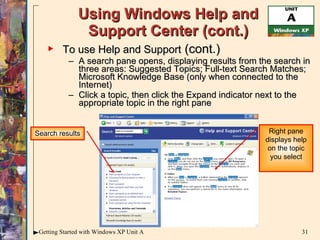
Using Windows Help and Support Center (cont.) To use Help and Support  (cont.) A search pane opens, displaying results from the search in three areas: Suggested Topics; Full-text Search Matches; Microsoft Knowledge Base (only when connected to the Internet) Click a topic, then click the Expand indicator next to the appropriate topic in the right pane Search results Right pane displays help on the topic you select
Using Windows Help and  Support Center (cont.) Click the buttons on the Help toolbar to: Navigate back and forth between Help topics you have visited Add a topic to the Favorites list so you can return to it later
Other Forms of Help To get help on a specific Windows program Click Help on the menu bar OR Click the Help button in the upper-right corner of a dialog box, then click the mouse pointer on the item for which you need additional help OR Right-click an item in a dialog box, then click What’s This? to display an explanation
Closing a Program and  Shutting Down Windows Closing a program properly ensures that the file is saved  Shutting down the computer properly prevents loss of data and problems restarting Windows Shutting down involves several steps: Closing all open windows and programs Shutting down Windows Turning off the computer
Closing a Program and  Shutting Down Windows (cont.) To close a program: Click the Close button in the upper-right corner of the window OR Click File on the menu bar, then click Close or Exit
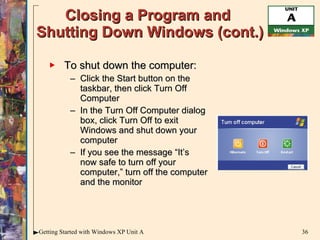
Closing a Program and  Shutting Down Windows (cont.) To shut down the computer: Click the Start button on the taskbar, then click Turn Off Computer In the Turn Off Computer dialog box, click Turn Off to exit Windows and shut down your computer If you see the message “It’s now safe to turn off your computer,” turn off the computer and the monitor
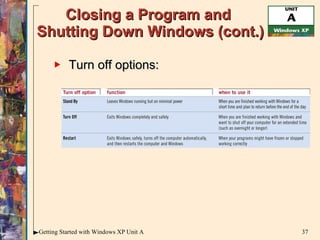
Closing a Program and  Shutting Down Windows (cont.) Turn off options:
The Log Off Command Logging off is used when you want to change users quickly You can choose to switch users, which logs off the current user and allows another user to log on or simply log off Windows shuts down partially When a new user logs on by clicking a user name and entering a password, Windows restarts and the desktop reappears

Windows xp unit a

  • 1.
    Microsoft Office 2003Illustrated Introductory Started with Windows XP Getting
  • 2.
    Start Windows andview the desktop Use the mouse Start a program Move and resize windows Use menus, keyboard shortcuts, and toolbars Objectives
  • 3.
    Use dialog boxesUse scroll bars Use Windows Help and Support Center Close a program and shut down Windows Objectives
  • 4.
    Unit Introduction MicrosoftWindows is an operating system program that controls: The operation of computer The display of information on your screen Programs you run on your computer Programs , also known as applications , are task-oriented software that help you to accomplish tasks such as word processing or using a spreadsheet Windows also coordinates the flow of information among the programs, printers, storage devices, and other components
  • 5.
    Unit Introduction (cont.)Windows helps you save and organize the results of your work as files Files are electronic collections of data, each with its own unique filename Icons in Windows are small pictures that are meaningful symbols of the items or tasks they represent You will also use rectangular-shaped work areas, known as windows
  • 6.
    Starting Windows and Viewing the Desktop The desktop is an on-screen version of an actual desk, containing windows, icons, files and programs From the desktop, you can access, store, and share information on a computer, a network, or on the Internet When you start Windows for the first time, the default settings are used, which are preset by the operating system
  • 7.
    Starting Windows and Viewing the Desktop (cont.) Turn on your computer and monitor Windows automatically starts and displays the desktop, or a logon screen where you must enter a password, then press [Enter] Mouse pointer Start button Desktop background Taskbar Icon
  • 8.
    Starting Windows and Viewing the Desktop (cont.) Elements of a typical Windows desktop:
  • 9.
    Accessing the Internet from the Desktop Windows XP provides a seamless connection between the desktop and the Internet with Internet Explorer (IE) IE is an example of a browser , a program designed to access the World Wide Web (aka the Web, or WWW) You can access IE from the Start menu, or by clicking its icon on the desktop You can use it to access Web pages and to place Web content on the desktop
  • 10.
    Using the MouseA mouse is a handheld input device that you roll across a flat surface to position the mouse pointer Input, or pointing, devices come in many shapes and sizes Trackpoint Touchpad Mouse with left and right buttons Intellimouse Trackball
  • 11.
    Using the Mouse(cont.) A typical mouse has two buttons, although yours may differ: Left button : used to select text or click icons Right button : used to open a shortcut menu Left mouse button Right mouse button Shortcut menu
  • 12.
    Using the Mouse(cont.) A mouse pointer is a small symbol that indicates the pointer’s relative position on the desktop To move the mouse pointer, locate it on the desktop, then move the mouse to reposition the mouse pointer where you want it Basic mouse pointer shapes include:
  • 13.
    Using the Mouse(cont.) Basic mouse techniques include:
  • 14.
    Starting a ProgramClicking the Start button on the taskbar opens the Start menu, which lists submenus for a variety of tasks:
  • 15.
    Starting a Program(cont.) Windows XP comes with several built-in programs called accessories , such as WordPad To Start WordPad: Click the Start button on the taskbar Point to All Programs Point to Accessories Click WordPad Click to open WordPad Submenu Point to arrow to open submenu
  • 16.
    Customizing the StartMenu You can change the way the Start menu looks and behaves, including making it have the look and feel of previous Windows versions (called Windows Classic) To customize the Start menu: Click the Start button on the taskbar, then click Control Panel In the Control Panel, click Switch to Classic View if necessary, then double-click the Taskbar and Start Menu icon
  • 17.
    Moving and ResizingWindows You can open more than one window or program at a time You can identify a window by the title bar, which shows the program and filename if applicable Each window has a border that you can use to resize it and buttons to maximize or minimize it The desktop can get cluttered, so you need to organize it by resizing or moving windows
  • 18.
    Moving and ResizingWindows (cont.) To resize a window using buttons, click the appropriate button in the upper-right corner of the window. To make it: An icon on the taskbar, click the Minimize button Fill the screen, click the Maximize button Closed, click the Close button
  • 19.
    Moving and ResizingWindows (cont.) To move a window, position the mouse pointer over the title bar, click the left mouse button, then drag the window to the new location To resize a window using the mouse: Position the pointer over an edge or a corner of the window until the pointer becomes a double-sided arrow Click the left mouse button, then drag in the direction you want to resize the window
  • 20.
    More About SizingWindows Some programs contain two sets of sizing buttons: To see more than one window at a time, open the desired windows, right-click a blank area on the taskbar, then click a tiling option The top set controls the program The bottom set controls the file with which you are working
  • 21.
    Using Menus, KeyboardShortcuts, and Toolbars A menu is a list of commands that you use to accomplish certain tasks A checkmark or bullet mark indicates that a feature is enabled To disable a checked feature, click the command again To disable a bulleted feature, select another command Typical menu items include:
  • 22.
    Using Menus, KeyboardShortcuts, and Toolbars (cont.) A keyboard shortcut lets you press a button or combination of buttons to perform a task or navigate through a menu or dialog box For example, press [Ctrl][C] to copy selected text in a document On a menu, keyboard navigation indicators , underlined letters in a command name, can be used instead of the mouse to select items For example, press [Alt][V] to open the View menu, then press [T] to open the Toolbars submenu
  • 23.
    Using Menus, KeyboardShortcuts, and Toolbars (cont.) A toolbar contains buttons that are convenient shortcuts for menu commands When you position the pointer over a button, a screen tip appears displaying the button name To select a button, click it with the left mouse button
  • 24.
    Using Dialog BoxesA dialog box is a window that opens when you must supply more information before a command can be carried out Dialog boxes: Open when you choose a menu option that is followed by an ellipsis (…) or when you open an option from the Control Panel May contain tabs at the top that separate commands into related categories Can be closed by clicking OK to accept all of your changes, or by clicking Cancel to not make any changes
  • 25.
    Using Dialog Boxes(cont.) A sample dialog box: Tab Check box Option button Text box Up and Down arrows Command buttons
  • 26.
    Using Dialog Boxes(cont.) Typical items in a dialog box:
  • 27.
    Using Scroll BarsScroll bars are vertical and horizontal bars that appear when you cannot see all of the items available in a window Up scroll arrow Horizontal scroll box Down scroll arrow Vertical scroll box
  • 28.
    Using Scroll Bars(cont.) You can use scroll bars to:
  • 29.
    Using Windows Help and Support Center The Help and Support center is a complete resource of information, training, and support to help you use Windows XP Help and Support is like a book stored on your computer, with additional links to the Internet, a search features, an index, and a table of contents You can access context-sensitive help , which is help specifically related to the task you are doing
  • 30.
    Using Windows Helpand Support Center (cont.) To use Help and Support: Click the Start button on the taskbar, then click Help and Support The Help and Support Center window opens In the Search text box, type the search criteria, then press [Enter] Search text box Links for popular topics
  • 31.
    Using Windows Helpand Support Center (cont.) To use Help and Support (cont.) A search pane opens, displaying results from the search in three areas: Suggested Topics; Full-text Search Matches; Microsoft Knowledge Base (only when connected to the Internet) Click a topic, then click the Expand indicator next to the appropriate topic in the right pane Search results Right pane displays help on the topic you select
  • 32.
    Using Windows Helpand Support Center (cont.) Click the buttons on the Help toolbar to: Navigate back and forth between Help topics you have visited Add a topic to the Favorites list so you can return to it later
  • 33.
    Other Forms ofHelp To get help on a specific Windows program Click Help on the menu bar OR Click the Help button in the upper-right corner of a dialog box, then click the mouse pointer on the item for which you need additional help OR Right-click an item in a dialog box, then click What’s This? to display an explanation
  • 34.
    Closing a Programand Shutting Down Windows Closing a program properly ensures that the file is saved Shutting down the computer properly prevents loss of data and problems restarting Windows Shutting down involves several steps: Closing all open windows and programs Shutting down Windows Turning off the computer
  • 35.
    Closing a Programand Shutting Down Windows (cont.) To close a program: Click the Close button in the upper-right corner of the window OR Click File on the menu bar, then click Close or Exit
  • 36.
    Closing a Programand Shutting Down Windows (cont.) To shut down the computer: Click the Start button on the taskbar, then click Turn Off Computer In the Turn Off Computer dialog box, click Turn Off to exit Windows and shut down your computer If you see the message “It’s now safe to turn off your computer,” turn off the computer and the monitor
  • 37.
    Closing a Programand Shutting Down Windows (cont.) Turn off options:
  • 38.
    The Log OffCommand Logging off is used when you want to change users quickly You can choose to switch users, which logs off the current user and allows another user to log on or simply log off Windows shuts down partially When a new user logs on by clicking a user name and entering a password, Windows restarts and the desktop reappears