Quick Reference
Using Microsoft Office Applications with SMART software
When software is Ink Aware, you can write and draw directly into an active file. When you save an Ink Aware application file,
your notes and drawings will be visible the next time you open it. Microsoft®
Word, Excel®
and PowerPoint®
software are
the most commonly used Ink Aware applications.
Microsoft Word and Excel software
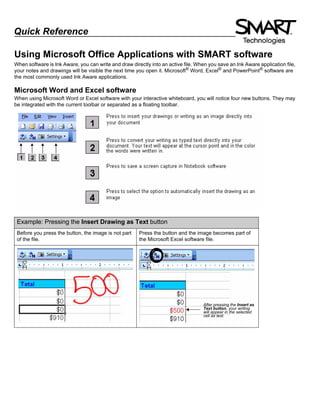
When using Microsoft Word or Excel software with your interactive whiteboard, you will notice four new buttons. They may
be integrated with the current toolbar or separated as a floating toolbar.
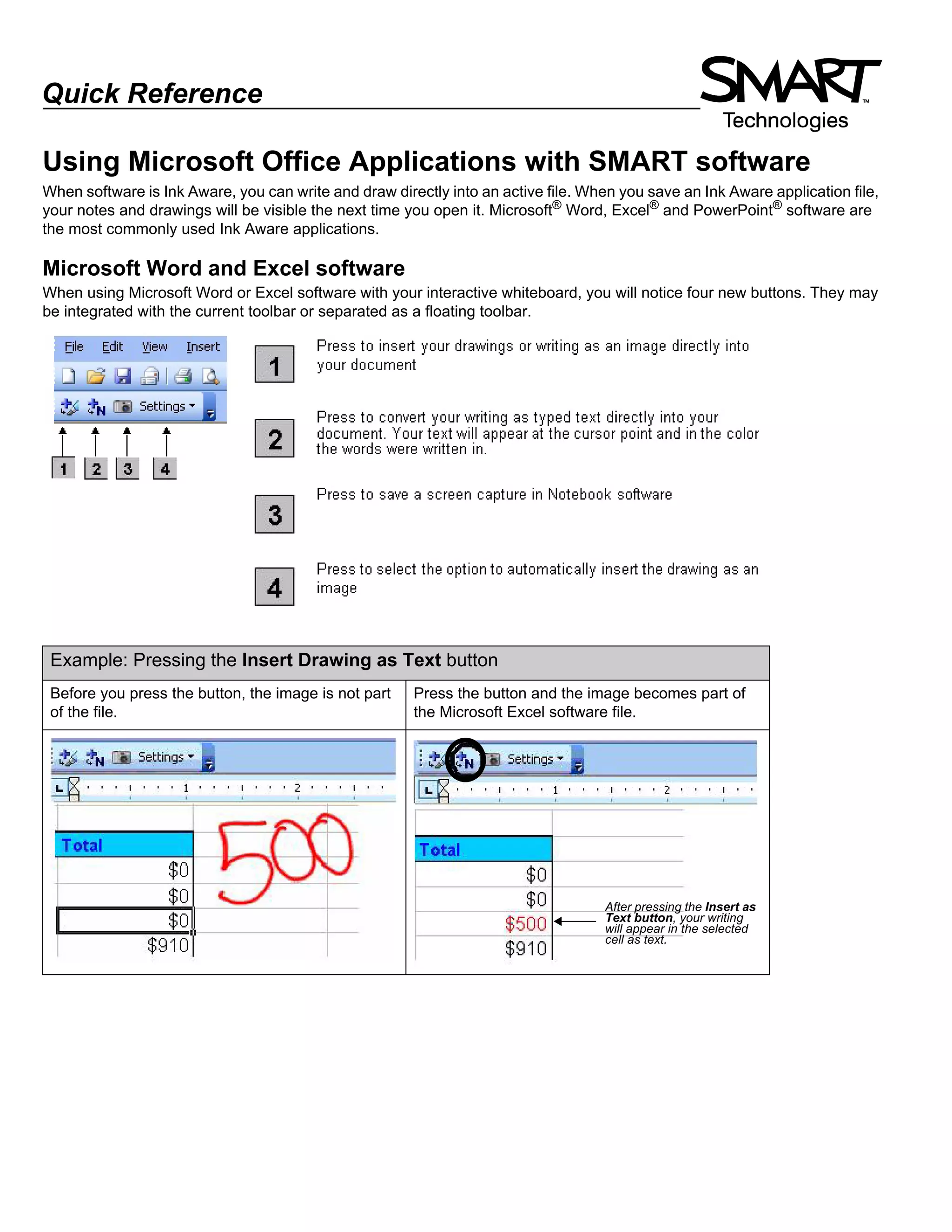
Example: Pressing the Insert Drawing as Text button
Before you press the button, the image is not part
of the file.
Press the button and the image becomes part of
the Microsoft Excel software file.
After pressing the Insert as
Text button, your writing
will appear in the selected
cell as text.
© 2008 SMART Technologies ULC. All rights reserved. Notebook and the SMART logo are trademarks of SMART Technologies ULC. Microsoft, PowerPoint and
Excel are registered trademarks of Microsoft corporation in the U.S. and other countries. All other third-party products and company names may be trademarks
of their respective owners. Printed in Canada 03/2008.
PowerPoint software
When you are presenting a slide show with PowerPoint software on a SMART brand product, you can save your notes as
images and save screen captures to Notebook software, just as you can when using Microsoft Word or Excel software. Use
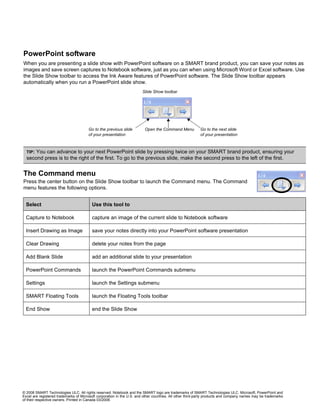
the Slide Show toolbar to access the Ink Aware features of PowerPoint software. The Slide Show toolbar appears
automatically when you run a PowerPoint slide show.
The Command menu
Press the center button on the Slide Show toolbar to launch the Command menu. The Command
menu features the following options.
TIP: You can advance to your next PowerPoint slide by pressing twice on your SMART brand product, ensuring your
second press is to the right of the first. To go to the previous slide, make the second press to the left of the first.
Select Use this tool to
Capture to Notebook capture an image of the current slide to Notebook software
Insert Drawing as Image save your notes directly into your PowerPoint software presentation
Clear Drawing delete your notes from the page
Add Blank Slide add an additional slide to your presentation
PowerPoint Commands launch the PowerPoint Commands submenu
Settings launch the Settings submenu
SMART Floating Tools launch the Floating Tools toolbar
End Show end the Slide Show
Slide Show toolbar
Go to the next slide
of your presentation
Open the Command MenuGo to the previous slide
of your presentation

Inkawareqr

  • 1.
    Quick Reference Using MicrosoftOffice Applications with SMART software When software is Ink Aware, you can write and draw directly into an active file. When you save an Ink Aware application file, your notes and drawings will be visible the next time you open it. Microsoft® Word, Excel® and PowerPoint® software are the most commonly used Ink Aware applications. Microsoft Word and Excel software When using Microsoft Word or Excel software with your interactive whiteboard, you will notice four new buttons. They may be integrated with the current toolbar or separated as a floating toolbar. Example: Pressing the Insert Drawing as Text button Before you press the button, the image is not part of the file. Press the button and the image becomes part of the Microsoft Excel software file. After pressing the Insert as Text button, your writing will appear in the selected cell as text.
  • 2.
    © 2008 SMARTTechnologies ULC. All rights reserved. Notebook and the SMART logo are trademarks of SMART Technologies ULC. Microsoft, PowerPoint and Excel are registered trademarks of Microsoft corporation in the U.S. and other countries. All other third-party products and company names may be trademarks of their respective owners. Printed in Canada 03/2008. PowerPoint software When you are presenting a slide show with PowerPoint software on a SMART brand product, you can save your notes as images and save screen captures to Notebook software, just as you can when using Microsoft Word or Excel software. Use the Slide Show toolbar to access the Ink Aware features of PowerPoint software. The Slide Show toolbar appears automatically when you run a PowerPoint slide show. The Command menu Press the center button on the Slide Show toolbar to launch the Command menu. The Command menu features the following options. TIP: You can advance to your next PowerPoint slide by pressing twice on your SMART brand product, ensuring your second press is to the right of the first. To go to the previous slide, make the second press to the left of the first. Select Use this tool to Capture to Notebook capture an image of the current slide to Notebook software Insert Drawing as Image save your notes directly into your PowerPoint software presentation Clear Drawing delete your notes from the page Add Blank Slide add an additional slide to your presentation PowerPoint Commands launch the PowerPoint Commands submenu Settings launch the Settings submenu SMART Floating Tools launch the Floating Tools toolbar End Show end the Slide Show Slide Show toolbar Go to the next slide of your presentation Open the Command MenuGo to the previous slide of your presentation