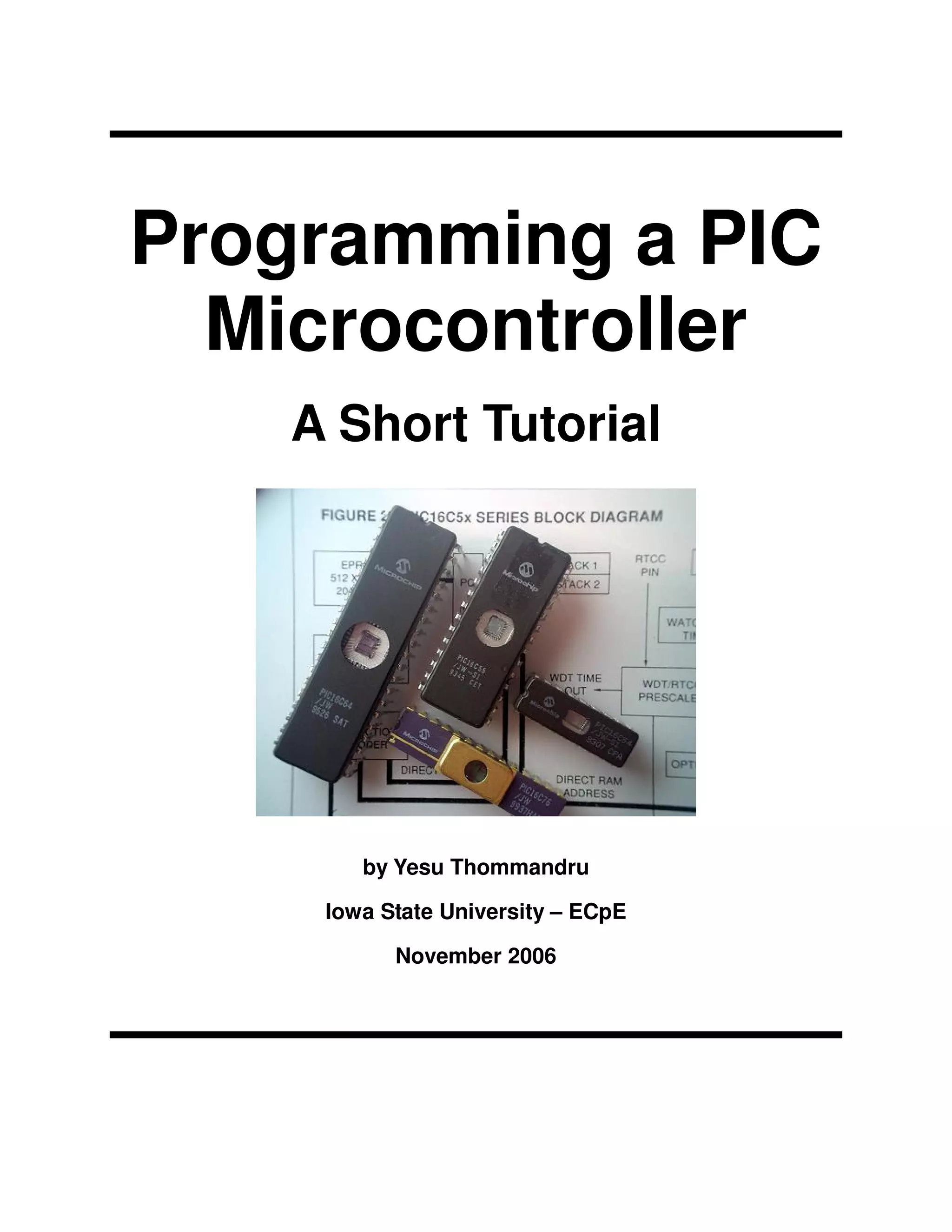
Programming a PIC
Microcontroller
A Short Tutorial

by Yesu Thommandru
Iowa State University – ECpE
November 2006
Programming a PIC Microcontroller

Page ii of 24

Table of Contents
Table of Contents .......................................................................................................................... ii
Revision Record ........................................................................................................................... iii
1. Introduction..............................................................................................................................1
1.1
1.2
1.3
1.4

Purpose.........................................................................................................................................1
Document Conventions................................................................................................................1
Intended Audience and Reading Suggestions..............................................................................1
References....................................................................................................................................2

2.1
2.2

Introduction..................................................................................................................................3
Types of PICs...............................................................................................................................3

2. Choosing a PIC Microcontroller ............................................................................................3
3. Integrated Development Environment...................................................................................4
4. Programming Language..........................................................................................................4
5. Compiler, Assembler, and Linker ..........................................................................................6
6. Using MPLab IDE....................................................................................................................7
7. Writing Software....................................................................................................................11
8. The “Burning” Process..........................................................................................................12
9. Breadboarding a PIC Microcontroller ................................................................................18
10. Other Considerations.............................................................................................................21
Programming a PIC Microcontroller

Page iii of 24

Revision Record
Name

Date

Reason For Changes

Version

Yesu Thommandru
Yesu Thommandru
Yesu Thommandru

11/17/06
11/18/06
11/19/06

Started tutorial
Finished majority of tutorial
Added breadboard images, finished and posted
tutorial on Dec06-04 website.

1.0
1.1
1.2
Programming a PIC Microcontroller

Page 1 of 24

1. Introduction
1.1 Purpose
The purpose of this document is to provide a simple, easy to use tutorial on programming PIC
microcontrollers. The tutorial begins with instructions on selecting a specific PIC and ends with
directions for breadboarding the microcontroller.

1.2 Document Conventions
In this document different styles of text and visuals are used to help the reader separate different
types of information. General description text will be in this format, size 11 italicized Arial.
Pseudo-code or source code will be written in multi-color, size 10 Courier New font as in the
following example:
#include <stdio.h>
void main(int argc, char *argv[])
{
printf("Star Wars!n”);
return;
}

Buttons and menu items will be in standard Arial text such as Button with the first letter underlined.
Important notes and pieces of information will appear in normal text in shaded boxes as in the
following example:
NOTE: I think Darth Vader would win in a fight against Boba Fett!

1.3 Intended Audience and Reading Suggestions
The intended audience of this document is students in the Department of Electrical and Computer
Engineering enrolled in EE/CprE 491 or 492 Senior Design. This document can also be used by
any student or individual who wishes to learn the basics of how to program a PIC microcontroller.
There are a number of suggested readings for any users of this document. The following books
are suggested for specific PIC programming tasks:
Introduction to microelectronic systems: the PIC 16F84 microcontroller by Martin Bates.
PIC microcontroller: an intro to software and hardware interfacing by Han-Way Huang.
The PIC microcontroller: your personal introductory course by John Morton.
PIC microcontroller project book by John Lovine.
Programming and customizing the PIC microcontroller by Myke Predko.
The quintessential PIC microcontroller by Sid Katzen.
NOTE: In my experience most of software in these books is written in Assembly and are thus not
useful to students wishing to program in a high-level programming language.
Programming a PIC Microcontroller

Page 2 of 24

1.4 References
Schildt, Herbert. C/C++ Programmer’s Reference 2nd Edition. McGraw-Hill Publishing. New
York, 2000.
Morton, John. PIC Your Personal Introductory Course. Newnes. Boston, 1998.
Bergquist, Carl. Guide to PICMICRO Microcontrollers. Sams Technical Publications. Indianapolis,
2001.
Predko, Myke. Handbook of Microcontrollers. McGraw-Hill Publishing. New York, 1999.
Predko, Myke. PICMicro Microcontroller Pocket Reference. McGraw-Hill. New York. 2000.
Smith, D.W. PIC in Practice. Newnes. Oxford. 2002.
Microchip.com. PIC16F877A. 2006. <http://www.microchip.com/>
MicrochipC.com PICMicros and C <http://www.microchipc.com/>
Best Microcontroller Projects <http://www.best-microcontroller-projects.com/index.html>
Programming a PIC Microcontroller

Page 3 of 24

2. Choosing a PIC Microcontroller
2.1 Introduction
PIC microcontrollers are popular processors developed by Microchip Technology with built-in
RAM, memory, internal bus, and peripherals that can be used for many applications. PIC originally
stood for “Programmable Intelligent Computer” but is now generally regarded as a “Peripheral
Interface Controller”.

2.2 Types of PICs
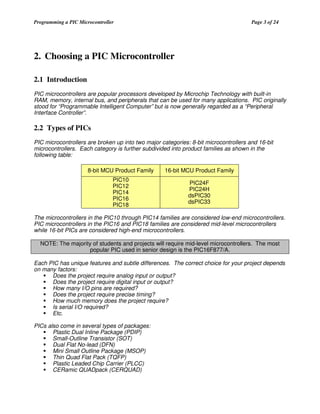
PIC microcontrollers are broken up into two major categories: 8-bit microcontrollers and 16-bit
microcontrollers. Each category is further subdivided into product families as shown in the
following table:
8-bit MCU Product Family

16-bit MCU Product Family

PIC10
PIC12
PIC14
PIC16
PIC18

PIC24F
PIC24H
dsPIC30
dsPIC33

The microcontrollers in the PIC10 through PIC14 families are considered low-end microcontrollers.
PIC microcontrollers in the PIC16 and PIC18 families are considered mid-level microcontrollers
while 16-bit PICs are considered high-end microcontrollers.
NOTE: The majority of students and projects will require mid-level microcontrollers. The most
popular PIC used in senior design is the PIC16F877/A.
Each PIC has unique features and subtle differences. The correct choice for your project depends
on many factors:
Does the project require analog input or output?
Does the project require digital input or output?
How many I/O pins are required?
Does the project require precise timing?
How much memory does the project require?
Is serial I/O required?
Etc.
PICs also come in several types of packages:
Plastic Dual Inline Package (PDIP)
Small-Outline Transistor (SOT)
Dual Flat No-lead (DFN)
Mini Small Outline Package (MSOP)
Thin Quad Flat Pack (TQFP)
Plastic Leaded Chip Carrier (PLCC)
CERamic QUADpack (CERQUAD)
Programming a PIC Microcontroller

Page 4 of 24

The reason for the number of packages is that there are some PICs with 100 I/O pins! The
microcontrollers are basically rectangular or square shaped. The easiest package to work with is
DIP or PDIP because it is easily breadboardable and can easily be soldered.
NOTE: Use a mid-level dual inline package PIC microcontroller. You will not be able to burn
software into a QUAD chip and SOP chips will require Schmartboards.

3. Integrated Development Environment
In order to develop your software and organize your files you will have to use an integrated
development environment. The number one IDE used with PIC microcontrollers is MPLab IDE by
Microchip Technology. MPLab IDE is free and easy to use. Just go to http://www.microchip.com/
to download the latest version.
NOTE: The latest version of MPLab IDE ends in zero. e.g. v7.50. Files not ending in zero are
interim versions of MPLab IDE.
You can also download the MPLab IDE User’s Guide, Quick Chart, and Quick Start Guide. After
you have downloaded the latest version of MPLab IDE install the software on your local drive.

4. Programming Language
PIC microcontrollers can be programmed in Assembly, C or a combination of the two. Other highlevel programming languages can be used but embedded systems software is primarily written in
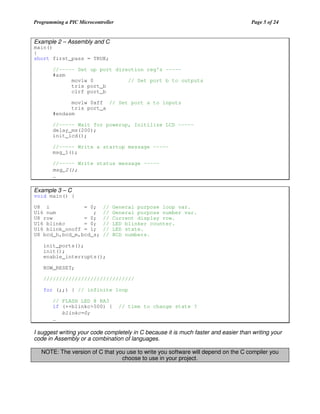
C. The following three examples demonstrate the programming styles.
Example 1 – Assembly

MAIN

clrf
bsf
movlw
movwf
bcf

PORTB
;Clear PORTB output latches
STATUS,RP0
;Switch to bank 1
b'11110000' ;Load value to make lower 4 bits outputs
TRISB
;Move value to TRISB
STATUS,RP0
;Switch to bank 0

bsf
call
bcf
call
goto

PORTB,0
DELAY
PORTB,0
DELAY
LOOP

LOOP
;Turn on LED on RB0
;Call delay routine
;Turn off LED on RB0
;Call delay routine
;Repeat main loop

DELAY
decfsz
COUNTERL
;Decrement COUNTERL
goto DELAY
;If not zero, keep decrementing COUNTERL
decfsz
COUNTERH
;Decrement COUNTERH
goto DELAY
;If not zero, decrement COUNTERL again
return
END
Programming a PIC Microcontroller

Page 5 of 24

Example 2 – Assembly and C
main()
{
short first_pass = TRUE;

//----- Set up port direction reg's ----#asm
movlw 0
// Set port b to outputs
tris port_b
clrf port_b
movlw 0xff // Set port a to inputs
tris port_a
#endasm
//----- Wait for powerup, Initilize LCD ----delay_ms(200);
init_lcd();
//----- Write a startup message ----msg_1();
//----- Write status message ----msg_2();
…

Example 3 – C

void main() {
U8 i
= 0;
U16 num
;
U8 row
= 0;
U16 blinkc
= 0;
U16 blink_onoff = 1;
U8 bcd_h,bcd_m,bcd_s;

//
//
//
//
//
//

General purpose loop var.
General purpose number var.
Current display row.
LED blinker counter.
LED state.
BCD numbers.

init_ports();
init();
enable_interrupts();
ROW_RESET;
/////////////////////////////
for (;;) { // infinite loop
// FLASH LED @ RA3
if (++blinkc>500) {
blinkc=0;
…

// time to change state ?

I suggest writing your code completely in C because it is much faster and easier than writing your
code in Assembly or a combination of languages.
NOTE: The version of C that you use to write you software will depend on the C compiler you
choose to use in your project.
Programming a PIC Microcontroller

Page 6 of 24

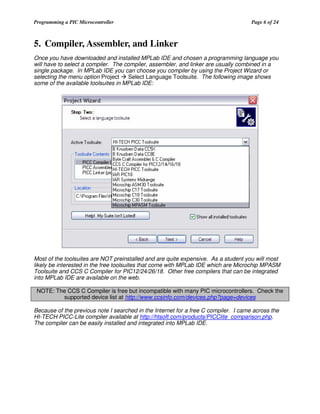
5. Compiler, Assembler, and Linker
Once you have downloaded and installed MPLab IDE and chosen a programming language you
will have to select a compiler. The compiler, assembler, and linker are usually combined in a
single package. In MPLab IDE you can choose you compiler by using the Project Wizard or
selecting the menu option Project
Select Language Toolsuite. The following image shows
some of the available toolsuites in MPLab IDE:

Most of the toolsuites are NOT preinstalled and are quite expensive. As a student you will most
likely be interested in the free toolsuites that come with MPLab IDE which are Microchip MPASM
Toolsuite and CCS C Compiler for PIC12/24/26/18. Other free compilers that can be integrated
into MPLab IDE are available on the web.
NOTE: The CCS C Compiler is free but incompatible with many PIC microcontrollers. Check the
supported device list at http://www.ccsinfo.com/devices.php?page=devices
Because of the previous note I searched in the Internet for a free C compiler. I came across the
HI-TECH PICC-Lite compiler available at http://htsoft.com/products/PICClite_comparison.php.
The compiler can be easily installed and integrated into MPLab IDE.
Programming a PIC Microcontroller

Page 7 of 24

6. Using MPLab IDE
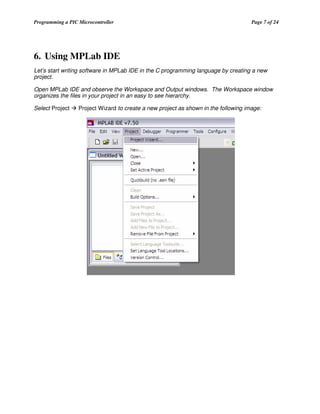
Let’s start writing software in MPLab IDE in the C programming language by creating a new
project.
Open MPLab IDE and observe the Workspace and Output windows. The Workspace window
organizes the files in your project in an easy to see hierarchy.
Select Project

Project Wizard to create a new project as shown in the following image:
Programming a PIC Microcontroller

Page 8 of 24

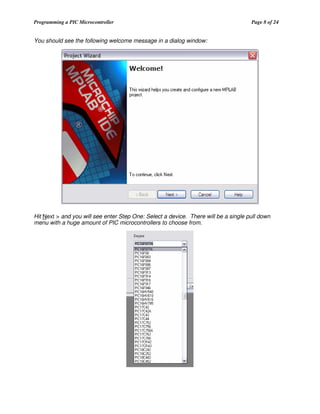
You should see the following welcome message in a dialog window:

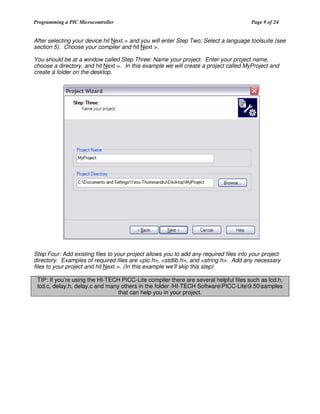
Hit Next > and you will see enter Step One: Select a device. There will be a single pull down
menu with a huge amount of PIC microcontrollers to choose from.
Programming a PIC Microcontroller

Page 9 of 24

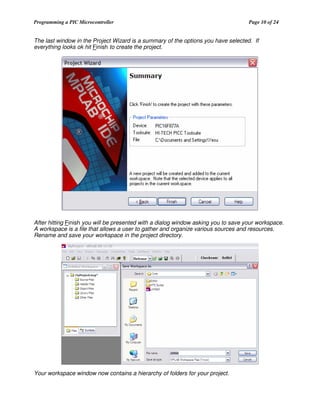
After selecting your device hit Next > and you will enter Step Two: Select a language toolsuite (see
section 5). Choose your compiler and hit Next >.
You should be at a window called Step Three: Name your project. Enter your project name,
choose a directory, and hit Next >. In this example we will create a project called MyProject and
create a folder on the desktop.

Step Four: Add existing files to your project allows you to add any required files into your project
directory. Examples of required files are <pic.h>, <stdlib.h>, and <string.h>. Add any necessary
files to your project and hit Next >. (In this example we’ll skip this step)
TIP: If you’re using the HI-TECH PICC-Lite compiler there are several helpful files such as lcd.h,
lcd.c, delay.h, delay.c and many others in the folder /HI-TECH SoftwarePICC-Lite9.50samples
that can help you in your project.
Programming a PIC Microcontroller

Page 10 of 24

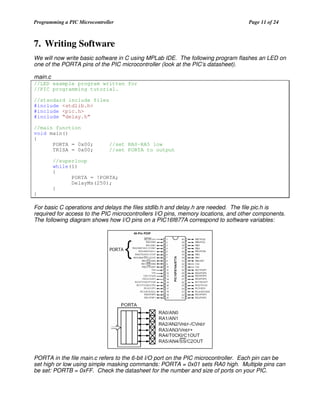
The last window in the Project Wizard is a summary of the options you have selected. If
everything looks ok hit Finish to create the project.

After hitting Finish you will be presented with a dialog window asking you to save your workspace.
A workspace is a file that allows a user to gather and organize various sources and resources.
Rename and save your workspace in the project directory.

Your workspace window now contains a hierarchy of folders for your project.
Programming a PIC Microcontroller

Page 11 of 24

7. Writing Software
We will now write basic software in C using MPLab IDE. The following program flashes an LED on
one of the PORTA pins of the PIC microcontroller (look at the PIC’s datasheet).
main.c
//LED example program written for
//PIC programming tutorial.
//standard include files
#include <stdlib.h>
#include <pic.h>
#include “delay.h”
//main function
void main()
{
PORTA = 0x00;
TRISA = 0x00;

//set RA0-RA5 low
//set PORTA to output

//superloop
while(1)
{
PORTA = !PORTA;
DelayMs(250);
}
}

For basic C operations and delays the files stdlib.h and delay.h are needed. The file pic.h is
required for access to the PIC microcontrollers I/O pins, memory locations, and other components.
The following diagram shows how I/O pins on a PIC16f877A correspond to software variables:

PORTA in the file main.c refers to the 6-bit I/O port on the PIC microcontroller. Each pin can be
set high or low using simple masking commands: PORTA = 0x01 sets RA0 high. Multiple pins can
be set: PORTB = 0xFF. Check the datasheet for the number and size of ports on your PIC.
Programming a PIC Microcontroller

Page 12 of 24

TRISA is a direction control register corresponding to PORTA. The corresponding TRIS registers
have the same bit width as the ports they control. Setting a tris bit to 1 signals that an I/O pin on
that port will be used as an input pin. Setting a tris bit to 0 signals that an I/O pin will be used as
an output pin.
TIP: Usually the first function called when entering the main function is an initialization function that
sets all ports and their directions.
The program then enters a superloop and flips PORTA on and off with a delay of 250 milliseconds.
The structure, purpose, and complexity of your software depend on the application of use of your
PIC microcontroller. For a good source on programming microcontrollers in C visit
http://www.best-microcontroller-projects.com/programming-microcontrollers-in-c.html.
NOTE: Standard C functions such as printf() or scanf() are meaningless in embedded
programming. In order to test I/O functionality the PIC will have to be breadboarded.

8. The “Burning” Process
Once you have you software written you can compile your code to check for syntactical errors.
The first important step in the “Burning” processing is building your project. Before building your
project make sure your configuration bits are set appropriately by selecting Configure
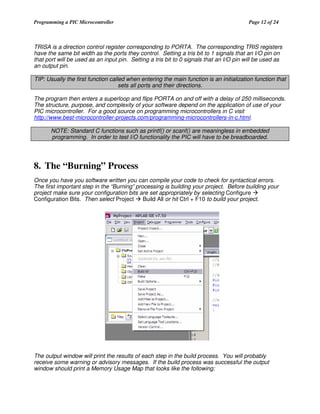
Configuration Bits. Then select Project
Build All or hit Ctrl + F10 to build your project.

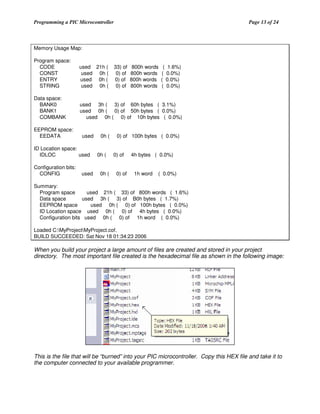
The output window will print the results of each step in the build process. You will probably
receive some warning or advisory messages. If the build process was successful the output
window should print a Memory Usage Map that looks like the following:
Programming a PIC Microcontroller

Page 13 of 24

Memory Usage Map:
Program space:
CODE
CONST
ENTRY
STRING

used 21h (
used 0h (
used 0h (
used 0h (

Data space:
BANK0
BANK1
COMBANK

used 3h ( 3) of 60h bytes ( 3.1%)
used 0h ( 0) of 50h bytes ( 0.0%)
used 0h ( 0) of 10h bytes ( 0.0%)

EEPROM space:
EEDATA

used

ID Location space:
IDLOC
used
Configuration bits:
CONFIG

used

0h (
0h (
0h (

33) of
0) of
0) of
0) of

800h words
800h words
800h words
800h words

( 1.6%)
( 0.0%)
( 0.0%)
( 0.0%)

0) of 100h bytes ( 0.0%)
0) of
0) of

4h bytes ( 0.0%)
1h word

( 0.0%)

Summary:
Program space
used 21h ( 33) of 800h words ( 1.6%)
Data space
used 3h ( 3) of B0h bytes ( 1.7%)
EEPROM space
used 0h ( 0) of 100h bytes ( 0.0%)
ID Location space used 0h ( 0) of 4h bytes ( 0.0%)
Configuration bits used 0h ( 0) of 1h word ( 0.0%)
Loaded C:MyProjectMyProject.cof.
BUILD SUCCEEDED: Sat Nov 18 01:34:23 2006

When you build your project a large amount of files are created and stored in your project
directory. The most important file created is the hexadecimal file as shown in the following image:

This is the file that will be “burned” into your PIC microcontroller. Copy this HEX file and take it to
the computer connected to your available programmer.
Programming a PIC Microcontroller

Page 14 of 24

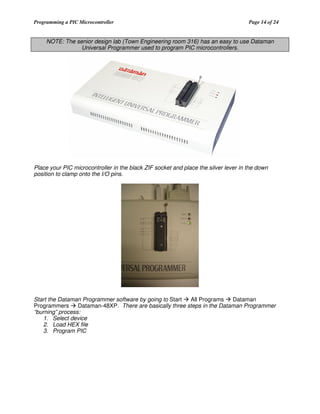
NOTE: The senior design lab (Town Engineering room 316) has an easy to use Dataman
Universal Programmer used to program PIC microcontrollers.

Place your PIC microcontroller in the black ZIF socket and place the silver lever in the down
position to clamp onto the I/O pins.

Start the Dataman Programmer software by going to Start
All Programs
Dataman
Programmers
Dataman-48XP. There are basically three steps in the Dataman Programmer
“burning” process:
1. Select device
2. Load HEX file
3. Program PIC
Programming a PIC Microcontroller

Page 15 of 24

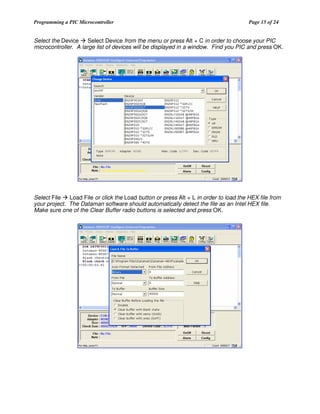
Select the Device
Select Device from the menu or press Alt + C in order to choose your PIC
microcontroller. A large list of devices will be displayed in a window. Find you PIC and press OK.

Select File
Load File or click the Load button or press Alt + L in order to load the HEX file from
your project. The Dataman software should automatically detect the file as an Intel HEX file.
Make sure one of the Clear Buffer radio buttons is selected and press OK.
Programming a PIC Microcontroller

Page 16 of 24

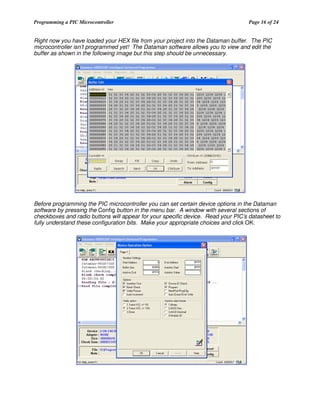
Right now you have loaded your HEX file from your project into the Dataman buffer. The PIC
microcontroller isn’t programmed yet! The Dataman software allows you to view and edit the
buffer as shown in the following image but this step should be unnecessary.

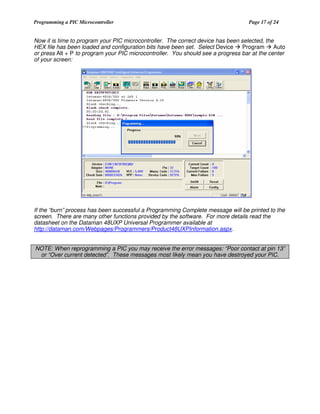
Before programming the PIC microcontroller you can set certain device options in the Dataman
software by pressing the Config button in the menu bar. A window with several sections of
checkboxes and radio buttons will appear for your specific device. Read your PIC’s datasheet to
fully understand these configuration bits. Make your appropriate choices and click OK.
Programming a PIC Microcontroller

Page 17 of 24

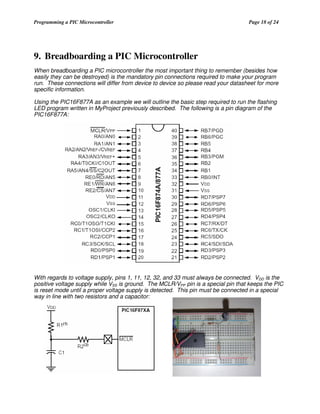
Now it is time to program your PIC microcontroller. The correct device has been selected, the
HEX file has been loaded and configuration bits have been set. Select Device
Program
Auto
or press Alt + P to program your PIC microcontroller. You should see a progress bar at the center
of your screen:

If the “burn” process has been successful a Programming Complete message will be printed to the
screen. There are many other functions provided by the software. For more details read the
datasheet on the Dataman 48UXP Universal Programmer available at
http://dataman.com/Webpages/Programmers/Product48UXPInformation.aspx.
NOTE: When reprogramming a PIC you may receive the error messages: “Poor contact at pin 13”
or “Over current detected”. These messages most likely mean you have destroyed your PIC.
Programming a PIC Microcontroller

Page 18 of 24

9. Breadboarding a PIC Microcontroller
When breadboarding a PIC microcontroller the most important thing to remember (besides how
easily they can be destroyed) is the mandatory pin connections required to make your program
run. These connections will differ from device to device so please read your datasheet for more
specific information.
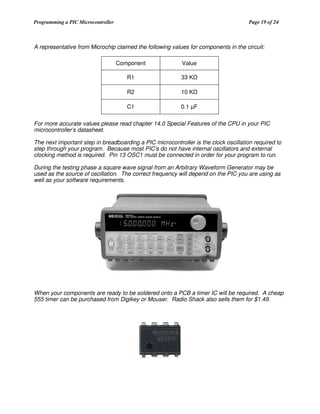
Using the PIC16F877A as an example we will outline the basic step required to run the flashing
LED program written in MyProject previously described. The following is a pin diagram of the
PIC16F877A:

With regards to voltage supply, pins 1, 11, 12, 32, and 33 must always be connected. VDD is the
positive voltage supply while VSS is ground. The MCLR/VPP pin is a special pin that keeps the PIC
is reset mode until a proper voltage supply is detected. This pin must be connected in a special
way in line with two resistors and a capacitor:
Programming a PIC Microcontroller

Page 19 of 24

A representative from Microchip claimed the following values for components in the circuit:
Component

Value

R1

33 K

R2

10 K

C1

0.1 F

For more accurate values please read chapter 14.0 Special Features of the CPU in your PIC
microcontroller’s datasheet.
The next important step in breadboarding a PIC microcontroller is the clock oscillation required to
step through your program. Because most PIC’s do not have internal oscillators and external
clocking method is required. Pin 13 OSC1 must be connected in order for your program to run.
During the testing phase a square wave signal from an Arbitrary Waveform Generator may be
used as the source of oscillation. The correct frequency will depend on the PIC you are using as
well as your software requirements.

When your components are ready to be soldered onto a PCB a timer IC will be required. A cheap
555 timer can be purchased from Digikey or Mouser. Radio Shack also sells them for $1.49.
Programming a PIC Microcontroller

Page 20 of 24

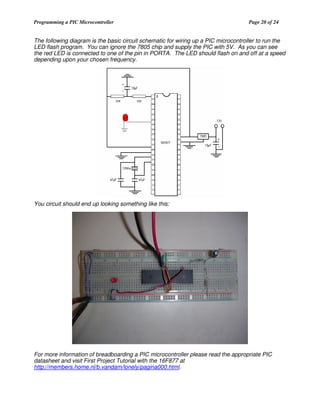
The following diagram is the basic circuit schematic for wiring up a PIC microcontroller to run the
LED flash program. You can ignore the 7805 chip and supply the PIC with 5V. As you can see
the red LED is connected to one of the pin in PORTA. The LED should flash on and off at a speed
depending upon your chosen frequency.

You circuit should end up looking something like this:

For more information of breadboarding a PIC microcontroller please read the appropriate PIC
datasheet and visit First Project Tutorial with the 16F877 at
http://members.home.nl/b.vandam/lonely/pagina000.html.
Programming a PIC Microcontroller

Page 21 of 24

10. Other Considerations
The software you will develop for your project will obviously be much more complex that the LED
flash program written for this document. Microchip’s website has a section dedicated to software
development along with web seminars and tutorials.
This tutorial is not all inclusive and should only be used as a starting point for a general overview
of programming a PIC microcontroller. The most information you can acquire on PIC
microcontrollers is the individual datasheets and specs. They provide a wealth of information in a
neatly organized document. Also take advantage of Microchip’s very helpful technical support
team at http://support.microchip.com/.
The following names are contacts at Iowa State University capable of helping with programming
PIC microcontrollers:
Prof. Ralph Patterson
CSG 2101 Coover
o Steve Kavorik
o Jason Boyd
o Jason Jirak
Dr. Doug Jacobson
SSOL Howe Hall
o Mike Cook
Diane Rover – Associate Dean of Engineering
Dr. Akilesh Tyagi
Prof. Zhao Zhang
I would also appreciate any feedback on this tutorial. Please feel free to email me with questions
and/or suggestions at yesu@iastate.edu. Thank you for taking the time read this short introduction
to programming PIC microcontrollers.

Tutorial dec0604(print24) Programming a PIC

  • 1.
    Programming a PIC Microcontroller AShort Tutorial by Yesu Thommandru Iowa State University – ECpE November 2006
  • 2.
    Programming a PICMicrocontroller Page ii of 24 Table of Contents Table of Contents .......................................................................................................................... ii Revision Record ........................................................................................................................... iii 1. Introduction..............................................................................................................................1 1.1 1.2 1.3 1.4 Purpose.........................................................................................................................................1 Document Conventions................................................................................................................1 Intended Audience and Reading Suggestions..............................................................................1 References....................................................................................................................................2 2.1 2.2 Introduction..................................................................................................................................3 Types of PICs...............................................................................................................................3 2. Choosing a PIC Microcontroller ............................................................................................3 3. Integrated Development Environment...................................................................................4 4. Programming Language..........................................................................................................4 5. Compiler, Assembler, and Linker ..........................................................................................6 6. Using MPLab IDE....................................................................................................................7 7. Writing Software....................................................................................................................11 8. The “Burning” Process..........................................................................................................12 9. Breadboarding a PIC Microcontroller ................................................................................18 10. Other Considerations.............................................................................................................21
  • 3.
    Programming a PICMicrocontroller Page iii of 24 Revision Record Name Date Reason For Changes Version Yesu Thommandru Yesu Thommandru Yesu Thommandru 11/17/06 11/18/06 11/19/06 Started tutorial Finished majority of tutorial Added breadboard images, finished and posted tutorial on Dec06-04 website. 1.0 1.1 1.2
  • 4.
    Programming a PICMicrocontroller Page 1 of 24 1. Introduction 1.1 Purpose The purpose of this document is to provide a simple, easy to use tutorial on programming PIC microcontrollers. The tutorial begins with instructions on selecting a specific PIC and ends with directions for breadboarding the microcontroller. 1.2 Document Conventions In this document different styles of text and visuals are used to help the reader separate different types of information. General description text will be in this format, size 11 italicized Arial. Pseudo-code or source code will be written in multi-color, size 10 Courier New font as in the following example: #include <stdio.h> void main(int argc, char *argv[]) { printf("Star Wars!n”); return; } Buttons and menu items will be in standard Arial text such as Button with the first letter underlined. Important notes and pieces of information will appear in normal text in shaded boxes as in the following example: NOTE: I think Darth Vader would win in a fight against Boba Fett! 1.3 Intended Audience and Reading Suggestions The intended audience of this document is students in the Department of Electrical and Computer Engineering enrolled in EE/CprE 491 or 492 Senior Design. This document can also be used by any student or individual who wishes to learn the basics of how to program a PIC microcontroller. There are a number of suggested readings for any users of this document. The following books are suggested for specific PIC programming tasks: Introduction to microelectronic systems: the PIC 16F84 microcontroller by Martin Bates. PIC microcontroller: an intro to software and hardware interfacing by Han-Way Huang. The PIC microcontroller: your personal introductory course by John Morton. PIC microcontroller project book by John Lovine. Programming and customizing the PIC microcontroller by Myke Predko. The quintessential PIC microcontroller by Sid Katzen. NOTE: In my experience most of software in these books is written in Assembly and are thus not useful to students wishing to program in a high-level programming language.
  • 5.
    Programming a PICMicrocontroller Page 2 of 24 1.4 References Schildt, Herbert. C/C++ Programmer’s Reference 2nd Edition. McGraw-Hill Publishing. New York, 2000. Morton, John. PIC Your Personal Introductory Course. Newnes. Boston, 1998. Bergquist, Carl. Guide to PICMICRO Microcontrollers. Sams Technical Publications. Indianapolis, 2001. Predko, Myke. Handbook of Microcontrollers. McGraw-Hill Publishing. New York, 1999. Predko, Myke. PICMicro Microcontroller Pocket Reference. McGraw-Hill. New York. 2000. Smith, D.W. PIC in Practice. Newnes. Oxford. 2002. Microchip.com. PIC16F877A. 2006. <http://www.microchip.com/> MicrochipC.com PICMicros and C <http://www.microchipc.com/> Best Microcontroller Projects <http://www.best-microcontroller-projects.com/index.html>
  • 6.
    Programming a PICMicrocontroller Page 3 of 24 2. Choosing a PIC Microcontroller 2.1 Introduction PIC microcontrollers are popular processors developed by Microchip Technology with built-in RAM, memory, internal bus, and peripherals that can be used for many applications. PIC originally stood for “Programmable Intelligent Computer” but is now generally regarded as a “Peripheral Interface Controller”. 2.2 Types of PICs PIC microcontrollers are broken up into two major categories: 8-bit microcontrollers and 16-bit microcontrollers. Each category is further subdivided into product families as shown in the following table: 8-bit MCU Product Family 16-bit MCU Product Family PIC10 PIC12 PIC14 PIC16 PIC18 PIC24F PIC24H dsPIC30 dsPIC33 The microcontrollers in the PIC10 through PIC14 families are considered low-end microcontrollers. PIC microcontrollers in the PIC16 and PIC18 families are considered mid-level microcontrollers while 16-bit PICs are considered high-end microcontrollers. NOTE: The majority of students and projects will require mid-level microcontrollers. The most popular PIC used in senior design is the PIC16F877/A. Each PIC has unique features and subtle differences. The correct choice for your project depends on many factors: Does the project require analog input or output? Does the project require digital input or output? How many I/O pins are required? Does the project require precise timing? How much memory does the project require? Is serial I/O required? Etc. PICs also come in several types of packages: Plastic Dual Inline Package (PDIP) Small-Outline Transistor (SOT) Dual Flat No-lead (DFN) Mini Small Outline Package (MSOP) Thin Quad Flat Pack (TQFP) Plastic Leaded Chip Carrier (PLCC) CERamic QUADpack (CERQUAD)
  • 7.
    Programming a PICMicrocontroller Page 4 of 24 The reason for the number of packages is that there are some PICs with 100 I/O pins! The microcontrollers are basically rectangular or square shaped. The easiest package to work with is DIP or PDIP because it is easily breadboardable and can easily be soldered. NOTE: Use a mid-level dual inline package PIC microcontroller. You will not be able to burn software into a QUAD chip and SOP chips will require Schmartboards. 3. Integrated Development Environment In order to develop your software and organize your files you will have to use an integrated development environment. The number one IDE used with PIC microcontrollers is MPLab IDE by Microchip Technology. MPLab IDE is free and easy to use. Just go to http://www.microchip.com/ to download the latest version. NOTE: The latest version of MPLab IDE ends in zero. e.g. v7.50. Files not ending in zero are interim versions of MPLab IDE. You can also download the MPLab IDE User’s Guide, Quick Chart, and Quick Start Guide. After you have downloaded the latest version of MPLab IDE install the software on your local drive. 4. Programming Language PIC microcontrollers can be programmed in Assembly, C or a combination of the two. Other highlevel programming languages can be used but embedded systems software is primarily written in C. The following three examples demonstrate the programming styles. Example 1 – Assembly MAIN clrf bsf movlw movwf bcf PORTB ;Clear PORTB output latches STATUS,RP0 ;Switch to bank 1 b'11110000' ;Load value to make lower 4 bits outputs TRISB ;Move value to TRISB STATUS,RP0 ;Switch to bank 0 bsf call bcf call goto PORTB,0 DELAY PORTB,0 DELAY LOOP LOOP ;Turn on LED on RB0 ;Call delay routine ;Turn off LED on RB0 ;Call delay routine ;Repeat main loop DELAY decfsz COUNTERL ;Decrement COUNTERL goto DELAY ;If not zero, keep decrementing COUNTERL decfsz COUNTERH ;Decrement COUNTERH goto DELAY ;If not zero, decrement COUNTERL again return END
  • 8.
    Programming a PICMicrocontroller Page 5 of 24 Example 2 – Assembly and C main() { short first_pass = TRUE; //----- Set up port direction reg's ----#asm movlw 0 // Set port b to outputs tris port_b clrf port_b movlw 0xff // Set port a to inputs tris port_a #endasm //----- Wait for powerup, Initilize LCD ----delay_ms(200); init_lcd(); //----- Write a startup message ----msg_1(); //----- Write status message ----msg_2(); … Example 3 – C void main() { U8 i = 0; U16 num ; U8 row = 0; U16 blinkc = 0; U16 blink_onoff = 1; U8 bcd_h,bcd_m,bcd_s; // // // // // // General purpose loop var. General purpose number var. Current display row. LED blinker counter. LED state. BCD numbers. init_ports(); init(); enable_interrupts(); ROW_RESET; ///////////////////////////// for (;;) { // infinite loop // FLASH LED @ RA3 if (++blinkc>500) { blinkc=0; … // time to change state ? I suggest writing your code completely in C because it is much faster and easier than writing your code in Assembly or a combination of languages. NOTE: The version of C that you use to write you software will depend on the C compiler you choose to use in your project.
  • 9.
    Programming a PICMicrocontroller Page 6 of 24 5. Compiler, Assembler, and Linker Once you have downloaded and installed MPLab IDE and chosen a programming language you will have to select a compiler. The compiler, assembler, and linker are usually combined in a single package. In MPLab IDE you can choose you compiler by using the Project Wizard or selecting the menu option Project Select Language Toolsuite. The following image shows some of the available toolsuites in MPLab IDE: Most of the toolsuites are NOT preinstalled and are quite expensive. As a student you will most likely be interested in the free toolsuites that come with MPLab IDE which are Microchip MPASM Toolsuite and CCS C Compiler for PIC12/24/26/18. Other free compilers that can be integrated into MPLab IDE are available on the web. NOTE: The CCS C Compiler is free but incompatible with many PIC microcontrollers. Check the supported device list at http://www.ccsinfo.com/devices.php?page=devices Because of the previous note I searched in the Internet for a free C compiler. I came across the HI-TECH PICC-Lite compiler available at http://htsoft.com/products/PICClite_comparison.php. The compiler can be easily installed and integrated into MPLab IDE.
  • 10.
    Programming a PICMicrocontroller Page 7 of 24 6. Using MPLab IDE Let’s start writing software in MPLab IDE in the C programming language by creating a new project. Open MPLab IDE and observe the Workspace and Output windows. The Workspace window organizes the files in your project in an easy to see hierarchy. Select Project Project Wizard to create a new project as shown in the following image:
  • 11.
    Programming a PICMicrocontroller Page 8 of 24 You should see the following welcome message in a dialog window: Hit Next > and you will see enter Step One: Select a device. There will be a single pull down menu with a huge amount of PIC microcontrollers to choose from.
  • 12.
    Programming a PICMicrocontroller Page 9 of 24 After selecting your device hit Next > and you will enter Step Two: Select a language toolsuite (see section 5). Choose your compiler and hit Next >. You should be at a window called Step Three: Name your project. Enter your project name, choose a directory, and hit Next >. In this example we will create a project called MyProject and create a folder on the desktop. Step Four: Add existing files to your project allows you to add any required files into your project directory. Examples of required files are <pic.h>, <stdlib.h>, and <string.h>. Add any necessary files to your project and hit Next >. (In this example we’ll skip this step) TIP: If you’re using the HI-TECH PICC-Lite compiler there are several helpful files such as lcd.h, lcd.c, delay.h, delay.c and many others in the folder /HI-TECH SoftwarePICC-Lite9.50samples that can help you in your project.
  • 13.
    Programming a PICMicrocontroller Page 10 of 24 The last window in the Project Wizard is a summary of the options you have selected. If everything looks ok hit Finish to create the project. After hitting Finish you will be presented with a dialog window asking you to save your workspace. A workspace is a file that allows a user to gather and organize various sources and resources. Rename and save your workspace in the project directory. Your workspace window now contains a hierarchy of folders for your project.
  • 14.
    Programming a PICMicrocontroller Page 11 of 24 7. Writing Software We will now write basic software in C using MPLab IDE. The following program flashes an LED on one of the PORTA pins of the PIC microcontroller (look at the PIC’s datasheet). main.c //LED example program written for //PIC programming tutorial. //standard include files #include <stdlib.h> #include <pic.h> #include “delay.h” //main function void main() { PORTA = 0x00; TRISA = 0x00; //set RA0-RA5 low //set PORTA to output //superloop while(1) { PORTA = !PORTA; DelayMs(250); } } For basic C operations and delays the files stdlib.h and delay.h are needed. The file pic.h is required for access to the PIC microcontrollers I/O pins, memory locations, and other components. The following diagram shows how I/O pins on a PIC16f877A correspond to software variables: PORTA in the file main.c refers to the 6-bit I/O port on the PIC microcontroller. Each pin can be set high or low using simple masking commands: PORTA = 0x01 sets RA0 high. Multiple pins can be set: PORTB = 0xFF. Check the datasheet for the number and size of ports on your PIC.
  • 15.
    Programming a PICMicrocontroller Page 12 of 24 TRISA is a direction control register corresponding to PORTA. The corresponding TRIS registers have the same bit width as the ports they control. Setting a tris bit to 1 signals that an I/O pin on that port will be used as an input pin. Setting a tris bit to 0 signals that an I/O pin will be used as an output pin. TIP: Usually the first function called when entering the main function is an initialization function that sets all ports and their directions. The program then enters a superloop and flips PORTA on and off with a delay of 250 milliseconds. The structure, purpose, and complexity of your software depend on the application of use of your PIC microcontroller. For a good source on programming microcontrollers in C visit http://www.best-microcontroller-projects.com/programming-microcontrollers-in-c.html. NOTE: Standard C functions such as printf() or scanf() are meaningless in embedded programming. In order to test I/O functionality the PIC will have to be breadboarded. 8. The “Burning” Process Once you have you software written you can compile your code to check for syntactical errors. The first important step in the “Burning” processing is building your project. Before building your project make sure your configuration bits are set appropriately by selecting Configure Configuration Bits. Then select Project Build All or hit Ctrl + F10 to build your project. The output window will print the results of each step in the build process. You will probably receive some warning or advisory messages. If the build process was successful the output window should print a Memory Usage Map that looks like the following:
  • 16.
    Programming a PICMicrocontroller Page 13 of 24 Memory Usage Map: Program space: CODE CONST ENTRY STRING used 21h ( used 0h ( used 0h ( used 0h ( Data space: BANK0 BANK1 COMBANK used 3h ( 3) of 60h bytes ( 3.1%) used 0h ( 0) of 50h bytes ( 0.0%) used 0h ( 0) of 10h bytes ( 0.0%) EEPROM space: EEDATA used ID Location space: IDLOC used Configuration bits: CONFIG used 0h ( 0h ( 0h ( 33) of 0) of 0) of 0) of 800h words 800h words 800h words 800h words ( 1.6%) ( 0.0%) ( 0.0%) ( 0.0%) 0) of 100h bytes ( 0.0%) 0) of 0) of 4h bytes ( 0.0%) 1h word ( 0.0%) Summary: Program space used 21h ( 33) of 800h words ( 1.6%) Data space used 3h ( 3) of B0h bytes ( 1.7%) EEPROM space used 0h ( 0) of 100h bytes ( 0.0%) ID Location space used 0h ( 0) of 4h bytes ( 0.0%) Configuration bits used 0h ( 0) of 1h word ( 0.0%) Loaded C:MyProjectMyProject.cof. BUILD SUCCEEDED: Sat Nov 18 01:34:23 2006 When you build your project a large amount of files are created and stored in your project directory. The most important file created is the hexadecimal file as shown in the following image: This is the file that will be “burned” into your PIC microcontroller. Copy this HEX file and take it to the computer connected to your available programmer.
  • 17.
    Programming a PICMicrocontroller Page 14 of 24 NOTE: The senior design lab (Town Engineering room 316) has an easy to use Dataman Universal Programmer used to program PIC microcontrollers. Place your PIC microcontroller in the black ZIF socket and place the silver lever in the down position to clamp onto the I/O pins. Start the Dataman Programmer software by going to Start All Programs Dataman Programmers Dataman-48XP. There are basically three steps in the Dataman Programmer “burning” process: 1. Select device 2. Load HEX file 3. Program PIC
  • 18.
    Programming a PICMicrocontroller Page 15 of 24 Select the Device Select Device from the menu or press Alt + C in order to choose your PIC microcontroller. A large list of devices will be displayed in a window. Find you PIC and press OK. Select File Load File or click the Load button or press Alt + L in order to load the HEX file from your project. The Dataman software should automatically detect the file as an Intel HEX file. Make sure one of the Clear Buffer radio buttons is selected and press OK.
  • 19.
    Programming a PICMicrocontroller Page 16 of 24 Right now you have loaded your HEX file from your project into the Dataman buffer. The PIC microcontroller isn’t programmed yet! The Dataman software allows you to view and edit the buffer as shown in the following image but this step should be unnecessary. Before programming the PIC microcontroller you can set certain device options in the Dataman software by pressing the Config button in the menu bar. A window with several sections of checkboxes and radio buttons will appear for your specific device. Read your PIC’s datasheet to fully understand these configuration bits. Make your appropriate choices and click OK.
  • 20.
    Programming a PICMicrocontroller Page 17 of 24 Now it is time to program your PIC microcontroller. The correct device has been selected, the HEX file has been loaded and configuration bits have been set. Select Device Program Auto or press Alt + P to program your PIC microcontroller. You should see a progress bar at the center of your screen: If the “burn” process has been successful a Programming Complete message will be printed to the screen. There are many other functions provided by the software. For more details read the datasheet on the Dataman 48UXP Universal Programmer available at http://dataman.com/Webpages/Programmers/Product48UXPInformation.aspx. NOTE: When reprogramming a PIC you may receive the error messages: “Poor contact at pin 13” or “Over current detected”. These messages most likely mean you have destroyed your PIC.
  • 21.
    Programming a PICMicrocontroller Page 18 of 24 9. Breadboarding a PIC Microcontroller When breadboarding a PIC microcontroller the most important thing to remember (besides how easily they can be destroyed) is the mandatory pin connections required to make your program run. These connections will differ from device to device so please read your datasheet for more specific information. Using the PIC16F877A as an example we will outline the basic step required to run the flashing LED program written in MyProject previously described. The following is a pin diagram of the PIC16F877A: With regards to voltage supply, pins 1, 11, 12, 32, and 33 must always be connected. VDD is the positive voltage supply while VSS is ground. The MCLR/VPP pin is a special pin that keeps the PIC is reset mode until a proper voltage supply is detected. This pin must be connected in a special way in line with two resistors and a capacitor:
  • 22.
    Programming a PICMicrocontroller Page 19 of 24 A representative from Microchip claimed the following values for components in the circuit: Component Value R1 33 K R2 10 K C1 0.1 F For more accurate values please read chapter 14.0 Special Features of the CPU in your PIC microcontroller’s datasheet. The next important step in breadboarding a PIC microcontroller is the clock oscillation required to step through your program. Because most PIC’s do not have internal oscillators and external clocking method is required. Pin 13 OSC1 must be connected in order for your program to run. During the testing phase a square wave signal from an Arbitrary Waveform Generator may be used as the source of oscillation. The correct frequency will depend on the PIC you are using as well as your software requirements. When your components are ready to be soldered onto a PCB a timer IC will be required. A cheap 555 timer can be purchased from Digikey or Mouser. Radio Shack also sells them for $1.49.
  • 23.
    Programming a PICMicrocontroller Page 20 of 24 The following diagram is the basic circuit schematic for wiring up a PIC microcontroller to run the LED flash program. You can ignore the 7805 chip and supply the PIC with 5V. As you can see the red LED is connected to one of the pin in PORTA. The LED should flash on and off at a speed depending upon your chosen frequency. You circuit should end up looking something like this: For more information of breadboarding a PIC microcontroller please read the appropriate PIC datasheet and visit First Project Tutorial with the 16F877 at http://members.home.nl/b.vandam/lonely/pagina000.html.
  • 24.
    Programming a PICMicrocontroller Page 21 of 24 10. Other Considerations The software you will develop for your project will obviously be much more complex that the LED flash program written for this document. Microchip’s website has a section dedicated to software development along with web seminars and tutorials. This tutorial is not all inclusive and should only be used as a starting point for a general overview of programming a PIC microcontroller. The most information you can acquire on PIC microcontrollers is the individual datasheets and specs. They provide a wealth of information in a neatly organized document. Also take advantage of Microchip’s very helpful technical support team at http://support.microchip.com/. The following names are contacts at Iowa State University capable of helping with programming PIC microcontrollers: Prof. Ralph Patterson CSG 2101 Coover o Steve Kavorik o Jason Boyd o Jason Jirak Dr. Doug Jacobson SSOL Howe Hall o Mike Cook Diane Rover – Associate Dean of Engineering Dr. Akilesh Tyagi Prof. Zhao Zhang I would also appreciate any feedback on this tutorial. Please feel free to email me with questions and/or suggestions at yesu@iastate.edu. Thank you for taking the time read this short introduction to programming PIC microcontrollers.