INCLUDES 12
INCREDIBLE PROJECTS
YOU CAN BUILD!
MICROCONTROLLER
r PROJECT BOOK
A TRUE BEGINNER'S GUIDE TO THE
POPULf 7 PIC MICROCQNTRULLER
I
w
JOHN IOVINE
r -
1
PIC Microcontroller
Project Book
Thispage intentionallyleft blank.
PIC Microcontroller
Project Book
John lovine
McGraw-Hill
NewYork San Francisco Washington, D.C. Auckland Bogota
Caracas Lisbon London Madrid Mexico City Milan
Montreal New Delhi San Juan Singapore
Sydney Tokyo Toronto
McGraw-Hill
A DivisionofTheMcGrawHill Companies
i
z
Copyright O 2000 by The McGraw-Hill Companies.All rights reserved. Manufactured in the United States of America. Except as per-
mitted under the United States CopyrightAct of 1976,no part of this publication may be reproduced or distributed in any form or by
any means, or stored in a database or retrieval system, without the prior written permission of the publisher.
The material in this eBook also appears in the print version of this title: 0-07-135479-4.
All trademarks are trademarks of their respective owners. Rather than put a trademark symbol after every occurrence of a trade-
marked name, we use names in an editorial fashion only, and to the benefit of the trademark owner, with no intention of infringe-
ment of the trademark.Where such designationsappear in this book, they have been printed with initial caps.
McGraw-Hill eBooks are available at special quantity discounts to use as premiums and sales promotions, or for use in corporate
training programs. For more information, please contact George Hoare, Special Sales, at george-hoare@mcgraw-hill.com or (212)
904-4069.
TERMS OF USE
This is a copyrightedwork and The McGraw-Hill Companies,Inc. ("McGraw-Hill") and its licensorsreserve all rights in and to the
work. Use of this work is subject to these terms. Except as permitted under the Copyright Act of 1976 and the right to store and
retrieve one copy of the work, you may not decompile, disassemble, reverse engineer, reproduce, modify, create derivative works
based upon, transmit, distribute,disseminate, sell, publish or sublicensethe work or any part of it without McGraw-Hill's prior con-
sent. You may use the work for your own noncommercial and personal use; any other use of the work is strictly prohibited. Your
right to use the work may be terminated if you fail to comply with these terms.
THE!WORK IS PROVIDED "AS IS'. McGRAW-HILLAND ITS LICENSORS MAKE NO GUARANTEES OR WARRANTIES
AS TO THE!ACCURACY, ADEQUACY OR COMPLETENESS OF OR RESULTS TO BE OBTAINED FROM USING THE
WORK, INCLUDING ANY INFORMATION THAT CAN BE ACCESSED THROUGH THE WORK VIA HYPERLINK OR
OTHERWISE,AND EXPRESSLYDISCLAIMANY WARRANTY,EXPRESS OR IMPLIED, INCLUDING BUT NOT LIMITED
TO IMPLIEDWARRANTIES OF MERCHANTABILITYOR FITNESS FOR A PARTICULAR PURPOSE. McGraw-Hill and its
licensors do not warrant or guarantee that the functions contained in the work will meet your requirements or that its operation will
be uninterrupted or error free. Neither McGraw-Hill nor its licensors shall be liable to you or anyone else for any inaccuracy,error
or omission,regardless of cause, in the work or for any damagesresulting therefrom.McGraw-Hillhas no responsibility for the con-
tent of any informationaccessed through the work. Under no circumstancesshall McGraw-Hill andlor its licensors be liable for any
indirect, incidental, special, punitive, consequential or similar damages that result from the use of or inability to use the work, even
if any of them has been advisedof the possibility of such damages.This limitation of liability shall apply to any claim or cause what-
soever whether such claim or cause arises in contract, tort or otherwise.
DOI: 10.1036/007139544X
Contents
Preface xi
Chapter 1 Microcontroller
What Is a Microcontroller
Why Use a Microcontroller
The Future of Elecronics Is Here-It's Microcontrollers
Designer Computers
The PIC Chip
Better than Any Stamp
PIC Programming Overview
Ready, Steady, Go
Parts List
Chapter 2 Software Installation (Compiler and Programmer)
Installing the PlCBasic Compiler Software
Installing the EPlC Software
PIC Applications Directory
Path-The Final DOS Commands
First Basic Program
Programming the PIC Chip
Troubleshooting EPlC Software: A Few Alternatives
Testing the PIC Microcontroller
The Solderless Breadboard
Three Schematics, One Circuit
Wink
Troubleshooting the Circuit
Chapter Review
Parts List
Chapter 3 PIC 16F84 Microcontroller
Harvard Architecture and Memory-Mapped 1
1
0
Binary Fundamentals
Registers and Ports
Accessing the Ports for Output
Electrical Binary,TTL, and CMOS
Counting Program
Copyright 2000 The McGraw-Hill Companies, Inc. Click Here for Terms of Use.
vi Contents
Counting Binary Progression
Basic High and Low Commands
Programming Review
Reading lnput Signals
Chapter 4 Reading I
1
0 Lines
The Button Command
Dynamic Changes
Program 4.2 Features
The Variables Used in Button
Multiple Statements-Single Line
Peek
New Features
Basic lnput and Output Commands
ZIF Adapter Sockets
ZIF Socket
AC Adapter
Parts List
Chapter 5 PlCBasic Language Reference
Branch
Button
Call
Eeprom
End
For..Next
Gosub
Gosub nesting
Got0
High
12cin
12cout
If..Then
lnput
Let
Lookdown
Lookup
Low
Nap
Output
Pause
Peek
Poke
Pot
Pulsin
Pulsout
Pwm
Random
Read
Return
Reverse
Serin
Serout
Sleep
Contents vii
Sound
Toggle
Write
Chapter 6 Characteristicsof the 16F84 Microcontroller
Current Maximums for 1
1
0 Port(s)
Clock Oscillators
Reset
PIC Harvard Architecture
Register Map
Chapter 7 Speech Synthesizer
Speech Chip
A Little on Linguistics
Interfacing to the SPO-256
Mode Select
The Circuit
The Program
Program Features
Parts List
Chapter 8 Serial Communication and Creating I10 Lines
Creating New 1
1
0 Ports
Serial Communication
Output First
Basic Serial
Clear Pin
The Programs
Bit Shift Correcting
Programming Challenge(Simple)
Programming Challenge(Not Simple)
Input 1
1
0
Parts List
Chapter 9 LCD Alphanumeric Display
Error Detection Algorithms
Parity
Serial Formats
Positioning the Cursor
Off-Screen Memory
Parts List
Chapter 10 Sensors: Resistive,Neural,and Fuzzy Logic
ReadingResistive Sensors
RICValues
Scale
Pin Exceptions
Resistive Sensors
Test Program
Fuzzy Logic and Neural Sensors
viii Contents
Fuzzy Logic LightTracker
Program 10.2
Fuzzy Output
Program 10.3
Parts List
Chapter 11 DC Motor Control
TheTransistor
First Method
Bidirectional Method
Diodes
Parts List
Chapter 12 Stepper Motor Control
Stepper Motor Construction and Operation
Real-WorldMotors
First Stepper Circuit
Second Basic Program
Half-Stepping
The ti DelayVariable
Troubleshooting
UCN 5804 DedicatedStepper Motor ICs
Parts List
Chapter 13 Servomotor Control
Extending Servomotor Range
Manual Servo Control
Multiple Servomotors
Timing and Servomotors
Parts List
Chapter 14 Analog-to-Digital (AID) Converters
Analog Signal
Digital Equivalents
AID Converters
Setting the ReferenceVoltage
Voltage Range and Resolution
Interpretingthe Results
Serial Chip Control
Serial Chip Sequence
Toxic Gas Sensor
Parts List
Chapter 15 Controlling AC Appliances
Inductiveand ResistiveLoads
Circuit Construction
Test Circuit
Smart Control
Electronic Noses
Parts List
Appendix A
Hexadecimal Numbers
ProgramAnswers
Suppliers lndex
Contents ix
lndex 197
Thispage intentionallyleft blank.
Preface
I know you are interested in programming and using PIC microcontrollers. If
not, you would not have picked up this book and be reading this preface. The
first question one usually asks when choosing one book over another is,
"Which book offers me something more?" Since everyone is looking for some-
thing a little different in a book, I can't address anything specific,but to help
you make your decision I can state what I feel are the highlights of this book.
Programming
The PICBasic compiler used throughout this book allows ease of using Basic
language coupled with the speed of assembly language. Basic is a user-friendly
language, it is easier to learn and master than either assembly or C language.
When the basic code is compiled to its assembly language equivalents, it is 20
to 100times faster than standard Basic code, effectively countering the speed
advantages C or assembly languages typically offer. The compiled Basic code
(assembly language equivalent) is programmed into the PIC microcontroller.
As stated, this methodology increases the code execution 20 to 100times faster
than the equivalent interpreted Basic code that is used in other microcontroller
systems like the Basic StampTM.
Cost Savings
Being able to program PIC microcontroller chips directly reduces the overall
cost of implementing microcontroller control to a fraction of the cost of other
systems. In addition, circuit complexity is also minimized.
Starting at the Beginning
In terms of programming, this book starts at the ground level. Beginning with
installing the needed software onto your computer's hard drive and proceed-
ing on from there. We begin with a simple project that blinks two LEDs on and
off and build more interesting and sophisticated projects out from there.
Copyright 2000 The McGraw-Hill Companies, Inc. Click Here for Terms of Use.
Thispage intentionallyleft blank.
PIC Microcontroller
Project Book
Thispage intentionallyleft blank.
Chapter
Microcontroller
What Is a Microcontroller?
A microcontroller is an inexpensive single-chip computer. Single-chip com-
puter means that the entire computer system lies within the confines of the
integrated circuit chip. The microcontroller on the encapsulated sliver of sil-
icon has features similar to those of our standard personal computer.
Primarily, the microcontroller is capable of storing and running a program
(its most important feature). The microcontroller contains a CPU (central
processing unit), RAM (random-access memory), ROM (read-only memory),
I10 (inputloutput) lines, serial and parallel ports, timers, and sometimes
other built-in peripherals such asAID (analog-to-digital)and DIA (digital-to-
analog) converters.
Why Use a Microcontroller?
Microcontrollers, as stated, are inexpensive computers. The microcontroller7s
ability to store and run unique programs makes it extremely versatile. For
instance, one can program a microcontroller to make decisions (perform
functions) based on predetermined situations (110-linelogic) and selections.
The microcontroller7sability to perform math and logic functions allows it to
mimic sophisticated logic and electronic circuits.
Other programs can make the microcontroller behave like a neural circuit
andlor a fuzzy-logic controller. Microcontrollers are responsible for the "intel-
ligence" in most smart devices on the consumer market.
The Future of Electronics Is Here-It's Microcontrollers
Look in any hobbyist electronicsmagazine from this country or any other.You
will see articles that feature the use of microcontrollers, either directly or
1
Copyright 2000 The McGraw-Hill Companies, Inc. Click Here for Terms of Use.
2 Chapter One
embedded in the circuit's design. Because of their versatility, microcontrollers
add a lot of power, control, and options at little cost. It therefore becomes
essential that the electronics engineer or hobbyist learn to program these
microcontrollers to maintain a level of competence and to gain the advantages
microcontrollers provide in his or her own circuit designs.
If you examine consumer electronics, you will find microcontrollers embed-
ded in just about everything. This is another reason to become familiar with
microcontrollers.
Designer Computers
There is a large variety of microcontrollers on the market today. We will focus
on a few versatile microcontroller chips called PIC chips (or PICMicro chips)
from Microchip Technology.
The PIC Chip
Microchip Technology's series of microcontrollers is called PIC chips. Microchip
secured a trademark for the name PIC. Microchip uses PIC to describe its
series of PIC microcontrollers. PIC is generally assumed to mean programma-
ble interface controller.
BetterThan Any Stamp
Parallax Company sells an easy-to-use series of microcontroller circuits
called the Basic Stamp. Parallax's Basic Stamps (BS1 and BS2) use
Microchip Technology's PIC microcontrollers. What makes the Stamps so
popular and easy to use is that they are programmed using a simplified
form of the Basic language. Basic-language programming is easy to learn
and use. This was the Stamps' main advantage over other microcontroller
systems, which have a much longer learning curve because they force their
users and developers to learn a niche assembly language. (A niche assem-
bly language is one that is specific to that company's microcontroller and
no one else's.)
The Basic Stamp has become one of the most popular microcontrollersin use
today. Again, the Basic Stamp's popularity (this bears repeating) is due to its
easy-to-learn and easy-to-use Basic-language programming. The PIC'S Basic-
language system is just as easy to learn and use, and the PIC has enormous
benefits that make it better than any Stamp.
The Basic language of the PICBasic compiler that we will use to program
the PIC chips is similar to that used in the Basic Stamp series. Programming
PIC chips directly has just become as easy as programming Stamps. Now you
can enjoy the same easy language the Basic Stamp offers, plus two more very
important benefits.
Microcontroller 3
Benefit one: faster speed
Our programmed PIC chips will run their program much faster. If we enter
the identical Basic program into a Basic Stamp and into a PIC chip, the pro-
grammed PIC chip will run 20 to 100 times faster (depending upon the
instructions used) than the Basic Stamp. Here's why.
The BS1 and BS2 Basic Stamp systems use a serial EEPROM memory con-
nected to the PIC chip to store their programs. The basic commandsin the pro-
gram are stored as basic tokens. Basic tokens are like a shorthand for basic
commands. When running the program, the Basic Stamp reads each instruc-
tion (token and datdaddress) over the serial line from the external EEPROM
memory, interprets the token (converts token to the ML equivalent the PIC
can understand), performs the instruction, reads the next instruction, and so
on. Each and every instruction goes through these serial load, read, interpret,
then perform steps as the program runs. The serial interface reading routine
eats up gobs of the microcontroller's CPU time.
In contrast to this operation, when a PIC chip is programmed using the
Basic compiler, the Basic program is first converted to a PIC machine-
language (hex file) program. The ML program is then uploaded into the PIC
chip. Being the native language of the PIC, this machine-language (ML)code
does not need to be stored as tokens and interpreted as it runs because the pro-
gram is written in the PIC chip's native language.
When the PIC chip runs the program, it reads the ML program instructions
directly from its on-board memory and performs the instruction. There is no
serial interface to an external EEPROM to eat up CPU time. The ML instruc-
tions are read in parallel, not bit by bit as in the serial interface. The ML
instructions read directly without any basic-token-to-ML-equivalent conver-
sion required. This enables programmed PIC chips to run their code 20 to 100
times faster than the same Basic program code in a Basic Stamp.
Benefit two: much lower cost
The next factor is cost. Using PIC chips directly will save you 75 percent of
the cost of a comparable Basic Stamp. The retail price for the BS1, which has
256 bytes of programmable memory, is $34.95. The retail price for the BS2,
which has 2K of programmable memory, is $49.95. The 16F84 PIC microcon-
troller featured throughout this book is more closely comparable to the BS2
Stamp. The 16F84 PIC chip we are using has 1K of programmable memory.
The retail cost of the 16F84PIC chip is $6.95. To this, add the cost of a tim-
ing crystal, a few capacitors, a few resistors, and a 7805 voltage regulator to
make a circuit equivalent to that of the Stamp. These componentsincrease the
total cost to about $10.00-still well below one-quarter the cost (75 percent
savings) currently quoted for the BS2.
And this $10.00 cost for the PIC may be cut substantially in some situa-
tions. The PIC 16F84 is an expensive microcontroller with rewritable (flash)
4 Chapter One
memory. If, for instance, you design a circuit (or product) for manufacture
that doesn't need to be reprogrammed after it is initially programmed, you
can use a one-time programmable (OTP) PIC microcontroller and save about
$2.00 to $3.00 on the PIC microcontroller as compared to the cost of a PIC
microcontroller with flash (rewritable memory).
In any case, anyone who uses more than a few Stamps a year will find it well
worth the investment to completely scrap the Basic Stamp system and jump
onto this faster and cheaper microcontrollerbandwagon.
If you are an experimenter, developer,or manufacturer or plan to become one,
the cost savings are too substantial to consider investing in any other system.
Extra bonus advantage
The footprint of the 16F84 PIC microcontroller chip embedded in another cir-
cuit is smaller than the equivalent BS2 Stamp because the Stamps use an
external serial EEPROM for memory. While the BS2 may, at first glance, look
smaller since it is contained in a 28-pin DIP package, it is not. You can also
purchase the 16F84 in surface-mount form and the resulting circuit will have
a smaller footprint.
PIC Programming Overview
Programming PIC microcontrollers is a simple three-step process. There's an
old saying that there's more than one way to skin a cat, and the same can be
said about programming PIC microcontrollers. When you look at the market,
you will discover a variety of programmers and compilers for PIC microcon-
trollers. We will not do a comparison of the products on the market. Instead,
we will focus on what we have found to be an easy-to-learn and very power-
ful Basic-language compiler and its associated programmer board.
Remember, this is an overview. Exact step-by-step instructions are given in
the next chapter, when we program a PIC with our first test program.
What to buy
You need to purchase at least three items to start programming and building
projects: the PICBasic compiler program, the EPIC programmer (a program-
ming carrier board), and the PIC chip itself. I recommend beginning with the
16F84 PIC microcontroller because it has exactly 1K x 14 of rewritable mem-
ory. This memory allows you to reuse the PIC chip many times to test and
debug your programs.
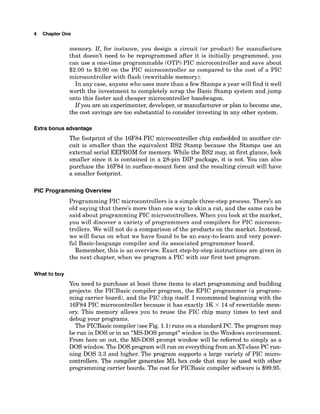
The PICBasiccompiler (seeFig. 1.1)
runs on a standard PC. The program may
be run in DOS or in an "MS-DOSprompt" window in the Windows environment.
From here on out, the MS-DOS prompt window will be referred to simply as a
DOS window. The DOS program will run on everythingfrom an XT-classPC run-
ning DOS 3.3 and higher. The program supports a large variety of PIC micro-
controllers. The compiler generates ML hex code that may be used with other
programming carrier boards. The cost for PICBasic compiler software is $99.95.
Microcontroller 5
Figure 1.1 PICBasic compiler program and manual.
There is a more expensive compiler called the PICBasic Pro that retails for
$249.95. Do not purchase this compiler! The PICBasic Pro handles the Peek
and Poke commands differently than the standard PICBasic Compiler. So
remember to purchase the standard PICBasic Compiler for $99.95.
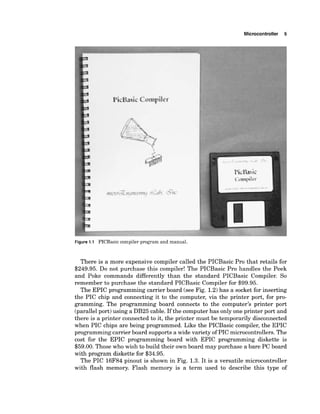
The EPIC programming carrier board (see Fig. 1.2)has a socket for inserting
the PIC chip and connecting it to the computer, via the printer port, for pro-
gramming. The programming board connects to the computer's printer port
(parallelport) using a DB25 cable. If the computerhas only one printer port and
there is a printer connected to it, the printer must be temporarily disconnected
when PIC chips are being programmed. Like the PICBasic compiler, the EPIC
programmingcarrier board supports a wide variety of PIC microcontrollers.The
cost for the EPIC programming board with EPIC programming diskette is
$59.00. Those who wish to build their own board may purchase a bare PC board
with program diskette for $34.95.
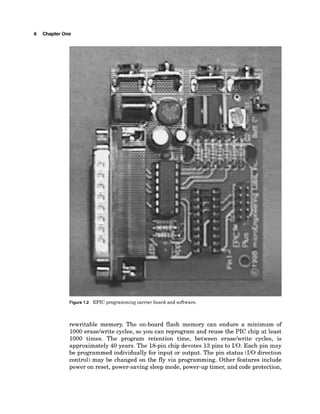
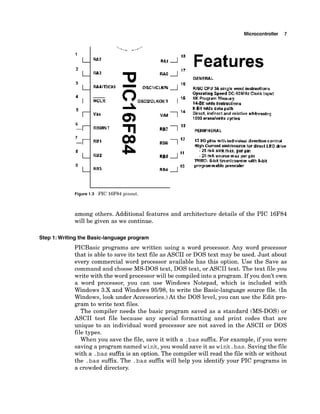
The PIC 16F84 pinout is shown in Fig. 1.3. It is a versatile microcontroller
with flash memory. Flash memory is a term used to describe this type of
6 Chapter One
Figure 1.2 EPIC programming carrier board and software.
rewritable memory. The on-board flash memory can endure a minimum of
1000eraselwrite cycles, so you can reprogram and reuse the PIC chip at least
1000 times. The program retention time, between eraselwrite cycles, is
approximately 40 years. The l&pin chip devotes 13pins to 110. Each pin may
be programmed individually for input or output. The pin status (I10 direction
control) may be changed on the fly via programming. Other features include
power on reset, power-saving sleep mode, power-up timer, and code protection,
Microcontroller 7
MCLR
Features
GENERAL
13 kOpins W t h i~~dividual
dirpdim control
HighCurrent sinkbwrce tor dlrecl LED k i w
- 25 rnA sirlt max, pw pm
- 20 mA solrrr;e max per pin
IWRO; #&it tiierkmmteu vtlth 8-blt
programrnable prewaler
Figure 1.3 PIC 16F84 pinout.
among others. Additional features and architecture details of the PIC 16F84
will be given as we continue.
Step I: Writing the Basic-languageprogram
PICBasic programs are written using a word processor. Any word processor
that is able to save its text file as ASCII or DOS text may be used. Just about
every commercial word processor available has this option. Use the Save as
command and choose MS-DOS text, DOS text, or ASCII text. The text file you
write with the word processor will be compiledinto a program. If you don't own
a word processor, you can use Windows Notepad, which is included with
Windows 3.X and Windows 95/98, to write the Basic-language source file. (In
Windows, look under Accessories.)At the DOS level, you can use the Edit pro-
gram to write text files.
The compiler needs the basic program saved as a standard (MS-DOS) or
ASCII test file because any special formatting and print codes that are
unique to an individual word processor are not saved in the ASCII or DOS
file types.
When you save the file, save it with a .bassuffix. For example, if you were
saving a program named wink,you would save it as wink.bas.Savingthe file
with a .bas suffix is an option. The compiler will read the file with or without
the .bas suffix. The .bas suffix will help you identify your PIC programs in
a crowded directory.
8 Chapter One
Step 2: Using the compiler
The PICBasic compiler program is started by entering the command ~ b c
fol-
lowed by the name of the text file. For example, if the text file we created is
named wink.bas then at the DOS command prompt, we would enter
Pbc wink.bas
The Basic compiler compiles the text file into two additional files, a .asm
(assembly language) file and a .hex (hexadecimal)file.
The wink.asm file is the assembly language equivalent of the Basic pro-
gram. The wink.hex file is the machine code of the program written in hexa-
decimal numbers. It is the .hexfile that is loaded into the PIC chip.
If the compiler encounters errors when compilingthe Basic source code, it will
issue a string of errors it has found and terminate. The errors listed need to be
corrected in the Basic source code before the program will successfullycompile.
Step 3: Programmingthe PIC chip
Connect the EPIC programmer to the computer's printer port using a DB25
cable. Start the DOS programming software.At a DOS command prompt, enter
E P I C
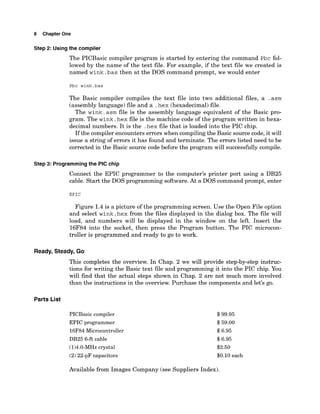
Figure 1.4is a picture of the programming screen. Use the Open File option
and select wink.hex from the files displayed in the dialog box. The file will
load, and numbers will be displayed in the window on the left. Insert the
16F84 into the socket, then press the Program button. The PIC microcon-
troller is programmed and ready to go to work.
Ready, Steady, Go
This completes the overview. In Chap. 2 we will provide step-by-step instruc-
tions for writing the Basic text file and programming it into the PIC chip. You
will find that the actual steps shown in Chap. 2 are not much more involved
than the instructions in the overview. Purchase the components and let's go.
Parts List
PICBasic compiler
EPIC programmer
16F84 Microcontroller
DB25 6-ft cable
(1)4.0-MHzcrystal
(2)22-pF capacitors
$99.95
$59.00
$6.95
$6.95
$2.50
$0.10 each
Available from Images Company (see Suppliers Index).
Microcontroller 9
Figure 1.4 Screen shot of EPIC programming software (DOS). The program loaded is wink. hex.
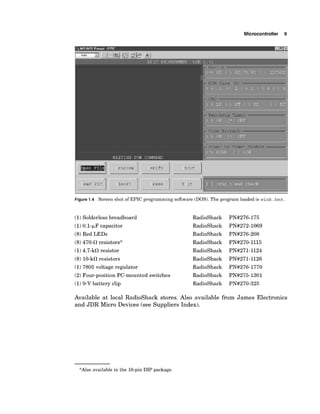
(1)Solderless breadboard
(1)0.1-pF capacitor
(8)Red LEDs
(8)470-0 resistors*
(1)4.7-kcR resistor
(8) 10-k0resistors
(1)7805 voltage regulator
(2)Four-position PC-mounted switches
(1)9-V battery clip
RadioShack
RadioShack
RadioShack
RadioShack
RadioShack
RadioShack
RadioShack
RadioShack
RadioShack
Available at local RadioShack stores. Also available from James Electronics
and JDR Micro Devices (see Suppliers Index).
*Also available in the 16-pin DIP package.
Thispage intentionallyleft blank.
Chapter
Software Installation
(Compiler and Programmer)
In this chapter, we provide step-by-step instructions for writing a text file for
and programming a PIC microcontroller. We begin by loading the PICBasic
compiler software onto your computer's hard drive and finish by programming
and testing a PIC microcontroller chip.
Installingthe PlCBasic Compiler Software
The first thing we need to do is copy the PICBasic compiler software onto your
computer's hard drive. If you are familiar with File Manager (Windows 3.X)or
Windows Explorer, you can create subdirectories and copy all files with these
tools. Step-by-step instructions are provided using DOS commands. You can,
of course, use the same directory names outlined or make up your own.
The DOS instructions are provided to help the reader and to serve as a
supplement to the installation directions provided with the software pack-
ages. The instructions are not meant as a DOS tutorial. More information on
DOS commands can be found in any number of DOS manuals. Here is a list
of DOS commands we will be using and what action they perform:
COMMAND ACTION
cd change directory
md make directory
COPY copy files
XCoPY copy files and subdirectories
path sets a search path for executable files
dir directory
Before we can copy the files from our installation diskettes, we need a place
to copy them to. For the PICBasic compiler we will create a subdirectory called
pictools on the hard drive and copy the files on the diskette into it.
11
Copyright 2000 The McGraw-Hill Companies, Inc. Click Here for Terms of Use.
12 ChapterTwo
For Windows 3.X7use the File Manager program to create a subdirectory.
For Windows 95/98, use the Windows Explorer program to create the subdi-
rectory. Windows 95/98 users also have the option of opening a DOS window
within the Windows environment. You can work inside the DOS windows
using standard DOS commands.
You also have the option of restarting your computer in MS-DOS mode. In
most cases you should be able to operate from the DOS window without
problems.
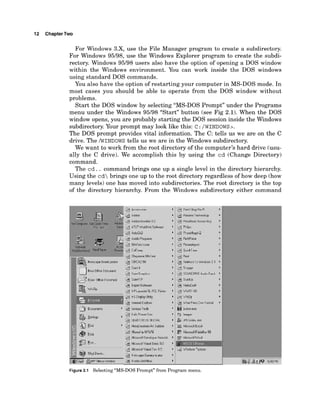
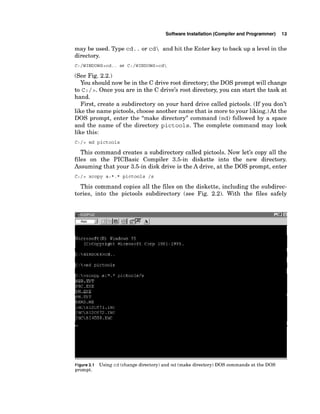
Start the DOS window by selecting "MS-DOS Prompt" under the Programs
menu under the Windows 95/98 "Start" button (see Fig 2.1). When the DOS
window opens, you are probably starting the DOS session inside the Windows
subdirectory. Your prompt may look like this: c:/WINDOWS>.
The DOS prompt provides vital information. The C: tells us we are on the C
drive. The /WINDOWS
tells us we are in the Windows subdirectory.
We want to work from the root directory of the computer's hard drive (usu-
ally the C drive). We accomplish this by using the cd (Change Directory)
command.
The cd. . command brings one up a single level in the directory hierarchy.
Using the cd brings one up to the root directory regardless of how deep (how
many levels) one has moved into subdirectories. The root directory is the top
of the directory hierarchy. From the Windows subdirectory either command
Software Installation (Compiler and Programmer) 13
may be used. Type cd. . or cd and hit the Enter key to back up a level in the
directory.
(See Fig. 2.2.)
You should now be in the C drive root directory; the DOS prompt will change
to c :/ 2. Once you are in the C drive's root directory, you can start the task at
hand.
First, create a subdirectory on your hard drive called pictools. (If you don't
like the name pictools, choose another name that is more to your liking.)At the
DOS prompt, enter the "make directory" command (md) followed by a space
and the name of the directory pictools. The complete command may look
like this:
C:/> md pictools
This command creates a subdirectory called pictools. Now let's copy all the
files on the PICBasic Compiler 3.5-in diskette into the new directory.
Assuming that your 3.5-in disk drive is the A drive, at the DOS prompt, enter
C:/> xcopy a:*.* pictools /s
This command copies all the files on the diskette, including the subdirec-
tories, into the pictools subdirectory (see Fig. 2.2). With the files safely
Figure2.1 Using cd (change directory) and md (make directory) DOS commands at the DOS
prompt.
14 ChapterTwo
loaded onto your hard drive, remove the diskette and store it in a safe place
in case it is needed in the future.
Installingthe EPIC Software
We are still in the root directory for the C drive. From here, create another
subdirectory on your hard drive called epic. (If you don't like the name epic,
choose another name that is more to your liking.)At the DOS prompt, enter
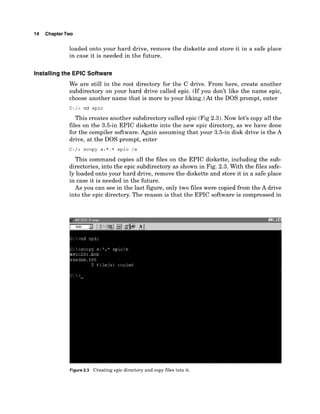
C:/> md epic
This creates another subdirectory called epic (Fig 2.3). Now let's copy all the
files on the 3.5-in EPIC diskette into the new epic directory, as we have done
for the compiler software. Again assuming that your 3.5-in disk drive is the A
drive, at the DOS prompt, enter
C:/> xcopy a:*.* epic /s
This command copies all the files on the EPIC diskette, including the sub-
directories, into the epic subdirectory as shown in Fig. 2.3. With the files safe-
ly loaded onto your hard drive, remove the diskette and store it in a safe place
in case it is needed in the future.
As you can see in the last figure, only two files were copied from the A drive
into the epic directory. The reason is that the EPIC software is compressed in
Figure2.3 Creating epic directory and copy files into it.
Software Installation (Compiler and Programmer) 15
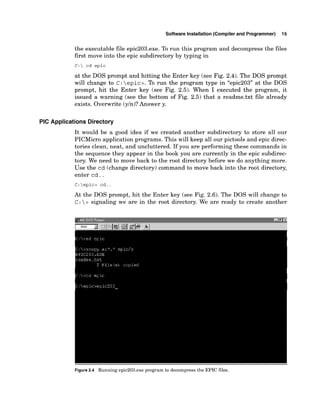
the executable file epic203.exe. To run this program and decompress the files
first move into the epic subdirectory by typing in
C: cd epic
at the DOS prompt and hitting the Enter key (see Fig. 2.4). The DOS prompt
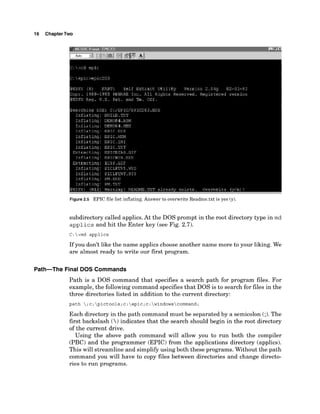
will change to C: epic>.To run the program type in "epic203" at the DOS
prompt, hit the Enter key (see Fig. 2.5). When I executed the program, it
issued a warning (see the bottom of Fig. 2.5) that a readme.txt file already
exists. Overwrite (yln)?Answer y.
PIC Applications Directory
It would be a good idea if we created another subdirectory to store all our
PICMicro application programs. This will keep all our pictools and epic direc-
tories clean, neat, and uncluttered. If you are performing these commands in
the sequence they appear in the book you are currently in the epic subdirec-
tory. We need to move back to the root directory before we do anything more.
Use the cd (change directory) command to move back into the root directory,
enter cd. .
C:epic> cd..
At the DOS prompt, hit the Enter key (see Fig. 2.6). The DOS will change to
c : > signaling we are in the root directory. We are ready to create another
Figure2.4 Running epic203.exe program to decompress the EPIC files.
16 ChapterTwo
Figure2.5 EPIC file list inflating. Answer to overwrite Readme.txt is yes (y).
subdirectory called applics.At the DOS prompt in the root directory type in m d
applics and hit the Enter key (see Fig. 2.7).
C:>md applics
If you don't like the name applics choose another name more to your liking. We
are almost ready to write our first program.
Path-The Final DOS Commands
Path is a DOS command that specifies a search path for program files. For
example, the following command specifies that DOS is to search for files in the
three directories listed in addition to the current directory:
path ;c:pictools;c:epic;c:windowscommand;
Each directory in the path command must be separated by a semicolon (;). The
first backslash () indicates that the search should begin in the root directory
of the current drive.
Using the above path command will allow you to run both the compiler
(PBC) and the programmer (EPIC) from the applications directory (applics).
This will streamline and simplifyusing both these programs. Without the path
command you will have to copy files between directories and change directo-
ries to run programs.
Software Installation (Compiler and Programmer) 17
Figure 2.6 Moving back to the root directory using the cd DOS command.
Figure 2.7 Creating applics directory and using the path DOS command.
18 ChapterTwo
The path command may be typed in at the DOS prompt and once you hit the
Enter key will stay in effect for as long as the DOS window remains open (see
Fig. 2.7).
C :  > path ;c:pictools;c:epic;c:windowscomrnand;
For those who are familiar with DOS commands, the path command can be
made permanent by entering it into or adding onto an existing path command
in the autoexec.bat file. For those who are not comfortable with DOS com-
mands or changing the set-up of the computer, don't touch the autoexec.bat
file. The autoexec.bat file is an important batch file that is run every time the
computer starts or is reset.
If you want to learn more about DOS and the autoexec.bat file to make these
changes, I recommend purchasing a tutorial book on DOS.
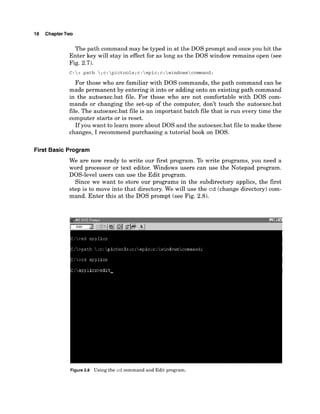
First Basic Program
We are now ready to write our first program. To write programs, you need a
word processor or text editor. Windows users can use the Notepad program.
DOS-level users can use the Edit program.
Since we want to store our programs in the subdirectory applics, the first
step is to move into that directory. We will use the cd (change directory) com-
mand. Enter this at the DOS prompt (see Fig. 2.8).
Figure 2.8 Using the cd command and Edit program.
Software Installation (Compiler and Programmer) 19
C:> cd applics
Once in this directory the prompt changes to
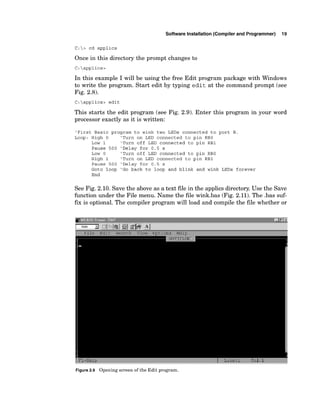
In this example I will be using the free Edit program package with Windows
to write the program. Start edit by typing edit at the command prompt (see
Fig. 2.8).
C:applics> edit
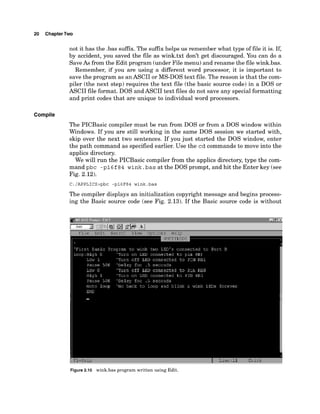
This starts the edit program (see Fig. 2.9). Enter this program in your word
processor exactly as it is written:
'First Basic program to wink two LEDs connected to port B.
Loop: High 0 'Turn on LED connected to pin RBO
Low 1 'Turn off LED connected to pin RBI
Pause 500 'Delay for 0.5 s
Low 0 'Turn off LED connected to pin RBO
High 1 'Turn on LED connected to pin RBI
Pause 500 'Delay for 0.5 s
Goto loop 'Go back to loop and blink and wink LEDs forever
End
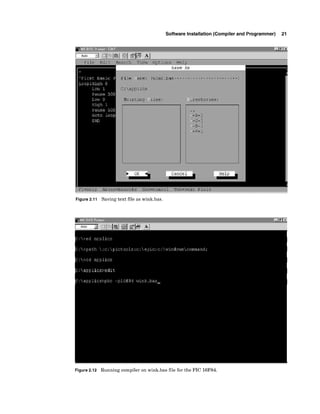
See Fig. 2.10. Save the above as a text file in the applics directory.Use the Save
function under the File menu. Name the file wink.bas (Fig. 2.11). The .bas suf-
f
m is optional. The compiler program will load and compile the file whether or
1 7 -=-+l?
.*.d
Figure2
.
9 Opening screen oftheEditprogram.
20 ChapterTwo
not it has the .bas suffix. The suffixhelps us remember what type of file it is. If,
by accident, you saved the file as wink.txt don't get discouraged. You can do a
SaveAs from the Edit program (under File menu) and rename the file wink.bas.
Remember, if you are using a different word processor, it is important to
save the program as anASCII or MS-DOS text file. The reason is that the com-
piler (the next step) requires the text file (the basic source code) in a DOS or
ASCII file format. DOS and ASCII text files do not save any special formatting
and print codes that are unique to individual word processors.
Compile
The PICBasic compiler must be run from DOS or from a DOS window within
Windows. If you are still working in the same DOS session we started with,
skip over the next two sentences. If you just started the DOS window, enter
the path command as specified earlier. Use the cd commands to move into the
applics directory.
We will run the PICBasic compiler from the applics directory, type the com-
mand pbc -p16 f84 wink. bas at the DOS prompt, and hit the Enter key (see
Fig. 2.12).
The compiler displays an initialization copyright message and begins process-
ing the Basic source code (see Fig. 2.13). If the Basic source code is without
1 7-=;15L?
.-
Figure 2.10 wink.bas program written using Edit.
Software Installation (Compiler and Programmer) 21
Figure 2.11 Saving text file as wink.bas.
Figure 2.12 Running compiler on wink.bas file for the PIC 16F84.
22 ChapterTwo
errors (and why shouldn't it be?), the compiler will create two additional files.
If the compiler finds any errors, a list of errors with their line numbers will be
displayed. Use the line numbers in the error message to locate the line num-
ber(~)
in the .bas text file where the error(s) occurred. The errors need to be
corrected before the compiler can compile the source code correctly. The most
common errors are with basic language syntax and usage.
You can look at the files by using the d i r directory command. Type d i r at
the command prompt:
C:APPLICS> dir
and hit Enter (see Fig. 2.14).
The d i r command displays all the files and subdirectories within the sub-
directory where it is issued. In Fig. 2.14 we can see the two additional files the
compiler created. One file, the wink.asm file, is the assembler source code file
that automatically initiates the macroassembler~s
compiling of the assembly
code to machine-language hex code. The second file created is the hex code file,
called wink.hex.
Programming the PIC Chip
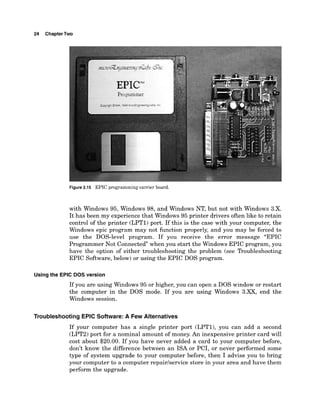
To program the PIC chip, we must connect the EPIC programming carrier
board (see Fig. 2.15) to the computer. The EPIC board connects to the printer
port, also called the parallel port. (Either name may be used; they are both cor-
Figure 2.13 Compiler initialization messages and compiled program length in words.
Software Installation (Compiler and Programmer) 23
Figure2.14 Looking at the two additional files (.hex and .asm) created using the DOS "dir"
command.
rect.) A computer may contain up to four parallel (printer)ports. Each port is
assigned a number from 1through 4. The computer lists these ports as LPTl
to LPT4.
If your computer has only one printer port, disconnect the printer, if one is
connected, and attach the EPIC programming board using a 6-ft DB25 cable.
When connecting the programming board to the computer, make sure there
are no PIC microcontrollers installed on the board. If you have an ac adapter
for the EPIC programmer, plug it in. If not, attach two fresh 9-V batteries.
Connect the Batt ONjumper to apply power. The programming board must be
connected to the printer port with power applied to the programming board
before starting the software. Otherwise, the software will not register the pro-
gramming board as connected to the printer port and will give the error mes-
sage "EPIC Programmer Not Connected."
When power is applied and the programming board is connected to the
printer port, the LED programming board on the EPIC programmer board
may be on or off at this point. Do not insert a PIC microcontrollerinto the pro-
gramming board socket until the EPIC programming software is running.
The EPIC programmingboard software
There are two versions of the EPIC software: EPIC.exe for DOS and
EPICWIN.exe for Windows. The Windows software is 32-bit. It may be used
24 ChapterTwo
Figure 2.15 EPIC programming carrier board.
with Windows 95, Windows 98, and Windows NT, but not with Windows 3.X.
It has been my experience that Windows 95 printer drivers often like to retain
control of the printer (LPT1) port. If this is the case with your computer, the
Windows epic program may not function properly, and you may be forced to
use the DOS-level program. If you receive the error message "EPIC
Programmer Not Connected when you start the Windows EPIC program, you
have the option of either troubleshooting the problem (see Troubleshooting
EPIC Software, below) or using the EPIC DOS program.
Usingthe EPlC DOS version
If you are using Windows 95 or higher, you can open a DOS window or restart
the computer in the DOS mode. If you are using Windows 3.XX, end the
Windows session.
Troubleshooting EPlC Software: A Few Alternatives
If your computer has a single printer port (LPTl), you can add a second
(LPT2) port for a nominal amount of money. An inexpensive printer card will
cost about $20.00. If you have never added a card to your computer before,
don't know the difference between an ISA or PCI, or never performed some
type of system upgrade to your computer before, then I advise you to bring
your computer to a computer repairhervice store in your area and have them
perform the upgrade.
Software Installation (Compiler and Programmer) 25
There is no guarantee that the EPIC software will work with a second LPT
port. You may still have to work at the DOS level to get it to function properly.
For instance, in order for me to run the EPIC DOS program from a DOS
window in Windows 95 I needed to remove my HP (Hewlett-Packard) printer
driver first (see Fig. 2.16). I opened the printer driver window and closed down
(exited)the program.
Continuing with the wink.bas program
Assume we are still in the same DOS session and we have just run the PBC
compiler on the wink.bas program. We are still in the applics directory. At the
DOS prompt, type epic and hit enter to run the DOS version of the EPIC soft-
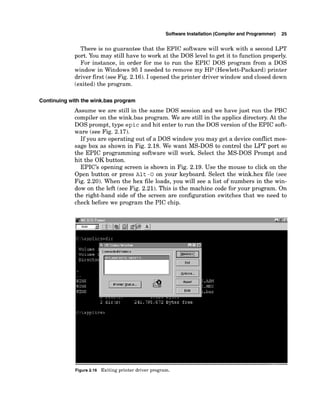
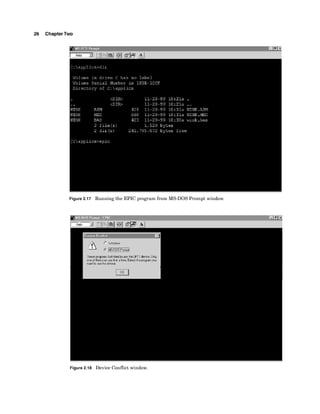
ware (see Fig. 2.17).
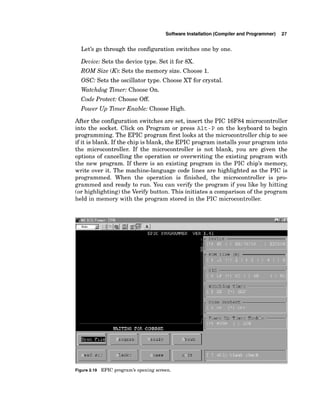
If you are operating out of a DOS window you may get a device conflict mes-
sage box as shown in Fig. 2.18. We want MS-DOS to control the LPT port so
the EPIC programming software will work. Select the MS-DOS Prompt and
hit the OK button.
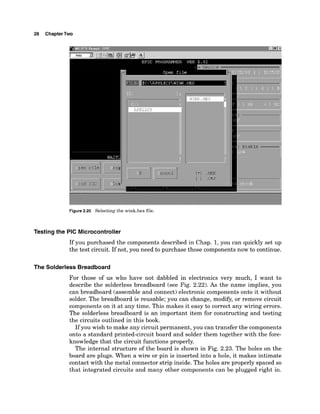
EPIC'S opening screen is shown in Fig. 2.19. Use the mouse to click on the
Open button or press ~ l t
-0 on your keyboard. Select the wink.hex file (see
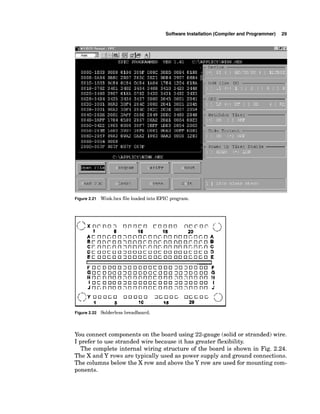
Fig. 2.20). When the hex file loads, you will see a list of numbers in the win-
dow on the left (see Fig. 2.21). This is the machine code for your program. On
the right-hand side of the screen are configuration switches that we need to
check before we program the PIC chip.
Figure 2.16 Exiting printer driver program.
26 ChapterTwo
Figure 2.17 Running the EPIC program from MS-DOS Prompt window.
Figure 2.18 Device Conflict window.
Software Installation (Compiler and Programmer) 27
Let's go through the configuration switches one by one.
Device: Sets the device type. Set it for 8X.
ROM Size (K):Sets the memory size. Choose 1.
OSC: Sets the oscillator type. Choose XT for crystal.
Watchdog Timer: Choose On.
Code Protect: Choose Off.
Power Up Timer Enable: Choose High.
After the configuration switches are set, insert the PIC 16F84microcontroller
into the socket. Click on Program or press ~ l t - P
on the keyboard to begin
programming. The EPIC program first looks at the microcontroller chip to see
if it is blank. If the chip is blank, the EPIC program installs your program into
the microcontroller. If the microcontroller is not blank, you are given the
options of cancelling the operation or overwriting the existing program with
the new program. If there is an existing program in the PIC chip's memory,
write over it. The machine-language code lines are highlighted as the PIC is
programmed. When the operation is finished, the microcontroller is pro-
grammed and ready to run. You can verify the program if you like by hitting
(or highlighting) the Verify button. This initiates a comparison of the program
held in memory with the program stored in the PIC microcontroller.
laxk? ~ 3 . 5 ~ E it
1.
Figure 2.19 EPIC program's opening screen.
28 ChapterTwo
I
Figure2.20 Selectingthe wink.hex file.
Testing the PIC Microcontroller
If you purchased the components described in Chap. 1,you can quickly set up
the test circuit. If not, you need to purchase those components now to continue.
The Solderless Breadboard
For those of us who have not dabbled in electronics very much, I want to
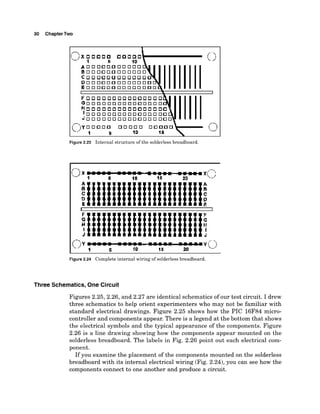
describe the solderless breadboard (see Fig. 2.22).As the name implies, you
can breadboard (assemble and connect) electronic components onto it without
solder. The breadboard is reusable; you can change, modify, or remove circuit
components on it at any time. This makes it easy to correct any wiring errors.
The solderless breadboard is an important item for constructing and testing
the circuits outlined in this book.
If you wish to make any circuit permanent, you can transfer the components
onto a standard printed-circuit board and solder them together with the fore-
knowledge that the circuit functions properly.
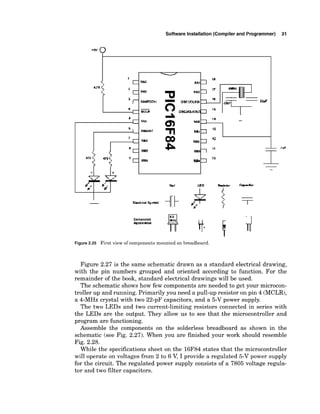
The internal structure of the board is shown in Fig. 2.23. The holes on the
board are plugs. When a wire or pin is inserted into a hole, it makes intimate
contact with the metal connector strip inside. The holes are properly spaced so
that integrated circuits and many other components can be plugged right in.
Software Installation (Compiler and Programmer) 29
Figure 2.21 Wink.hex file loaded into EPIC program.
Figure 2.22 Solderless breadboard.
You connect components on the board using 22-gauge (solid or stranded) wire.
I prefer to use stranded wire because it has greater flexibility.
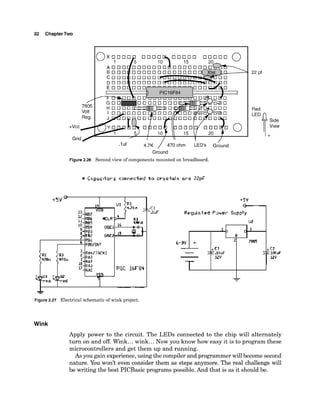
The complete internal wiring structure of the board is shown in Fig. 2.24.
The X and Y rows are typically used as power supply and ground connections.
The columns below the X row and above the Y row are used for mounting com-
ponents.
30 ChapterTwo
Figure 2.23 Internal structure of the solderless breadboard.
Figure 2.24 Complete internal wiring of solderless breadboard.
Three Schematics, One Circuit
Figures 2.25,2.26,and 2.27 are identical schematics of our test circuit. I drew
three schematics to help orient experimenters who may not be familiar with
standard electrical drawings. Figure 2.25 shows how the PIC 16F84 micro-
controller and components appear. There is a legend at the bottom that shows
the electrical symbols and the typical appearance of the components. Figure
2.26 is a line drawing showing how the components appear mounted on the
solderless breadboard. The labels in Fig. 2.26 point out each electrical com-
ponent.
If you examine the placement of the components mounted on the solderless
breadboard with its internal electrical wiring (Fig. 2.24),you can see how the
components connect to one another and produce a circuit.
Software Installation (Compiler and Programmer) 31
Figure2.25 First view of components mounted on breadboard.
Figure 2.27 is the same schematic drawn as a standard electrical drawing,
with the pin numbers grouped and oriented according to function. For the
remainder of the book, standard electrical drawings will be used.
The schematic shows how few components are needed to get your microcon-
troller up and running. Primarily you need a pull-up resistor on pin 4 (MCLR),
a 4-MHz crystal with two 22-pF capacitors, and a 5-V power supply.
The two LEDs and two current-limiting resistors connected in series with
the LEDs are the output. They allow us to see that the microcontroller and
program are functioning.
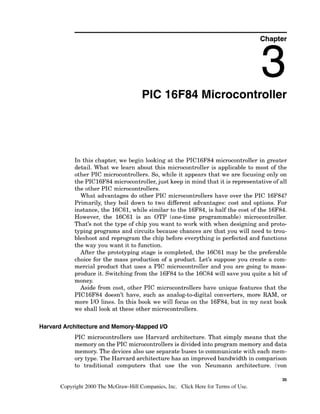
Assemble the components on the solderless breadboard as shown in the
schematic (see Fig. 2.27). When you are finished your work should resemble
Fig. 2.28.
While the specifications sheet on the 16F84 states that the microcontroller
will operate on voltages from 2 to 6 V, I provide a regulated 5-V power supply
for the circuit. The regulated power supply consists of a 7805 voltage regula-
tor and two filter capacitors.
32 ChapterTwo
/
7805
Volt
Reg.
+vcc/
Gnd
O x 0 0
1
A 0 0
B O O
C O O
D O 0
.luf 4.7K / 470 ohm LED'S &und
Ground
Figure 2.26 Second view of components mounted on breadboard.
Red
Side
View
""P.
+5V
Rcgulatcd P 3 4 w Supply
I
-L
-
Figure 2.27 Electrical schematic of wink project.
Wink
Apply power to the circuit. The LEDs connected to the chip will alternately
turn on and off. Wink...wink...Now you know how easy it is to program these
microcontrollers and get them up and running.
As you gain experience,using the compiler and programmerwill become second
nature. You won't even consider them as steps anymore. The real challenge will
be writing the best PICBasic programs possible.And that is as it should be.
Software Installation (Compiler and Programmer) 33
Figure2.28 Photograph of wink project.
Troubleshootingthe Circuit
There is not too much that can go wrong here. If the LEDs don't light up, the
first thing I would check is the orientation of the LEDs. If they are put in back-
ward, they will not light.
Next check your ground wires. See the jumper wires on the right-hand side
of the solderless breadboard. They bring the ground up to the two 22-pF
capacitors.
Check all your connections. Look back at Figs. 2.23 and 2.24 to see how the
underlying conductive strips relate to the push-in terminals on top of the
board.
Chapter Review
Before we move on to the next chapter, let's review the important steps we
have learned in programming a PIC microcontroller. We will not review the
installation, because that's typically a one-time job.
This review assumes we are working from DOS.
Step 1. Upon entering DOS, if you are not in the root directory, move to the
root directory using the cd command cd..or cd>
Step 2. At the DOS prompt enter the path command:
C:> path ;c:pictools;c:epic;c:windowscommand;
34 ChapterTwo
Step 3. Enter the applics directory using the cd command:
C: cd applics
Step 4. Start your word processor or the Edit program:
C:applics> edit
Step 5. Write the Basic program. Save the program as an ASCII-type text
file. Save the file with a .bas suffix (e.g.,wink.bas). Note that .basis optional.
Step 6. From the applics directory, run the PICBasic compiler.The command
line for compiling the wink.bas program for a PIC16F84 microcontroller is as
follows:
C:applics> pbc -p16F84 wink.bas
The -p1 6~8 4 tells the compiler to compile the program for this particular
microcontroller. The compiler is capable of writing for a large number of PIC
microcontrollers you will find listed in the compiler manual. The .bas after
the program name is optional.
The compiler reads the .bas file and, if it finds no errors, generates two
files, wink.asm and wink.hex. If the compiler finds an error, the program
needs to be corrected and recompiled.
Step 7. Connect the EPIC programming board to the computer's parallel
(printer)port. Turn on the EPIC board power supply.
Step 8. From the applics subdirectory run the EPIC DOS program.
C:applics> epic
Load the program's .hex file. Insert a PIC 16F84 into the programming
socket on the programming board. Highlight the Program button and hit the
Enter key on your keyboard to program the PIC microcontroller.
Remove the PIC microcontroller chip and test it.
In the next chapter, we will look at output-programmable attributes of the
16F84.
Parts List
Same components as listed for Chap. 1.
Chapter
PIC 16F84 Microcontroller
In this chapter, we begin looking at the PIC16F84 microcontroller in greater
detail. What we learn about this microcontroller is applicable to most of the
other PIC microcontrollers. So, while it appears that we are focusing only on
the PIC16F84 microcontroller,just keep in mind that it is representative of all
the other PIC microcontrollers.
What advantages do other PIC microcontrollers have over the PIC 16F84?
Primarily, they boil down to two different advantages: cost and options. For
instance, the 16C61,while similar to the 16F84, is half the cost of the 16F84.
However, the 16C61 is an OTP (one-time programmable) microcontroller.
That's not the type of chip you want to work with when designing and proto-
typing programs and circuits because chances are that you will need to trou-
bleshoot and reprogram the chip before everything is perfected and functions
the way you want it to function.
After the prototyping stage is completed, the 16C61may be the preferable
choice for the mass production of a product. Let's suppose you create a com-
mercial product that uses a PIC microcontroller and you are going to mass-
produce it. Switching from the 16F84 to the 16C84will save you quite a bit of
money.
Aside from cost, other PIC microcontrollers have unique features that the
PIC16F84 doesn't have, such as analog-to-digital converters, more RAM, or
more 110 lines. In this book we will focus on the 16F84, but in my next book
we shall look at these other microcontrollers.
Harvard Architecture and Memory-Mapped I
1
0
PIC microcontrollers use Harvard architecture. That simply means that the
memory on the PIC microcontrollersis divided into program memory and data
memory. The devices also use separate buses to communicate with each mem-
ory type. The Harvard architecture has an improved bandwidth in comparison
to traditional computers that use the von Neumann architecture. (von
35
Copyright 2000 The McGraw-Hill Companies, Inc. Click Here for Terms of Use.
36 ChapterThree
Neumann architecture accesses data and memory over the same bus.) The
Harvard architecture allows for other enhancements. For instance, instruc-
tions may be sized differently than 8-bit-widedata.
The data memory in the PIC microcontroller can be further broken down
into general-purpose RAM and the special function registers (SFRs).
The registers on the PIC 16F84 are mapped in the data memory section at
specific addresses. The PICBasic language allows us to read and write to these
registers as if they were standard memory bytes. This is an important concept
to learn and remember. We read and write to the registers (memory location)
using the Basic language's Peek (read)and Poke (write)commands. By writing
numbers into the chip's registers, we program the chip I10 (via the registers)
and have it perform the functions we need.
Although we read and write to the registers using our familiar decimal num-
bers, to understand what happens inside the register with those numbers
requires a fundamental understanding of the binary number system.
Binary Fundamentals
To access the PIC chip registers efficiently, a little binary goes a long way.
Binary isn't diflicult to learn because there are only two values. That's what
the word binary means: "based on two," as in the two numbers 0 and 1.Binary
0 and 1can also be comparedto an electrical signal controlledby a switch that
has two values, off (0)and on (1).
In binary, a digit is called a bit, which stands
for binary digit.
An 8-bit digital number, or byte, can hold any decimal value between 0 and
255. In hexadecimal notation, these same values (0to 255) are expressed as 00
to FF. We are not going to be learning hex (the hexadecimal number system),
primarily because we don't need to use hexadecimal notation to write Basic
programs. It's nice to know hexadecimal notation in the grand scheme of
things because it is used at times, but it is not essential. What is essential at
this point is to gain an understanding of binary; stay focused on this. When
you understand the binary number system completely, then (and only then) if
you are still interested in hexadecimal notation, there is a quick tutorial in the
Appendix.
The CPU in the PIC 16F84 uses an 8-bit data bus (pathway). The registers
in the PIC chip are also 8 bits wide. Thus, a byte is the perfect size to access
the PIC chip registers. We will read from and write to the PIC microcon-
troller's registers using the decimal numbers between 0 and 255, which can be
contained in one 8-bit byte.
However, when we write a decimal number into a register, the microcon-
troller can only see the binary equivalent of that decimal number (byte). To
understand what's happening inside the register, we need to be able to look at
the binary equivalent of the decimal number (byte) also. Once we can do this,
our ability to effectively and elegantly program the PIC microcontroller is
greatly enhanced.
PIC 16F84 Microcontroller 37
Examine Table 3.1. This table shows the decimal-and binary-number equiv-
alents for the numbers 0through 31. Using this information, the binary num-
bers from 32 to 255 can be extrapolated.
In the table, each decimal number on the left side of the equal sign has its
binary equivalent on the right side. So when we see a decimal number, the
microcontrollerwill see the same number as a series of 8 bits (8bits to a byte).
Registers and Ports
The PIC 16F84 contains two I10 ports, port A and port B. Each port has two
registers associated with it, the TRIS (Tri State)register and the port register
address itself.
The TRIS register controls whether a particular pin on a port is configured
as an input line or an output line. Once the ports are configured the user may
then read or write information to the port using the port register address. (The
terms pins and lines off the PIC 16F84 mean the same thing and are used
interchangeably throughout the text.)
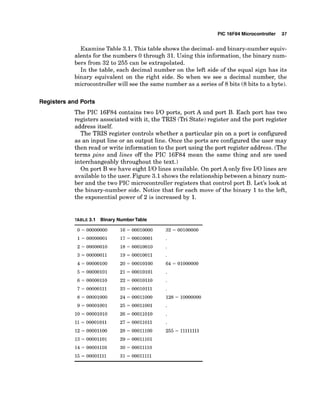
On port B we have eight I10 lines available. On port A only five I10 lines are
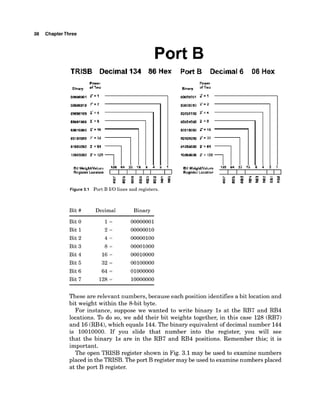
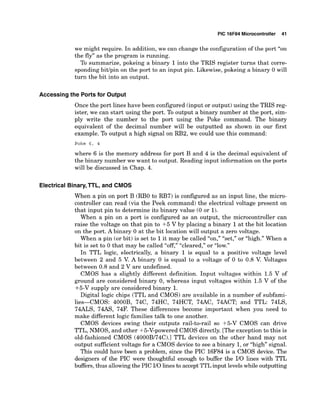
available to the user. Figure 3.1shows the relationship between a binary num-
ber and the two PIC microcontrollerregisters that control port B. Let's look at
the binary-number side. Notice that for each move of the binary 1to the left,
the exponential power of 2 is increased by 1.
TABLE 3.1 Binary NumberTable
38 ChapterThree
Port B
TRlSB Decimal 134 86 Hex
k t FG
u P: K K K P : A
Figure3.1 Port B I10 lines and registers.
Bit # Decimal Binary
Bit 0
Bit 1
Bit 2
Bit 3
Bit 4
Bit 5
Bit 6
Bit 7
Port B Decimal 6 06 Hex
Puuucr
Binary IfTwa
These are relevant numbers, because each position identifies a bit location and
bit weight within the 8-bit byte.
For instance, suppose we wanted to write binary 1s at the RB7 and RB4
locations. To do so, we add their bit weights together, in this case 128 (RB7)
and 16(RB4),which equals 144.The binary equivalent of decimal number 144
is 10010000. If you slide that number into the register, you will see
that the binary 1s are in the RB7 and RB4 positions. Remember this; it is
important.
The open TRISB register shown in Fig. 3.1 may be used to examine numbers
placed in the TRISB. The port B register may be used to examinenumbers placed
at the port B register.
PIC 16F84 Microcontroller 39
Notice the correlation between the register bit locations, bit weights, and
port B I10 pins. This correspondence between the bit number, bit weight, and
the I10 line is used to program and control the port. A few examples will
demonstrate this relationship.
UsingtheTRIS and port registers
The TRIS register is a 1-byte (8-bit) programmable register on the PIC
16F84 that controls whether a particular I10 pin is configured as an input
or an output pin. There is a TRIS register for each port. TRISA controls the
I10 status for the pins on port A and TRISB controls I10 status for the pins
on port B.
If you place a binary 0 at a bit location in TRISB for port B, the corre-
sponding pin location on port B will become an output pin. If you place a bina-
ry 1 at a bit location in the TRISB, the corresponding pin on port B will
become an input pin. The TRISB data memory address for port B is 134 (or
86h in hex).
After port B has been configured using TRISB register, the user can read or
write to the port using the port B address (decimal number 6).
Here is an example. Suppose we want to make all port B lines output lines.
To do so we need to put a binary 0 in each bit position in the TRISB register.
So the number we would write into the register is decimal 0. Now all our I10
lines are configured as output lines.
If we connect an LED (light-emitting diode) to each output line, we can see
a visual indication of any number we write to the port B. If we want to turn on
the LEDs connected to RB2 and RB5, we need to place a binary 1at each bit
position on the port B register. To accomplish this we look at the bit weights
associated with each line. RB2 has a bit weight of 4, and RB5 has a bit weight
of 32. We add these numbers together (4 + 32 = 36) and write that number
into the port B register.
When we write the number 36 into the port B register, the LEDs connected
to RB2 and RB5 will light.
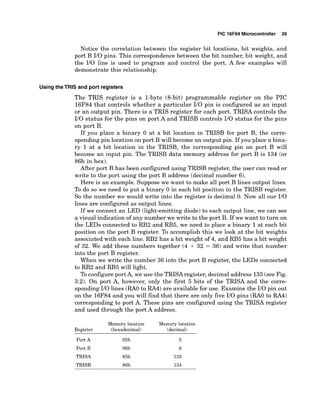
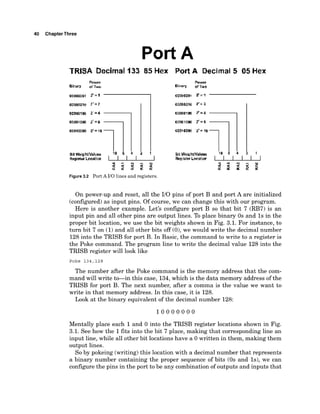
To configure port A, we use the TRISAregister, decimal address 133(see Fig.
3.2). On port A, however, only the first 5 bits of the TRISA and the corre-
sponding I10 lines (RAO to RA4) are available for use. Examine the I10 pin out
on the 16F84 and you will find that there are only five 110pins (RAO to RA4)
corresponding to port A. These pins are configured using the TRISA register
and used through the port A address.
Memory location Memory location
Register (hexadecimal) (decimal)
Port A 05h
Port B 06h
TRISA 85h
TRISB 86h
40 ChapterThree
Port A
TRlSA Decimal 133 85 Hex PortA Decimal 5 05 Hex
IIIIDDlOW 2'=8
rorriaaw r= 16
Bil Weigk'klueb 16 0 4 2 1
F t t a l ~ k c r w t l o n I I I I I
Figure 3.2 Port A 110 lines and registers.
On power-up and reset, all the 110 pins of port B and port A are initialized
(configured)as input pins. Of course, we can change this with our program.
Here is another example. Let's configure port B so that bit 7 (RB7) is an
input pin and all other pins are output lines. To place binary 0s and 1s in the
proper bit location, we use the bit weights shown in Fig. 3.1. For instance, to
turn bit 7 on (1)and all other bits off (O),we would write the decimal number
128into the TRISB for port B. In Basic, the command to write to a register is
the Poke command. The program line to write the decimal value 128 into the
TRISB register will look like
Poke 134,128
The number after the Poke command is the memory address that the com-
mand will write to-in this case, 134,which is the data memory address of the
TRISB for port B. The next number, after a comma is the value we want to
write in that memory address. In this case, it is 128.
Look at the binary equivalent of the decimal number 128:
Mentally place each 1and 0 into the TRISB register locations shown in Fig.
3.1. See how the 1fits into the bit 7 place, making that corresponding line an
input line, while all other bit locations have a 0 written in them, making them
output lines.
So by pokeing (writing)this location with a decimal number that represents
a binary number containing the proper sequence of bits (0s and Is), we can
configure the pins in the port to be any combination of outputs and inputs that
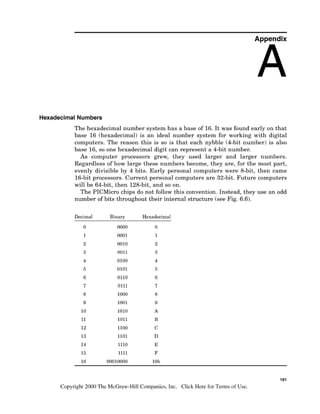
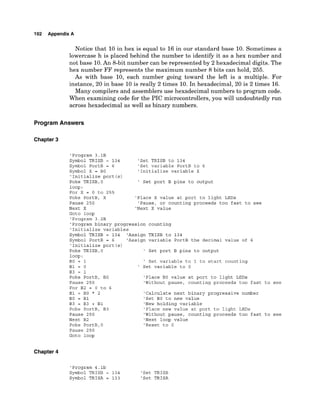
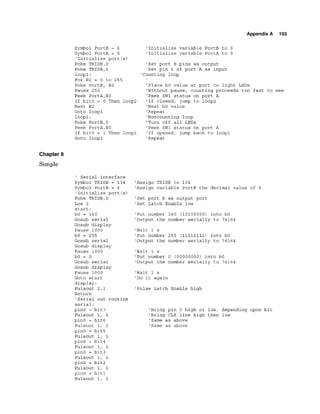
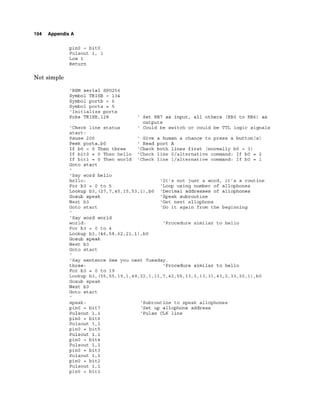
PIC 16F84 Microcontroller 41
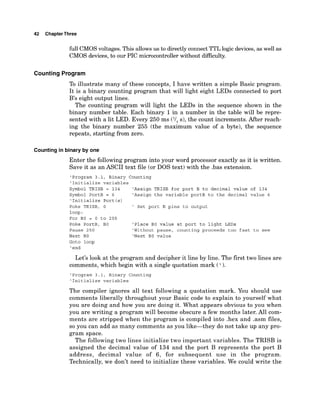
we might require. In addition, we can change the configuration of the port "on
the fly" as the program is running.
To summarize, pokeing a binary 1into the TRIS register turns that corre-
sponding bitlpin on the port to an input pin. Likewise, pokeing a binary 0 will
turn the bit into an output.
Accessing the Ports for Output
Once the port lines have been configured (input or output)using the TRIS reg-
ister, we can start using the port. To output a binary number at the port, sim-
ply write the number to the port using the Poke command. The binary
equivalent of the decimal number will be outputted as shown in our first
example. To output a high signal on RB2, we could use this command:
Poke 6 , 4
where 6 is the memory address for port B and 4 is the decimal equivalent of
the binary number we want to output. Reading input information on the ports
will be discussed in Chap. 4.
Electrical Binary,TTL, and CMOS
When a pin on port B (RBO to RB7) is configured as an input line, the micro-
controller can read (via the Peek command) the electrical voltage present on
that input pin to determine its binary value (0 or 1).
When a pin on a port is configured as an output, the microcontroller can
raise the voltage on that pin to +5 V by placing a binary 1at the bit location
on the port. Abinary 0 at the bit location will output a zero voltage.
When a pin (or bit) is set to 1it may be called "on," "set," or "high."When a
bit is set to 0 that may be called "cleared," or "low."
In TTL logic, electrically, a binary 1 is equal to a positive voltage level
between 2 and 5 V
. A binary 0 is equal to a voltage of 0 to 0.8 V. Voltages
between 0.8 and 2 V are undefined.
CMOS has a slightly different definition. Input voltages within 1.5 V of
ground are considered binary 0, whereas input voltages within 1.5 V of the
+5-V supply are considered binary 1.
Digital logic chips (TTL and CMOS) are available in a number of subfami-
lies-CMOS: 4000B, 74C, 74HC, 74HCT, 74AC, 74ACT; and TTL: 74LS,
74ALS, 74AS, 74F. These differences become important when you need to
make different logic families talk to one another.
CMOS devices swing their outputs rail-to-rail so +5-V CMOS can drive
TTL, NMOS, and other +5-V-powered CMOS directly. [The exception to this is
old-fashioned CMOS (4000B/74C).l TTL devices on the other hand may not
output sufficient voltage for a CMOS device to see a binary 1,or "high" signal.
This could have been a problem, since the PIC 16F84 is a CMOS device. The
designers of the PIC were thoughtful enough to buffer the IIO lines with TTL
buffers, thus allowingthe PIC 110linesto acceptTTLinput levelswhile outputting
42 ChapterThree
Ml CMOSvoltages.This allowsus to directly connect TTL logic devices,as well as
CMOS devices,to our PIC microcontroller without difliculty.
Counting Program
To illustrate many of these concepts, I have written a simple Basic program.
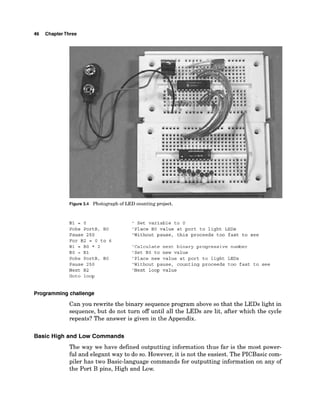
It is a binary counting program that will light eight LEDs connected to port
B's eight output lines.
The counting program will light the LEDs in the sequence shown in the
binary number table. Each binary 1in a number in the table will be repre-
sented with a lit LED. Every 250 ms (I/, s), the count increments. After reach-
ing the binary number 255 (the maximum value of a byte), the sequence
repeats, starting from zero.
Counting in binary by one
Enter the following program into your word processor exactly as it is written.
Save it as an ASCII text file (or DOS text) with the .bas extension.
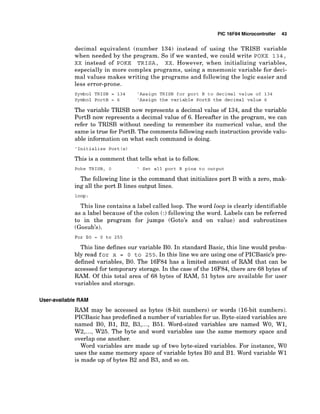
'Program 3.1, Binary Counting
'Initialize variables
Symbol TRISB = 134 'Assign TRISB for port B to decimal value of 134
Symbol PortB = 6 'Assign the variable portB to the decimal value 6
'Initialize Port (s)
Poke TRISB, 0 ' Set port B pins to output
loop :
For BO = 0 to 255
Poke PortB, BO 'Place BO value at port to light LEDs
Pause 250 'Without pause, counting proceeds too fast to see
Next BO 'Next BO value
Goto loop
'end
Let's look at the program and decipher it line by line. The first two lines are
comments, which begin with a single quotation mark (').
'Program 3.1, Binary Counting
'Initialize variables
The compiler ignores all text following a quotation mark. You should use
comments liberally throughout your Basic code to explain to yourself what
you are doing and how you are doing it. What appears obvious to you when
you are writing a program will become obscure a few months later. All com-
ments are stripped when the program is compiled into .hex and .asm files,
so you can add as many comments as you like-they do not take up any pro-
gram space.
The following two lines initialize two important variables. The TRISB is
assigned the decimal value of 134 and the port B represents the port B
address, decimal value of 6, for subsequent use in the program.
Technically, we don't need to initialize these variables. We could write the
PIC 16F84 Microcontroller 43
decimal equivalent (number 134) instead of using the TRISB variable
when needed by the program. So if we wanted, we could write POKE 1 3 4 ,
XX instead of POKE T R I S A , XX. However, when initializing variables,
especially in more complex programs, using a mnemonic variable for deci-
mal values makes writing the programs and following the logic easier and
less error-prone.
Symbol TRISB = 134 'Assign TRISB for port B to decimal value of 134
Symbol PortB = 6 'Assign the variable PortB the decimal value 6
The variable TRISB now represents a decimal value of 134, and the variable
PortB now represents a decimal value of 6. Hereafter in the program, we can
refer to TRISB without needing to remember its numerical value, and the
same is true for PortB. The comments following each instruction provide valu-
able information on what each command is doing.
'Initialize Port (s)
This is a comment that tells what is to follow.
Poke TRISB, 0 ' Set all port B pins to output
The following line is the command that initializes port B with a zero, mak-
ing all the port B lines output lines.
loop :
This line contains a label called loop. The word loop is clearly identifiable
as a label because of the colon (:) following the word. Labels can be referred
to in the program for jumps (Goto's and on value) and subroutines
(Gosub's).
For BO = 0 to 255
This line defines our variable BO. In standard Basic, this line would proba-
bly read for x = 0 t o 255. In this line we are using one of PICBasic's pre-
defined variables, BO. The 16F84 has a limited amount of RAM that can be
accessed for temporary storage. In the case of the 16F84,there are 68 bytes of
RAM. Of this total area of 68 bytes of RAM, 51 bytes are available for user
variables and storage.
User-available RAM
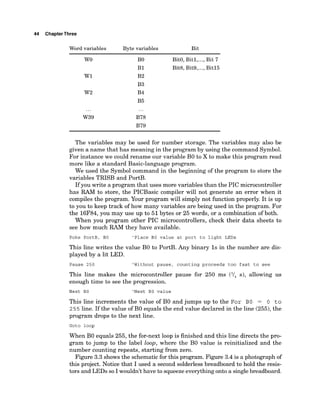
RAM may be accessed as bytes (8-bit numbers) or words (16-bit numbers).
PICBasic has predefined a number of variables for us. Byte-sized variables are
named BO, B1, B2, B3,..., B51. Word-sized variables are named WO, W1,
W2,...,W25. The byte and word variables use the same memory space and
overlap one another.
Word variables are made up of two byte-sized variables. For instance, W
O
uses the same memory space of variable bytes B
O and B1. Word variable W1
is made up of bytes B2 and B3, and so on.
44 ChapterThree
Word variables Byte variables Bit
B
O BitO, Bitl,...,Bit 7
B1 Bit& Bit9,...,Bit15
B2
B3
B4
B5
...
B78
B79
The variables may be used for number storage. The variables may also be
given a name that has meaning in the program by using the command Symbol.
For instance we could rename our variable B
O to X to make this program read
more like a standard Basic-language program.
We used the Symbol command in the beginning of the program to store the
variables TRISB and PortB.
If you write a program that uses more variables than the PIC microcontroller
has RAM to store, the PICBasic compiler will not generate an error when it
compiles the program. Your program will simply not function properly. It is up
to you to keep track of how many variables are being used in the program. For
the 16F84,you may use up to 51bytes or 25 words, or a combination of both.
When you program other PIC microcontrollers, check their data sheets to
see how much RAM they have available.
Poke PortB, BO 'Place BO value at port to light LEDs
This line writes the value B
O to PortB. Any binary 1s in the number are dis-
played by a lit LED.
Pause 250 'Without pause, counting proceeds too fast to see
This line makes the microcontroller pause for 250 ms (I/, s), allowing us
enough time to see the progression.
Next BO 'Next BO value
This line increments the value of B
O and jumps up to the For BO = 0 t o
2 5 5 line. If the value of B
O equals the end value declared in the line (255),the
program drops to the next line.
Goto loop
When B
O equals 255, the for-next loop is finished and this line directs the pro-
gram to jump to the label loop, where the B
O value is reinitialized and the
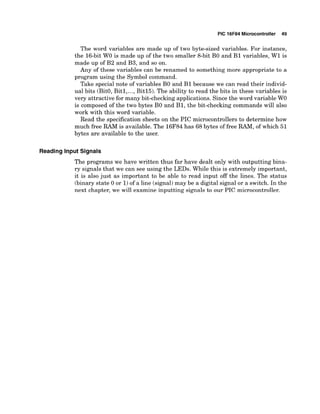
number counting repeats, starting from zero.
Figure 3.3 shows the schematicfor this program. Figure 3.4 is a photograph of
this project. Notice that I used a second solderless breadboard to hold the resis-
tors and LEDs so I wouldn't have to squeezeeverythingonto a singlebreadboard.
PIC 16F84 Microcontroller 45
Programmingchallenge
Rewrite the last program, renaming the B
O variable X. This will make the pro-
gram appear more like a "standard"Basic-language program. The programming
answer is given in the Appendix.
Counting Binary Progression
The last program was informative. It showed us how to output electrical sig-
nals via port B. Those electrical signals may be used for communication andlor
control. As we shall learn in future chapters, an electrical signal off one pin
can controljust about any household electrical appliance.
We are not yet finished with our simple circuit. With a little programming
modification, we can have the same circuit perform a binary progression
instead of binary counting. What's the difference between a binary progression
and counting? The binary progression lights each single LED in sequence,
starting with the first LED, then the second LED, and so on until the last LED
is lit, after which the progression repeats. When the LEDs are arranged in a
straight line, it looks as if the lit LED travels from one end of the straight line
to the other. If the LED lights were arranged in a circle, the lit LED would
appear to travel in a circle.
'Program 3.2, Binary Progression Counting
'Initialize variables
Symbol TRISB = 134 'Assign TRISB port B to 134
Symbol PortB = 6 'Assign the variable PortB the decimal value 6
'Initialize Port(s)
Poke TRISB, 0 ' Set port B pins to output
loop:
BO = 1 ' Set variable to 1 to start counting
-
Figure 3.3 Schematic for LED counting project.
46 ChapterThree
r
Figure 3
.
4 Photographo
fLEDcountingp
r
o
j
e
c
t
.
B1 = 0
Poke PortB, BO
Pause 250
For B2 = 0 to 6
B1 = B0 * 2
BO = B1
Poke PortB, BO
Pause 250
Next B2
Goto loop
' Set variable to 0
'Place BO value at port to light LEDs
'Without pause, this proceeds too fast to see
'Calculate next binary progressive number
'Set BO to new value
'Place new value at port to light LEDs
'Without pause, counting proceeds too fast to see
'Next loop value
Programmingchallenge
Can you rewrite the binary sequence program above so that the LEDs light in
sequence, but do not turn off until all the LEDs are lit, after which the cycle
repeats? The answer is given in the Appendix.
Basic High and Low Commands
The way we have defined outputting information thus far is the most power-
ful and elegant way to do so. However, it is not the easiest. The PICBasic com-
piler has two Basic-language commands for outputting information on any of
the Port B pins, High and Low.
PIC 16F84 Microcontroller 47
These commands are limited to port B; they will not work on port A lines. So
if your knowledge of the Basic language did not include the Poke command
and an understanding of binary, you would be unable to use the five 110 lines
to port A.
The High command makes the specified pin output high. The pin so defined
is automatically made into an output pin. This works only with port B pins 0
to 7. The command structure is as follows:
High Pin
So the command
High 0
makes pin 0 an output pin and sets it high (+5 V).
The Low command makes the specified pin output low. The pin so defined is
automatically made into an output pin. This works only with port B pins 0 to
7. The command structure is as follows:
Low Pin
So the command
Low 0
makes Pin 0 an output pin and sets it low (0 V).
The High and Low commands are quick and easy commands to use and do
have their usefulness. Real programming power and versatility is obtained
using the Poke command. Don't believe it? Try rewriting our simple binary
counting programs using just the High and Low commands. Call me when
you're done.
As a sample program that uses the High and Low commands, here is the
first program we worked with from Chap. 2.
Loop: High 0 ' Turn on LED connected to pin RBO
Low 1 ' Turn off LED connected to pin RBI
Pause 5 0 0 ' Delay for 0 . 5 s
Low 0 ' Turn off LED connected to pin RE0
High 1 ' Turn on LED connected to pin R B l
Pause 5 0 0 ' Delay for 0 . 5 s
Goto loop ' Go back to loop and blink and wink LEDs forever
End
Programming Review
Before we proceed to the next chapter, let's take time to review the key pro-
gramming concepts we have used in the last few programs.
Comments
Use comments liberally when writing your programs. Use them to describe the
logic and what the program is doing at that particular point. This will allow
you to follow and understand the program's logic long after you have written
48 ChapterThree
Identifiers
Line labels
Symbols
Variables
(and probably forgotten) the program. Comments begin with a single quota-
tion mark (') or with the word REM.The compiler ignores all characters on the
line following the quotation mark or the keyword REM.
Identifiers are names used for line labels and symbols. An identifier may be
any sequence of letters, digits, and underscores, but it must not start with a
digit.
Identifiers may be any number of characters in length; however, the com-
piler will recognize only the first 32 characters.
Identifiers are not case-sensitive, so the labels LOOP:, Loop:, loop:, and
loop: will be read equivalently.
Labels are anchor points or reference points in your program. When you need
the program to jump to a specific program location through either a Goto,
Gosub, or Branch, use a label. Labels are easy to use. Use a descriptive word
(identifier) for a label, such as the word loop: that we used in Programs 3.1
and 3.2. Loop is descriptive inasmuch as it shows the main loop point for the
program.
Labels are identifiers followed by a colon (:).
Symbols help to make our programs more readable. They use identifiers to
represent constants, variables, or other quantities. Symbols cannot be used for
line labels.
In our programs, we used the symbol TRISB to represent the decimal num-
ber 134. The number 134 is the data memory address for the TRISB register
for port B. The symbol PortB represents the memory address for port B.
Symbols are easier to remember than numbers. Here are a few examples of the
symbol keyword usage.
Symbol Five = 5 'Symbolic constant
Symbol Number = W2 'Named word variable
Symbol Bvalue = BIT0 'Named bit variable
Symbol AKA = Bvalue 'An alias for Bvalue
Variables are temporary storage for your program. Anumber of variables have
been predefined for usage in your programs. Byte-sized (8-bit) variables are
named BO, B1, B2, and so on. Word-sized (16-bit)variables are named WO, W1,
W2, and so on.
Remember these variables overlap and use the same memory space.
PIC 16F84 Microcontroller 49
The word variables are made up of two byte-sized variables. For instance,
the 16-bit W
O is made up of the two smaller 8-bit B
O and B1 variables, W1 is
made up of B2 and B3, and so on.
Any of these variables can be renamed to something more appropriate to a
program using the Symbol command.
Take special note of variables B
O and B1 because we can read their individ-
ual bits (BitO,Bitl,...,Bitl5). The ability to read the bits in these variables is
very attractive for many bit-checking applications. Since the word variable W
O
is composed of the two bytes B
O and B1, the bit-checking commands will also
work with this word variable.
Read the specificationsheets on the PIC microcontrollers to determine how
much free RAM is available. The 16F84has 68 bytes of free RAM,of which 51
bytes are available to the user.
Reading Input Signals
The programs we have written thus far have dealt only with outputting bina-
ry signals that we can see using the LEDs. While this is extremely important,
it is also just as important to be able to read input off the lines. The status
(binary state 0 or 1)of a line (signal)may be a digital signal or a switch. In the
next chapter, we will examine inputting signals to our PIC microcontroller.
Thispage intentionallyleft blank.
Chapter
Reading 1
1
0 Lines
In the last chapter, we studied outputting binary numbers (information) to
port B and viewing the information using miniature red LEDs. In this chap-
ter, we will be inputting binary information.
The ability of our microcontroller to read the electrical status of its pin(s)
allows the microcontroller to see the outside world. The line (pin) status may
represent a switch, a sensor, or electrical information from another circuit or
computer.
The Button Command
The PICBasic compiler comes equipped with a simple command to read the
electrical status of a pin called the Button command. The Button command,
while useful, has a few limitations. One limitation of this command is that it
may be used only with the eight pins that make up port B. The 110pins avail-
able on port A cannot be read with the Button command. Another limitation is
that you cannot read multiple pin inputs at once, but only one pin at a time.
We will overcome these Button command limitations later on, using the
Peek command. But for the time being, let's use and understand the Button
command.
As the name implies, the button command is made to read the status of an
electrical "button" switch connected to a port B pin. Figure 4.1 shows two basic
switch schematics, a and b, of a simple switch connected to an 110 pin.
The Button command structure is as follows:
B u t t o n Pin, Down, Delay, R a t e , V a r , Action, Label
Pin Pin number (0 to 7),port B pins only.
Down State of pin when button is pressed (0 or 1).
Delay Cycle count before auto-repeat starts (0 to 255).If 0,no debounce or auto-
repeat is performed. If 255, debounce but no auto-repeat is performed.
Rate Auto-repeat rate (cyclesbetween auto-repeats), (0 to 255).
51
Copyright 2000 The McGraw-HillCompanies,Inc. Click Here for Terms of Use.
52 Chapter Four
Pin
Figure4.1 Switches connected to 110 line (pin).
Var Byte-sized variable used for delaylrepeat countdown. Should be initialized
to 0 prior to use.
Action State of button in order to perform Goto (0 if not pressed, 1if pressed).
Label Point at which execution resumes ifAction is true.
Let's take another look at the switch schematic in Fig. 4.1 before we start
using the button switch to visualize how the switches affect the I10 pin elec-
trically.
The switch labeled A in Fig. 4.1 connects the I10 pin to a 15-Vpower supply
through a 10,000-a resistor. With the switch open, the electrical status of the
I10 pin is kept high (binary 1).
When the switch is closed, the I10 pin connects
to ground, and the status of the I10 pin is brought low (binary 0).
The switch labeled B in Fig. 4.1 has an electrical function opposite the
switch labeled A. In this case, when the switch is open, the I10 pin is connect-
ed to ground, keeping the I10 pin low (binary 0).When the switch is closed,the
I10 pin is brought high (binary 1).
In place of a switch, we can substitute an electrical signal, high or low, that
can also be read using the Button command.
Typically the Button command is used inside a program loop, where the pro-
gram is looking for a change of state (switch closure). When the state of the I10
pin (line) matches the state defined in the Down parameter, the program exe-
cution jumps out of the loop to the Label portion of the program.
Debouncing a switch
Debouncing is a term used to describe eliminating noise from electric switches.
If you took a high-speed electrical photograph, off an oscilloscope, of an elec-
tric switch closing or opening, the switch's electric contacts make and break
electric connections many times over a brief (5- to 20-ms) period of time. This
making and breaking of electric contacts is called bounce because the contacts
can be easily visualized as bouncing together and separating. Computers,
Reading 1
1
0 Lines 53
microcontrollers, and many electronic circuits are fast enough to see this
bouncing as multiple switch closures (or openings) and respond accordingly.
These responses are typically called bounce errors. To circumvent these bounce
errors, debounce circuits and techniques have been developed.
The Button command has debounce features built in.
If you press a key on your computer keyboard, the character is immediately
displayed on the monitor. If you continue to hold the key down, there is a short
delay, following which a stream of characters appears on the screen. The
Button command's auto-repeat function can be set up the same way.
Button example
To read the status of a switch off I/O pin 7, here is the command we will use
in the next program:
Button 7, 0,254,O,Bl,l,loop
The next program is similar to Program 3.1 in Chap. 3, inasmuch as it per-
forms binary counting. However, since we are using PB7 (pin 7) as an input
and not an output, we lose its bit weight in the number we can output to port
B. The bit weight for pin 7 is 128, so without pin 7 we can display only num-
bers up to decimal number 127 (255 - 128 = 127).This is reflected in the first
loop (pin7hit 7 = 128).
The program contains two loops; the first loop counts to 127, and the current
number's binary equivalent is reflected by the lit LEDs connected to port B.
The loop continues to count as long as switch SW1 remains open.
When SW1 is closed, the Button command jumps out of loop 1into loop 2.
Loop 2 is a noncounting loop in which the program remains until SW1 is
reopened. You can switch back and forth between counting and noncounting
states.
Figure 4.2 is a schematic of our button test circuit. The difference between
this schematic and the schematic used in Chap. 3 is that we added a 10-kll
resistor and switch to pin 7 and removed the LED (see Fig. 4.3).
'Program 4 .1
Symbol TRISB = 134
Symbol PortB = 6
'Initialize Port (s)
Poke TRISB,128
loopl :
For BO = 0 to 127
Poke PortB, BO
B1 = 0
Pause 250
Button 7,0,254,O,Bl,1,100~2
Next BO
Goto loopl
loop2 :
'Set TRISB to 134
'Set PortB to 6
'Set port B pins 1-6 to output, pin 7 to input
' Counting loop
'Place BO value at port B to light LEDs
'Set Button variable to 0:
'Without pause, counting is too fast to see
' Check Button status-if closed, jump
'Next BO value
'Second loop-not counting
Reading 1
1
0 Lines 55
Poke portB,0 'Turn off all LEDs
B1= 0 'Set Button variable to zero before use
Button 7,1,254,O,Bl,l,loopl 'Check Button status-if open, jump back
Goto loop2
When the program is run, it begins counting. When the switch is closed, all
the LEDs turn off and it stops counting. When the switch is opened,the count-
ing resumes, starting from 0.
Dynamic Changes
The previous program used one switch to start and stop the counting function.
Now let's use two switches to dynamicallymodify the program as it is running.
What dynamic modification could we make? How about changing the timing
delay?
Now we need two switches: one switch to decrease the delay to make count-
ing go faster, and the other switch to increase the delay to make it go slower.
To connect another switch, we need to borrow another port B line. I decided to
use line PB6,to monitor another switch status (see schematic in Fig. 4.4 and
photograph of project in Fig. 4.5). The switch connected to PB7incrementally
increases the timing delay to a 1-s maximum time. The switch connected to
PB6 incrementally decreases the delay to approximately 10 ms. At a 10-ms
time delay, the LEDs will be counting so fast it will appear as if all the LEDs
were lit simultaneously.
'Program 4.2
Symbol TRISB = 134
Symbol TRISB = 6
B1 = 0:B2 = 0
Symbol delay = W4
W4 = 250
'Initialize Port(s)
Poke TRISB.192
loopl:
For BO = 0 to 63
Poke PortB, BO
Pause delay
B1 = 0: B2 = 0
Button 7,0,1,O,Bl,
1,100~2
Button 6,0,1,O,B2,1,loop3
Next BO
Goto loopl
loop2:
delay = delay + 10
B1 = 0: Pause 100
Button 7,1,1,0,Bl,l,
loopl
If delay > 1000 Then hold1
'Set TRISB to 134
'Set PortB to 6
'Initialize delay variable
'Initialize variable to 250-ms delay
'Set port B pins 0-5 to output, pins 6 and 7 to
' input
'Main counting loop
'Place BO value at port to light LEDs
'Without pause, counting is too fast to see
'Set to 0 before using in Button command
'Check SW1 status - if closed jump
'delay the same
'Check SW2 status-if closed, jump
'delay the same
'Next BO value
'loop2 increases time delay
'Increase delay by 10 ms
'Check button status-if opened, jump
'increasing
'don't go over 1-s delay
Chapter
*
Figure 4.4 Schematic of multiple button test circuit.
Figure 4.5 Photograph of multiple button test circuit.
Reading 1
1
0 Lines 57
loop3:
delay = delay - 10
B2 = 0:Pause 100
Button 6,1,1,O,B2,1,loopl
If delay < 20 Then hold2
Goto loop3
holdl:
delay = 1000
Goto loop2
hold2:
delay = 10
Goto loop3
'Second loop decreases delay
'Decrease delay by 10 ms
'Check button status-if opened, jump
'decreasing
'Not less than 10-ms delay
'Maintain delay at upper limit
'Maximum delay
'Return to the calling loop
'Maintain delay at lower limit
'Minimum delay
'Return to the calling loop
Program 4.2 Features
We have introduced a few new program features; let's review them now before
we continue. Primarily we wrote a standard Basic-language decision-making
(If-Then) command line.
If..Then
In this program, the If..Then is used to limit the upper and lower limits of the
timing delay between increments in the binary counting. In standard Basic,
this line would appear as
I f delay > 1000 Then delay = 1000
This line would effectively limit the upper limit to 1000ms or 1s. However, in
the PICBasic compiler language, the If..Then command cannot be used in this
way. While we still have the ability to test two variables with a comparison,
the Then portion of the If..Then is essentially a Goto.
I f comparison (and/or comparison) Then Label
If the condition is true, the program will perform a Goto to the label men-
tioned after Then. If the condition is false, the program continues on the next
line after the If..Then. Let's look at this using a few examples. Suppose the
variable delay is equal to 1010. The line
I f delay > 1000 then holdl
would cause the program execution tojump to the label holdl and continue on
from there.
On the other hand, if the delay variable is equal to 990, no action would be
taken by the line
I f delay > 1000 then holdl
and program execution would continue on to the next line.
Unlike the standard Basic language, another statement may not be placed
after Then. You can only use a Label after Then.
58 Chapter Four
For instance the line
if delay > 1000 then delay = 1000
is not allowed in PICBasic.
Like the standard Basic language, there are multiple comparisons available.
You can use the following comparisons in the If..Then command line:
Comparison Meaning
< Less than
<= Less than or equal to
-
- Equal to
<> Not equal to
>= Greater than or equal to
> Greater than
All comparisons must be unsigned. The compiler supports only unsigned
types. The variable in the comparison must appear on the left.
In this program, we limit the delay value in the If..Then line by jumping to
a small subroutine called hold1 if that condition is true. The hold1 subrou-
tine performs the limit function for us.
If delay > 1000 Then holdl
...
holdl :
delay = 1000 'Maximum delay
Goto loop2 'Return to the calling loop
This is a somewhat convoluted way to accomplish the task needed, but it
works.
Word variable
Notice that our delay variable is a 2-byteword variable W4. Can you figure out
the reason why we need a 2-byte variable? If you think it's because a 1-byte
variable can hold only a maximum number of 255, and our delay can go up to
1000, you are right. In order to hold a number greater than 255, we need to
use at least 2 bytes. So what is the maximum number our 2-byte variable can
hold? The answer is 65,535. If we used the maximum delay our 2-byte W4 vari-
able allowed, we would have to wait more than a minute (65.5 s)for each incre-
ment in the count.
TheVariables Used in Button
The Button command line states that the byte variable used for delayhepeat
countdown should be set to initialized to zero prior to use.
Reading 1
1
0 Lines 59
Multiple Statements-Single Line
As with the standard Basic language, we can place multiple statements on a
single line. The statements must be separated by a colon (:). The fourth line in
program 4.2 is an example: B1 = 0:B2 = 0. Here we set the values of variables
B1 and B2 to zero.
Peek
We can also use the Peek command to check the status of any input line. The
advantages of the Peek command are as follows:Using Peek, one can read the
five I10 lines of port A (or the eight I10 lines of port B) at once. This increases
the versatility of the PIC chip and allows our program to be more concise (less
convoluted),shorter, and easier to read.
To emphasize these points, let's rewrite our last program using the Peek
command. This program uses the schematic shown in Fig. 4.6.
Looking at the schematic we can see the R
A
O and RA1 lines are normally
kept high (15V), binary 1through the 10-kfl resistor. When a switch is closed,
it connects the pin to ground and the line is brought down to (ground)binary 0.
A photograph of this project is shown in Fig. 4.7.
'Program 4.3
Symbol TRISB = 134 'Set Data Direction Register port B
Symbol TRISA = 133 'Set Data Directory Register port A
Symbol PortB = 6 'Initialize PortB to 6
Symbol PortA = 5 'Initialize PortA to 5
Symbol delay = W3 'Set up delay variable
W3 = 250 'Initialize delay value
'Initialize Port(s)
Poke TRISB,0 'Set port B pins as output
*
Figure4.6 Schematic using Port A lines for push buttons.
60 Chapter Four
Figure4.7 Photographo
fp
r
o
j
e
c
t using PortAl
i
n
e
sf
o
rbuttons.
Poke TRISA,3
loopl:
For B2 = 0 to 255
Poke PortB, B2
pause 250
Peek PortA,
BO
If bitO = 0 Then loop2
If bit1 = 0 Then loop3
Next B2
Goto loopl
loop2:
Poke PortB,O
delay = delay + 10
pause 100
If delay > 1000 Then hold1
Peek PortA,
BO
If bitO = 1 Then loopl
Goto loop2
loop3:
Poke PortB,0
Peek PortA,
BO
If bit 1 = 1 Then loopl
'Set pin 1 and pin 2 of port A as input
'Counting loop
'Place B2 value at port to light LEDs
'Without pause, counting proceeds too fast to
'see
'Peek SW status on PortA
'If SW1 is closed, jump to loop2
'If SW2 is closed, jump to loop3
'Next B2 value
'Repeat
'Increment binary counting delay
'Turn off all LEDs
'Increase delay by 10 ms
'Delay or timing changes too quickly
'Not over 1-s delay
'Peek SW1 status on PortA
'If opened, jump back to loopl
'Repeat
'Decrement binary counting delay
'Turn off all LEDs
'Peek SW2 status on PortA
'If opened, jump back to loopl
Reading 1
1
0 Lines 61
delay = delay - 10 'Decrease delay by 10 ms
If delay < 10 Then hold2 'If less than 10 ms, hold at 10
Goto loop3 'Repeat
hold1: 'Hold at l-s routine
delay = 990
Goto loop2
hold2: 'Hold at 10-ms routine
delay = 20
Goto loop3
Program 4.3 may appear as large as Program 4.2, but there is a major dif-
ference: Program 4.3 is utilizing both ports on the PIC 16F84. We can easily
see the impact this has by looking at the schematic in Fig. 4.6.
In this schematic, we are using the entire port B to light eight LEDs. Since
we can use the entire port B, we can count to decimal 255. We can do this
because we can connect the two switches to port A. Incidentally, I could have
reduced the size of this program by eliminating the lines for the TRISA setup.
If you remember, upon start-up or reset, all port lines are configured as
input lines. Since this is how we need port A set up, I could have eliminated
those lines dealing with the TRISA. Instead I decided to show a standard port
A setup, even though it wasn't needed in this particular application, as an
example setup.
New Features
Program 4.3 introduced a few new features. The first new command used is
the Peek command. The Peek command structure is as follows: the command
Peek is followed by a memory address, then a comma, then a storage variable.
Peek Address, Var
As its name implies, the Peek command allows one to view (or peek at) the
contents of a specified memory address. Typicallythe memory address "peeked
at" is one of the PIC microcontroller~sregisters. The peeked value is stored in
a variable Var defined in the command.
In this program we peeked at the input lines on port A. (Remember,the lines
on port A cannot be read using the Button command.) The Peek command
allows us to look at the two input lines on port A simultaneously.
Peek PortA, BO
The Peek command can read an entire byte (8bits) at once; or, as in the case
of port A 5 bits, only the lower 5 bits of the peeked value are relevant.
BitO ..Bit15
The first 2 bytes of RAM memory, B
O and B1, are special. This is because we
can test the bit values contained in each byte. If you remember, for byte BO,
the bit variables are predefined as BitO through Bit7. For byte B1, the prede-
fined bit variables are Bit8 to Bitl5.
62 Chapter Four
The next two commands used in the program use the bit variables to allow
us to look at and test the individual bits that make up byte BO.
If bit0 = 0 Then loop2
If bit1 = 0 Then loop3
The logic of the program follows, just before we tested the bit values we
peeked PortA and saved the results in variable BO.
Peek PortA. BO
Then we tested the bits in variable B
O using the predefined Bit0 and Bit1
variables in the If..Then commands to see if a switch was closed on either line.
If it was, the program jumped to the proper subroutine.
Programmingchallenge
Rewrite Program 4.1 using the Peek command instead of the Button com-
mand. The solution is in the Appendix.
Basic Input and Output Commands
In our programs, we directly wrote (using the Poke command) to the PIC
microcontrollerTRIS registers (Aor B) to set various pins to be either input or
output lines. By Pokeing the TRIS register, we are able to configure the eight
pins to port B at one time. In addition, and more important, we can configure
the five open pins on port A as well.
However, the PICBasic compiler has two Basic commands for making pins
either input or output lines. These commands are Input and Output.
Unfortunately, these two commands work only on port B pins.
Input Pin
This command makes the specified pin an input line. Only the pin number
itself, i.e., 0 to 7, is specified (e.g., not PinO).
Sample usage:
Input 2 'Makes pin 2 an input line.
The opposite of the input command is the output command,
Output Pin
This command makes the specified pin an output line. Only the pin number
itself, i.e., 0 to 7, is specified (e.g., not PinO).
Sample usage:
Output 0 'Makes pin 0 an output line.
Okay, we have established a foundation on PIC microcontrollers that allows
us to work on applications. But before we do, I want to offer a few tips that will
make programming easier.
Reading 1
1
0 Lines 63
ZIF Adapter Sockets
If you have been programming the sample programs into a 16F84,you proba-
bly realize by now that it is troublesome and inconvenient to insert the 16F84
microcontroller into and remove it from the standard socket on the EPIC pro-
gramming board.
There is an 18-pin ZIF (zero-force insertion) socket adapter for the EPIC
board that allows you to remove and insert the 16F84 easily and quickly (see
Fig. 4.8).
I recommend purchasing the ZIF adapter because it saves a considerable
amount of time and hassle, not to mention bent pins.
Figure 4
.
8 ZIF sockets.
64 Chapter Four
ZIF Socket
While this is not as critical as the ZIF socket adapter for the EPIC program-
ming board, I also placed an 18-pin ZIF socket on my solderless breadboard.
This allowed me to move the PIC between testing and programming boards
quickly.
AC Adapter
The stock EPIC programming board requires two fresh 9-V batteries. An ac
adapter that eliminates batteries is available. These three additions to your
programming arsenal will make programming PIC microcontrollers easier.
Parts List
Same components as Chaps. 1and 3.
Additional components
(2) 10Ka l/,-W resistors
(2)PC mount push-button switches, normally open (N.O.)
Optional components
ZIF socket adapter for programming board
ZIF socket for solderless breadboard
AC adapter for programming board
Chapter
PlCBasic Language Reference
Before we proceed further into PICMicro applications and projects, this chap-
ter is devoted to the PICBasic language commands that are available to us.
The followingis a list of PICBasic commands with a quick description. This is
followed by a complete description of each command, in alphabetical order.
Branch
Button
Call
Eeprom
End
For..Next
Gosub
Got0
High
I2cin
I2cout
If..Then
Input
Let
Lookdown
Lookup
Low
Nap
Output
Pause
Peek
Poke
Pot
Computed Goto (equivalent to On...Goto)
Input on specified pin.
Call assembly language subroutine at specified label.
Define initial contents of on-chip EEPROM.
Stop program execution and enter low-powermode.
Execute a defined For-Next loop.
Call Basic subroutine at specified label.
Jump program execution to specified label.
Make specified pin an output and bring it high.
Read bytes from 12c
device.
Write bytes to 1%device.
Compare and Goto if specific condition is true.
Make specified pin an input.
Perform math and assign result to variable.
Search table for value.
Fetch value from table.
Make specified pin an output and bring it low.
Power-down processor for short period of time.
Make specified pin an output.
Delay (l-msresolution).
Read byte from PIC microcontroller register.
Write byte to PIC microcontroller register.
Read potentiometer on specified pin.
Copyright 2000 The McGraw-HillCompanies,Inc. Click Here for Terms of Use.
66 Chapter Five
Pulsin
Pulsout
Pwm
Random
Read
Return
Reverse
Serin
Serout
Sleep
Sound
Toggle
Write
Measure pulse width (10-ps resolution).
Generate pulse (10-psresolution).
Output pulse-width-modulated signal from pin.
Generate pseudorandom number.
Read byte from on-chip EEPROM.
Return from subroutine.
Reverse 110 status of pin; input becomes output and vice versa.
Asynchronous serial input (8N1).
Asynchronous serial output (8N1).
Power-down processor (1-s resolution).
Generate tone or white noise on specificpin.
Make specified pin an output and toggle state.
Write byte to on-chip EEPROM.
Branch
Branch Offset, (Label
0 , Labell,...,LabelX)
Uses Offset(bytevariable) to index into the list of labels. Execution continues
at the indexed label accordingto the Offsetvalue. For example, if Offsetis 0, pro-
gram execution continues at the first label specified (Labelo)in the list. If the
Offset value is 1,then execution continues at the second label in the list.
Branch B8, (labell, label2, label31
If B8 = 0, then program executionjumps to label1.
If B8 = 1,then program executionjumps to label2.
If B8 = 2, then program executionjumps to label3.
Button
Button Pin, Down, Delay, Rate, Var, Action, Label
Pin Pin number (0 to 7), port B pins only.
Down State of pin when button is pressed (0 or 1).
Delay Delay before auto-repeat begins, 0 to 255.
Rate Auto-repeat rate, 0 to 255
Var Byte-sized variable needed for delay repeat. Should be initialized to 0
before use.
Action State of pin to perform Goto (0 if not pressed, 1if pressed).
Label Point at which program execution continues ifAction is true.
Figure 5.1 shows the schematic for two styles of switches that may be used
with this command.
PlCBasic Language Reference 67
This checks for a button pressed on pin 0 and does a Goto to Loop if it is not
pressed.
CalI
Call Label
Jump to an assembly language routine named Label.
Call storage
This jumps to an assembly language subroutine named storage.Before pro-
gram execution jumps to the storage routine, the next instruction address
after the Call instruction is saved. When the Return instruction is given by the
storage routine, the previously saved instruction address is pulled, and pro-
gram execution resumes at the next instruction after Call.
Eeprom
Eeprom Location, (constant, constant, ...,constant)
This command stores constants in consecutive bytes in on-chip EEPROM. It
works only with PIC microcontrollers that have EEPROM, such as the 16F84
and 16C84.
This stores 10, 7, and 3, starting at EEPROM location 4.
End
End
Pin Pin
Figure5.1 Schematic switches used for Button command.
68 Chapter Five
This command terminates program execution and enters low-power mode by
executing continuous Nap commands.
For Index = Start to Stop (Step ( - ) Inc)
Body
Next Index
Index is the variable holding the initial value Start.
Start is the initial value of the variable. Step is the value of the increment.
If no Step value is specified, it is incremented by 1each time a corresponding
Next statement is encountered. The Step increment value may be positive or
negative. If Step and Inc are eliminated, the step defaults to positive 1.
Stop is the final value. When Index = Stop, the corresponding Next state-
ment stops looping back to For, and execution continues with the next
PICBasic statement.
Body is Basic statements that are executed each time through the loop. Body
is optional and may be eliminated, as is the case in time-delay loops.
For BO = 0 to 127
Poke PortB, BO 'Place BO value at port to light LEDs
Next BO 'Next BO value
This program snippet is from Chap. 4.
Gosub
Gosub Label
Program execution jumps to statements beginning at Label. A Return state-
ment must be used at the end of the Label subroutine to return program exe-
cution to the statement following the Gosub statement.
Gosub statements may be nested. However, nesting should be restricted to
no more than four levels.
Gosub wink 'Execute subroutine named wink
'Program execution returns to here
'Other programming goes here
wink : 'Label wink
High 0 'Bringing pin 0 high lights LED
Pause 500 'Wait 1/2 s
Low 0 'Bringing pin 0 low turns off LED
Return 'Return to main routine
Gosub nesting
Nesting is the term used to describe a second Gosub routine called from with-
in a previous Gosub routine. Because of memory limitations Gosubs can only
be nested to a maximum of four levels deep.
PlCBasic Language Reference 69
Goto Label
Program executionjumps to statements beginning at Label.
Goto loop 'Program execution jump to statements beginning at
'loop.
loop :
For bO = 1 to 10
Poke portB, bO
Next
High Pin
This command makes the specified pin an output pin and brings it high (+5
V). Only the pin number itself, 0 to 7, is specified in the command. This com-
mand works only on port B pins.
High 2 'Make pin 2 (RB2) an output pin and bring it high
' (+5 V)
I2cin Control, Address, Var (, Var)
This command allows one to read information from serial EEPROMs using a
standard two-wire 12Cinterface. The second (, Var) shown in the command is
used only for 16-bit information. Information stored in a serial EEPROM
is nonvolatile, meaning that when the power is turned off, the information is
maintained.
Here is a list of compatible serial EEPROMs.
Device Capacity Control Address size
24LC01B 128 bytes OlOlOxxx 8 bits
24LC02B 256 bytes OlOlOxxx 8 bits
24LC04B 512 bytes OlOlOxxb 8 bits
24LC08B 1Kbytes OlOlOxbb 8 bits
24LC16B 2K bytes OlOlObbb 8 bits
24LC32B 4K bytes llOlOddd 16bits
24LC65 8K bytes 11010ddd 16bits
bbb = block selects bits (each block = 256 bytes).
ddd = device selects bits.
xxx = don't care.
The high-order bit of the Control byte is a flag that indicates whether the
address being sent is 8 or 16 bits. If the flag is low (O),then the address is
70 Chapter Five
8 bits long. Notice that EEPROMs 24LC01B to 24LC16B have the flag set
to zero (0).
The lower 7 bits of Control contain a 4-bit control code, followed by the chip
select or address information. The 4-bit control code for a serial EEPROM is
1010. Notice that in all the listed serial EEPROMs, this same 4-bit control
code follows the high-bit flag.
The 12Cdata and clock lines are predefined in the main PICBasic library.
The 12Clines are pin 0 (data)and pin 1(clock)of port A. The 12Clines can be
reassigned to other pins by changing the equates at the beginning of the 12C
routines in the PBL .INC file.
Figure 5.2 is a schematic of a 24LC01B connected to a PIC 16F84.
Symbol control = %01010000
Symbol address = B6 'Set variable address to B6
address = 32 'Set address to equal 32
I2cin control, address, B2 'Read data from EEPROM
'address 32 into B2
12cout Control, Address, Value ( , value)
The I2cout command allows one to write information to serial EEPROMs
using a standard two-wire 12Cinterface. The second (, Value) shown in the
command is used only for 16-bit information. Information stored in a serial
EEPROM is nonvolatile, meaning that when the power is turned off, the infor-
mation is maintained.
When writing to a serial EEPROM, one must wait 10ms (device-dependent)
for the Write command to complete before communicating with the device
becomes possible. If one attempts a I2cin or I2cout before the Write (10 ms) is
complete, the access will be ignored. Using a Pause 10statement between mul-
tiple writes to the serial EEPROM will solve this problem.
Control and Address are used in the same way as described for the I2cin
command.
Symbol control = %01010000
Symbol address = B6 'Set variable address to B6
address = 32 'Set address to equal 32
I2cout control, address, (16) 'Write data number 16 to the 'EEPROM
'at address 32
Pause 10 'Wait 10 ms for write cycle
'to complete.
address = 33
I2cout control, address, (21)
Pause 10
If Comp Then Label
This command performs a comparison test. If the particular condition is met
(is true), then the program execution jumps to the statements beginning at
PlCBasic Language Reference 71
-
Figure5.2 Serial EEPROM interface.
Label. If the condition is not true, program execution continues at the
next line.
The Then in the If..Then is essentially a Goto.Another statement cannot be
placed after the Then; what follows must be a label.
The command compares variables to constants or to other variables. If only
one variable is used in a comparison, it must be placed on the left. All com-
parisons are unsigned.
The followingis a list of valid comparisons:
= Equal to
< Greater than
> Less than
<> Not equal to
<= Less than or equal to
>= Greater than or equal to
If B8 <= 2 5 Then loop
If the value in variable B8 is less than or equal to 25, then the program jumps
to loop.
Binary logic comparisons
The If..Then command may also be used with two binary logic comparisons,
AND and OR.
Input
Input Pin
72 Chapter Five
This command makes the specified pin an input pin. Only the pin number
itself, 0 to 7, is specified in the command. The command works only on port
B pins.
Input 1 'Make pin 1 (RBI) an input
Let
Let Var = Value
Optional:
Where Value = OP Value
Let assigns a value to a variable.
The value assigned may be
1. A constant (Let B1 = 27)
2. The value of another variable (Let B1 = B2)
3. The result of one or more binary (math) operations
The operations are performed strictly left to right and all operations are per-
formed with 16-bit precision.
Valid operations are
I
/I
MIN
MAX
&
Addition
Subtraction
Multiplication
Most significant bit of multiplication
Division
Remainder
Minimum
Maximum
Bitwise AND
Bitwise OR
Bitwise XOR
Bitwise AND NOT
Bitwise OR NOT
Bitwise XOR NOT
Sample operations:
Let B1 = 34 'Assign variable B1 the value of 34 ("Let" is optional)
Let B1 = BO / 2 'Assign variable B1 to BO's value shifted right one bit
' (divided by 2)
When two 16-bit numbers are multiplied, the result used is the lower 16bits
of the 32-bit answer.
PlCBasic Language Reference 73
Let W1 = WO * 256 'Multiply value held in WO by 256 and
'place result in W1 (lower 16 bits)
If you require the higher-order 16bits, use the following command:
Let W1 = WO ** 256 'Multiply value held in WO by 256 and
'place result in W1 (upper 16 bits)
Bitwise operations use standard binary logic and 8-bit bytes.
B1 = %01100000
B2 = %00100010
Let B2 = B2 & B1
The resultant B2 will be %0 0 100 000.
Lookdown
Lookdown Svalue, (cvalueo, cvaluel,...,cvalueN), rvalue
where svalue = search value
cvalueX = constant values
rvalue = result value
The Lookdown command searches through a list of constants (cvalueo, cval-
uel, etc.), comparing each value in the list to the search value (Svalue). If a
match is found, the physical number of the term (index number) in the list is
stored in the rvalue (result value) variable.
A simple example will straighten out any confusion.
Lookdown 5, (
'
1
6
, 34, 21, 13, 7 8 9, 10, 5 2"), BO
The command searches through the list of constants and stores the item num-
ber in BO. In this example, B
O will hold the result of 8. (Lookdown begins
counting from 0, not 1.)Commas are used to delineate multiple-digit numbers.
The constant list may be a mixture of numeric and string constants. Each
character in a string is treated as a separate constant with the character's
ASCII value.
If the search value is not in the lookdown list, no action is taken and the val-
ue of rvalue remains unchanged.
ASCII values as well as numeric values may be searched.
Serin 1, N2400,BO 'Get hexadecimal character from pin 1 serially
Lookdown BO, ("0123456789ABCDEFn),
B1
'Convert hexadecimal character in BO to
'decimal value in B1.
Serout O,N2400, (#B1) 'Send decimal value to pin 0 serially.
Lookup
Lookup Index, (cvalueo, cvaluel,.. ., ( cvalueN), Value
74 Chapter Five
The Lookup command is used to retrieve values from a table of constants
(cualueO, cualuel, etc.). The retrieved value is stored in the Value variable. If
the index is zero, Value is set to the value of cvalue0. If the index is set to 1,
then Value is set to the value of cualuel, and so on.
If the index number is greater than the number of constants available to
read, no action is taken and Value remains unchanged.
The constant may be numbers or string constants. Each character in a
string is treated as a separate constant equal to the character's ASCII
value.
For BO = 0 to 5 'Set up For..Next loop*p900X
Lookup BO, ("Hello!") 'Get character number BO from
'string and place in variable B1
Serout O,N2400, (Bl) 'Send character in B1 out on pin 0
'serially.
Next BO 'Do next character.
Low
Low Pin
This command makes the specified pin an output pin and brings it low (0 V).
Only the pin number itself, 0 to 7, is specified in the command. The command
works only on port B pins.
Low 0 'Make pin 0 (RBO) an output pin and bring it low
' ( O V )
Nap Period
This command places the PIC microcontroller in low-power mode for varying
short periods of time. During a Nap, power consumption is reduced to a mini-
mum. The following table of times is approximate, because the timing cycle is
derived from the on-board watchdog timer, which is RIC driven and varies
from chip to chip (and with temperature).
Period Delay (approximate)
PlCBasic Language Reference 75
Nap 7 'Low-powerpause for 2.3 s
The watchdog timer must be enabled in the EPIC software (see EPIC
Software) for Nap and Sleep commands to function. If Nap and Sleep com-
mands are not used, the watchdog timer may be disabled.
Output
Output P i n
This command makes the specified pin an output pin. Only the pin number
itself, 0 to 7, is specified in the command. The command works only on port B
pins.
Output 5 'Make pin 5 (RB5) an output.
Pause
Pause P e r i o d
This command provides a pause in program execution for the Period in mil-
liseconds.Period is a 16-bitnumber that can hold a maximum value of 65,535.
In milliseconds,that works out tojust over one minute (60,000ms). Unlike the
other delay functions, Nap and Sleep, the Pause command does not put the
microcontroller into a low-power mode. This has both an advantage and a dis-
advantage. The disadvantage is that Pause consumes more power; the advan-
tage is that the clock is more accurate.
Pause 250 'Delay for 1/4 s
Peek
Peek A d d r e s s , V a r i a b l e
The Peek command reads any of the microcontroller's registers at the Address
specified and copies the result in Var.This command may be used to read spe-
cial registers such as A/D converters and additional 110 ports.
Peek reads the entire 8 bits of the register at once. If extensive bit manipu-
lation is needed, the user may store the results of the Peek command in either
B
O or B1. These two bytes may be also be used as bit variables BitO to Bitl5,
and extensive bit manipulation is easily performed. Byte B
O is equivalent to
BitO to Bit7, and byte B1 is equivalent to Bit8 to Bitl5.
The following example shows how one can check bit status. It assumes that
the five open pins on port A have been configured as input pins.
loop:
Peek PortA, BO 'Read port A pins and copy result
'into byte BO.
If BitO = 1 Then route1 'If RAO is high, jump to route1
If Bit1 = 1 Then route2 'If RA1 is high, jump to route2
If Bit2 = 1 Then route3 'If RA3 is high, jump to route3
76 Chapter Five
If Bit3 = 0 Then route1 'If RA4 is low, jump to route1
If Bit4 = 0 Then route1 'If RA5 is low, jump to route2
Goto loop
The example shows that bits may be checked for high or low status. The
Peek command also works with pins that are configured as outputs. When
peeked, the resultant shows the binary value that has been poked in the
port register.
Poke
Poke Address, Variable
The Poke command can write to any of the microcontroller's registers at the
Address specified and copy the value in Varto the register. This command may
be used to write to special registers such as A/D converters and additional I10
ports.
Poke writes an entire byte (8bits) to the register at once.
Poke 134,O 'Write binary 0 to DDR for port B, making all pins
'output lines.
Pot
Pot Pin, Scale, Var
This command reads a potentiometer or other resistive transducer on the Pin
specified. The programmer may choose any of the port B pins, 0 to 7, to use
with this command.
Resistance is measured by timing the discharge of a capacitor through
the resistor, usually 5 to 50 kfl. Scale is used to adjust varying RIC con-
stants. For large RIC constants, set Scale to 1.For small RIC constants, set
Scale to its maximum value of 255. Ideally, if Scale is set correctly, the vari-
able Var will be set to zero at minimum resistance and to 255 at maximum
resistance.
Scale must be determined experimentally. Set the device or transducer to
measure at maximum resistance and read it with Scale set to 255. Under
these conditions, Var will produce an approximate value for Scale.
There are many resistive-type transducers that may be read using the Pot
command. The important thing that distinguishes this command from an ana-
log-to-digital (A/D)
converter is that a converter measures voltage, not resis-
tance. [Although the voltage drop across the converter may seem to be similar
to the Pot diagram (Fig. 5.3), it is not.]
Pot 3,255,BO 'Read potentiometer on pin 3 to
'determine scale.
Serout O,N2400, (#BO) 'Send pot values out on pin 0
'serially.
PlCBasic Language Reference 77
Pin
Figure5.3 Pot command test circuit.
Pulsin
Pulsin Pin, State, Var
This command measures the pulse width in 10-psincrements on the Pin spec-
ified. If State is 0, the width of the low portion of the pulse is measured. If
State is 1, the width of the high portion of the pulse is measured. The mea-
sured width is stored in variable Var.The variable Var is a 16-bit number and
therefore can contain numbers from 0 to 65,535. To calculate the measured
pulse width, multiple Var by 10 ps.
Var * 10 EJ.S= measured pulse width
Pulse widths from 10 to 655,350 p,s can be measured.
If the pulse width is larger than the maximum width the microcontroller can
measure, Var is set to zero. If an &bit variable is used for Var,only the lower
byte (LSB) of the 16-bit measurement is stored. This command may use any
port B pin from 0 to 7.
Pulsin 2,O,W2 'Measure low pulse on pin 2 (RB2) and
'place width measurement * 10 ~s in
'W2
Pulsout
Pulsout P i n , P e r i o d
This command generates a pulse on the Pin specified. The pulse width is spec-
ified by Period. The variable Period is a 16-bit number that can range from 0
to 65,535. The pulse width is calculated by multiplying the variable Period by
10 FS.
Period * 10 ps = pulse width
Therefore, pulse widths from 10 to 655,350 ks may be generated.
Pulses are generated by toggling the pin twice. Thus, the initial state of the
pin, 0 or 1, determines the polarity of the pulse.
78 Chapter Five
As a result, if the initial state of the pin is low, Pulsout outputs a positive
pulse. On the other hand, if the initial state of the pin is high (+5 V),
Pulsout outputs a negative (0 V) pulse. This command may use any port B
pin from 0 to 7. The pin used is automatically made into an output pin.
Low 6 'Set pin 6 (RB6) to an output and bring it
'low
Pulsout 6,1000 'Send a positive pulse 10,000 ps (10
'ms) long out on pin 6 (RB6).
Pwm
Pwm Pin, Duty, Cycle
This command outputs a pulse-width-modulation (PWM) train on the Pin
specified. Each cycle of PWM consists of 256 steps. The Duty cycle for
each PWM ranges from 0 (0 percent) to 255 (100 percent). This PWM
cycle is repeated Cycle times. This command may use any port B pin from
0 to 7.
The pin is made an output just prior to pulse generation and reverts to an
input after generation stops. This allows a simple RIC circuit to be used as a
simple D/A converter.
The test circuit for this command is shown in Fig. 5.4.
Pwm 7,126,155 'Send a 50 percent duty cycle PWM signal out on
'pin 7 (RB7) for 155 cycles.
Note: If the PWM command is used to control a high-current device, the out-
put signal should be bflered.
Random
Random Var
This command generates a pseudo-random number in Var. The variable Var
must be a 16-bitvariable. Random numbers range from 1to 65,635 (zerois not
produced).
-
Figure 5.4 PWM test circuit.
PlCBasic Language Reference 79
Random W2 'Generate random number in W2
Read
Read Address, Var
This command reads the on-chip EEPROM (if available) at the specified
Address; the resultant byte at the address is copied into the Var variable. If
Address is 255, Varreturns with the number of EEPROMbytes available. This
instruction may be used only with microcontrollers that contain on-chip EEP-
ROM, such as the 16F84.
Read 5, BO 'Read EEPROM location number 5 and copy
'into BO.
Return
Return
This command causes program execution to return from a called Gosub
command.
'Jump to subroutine labeled send1
'Program returns here
send1: 'Subroutine send1 begins
Serout O,N2400, ("Hello!") 'Send "Hello!" out on pin 0 serially
Return 'Return to main program
Reverse
Reverse Pin
This command reverses the status of the Pin specified. If Pin is an output, it
is reversed to an input, and vice versa. Only the pin number itself, 0 to 7, is
specified in the command. The command works only on port B pins.
Output 3 'Make pin 3 (RB3) an output pin
Reverse 3 'Change pin 3 (RB3) to an input pin
Serin
This command allows the microcontroller to receive serial data on the Pin speci-
fied. The data are received in standard asynchronous mode using 8 data bits, no
parity bit, and 1stop bit. Mode sets the baud rate and TTL polarity as follows:
80 Chapter Five
Symbol Baud rate Polarity
T2400 2400 TTL true
T1200 1200 TTL true
T9600 9600 TTL true
T300 300 TTL true
N2400 2400 TTL inverted
N1200 1200 TTL inverted
N9600 9600 TTL inverted
N300 300 TTL inverted
The operation of this command is shown in Fig. 5.5.
'Convert decimal number t o hexadecimal
Loop :
Serin 1, N2400, BO 'Receive decimal
'number on pin 1, 2400
'Baud; s t o r e i n BO.
Lookup BO, ("0123456789ABCDEFm), B1 'Use BO as index
'number and look up
'hex equivalent.
Serout 0, N2400, (Bl, 13, 10) 'Transmit hex
'equivalent out on pin 0
' s e r i a l l y with carriage
'return (13) and l i n e
'feed (10).
Goto Loop 'Do it again.
Triggers
The microcontroller can be configured to ignore all serial data until a particu-
lar byte or sequence of bytes is received. This byte or sequence of bytes is
called a qualifier and is enclosedwithin parentheses. If there is more than one
byte in a qualifier, Serin must receive these bytes in exact order before receiv-
ing data. If a byte does not match the next byte in a qualifying sequence, the
qualification process resets. If this happens, the next byte received is com-
pared to the first item in the qualification sequence. Once the qualification is
met, Serin begins receiving data.
R 1
Ut;Y U E 5
Pi.1 ,
,
,
22ra RS-732 TX Plr 3 Pin Z
R S - ? Z GMO Plr 5 Pin 7
-
Figure5.5 Serial in from RS-232.
PlCBasic Language Reference 81
The qualifier can be a constant, variable, or string. Each character of a
string is treated as an individual qualifier.
Serin 1, N2400, ('A"), BO
Wait until the character "A" is received serially on pin 1, then put the next
character in BO.
Serout
Serout Pin, Mode, Item { ,Item}
This command allows the microcontroller to transmit serial data on the Pin
specified. The data are transmitted in standard asynchronous mode using 8
data bits, no parity bit, and 1stop bit. Mode sets the baud rate and TTL polar-
ity as follows:
Symbol Baud rate Polarity
T2400 2400 TTL true
TI200 1200 TTL true
T9600 9600 TTL true
T300 300 TTL true
N2400 2400 TTL inverted
N1200 1200 TTL inverted
N9600 9600 TTL inverted
N300 300 TTL inverted
OT2400 2400 Open drain
OT1200 1200 Open drain
OT9600 9600 Open drain
OT300 300 Open drain
ON2400 2400 Open source
ON1200 1200 Open source
ON9600 9600 Open source
ON300 300 Open source
Serout supports three types of data, which may be mixed and matched freely
within a single Serout statement. A description of the data types follows:
1. A string constant is transmitted as a literal string of characters.
2. A numeric value (either a variable or a constant) will transmit the corre-
sponding ASCII character. This procedure is often used to transmit a car-
riage return (13) and a line feed (10).
3. A numeric value preceded by a pound sign (#) will transmit as the ASCII
representation of its decimalvalue. For instance, if W
O = 123,then #WO (or
#123) will transmit as "I", 'Y', "3".
82 Chapter Five
The operation of this command is shown in Fig. 5.6.
Serout O,N2400, (#B0,10) 'Send the ASCII value of BO followed by
'a line feed out pin 0 serially.
Note: Single-chip RS-232-level converters are common and inexpensive
(Maxim's MAX232) and should be implemented when needed or to ensure
proper RS-232 communication.
Sleep
Sleep Period
This command places the microcontroller in low-power mode for Period, spec-
ified in seconds. Since Period is a 16-bit number, delays of up to 65,535 s ( a
little over 18 h) are possible. Sleep uses the watchdog timer (WDT) on the
microcontroller, which has a resolution of 2.3 s (see Nap command).
Sleep 120 'Sleep (low-powermode) for 2 min.
Additional sleep notes
It has been determined that Sleep may not work properly on all PICMicros.
During Sleep calibration, the PICMicro is reset. Different devices respond in
different ways to this reset. Upon reset, many registers may be altered.
Notably the TRIS registers set all the port pins to inputs.
However the TRIS register for port B is automatically saved and restored by
the Sleep routine. Any other port directions must be reset by the user program
after Sleep. Other registers may also be affected. See the data sheets for a par-
ticular part for this information.
To get around potential problems, an uncalibrated version of Sleep has been
added. This version does not cause a device reset, so it has no effect on any of
the internal registers. All the registers, including port direction, remain
unchanged during and after a Sleep instruction.
However, actual Sleep times will no longer be as accurate and will vary,
depending on device particulars and temperature. To enable the uncalibrated
version of Sleep, add the following lines to a PBC program:
&
-
Figure 5.6 Serial out to RS-232.
PlCBasic Language Reference 83
asm
SLEEPUNCAL = 1
endasm
The PICBasic Compiler software is packaged with a PICMicro macro assem-
bler (PM.exe).While we will not write any in-line assembly code,it is available
to those who have some familiarity with assembly language and PBC library
routines. The next book will mix assembly and Basic language and use the
PICMicro macro assembler.
Sound
Sound Pin, ( Note, Duration {, Note, ~uration})
This command generates tones andlor white noise on the specified Pin. Note 0
is silence, notes 1to 127 are tones, and notes 128to 255 are white noise. Tones
and white noises are in ascending order. Duration is a numeric variable from 0
to 255 that determines how long the specified note is played. Each increment
in duration is equivalent to approximately 12 ms. This command may use any
port B pin from 0 to 7.
The waveform output is TTL level square waves.A small speaker and capac-
itor can be driven directly from the microcontroller pin (see Fig. 5.7). Piezo
speakers may be driven directly.
Sound 4, ( 1 0 0 , 1 0 , 5 0 , 1 0 ) 'Play two notes consecutively on pin 4
' (RB4) .
Toggle Pin
This command inverts the state of the specifiedPin. The pin specified is auto-
matically made into an output pin. This command may use any port B pin
from 0 to 7.
High 1 'Make pin 1 (RBI) high
Toggle 1 'Invert state of pin 1 and bring it low
Figure 5.7 Simple sound out circuit.
84 Chapter Five
Write
Write A d d r e s s , V a l u e
This command writes the Value to the on-chip EEPROM (if available) at the
specified Address. This instruction may be used only with microcontrollers
that contain on-chip EEPROM, such as the 16F84.
Write 5,B0 ' Write the value in BO to EEPROM address 5
Chapter
Characteristics of the 16F84
Microcontroller
In this chapter, we will look at a few aspects of our PIC 16F84microcontroller.
Current Maximumsfor I10 Port(s)
Maximum output current sourced by any I10 pin 20 mA
Maximum input current sunk by any I10 pin 25 mA
Maximum current sourced by port A 50 mA
Maximum current sunk by port A 80 mA
Maximum current sourced by port B 100 rnA
Maximum current sunk by port B 150 mA
Typical operating current 1.8mA
Other factors such as 110 pin loading, operating voltage, and frequency have
an impact on the operating current.
Power-down current in Sleep mode (I10 pins' high-impedance state) 7 p A
Clock Oscillators
PIC microcontrollers can be operated in four different oscillator modes. We
select the oscillator mode when we program the microcontroller using the
EPIC software. We have the option of selecting one of the following modes:
LP Low-power crystal
XT Crystallresonator
HS High-speed crystaVresonator
RC Resistor/capacitor
Copyright 2000 The McGraw-HillCompanies,Inc. Click Here for Terms of Use.
86 Chapter Six
In the XT, LP, or HS mode, a crystal or ceramic resonator is connected to the
OCSlICLKIN and OSC2lCLKOUT pins to establish oscillation (see Fig. 6.1).
For crystals 2.0 to 10.0 MHz, the recommended capacitance for C1 and C2 is
in the range of 15to 33 pF. Crystals provide accurate timing to within k50 ppm
(parts per million). For a 4-MHz crystal, this works out to 2200 Hz.
A ceramic resonator with built-in capacitors is a three-terminal device that
is connected as shown in Fig. 6.2. The timing accuracy of resonators is
approximately k0.5 percent. For a 4-MHz resonator, this works out to
220,000 Hz.
RC oscillators may be implemented with a resistor and a capacitor (see Fig.
6.3). While additional cost saving is provided, applications using RC mode
must be insensitive to timing. In other words, it would be hard to establish RS-
232 serial communication using an RC oscillator because of the variance in
component tolerances.
Figure 6.1 Crystal connected to PIC 16F84.
PICI6F84
Figure 6.2 Diagram of ceramic resonator with built-in capacitors.
Characteristics of the 16F84 Microcontroller 87
+5V
Fasd4
10 K 100 pF 3.0 MHz 356 KHz
IDO K 100 pF 328KHz 82 KHz
R
OSCI
Fosdd
Figure 6
.
3 RC oscillator.
To ensure maximum stability with RC oscillators, Microchip recommends
keeping the R value between 5 and 100 kfl. The capacitor value should be
greater than 20 pF.
There is not a standard formula for calculating the RC values needed for a
particular frequency. Microchip provides this information in the form of
graphs given in the data sheets for particular microcontrollers.
The RC oscillator frequency, divided by 4, is available on the OSC2ICLK-
OUT pin. This output can be used for testing and as a clock signal to synchro-
nize other components.
An external clock may also be used in the XT, LP, and HS modes. External
clocks require only a connection to the OSCl pin (see Fig. 6.4). This is useful
when we are attempting to design an entire circuit that can be implemented
with one external clock for all components. Clock accuracy is typically simi-
lar to the accuracy quoted for crystals.
Reset
The PIC 16F84 can differentiate between different kinds of resets. During
reset, most registers are placed in an unknown condition or a "reset state." The
exception to this is a watchdog timer (WDT) reset during Sleep, because the
PICBasic compiler automatically stores TRISB register when using the Sleep
command and reinitializes TRISB after a reset for the resumption of normal
operation. The following types of resets are possible:
Power-on reset
MCLR reset during normal operation
88 Chapter Six
Figure 6.4 External clock.
MCLR reset during Sleep
WDT reset during normal operation
WDT wake-up (during Sleep)
For the time being, we are concerning ourselves only with the MCLR reset
during normal operation. The MCLR pin is kept high for normal operation. In
the event that it is necessary to reset the microcontroller, bring the MCLR pin
momentarily low (see Fig. 6.5).
In some cases, you may want to include an optional resistor R2 (100 a).
This
resistor limits any current flowing into MCLR.
P'"
-
MCLR
PlCl8F84
Figure 6.5 Reset switch.
90 Chapter Six
PIC Harvard Architecture
PIC microcontrollers use a Harvard architecture, which means that the mem-
ory is divided into program memory and data memory. The advantage to this
architecture is that both memories can be accessed during the same clock
instruction; this makes it faster than the standard von Neumann architecture,
which uses a single memory for program and data. Figure 6.6 is a block dia-
gram of the 16F84.
User program memory space extends from O
x
O
O
O
O
h to Ox03FFh (0 to 1023
decimal).Accessing a memory space above O3FFh will cause a wraparound to
the beginning of the memory space.
Filo
Address
M h
01h
02h
03h
M h
Wh
M h
07h
QBh
Nth
OAh
aBh
dCh
dFh
5dh
7Fh
Indirect addr.
TMRO
PCL
STATUS
fSR
PORTA
EEDATA
EEADR
PCLATH
INTCDN
68
General
Purpose
Regisbers
1 5 ~ w
lndir e d addr.
OPTION-REG
PCL
STATUS
FSR
TRISA
EECONI
EECQN2
PCLATH
[NTCUN
Mapwd
[accesses)
in Bank Q
Bank I
File
Address
80h
8lh
82h
83h
84h
8%
86h
87h
88h
89h
8Ah
8Bh
8Ch
CFh
Doh
FFh
Figure6.7 Register file map 16F84.
Characteristics of the 16F84 Microcontroller 91
Register Map
The register map is shown in Fig. 6.7. This memory area is partitioned into
two spaces called banks. In the diagram you can see the two banks, bank 0 and
bank 1.The small h behind the numbers under the file address informs us that
these are hexadecimal numbers. If you were programming in machine or
assembly language, you would have to set a bit in the Status Register to move
between the two banks. Fortunately for us, the PICBasic compiler handles this
bank switching for us.
There are two addresses I would like to touch upon. The first is the Reset
Vector at OOh. Upon power-up or reset, the Program Counter is set to the mem-
ory location held at 00.
The Interrupt Vector is shown as FSR 04h. Upon an interrupt, the return
address is saved and the program execution continues at the address held in
this memory location. On a return from interrupt, the program execution con-
tinues at the return address previously saved.
Unfortunately, we do not have time to work with interrupts, watchdog
timers, or the Sleep mode in this book. In the next book, we will play with
these additional features.
Thispage intentionallyleft blank.
Chapter
Speech Synthesizer
This chapter begins our applications. The first project is a speech synthesizer
that can be embedded into another circuit or project to add speech capabilities.
You may want to create a talking toaster that will tell you when your toast is
ready, or a talking VCR. The circuit is activated and the speech selected by
using high or low logic signals to port A.
Speech synthesizers (or processors) are available in two formats. The first
format uses sampled (digitally recorded) speech stored in ROM or EEPROM.
The second approach uses phonemes of English to construct words. Aphoneme
is a speech sound.
Each format has its advantages and disadvantages. Digitally recorded
speech has excellent fidelity, but has a limited vocabulary because of the large
storage capacity required. The phoneme approach has an unlimited vocabu-
lary, but the speech fidelity isn't as good as that of sampled speech. Even so,
the phoneme approach usually suffices as long as a mechanical (robotic-type)
voice is acceptable. This is the approach we are using.
The total cost of this project, including the PIC microcontroller, should be
less than $25.00. Included in this price are an audio amplifier, filter, volume
control, and speaker.
While the speech synthesizer chip is capable of producing an unlimited
vocabulary, we do not have an unlimited memory in the microcontroller. The
limited memory in the microcontroller limits the number of words that can be
stored, but they may be any words you want.
In later chapters, we interface serial EEPROMs to the microcontroller;
these can be used to increase word vocabulary.
Speech Chip
The SPO-256 speech synthesizer chip we are using was discontinued by
General Instruments a number of years ago. However, there is a good supply of
chips available from B & S Micro and a few other distributors (see Suppliers
93
Copyright 2000 The McGraw-Hill Companies, Inc. Click Here for Terms of Use.
94 Chapter Seven
Index). The SPO-256 (see Fig. 7.1) can generate 59 allophones (the electronic
equivalent of English phonemes) plus five pauses (no sound)of various lengths.
An allophone table is provided in Table 7.1.
By concatenating (adding together) allophones, we construct words and sen-
tences. This may appear difficult at first, but it is not. Once you get the hang
of it, you can turn out complete sentences in a minute or so.
A Little on Linguistics
When we program words for the SPO-256speechchip,we stringtogether the allo-
phones shown in Table 7.1. Words and sentencesmust end with a pause (silence);
if they do not, the last allophone sent to the chip will drone on continuously.
To pronounce the word cookie, use the following allophones: cookie = KK3,
UH, KK1, IY, PA2. The decimal addresses for the allophones are sent to the
SPO-256;this works out to the followingnumbers: 8, 30, 42, 19, 1.
The optional data sheet for the SPO-256 has an allophone word list con-
taining two hundred or so commonly used words (numbers, months, days of
the week, etc.). If the word you need isn't on the list, you can make the word
up yourself, using the allophone list.
The first thing to keep in mind when creating an allophone list for any par-
ticular word is that there is not a one-to-one correspondence between sounds
and letters.You need to spell the words phonetically,using the allophone table.
For instance, CAT becomes KAT, which in allophones becomes KK1, EY, TT1,
Rom Disable 3
Vdd
SBY
LRQ
A8
A7
Sar Out C 12
A 6 1 13
A 5 1 14
28 7 DsC 2
27 7 USC I
26 7 Ram Clock
25 1SBY RESET
24 1Digital Out
23 1 V,,
22 1 Test
21 1Ser In
20 1ALD
19 1 SE
18 7 AS
17 7 A2
16 7 A3
1s 7 A4
Figure7.1 Pinout of the SPO-256
Speech Synthesizer 95
TABLE 7.1 Allophones
Decimal address Allophone Sample word Duration (ms)
Pause
Pause
Pause
Pause
Pause
Toy
Buy
End
Cat
Power
Judge
Pin
Sit
To
Plural
Succeed
MY
Tart
They
Tee
Beige
Should
To
Aught
Home
Yes
Pat
Him
Boy
They
Book
Food
Out
Don't
Pig
Venom
(continued)
96 Chapter Seven
TABLE 7.1 Allophones (Continued)
Decimal address Allophone Sample word Duration (ms)
Gotten
Sharp
Azure
Train
Forward
Sky
Came
Zolu
Anchor
Lamb
Wood
Pair
Whine
Yes
Chump
Tire
Tire
Beau
They
Best
Not
Noe
Pore
Arm
Clear
Guide
Paddle
BOY
PA1. The decimal addresses for the allophones are 42,20, 17, 1.Those are the
numbers we plug into our program to get it to speak. When the word is pro-
grammed in, listen to it as it plays through the SPO-256 and decide whether
we need to improve upon it. In our cat example, you will find that the KK3
allophone makes the word sound better.
The placement of a speech sound within a word can change its pronuncia-
tion. For instance, look at the two d's in the word depend. The d's are pro-
nounced differently. The DD2 allophone will sound correct in the first d
position, and the DD1 allophone will sound correct in the second d position.
Speech Synthesizer 97
General Instrument recommends using a 3.12-MHz crystal at pins 27 and
28. I have used a 3.57-MHz TV color burst crystal on many occasions (because
of its availability and the unavailability of the 3.12-MHz) without any ill
effects. The change increases the timbre of the speech slightly.
Interfacingto the SPO-256
The pinout and functions of the SPO-256 are provided in Table 7.2. The SPO-
256 has eight address lines (A1to A8). In our application, we need to access 64
allophones. Therefore, we need to use only address linesA1 to A6. The two oth-
er address lines,A7 andA8, are tied to ground (0).Thus, any access to the SPO-
256 address bus will include the address we place on A1 to A6, with lines A7
and A8 = 0. Essentially, A7 and A8 add nothing to the address.
TABLE 7.2 SPO-256 Pin Functions
Pin number Name Function
1 Vss Ground
2 Reset Logic 0, reset
Logic 1, normal operation
3 ROM disable Used with external serial ROM. Logic 1 disables
4, 5 , 6 C1, C2, C3 Output control lines for use with serial ROM
Vdd Power (+5 V dc)
SBY Standby
Logic 1,inactive
Logic 0, active
LRQ Load request
Logic 1, active
Logic 0, inactive
1 0 1 1 1 A8, A7, A6, A5, Address lines
15, 16, 17, 18 A4, A3, A2, A1
12 Ser Out Serial address out. For use with serial ROM
SE Strobe enable. Normally set to logic 1(mode 1)
ALD Address load. Negative pulse loads address into port
Ser In Serial in. For use with serial ROM
22 Test
23 Vdl
Grounded for normal operation
+ 5 V dc for interface logic
24 Digital Out Digital speech output
25 SBYReset Standby reset. Logic 0 resets
26 ROM clock 1.56-MHz clock output for use with serial ROM
27 OSC1 Crystal in. 3.12 MHz
28 OSC2 Crystal out. 3.12 MHz
98 Chapter Seven
Mode Select
There are two modes available for accessing the chip. Mode 0 (SE = 0) will
latch an address whenever any of the address pins makes a low-to-high tran-
sition. You can think of this as an asynchronous mode.
Mode 1(SE = 1)latches an address using the ALD pin. When the ALD pin
is pulsed low, any address on the lines is latched in. To ensure proper syn-
chronization, there are two pins that can tell the microcontroller when the
SPO-256is ready to have the next allophone address loaded. We will use one
of those pins, called the SBY pin. The SBY goes high while the chip is enunci-
ating the allophone.As soon as the allophone is completed, the SBY line goes
low. This signals the microprocessor to load the next allophone address on
lines A1 to A6 and pulse the ALD line low.
The Circuit
The circuit is shown in Fig. 7.2. The circuit uses two switches to trigger
speech. It is important to realize that the switches provide digital logic signals
to the port A pins and, further, that any circuit that can output binary 0s and
1s can be used to trigger the circuit to speak. In other words, you don't need to
use switches.
Looking at the schematic, we can see that the RAO and RA1 lines are nor-
mally kept high (+5 V), binary 1, through the 10-kilresistor. When a switch
is closed,it connectsthe pin to ground and the line is brought down to (ground)
binary 0. I could have arranged the logic signals to the pin(s) to be the oppo-
site. This would change a few commands in the program, but functionally it
would do the same thing. You choose the logic signal to use based upon the cir-
cuit you are working with.
The other important thing to know is that the five open lines on port A may
be used to trigger up to 31 different speech announcements. The five pins form
a 5-bit binary number that can be read with the Peek command. This is hinted
at in the program. We use only two of the five available lines, RAO and RA1, to
jump to three different words. With a 2-bit number, we have four possible com-
binations.
Logic status
RAO RA1 Action
1 1 None-normal state
1 0 Speak word 1
0 1 Speak word 2
0 0 Speak word 3
In a similar fashion, a 3-bit number allows 8 unique combinations, a 4-bit
number allows 16, and a 5-bit number allows 31.
100 Chapter Seven
In the program, word 3 is actually a sentence. This simply demonstrates
that you are not limited to using single words.
The Program
'REM SPO-256 talker
Symbol TRISB = 134
Symbol portB = 6
Symbol portA = 5
'Initialize ports
Poke TRISB,128 ' Set RB7 as input, set RBO to RB6 as outputs
'Check line status ' Could be switches or could be TTL logic signals
start:
Pause 200 ' Give a human a chance to press a button(s)
Peek portA,bO ' Read Port A
If bO = 0 Then three 'Check both lines first (normally bO = 3)
If bit0 = 0 Then hello 'Check line 0 / alternative command: If bO = 2
If bit1 = 0 Then world 'Check line 1 / alternative command: If bO = 1
Goto start
'Say word hello
hello:
For b3 = 0 to 5
lookup b3, (27,7,45,15,53,1)
,b4
Gosub speak
Next b3
Goto start
'Say word world
world :
For b3 = 0 to 4
lookup b3, (46,58,62,21,1)
,b4
Gosub speak
Next b3
'It's not just a word, it's a routine
'Loop using number of allophones
'Decimal addresses of allophones
'Speak subroutine
'Get next allophone
'Do it again from the beginning
'Procedure similar to hello
Goto start
'Say sentence 'See you next Tuesday.'
three: 'Procedure similar to Hello
For b3 = 0 to 19
lookup b3, (55,55,19,1,49,22,1,11,7,42,55,13,2,13,31,43,2,33,20,1)
,b4
Gosub speak
Next b3
Goto start
speak:
Poke portB,b4
Pause 1
High 6
'Subroutine to speak allophones
'Set up allophone address and bring ALD low
'Pause 1 ms for everything to stabilize
'Bring ALD high / alternative: Poke portB, 64
wait :
Peek portB,bO 'Look at port B
If bit7 = 0 Then wait 'Check SBY line (0 = talking, 1 = finished)
Return 'Get next allophone
Program Features
Usually each program has a little something different from all the other pro-
grams we looked at so far, and this program is no exception.
Speech Synthesizer 101
Starting from the top, notice how we are using the Peek command:
Peek portA, bO
First, we are peeking port A, where our two switches are connected, and placing
the result in variable bO. If neither switch is pressed, there is a logic high (+5V)
on pins R
A
O and RA1. In binary, this port looks like XXX00011, where each X
means that the line (pin)is not availablefor use (read these pins as 0).Following
the Xs are the binary 0s equal to pins RA4, RA3, and RA2, and finally the bina-
ry 1s equal to pins RA1 and RAO. The decimal equivalent of this binary number
is 3. If you have forgotten how to read binary numbers, look back to Table 3.1.
The program interprets this information two ways. First, it looks at the
number itself:
If bO = 0 Then three
The only way b
O can be zero is if both switches are closed simultaneously. In
that case, the program jumps to the routine labeled three. Otherwise, the pro-
gram continues to the next line.
If bitO = 0 Then hello
In this line, we are testing the bit 0 value in the b
O byte. This operation can
be performed only on bytes being held in the b
O and b l variables. In general,
try to leave these two variables alone and use them for bit access. In the event
that these variables are not available, there are alternative commands that
you can use, such as those given in the comments as alternative commands.
If bitO = 0 Then hello 'Check line 0 / alternative command: If bO = 2
The alternative command may be used on any variable (b7, for instance). I
used shorthand for the alternative command to make it fit on one line; the full
command would look like this:
If bO = 2 Then hello
This checks the number held in the variable. If bit 1is high, the value of b
O
is 2. The disadvantage is that you must keep the status of the other bits in
mind when you are checking status in this way.
The Lookup commands are reading numbers rather than ASCII codes. To
read numbers, leave out the quotation marks after the parenthesis. ASCII
codes use the quotation marks, as in "H."
In the speak subroutine near the end of the program, we use the Peek com-
mand again, this time to look at the one input line on port B, the RB7 line.
Notice, however, that we peek the entire port B (8bits), even though there is
only one input line. The 110status of any line doesn't affect the usability of the
Peek command. When we peek an output line (or port), the result shows us the
status of both the output line(s) and the input lines. After we peek port B, we
are checking the status of the one input line RB7 using the bit7 command.
102 Chapter Seven
The input line RB7 is connected to the SBY line of the SPO-256. The SBY
line stays low while the chip is talking; when it finishes, the line goes high.
This tells the PIC microcontrollerthat it is ready for the next allophone.While
the chip is talking, with the SBY line low, the program holds in a waiting loop
until SBY goes high.
This is also the first program that uses Gosub routines. In general, it is rec-
ommended that you not nest more than three Gosub routines; if you do, you
stand a good chance of fouling up the stack.
What's a stack? Let's just say it's a pointing register that stores return
addresses on top of one another (a stack). The stack holds the addresses
arranged in a LIFO (last in, first out) sequence.
Parts List
Components outlined in Chap. 1.
Additional components
SPO-256Speech Processor
8-ohm speaker
LM386 Audio Amplifier
10-kfl potentiometer PC Mount
0.1-pF capacitors
0.022 capacitors
1-pFcapacitor
10-pF capacitor
100-pFcapacitor
Push-button switches, normally open
100kOresistor, l/,-W
10kO resistor, V4-W
33kfl resistor, V4-W
lo-fl resistor, l/,-W
3.12-MHz crystal
Available from: Images Company, James Electronics, JDR MicroDevices,
and Radioshack (see Suppliers Index).
Chapter
Serial Communication and
Creating I10 Lines
Creating New I10 Ports
The speech generator project from the last chapter demonstrates how quickly
a project can gobble up I10 lines. In complex projects, it's easy to run out of I10
lines. So in this little project, we are going to confront this problem head on
and see what we can do.
When we run out of I10 lines, our first thought is usually to upgrade to a
larger PIC microcontroller, such as the 16F873, which has 22 I10 lines.
Eventually, however, regardless of the microcontroller chosen, we run out of
I10 lines. So it's to our benefit to learn how to expand existing I10 lines. In
this project, we will take two or three I10 lines off port B and expand them to
eight output lines. Then we will use three or four I10 lines off port B to cre-
ate eight input lines. Sounds good? Read on.
Serial Communication
We will use serial communication to expand our I10 lines. Serial communi-
cation comes in two flavors, synchronous and asynchronous. Synchron-
ous communication uses a clock line to determine when information on the
serial line is valid. Asynchronous communication doesn't use a clock line. In
lieu of a clocking line, asynchronous communication requires start and stop
bits in conjunction with strict adherence to timing protocols for its serial com-
munication to be successful.
We use synchronous communication with a clocking line in these projects.
Copyright 2000 The McGraw-Hill Companies, Inc. Click Here for Terms of Use.
104 Chapter Eight
Output First
To create the output lines, we are going to use a serial-to-parallel converter
chip, the 74LS164 (seeFig. 8.1).This chip reads 8-bit serial data on pins 1and
2 and outputs the data on eight parallel lines (QAto QH).
If you remember from the command description of the Basic language
(Chap. 5),we have built-in Serin (serial in) and Serout (serial out) commands.
Unfortunately, we cannot use these Basic commands because their serial for-
mat uses stop and start bits. Start and stop bits are necessary in asynchronous
(without a clock)communication.
The 74LS164 converter chips use a clock line and do not use or require stop
and start bits. Since there is no way to remove these bits from the standard
serial Basic commands, we need to program our own serial communication.
Synchronous communication requires a clocking pulse. The clocking pulse
determines when the information on the serial line is valid. For the 74LS164,
it is on the low-to-hightransition of the clock pulse that information (value 0
or 1)on the serial line is valid.
Basic Serial
Serial data are transmitted most significant bit (bit 7)first. Since we are writ-
ing the serial routine, we could change this and send out the least significant
bit (bit 0)first if we wanted, but we will not; we will stay with this convention.
FUNCTION TABLE
I I I
H= hiah level L= low level
Clock
vcc L4
X = imlevant [any input including transitions]
?=Transitbn from low to high
Qa ...Qg =the level after bhle most recant tramition
of the clack; fndlcates a one bit shift
Figure 8.1 Pinout 74LS164 serial-to-parallel chip.
A B
Outputs
QAQH ...QH
Serial Communicationand Creating I10 Lines 105
Figure 8.2 illustrates how the serial data are read by the 74LS164 and paral-
lel information outputted.
Line B (pin 2) on the 74LS164 is kept high. This allows us to use line A (pin
1)to send serial data along with the clocking pulse to pin 8. Notice that in the
function table in Fig. 8.1, lines A and B both need to be high for a high bit to
be outputted. We can set either line (Aor B) high and use the other to trans-
mit serial data; it doesn't matter which we choose.
Each low-to-hightransition on the clocking line accepts another bit off line
A and outputs that bit to QA. All the existing bit information that is already
on the QAto QH lines is shifted 1bit to the left. After eight transitions, a new
8-bit number is displayed on lines QA to QH of the 74LS164. In Fig. 8.2, we
are transmitting binary number 10000000(decimalnumber 128).I chose this
number so that you can easily see how bit 7, the high bit, shifts down through
lines QA to QH.
What isn't immediately evident is that as bit 7 shifts through lines QA to
QH, it brings each Qn line high. If we had an LED attached to each Qn line,
we could see bit 7 lighting each LED as it shifted with each transition. Only
after eight transitions will bit 7 be in the right position. So, after the first
seven transitions, as the serial number is shifting into the 74LS164 paral-
lel register, the number shown on the 8-bit parallel output will be incorrect.
Perallel Out
Figure8.2 Serial data in and parallel data out.
106 Chapter Eight
This bit shiftingcan create chaos in a digital circuit. If the circuit that is con-
nected to the 74LS164 parallel output cannot compensate for this bit shifting,
we can correct for this using a second chip, the 74LS373 data octal latch. You
will find that some circuits can compensate and others cannot.
Clear Pin
The 74LS164s have an optional pin that can help eliminate some of the havoc
caused by bit shifting. Pin 9 on the 74LS164 is the clear (CLR) pin. It is used
to clear whatever binary number exists on the parallel output and bring all
lines (QAto QH)low. The CLR pin is active low. For normal operation, this pin
is kept high. To clear the number, bring the CLR pin low.
The Programs
Program 8.1
'Serial interface
'Slow program for visual testing interface
Symbol TRISB = 134 'Assign Data Direction Register port B to 134
Symbol PortB = 6 'Assign variable PortB the decimal value of 6
'Initialize port (s)
Poke TRISB,O 'Set port B as output port
start:
bO = 128 'Put number 128 (10000000) into bO
Gosub serial 'Output the number serially to 74LS164
Pause 1000 'Wait 1 s
bO = 255 'Put number 255 (11111111) into bO
Gosub serial 'Output the number serially to 74LS164
Pause 1000 'Wait 1 s
bO = 0 'Put number 0 (00000000) into bO
Gosub serial 'Output the number serially to 74LS164
Pause 1000 'Wait 1 s
Goto start 'Do it again
'Serial out routine
serial:
pin0 = bit7 'Bring pin 0 high or low, depending upon bit
Pulsout 1, 1 'Bring CLK line high, then low
Pause 100 'Optional delay-remove from program
pin0 = bit6 'Same as above
Pulsout 1, 1 'Same as above
Pause 100 'Optional delay-remove from program
pinO = bit5
Pulsout 1, 1
Pause 100 'Optional delay-remove from program
pinO = bit4
Pulsout 1, 1
Pause 100 'Optional delay-remove from program
pinO = bit3
Pulsout 1, 1
Pause 100 'Optional delay-remove from program
pinO = bit2
Pulsout 1, 1
Pause 100 'Optional delay-remove from program
pinO = bit1
Pulsout 1, 1
Serial Communicationand Creating I10 Lines 107
Pause 100 'Optional delay-remove from program
pinO = bitO
Pulsout 1, 1
Pause 100 'Optional delay-remove from program
Low 1
Return
The schematic shown in Fig. 8.3 does not correct for the bit shifting. LEDs
are connected to the 74LS164 output lines. The program outputs binary
10000000(decimal 128),waits a second, outputs 1
1
1
1
1
1
1
1(decimal255),waits
a second, and then outputs 00000000 (decimal 0).
The first serial program has optional Pause commands (Pause 100) after
each bit shift to allow you to see how the number shifts into and through the
register. These Pause commands should be removed when you are using the
serial routine in an application. Remove the Pause command from the pro-
gram as shown in Program 8.2. Recompile the program and program it into
the 16F84.When the program is run, the numbers shift in so quickly that you
may not see the bit shifting occurring.
Program 8.2
'Serial interface
Symbol TRISB = 134
Symbol PortB = 6
'Initialize port (s)
Poke TRISB,0
start:
bO = 128
Gosub serial
Pause 1000
bO = 255
Gosub serial
Pause 1000
bO = 0
Gosub serial
Pause 1000
Goto start
'Serial out routine
serial:
pinO = bit7
Pulsout 1, 1
pinO = bit6
Pulsout 1, 1
pinO = bit5
Pulsout 1, 1
pinO = bit4
Pulsout 1, 1
pinO = bit3
Pulsout 1, 1
pinO = bit2
Pulsout 1, 1
pinO = bit1
Pulsout 1, 1
pinO = bitO
Pulsout 1, 1
Low 1
Return
'Assign Data Direction Register port B to 134
'Assign variable PortB the decimal value of 6
'Set port B as output port
'Put number 128 (10000000) into bO
'Output the number serially to 74LS164
'Wait 1 s
'Put number 255 (11111111) into bO
'Output the number serially to 74LS164
'Wait 1 s
'Put number 0 (00000000) into bO
'Output the number serially to 74LS164
'Wait 1 s
'Do it again
'Bring pin 0 high or low depending upon bit
'Bring CLK line high, then low
'Same as above
'Same as above
Serial Communicationand Creating I10 Lines 109
Bit Shift Correcting
If you are interfacing to a digital circuit that would be sensitive to the bit shift-
ing, you can block the bit shifting by using a second chip, the 74LS373 data
octal latch (see Fig. 8.4). The octal latch is placed between the output of the
74LS164 and the LEDs (see the schematic in Fig. 8.5).Remember, in our test-
ing circuit, the LEDs represent our digital circuit. We tie the OC (Output
Enable) pin to ground and use the C (Enable Latch) pin (pin 1
1 on the
74LS373)to control the data through the 74LS373.
Data are placed on the D inputs (ID, 2D,...,8D). When we want the data to
appear on the Q outputs (lQ, 2Q,..., BQ), we raise the C pin momentarily.
The program inputs the data serially to the 74LS164. The data appear on
the parallel out lines, bit shifting on the inputs of the 74LS373. When the bit
shifting is finished and the binary number has settled (eight shifts), we raise
the Enable Latch pin (pin 11)of the 74LS373; this lets the parallel data flow
from the input pins to the output pins. Then the Enable Latch pin (pin 11)is
lowered, leaving the parallel data latched in.
As the bits shift, the bit shifting is blocked from the LEDs. Only when the
entire byte has been transmitted do we raise pin 1
1(C pin) on the 74LS373,
The eight latches of the
LS373, when C Is high
the Q outputs follow the
D inputs. When C is low
the output will be latched
at the current data levels.
FlJNCTlON TABLE I
C = Enable Latch
-
QC = Output Enable
Figure8.4 Octal data latch 74LS373 used to nullify bit shifting in output.
Serial Communicationand Creating I10 Lines 111
letting the byte information through to our LEDs, and then latch in the infor-
mation.
Programming Challenge (Simple)
Rewrite the first serial program so that pin 2 activates the CLR pin on the
74LS164 to clear the number before loading the next number in. The answer
is in the Appendix.
Programming Challenge (Not Simple)
Take the speech generator project from Chap. 7 and use the 74LS164 IC and
microcontrollerto save four I10 lines and supply the corresponding schematic.
Hint: You do not need the 74LS373chip. Why? The answer is in the Appendix.
Input I10
We shall continue by expanding four 110 lines off the PIC microcontroller to
function like eight input lines. To accomplish this, we will use a 74LS165
parallel-to-serial converter chip (see Fig. 8.6). The parallel-in, serial-out dia-
gram is shown in Fig. 8.7. Eight-bit parallel information is placed on the
eight input lines of the (A to H) 74LS165. The shift load line is brought low
momentarily to load the parallel information into the chip's registers. The
H = high level L low level
X irrelevant [any input including transitions)
=Transition from low to high
Figure8.6 Pinout for the 74LS165 parallel-in, serial-out chip.
-16
---- 1
-
SHJLD VEC
FUNCTION TABLE 1
-
112 Chapter Eight
Serial Output
via Qh
1 1 I) 1 0 1 0 1
Figure 8.7 Parallel data in and serial data out.
Clock Inhibit line is then brought from high to low, allowing the information
to be serially outputted from pin Qh, in synchronization with the clocking
pulses provided on pin 2 (CLK). (Note that an inverted serial signal is also
available from pin 7.)
To functionally test the chips, circuit, and program, we will input an 8-bit
number to the 74LS165 using switches and resistors (see schematic in Fig.
8.8). This binary number created with the switches and resistors will be seri-
ally shifted out of the 74LS165 into variable BO. The number in B
O will then
be serially sent out to the 74LS164 for display.
We could reduce the number of 110 lines taken up by the 74LS165 by one if
we shared the clocking line with the 74LS164. I want to keep the program-
ming as straightforward as possible, so I will not do this, but you should be
aware that this feature may be implemented. This would reduce the number
of lines required to three.
114 Chapter Eight
The serial-out and serial-in routines could be merged to conserve program-
ming space and use the same clocking line. Again, to keep the program as
straightforward as possible, this option will not be implemented.
Program 8
.
3
' Serial Interface
Symbol TRISB = 134
Symbol PortB = 6
'Initialize Port (s)
Poke TRISB,4
Low 5
High 4
High 3
start:
Gosub serial-in
Gosub serial-out
Pause 1000
Goto start
'Serial In Routine
serial-in:
Pulsout 3,l
Low 4
bit7 = pin2
Pulsout 5,l
bit6 = pin2
Pulsout 5,l
bit5 = pin2
Pulsout 5,l
bit4 = pin2
Pulsout 5,l
bit3 = pin2
Pulsout 5,l
bit2 = pin2
Pulsout 5,l
bitl = pin2
Pulsout 5,l
bitO = pin2
High 4
Return
'Serial Out Routine
serial-out:
pinO = bit7
Pulsout 1, 1
pin0 = bit6
Pulsout 1, 1
pinO = bit5
Pulsout 1, 1
pinO = bit4
Pulsout 1, 1
pinO = bit3
Pulsout 1, 1
pinO = bit2
Pulsout 1, 1
pinO = bitl
Pulsout 1, 1
pinO = bitO
Pulsout 1, 1
'Assign Data Direction Register port B to 134
'Assign variable PortB to decimal value of 6
'Set port B Pin2 = input / rest output
'Set CLK low
'Bring CLK inhibit high
'Bring shift/load high
'Get number from 74LS165
'Send it out on 74LS164
'Wait so I can see it
'Do it again
'Bring shift / load down momentarily
'Bring CLK inhibit low
'Load bit into BO
'Bring CLK pin high, then low
'Same as above
'Bring CLK inhibit high
'Bring pinO high or low depending upon bit
'Bring CLK line low, then high
'Same as above
'Same as above
Serial Communicationand Creating I10 Lines 115
Low 1
Return
The schematic shows that the parallel input lines to the 74LS165 are con-
nected to V through 10,000-il resistors. This puts a binary 1on each input
line. The sGitches used in this project are eight-position DIP switches. Each
switch connects the bottom of a resistor to ground. When a switch is closed, it
brings that particular pin to ground, or binary 0. By opening and closing the
switches, we can write a binary number on the parallel input. This informa-
tion is automatically retrieved from the 74LS165 serially by the PIC micro-
controller.
The PIC microcontroller takes the number retrieved from the 74LS165 and
displays it on the 74LS164. While this project may appear trivial, it is not.
Using this information, you can set up serial communication routines with
other chips and systems. In upcoming chapters, we will use a serial routine to
communicate to a serial analog-to-digital (AID) converter and use the Basic
Serout command to generate LCD displays.
Parts List
Same as Chap. 1(and Chap. 8 for programming challenge).
Additional components
74LS164 Serial-to-parallelIC
74LS165 Parallel-to-serial IC
(8) 10-kfl '/,-W resistors
(1) 8-positionDIP switch
Available from: Images Company, James Electronics, JDR MicroDevices, and
Radioshack (see Suppliers Index).
Thispage intentionallyleft blank.
Chapter
LCD Alphanumeric Display
One thing PIC microcontrollers lack is some type of video display. With a dis-
play, the program could tell us what's happening inside the chip as it is run-
ning. The PIC could also output messages to the user and display the numeric
value of a variable or register. A display would enhance the versatility of the
microcontroller when given the ability to communicate and output messages
to the user. The solution, however, is not a video display, but an alphanumer-
ic LCD display. The LCD display we are using has two lines, 40 characters per
line. The first 16characters of each line are visible (more about this later). The
balance of the characters on each line are off-screen.
The particular LCD module we are using receives standard serial data (RS-
232) at either 2400 or 9600 baud. Finally we can use the Basic Serout com-
mands. Asynchronous communication is time-dependent, meaning that it
requires strict time control and framing of each bit transmitted. The reason is
that there is no clock line telling the microcontroller when the information on
the line is valid. Thus, time (starting at the start bit) becomes the sync factor.
In our previous serial examples, we have always had a clock line. Serial
communication with a clock line is called synchronous communication. The
time between transmitting or receiving bits can vary widely, from microsec-
onds to days. The bit becomes valid only when the clock line clocks in the bit.
To communicate asynchronously (not in sync, or without a clock) requires
the use of a start bit and a stop bit in addition to the strict time frame. As the
name implies, the start bit informs the receiver that a byte of information is
about to be transmitted. The start bit is followed by the bit information (usu-
ally 8 bits but sometimes 7 bits), which is followed by the stop bit.
Figure 9.1 illustrates a typical serial data communication. While the line is
idle, it is in a Mark or Marking condition. The Mark is a binary 1,which may
be a positive voltage or current. Binary 0 is sometimes referred to as a Space;
it may be a zero-voltageor zero-current condition.
To initiate communication, the transmitter sends out a start bit (brings the
line low). Next, the 8 data bits are sent. Notice that in this serial communica-
117
Copyright 2000 The McGraw-Hill Companies, Inc. Click Here for Terms of Use.
118 Chapter Nine
bl s,
BinaryI A
e 1 1 1 I I I I I a f l
Figure9.1 Standard serial output with start and stop bits.
tion, the LSB (least significant bit) is sent first and the MSB (most significant
bit) is sent last. This is opposite to our previous synchronous serial communi-
cation examples.
A standard 8-bit data package plus 1stop bit and 1start bit equals a total
of 10bits. At 2400 baud (bits per second),240 bytes are transmitted each sec-
ond. At 9600 baud, a maximum of 960 bytes can be transmitted per second.
The frequency (baud rate) of asynchronous communication must be strict-
ly adhered to. Since there isn't a clock line, the next bit in the sequence
must be on the line for a precise increment of time that is determined by the
baud rate. For instance, at 9600 baud, each bit is on the line for 104 ps
(microseconds).
In order for things to work correctly, the transmitter and receiver frequency
cannot vary from the ideal frequency by more than 5 percent. If their respec-
tive frequencies vary by more than that, during the course of 10 bits being
transmitted and received, they can (but will not always) fall out of sync by
more than a bit (104 ps). This sync error can corrupt the entire byte received.
Many people looking at a variance of 5 percent don't see how this could
cause a problem. Let's do the math real quick and see how it happens. Let's
assume that the transmitter is 5 percent faster than the ideal frequency and
the receiver is 5 percent slower than the ideal frequency. For our example, the
ideal frequency is 2400 baud, or 416.6 ps per bit. The transmitter is transmit-
ting at 2520 baud (2400 plus 5 percent), or 396.8 ps per bit. The receiver is
receiving at 2280 baud (2400minus 5 percent), or 438.5 ps per bit. The differ-
ence is 41.7 ps per bit. Multiply this difference by 10 bits, and the timing is
out by 417 ks. This isjust a touch longer than the standard bit length of 416.6
ks at 2400 baud. So it becomes clear that if the frequency varies by more than
5 percent, the serial communication can fall out of sync, and be corrupted, by
the time 10 bits have been transmitted and received.
Error Detection Algorithms
Full-featured communication packages may contain algorithms that will help
prevent data corruption if the asynchronous time frame varies. Error detec-
tion algorithms have not yet become part of the PICBasic RS-232 communica-
tion routines.
LCD Alphanumeric Display 119
Parity
The stop bit is used to check each byte transmitted, using a process known as
parity. Parity may be odd, even, or none. The serial transmission consists of a
sequence of binary 1s and 0s. If we choose even parity, the receiver will count
how many binary 1s are transmitted. If the number of 1s transmitted is an
even number, the stop bit will be made a binary 0, keeping the number of bina-
ry 1s even. On the other hand, if an odd number of binary 1s is transmitted,
the stop bit will be made a binary 1to make the number of 1s even.
If parity is set to even and an odd number of binary 1s is received, this is
known as aparity error and the whole byte of information is thrown out. Parity
errors may be caused by power surges, bad communication lines, or poor inter-
face connections. The problems become more pronounced at faster baud rates.
Serial Formats
The PICBasic compiler has a few standard formats and speeds available. The
available baud rates are 300, 1200, 2400, and 9600. Data are sent as 8 data
bits, no parity, and 1stop bit. The mode can be inverted. See the Serin and
Serout commands in Chap. 5.
Crystal choice
When I first started using the Serin and Serout commands, they would not
work properly. After much hair pulling, I discovered that I had used a 3.57-
MHz crystal instead of a 4.0-MHz crystal on the PIC 16F84. As soon as I
changed the crystal to a 4.0-MHz,the Serin and Serout commandsworked per-
fectly. Later I tried a 4.0-MHz ceramic resonator for the oscillator, and this
also worked properly.
Three-wireconnection
The LCD display requires just three wires to function, +5 V, GND, and a ser-
ial line. The baud rate of the display may be set to either 9600 or 2400 baud.
The serial format is 8 data bits, 1stop bit, and no parity.
On the back of the LCD display, there is a five-pinheader (see Fig. 9.2). The
five-pin header has two extra pins for +5 V and GND. The pins are arranged
in a palindrome layout, so a five-pin header may be connected either way and
still be oriented correctly. Instead of using a five-pin header, I opted for a
three-pin header socket connected to one side of the five-pin header.
Our first program prints out the message "Hello World." The cursor (print-
ing position) automatically moves from left to right. The schematic is shown in
Fig. 9.3.
' LCD Test
Pause 1000
Serout 1, N2400, (254, 1)
Pause 1
Serout 1, N2400, (
'
H
e
l
l
o World!" )
End
120 Chapter Nine
FrontView
Approximate size
3"x 1.5"
Back View ,,--Contrast
Backlight 2
+5V
GND
Serial Data
Figure9.2 Drawing of LCD display, front and back views.
0
I kept this program small to show how easy it is to get a message out of the
PIC microcontroller. Notice that line 2 of the program [Serout 1,N2400,
(254,111 is a command. The LCD screen has 13 commands. All commands
must be prefixed with the decimal number 254. The display will treat any
number following the 254 prefix as an instruction. The commands are listed
in Table 9.1.
---A
0
, Dupllcae +5V and GND
Positioning the Cursor
The cursor may be positioned anywhere on the LCD screen by using the fol-
lowing command: 254, position number. The position number can be deter-
mined by looking at Fig. 9.4. If we wanted to move the cursor to position 10 of
the second line, we would use the command serout 1, ~ 2 4 0 0 , (254,201)
BPS swltch
connections
LCD Alphanumeric Display 121
Serial L ~ n e
I I
Gnd
RAlITMkI
PIC 16F8Y
Figure9.3 Schematic of LCD serial display to PIC 16F84microcontroller.
TABLE 9.1 Instruction Codes for LCD Display
Code Instruction
1 Clear screen
2 Send cursor to top left position (home)
8 Blank without clearing
12 Make cursor invisiblelrestore display if blanked
13 Turn on visible blinking cursor
14 Turn on visible underline cursor
16 Mover cursor one character left
20 Move cursor one character right
24 Scroll display one character left (all lines)
28 Scroll display one character right (all lines)
Off-Screen Memory
Each line of the LCD display holds 40 characters. Only the first 16characters
are displayed on the LCD screen. You can use the scroll commands to view the
hidden text.
This second program illustrates moving the cursor to the second line (see
Fig. 9.5).
122 Chapter Nine
LCD Display Screen
Figure 9.4 LCD display screen and cursor positions.
Figure 9.5 Picture of LCD display message.
' LCD t e s t
Pause 1 0 0 0
Serout 1 , N2400, (254, 1)
Pause 2
Serout 1, N2400, ("Wherever you go
Serout 1 , N2400, (254,192)
Pause 2
Serout 1, N2400, ("There you a r e . "
End
As we move forward, the LCD display will be invaluable for allowing us to
peek inside the chip registers.
Parts List
Same components as in Chap. 1.
LCD Alphanumeric Display 123
Additional components
LCD-01 Serial LCD Module Backlight $ 70.00
Available from: Images Company, James Electronics, JDR MicroDevices, and
Radioshack (see Suppliers Index).
Thispage intentionallyleft blank.
Chapter
Sensors: Resistive, Neural, and
Fuzzy Logic
Reading ResistiveSensors
The Pot command is powerful in scope and capabilities. It allows users to eas-
ily and accurately read resistive components and sensors. The command can
read resistive values up to approximately 50,000 R(50kR) in a single program
line. This command was first reviewed in Chap. 5.
Pot Pin, Scale, Var
This command reads a potentiometer or other resistive component on the Pin
specified (see Fig. 10.1). The programmer may choose any of the port B pins,
0 to 7, to use with this command.
Resistance is measured by timing the discharge of a capacitor through the
resistor, usually 5 to 50 kR. Scale is used to adjust varying RIC constants.
For large RIC constants, set Scale to 1.For small RIC constants, set Scale to
its maximum value of 255. Ideally if Scale is set correctly, the variable Var
will be set to zero at minimum resistance and to 255 at maximum resistance.
Figure 10.2graphs the decimal values generated by resistance for four common
capacitor values. This chart should be used as a guide to determine the capac-
itance one could use for the resistance range one needs to read. For instance,
using a 0.1-pF capacitor, the decimal values from 50 to 250 are equal to resis-
tance values of 700 to 3500 R. For a 0.022-pF capacitor,the same decimal val-
ues equal a resistance range of 3500 R to 21 kR. Once a range is chosen, the
scale factor in the command line may be used to fine-tune the response.
125
Copyright 2000 The McGraw-Hill Companies, Inc. Click Here for Terms of Use.
126 ChapterTen
Figure 10.1 Resistive sensor
(potentiometer) and capacitor connected
to PIC pin.
Scale
Scale is determined experimentally. Set the device or transducer to measure
at maximum resistance and read it with Scale set to 255. Under these condi-
tions, the numeric value of Var produced will be an approximate "ideal" value
for Scale.
Ideally, with a capacitor of the proper value and the proper scale, minimum
resistance will output a numeric value close to zero and maximum resistance
will output a numeric output close to 255.
Pin Exceptions
I10 pins that are listed as just TTL may be used with the Pot command. Pins
listed as Schmitt triggers, or ST, do not appear to work with the Pot command.
With the PICBasic compiler and the 16F84A,we are restricted to using the Pot
command on port B pins only. It just so happens that three of the port B pins
(RBO,RB6, and RB7) are listed as combination TTLIST. Pins listed as TTLIST
on the 16F84Awork with the Pot command.
The data sheet states that RB6 and RB7 are Schmitt trigger inputs when
used in serial programming mode. RBO is a Schmitt trigger input when con-
figured as an external interrupt.
To ensure that the Pot command works with other PICMicros, look at the
particular microcontroller's data sheet for any potential line problems.
ResistiveSensors
There are many resistive-type transducers that may be read using the Pot com-
mand. The important thing to remember is that the Pot command is not an ana-
log-to-digital(AID)
converter. Convertersmeasure analogvoltages,not resistance.
This may at first be confusing, because converters can read a voltage drop
across a resistor, and the drawing or schematic of reading a voltage drop may
be similar in appearance to the Pot diagram; however, the diagrams are not
the same. To determine the difference,the key point to look for is the absence
of a voltage source on top of the resistive component being measured with the
Pot command. A , converters, on the other hand, will have a voltage or cur-
rent source connected to the top of the resistor or sensor.
Sensors: Resistive, Neural,and Fuzzy Logic 127
POT Command Resistance vs Capacitance
Figure 10.2 Graph of numeric readout for various capacitorsand resistances.
Test Program
Okay, that's enough explanation; let's work with the command a little. The
first resistive-type sensor we will look at is a flex sensor (see Fig. 10.3).
Flex sensors have numerous applications. For instance, they may be used as
robotic whiskers for bump and wall sensors. They have been used to create vir-
tual reality data gloves, physical measurements, and physics applications.
The program uses the LCD display from Chap. 9 to provide a visual readout.
The numeric readout, with the sensor at its maximum resistance, provides the
proper scale factor to use in the command in order to achieve the greatest range
with this particular sensor. For my test, I plugged the flex sensor into the pro-
totyping breadboard (see Fig. 10.4).The schematic for the project is shown in
Fig. 10.5.Record the numeric readout when the sensor is at its maximum resis-
tance, and use that for a scale factor for best range and accuracy.
Program 10.1
'Find scale factor and/or read the r e s i s t i v e sensor
s t a r t :
128 ChapterTen
0'
Appmxlmeta fame
neadedt
odeflect end
Phpicel Dimenslens
Length 45"
Width 2 6 "
Figure 10.3 Specification sheet on flex sensor.
Pot 1,255,BO 'Read resistance on pin 1 to
'determine scale
Serout 0,N2400,(254,l) 'Clear LCD screen
Serout O,N2400, (#BO) 'Send Pot values out on pin 0 serially
Pause 500 'Wait 1/2 s
Goto start 'Do it again
If the scale factor displayed by Program 10.1is 255 (or close to 255),the pro-
gram is already reading the sensor at the best scale (with that particular
capacitor).
We read the LCD display to determine that the program and the sensor are
both working properly. The microcontroller, of course, does not require an LCD
display in order to read the sensor. It can read the numeric value held in the
variable and "interpret" the results.
Fuzzy Logic and Neural Sensors
We are presented with a few interesting possibilities regarding the interpre-
tation of sensor readings. Here we can have the microcontroller mimic the
function of a neural andlor fuzzy logic device.
Sensors: Resistive, Neural,and Fuzzy Logic 129
Figure 10.4 Photograph of flex sensor connected to PIC with LCD display.
Serial Lme
Gnd
Figure 10.5 Schematic of flex sensor and LCD display connected to PIC microcontroller.
130 ChapterTen
Fuzzy logic
In 1965,Lotfi Zadah, a professor at the University of California-Berkeley, first
published a paper on fuzzy logic. Since its inception, fuzzy logic has been both
hyped and criticized.
In essence, fuzzy logic attempts to mimic the way people apply logic in
grouping and feature determination. A few examples should clear this "fuzzy"
definition. For instance, how is a warm sunny day determined to be not warm
but hot instead, and by whom? The threshold of when someone considers a
warm day hot depends on the person's personal heat threshold and the influ-
ence of his or her environment (see Fig. 10.6).
There is no universal thermometer that states that at 81.9"F it is warm and
at 82°Fit is hot. Extending this example further, a person living inAlaska has
a different set of temperature values for hot days from a person living in New
York, and both these values will be different from those of someone living in
Florida. And let's not forget seasonal variations. Ahot day has a different tem-
perature scale in winter from that in summer. So what all this boils down to
is that the opinionsof many people concerningthe classification of a day as hot
are grouped together.
Whether any particular temperature is a member of that group is deter-
mined by how closely that temperature matches the median value.
The same idea can be applied to many other things, such as navigation,
speed, or height. Let's use height for one more example. If we graph the
height of 1000 people, our graph will resemble the first graph shown in Fig.
10.7. We can use this graph of heights to classify shortness, average height,
and tallness. If we applied a hard rule that stated that everyone under 5'7" is
short and everyone taller than 6'0" is tall, our graph would resemble the sec-
ond graph. What this does is classify someone who is 5'11.5" inches tall as
average, when in actuality the person's height is closer to that of the tall (6'0"
and over) group.
Instead of hard rules, people typically use soft and imprecise logic, or fuzzy
logic. Fuzzy logic uses groups and quantifies the membership in each group.
Groups overlap, as seen in the fourth graph. So the person who is 5'11.5" tall
is almost out of the medium group (small membership) and well into the tall
-
group (large membership).
I
#
Warm
_-- a-
Figure 10.6 Two graphs of temperature change,
gradual and steep.
Sensors: Resistive, Neural,and Fuzzy Logic 131
Gaussian Binary Oigit~ed FUZZY
Figure 10.7 Four graphs of height: gaussian, binary, digitized, and fuzzy.
Fuzzy logic provides an alternative to the digitized graph (the third graph).
A high-resolution digitized graph is also accurate in classifying height. Why
would one choose the fuzzy logic method over a digitized model function?
Simplified mathematics and learning functions.
To implement fuzzy logic in a PIC microcontroller, one assigns a numeric
range to a group. This is what we will do in our next project.
Fuzzy Logic LightTracker
The next project we will build is a fuzzy logic light tracker. The tracker follows
a light source using fuzzy logic.
The sensor needed for the tracker is a cadmium sulfide (CdS) photocell. A
photocell is a light-sensitive resistor (see Fig. 10.8). Its resistance varies in
proportion to the intensity of the light falling on its surface. In complete dark-
ness, the cell produces its greatest resistance.
There are many types of CdS cells on the market. One chooses a particular
cell based on its dark resistance and light saturation resistance. The term
light saturation refers to the state in which increasing the light intensity to
the CdS cell will not decrease its resistance any further. It is saturated. The
CdS cell I used has approximately 100kfl resistance in complete darkness and
500 flresistance when totally saturated with light. Under ambient light, resis-
tance varies between 2.5 and 10 kfl.
To ascertain the proper scale factor,we first decidewhat capacitor we should
use for the best overall range. We then connect the sensor to the PIC micro-
controller and run the scale program. The scale factor is used in the program.
The project requires two CdS cells. Test each cell separately. There may be
a within-group variance that may change the scale factor used for a particular
cell. In this project, I used a 0.022-pF capacitor, with the scale parameter set
at 255 for both cells in the Pot command.
The schematic is shown in Fig. 10.9. The CdS cells are connected to port B
pins 2 and 3 (physical pin numbers 8 and 9). The photocells are mounted on a
132 ChapterTen
CadmiumSulfide
C ElectronicSymbols
Light Intensity
Figure 10.8 Cadmium sulfide photocell.
small piece of wood or plastic (see Fig. 10.10). For each CdS cell, two small
holes are drilled for the wire leads to pass through. Longer wires are soldered
to these wires and connected to the PIC microcontroller.
One 3/,,- to l/,-in hole is drilled for the gearbox motor's shaft. The sensor
array is glued to the gearbox motor shaft (see Fig. 10.11).
The operation of the tracker is shown in Fig. 10.12. When both sensors are
equally illuminated, their respective resistances are approximately the same.
As long as each sensor is within 210 points of the other, the PIC program sees
them as equal and doesn't initiate movement. This provides a group range of
20 points. This group range is the fuzzy part in fuzzy logic.
When either sensor falls in shadow, its resistance increases beyond our
range, and the PIC microcontroller activates the motor to bring both sensors
under even illumination.
DC motor control
The light tracker uses a gearbox motor to rotate the sensor array toward the
light source (see Fig. 10.13).The gearbox motor shown has a 4000:l ratio. The
shaft spins at approximately 1rpm. You need a suitably slow motor (gearbox)
to turn the sensor array.
The sensor array is attached (glued) to the shaft of the gearbox motor. The
gearbox motor can rotate the sensor array clockwise (CW)or counterclockwise
(CCW),depending upon the direction of the current flowingthrough the motor.
To rotate the shaft (and sensor array) CW and CCW, we need a way to
reverse the current goingto the motor. We will use what is known as an H-bridge.
An H-bridge uses four transistors (see Fig. 10.14).Consider each transistor as a
simple on and off switch, as shown in the top portion of the drawing. It's called
an H-bridgebecause the transistors (switches)are arranged in an H pattern.
134 ChapterTen
When switches SW1and SW4 are closed, the motor rotates in one direction.
When switches SW2 and SW3 are closed, the motor rotates in the opposite
direction. When all the switches are opened, the motor is stopped.
The PIC microcontroller controls the H-bridge, which is made of four
TIP120 Darlington NPN transistors, four IN514 diodes, and two 10-kClV,-W
resistors. Pin 0 is connected to transistors Q1 and Q4, and pin 1is connect-
ed to transistors Q3 and Q4. Using either pin 0 or pin 1,the proper transis-
tors are turned on and off to achieve CW or CCW rotation. The
microcontroller can stop, rotate CW, or rotate CCW, depending upon the
reading from the sensor array.
Make sure that the 10-kClresistors are placed properly or the H-bridge will
not function.
The TIP120 Darlington transistors are drawn in the schematic as standard
NPN transistors. Many H-bridge circuit designs use PNP transistors on the
high side of the H-bridge. The on resistance of PNP transistors is higher than
NPN transistors. So, in using NPN transistors exclusively in our H-bridge, we
achieve a slightly higher efficiency.
Diodes
Because the PIC is sensitive to electrical spikes (they may cause a reset or
lockup), we place diodes across the collector-emitterjunction of each transis-
tor (Q1to Q4).These diodes snub any electrical spikes caused by switching the
motor's windings on and off.
Program 10.2
'Fuzzy logic light tracker
start:
Low 0
Low 1
Pot 2,255,bO
Pot 3,255,bl
If bO = bl Then start
If bO > bl Then greater
If bO < bl Then lesser
greater:
b2 = bO - bl
If b2 > 10 Then cw
Goto start
lesser:
b2 = bl - bO
If b2 > 10 Then ccw
Goto start
cw:
High 0
Pause 100
Goto start
CCW :
High 1
Pause 100
Goto start
'Pin 0 low
'Pin 1 low
'Read first CdS sensor
'Read second CdS sensor
'If equal, do nothing
'If greater, check how much greater
'If lesser, check how much lesser
'Greater routine
'Find the difference
'Is it within range? If not, go to cw
'If it is in range, do it again
'Lesser routine
'Find the difference
'Is it within range? If not go to ccw
'Do again
'Turn the sensor array clockwise
'Turn on H-bridge
'Let it turn for a moment
'Check again
'Turn the sensor array counterclockwise
'Turn on H-bridge
'Let it turn a moment
'Check again
Sensors: Resistive, Neural,and Fuzzy Logic 135
1/2'
1" .
I
/
i
8 /.- -...
I-%+ /
b
--. kJ4---
holefar gearbox
',
motor shuH
'C CdS Photocell '4
//.#
'
----
Tap View
Figure 10.10 Sensor array.
Figure 10.11 Sensor array connected to shaft of gearbox motor.
136 ChapterTen
Side Vlew Slde Vlew Side Vlew
"A"Cell in shadow Equal illumination '.B" Cell in shadow
tracker rotates to
, m .
no movement tracker rotates to
, *.
Figure 10.12 Functionalbehavior of sensor array.
I
Figure 10.13 Photograph of fuzzy light tracking circuit.
Operation
When run, the light tracker will follow a light source. If both CdS cells are
approximately evenly illuminated, the tracker does nothing. To test this, cov-
er one CdS sensor with your finger. This should activate the gearbox motor,
and the shaft should begin to rotate.
Sensors: Resistive, Neural,and Fuzzy Logic 137
CCW
.--.
T1 T2
/-
H-Bridge
-
{ v i
Electrical
.- 2
'
Schematic
Figure 10.14 H-bridge function and electrical schematic.
If the shaft rotates in the direction opposite the light source, reverse
either the sensor input pins or the output pins to the H-bridge, but not
both.
Fuzzy Output
The output of our fuzzy light tracker is binary. The motor is either on or off,
rotating clockwise or counterclockwise. In many cases you would want the out-
put to be fuzzy also. For instance, let's say you're making a fuzzy controller for
elevators. You would want the elevator to start and stop gradually (fuzzy)not
abruptly as in binary (on-om.
Could we change the output of our light tracker and make it fuzzy? Yes.
Instead of simply switching the motor on, we could feed a PWM (pulse-width-
modulation) signal that can vary the motor's speed.
138 ChapterTen
Ideally, the motor's speed would be in proportion to the difference (in resis-
tance) of the two CdS cells. A large difference would produce a faster speed
than a small difference. The motor speed would change dynamically (in real
time) as the tracker brings both CdS cells to equal illumination.
This output program may be illustrated using fuzzy logic graphics, groups,
and membership sets.
In this particular application, creating a fuzzy output for this demonstration
light tracker unit is overkill. If you want to experiment, begin by using the
Pulsout and PWM commands to vary the dc motor speed.
Neural sensors (logic)
With a small amount of programming, we can change our fuzzy logic sensors
(CdSphotocells) to neural sensors. Neural networks are an expansive topic;we
are limiting ourselves to one small example. For those who want to pursue
further study into neural networks, I recommend a book I've written entitled
Understanding Neural Networks (ISBN #0-7906-1115-5).
To create neural sensors, we will take the numeric resistive reading from
each sensor, multiply it by a weight factor, and then sum the results. The
results are then compared to a tri-level threshold value (see Fig. 10.15).
Thus, our small program and sensors are performing all the functions
expected in a neural network. We may even be pioneering a neural first, by
applying a multivalue threshold scheme. Are multivalue thresholds natural
or mimicked in nature (biological systems)? The answer is yes. For instance,
an itch is a extremely low level of pain. The sensation of burning is actually
the combination of sensing ice cold with warm (ooh).
Multivaluethreshold
Typically in neural networks, individual neurons have a singular threshold
(positive or negative) that, once exceeded, activates the output of the neuron.
In our example, the output is compared to multiple values, with the output
going to the best fit.
Instead of thinking of the output as numeric values, think of each numeric
range as a shape instead; a circle,square, and triangle will sufEce. When the neu-
ron is summed,it outputs a shape block (instead of a number).The receptor neu-
rons (LEDs)have a shaped receiver unit that can fit in a shape block. When a
shapeblock matches the receiver unit, the neuron becomes active(LEDturns on).
In our case, each output neuron relates to a particular behavior: sleeping,
hunting, and feeding-behaviors essential for survival in a photovore-style
robot. Each output shape represents the current light level.
Low light level: The photovore stops hunting and searching for food (light).
It enters a sleep or hibernation mode.
Medium light level: The photovore hunts and searches for the brightest
light areas.
Sensors: Resistive, Neural,and Fuzzy Logic 139
Output
Neurnn B
Simple Neurnn
Figure 10.15 Simple neural sensor.
High light level: The photovore stops and feeds via solar cells to recharge its
batteries.
Instead of building a photovore robot, we will use an LED to distinguish
among the behavior states (see schematic in Fig. 10.16). You can label the
LEDs sleeping, hunting, and feeding. Which LED will become active will
depend upon the light level received by the CdS cells. The finished project is
shown in Fig. 10.17.
Program 10.3
'Neural demo
'Set up
Low 0
Low 1
Low 2
Start :
Pot 3,255,bO
Pot 4,255,bl
w2 = b0 * 3
'LED 0 off : "Sleep"
'LED 1 off: "Hunt"
'LED 2 off: "Feed"
'Read first sensor
'Read second sensor
'Apply weight
140 ChapterTen
-
PIC 16FW
-
1 z
-.W2uF
-
Figure 10.16 Neural microcontrollercircuit.
I
Figure 10.17 Photograph of neural microcontrollercircuit.
w3 = b1 * 2 'Apply weight
w4 = w2 + w
3 'Sum r e s u l t s
'Apply thresholds
If w4 < 4 0 Then feed 'Lots of l i g h t ; feed
If w4 <= 300 Then hunt 'Medium l i g h t ; hunt
If w4 > 300 Then snooze ' L i t t l e l i g h t ; sleep
'Actions
feed:
Low 0
Low 1
High 2
Goto start
hunt:
Low 0
High 1
LOW 2
~ o t o
start
snooze:
High 0
LOW 1
Low 2
Goto start
Sensors: Resistive, Neural,and Fuzzy Logic 141
'Feeding
'Hunting
'Sleeping. DON'T USE KEYWORD SLEEP
Parts List
Components outlined in Chap. 1.
Additional components
(2) CdS photocells
(1)Flex sensor
(2) 0.022-FF capacitors
(1) 0.01-FF capacitor
(4) TIP120 NPN Darlington transistors
(2) 10-kS1resistors
(6) IN514 diodes
(2) 1-kS1resistors
(1)Gearbox motor
Available from: Images Company, James Electronics, JDR MicroDevices, and
Radioshack (see Suppliers Index).
Thispage intentionallyleft blank.
Chapter
DC Motor Control
In this chapter we will look at a few methods of controlling a dc hobby motor.
A single pin of the 16F84 PIC microcontroller is limited to a maximum out-
put current of 25 mA. In most cases, this is too feeble a current to power a dc
motor directly. Instead, we use the output of a PIC pin to turn on and off a
transistor that can easily control the current needed to run hobby motors. The
two methods we use incorporate transistors to switch current on and off.
TheTransistor
The transistor of choice used in most of these examples is a TIP120 NPN tran-
sistor. The TIP120 is a Darlington transistor, medium power, 5-A maximum
current, and designed for general-purpose amplification and low-speed switch-
ing. The PNP version of this transistor is the TIP125.
First Method
This is a simple on-off motor switch (see Fig. 11.1). When the PIC pin is
brought high, the transistor goes into conduction, thereby turning on the dc
motor. The diode across the collector-emitterjunction of the transistor protects
the transistor from any inductive voltage surge caused by switching the motor
off. For added PIC protection, insert a signal diode and current-limiting resis-
tor on the output pin.
'Program dc motor
Pause 1000 'Wait 1 s
High 0 'Turn on dc motor
Pause 1000 'Wait 1 s
Low 0 'Turn off dc motor
End
In the circuit, notice the 1500-FFcapacitor. A large capacitor is needed to
smooth the voltage dips caused by the dc motor's turning on and off. Without
143
Copyright 2000 The McGraw-Hill Companies, Inc. Click Here for Terms of Use.
144 Chapter Eleven
a large capacitor, the sudden dip in voltage may inadvertently reset the PIC
microcontroller. A picture of this circuit is shown in Fig. 11.2.
BidirectionalMethod
An H-bridge allows bidirectional control of a dc motor. To achieve this, it uses
four transistors (see Fig. 11.3). Consider each transistor as a simple on-off
switch, as shown in the top portion of the drawing. This circuit is called an H-
bridge because the transistors (switches) are arranged in an H pattern.
Figure 11.1 On-off motor switch using TIP120 transistor.
Figure 11.2 Photograph of circuit.
DC Motor Control 145
Schematic
Figure 11.3 H-bridge schematicand function.
When switches SW1 and SW4 are closed, the motor rotates in one direc-
tion. When switches SW2 and SW3 are closed, the motor rotates in the oppo-
site direction. When all the switches are open, the motor is stopped. Replace
the switches with transistors and you have an electronic H-bridge.
The PIC microcontroller controls an H-bridge made of four TIP120
Darlington NPN transistors, four IN514 diodes, and two 10-kS1'/,-W resis-
tors (see Fig. 11.4). The TIP120 Darlington transistors are drawn in the
schematic as standard NPN transistors. Pin 0 is connected to transistors
Q1 and Q4. Pin 1is connected to transistors Q3 and Q4. Using either pin 0
or pin 1, the proper transistors are turned on and off to achieve clockwise
(CW) or counterclockwise (CCW) rotation. If, by accident or programming
error, pins 0 and 1are brought high simultaneously, this will create a short
circuit.
146 Chapter Eleven
If the H-bridge is used properly, the microcontroller can stop, rotate CW, or
rotate CCW the DC motor.
Many H-bridge circuit designs use PNP transistors on the high side of the
H-bridge. The on resistance of PNP transistors is higher than NPN transis-
tors. So, in using NPN transistors exclusively in our H-bridge, we achieve a
slightly higher efficiency.
Diodes
Because the PIC is sensitive to electrical spikes (they may cause a reset or
lockup),we place diodes across the collector-emitterjunction of each transis-
tor (Q1to Q4). These diodes snub any electrical spikes caused by switchingthe
motor's windings on and off.
A picture of the PIC H-bridge controller is shown in Fig. 11.5.The following
program rotates the motor CW for 1s, pauses for 0.5 s, then rotates the motor
CCW for 1s, pauses for 0.5 s, and then repeats the sequence.
'H-bridge
Low 0
Low 1
start :
Pause 500 'Pause for 0.5 s
High 1 'Rotate motor in one direction
Pause 1000 'Wait 1 s
Low 1 'Stop motor
Pause 500 'Pause for 0.5 s
Figure 11.4 PIC schematic using H-bridge to control dc motor.
DC Motor Control 147
High 0 'Rotate in opposite direction
Pause 1000 'Wait 1 s
Low 0 'Stop motor
Goto start 'Do it again
Parts List
Same components as in Chap. 1.
Additional components
(4) TIP120 NPN Darlington transistors
(2) 10-kflresistors
(1) Dc motor
(4) IN914 signal diodes
Available from: Images Company, James Electronics, JDR MicroDevices, and
Radioshack (see Suppliers Index).
Figure 11.5 Photograph of complete project.
Thispage intentionallyleft blank.
Chapter
Stepper Motor Control
In the last chapter,we programmed the PIC microcontroller to control dc motors.
Along with dc motors, stepper motors and servomotors are types of motors that
are commonly used. In this chapter we will examine the use of stepper motors.
Stepper motors provide considerable advantages over dc motors. Under a
PIC controller, stepper motors may be used for precise positioning in a wide
range of applications, including robotics, automation, animatronics, and posi-
tioning control.
Stepper motors operate differentlyfrom dc motors. When power is applied to
a dc motor, the rotor begins turning smoothly. Speed is measured in revolutions
per minute (rpm) and is a function of voltage, current, and load on the motor.
Precise positioning of the motor's rotor is usually not possible or desirable.
A stepper motor, on the other hand, runs on a sequence of electric pulses
to the windings of the motor. Each pulse rotates the stepper motor's rotor by
a precise increment. Each increment of the rotor movement is referred to as
a step-hence the name stepper motor. The incremental steps of the rotor's
rotation translate to a high degree of positioning control, either rotationally
or linearly if the stepper motor is configured to produce linear motion. The
incremental rotation is measured in degrees.
Stepper motors are manufactured with varying degrees of rotation per step.
The specificationsof any particular stepper motor will always state the degree
of rotation per step. You can find stepper motors with degrees per step that
vary from a fraction of a degree (0.12") to many degrees (e.g., 22.5").
To become familiar with stepper motors, we will build a simple stepper
motor controller from a PIC 16F84 and examine the operating principles of
stepper motors.
Stepper Motor Constructionand Operation
Stepper motors are constructed using strong permanent magnets and electro-
magnets. The permanent magnets are located on the rotating shaft, called the
149
Copyright 2000 The McGraw-Hill Companies, Inc. Click Here for Terms of Use.
1SO ChapterTwelve
rotor. The electromagnets or windings are located on the stationary portion of
the motor, called the stator. Figure 12.1 illustrates a stepper motor stepping
through one complete rotation. The stator, or stationary portion of the motor,
surrounds the rotor.
In Fig. 12.1, position 1, we start with the rotor facing the upper electromag-
net, which is turned on. T
o move the rotor in a clockwise (CW) rotation, the
upper electromagnet is switched off and the electromagnet to the right is
switched on. This causes the rotor to rotate 90" CW to align itself with the elec-
tromagnet, shown in position 2. Continuing in the same manner, the rotor is
stepped through a full rotation until we end up in the same position as we
started, shown in position 5.
Resolution
The amount of rotation per pulse is the resolution of the stepper motor. In the
example illustrated in Fig. 12.1, the rotor turned 90" per pulse-not a very
practical motor. A practical stepper motor has a greater resolution (smaller
steps);for instance, it may rotate its shaft 1" per pulse (or step). Such a motor
requires 360 pulses (or steps) to complete one revolution.
When a stepper motor is used for positioning in a linear motion table, each
step of the motor translates to a precise increment of linear movement.
Assume that one revolution of the motor is equal to 1in. of linear travel on
the table. For a stepper motor that rotates 3.75" per step, the increment of lin-
ear movement is approximately 0.01 in. per step. A stepper motor that rotates
1.0" per step would give approximately 0.0027 in. per step. The increment of
movement is inversely proportional to the number of degrees per step.
It is possible to double the resolution of some stepper motors by a process
known as half-stepping. The process is illustrated in Fig. 12.2. In position I,
the motor starts with the upper electromagnet switched on, as before. In posi-
tion 11,the electromagnet to the right is switched on while power to the upper
coil remains on. Since both coils are on, the rotor is equally attracted to both
electromagnets and positions itself in between the two positions (a half-step).
In position 111,the upper electromagnet is switched off and the rotor completes
one step. Although I am only showing one half-step, the motor can be half-
stepped through the entire rotation.
Other types of stepper motors
There are four-wire stepper motors. These stepper motors are called bipolar
and have two coils, with a pair of leads to each coil. Although the circuitry of
this stepper motor is simpler than that of the motor we are using, this motor
requires a more complex driving circuit. The circuit must be able to reverse the
current flow in the coils after it steps.
Stepper Motor Control 151
Figure 12.1 Stepper motor going through one rotation.
152 ChapterTwelve
1on
Figure 12.2 Half-stepping.
Stepper Motor Control 153
Real-World Motors
The stepper motor illustrated in Figs. 12.1and 12.2rotated 90" per step. Real-
world stepper motors employ a series of mini-poles on the stator and rotor. The
mini-poles reduce the number of degrees per step and improve the resolution
of the stepper motor.Although the drawing in Fig. 12.3appears more complex,
the operation of the motor is identical to that of the motors shown in Figs. 12.1
and 12.2.
The rotor in Fig. 12.3 is turning in a CW rotation. In position I, the north
pole of the permanent magnet on the rotor is aligned with the south pole of the
electromagnet on the stator. Notice that there are multiple positions that are
all lined up. In position 11,the electromagnet is switched off and the coil to its
immediate left is switched on. This causes the rotor to rotate CW by a precise
amount. It continues in this same manner for each step. After eight steps, the
sequence of electric pulses starts to repeat.
Half-steppingwith the multipole arrangement is identicalto the half-stepping
described before.
First Stepper Circuit
Figure 12.4 is the schematic for our first test circuit. The output lines from the
PIC 16F84are buffered using a 4050 hex buffer chip. Each buffered signal line
is connected to an NPN transistor. The TIP120 transistor is actually an NPN
Darlington; in the schematic, it is shown as a standard NPN. The TIP120 tran-
sistors act like switches, turning on one stepper motor coil at a time.
5
Figure 12.3 High-resolution stepper motor.
Stepper Motor Control 155
The diode placed across each transistor protects the transistor from the induc-
tive surge created when current is switched on and off in the stepper motor coils.
The diode provides a safe return path for the reverse current. Without the
diodes, the transistor will be more prone to failure andlor shorter life.
Stepper motors
Figure 12.5 is an electric equivalent circuit of the stepper motor we are using.
The stepper motor has six wires comingout from the casing. We can see by fol-
lowing the lines that three leads go to each half of the coil windings, and that
the coil windings are connected in pairs. This is how unipolar four-phase step-
per motors are wired.
So, let's assume that youjust picked this stepper motor and didn't know any-
thing about it. The simplest way to analyze it is to check the electrical resis-
tance between the leads. By making a table of the resistances measured
between the leads, you'll quicklyfind which wires are connected to which coils.
Figure 12.6shows how the resistance of the motor we are using looks. There
is a 13-a resistance between the center-tap wire and each end lead, and 26
between the two end leads. The resistance reading from wires originating from
separate coils will be infinitely high (no connection).For instance, this would
be the case for the resistance between the blue and brown leads.
Armed with this information, you can decipherjust about any six-wire step-
per motor you come across and wire it properly into a circuit. The stepper
motor we are using rotates 1.8" per step.
Yellow
White
Brown
Blue
c
Red
Figure 12.5 Electrical equivalent of stepper motor.
156 ChapterTwelve
Yellow
Blue t
Red
1
Figure 12.6 Resistance of stepper motor.
First test circuit and program
After you are finished constructing the test circuit, program the PIC with the
followingBasic program. The program has been kept small and simple to show
how easy it is to get a stepper motor moving. Table 12.1 shows that each step
in the sequence turns on one transistor. Use the table to follow the logic in the
PICBasic program.
When you reach the end of the table, the sequence repeats, starting back at
the top of the table.
'Stepper motor controller
Symbol TRISB = 134 'Initialize TRISB to 134
Symbol PortB = 6 'Initialize variable PortB to 6
Symbol ti = b6 'Initial ti delay
ti = 25 'Set delay to 25 ms
Poke TRISB,0 'Set port B lines output
start: 'Forward rotation sequence
Poke portB,l 'Step 1
Pause ti 'Delay
Poke portB,2 'Step 2
Pause ti 'Delay
Poke portB,4 'Step 3
Pause ti 'Delay
Poke portB,8 'Step 4
Pause ti 'Delay
Goto start 'Do it again
Stepper Motor Control 157
TABLE 12.1 Full-Stepping
Transistors Port B
output
&1 &2 Q3 Q4 (decimal)
One rotation
Using whole steps, the stepper motor requires 200 pulses to complete a single
rotation (360°/1.8" per step). Having the PIC microcontroller count pulses
allows it to control and position the stepper motor's rotor.
Second Basic Program
This second PICBasic program is far more versatile. The user can modify pro-
grammed parameters (time delay) as the program is running, using one of the
four switches connected to port A. Pressing SW1 lengthens the delay pause
between steps in the sequence and consequently makes the stepper motor
rotate more slowly.Pressing SW2 has the opposite effect. Pressing SW3makes
the program halt the stepper motor and stay in a holding loop for as long as
SW3 is closed (or pressed). Rotation direction (CW or CCW) is controlled with
the SW4 switch. Pressing the SW4 switch reverses the stepper motor direc-
tion. The direction stays in reverse for as long as SW4 is pressed (or closed).
'Stepper motor controller
Symbol TRISB = 134
Symbol TRISA = 133
Symbol portB = 6
Symbol portA = 5
Symbol ti = b6
ti = 100
Poke TRISB,0
start:
sequence
Poke portB,1
Pause ti
Poke portB,2
Pause ti
Poke portB,4
Pause ti
Poke portB,8
Pause ti
Goto check
start2:
'Initialize TRISB to 134
'Initialize TRISA to 133
'Initialize variable portB to 6
'Initialize variable portA to 5
'Initial ti delay
'Set delay to 100 ms
'Set port B lines output
'Forward stepper motor rotation sequence
'Step 1
'Delay
'Step 2
'Delay
'Step 3
'Delay
'Step 4
'Delay
'Jump to check switch status
'Reverse motor rotation sequence
158 ChapterTwelve
Poke portB,8
Pause ti
Poke portB,4
Pause ti
Poke portB,2
Pause ti
Poke portB,l
Pause ti
Goto check
check:
Peek portA, BO
If bitO = 0 Then loopl
If bitl = 0 Then loop2
If bit2 = 0 Then hold3
If bit3 = 0 Then start
Goto start2
loopl:
Poke portB,O
ti = ti + 5
Pause 50
If ti > 250 Then holdl
Peek portA,bO
If bitO = 0 Then loopl
Goto check
loop2:
Poke portB,O
ti = ti - 5
Pause 50
If ti < 20 Then hold2
Peek portA,bO
If bitl = 0 Then loop2
Goto check
holdl:
ti = 245
Goto loopl
hold2:
ti = 25
got0 loop2
hold3 :
Poke portB,O
Peek portA, bO
If bit2 = 0 Then hold3
Goto check
'Step 1
'Delay
'Step 2
'Delay
'Step 3
'Delay
'Step 4
'Delay
'Jump to check switch status
'Switch status
'Peek the switches
'If SW1 is closed, increase ti
'If SW2 is closed, decrease ti
'Stop motor
'Go forward
'Go reverse
'Increase delay
'Turn off transistors
'Increase delay by 5 ms
'Delay
'Limit delay to 250 ms
'Check switch status
'Still increasing delay?
'If not, jump to main switch status check
'Decrease delay
'Turn off transistors
'Decrease delay by 5 ms
'Pause
'Limit delay to 20 ms
'Check switch status
'Still decreasing delay?
'If not, jump to main switch status check
'Limit upper delay
'To 245 ms
'Go back
'Limit lower delay
'To 25 ms
'Go back
'Stop stepper motor
'Turn off transistor
'Check switches
'Keep motor off?
'If not, jump to main switch status check
The schematic for this program is shown in Fig. 12.7. In the photograph of
the circuit (see Fig. 12.8), the four switches are difficult to make out. They are
the four bare wire strips behind the PIC microcontroller. The top sides of the
bare wire strips are connected to +5 V through 10-kl2resistors. A wire from
each switch is connected to the appropriate pin on port A.A single wire is con-
nected to ground and is used to close any of the switches by touching the bare
wire strip.
Half-Stepping
Half-stepping the motor effectively doubles the resolution. In this instance, it
will require 400 pulses to complete one rotation. Table 12.2 shows the switch-
160 ChapterTwelve
Figure 12.8 Photograph of circuit.
TABLE 12.2 Half-Stepping
Transistors
Q1 Q2 Q3 Q4 Port B output (decimal)
On - - - 1
On On - - 3
- On - - 2
- On On - 6
- - On - 4
- - On On 12
- - - On 8
On - - On 9
ing logic needed in a program.
When you reach the end of the table, the sequence repeats, starting back at
the top of the table.
The ti DelayVariable
The ti variable used in each Basic program controls a delay pause whose pur-
pose is to slow down the output sequence to port B. Without the pause, the
sequence might run too fast for the stepper motor to respond, causing the step-
per motor to malfunction.
You may want to vary the ti variable in the program depending upon your
PIC crystal speed. You can experiment with the ti variable until you find the
best range for your particular PIC.
Stepper Motor Control 161
Troubleshooting
If the motor doesn't move at all, check the diodes. Make sure you have them
in properly, facing in the direction shown in the schematic.
If the stepper motor moves slightly andlor quivers back and forth, there are
a number of possible causes.
1. If you are using a battery power supply, the batteries may be too weak to
power the motor properly.Note: Batteries wear out quickly because the cur-
rent draw from stepper motors is usually high.
2. If you substituted another transistor for the TIP 120 NPN transistor, the
substitute transistor may not be switching properly or the current load of
the stepper motor may be too great. Solution: Use TIP 120 transistors.
3. You have the stepper motor improperly wired into the circuit. Check the
coils using an ohmmeter and rewire if necessary.
4. The pulse frequency is too high. If the pulses to the stepper motor are
going faster than the motor can react, the motor will malfunction. The
solution to this problem is to reduce the pulse frequency. The pulse fre-
quency is controlled by the ti variable in the program. Increasing the val-
ue of this variable will slow down the pulse frequency to the stepper
motor.
UCN 5804 Dedicated Stepper Motor ICs
We have controlled the stepper motor directly from the PIC chip. There are
dedicated integrated circuits that we can use to control stepper motors. If
we incorporate stepper motor controller chips into the design, the PIC con-
troller can control multiple stepper motors. These controller chips can do
most of the grunt work of controlling a stepper motor. This simplifies our
program and overall circuit while enhancing the hardware-a good combi-
nation.
One chip I use frequently is the UCN 5804 stepper motor controller. The
pinout of the UCN 5804 is shown in Fig. 12.9. Features of the UCN 5804 are
as follows:
1.25-Amaximum output current (continuous)
35-V output sustaining voltage
Full-step and half-step outputs
Output enable and direction control
Internal clamp diodes
Power-on reset
Internal thermal shutdown circuitry
162 ChapterTwelve
Output b 1 16 Vcc
1
-
k Output Lnabla
Kbd 2 c
=
Output d 1 3 1 r1141 Olwction
Output a -b One-Phase
I t
Figure 12.9 Pinout of the UCN 5804.
The schematic for a stepper motor controller using a dedicated IC is shown
in Fig. 12.10, and a photograph of the circuit is shown in Fig. 12.11. The
UCN 5804 is powered by a 5-V dc power supply. While it is internally pow-
ered by 5 V, it can control stepper motor voltages up to 35 V.
Notice in the schematic that there are two resistors, labeled rx and ry,
that do not show any resistance value. Depending upon the stepper motor,
these resistors may not be necessary. Their purpose is to limit current
through the stepper motor to 1.25 A (if necessary).
Let's look at our 5-V stepper motor. It has a coil resistance of 13 R. The
current draw of this motor will be 5 Vl13 R = 0.385 A or 385 mA, well below
the 1.25-A maximum rating of the UCN 5804. So in this case resistors rx
and ry are not needed and may be eliminated from the schematic.
Before we move on, however, let's look a t one more case, a 12-V stepper
motor with a phase (coil) resistance of 6 R. The current drawn by this
motor is 12 V/6 R = 2 A. This is above the maximum current rating of the
UCN 5804. To use this stepper motor, you must add the rx and ry resis-
tors. The rx and ry resistor values should be equal to each other, so that
each phase will have the same torque. The values chosen for these resis-
tors should limit the current drawn to 1.25 A or less. In this case, the
resistors should be a t least 4 R (5 to 10 W). With the resistors in place,
the current drawn is 12 V110 R= 1.20 A.
The inputs to the UCN 5804 are compatible with CMOS and TTL, mean-
ing that we can connect the outputs from our PIC microcontroller directly to
the UCN 5804 and expect it to function properly. The step input (pin 11) to
the UCN 5804 is generated by the PIC microcontroller. The Output Enable
pin enables the stepper motor when held low and disables (stops) the step-
per motor when brought high (see Fig. 12.10).
164 ChapterTwelve
Figure 12.11 Photograph of stepper motor circuit with the UCN 5804.
Pins 10 and 14 on the UCN 5804 are controlled by switches that bring the
pins to a logic high or low. Pin 10 controls whether the output to the step-
per motor will be full-step or half-step, and pin 14 controls direction. If we
want, these options may also be put under the control of the PIC. The pins
are brought to logic high and low to activate the options in the same way as
the Output Enable pin was activated.
The following is a PICBasic program that uses a dedicated stepper motor IC.
'Stepper motor w/ UCN 5804
Symbol TRISB = 134 'Initialize TRISB to 134
Symbol PortB = 6 'Initialize variable PortB to 6
Poke TRISB,O 'Set PortB lines output
Low1 'Bring Output Enable low to run
start :
Pulsout 0, 10000 'Send 10-ms pulse to UCN 5804
Goto start 'Do it again
In this case, I again wrote a simple core program to show how easily you
can get the stepper motor running. You can, of course, add options to the pro-
gram to change the pulse frequency, connect the direction and step mode
pins, etc.
Parts List
Stepper Motor Control 165
Stepper motor controller chip
Stepper motor, unipolar (six-wire)
Stepdown wall transformer
IN914 diodes
TIP120 NPN transistors
7805 voltage regulator
Rectifier, 50-V,1-A
150-pFcapacitor
4050 hex buffer chip
Available from: Images Company, James Electronics, JDR MicroDevices, and
Radioshack (see Suppliers Index).
Thispage intentionallyleft blank.
Chapter
Servomotor Control
Servomotors (see Fig. 13.1),are used in most radio-controlled model airplanes
and expensive model cars, boats, and helicopters. Because of this hobbyist
market, servomotors are readily available in a number of stock sizes.
Servomotors have many applications in animatronics, robotics, and position-
ing control systems.
Fundamentally, servomotors are geared dc motors with a positional feed-
back control that allows the rotor to be positioned accurately. The specifica-
tions state that the shaft can be positioned through a minimum of 90" (&45").
In reality, we can extend this range closer to 180" (290")by adjusting the posi-
tional control signal.
There are three wire leads to a servomotor. Two leads are for power, +5 V and
GND. The third lead feeds a position control signal to the motor. The position
control signal is a singlevariable-width pulse. The pulse can be varied from 1to
2 ms. The width of the pulse controls the position of the servomotor shaft.
A l-ms pulse rotates the shaft to the extreme counterclockwise (CCW)posi-
tion (-45"). A 1.5-mspulse places the shaft in a neutral midpoint position (0").
A 2-ms pulse rotates the shaft to the extreme clockwise (CW)position (+45").
The pulse width is sent to the servomotor approximately 50 times a second
(50 Hz). Figure 13.2 illustrates the relationship of pulse width to servomotor
position.
The first program sweeps the servomotorback and forth like a radar antenna.
The schematicis shown in Fig. 13.3. I'm purposely keeping the program small in
order to illustrate the core programming needed. A picture of this project is
shown in Fig. 13.4.
The variable B3 holds the pulse-width value. Suppose we examine the
Pulsout command
Pulsout Pin, Period
Pin, of course, is the pinout. The number used in Period is specified in 10-ks
(microsecond)units. In the program, we are starting with B3 equaling 100,or
167
Copyright 2000 The McGraw-Hill Companies, Inc. Click Here for Terms of Use.
168 ChapterThirteen
Figure 13.1 Picture of hobby 4- to 6-sV (42-oz torque) servomotors.
100 x 10 ps = 1000 ps or 1ms. If we look back at our servo specifications, we
see that a 1-ms pulse rotates the servo's arm to its leftmost position.
The program continues to smoothly increment the B3 variable, sweeping the
servomotor's arm to its rightmost position at B3 = 200 (2 ms). At this point,
the process reverses, and B3 begins to decrement back to 100.
This sweeping back and forth continues for as long as the program is run.
'Servo motor program
'Sweep left to right like a
b3 = 100
sweep:
Pulsout 0,b3
Pause 18
b3 = b3 + 1
If b3 > 200 Then sweepback
Goto sweep
sweepback:
b3 = b3 - 1
Pulsout 0, b3
Pause 18
If b3 c 100 Then sweep
Goto sweepback
radar antenna
'Initialize at left position
'Send signal to servomotor
'Transmit signal 50-60 Hz
'Increment servo pulse width
'End of forward sweep?
'Keep sweeping
'Decrement servo pulse width
'Send pulse to servomotor
'Send it 50-60 Hz
'End of sweepback?
'Keep going back
Servomotor Control 169
- :
-
Period I#
ms
Figure 13.2 Pulse-width train delivered to servomotor. blationship of pulse width to servomotor
armature position.
tsv Q
Figure 13.3 Schematic of basic servomotor sweeper controller (automatic).
ExtendingServomotor Range
A pulse-width variance from 1to 2 ms will provide a full 90" of rotation. To
extend this range up to 180°,you need to use pulses smaller than 1ms and
greater than 2 ms.
If you decide to extend the rotational movement from your servo, you should
be aware of certain problems that may arise. In particular, the servomotor has
170 ChapterThirteen
Figure 13.4 Picture of automatic servomotor sweeper.
-
-
PIC 16F8q
USS
I
-
Figure 13.5 Schematic of manual control servomotor.
end stops that limit how far the shaft can rotate in either direction. If the PIC
is sendinga signal to the servomotor that is past either end stop, the motor will
continue to fight against the end stop. In this stalled condition,the servomotor
will draw increased current and generate greater wear on the gearing inside
the motor, neither of which is desirable.
There is a within-group variance among servomotors from the same manu-
facturer as well as a variance among servomotormanufacturers. So while one
Servomotor Control 171
servo may need a 2.8-ms pulse for a full rotation extension, another may
require only a 2.4-ms pulse width.
When you decide to go out of the prescribed range of acceptable pulse widths
(1to 2 ms) for servomotors, you should check the individual servomotor to
ensure that you are not stalling.
Manual Servo Control
This next project allows you to control the servomotor via a few switches. The
schematic is shown in Fig. 13.5.The switch used is a single-pole, double-throw
(SPDT)with a center off position. The center off position is essential. If there
is not a center off position, you will need to use two switches instead of one.
The operation of this switch is simple. To activate the servo, move the switch
in the upward direction. The servo will begin to rotate in one direction. To stop
the motor, move the switch to the center off position. To rotate the servo in the
opposite direction, push the switch lever down. Stop the servo as before, by
placing the switch in the center off position. The complete project is shown in
Fig. 13.6.
'Manual servo controller
Symbol porta = 5
b3 = 150
start:
Peek porta,b0
If bit0 = 0 Then sweepl
If bit1 = 0 Then sweepr
Pulsout O,b3
Pause 18
Goto start
sweepl:
b3 = b3 + 1
Pulsout O,b3
'Initialize servo at center position
'Look at switches on port A
'Is SW1 pressed?
'Is SW2 pressed?
'Hold servo in current position
'Send signal 50-60 Hz
'Check switches again
'SW1 is pressed
'Increment servo pulse width
'Send signal to servo motor
i
~Figure 13.6 Picture of manual control servomotor.
172 ChapterThirteen
Pause 18
If b3 > 200 Then
Goto start
sweepr:
b3 = b3 - 1
Pulsout 0, b3
Pause 18
If b3 < 100 Then
Goto start
holdl:
b3 = 200
Goto start
hold2:
b3 = 100
'Transmit signal 50-60 Hz
hold1 'Maximum sweep1 value?
'Keep sweeping
'SW2 is pressed
'Decrement servo pulse width
'Send pulse to servomotor
'Send it 50-60 Hz
hold2 'Minimum sweepr value?
'Keep going back
'Hold maximum value to 200
'Hold minimum value to 100
Goto start
Multiple Servomotors
Using the routines in the last servomotor program, you can easily connect
three servomotors to the PIC 16F84 and still have four open 110 lines avail-
able for other duties.
The next project provides manual control for multiple (two) servomotors. It
uses the core programming routines from the previous example.
The schematic adds a switch and a servomotor (see Fig. 13.7).
'Multiple servo controller program
Symbol porta = 5
b3 = 150
b4 = 150
start:
Peek porta,bO
If bit0 = 0 Then sweepl
If bit1 = 0 Then sweepr
If bit2 = 0 Then sweep12
If bit3 = 0 Then sweepr2
Pulsout 0,b3
Pulsout 1, b4
Pause 18
Goto start
sweepl:
b3 = b3 + 1
Pulsout 0,b3
Pulsout 1, b4
Pause 18
If b3 > 200 Then holdl
Goto start
sweepr:
b3 = b3 - 1
Pulsout 0, b3
Pulsout 1, b4
Pause 18
If b3 < 100 Then hold2
Goto start
holdl:
b3 = 200
Goto start
hold2:
b3 = 100
'Initialize servo 1 at center position
'Initialize servo 2 at center position
'Look at switches on port A
'Is SW1 pressed?
'Is SW2 pressed?
'Is SW3 pressed?
'Is SW4 pressed?
'Hold servo 1 in current position
'Hold servo 2 in current position
'Send signal 50-60 Hz
'Check switches again
'SW1 is pressed
'Increment servo pulse width
'Send signal to servo 1 motor
'Hold servo 2 position
'Transmit signal 50-60 Hz
'Maximum sweepl value?
'Keep sweeping
'SW2 is pressed
'Decrement servo pulse width
'Send pulse to servomotor
'Hold servo 2 position
'Send it 50-60 Hz
'Minimum sweepr value?
'Keep going back
'Hold maximum value to 200
'Hold minimum value to 100
Servomotor Control
Figure 13.7 Schematico
fmultiple servomotorc
o
n
t
r
o
l
l
e
r(manual).
Goto start
'Second servomotor routine
sweep12:
b4 = b4 + 1
Pulsout l,b4
Pulsout 0, b3
Pause 18
If b4 > 200 Then hold3
Goto start
sweepr2:
b4 = b4 - 1
Pulsout 1, b4
Pulsout 0, b3
Pause 18
If b4 < 100 Then hold4
Goto start
hold3:
b4 = 200
Goto start
hold4:
b4 = 100
Goto start
'SW3 is pressed
'Increment servo pulse width
'Send signal to servo 2 motor
'Hold servo 1 position
'Transmit signal 50-60 Hz
'Maximum sweep1 value?
'Keep sweeping
'SW4 is pressed
'Decrement servo pulse width
'Send pulse to servo 2 motor
'Hold servo 1 position
'Send it 50-60 Hz
'Minimum sweepr value?
'Keep going back
'Hold maximum value to 200
'Hold minimum value to 100
The completed project is shown in Fig. 13.8.
Timing and Servomotors
As you experiment with servomotors, it is necessary to feed the pulse signal to
the servomotor 50 to 60 times per second. It is important to keep this in mind
when running multiple servomotors or other time-critical applications.
Parts List
Same components as in Chap. 1.
174 ChapterThirteen
Figure 13.8 Picture of multiple manual servomotor controller.
Additional components
For each servomotor:
(1) Servomotor, 4-6 V, HS 300 (42-oztorque) or equivalent
(1) SPDT toggle switch with center off position
(2) 10-kQ'/,-W resistors
Available from: Images Company, James Electronics, JDR MicroDevices, and
Radioshack (see Suppliers Index).
Chapter
Analog-to-Digital (AID)
Converters
Analog-to-digital(AD)converters read an analog voltage and convert it into a
digital equivalent number that can be read by a computer or microcontroller.
Most phenomena in the real world are analog: intensity of light, sound, tem-
perature, pressure, time, gravity, etc.
Analog Signal
Any analog signal, regardless of its origin, is infinitely variable between any
two points. This holds true no matter how close those two points are. For
instance, the number of possible volt readings between 1V and 2 V is infinite.
Some possible values are 1.1V, 1.0000001V, and 1.00000000000000000001V
.
As you can see, voltage can vary by infinitesimal amounts.
Digital Equivalents
A digital equivalent of an analog signal is not infinitely variable. The digital
equivalent changes in discrete, predefined steps. Figure 14.1 illustrates an
analog signal and a digital equivalent. A rising voltage (analog signal) plotted
digitally against time would jump in increments in a staircase-like fashion.
Each step in the staircase represents a predetermined change in voltage, up
or down, based upon the resolution and threshold of the AD converter.
We can also observefrom this drawingthat the digital equivalentsare updated
only once per clock cycle. Complete clock cycles are indicated on the drawing as
vertical tick marks. Therefore, in between complete clock cycles, no (digital)
change is possible. The rise and fall of the digital equivalent signal change
must be equal to a multiple of the AD converter's resolution, indicated on the
drawing as horizontal tick marks.
Copyright 2000 The McGraw-Hill Companies, Inc. Click Here for Terms of Use.
176 Chapter Fourteen
AID Converters
There are a number of PIC microcontrollers with built-in A/D converters. Since
we have done all our work with the PIC 16F84, I will continue to work with
this chip by connecting an external A/Dconverter.
My next book, on PIC microcontrollers, will deal with more advanced PIC
microcontrollers with built-in A/Dconverters.
To minimize the number of 110 lines needed, we will use a serial A/Dcon-
verter. The TLC 548 is shown in Fig. 14.2. This serialAID chip will require just
three lines off our PIC microcontroller. The specifications on this A/Dconvert-
er are as follows:
CMOS technology
8-bit resolution
Reference input voltages (k)
4 -
-
-
,
--
Digital
Equivalent
Clock Cycles -
Figure 14.1 Plot of analog signal and digital equivalent.
Analog-to-Digital (AID) Converters 177
Conversion time, 17 ~s max
40,000 samples per second (approx.)
Built-in sample and hold
Wide power supply range, 3 to 6 V
4-MHz internal clock
Low power consumption, 6 mW (typical)
This chip is easily interfaced to our microcontroller.
Setting the ReferenceVoltage
Looking at the pinout of the integrated circuit shown in Fig. 14.2, we can see
that there are two pins for setting the reference voltages, REF+ (pin 1) and
REF- (pin 3). The voltages placed between these two pins become the range
of voltages the analog-to-digital converter will read and convert to a digital
equivalent.
The voltage difference between these two reference (REF) pins must be at
least 1V. REF+ should not be greater than the + power supply to the chip
(Vcc).
Consequently, REF- should not be less than the GND supply to the chip.
If desired, the REF+ pin can be tied to V and the REF- pin can be tied to
GND. This will allow the chip to read volt<ies between GND and Vcc.
Voltage Range and Resolution
Assuming a V of +5 V, with REF+ tied to V and REF- tied to ground, what
CC
is the resolution of our converter chip? We take our voltage range from REF-
to REF+, in this case 5 V, and divide by our &bit resolution (or 256), which
equals 5 Vl256 = 0.019 V
.
Lookingback at Fig. 14.1,we could visualize each upward voltage increment
(tick mark on vertical axis) as equaling 0.019 V.
Suppose the sensor or unit from which we need to read a voltage varies by
only 2 V, say from 1to 3 V. If we wanted to increase the resolution of our AID
Top View
Ref+I
Analog I n 1
~ e f
-L
GND 1
Data Out
Figure 14.2 Pinout of the TLC 548.
178 Chapter Fourteen
converter, we could set REF- to 1V and REF+ to 3 V. Now what is the reso-
lution of our AID converter? It's calculated just as before. We take the voltage
range from REF- to REF+, in this case 2 V, and divide by 256 (8-bit resolu-
tion). So 2/256 = 0.0078 V
.
Interpretingthe Results
Suppose the PIC microcontroller is reading the number 100 from the serial
A/Dconverter. What does this number represent? Let's go back to our first
case, where V is 5 V, the voltage range is 5 V, REF+ is tied to V ,and REF-
is tied to groiAd. Our resolution is 0.019 V. So reading 100 fromciheA/D chip
means that it is reading a voltage of 100 x 0.019 V, or 1.9V
.
In the second case, where REF- is at 1V, REF+ is a +3 V, range equals 2
V, and step resolution equals 0.0078 V. Here reading the number 100from the
serial A/D converter is equal to a voltage of 1.78V [(I00 X 0.0078V = 0.78 V);
0.78 V plus REF- (1V) = 1.78Vl.
Serial Chip Control
Now that the basic calculations are finished, it's time to actually implement
the chip. We need three I/O lines to use the serial A/Dchip. The CS pin is a
Chip Select; the small line or bar above the CS nomenclature tells us that the
pin is active negative. Thus, when the CS pin is brought low, the chip is select-
ed. A clock signal is sent to the chip's I/O clock pin. We read the serial data
from the data out pin.
We will have to create our own serial routine as before, since the RS-232
communication protocol will foul the chip with its stop and start bits. But we
will use the RS-232 routine to display the information from our A/D onto our
LCD display.
Serial Chip Sequence
This sequence shows how the serial A/D chip can be accessed easily.
1. Bring the CS pin low. This immediately places the most significant bit
(MSB)on the data out pin.
2. The falling edges of the first four I/O clock cycles shift out the second,third,
fourth, and fifth most significant bits. At this point, the on-chip sample and
hold begin sampling the analog input.
3. Three more I/O clock cycles bring out the sixth, seventh, and eighth con-
version bits on the falling edges.
4. Bring CS high and the I/O clock line low.
The first schematic is shown in Fig. 14.3.We are using a 5- or 10-kClpoten-
tiometer. By moving the wiper back and forth, you can see how the number on
the LCD changes. You can calculate the voltage the number represents by mul-
tiplying the number on the display by 0.019 V.
Analog-to-Digital (AID) Converters 179
'Serial A/D converter program
Low 1 'Bring 1/0 clock low
start:
Gosub serial-in
' LCD routine
Serout 3, N2400, (254, 1)
Pause 1
Serout 3, N2400, (#bO)
Pause 100 'Let me see display
Goto start
'Serial in routine
serial-in:
LOW 2
bit7 = pinO
Pulsout 1,l
bit6 = pin0
Pulsout 1,l
bit5 = pinO
Pulsout 1,l
bit4 = pinO
Pulsout 1,l
bit3 = pinO
Pulsout 1,l
bit2 = pinO
Pulsout 1,l
bit1 = pinO
Pulsout 1,l
bit0 = pinO
Pulsout 1,l
High 2
Return
'Bring CS down low
'Load bit 7 into BO
'Bring CLK pin high, then low
'Load bit 6 into BO
'Bring CLK pin high, then low
'Load bit 5 into BO
'Bring CLK pin high, then low
'Load bit 4 into BO
'Bring CLK pin high, then low
'Load bit 3 into BO
'Bring CLK pin high, then low
'Load bit 2 into BO
'Bring CLK pin high, then low
'Load bit 1 into BO
'Bring CLK pin high, then low
'Load bit 0 into BO
'Bring CS high
Toxic Gas Sensor
A toxic gas sensor responds to a large number of airborne compounds (see Fig.
14.4). It is a resistive device;when it detects airborne compounds,its resistance
Figure 1
4
.
3 Testc
i
r
c
u
i
tusing a 10-k0potentiometer.
180 Chapter Fourteen
decreases. Figure 14.5is a schematicof the toxic gas sensor project. Pins 2 and 5
on the gas sensor are connected to an internal heater coil. The heater draws 115
mA at 5 V. Pins 4 and 6 are connected together internally, as are pins 1and 3.
You can solder wires to the sensor directly or purchase a round six-pin socket.
Polarity isn't important to the heater coil or resistive element. You may
notice that as the sensor is operating, it will feel quite warm. Don't be
alarmed; this is normal.
Since the sensor has been in storage prior to your receiving it, it will require
an initial 2-min warm-up period when it is first turned on. The length of the
warm-up period will decrease with repeated use. After the warm-up period,
you can test the sensor with a number of household items.
For the first test, breathe on the sensor. The numbers on the LCD display
should go up as it detects the carbon dioxide in your breath. For another test,
release gas from a butane lighter. The sensor should react immediately to the
butane gas.
Figure 14.6 is a photograph of the complete project.
In the next chapter, we will use this circuit to make a toxic gas alarm and
automatic ventilator control.
Parts List
Same components as in Chap. 1.
Additional components
TLC548 SerialMD $8.95
Toxic gas sensor $32.00
6-pin socket $1.50
Available from: Images Company (see Suppliers Index).
Figure 14.4 Photograph of the toxic gas sensor.
Thispage intentionallyleft blank.
Chapter
Controlling AC Appliances
In our previous work, we connected the output of our PIC microcontrollers
mostly to CMOS or TTL logic (+5V) applications. What we will do in this chap-
ter is use the PIC microcontroller output to control ac loads and appliances.
For our demonstration project, we will take the toxic gas sensor from Chap.
14 and make an automatic ventilation control system. This project is for
demonstration purposes only. The PIC chip senses the real-world environment
and then controls a real-world function. It is NOT, under any circumstances,
to be used in any commercial or private application as a toxic gas detector, con-
troller, or ventilation control.
The project is simple: When the PIC microcontroller senses a toxic gas, it
will turn on an electric fan and keep it on until the gas concentration returns
to a safe level.
Before we build our project, we will provide some useful information that
you will need when designing an ac control system for yourself.
Inductive and Resistive Loads
Any device we power or control may be called a load. Whatever the electrical
device (or load) may be, it will fall into one of two electrical categories, induc-
tive or resistive. The type of device the load is will determine the type of cir-
cuit used to power and control it.
It's pretty easy to distinguish an inductive load from a resistive load. An
inductive device (load)has wire coils and windings in it; examples are motors,
transformers, relays, and solenoids. A resistive device doesn't have any induc-
tive coils or wire windings; examples are incandescent lights, toasters, coffee
makers, and heaters.
To control ac loads, we will use an optocoupler triac. The MOC 3010 is an
optocoupler triac that is packaged as a six-pin DIP chip (see Fig. 15.1). When
the PIC outputs a high signal (+5V) on one of its 110pins, connected to pin 1
on the MOC 3010, it will turn on an internal LED. The internal LED triggers
183
Copyright 2000 The McGraw-Hill Companies, Inc. Click Here for Terms of Use.
184 Chapter Fifteen
a photosensitive internal triac (pins 6 and 4), which in turn will trigger an
external triac that powers the load.
Circuit Construction
To build these circuits, you cannot safely use the solderless breadboard. The volt-
ages and currents are greater than can be safely handled on the breadboard.
Please be careful. I don't want people accidentally shocking or electrocuting
themselves. Always be extra careful when building any circuit that uses
household electric power. The power available from your household electric
wiring is more than enough to reduce your circuit to a cinder or to give you a
nasty shock or worse.
Figure 15.2 shows a resistive-type ac appliance circuit fragment (minus the
PIC controller).An inductive appliance controller is shown in Figure 15.3 (again
minus the PIC microcontroller).The resistor R, (in each schematic) is your main
load or appliance that is being powered. The triac chosenwill determine the max-
imum power (inwatts) that may be safely controlled.The power rating on the tri-
ac I used (see Parts List) is 6A at 200 V, more than enough for a 50-W fan.
I advise constructing the inductive-type circuit, since it can be used for both
resistive and inductive types of appliances. This will eliminate any potential
questions later on, such as, Is this a resistive or an inductive control circuit?
4 49 Figure 15.1 MOC3010 pinout.
Resistive Load
-
Figure 15.2 Resistive ac appliance circuit fragment.
ControllingAC Appliances 185
Figure 1
5
.
3 Inductiveac appliancec
i
r
c
u
i
tfragment.
The schematic fragment for resistive loads can be used for comparison with
the inductive circuit or, if you wish, as a dedicated resistive load controller.
Since I believe that most readers will be interested in controlling ac appli-
ances or devices in their home, Fig. 15.4 is the circuit we will build. All the
components must be soldered to a printed circuit board. Make sure that any
lines and wiring carrying the household power are adequately insulated and
covered.
The triac I used is rated at 200 V at 6 A, which means that it is capable of
handling 1200 W. In order to pass that much current, the triac would require
an adequate heat sink. I advise you to keep the maximum power under 250 W.
'Serial A/D converter and toxic gas program
Low 1 'Bring 1/0 clock low
start:
Gosub serial-in
' LCD routine
Serout 3, N2400, (254, 1)
Pause 1
Serout 3, N2400, (#bO)
Pause 100
If bO > 190 Then fan1
If bO < 191 Then fan2
Goto start
'Serial in routine
serial-in:
Low 2
bit7 = pinO
Pulsout 1,l
bit6 = pin0
Pulsout 1,l
Bit5 = pin0
Pulsout 1,l
bit4 = pinO
Pulsout 1,l
bit3 = pinO
Pulsout 1,l
bit2 = pinO
Pulsout 1,l
'Let me see display
'Turn fan on
'Turn fan off
'Bring CS down low
'Load bit 7 into BO
'Bring CLK pin high, then low
'Load bit 6 into BO
'Bring CLK pin high, then low
'Load bit 5 into BO
'Bring CLK pin high, then low
'Load bit 4 into BO
'Bring CLK pin high, then low
'Load bit 3 into BO
'Bring CLK pin high, then low
'Load bit 2 into BO
'Bring CLK pin high, then low
ControllingAC Appliances 187
b i t 1 = pinO
Pulsout 1 , l
bit0 = pinO
Pulsout 1 , l
High 2
Return
fan1:
High 4
Goto s t a r t
fan2 :
Low 4
Goto s t a r t
'Load b i t 1 into BO
'Bring CLK pin high, then low
'Load b i t 0 into BO
'Bring CS high
Test Circuit
If you want to test the program and circuit without building the entire circuit,
you can. Remove the appliance power control section and replace it with a
resistor and LED (see Fig. 15.5).When the microcontroller senses toxic gas, it
turns on the LED. When the gas dissipates, the LED goes off.
Gnd 1
-
-
Figure 15.5 Schematic for testing circuit and program.
188 Chapter Fifteen
Smart Control
I would like to make a point regarding smart controls: They need feedback to
determine if a particular action is being performed. To make this point, I wish
to draw an analogy.
Let's say that you've just returned from a newspaper stand with your favorite
magazine. You sit in a chair and reach over to turn on the lamp to read by, but
there is no light. "Darn,"you say to yourself. You look down to the socket to see
if the lamp is plugged in. It is. You look over to the clock on the wall that's on
the same fuse as the lamp. The clock is ticking away, so you know you have
juice going to the lamp. You flick the lamp switch a couple of times, to make
sure the switch isn't stuck. Now you take the lampshade off the lamp, and, sure
enough, a black spot on the bulb lets you know that it's burned out. You replace
the bulb, the lamp works fine, and you finally get to read the magazine.
Now, there's nothing remarkable about this incident. But it is a good exam-
ple of a smart control. When the lamp was turned on, the person knew that
the light wasn't lit and went through various steps to locate and correct the
problem. But what about a microcontroller?Had it been the microcontroller's
job to turn on the lamp, it would not have known whether the light was on.
To build a smart control, we must give the microcontroller feedback so that
it can check to see if the action was successful. For the light example,we might
use a photocell or photoresistor for a feedback signal. If the feedback gave a
negative response, the microcontroller could ring an alarm or send a signal.
Keep this information in mind so that if someday you find that you have
a need for a smart controller somewhere, your PIC chip can handle it.
Electronic Noses
The toxic gas sensor is the forerunner of the electronic nose. High-quality,
highly selective electronic noses have numerous applications in many indus-
tries-food spoilage, perfume, medicine, and law enforcement, to name a few.
The toxic gas sensors are not digital sensors, they are analog. If there is suf-
ficient within-group variance in the response to compounds, a group of sensors
can be wired into a neural network for detection of specific odors.
Parts List
Same components as in Chaps. 1,9, and 14.
Additional components
MOC3010 optocouple triac RadioShack PN# 276-134
2N6070 triac (or equivalent) RadioShack PN# 276-1000
0.22-FF capacitor Radioshack PN# 272-1070
Line cord Radioshack PN# 278-1255
ControllingAC Appliances 189
47042 V4-Wresistor RadioShack PN# 271-1317
180-il V4-Wresistor RadioShack PN# RSU 11344702
1.2-kil l/,-W resistor RadioShack PN# RSU 11344884
Miscellaneouscomponents
Ac appliance small fan
Available from: Images Company, James Electronics, JDR MicroDevices, and
RadioShack (see Suppliers Index).
Thispage intentionallyleft blank.
Appendix
Hexadecimal Numbers
The hexadecimal number system has a base of 16. It was found early on that
base 16 (hexadecimal) is an ideal number system for working with digital
computers. The reason this is so is that each nybble (4-bit number) is also
base 16, so one hexadecimal digit can represent a 4-bit number.
As computer processors grew, they used larger and larger numbers.
Regardless of how large these numbers become, they are, for the most part,
evenly divisible by 4 bits. Early personal computers were %bit, then came
16-bit processors. Current personal computers are 32-bit. Future computers
will be 64-bit, then 128-bit, and so on.
The PICMicro chips do not follow this convention. Instead, they use an odd
number of bits throughout their internal structure (see Fig. 6.6).
Decimal Binary Hexadecimal
0 0000 0
1 0001 1
2 0010 2
3 0011 3
4 0100 4
5 0101 5
6 0110 6
7 0111 7
8 1000 8
9 1001 9
10 1010 A
1
1 1011 B
12 1100 C
13 1101 D
14 1110 E
15 1
1
1
1 F
16 00010000 10h
191
Copyright 2000 The McGraw-Hill Companies, Inc. Click Here for Terms of Use.
192 Appendix A
Notice that 10 in hex is equal to 16 in our standard base 10. Sometimes a
lowercase h is placed behind the number to identify it as a hex number and
not base 10.An 8-bit number can be represented by 2 hexadecimal digits. The
hex number FF represents the maximum number 8 bits can hold, 255.
As with base 10, each number going toward the left is a multiple. For
instance, 20 in base 10 is really 2 times 10. In hexadecimal, 20 is 2 times 16.
Many compilers and assemblers use hexadecimal numbers to program code.
When examining code for the PIC microcontrollers, you will undoubtedly run
across hexadecimal as well as binary numbers.
ProgramAnswers
Chapter 3
'Program 3.1B
Symbol TRISB = 134 'Set TRISB to 134
Symbol PortB = 6 'Set variable PortB to 6
Symbol X = BO 'Initialize variable X
'Initialize port (s)
Poke TRISB,O ' Set port B pins to output
loop:
For X = 0 to 255
Poke PortB, X 'Place X value at port to light LEDs
Pause 250 'Pause, or counting proceeds too fast to see
Next X 'Next X value
Goto loop
'Program 3.2B
'Program binary progression counting
'Initialize variables
Symbol TRISB = 134 'Assign TRISB to 134
Symbol PortB = 6 'Assign variable PortB the decimal value of 6
'Initialize port (s)
Poke TRISB,O ' Set port B pins to output
loop:
BO = 1 ' Set variable to 1 to start counting
B1 = 0 ' Set variable to 0
B3 = 1
Poke PortB, BO 'Place BO value at port to light LEDs
Pause 250 'Without pause, counting proceeds too fast to see
For B2 = 0 to 6
B1 = BO * 2 'Calculate next binary progressive number
BO = B1 'Set BO to new value
B3 = B3 + B1 'New holding variable
Poke PortB, B3 'Place new value at port to light LEDs
Pause 250 'Without pause, counting proceeds too fast to see
Next B2 'Next loop value
Poke PortB,O 'Reset to 0
Pause 250
Goto loop
Chapter 4
'Program 4.lb
Symbol TRISB = 134 'Set TRISB
Symbol TRISA = 133 'Set TRISA
Appendix A 193
Symbol PortB = 6
Symbol PortA = 5
'Initialize port (s)
Poke TRISB,0
Poke TRISA,1
loopl:
For B2 = 0 to 255
Poke PortB, B2
Pause 250
Peek PortA,BO
If bitO = 0 Then loop2
Next B2
Goto loopl
loop2:
Poke PortB,0
Peek PortA,BO
If bitO = 1 Then loopl
Goto loop2
'Initialize variable PortB to 6
'Initialize variable PortA to 5
'Set port B pins as output
'Set pin 1 of port A as input
'Counting loop
'Place bO value at port to light LEDs
'Without pause, counting proceeds too fast to see
'Peek SW1 status on port A
'If closed, jump to loop2
'Next bO value
'Repeat
'Noncounting loop
'Turn off all LEDs
'Peek SW1 status on port A
'If opened, jump back to loopl
'Repeat
Chapter 8
Simple
' Serial interface
Symbol TRISB = 134
Symbol PortB = 6
'Initialize port (s)
Poke TRISB,O
Low 2
start:
bO = 160
Gosub serial
Gosub display
Pause 1000
bO = 255
Gosub serial
Gosub display
Pause 1000
bO = 0
Gosub serial
Gosub display
Pause 1000
'Assign TRISB to 134
'Assign variable PortB the decimal value of 6
'Set port B as output port
'Set Latch Enable low
'Put number 160 (10100000) into bO
'Output the number serially to 74164
'Wait 1 s
'Put number 255 (11111111) into bO
'Output the number serially to 74164
'Wait 1 s
'Put number 0 (00000000) into bO
'Output the number serially to 74164
'Wait 1 s
Goto start 'Do it again
display:
Pulsout 2,l 'Pulse Latch Enable high
Return
'Serial out routine
serial:
pin0 = bit7 'Bring pin 0 high or low, depending upon bit
Pulsout 1, 1 'Bring CLK line high then low
pin0 = bit6 'Same as above
Pulsout 1, 1 'Same as above
pinO = bit5
Pulsout 1, 1
pinO = bit4
Pulsout 1, 1
pinO = bit3
Pulsout 1, 1
pinO = bit2
Pulsout 1, 1
pinO = bit1
Pulsout 1, 1
194 Appendix A
pinO = bitO
Pulsout 1, 1
Low 1
Return
Not simple
'REM serial SP0256
Symbol TRISB = 134
Symbol portb = 6
Symbol porta = 5
'Initialize ports
Poke TRISB,128 ' Set RB7 as input, all others (RBO to RB6) as
outputs
'Check line status ' Could be switch or could be TTL logic signals
start:
Pause 200 ' Give a human a chance to press a button(s)
Peek porta,bO ' Read port A
If bO = 0 Then three 'Check both lines first (normally bO = 3)
If bitO = 0 Then hello 'Check line O/alternative command: If bO = 2
If bitl = 0 Then world 'Check line l/alternative command: If bO = 1
Goto start
'Say word hello
hello: 'It's not just a word, it's a routine
For b3 = 0 to 5 'Loop using number of allophones
Lookup b3, (27,7,45,15,53,1),bO 'Decimal addresses of allophones
Gosub speak 'Speak subroutine
Next b3 'Get next allophone
Goto start 'Do it again from the beginning
'Say word world
world : 'Procedure similar to hello
For b3 = 0 to 4
Lookup b3, (46,58,62,21,1)
,bO
Gosub speak
Next b3
Goto start
'Say sentence See you next Tuesday.
three: 'Procedure similar to hello
For b3 = 0 to 19
Lookup b3, (55,55,19,1,49,22,1,11,7,42,55,13,2,13,31,43,2,33,20,1) ,bO
Gosub speak
Next b3
Goto start
speak:
pinO = bit7
Pulsout 1,l
pin0 = bit6
Pulsout 1,l
pinO = bit5
Pulsout 1,l
pinO = bit4
Pulsout 1,l
pinO = bit3
Pulsout 1,l
pinO = bit2
Pulsout 1,l
pinO = bitl
'Subroutine to speak allophones
'Set up allophone address
'Pulse CLK line
Appendix A 195
Pulsout 1,l
pin0 = bit0
Pulsout 1,l
Low 6 'Bring ALD low
Pause 1 'Pause 1 ms for everything to latch
High 6 'Bring ALD high
wait:
Peek portb,bO 'Look at port B
If bit7 = 0 Then wait 'Check SBY line (0 = talking, 1 = finished)
Return 'Get next allophone
Suppliers Index
Images Company
39 Seneca Loop
Staten Island, NY 10314
(718) 698-8305
http://www.imagesco.com
James Electronics
1355 Shoreway Road
Belmont, CA 94002
(650) 592-8097
http://www.jameco.com
JDR Microdevices
1850 South 10 Street
San Jose, CA 95112-4108
(800) 538-5005
http://www.jdr.com
Index
Copyright 2000 The McGraw-Hill Companies, Inc. Click Here for Terms of Use.
Thispage intentionallyleft blank.
Index 199
A
AC adapters, 64
AC appliances control, 183-189
circuit construction guidelines for,
184-187
loads, inductivelresistive, 183-184
noses, electronic, 188
parts list for, 188-189
smart controls, 188
test circuit, 187
ND converters [seeAnalog-to-digital
converter(s)]
Allophones, 94-96
Alphanumeric display, LCD (see LCD
alphanumeric display)
Analog-to-digital(AID)converter(s),175-18 1
and digital equivalents of analog
signal, 175
parts list for, 180
reference voltage, setting, 177
results, interpretation of, 178
serial chip controllsequence in,
178-179
specificationsfor, 176-177
toxic gas sensor example, 179-181
voltage rangelresolution for, 177-178
Auto-repeat, 53
B
Banks, 91
Basic language, 2
Basic Stamps, 2
Binary, 36,41-45
Bit shift correcting, 109-111
Bits, 36
Branch command (PICBasic
language), 66
Breadboard, solderless, 28-30
Button command (PICBasic language),
51-55,66-67
auto-repeat function of, 53
debounce features of, 52-53
example using, 53-55
Button command (Cont.):
structure of, 51
variables used in, 58-59
Bytes, 36
C
Call command (PICBasic language), 67
Central processing unit (CPU), 1, 2, 36
CMOS devices, 41-42
Comments, 47-48
Compiler software, 4-5, 8, 11-14
Cost of PIC chips, 3-4
CPU (see Central processing unit)
D
DC motor control, 143-147
bidirectional control, 144-146
diodes for, 146-147
on-off motor switch, simple,
143-144
parts list for, 147
transistor, choice of, 143
Debouncing, 52-53
Diodes:
in DC motor control, 146-147
in fuzzy logic sensors, 133, 134
Dynamic modification, 55-57
E
Eeprom command (PICBasic
language), 67
EEPROM memory, 2,3,93
Electrical binary, 41
End command (PICBasic language),
67-68
EPIC programming carrier board, 5, 6,
22-23
EPIC software:
installation of, 14-15
troubleshooting, 24-25
versions of, 23-24
Error detection algorithms,
118-119
200 Index
F
For..Next command (PICBasic
language), 68
Fuzzy logic sensors, 128, 130-138
DC motor control, 132-134
diodes in, 134
light tracker project, 131-137
theory behind, 130-131
G
Gosub command (PICBasic
language), 68
Gosub Nesting command (PICBasic
language), 68
Goto command (PICBasiclanguage), 69
H
Half-stepping, 150, 152, 158, 160
Harvard architecture, 35-36,90
Hexadecimal number system, 36,
191-192
High command (Basic),46-47
I
I2cin command (PICBasic
language), 69-70
I2cout command (PICBasic language), 70
Identifiers, 48
If..Then command (PICBasic
language), 57-58,70-71
Input command (PICBasic language),
71-72
I10 lines, creating, 103-115
bit shift correcting, 109-111
CLR pin, clearing, 106
eight input lines, expanding four I10
lines to function like, 111-115
parts list for, 115
programs for, 106-108
and serial communication, 103-106
I10 lines, reading, 51-64
Basic I10 commands, 62
and Button command, 51-55
I10 lines, reading (Cont.):
dynamic modification, 55-57
multiple statements, 59-62
and Peek command, 59-61
pin 7, status of, 53-55
L
LCD alphanumeric display, 117-123
crystal, choice of, 119
cursor, positioning of, 120, 122
error detection algorithms for,
118-119
and off-screen memory, 121, 122
parts list for, 123
standard formats/speeds available
for, 119
three-wire connection for, 119-120
Let command (PICBasic language),
72-73
Light tracker project, 131-137
circuit schematic, 133
DC motor control, 132, 134
diodes in, 133
operation of, 136-137
Line labels, 48
Linguistics, 94, 96-97
Lookdown command (PICBasic
language), 73
Lookup command (PICBasic
language), 73-74
Low command (PICBasic language),
46-47, 74
Low cost of PIC chips, 3-4
LPTl port, 24
LPT2 port, 24
M
Memory, 1-3
Microcontroller(s):
benefits of using, 1-4
definition of, 1
and future of electronics,
1-2
Index 201
Motor controls (see DC motor control;
Servomotor control; Stepper
motor control)
Multiple statements, 59-62
N
Nap command (PICBasic language),
74-75
Neural sensors, 128, 138-141
multivalue threshold with, 138-139
program, sample, 139, 141
Noses, electronic, 188
0
On-off motor switch, simple, 143-144
Oscillator modes (PIC 16F84
microcontroller), 85-87
Output command (PICBasic
language), 75
P
Parallax Company, 2
Parity error, 119
Path (DOS command), 16-18
Pause command (PICBasic
language), 75
Peek command (PICBasic language),
59-61, 75-76
PIC applications subdirectory, creating,
15-16
PIC chips, 2
Basic-language programs for, 7
compiler program for, 8
and Harvard architecture, 35-36
items needed for working with, 4-7
low cost of, 3-4
parts list for working with, 8-9
programming, 4, 8,22-23
PICBasic compiler, 4, 46-47
PICBasic language, 65-84
Branch command, 66
Button command, 66-67
Call command, 67
PICBasic language (Cont.)
Eeprom command, 67
End command, 67-68
For..Next command, 68
Gosub command, 68
Gosub nesting command, 68
Goto command, 69
I2cin command, 69-70
I2cout command, 70
If..Then command, 70-71
Input command, 71-72
Let command, 72-73
Lookdown command, 73
Lookup command, 73-74
Low command, 74
Nap command, 74-75
Output command, 75
Pause command, 75
Peek command, 75-76
Poke command, 76
Pot command, 76-77
programming in, 7
Pulsin command, 77
Pulsout command, 77-78
Pwm command, 78
Random command, 78-79
Read command, 79
Return command, 79
Reverse command, 79
Serin command, 79-80
Serout command, 81-82
Sleep command, 82-83
Sound command, 83
Toggle command, 83
Triggers command, 80-81
Write command, 84
PICBasic Pro compiler, 5
PIC 16C61microcontroller, 35
PIC 16C84 microcontroller, 35
PIC 16F84microcontroller,
5-7,35-49,85-91
CMOS, 41-42
counting binary program example, 42-45
202 Index
PIC 16F84microcontroller (Cont.):
counting binary progression program
example, 45-46
CPU in, 36
electrical binary, using, 41
Harvard architecture of, 35-36, 90
input signals, reading, 49
110 ports of, 37-41
oscillator modes, 85-87
register map, 90-91
resets, 87-89
TRIS Registers, 37-41
TTL logic devices, 41-42
user-available RAM, 43-44
Poke command (PICBasiclanguage), 76
Pot command (PICBasic
language), 76-77
Pulsin command (PICBasic
language), 77
Pulsout command (PICBasic
language), 77-78
Pwm command (PICBasic
language), 78
R
Random command (PICBasic
language), 78-79
Random-access memory (RAM),
1,43-44
Read command (PICBasic
language), 79
Read-onlymemory (ROM), 1, 93
Register map (PIC 16F84micro-
controller), 90-9 1
Resets (PIC 16F84microcontroller),
87-89
Resistive sensors, 125-129
pin exceptions with, 126
program, example, 127-128
R/C values, 125-126
reading, 125
scale for, 126
Return command (PICBasic
language), 79
Reverse command (PICBasic
language), 79
ROM (see Read-only memory)
Rotor, 149-150
s
Sensors, 125-141
fuzzy logic, 128, 130-138
neural, 128,138-141
parts list for, 141
resistive, 125-129
Serial communication, 103-106
Serin command (PICBasic language),
79-80, 119
Serout command (PICBasic language),
81-82,119,120
Servomotor control, 167-174
and functioning/componentsof
servomotors, 167-169
manual control, 171-172
multiple servomotors, 172-173
parts list for, 173, 174
range, extension of, 169-171
and timing, 173
Single-chipcomputers, 1
Sleep command (PICBasic language),
82-83
Smart controls, 188
Solderless breadboard, 28-30
Sound command (PICBasic
language), 83
Speech synthesizer project, 93-102
allophones generated by, 94-96
circuit schematic, 99
components needed for, 102
linguistic background for, 94,
96-97
program for, 100-102
SPO-256speech synthesizer chip in,
93-94,97
Index 203
SPO-256 speech synthesizer chip,
93-94,97
Stepper motor control, 149-165
construction/operation of motor,
149-152
dedicated stepper motor controller
chips, integration of, 161-164
half-stepping, 150, 152, 158, 160
mini-poles, use of, 153
parts list for, 165
programs, sample, 156-159
resolution, 150, 151
test circuits, 153, 159
ti delay variable, using, 160
troubleshooting, 161
types of stepper motors, 150
Symbols, 48
T
Ti variable, 160
Toggle command (PICBasic language), 83
Toxic gas sensor, 179-181
Transistors, 143
Triggers command (PICBasic
language), 80-81
TRIS Register, 37-41
Troubleshooting:
EPIC software, 24-25
stepper motor control, 161
"Wink program, 33
TTL logic devices, 41-42
v
Variables, 48-49
W
"Wink program, 18-22,25-29
running, 32
troubleshooting, 33
Write command (PICBasic language),
84
z
ZIF adapter sockets, 63
ZIF sockets, 64
Thispage intentionallyleft blank.
ABOUT THE AUTHOR
John Iovine is the author of several popular TAB titles that explore the
frontiers of scientific research. He wrote the cult classic Robots,
Androids, and Animatrons, as well as Homemade Holograms: The
Complete Guide to Inexpensive, Do-it-Yourself Holography, Kirlian
Photography: A Hands-on Guide; Fantastic Electronics: Build Your
Own Negative-Ion Generator and Other Projects; and A Step into
Virtual Reality.
Copyright 2000 The McGraw-Hill Companies, Inc. Click Here for Terms of Use.

(Ebook - Elettronica) Pic Microcontroller Project Book.pdf

  • 1.
    INCLUDES 12 INCREDIBLE PROJECTS YOUCAN BUILD! MICROCONTROLLER r PROJECT BOOK A TRUE BEGINNER'S GUIDE TO THE POPULf 7 PIC MICROCQNTRULLER I w JOHN IOVINE r - 1
  • 2.
  • 3.
  • 4.
    PIC Microcontroller Project Book Johnlovine McGraw-Hill NewYork San Francisco Washington, D.C. Auckland Bogota Caracas Lisbon London Madrid Mexico City Milan Montreal New Delhi San Juan Singapore Sydney Tokyo Toronto
  • 5.
    McGraw-Hill A DivisionofTheMcGrawHill Companies i z CopyrightO 2000 by The McGraw-Hill Companies.All rights reserved. Manufactured in the United States of America. Except as per- mitted under the United States CopyrightAct of 1976,no part of this publication may be reproduced or distributed in any form or by any means, or stored in a database or retrieval system, without the prior written permission of the publisher. The material in this eBook also appears in the print version of this title: 0-07-135479-4. All trademarks are trademarks of their respective owners. Rather than put a trademark symbol after every occurrence of a trade- marked name, we use names in an editorial fashion only, and to the benefit of the trademark owner, with no intention of infringe- ment of the trademark.Where such designationsappear in this book, they have been printed with initial caps. McGraw-Hill eBooks are available at special quantity discounts to use as premiums and sales promotions, or for use in corporate training programs. For more information, please contact George Hoare, Special Sales, at george-hoare@mcgraw-hill.com or (212) 904-4069. TERMS OF USE This is a copyrightedwork and The McGraw-Hill Companies,Inc. ("McGraw-Hill") and its licensorsreserve all rights in and to the work. Use of this work is subject to these terms. Except as permitted under the Copyright Act of 1976 and the right to store and retrieve one copy of the work, you may not decompile, disassemble, reverse engineer, reproduce, modify, create derivative works based upon, transmit, distribute,disseminate, sell, publish or sublicensethe work or any part of it without McGraw-Hill's prior con- sent. You may use the work for your own noncommercial and personal use; any other use of the work is strictly prohibited. Your right to use the work may be terminated if you fail to comply with these terms. THE!WORK IS PROVIDED "AS IS'. McGRAW-HILLAND ITS LICENSORS MAKE NO GUARANTEES OR WARRANTIES AS TO THE!ACCURACY, ADEQUACY OR COMPLETENESS OF OR RESULTS TO BE OBTAINED FROM USING THE WORK, INCLUDING ANY INFORMATION THAT CAN BE ACCESSED THROUGH THE WORK VIA HYPERLINK OR OTHERWISE,AND EXPRESSLYDISCLAIMANY WARRANTY,EXPRESS OR IMPLIED, INCLUDING BUT NOT LIMITED TO IMPLIEDWARRANTIES OF MERCHANTABILITYOR FITNESS FOR A PARTICULAR PURPOSE. McGraw-Hill and its licensors do not warrant or guarantee that the functions contained in the work will meet your requirements or that its operation will be uninterrupted or error free. Neither McGraw-Hill nor its licensors shall be liable to you or anyone else for any inaccuracy,error or omission,regardless of cause, in the work or for any damagesresulting therefrom.McGraw-Hillhas no responsibility for the con- tent of any informationaccessed through the work. Under no circumstancesshall McGraw-Hill andlor its licensors be liable for any indirect, incidental, special, punitive, consequential or similar damages that result from the use of or inability to use the work, even if any of them has been advisedof the possibility of such damages.This limitation of liability shall apply to any claim or cause what- soever whether such claim or cause arises in contract, tort or otherwise. DOI: 10.1036/007139544X
  • 6.
    Contents Preface xi Chapter 1Microcontroller What Is a Microcontroller Why Use a Microcontroller The Future of Elecronics Is Here-It's Microcontrollers Designer Computers The PIC Chip Better than Any Stamp PIC Programming Overview Ready, Steady, Go Parts List Chapter 2 Software Installation (Compiler and Programmer) Installing the PlCBasic Compiler Software Installing the EPlC Software PIC Applications Directory Path-The Final DOS Commands First Basic Program Programming the PIC Chip Troubleshooting EPlC Software: A Few Alternatives Testing the PIC Microcontroller The Solderless Breadboard Three Schematics, One Circuit Wink Troubleshooting the Circuit Chapter Review Parts List Chapter 3 PIC 16F84 Microcontroller Harvard Architecture and Memory-Mapped 1 1 0 Binary Fundamentals Registers and Ports Accessing the Ports for Output Electrical Binary,TTL, and CMOS Counting Program Copyright 2000 The McGraw-Hill Companies, Inc. Click Here for Terms of Use.
  • 7.
    vi Contents Counting BinaryProgression Basic High and Low Commands Programming Review Reading lnput Signals Chapter 4 Reading I 1 0 Lines The Button Command Dynamic Changes Program 4.2 Features The Variables Used in Button Multiple Statements-Single Line Peek New Features Basic lnput and Output Commands ZIF Adapter Sockets ZIF Socket AC Adapter Parts List Chapter 5 PlCBasic Language Reference Branch Button Call Eeprom End For..Next Gosub Gosub nesting Got0 High 12cin 12cout If..Then lnput Let Lookdown Lookup Low Nap Output Pause Peek Poke Pot Pulsin Pulsout Pwm Random Read Return Reverse Serin Serout Sleep
  • 8.
    Contents vii Sound Toggle Write Chapter 6Characteristicsof the 16F84 Microcontroller Current Maximums for 1 1 0 Port(s) Clock Oscillators Reset PIC Harvard Architecture Register Map Chapter 7 Speech Synthesizer Speech Chip A Little on Linguistics Interfacing to the SPO-256 Mode Select The Circuit The Program Program Features Parts List Chapter 8 Serial Communication and Creating I10 Lines Creating New 1 1 0 Ports Serial Communication Output First Basic Serial Clear Pin The Programs Bit Shift Correcting Programming Challenge(Simple) Programming Challenge(Not Simple) Input 1 1 0 Parts List Chapter 9 LCD Alphanumeric Display Error Detection Algorithms Parity Serial Formats Positioning the Cursor Off-Screen Memory Parts List Chapter 10 Sensors: Resistive,Neural,and Fuzzy Logic ReadingResistive Sensors RICValues Scale Pin Exceptions Resistive Sensors Test Program Fuzzy Logic and Neural Sensors
  • 9.
    viii Contents Fuzzy LogicLightTracker Program 10.2 Fuzzy Output Program 10.3 Parts List Chapter 11 DC Motor Control TheTransistor First Method Bidirectional Method Diodes Parts List Chapter 12 Stepper Motor Control Stepper Motor Construction and Operation Real-WorldMotors First Stepper Circuit Second Basic Program Half-Stepping The ti DelayVariable Troubleshooting UCN 5804 DedicatedStepper Motor ICs Parts List Chapter 13 Servomotor Control Extending Servomotor Range Manual Servo Control Multiple Servomotors Timing and Servomotors Parts List Chapter 14 Analog-to-Digital (AID) Converters Analog Signal Digital Equivalents AID Converters Setting the ReferenceVoltage Voltage Range and Resolution Interpretingthe Results Serial Chip Control Serial Chip Sequence Toxic Gas Sensor Parts List Chapter 15 Controlling AC Appliances Inductiveand ResistiveLoads Circuit Construction Test Circuit Smart Control
  • 10.
    Electronic Noses Parts List AppendixA Hexadecimal Numbers ProgramAnswers Suppliers lndex Contents ix lndex 197
  • 11.
  • 12.
    Preface I know youare interested in programming and using PIC microcontrollers. If not, you would not have picked up this book and be reading this preface. The first question one usually asks when choosing one book over another is, "Which book offers me something more?" Since everyone is looking for some- thing a little different in a book, I can't address anything specific,but to help you make your decision I can state what I feel are the highlights of this book. Programming The PICBasic compiler used throughout this book allows ease of using Basic language coupled with the speed of assembly language. Basic is a user-friendly language, it is easier to learn and master than either assembly or C language. When the basic code is compiled to its assembly language equivalents, it is 20 to 100times faster than standard Basic code, effectively countering the speed advantages C or assembly languages typically offer. The compiled Basic code (assembly language equivalent) is programmed into the PIC microcontroller. As stated, this methodology increases the code execution 20 to 100times faster than the equivalent interpreted Basic code that is used in other microcontroller systems like the Basic StampTM. Cost Savings Being able to program PIC microcontroller chips directly reduces the overall cost of implementing microcontroller control to a fraction of the cost of other systems. In addition, circuit complexity is also minimized. Starting at the Beginning In terms of programming, this book starts at the ground level. Beginning with installing the needed software onto your computer's hard drive and proceed- ing on from there. We begin with a simple project that blinks two LEDs on and off and build more interesting and sophisticated projects out from there. Copyright 2000 The McGraw-Hill Companies, Inc. Click Here for Terms of Use.
  • 13.
  • 14.
  • 15.
  • 16.
    Chapter Microcontroller What Is aMicrocontroller? A microcontroller is an inexpensive single-chip computer. Single-chip com- puter means that the entire computer system lies within the confines of the integrated circuit chip. The microcontroller on the encapsulated sliver of sil- icon has features similar to those of our standard personal computer. Primarily, the microcontroller is capable of storing and running a program (its most important feature). The microcontroller contains a CPU (central processing unit), RAM (random-access memory), ROM (read-only memory), I10 (inputloutput) lines, serial and parallel ports, timers, and sometimes other built-in peripherals such asAID (analog-to-digital)and DIA (digital-to- analog) converters. Why Use a Microcontroller? Microcontrollers, as stated, are inexpensive computers. The microcontroller7s ability to store and run unique programs makes it extremely versatile. For instance, one can program a microcontroller to make decisions (perform functions) based on predetermined situations (110-linelogic) and selections. The microcontroller7sability to perform math and logic functions allows it to mimic sophisticated logic and electronic circuits. Other programs can make the microcontroller behave like a neural circuit andlor a fuzzy-logic controller. Microcontrollers are responsible for the "intel- ligence" in most smart devices on the consumer market. The Future of Electronics Is Here-It's Microcontrollers Look in any hobbyist electronicsmagazine from this country or any other.You will see articles that feature the use of microcontrollers, either directly or 1 Copyright 2000 The McGraw-Hill Companies, Inc. Click Here for Terms of Use.
  • 17.
    2 Chapter One embeddedin the circuit's design. Because of their versatility, microcontrollers add a lot of power, control, and options at little cost. It therefore becomes essential that the electronics engineer or hobbyist learn to program these microcontrollers to maintain a level of competence and to gain the advantages microcontrollers provide in his or her own circuit designs. If you examine consumer electronics, you will find microcontrollers embed- ded in just about everything. This is another reason to become familiar with microcontrollers. Designer Computers There is a large variety of microcontrollers on the market today. We will focus on a few versatile microcontroller chips called PIC chips (or PICMicro chips) from Microchip Technology. The PIC Chip Microchip Technology's series of microcontrollers is called PIC chips. Microchip secured a trademark for the name PIC. Microchip uses PIC to describe its series of PIC microcontrollers. PIC is generally assumed to mean programma- ble interface controller. BetterThan Any Stamp Parallax Company sells an easy-to-use series of microcontroller circuits called the Basic Stamp. Parallax's Basic Stamps (BS1 and BS2) use Microchip Technology's PIC microcontrollers. What makes the Stamps so popular and easy to use is that they are programmed using a simplified form of the Basic language. Basic-language programming is easy to learn and use. This was the Stamps' main advantage over other microcontroller systems, which have a much longer learning curve because they force their users and developers to learn a niche assembly language. (A niche assem- bly language is one that is specific to that company's microcontroller and no one else's.) The Basic Stamp has become one of the most popular microcontrollersin use today. Again, the Basic Stamp's popularity (this bears repeating) is due to its easy-to-learn and easy-to-use Basic-language programming. The PIC'S Basic- language system is just as easy to learn and use, and the PIC has enormous benefits that make it better than any Stamp. The Basic language of the PICBasic compiler that we will use to program the PIC chips is similar to that used in the Basic Stamp series. Programming PIC chips directly has just become as easy as programming Stamps. Now you can enjoy the same easy language the Basic Stamp offers, plus two more very important benefits.
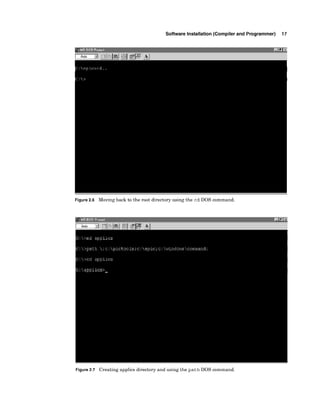
  • 18.
    Microcontroller 3 Benefit one:faster speed Our programmed PIC chips will run their program much faster. If we enter the identical Basic program into a Basic Stamp and into a PIC chip, the pro- grammed PIC chip will run 20 to 100 times faster (depending upon the instructions used) than the Basic Stamp. Here's why. The BS1 and BS2 Basic Stamp systems use a serial EEPROM memory con- nected to the PIC chip to store their programs. The basic commandsin the pro- gram are stored as basic tokens. Basic tokens are like a shorthand for basic commands. When running the program, the Basic Stamp reads each instruc- tion (token and datdaddress) over the serial line from the external EEPROM memory, interprets the token (converts token to the ML equivalent the PIC can understand), performs the instruction, reads the next instruction, and so on. Each and every instruction goes through these serial load, read, interpret, then perform steps as the program runs. The serial interface reading routine eats up gobs of the microcontroller's CPU time. In contrast to this operation, when a PIC chip is programmed using the Basic compiler, the Basic program is first converted to a PIC machine- language (hex file) program. The ML program is then uploaded into the PIC chip. Being the native language of the PIC, this machine-language (ML)code does not need to be stored as tokens and interpreted as it runs because the pro- gram is written in the PIC chip's native language. When the PIC chip runs the program, it reads the ML program instructions directly from its on-board memory and performs the instruction. There is no serial interface to an external EEPROM to eat up CPU time. The ML instruc- tions are read in parallel, not bit by bit as in the serial interface. The ML instructions read directly without any basic-token-to-ML-equivalent conver- sion required. This enables programmed PIC chips to run their code 20 to 100 times faster than the same Basic program code in a Basic Stamp. Benefit two: much lower cost The next factor is cost. Using PIC chips directly will save you 75 percent of the cost of a comparable Basic Stamp. The retail price for the BS1, which has 256 bytes of programmable memory, is $34.95. The retail price for the BS2, which has 2K of programmable memory, is $49.95. The 16F84 PIC microcon- troller featured throughout this book is more closely comparable to the BS2 Stamp. The 16F84 PIC chip we are using has 1K of programmable memory. The retail cost of the 16F84PIC chip is $6.95. To this, add the cost of a tim- ing crystal, a few capacitors, a few resistors, and a 7805 voltage regulator to make a circuit equivalent to that of the Stamp. These componentsincrease the total cost to about $10.00-still well below one-quarter the cost (75 percent savings) currently quoted for the BS2. And this $10.00 cost for the PIC may be cut substantially in some situa- tions. The PIC 16F84 is an expensive microcontroller with rewritable (flash)
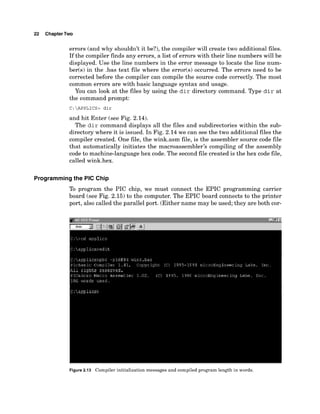
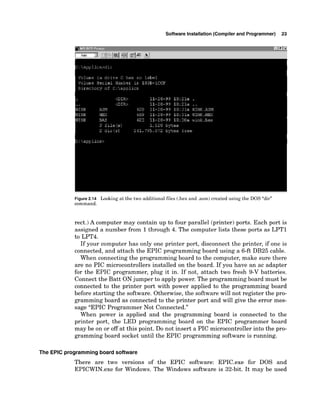
  • 19.
    4 Chapter One memory.If, for instance, you design a circuit (or product) for manufacture that doesn't need to be reprogrammed after it is initially programmed, you can use a one-time programmable (OTP) PIC microcontroller and save about $2.00 to $3.00 on the PIC microcontroller as compared to the cost of a PIC microcontroller with flash (rewritable memory). In any case, anyone who uses more than a few Stamps a year will find it well worth the investment to completely scrap the Basic Stamp system and jump onto this faster and cheaper microcontrollerbandwagon. If you are an experimenter, developer,or manufacturer or plan to become one, the cost savings are too substantial to consider investing in any other system. Extra bonus advantage The footprint of the 16F84 PIC microcontroller chip embedded in another cir- cuit is smaller than the equivalent BS2 Stamp because the Stamps use an external serial EEPROM for memory. While the BS2 may, at first glance, look smaller since it is contained in a 28-pin DIP package, it is not. You can also purchase the 16F84 in surface-mount form and the resulting circuit will have a smaller footprint. PIC Programming Overview Programming PIC microcontrollers is a simple three-step process. There's an old saying that there's more than one way to skin a cat, and the same can be said about programming PIC microcontrollers. When you look at the market, you will discover a variety of programmers and compilers for PIC microcon- trollers. We will not do a comparison of the products on the market. Instead, we will focus on what we have found to be an easy-to-learn and very power- ful Basic-language compiler and its associated programmer board. Remember, this is an overview. Exact step-by-step instructions are given in the next chapter, when we program a PIC with our first test program. What to buy You need to purchase at least three items to start programming and building projects: the PICBasic compiler program, the EPIC programmer (a program- ming carrier board), and the PIC chip itself. I recommend beginning with the 16F84 PIC microcontroller because it has exactly 1K x 14 of rewritable mem- ory. This memory allows you to reuse the PIC chip many times to test and debug your programs. The PICBasiccompiler (seeFig. 1.1) runs on a standard PC. The program may be run in DOS or in an "MS-DOSprompt" window in the Windows environment. From here on out, the MS-DOS prompt window will be referred to simply as a DOS window. The DOS program will run on everythingfrom an XT-classPC run- ning DOS 3.3 and higher. The program supports a large variety of PIC micro- controllers. The compiler generates ML hex code that may be used with other programming carrier boards. The cost for PICBasic compiler software is $99.95.
  • 20.
    Microcontroller 5 Figure 1.1PICBasic compiler program and manual. There is a more expensive compiler called the PICBasic Pro that retails for $249.95. Do not purchase this compiler! The PICBasic Pro handles the Peek and Poke commands differently than the standard PICBasic Compiler. So remember to purchase the standard PICBasic Compiler for $99.95. The EPIC programming carrier board (see Fig. 1.2)has a socket for inserting the PIC chip and connecting it to the computer, via the printer port, for pro- gramming. The programming board connects to the computer's printer port (parallelport) using a DB25 cable. If the computerhas only one printer port and there is a printer connected to it, the printer must be temporarily disconnected when PIC chips are being programmed. Like the PICBasic compiler, the EPIC programmingcarrier board supports a wide variety of PIC microcontrollers.The cost for the EPIC programming board with EPIC programming diskette is $59.00. Those who wish to build their own board may purchase a bare PC board with program diskette for $34.95. The PIC 16F84 pinout is shown in Fig. 1.3. It is a versatile microcontroller with flash memory. Flash memory is a term used to describe this type of
  • 21.
    6 Chapter One Figure1.2 EPIC programming carrier board and software. rewritable memory. The on-board flash memory can endure a minimum of 1000eraselwrite cycles, so you can reprogram and reuse the PIC chip at least 1000 times. The program retention time, between eraselwrite cycles, is approximately 40 years. The l&pin chip devotes 13pins to 110. Each pin may be programmed individually for input or output. The pin status (I10 direction control) may be changed on the fly via programming. Other features include power on reset, power-saving sleep mode, power-up timer, and code protection,
  • 22.
    Microcontroller 7 MCLR Features GENERAL 13 kOpinsW t h i~~dividual dirpdim control HighCurrent sinkbwrce tor dlrecl LED k i w - 25 rnA sirlt max, pw pm - 20 mA solrrr;e max per pin IWRO; #&it tiierkmmteu vtlth 8-blt programrnable prewaler Figure 1.3 PIC 16F84 pinout. among others. Additional features and architecture details of the PIC 16F84 will be given as we continue. Step I: Writing the Basic-languageprogram PICBasic programs are written using a word processor. Any word processor that is able to save its text file as ASCII or DOS text may be used. Just about every commercial word processor available has this option. Use the Save as command and choose MS-DOS text, DOS text, or ASCII text. The text file you write with the word processor will be compiledinto a program. If you don't own a word processor, you can use Windows Notepad, which is included with Windows 3.X and Windows 95/98, to write the Basic-language source file. (In Windows, look under Accessories.)At the DOS level, you can use the Edit pro- gram to write text files. The compiler needs the basic program saved as a standard (MS-DOS) or ASCII test file because any special formatting and print codes that are unique to an individual word processor are not saved in the ASCII or DOS file types. When you save the file, save it with a .bassuffix. For example, if you were saving a program named wink,you would save it as wink.bas.Savingthe file with a .bas suffix is an option. The compiler will read the file with or without the .bas suffix. The .bas suffix will help you identify your PIC programs in a crowded directory.
  • 23.
    8 Chapter One Step2: Using the compiler The PICBasic compiler program is started by entering the command ~ b c fol- lowed by the name of the text file. For example, if the text file we created is named wink.bas then at the DOS command prompt, we would enter Pbc wink.bas The Basic compiler compiles the text file into two additional files, a .asm (assembly language) file and a .hex (hexadecimal)file. The wink.asm file is the assembly language equivalent of the Basic pro- gram. The wink.hex file is the machine code of the program written in hexa- decimal numbers. It is the .hexfile that is loaded into the PIC chip. If the compiler encounters errors when compilingthe Basic source code, it will issue a string of errors it has found and terminate. The errors listed need to be corrected in the Basic source code before the program will successfullycompile. Step 3: Programmingthe PIC chip Connect the EPIC programmer to the computer's printer port using a DB25 cable. Start the DOS programming software.At a DOS command prompt, enter E P I C Figure 1.4is a picture of the programming screen. Use the Open File option and select wink.hex from the files displayed in the dialog box. The file will load, and numbers will be displayed in the window on the left. Insert the 16F84 into the socket, then press the Program button. The PIC microcon- troller is programmed and ready to go to work. Ready, Steady, Go This completes the overview. In Chap. 2 we will provide step-by-step instruc- tions for writing the Basic text file and programming it into the PIC chip. You will find that the actual steps shown in Chap. 2 are not much more involved than the instructions in the overview. Purchase the components and let's go. Parts List PICBasic compiler EPIC programmer 16F84 Microcontroller DB25 6-ft cable (1)4.0-MHzcrystal (2)22-pF capacitors $99.95 $59.00 $6.95 $6.95 $2.50 $0.10 each Available from Images Company (see Suppliers Index).
  • 24.
    Microcontroller 9 Figure 1.4Screen shot of EPIC programming software (DOS). The program loaded is wink. hex. (1)Solderless breadboard (1)0.1-pF capacitor (8)Red LEDs (8)470-0 resistors* (1)4.7-kcR resistor (8) 10-k0resistors (1)7805 voltage regulator (2)Four-position PC-mounted switches (1)9-V battery clip RadioShack RadioShack RadioShack RadioShack RadioShack RadioShack RadioShack RadioShack RadioShack Available at local RadioShack stores. Also available from James Electronics and JDR Micro Devices (see Suppliers Index). *Also available in the 16-pin DIP package.
  • 25.
  • 26.
    Chapter Software Installation (Compiler andProgrammer) In this chapter, we provide step-by-step instructions for writing a text file for and programming a PIC microcontroller. We begin by loading the PICBasic compiler software onto your computer's hard drive and finish by programming and testing a PIC microcontroller chip. Installingthe PlCBasic Compiler Software The first thing we need to do is copy the PICBasic compiler software onto your computer's hard drive. If you are familiar with File Manager (Windows 3.X)or Windows Explorer, you can create subdirectories and copy all files with these tools. Step-by-step instructions are provided using DOS commands. You can, of course, use the same directory names outlined or make up your own. The DOS instructions are provided to help the reader and to serve as a supplement to the installation directions provided with the software pack- ages. The instructions are not meant as a DOS tutorial. More information on DOS commands can be found in any number of DOS manuals. Here is a list of DOS commands we will be using and what action they perform: COMMAND ACTION cd change directory md make directory COPY copy files XCoPY copy files and subdirectories path sets a search path for executable files dir directory Before we can copy the files from our installation diskettes, we need a place to copy them to. For the PICBasic compiler we will create a subdirectory called pictools on the hard drive and copy the files on the diskette into it. 11 Copyright 2000 The McGraw-Hill Companies, Inc. Click Here for Terms of Use.
  • 27.
    12 ChapterTwo For Windows3.X7use the File Manager program to create a subdirectory. For Windows 95/98, use the Windows Explorer program to create the subdi- rectory. Windows 95/98 users also have the option of opening a DOS window within the Windows environment. You can work inside the DOS windows using standard DOS commands. You also have the option of restarting your computer in MS-DOS mode. In most cases you should be able to operate from the DOS window without problems. Start the DOS window by selecting "MS-DOS Prompt" under the Programs menu under the Windows 95/98 "Start" button (see Fig 2.1). When the DOS window opens, you are probably starting the DOS session inside the Windows subdirectory. Your prompt may look like this: c:/WINDOWS>. The DOS prompt provides vital information. The C: tells us we are on the C drive. The /WINDOWS tells us we are in the Windows subdirectory. We want to work from the root directory of the computer's hard drive (usu- ally the C drive). We accomplish this by using the cd (Change Directory) command. The cd. . command brings one up a single level in the directory hierarchy. Using the cd brings one up to the root directory regardless of how deep (how many levels) one has moved into subdirectories. The root directory is the top of the directory hierarchy. From the Windows subdirectory either command
  • 28.
    Software Installation (Compilerand Programmer) 13 may be used. Type cd. . or cd and hit the Enter key to back up a level in the directory. (See Fig. 2.2.) You should now be in the C drive root directory; the DOS prompt will change to c :/ 2. Once you are in the C drive's root directory, you can start the task at hand. First, create a subdirectory on your hard drive called pictools. (If you don't like the name pictools, choose another name that is more to your liking.)At the DOS prompt, enter the "make directory" command (md) followed by a space and the name of the directory pictools. The complete command may look like this: C:/> md pictools This command creates a subdirectory called pictools. Now let's copy all the files on the PICBasic Compiler 3.5-in diskette into the new directory. Assuming that your 3.5-in disk drive is the A drive, at the DOS prompt, enter C:/> xcopy a:*.* pictools /s This command copies all the files on the diskette, including the subdirec- tories, into the pictools subdirectory (see Fig. 2.2). With the files safely Figure2.1 Using cd (change directory) and md (make directory) DOS commands at the DOS prompt.
  • 29.
    14 ChapterTwo loaded ontoyour hard drive, remove the diskette and store it in a safe place in case it is needed in the future. Installingthe EPIC Software We are still in the root directory for the C drive. From here, create another subdirectory on your hard drive called epic. (If you don't like the name epic, choose another name that is more to your liking.)At the DOS prompt, enter C:/> md epic This creates another subdirectory called epic (Fig 2.3). Now let's copy all the files on the 3.5-in EPIC diskette into the new epic directory, as we have done for the compiler software. Again assuming that your 3.5-in disk drive is the A drive, at the DOS prompt, enter C:/> xcopy a:*.* epic /s This command copies all the files on the EPIC diskette, including the sub- directories, into the epic subdirectory as shown in Fig. 2.3. With the files safe- ly loaded onto your hard drive, remove the diskette and store it in a safe place in case it is needed in the future. As you can see in the last figure, only two files were copied from the A drive into the epic directory. The reason is that the EPIC software is compressed in Figure2.3 Creating epic directory and copy files into it.
  • 30.
    Software Installation (Compilerand Programmer) 15 the executable file epic203.exe. To run this program and decompress the files first move into the epic subdirectory by typing in C: cd epic at the DOS prompt and hitting the Enter key (see Fig. 2.4). The DOS prompt will change to C: epic>.To run the program type in "epic203" at the DOS prompt, hit the Enter key (see Fig. 2.5). When I executed the program, it issued a warning (see the bottom of Fig. 2.5) that a readme.txt file already exists. Overwrite (yln)?Answer y. PIC Applications Directory It would be a good idea if we created another subdirectory to store all our PICMicro application programs. This will keep all our pictools and epic direc- tories clean, neat, and uncluttered. If you are performing these commands in the sequence they appear in the book you are currently in the epic subdirec- tory. We need to move back to the root directory before we do anything more. Use the cd (change directory) command to move back into the root directory, enter cd. . C:epic> cd.. At the DOS prompt, hit the Enter key (see Fig. 2.6). The DOS will change to c : > signaling we are in the root directory. We are ready to create another Figure2.4 Running epic203.exe program to decompress the EPIC files.
  • 31.
    16 ChapterTwo Figure2.5 EPICfile list inflating. Answer to overwrite Readme.txt is yes (y). subdirectory called applics.At the DOS prompt in the root directory type in m d applics and hit the Enter key (see Fig. 2.7). C:>md applics If you don't like the name applics choose another name more to your liking. We are almost ready to write our first program. Path-The Final DOS Commands Path is a DOS command that specifies a search path for program files. For example, the following command specifies that DOS is to search for files in the three directories listed in addition to the current directory: path ;c:pictools;c:epic;c:windowscommand; Each directory in the path command must be separated by a semicolon (;). The first backslash () indicates that the search should begin in the root directory of the current drive. Using the above path command will allow you to run both the compiler (PBC) and the programmer (EPIC) from the applications directory (applics). This will streamline and simplifyusing both these programs. Without the path command you will have to copy files between directories and change directo- ries to run programs.
  • 32.
    Software Installation (Compilerand Programmer) 17 Figure 2.6 Moving back to the root directory using the cd DOS command. Figure 2.7 Creating applics directory and using the path DOS command.
  • 33.
    18 ChapterTwo The pathcommand may be typed in at the DOS prompt and once you hit the Enter key will stay in effect for as long as the DOS window remains open (see Fig. 2.7). C : > path ;c:pictools;c:epic;c:windowscomrnand; For those who are familiar with DOS commands, the path command can be made permanent by entering it into or adding onto an existing path command in the autoexec.bat file. For those who are not comfortable with DOS com- mands or changing the set-up of the computer, don't touch the autoexec.bat file. The autoexec.bat file is an important batch file that is run every time the computer starts or is reset. If you want to learn more about DOS and the autoexec.bat file to make these changes, I recommend purchasing a tutorial book on DOS. First Basic Program We are now ready to write our first program. To write programs, you need a word processor or text editor. Windows users can use the Notepad program. DOS-level users can use the Edit program. Since we want to store our programs in the subdirectory applics, the first step is to move into that directory. We will use the cd (change directory) com- mand. Enter this at the DOS prompt (see Fig. 2.8). Figure 2.8 Using the cd command and Edit program.
  • 34.
    Software Installation (Compilerand Programmer) 19 C:> cd applics Once in this directory the prompt changes to In this example I will be using the free Edit program package with Windows to write the program. Start edit by typing edit at the command prompt (see Fig. 2.8). C:applics> edit This starts the edit program (see Fig. 2.9). Enter this program in your word processor exactly as it is written: 'First Basic program to wink two LEDs connected to port B. Loop: High 0 'Turn on LED connected to pin RBO Low 1 'Turn off LED connected to pin RBI Pause 500 'Delay for 0.5 s Low 0 'Turn off LED connected to pin RBO High 1 'Turn on LED connected to pin RBI Pause 500 'Delay for 0.5 s Goto loop 'Go back to loop and blink and wink LEDs forever End See Fig. 2.10. Save the above as a text file in the applics directory.Use the Save function under the File menu. Name the file wink.bas (Fig. 2.11). The .bas suf- f m is optional. The compiler program will load and compile the file whether or 1 7 -=-+l? .*.d Figure2 . 9 Opening screen oftheEditprogram.
  • 35.
    20 ChapterTwo not ithas the .bas suffix. The suffixhelps us remember what type of file it is. If, by accident, you saved the file as wink.txt don't get discouraged. You can do a SaveAs from the Edit program (under File menu) and rename the file wink.bas. Remember, if you are using a different word processor, it is important to save the program as anASCII or MS-DOS text file. The reason is that the com- piler (the next step) requires the text file (the basic source code) in a DOS or ASCII file format. DOS and ASCII text files do not save any special formatting and print codes that are unique to individual word processors. Compile The PICBasic compiler must be run from DOS or from a DOS window within Windows. If you are still working in the same DOS session we started with, skip over the next two sentences. If you just started the DOS window, enter the path command as specified earlier. Use the cd commands to move into the applics directory. We will run the PICBasic compiler from the applics directory, type the com- mand pbc -p16 f84 wink. bas at the DOS prompt, and hit the Enter key (see Fig. 2.12). The compiler displays an initialization copyright message and begins process- ing the Basic source code (see Fig. 2.13). If the Basic source code is without 1 7-=;15L? .- Figure 2.10 wink.bas program written using Edit.
  • 36.
    Software Installation (Compilerand Programmer) 21 Figure 2.11 Saving text file as wink.bas. Figure 2.12 Running compiler on wink.bas file for the PIC 16F84.
  • 37.
    22 ChapterTwo errors (andwhy shouldn't it be?), the compiler will create two additional files. If the compiler finds any errors, a list of errors with their line numbers will be displayed. Use the line numbers in the error message to locate the line num- ber(~) in the .bas text file where the error(s) occurred. The errors need to be corrected before the compiler can compile the source code correctly. The most common errors are with basic language syntax and usage. You can look at the files by using the d i r directory command. Type d i r at the command prompt: C:APPLICS> dir and hit Enter (see Fig. 2.14). The d i r command displays all the files and subdirectories within the sub- directory where it is issued. In Fig. 2.14 we can see the two additional files the compiler created. One file, the wink.asm file, is the assembler source code file that automatically initiates the macroassembler~s compiling of the assembly code to machine-language hex code. The second file created is the hex code file, called wink.hex. Programming the PIC Chip To program the PIC chip, we must connect the EPIC programming carrier board (see Fig. 2.15) to the computer. The EPIC board connects to the printer port, also called the parallel port. (Either name may be used; they are both cor- Figure 2.13 Compiler initialization messages and compiled program length in words.
  • 38.
    Software Installation (Compilerand Programmer) 23 Figure2.14 Looking at the two additional files (.hex and .asm) created using the DOS "dir" command. rect.) A computer may contain up to four parallel (printer)ports. Each port is assigned a number from 1through 4. The computer lists these ports as LPTl to LPT4. If your computer has only one printer port, disconnect the printer, if one is connected, and attach the EPIC programming board using a 6-ft DB25 cable. When connecting the programming board to the computer, make sure there are no PIC microcontrollers installed on the board. If you have an ac adapter for the EPIC programmer, plug it in. If not, attach two fresh 9-V batteries. Connect the Batt ONjumper to apply power. The programming board must be connected to the printer port with power applied to the programming board before starting the software. Otherwise, the software will not register the pro- gramming board as connected to the printer port and will give the error mes- sage "EPIC Programmer Not Connected." When power is applied and the programming board is connected to the printer port, the LED programming board on the EPIC programmer board may be on or off at this point. Do not insert a PIC microcontrollerinto the pro- gramming board socket until the EPIC programming software is running. The EPIC programmingboard software There are two versions of the EPIC software: EPIC.exe for DOS and EPICWIN.exe for Windows. The Windows software is 32-bit. It may be used
  • 39.
    24 ChapterTwo Figure 2.15EPIC programming carrier board. with Windows 95, Windows 98, and Windows NT, but not with Windows 3.X. It has been my experience that Windows 95 printer drivers often like to retain control of the printer (LPT1) port. If this is the case with your computer, the Windows epic program may not function properly, and you may be forced to use the DOS-level program. If you receive the error message "EPIC Programmer Not Connected when you start the Windows EPIC program, you have the option of either troubleshooting the problem (see Troubleshooting EPIC Software, below) or using the EPIC DOS program. Usingthe EPlC DOS version If you are using Windows 95 or higher, you can open a DOS window or restart the computer in the DOS mode. If you are using Windows 3.XX, end the Windows session. Troubleshooting EPlC Software: A Few Alternatives If your computer has a single printer port (LPTl), you can add a second (LPT2) port for a nominal amount of money. An inexpensive printer card will cost about $20.00. If you have never added a card to your computer before, don't know the difference between an ISA or PCI, or never performed some type of system upgrade to your computer before, then I advise you to bring your computer to a computer repairhervice store in your area and have them perform the upgrade.
  • 40.
    Software Installation (Compilerand Programmer) 25 There is no guarantee that the EPIC software will work with a second LPT port. You may still have to work at the DOS level to get it to function properly. For instance, in order for me to run the EPIC DOS program from a DOS window in Windows 95 I needed to remove my HP (Hewlett-Packard) printer driver first (see Fig. 2.16). I opened the printer driver window and closed down (exited)the program. Continuing with the wink.bas program Assume we are still in the same DOS session and we have just run the PBC compiler on the wink.bas program. We are still in the applics directory. At the DOS prompt, type epic and hit enter to run the DOS version of the EPIC soft- ware (see Fig. 2.17). If you are operating out of a DOS window you may get a device conflict mes- sage box as shown in Fig. 2.18. We want MS-DOS to control the LPT port so the EPIC programming software will work. Select the MS-DOS Prompt and hit the OK button. EPIC'S opening screen is shown in Fig. 2.19. Use the mouse to click on the Open button or press ~ l t -0 on your keyboard. Select the wink.hex file (see Fig. 2.20). When the hex file loads, you will see a list of numbers in the win- dow on the left (see Fig. 2.21). This is the machine code for your program. On the right-hand side of the screen are configuration switches that we need to check before we program the PIC chip. Figure 2.16 Exiting printer driver program.
  • 41.
    26 ChapterTwo Figure 2.17Running the EPIC program from MS-DOS Prompt window. Figure 2.18 Device Conflict window.
  • 42.
    Software Installation (Compilerand Programmer) 27 Let's go through the configuration switches one by one. Device: Sets the device type. Set it for 8X. ROM Size (K):Sets the memory size. Choose 1. OSC: Sets the oscillator type. Choose XT for crystal. Watchdog Timer: Choose On. Code Protect: Choose Off. Power Up Timer Enable: Choose High. After the configuration switches are set, insert the PIC 16F84microcontroller into the socket. Click on Program or press ~ l t - P on the keyboard to begin programming. The EPIC program first looks at the microcontroller chip to see if it is blank. If the chip is blank, the EPIC program installs your program into the microcontroller. If the microcontroller is not blank, you are given the options of cancelling the operation or overwriting the existing program with the new program. If there is an existing program in the PIC chip's memory, write over it. The machine-language code lines are highlighted as the PIC is programmed. When the operation is finished, the microcontroller is pro- grammed and ready to run. You can verify the program if you like by hitting (or highlighting) the Verify button. This initiates a comparison of the program held in memory with the program stored in the PIC microcontroller. laxk? ~ 3 . 5 ~ E it 1. Figure 2.19 EPIC program's opening screen.

  • 43.
    28 ChapterTwo I Figure2.20 Selectingthewink.hex file. Testing the PIC Microcontroller If you purchased the components described in Chap. 1,you can quickly set up the test circuit. If not, you need to purchase those components now to continue. The Solderless Breadboard For those of us who have not dabbled in electronics very much, I want to describe the solderless breadboard (see Fig. 2.22).As the name implies, you can breadboard (assemble and connect) electronic components onto it without solder. The breadboard is reusable; you can change, modify, or remove circuit components on it at any time. This makes it easy to correct any wiring errors. The solderless breadboard is an important item for constructing and testing the circuits outlined in this book. If you wish to make any circuit permanent, you can transfer the components onto a standard printed-circuit board and solder them together with the fore- knowledge that the circuit functions properly. The internal structure of the board is shown in Fig. 2.23. The holes on the board are plugs. When a wire or pin is inserted into a hole, it makes intimate contact with the metal connector strip inside. The holes are properly spaced so that integrated circuits and many other components can be plugged right in.
  • 44.
    Software Installation (Compilerand Programmer) 29 Figure 2.21 Wink.hex file loaded into EPIC program. Figure 2.22 Solderless breadboard. You connect components on the board using 22-gauge (solid or stranded) wire. I prefer to use stranded wire because it has greater flexibility. The complete internal wiring structure of the board is shown in Fig. 2.24. The X and Y rows are typically used as power supply and ground connections. The columns below the X row and above the Y row are used for mounting com- ponents.
  • 45.
    30 ChapterTwo Figure 2.23Internal structure of the solderless breadboard. Figure 2.24 Complete internal wiring of solderless breadboard. Three Schematics, One Circuit Figures 2.25,2.26,and 2.27 are identical schematics of our test circuit. I drew three schematics to help orient experimenters who may not be familiar with standard electrical drawings. Figure 2.25 shows how the PIC 16F84 micro- controller and components appear. There is a legend at the bottom that shows the electrical symbols and the typical appearance of the components. Figure 2.26 is a line drawing showing how the components appear mounted on the solderless breadboard. The labels in Fig. 2.26 point out each electrical com- ponent. If you examine the placement of the components mounted on the solderless breadboard with its internal electrical wiring (Fig. 2.24),you can see how the components connect to one another and produce a circuit.
  • 46.
    Software Installation (Compilerand Programmer) 31 Figure2.25 First view of components mounted on breadboard. Figure 2.27 is the same schematic drawn as a standard electrical drawing, with the pin numbers grouped and oriented according to function. For the remainder of the book, standard electrical drawings will be used. The schematic shows how few components are needed to get your microcon- troller up and running. Primarily you need a pull-up resistor on pin 4 (MCLR), a 4-MHz crystal with two 22-pF capacitors, and a 5-V power supply. The two LEDs and two current-limiting resistors connected in series with the LEDs are the output. They allow us to see that the microcontroller and program are functioning. Assemble the components on the solderless breadboard as shown in the schematic (see Fig. 2.27). When you are finished your work should resemble Fig. 2.28. While the specifications sheet on the 16F84 states that the microcontroller will operate on voltages from 2 to 6 V, I provide a regulated 5-V power supply for the circuit. The regulated power supply consists of a 7805 voltage regula- tor and two filter capacitors.
  • 47.
    32 ChapterTwo / 7805 Volt Reg. +vcc/ Gnd O x0 0 1 A 0 0 B O O C O O D O 0 .luf 4.7K / 470 ohm LED'S &und Ground Figure 2.26 Second view of components mounted on breadboard. Red Side View ""P. +5V Rcgulatcd P 3 4 w Supply I -L - Figure 2.27 Electrical schematic of wink project. Wink Apply power to the circuit. The LEDs connected to the chip will alternately turn on and off. Wink...wink...Now you know how easy it is to program these microcontrollers and get them up and running. As you gain experience,using the compiler and programmerwill become second nature. You won't even consider them as steps anymore. The real challenge will be writing the best PICBasic programs possible.And that is as it should be.
  • 48.
    Software Installation (Compilerand Programmer) 33 Figure2.28 Photograph of wink project. Troubleshootingthe Circuit There is not too much that can go wrong here. If the LEDs don't light up, the first thing I would check is the orientation of the LEDs. If they are put in back- ward, they will not light. Next check your ground wires. See the jumper wires on the right-hand side of the solderless breadboard. They bring the ground up to the two 22-pF capacitors. Check all your connections. Look back at Figs. 2.23 and 2.24 to see how the underlying conductive strips relate to the push-in terminals on top of the board. Chapter Review Before we move on to the next chapter, let's review the important steps we have learned in programming a PIC microcontroller. We will not review the installation, because that's typically a one-time job. This review assumes we are working from DOS. Step 1. Upon entering DOS, if you are not in the root directory, move to the root directory using the cd command cd..or cd> Step 2. At the DOS prompt enter the path command: C:> path ;c:pictools;c:epic;c:windowscommand;
  • 49.
    34 ChapterTwo Step 3.Enter the applics directory using the cd command: C: cd applics Step 4. Start your word processor or the Edit program: C:applics> edit Step 5. Write the Basic program. Save the program as an ASCII-type text file. Save the file with a .bas suffix (e.g.,wink.bas). Note that .basis optional. Step 6. From the applics directory, run the PICBasic compiler.The command line for compiling the wink.bas program for a PIC16F84 microcontroller is as follows: C:applics> pbc -p16F84 wink.bas The -p1 6~8 4 tells the compiler to compile the program for this particular microcontroller. The compiler is capable of writing for a large number of PIC microcontrollers you will find listed in the compiler manual. The .bas after the program name is optional. The compiler reads the .bas file and, if it finds no errors, generates two files, wink.asm and wink.hex. If the compiler finds an error, the program needs to be corrected and recompiled. Step 7. Connect the EPIC programming board to the computer's parallel (printer)port. Turn on the EPIC board power supply. Step 8. From the applics subdirectory run the EPIC DOS program. C:applics> epic Load the program's .hex file. Insert a PIC 16F84 into the programming socket on the programming board. Highlight the Program button and hit the Enter key on your keyboard to program the PIC microcontroller. Remove the PIC microcontroller chip and test it. In the next chapter, we will look at output-programmable attributes of the 16F84. Parts List Same components as listed for Chap. 1.
  • 50.
    Chapter PIC 16F84 Microcontroller Inthis chapter, we begin looking at the PIC16F84 microcontroller in greater detail. What we learn about this microcontroller is applicable to most of the other PIC microcontrollers. So, while it appears that we are focusing only on the PIC16F84 microcontroller,just keep in mind that it is representative of all the other PIC microcontrollers. What advantages do other PIC microcontrollers have over the PIC 16F84? Primarily, they boil down to two different advantages: cost and options. For instance, the 16C61,while similar to the 16F84, is half the cost of the 16F84. However, the 16C61 is an OTP (one-time programmable) microcontroller. That's not the type of chip you want to work with when designing and proto- typing programs and circuits because chances are that you will need to trou- bleshoot and reprogram the chip before everything is perfected and functions the way you want it to function. After the prototyping stage is completed, the 16C61may be the preferable choice for the mass production of a product. Let's suppose you create a com- mercial product that uses a PIC microcontroller and you are going to mass- produce it. Switching from the 16F84 to the 16C84will save you quite a bit of money. Aside from cost, other PIC microcontrollers have unique features that the PIC16F84 doesn't have, such as analog-to-digital converters, more RAM, or more 110 lines. In this book we will focus on the 16F84, but in my next book we shall look at these other microcontrollers. Harvard Architecture and Memory-Mapped I 1 0 PIC microcontrollers use Harvard architecture. That simply means that the memory on the PIC microcontrollersis divided into program memory and data memory. The devices also use separate buses to communicate with each mem- ory type. The Harvard architecture has an improved bandwidth in comparison to traditional computers that use the von Neumann architecture. (von 35 Copyright 2000 The McGraw-Hill Companies, Inc. Click Here for Terms of Use.
  • 51.
    36 ChapterThree Neumann architectureaccesses data and memory over the same bus.) The Harvard architecture allows for other enhancements. For instance, instruc- tions may be sized differently than 8-bit-widedata. The data memory in the PIC microcontroller can be further broken down into general-purpose RAM and the special function registers (SFRs). The registers on the PIC 16F84 are mapped in the data memory section at specific addresses. The PICBasic language allows us to read and write to these registers as if they were standard memory bytes. This is an important concept to learn and remember. We read and write to the registers (memory location) using the Basic language's Peek (read)and Poke (write)commands. By writing numbers into the chip's registers, we program the chip I10 (via the registers) and have it perform the functions we need. Although we read and write to the registers using our familiar decimal num- bers, to understand what happens inside the register with those numbers requires a fundamental understanding of the binary number system. Binary Fundamentals To access the PIC chip registers efficiently, a little binary goes a long way. Binary isn't diflicult to learn because there are only two values. That's what the word binary means: "based on two," as in the two numbers 0 and 1.Binary 0 and 1can also be comparedto an electrical signal controlledby a switch that has two values, off (0)and on (1). In binary, a digit is called a bit, which stands for binary digit. An 8-bit digital number, or byte, can hold any decimal value between 0 and 255. In hexadecimal notation, these same values (0to 255) are expressed as 00 to FF. We are not going to be learning hex (the hexadecimal number system), primarily because we don't need to use hexadecimal notation to write Basic programs. It's nice to know hexadecimal notation in the grand scheme of things because it is used at times, but it is not essential. What is essential at this point is to gain an understanding of binary; stay focused on this. When you understand the binary number system completely, then (and only then) if you are still interested in hexadecimal notation, there is a quick tutorial in the Appendix. The CPU in the PIC 16F84 uses an 8-bit data bus (pathway). The registers in the PIC chip are also 8 bits wide. Thus, a byte is the perfect size to access the PIC chip registers. We will read from and write to the PIC microcon- troller's registers using the decimal numbers between 0 and 255, which can be contained in one 8-bit byte. However, when we write a decimal number into a register, the microcon- troller can only see the binary equivalent of that decimal number (byte). To understand what's happening inside the register, we need to be able to look at the binary equivalent of the decimal number (byte) also. Once we can do this, our ability to effectively and elegantly program the PIC microcontroller is greatly enhanced.
  • 52.
    PIC 16F84 Microcontroller37 Examine Table 3.1. This table shows the decimal-and binary-number equiv- alents for the numbers 0through 31. Using this information, the binary num- bers from 32 to 255 can be extrapolated. In the table, each decimal number on the left side of the equal sign has its binary equivalent on the right side. So when we see a decimal number, the microcontrollerwill see the same number as a series of 8 bits (8bits to a byte). Registers and Ports The PIC 16F84 contains two I10 ports, port A and port B. Each port has two registers associated with it, the TRIS (Tri State)register and the port register address itself. The TRIS register controls whether a particular pin on a port is configured as an input line or an output line. Once the ports are configured the user may then read or write information to the port using the port register address. (The terms pins and lines off the PIC 16F84 mean the same thing and are used interchangeably throughout the text.) On port B we have eight I10 lines available. On port A only five I10 lines are available to the user. Figure 3.1shows the relationship between a binary num- ber and the two PIC microcontrollerregisters that control port B. Let's look at the binary-number side. Notice that for each move of the binary 1to the left, the exponential power of 2 is increased by 1. TABLE 3.1 Binary NumberTable
  • 53.
    38 ChapterThree Port B TRlSBDecimal 134 86 Hex k t FG u P: K K K P : A Figure3.1 Port B I10 lines and registers. Bit # Decimal Binary Bit 0 Bit 1 Bit 2 Bit 3 Bit 4 Bit 5 Bit 6 Bit 7 Port B Decimal 6 06 Hex Puuucr Binary IfTwa These are relevant numbers, because each position identifies a bit location and bit weight within the 8-bit byte. For instance, suppose we wanted to write binary 1s at the RB7 and RB4 locations. To do so, we add their bit weights together, in this case 128 (RB7) and 16(RB4),which equals 144.The binary equivalent of decimal number 144 is 10010000. If you slide that number into the register, you will see that the binary 1s are in the RB7 and RB4 positions. Remember this; it is important. The open TRISB register shown in Fig. 3.1 may be used to examine numbers placed in the TRISB. The port B register may be used to examinenumbers placed at the port B register.
  • 54.
    PIC 16F84 Microcontroller39 Notice the correlation between the register bit locations, bit weights, and port B I10 pins. This correspondence between the bit number, bit weight, and the I10 line is used to program and control the port. A few examples will demonstrate this relationship. UsingtheTRIS and port registers The TRIS register is a 1-byte (8-bit) programmable register on the PIC 16F84 that controls whether a particular I10 pin is configured as an input or an output pin. There is a TRIS register for each port. TRISA controls the I10 status for the pins on port A and TRISB controls I10 status for the pins on port B. If you place a binary 0 at a bit location in TRISB for port B, the corre- sponding pin location on port B will become an output pin. If you place a bina- ry 1 at a bit location in the TRISB, the corresponding pin on port B will become an input pin. The TRISB data memory address for port B is 134 (or 86h in hex). After port B has been configured using TRISB register, the user can read or write to the port using the port B address (decimal number 6). Here is an example. Suppose we want to make all port B lines output lines. To do so we need to put a binary 0 in each bit position in the TRISB register. So the number we would write into the register is decimal 0. Now all our I10 lines are configured as output lines. If we connect an LED (light-emitting diode) to each output line, we can see a visual indication of any number we write to the port B. If we want to turn on the LEDs connected to RB2 and RB5, we need to place a binary 1at each bit position on the port B register. To accomplish this we look at the bit weights associated with each line. RB2 has a bit weight of 4, and RB5 has a bit weight of 32. We add these numbers together (4 + 32 = 36) and write that number into the port B register. When we write the number 36 into the port B register, the LEDs connected to RB2 and RB5 will light. To configure port A, we use the TRISAregister, decimal address 133(see Fig. 3.2). On port A, however, only the first 5 bits of the TRISA and the corre- sponding I10 lines (RAO to RA4) are available for use. Examine the I10 pin out on the 16F84 and you will find that there are only five 110pins (RAO to RA4) corresponding to port A. These pins are configured using the TRISA register and used through the port A address. Memory location Memory location Register (hexadecimal) (decimal) Port A 05h Port B 06h TRISA 85h TRISB 86h
  • 55.
    40 ChapterThree Port A TRlSADecimal 133 85 Hex PortA Decimal 5 05 Hex IIIIDDlOW 2'=8 rorriaaw r= 16 Bil Weigk'klueb 16 0 4 2 1 F t t a l ~ k c r w t l o n I I I I I Figure 3.2 Port A 110 lines and registers. On power-up and reset, all the 110 pins of port B and port A are initialized (configured)as input pins. Of course, we can change this with our program. Here is another example. Let's configure port B so that bit 7 (RB7) is an input pin and all other pins are output lines. To place binary 0s and 1s in the proper bit location, we use the bit weights shown in Fig. 3.1. For instance, to turn bit 7 on (1)and all other bits off (O),we would write the decimal number 128into the TRISB for port B. In Basic, the command to write to a register is the Poke command. The program line to write the decimal value 128 into the TRISB register will look like Poke 134,128 The number after the Poke command is the memory address that the com- mand will write to-in this case, 134,which is the data memory address of the TRISB for port B. The next number, after a comma is the value we want to write in that memory address. In this case, it is 128. Look at the binary equivalent of the decimal number 128: Mentally place each 1and 0 into the TRISB register locations shown in Fig. 3.1. See how the 1fits into the bit 7 place, making that corresponding line an input line, while all other bit locations have a 0 written in them, making them output lines. So by pokeing (writing)this location with a decimal number that represents a binary number containing the proper sequence of bits (0s and Is), we can configure the pins in the port to be any combination of outputs and inputs that
  • 56.
    PIC 16F84 Microcontroller41 we might require. In addition, we can change the configuration of the port "on the fly" as the program is running. To summarize, pokeing a binary 1into the TRIS register turns that corre- sponding bitlpin on the port to an input pin. Likewise, pokeing a binary 0 will turn the bit into an output. Accessing the Ports for Output Once the port lines have been configured (input or output)using the TRIS reg- ister, we can start using the port. To output a binary number at the port, sim- ply write the number to the port using the Poke command. The binary equivalent of the decimal number will be outputted as shown in our first example. To output a high signal on RB2, we could use this command: Poke 6 , 4 where 6 is the memory address for port B and 4 is the decimal equivalent of the binary number we want to output. Reading input information on the ports will be discussed in Chap. 4. Electrical Binary,TTL, and CMOS When a pin on port B (RBO to RB7) is configured as an input line, the micro- controller can read (via the Peek command) the electrical voltage present on that input pin to determine its binary value (0 or 1). When a pin on a port is configured as an output, the microcontroller can raise the voltage on that pin to +5 V by placing a binary 1at the bit location on the port. Abinary 0 at the bit location will output a zero voltage. When a pin (or bit) is set to 1it may be called "on," "set," or "high."When a bit is set to 0 that may be called "cleared," or "low." In TTL logic, electrically, a binary 1 is equal to a positive voltage level between 2 and 5 V . A binary 0 is equal to a voltage of 0 to 0.8 V. Voltages between 0.8 and 2 V are undefined. CMOS has a slightly different definition. Input voltages within 1.5 V of ground are considered binary 0, whereas input voltages within 1.5 V of the +5-V supply are considered binary 1. Digital logic chips (TTL and CMOS) are available in a number of subfami- lies-CMOS: 4000B, 74C, 74HC, 74HCT, 74AC, 74ACT; and TTL: 74LS, 74ALS, 74AS, 74F. These differences become important when you need to make different logic families talk to one another. CMOS devices swing their outputs rail-to-rail so +5-V CMOS can drive TTL, NMOS, and other +5-V-powered CMOS directly. [The exception to this is old-fashioned CMOS (4000B/74C).l TTL devices on the other hand may not output sufficient voltage for a CMOS device to see a binary 1,or "high" signal. This could have been a problem, since the PIC 16F84 is a CMOS device. The designers of the PIC were thoughtful enough to buffer the IIO lines with TTL buffers, thus allowingthe PIC 110linesto acceptTTLinput levelswhile outputting
  • 57.
    42 ChapterThree Ml CMOSvoltages.Thisallowsus to directly connect TTL logic devices,as well as CMOS devices,to our PIC microcontroller without difliculty. Counting Program To illustrate many of these concepts, I have written a simple Basic program. It is a binary counting program that will light eight LEDs connected to port B's eight output lines. The counting program will light the LEDs in the sequence shown in the binary number table. Each binary 1in a number in the table will be repre- sented with a lit LED. Every 250 ms (I/, s), the count increments. After reach- ing the binary number 255 (the maximum value of a byte), the sequence repeats, starting from zero. Counting in binary by one Enter the following program into your word processor exactly as it is written. Save it as an ASCII text file (or DOS text) with the .bas extension. 'Program 3.1, Binary Counting 'Initialize variables Symbol TRISB = 134 'Assign TRISB for port B to decimal value of 134 Symbol PortB = 6 'Assign the variable portB to the decimal value 6 'Initialize Port (s) Poke TRISB, 0 ' Set port B pins to output loop : For BO = 0 to 255 Poke PortB, BO 'Place BO value at port to light LEDs Pause 250 'Without pause, counting proceeds too fast to see Next BO 'Next BO value Goto loop 'end Let's look at the program and decipher it line by line. The first two lines are comments, which begin with a single quotation mark ('). 'Program 3.1, Binary Counting 'Initialize variables The compiler ignores all text following a quotation mark. You should use comments liberally throughout your Basic code to explain to yourself what you are doing and how you are doing it. What appears obvious to you when you are writing a program will become obscure a few months later. All com- ments are stripped when the program is compiled into .hex and .asm files, so you can add as many comments as you like-they do not take up any pro- gram space. The following two lines initialize two important variables. The TRISB is assigned the decimal value of 134 and the port B represents the port B address, decimal value of 6, for subsequent use in the program. Technically, we don't need to initialize these variables. We could write the
  • 58.
    PIC 16F84 Microcontroller43 decimal equivalent (number 134) instead of using the TRISB variable when needed by the program. So if we wanted, we could write POKE 1 3 4 , XX instead of POKE T R I S A , XX. However, when initializing variables, especially in more complex programs, using a mnemonic variable for deci- mal values makes writing the programs and following the logic easier and less error-prone. Symbol TRISB = 134 'Assign TRISB for port B to decimal value of 134 Symbol PortB = 6 'Assign the variable PortB the decimal value 6 The variable TRISB now represents a decimal value of 134, and the variable PortB now represents a decimal value of 6. Hereafter in the program, we can refer to TRISB without needing to remember its numerical value, and the same is true for PortB. The comments following each instruction provide valu- able information on what each command is doing. 'Initialize Port (s) This is a comment that tells what is to follow. Poke TRISB, 0 ' Set all port B pins to output The following line is the command that initializes port B with a zero, mak- ing all the port B lines output lines. loop : This line contains a label called loop. The word loop is clearly identifiable as a label because of the colon (:) following the word. Labels can be referred to in the program for jumps (Goto's and on value) and subroutines (Gosub's). For BO = 0 to 255 This line defines our variable BO. In standard Basic, this line would proba- bly read for x = 0 t o 255. In this line we are using one of PICBasic's pre- defined variables, BO. The 16F84 has a limited amount of RAM that can be accessed for temporary storage. In the case of the 16F84,there are 68 bytes of RAM. Of this total area of 68 bytes of RAM, 51 bytes are available for user variables and storage. User-available RAM RAM may be accessed as bytes (8-bit numbers) or words (16-bit numbers). PICBasic has predefined a number of variables for us. Byte-sized variables are named BO, B1, B2, B3,..., B51. Word-sized variables are named WO, W1, W2,...,W25. The byte and word variables use the same memory space and overlap one another. Word variables are made up of two byte-sized variables. For instance, W O uses the same memory space of variable bytes B O and B1. Word variable W1 is made up of bytes B2 and B3, and so on.
  • 59.
    44 ChapterThree Word variablesByte variables Bit B O BitO, Bitl,...,Bit 7 B1 Bit& Bit9,...,Bit15 B2 B3 B4 B5 ... B78 B79 The variables may be used for number storage. The variables may also be given a name that has meaning in the program by using the command Symbol. For instance we could rename our variable B O to X to make this program read more like a standard Basic-language program. We used the Symbol command in the beginning of the program to store the variables TRISB and PortB. If you write a program that uses more variables than the PIC microcontroller has RAM to store, the PICBasic compiler will not generate an error when it compiles the program. Your program will simply not function properly. It is up to you to keep track of how many variables are being used in the program. For the 16F84,you may use up to 51bytes or 25 words, or a combination of both. When you program other PIC microcontrollers, check their data sheets to see how much RAM they have available. Poke PortB, BO 'Place BO value at port to light LEDs This line writes the value B O to PortB. Any binary 1s in the number are dis- played by a lit LED. Pause 250 'Without pause, counting proceeds too fast to see This line makes the microcontroller pause for 250 ms (I/, s), allowing us enough time to see the progression. Next BO 'Next BO value This line increments the value of B O and jumps up to the For BO = 0 t o 2 5 5 line. If the value of B O equals the end value declared in the line (255),the program drops to the next line. Goto loop When B O equals 255, the for-next loop is finished and this line directs the pro- gram to jump to the label loop, where the B O value is reinitialized and the number counting repeats, starting from zero. Figure 3.3 shows the schematicfor this program. Figure 3.4 is a photograph of this project. Notice that I used a second solderless breadboard to hold the resis- tors and LEDs so I wouldn't have to squeezeeverythingonto a singlebreadboard.
  • 60.
    PIC 16F84 Microcontroller45 Programmingchallenge Rewrite the last program, renaming the B O variable X. This will make the pro- gram appear more like a "standard"Basic-language program. The programming answer is given in the Appendix. Counting Binary Progression The last program was informative. It showed us how to output electrical sig- nals via port B. Those electrical signals may be used for communication andlor control. As we shall learn in future chapters, an electrical signal off one pin can controljust about any household electrical appliance. We are not yet finished with our simple circuit. With a little programming modification, we can have the same circuit perform a binary progression instead of binary counting. What's the difference between a binary progression and counting? The binary progression lights each single LED in sequence, starting with the first LED, then the second LED, and so on until the last LED is lit, after which the progression repeats. When the LEDs are arranged in a straight line, it looks as if the lit LED travels from one end of the straight line to the other. If the LED lights were arranged in a circle, the lit LED would appear to travel in a circle. 'Program 3.2, Binary Progression Counting 'Initialize variables Symbol TRISB = 134 'Assign TRISB port B to 134 Symbol PortB = 6 'Assign the variable PortB the decimal value 6 'Initialize Port(s) Poke TRISB, 0 ' Set port B pins to output loop: BO = 1 ' Set variable to 1 to start counting - Figure 3.3 Schematic for LED counting project.
  • 61.
    46 ChapterThree r Figure 3 . 4Photographo fLEDcountingp r o j e c t . B1 = 0 Poke PortB, BO Pause 250 For B2 = 0 to 6 B1 = B0 * 2 BO = B1 Poke PortB, BO Pause 250 Next B2 Goto loop ' Set variable to 0 'Place BO value at port to light LEDs 'Without pause, this proceeds too fast to see 'Calculate next binary progressive number 'Set BO to new value 'Place new value at port to light LEDs 'Without pause, counting proceeds too fast to see 'Next loop value Programmingchallenge Can you rewrite the binary sequence program above so that the LEDs light in sequence, but do not turn off until all the LEDs are lit, after which the cycle repeats? The answer is given in the Appendix. Basic High and Low Commands The way we have defined outputting information thus far is the most power- ful and elegant way to do so. However, it is not the easiest. The PICBasic com- piler has two Basic-language commands for outputting information on any of the Port B pins, High and Low.
  • 62.
    PIC 16F84 Microcontroller47 These commands are limited to port B; they will not work on port A lines. So if your knowledge of the Basic language did not include the Poke command and an understanding of binary, you would be unable to use the five 110 lines to port A. The High command makes the specified pin output high. The pin so defined is automatically made into an output pin. This works only with port B pins 0 to 7. The command structure is as follows: High Pin So the command High 0 makes pin 0 an output pin and sets it high (+5 V). The Low command makes the specified pin output low. The pin so defined is automatically made into an output pin. This works only with port B pins 0 to 7. The command structure is as follows: Low Pin So the command Low 0 makes Pin 0 an output pin and sets it low (0 V). The High and Low commands are quick and easy commands to use and do have their usefulness. Real programming power and versatility is obtained using the Poke command. Don't believe it? Try rewriting our simple binary counting programs using just the High and Low commands. Call me when you're done. As a sample program that uses the High and Low commands, here is the first program we worked with from Chap. 2. Loop: High 0 ' Turn on LED connected to pin RBO Low 1 ' Turn off LED connected to pin RBI Pause 5 0 0 ' Delay for 0 . 5 s Low 0 ' Turn off LED connected to pin RE0 High 1 ' Turn on LED connected to pin R B l Pause 5 0 0 ' Delay for 0 . 5 s Goto loop ' Go back to loop and blink and wink LEDs forever End Programming Review Before we proceed to the next chapter, let's take time to review the key pro- gramming concepts we have used in the last few programs. Comments Use comments liberally when writing your programs. Use them to describe the logic and what the program is doing at that particular point. This will allow you to follow and understand the program's logic long after you have written
  • 63.
    48 ChapterThree Identifiers Line labels Symbols Variables (andprobably forgotten) the program. Comments begin with a single quota- tion mark (') or with the word REM.The compiler ignores all characters on the line following the quotation mark or the keyword REM. Identifiers are names used for line labels and symbols. An identifier may be any sequence of letters, digits, and underscores, but it must not start with a digit. Identifiers may be any number of characters in length; however, the com- piler will recognize only the first 32 characters. Identifiers are not case-sensitive, so the labels LOOP:, Loop:, loop:, and loop: will be read equivalently. Labels are anchor points or reference points in your program. When you need the program to jump to a specific program location through either a Goto, Gosub, or Branch, use a label. Labels are easy to use. Use a descriptive word (identifier) for a label, such as the word loop: that we used in Programs 3.1 and 3.2. Loop is descriptive inasmuch as it shows the main loop point for the program. Labels are identifiers followed by a colon (:). Symbols help to make our programs more readable. They use identifiers to represent constants, variables, or other quantities. Symbols cannot be used for line labels. In our programs, we used the symbol TRISB to represent the decimal num- ber 134. The number 134 is the data memory address for the TRISB register for port B. The symbol PortB represents the memory address for port B. Symbols are easier to remember than numbers. Here are a few examples of the symbol keyword usage. Symbol Five = 5 'Symbolic constant Symbol Number = W2 'Named word variable Symbol Bvalue = BIT0 'Named bit variable Symbol AKA = Bvalue 'An alias for Bvalue Variables are temporary storage for your program. Anumber of variables have been predefined for usage in your programs. Byte-sized (8-bit) variables are named BO, B1, B2, and so on. Word-sized (16-bit)variables are named WO, W1, W2, and so on. Remember these variables overlap and use the same memory space.
  • 64.
    PIC 16F84 Microcontroller49 The word variables are made up of two byte-sized variables. For instance, the 16-bit W O is made up of the two smaller 8-bit B O and B1 variables, W1 is made up of B2 and B3, and so on. Any of these variables can be renamed to something more appropriate to a program using the Symbol command. Take special note of variables B O and B1 because we can read their individ- ual bits (BitO,Bitl,...,Bitl5). The ability to read the bits in these variables is very attractive for many bit-checking applications. Since the word variable W O is composed of the two bytes B O and B1, the bit-checking commands will also work with this word variable. Read the specificationsheets on the PIC microcontrollers to determine how much free RAM is available. The 16F84has 68 bytes of free RAM,of which 51 bytes are available to the user. Reading Input Signals The programs we have written thus far have dealt only with outputting bina- ry signals that we can see using the LEDs. While this is extremely important, it is also just as important to be able to read input off the lines. The status (binary state 0 or 1)of a line (signal)may be a digital signal or a switch. In the next chapter, we will examine inputting signals to our PIC microcontroller.
  • 65.
  • 66.
    Chapter Reading 1 1 0 Lines Inthe last chapter, we studied outputting binary numbers (information) to port B and viewing the information using miniature red LEDs. In this chap- ter, we will be inputting binary information. The ability of our microcontroller to read the electrical status of its pin(s) allows the microcontroller to see the outside world. The line (pin) status may represent a switch, a sensor, or electrical information from another circuit or computer. The Button Command The PICBasic compiler comes equipped with a simple command to read the electrical status of a pin called the Button command. The Button command, while useful, has a few limitations. One limitation of this command is that it may be used only with the eight pins that make up port B. The 110pins avail- able on port A cannot be read with the Button command. Another limitation is that you cannot read multiple pin inputs at once, but only one pin at a time. We will overcome these Button command limitations later on, using the Peek command. But for the time being, let's use and understand the Button command. As the name implies, the button command is made to read the status of an electrical "button" switch connected to a port B pin. Figure 4.1 shows two basic switch schematics, a and b, of a simple switch connected to an 110 pin. The Button command structure is as follows: B u t t o n Pin, Down, Delay, R a t e , V a r , Action, Label Pin Pin number (0 to 7),port B pins only. Down State of pin when button is pressed (0 or 1). Delay Cycle count before auto-repeat starts (0 to 255).If 0,no debounce or auto- repeat is performed. If 255, debounce but no auto-repeat is performed. Rate Auto-repeat rate (cyclesbetween auto-repeats), (0 to 255). 51 Copyright 2000 The McGraw-HillCompanies,Inc. Click Here for Terms of Use.
  • 67.
    52 Chapter Four Pin Figure4.1Switches connected to 110 line (pin). Var Byte-sized variable used for delaylrepeat countdown. Should be initialized to 0 prior to use. Action State of button in order to perform Goto (0 if not pressed, 1if pressed). Label Point at which execution resumes ifAction is true. Let's take another look at the switch schematic in Fig. 4.1 before we start using the button switch to visualize how the switches affect the I10 pin elec- trically. The switch labeled A in Fig. 4.1 connects the I10 pin to a 15-Vpower supply through a 10,000-a resistor. With the switch open, the electrical status of the I10 pin is kept high (binary 1). When the switch is closed, the I10 pin connects to ground, and the status of the I10 pin is brought low (binary 0). The switch labeled B in Fig. 4.1 has an electrical function opposite the switch labeled A. In this case, when the switch is open, the I10 pin is connect- ed to ground, keeping the I10 pin low (binary 0).When the switch is closed,the I10 pin is brought high (binary 1). In place of a switch, we can substitute an electrical signal, high or low, that can also be read using the Button command. Typically the Button command is used inside a program loop, where the pro- gram is looking for a change of state (switch closure). When the state of the I10 pin (line) matches the state defined in the Down parameter, the program exe- cution jumps out of the loop to the Label portion of the program. Debouncing a switch Debouncing is a term used to describe eliminating noise from electric switches. If you took a high-speed electrical photograph, off an oscilloscope, of an elec- tric switch closing or opening, the switch's electric contacts make and break electric connections many times over a brief (5- to 20-ms) period of time. This making and breaking of electric contacts is called bounce because the contacts can be easily visualized as bouncing together and separating. Computers,
  • 68.
    Reading 1 1 0 Lines53 microcontrollers, and many electronic circuits are fast enough to see this bouncing as multiple switch closures (or openings) and respond accordingly. These responses are typically called bounce errors. To circumvent these bounce errors, debounce circuits and techniques have been developed. The Button command has debounce features built in. If you press a key on your computer keyboard, the character is immediately displayed on the monitor. If you continue to hold the key down, there is a short delay, following which a stream of characters appears on the screen. The Button command's auto-repeat function can be set up the same way. Button example To read the status of a switch off I/O pin 7, here is the command we will use in the next program: Button 7, 0,254,O,Bl,l,loop The next program is similar to Program 3.1 in Chap. 3, inasmuch as it per- forms binary counting. However, since we are using PB7 (pin 7) as an input and not an output, we lose its bit weight in the number we can output to port B. The bit weight for pin 7 is 128, so without pin 7 we can display only num- bers up to decimal number 127 (255 - 128 = 127).This is reflected in the first loop (pin7hit 7 = 128). The program contains two loops; the first loop counts to 127, and the current number's binary equivalent is reflected by the lit LEDs connected to port B. The loop continues to count as long as switch SW1 remains open. When SW1 is closed, the Button command jumps out of loop 1into loop 2. Loop 2 is a noncounting loop in which the program remains until SW1 is reopened. You can switch back and forth between counting and noncounting states. Figure 4.2 is a schematic of our button test circuit. The difference between this schematic and the schematic used in Chap. 3 is that we added a 10-kll resistor and switch to pin 7 and removed the LED (see Fig. 4.3). 'Program 4 .1 Symbol TRISB = 134 Symbol PortB = 6 'Initialize Port (s) Poke TRISB,128 loopl : For BO = 0 to 127 Poke PortB, BO B1 = 0 Pause 250 Button 7,0,254,O,Bl,1,100~2 Next BO Goto loopl loop2 : 'Set TRISB to 134 'Set PortB to 6 'Set port B pins 1-6 to output, pin 7 to input ' Counting loop 'Place BO value at port B to light LEDs 'Set Button variable to 0: 'Without pause, counting is too fast to see ' Check Button status-if closed, jump 'Next BO value 'Second loop-not counting
  • 70.
    Reading 1 1 0 Lines55 Poke portB,0 'Turn off all LEDs B1= 0 'Set Button variable to zero before use Button 7,1,254,O,Bl,l,loopl 'Check Button status-if open, jump back Goto loop2 When the program is run, it begins counting. When the switch is closed, all the LEDs turn off and it stops counting. When the switch is opened,the count- ing resumes, starting from 0. Dynamic Changes The previous program used one switch to start and stop the counting function. Now let's use two switches to dynamicallymodify the program as it is running. What dynamic modification could we make? How about changing the timing delay? Now we need two switches: one switch to decrease the delay to make count- ing go faster, and the other switch to increase the delay to make it go slower. To connect another switch, we need to borrow another port B line. I decided to use line PB6,to monitor another switch status (see schematic in Fig. 4.4 and photograph of project in Fig. 4.5). The switch connected to PB7incrementally increases the timing delay to a 1-s maximum time. The switch connected to PB6 incrementally decreases the delay to approximately 10 ms. At a 10-ms time delay, the LEDs will be counting so fast it will appear as if all the LEDs were lit simultaneously. 'Program 4.2 Symbol TRISB = 134 Symbol TRISB = 6 B1 = 0:B2 = 0 Symbol delay = W4 W4 = 250 'Initialize Port(s) Poke TRISB.192 loopl: For BO = 0 to 63 Poke PortB, BO Pause delay B1 = 0: B2 = 0 Button 7,0,1,O,Bl, 1,100~2 Button 6,0,1,O,B2,1,loop3 Next BO Goto loopl loop2: delay = delay + 10 B1 = 0: Pause 100 Button 7,1,1,0,Bl,l, loopl If delay > 1000 Then hold1 'Set TRISB to 134 'Set PortB to 6 'Initialize delay variable 'Initialize variable to 250-ms delay 'Set port B pins 0-5 to output, pins 6 and 7 to ' input 'Main counting loop 'Place BO value at port to light LEDs 'Without pause, counting is too fast to see 'Set to 0 before using in Button command 'Check SW1 status - if closed jump 'delay the same 'Check SW2 status-if closed, jump 'delay the same 'Next BO value 'loop2 increases time delay 'Increase delay by 10 ms 'Check button status-if opened, jump 'increasing 'don't go over 1-s delay
  • 71.
    Chapter * Figure 4.4 Schematicof multiple button test circuit. Figure 4.5 Photograph of multiple button test circuit.
  • 72.
    Reading 1 1 0 Lines57 loop3: delay = delay - 10 B2 = 0:Pause 100 Button 6,1,1,O,B2,1,loopl If delay < 20 Then hold2 Goto loop3 holdl: delay = 1000 Goto loop2 hold2: delay = 10 Goto loop3 'Second loop decreases delay 'Decrease delay by 10 ms 'Check button status-if opened, jump 'decreasing 'Not less than 10-ms delay 'Maintain delay at upper limit 'Maximum delay 'Return to the calling loop 'Maintain delay at lower limit 'Minimum delay 'Return to the calling loop Program 4.2 Features We have introduced a few new program features; let's review them now before we continue. Primarily we wrote a standard Basic-language decision-making (If-Then) command line. If..Then In this program, the If..Then is used to limit the upper and lower limits of the timing delay between increments in the binary counting. In standard Basic, this line would appear as I f delay > 1000 Then delay = 1000 This line would effectively limit the upper limit to 1000ms or 1s. However, in the PICBasic compiler language, the If..Then command cannot be used in this way. While we still have the ability to test two variables with a comparison, the Then portion of the If..Then is essentially a Goto. I f comparison (and/or comparison) Then Label If the condition is true, the program will perform a Goto to the label men- tioned after Then. If the condition is false, the program continues on the next line after the If..Then. Let's look at this using a few examples. Suppose the variable delay is equal to 1010. The line I f delay > 1000 then holdl would cause the program execution tojump to the label holdl and continue on from there. On the other hand, if the delay variable is equal to 990, no action would be taken by the line I f delay > 1000 then holdl and program execution would continue on to the next line. Unlike the standard Basic language, another statement may not be placed after Then. You can only use a Label after Then.
  • 73.
    58 Chapter Four Forinstance the line if delay > 1000 then delay = 1000 is not allowed in PICBasic. Like the standard Basic language, there are multiple comparisons available. You can use the following comparisons in the If..Then command line: Comparison Meaning < Less than <= Less than or equal to - - Equal to <> Not equal to >= Greater than or equal to > Greater than All comparisons must be unsigned. The compiler supports only unsigned types. The variable in the comparison must appear on the left. In this program, we limit the delay value in the If..Then line by jumping to a small subroutine called hold1 if that condition is true. The hold1 subrou- tine performs the limit function for us. If delay > 1000 Then holdl ... holdl : delay = 1000 'Maximum delay Goto loop2 'Return to the calling loop This is a somewhat convoluted way to accomplish the task needed, but it works. Word variable Notice that our delay variable is a 2-byteword variable W4. Can you figure out the reason why we need a 2-byte variable? If you think it's because a 1-byte variable can hold only a maximum number of 255, and our delay can go up to 1000, you are right. In order to hold a number greater than 255, we need to use at least 2 bytes. So what is the maximum number our 2-byte variable can hold? The answer is 65,535. If we used the maximum delay our 2-byte W4 vari- able allowed, we would have to wait more than a minute (65.5 s)for each incre- ment in the count. TheVariables Used in Button The Button command line states that the byte variable used for delayhepeat countdown should be set to initialized to zero prior to use.
  • 74.
    Reading 1 1 0 Lines59 Multiple Statements-Single Line As with the standard Basic language, we can place multiple statements on a single line. The statements must be separated by a colon (:). The fourth line in program 4.2 is an example: B1 = 0:B2 = 0. Here we set the values of variables B1 and B2 to zero. Peek We can also use the Peek command to check the status of any input line. The advantages of the Peek command are as follows:Using Peek, one can read the five I10 lines of port A (or the eight I10 lines of port B) at once. This increases the versatility of the PIC chip and allows our program to be more concise (less convoluted),shorter, and easier to read. To emphasize these points, let's rewrite our last program using the Peek command. This program uses the schematic shown in Fig. 4.6. Looking at the schematic we can see the R A O and RA1 lines are normally kept high (15V), binary 1through the 10-kfl resistor. When a switch is closed, it connects the pin to ground and the line is brought down to (ground)binary 0. A photograph of this project is shown in Fig. 4.7. 'Program 4.3 Symbol TRISB = 134 'Set Data Direction Register port B Symbol TRISA = 133 'Set Data Directory Register port A Symbol PortB = 6 'Initialize PortB to 6 Symbol PortA = 5 'Initialize PortA to 5 Symbol delay = W3 'Set up delay variable W3 = 250 'Initialize delay value 'Initialize Port(s) Poke TRISB,0 'Set port B pins as output * Figure4.6 Schematic using Port A lines for push buttons.
  • 75.
    60 Chapter Four Figure4.7Photographo fp r o j e c t using PortAl i n e sf o rbuttons. Poke TRISA,3 loopl: For B2 = 0 to 255 Poke PortB, B2 pause 250 Peek PortA, BO If bitO = 0 Then loop2 If bit1 = 0 Then loop3 Next B2 Goto loopl loop2: Poke PortB,O delay = delay + 10 pause 100 If delay > 1000 Then hold1 Peek PortA, BO If bitO = 1 Then loopl Goto loop2 loop3: Poke PortB,0 Peek PortA, BO If bit 1 = 1 Then loopl 'Set pin 1 and pin 2 of port A as input 'Counting loop 'Place B2 value at port to light LEDs 'Without pause, counting proceeds too fast to 'see 'Peek SW status on PortA 'If SW1 is closed, jump to loop2 'If SW2 is closed, jump to loop3 'Next B2 value 'Repeat 'Increment binary counting delay 'Turn off all LEDs 'Increase delay by 10 ms 'Delay or timing changes too quickly 'Not over 1-s delay 'Peek SW1 status on PortA 'If opened, jump back to loopl 'Repeat 'Decrement binary counting delay 'Turn off all LEDs 'Peek SW2 status on PortA 'If opened, jump back to loopl
  • 76.
    Reading 1 1 0 Lines61 delay = delay - 10 'Decrease delay by 10 ms If delay < 10 Then hold2 'If less than 10 ms, hold at 10 Goto loop3 'Repeat hold1: 'Hold at l-s routine delay = 990 Goto loop2 hold2: 'Hold at 10-ms routine delay = 20 Goto loop3 Program 4.3 may appear as large as Program 4.2, but there is a major dif- ference: Program 4.3 is utilizing both ports on the PIC 16F84. We can easily see the impact this has by looking at the schematic in Fig. 4.6. In this schematic, we are using the entire port B to light eight LEDs. Since we can use the entire port B, we can count to decimal 255. We can do this because we can connect the two switches to port A. Incidentally, I could have reduced the size of this program by eliminating the lines for the TRISA setup. If you remember, upon start-up or reset, all port lines are configured as input lines. Since this is how we need port A set up, I could have eliminated those lines dealing with the TRISA. Instead I decided to show a standard port A setup, even though it wasn't needed in this particular application, as an example setup. New Features Program 4.3 introduced a few new features. The first new command used is the Peek command. The Peek command structure is as follows: the command Peek is followed by a memory address, then a comma, then a storage variable. Peek Address, Var As its name implies, the Peek command allows one to view (or peek at) the contents of a specified memory address. Typicallythe memory address "peeked at" is one of the PIC microcontroller~sregisters. The peeked value is stored in a variable Var defined in the command. In this program we peeked at the input lines on port A. (Remember,the lines on port A cannot be read using the Button command.) The Peek command allows us to look at the two input lines on port A simultaneously. Peek PortA, BO The Peek command can read an entire byte (8bits) at once; or, as in the case of port A 5 bits, only the lower 5 bits of the peeked value are relevant. BitO ..Bit15 The first 2 bytes of RAM memory, B O and B1, are special. This is because we can test the bit values contained in each byte. If you remember, for byte BO, the bit variables are predefined as BitO through Bit7. For byte B1, the prede- fined bit variables are Bit8 to Bitl5.
  • 77.
    62 Chapter Four Thenext two commands used in the program use the bit variables to allow us to look at and test the individual bits that make up byte BO. If bit0 = 0 Then loop2 If bit1 = 0 Then loop3 The logic of the program follows, just before we tested the bit values we peeked PortA and saved the results in variable BO. Peek PortA. BO Then we tested the bits in variable B O using the predefined Bit0 and Bit1 variables in the If..Then commands to see if a switch was closed on either line. If it was, the program jumped to the proper subroutine. Programmingchallenge Rewrite Program 4.1 using the Peek command instead of the Button com- mand. The solution is in the Appendix. Basic Input and Output Commands In our programs, we directly wrote (using the Poke command) to the PIC microcontrollerTRIS registers (Aor B) to set various pins to be either input or output lines. By Pokeing the TRIS register, we are able to configure the eight pins to port B at one time. In addition, and more important, we can configure the five open pins on port A as well. However, the PICBasic compiler has two Basic commands for making pins either input or output lines. These commands are Input and Output. Unfortunately, these two commands work only on port B pins. Input Pin This command makes the specified pin an input line. Only the pin number itself, i.e., 0 to 7, is specified (e.g., not PinO). Sample usage: Input 2 'Makes pin 2 an input line. The opposite of the input command is the output command, Output Pin This command makes the specified pin an output line. Only the pin number itself, i.e., 0 to 7, is specified (e.g., not PinO). Sample usage: Output 0 'Makes pin 0 an output line. Okay, we have established a foundation on PIC microcontrollers that allows us to work on applications. But before we do, I want to offer a few tips that will make programming easier.
  • 78.
    Reading 1 1 0 Lines63 ZIF Adapter Sockets If you have been programming the sample programs into a 16F84,you proba- bly realize by now that it is troublesome and inconvenient to insert the 16F84 microcontroller into and remove it from the standard socket on the EPIC pro- gramming board. There is an 18-pin ZIF (zero-force insertion) socket adapter for the EPIC board that allows you to remove and insert the 16F84 easily and quickly (see Fig. 4.8). I recommend purchasing the ZIF adapter because it saves a considerable amount of time and hassle, not to mention bent pins. Figure 4 . 8 ZIF sockets.
  • 79.
    64 Chapter Four ZIFSocket While this is not as critical as the ZIF socket adapter for the EPIC program- ming board, I also placed an 18-pin ZIF socket on my solderless breadboard. This allowed me to move the PIC between testing and programming boards quickly. AC Adapter The stock EPIC programming board requires two fresh 9-V batteries. An ac adapter that eliminates batteries is available. These three additions to your programming arsenal will make programming PIC microcontrollers easier. Parts List Same components as Chaps. 1and 3. Additional components (2) 10Ka l/,-W resistors (2)PC mount push-button switches, normally open (N.O.) Optional components ZIF socket adapter for programming board ZIF socket for solderless breadboard AC adapter for programming board
  • 80.
    Chapter PlCBasic Language Reference Beforewe proceed further into PICMicro applications and projects, this chap- ter is devoted to the PICBasic language commands that are available to us. The followingis a list of PICBasic commands with a quick description. This is followed by a complete description of each command, in alphabetical order. Branch Button Call Eeprom End For..Next Gosub Got0 High I2cin I2cout If..Then Input Let Lookdown Lookup Low Nap Output Pause Peek Poke Pot Computed Goto (equivalent to On...Goto) Input on specified pin. Call assembly language subroutine at specified label. Define initial contents of on-chip EEPROM. Stop program execution and enter low-powermode. Execute a defined For-Next loop. Call Basic subroutine at specified label. Jump program execution to specified label. Make specified pin an output and bring it high. Read bytes from 12c device. Write bytes to 1%device. Compare and Goto if specific condition is true. Make specified pin an input. Perform math and assign result to variable. Search table for value. Fetch value from table. Make specified pin an output and bring it low. Power-down processor for short period of time. Make specified pin an output. Delay (l-msresolution). Read byte from PIC microcontroller register. Write byte to PIC microcontroller register. Read potentiometer on specified pin. Copyright 2000 The McGraw-HillCompanies,Inc. Click Here for Terms of Use.
  • 81.
    66 Chapter Five Pulsin Pulsout Pwm Random Read Return Reverse Serin Serout Sleep Sound Toggle Write Measurepulse width (10-ps resolution). Generate pulse (10-psresolution). Output pulse-width-modulated signal from pin. Generate pseudorandom number. Read byte from on-chip EEPROM. Return from subroutine. Reverse 110 status of pin; input becomes output and vice versa. Asynchronous serial input (8N1). Asynchronous serial output (8N1). Power-down processor (1-s resolution). Generate tone or white noise on specificpin. Make specified pin an output and toggle state. Write byte to on-chip EEPROM. Branch Branch Offset, (Label 0 , Labell,...,LabelX) Uses Offset(bytevariable) to index into the list of labels. Execution continues at the indexed label accordingto the Offsetvalue. For example, if Offsetis 0, pro- gram execution continues at the first label specified (Labelo)in the list. If the Offset value is 1,then execution continues at the second label in the list. Branch B8, (labell, label2, label31 If B8 = 0, then program executionjumps to label1. If B8 = 1,then program executionjumps to label2. If B8 = 2, then program executionjumps to label3. Button Button Pin, Down, Delay, Rate, Var, Action, Label Pin Pin number (0 to 7), port B pins only. Down State of pin when button is pressed (0 or 1). Delay Delay before auto-repeat begins, 0 to 255. Rate Auto-repeat rate, 0 to 255 Var Byte-sized variable needed for delay repeat. Should be initialized to 0 before use. Action State of pin to perform Goto (0 if not pressed, 1if pressed). Label Point at which program execution continues ifAction is true. Figure 5.1 shows the schematic for two styles of switches that may be used with this command.
  • 82.
    PlCBasic Language Reference67 This checks for a button pressed on pin 0 and does a Goto to Loop if it is not pressed. CalI Call Label Jump to an assembly language routine named Label. Call storage This jumps to an assembly language subroutine named storage.Before pro- gram execution jumps to the storage routine, the next instruction address after the Call instruction is saved. When the Return instruction is given by the storage routine, the previously saved instruction address is pulled, and pro- gram execution resumes at the next instruction after Call. Eeprom Eeprom Location, (constant, constant, ...,constant) This command stores constants in consecutive bytes in on-chip EEPROM. It works only with PIC microcontrollers that have EEPROM, such as the 16F84 and 16C84. This stores 10, 7, and 3, starting at EEPROM location 4. End End Pin Pin Figure5.1 Schematic switches used for Button command.
  • 83.
    68 Chapter Five Thiscommand terminates program execution and enters low-power mode by executing continuous Nap commands. For Index = Start to Stop (Step ( - ) Inc) Body Next Index Index is the variable holding the initial value Start. Start is the initial value of the variable. Step is the value of the increment. If no Step value is specified, it is incremented by 1each time a corresponding Next statement is encountered. The Step increment value may be positive or negative. If Step and Inc are eliminated, the step defaults to positive 1. Stop is the final value. When Index = Stop, the corresponding Next state- ment stops looping back to For, and execution continues with the next PICBasic statement. Body is Basic statements that are executed each time through the loop. Body is optional and may be eliminated, as is the case in time-delay loops. For BO = 0 to 127 Poke PortB, BO 'Place BO value at port to light LEDs Next BO 'Next BO value This program snippet is from Chap. 4. Gosub Gosub Label Program execution jumps to statements beginning at Label. A Return state- ment must be used at the end of the Label subroutine to return program exe- cution to the statement following the Gosub statement. Gosub statements may be nested. However, nesting should be restricted to no more than four levels. Gosub wink 'Execute subroutine named wink 'Program execution returns to here 'Other programming goes here wink : 'Label wink High 0 'Bringing pin 0 high lights LED Pause 500 'Wait 1/2 s Low 0 'Bringing pin 0 low turns off LED Return 'Return to main routine Gosub nesting Nesting is the term used to describe a second Gosub routine called from with- in a previous Gosub routine. Because of memory limitations Gosubs can only be nested to a maximum of four levels deep.
  • 84.
    PlCBasic Language Reference69 Goto Label Program executionjumps to statements beginning at Label. Goto loop 'Program execution jump to statements beginning at 'loop. loop : For bO = 1 to 10 Poke portB, bO Next High Pin This command makes the specified pin an output pin and brings it high (+5 V). Only the pin number itself, 0 to 7, is specified in the command. This com- mand works only on port B pins. High 2 'Make pin 2 (RB2) an output pin and bring it high ' (+5 V) I2cin Control, Address, Var (, Var) This command allows one to read information from serial EEPROMs using a standard two-wire 12Cinterface. The second (, Var) shown in the command is used only for 16-bit information. Information stored in a serial EEPROM is nonvolatile, meaning that when the power is turned off, the information is maintained. Here is a list of compatible serial EEPROMs. Device Capacity Control Address size 24LC01B 128 bytes OlOlOxxx 8 bits 24LC02B 256 bytes OlOlOxxx 8 bits 24LC04B 512 bytes OlOlOxxb 8 bits 24LC08B 1Kbytes OlOlOxbb 8 bits 24LC16B 2K bytes OlOlObbb 8 bits 24LC32B 4K bytes llOlOddd 16bits 24LC65 8K bytes 11010ddd 16bits bbb = block selects bits (each block = 256 bytes). ddd = device selects bits. xxx = don't care. The high-order bit of the Control byte is a flag that indicates whether the address being sent is 8 or 16 bits. If the flag is low (O),then the address is
  • 85.
    70 Chapter Five 8bits long. Notice that EEPROMs 24LC01B to 24LC16B have the flag set to zero (0). The lower 7 bits of Control contain a 4-bit control code, followed by the chip select or address information. The 4-bit control code for a serial EEPROM is 1010. Notice that in all the listed serial EEPROMs, this same 4-bit control code follows the high-bit flag. The 12Cdata and clock lines are predefined in the main PICBasic library. The 12Clines are pin 0 (data)and pin 1(clock)of port A. The 12Clines can be reassigned to other pins by changing the equates at the beginning of the 12C routines in the PBL .INC file. Figure 5.2 is a schematic of a 24LC01B connected to a PIC 16F84. Symbol control = %01010000 Symbol address = B6 'Set variable address to B6 address = 32 'Set address to equal 32 I2cin control, address, B2 'Read data from EEPROM 'address 32 into B2 12cout Control, Address, Value ( , value) The I2cout command allows one to write information to serial EEPROMs using a standard two-wire 12Cinterface. The second (, Value) shown in the command is used only for 16-bit information. Information stored in a serial EEPROM is nonvolatile, meaning that when the power is turned off, the infor- mation is maintained. When writing to a serial EEPROM, one must wait 10ms (device-dependent) for the Write command to complete before communicating with the device becomes possible. If one attempts a I2cin or I2cout before the Write (10 ms) is complete, the access will be ignored. Using a Pause 10statement between mul- tiple writes to the serial EEPROM will solve this problem. Control and Address are used in the same way as described for the I2cin command. Symbol control = %01010000 Symbol address = B6 'Set variable address to B6 address = 32 'Set address to equal 32 I2cout control, address, (16) 'Write data number 16 to the 'EEPROM 'at address 32 Pause 10 'Wait 10 ms for write cycle 'to complete. address = 33 I2cout control, address, (21) Pause 10 If Comp Then Label This command performs a comparison test. If the particular condition is met (is true), then the program execution jumps to the statements beginning at
  • 86.
    PlCBasic Language Reference71 - Figure5.2 Serial EEPROM interface. Label. If the condition is not true, program execution continues at the next line. The Then in the If..Then is essentially a Goto.Another statement cannot be placed after the Then; what follows must be a label. The command compares variables to constants or to other variables. If only one variable is used in a comparison, it must be placed on the left. All com- parisons are unsigned. The followingis a list of valid comparisons: = Equal to < Greater than > Less than <> Not equal to <= Less than or equal to >= Greater than or equal to If B8 <= 2 5 Then loop If the value in variable B8 is less than or equal to 25, then the program jumps to loop. Binary logic comparisons The If..Then command may also be used with two binary logic comparisons, AND and OR. Input Input Pin
  • 87.
    72 Chapter Five Thiscommand makes the specified pin an input pin. Only the pin number itself, 0 to 7, is specified in the command. The command works only on port B pins. Input 1 'Make pin 1 (RBI) an input Let Let Var = Value Optional: Where Value = OP Value Let assigns a value to a variable. The value assigned may be 1. A constant (Let B1 = 27) 2. The value of another variable (Let B1 = B2) 3. The result of one or more binary (math) operations The operations are performed strictly left to right and all operations are per- formed with 16-bit precision. Valid operations are I /I MIN MAX & Addition Subtraction Multiplication Most significant bit of multiplication Division Remainder Minimum Maximum Bitwise AND Bitwise OR Bitwise XOR Bitwise AND NOT Bitwise OR NOT Bitwise XOR NOT Sample operations: Let B1 = 34 'Assign variable B1 the value of 34 ("Let" is optional) Let B1 = BO / 2 'Assign variable B1 to BO's value shifted right one bit ' (divided by 2) When two 16-bit numbers are multiplied, the result used is the lower 16bits of the 32-bit answer.
  • 88.
    PlCBasic Language Reference73 Let W1 = WO * 256 'Multiply value held in WO by 256 and 'place result in W1 (lower 16 bits) If you require the higher-order 16bits, use the following command: Let W1 = WO ** 256 'Multiply value held in WO by 256 and 'place result in W1 (upper 16 bits) Bitwise operations use standard binary logic and 8-bit bytes. B1 = %01100000 B2 = %00100010 Let B2 = B2 & B1 The resultant B2 will be %0 0 100 000. Lookdown Lookdown Svalue, (cvalueo, cvaluel,...,cvalueN), rvalue where svalue = search value cvalueX = constant values rvalue = result value The Lookdown command searches through a list of constants (cvalueo, cval- uel, etc.), comparing each value in the list to the search value (Svalue). If a match is found, the physical number of the term (index number) in the list is stored in the rvalue (result value) variable. A simple example will straighten out any confusion. Lookdown 5, ( ' 1 6 , 34, 21, 13, 7 8 9, 10, 5 2"), BO The command searches through the list of constants and stores the item num- ber in BO. In this example, B O will hold the result of 8. (Lookdown begins counting from 0, not 1.)Commas are used to delineate multiple-digit numbers. The constant list may be a mixture of numeric and string constants. Each character in a string is treated as a separate constant with the character's ASCII value. If the search value is not in the lookdown list, no action is taken and the val- ue of rvalue remains unchanged. ASCII values as well as numeric values may be searched. Serin 1, N2400,BO 'Get hexadecimal character from pin 1 serially Lookdown BO, ("0123456789ABCDEFn), B1 'Convert hexadecimal character in BO to 'decimal value in B1. Serout O,N2400, (#B1) 'Send decimal value to pin 0 serially. Lookup Lookup Index, (cvalueo, cvaluel,.. ., ( cvalueN), Value
  • 89.
    74 Chapter Five TheLookup command is used to retrieve values from a table of constants (cualueO, cualuel, etc.). The retrieved value is stored in the Value variable. If the index is zero, Value is set to the value of cvalue0. If the index is set to 1, then Value is set to the value of cualuel, and so on. If the index number is greater than the number of constants available to read, no action is taken and Value remains unchanged. The constant may be numbers or string constants. Each character in a string is treated as a separate constant equal to the character's ASCII value. For BO = 0 to 5 'Set up For..Next loop*p900X Lookup BO, ("Hello!") 'Get character number BO from 'string and place in variable B1 Serout O,N2400, (Bl) 'Send character in B1 out on pin 0 'serially. Next BO 'Do next character. Low Low Pin This command makes the specified pin an output pin and brings it low (0 V). Only the pin number itself, 0 to 7, is specified in the command. The command works only on port B pins. Low 0 'Make pin 0 (RBO) an output pin and bring it low ' ( O V ) Nap Period This command places the PIC microcontroller in low-power mode for varying short periods of time. During a Nap, power consumption is reduced to a mini- mum. The following table of times is approximate, because the timing cycle is derived from the on-board watchdog timer, which is RIC driven and varies from chip to chip (and with temperature). Period Delay (approximate)
  • 90.
    PlCBasic Language Reference75 Nap 7 'Low-powerpause for 2.3 s The watchdog timer must be enabled in the EPIC software (see EPIC Software) for Nap and Sleep commands to function. If Nap and Sleep com- mands are not used, the watchdog timer may be disabled. Output Output P i n This command makes the specified pin an output pin. Only the pin number itself, 0 to 7, is specified in the command. The command works only on port B pins. Output 5 'Make pin 5 (RB5) an output. Pause Pause P e r i o d This command provides a pause in program execution for the Period in mil- liseconds.Period is a 16-bitnumber that can hold a maximum value of 65,535. In milliseconds,that works out tojust over one minute (60,000ms). Unlike the other delay functions, Nap and Sleep, the Pause command does not put the microcontroller into a low-power mode. This has both an advantage and a dis- advantage. The disadvantage is that Pause consumes more power; the advan- tage is that the clock is more accurate. Pause 250 'Delay for 1/4 s Peek Peek A d d r e s s , V a r i a b l e The Peek command reads any of the microcontroller's registers at the Address specified and copies the result in Var.This command may be used to read spe- cial registers such as A/D converters and additional 110 ports. Peek reads the entire 8 bits of the register at once. If extensive bit manipu- lation is needed, the user may store the results of the Peek command in either B O or B1. These two bytes may be also be used as bit variables BitO to Bitl5, and extensive bit manipulation is easily performed. Byte B O is equivalent to BitO to Bit7, and byte B1 is equivalent to Bit8 to Bitl5. The following example shows how one can check bit status. It assumes that the five open pins on port A have been configured as input pins. loop: Peek PortA, BO 'Read port A pins and copy result 'into byte BO. If BitO = 1 Then route1 'If RAO is high, jump to route1 If Bit1 = 1 Then route2 'If RA1 is high, jump to route2 If Bit2 = 1 Then route3 'If RA3 is high, jump to route3
  • 91.
    76 Chapter Five IfBit3 = 0 Then route1 'If RA4 is low, jump to route1 If Bit4 = 0 Then route1 'If RA5 is low, jump to route2 Goto loop The example shows that bits may be checked for high or low status. The Peek command also works with pins that are configured as outputs. When peeked, the resultant shows the binary value that has been poked in the port register. Poke Poke Address, Variable The Poke command can write to any of the microcontroller's registers at the Address specified and copy the value in Varto the register. This command may be used to write to special registers such as A/D converters and additional I10 ports. Poke writes an entire byte (8bits) to the register at once. Poke 134,O 'Write binary 0 to DDR for port B, making all pins 'output lines. Pot Pot Pin, Scale, Var This command reads a potentiometer or other resistive transducer on the Pin specified. The programmer may choose any of the port B pins, 0 to 7, to use with this command. Resistance is measured by timing the discharge of a capacitor through the resistor, usually 5 to 50 kfl. Scale is used to adjust varying RIC con- stants. For large RIC constants, set Scale to 1.For small RIC constants, set Scale to its maximum value of 255. Ideally, if Scale is set correctly, the vari- able Var will be set to zero at minimum resistance and to 255 at maximum resistance. Scale must be determined experimentally. Set the device or transducer to measure at maximum resistance and read it with Scale set to 255. Under these conditions, Var will produce an approximate value for Scale. There are many resistive-type transducers that may be read using the Pot command. The important thing that distinguishes this command from an ana- log-to-digital (A/D) converter is that a converter measures voltage, not resis- tance. [Although the voltage drop across the converter may seem to be similar to the Pot diagram (Fig. 5.3), it is not.] Pot 3,255,BO 'Read potentiometer on pin 3 to 'determine scale. Serout O,N2400, (#BO) 'Send pot values out on pin 0 'serially.
  • 92.
    PlCBasic Language Reference77 Pin Figure5.3 Pot command test circuit. Pulsin Pulsin Pin, State, Var This command measures the pulse width in 10-psincrements on the Pin spec- ified. If State is 0, the width of the low portion of the pulse is measured. If State is 1, the width of the high portion of the pulse is measured. The mea- sured width is stored in variable Var.The variable Var is a 16-bit number and therefore can contain numbers from 0 to 65,535. To calculate the measured pulse width, multiple Var by 10 ps. Var * 10 EJ.S= measured pulse width Pulse widths from 10 to 655,350 p,s can be measured. If the pulse width is larger than the maximum width the microcontroller can measure, Var is set to zero. If an &bit variable is used for Var,only the lower byte (LSB) of the 16-bit measurement is stored. This command may use any port B pin from 0 to 7. Pulsin 2,O,W2 'Measure low pulse on pin 2 (RB2) and 'place width measurement * 10 ~s in 'W2 Pulsout Pulsout P i n , P e r i o d This command generates a pulse on the Pin specified. The pulse width is spec- ified by Period. The variable Period is a 16-bit number that can range from 0 to 65,535. The pulse width is calculated by multiplying the variable Period by 10 FS. Period * 10 ps = pulse width Therefore, pulse widths from 10 to 655,350 ks may be generated. Pulses are generated by toggling the pin twice. Thus, the initial state of the pin, 0 or 1, determines the polarity of the pulse.
  • 93.
    78 Chapter Five Asa result, if the initial state of the pin is low, Pulsout outputs a positive pulse. On the other hand, if the initial state of the pin is high (+5 V), Pulsout outputs a negative (0 V) pulse. This command may use any port B pin from 0 to 7. The pin used is automatically made into an output pin. Low 6 'Set pin 6 (RB6) to an output and bring it 'low Pulsout 6,1000 'Send a positive pulse 10,000 ps (10 'ms) long out on pin 6 (RB6). Pwm Pwm Pin, Duty, Cycle This command outputs a pulse-width-modulation (PWM) train on the Pin specified. Each cycle of PWM consists of 256 steps. The Duty cycle for each PWM ranges from 0 (0 percent) to 255 (100 percent). This PWM cycle is repeated Cycle times. This command may use any port B pin from 0 to 7. The pin is made an output just prior to pulse generation and reverts to an input after generation stops. This allows a simple RIC circuit to be used as a simple D/A converter. The test circuit for this command is shown in Fig. 5.4. Pwm 7,126,155 'Send a 50 percent duty cycle PWM signal out on 'pin 7 (RB7) for 155 cycles. Note: If the PWM command is used to control a high-current device, the out- put signal should be bflered. Random Random Var This command generates a pseudo-random number in Var. The variable Var must be a 16-bitvariable. Random numbers range from 1to 65,635 (zerois not produced). - Figure 5.4 PWM test circuit.
  • 94.
    PlCBasic Language Reference79 Random W2 'Generate random number in W2 Read Read Address, Var This command reads the on-chip EEPROM (if available) at the specified Address; the resultant byte at the address is copied into the Var variable. If Address is 255, Varreturns with the number of EEPROMbytes available. This instruction may be used only with microcontrollers that contain on-chip EEP- ROM, such as the 16F84. Read 5, BO 'Read EEPROM location number 5 and copy 'into BO. Return Return This command causes program execution to return from a called Gosub command. 'Jump to subroutine labeled send1 'Program returns here send1: 'Subroutine send1 begins Serout O,N2400, ("Hello!") 'Send "Hello!" out on pin 0 serially Return 'Return to main program Reverse Reverse Pin This command reverses the status of the Pin specified. If Pin is an output, it is reversed to an input, and vice versa. Only the pin number itself, 0 to 7, is specified in the command. The command works only on port B pins. Output 3 'Make pin 3 (RB3) an output pin Reverse 3 'Change pin 3 (RB3) to an input pin Serin This command allows the microcontroller to receive serial data on the Pin speci- fied. The data are received in standard asynchronous mode using 8 data bits, no parity bit, and 1stop bit. Mode sets the baud rate and TTL polarity as follows:
  • 95.
    80 Chapter Five SymbolBaud rate Polarity T2400 2400 TTL true T1200 1200 TTL true T9600 9600 TTL true T300 300 TTL true N2400 2400 TTL inverted N1200 1200 TTL inverted N9600 9600 TTL inverted N300 300 TTL inverted The operation of this command is shown in Fig. 5.5. 'Convert decimal number t o hexadecimal Loop : Serin 1, N2400, BO 'Receive decimal 'number on pin 1, 2400 'Baud; s t o r e i n BO. Lookup BO, ("0123456789ABCDEFm), B1 'Use BO as index 'number and look up 'hex equivalent. Serout 0, N2400, (Bl, 13, 10) 'Transmit hex 'equivalent out on pin 0 ' s e r i a l l y with carriage 'return (13) and l i n e 'feed (10). Goto Loop 'Do it again. Triggers The microcontroller can be configured to ignore all serial data until a particu- lar byte or sequence of bytes is received. This byte or sequence of bytes is called a qualifier and is enclosedwithin parentheses. If there is more than one byte in a qualifier, Serin must receive these bytes in exact order before receiv- ing data. If a byte does not match the next byte in a qualifying sequence, the qualification process resets. If this happens, the next byte received is com- pared to the first item in the qualification sequence. Once the qualification is met, Serin begins receiving data. R 1 Ut;Y U E 5 Pi.1 , , , 22ra RS-732 TX Plr 3 Pin Z R S - ? Z GMO Plr 5 Pin 7 - Figure5.5 Serial in from RS-232.
  • 96.
    PlCBasic Language Reference81 The qualifier can be a constant, variable, or string. Each character of a string is treated as an individual qualifier. Serin 1, N2400, ('A"), BO Wait until the character "A" is received serially on pin 1, then put the next character in BO. Serout Serout Pin, Mode, Item { ,Item} This command allows the microcontroller to transmit serial data on the Pin specified. The data are transmitted in standard asynchronous mode using 8 data bits, no parity bit, and 1stop bit. Mode sets the baud rate and TTL polar- ity as follows: Symbol Baud rate Polarity T2400 2400 TTL true TI200 1200 TTL true T9600 9600 TTL true T300 300 TTL true N2400 2400 TTL inverted N1200 1200 TTL inverted N9600 9600 TTL inverted N300 300 TTL inverted OT2400 2400 Open drain OT1200 1200 Open drain OT9600 9600 Open drain OT300 300 Open drain ON2400 2400 Open source ON1200 1200 Open source ON9600 9600 Open source ON300 300 Open source Serout supports three types of data, which may be mixed and matched freely within a single Serout statement. A description of the data types follows: 1. A string constant is transmitted as a literal string of characters. 2. A numeric value (either a variable or a constant) will transmit the corre- sponding ASCII character. This procedure is often used to transmit a car- riage return (13) and a line feed (10). 3. A numeric value preceded by a pound sign (#) will transmit as the ASCII representation of its decimalvalue. For instance, if W O = 123,then #WO (or #123) will transmit as "I", 'Y', "3".
  • 97.
    82 Chapter Five Theoperation of this command is shown in Fig. 5.6. Serout O,N2400, (#B0,10) 'Send the ASCII value of BO followed by 'a line feed out pin 0 serially. Note: Single-chip RS-232-level converters are common and inexpensive (Maxim's MAX232) and should be implemented when needed or to ensure proper RS-232 communication. Sleep Sleep Period This command places the microcontroller in low-power mode for Period, spec- ified in seconds. Since Period is a 16-bit number, delays of up to 65,535 s ( a little over 18 h) are possible. Sleep uses the watchdog timer (WDT) on the microcontroller, which has a resolution of 2.3 s (see Nap command). Sleep 120 'Sleep (low-powermode) for 2 min. Additional sleep notes It has been determined that Sleep may not work properly on all PICMicros. During Sleep calibration, the PICMicro is reset. Different devices respond in different ways to this reset. Upon reset, many registers may be altered. Notably the TRIS registers set all the port pins to inputs. However the TRIS register for port B is automatically saved and restored by the Sleep routine. Any other port directions must be reset by the user program after Sleep. Other registers may also be affected. See the data sheets for a par- ticular part for this information. To get around potential problems, an uncalibrated version of Sleep has been added. This version does not cause a device reset, so it has no effect on any of the internal registers. All the registers, including port direction, remain unchanged during and after a Sleep instruction. However, actual Sleep times will no longer be as accurate and will vary, depending on device particulars and temperature. To enable the uncalibrated version of Sleep, add the following lines to a PBC program: & - Figure 5.6 Serial out to RS-232.
  • 98.
    PlCBasic Language Reference83 asm SLEEPUNCAL = 1 endasm The PICBasic Compiler software is packaged with a PICMicro macro assem- bler (PM.exe).While we will not write any in-line assembly code,it is available to those who have some familiarity with assembly language and PBC library routines. The next book will mix assembly and Basic language and use the PICMicro macro assembler. Sound Sound Pin, ( Note, Duration {, Note, ~uration}) This command generates tones andlor white noise on the specified Pin. Note 0 is silence, notes 1to 127 are tones, and notes 128to 255 are white noise. Tones and white noises are in ascending order. Duration is a numeric variable from 0 to 255 that determines how long the specified note is played. Each increment in duration is equivalent to approximately 12 ms. This command may use any port B pin from 0 to 7. The waveform output is TTL level square waves.A small speaker and capac- itor can be driven directly from the microcontroller pin (see Fig. 5.7). Piezo speakers may be driven directly. Sound 4, ( 1 0 0 , 1 0 , 5 0 , 1 0 ) 'Play two notes consecutively on pin 4 ' (RB4) . Toggle Pin This command inverts the state of the specifiedPin. The pin specified is auto- matically made into an output pin. This command may use any port B pin from 0 to 7. High 1 'Make pin 1 (RBI) high Toggle 1 'Invert state of pin 1 and bring it low Figure 5.7 Simple sound out circuit.
  • 99.
    84 Chapter Five Write WriteA d d r e s s , V a l u e This command writes the Value to the on-chip EEPROM (if available) at the specified Address. This instruction may be used only with microcontrollers that contain on-chip EEPROM, such as the 16F84. Write 5,B0 ' Write the value in BO to EEPROM address 5
  • 100.
    Chapter Characteristics of the16F84 Microcontroller In this chapter, we will look at a few aspects of our PIC 16F84microcontroller. Current Maximumsfor I10 Port(s) Maximum output current sourced by any I10 pin 20 mA Maximum input current sunk by any I10 pin 25 mA Maximum current sourced by port A 50 mA Maximum current sunk by port A 80 mA Maximum current sourced by port B 100 rnA Maximum current sunk by port B 150 mA Typical operating current 1.8mA Other factors such as 110 pin loading, operating voltage, and frequency have an impact on the operating current. Power-down current in Sleep mode (I10 pins' high-impedance state) 7 p A Clock Oscillators PIC microcontrollers can be operated in four different oscillator modes. We select the oscillator mode when we program the microcontroller using the EPIC software. We have the option of selecting one of the following modes: LP Low-power crystal XT Crystallresonator HS High-speed crystaVresonator RC Resistor/capacitor Copyright 2000 The McGraw-HillCompanies,Inc. Click Here for Terms of Use.
  • 101.
    86 Chapter Six Inthe XT, LP, or HS mode, a crystal or ceramic resonator is connected to the OCSlICLKIN and OSC2lCLKOUT pins to establish oscillation (see Fig. 6.1). For crystals 2.0 to 10.0 MHz, the recommended capacitance for C1 and C2 is in the range of 15to 33 pF. Crystals provide accurate timing to within k50 ppm (parts per million). For a 4-MHz crystal, this works out to 2200 Hz. A ceramic resonator with built-in capacitors is a three-terminal device that is connected as shown in Fig. 6.2. The timing accuracy of resonators is approximately k0.5 percent. For a 4-MHz resonator, this works out to 220,000 Hz. RC oscillators may be implemented with a resistor and a capacitor (see Fig. 6.3). While additional cost saving is provided, applications using RC mode must be insensitive to timing. In other words, it would be hard to establish RS- 232 serial communication using an RC oscillator because of the variance in component tolerances. Figure 6.1 Crystal connected to PIC 16F84. PICI6F84 Figure 6.2 Diagram of ceramic resonator with built-in capacitors.
  • 102.
    Characteristics of the16F84 Microcontroller 87 +5V Fasd4 10 K 100 pF 3.0 MHz 356 KHz IDO K 100 pF 328KHz 82 KHz R OSCI Fosdd Figure 6 . 3 RC oscillator. To ensure maximum stability with RC oscillators, Microchip recommends keeping the R value between 5 and 100 kfl. The capacitor value should be greater than 20 pF. There is not a standard formula for calculating the RC values needed for a particular frequency. Microchip provides this information in the form of graphs given in the data sheets for particular microcontrollers. The RC oscillator frequency, divided by 4, is available on the OSC2ICLK- OUT pin. This output can be used for testing and as a clock signal to synchro- nize other components. An external clock may also be used in the XT, LP, and HS modes. External clocks require only a connection to the OSCl pin (see Fig. 6.4). This is useful when we are attempting to design an entire circuit that can be implemented with one external clock for all components. Clock accuracy is typically simi- lar to the accuracy quoted for crystals. Reset The PIC 16F84 can differentiate between different kinds of resets. During reset, most registers are placed in an unknown condition or a "reset state." The exception to this is a watchdog timer (WDT) reset during Sleep, because the PICBasic compiler automatically stores TRISB register when using the Sleep command and reinitializes TRISB after a reset for the resumption of normal operation. The following types of resets are possible: Power-on reset MCLR reset during normal operation
  • 103.
    88 Chapter Six Figure6.4 External clock. MCLR reset during Sleep WDT reset during normal operation WDT wake-up (during Sleep) For the time being, we are concerning ourselves only with the MCLR reset during normal operation. The MCLR pin is kept high for normal operation. In the event that it is necessary to reset the microcontroller, bring the MCLR pin momentarily low (see Fig. 6.5). In some cases, you may want to include an optional resistor R2 (100 a). This resistor limits any current flowing into MCLR. P'" - MCLR PlCl8F84 Figure 6.5 Reset switch.
  • 105.
    90 Chapter Six PICHarvard Architecture PIC microcontrollers use a Harvard architecture, which means that the mem- ory is divided into program memory and data memory. The advantage to this architecture is that both memories can be accessed during the same clock instruction; this makes it faster than the standard von Neumann architecture, which uses a single memory for program and data. Figure 6.6 is a block dia- gram of the 16F84. User program memory space extends from O x O O O O h to Ox03FFh (0 to 1023 decimal).Accessing a memory space above O3FFh will cause a wraparound to the beginning of the memory space. Filo Address M h 01h 02h 03h M h Wh M h 07h QBh Nth OAh aBh dCh dFh 5dh 7Fh Indirect addr. TMRO PCL STATUS fSR PORTA EEDATA EEADR PCLATH INTCDN 68 General Purpose Regisbers 1 5 ~ w lndir e d addr. OPTION-REG PCL STATUS FSR TRISA EECONI EECQN2 PCLATH [NTCUN Mapwd [accesses) in Bank Q Bank I File Address 80h 8lh 82h 83h 84h 8% 86h 87h 88h 89h 8Ah 8Bh 8Ch CFh Doh FFh Figure6.7 Register file map 16F84.
  • 106.
    Characteristics of the16F84 Microcontroller 91 Register Map The register map is shown in Fig. 6.7. This memory area is partitioned into two spaces called banks. In the diagram you can see the two banks, bank 0 and bank 1.The small h behind the numbers under the file address informs us that these are hexadecimal numbers. If you were programming in machine or assembly language, you would have to set a bit in the Status Register to move between the two banks. Fortunately for us, the PICBasic compiler handles this bank switching for us. There are two addresses I would like to touch upon. The first is the Reset Vector at OOh. Upon power-up or reset, the Program Counter is set to the mem- ory location held at 00. The Interrupt Vector is shown as FSR 04h. Upon an interrupt, the return address is saved and the program execution continues at the address held in this memory location. On a return from interrupt, the program execution con- tinues at the return address previously saved. Unfortunately, we do not have time to work with interrupts, watchdog timers, or the Sleep mode in this book. In the next book, we will play with these additional features.
  • 107.
  • 108.
    Chapter Speech Synthesizer This chapterbegins our applications. The first project is a speech synthesizer that can be embedded into another circuit or project to add speech capabilities. You may want to create a talking toaster that will tell you when your toast is ready, or a talking VCR. The circuit is activated and the speech selected by using high or low logic signals to port A. Speech synthesizers (or processors) are available in two formats. The first format uses sampled (digitally recorded) speech stored in ROM or EEPROM. The second approach uses phonemes of English to construct words. Aphoneme is a speech sound. Each format has its advantages and disadvantages. Digitally recorded speech has excellent fidelity, but has a limited vocabulary because of the large storage capacity required. The phoneme approach has an unlimited vocabu- lary, but the speech fidelity isn't as good as that of sampled speech. Even so, the phoneme approach usually suffices as long as a mechanical (robotic-type) voice is acceptable. This is the approach we are using. The total cost of this project, including the PIC microcontroller, should be less than $25.00. Included in this price are an audio amplifier, filter, volume control, and speaker. While the speech synthesizer chip is capable of producing an unlimited vocabulary, we do not have an unlimited memory in the microcontroller. The limited memory in the microcontroller limits the number of words that can be stored, but they may be any words you want. In later chapters, we interface serial EEPROMs to the microcontroller; these can be used to increase word vocabulary. Speech Chip The SPO-256 speech synthesizer chip we are using was discontinued by General Instruments a number of years ago. However, there is a good supply of chips available from B & S Micro and a few other distributors (see Suppliers 93 Copyright 2000 The McGraw-Hill Companies, Inc. Click Here for Terms of Use.
  • 109.
    94 Chapter Seven Index).The SPO-256 (see Fig. 7.1) can generate 59 allophones (the electronic equivalent of English phonemes) plus five pauses (no sound)of various lengths. An allophone table is provided in Table 7.1. By concatenating (adding together) allophones, we construct words and sen- tences. This may appear difficult at first, but it is not. Once you get the hang of it, you can turn out complete sentences in a minute or so. A Little on Linguistics When we program words for the SPO-256speechchip,we stringtogether the allo- phones shown in Table 7.1. Words and sentencesmust end with a pause (silence); if they do not, the last allophone sent to the chip will drone on continuously. To pronounce the word cookie, use the following allophones: cookie = KK3, UH, KK1, IY, PA2. The decimal addresses for the allophones are sent to the SPO-256;this works out to the followingnumbers: 8, 30, 42, 19, 1. The optional data sheet for the SPO-256 has an allophone word list con- taining two hundred or so commonly used words (numbers, months, days of the week, etc.). If the word you need isn't on the list, you can make the word up yourself, using the allophone list. The first thing to keep in mind when creating an allophone list for any par- ticular word is that there is not a one-to-one correspondence between sounds and letters.You need to spell the words phonetically,using the allophone table. For instance, CAT becomes KAT, which in allophones becomes KK1, EY, TT1, Rom Disable 3 Vdd SBY LRQ A8 A7 Sar Out C 12 A 6 1 13 A 5 1 14 28 7 DsC 2 27 7 USC I 26 7 Ram Clock 25 1SBY RESET 24 1Digital Out 23 1 V,, 22 1 Test 21 1Ser In 20 1ALD 19 1 SE 18 7 AS 17 7 A2 16 7 A3 1s 7 A4 Figure7.1 Pinout of the SPO-256
  • 110.
    Speech Synthesizer 95 TABLE7.1 Allophones Decimal address Allophone Sample word Duration (ms) Pause Pause Pause Pause Pause Toy Buy End Cat Power Judge Pin Sit To Plural Succeed MY Tart They Tee Beige Should To Aught Home Yes Pat Him Boy They Book Food Out Don't Pig Venom (continued)
  • 111.
    96 Chapter Seven TABLE7.1 Allophones (Continued) Decimal address Allophone Sample word Duration (ms) Gotten Sharp Azure Train Forward Sky Came Zolu Anchor Lamb Wood Pair Whine Yes Chump Tire Tire Beau They Best Not Noe Pore Arm Clear Guide Paddle BOY PA1. The decimal addresses for the allophones are 42,20, 17, 1.Those are the numbers we plug into our program to get it to speak. When the word is pro- grammed in, listen to it as it plays through the SPO-256 and decide whether we need to improve upon it. In our cat example, you will find that the KK3 allophone makes the word sound better. The placement of a speech sound within a word can change its pronuncia- tion. For instance, look at the two d's in the word depend. The d's are pro- nounced differently. The DD2 allophone will sound correct in the first d position, and the DD1 allophone will sound correct in the second d position.
  • 112.
    Speech Synthesizer 97 GeneralInstrument recommends using a 3.12-MHz crystal at pins 27 and 28. I have used a 3.57-MHz TV color burst crystal on many occasions (because of its availability and the unavailability of the 3.12-MHz) without any ill effects. The change increases the timbre of the speech slightly. Interfacingto the SPO-256 The pinout and functions of the SPO-256 are provided in Table 7.2. The SPO- 256 has eight address lines (A1to A8). In our application, we need to access 64 allophones. Therefore, we need to use only address linesA1 to A6. The two oth- er address lines,A7 andA8, are tied to ground (0).Thus, any access to the SPO- 256 address bus will include the address we place on A1 to A6, with lines A7 and A8 = 0. Essentially, A7 and A8 add nothing to the address. TABLE 7.2 SPO-256 Pin Functions Pin number Name Function 1 Vss Ground 2 Reset Logic 0, reset Logic 1, normal operation 3 ROM disable Used with external serial ROM. Logic 1 disables 4, 5 , 6 C1, C2, C3 Output control lines for use with serial ROM Vdd Power (+5 V dc) SBY Standby Logic 1,inactive Logic 0, active LRQ Load request Logic 1, active Logic 0, inactive 1 0 1 1 1 A8, A7, A6, A5, Address lines 15, 16, 17, 18 A4, A3, A2, A1 12 Ser Out Serial address out. For use with serial ROM SE Strobe enable. Normally set to logic 1(mode 1) ALD Address load. Negative pulse loads address into port Ser In Serial in. For use with serial ROM 22 Test 23 Vdl Grounded for normal operation + 5 V dc for interface logic 24 Digital Out Digital speech output 25 SBYReset Standby reset. Logic 0 resets 26 ROM clock 1.56-MHz clock output for use with serial ROM 27 OSC1 Crystal in. 3.12 MHz 28 OSC2 Crystal out. 3.12 MHz
  • 113.
    98 Chapter Seven ModeSelect There are two modes available for accessing the chip. Mode 0 (SE = 0) will latch an address whenever any of the address pins makes a low-to-high tran- sition. You can think of this as an asynchronous mode. Mode 1(SE = 1)latches an address using the ALD pin. When the ALD pin is pulsed low, any address on the lines is latched in. To ensure proper syn- chronization, there are two pins that can tell the microcontroller when the SPO-256is ready to have the next allophone address loaded. We will use one of those pins, called the SBY pin. The SBY goes high while the chip is enunci- ating the allophone.As soon as the allophone is completed, the SBY line goes low. This signals the microprocessor to load the next allophone address on lines A1 to A6 and pulse the ALD line low. The Circuit The circuit is shown in Fig. 7.2. The circuit uses two switches to trigger speech. It is important to realize that the switches provide digital logic signals to the port A pins and, further, that any circuit that can output binary 0s and 1s can be used to trigger the circuit to speak. In other words, you don't need to use switches. Looking at the schematic, we can see that the RAO and RA1 lines are nor- mally kept high (+5 V), binary 1, through the 10-kilresistor. When a switch is closed,it connectsthe pin to ground and the line is brought down to (ground) binary 0. I could have arranged the logic signals to the pin(s) to be the oppo- site. This would change a few commands in the program, but functionally it would do the same thing. You choose the logic signal to use based upon the cir- cuit you are working with. The other important thing to know is that the five open lines on port A may be used to trigger up to 31 different speech announcements. The five pins form a 5-bit binary number that can be read with the Peek command. This is hinted at in the program. We use only two of the five available lines, RAO and RA1, to jump to three different words. With a 2-bit number, we have four possible com- binations. Logic status RAO RA1 Action 1 1 None-normal state 1 0 Speak word 1 0 1 Speak word 2 0 0 Speak word 3 In a similar fashion, a 3-bit number allows 8 unique combinations, a 4-bit number allows 16, and a 5-bit number allows 31.
  • 115.
    100 Chapter Seven Inthe program, word 3 is actually a sentence. This simply demonstrates that you are not limited to using single words. The Program 'REM SPO-256 talker Symbol TRISB = 134 Symbol portB = 6 Symbol portA = 5 'Initialize ports Poke TRISB,128 ' Set RB7 as input, set RBO to RB6 as outputs 'Check line status ' Could be switches or could be TTL logic signals start: Pause 200 ' Give a human a chance to press a button(s) Peek portA,bO ' Read Port A If bO = 0 Then three 'Check both lines first (normally bO = 3) If bit0 = 0 Then hello 'Check line 0 / alternative command: If bO = 2 If bit1 = 0 Then world 'Check line 1 / alternative command: If bO = 1 Goto start 'Say word hello hello: For b3 = 0 to 5 lookup b3, (27,7,45,15,53,1) ,b4 Gosub speak Next b3 Goto start 'Say word world world : For b3 = 0 to 4 lookup b3, (46,58,62,21,1) ,b4 Gosub speak Next b3 'It's not just a word, it's a routine 'Loop using number of allophones 'Decimal addresses of allophones 'Speak subroutine 'Get next allophone 'Do it again from the beginning 'Procedure similar to hello Goto start 'Say sentence 'See you next Tuesday.' three: 'Procedure similar to Hello For b3 = 0 to 19 lookup b3, (55,55,19,1,49,22,1,11,7,42,55,13,2,13,31,43,2,33,20,1) ,b4 Gosub speak Next b3 Goto start speak: Poke portB,b4 Pause 1 High 6 'Subroutine to speak allophones 'Set up allophone address and bring ALD low 'Pause 1 ms for everything to stabilize 'Bring ALD high / alternative: Poke portB, 64 wait : Peek portB,bO 'Look at port B If bit7 = 0 Then wait 'Check SBY line (0 = talking, 1 = finished) Return 'Get next allophone Program Features Usually each program has a little something different from all the other pro- grams we looked at so far, and this program is no exception.
  • 116.
    Speech Synthesizer 101 Startingfrom the top, notice how we are using the Peek command: Peek portA, bO First, we are peeking port A, where our two switches are connected, and placing the result in variable bO. If neither switch is pressed, there is a logic high (+5V) on pins R A O and RA1. In binary, this port looks like XXX00011, where each X means that the line (pin)is not availablefor use (read these pins as 0).Following the Xs are the binary 0s equal to pins RA4, RA3, and RA2, and finally the bina- ry 1s equal to pins RA1 and RAO. The decimal equivalent of this binary number is 3. If you have forgotten how to read binary numbers, look back to Table 3.1. The program interprets this information two ways. First, it looks at the number itself: If bO = 0 Then three The only way b O can be zero is if both switches are closed simultaneously. In that case, the program jumps to the routine labeled three. Otherwise, the pro- gram continues to the next line. If bitO = 0 Then hello In this line, we are testing the bit 0 value in the b O byte. This operation can be performed only on bytes being held in the b O and b l variables. In general, try to leave these two variables alone and use them for bit access. In the event that these variables are not available, there are alternative commands that you can use, such as those given in the comments as alternative commands. If bitO = 0 Then hello 'Check line 0 / alternative command: If bO = 2 The alternative command may be used on any variable (b7, for instance). I used shorthand for the alternative command to make it fit on one line; the full command would look like this: If bO = 2 Then hello This checks the number held in the variable. If bit 1is high, the value of b O is 2. The disadvantage is that you must keep the status of the other bits in mind when you are checking status in this way. The Lookup commands are reading numbers rather than ASCII codes. To read numbers, leave out the quotation marks after the parenthesis. ASCII codes use the quotation marks, as in "H." In the speak subroutine near the end of the program, we use the Peek com- mand again, this time to look at the one input line on port B, the RB7 line. Notice, however, that we peek the entire port B (8bits), even though there is only one input line. The 110status of any line doesn't affect the usability of the Peek command. When we peek an output line (or port), the result shows us the status of both the output line(s) and the input lines. After we peek port B, we are checking the status of the one input line RB7 using the bit7 command.
  • 117.
    102 Chapter Seven Theinput line RB7 is connected to the SBY line of the SPO-256. The SBY line stays low while the chip is talking; when it finishes, the line goes high. This tells the PIC microcontrollerthat it is ready for the next allophone.While the chip is talking, with the SBY line low, the program holds in a waiting loop until SBY goes high. This is also the first program that uses Gosub routines. In general, it is rec- ommended that you not nest more than three Gosub routines; if you do, you stand a good chance of fouling up the stack. What's a stack? Let's just say it's a pointing register that stores return addresses on top of one another (a stack). The stack holds the addresses arranged in a LIFO (last in, first out) sequence. Parts List Components outlined in Chap. 1. Additional components SPO-256Speech Processor 8-ohm speaker LM386 Audio Amplifier 10-kfl potentiometer PC Mount 0.1-pF capacitors 0.022 capacitors 1-pFcapacitor 10-pF capacitor 100-pFcapacitor Push-button switches, normally open 100kOresistor, l/,-W 10kO resistor, V4-W 33kfl resistor, V4-W lo-fl resistor, l/,-W 3.12-MHz crystal Available from: Images Company, James Electronics, JDR MicroDevices, and Radioshack (see Suppliers Index).
  • 118.
    Chapter Serial Communication and CreatingI10 Lines Creating New I10 Ports The speech generator project from the last chapter demonstrates how quickly a project can gobble up I10 lines. In complex projects, it's easy to run out of I10 lines. So in this little project, we are going to confront this problem head on and see what we can do. When we run out of I10 lines, our first thought is usually to upgrade to a larger PIC microcontroller, such as the 16F873, which has 22 I10 lines. Eventually, however, regardless of the microcontroller chosen, we run out of I10 lines. So it's to our benefit to learn how to expand existing I10 lines. In this project, we will take two or three I10 lines off port B and expand them to eight output lines. Then we will use three or four I10 lines off port B to cre- ate eight input lines. Sounds good? Read on. Serial Communication We will use serial communication to expand our I10 lines. Serial communi- cation comes in two flavors, synchronous and asynchronous. Synchron- ous communication uses a clock line to determine when information on the serial line is valid. Asynchronous communication doesn't use a clock line. In lieu of a clocking line, asynchronous communication requires start and stop bits in conjunction with strict adherence to timing protocols for its serial com- munication to be successful. We use synchronous communication with a clocking line in these projects. Copyright 2000 The McGraw-Hill Companies, Inc. Click Here for Terms of Use.
  • 119.
    104 Chapter Eight OutputFirst To create the output lines, we are going to use a serial-to-parallel converter chip, the 74LS164 (seeFig. 8.1).This chip reads 8-bit serial data on pins 1and 2 and outputs the data on eight parallel lines (QAto QH). If you remember from the command description of the Basic language (Chap. 5),we have built-in Serin (serial in) and Serout (serial out) commands. Unfortunately, we cannot use these Basic commands because their serial for- mat uses stop and start bits. Start and stop bits are necessary in asynchronous (without a clock)communication. The 74LS164 converter chips use a clock line and do not use or require stop and start bits. Since there is no way to remove these bits from the standard serial Basic commands, we need to program our own serial communication. Synchronous communication requires a clocking pulse. The clocking pulse determines when the information on the serial line is valid. For the 74LS164, it is on the low-to-hightransition of the clock pulse that information (value 0 or 1)on the serial line is valid. Basic Serial Serial data are transmitted most significant bit (bit 7)first. Since we are writ- ing the serial routine, we could change this and send out the least significant bit (bit 0)first if we wanted, but we will not; we will stay with this convention. FUNCTION TABLE I I I H= hiah level L= low level Clock vcc L4 X = imlevant [any input including transitions] ?=Transitbn from low to high Qa ...Qg =the level after bhle most recant tramition of the clack; fndlcates a one bit shift Figure 8.1 Pinout 74LS164 serial-to-parallel chip. A B Outputs QAQH ...QH
  • 120.
    Serial Communicationand CreatingI10 Lines 105 Figure 8.2 illustrates how the serial data are read by the 74LS164 and paral- lel information outputted. Line B (pin 2) on the 74LS164 is kept high. This allows us to use line A (pin 1)to send serial data along with the clocking pulse to pin 8. Notice that in the function table in Fig. 8.1, lines A and B both need to be high for a high bit to be outputted. We can set either line (Aor B) high and use the other to trans- mit serial data; it doesn't matter which we choose. Each low-to-hightransition on the clocking line accepts another bit off line A and outputs that bit to QA. All the existing bit information that is already on the QAto QH lines is shifted 1bit to the left. After eight transitions, a new 8-bit number is displayed on lines QA to QH of the 74LS164. In Fig. 8.2, we are transmitting binary number 10000000(decimalnumber 128).I chose this number so that you can easily see how bit 7, the high bit, shifts down through lines QA to QH. What isn't immediately evident is that as bit 7 shifts through lines QA to QH, it brings each Qn line high. If we had an LED attached to each Qn line, we could see bit 7 lighting each LED as it shifted with each transition. Only after eight transitions will bit 7 be in the right position. So, after the first seven transitions, as the serial number is shifting into the 74LS164 paral- lel register, the number shown on the 8-bit parallel output will be incorrect. Perallel Out Figure8.2 Serial data in and parallel data out.
  • 121.
    106 Chapter Eight Thisbit shiftingcan create chaos in a digital circuit. If the circuit that is con- nected to the 74LS164 parallel output cannot compensate for this bit shifting, we can correct for this using a second chip, the 74LS373 data octal latch. You will find that some circuits can compensate and others cannot. Clear Pin The 74LS164s have an optional pin that can help eliminate some of the havoc caused by bit shifting. Pin 9 on the 74LS164 is the clear (CLR) pin. It is used to clear whatever binary number exists on the parallel output and bring all lines (QAto QH)low. The CLR pin is active low. For normal operation, this pin is kept high. To clear the number, bring the CLR pin low. The Programs Program 8.1 'Serial interface 'Slow program for visual testing interface Symbol TRISB = 134 'Assign Data Direction Register port B to 134 Symbol PortB = 6 'Assign variable PortB the decimal value of 6 'Initialize port (s) Poke TRISB,O 'Set port B as output port start: bO = 128 'Put number 128 (10000000) into bO Gosub serial 'Output the number serially to 74LS164 Pause 1000 'Wait 1 s bO = 255 'Put number 255 (11111111) into bO Gosub serial 'Output the number serially to 74LS164 Pause 1000 'Wait 1 s bO = 0 'Put number 0 (00000000) into bO Gosub serial 'Output the number serially to 74LS164 Pause 1000 'Wait 1 s Goto start 'Do it again 'Serial out routine serial: pin0 = bit7 'Bring pin 0 high or low, depending upon bit Pulsout 1, 1 'Bring CLK line high, then low Pause 100 'Optional delay-remove from program pin0 = bit6 'Same as above Pulsout 1, 1 'Same as above Pause 100 'Optional delay-remove from program pinO = bit5 Pulsout 1, 1 Pause 100 'Optional delay-remove from program pinO = bit4 Pulsout 1, 1 Pause 100 'Optional delay-remove from program pinO = bit3 Pulsout 1, 1 Pause 100 'Optional delay-remove from program pinO = bit2 Pulsout 1, 1 Pause 100 'Optional delay-remove from program pinO = bit1 Pulsout 1, 1
  • 122.
    Serial Communicationand CreatingI10 Lines 107 Pause 100 'Optional delay-remove from program pinO = bitO Pulsout 1, 1 Pause 100 'Optional delay-remove from program Low 1 Return The schematic shown in Fig. 8.3 does not correct for the bit shifting. LEDs are connected to the 74LS164 output lines. The program outputs binary 10000000(decimal 128),waits a second, outputs 1 1 1 1 1 1 1 1(decimal255),waits a second, and then outputs 00000000 (decimal 0). The first serial program has optional Pause commands (Pause 100) after each bit shift to allow you to see how the number shifts into and through the register. These Pause commands should be removed when you are using the serial routine in an application. Remove the Pause command from the pro- gram as shown in Program 8.2. Recompile the program and program it into the 16F84.When the program is run, the numbers shift in so quickly that you may not see the bit shifting occurring. Program 8.2 'Serial interface Symbol TRISB = 134 Symbol PortB = 6 'Initialize port (s) Poke TRISB,0 start: bO = 128 Gosub serial Pause 1000 bO = 255 Gosub serial Pause 1000 bO = 0 Gosub serial Pause 1000 Goto start 'Serial out routine serial: pinO = bit7 Pulsout 1, 1 pinO = bit6 Pulsout 1, 1 pinO = bit5 Pulsout 1, 1 pinO = bit4 Pulsout 1, 1 pinO = bit3 Pulsout 1, 1 pinO = bit2 Pulsout 1, 1 pinO = bit1 Pulsout 1, 1 pinO = bitO Pulsout 1, 1 Low 1 Return 'Assign Data Direction Register port B to 134 'Assign variable PortB the decimal value of 6 'Set port B as output port 'Put number 128 (10000000) into bO 'Output the number serially to 74LS164 'Wait 1 s 'Put number 255 (11111111) into bO 'Output the number serially to 74LS164 'Wait 1 s 'Put number 0 (00000000) into bO 'Output the number serially to 74LS164 'Wait 1 s 'Do it again 'Bring pin 0 high or low depending upon bit 'Bring CLK line high, then low 'Same as above 'Same as above
  • 124.
    Serial Communicationand CreatingI10 Lines 109 Bit Shift Correcting If you are interfacing to a digital circuit that would be sensitive to the bit shift- ing, you can block the bit shifting by using a second chip, the 74LS373 data octal latch (see Fig. 8.4). The octal latch is placed between the output of the 74LS164 and the LEDs (see the schematic in Fig. 8.5).Remember, in our test- ing circuit, the LEDs represent our digital circuit. We tie the OC (Output Enable) pin to ground and use the C (Enable Latch) pin (pin 1 1 on the 74LS373)to control the data through the 74LS373. Data are placed on the D inputs (ID, 2D,...,8D). When we want the data to appear on the Q outputs (lQ, 2Q,..., BQ), we raise the C pin momentarily. The program inputs the data serially to the 74LS164. The data appear on the parallel out lines, bit shifting on the inputs of the 74LS373. When the bit shifting is finished and the binary number has settled (eight shifts), we raise the Enable Latch pin (pin 11)of the 74LS373; this lets the parallel data flow from the input pins to the output pins. Then the Enable Latch pin (pin 11)is lowered, leaving the parallel data latched in. As the bits shift, the bit shifting is blocked from the LEDs. Only when the entire byte has been transmitted do we raise pin 1 1(C pin) on the 74LS373, The eight latches of the LS373, when C Is high the Q outputs follow the D inputs. When C is low the output will be latched at the current data levels. FlJNCTlON TABLE I C = Enable Latch - QC = Output Enable Figure8.4 Octal data latch 74LS373 used to nullify bit shifting in output.
  • 126.
    Serial Communicationand CreatingI10 Lines 111 letting the byte information through to our LEDs, and then latch in the infor- mation. Programming Challenge (Simple) Rewrite the first serial program so that pin 2 activates the CLR pin on the 74LS164 to clear the number before loading the next number in. The answer is in the Appendix. Programming Challenge (Not Simple) Take the speech generator project from Chap. 7 and use the 74LS164 IC and microcontrollerto save four I10 lines and supply the corresponding schematic. Hint: You do not need the 74LS373chip. Why? The answer is in the Appendix. Input I10 We shall continue by expanding four 110 lines off the PIC microcontroller to function like eight input lines. To accomplish this, we will use a 74LS165 parallel-to-serial converter chip (see Fig. 8.6). The parallel-in, serial-out dia- gram is shown in Fig. 8.7. Eight-bit parallel information is placed on the eight input lines of the (A to H) 74LS165. The shift load line is brought low momentarily to load the parallel information into the chip's registers. The H = high level L low level X irrelevant [any input including transitions) =Transition from low to high Figure8.6 Pinout for the 74LS165 parallel-in, serial-out chip. -16 ---- 1 - SHJLD VEC FUNCTION TABLE 1 -
  • 127.
    112 Chapter Eight SerialOutput via Qh 1 1 I) 1 0 1 0 1 Figure 8.7 Parallel data in and serial data out. Clock Inhibit line is then brought from high to low, allowing the information to be serially outputted from pin Qh, in synchronization with the clocking pulses provided on pin 2 (CLK). (Note that an inverted serial signal is also available from pin 7.) To functionally test the chips, circuit, and program, we will input an 8-bit number to the 74LS165 using switches and resistors (see schematic in Fig. 8.8). This binary number created with the switches and resistors will be seri- ally shifted out of the 74LS165 into variable BO. The number in B O will then be serially sent out to the 74LS164 for display. We could reduce the number of 110 lines taken up by the 74LS165 by one if we shared the clocking line with the 74LS164. I want to keep the program- ming as straightforward as possible, so I will not do this, but you should be aware that this feature may be implemented. This would reduce the number of lines required to three.
  • 129.
    114 Chapter Eight Theserial-out and serial-in routines could be merged to conserve program- ming space and use the same clocking line. Again, to keep the program as straightforward as possible, this option will not be implemented. Program 8 . 3 ' Serial Interface Symbol TRISB = 134 Symbol PortB = 6 'Initialize Port (s) Poke TRISB,4 Low 5 High 4 High 3 start: Gosub serial-in Gosub serial-out Pause 1000 Goto start 'Serial In Routine serial-in: Pulsout 3,l Low 4 bit7 = pin2 Pulsout 5,l bit6 = pin2 Pulsout 5,l bit5 = pin2 Pulsout 5,l bit4 = pin2 Pulsout 5,l bit3 = pin2 Pulsout 5,l bit2 = pin2 Pulsout 5,l bitl = pin2 Pulsout 5,l bitO = pin2 High 4 Return 'Serial Out Routine serial-out: pinO = bit7 Pulsout 1, 1 pin0 = bit6 Pulsout 1, 1 pinO = bit5 Pulsout 1, 1 pinO = bit4 Pulsout 1, 1 pinO = bit3 Pulsout 1, 1 pinO = bit2 Pulsout 1, 1 pinO = bitl Pulsout 1, 1 pinO = bitO Pulsout 1, 1 'Assign Data Direction Register port B to 134 'Assign variable PortB to decimal value of 6 'Set port B Pin2 = input / rest output 'Set CLK low 'Bring CLK inhibit high 'Bring shift/load high 'Get number from 74LS165 'Send it out on 74LS164 'Wait so I can see it 'Do it again 'Bring shift / load down momentarily 'Bring CLK inhibit low 'Load bit into BO 'Bring CLK pin high, then low 'Same as above 'Bring CLK inhibit high 'Bring pinO high or low depending upon bit 'Bring CLK line low, then high 'Same as above 'Same as above
  • 130.
    Serial Communicationand CreatingI10 Lines 115 Low 1 Return The schematic shows that the parallel input lines to the 74LS165 are con- nected to V through 10,000-il resistors. This puts a binary 1on each input line. The sGitches used in this project are eight-position DIP switches. Each switch connects the bottom of a resistor to ground. When a switch is closed, it brings that particular pin to ground, or binary 0. By opening and closing the switches, we can write a binary number on the parallel input. This informa- tion is automatically retrieved from the 74LS165 serially by the PIC micro- controller. The PIC microcontroller takes the number retrieved from the 74LS165 and displays it on the 74LS164. While this project may appear trivial, it is not. Using this information, you can set up serial communication routines with other chips and systems. In upcoming chapters, we will use a serial routine to communicate to a serial analog-to-digital (AID) converter and use the Basic Serout command to generate LCD displays. Parts List Same as Chap. 1(and Chap. 8 for programming challenge). Additional components 74LS164 Serial-to-parallelIC 74LS165 Parallel-to-serial IC (8) 10-kfl '/,-W resistors (1) 8-positionDIP switch Available from: Images Company, James Electronics, JDR MicroDevices, and Radioshack (see Suppliers Index).
  • 131.
  • 132.
    Chapter LCD Alphanumeric Display Onething PIC microcontrollers lack is some type of video display. With a dis- play, the program could tell us what's happening inside the chip as it is run- ning. The PIC could also output messages to the user and display the numeric value of a variable or register. A display would enhance the versatility of the microcontroller when given the ability to communicate and output messages to the user. The solution, however, is not a video display, but an alphanumer- ic LCD display. The LCD display we are using has two lines, 40 characters per line. The first 16characters of each line are visible (more about this later). The balance of the characters on each line are off-screen. The particular LCD module we are using receives standard serial data (RS- 232) at either 2400 or 9600 baud. Finally we can use the Basic Serout com- mands. Asynchronous communication is time-dependent, meaning that it requires strict time control and framing of each bit transmitted. The reason is that there is no clock line telling the microcontroller when the information on the line is valid. Thus, time (starting at the start bit) becomes the sync factor. In our previous serial examples, we have always had a clock line. Serial communication with a clock line is called synchronous communication. The time between transmitting or receiving bits can vary widely, from microsec- onds to days. The bit becomes valid only when the clock line clocks in the bit. To communicate asynchronously (not in sync, or without a clock) requires the use of a start bit and a stop bit in addition to the strict time frame. As the name implies, the start bit informs the receiver that a byte of information is about to be transmitted. The start bit is followed by the bit information (usu- ally 8 bits but sometimes 7 bits), which is followed by the stop bit. Figure 9.1 illustrates a typical serial data communication. While the line is idle, it is in a Mark or Marking condition. The Mark is a binary 1,which may be a positive voltage or current. Binary 0 is sometimes referred to as a Space; it may be a zero-voltageor zero-current condition. To initiate communication, the transmitter sends out a start bit (brings the line low). Next, the 8 data bits are sent. Notice that in this serial communica- 117 Copyright 2000 The McGraw-Hill Companies, Inc. Click Here for Terms of Use.
  • 133.
    118 Chapter Nine bls, BinaryI A e 1 1 1 I I I I I a f l Figure9.1 Standard serial output with start and stop bits. tion, the LSB (least significant bit) is sent first and the MSB (most significant bit) is sent last. This is opposite to our previous synchronous serial communi- cation examples. A standard 8-bit data package plus 1stop bit and 1start bit equals a total of 10bits. At 2400 baud (bits per second),240 bytes are transmitted each sec- ond. At 9600 baud, a maximum of 960 bytes can be transmitted per second. The frequency (baud rate) of asynchronous communication must be strict- ly adhered to. Since there isn't a clock line, the next bit in the sequence must be on the line for a precise increment of time that is determined by the baud rate. For instance, at 9600 baud, each bit is on the line for 104 ps (microseconds). In order for things to work correctly, the transmitter and receiver frequency cannot vary from the ideal frequency by more than 5 percent. If their respec- tive frequencies vary by more than that, during the course of 10 bits being transmitted and received, they can (but will not always) fall out of sync by more than a bit (104 ps). This sync error can corrupt the entire byte received. Many people looking at a variance of 5 percent don't see how this could cause a problem. Let's do the math real quick and see how it happens. Let's assume that the transmitter is 5 percent faster than the ideal frequency and the receiver is 5 percent slower than the ideal frequency. For our example, the ideal frequency is 2400 baud, or 416.6 ps per bit. The transmitter is transmit- ting at 2520 baud (2400 plus 5 percent), or 396.8 ps per bit. The receiver is receiving at 2280 baud (2400minus 5 percent), or 438.5 ps per bit. The differ- ence is 41.7 ps per bit. Multiply this difference by 10 bits, and the timing is out by 417 ks. This isjust a touch longer than the standard bit length of 416.6 ks at 2400 baud. So it becomes clear that if the frequency varies by more than 5 percent, the serial communication can fall out of sync, and be corrupted, by the time 10 bits have been transmitted and received. Error Detection Algorithms Full-featured communication packages may contain algorithms that will help prevent data corruption if the asynchronous time frame varies. Error detec- tion algorithms have not yet become part of the PICBasic RS-232 communica- tion routines.
  • 134.
    LCD Alphanumeric Display119 Parity The stop bit is used to check each byte transmitted, using a process known as parity. Parity may be odd, even, or none. The serial transmission consists of a sequence of binary 1s and 0s. If we choose even parity, the receiver will count how many binary 1s are transmitted. If the number of 1s transmitted is an even number, the stop bit will be made a binary 0, keeping the number of bina- ry 1s even. On the other hand, if an odd number of binary 1s is transmitted, the stop bit will be made a binary 1to make the number of 1s even. If parity is set to even and an odd number of binary 1s is received, this is known as aparity error and the whole byte of information is thrown out. Parity errors may be caused by power surges, bad communication lines, or poor inter- face connections. The problems become more pronounced at faster baud rates. Serial Formats The PICBasic compiler has a few standard formats and speeds available. The available baud rates are 300, 1200, 2400, and 9600. Data are sent as 8 data bits, no parity, and 1stop bit. The mode can be inverted. See the Serin and Serout commands in Chap. 5. Crystal choice When I first started using the Serin and Serout commands, they would not work properly. After much hair pulling, I discovered that I had used a 3.57- MHz crystal instead of a 4.0-MHz crystal on the PIC 16F84. As soon as I changed the crystal to a 4.0-MHz,the Serin and Serout commandsworked per- fectly. Later I tried a 4.0-MHz ceramic resonator for the oscillator, and this also worked properly. Three-wireconnection The LCD display requires just three wires to function, +5 V, GND, and a ser- ial line. The baud rate of the display may be set to either 9600 or 2400 baud. The serial format is 8 data bits, 1stop bit, and no parity. On the back of the LCD display, there is a five-pinheader (see Fig. 9.2). The five-pin header has two extra pins for +5 V and GND. The pins are arranged in a palindrome layout, so a five-pin header may be connected either way and still be oriented correctly. Instead of using a five-pin header, I opted for a three-pin header socket connected to one side of the five-pin header. Our first program prints out the message "Hello World." The cursor (print- ing position) automatically moves from left to right. The schematic is shown in Fig. 9.3. ' LCD Test Pause 1000 Serout 1, N2400, (254, 1) Pause 1 Serout 1, N2400, ( ' H e l l o World!" ) End
  • 135.
    120 Chapter Nine FrontView Approximatesize 3"x 1.5" Back View ,,--Contrast Backlight 2 +5V GND Serial Data Figure9.2 Drawing of LCD display, front and back views. 0 I kept this program small to show how easy it is to get a message out of the PIC microcontroller. Notice that line 2 of the program [Serout 1,N2400, (254,111 is a command. The LCD screen has 13 commands. All commands must be prefixed with the decimal number 254. The display will treat any number following the 254 prefix as an instruction. The commands are listed in Table 9.1. ---A 0 , Dupllcae +5V and GND Positioning the Cursor The cursor may be positioned anywhere on the LCD screen by using the fol- lowing command: 254, position number. The position number can be deter- mined by looking at Fig. 9.4. If we wanted to move the cursor to position 10 of the second line, we would use the command serout 1, ~ 2 4 0 0 , (254,201) BPS swltch connections
  • 136.
    LCD Alphanumeric Display121 Serial L ~ n e I I Gnd RAlITMkI PIC 16F8Y Figure9.3 Schematic of LCD serial display to PIC 16F84microcontroller. TABLE 9.1 Instruction Codes for LCD Display Code Instruction 1 Clear screen 2 Send cursor to top left position (home) 8 Blank without clearing 12 Make cursor invisiblelrestore display if blanked 13 Turn on visible blinking cursor 14 Turn on visible underline cursor 16 Mover cursor one character left 20 Move cursor one character right 24 Scroll display one character left (all lines) 28 Scroll display one character right (all lines) Off-Screen Memory Each line of the LCD display holds 40 characters. Only the first 16characters are displayed on the LCD screen. You can use the scroll commands to view the hidden text. This second program illustrates moving the cursor to the second line (see Fig. 9.5).
  • 137.
    122 Chapter Nine LCDDisplay Screen Figure 9.4 LCD display screen and cursor positions. Figure 9.5 Picture of LCD display message. ' LCD t e s t Pause 1 0 0 0 Serout 1 , N2400, (254, 1) Pause 2 Serout 1, N2400, ("Wherever you go Serout 1 , N2400, (254,192) Pause 2 Serout 1, N2400, ("There you a r e . " End As we move forward, the LCD display will be invaluable for allowing us to peek inside the chip registers. Parts List Same components as in Chap. 1.
  • 138.
    LCD Alphanumeric Display123 Additional components LCD-01 Serial LCD Module Backlight $ 70.00 Available from: Images Company, James Electronics, JDR MicroDevices, and Radioshack (see Suppliers Index).
  • 139.
  • 140.
    Chapter Sensors: Resistive, Neural,and Fuzzy Logic Reading ResistiveSensors The Pot command is powerful in scope and capabilities. It allows users to eas- ily and accurately read resistive components and sensors. The command can read resistive values up to approximately 50,000 R(50kR) in a single program line. This command was first reviewed in Chap. 5. Pot Pin, Scale, Var This command reads a potentiometer or other resistive component on the Pin specified (see Fig. 10.1). The programmer may choose any of the port B pins, 0 to 7, to use with this command. Resistance is measured by timing the discharge of a capacitor through the resistor, usually 5 to 50 kR. Scale is used to adjust varying RIC constants. For large RIC constants, set Scale to 1.For small RIC constants, set Scale to its maximum value of 255. Ideally if Scale is set correctly, the variable Var will be set to zero at minimum resistance and to 255 at maximum resistance. Figure 10.2graphs the decimal values generated by resistance for four common capacitor values. This chart should be used as a guide to determine the capac- itance one could use for the resistance range one needs to read. For instance, using a 0.1-pF capacitor, the decimal values from 50 to 250 are equal to resis- tance values of 700 to 3500 R. For a 0.022-pF capacitor,the same decimal val- ues equal a resistance range of 3500 R to 21 kR. Once a range is chosen, the scale factor in the command line may be used to fine-tune the response. 125 Copyright 2000 The McGraw-Hill Companies, Inc. Click Here for Terms of Use.
  • 141.
    126 ChapterTen Figure 10.1Resistive sensor (potentiometer) and capacitor connected to PIC pin. Scale Scale is determined experimentally. Set the device or transducer to measure at maximum resistance and read it with Scale set to 255. Under these condi- tions, the numeric value of Var produced will be an approximate "ideal" value for Scale. Ideally, with a capacitor of the proper value and the proper scale, minimum resistance will output a numeric value close to zero and maximum resistance will output a numeric output close to 255. Pin Exceptions I10 pins that are listed as just TTL may be used with the Pot command. Pins listed as Schmitt triggers, or ST, do not appear to work with the Pot command. With the PICBasic compiler and the 16F84A,we are restricted to using the Pot command on port B pins only. It just so happens that three of the port B pins (RBO,RB6, and RB7) are listed as combination TTLIST. Pins listed as TTLIST on the 16F84Awork with the Pot command. The data sheet states that RB6 and RB7 are Schmitt trigger inputs when used in serial programming mode. RBO is a Schmitt trigger input when con- figured as an external interrupt. To ensure that the Pot command works with other PICMicros, look at the particular microcontroller's data sheet for any potential line problems. ResistiveSensors There are many resistive-type transducers that may be read using the Pot com- mand. The important thing to remember is that the Pot command is not an ana- log-to-digital(AID) converter. Convertersmeasure analogvoltages,not resistance. This may at first be confusing, because converters can read a voltage drop across a resistor, and the drawing or schematic of reading a voltage drop may be similar in appearance to the Pot diagram; however, the diagrams are not the same. To determine the difference,the key point to look for is the absence of a voltage source on top of the resistive component being measured with the Pot command. A , converters, on the other hand, will have a voltage or cur- rent source connected to the top of the resistor or sensor.
  • 142.
    Sensors: Resistive, Neural,andFuzzy Logic 127 POT Command Resistance vs Capacitance Figure 10.2 Graph of numeric readout for various capacitorsand resistances. Test Program Okay, that's enough explanation; let's work with the command a little. The first resistive-type sensor we will look at is a flex sensor (see Fig. 10.3). Flex sensors have numerous applications. For instance, they may be used as robotic whiskers for bump and wall sensors. They have been used to create vir- tual reality data gloves, physical measurements, and physics applications. The program uses the LCD display from Chap. 9 to provide a visual readout. The numeric readout, with the sensor at its maximum resistance, provides the proper scale factor to use in the command in order to achieve the greatest range with this particular sensor. For my test, I plugged the flex sensor into the pro- totyping breadboard (see Fig. 10.4).The schematic for the project is shown in Fig. 10.5.Record the numeric readout when the sensor is at its maximum resis- tance, and use that for a scale factor for best range and accuracy. Program 10.1 'Find scale factor and/or read the r e s i s t i v e sensor s t a r t :
  • 143.
    128 ChapterTen 0' Appmxlmeta fame neadedt odeflectend Phpicel Dimenslens Length 45" Width 2 6 " Figure 10.3 Specification sheet on flex sensor. Pot 1,255,BO 'Read resistance on pin 1 to 'determine scale Serout 0,N2400,(254,l) 'Clear LCD screen Serout O,N2400, (#BO) 'Send Pot values out on pin 0 serially Pause 500 'Wait 1/2 s Goto start 'Do it again If the scale factor displayed by Program 10.1is 255 (or close to 255),the pro- gram is already reading the sensor at the best scale (with that particular capacitor). We read the LCD display to determine that the program and the sensor are both working properly. The microcontroller, of course, does not require an LCD display in order to read the sensor. It can read the numeric value held in the variable and "interpret" the results. Fuzzy Logic and Neural Sensors We are presented with a few interesting possibilities regarding the interpre- tation of sensor readings. Here we can have the microcontroller mimic the function of a neural andlor fuzzy logic device.
  • 144.
    Sensors: Resistive, Neural,andFuzzy Logic 129 Figure 10.4 Photograph of flex sensor connected to PIC with LCD display. Serial Lme Gnd Figure 10.5 Schematic of flex sensor and LCD display connected to PIC microcontroller.
  • 145.
    130 ChapterTen Fuzzy logic In1965,Lotfi Zadah, a professor at the University of California-Berkeley, first published a paper on fuzzy logic. Since its inception, fuzzy logic has been both hyped and criticized. In essence, fuzzy logic attempts to mimic the way people apply logic in grouping and feature determination. A few examples should clear this "fuzzy" definition. For instance, how is a warm sunny day determined to be not warm but hot instead, and by whom? The threshold of when someone considers a warm day hot depends on the person's personal heat threshold and the influ- ence of his or her environment (see Fig. 10.6). There is no universal thermometer that states that at 81.9"F it is warm and at 82°Fit is hot. Extending this example further, a person living inAlaska has a different set of temperature values for hot days from a person living in New York, and both these values will be different from those of someone living in Florida. And let's not forget seasonal variations. Ahot day has a different tem- perature scale in winter from that in summer. So what all this boils down to is that the opinionsof many people concerningthe classification of a day as hot are grouped together. Whether any particular temperature is a member of that group is deter- mined by how closely that temperature matches the median value. The same idea can be applied to many other things, such as navigation, speed, or height. Let's use height for one more example. If we graph the height of 1000 people, our graph will resemble the first graph shown in Fig. 10.7. We can use this graph of heights to classify shortness, average height, and tallness. If we applied a hard rule that stated that everyone under 5'7" is short and everyone taller than 6'0" is tall, our graph would resemble the sec- ond graph. What this does is classify someone who is 5'11.5" inches tall as average, when in actuality the person's height is closer to that of the tall (6'0" and over) group. Instead of hard rules, people typically use soft and imprecise logic, or fuzzy logic. Fuzzy logic uses groups and quantifies the membership in each group. Groups overlap, as seen in the fourth graph. So the person who is 5'11.5" tall is almost out of the medium group (small membership) and well into the tall - group (large membership). I # Warm _-- a- Figure 10.6 Two graphs of temperature change, gradual and steep.
  • 146.
    Sensors: Resistive, Neural,andFuzzy Logic 131 Gaussian Binary Oigit~ed FUZZY Figure 10.7 Four graphs of height: gaussian, binary, digitized, and fuzzy. Fuzzy logic provides an alternative to the digitized graph (the third graph). A high-resolution digitized graph is also accurate in classifying height. Why would one choose the fuzzy logic method over a digitized model function? Simplified mathematics and learning functions. To implement fuzzy logic in a PIC microcontroller, one assigns a numeric range to a group. This is what we will do in our next project. Fuzzy Logic LightTracker The next project we will build is a fuzzy logic light tracker. The tracker follows a light source using fuzzy logic. The sensor needed for the tracker is a cadmium sulfide (CdS) photocell. A photocell is a light-sensitive resistor (see Fig. 10.8). Its resistance varies in proportion to the intensity of the light falling on its surface. In complete dark- ness, the cell produces its greatest resistance. There are many types of CdS cells on the market. One chooses a particular cell based on its dark resistance and light saturation resistance. The term light saturation refers to the state in which increasing the light intensity to the CdS cell will not decrease its resistance any further. It is saturated. The CdS cell I used has approximately 100kfl resistance in complete darkness and 500 flresistance when totally saturated with light. Under ambient light, resis- tance varies between 2.5 and 10 kfl. To ascertain the proper scale factor,we first decidewhat capacitor we should use for the best overall range. We then connect the sensor to the PIC micro- controller and run the scale program. The scale factor is used in the program. The project requires two CdS cells. Test each cell separately. There may be a within-group variance that may change the scale factor used for a particular cell. In this project, I used a 0.022-pF capacitor, with the scale parameter set at 255 for both cells in the Pot command. The schematic is shown in Fig. 10.9. The CdS cells are connected to port B pins 2 and 3 (physical pin numbers 8 and 9). The photocells are mounted on a
  • 147.
    132 ChapterTen CadmiumSulfide C ElectronicSymbols LightIntensity Figure 10.8 Cadmium sulfide photocell. small piece of wood or plastic (see Fig. 10.10). For each CdS cell, two small holes are drilled for the wire leads to pass through. Longer wires are soldered to these wires and connected to the PIC microcontroller. One 3/,,- to l/,-in hole is drilled for the gearbox motor's shaft. The sensor array is glued to the gearbox motor shaft (see Fig. 10.11). The operation of the tracker is shown in Fig. 10.12. When both sensors are equally illuminated, their respective resistances are approximately the same. As long as each sensor is within 210 points of the other, the PIC program sees them as equal and doesn't initiate movement. This provides a group range of 20 points. This group range is the fuzzy part in fuzzy logic. When either sensor falls in shadow, its resistance increases beyond our range, and the PIC microcontroller activates the motor to bring both sensors under even illumination. DC motor control The light tracker uses a gearbox motor to rotate the sensor array toward the light source (see Fig. 10.13).The gearbox motor shown has a 4000:l ratio. The shaft spins at approximately 1rpm. You need a suitably slow motor (gearbox) to turn the sensor array. The sensor array is attached (glued) to the shaft of the gearbox motor. The gearbox motor can rotate the sensor array clockwise (CW)or counterclockwise (CCW),depending upon the direction of the current flowingthrough the motor. To rotate the shaft (and sensor array) CW and CCW, we need a way to reverse the current goingto the motor. We will use what is known as an H-bridge. An H-bridge uses four transistors (see Fig. 10.14).Consider each transistor as a simple on and off switch, as shown in the top portion of the drawing. It's called an H-bridgebecause the transistors (switches)are arranged in an H pattern.
  • 149.
    134 ChapterTen When switchesSW1and SW4 are closed, the motor rotates in one direction. When switches SW2 and SW3 are closed, the motor rotates in the opposite direction. When all the switches are opened, the motor is stopped. The PIC microcontroller controls the H-bridge, which is made of four TIP120 Darlington NPN transistors, four IN514 diodes, and two 10-kClV,-W resistors. Pin 0 is connected to transistors Q1 and Q4, and pin 1is connect- ed to transistors Q3 and Q4. Using either pin 0 or pin 1,the proper transis- tors are turned on and off to achieve CW or CCW rotation. The microcontroller can stop, rotate CW, or rotate CCW, depending upon the reading from the sensor array. Make sure that the 10-kClresistors are placed properly or the H-bridge will not function. The TIP120 Darlington transistors are drawn in the schematic as standard NPN transistors. Many H-bridge circuit designs use PNP transistors on the high side of the H-bridge. The on resistance of PNP transistors is higher than NPN transistors. So, in using NPN transistors exclusively in our H-bridge, we achieve a slightly higher efficiency. Diodes Because the PIC is sensitive to electrical spikes (they may cause a reset or lockup), we place diodes across the collector-emitterjunction of each transis- tor (Q1to Q4).These diodes snub any electrical spikes caused by switching the motor's windings on and off. Program 10.2 'Fuzzy logic light tracker start: Low 0 Low 1 Pot 2,255,bO Pot 3,255,bl If bO = bl Then start If bO > bl Then greater If bO < bl Then lesser greater: b2 = bO - bl If b2 > 10 Then cw Goto start lesser: b2 = bl - bO If b2 > 10 Then ccw Goto start cw: High 0 Pause 100 Goto start CCW : High 1 Pause 100 Goto start 'Pin 0 low 'Pin 1 low 'Read first CdS sensor 'Read second CdS sensor 'If equal, do nothing 'If greater, check how much greater 'If lesser, check how much lesser 'Greater routine 'Find the difference 'Is it within range? If not, go to cw 'If it is in range, do it again 'Lesser routine 'Find the difference 'Is it within range? If not go to ccw 'Do again 'Turn the sensor array clockwise 'Turn on H-bridge 'Let it turn for a moment 'Check again 'Turn the sensor array counterclockwise 'Turn on H-bridge 'Let it turn a moment 'Check again
  • 150.
    Sensors: Resistive, Neural,andFuzzy Logic 135 1/2' 1" . I / i 8 /.- -... I-%+ / b --. kJ4--- holefar gearbox ', motor shuH 'C CdS Photocell '4 //.# ' ---- Tap View Figure 10.10 Sensor array. Figure 10.11 Sensor array connected to shaft of gearbox motor.
  • 151.
    136 ChapterTen Side VlewSlde Vlew Side Vlew "A"Cell in shadow Equal illumination '.B" Cell in shadow tracker rotates to , m . no movement tracker rotates to , *. Figure 10.12 Functionalbehavior of sensor array. I Figure 10.13 Photograph of fuzzy light tracking circuit. Operation When run, the light tracker will follow a light source. If both CdS cells are approximately evenly illuminated, the tracker does nothing. To test this, cov- er one CdS sensor with your finger. This should activate the gearbox motor, and the shaft should begin to rotate.
  • 152.
    Sensors: Resistive, Neural,andFuzzy Logic 137 CCW .--. T1 T2 /- H-Bridge - { v i Electrical .- 2 ' Schematic Figure 10.14 H-bridge function and electrical schematic. If the shaft rotates in the direction opposite the light source, reverse either the sensor input pins or the output pins to the H-bridge, but not both. Fuzzy Output The output of our fuzzy light tracker is binary. The motor is either on or off, rotating clockwise or counterclockwise. In many cases you would want the out- put to be fuzzy also. For instance, let's say you're making a fuzzy controller for elevators. You would want the elevator to start and stop gradually (fuzzy)not abruptly as in binary (on-om. Could we change the output of our light tracker and make it fuzzy? Yes. Instead of simply switching the motor on, we could feed a PWM (pulse-width- modulation) signal that can vary the motor's speed.
  • 153.
    138 ChapterTen Ideally, themotor's speed would be in proportion to the difference (in resis- tance) of the two CdS cells. A large difference would produce a faster speed than a small difference. The motor speed would change dynamically (in real time) as the tracker brings both CdS cells to equal illumination. This output program may be illustrated using fuzzy logic graphics, groups, and membership sets. In this particular application, creating a fuzzy output for this demonstration light tracker unit is overkill. If you want to experiment, begin by using the Pulsout and PWM commands to vary the dc motor speed. Neural sensors (logic) With a small amount of programming, we can change our fuzzy logic sensors (CdSphotocells) to neural sensors. Neural networks are an expansive topic;we are limiting ourselves to one small example. For those who want to pursue further study into neural networks, I recommend a book I've written entitled Understanding Neural Networks (ISBN #0-7906-1115-5). To create neural sensors, we will take the numeric resistive reading from each sensor, multiply it by a weight factor, and then sum the results. The results are then compared to a tri-level threshold value (see Fig. 10.15). Thus, our small program and sensors are performing all the functions expected in a neural network. We may even be pioneering a neural first, by applying a multivalue threshold scheme. Are multivalue thresholds natural or mimicked in nature (biological systems)? The answer is yes. For instance, an itch is a extremely low level of pain. The sensation of burning is actually the combination of sensing ice cold with warm (ooh). Multivaluethreshold Typically in neural networks, individual neurons have a singular threshold (positive or negative) that, once exceeded, activates the output of the neuron. In our example, the output is compared to multiple values, with the output going to the best fit. Instead of thinking of the output as numeric values, think of each numeric range as a shape instead; a circle,square, and triangle will sufEce. When the neu- ron is summed,it outputs a shape block (instead of a number).The receptor neu- rons (LEDs)have a shaped receiver unit that can fit in a shape block. When a shapeblock matches the receiver unit, the neuron becomes active(LEDturns on). In our case, each output neuron relates to a particular behavior: sleeping, hunting, and feeding-behaviors essential for survival in a photovore-style robot. Each output shape represents the current light level. Low light level: The photovore stops hunting and searching for food (light). It enters a sleep or hibernation mode. Medium light level: The photovore hunts and searches for the brightest light areas.
  • 154.
    Sensors: Resistive, Neural,andFuzzy Logic 139 Output Neurnn B Simple Neurnn Figure 10.15 Simple neural sensor. High light level: The photovore stops and feeds via solar cells to recharge its batteries. Instead of building a photovore robot, we will use an LED to distinguish among the behavior states (see schematic in Fig. 10.16). You can label the LEDs sleeping, hunting, and feeding. Which LED will become active will depend upon the light level received by the CdS cells. The finished project is shown in Fig. 10.17. Program 10.3 'Neural demo 'Set up Low 0 Low 1 Low 2 Start : Pot 3,255,bO Pot 4,255,bl w2 = b0 * 3 'LED 0 off : "Sleep" 'LED 1 off: "Hunt" 'LED 2 off: "Feed" 'Read first sensor 'Read second sensor 'Apply weight
  • 155.
    140 ChapterTen - PIC 16FW - 1z -.W2uF - Figure 10.16 Neural microcontrollercircuit. I Figure 10.17 Photograph of neural microcontrollercircuit. w3 = b1 * 2 'Apply weight w4 = w2 + w 3 'Sum r e s u l t s 'Apply thresholds If w4 < 4 0 Then feed 'Lots of l i g h t ; feed If w4 <= 300 Then hunt 'Medium l i g h t ; hunt If w4 > 300 Then snooze ' L i t t l e l i g h t ; sleep 'Actions
  • 156.
    feed: Low 0 Low 1 High2 Goto start hunt: Low 0 High 1 LOW 2 ~ o t o start snooze: High 0 LOW 1 Low 2 Goto start Sensors: Resistive, Neural,and Fuzzy Logic 141 'Feeding 'Hunting 'Sleeping. DON'T USE KEYWORD SLEEP Parts List Components outlined in Chap. 1. Additional components (2) CdS photocells (1)Flex sensor (2) 0.022-FF capacitors (1) 0.01-FF capacitor (4) TIP120 NPN Darlington transistors (2) 10-kS1resistors (6) IN514 diodes (2) 1-kS1resistors (1)Gearbox motor Available from: Images Company, James Electronics, JDR MicroDevices, and Radioshack (see Suppliers Index).
  • 157.
  • 158.
    Chapter DC Motor Control Inthis chapter we will look at a few methods of controlling a dc hobby motor. A single pin of the 16F84 PIC microcontroller is limited to a maximum out- put current of 25 mA. In most cases, this is too feeble a current to power a dc motor directly. Instead, we use the output of a PIC pin to turn on and off a transistor that can easily control the current needed to run hobby motors. The two methods we use incorporate transistors to switch current on and off. TheTransistor The transistor of choice used in most of these examples is a TIP120 NPN tran- sistor. The TIP120 is a Darlington transistor, medium power, 5-A maximum current, and designed for general-purpose amplification and low-speed switch- ing. The PNP version of this transistor is the TIP125. First Method This is a simple on-off motor switch (see Fig. 11.1). When the PIC pin is brought high, the transistor goes into conduction, thereby turning on the dc motor. The diode across the collector-emitterjunction of the transistor protects the transistor from any inductive voltage surge caused by switching the motor off. For added PIC protection, insert a signal diode and current-limiting resis- tor on the output pin. 'Program dc motor Pause 1000 'Wait 1 s High 0 'Turn on dc motor Pause 1000 'Wait 1 s Low 0 'Turn off dc motor End In the circuit, notice the 1500-FFcapacitor. A large capacitor is needed to smooth the voltage dips caused by the dc motor's turning on and off. Without 143 Copyright 2000 The McGraw-Hill Companies, Inc. Click Here for Terms of Use.
  • 159.
    144 Chapter Eleven alarge capacitor, the sudden dip in voltage may inadvertently reset the PIC microcontroller. A picture of this circuit is shown in Fig. 11.2. BidirectionalMethod An H-bridge allows bidirectional control of a dc motor. To achieve this, it uses four transistors (see Fig. 11.3). Consider each transistor as a simple on-off switch, as shown in the top portion of the drawing. This circuit is called an H- bridge because the transistors (switches) are arranged in an H pattern. Figure 11.1 On-off motor switch using TIP120 transistor. Figure 11.2 Photograph of circuit.
  • 160.
    DC Motor Control145 Schematic Figure 11.3 H-bridge schematicand function. When switches SW1 and SW4 are closed, the motor rotates in one direc- tion. When switches SW2 and SW3 are closed, the motor rotates in the oppo- site direction. When all the switches are open, the motor is stopped. Replace the switches with transistors and you have an electronic H-bridge. The PIC microcontroller controls an H-bridge made of four TIP120 Darlington NPN transistors, four IN514 diodes, and two 10-kS1'/,-W resis- tors (see Fig. 11.4). The TIP120 Darlington transistors are drawn in the schematic as standard NPN transistors. Pin 0 is connected to transistors Q1 and Q4. Pin 1is connected to transistors Q3 and Q4. Using either pin 0 or pin 1, the proper transistors are turned on and off to achieve clockwise (CW) or counterclockwise (CCW) rotation. If, by accident or programming error, pins 0 and 1are brought high simultaneously, this will create a short circuit.
  • 161.
    146 Chapter Eleven Ifthe H-bridge is used properly, the microcontroller can stop, rotate CW, or rotate CCW the DC motor. Many H-bridge circuit designs use PNP transistors on the high side of the H-bridge. The on resistance of PNP transistors is higher than NPN transis- tors. So, in using NPN transistors exclusively in our H-bridge, we achieve a slightly higher efficiency. Diodes Because the PIC is sensitive to electrical spikes (they may cause a reset or lockup),we place diodes across the collector-emitterjunction of each transis- tor (Q1to Q4). These diodes snub any electrical spikes caused by switchingthe motor's windings on and off. A picture of the PIC H-bridge controller is shown in Fig. 11.5.The following program rotates the motor CW for 1s, pauses for 0.5 s, then rotates the motor CCW for 1s, pauses for 0.5 s, and then repeats the sequence. 'H-bridge Low 0 Low 1 start : Pause 500 'Pause for 0.5 s High 1 'Rotate motor in one direction Pause 1000 'Wait 1 s Low 1 'Stop motor Pause 500 'Pause for 0.5 s Figure 11.4 PIC schematic using H-bridge to control dc motor.
  • 162.
    DC Motor Control147 High 0 'Rotate in opposite direction Pause 1000 'Wait 1 s Low 0 'Stop motor Goto start 'Do it again Parts List Same components as in Chap. 1. Additional components (4) TIP120 NPN Darlington transistors (2) 10-kflresistors (1) Dc motor (4) IN914 signal diodes Available from: Images Company, James Electronics, JDR MicroDevices, and Radioshack (see Suppliers Index). Figure 11.5 Photograph of complete project.
  • 163.
  • 164.
    Chapter Stepper Motor Control Inthe last chapter,we programmed the PIC microcontroller to control dc motors. Along with dc motors, stepper motors and servomotors are types of motors that are commonly used. In this chapter we will examine the use of stepper motors. Stepper motors provide considerable advantages over dc motors. Under a PIC controller, stepper motors may be used for precise positioning in a wide range of applications, including robotics, automation, animatronics, and posi- tioning control. Stepper motors operate differentlyfrom dc motors. When power is applied to a dc motor, the rotor begins turning smoothly. Speed is measured in revolutions per minute (rpm) and is a function of voltage, current, and load on the motor. Precise positioning of the motor's rotor is usually not possible or desirable. A stepper motor, on the other hand, runs on a sequence of electric pulses to the windings of the motor. Each pulse rotates the stepper motor's rotor by a precise increment. Each increment of the rotor movement is referred to as a step-hence the name stepper motor. The incremental steps of the rotor's rotation translate to a high degree of positioning control, either rotationally or linearly if the stepper motor is configured to produce linear motion. The incremental rotation is measured in degrees. Stepper motors are manufactured with varying degrees of rotation per step. The specificationsof any particular stepper motor will always state the degree of rotation per step. You can find stepper motors with degrees per step that vary from a fraction of a degree (0.12") to many degrees (e.g., 22.5"). To become familiar with stepper motors, we will build a simple stepper motor controller from a PIC 16F84 and examine the operating principles of stepper motors. Stepper Motor Constructionand Operation Stepper motors are constructed using strong permanent magnets and electro- magnets. The permanent magnets are located on the rotating shaft, called the 149 Copyright 2000 The McGraw-Hill Companies, Inc. Click Here for Terms of Use.
  • 165.
    1SO ChapterTwelve rotor. Theelectromagnets or windings are located on the stationary portion of the motor, called the stator. Figure 12.1 illustrates a stepper motor stepping through one complete rotation. The stator, or stationary portion of the motor, surrounds the rotor. In Fig. 12.1, position 1, we start with the rotor facing the upper electromag- net, which is turned on. T o move the rotor in a clockwise (CW) rotation, the upper electromagnet is switched off and the electromagnet to the right is switched on. This causes the rotor to rotate 90" CW to align itself with the elec- tromagnet, shown in position 2. Continuing in the same manner, the rotor is stepped through a full rotation until we end up in the same position as we started, shown in position 5. Resolution The amount of rotation per pulse is the resolution of the stepper motor. In the example illustrated in Fig. 12.1, the rotor turned 90" per pulse-not a very practical motor. A practical stepper motor has a greater resolution (smaller steps);for instance, it may rotate its shaft 1" per pulse (or step). Such a motor requires 360 pulses (or steps) to complete one revolution. When a stepper motor is used for positioning in a linear motion table, each step of the motor translates to a precise increment of linear movement. Assume that one revolution of the motor is equal to 1in. of linear travel on the table. For a stepper motor that rotates 3.75" per step, the increment of lin- ear movement is approximately 0.01 in. per step. A stepper motor that rotates 1.0" per step would give approximately 0.0027 in. per step. The increment of movement is inversely proportional to the number of degrees per step. It is possible to double the resolution of some stepper motors by a process known as half-stepping. The process is illustrated in Fig. 12.2. In position I, the motor starts with the upper electromagnet switched on, as before. In posi- tion 11,the electromagnet to the right is switched on while power to the upper coil remains on. Since both coils are on, the rotor is equally attracted to both electromagnets and positions itself in between the two positions (a half-step). In position 111,the upper electromagnet is switched off and the rotor completes one step. Although I am only showing one half-step, the motor can be half- stepped through the entire rotation. Other types of stepper motors There are four-wire stepper motors. These stepper motors are called bipolar and have two coils, with a pair of leads to each coil. Although the circuitry of this stepper motor is simpler than that of the motor we are using, this motor requires a more complex driving circuit. The circuit must be able to reverse the current flow in the coils after it steps.
  • 166.
    Stepper Motor Control151 Figure 12.1 Stepper motor going through one rotation.
  • 167.
  • 168.
    Stepper Motor Control153 Real-World Motors The stepper motor illustrated in Figs. 12.1and 12.2rotated 90" per step. Real- world stepper motors employ a series of mini-poles on the stator and rotor. The mini-poles reduce the number of degrees per step and improve the resolution of the stepper motor.Although the drawing in Fig. 12.3appears more complex, the operation of the motor is identical to that of the motors shown in Figs. 12.1 and 12.2. The rotor in Fig. 12.3 is turning in a CW rotation. In position I, the north pole of the permanent magnet on the rotor is aligned with the south pole of the electromagnet on the stator. Notice that there are multiple positions that are all lined up. In position 11,the electromagnet is switched off and the coil to its immediate left is switched on. This causes the rotor to rotate CW by a precise amount. It continues in this same manner for each step. After eight steps, the sequence of electric pulses starts to repeat. Half-steppingwith the multipole arrangement is identicalto the half-stepping described before. First Stepper Circuit Figure 12.4 is the schematic for our first test circuit. The output lines from the PIC 16F84are buffered using a 4050 hex buffer chip. Each buffered signal line is connected to an NPN transistor. The TIP120 transistor is actually an NPN Darlington; in the schematic, it is shown as a standard NPN. The TIP120 tran- sistors act like switches, turning on one stepper motor coil at a time. 5 Figure 12.3 High-resolution stepper motor.
  • 170.
    Stepper Motor Control155 The diode placed across each transistor protects the transistor from the induc- tive surge created when current is switched on and off in the stepper motor coils. The diode provides a safe return path for the reverse current. Without the diodes, the transistor will be more prone to failure andlor shorter life. Stepper motors Figure 12.5 is an electric equivalent circuit of the stepper motor we are using. The stepper motor has six wires comingout from the casing. We can see by fol- lowing the lines that three leads go to each half of the coil windings, and that the coil windings are connected in pairs. This is how unipolar four-phase step- per motors are wired. So, let's assume that youjust picked this stepper motor and didn't know any- thing about it. The simplest way to analyze it is to check the electrical resis- tance between the leads. By making a table of the resistances measured between the leads, you'll quicklyfind which wires are connected to which coils. Figure 12.6shows how the resistance of the motor we are using looks. There is a 13-a resistance between the center-tap wire and each end lead, and 26 between the two end leads. The resistance reading from wires originating from separate coils will be infinitely high (no connection).For instance, this would be the case for the resistance between the blue and brown leads. Armed with this information, you can decipherjust about any six-wire step- per motor you come across and wire it properly into a circuit. The stepper motor we are using rotates 1.8" per step. Yellow White Brown Blue c Red Figure 12.5 Electrical equivalent of stepper motor.
  • 171.
    156 ChapterTwelve Yellow Blue t Red 1 Figure12.6 Resistance of stepper motor. First test circuit and program After you are finished constructing the test circuit, program the PIC with the followingBasic program. The program has been kept small and simple to show how easy it is to get a stepper motor moving. Table 12.1 shows that each step in the sequence turns on one transistor. Use the table to follow the logic in the PICBasic program. When you reach the end of the table, the sequence repeats, starting back at the top of the table. 'Stepper motor controller Symbol TRISB = 134 'Initialize TRISB to 134 Symbol PortB = 6 'Initialize variable PortB to 6 Symbol ti = b6 'Initial ti delay ti = 25 'Set delay to 25 ms Poke TRISB,0 'Set port B lines output start: 'Forward rotation sequence Poke portB,l 'Step 1 Pause ti 'Delay Poke portB,2 'Step 2 Pause ti 'Delay Poke portB,4 'Step 3 Pause ti 'Delay Poke portB,8 'Step 4 Pause ti 'Delay Goto start 'Do it again
  • 172.
    Stepper Motor Control157 TABLE 12.1 Full-Stepping Transistors Port B output &1 &2 Q3 Q4 (decimal) One rotation Using whole steps, the stepper motor requires 200 pulses to complete a single rotation (360°/1.8" per step). Having the PIC microcontroller count pulses allows it to control and position the stepper motor's rotor. Second Basic Program This second PICBasic program is far more versatile. The user can modify pro- grammed parameters (time delay) as the program is running, using one of the four switches connected to port A. Pressing SW1 lengthens the delay pause between steps in the sequence and consequently makes the stepper motor rotate more slowly.Pressing SW2 has the opposite effect. Pressing SW3makes the program halt the stepper motor and stay in a holding loop for as long as SW3 is closed (or pressed). Rotation direction (CW or CCW) is controlled with the SW4 switch. Pressing the SW4 switch reverses the stepper motor direc- tion. The direction stays in reverse for as long as SW4 is pressed (or closed). 'Stepper motor controller Symbol TRISB = 134 Symbol TRISA = 133 Symbol portB = 6 Symbol portA = 5 Symbol ti = b6 ti = 100 Poke TRISB,0 start: sequence Poke portB,1 Pause ti Poke portB,2 Pause ti Poke portB,4 Pause ti Poke portB,8 Pause ti Goto check start2: 'Initialize TRISB to 134 'Initialize TRISA to 133 'Initialize variable portB to 6 'Initialize variable portA to 5 'Initial ti delay 'Set delay to 100 ms 'Set port B lines output 'Forward stepper motor rotation sequence 'Step 1 'Delay 'Step 2 'Delay 'Step 3 'Delay 'Step 4 'Delay 'Jump to check switch status 'Reverse motor rotation sequence
  • 173.
    158 ChapterTwelve Poke portB,8 Pauseti Poke portB,4 Pause ti Poke portB,2 Pause ti Poke portB,l Pause ti Goto check check: Peek portA, BO If bitO = 0 Then loopl If bitl = 0 Then loop2 If bit2 = 0 Then hold3 If bit3 = 0 Then start Goto start2 loopl: Poke portB,O ti = ti + 5 Pause 50 If ti > 250 Then holdl Peek portA,bO If bitO = 0 Then loopl Goto check loop2: Poke portB,O ti = ti - 5 Pause 50 If ti < 20 Then hold2 Peek portA,bO If bitl = 0 Then loop2 Goto check holdl: ti = 245 Goto loopl hold2: ti = 25 got0 loop2 hold3 : Poke portB,O Peek portA, bO If bit2 = 0 Then hold3 Goto check 'Step 1 'Delay 'Step 2 'Delay 'Step 3 'Delay 'Step 4 'Delay 'Jump to check switch status 'Switch status 'Peek the switches 'If SW1 is closed, increase ti 'If SW2 is closed, decrease ti 'Stop motor 'Go forward 'Go reverse 'Increase delay 'Turn off transistors 'Increase delay by 5 ms 'Delay 'Limit delay to 250 ms 'Check switch status 'Still increasing delay? 'If not, jump to main switch status check 'Decrease delay 'Turn off transistors 'Decrease delay by 5 ms 'Pause 'Limit delay to 20 ms 'Check switch status 'Still decreasing delay? 'If not, jump to main switch status check 'Limit upper delay 'To 245 ms 'Go back 'Limit lower delay 'To 25 ms 'Go back 'Stop stepper motor 'Turn off transistor 'Check switches 'Keep motor off? 'If not, jump to main switch status check The schematic for this program is shown in Fig. 12.7. In the photograph of the circuit (see Fig. 12.8), the four switches are difficult to make out. They are the four bare wire strips behind the PIC microcontroller. The top sides of the bare wire strips are connected to +5 V through 10-kl2resistors. A wire from each switch is connected to the appropriate pin on port A.A single wire is con- nected to ground and is used to close any of the switches by touching the bare wire strip. Half-Stepping Half-stepping the motor effectively doubles the resolution. In this instance, it will require 400 pulses to complete one rotation. Table 12.2 shows the switch-
  • 175.
    160 ChapterTwelve Figure 12.8Photograph of circuit. TABLE 12.2 Half-Stepping Transistors Q1 Q2 Q3 Q4 Port B output (decimal) On - - - 1 On On - - 3 - On - - 2 - On On - 6 - - On - 4 - - On On 12 - - - On 8 On - - On 9 ing logic needed in a program. When you reach the end of the table, the sequence repeats, starting back at the top of the table. The ti DelayVariable The ti variable used in each Basic program controls a delay pause whose pur- pose is to slow down the output sequence to port B. Without the pause, the sequence might run too fast for the stepper motor to respond, causing the step- per motor to malfunction. You may want to vary the ti variable in the program depending upon your PIC crystal speed. You can experiment with the ti variable until you find the best range for your particular PIC.
  • 176.
    Stepper Motor Control161 Troubleshooting If the motor doesn't move at all, check the diodes. Make sure you have them in properly, facing in the direction shown in the schematic. If the stepper motor moves slightly andlor quivers back and forth, there are a number of possible causes. 1. If you are using a battery power supply, the batteries may be too weak to power the motor properly.Note: Batteries wear out quickly because the cur- rent draw from stepper motors is usually high. 2. If you substituted another transistor for the TIP 120 NPN transistor, the substitute transistor may not be switching properly or the current load of the stepper motor may be too great. Solution: Use TIP 120 transistors. 3. You have the stepper motor improperly wired into the circuit. Check the coils using an ohmmeter and rewire if necessary. 4. The pulse frequency is too high. If the pulses to the stepper motor are going faster than the motor can react, the motor will malfunction. The solution to this problem is to reduce the pulse frequency. The pulse fre- quency is controlled by the ti variable in the program. Increasing the val- ue of this variable will slow down the pulse frequency to the stepper motor. UCN 5804 Dedicated Stepper Motor ICs We have controlled the stepper motor directly from the PIC chip. There are dedicated integrated circuits that we can use to control stepper motors. If we incorporate stepper motor controller chips into the design, the PIC con- troller can control multiple stepper motors. These controller chips can do most of the grunt work of controlling a stepper motor. This simplifies our program and overall circuit while enhancing the hardware-a good combi- nation. One chip I use frequently is the UCN 5804 stepper motor controller. The pinout of the UCN 5804 is shown in Fig. 12.9. Features of the UCN 5804 are as follows: 1.25-Amaximum output current (continuous) 35-V output sustaining voltage Full-step and half-step outputs Output enable and direction control Internal clamp diodes Power-on reset Internal thermal shutdown circuitry
  • 177.
    162 ChapterTwelve Output b1 16 Vcc 1 - k Output Lnabla Kbd 2 c = Output d 1 3 1 r1141 Olwction Output a -b One-Phase I t Figure 12.9 Pinout of the UCN 5804. The schematic for a stepper motor controller using a dedicated IC is shown in Fig. 12.10, and a photograph of the circuit is shown in Fig. 12.11. The UCN 5804 is powered by a 5-V dc power supply. While it is internally pow- ered by 5 V, it can control stepper motor voltages up to 35 V. Notice in the schematic that there are two resistors, labeled rx and ry, that do not show any resistance value. Depending upon the stepper motor, these resistors may not be necessary. Their purpose is to limit current through the stepper motor to 1.25 A (if necessary). Let's look at our 5-V stepper motor. It has a coil resistance of 13 R. The current draw of this motor will be 5 Vl13 R = 0.385 A or 385 mA, well below the 1.25-A maximum rating of the UCN 5804. So in this case resistors rx and ry are not needed and may be eliminated from the schematic. Before we move on, however, let's look a t one more case, a 12-V stepper motor with a phase (coil) resistance of 6 R. The current drawn by this motor is 12 V/6 R = 2 A. This is above the maximum current rating of the UCN 5804. To use this stepper motor, you must add the rx and ry resis- tors. The rx and ry resistor values should be equal to each other, so that each phase will have the same torque. The values chosen for these resis- tors should limit the current drawn to 1.25 A or less. In this case, the resistors should be a t least 4 R (5 to 10 W). With the resistors in place, the current drawn is 12 V110 R= 1.20 A. The inputs to the UCN 5804 are compatible with CMOS and TTL, mean- ing that we can connect the outputs from our PIC microcontroller directly to the UCN 5804 and expect it to function properly. The step input (pin 11) to the UCN 5804 is generated by the PIC microcontroller. The Output Enable pin enables the stepper motor when held low and disables (stops) the step- per motor when brought high (see Fig. 12.10).
  • 179.
    164 ChapterTwelve Figure 12.11Photograph of stepper motor circuit with the UCN 5804. Pins 10 and 14 on the UCN 5804 are controlled by switches that bring the pins to a logic high or low. Pin 10 controls whether the output to the step- per motor will be full-step or half-step, and pin 14 controls direction. If we want, these options may also be put under the control of the PIC. The pins are brought to logic high and low to activate the options in the same way as the Output Enable pin was activated. The following is a PICBasic program that uses a dedicated stepper motor IC. 'Stepper motor w/ UCN 5804 Symbol TRISB = 134 'Initialize TRISB to 134 Symbol PortB = 6 'Initialize variable PortB to 6 Poke TRISB,O 'Set PortB lines output Low1 'Bring Output Enable low to run start : Pulsout 0, 10000 'Send 10-ms pulse to UCN 5804 Goto start 'Do it again In this case, I again wrote a simple core program to show how easily you can get the stepper motor running. You can, of course, add options to the pro- gram to change the pulse frequency, connect the direction and step mode pins, etc.
  • 180.
    Parts List Stepper MotorControl 165 Stepper motor controller chip Stepper motor, unipolar (six-wire) Stepdown wall transformer IN914 diodes TIP120 NPN transistors 7805 voltage regulator Rectifier, 50-V,1-A 150-pFcapacitor 4050 hex buffer chip Available from: Images Company, James Electronics, JDR MicroDevices, and Radioshack (see Suppliers Index).
  • 181.
  • 182.
    Chapter Servomotor Control Servomotors (seeFig. 13.1),are used in most radio-controlled model airplanes and expensive model cars, boats, and helicopters. Because of this hobbyist market, servomotors are readily available in a number of stock sizes. Servomotors have many applications in animatronics, robotics, and position- ing control systems. Fundamentally, servomotors are geared dc motors with a positional feed- back control that allows the rotor to be positioned accurately. The specifica- tions state that the shaft can be positioned through a minimum of 90" (&45"). In reality, we can extend this range closer to 180" (290")by adjusting the posi- tional control signal. There are three wire leads to a servomotor. Two leads are for power, +5 V and GND. The third lead feeds a position control signal to the motor. The position control signal is a singlevariable-width pulse. The pulse can be varied from 1to 2 ms. The width of the pulse controls the position of the servomotor shaft. A l-ms pulse rotates the shaft to the extreme counterclockwise (CCW)posi- tion (-45"). A 1.5-mspulse places the shaft in a neutral midpoint position (0"). A 2-ms pulse rotates the shaft to the extreme clockwise (CW)position (+45"). The pulse width is sent to the servomotor approximately 50 times a second (50 Hz). Figure 13.2 illustrates the relationship of pulse width to servomotor position. The first program sweeps the servomotorback and forth like a radar antenna. The schematicis shown in Fig. 13.3. I'm purposely keeping the program small in order to illustrate the core programming needed. A picture of this project is shown in Fig. 13.4. The variable B3 holds the pulse-width value. Suppose we examine the Pulsout command Pulsout Pin, Period Pin, of course, is the pinout. The number used in Period is specified in 10-ks (microsecond)units. In the program, we are starting with B3 equaling 100,or 167 Copyright 2000 The McGraw-Hill Companies, Inc. Click Here for Terms of Use.
  • 183.
    168 ChapterThirteen Figure 13.1Picture of hobby 4- to 6-sV (42-oz torque) servomotors. 100 x 10 ps = 1000 ps or 1ms. If we look back at our servo specifications, we see that a 1-ms pulse rotates the servo's arm to its leftmost position. The program continues to smoothly increment the B3 variable, sweeping the servomotor's arm to its rightmost position at B3 = 200 (2 ms). At this point, the process reverses, and B3 begins to decrement back to 100. This sweeping back and forth continues for as long as the program is run. 'Servo motor program 'Sweep left to right like a b3 = 100 sweep: Pulsout 0,b3 Pause 18 b3 = b3 + 1 If b3 > 200 Then sweepback Goto sweep sweepback: b3 = b3 - 1 Pulsout 0, b3 Pause 18 If b3 c 100 Then sweep Goto sweepback radar antenna 'Initialize at left position 'Send signal to servomotor 'Transmit signal 50-60 Hz 'Increment servo pulse width 'End of forward sweep? 'Keep sweeping 'Decrement servo pulse width 'Send pulse to servomotor 'Send it 50-60 Hz 'End of sweepback? 'Keep going back
  • 184.
    Servomotor Control 169 -: - Period I# ms Figure 13.2 Pulse-width train delivered to servomotor. blationship of pulse width to servomotor armature position. tsv Q Figure 13.3 Schematic of basic servomotor sweeper controller (automatic). ExtendingServomotor Range A pulse-width variance from 1to 2 ms will provide a full 90" of rotation. To extend this range up to 180°,you need to use pulses smaller than 1ms and greater than 2 ms. If you decide to extend the rotational movement from your servo, you should be aware of certain problems that may arise. In particular, the servomotor has
  • 185.
    170 ChapterThirteen Figure 13.4Picture of automatic servomotor sweeper. - - PIC 16F8q USS I - Figure 13.5 Schematic of manual control servomotor. end stops that limit how far the shaft can rotate in either direction. If the PIC is sendinga signal to the servomotor that is past either end stop, the motor will continue to fight against the end stop. In this stalled condition,the servomotor will draw increased current and generate greater wear on the gearing inside the motor, neither of which is desirable. There is a within-group variance among servomotors from the same manu- facturer as well as a variance among servomotormanufacturers. So while one
  • 186.
    Servomotor Control 171 servomay need a 2.8-ms pulse for a full rotation extension, another may require only a 2.4-ms pulse width. When you decide to go out of the prescribed range of acceptable pulse widths (1to 2 ms) for servomotors, you should check the individual servomotor to ensure that you are not stalling. Manual Servo Control This next project allows you to control the servomotor via a few switches. The schematic is shown in Fig. 13.5.The switch used is a single-pole, double-throw (SPDT)with a center off position. The center off position is essential. If there is not a center off position, you will need to use two switches instead of one. The operation of this switch is simple. To activate the servo, move the switch in the upward direction. The servo will begin to rotate in one direction. To stop the motor, move the switch to the center off position. To rotate the servo in the opposite direction, push the switch lever down. Stop the servo as before, by placing the switch in the center off position. The complete project is shown in Fig. 13.6. 'Manual servo controller Symbol porta = 5 b3 = 150 start: Peek porta,b0 If bit0 = 0 Then sweepl If bit1 = 0 Then sweepr Pulsout O,b3 Pause 18 Goto start sweepl: b3 = b3 + 1 Pulsout O,b3 'Initialize servo at center position 'Look at switches on port A 'Is SW1 pressed? 'Is SW2 pressed? 'Hold servo in current position 'Send signal 50-60 Hz 'Check switches again 'SW1 is pressed 'Increment servo pulse width 'Send signal to servo motor i ~Figure 13.6 Picture of manual control servomotor.
  • 187.
    172 ChapterThirteen Pause 18 Ifb3 > 200 Then Goto start sweepr: b3 = b3 - 1 Pulsout 0, b3 Pause 18 If b3 < 100 Then Goto start holdl: b3 = 200 Goto start hold2: b3 = 100 'Transmit signal 50-60 Hz hold1 'Maximum sweep1 value? 'Keep sweeping 'SW2 is pressed 'Decrement servo pulse width 'Send pulse to servomotor 'Send it 50-60 Hz hold2 'Minimum sweepr value? 'Keep going back 'Hold maximum value to 200 'Hold minimum value to 100 Goto start Multiple Servomotors Using the routines in the last servomotor program, you can easily connect three servomotors to the PIC 16F84 and still have four open 110 lines avail- able for other duties. The next project provides manual control for multiple (two) servomotors. It uses the core programming routines from the previous example. The schematic adds a switch and a servomotor (see Fig. 13.7). 'Multiple servo controller program Symbol porta = 5 b3 = 150 b4 = 150 start: Peek porta,bO If bit0 = 0 Then sweepl If bit1 = 0 Then sweepr If bit2 = 0 Then sweep12 If bit3 = 0 Then sweepr2 Pulsout 0,b3 Pulsout 1, b4 Pause 18 Goto start sweepl: b3 = b3 + 1 Pulsout 0,b3 Pulsout 1, b4 Pause 18 If b3 > 200 Then holdl Goto start sweepr: b3 = b3 - 1 Pulsout 0, b3 Pulsout 1, b4 Pause 18 If b3 < 100 Then hold2 Goto start holdl: b3 = 200 Goto start hold2: b3 = 100 'Initialize servo 1 at center position 'Initialize servo 2 at center position 'Look at switches on port A 'Is SW1 pressed? 'Is SW2 pressed? 'Is SW3 pressed? 'Is SW4 pressed? 'Hold servo 1 in current position 'Hold servo 2 in current position 'Send signal 50-60 Hz 'Check switches again 'SW1 is pressed 'Increment servo pulse width 'Send signal to servo 1 motor 'Hold servo 2 position 'Transmit signal 50-60 Hz 'Maximum sweepl value? 'Keep sweeping 'SW2 is pressed 'Decrement servo pulse width 'Send pulse to servomotor 'Hold servo 2 position 'Send it 50-60 Hz 'Minimum sweepr value? 'Keep going back 'Hold maximum value to 200 'Hold minimum value to 100
  • 188.
    Servomotor Control Figure 13.7Schematico fmultiple servomotorc o n t r o l l e r(manual). Goto start 'Second servomotor routine sweep12: b4 = b4 + 1 Pulsout l,b4 Pulsout 0, b3 Pause 18 If b4 > 200 Then hold3 Goto start sweepr2: b4 = b4 - 1 Pulsout 1, b4 Pulsout 0, b3 Pause 18 If b4 < 100 Then hold4 Goto start hold3: b4 = 200 Goto start hold4: b4 = 100 Goto start 'SW3 is pressed 'Increment servo pulse width 'Send signal to servo 2 motor 'Hold servo 1 position 'Transmit signal 50-60 Hz 'Maximum sweep1 value? 'Keep sweeping 'SW4 is pressed 'Decrement servo pulse width 'Send pulse to servo 2 motor 'Hold servo 1 position 'Send it 50-60 Hz 'Minimum sweepr value? 'Keep going back 'Hold maximum value to 200 'Hold minimum value to 100 The completed project is shown in Fig. 13.8. Timing and Servomotors As you experiment with servomotors, it is necessary to feed the pulse signal to the servomotor 50 to 60 times per second. It is important to keep this in mind when running multiple servomotors or other time-critical applications. Parts List Same components as in Chap. 1.
  • 189.
    174 ChapterThirteen Figure 13.8Picture of multiple manual servomotor controller. Additional components For each servomotor: (1) Servomotor, 4-6 V, HS 300 (42-oztorque) or equivalent (1) SPDT toggle switch with center off position (2) 10-kQ'/,-W resistors Available from: Images Company, James Electronics, JDR MicroDevices, and Radioshack (see Suppliers Index).
  • 190.
    Chapter Analog-to-Digital (AID) Converters Analog-to-digital(AD)converters readan analog voltage and convert it into a digital equivalent number that can be read by a computer or microcontroller. Most phenomena in the real world are analog: intensity of light, sound, tem- perature, pressure, time, gravity, etc. Analog Signal Any analog signal, regardless of its origin, is infinitely variable between any two points. This holds true no matter how close those two points are. For instance, the number of possible volt readings between 1V and 2 V is infinite. Some possible values are 1.1V, 1.0000001V, and 1.00000000000000000001V . As you can see, voltage can vary by infinitesimal amounts. Digital Equivalents A digital equivalent of an analog signal is not infinitely variable. The digital equivalent changes in discrete, predefined steps. Figure 14.1 illustrates an analog signal and a digital equivalent. A rising voltage (analog signal) plotted digitally against time would jump in increments in a staircase-like fashion. Each step in the staircase represents a predetermined change in voltage, up or down, based upon the resolution and threshold of the AD converter. We can also observefrom this drawingthat the digital equivalentsare updated only once per clock cycle. Complete clock cycles are indicated on the drawing as vertical tick marks. Therefore, in between complete clock cycles, no (digital) change is possible. The rise and fall of the digital equivalent signal change must be equal to a multiple of the AD converter's resolution, indicated on the drawing as horizontal tick marks. Copyright 2000 The McGraw-Hill Companies, Inc. Click Here for Terms of Use.
  • 191.
    176 Chapter Fourteen AIDConverters There are a number of PIC microcontrollers with built-in A/D converters. Since we have done all our work with the PIC 16F84, I will continue to work with this chip by connecting an external A/Dconverter. My next book, on PIC microcontrollers, will deal with more advanced PIC microcontrollers with built-in A/Dconverters. To minimize the number of 110 lines needed, we will use a serial A/Dcon- verter. The TLC 548 is shown in Fig. 14.2. This serialAID chip will require just three lines off our PIC microcontroller. The specifications on this A/Dconvert- er are as follows: CMOS technology 8-bit resolution Reference input voltages (k) 4 - - - , -- Digital Equivalent Clock Cycles - Figure 14.1 Plot of analog signal and digital equivalent.
  • 192.
    Analog-to-Digital (AID) Converters177 Conversion time, 17 ~s max 40,000 samples per second (approx.) Built-in sample and hold Wide power supply range, 3 to 6 V 4-MHz internal clock Low power consumption, 6 mW (typical) This chip is easily interfaced to our microcontroller. Setting the ReferenceVoltage Looking at the pinout of the integrated circuit shown in Fig. 14.2, we can see that there are two pins for setting the reference voltages, REF+ (pin 1) and REF- (pin 3). The voltages placed between these two pins become the range of voltages the analog-to-digital converter will read and convert to a digital equivalent. The voltage difference between these two reference (REF) pins must be at least 1V. REF+ should not be greater than the + power supply to the chip (Vcc). Consequently, REF- should not be less than the GND supply to the chip. If desired, the REF+ pin can be tied to V and the REF- pin can be tied to GND. This will allow the chip to read volt<ies between GND and Vcc. Voltage Range and Resolution Assuming a V of +5 V, with REF+ tied to V and REF- tied to ground, what CC is the resolution of our converter chip? We take our voltage range from REF- to REF+, in this case 5 V, and divide by our &bit resolution (or 256), which equals 5 Vl256 = 0.019 V . Lookingback at Fig. 14.1,we could visualize each upward voltage increment (tick mark on vertical axis) as equaling 0.019 V. Suppose the sensor or unit from which we need to read a voltage varies by only 2 V, say from 1to 3 V. If we wanted to increase the resolution of our AID Top View Ref+I Analog I n 1 ~ e f -L GND 1 Data Out Figure 14.2 Pinout of the TLC 548.
  • 193.
    178 Chapter Fourteen converter,we could set REF- to 1V and REF+ to 3 V. Now what is the reso- lution of our AID converter? It's calculated just as before. We take the voltage range from REF- to REF+, in this case 2 V, and divide by 256 (8-bit resolu- tion). So 2/256 = 0.0078 V . Interpretingthe Results Suppose the PIC microcontroller is reading the number 100 from the serial A/Dconverter. What does this number represent? Let's go back to our first case, where V is 5 V, the voltage range is 5 V, REF+ is tied to V ,and REF- is tied to groiAd. Our resolution is 0.019 V. So reading 100 fromciheA/D chip means that it is reading a voltage of 100 x 0.019 V, or 1.9V . In the second case, where REF- is at 1V, REF+ is a +3 V, range equals 2 V, and step resolution equals 0.0078 V. Here reading the number 100from the serial A/D converter is equal to a voltage of 1.78V [(I00 X 0.0078V = 0.78 V); 0.78 V plus REF- (1V) = 1.78Vl. Serial Chip Control Now that the basic calculations are finished, it's time to actually implement the chip. We need three I/O lines to use the serial A/Dchip. The CS pin is a Chip Select; the small line or bar above the CS nomenclature tells us that the pin is active negative. Thus, when the CS pin is brought low, the chip is select- ed. A clock signal is sent to the chip's I/O clock pin. We read the serial data from the data out pin. We will have to create our own serial routine as before, since the RS-232 communication protocol will foul the chip with its stop and start bits. But we will use the RS-232 routine to display the information from our A/D onto our LCD display. Serial Chip Sequence This sequence shows how the serial A/D chip can be accessed easily. 1. Bring the CS pin low. This immediately places the most significant bit (MSB)on the data out pin. 2. The falling edges of the first four I/O clock cycles shift out the second,third, fourth, and fifth most significant bits. At this point, the on-chip sample and hold begin sampling the analog input. 3. Three more I/O clock cycles bring out the sixth, seventh, and eighth con- version bits on the falling edges. 4. Bring CS high and the I/O clock line low. The first schematic is shown in Fig. 14.3.We are using a 5- or 10-kClpoten- tiometer. By moving the wiper back and forth, you can see how the number on the LCD changes. You can calculate the voltage the number represents by mul- tiplying the number on the display by 0.019 V.
  • 194.
    Analog-to-Digital (AID) Converters179 'Serial A/D converter program Low 1 'Bring 1/0 clock low start: Gosub serial-in ' LCD routine Serout 3, N2400, (254, 1) Pause 1 Serout 3, N2400, (#bO) Pause 100 'Let me see display Goto start 'Serial in routine serial-in: LOW 2 bit7 = pinO Pulsout 1,l bit6 = pin0 Pulsout 1,l bit5 = pinO Pulsout 1,l bit4 = pinO Pulsout 1,l bit3 = pinO Pulsout 1,l bit2 = pinO Pulsout 1,l bit1 = pinO Pulsout 1,l bit0 = pinO Pulsout 1,l High 2 Return 'Bring CS down low 'Load bit 7 into BO 'Bring CLK pin high, then low 'Load bit 6 into BO 'Bring CLK pin high, then low 'Load bit 5 into BO 'Bring CLK pin high, then low 'Load bit 4 into BO 'Bring CLK pin high, then low 'Load bit 3 into BO 'Bring CLK pin high, then low 'Load bit 2 into BO 'Bring CLK pin high, then low 'Load bit 1 into BO 'Bring CLK pin high, then low 'Load bit 0 into BO 'Bring CS high Toxic Gas Sensor A toxic gas sensor responds to a large number of airborne compounds (see Fig. 14.4). It is a resistive device;when it detects airborne compounds,its resistance Figure 1 4 . 3 Testc i r c u i tusing a 10-k0potentiometer.
  • 195.
    180 Chapter Fourteen decreases.Figure 14.5is a schematicof the toxic gas sensor project. Pins 2 and 5 on the gas sensor are connected to an internal heater coil. The heater draws 115 mA at 5 V. Pins 4 and 6 are connected together internally, as are pins 1and 3. You can solder wires to the sensor directly or purchase a round six-pin socket. Polarity isn't important to the heater coil or resistive element. You may notice that as the sensor is operating, it will feel quite warm. Don't be alarmed; this is normal. Since the sensor has been in storage prior to your receiving it, it will require an initial 2-min warm-up period when it is first turned on. The length of the warm-up period will decrease with repeated use. After the warm-up period, you can test the sensor with a number of household items. For the first test, breathe on the sensor. The numbers on the LCD display should go up as it detects the carbon dioxide in your breath. For another test, release gas from a butane lighter. The sensor should react immediately to the butane gas. Figure 14.6 is a photograph of the complete project. In the next chapter, we will use this circuit to make a toxic gas alarm and automatic ventilator control. Parts List Same components as in Chap. 1. Additional components TLC548 SerialMD $8.95 Toxic gas sensor $32.00 6-pin socket $1.50 Available from: Images Company (see Suppliers Index). Figure 14.4 Photograph of the toxic gas sensor.
  • 197.
  • 198.
    Chapter Controlling AC Appliances Inour previous work, we connected the output of our PIC microcontrollers mostly to CMOS or TTL logic (+5V) applications. What we will do in this chap- ter is use the PIC microcontroller output to control ac loads and appliances. For our demonstration project, we will take the toxic gas sensor from Chap. 14 and make an automatic ventilation control system. This project is for demonstration purposes only. The PIC chip senses the real-world environment and then controls a real-world function. It is NOT, under any circumstances, to be used in any commercial or private application as a toxic gas detector, con- troller, or ventilation control. The project is simple: When the PIC microcontroller senses a toxic gas, it will turn on an electric fan and keep it on until the gas concentration returns to a safe level. Before we build our project, we will provide some useful information that you will need when designing an ac control system for yourself. Inductive and Resistive Loads Any device we power or control may be called a load. Whatever the electrical device (or load) may be, it will fall into one of two electrical categories, induc- tive or resistive. The type of device the load is will determine the type of cir- cuit used to power and control it. It's pretty easy to distinguish an inductive load from a resistive load. An inductive device (load)has wire coils and windings in it; examples are motors, transformers, relays, and solenoids. A resistive device doesn't have any induc- tive coils or wire windings; examples are incandescent lights, toasters, coffee makers, and heaters. To control ac loads, we will use an optocoupler triac. The MOC 3010 is an optocoupler triac that is packaged as a six-pin DIP chip (see Fig. 15.1). When the PIC outputs a high signal (+5V) on one of its 110pins, connected to pin 1 on the MOC 3010, it will turn on an internal LED. The internal LED triggers 183 Copyright 2000 The McGraw-Hill Companies, Inc. Click Here for Terms of Use.
  • 199.
    184 Chapter Fifteen aphotosensitive internal triac (pins 6 and 4), which in turn will trigger an external triac that powers the load. Circuit Construction To build these circuits, you cannot safely use the solderless breadboard. The volt- ages and currents are greater than can be safely handled on the breadboard. Please be careful. I don't want people accidentally shocking or electrocuting themselves. Always be extra careful when building any circuit that uses household electric power. The power available from your household electric wiring is more than enough to reduce your circuit to a cinder or to give you a nasty shock or worse. Figure 15.2 shows a resistive-type ac appliance circuit fragment (minus the PIC controller).An inductive appliance controller is shown in Figure 15.3 (again minus the PIC microcontroller).The resistor R, (in each schematic) is your main load or appliance that is being powered. The triac chosenwill determine the max- imum power (inwatts) that may be safely controlled.The power rating on the tri- ac I used (see Parts List) is 6A at 200 V, more than enough for a 50-W fan. I advise constructing the inductive-type circuit, since it can be used for both resistive and inductive types of appliances. This will eliminate any potential questions later on, such as, Is this a resistive or an inductive control circuit? 4 49 Figure 15.1 MOC3010 pinout. Resistive Load - Figure 15.2 Resistive ac appliance circuit fragment.
  • 200.
    ControllingAC Appliances 185 Figure1 5 . 3 Inductiveac appliancec i r c u i tfragment. The schematic fragment for resistive loads can be used for comparison with the inductive circuit or, if you wish, as a dedicated resistive load controller. Since I believe that most readers will be interested in controlling ac appli- ances or devices in their home, Fig. 15.4 is the circuit we will build. All the components must be soldered to a printed circuit board. Make sure that any lines and wiring carrying the household power are adequately insulated and covered. The triac I used is rated at 200 V at 6 A, which means that it is capable of handling 1200 W. In order to pass that much current, the triac would require an adequate heat sink. I advise you to keep the maximum power under 250 W. 'Serial A/D converter and toxic gas program Low 1 'Bring 1/0 clock low start: Gosub serial-in ' LCD routine Serout 3, N2400, (254, 1) Pause 1 Serout 3, N2400, (#bO) Pause 100 If bO > 190 Then fan1 If bO < 191 Then fan2 Goto start 'Serial in routine serial-in: Low 2 bit7 = pinO Pulsout 1,l bit6 = pin0 Pulsout 1,l Bit5 = pin0 Pulsout 1,l bit4 = pinO Pulsout 1,l bit3 = pinO Pulsout 1,l bit2 = pinO Pulsout 1,l 'Let me see display 'Turn fan on 'Turn fan off 'Bring CS down low 'Load bit 7 into BO 'Bring CLK pin high, then low 'Load bit 6 into BO 'Bring CLK pin high, then low 'Load bit 5 into BO 'Bring CLK pin high, then low 'Load bit 4 into BO 'Bring CLK pin high, then low 'Load bit 3 into BO 'Bring CLK pin high, then low 'Load bit 2 into BO 'Bring CLK pin high, then low
  • 202.
    ControllingAC Appliances 187 bi t 1 = pinO Pulsout 1 , l bit0 = pinO Pulsout 1 , l High 2 Return fan1: High 4 Goto s t a r t fan2 : Low 4 Goto s t a r t 'Load b i t 1 into BO 'Bring CLK pin high, then low 'Load b i t 0 into BO 'Bring CS high Test Circuit If you want to test the program and circuit without building the entire circuit, you can. Remove the appliance power control section and replace it with a resistor and LED (see Fig. 15.5).When the microcontroller senses toxic gas, it turns on the LED. When the gas dissipates, the LED goes off. Gnd 1 - - Figure 15.5 Schematic for testing circuit and program.
  • 203.
    188 Chapter Fifteen SmartControl I would like to make a point regarding smart controls: They need feedback to determine if a particular action is being performed. To make this point, I wish to draw an analogy. Let's say that you've just returned from a newspaper stand with your favorite magazine. You sit in a chair and reach over to turn on the lamp to read by, but there is no light. "Darn,"you say to yourself. You look down to the socket to see if the lamp is plugged in. It is. You look over to the clock on the wall that's on the same fuse as the lamp. The clock is ticking away, so you know you have juice going to the lamp. You flick the lamp switch a couple of times, to make sure the switch isn't stuck. Now you take the lampshade off the lamp, and, sure enough, a black spot on the bulb lets you know that it's burned out. You replace the bulb, the lamp works fine, and you finally get to read the magazine. Now, there's nothing remarkable about this incident. But it is a good exam- ple of a smart control. When the lamp was turned on, the person knew that the light wasn't lit and went through various steps to locate and correct the problem. But what about a microcontroller?Had it been the microcontroller's job to turn on the lamp, it would not have known whether the light was on. To build a smart control, we must give the microcontroller feedback so that it can check to see if the action was successful. For the light example,we might use a photocell or photoresistor for a feedback signal. If the feedback gave a negative response, the microcontroller could ring an alarm or send a signal. Keep this information in mind so that if someday you find that you have a need for a smart controller somewhere, your PIC chip can handle it. Electronic Noses The toxic gas sensor is the forerunner of the electronic nose. High-quality, highly selective electronic noses have numerous applications in many indus- tries-food spoilage, perfume, medicine, and law enforcement, to name a few. The toxic gas sensors are not digital sensors, they are analog. If there is suf- ficient within-group variance in the response to compounds, a group of sensors can be wired into a neural network for detection of specific odors. Parts List Same components as in Chaps. 1,9, and 14. Additional components MOC3010 optocouple triac RadioShack PN# 276-134 2N6070 triac (or equivalent) RadioShack PN# 276-1000 0.22-FF capacitor Radioshack PN# 272-1070 Line cord Radioshack PN# 278-1255
  • 204.
    ControllingAC Appliances 189 47042V4-Wresistor RadioShack PN# 271-1317 180-il V4-Wresistor RadioShack PN# RSU 11344702 1.2-kil l/,-W resistor RadioShack PN# RSU 11344884 Miscellaneouscomponents Ac appliance small fan Available from: Images Company, James Electronics, JDR MicroDevices, and RadioShack (see Suppliers Index).
  • 205.
  • 206.
    Appendix Hexadecimal Numbers The hexadecimalnumber system has a base of 16. It was found early on that base 16 (hexadecimal) is an ideal number system for working with digital computers. The reason this is so is that each nybble (4-bit number) is also base 16, so one hexadecimal digit can represent a 4-bit number. As computer processors grew, they used larger and larger numbers. Regardless of how large these numbers become, they are, for the most part, evenly divisible by 4 bits. Early personal computers were %bit, then came 16-bit processors. Current personal computers are 32-bit. Future computers will be 64-bit, then 128-bit, and so on. The PICMicro chips do not follow this convention. Instead, they use an odd number of bits throughout their internal structure (see Fig. 6.6). Decimal Binary Hexadecimal 0 0000 0 1 0001 1 2 0010 2 3 0011 3 4 0100 4 5 0101 5 6 0110 6 7 0111 7 8 1000 8 9 1001 9 10 1010 A 1 1 1011 B 12 1100 C 13 1101 D 14 1110 E 15 1 1 1 1 F 16 00010000 10h 191 Copyright 2000 The McGraw-Hill Companies, Inc. Click Here for Terms of Use.
  • 207.
    192 Appendix A Noticethat 10 in hex is equal to 16 in our standard base 10. Sometimes a lowercase h is placed behind the number to identify it as a hex number and not base 10.An 8-bit number can be represented by 2 hexadecimal digits. The hex number FF represents the maximum number 8 bits can hold, 255. As with base 10, each number going toward the left is a multiple. For instance, 20 in base 10 is really 2 times 10. In hexadecimal, 20 is 2 times 16. Many compilers and assemblers use hexadecimal numbers to program code. When examining code for the PIC microcontrollers, you will undoubtedly run across hexadecimal as well as binary numbers. ProgramAnswers Chapter 3 'Program 3.1B Symbol TRISB = 134 'Set TRISB to 134 Symbol PortB = 6 'Set variable PortB to 6 Symbol X = BO 'Initialize variable X 'Initialize port (s) Poke TRISB,O ' Set port B pins to output loop: For X = 0 to 255 Poke PortB, X 'Place X value at port to light LEDs Pause 250 'Pause, or counting proceeds too fast to see Next X 'Next X value Goto loop 'Program 3.2B 'Program binary progression counting 'Initialize variables Symbol TRISB = 134 'Assign TRISB to 134 Symbol PortB = 6 'Assign variable PortB the decimal value of 6 'Initialize port (s) Poke TRISB,O ' Set port B pins to output loop: BO = 1 ' Set variable to 1 to start counting B1 = 0 ' Set variable to 0 B3 = 1 Poke PortB, BO 'Place BO value at port to light LEDs Pause 250 'Without pause, counting proceeds too fast to see For B2 = 0 to 6 B1 = BO * 2 'Calculate next binary progressive number BO = B1 'Set BO to new value B3 = B3 + B1 'New holding variable Poke PortB, B3 'Place new value at port to light LEDs Pause 250 'Without pause, counting proceeds too fast to see Next B2 'Next loop value Poke PortB,O 'Reset to 0 Pause 250 Goto loop Chapter 4 'Program 4.lb Symbol TRISB = 134 'Set TRISB Symbol TRISA = 133 'Set TRISA
  • 208.
    Appendix A 193 SymbolPortB = 6 Symbol PortA = 5 'Initialize port (s) Poke TRISB,0 Poke TRISA,1 loopl: For B2 = 0 to 255 Poke PortB, B2 Pause 250 Peek PortA,BO If bitO = 0 Then loop2 Next B2 Goto loopl loop2: Poke PortB,0 Peek PortA,BO If bitO = 1 Then loopl Goto loop2 'Initialize variable PortB to 6 'Initialize variable PortA to 5 'Set port B pins as output 'Set pin 1 of port A as input 'Counting loop 'Place bO value at port to light LEDs 'Without pause, counting proceeds too fast to see 'Peek SW1 status on port A 'If closed, jump to loop2 'Next bO value 'Repeat 'Noncounting loop 'Turn off all LEDs 'Peek SW1 status on port A 'If opened, jump back to loopl 'Repeat Chapter 8 Simple ' Serial interface Symbol TRISB = 134 Symbol PortB = 6 'Initialize port (s) Poke TRISB,O Low 2 start: bO = 160 Gosub serial Gosub display Pause 1000 bO = 255 Gosub serial Gosub display Pause 1000 bO = 0 Gosub serial Gosub display Pause 1000 'Assign TRISB to 134 'Assign variable PortB the decimal value of 6 'Set port B as output port 'Set Latch Enable low 'Put number 160 (10100000) into bO 'Output the number serially to 74164 'Wait 1 s 'Put number 255 (11111111) into bO 'Output the number serially to 74164 'Wait 1 s 'Put number 0 (00000000) into bO 'Output the number serially to 74164 'Wait 1 s Goto start 'Do it again display: Pulsout 2,l 'Pulse Latch Enable high Return 'Serial out routine serial: pin0 = bit7 'Bring pin 0 high or low, depending upon bit Pulsout 1, 1 'Bring CLK line high then low pin0 = bit6 'Same as above Pulsout 1, 1 'Same as above pinO = bit5 Pulsout 1, 1 pinO = bit4 Pulsout 1, 1 pinO = bit3 Pulsout 1, 1 pinO = bit2 Pulsout 1, 1 pinO = bit1 Pulsout 1, 1
  • 209.
    194 Appendix A pinO= bitO Pulsout 1, 1 Low 1 Return Not simple 'REM serial SP0256 Symbol TRISB = 134 Symbol portb = 6 Symbol porta = 5 'Initialize ports Poke TRISB,128 ' Set RB7 as input, all others (RBO to RB6) as outputs 'Check line status ' Could be switch or could be TTL logic signals start: Pause 200 ' Give a human a chance to press a button(s) Peek porta,bO ' Read port A If bO = 0 Then three 'Check both lines first (normally bO = 3) If bitO = 0 Then hello 'Check line O/alternative command: If bO = 2 If bitl = 0 Then world 'Check line l/alternative command: If bO = 1 Goto start 'Say word hello hello: 'It's not just a word, it's a routine For b3 = 0 to 5 'Loop using number of allophones Lookup b3, (27,7,45,15,53,1),bO 'Decimal addresses of allophones Gosub speak 'Speak subroutine Next b3 'Get next allophone Goto start 'Do it again from the beginning 'Say word world world : 'Procedure similar to hello For b3 = 0 to 4 Lookup b3, (46,58,62,21,1) ,bO Gosub speak Next b3 Goto start 'Say sentence See you next Tuesday. three: 'Procedure similar to hello For b3 = 0 to 19 Lookup b3, (55,55,19,1,49,22,1,11,7,42,55,13,2,13,31,43,2,33,20,1) ,bO Gosub speak Next b3 Goto start speak: pinO = bit7 Pulsout 1,l pin0 = bit6 Pulsout 1,l pinO = bit5 Pulsout 1,l pinO = bit4 Pulsout 1,l pinO = bit3 Pulsout 1,l pinO = bit2 Pulsout 1,l pinO = bitl 'Subroutine to speak allophones 'Set up allophone address 'Pulse CLK line
  • 210.
    Appendix A 195 Pulsout1,l pin0 = bit0 Pulsout 1,l Low 6 'Bring ALD low Pause 1 'Pause 1 ms for everything to latch High 6 'Bring ALD high wait: Peek portb,bO 'Look at port B If bit7 = 0 Then wait 'Check SBY line (0 = talking, 1 = finished) Return 'Get next allophone Suppliers Index Images Company 39 Seneca Loop Staten Island, NY 10314 (718) 698-8305 http://www.imagesco.com James Electronics 1355 Shoreway Road Belmont, CA 94002 (650) 592-8097 http://www.jameco.com JDR Microdevices 1850 South 10 Street San Jose, CA 95112-4108 (800) 538-5005 http://www.jdr.com
  • 212.
    Index Copyright 2000 TheMcGraw-Hill Companies, Inc. Click Here for Terms of Use.
  • 213.
  • 214.
    Index 199 A AC adapters,64 AC appliances control, 183-189 circuit construction guidelines for, 184-187 loads, inductivelresistive, 183-184 noses, electronic, 188 parts list for, 188-189 smart controls, 188 test circuit, 187 ND converters [seeAnalog-to-digital converter(s)] Allophones, 94-96 Alphanumeric display, LCD (see LCD alphanumeric display) Analog-to-digital(AID)converter(s),175-18 1 and digital equivalents of analog signal, 175 parts list for, 180 reference voltage, setting, 177 results, interpretation of, 178 serial chip controllsequence in, 178-179 specificationsfor, 176-177 toxic gas sensor example, 179-181 voltage rangelresolution for, 177-178 Auto-repeat, 53 B Banks, 91 Basic language, 2 Basic Stamps, 2 Binary, 36,41-45 Bit shift correcting, 109-111 Bits, 36 Branch command (PICBasic language), 66 Breadboard, solderless, 28-30 Button command (PICBasic language), 51-55,66-67 auto-repeat function of, 53 debounce features of, 52-53 example using, 53-55 Button command (Cont.): structure of, 51 variables used in, 58-59 Bytes, 36 C Call command (PICBasic language), 67 Central processing unit (CPU), 1, 2, 36 CMOS devices, 41-42 Comments, 47-48 Compiler software, 4-5, 8, 11-14 Cost of PIC chips, 3-4 CPU (see Central processing unit) D DC motor control, 143-147 bidirectional control, 144-146 diodes for, 146-147 on-off motor switch, simple, 143-144 parts list for, 147 transistor, choice of, 143 Debouncing, 52-53 Diodes: in DC motor control, 146-147 in fuzzy logic sensors, 133, 134 Dynamic modification, 55-57 E Eeprom command (PICBasic language), 67 EEPROM memory, 2,3,93 Electrical binary, 41 End command (PICBasic language), 67-68 EPIC programming carrier board, 5, 6, 22-23 EPIC software: installation of, 14-15 troubleshooting, 24-25 versions of, 23-24 Error detection algorithms, 118-119
  • 215.
    200 Index F For..Next command(PICBasic language), 68 Fuzzy logic sensors, 128, 130-138 DC motor control, 132-134 diodes in, 134 light tracker project, 131-137 theory behind, 130-131 G Gosub command (PICBasic language), 68 Gosub Nesting command (PICBasic language), 68 Goto command (PICBasiclanguage), 69 H Half-stepping, 150, 152, 158, 160 Harvard architecture, 35-36,90 Hexadecimal number system, 36, 191-192 High command (Basic),46-47 I I2cin command (PICBasic language), 69-70 I2cout command (PICBasic language), 70 Identifiers, 48 If..Then command (PICBasic language), 57-58,70-71 Input command (PICBasic language), 71-72 I10 lines, creating, 103-115 bit shift correcting, 109-111 CLR pin, clearing, 106 eight input lines, expanding four I10 lines to function like, 111-115 parts list for, 115 programs for, 106-108 and serial communication, 103-106 I10 lines, reading, 51-64 Basic I10 commands, 62 and Button command, 51-55 I10 lines, reading (Cont.): dynamic modification, 55-57 multiple statements, 59-62 and Peek command, 59-61 pin 7, status of, 53-55 L LCD alphanumeric display, 117-123 crystal, choice of, 119 cursor, positioning of, 120, 122 error detection algorithms for, 118-119 and off-screen memory, 121, 122 parts list for, 123 standard formats/speeds available for, 119 three-wire connection for, 119-120 Let command (PICBasic language), 72-73 Light tracker project, 131-137 circuit schematic, 133 DC motor control, 132, 134 diodes in, 133 operation of, 136-137 Line labels, 48 Linguistics, 94, 96-97 Lookdown command (PICBasic language), 73 Lookup command (PICBasic language), 73-74 Low command (PICBasic language), 46-47, 74 Low cost of PIC chips, 3-4 LPTl port, 24 LPT2 port, 24 M Memory, 1-3 Microcontroller(s): benefits of using, 1-4 definition of, 1 and future of electronics, 1-2
  • 216.
    Index 201 Motor controls(see DC motor control; Servomotor control; Stepper motor control) Multiple statements, 59-62 N Nap command (PICBasic language), 74-75 Neural sensors, 128, 138-141 multivalue threshold with, 138-139 program, sample, 139, 141 Noses, electronic, 188 0 On-off motor switch, simple, 143-144 Oscillator modes (PIC 16F84 microcontroller), 85-87 Output command (PICBasic language), 75 P Parallax Company, 2 Parity error, 119 Path (DOS command), 16-18 Pause command (PICBasic language), 75 Peek command (PICBasic language), 59-61, 75-76 PIC applications subdirectory, creating, 15-16 PIC chips, 2 Basic-language programs for, 7 compiler program for, 8 and Harvard architecture, 35-36 items needed for working with, 4-7 low cost of, 3-4 parts list for working with, 8-9 programming, 4, 8,22-23 PICBasic compiler, 4, 46-47 PICBasic language, 65-84 Branch command, 66 Button command, 66-67 Call command, 67 PICBasic language (Cont.) Eeprom command, 67 End command, 67-68 For..Next command, 68 Gosub command, 68 Gosub nesting command, 68 Goto command, 69 I2cin command, 69-70 I2cout command, 70 If..Then command, 70-71 Input command, 71-72 Let command, 72-73 Lookdown command, 73 Lookup command, 73-74 Low command, 74 Nap command, 74-75 Output command, 75 Pause command, 75 Peek command, 75-76 Poke command, 76 Pot command, 76-77 programming in, 7 Pulsin command, 77 Pulsout command, 77-78 Pwm command, 78 Random command, 78-79 Read command, 79 Return command, 79 Reverse command, 79 Serin command, 79-80 Serout command, 81-82 Sleep command, 82-83 Sound command, 83 Toggle command, 83 Triggers command, 80-81 Write command, 84 PICBasic Pro compiler, 5 PIC 16C61microcontroller, 35 PIC 16C84 microcontroller, 35 PIC 16F84microcontroller, 5-7,35-49,85-91 CMOS, 41-42 counting binary program example, 42-45
  • 217.
    202 Index PIC 16F84microcontroller(Cont.): counting binary progression program example, 45-46 CPU in, 36 electrical binary, using, 41 Harvard architecture of, 35-36, 90 input signals, reading, 49 110 ports of, 37-41 oscillator modes, 85-87 register map, 90-91 resets, 87-89 TRIS Registers, 37-41 TTL logic devices, 41-42 user-available RAM, 43-44 Poke command (PICBasiclanguage), 76 Pot command (PICBasic language), 76-77 Pulsin command (PICBasic language), 77 Pulsout command (PICBasic language), 77-78 Pwm command (PICBasic language), 78 R Random command (PICBasic language), 78-79 Random-access memory (RAM), 1,43-44 Read command (PICBasic language), 79 Read-onlymemory (ROM), 1, 93 Register map (PIC 16F84micro- controller), 90-9 1 Resets (PIC 16F84microcontroller), 87-89 Resistive sensors, 125-129 pin exceptions with, 126 program, example, 127-128 R/C values, 125-126 reading, 125 scale for, 126 Return command (PICBasic language), 79 Reverse command (PICBasic language), 79 ROM (see Read-only memory) Rotor, 149-150 s Sensors, 125-141 fuzzy logic, 128, 130-138 neural, 128,138-141 parts list for, 141 resistive, 125-129 Serial communication, 103-106 Serin command (PICBasic language), 79-80, 119 Serout command (PICBasic language), 81-82,119,120 Servomotor control, 167-174 and functioning/componentsof servomotors, 167-169 manual control, 171-172 multiple servomotors, 172-173 parts list for, 173, 174 range, extension of, 169-171 and timing, 173 Single-chipcomputers, 1 Sleep command (PICBasic language), 82-83 Smart controls, 188 Solderless breadboard, 28-30 Sound command (PICBasic language), 83 Speech synthesizer project, 93-102 allophones generated by, 94-96 circuit schematic, 99 components needed for, 102 linguistic background for, 94, 96-97 program for, 100-102 SPO-256speech synthesizer chip in, 93-94,97
  • 218.
    Index 203 SPO-256 speechsynthesizer chip, 93-94,97 Stepper motor control, 149-165 construction/operation of motor, 149-152 dedicated stepper motor controller chips, integration of, 161-164 half-stepping, 150, 152, 158, 160 mini-poles, use of, 153 parts list for, 165 programs, sample, 156-159 resolution, 150, 151 test circuits, 153, 159 ti delay variable, using, 160 troubleshooting, 161 types of stepper motors, 150 Symbols, 48 T Ti variable, 160 Toggle command (PICBasic language), 83 Toxic gas sensor, 179-181 Transistors, 143 Triggers command (PICBasic language), 80-81 TRIS Register, 37-41 Troubleshooting: EPIC software, 24-25 stepper motor control, 161 "Wink program, 33 TTL logic devices, 41-42 v Variables, 48-49 W "Wink program, 18-22,25-29 running, 32 troubleshooting, 33 Write command (PICBasic language), 84 z ZIF adapter sockets, 63 ZIF sockets, 64
  • 219.
  • 220.
    ABOUT THE AUTHOR JohnIovine is the author of several popular TAB titles that explore the frontiers of scientific research. He wrote the cult classic Robots, Androids, and Animatrons, as well as Homemade Holograms: The Complete Guide to Inexpensive, Do-it-Yourself Holography, Kirlian Photography: A Hands-on Guide; Fantastic Electronics: Build Your Own Negative-Ion Generator and Other Projects; and A Step into Virtual Reality. Copyright 2000 The McGraw-Hill Companies, Inc. Click Here for Terms of Use.