TOOLS FOR GOING
PAPERLESS
Joanne Chen
Chinese Instructor
Irvine Valley College
Aug 15, 2013
Presentation Objectives
 Tools for teaching paperless
 Teachers will be able to implement
paperless assignments in their
classes
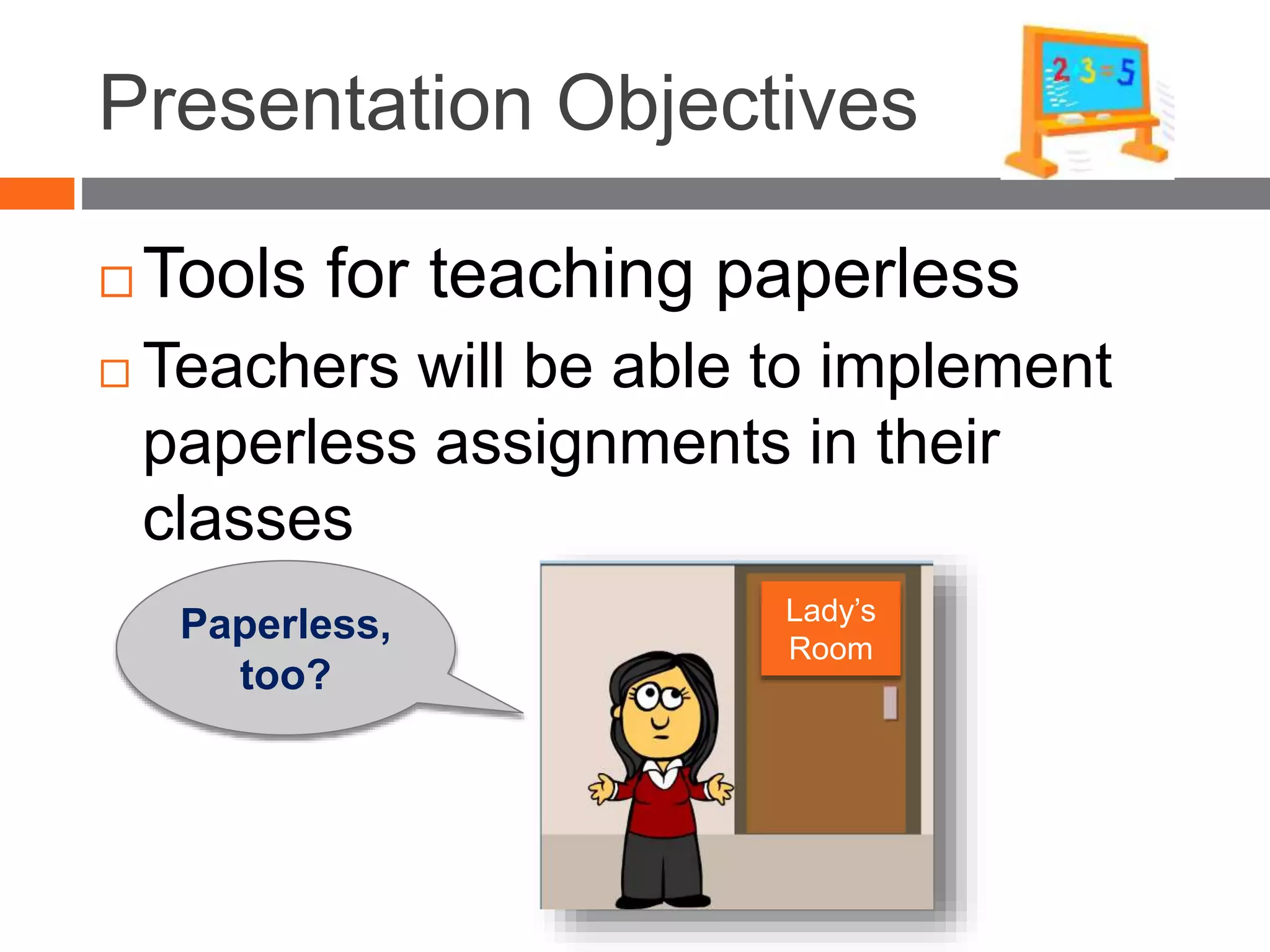
Paperless,
too?
Lady’s
Room
Why Go Paperless?
 Save paper, money, and time
 More efficient
 Organization materials better
 Creating better learning environment
 Mobile learning
 Online teaching/learning
 Save space (Less file cabinets and shelves)
 Save time in line for making copies
 But, sometimes, paper is easier.
Paperless for Students
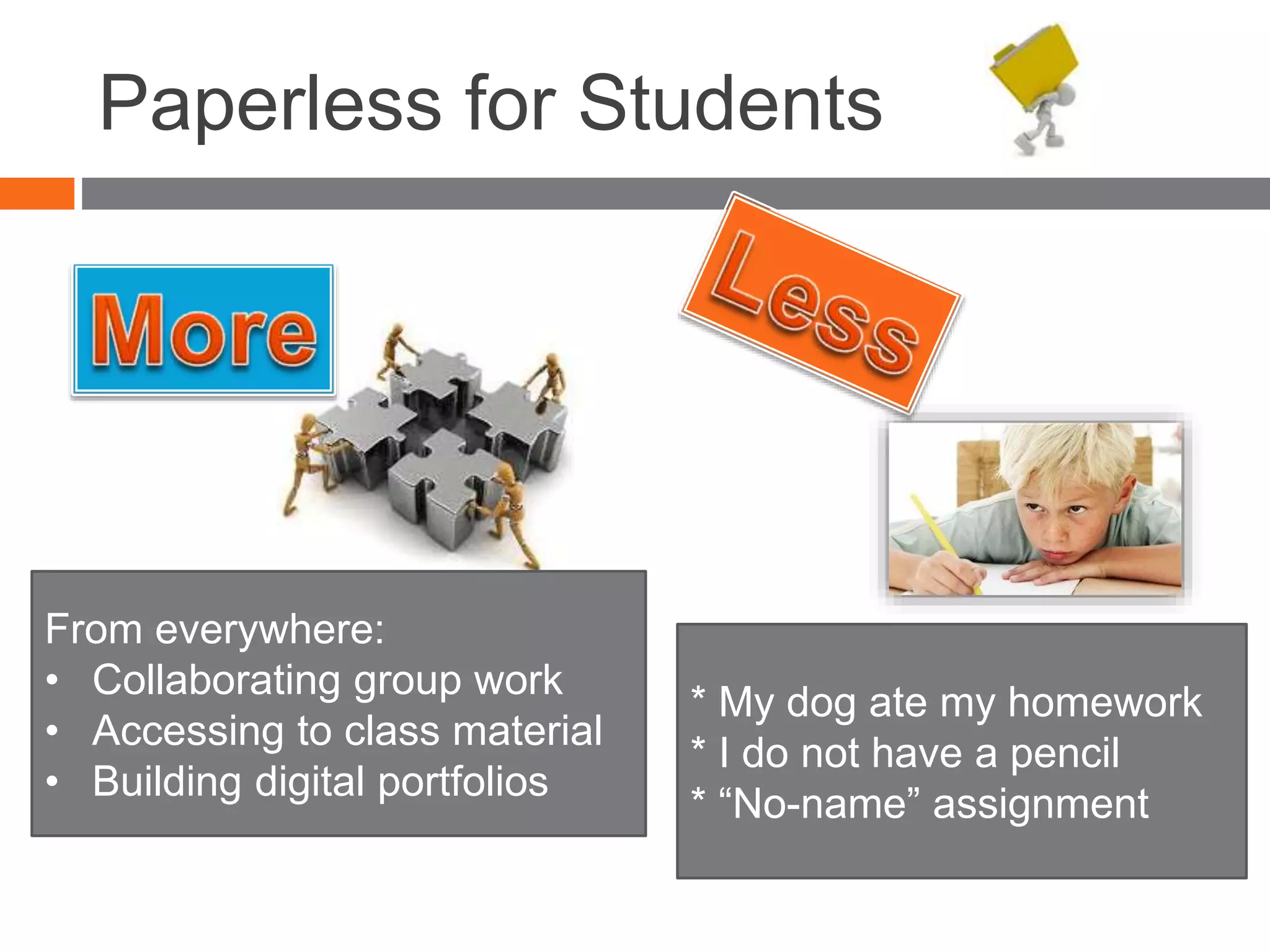
* My dog ate my homework
* I do not have a pencil
* “No-name” assignment
From everywhere:
• Collaborating group work
• Accessing to class material
• Building digital portfolios
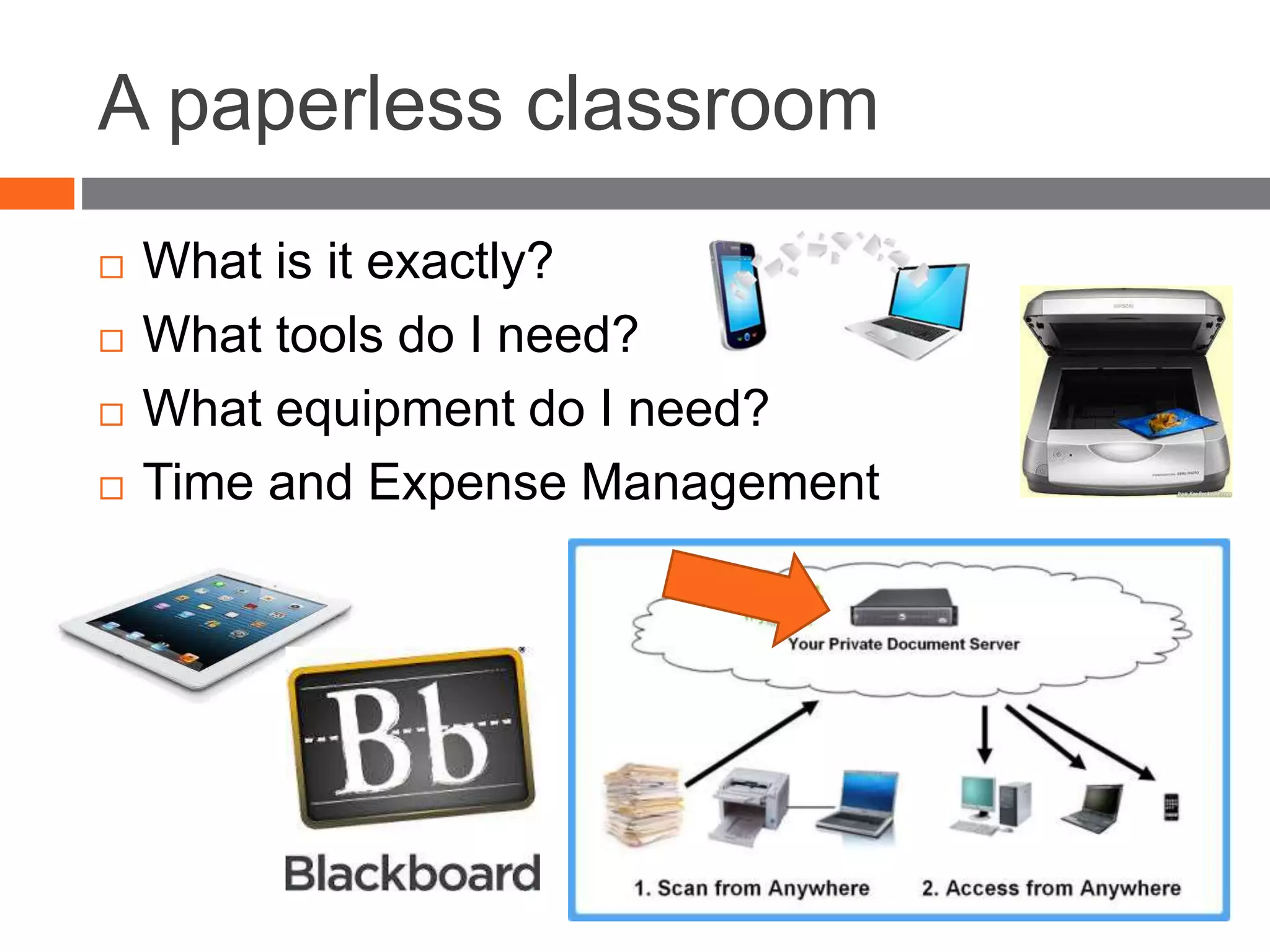
A paperless classroom
 What is it exactly?
 What tools do I need?
 What equipment do I need?
 Time and Expense Management
Conditions to consider
 1:1 computing (Language Lab)
 1:1 iPad or laptop
 Scanner / Camera
 Wireless internet
 Digital Textbooks and workbooks
 CMS (Blackboard), web site, blog, wiki
 E-mail & Google Docs
 Web 2.0 Tools
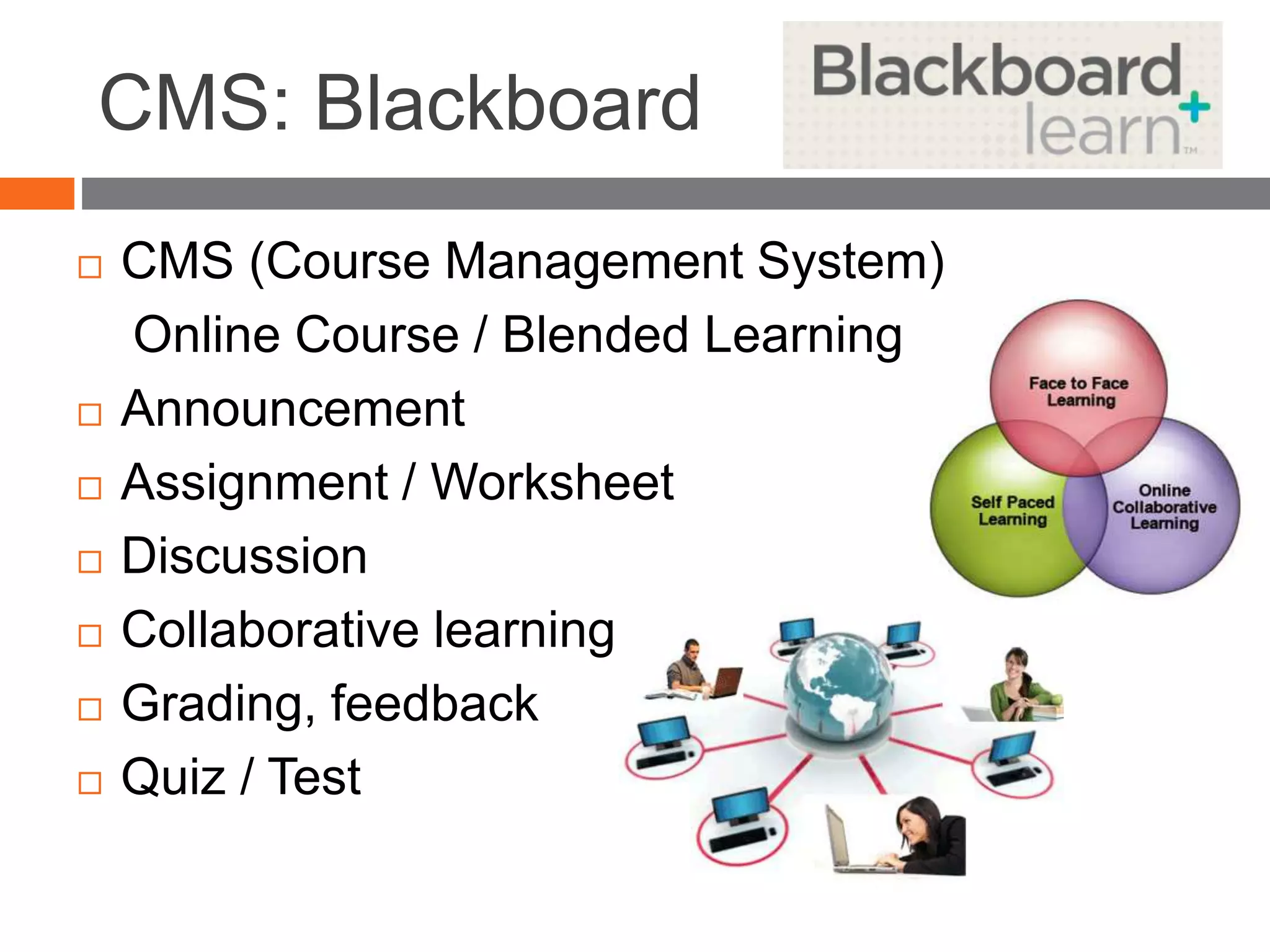
CMS: Blackboard
 CMS (Course Management System)
Online Course / Blended Learning
 Announcement
 Assignment / Worksheet
 Discussion
 Collaborative learning
 Grading, feedback
 Quiz / Test
E-mail
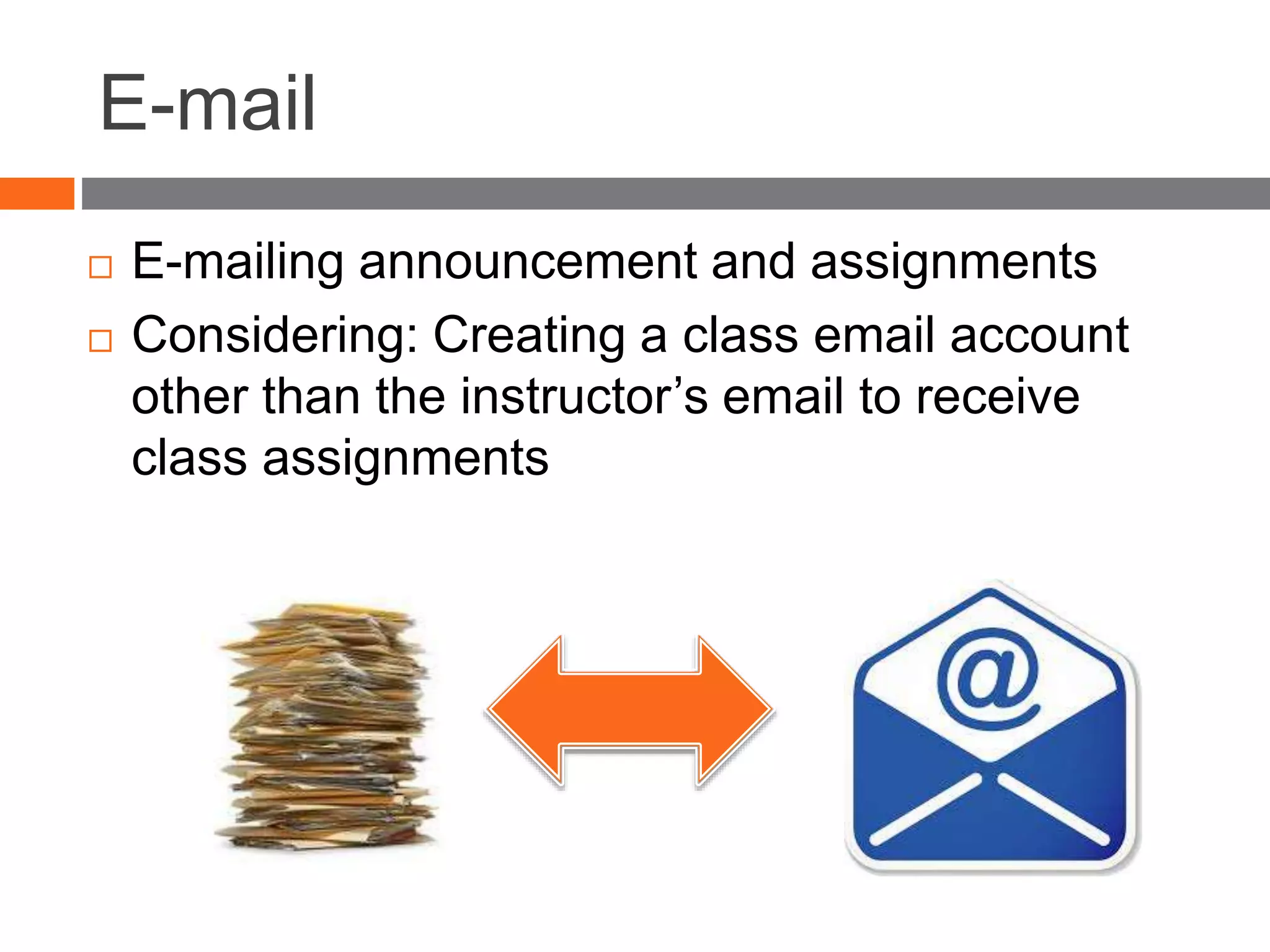
 E-mailing announcement and assignments
 Considering: Creating a class email account
other than the instructor’s email to receive
class assignments
Google Drive
 Document
 Presentation
 Spreadsheet
 Form
 All docs can be embedded or linked to
Blackboard
 Post / Share / Edit / Collaborate
 Survey / Presentation / Worksheet
Dropbox
 Dropbox.com
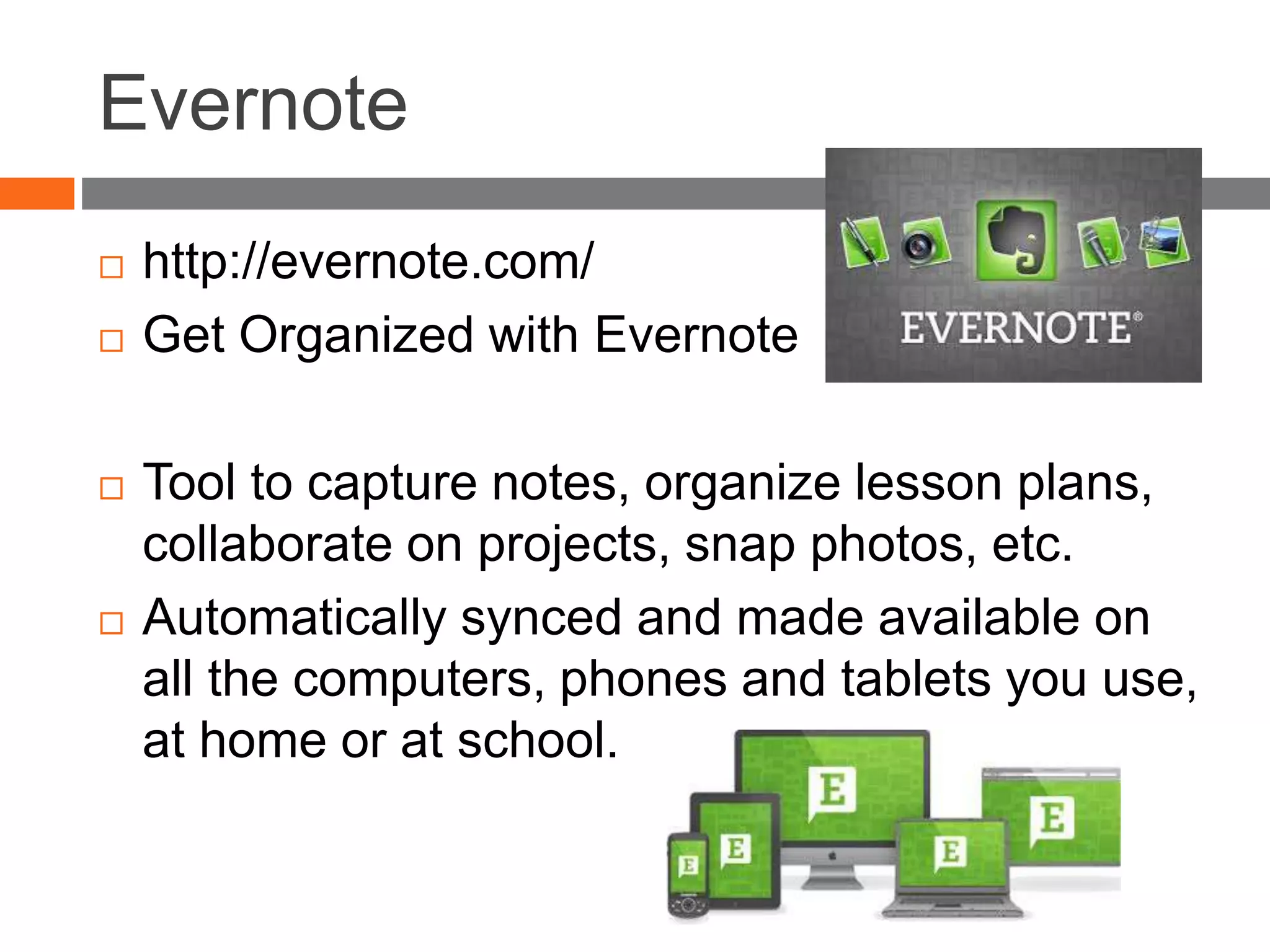
 Save all the documents in Drop Box folder
and share with your students
Storage space (2GB Free)
Science
project
Evernote
 http://evernote.com/
 Get Organized with Evernote
 Tool to capture notes, organize lesson plans,
collaborate on projects, snap photos, etc.
 Automatically synced and made available on
all the computers, phones and tablets you use,
at home or at school.
Presentation Tools / Projects
 Voicethread
 Glogster -- online poster
 Prezi
 Flipbooks(Flipsnack)
 Slideshare (PPT)
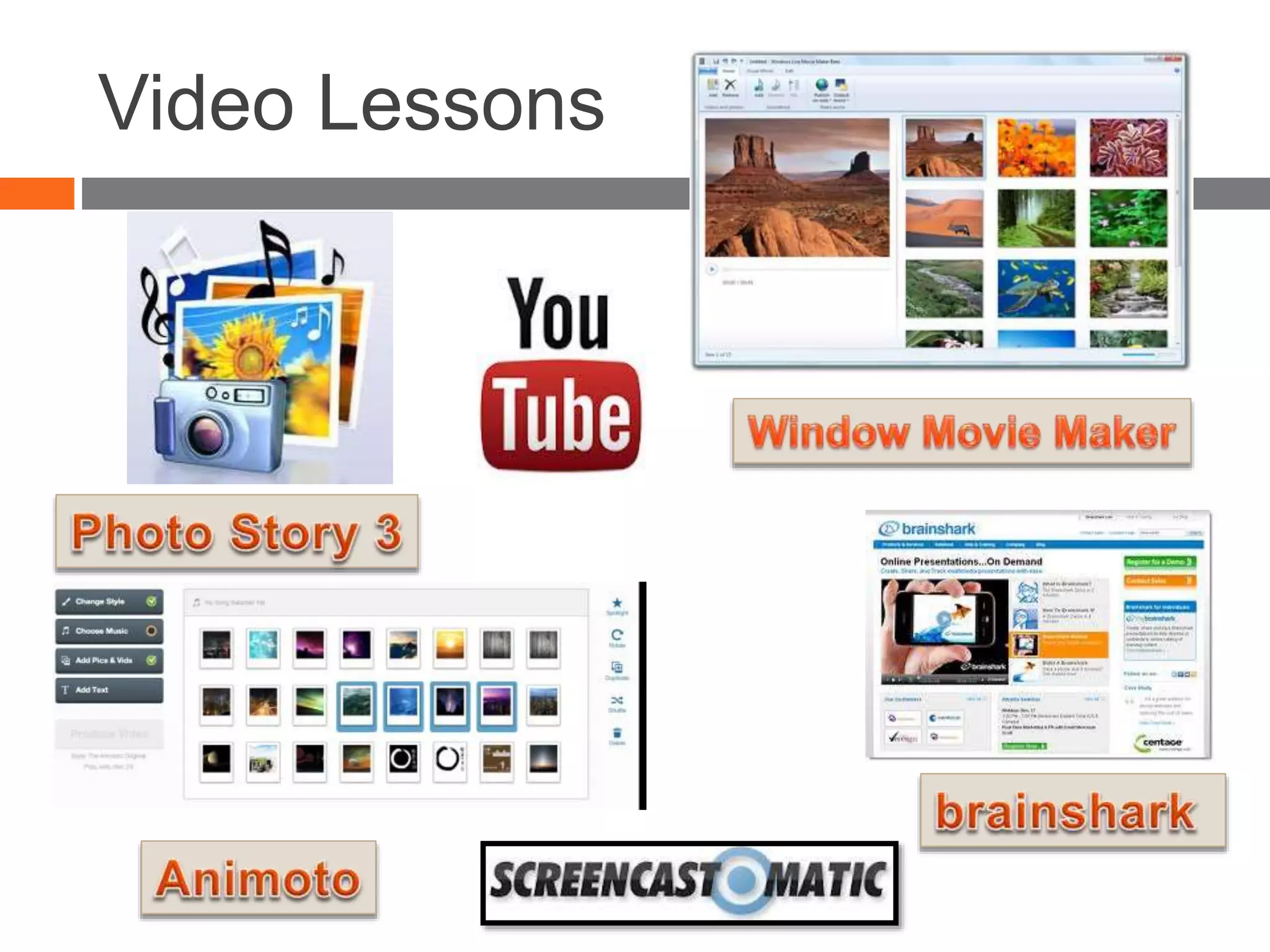
Video Lessons
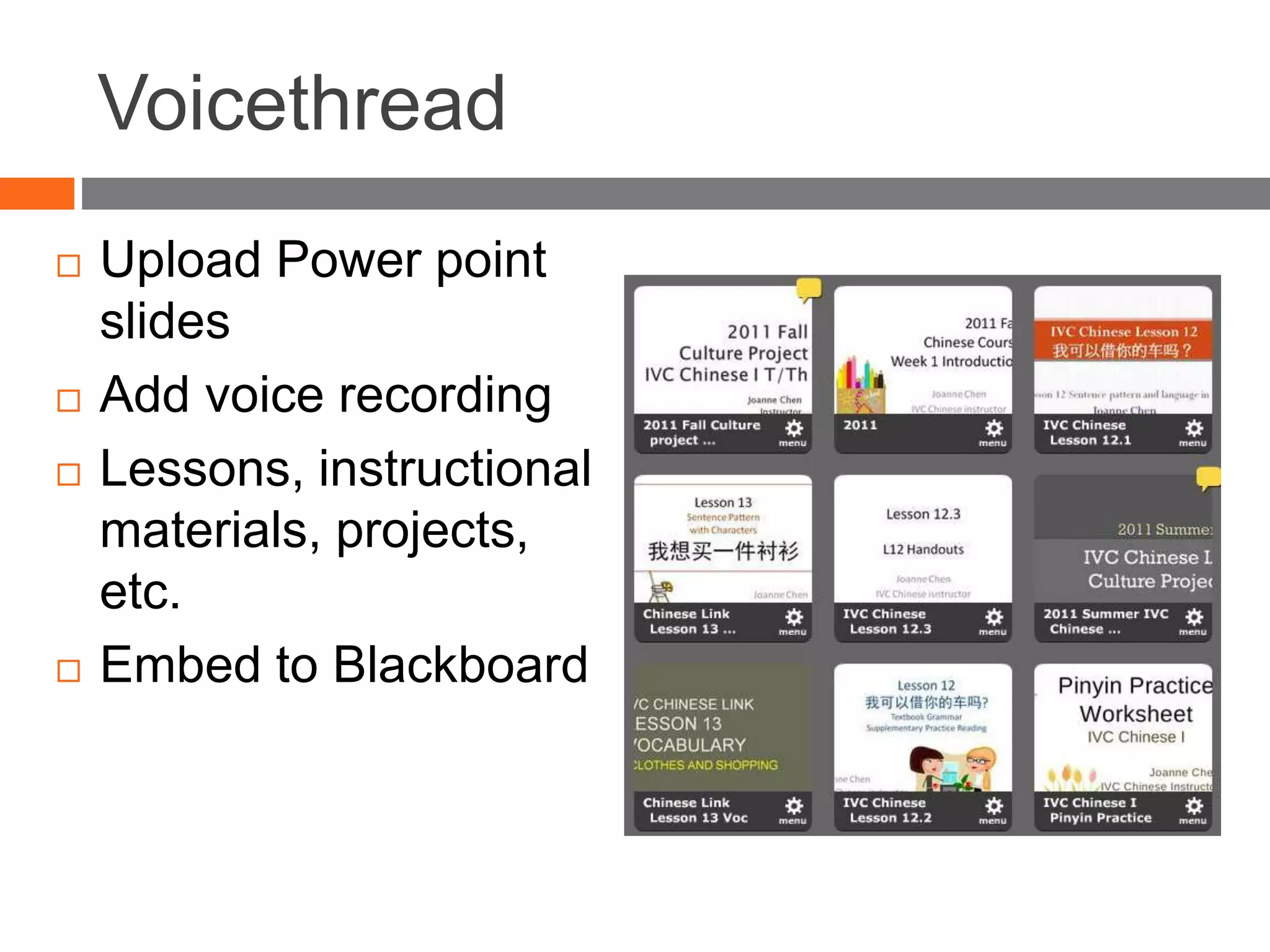
Voicethread
 Upload Power point
slides
 Add voice recording
 Lessons, instructional
materials, projects,
etc.
 Embed to Blackboard
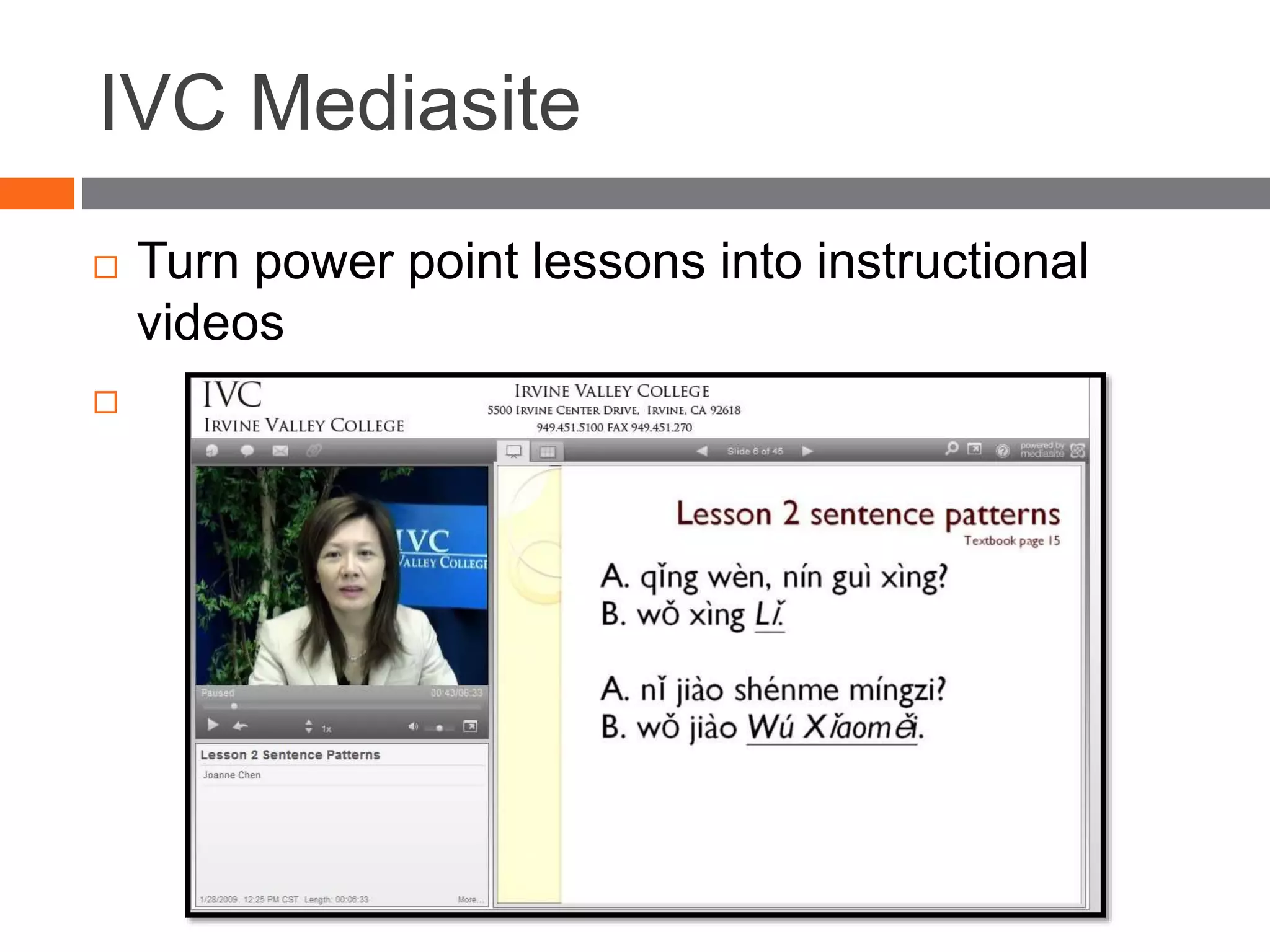
IVC Mediasite
 Turn power point lessons into instructional
videos

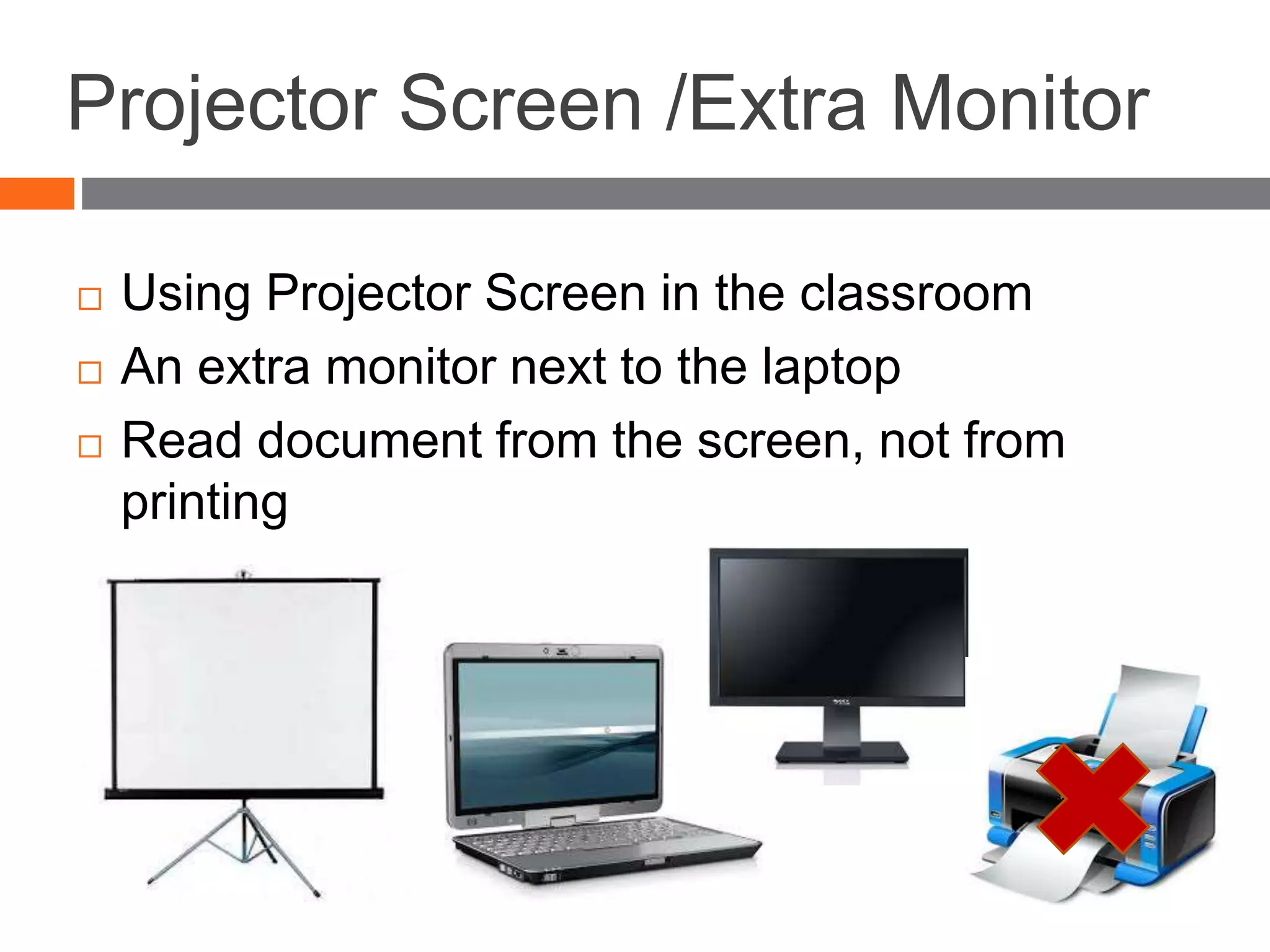
Projector Screen /Extra Monitor
 Using Projector Screen in the classroom
 An extra monitor next to the laptop
 Read document from the screen, not from
printing
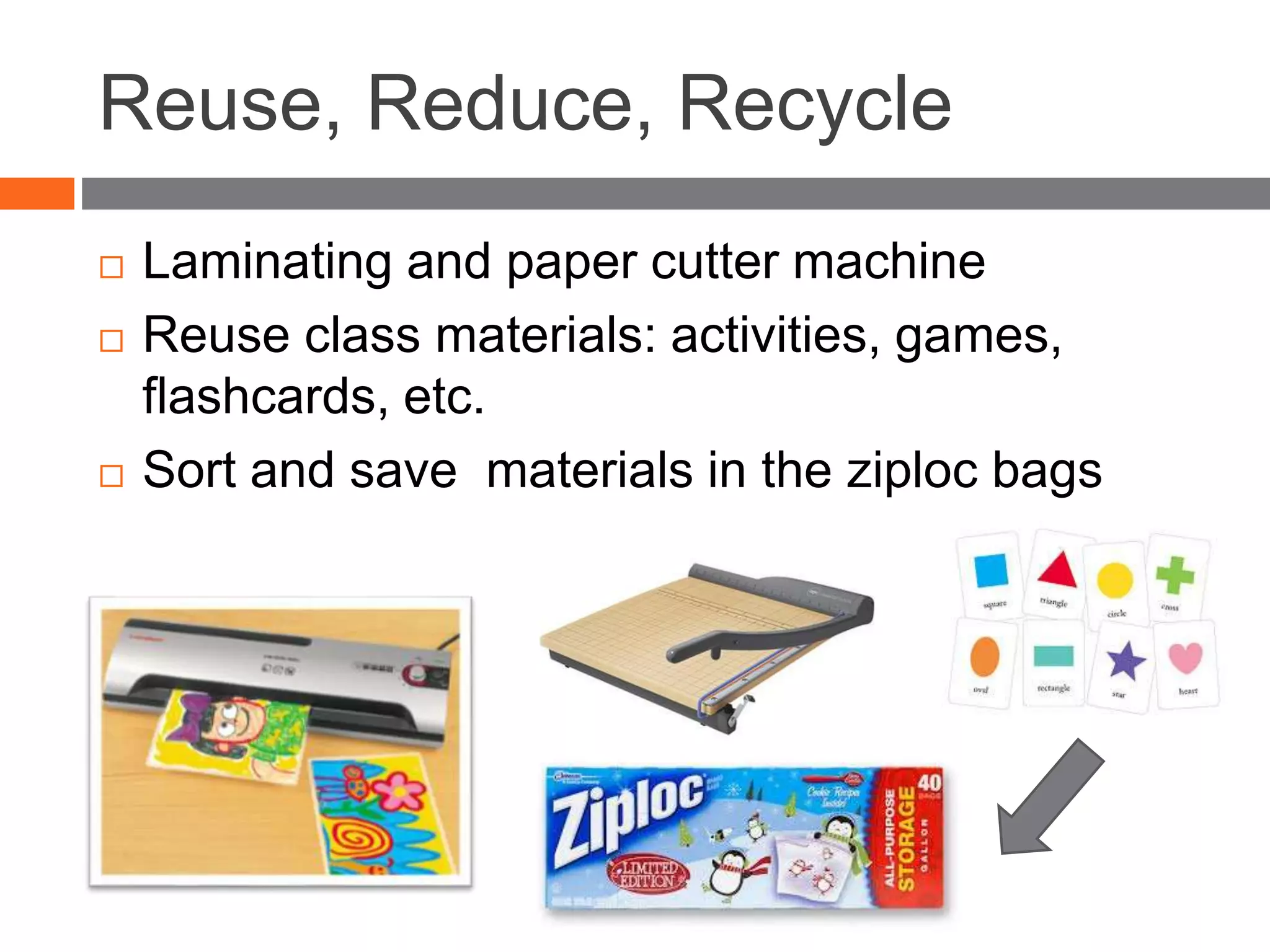
Reuse, Reduce, Recycle
 Laminating and paper cutter machine
 Reuse class materials: activities, games,
flashcards, etc.
 Sort and save materials in the ziploc bags
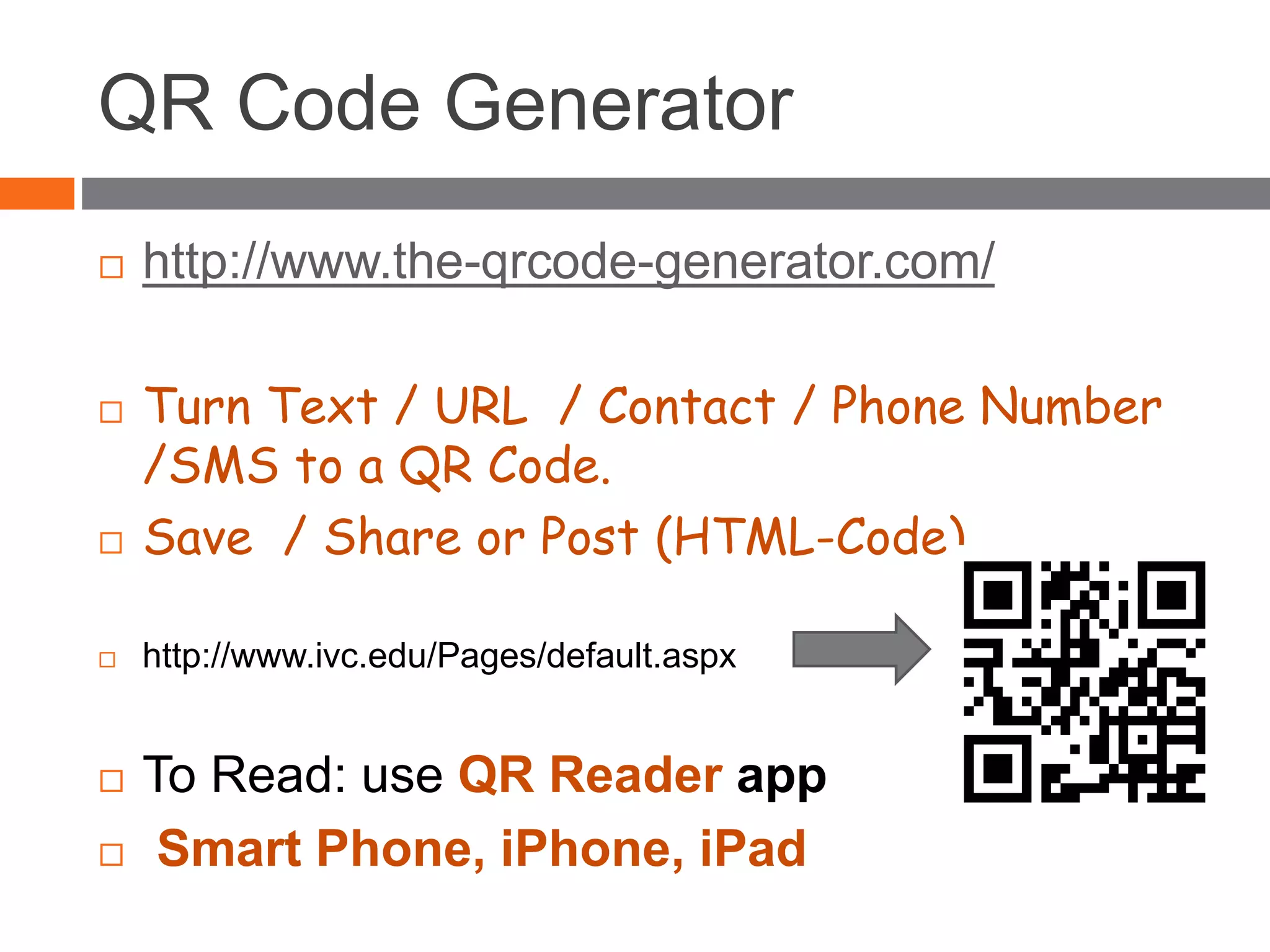
QR Code Generator
 http://www.the-qrcode-generator.com/
 Turn Text / URL / Contact / Phone Number
/SMS to a QR Code.
 Save / Share or Post (HTML-Code)
 http://www.ivc.edu/Pages/default.aspx
 To Read: use QR Reader app
 Smart Phone, iPhone, iPad
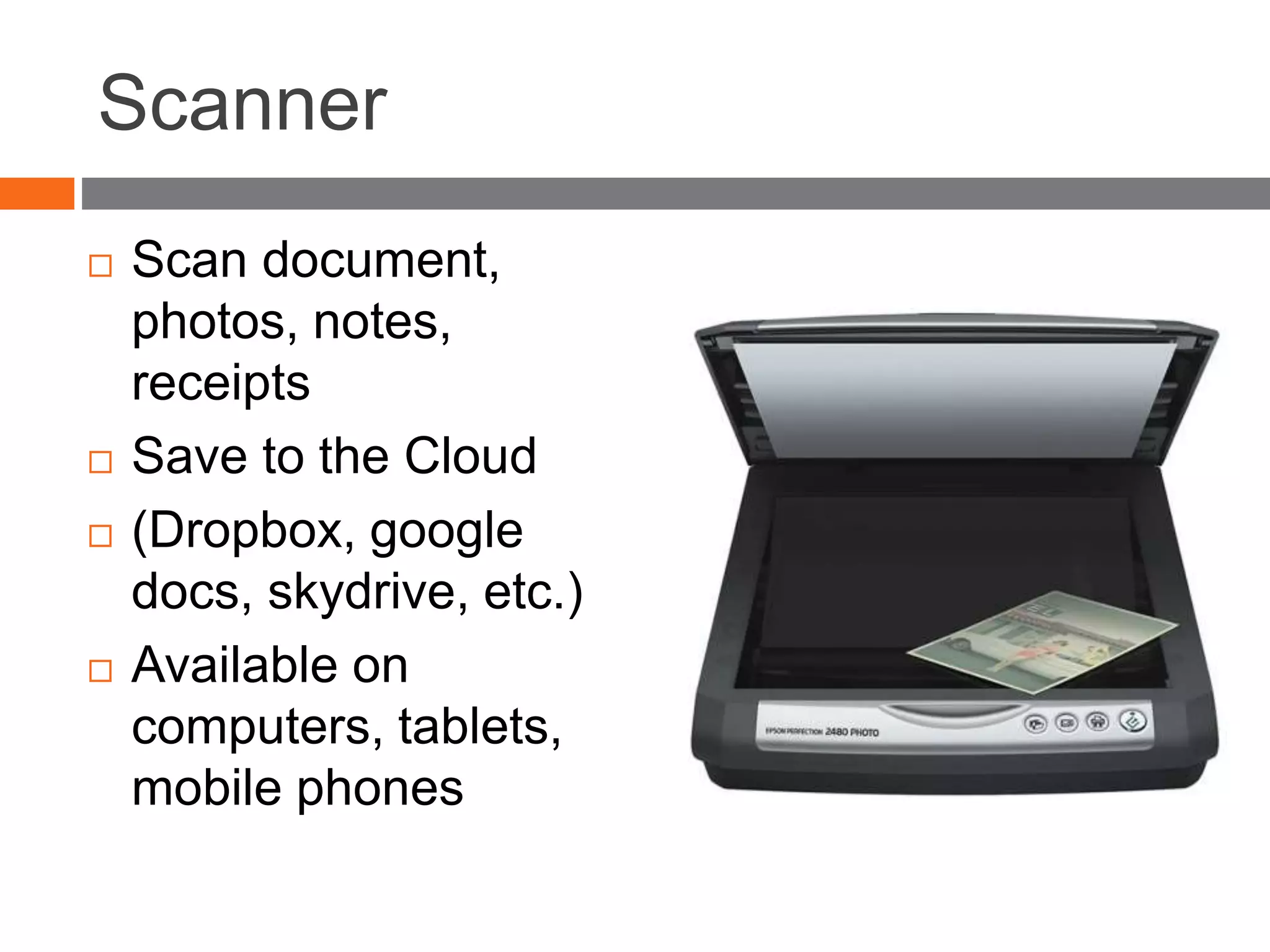
Scanner
 Scan document,
photos, notes,
receipts
 Save to the Cloud
 (Dropbox, google
docs, skydrive, etc.)
 Available on
computers, tablets,
mobile phones
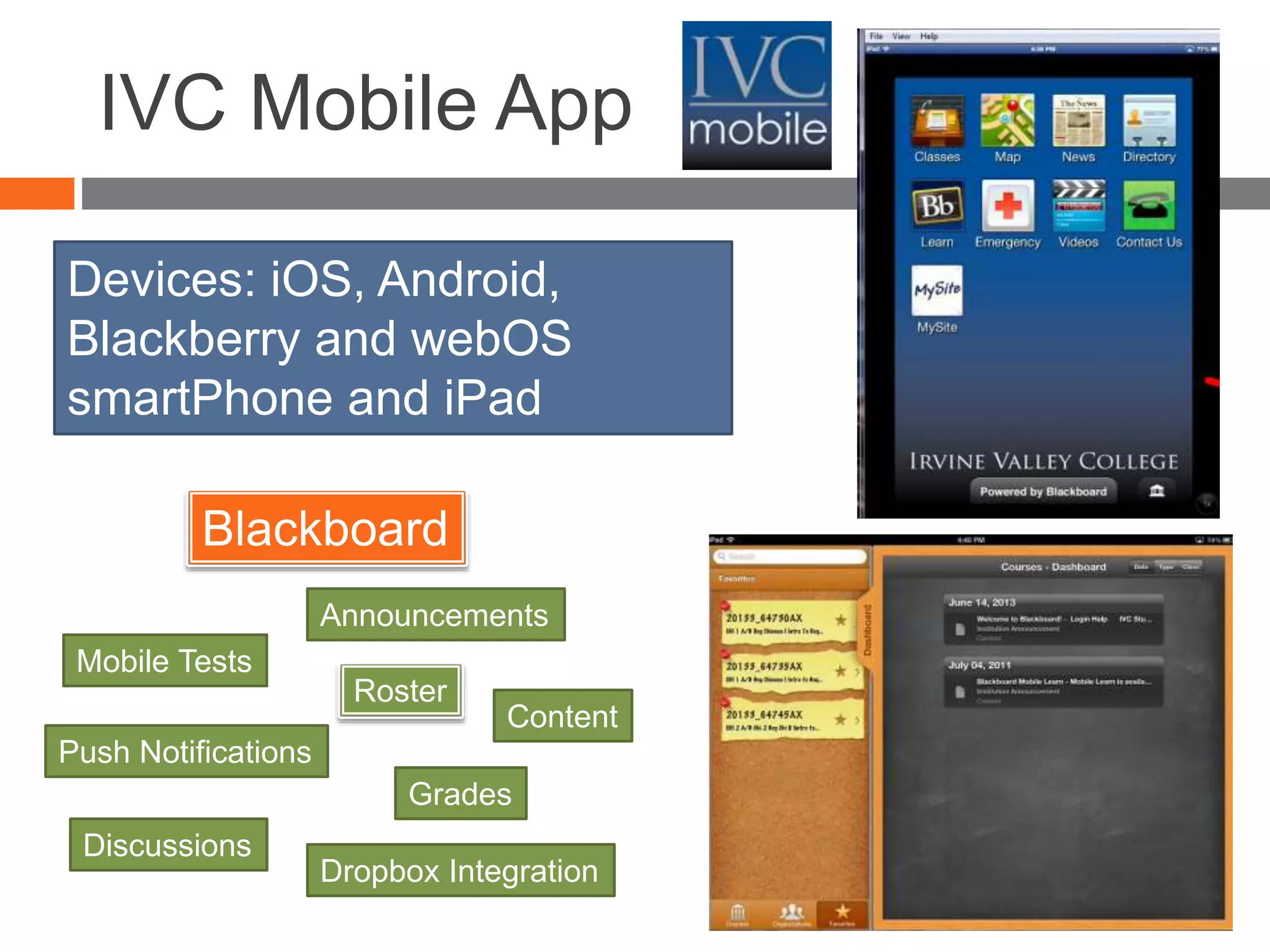
IVC Mobile App
Blackboard
Devices: iOS, Android,
Blackberry and webOS
smartPhone and iPad
Dropbox Integration
Mobile Tests
Push Notifications
Announcements
Grades
Discussions
Content
Roster
PDF
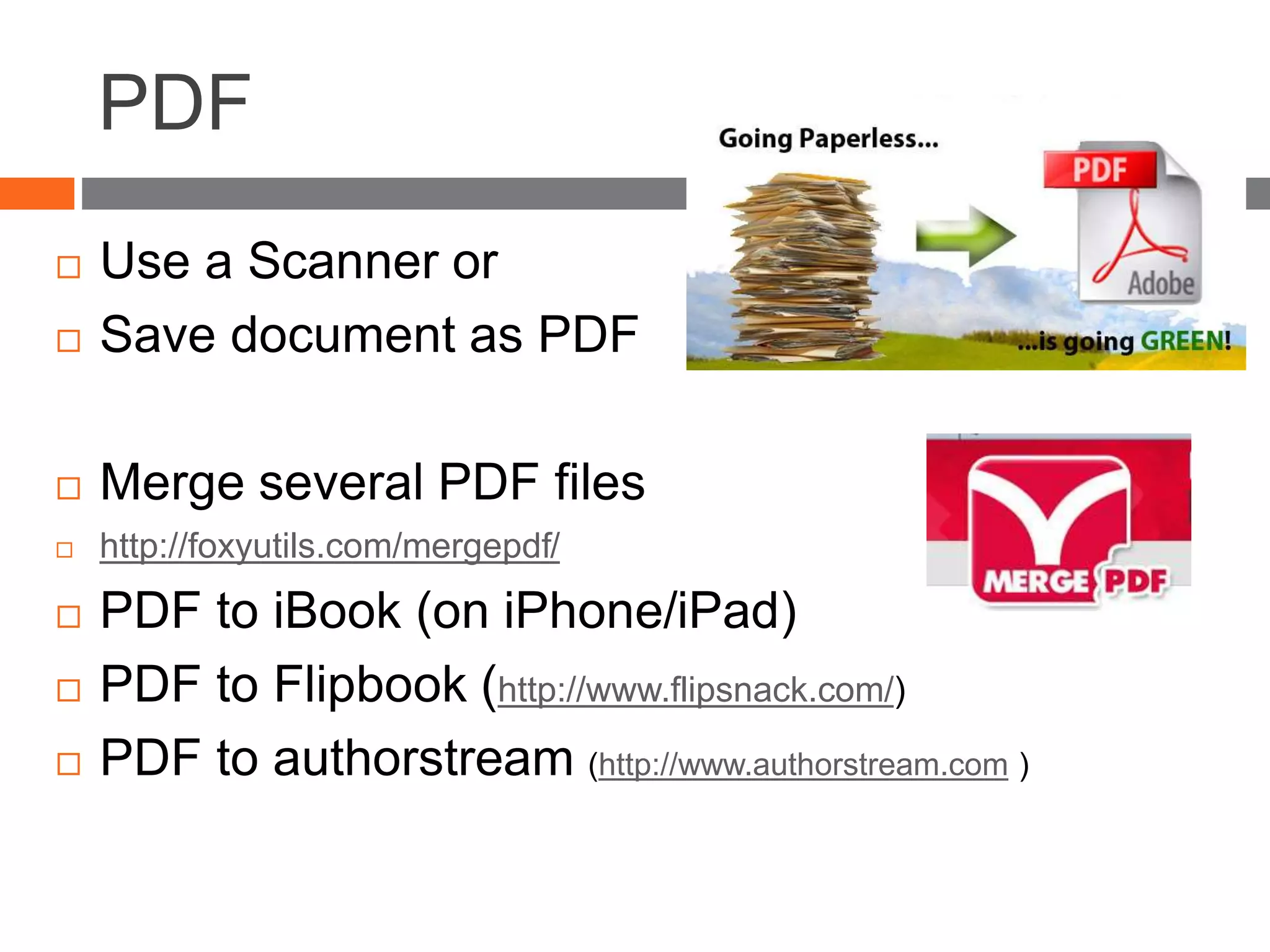
 Use a Scanner or
 Save document as PDF
 Merge several PDF files
 http://foxyutils.com/mergepdf/
 PDF to iBook (on iPhone/iPad)
 PDF to Flipbook (http://www.flipsnack.com/)
 PDF to authorstream (http://www.authorstream.com )
iPad / Mobile apps
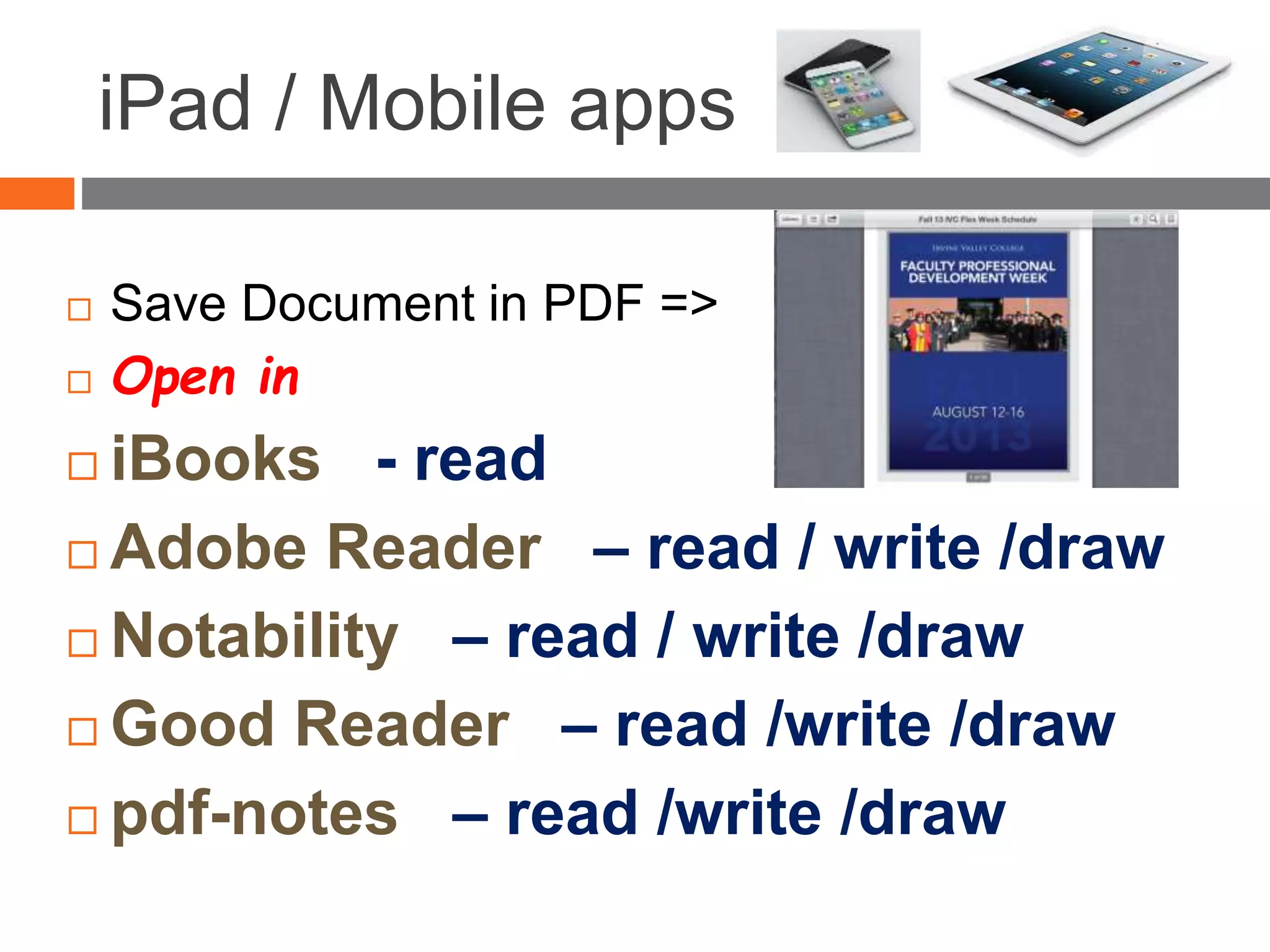
 Save Document in PDF =>
 Open in
 iBooks - read
 Adobe Reader – read / write /draw
 Notability – read / write /draw
 Good Reader – read /write /draw
 pdf-notes – read /write /draw
AirServer
http://www.airserver.com/
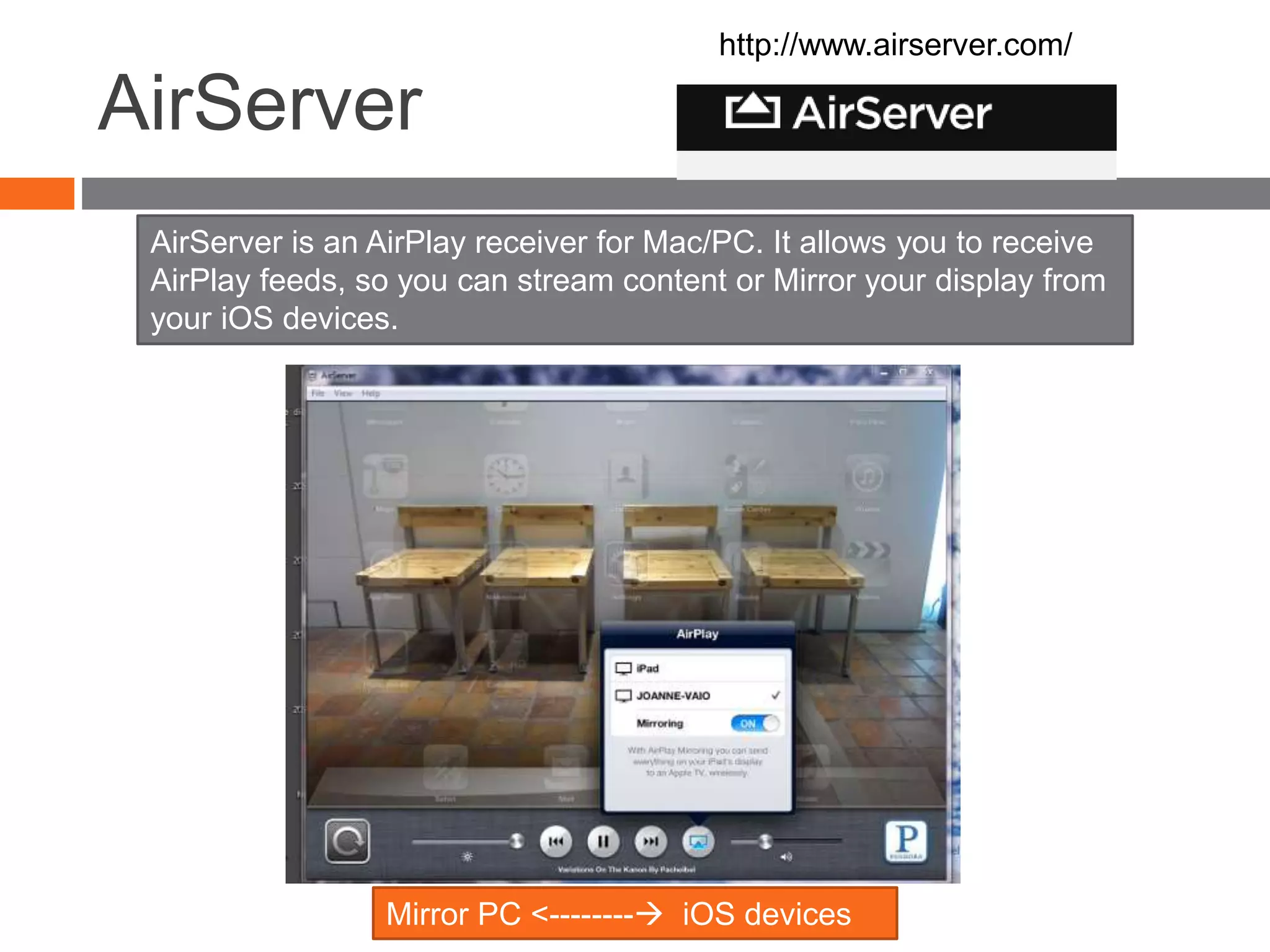
Mirror PC <-------- iOS devices
AirServer is an AirPlay receiver for Mac/PC. It allows you to receive
AirPlay feeds, so you can stream content or Mirror your display from
your iOS devices.

Tools for Going paperless

  • 1.
    TOOLS FOR GOING PAPERLESS JoanneChen Chinese Instructor Irvine Valley College Aug 15, 2013
  • 2.
    Presentation Objectives  Toolsfor teaching paperless  Teachers will be able to implement paperless assignments in their classes Paperless, too? Lady’s Room
  • 3.
    Why Go Paperless? Save paper, money, and time  More efficient  Organization materials better  Creating better learning environment  Mobile learning  Online teaching/learning  Save space (Less file cabinets and shelves)  Save time in line for making copies  But, sometimes, paper is easier.
  • 4.
    Paperless for Students *My dog ate my homework * I do not have a pencil * “No-name” assignment From everywhere: • Collaborating group work • Accessing to class material • Building digital portfolios
  • 5.
    A paperless classroom What is it exactly?  What tools do I need?  What equipment do I need?  Time and Expense Management
  • 6.
    Conditions to consider 1:1 computing (Language Lab)  1:1 iPad or laptop  Scanner / Camera  Wireless internet  Digital Textbooks and workbooks  CMS (Blackboard), web site, blog, wiki  E-mail & Google Docs  Web 2.0 Tools
  • 7.
    CMS: Blackboard  CMS(Course Management System) Online Course / Blended Learning  Announcement  Assignment / Worksheet  Discussion  Collaborative learning  Grading, feedback  Quiz / Test
  • 8.
    E-mail  E-mailing announcementand assignments  Considering: Creating a class email account other than the instructor’s email to receive class assignments
  • 9.
    Google Drive  Document Presentation  Spreadsheet  Form  All docs can be embedded or linked to Blackboard  Post / Share / Edit / Collaborate  Survey / Presentation / Worksheet
  • 10.
    Dropbox  Dropbox.com  Saveall the documents in Drop Box folder and share with your students Storage space (2GB Free) Science project
  • 11.
    Evernote  http://evernote.com/  GetOrganized with Evernote  Tool to capture notes, organize lesson plans, collaborate on projects, snap photos, etc.  Automatically synced and made available on all the computers, phones and tablets you use, at home or at school.
  • 12.
    Presentation Tools /Projects  Voicethread  Glogster -- online poster  Prezi  Flipbooks(Flipsnack)  Slideshare (PPT)
  • 13.
  • 14.
    Voicethread  Upload Powerpoint slides  Add voice recording  Lessons, instructional materials, projects, etc.  Embed to Blackboard
  • 15.
    IVC Mediasite  Turnpower point lessons into instructional videos 
  • 16.
    Projector Screen /ExtraMonitor  Using Projector Screen in the classroom  An extra monitor next to the laptop  Read document from the screen, not from printing
  • 17.
    Reuse, Reduce, Recycle Laminating and paper cutter machine  Reuse class materials: activities, games, flashcards, etc.  Sort and save materials in the ziploc bags
  • 18.
    QR Code Generator http://www.the-qrcode-generator.com/  Turn Text / URL / Contact / Phone Number /SMS to a QR Code.  Save / Share or Post (HTML-Code)  http://www.ivc.edu/Pages/default.aspx  To Read: use QR Reader app  Smart Phone, iPhone, iPad
  • 19.
    Scanner  Scan document, photos,notes, receipts  Save to the Cloud  (Dropbox, google docs, skydrive, etc.)  Available on computers, tablets, mobile phones
  • 20.
    IVC Mobile App Blackboard Devices:iOS, Android, Blackberry and webOS smartPhone and iPad Dropbox Integration Mobile Tests Push Notifications Announcements Grades Discussions Content Roster
  • 21.
    PDF  Use aScanner or  Save document as PDF  Merge several PDF files  http://foxyutils.com/mergepdf/  PDF to iBook (on iPhone/iPad)  PDF to Flipbook (http://www.flipsnack.com/)  PDF to authorstream (http://www.authorstream.com )
  • 22.
    iPad / Mobileapps  Save Document in PDF =>  Open in  iBooks - read  Adobe Reader – read / write /draw  Notability – read / write /draw  Good Reader – read /write /draw  pdf-notes – read /write /draw
  • 23.
    AirServer http://www.airserver.com/ Mirror PC <--------iOS devices AirServer is an AirPlay receiver for Mac/PC. It allows you to receive AirPlay feeds, so you can stream content or Mirror your display from your iOS devices.