21ST
CENTURY
TECHNOLOGY I N
THE CLASSROOM
Web based tools anyone can use.
For Students
To prepare students for the world in which they will live.
Learn how to collaborate with each other in new ways
To use technology to enhance learning
To increase engagement
As Teachers
Make the technology work for us as teachers
Makes planning, marking, assessing and teaching easier (maybe)
GOALS
THE WEB…
 Web 1.0 – we use the internet to gather information. We find
and read. We do not interact or create
 Web 2.0 – We interact and create on the web. We use the web
as a tool. We find, read, respond, write, and comment. We
create our presence online. We create a digital footprint.
 Web 2.0 tools are internet based tools that allow us to
interact with each other and the information around us.
 Making Web2.0 tools accessible to students is the key
CAN I DO THIS?
 Can you use what we have to connect your students to a world
outside your classroom?
One Computer
Computer Lab
Ipad
Computers in the classroom
DROP BOX
 A cloud storage system. Like a web based file folder to store
your files. Files are available on your computer and are synced
to your drop box. Can share files between devices easily.
 What is Dropbox- (Cloud Storage).mp4
BLOGGING
 Sharing news with the world online
Benefits of the Teacher Blogging
 Communicate with parents
 Collaborate and connect with other teachers and classrooms
 Share with others what is happening in your classroom
 Engaging with students – students can respond to your news
posts
 Blogs in Plain English.mp4
HWDSB LEARNING COMMONS
 Board based website that allows teachers to create their own
classroom blog.
 Communicate quickly with parents
 Eliminates monthly newsletters
 Student are no longer the tool of communication, you can
directly communicate with parents
 Handouts, and resources can be shared this way.
 Homework always accessible
 Reduces the amount of paper sent home
STUDENTS BLOGGING
 Kidblog – Easily set up and manage your students as bloggers.
 Students have an authentic purpose to write
 No notebooks to take home to mark
 Student Friendly
 Different levels of security to ensure privacy
The HWDSB learning commons does allow for students blogging
as well
GOOGLE
 Google has a lot of integrated
applications that work really well for
classroom applications
 Set up a Google account for yourself and
your classroom.
 Students log in and use the program
just like the would use word.
 Benefit is that you can see and track
progress
Teachers and Principals Talk about
Google Docs.flv
Google Drive is like a storage system like Dropbox. But they have
their own Google Documents.
Word Processor
Spreadsheet
Presentation
Forms
Benefits
 Students can work on these on any computer
 Always available
 Can work on one document at a time from two different
locations.
GOOGLE DRIVE
BITSTRIPS
 comic maker
 can be used from any computer with internet
 student directed or teacher directed
 eg: make comic describing reading comprehension strategies
 teacher approves all comics
 students can comment on other comics
PODCASTING
 Podcasting is the modern way to digitize your listening center.
 With an internet connection it can be used with any device.
Good for
 students with Special Education Needs
 Auditory learners
 Assessment and documentation of student reading
behaviour
 Recording progress
 Communicating with parents
PODCAST WITH AUDIOBOO
 Audioboo is a podcasting host
 You can record your voice onto
an ipod or ipad and then publish it
to the web.
 Anyone with the link can find your
podcasts.
 You can make these available to
students within the podcasting app
on Itunes.
 Or you can use apps on your
websites such as RSS feeds to
follow your podcasts.
TWITTER
140 characters
Community of Educators
Quick Parent Updates
Hashtag – a topic that people are talking about including people
outside your network. #edchat
Tweet – The status message that you send to the world
Why?
 Communicate with parents
 Communicate with colleagues
 Quickly get information
PADLET
 Also known as wallwisher
An online pinboard that allows you to store and pin sites that you
might want students to visit.
 Great idea for the lab with younger students. Bookmark it then
add and change content to suit what you are doing.
Dundana Web Tools
www.padlet.com/wall/dundanawebtools
GLOGSTER
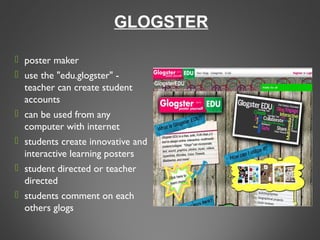
 poster maker
 use the "edu.glogster" -
teacher can create student
accounts
 can be used from any
computer with internet
 students create innovative and
interactive learning posters 
 student directed or teacher
directed
 students comment on each
others glogs
WIKI
 Wikis in Plain English.flv
 create wikis for different projects
 Create wikis on the Learning Commons 
 students create wikis based on teacher direction 
 students can collaborate with each other on a document
WIKISPACES
EDMODO
 It is the Facebook for
teachers and Students
 You can
 Create groups
 Create Polls
 Include homework
assignments
 Communicate with
parents and students
 Secure and private – only
those with the code can
join your class
CONFER
 This is an Ipad
exclusive app
 Allows teachers to
make quick notes
about students
 Especially helpful in
tracking guided
reading and
conferencing
JUPITER GRADES
 Free Online Grade Book
 Keeps grades accessible between devices.
 Must have internet to access
PLANBOARD
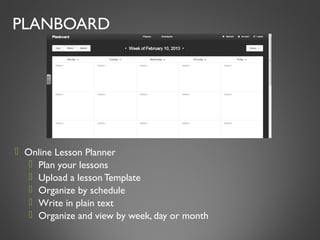
 Online Lesson Planner
 Plan your lessons
 Upload a lesson Template
 Organize by schedule
 Write in plain text
 Organize and view by week, day or month
EVERNOTE
What is it?
A note taking application that is fully integrated with other
Web2.0 tools
What Can you do?
 Save documents
 Make notes
 Notes are Time and Date stamped
Set up folders for each student and when you take a picture or
make a note you add it directly to their folder in Evernote
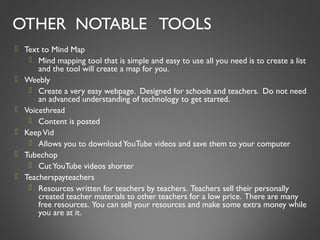
OTHER NOTABLE TOOLS
 Text to Mind Map
 Mind mapping tool that is simple and easy to use all you need is to create a list
and the tool will create a map for you.
 Weebly
 Create a very easy webpage. Designed for schools and teachers. Do not need
an advanced understanding of technology to get started.
 Voicethread
 Content is posted
 KeepVid
 Allows you to downloadYouTube videos and save them to your computer
 Tubechop
 CutYouTube videos shorter
 Teacherspayteachers
 Resources written for teachers by teachers. Teachers sell their personally
created teacher materials to other teachers for a low price. There are many
free resources. You can sell your resources and make some extra money while
you are at it.
SOME PEOPLE MAY THINK...
 What about safety...
 What about permission...
 What if I don't know how to use a computer...
 What if I only have one computer...
 What if I don't have a smart board...
 What if my students don't have computers or internet at
home...
Questions???
email us

Technology presentation

  • 1.
    21ST CENTURY TECHNOLOGY I N THECLASSROOM Web based tools anyone can use.
  • 2.
    For Students To preparestudents for the world in which they will live. Learn how to collaborate with each other in new ways To use technology to enhance learning To increase engagement As Teachers Make the technology work for us as teachers Makes planning, marking, assessing and teaching easier (maybe) GOALS
  • 3.
    THE WEB…  Web1.0 – we use the internet to gather information. We find and read. We do not interact or create  Web 2.0 – We interact and create on the web. We use the web as a tool. We find, read, respond, write, and comment. We create our presence online. We create a digital footprint.  Web 2.0 tools are internet based tools that allow us to interact with each other and the information around us.  Making Web2.0 tools accessible to students is the key
  • 4.
    CAN I DOTHIS?  Can you use what we have to connect your students to a world outside your classroom? One Computer Computer Lab Ipad Computers in the classroom
  • 5.
    DROP BOX  Acloud storage system. Like a web based file folder to store your files. Files are available on your computer and are synced to your drop box. Can share files between devices easily.
  • 6.
     What isDropbox- (Cloud Storage).mp4
  • 7.
    BLOGGING  Sharing newswith the world online Benefits of the Teacher Blogging  Communicate with parents  Collaborate and connect with other teachers and classrooms  Share with others what is happening in your classroom  Engaging with students – students can respond to your news posts  Blogs in Plain English.mp4
  • 8.
    HWDSB LEARNING COMMONS Board based website that allows teachers to create their own classroom blog.  Communicate quickly with parents  Eliminates monthly newsletters  Student are no longer the tool of communication, you can directly communicate with parents  Handouts, and resources can be shared this way.  Homework always accessible  Reduces the amount of paper sent home
  • 9.
    STUDENTS BLOGGING  Kidblog– Easily set up and manage your students as bloggers.  Students have an authentic purpose to write  No notebooks to take home to mark  Student Friendly  Different levels of security to ensure privacy The HWDSB learning commons does allow for students blogging as well
  • 10.
    GOOGLE  Google hasa lot of integrated applications that work really well for classroom applications  Set up a Google account for yourself and your classroom.  Students log in and use the program just like the would use word.  Benefit is that you can see and track progress Teachers and Principals Talk about Google Docs.flv
  • 11.
    Google Drive islike a storage system like Dropbox. But they have their own Google Documents. Word Processor Spreadsheet Presentation Forms Benefits  Students can work on these on any computer  Always available  Can work on one document at a time from two different locations. GOOGLE DRIVE
  • 12.
    BITSTRIPS  comic maker can be used from any computer with internet  student directed or teacher directed  eg: make comic describing reading comprehension strategies  teacher approves all comics  students can comment on other comics
  • 13.
    PODCASTING  Podcasting isthe modern way to digitize your listening center.  With an internet connection it can be used with any device. Good for  students with Special Education Needs  Auditory learners  Assessment and documentation of student reading behaviour  Recording progress  Communicating with parents
  • 14.
    PODCAST WITH AUDIOBOO Audioboo is a podcasting host  You can record your voice onto an ipod or ipad and then publish it to the web.  Anyone with the link can find your podcasts.  You can make these available to students within the podcasting app on Itunes.  Or you can use apps on your websites such as RSS feeds to follow your podcasts.
  • 15.
    TWITTER 140 characters Community ofEducators Quick Parent Updates Hashtag – a topic that people are talking about including people outside your network. #edchat Tweet – The status message that you send to the world Why?  Communicate with parents  Communicate with colleagues  Quickly get information
  • 16.
    PADLET  Also knownas wallwisher An online pinboard that allows you to store and pin sites that you might want students to visit.  Great idea for the lab with younger students. Bookmark it then add and change content to suit what you are doing. Dundana Web Tools www.padlet.com/wall/dundanawebtools
  • 17.
    GLOGSTER  poster maker use the "edu.glogster" - teacher can create student accounts  can be used from any computer with internet  students create innovative and interactive learning posters   student directed or teacher directed  students comment on each others glogs
  • 18.
    WIKI  Wikis inPlain English.flv
  • 19.
     create wikisfor different projects  Create wikis on the Learning Commons   students create wikis based on teacher direction   students can collaborate with each other on a document WIKISPACES
  • 20.
    EDMODO  It isthe Facebook for teachers and Students  You can  Create groups  Create Polls  Include homework assignments  Communicate with parents and students  Secure and private – only those with the code can join your class
  • 21.
    CONFER  This isan Ipad exclusive app  Allows teachers to make quick notes about students  Especially helpful in tracking guided reading and conferencing
  • 22.
    JUPITER GRADES  FreeOnline Grade Book  Keeps grades accessible between devices.  Must have internet to access
  • 23.
    PLANBOARD  Online LessonPlanner  Plan your lessons  Upload a lesson Template  Organize by schedule  Write in plain text  Organize and view by week, day or month
  • 24.
    EVERNOTE What is it? Anote taking application that is fully integrated with other Web2.0 tools What Can you do?  Save documents  Make notes  Notes are Time and Date stamped Set up folders for each student and when you take a picture or make a note you add it directly to their folder in Evernote
  • 25.
    OTHER NOTABLE TOOLS Text to Mind Map  Mind mapping tool that is simple and easy to use all you need is to create a list and the tool will create a map for you.  Weebly  Create a very easy webpage. Designed for schools and teachers. Do not need an advanced understanding of technology to get started.  Voicethread  Content is posted  KeepVid  Allows you to downloadYouTube videos and save them to your computer  Tubechop  CutYouTube videos shorter  Teacherspayteachers  Resources written for teachers by teachers. Teachers sell their personally created teacher materials to other teachers for a low price. There are many free resources. You can sell your resources and make some extra money while you are at it.
  • 26.
    SOME PEOPLE MAYTHINK...  What about safety...  What about permission...  What if I don't know how to use a computer...  What if I only have one computer...  What if I don't have a smart board...  What if my students don't have computers or internet at home...
  • 27.