Time-history seismic analysis with SAP2000 A step-by-step guide for BEng/MEng/MSc students familiarizing with this piece of software
List of Content Download recorded accelerograms from the PEER database Upload a selected accelerogram to SAP2000 Run the time-history analysis and display the results
DOWNLOAD ACCELEROGRAMS FROM THE PEER DATABASE Step #1
PEER Strong Ground Motion Database The  P acific  E arthquake  E ngineering  R esearch (PEER), headquartered at the  University of California at Berkeley , makes available online over 10,000 strong ground motion records from 173 different earthquakes http://peer.berkeley.edu/
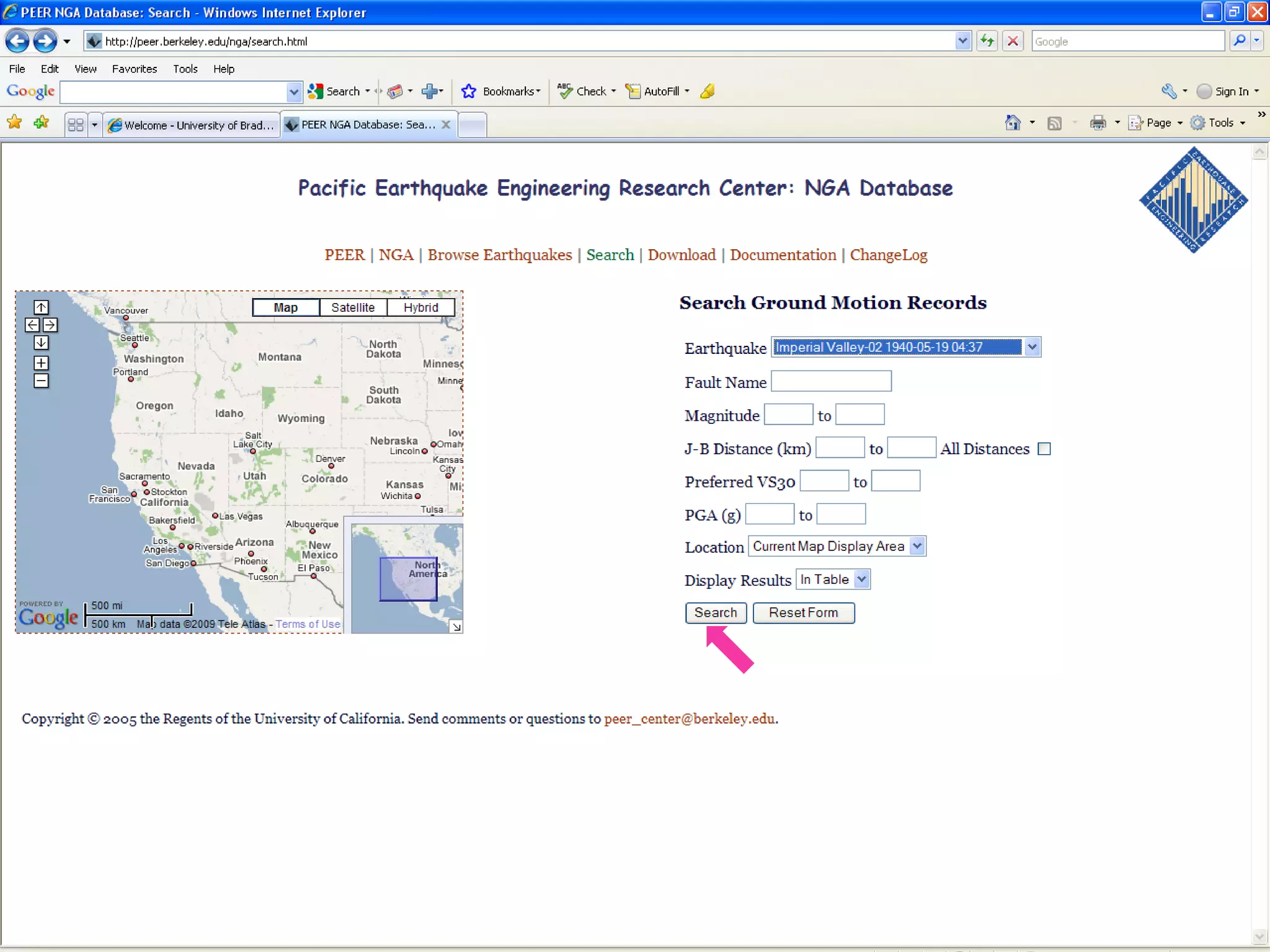
PEER Strong Ground Motion Database The database in entirely searchable http://peer.berkeley.edu/nga/ As an example, we want to download the accelerogram recorded during the  Imperial Valley 1940 earthquake Once the event has been selected in the top drop-down list, we must specify to  DISPLAY  the results “In Table” rather than “On Map” Then we can  SEARCH
 
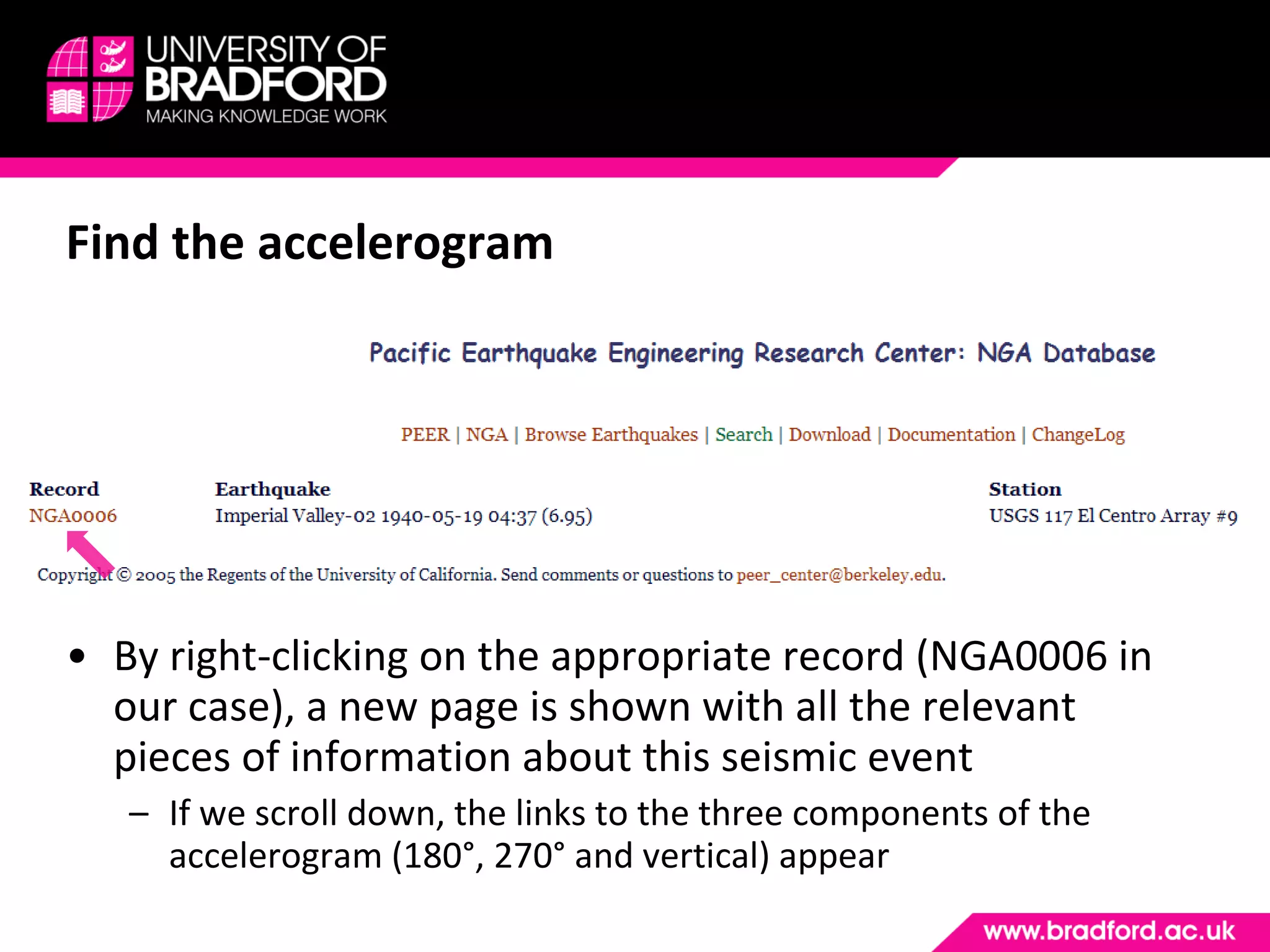
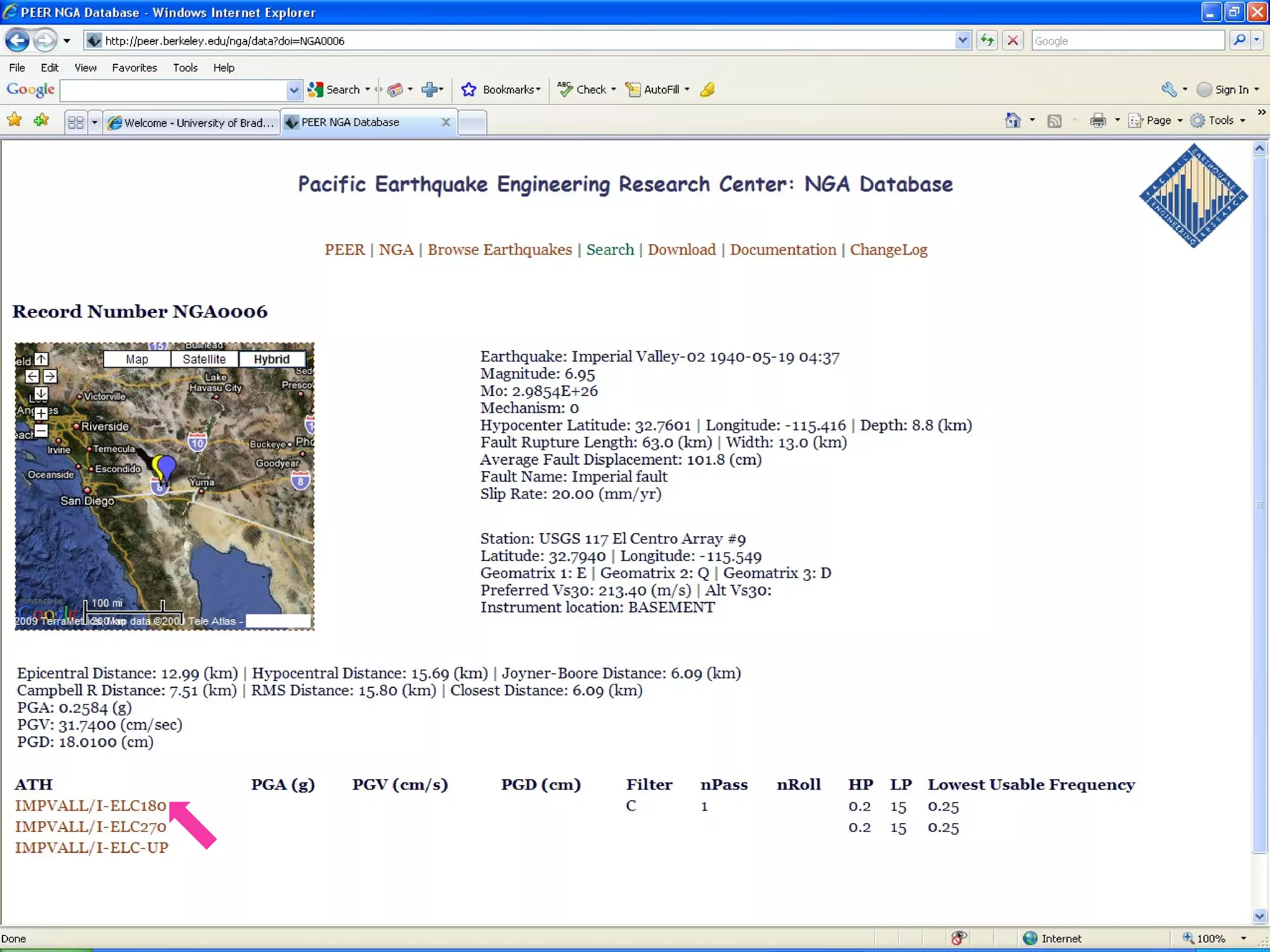
Find the accelerogram By right-clicking on the appropriate record (NGA0006 in our case), a new page is shown with all the relevant pieces of information about this seismic event If we scroll down, the links to the three components of the accelerogram (180°, 270° and vertical) appear
 
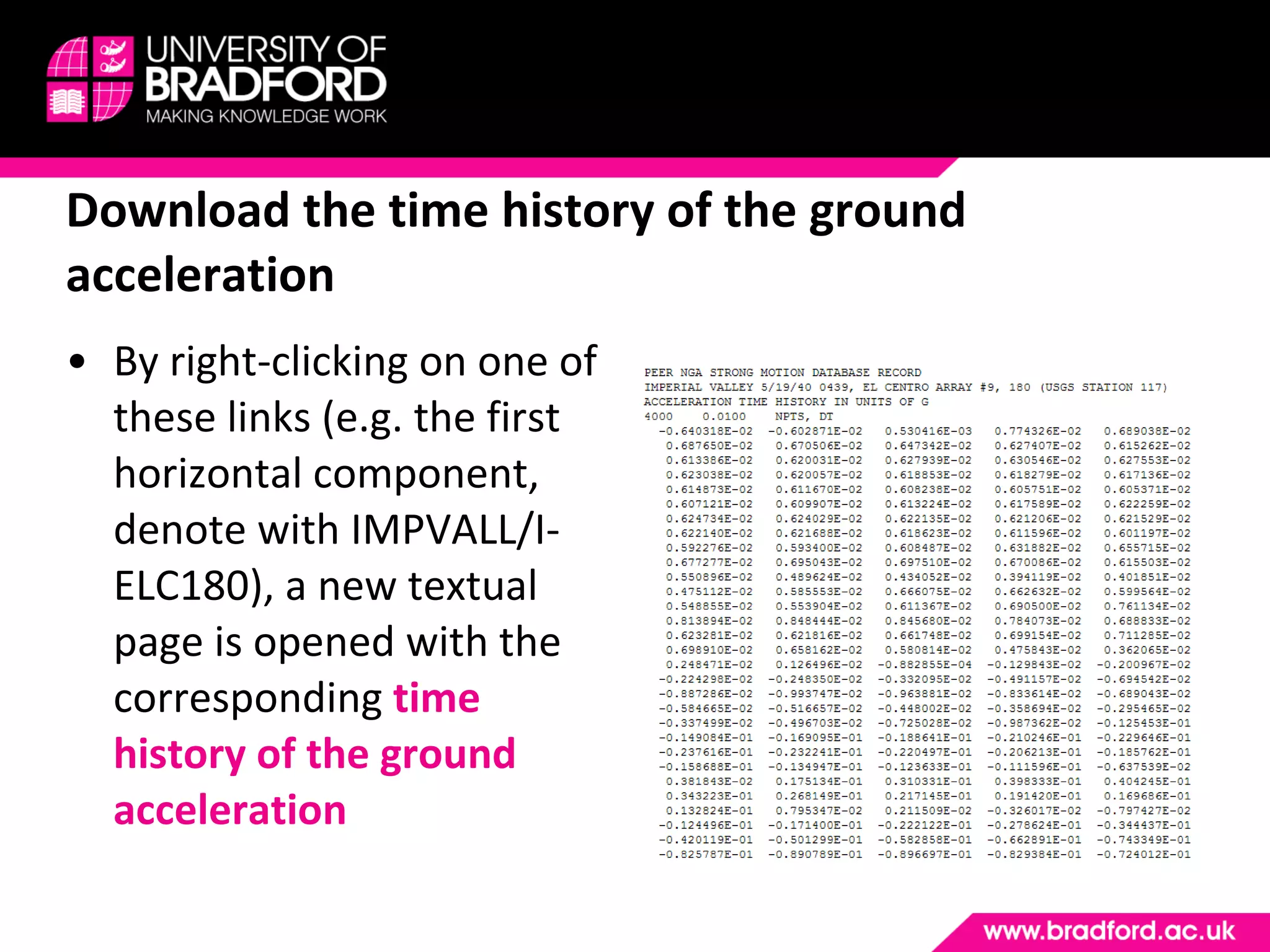
Download the time history of the ground acceleration By right-clicking on one of these links (e.g. the first horizontal component, denote with IMPVALL/I-ELC180), a new textual page is opened with the corresponding  time history of the ground acceleration
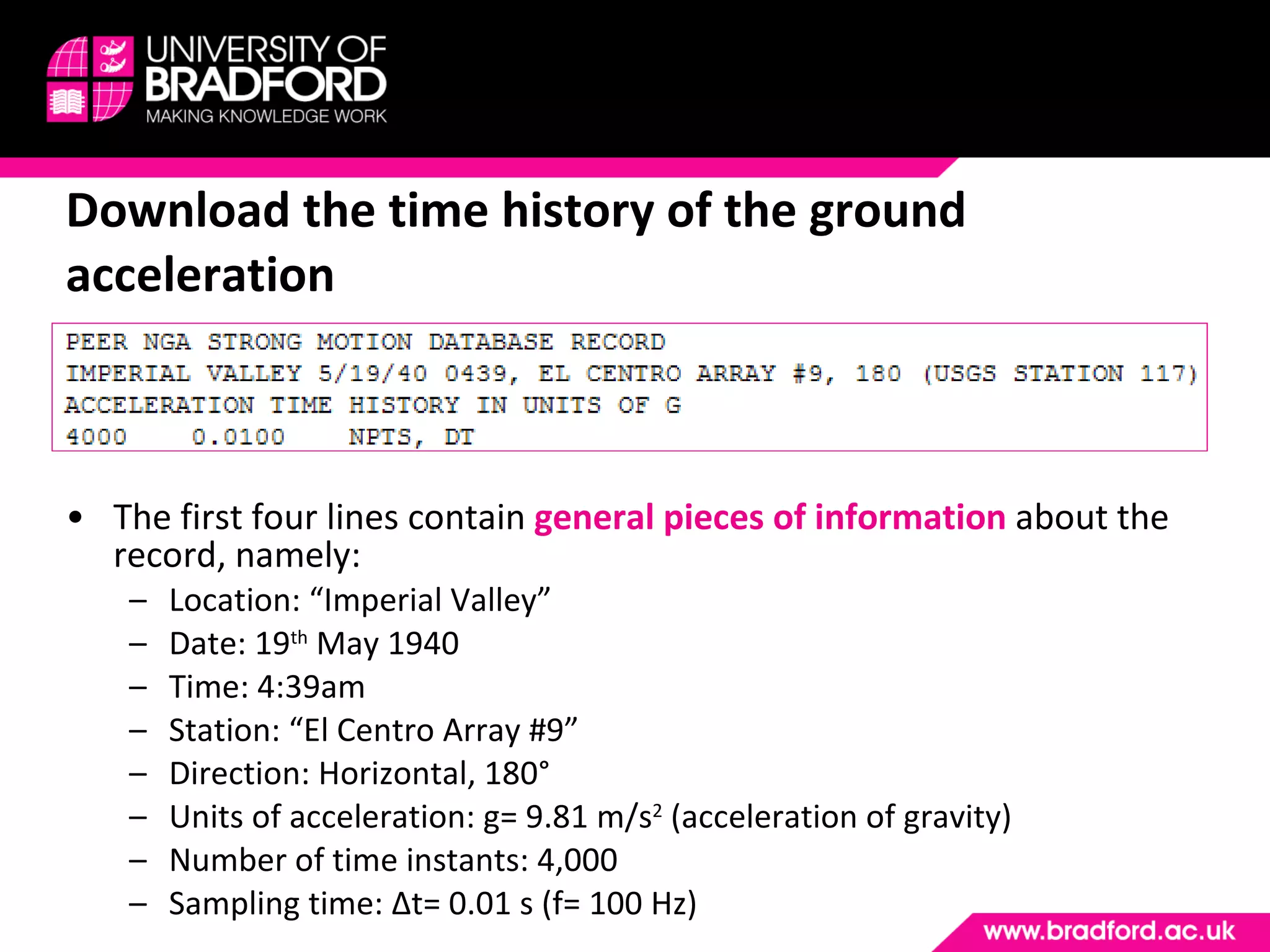
The first four lines contain  general pieces of information   about the record, namely: Location: “Imperial Valley” Date: 19 th  May 1940 Time: 4:39am Station: “El Centro Array #9” Direction: Horizontal, 180° Units of acceleration: g= 9.81 m/s 2  (acceleration of gravity) Number of time instants: 4,000 Sampling time:  Δ t= 0.01 s (f= 100 Hz) Download the time history of the ground acceleration
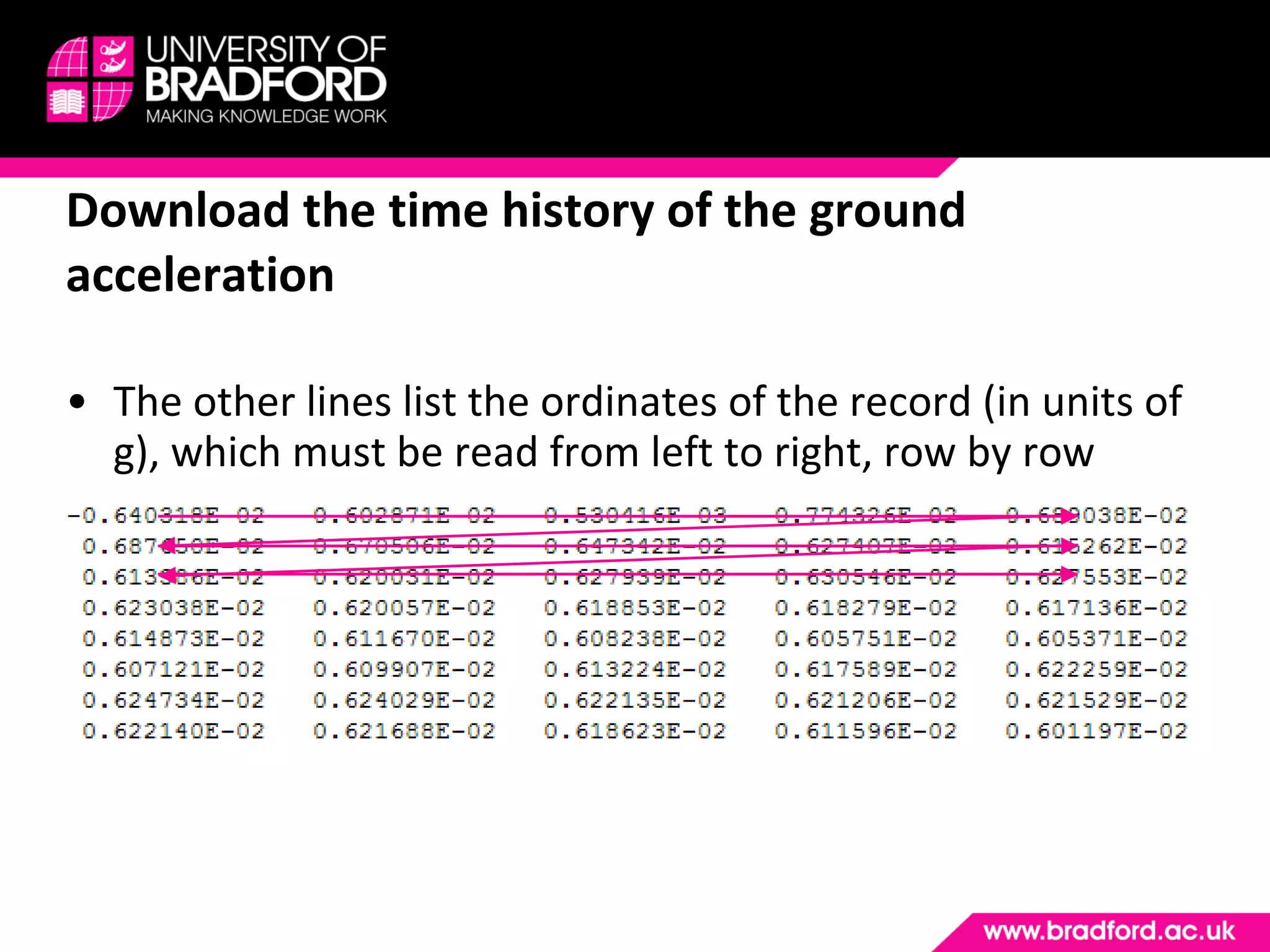
The other lines list the ordinates of the record (in units of g), which must be read from left to right, row by row Download the time history of the ground acceleration
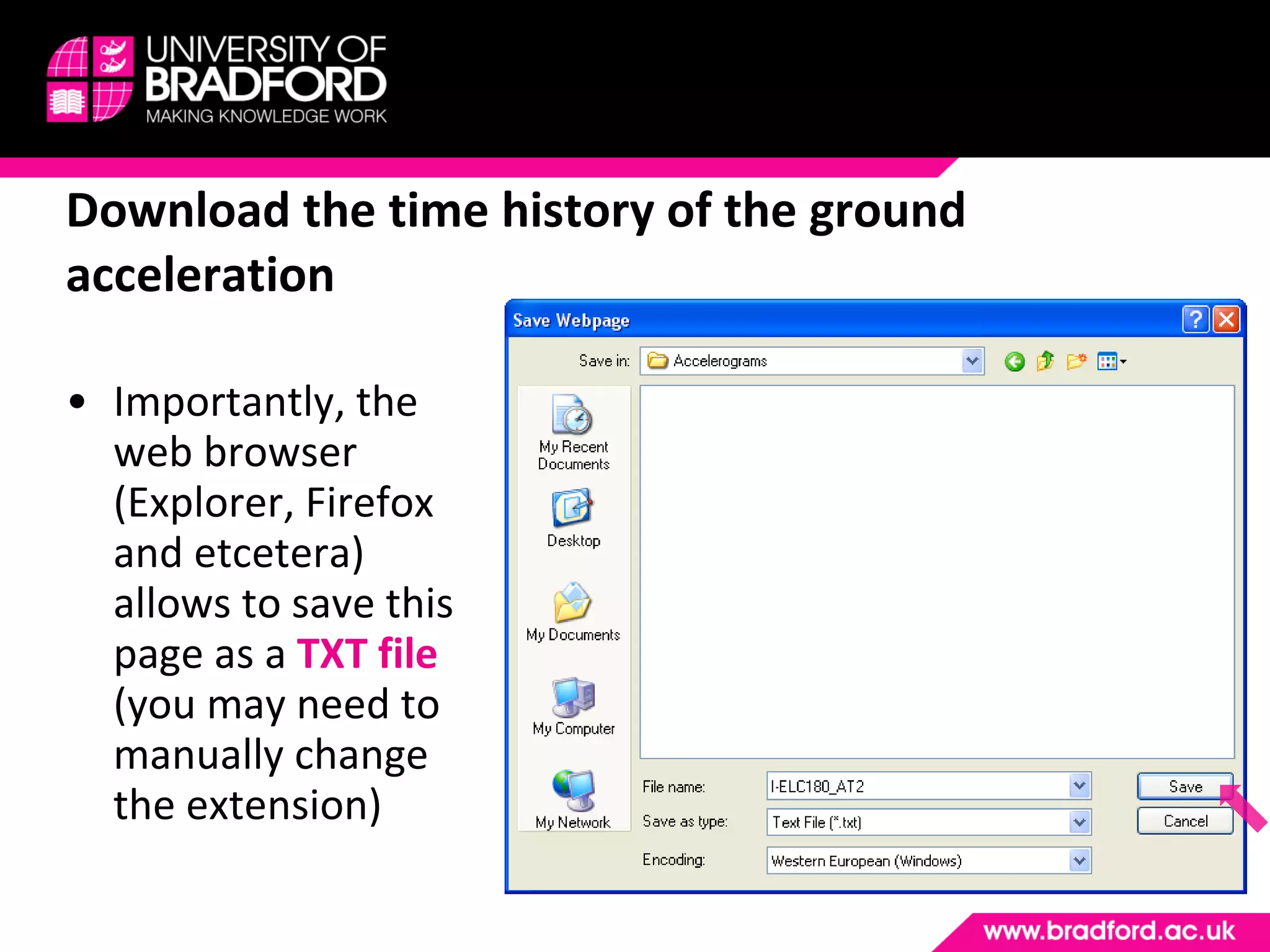
Importantly, the web browser (Explorer, Firefox and etcetera) allows to save this page as a  TXT file  (you may need to manually change the extension) Download the time history of the ground acceleration
UPLOAD ACCELEROGRAMS TO SAP2000 Step #2
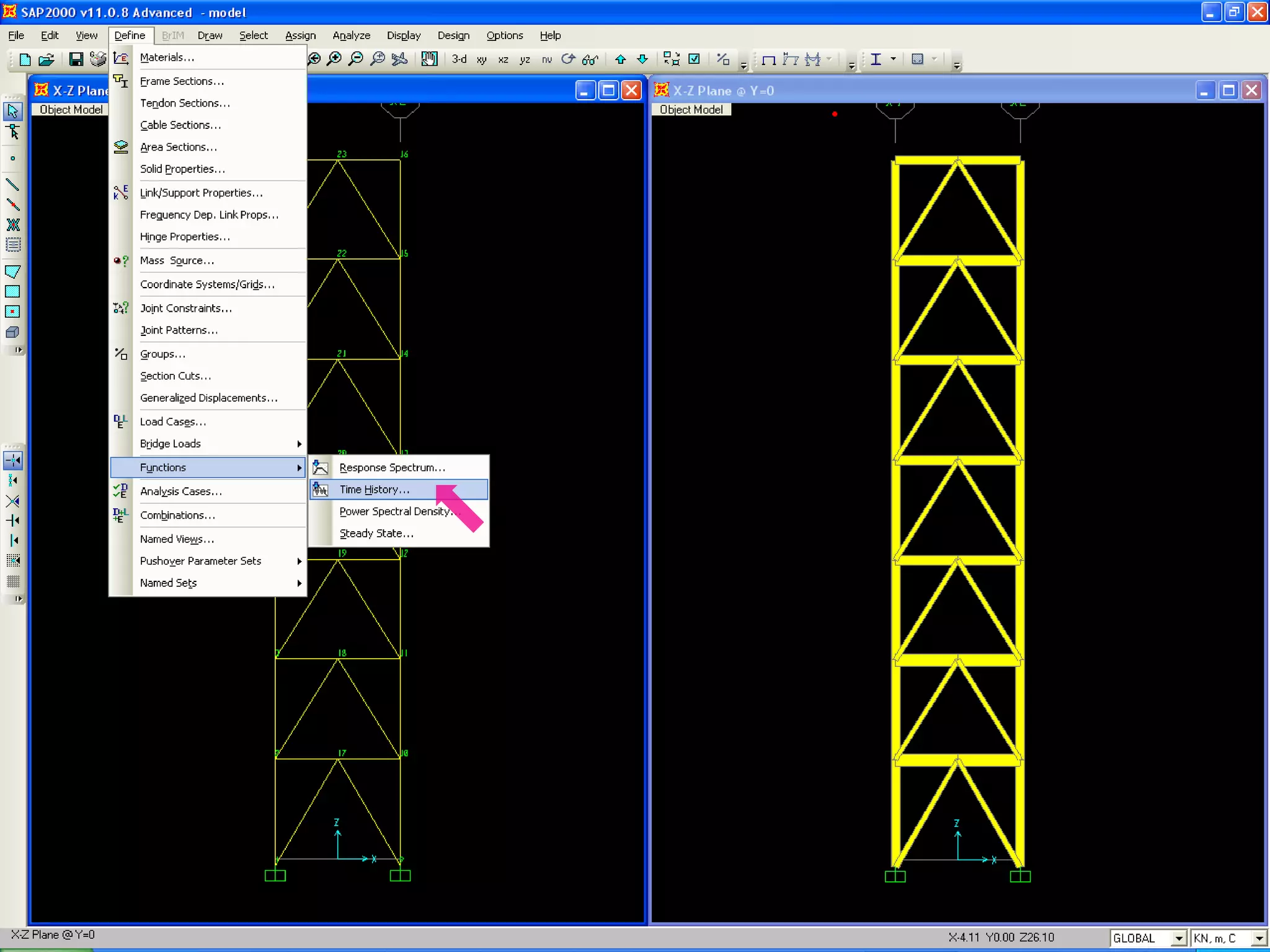
Define the accelerogram in SAP2000 An accelerogram is basically the time-history of the acceleration experienced by the ground in a given direction during a seismic event We need to input the accelerogram as a generic function defined in SAP2000 starting from a TXT file Once the mechanical model of the structural system under investigation has been created,  SELECT  from the menu bar: DEFINE  ->  FUNCTIONS  ->  TIME HISTORIES...
 
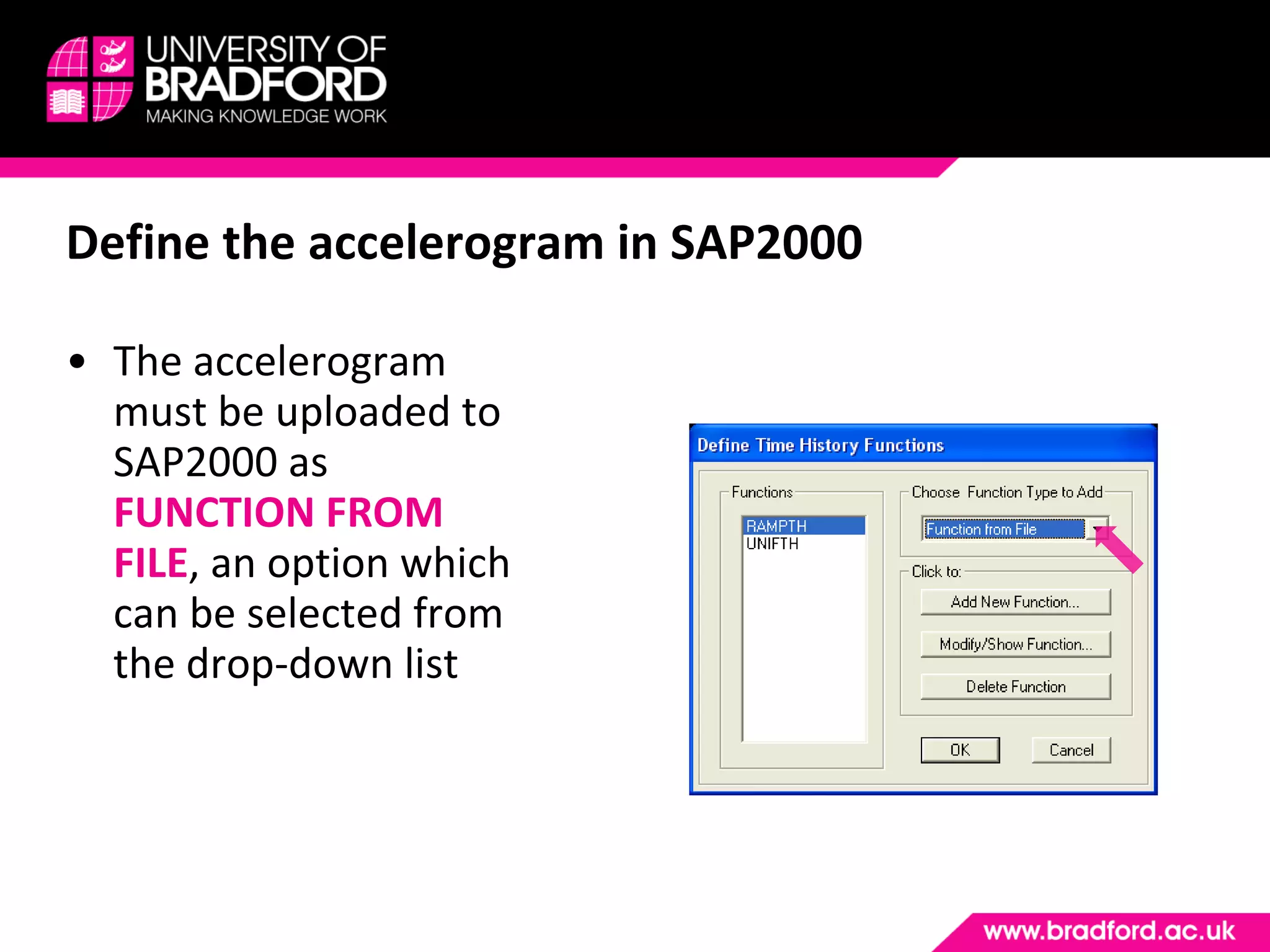
Define the accelerogram in SAP2000 The accelerogram must be uploaded to SAP2000 as  FUNCTION FROM FILE , an option which can be selected from the drop-down list
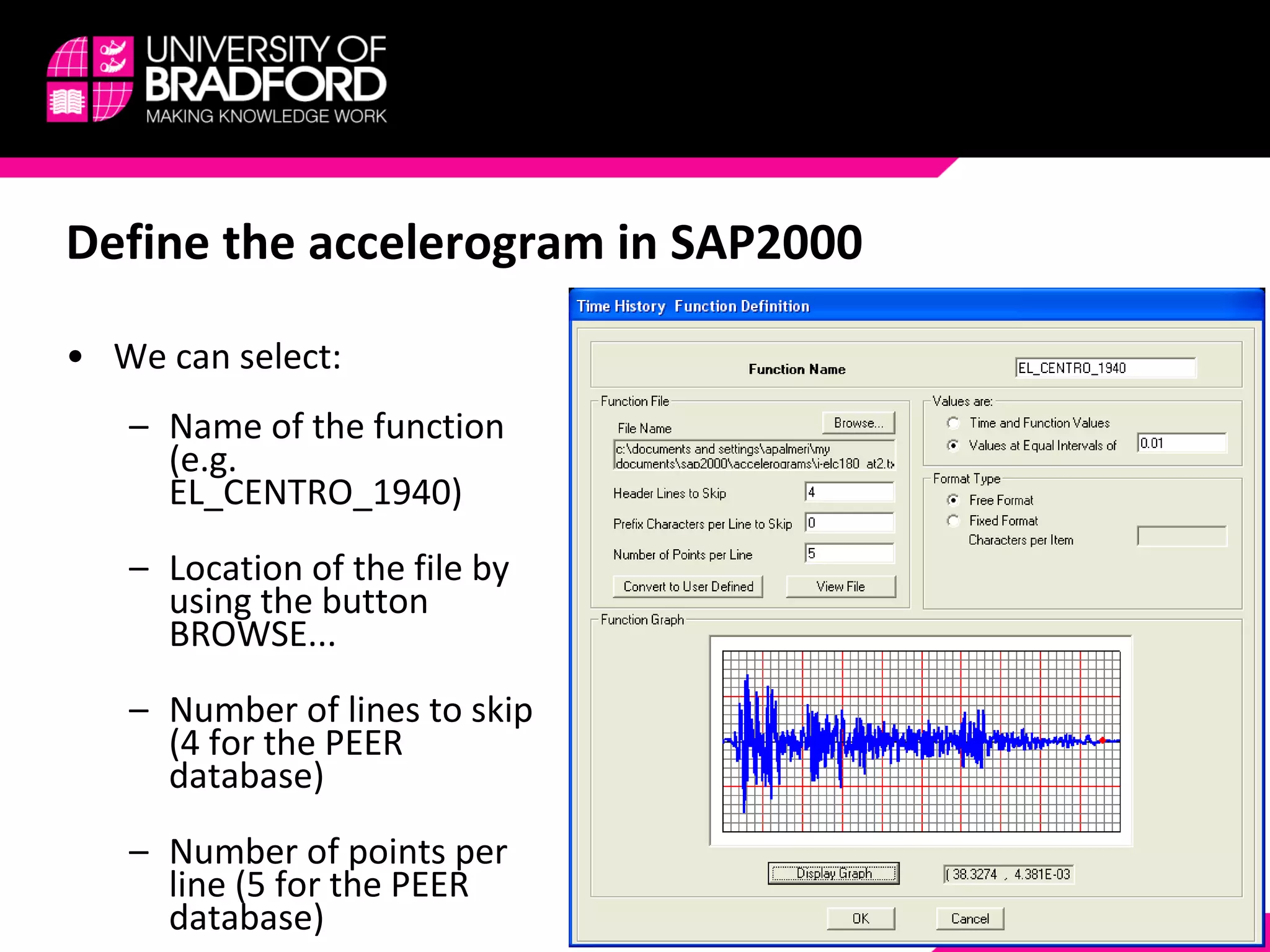
Define the accelerogram in SAP2000 We can select: Name of the function (e.g. EL_CENTRO_1940) Location of the file by using the button BROWSE... Number of lines to skip (4 for the PEER database) Number of points per line (5 for the PEER database)
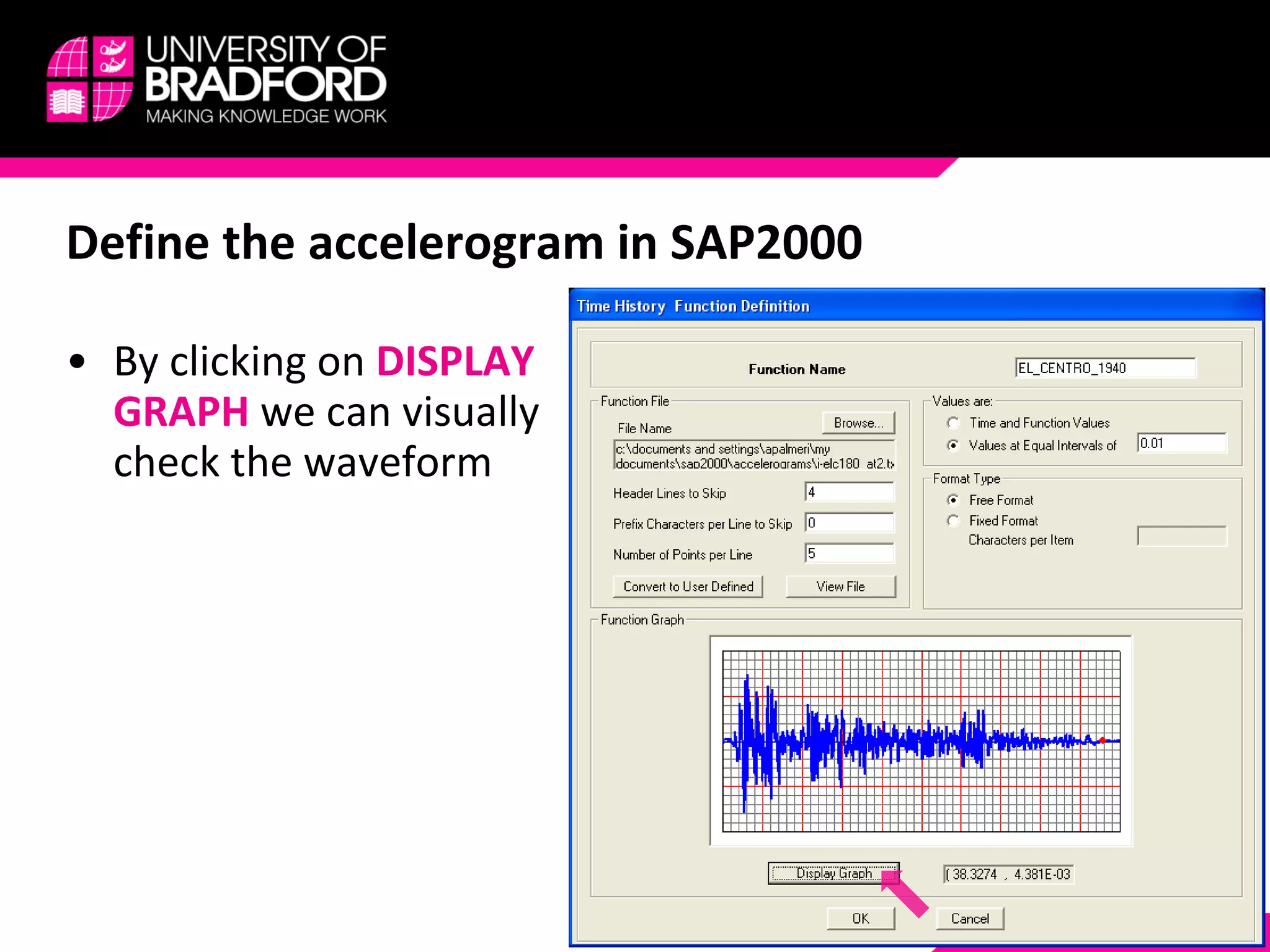
Define the accelerogram in SAP2000 By clicking on  DISPLAY GRAPH  we can visually check the waveform
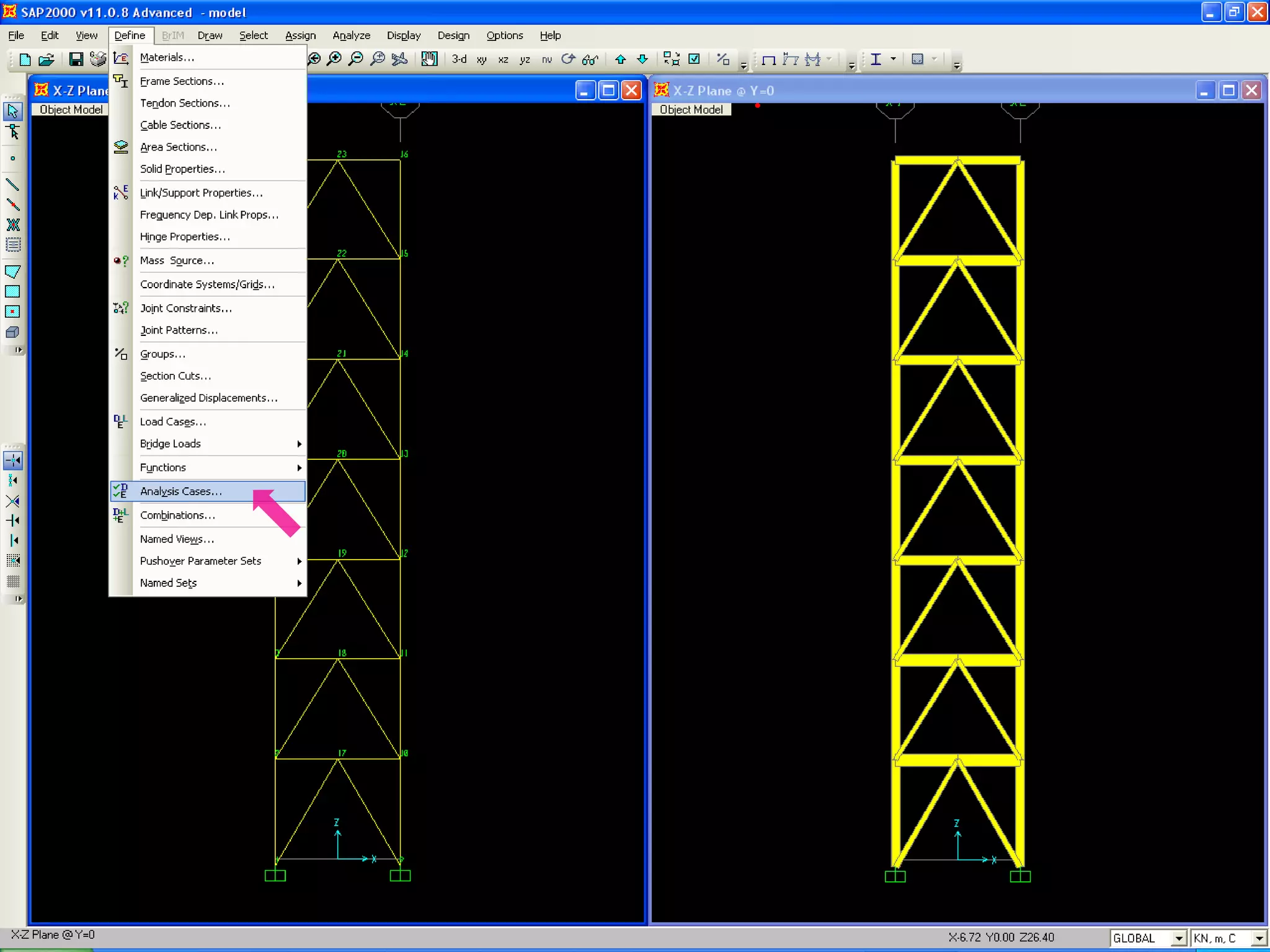
Define the accelerogram in SAP2000 In order to be used in a seismic simulation, the waveform previously defined must be properly assigned to an  ANALYSIS CASE To do this,  SELECT  from the menu bar: DEFINE  ->  ANALYSIS CASES...
 
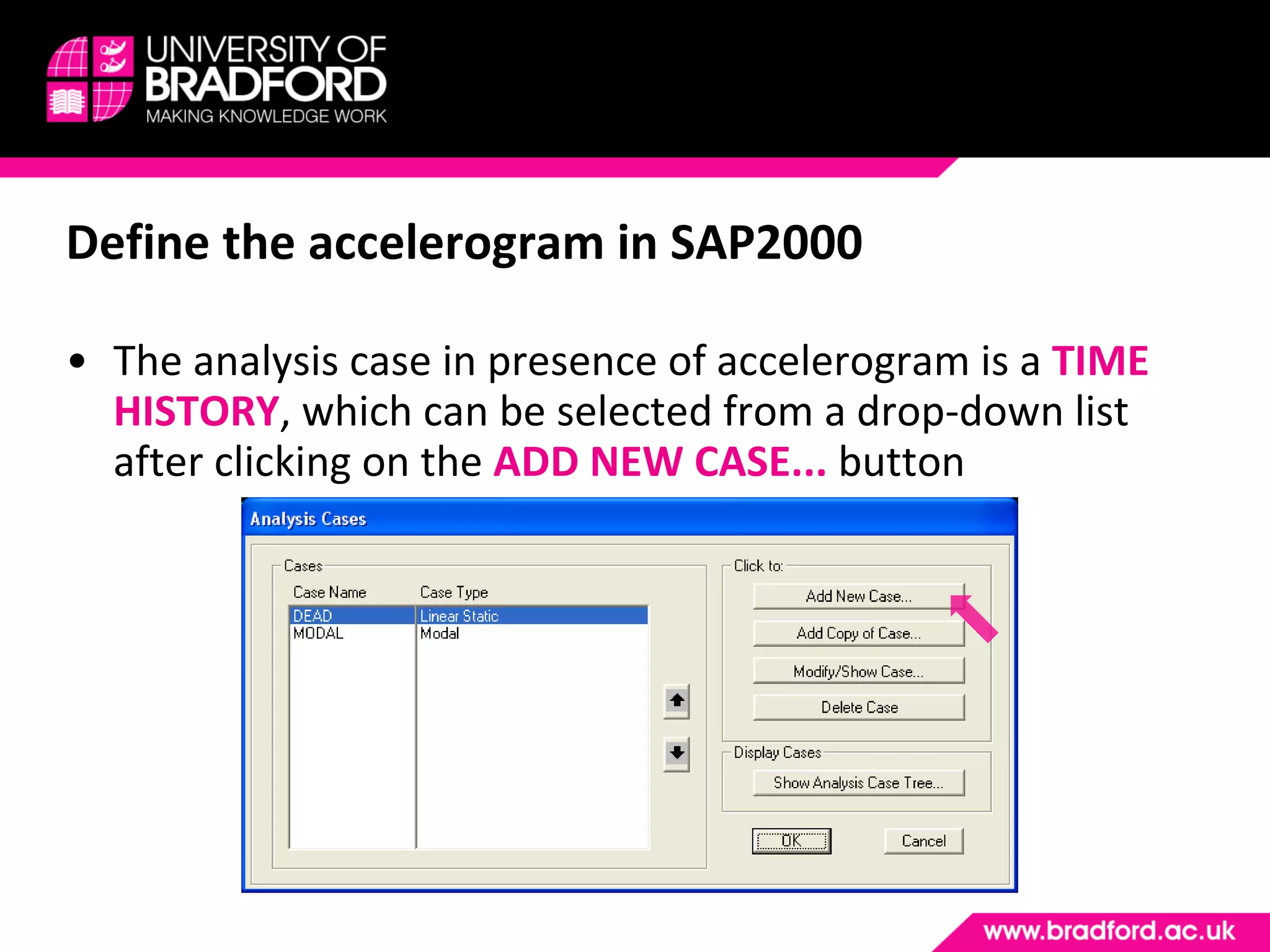
Define the accelerogram in SAP2000 The analysis case in presence of accelerogram is a  TIME HISTORY , which can be selected from a drop-down list after clicking on the  ADD NEW CASE...  button
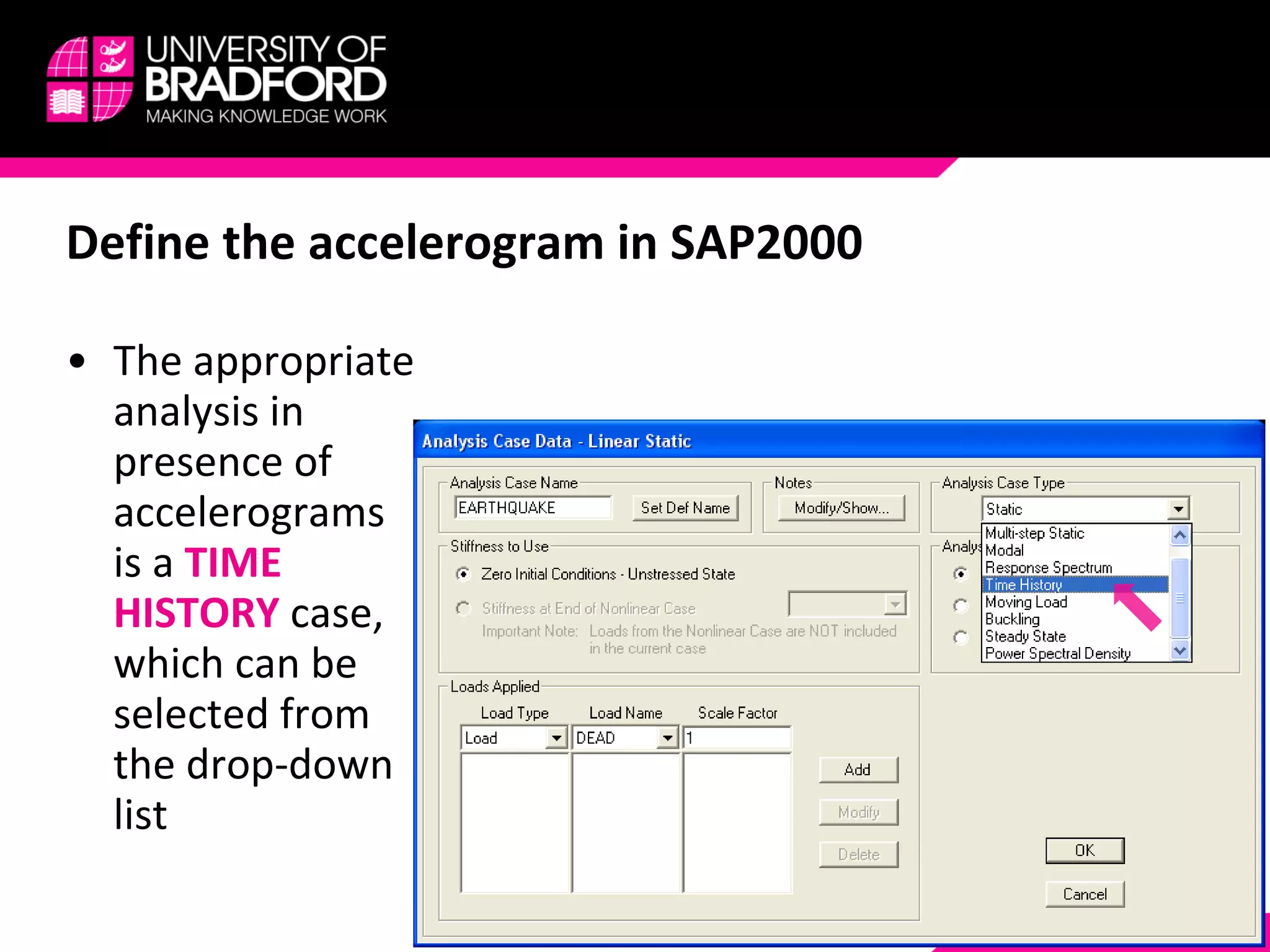
Define the accelerogram in SAP2000 The appropriate analysis in presence of accelerograms is a  TIME HISTORY  case, which can be selected from the drop-down list
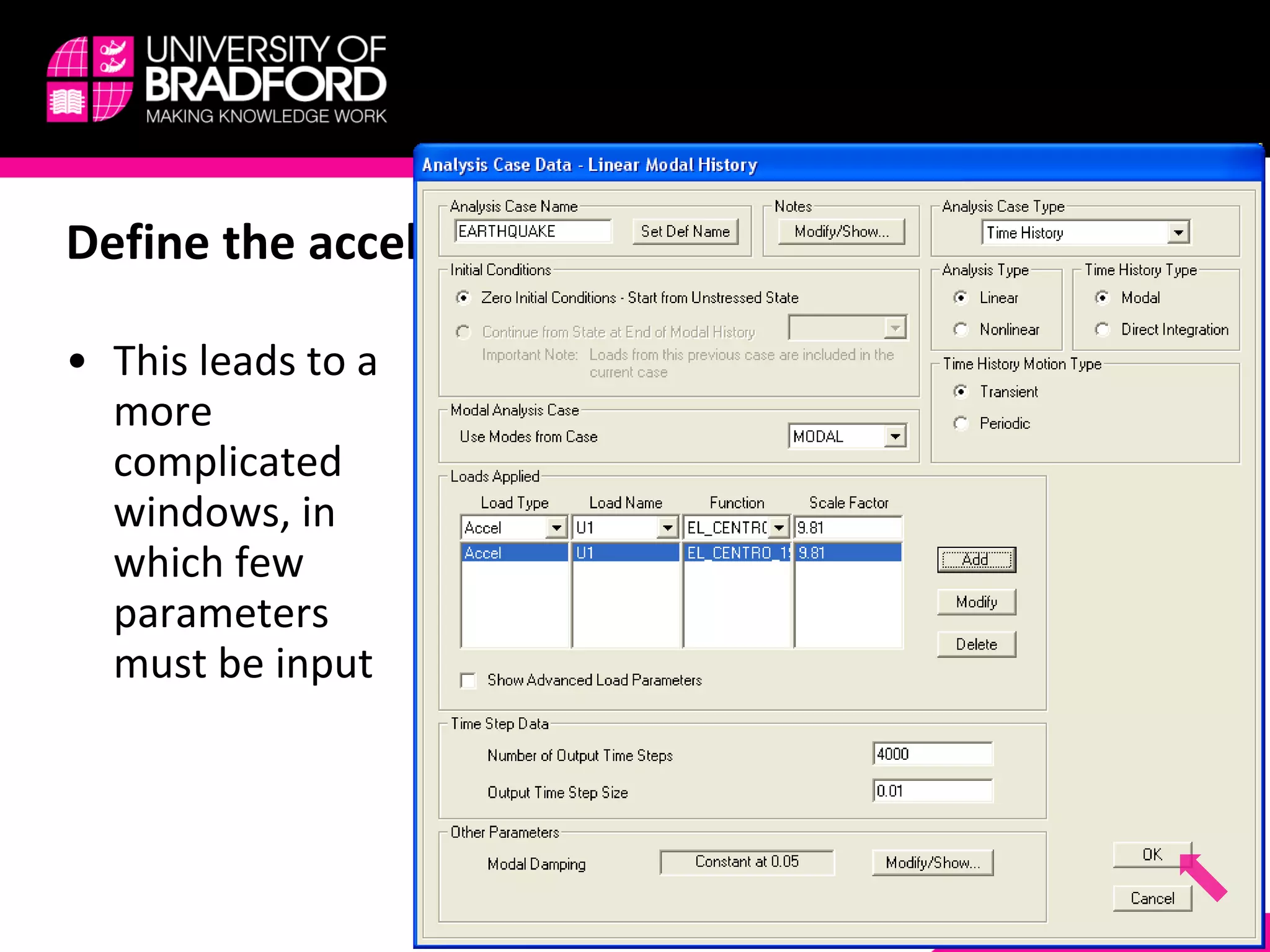
Define the accelerogram in SAP2000 This leads to a more complicated windows, in which few parameters must be input
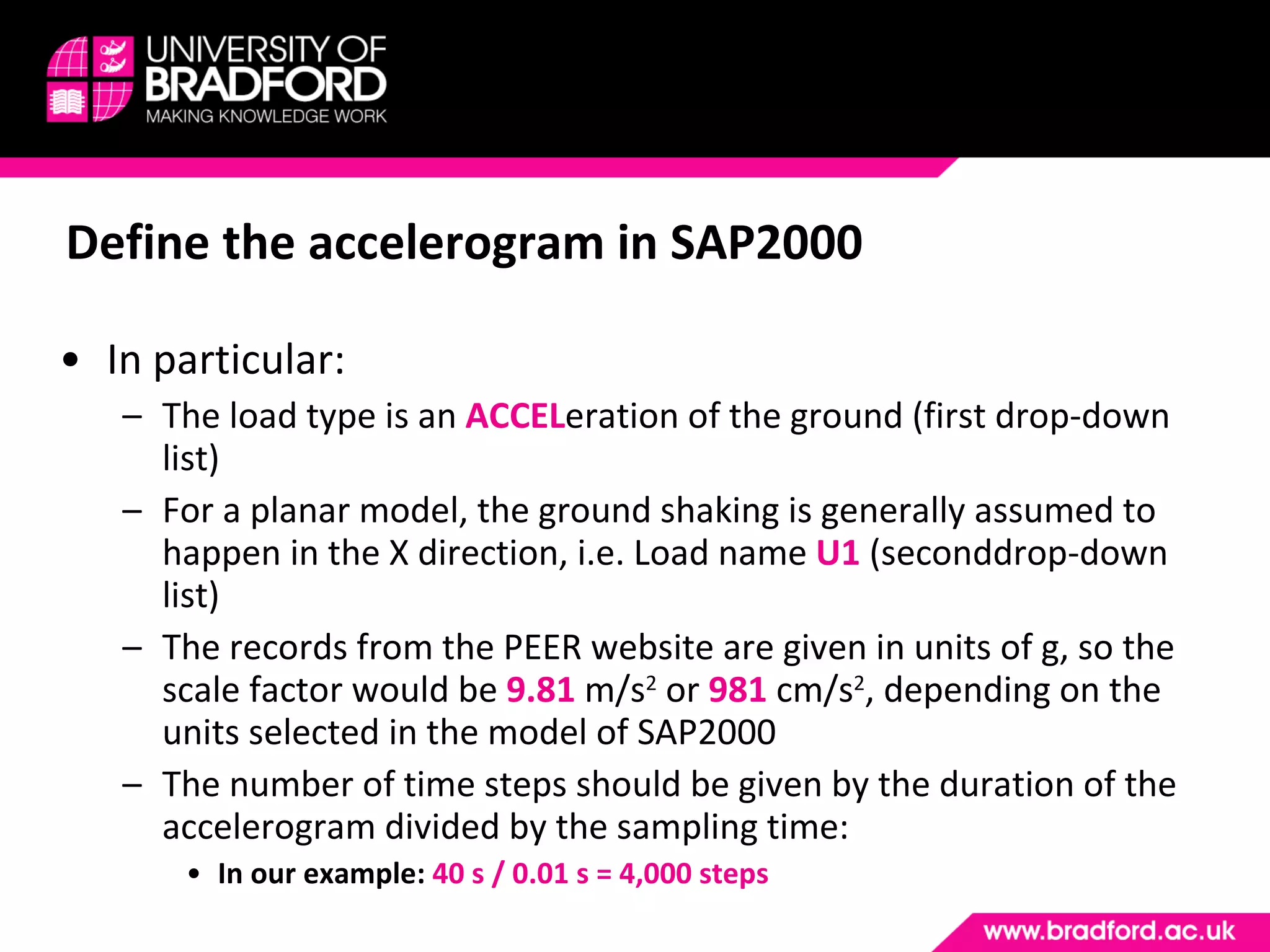
Define the accelerogram in SAP2000 In particular: The load type is an  ACCEL eration of the ground (first drop-down list) For a planar model, the ground shaking is generally assumed to happen in the X direction, i.e. Load name  U1   (seconddrop-down list) The records from the PEER website are given in units of g, so the scale factor would be  9.81  m/s 2  or  981  cm/s 2 , depending on the units selected in the model of SAP2000 The number of time steps should be given by the duration of the accelerogram divided by the sampling time: In our example:  40 s / 0.01 s = 4,000 steps
RUN THE ANALYSIS AND DISPLAY THE RESULTS Step #3
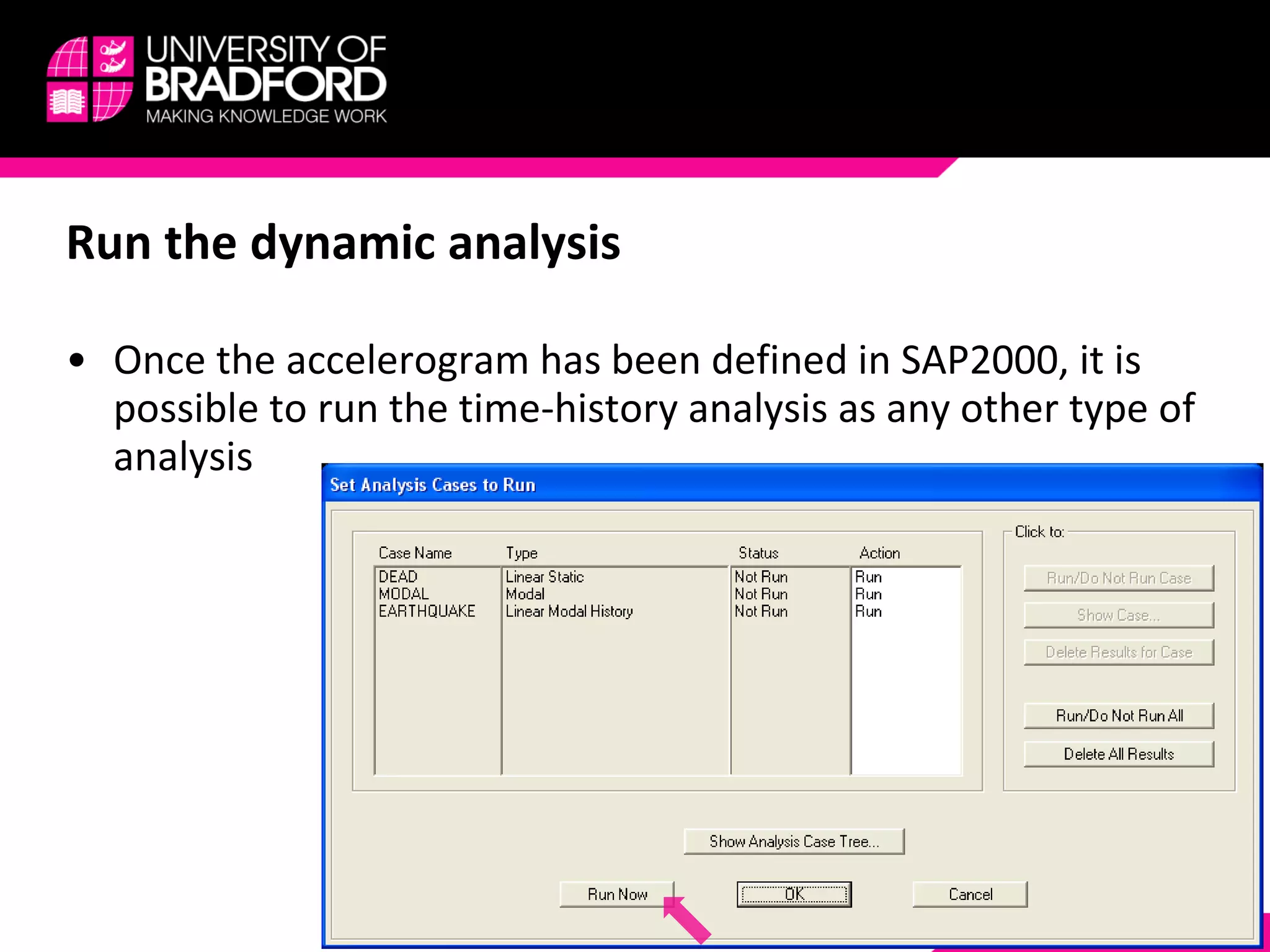
Run the dynamic analysis Once the accelerogram has been defined in SAP2000, it is possible to run the time-history analysis as any other type of analysis
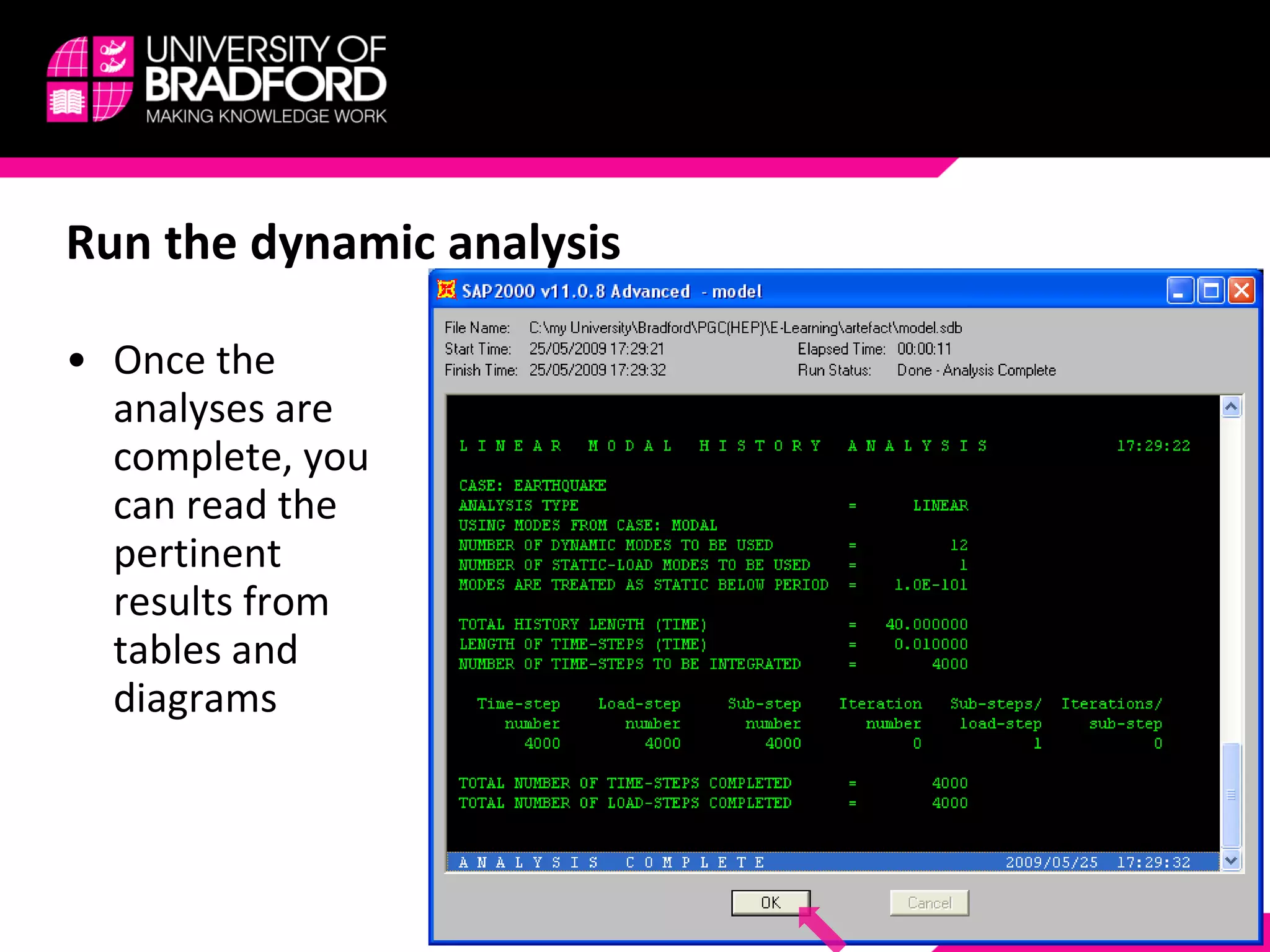
Run the dynamic analysis Once the analyses are complete, you can read the pertinent results from tables and diagrams
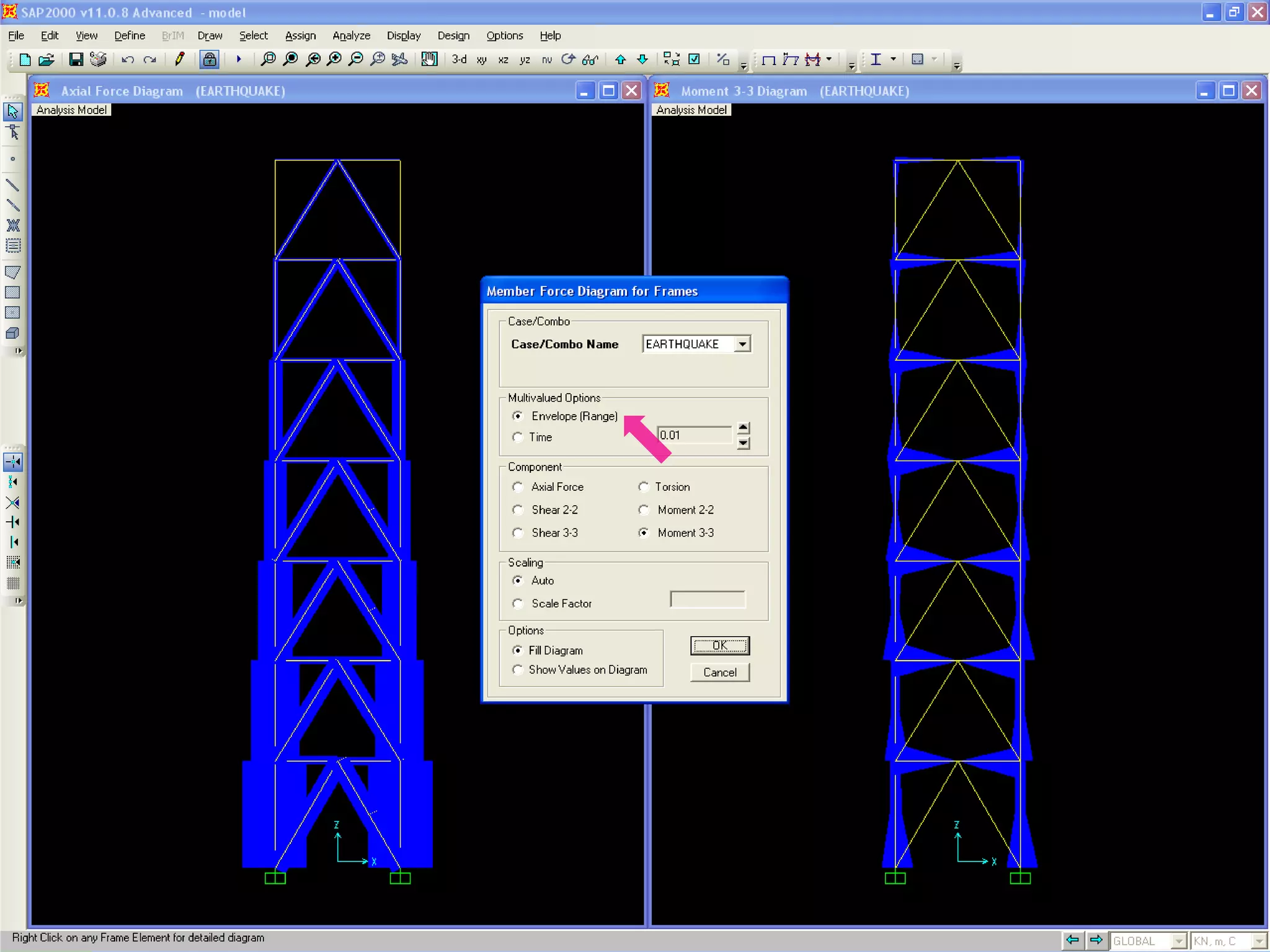
Display the results In the next slides the results of the dynamic analysis are shown in terms of: Axial Force N  (left-had side graph) Bending Moment M  (right-hand side graph) It is worth mentioning that these blue diagrams are the  ENVELOPE  of the corresponding outputs: Indeed, in a dynamic analysis we have a value of the structural quantities of interest (e.g. N and M) for each time steps As engineers, we are generally interested in both minimum and maximum value, i.e. by the “envelope” of these responses
 
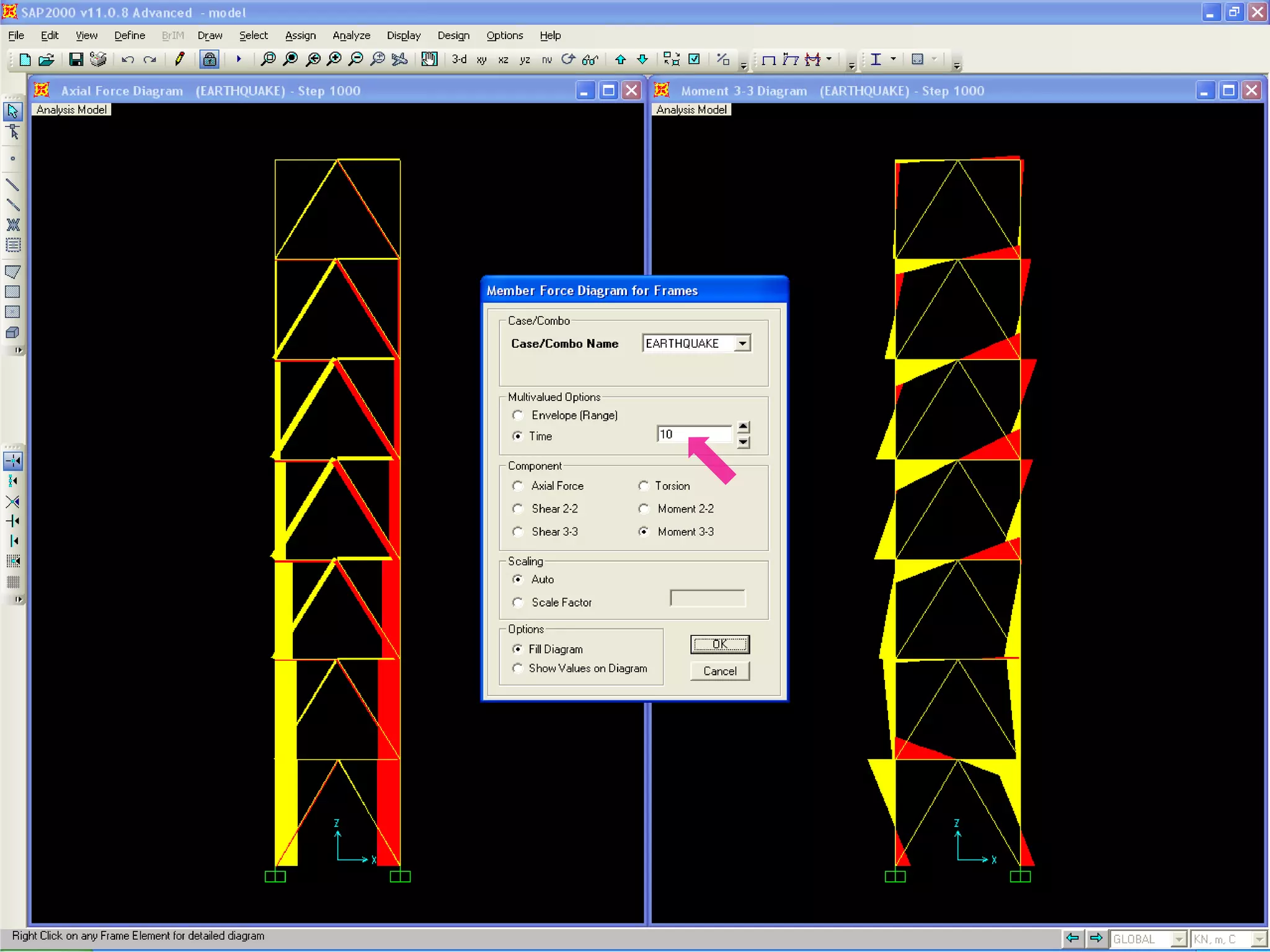
Display the results We can also display the same structural quantities in a specific time instant, e.g. at  t = 10 s ... In this case, for instance, the red colour in the axial-force diagram means compression, while the yellow colour stands for tentions
 
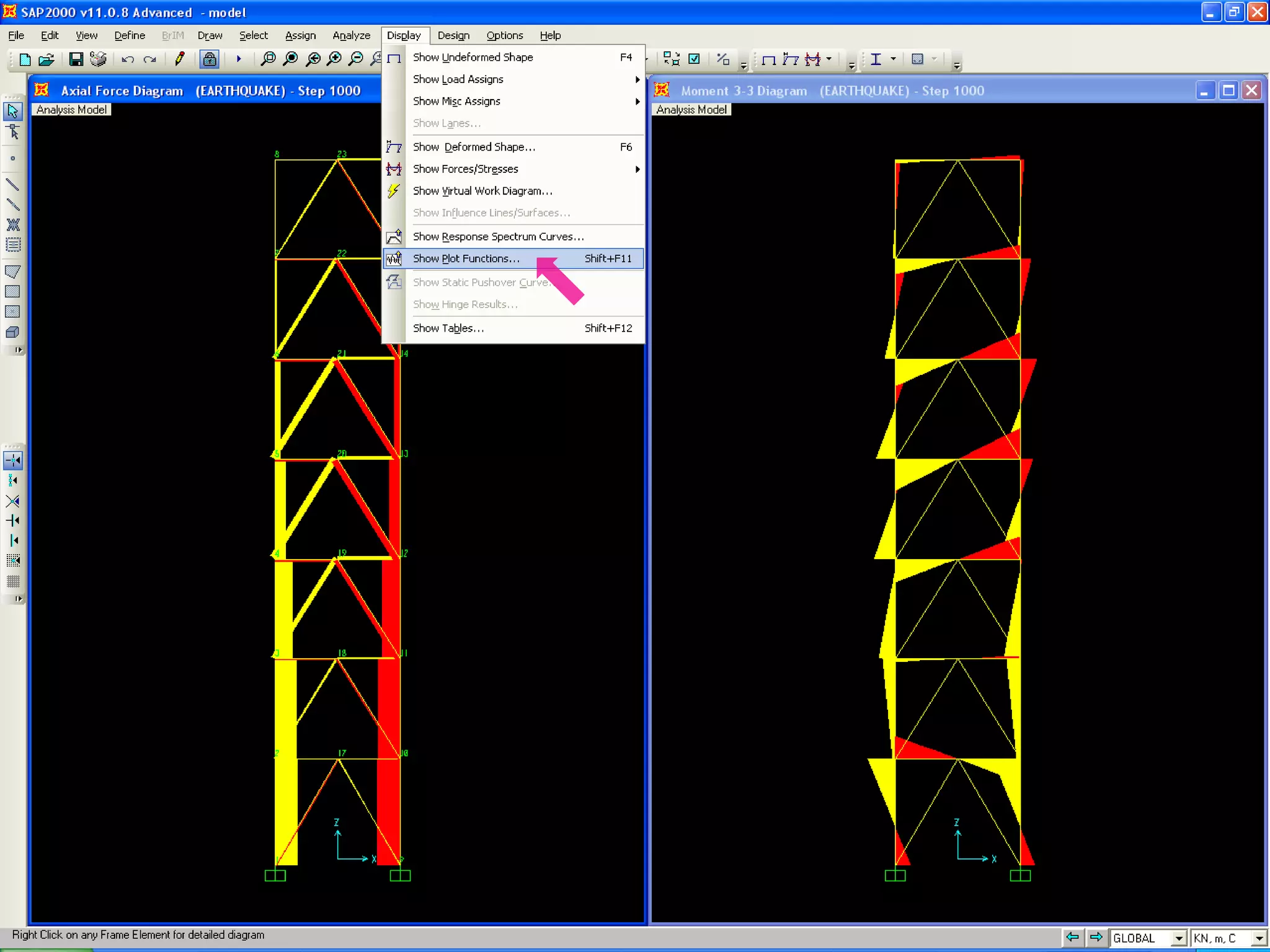
Display the results In order to show the time history of a given structural response, e.g. The horizontal displacement of the top floor, you mus  SELECT  from the menu bar: DISPLAY  ->  SHOW PLOT FUNCTIONS...
 
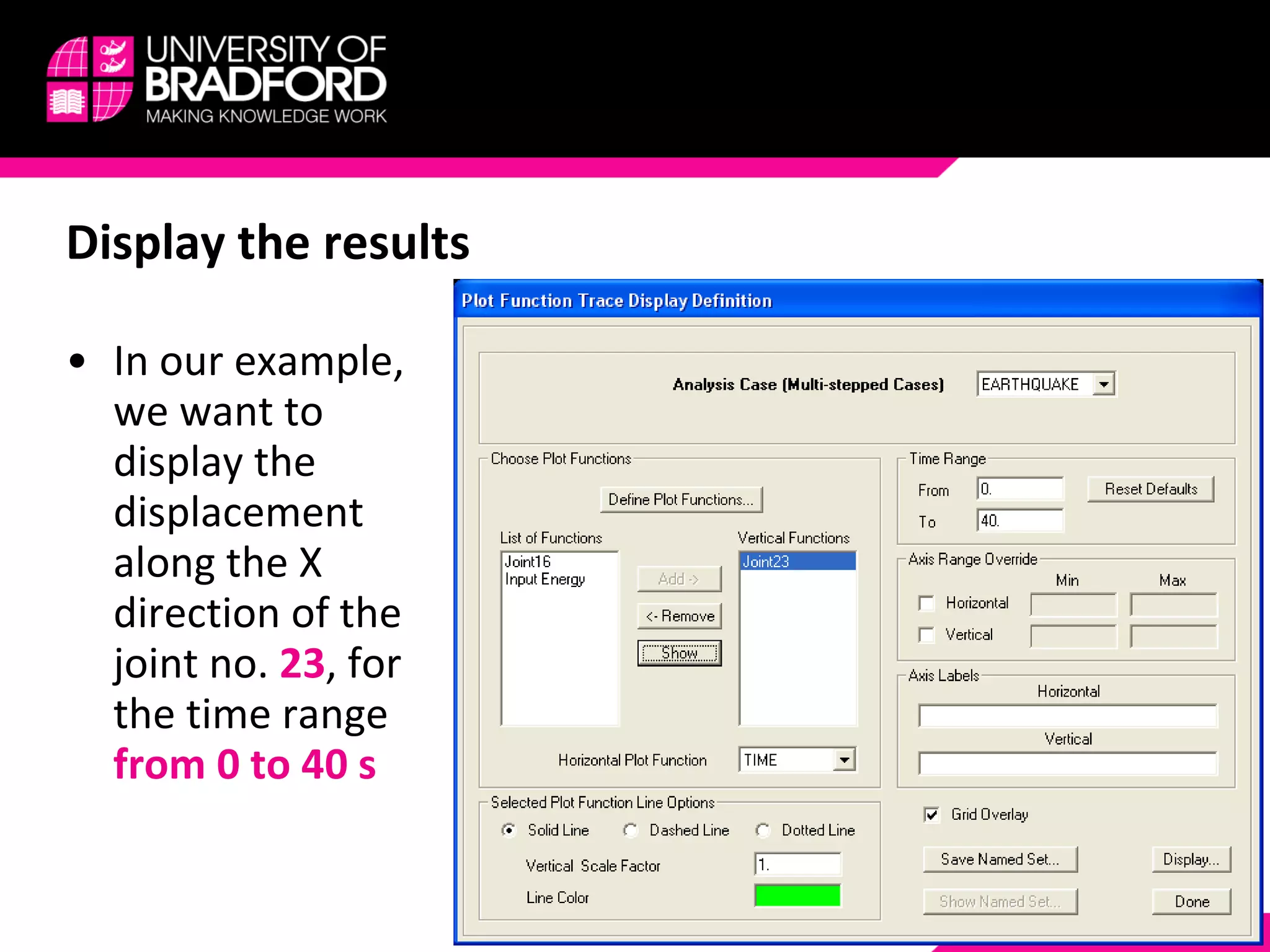
Display the results In our example, we want to display the displacement along the X direction of the joint no.  23 , for the time range  from 0 to 40 s
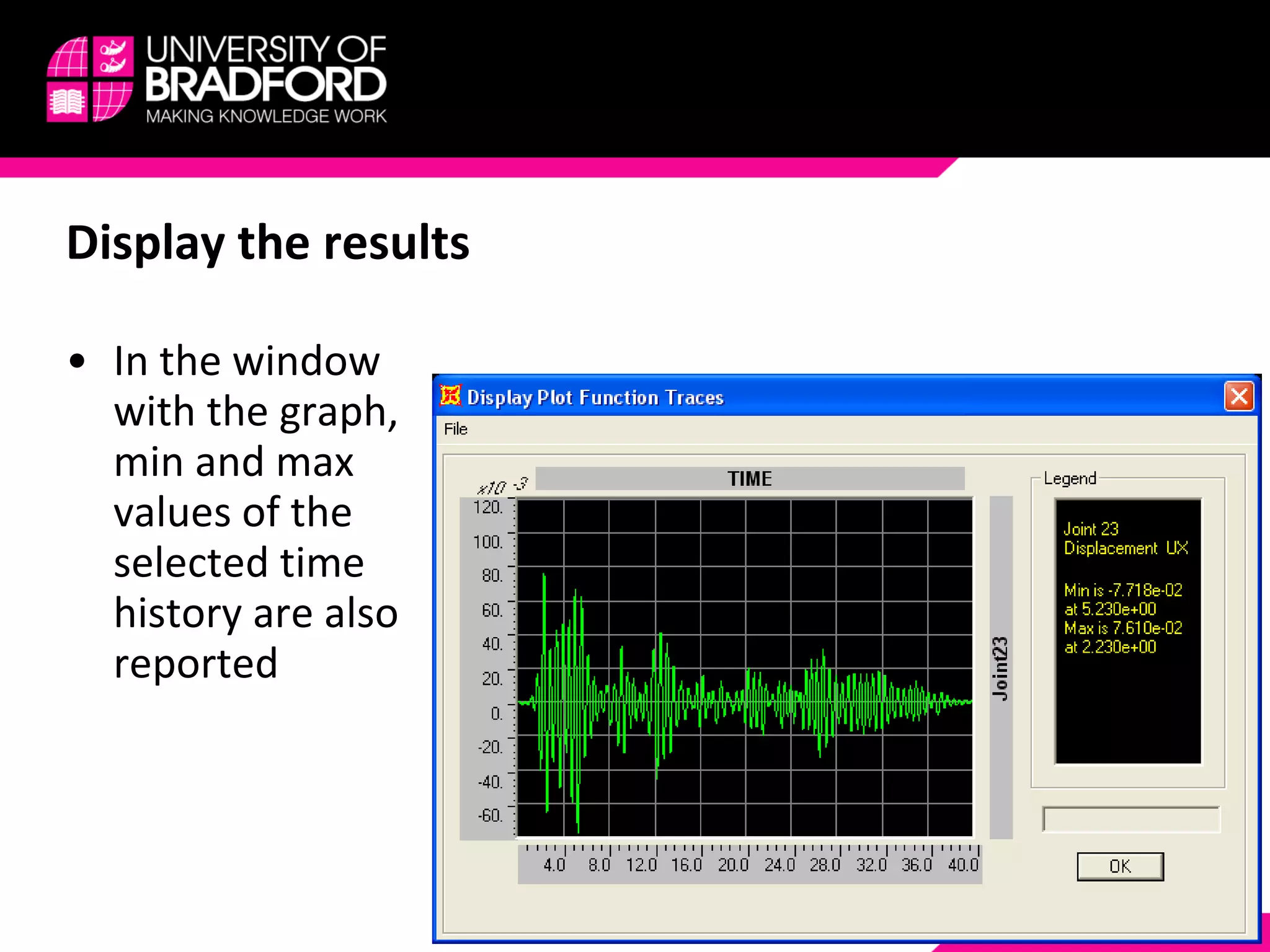
Display the results In the window with the graph, min and max values of the selected time history are also reported

Time History Analysis With Recorded Accelerograms

  • 1.
    Time-history seismic analysiswith SAP2000 A step-by-step guide for BEng/MEng/MSc students familiarizing with this piece of software
  • 2.
    List of ContentDownload recorded accelerograms from the PEER database Upload a selected accelerogram to SAP2000 Run the time-history analysis and display the results
  • 3.
    DOWNLOAD ACCELEROGRAMS FROMTHE PEER DATABASE Step #1
  • 4.
    PEER Strong GroundMotion Database The P acific E arthquake E ngineering R esearch (PEER), headquartered at the University of California at Berkeley , makes available online over 10,000 strong ground motion records from 173 different earthquakes http://peer.berkeley.edu/
  • 5.
    PEER Strong GroundMotion Database The database in entirely searchable http://peer.berkeley.edu/nga/ As an example, we want to download the accelerogram recorded during the Imperial Valley 1940 earthquake Once the event has been selected in the top drop-down list, we must specify to DISPLAY the results “In Table” rather than “On Map” Then we can SEARCH
  • 6.
  • 7.
    Find the accelerogramBy right-clicking on the appropriate record (NGA0006 in our case), a new page is shown with all the relevant pieces of information about this seismic event If we scroll down, the links to the three components of the accelerogram (180°, 270° and vertical) appear
  • 8.
  • 9.
    Download the timehistory of the ground acceleration By right-clicking on one of these links (e.g. the first horizontal component, denote with IMPVALL/I-ELC180), a new textual page is opened with the corresponding time history of the ground acceleration
  • 10.
    The first fourlines contain general pieces of information about the record, namely: Location: “Imperial Valley” Date: 19 th May 1940 Time: 4:39am Station: “El Centro Array #9” Direction: Horizontal, 180° Units of acceleration: g= 9.81 m/s 2 (acceleration of gravity) Number of time instants: 4,000 Sampling time: Δ t= 0.01 s (f= 100 Hz) Download the time history of the ground acceleration
  • 11.
    The other lineslist the ordinates of the record (in units of g), which must be read from left to right, row by row Download the time history of the ground acceleration
  • 12.
    Importantly, the webbrowser (Explorer, Firefox and etcetera) allows to save this page as a TXT file (you may need to manually change the extension) Download the time history of the ground acceleration
  • 13.
    UPLOAD ACCELEROGRAMS TOSAP2000 Step #2
  • 14.
    Define the accelerogramin SAP2000 An accelerogram is basically the time-history of the acceleration experienced by the ground in a given direction during a seismic event We need to input the accelerogram as a generic function defined in SAP2000 starting from a TXT file Once the mechanical model of the structural system under investigation has been created, SELECT from the menu bar: DEFINE -> FUNCTIONS -> TIME HISTORIES...
  • 15.
  • 16.
    Define the accelerogramin SAP2000 The accelerogram must be uploaded to SAP2000 as FUNCTION FROM FILE , an option which can be selected from the drop-down list
  • 17.
    Define the accelerogramin SAP2000 We can select: Name of the function (e.g. EL_CENTRO_1940) Location of the file by using the button BROWSE... Number of lines to skip (4 for the PEER database) Number of points per line (5 for the PEER database)
  • 18.
    Define the accelerogramin SAP2000 By clicking on DISPLAY GRAPH we can visually check the waveform
  • 19.
    Define the accelerogramin SAP2000 In order to be used in a seismic simulation, the waveform previously defined must be properly assigned to an ANALYSIS CASE To do this, SELECT from the menu bar: DEFINE -> ANALYSIS CASES...
  • 20.
  • 21.
    Define the accelerogramin SAP2000 The analysis case in presence of accelerogram is a TIME HISTORY , which can be selected from a drop-down list after clicking on the ADD NEW CASE... button
  • 22.
    Define the accelerogramin SAP2000 The appropriate analysis in presence of accelerograms is a TIME HISTORY case, which can be selected from the drop-down list
  • 23.
    Define the accelerogramin SAP2000 This leads to a more complicated windows, in which few parameters must be input
  • 24.
    Define the accelerogramin SAP2000 In particular: The load type is an ACCEL eration of the ground (first drop-down list) For a planar model, the ground shaking is generally assumed to happen in the X direction, i.e. Load name U1 (seconddrop-down list) The records from the PEER website are given in units of g, so the scale factor would be 9.81 m/s 2 or 981 cm/s 2 , depending on the units selected in the model of SAP2000 The number of time steps should be given by the duration of the accelerogram divided by the sampling time: In our example: 40 s / 0.01 s = 4,000 steps
  • 25.
    RUN THE ANALYSISAND DISPLAY THE RESULTS Step #3
  • 26.
    Run the dynamicanalysis Once the accelerogram has been defined in SAP2000, it is possible to run the time-history analysis as any other type of analysis
  • 27.
    Run the dynamicanalysis Once the analyses are complete, you can read the pertinent results from tables and diagrams
  • 28.
    Display the resultsIn the next slides the results of the dynamic analysis are shown in terms of: Axial Force N (left-had side graph) Bending Moment M (right-hand side graph) It is worth mentioning that these blue diagrams are the ENVELOPE of the corresponding outputs: Indeed, in a dynamic analysis we have a value of the structural quantities of interest (e.g. N and M) for each time steps As engineers, we are generally interested in both minimum and maximum value, i.e. by the “envelope” of these responses
  • 29.
  • 30.
    Display the resultsWe can also display the same structural quantities in a specific time instant, e.g. at t = 10 s ... In this case, for instance, the red colour in the axial-force diagram means compression, while the yellow colour stands for tentions
  • 31.
  • 32.
    Display the resultsIn order to show the time history of a given structural response, e.g. The horizontal displacement of the top floor, you mus SELECT from the menu bar: DISPLAY -> SHOW PLOT FUNCTIONS...
  • 33.
  • 34.
    Display the resultsIn our example, we want to display the displacement along the X direction of the joint no. 23 , for the time range from 0 to 40 s
  • 35.
    Display the resultsIn the window with the graph, min and max values of the selected time history are also reported