
Copyright © Terry Felke-Morris http://terrymorris.net
Web Development & Design
Foundations with HTML5
8th
Edition
CHAPTER 4
KEY CONCEPTS
1
Copyright © Terry Felke-Morris http://terrymorris.net
Learning Outcomes
In this chapter, you will learn how to ...
◦ Create and format lines and borders on web pages
◦ Apply the image element to add graphics to web pages
◦ Optimize an image for web page display
◦ Configure images as backgrounds on web pages
◦ Configure images as hyperlinks
◦ Configure visual effects with CSS3 including multiple background images,
rounded corners, box shadow, text shadow, opacity, and gradients
◦ Configure RGBA and HSLA color with CSS3
◦ Use HTML5 elements to caption a figure
◦ Use the HTML5 meter and progress elements
◦ Find free and fee-based graphics sources
◦ Follow recommended web design guidelines for graphics on web pages
2
Copyright © Terry Felke-Morris http://terrymorris.net
Horizontal Rule Element
Configures a horizontal line
<hr>
3
Copyright © Terry Felke-Morris http://terrymorris.net
CSS border Property
Configures a border on the top, right, bottom, and
left sides of an element
Consists of
◦border-width
◦border-style
◦border-color
h2 { border: 2px solid #ff0000 }
Copyright © Terry Felke-Morris http://terrymorris.net
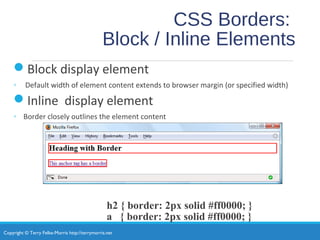
CSS Borders:
Block / Inline Elements
Block display element
◦ Default width of element content extends to browser margin (or specified width)
Inline display element
◦ Border closely outlines the element content
h2 { border: 2px solid #ff0000; }
a { border: 2px solid #ff0000; }
Copyright © Terry Felke-Morris http://terrymorris.net
Browser Display Can
Vary
Copyright © Terry Felke-Morris http://terrymorris.net
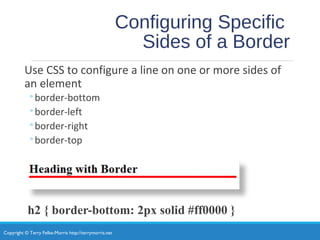
Configuring Specific
Sides of a Border
Use CSS to configure a line on one or more sides of
an element
◦border-bottom
◦border-left
◦border-right
◦border-top
h2 { border-bottom: 2px solid #ff0000 }
Copyright © Terry Felke-Morris http://terrymorris.net
CSS padding Property
Configures empty space between the content of the
HTML element and the border
Set to 0px by default
h2 { border: 2px solid #ff0000; padding: 5px; }
No padding property configured:
Copyright © Terry Felke-Morris http://terrymorris.net
Configure Padding on
Specific Sides of an Element
Use CSS to configure padding on one or more sides
of an element
◦ padding-bottom
◦ padding-left
◦ padding-right
◦ padding-top
h2 { border: 2px solid #ff0000;
background-color: #cccccc;
padding-left: 5px;
padding-bottom: 10px;
padding-top: 10px; }
Copyright © Terry Felke-Morris http://terrymorris.net
CSS padding Property
Shorthand: two values
Two numeric values or percentages
◦ first value configures top and bottom padding
◦ the second value configures left and right padding
h2 { border: 2px solid #ff0000;
background-color: #cccccc;
padding: 20px 10px;
}
Copyright © Terry Felke-Morris http://terrymorris.net
CSS padding Property
Shorthand: four values
Four numeric values or percentages
◦ Configure top, right, bottom, and left padding
h2 { border: 2px solid #ff0000;
width: 250px;
background-color: #cccccc;
padding: 30px 10px 5px 20px;
}
Copyright © Terry Felke-Morris http://terrymorris.net
Hands-On
Practice
h2 { background-color:#AEAED4;
color:#191970;
font-family: Georgia, "Times New Roman", serif;
text-align: center;
border-bottom: 2px dashed #191970;
}
Copyright © Terry Felke-Morris http://terrymorris.net
Checkpoint 4.1
1. Is it reasonable to try to code a web page that looks exactly
the same on every browser and every platform? Explain your
answer.
2. When a web page containing the style rules below is
rendered in a browser, the border does not display.
Describe what is incorrect with the following code:
h2 { background-color: #ff0000
border-top: thin solid #000000
}
3. True or False? CSS can be used to configure visual elements
such as rectangular shapes and lines on web pages.
13
Copyright © Terry Felke-Morris http://terrymorris.net
Types of
Graphics
Graphic types commonly used on web
pages:
◦GIF
◦JPG
◦PNG
14
Copyright © Terry Felke-Morris http://terrymorris.net
GI
F
Graphics Interchange Format
Best used for line art and logos
Maximum of 256 colors
One color can be configured as transparent
Can be animated
Uses lossless compression
Can be interlaced
15
Background
color – no
transparency
Background
color
configured to
be transparent
Copyright © Terry Felke-Morris http://terrymorris.net
JPEG
Joint Photographic Experts Group
Best used for photographs
Up to 16.7 million colors
Use lossy compression
Cannot be animated
Cannot be made
transparent
Progressive JPEG – similar to interlaced
display
16
Copyright © Terry Felke-Morris http://terrymorris.net
PNG
•Portable Network Graphic
•Support millions of colors
•Support multiple levels of transparency
(but most browsers do not --
so limit to one transparent color for Web display)
•Support interlacing
•Use lossless compression
•Combines the best of GIF & JPEG
•Browser support is growing
17
Copyright © Terry Felke-Morris http://terrymorris.net
HTML Image Element
Configures graphics on a web page
src Attribute
◦ File name of the graphic
alt Attribute
◦ Configures alternate text description
height Attribute
◦ Height of the graphic in pixels
width Attribute
◦ Width of the graphic in pixels
18
<img src=“dog.jpg” alt=“Dog at computer” height=“100” width=“100”>
18
Copyright © Terry Felke-Morris http://terrymorris.net
Accessibility & Images
Required:
◦Configure the alt attribute
◦Alternate text content to convey the meaning/intent of
the image
◦NOT the file name of the image
◦Use alt="" for purely decorative images
Recommended:
◦If your site navigation uses image links for the main navigation,
provide simple text links at the bottom of the page.
Copyright © Terry Felke-Morris http://terrymorris.net
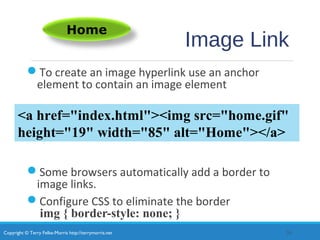
Image Link
To create an image hyperlink use an anchor
element to contain an image element
Some browsers automatically add a border to
image links.
Configure CSS to eliminate the border
img { border-style: none; }
20
Home
<a href="index.html"><img src="home.gif"
height="19" width="85" alt="Home"></a>
Copyright © Terry Felke-Morris http://terrymorris.net
Thumbnail Image
A small image configured to link to a larger version of that
image.
<a href=“big.jpg”><img src=“small.jpg” alt=“country
road” width=“200” height=“100”></a>
21
Copyright © Terry Felke-Morris http://terrymorris.net
Image Optimization
The process of creating an image
with the lowest file size that still
renders a good quality image—
balancing image quality and file size.
Photographs taken with
digital cameras are
not usually optimized for the Web
22
Copyright © Terry Felke-Morris http://terrymorris.net
Optimize An Image for the
Web
Image Optimization
◦Reduce the file size of the image
◦Reduce the dimensions of the image to the actual width
and height of the image on the web page.
Image Editing Tools:
◦GIMP (free!)
◦Adobe Fireworks
◦Adobe Photoshop
◦http://pixlr.com/editor (free!)
23
Copyright © Terry Felke-Morris http://terrymorris.net
Choosing Names for Image
Files
Use all lowercase letters
Do not use punctuation symbols and spaces
Do not change the file extensions
(should be .gif, .jpg, .jpeg, or .png)
Keep your file names short but descriptive
◦i1.gif is probably too short
◦myimagewithmydogonmybirthday.gif is too long
◦dogbday.gif may be just about right
Copyright © Terry Felke-Morris http://terrymorris.net
Organizing
Your Site
<img src=“images/home.gif” alt=“Home”
height=“100” width=“200”>
25
• Place images in
their own folder
• Code the path to
the file in the src
atttribute
Copyright © Terry Felke-Morris http://terrymorris.net
HTML5 Figure and Figcaption
Elements
Figure Element: contains a unit of content that is self-
contained, such as an image, along with one optional
figcaption element.
<figure>
<img src="lighthouseisland.jpg" width="250"
height="355"
alt="Lighthouse Island">
<figcaption>
Island Lighthouse, Built in 1870
</figcaption>
</figure>
26
Copyright © Terry Felke-Morris http://terrymorris.net
HTML5 Meter Element
Displays a visual gauge of a numeric value within a known range
<meter value="14417" min="0" max="14417">14417</meter>14,417 Total Visits<br>
<meter value="7000" min="0" max="14417">7000</meter> 7,000 Firefox<br>
<meter value="3800" min="0" max="14417">3800</meter> 3,800 Internet Explorer<br>
<meter value="2062" min="0" max="14417">2062</meter> 2,062 Chrome<br>
<meter value="1043" min="0" max="14417">1043</meter> 1,043 Safari<br>
<meter value="312" min="0" max="14417">312</meter> &nbsp;&nbsp; 312 Opera<br>
<meter value="200" min="0" max="14417">200</meter> &nbsp;&nbsp; 200 other<br>
27
Copyright © Terry Felke-Morris http://terrymorris.net
HTML5 Progress Element
Displays a bar that depicts a numeric value within
a specified range
<progress value="5000" max="10000">5000</progress>
Progress Towards Our Goal
28
Copyright © Terry Felke-Morris http://terrymorris.net
CSS background-image
Property
Configures a background-image
By default, background images tile (repeat)
body { background-image: url(background1.gif); }
Copyright © Terry Felke-Morris http://terrymorris.net
CSS background-repeat Property
Copyright © Terry Felke-Morris http://terrymorris.net
Using background-repeat
h2 { background-color: #d5edb3;
color: #5c743d;
font-family: Georgia, "Times New Roman", serif;
padding-left: 30px;
background-image: url(trilliumbullet.gif);
background-repeat: no-repeat;
}
trilliumbullet.gif:
Copyright © Terry Felke-Morris http://terrymorris.net
CSS3 Multiple Background
Images
body { background-color: #f4ffe4; color: #333333;
background-image: url(trilliumgradient.png);
background: url(trilliumfoot.gif)
no-repeat bottom right,
url(trilliumgradient.png); }
32
Copyright © Terry Felke-Morris http://terrymorris.net
Checkpoint 4.2
1. Describe the CSS to configure a graphic named
circle.jpg to display once in the background of all <h1>
elements. Code sample CSS to demonstrate this.
2. Describe the CSS that configures a file named bg.gif to
repeat vertically down the background of a web page.
Code sample CSS to demonstrate this.
3. Explain how the browser will render the web page if you
use CSS to configure both a background image and a
background color.
33
Copyright © Terry Felke-Morris http://terrymorris.net
More About Images
Image Map
Favorites Icon
CSS Sprites
Sources for Graphics
Guidelines for Using Images
Accessibility & Visual Elements
Copyright © Terry Felke-Morris http://terrymorris.net
Image Map
map element
◦Defines the map
area element
◦Defines a specific area on a map
◦Can be set to a rectangle, circle, or polygon
◦href Attibute
◦shape Attribute
◦coords Attribute
35
<map name="boat" id="boat">
<area href="http://www.fishingdoorcounty.com" shape="rect"
coords="24, 188, 339, 283" alt="Door County Fishing">
</map>
<img src="fishingboat.jpg" usemap="#boat" alt="Door County“
width="416" height="350">
Copyright © Terry Felke-Morris http://terrymorris.net
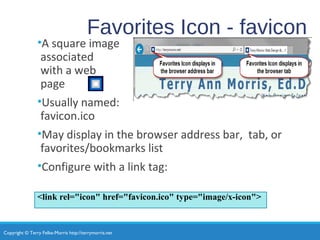
Favorites Icon - favicon
•A square image
associated
with a web
page
•Usually named:
favicon.ico
•May display in the browser address bar, tab, or
favorites/bookmarks list
•Configure with a link tag:
<link rel="icon" href="favicon.ico" type="image/x-icon">
Copyright © Terry Felke-Morris http://terrymorris.net
CSS Sprites
Sprite –
◦an image file that contains multiple small graphics that are
configured as background images for various web page elements
Modern technique to optimize use of multiple icon
or small images
Saves overhead by reducing the number of http
requests made by the browser.
You’ll use CSS Sprites in Chapter 7!
37
Copyright © Terry Felke-Morris http://terrymorris.net
Sources for Graphics
Create them yourself using a graphics application:
◦ GIMP
◦ Adobe Photoshop
◦ Adobe Fireworks
◦ Google’s Picasa (http://picasa.google.com/)
Download graphics from a free site
Purchase/download professional-quality graphics
Purchase a graphics collection on a CD
Take digital photographs
Scan your photographs
Scan your drawings
Hire a graphic designer to create graphics
38
Copyright © Terry Felke-Morris http://terrymorris.net
Guidelines for Using Images
Reuse images
Consider image file size with image quality
Consider image load time
Use appropriate resolution
Specify dimensions
Be aware of brightness and contrast
39
Copyright © Terry Felke-Morris http://terrymorris.net
Images and Accessibility
Don't rely on color alone.
◦Some visitors may have color perception deficiencies. Use high
contrast between background and text color.
Provide a text equivalent for non-text elements.
◦Use the alt attribute on your image elements
If your site navigation uses image links, provide simple
text links at the bottom of the page.
40
Copyright © Terry Felke-Morris http://terrymorris.net
Checkpoint 4.3
Search for a site that uses image links to provide
navigation. List the URL of the page.
What colors are used on the image links?
If the image links contain text, is there good contrast between the
background color and letters on the image links?
Would the page be accessible to a visitor who is sight-challenged?
How have accessibility issues been addressed?
Is the alt attribute used to describe the image link?
Is there a row of text links in the footer section of the page?
Answer the questions above and discuss your findings.41
Copyright © Terry Felke-Morris http://terrymorris.net
CSS3 Rounded Corners
border-radius property
◦Configures the horizontal radius and vertical radius of the corner
◦Numeric value(s) with unit (pixel or em) or percentage
Example
h1 { border-radius: 15px;
}
42
Copyright © Terry Felke-Morris http://terrymorris.net
Examples of Rounded
Corners
One value for border-radius configures all four corners
Example:
border-radius: 15px;
Four values for border-radius configure each corner separately
Ordered by top left, top right, bottom right, bottom left
Example:
border-radius: 15px 30px 100px 5px;
43
Copyright © Terry Felke-Morris http://terrymorris.net
CSS3 box-shadow
Property
Configure the horizontal offset, vertical offset, blur radius,
and valid color value
Example:
#wrapper { box-shadow: 5px 5px 5px #828282; }
Optional keyword: inset
44
Copyright © Terry Felke-Morris http://terrymorris.net
CSS3 opacity Property
Configure the opacity of the element
Opacity range:
◦0 Completely Transparent
◦1 Completely Opaque
horizontal offset,
vertical offset, blur radius,
and valid color value
Example:
h1{ background-color: #FFFFFF;
opacity: 0.6; }
45
Copyright © Terry Felke-Morris http://terrymorris.net
Rgba Color
Four values are required:
red color, green color, blue color, and alpha(transparency)
◦ The values for red, green, and blue
must be decimal values from 0 to 255.
◦ The alpha value must be a number between 0 (transparent) and 1 (opaque).
Example:
h1 { color: #ffffff;
color: rgba(255, 255, 255, 0.7);
font-size: 5em; padding-right: 10px;
text-align: right;
font-family: Verdana, Helvetica, sans-serif;
}
46
Copyright © Terry Felke-Morris http://terrymorris.net
HSLA Color
hue, saturation,
light, alpha
Hue is a value between 0 and 360
Saturation: percent
Lightness: percent
Optional alpha: from 0 to 1
47
Copyright © Terry Felke-Morris http://terrymorris.net
CSS3 Gradients
Gradient: a smooth blending of shades from one color to another
Use the background-image property
◦ linear-gradient()
◦ radial-gradient()
Example:
body {
background-color: #8FA5CE;
background-image: linear-gradient(#FFFFFF, #8FA5CE); }
48
Copyright © Terry Felke-Morris http://terrymorris.net
Summary
This chapter introduced the use of visual elements and
graphics on web pages.
As you continue to create web pages, look back at the
guidelines and accessibility issues related to graphics.
The number one reason for visitors to leave web pages is too
long of a download time. When using images, be careful to
minimize this issue.
Provide alternatives to images (such as text links) and use the
alt attribute on your pages.
49

Chapter4

  • 1.
    Copyright © TerryFelke-Morris http://terrymorris.net Web Development & Design Foundations with HTML5 8th Edition CHAPTER 4 KEY CONCEPTS 1
  • 2.
    Copyright © TerryFelke-Morris http://terrymorris.net Learning Outcomes In this chapter, you will learn how to ... ◦ Create and format lines and borders on web pages ◦ Apply the image element to add graphics to web pages ◦ Optimize an image for web page display ◦ Configure images as backgrounds on web pages ◦ Configure images as hyperlinks ◦ Configure visual effects with CSS3 including multiple background images, rounded corners, box shadow, text shadow, opacity, and gradients ◦ Configure RGBA and HSLA color with CSS3 ◦ Use HTML5 elements to caption a figure ◦ Use the HTML5 meter and progress elements ◦ Find free and fee-based graphics sources ◦ Follow recommended web design guidelines for graphics on web pages 2
  • 3.
    Copyright © TerryFelke-Morris http://terrymorris.net Horizontal Rule Element Configures a horizontal line <hr> 3
  • 4.
    Copyright © TerryFelke-Morris http://terrymorris.net CSS border Property Configures a border on the top, right, bottom, and left sides of an element Consists of ◦border-width ◦border-style ◦border-color h2 { border: 2px solid #ff0000 }
  • 5.
    Copyright © TerryFelke-Morris http://terrymorris.net CSS Borders: Block / Inline Elements Block display element ◦ Default width of element content extends to browser margin (or specified width) Inline display element ◦ Border closely outlines the element content h2 { border: 2px solid #ff0000; } a { border: 2px solid #ff0000; }
  • 6.
    Copyright © TerryFelke-Morris http://terrymorris.net Browser Display Can Vary
  • 7.
    Copyright © TerryFelke-Morris http://terrymorris.net Configuring Specific Sides of a Border Use CSS to configure a line on one or more sides of an element ◦border-bottom ◦border-left ◦border-right ◦border-top h2 { border-bottom: 2px solid #ff0000 }
  • 8.
    Copyright © TerryFelke-Morris http://terrymorris.net CSS padding Property Configures empty space between the content of the HTML element and the border Set to 0px by default h2 { border: 2px solid #ff0000; padding: 5px; } No padding property configured:
  • 9.
    Copyright © TerryFelke-Morris http://terrymorris.net Configure Padding on Specific Sides of an Element Use CSS to configure padding on one or more sides of an element ◦ padding-bottom ◦ padding-left ◦ padding-right ◦ padding-top h2 { border: 2px solid #ff0000; background-color: #cccccc; padding-left: 5px; padding-bottom: 10px; padding-top: 10px; }
  • 10.
    Copyright © TerryFelke-Morris http://terrymorris.net CSS padding Property Shorthand: two values Two numeric values or percentages ◦ first value configures top and bottom padding ◦ the second value configures left and right padding h2 { border: 2px solid #ff0000; background-color: #cccccc; padding: 20px 10px; }
  • 11.
    Copyright © TerryFelke-Morris http://terrymorris.net CSS padding Property Shorthand: four values Four numeric values or percentages ◦ Configure top, right, bottom, and left padding h2 { border: 2px solid #ff0000; width: 250px; background-color: #cccccc; padding: 30px 10px 5px 20px; }
  • 12.
    Copyright © TerryFelke-Morris http://terrymorris.net Hands-On Practice h2 { background-color:#AEAED4; color:#191970; font-family: Georgia, "Times New Roman", serif; text-align: center; border-bottom: 2px dashed #191970; }
  • 13.
    Copyright © TerryFelke-Morris http://terrymorris.net Checkpoint 4.1 1. Is it reasonable to try to code a web page that looks exactly the same on every browser and every platform? Explain your answer. 2. When a web page containing the style rules below is rendered in a browser, the border does not display. Describe what is incorrect with the following code: h2 { background-color: #ff0000 border-top: thin solid #000000 } 3. True or False? CSS can be used to configure visual elements such as rectangular shapes and lines on web pages. 13
  • 14.
    Copyright © TerryFelke-Morris http://terrymorris.net Types of Graphics Graphic types commonly used on web pages: ◦GIF ◦JPG ◦PNG 14
  • 15.
    Copyright © TerryFelke-Morris http://terrymorris.net GI F Graphics Interchange Format Best used for line art and logos Maximum of 256 colors One color can be configured as transparent Can be animated Uses lossless compression Can be interlaced 15 Background color – no transparency Background color configured to be transparent
  • 16.
    Copyright © TerryFelke-Morris http://terrymorris.net JPEG Joint Photographic Experts Group Best used for photographs Up to 16.7 million colors Use lossy compression Cannot be animated Cannot be made transparent Progressive JPEG – similar to interlaced display 16
  • 17.
    Copyright © TerryFelke-Morris http://terrymorris.net PNG •Portable Network Graphic •Support millions of colors •Support multiple levels of transparency (but most browsers do not -- so limit to one transparent color for Web display) •Support interlacing •Use lossless compression •Combines the best of GIF & JPEG •Browser support is growing 17
  • 18.
    Copyright © TerryFelke-Morris http://terrymorris.net HTML Image Element Configures graphics on a web page src Attribute ◦ File name of the graphic alt Attribute ◦ Configures alternate text description height Attribute ◦ Height of the graphic in pixels width Attribute ◦ Width of the graphic in pixels 18 <img src=“dog.jpg” alt=“Dog at computer” height=“100” width=“100”> 18
  • 19.
    Copyright © TerryFelke-Morris http://terrymorris.net Accessibility & Images Required: ◦Configure the alt attribute ◦Alternate text content to convey the meaning/intent of the image ◦NOT the file name of the image ◦Use alt="" for purely decorative images Recommended: ◦If your site navigation uses image links for the main navigation, provide simple text links at the bottom of the page.
  • 20.
    Copyright © TerryFelke-Morris http://terrymorris.net Image Link To create an image hyperlink use an anchor element to contain an image element Some browsers automatically add a border to image links. Configure CSS to eliminate the border img { border-style: none; } 20 Home <a href="index.html"><img src="home.gif" height="19" width="85" alt="Home"></a>
  • 21.
    Copyright © TerryFelke-Morris http://terrymorris.net Thumbnail Image A small image configured to link to a larger version of that image. <a href=“big.jpg”><img src=“small.jpg” alt=“country road” width=“200” height=“100”></a> 21
  • 22.
    Copyright © TerryFelke-Morris http://terrymorris.net Image Optimization The process of creating an image with the lowest file size that still renders a good quality image— balancing image quality and file size. Photographs taken with digital cameras are not usually optimized for the Web 22
  • 23.
    Copyright © TerryFelke-Morris http://terrymorris.net Optimize An Image for the Web Image Optimization ◦Reduce the file size of the image ◦Reduce the dimensions of the image to the actual width and height of the image on the web page. Image Editing Tools: ◦GIMP (free!) ◦Adobe Fireworks ◦Adobe Photoshop ◦http://pixlr.com/editor (free!) 23
  • 24.
    Copyright © TerryFelke-Morris http://terrymorris.net Choosing Names for Image Files Use all lowercase letters Do not use punctuation symbols and spaces Do not change the file extensions (should be .gif, .jpg, .jpeg, or .png) Keep your file names short but descriptive ◦i1.gif is probably too short ◦myimagewithmydogonmybirthday.gif is too long ◦dogbday.gif may be just about right
  • 25.
    Copyright © TerryFelke-Morris http://terrymorris.net Organizing Your Site <img src=“images/home.gif” alt=“Home” height=“100” width=“200”> 25 • Place images in their own folder • Code the path to the file in the src atttribute
  • 26.
    Copyright © TerryFelke-Morris http://terrymorris.net HTML5 Figure and Figcaption Elements Figure Element: contains a unit of content that is self- contained, such as an image, along with one optional figcaption element. <figure> <img src="lighthouseisland.jpg" width="250" height="355" alt="Lighthouse Island"> <figcaption> Island Lighthouse, Built in 1870 </figcaption> </figure> 26
  • 27.
    Copyright © TerryFelke-Morris http://terrymorris.net HTML5 Meter Element Displays a visual gauge of a numeric value within a known range <meter value="14417" min="0" max="14417">14417</meter>14,417 Total Visits<br> <meter value="7000" min="0" max="14417">7000</meter> 7,000 Firefox<br> <meter value="3800" min="0" max="14417">3800</meter> 3,800 Internet Explorer<br> <meter value="2062" min="0" max="14417">2062</meter> 2,062 Chrome<br> <meter value="1043" min="0" max="14417">1043</meter> 1,043 Safari<br> <meter value="312" min="0" max="14417">312</meter> &nbsp;&nbsp; 312 Opera<br> <meter value="200" min="0" max="14417">200</meter> &nbsp;&nbsp; 200 other<br> 27
  • 28.
    Copyright © TerryFelke-Morris http://terrymorris.net HTML5 Progress Element Displays a bar that depicts a numeric value within a specified range <progress value="5000" max="10000">5000</progress> Progress Towards Our Goal 28
  • 29.
    Copyright © TerryFelke-Morris http://terrymorris.net CSS background-image Property Configures a background-image By default, background images tile (repeat) body { background-image: url(background1.gif); }
  • 30.
    Copyright © TerryFelke-Morris http://terrymorris.net CSS background-repeat Property
  • 31.
    Copyright © TerryFelke-Morris http://terrymorris.net Using background-repeat h2 { background-color: #d5edb3; color: #5c743d; font-family: Georgia, "Times New Roman", serif; padding-left: 30px; background-image: url(trilliumbullet.gif); background-repeat: no-repeat; } trilliumbullet.gif:
  • 32.
    Copyright © TerryFelke-Morris http://terrymorris.net CSS3 Multiple Background Images body { background-color: #f4ffe4; color: #333333; background-image: url(trilliumgradient.png); background: url(trilliumfoot.gif) no-repeat bottom right, url(trilliumgradient.png); } 32
  • 33.
    Copyright © TerryFelke-Morris http://terrymorris.net Checkpoint 4.2 1. Describe the CSS to configure a graphic named circle.jpg to display once in the background of all <h1> elements. Code sample CSS to demonstrate this. 2. Describe the CSS that configures a file named bg.gif to repeat vertically down the background of a web page. Code sample CSS to demonstrate this. 3. Explain how the browser will render the web page if you use CSS to configure both a background image and a background color. 33
  • 34.
    Copyright © TerryFelke-Morris http://terrymorris.net More About Images Image Map Favorites Icon CSS Sprites Sources for Graphics Guidelines for Using Images Accessibility & Visual Elements
  • 35.
    Copyright © TerryFelke-Morris http://terrymorris.net Image Map map element ◦Defines the map area element ◦Defines a specific area on a map ◦Can be set to a rectangle, circle, or polygon ◦href Attibute ◦shape Attribute ◦coords Attribute 35 <map name="boat" id="boat"> <area href="http://www.fishingdoorcounty.com" shape="rect" coords="24, 188, 339, 283" alt="Door County Fishing"> </map> <img src="fishingboat.jpg" usemap="#boat" alt="Door County“ width="416" height="350">
  • 36.
    Copyright © TerryFelke-Morris http://terrymorris.net Favorites Icon - favicon •A square image associated with a web page •Usually named: favicon.ico •May display in the browser address bar, tab, or favorites/bookmarks list •Configure with a link tag: <link rel="icon" href="favicon.ico" type="image/x-icon">
  • 37.
    Copyright © TerryFelke-Morris http://terrymorris.net CSS Sprites Sprite – ◦an image file that contains multiple small graphics that are configured as background images for various web page elements Modern technique to optimize use of multiple icon or small images Saves overhead by reducing the number of http requests made by the browser. You’ll use CSS Sprites in Chapter 7! 37
  • 38.
    Copyright © TerryFelke-Morris http://terrymorris.net Sources for Graphics Create them yourself using a graphics application: ◦ GIMP ◦ Adobe Photoshop ◦ Adobe Fireworks ◦ Google’s Picasa (http://picasa.google.com/) Download graphics from a free site Purchase/download professional-quality graphics Purchase a graphics collection on a CD Take digital photographs Scan your photographs Scan your drawings Hire a graphic designer to create graphics 38
  • 39.
    Copyright © TerryFelke-Morris http://terrymorris.net Guidelines for Using Images Reuse images Consider image file size with image quality Consider image load time Use appropriate resolution Specify dimensions Be aware of brightness and contrast 39
  • 40.
    Copyright © TerryFelke-Morris http://terrymorris.net Images and Accessibility Don't rely on color alone. ◦Some visitors may have color perception deficiencies. Use high contrast between background and text color. Provide a text equivalent for non-text elements. ◦Use the alt attribute on your image elements If your site navigation uses image links, provide simple text links at the bottom of the page. 40
  • 41.
    Copyright © TerryFelke-Morris http://terrymorris.net Checkpoint 4.3 Search for a site that uses image links to provide navigation. List the URL of the page. What colors are used on the image links? If the image links contain text, is there good contrast between the background color and letters on the image links? Would the page be accessible to a visitor who is sight-challenged? How have accessibility issues been addressed? Is the alt attribute used to describe the image link? Is there a row of text links in the footer section of the page? Answer the questions above and discuss your findings.41
  • 42.
    Copyright © TerryFelke-Morris http://terrymorris.net CSS3 Rounded Corners border-radius property ◦Configures the horizontal radius and vertical radius of the corner ◦Numeric value(s) with unit (pixel or em) or percentage Example h1 { border-radius: 15px; } 42
  • 43.
    Copyright © TerryFelke-Morris http://terrymorris.net Examples of Rounded Corners One value for border-radius configures all four corners Example: border-radius: 15px; Four values for border-radius configure each corner separately Ordered by top left, top right, bottom right, bottom left Example: border-radius: 15px 30px 100px 5px; 43
  • 44.
    Copyright © TerryFelke-Morris http://terrymorris.net CSS3 box-shadow Property Configure the horizontal offset, vertical offset, blur radius, and valid color value Example: #wrapper { box-shadow: 5px 5px 5px #828282; } Optional keyword: inset 44
  • 45.
    Copyright © TerryFelke-Morris http://terrymorris.net CSS3 opacity Property Configure the opacity of the element Opacity range: ◦0 Completely Transparent ◦1 Completely Opaque horizontal offset, vertical offset, blur radius, and valid color value Example: h1{ background-color: #FFFFFF; opacity: 0.6; } 45
  • 46.
    Copyright © TerryFelke-Morris http://terrymorris.net Rgba Color Four values are required: red color, green color, blue color, and alpha(transparency) ◦ The values for red, green, and blue must be decimal values from 0 to 255. ◦ The alpha value must be a number between 0 (transparent) and 1 (opaque). Example: h1 { color: #ffffff; color: rgba(255, 255, 255, 0.7); font-size: 5em; padding-right: 10px; text-align: right; font-family: Verdana, Helvetica, sans-serif; } 46
  • 47.
    Copyright © TerryFelke-Morris http://terrymorris.net HSLA Color hue, saturation, light, alpha Hue is a value between 0 and 360 Saturation: percent Lightness: percent Optional alpha: from 0 to 1 47
  • 48.
    Copyright © TerryFelke-Morris http://terrymorris.net CSS3 Gradients Gradient: a smooth blending of shades from one color to another Use the background-image property ◦ linear-gradient() ◦ radial-gradient() Example: body { background-color: #8FA5CE; background-image: linear-gradient(#FFFFFF, #8FA5CE); } 48
  • 49.
    Copyright © TerryFelke-Morris http://terrymorris.net Summary This chapter introduced the use of visual elements and graphics on web pages. As you continue to create web pages, look back at the guidelines and accessibility issues related to graphics. The number one reason for visitors to leave web pages is too long of a download time. When using images, be careful to minimize this issue. Provide alternatives to images (such as text links) and use the alt attribute on your pages. 49