Presentation, Accessibility, and Semantics
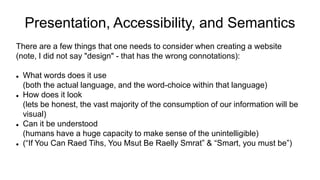
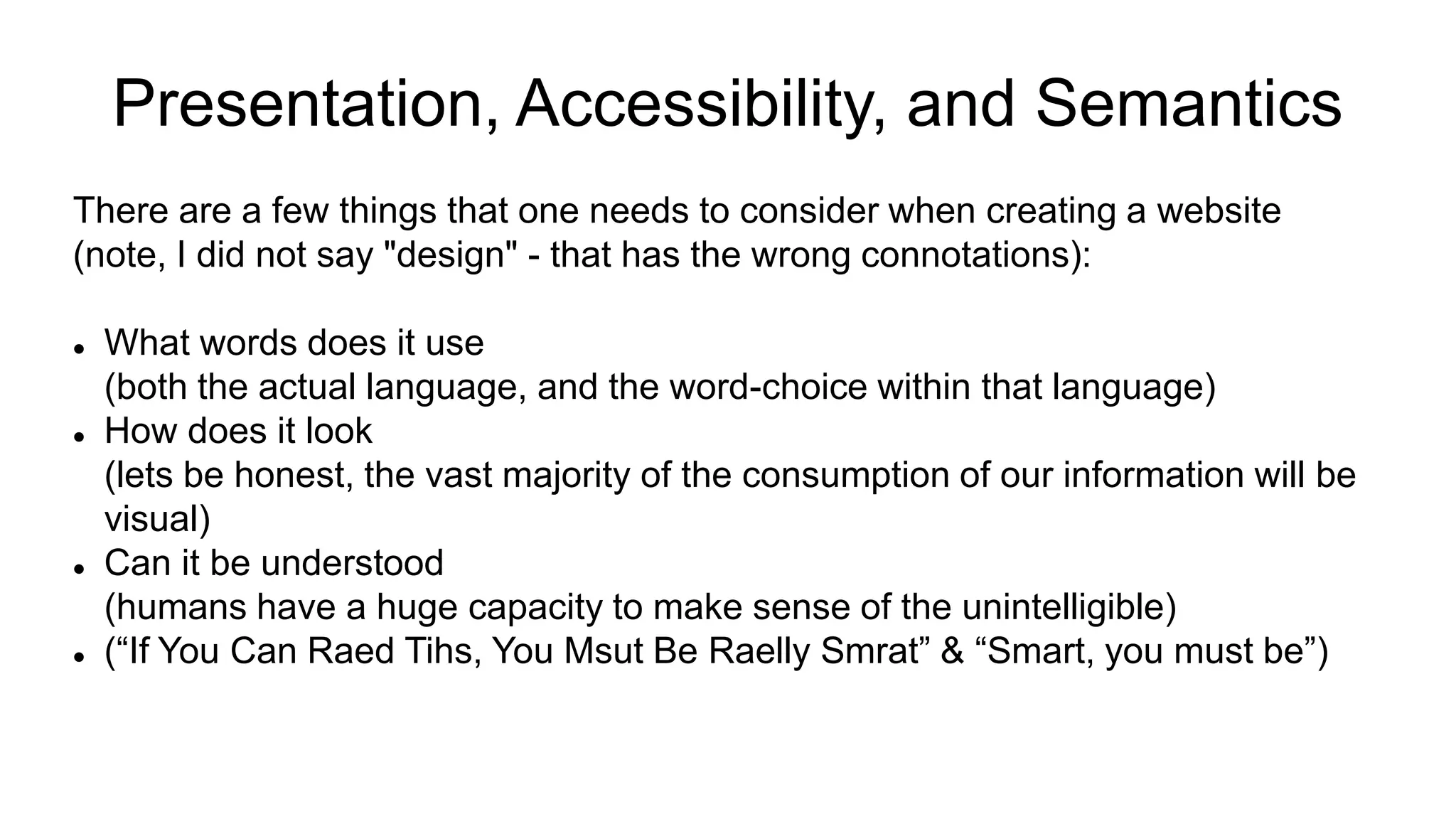
There are a few things that one needs to consider when creating a website
(note, I did not say "design" - that has the wrong connotations):
 What words does it use
(both the actual language, and the word-choice within that language)
 How does it look
(lets be honest, the vast majority of the consumption of our information will be
visual)
 Can it be understood
(humans have a huge capacity to make sense of the unintelligible)
 (“If You Can Raed Tihs, You Msut Be Raelly Smrat” & “Smart, you must be”)
Where does "Semantics" fit into all this?
What is "Semantics" anyway?
In this environment, Semantics is the "logic" of a web page, the "structure" - as opposed to the "presentation"
 The elements <ol> and <ul> have semantic meaning: Ordered List and Unordered List
 The elements <div> and <span> have no semantic meaning, then just identify things as a block level group or an inline group
Semantics is used by presentation tools to render the html document for users to "read"
Web browsers have spent 20+ years writing tools to visually render some [sometimes truly awful] html files into something readable.... like knowing a paragraph has ended because a new "block-level element" has started.
We have grown up without having to use Semantics in web pages.
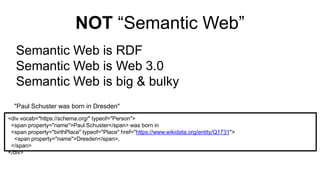
NOT “Semantic Web”
Semantic Web is RDF
Semantic Web is Web 3.0
Semantic Web is big & bulky
<div vocab="https://schema.org/" typeof="Person">
<span property="name">Paul Schuster</span> was born in
<span property="birthPlace" typeof="Place" href="https://www.wikidata.org/entity/Q1731">
<span property="name">Dresden</span>.
</span>
</div>
"Paul Schuster was born in Dresden"
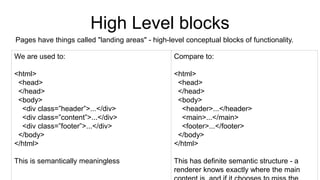
High Level blocks
We are used to:
<html>
<head>
</head>
<body>
<div class=”header”>...</div>
<div class=”content”>...</div>
<div class=”footer”>...</div>
</body>
</html>
This is semantically meaningless
Compare to:
<html>
<head>
</head>
<body>
<header>...</header>
<main>...</main>
<footer>...</footer>
</body>
</html>
This has definite semantic structure - a
renderer knows exactly where the main
Pages have things called "landing areas" - high-level conceptual blocks of functionality.
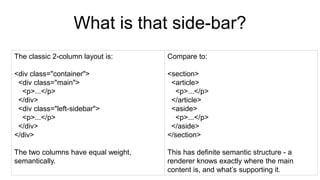
What is that side-bar?
The classic 2-column layout is:
<div class="container">
<div class="main">
<p>...</p>
</div>
<div class="left-sidebar">
<p>...</p>
</div>
</div>
The two columns have equal weight,
semantically.
Compare to:
<section>
<article>
<p>...</p>
</article>
<aside>
<p>...</p>
</aside>
</section>
This has definite semantic structure - a
renderer knows exactly where the main
content is, and what’s supporting it.
Articles, Divs, and Sections
We have three variations of "block of content" available to us: <article>, <div> and <section>
These are the most useful, but least understood part of html5
 <div> is the most general purpose element. It has no special meaning. It’s purpose is to group content that is not semantically related. Because it is essentially meaningless to screen readers, it should be sparingly used.
 <section> is slightly more specific that a <div>. It is applied to a generic section of content that can be grouped together in a semantically meaningful way.
 <article> is the most specific blocking tag. It is also applied to a section of content that is semantically related, and should also have a heading. However, this section of content should additionally be "self-contained". This means that the contents of an <article> should be able to be isolated from the rest of the page and still be meaningful.
... think of a journal: a journal may have a number of articles - which may both contain sections, and be contained in sections.
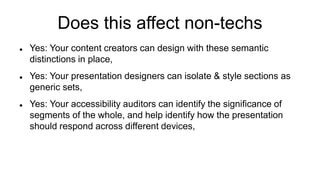
Does this affect non-techs
 Yes: Your content creators can design with these semantic
distinctions in place,
 Yes: Your presentation designers can isolate & style sections as
generic sets,
 Yes: Your accessibility auditors can identify the significance of
segments of the whole, and help identify how the presentation
should respond across different devices,
html5 Landmarks
Landmarks are an accessibility feature that help identify the high-level regions of the page.
The following elements define landmarks:
 <main> — There is only ever one <main>
 <nav>
 <aside>
 <section> — only if it has a title (aria-labelled-by, aria-label, or title attribute)
 <header> — only if it’s not within one of the other landmark sections listed above
 <footer> — only if it’s not within one of the other landmark sections listed above
The use of landmarks makes it easier for Accessibility Systems to find their way around the page. All content on your page should be inside a landmark.
<article> is not a landmark element!
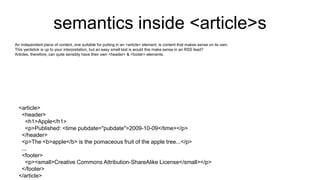
semantics inside <article>s
An independent piece of content, one suitable for putting in an <article> element, is content that makes sense on its own.
This yardstick is up to your interpretation, but an easy smell test is would this make sense in an RSS feed?
Articles, therefore, can quite sensibly have their own <header> & <footer> elements.
<article>
<header>
<h1>Apple</h1>
<p>Published: <time pubdate="pubdate">2009-10-09</time></p>
</header>
<p>The <b>apple</b> is the pomaceous fruit of the apple tree...</p>
...
<footer>
<p><small>Creative Commons Attribution-ShareAlike License</small></p>
</footer>
</article>
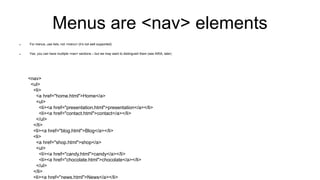
Menus are <nav> elements
 For menus, use lists, not <menu> (it’s not well supported)
 Yes, you can have multiple <nav> sections – but we may want to distinguish them (see ARIA, later)
<nav>
<ul>
<li>
<a href="home.html">Home</a>
<ul>
<li><a href="presentation.html">presentation</a></li>
<li><a href="contact.html">contact</a></li>
</ul>
</li>
<li><a href="blog.html">Blog</a></li>
<li>
<a href="shop.html">shop</a>
<ul>
<li><a href="candy.html">candy</a></li>
<li><a href="chocolate.html">chocolate</a></li>
</ul>
</li>
<li><a href="news.html">News</a></li>
Other tips & tricks
 Identify page language, and language changes (<p>You'd say that in Chinese as <span lang="zh-Hans">中国科学院文献情报中心</span>.</p>)
 Associate a label with every form control
 Use <button> not <div class=button> for buttons
 Have alt text for every image*
 Reflect the reading order in the code order
 Use headings correctly to organize the structure of your content.
 Give your links unique and descriptive names.
 Use tables for tabular data, not for layout.
 Use ARIA roles and landmarks (however the first rule of ARIA is “Don’t use ARIA.”)
 [*] Not all images are content, see ARIA
Accessible Rich Internet Applications
 Officially, the spec is WAI-ARIA
 Accessibility Tree vs Document Object Model
 ARIA is a set of attributes for filling accessibility gaps
 ARIA compliments html5 semantics
 “No ARIA is better than Bad ARIA”
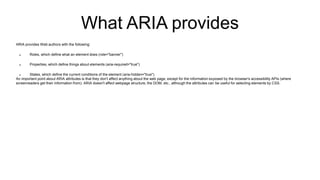
What ARIA provides
ARIA provides Web authors with the following:
 Roles, which define what an element does (role="banner")
 Properties, which define things about elements (aria-required="true")
 States, which define the current conditions of the element (aria-hidden="true")
An important point about ARIA attributes is that they don't affect anything about the web page, except for the information exposed by the browser's accessibility APIs (where
screenreaders get their information from). ARIA doesn't affect webpage structure, the DOM, etc., although the attributes can be useful for selecting elements by CSS.
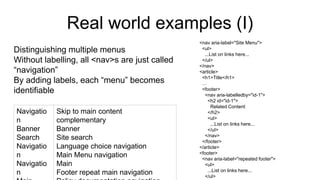
Real world examples (I)
Distinguishing multiple menus
Without labelling, all <nav>s are just called
“navigation”
By adding labels, each “menu” becomes
identifiable
<nav aria-label="Site Menu">
<ul>
...List on links here...
</ul>
</nav>
<article>
<h1>Title</h1>
…
<footer>
<nav aria-labelledby="id-1">
<h2 id="id-1">
Related Content
</h2>
<ul>
...List on links here...
</ul>
</nav>
</footer>
</article>
<footer>
<nav aria-label="repeated footer">
<ul>
...List on links here...
</ul>
Navigatio
n
Banner
Search
Navigatio
n
Navigatio
n
Skip to main content
complementary
Banner
Site search
Language choice navigation
Main Menu navigation
Main
Footer repeat main navigation
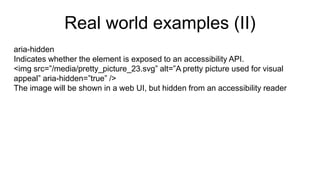
Real world examples (II)
aria-hidden
Indicates whether the element is exposed to an accessibility API.
<img src=”/media/pretty_picture_23.svg” alt=”A pretty picture used for visual
appeal” aria-hidden=”true” />
The image will be shown in a web UI, but hidden from an accessibility reader
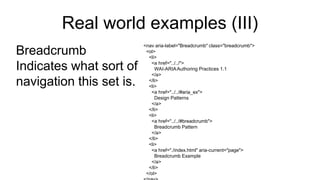
Real world examples (III)
Breadcrumb
Indicates what sort of
navigation this set is.
<nav aria-label="Breadcrumb" class="breadcrumb">
<ol>
<li>
<a href="../../">
WAI-ARIAAuthoring Practices 1.1
</a>
</li>
<li>
<a href="../../#aria_ex">
Design Patterns
</a>
</li>
<li>
<a href="../../#breadcrumb">
Breadcrumb Pattern
</a>
</li>
<li>
<a href="./index.html" aria-current="page">
Breadcrumb Example
</a>
</li>
</ol>
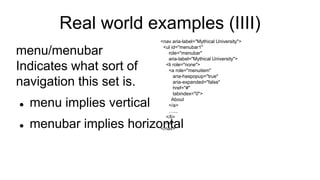
Real world examples (IIII)
menu/menubar
Indicates what sort of
navigation this set is.
 menu implies vertical
 menubar implies horizontal
<nav aria-label="Mythical University">
<ul id="menubar1"
role="menubar"
aria-label="Mythical University">
<li role="none">
<a role="menuitem"
aria-haspopup="true"
aria-expanded="false"
href="#"
tabindex="0">
About
</a>
…...
</li>
</ul>
</nav>
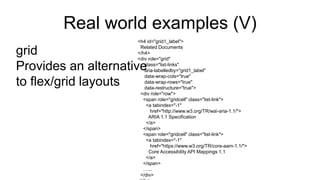
Real world examples (V)
grid
Provides an alternative
to flex/grid layouts
<h4 id="grid1_label">
Related Documents
</h4>
<div role="grid"
class="list-links"
aria-labelledby="grid1_label"
data-wrap-cols="true"
data-wrap-rows="true"
data-restructure="true">
<div role="row">
<span role="gridcell" class="list-link">
<a tabindex="-1"
href="http://www.w3.org/TR/wai-aria-1.1/">
ARIA 1.1 Specification
</a>
</span>
<span role="gridcell" class="list-link">
<a tabindex="-1"
href="https://www.w3.org/TR/core-aam-1.1/">
Core Accessibility API Mappings 1.1
</a>
</span>
…...
</div>
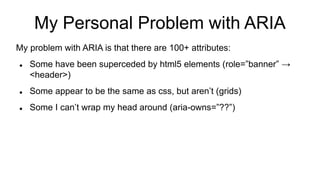
My Personal Problem with ARIA
My problem with ARIA is that there are 100+ attributes:
 Some have been superceded by html5 elements (role=”banner” →
<header>)
 Some appear to be the same as css, but aren’t (grids)
 Some I can’t wrap my head around (aria-owns=”??”)
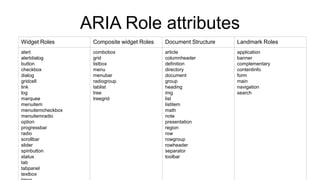
ARIA Role attributes
Widget Roles Composite widget Roles Document Structure Landmark Roles
alert
alertdialog
button
checkbox
dialog
gridcell
link
log
marquee
menuitem
menuitemcheckbox
menuitemradio
option
progressbar
radio
scrollbar
slider
spinbutton
status
tab
tabpanel
textbox
combobox
grid
listbox
menu
menubar
radiogroup
tablist
tree
treegrid
article
columnheader
definition
directory
document
group
heading
img
list
listitem
math
note
presentation
region
row
rowgroup
rowheader
separator
toolbar
application
banner
complementary
contentinfo
form
main
navigation
search
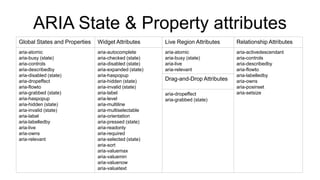
ARIA State & Property attributes
Global States and Properties Widget Attributes Live Region Attributes Relationship Attributes
aria-atomic
aria-busy (state)
aria-controls
aria-describedby
aria-disabled (state)
aria-dropeffect
aria-flowto
aria-grabbed (state)
aria-haspopup
aria-hidden (state)
aria-invalid (state)
aria-label
aria-labelledby
aria-live
aria-owns
aria-relevant
aria-autocomplete
aria-checked (state)
aria-disabled (state)
aria-expanded (state)
aria-haspopup
aria-hidden (state)
aria-invalid (state)
aria-label
aria-level
aria-multiline
aria-multiselectable
aria-orientation
aria-pressed (state)
aria-readonly
aria-required
aria-selected (state)
aria-sort
aria-valuemax
aria-valuemin
aria-valuenow
aria-valuetext
aria-atomic
aria-busy (state)
aria-live
aria-relevant
aria-activedescendant
aria-controls
aria-describedby
aria-flowto
aria-labelledby
aria-owns
aria-posinset
aria-setsize
Drag-and-Drop Attributes
aria-dropeffect
aria-grabbed (state)
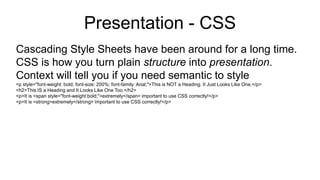
Presentation - CSS
Cascading Style Sheets have been around for a long time.
CSS is how you turn plain structure into presentation.
Context will tell you if you need semantic to style
<p style="font-weight: bold; font-size: 200%; font-family: Arial;">This is NOT a Heading. It Just Looks Like One.</p>
<h2>This IS a Heading and It Looks Like One Too.</h2>
<p>It is <span style="font-weight:bold;">extremely</span> important to use CSS correctly!</p>
<p>It is <strong>extremely</strong> important to use CSS correctly!</p>
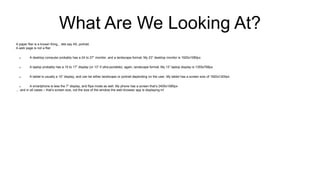
What Are We Looking At?
A paper flier is a known thing... lets say A5, portrait.
A web page is not a flier
 A desktop computer probably has a 24 to 27” monitor, and a landscape format. My 23” desktop monitor is 1920x1080px
 A laptop probably has a 15 to 17” display (or 13” if ultra-portable), again, landscape format. My 13” laptop display is 1355x768px
 A tablet is usually a 10” display, and can be either landscape or portrait depending on the user. My tablet has a screen size of 1920x1200px
 A smartphone is less the 7” display, and flips mode as well. My phone has a screen that’s 2400x1080px
… and in all cases – that’s screen size, not the size of the window the web-browser app is displaying in!
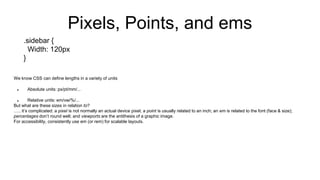
We know CSS can define lengths in a variety of units
 Absolute units: px/pt/mm/...
 Relative units: em/vw/%/...
But what are these sizes in relation to?
….. it’s complicated: a pixel is not normally an actual device pixel; a point is usually related to an inch; an em is related to the font (face & size);
percentages don’t round well; and viewports are the antithesis of a graphic image.
For accessibility, consistently use em (or rem) for scalable layouts.
Pixels, Points, and ems
.sidebar {
Width: 120px
}
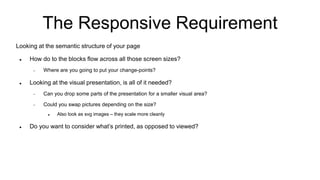
The Responsive Requirement
Looking at the semantic structure of your page
 How do to the blocks flow across all those screen sizes?
 Where are you going to put your change-points?
 Looking at the visual presentation, is all of it needed?
 Can you drop some parts of the presentation for a smaller visual area?
 Could you swap pictures depending on the size?
 Also look as svg images – they scale more cleanly
 Do you want to consider what’s printed, as opposed to viewed?
Layout: Flex vs Grid vs Bootstrap
 Flex was introduced in 2012, and provides a 1-dimensional flexible model.
In the flex layout model, the children of a flex container can be laid out in any direction, and can “flex” their sizes, either growing to fill unused space or shrinking to avoid overflowing the parent. Both horizontal and vertical alignment of the children can be easily manipulated.
Nesting of these boxes (horizontal inside vertical, or vertical inside horizontal) can be used to build layouts in two dimensions.
 Grid was introduced in 2016, and provides 2-dimensional layouts.
Unlike Flexible Box Layout, which is single-axis–oriented, Grid Layout is optimized for 2-dimensional layouts: those in which alignment of content is desired in both dimensions.
 Bootstrap is an after-market addition that makes flexible layouts easier to code.
Bootstrap provides a defined 12-column framework, factored around 4 different screen sizes.
Bootstrap also provides a suite of helper classes, predefined styles, and (some) accessibility functions
CSS Preprocessors
 CSS – the problem
 You quickly get a large collection of similar, but subtly different, classes.
 You may have one very large file, or lots of small files.
 Solution 1: planning
 Pre-plan your styling, and layer them.
 Give your elements multiple (additive) classes – like bootstap does
 Solution 2: use a preprocessor (sass/scss/less/pleeease/...)
 A preprocess will allow you to create a complex CSS file from a set css-like “program” files
 We get variables (very useful for colours!)
 We get nested definitions (makes it clearer what’s going on)
 We get modular files (particularly used in angular)
 We get calculations & logic in css
 We get mixins & inheritance
 Sadly, you also have the additional step of converting (processing) your source files into css
Semantic accessibility

Semantic accessibility

  • 1.
    Presentation, Accessibility, andSemantics There are a few things that one needs to consider when creating a website (note, I did not say "design" - that has the wrong connotations):  What words does it use (both the actual language, and the word-choice within that language)  How does it look (lets be honest, the vast majority of the consumption of our information will be visual)  Can it be understood (humans have a huge capacity to make sense of the unintelligible)  (“If You Can Raed Tihs, You Msut Be Raelly Smrat” & “Smart, you must be”)
  • 2.
    Where does "Semantics"fit into all this? What is "Semantics" anyway? In this environment, Semantics is the "logic" of a web page, the "structure" - as opposed to the "presentation"  The elements <ol> and <ul> have semantic meaning: Ordered List and Unordered List  The elements <div> and <span> have no semantic meaning, then just identify things as a block level group or an inline group Semantics is used by presentation tools to render the html document for users to "read" Web browsers have spent 20+ years writing tools to visually render some [sometimes truly awful] html files into something readable.... like knowing a paragraph has ended because a new "block-level element" has started. We have grown up without having to use Semantics in web pages.
  • 3.
    NOT “Semantic Web” SemanticWeb is RDF Semantic Web is Web 3.0 Semantic Web is big & bulky <div vocab="https://schema.org/" typeof="Person"> <span property="name">Paul Schuster</span> was born in <span property="birthPlace" typeof="Place" href="https://www.wikidata.org/entity/Q1731"> <span property="name">Dresden</span>. </span> </div> "Paul Schuster was born in Dresden"
  • 4.
    High Level blocks Weare used to: <html> <head> </head> <body> <div class=”header”>...</div> <div class=”content”>...</div> <div class=”footer”>...</div> </body> </html> This is semantically meaningless Compare to: <html> <head> </head> <body> <header>...</header> <main>...</main> <footer>...</footer> </body> </html> This has definite semantic structure - a renderer knows exactly where the main Pages have things called "landing areas" - high-level conceptual blocks of functionality.
  • 5.
    What is thatside-bar? The classic 2-column layout is: <div class="container"> <div class="main"> <p>...</p> </div> <div class="left-sidebar"> <p>...</p> </div> </div> The two columns have equal weight, semantically. Compare to: <section> <article> <p>...</p> </article> <aside> <p>...</p> </aside> </section> This has definite semantic structure - a renderer knows exactly where the main content is, and what’s supporting it.
  • 6.
    Articles, Divs, andSections We have three variations of "block of content" available to us: <article>, <div> and <section> These are the most useful, but least understood part of html5  <div> is the most general purpose element. It has no special meaning. It’s purpose is to group content that is not semantically related. Because it is essentially meaningless to screen readers, it should be sparingly used.  <section> is slightly more specific that a <div>. It is applied to a generic section of content that can be grouped together in a semantically meaningful way.  <article> is the most specific blocking tag. It is also applied to a section of content that is semantically related, and should also have a heading. However, this section of content should additionally be "self-contained". This means that the contents of an <article> should be able to be isolated from the rest of the page and still be meaningful. ... think of a journal: a journal may have a number of articles - which may both contain sections, and be contained in sections.
  • 7.
    Does this affectnon-techs  Yes: Your content creators can design with these semantic distinctions in place,  Yes: Your presentation designers can isolate & style sections as generic sets,  Yes: Your accessibility auditors can identify the significance of segments of the whole, and help identify how the presentation should respond across different devices,
  • 8.
    html5 Landmarks Landmarks arean accessibility feature that help identify the high-level regions of the page. The following elements define landmarks:  <main> — There is only ever one <main>  <nav>  <aside>  <section> — only if it has a title (aria-labelled-by, aria-label, or title attribute)  <header> — only if it’s not within one of the other landmark sections listed above  <footer> — only if it’s not within one of the other landmark sections listed above The use of landmarks makes it easier for Accessibility Systems to find their way around the page. All content on your page should be inside a landmark. <article> is not a landmark element!
  • 9.
    semantics inside <article>s Anindependent piece of content, one suitable for putting in an <article> element, is content that makes sense on its own. This yardstick is up to your interpretation, but an easy smell test is would this make sense in an RSS feed? Articles, therefore, can quite sensibly have their own <header> & <footer> elements. <article> <header> <h1>Apple</h1> <p>Published: <time pubdate="pubdate">2009-10-09</time></p> </header> <p>The <b>apple</b> is the pomaceous fruit of the apple tree...</p> ... <footer> <p><small>Creative Commons Attribution-ShareAlike License</small></p> </footer> </article>
  • 10.
    Menus are <nav>elements  For menus, use lists, not <menu> (it’s not well supported)  Yes, you can have multiple <nav> sections – but we may want to distinguish them (see ARIA, later) <nav> <ul> <li> <a href="home.html">Home</a> <ul> <li><a href="presentation.html">presentation</a></li> <li><a href="contact.html">contact</a></li> </ul> </li> <li><a href="blog.html">Blog</a></li> <li> <a href="shop.html">shop</a> <ul> <li><a href="candy.html">candy</a></li> <li><a href="chocolate.html">chocolate</a></li> </ul> </li> <li><a href="news.html">News</a></li>
  • 11.
    Other tips &tricks  Identify page language, and language changes (<p>You'd say that in Chinese as <span lang="zh-Hans">中国科学院文献情报中心</span>.</p>)  Associate a label with every form control  Use <button> not <div class=button> for buttons  Have alt text for every image*  Reflect the reading order in the code order  Use headings correctly to organize the structure of your content.  Give your links unique and descriptive names.  Use tables for tabular data, not for layout.  Use ARIA roles and landmarks (however the first rule of ARIA is “Don’t use ARIA.”)  [*] Not all images are content, see ARIA
  • 12.
    Accessible Rich InternetApplications  Officially, the spec is WAI-ARIA  Accessibility Tree vs Document Object Model  ARIA is a set of attributes for filling accessibility gaps  ARIA compliments html5 semantics  “No ARIA is better than Bad ARIA”
  • 13.
    What ARIA provides ARIAprovides Web authors with the following:  Roles, which define what an element does (role="banner")  Properties, which define things about elements (aria-required="true")  States, which define the current conditions of the element (aria-hidden="true") An important point about ARIA attributes is that they don't affect anything about the web page, except for the information exposed by the browser's accessibility APIs (where screenreaders get their information from). ARIA doesn't affect webpage structure, the DOM, etc., although the attributes can be useful for selecting elements by CSS.
  • 14.
    Real world examples(I) Distinguishing multiple menus Without labelling, all <nav>s are just called “navigation” By adding labels, each “menu” becomes identifiable <nav aria-label="Site Menu"> <ul> ...List on links here... </ul> </nav> <article> <h1>Title</h1> … <footer> <nav aria-labelledby="id-1"> <h2 id="id-1"> Related Content </h2> <ul> ...List on links here... </ul> </nav> </footer> </article> <footer> <nav aria-label="repeated footer"> <ul> ...List on links here... </ul> Navigatio n Banner Search Navigatio n Navigatio n Skip to main content complementary Banner Site search Language choice navigation Main Menu navigation Main Footer repeat main navigation
  • 15.
    Real world examples(II) aria-hidden Indicates whether the element is exposed to an accessibility API. <img src=”/media/pretty_picture_23.svg” alt=”A pretty picture used for visual appeal” aria-hidden=”true” /> The image will be shown in a web UI, but hidden from an accessibility reader
  • 16.
    Real world examples(III) Breadcrumb Indicates what sort of navigation this set is. <nav aria-label="Breadcrumb" class="breadcrumb"> <ol> <li> <a href="../../"> WAI-ARIAAuthoring Practices 1.1 </a> </li> <li> <a href="../../#aria_ex"> Design Patterns </a> </li> <li> <a href="../../#breadcrumb"> Breadcrumb Pattern </a> </li> <li> <a href="./index.html" aria-current="page"> Breadcrumb Example </a> </li> </ol>
  • 17.
    Real world examples(IIII) menu/menubar Indicates what sort of navigation this set is.  menu implies vertical  menubar implies horizontal <nav aria-label="Mythical University"> <ul id="menubar1" role="menubar" aria-label="Mythical University"> <li role="none"> <a role="menuitem" aria-haspopup="true" aria-expanded="false" href="#" tabindex="0"> About </a> …... </li> </ul> </nav>
  • 18.
    Real world examples(V) grid Provides an alternative to flex/grid layouts <h4 id="grid1_label"> Related Documents </h4> <div role="grid" class="list-links" aria-labelledby="grid1_label" data-wrap-cols="true" data-wrap-rows="true" data-restructure="true"> <div role="row"> <span role="gridcell" class="list-link"> <a tabindex="-1" href="http://www.w3.org/TR/wai-aria-1.1/"> ARIA 1.1 Specification </a> </span> <span role="gridcell" class="list-link"> <a tabindex="-1" href="https://www.w3.org/TR/core-aam-1.1/"> Core Accessibility API Mappings 1.1 </a> </span> …... </div>
  • 19.
    My Personal Problemwith ARIA My problem with ARIA is that there are 100+ attributes:  Some have been superceded by html5 elements (role=”banner” → <header>)  Some appear to be the same as css, but aren’t (grids)  Some I can’t wrap my head around (aria-owns=”??”)
  • 20.
    ARIA Role attributes WidgetRoles Composite widget Roles Document Structure Landmark Roles alert alertdialog button checkbox dialog gridcell link log marquee menuitem menuitemcheckbox menuitemradio option progressbar radio scrollbar slider spinbutton status tab tabpanel textbox combobox grid listbox menu menubar radiogroup tablist tree treegrid article columnheader definition directory document group heading img list listitem math note presentation region row rowgroup rowheader separator toolbar application banner complementary contentinfo form main navigation search
  • 21.
    ARIA State &Property attributes Global States and Properties Widget Attributes Live Region Attributes Relationship Attributes aria-atomic aria-busy (state) aria-controls aria-describedby aria-disabled (state) aria-dropeffect aria-flowto aria-grabbed (state) aria-haspopup aria-hidden (state) aria-invalid (state) aria-label aria-labelledby aria-live aria-owns aria-relevant aria-autocomplete aria-checked (state) aria-disabled (state) aria-expanded (state) aria-haspopup aria-hidden (state) aria-invalid (state) aria-label aria-level aria-multiline aria-multiselectable aria-orientation aria-pressed (state) aria-readonly aria-required aria-selected (state) aria-sort aria-valuemax aria-valuemin aria-valuenow aria-valuetext aria-atomic aria-busy (state) aria-live aria-relevant aria-activedescendant aria-controls aria-describedby aria-flowto aria-labelledby aria-owns aria-posinset aria-setsize Drag-and-Drop Attributes aria-dropeffect aria-grabbed (state)
  • 22.
    Presentation - CSS CascadingStyle Sheets have been around for a long time. CSS is how you turn plain structure into presentation. Context will tell you if you need semantic to style <p style="font-weight: bold; font-size: 200%; font-family: Arial;">This is NOT a Heading. It Just Looks Like One.</p> <h2>This IS a Heading and It Looks Like One Too.</h2> <p>It is <span style="font-weight:bold;">extremely</span> important to use CSS correctly!</p> <p>It is <strong>extremely</strong> important to use CSS correctly!</p>
  • 23.
    What Are WeLooking At? A paper flier is a known thing... lets say A5, portrait. A web page is not a flier  A desktop computer probably has a 24 to 27” monitor, and a landscape format. My 23” desktop monitor is 1920x1080px  A laptop probably has a 15 to 17” display (or 13” if ultra-portable), again, landscape format. My 13” laptop display is 1355x768px  A tablet is usually a 10” display, and can be either landscape or portrait depending on the user. My tablet has a screen size of 1920x1200px  A smartphone is less the 7” display, and flips mode as well. My phone has a screen that’s 2400x1080px … and in all cases – that’s screen size, not the size of the window the web-browser app is displaying in!
  • 24.
    We know CSScan define lengths in a variety of units  Absolute units: px/pt/mm/...  Relative units: em/vw/%/... But what are these sizes in relation to? ….. it’s complicated: a pixel is not normally an actual device pixel; a point is usually related to an inch; an em is related to the font (face & size); percentages don’t round well; and viewports are the antithesis of a graphic image. For accessibility, consistently use em (or rem) for scalable layouts. Pixels, Points, and ems .sidebar { Width: 120px }
  • 25.
    The Responsive Requirement Lookingat the semantic structure of your page  How do to the blocks flow across all those screen sizes?  Where are you going to put your change-points?  Looking at the visual presentation, is all of it needed?  Can you drop some parts of the presentation for a smaller visual area?  Could you swap pictures depending on the size?  Also look as svg images – they scale more cleanly  Do you want to consider what’s printed, as opposed to viewed?
  • 26.
    Layout: Flex vsGrid vs Bootstrap  Flex was introduced in 2012, and provides a 1-dimensional flexible model. In the flex layout model, the children of a flex container can be laid out in any direction, and can “flex” their sizes, either growing to fill unused space or shrinking to avoid overflowing the parent. Both horizontal and vertical alignment of the children can be easily manipulated. Nesting of these boxes (horizontal inside vertical, or vertical inside horizontal) can be used to build layouts in two dimensions.  Grid was introduced in 2016, and provides 2-dimensional layouts. Unlike Flexible Box Layout, which is single-axis–oriented, Grid Layout is optimized for 2-dimensional layouts: those in which alignment of content is desired in both dimensions.  Bootstrap is an after-market addition that makes flexible layouts easier to code. Bootstrap provides a defined 12-column framework, factored around 4 different screen sizes. Bootstrap also provides a suite of helper classes, predefined styles, and (some) accessibility functions
  • 27.
    CSS Preprocessors  CSS– the problem  You quickly get a large collection of similar, but subtly different, classes.  You may have one very large file, or lots of small files.  Solution 1: planning  Pre-plan your styling, and layer them.  Give your elements multiple (additive) classes – like bootstap does  Solution 2: use a preprocessor (sass/scss/less/pleeease/...)  A preprocess will allow you to create a complex CSS file from a set css-like “program” files  We get variables (very useful for colours!)  We get nested definitions (makes it clearer what’s going on)  We get modular files (particularly used in angular)  We get calculations & logic in css  We get mixins & inheritance  Sadly, you also have the additional step of converting (processing) your source files into css