






















accessible

names
What are
and why should you care?
Before learning about accessible
names, we need to cover three
other topics:
Accessibility APIs

The DOM

The accessibility tree
I’ll give a brief overview of these
topics, then dive into accessible
names.
Accessibility APIs
Application Programming Interfaces
APIs are software intermediaries
that allow two or more applications
to talk to each other.
For example, Twitter has an API that
allows developers to pull live
conversations from Twitter to their
own website or app.
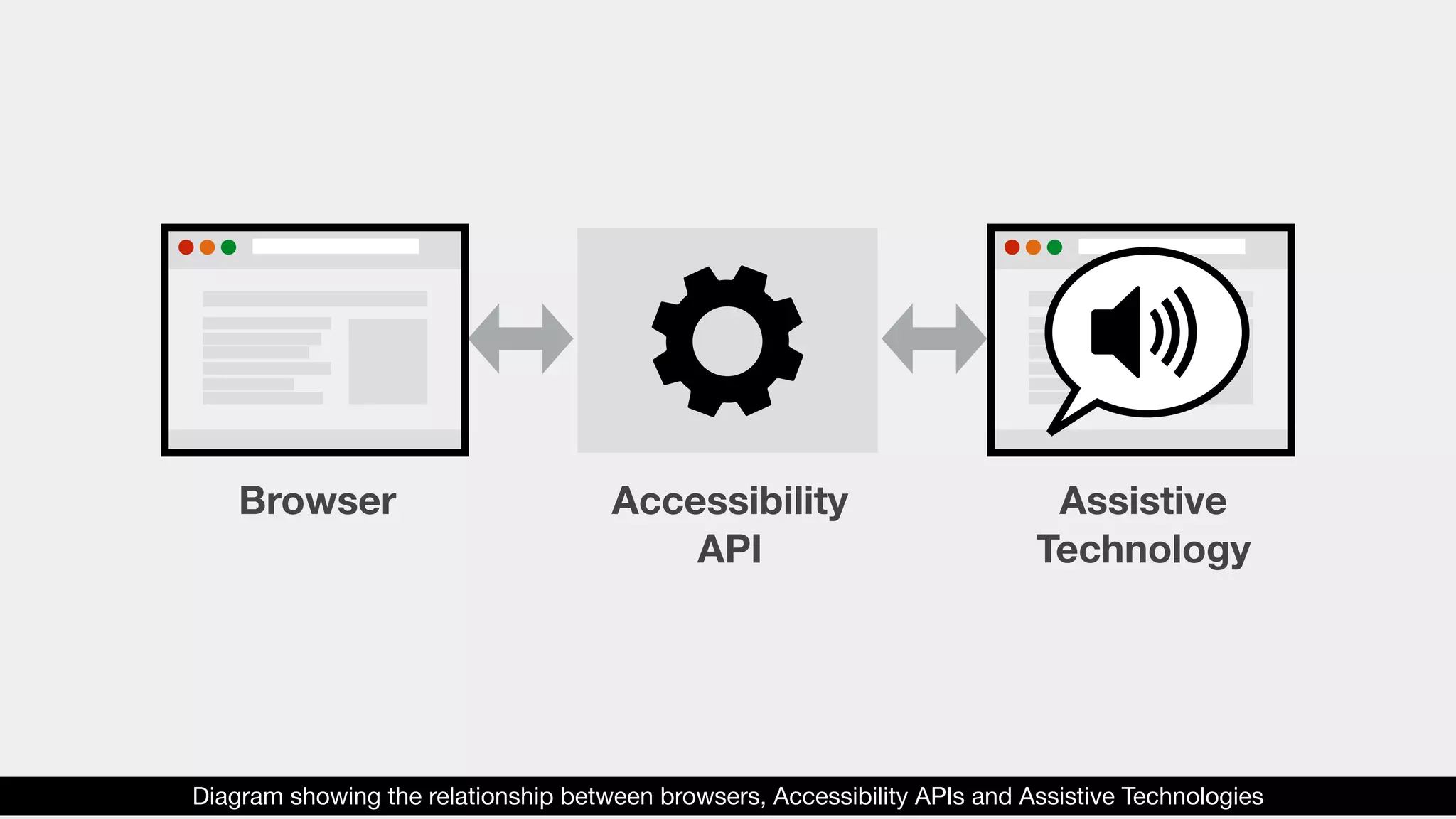
What about Accessibility APIs?
These APIs communicate
information about the user
interface from the browser to
assistive technologies.
Browser Accessibility
API
Assistive
Technology
Diagram showing the relationship between browsers, Accessibility APIs and Assistive Technologies
Accessibility APIs expose
information about objects within
the UI to assistive technologies.
This information includes:
1. The object’s role.
2. The object’s name and
description.
3. The object’s property.
4. The object’s current state.
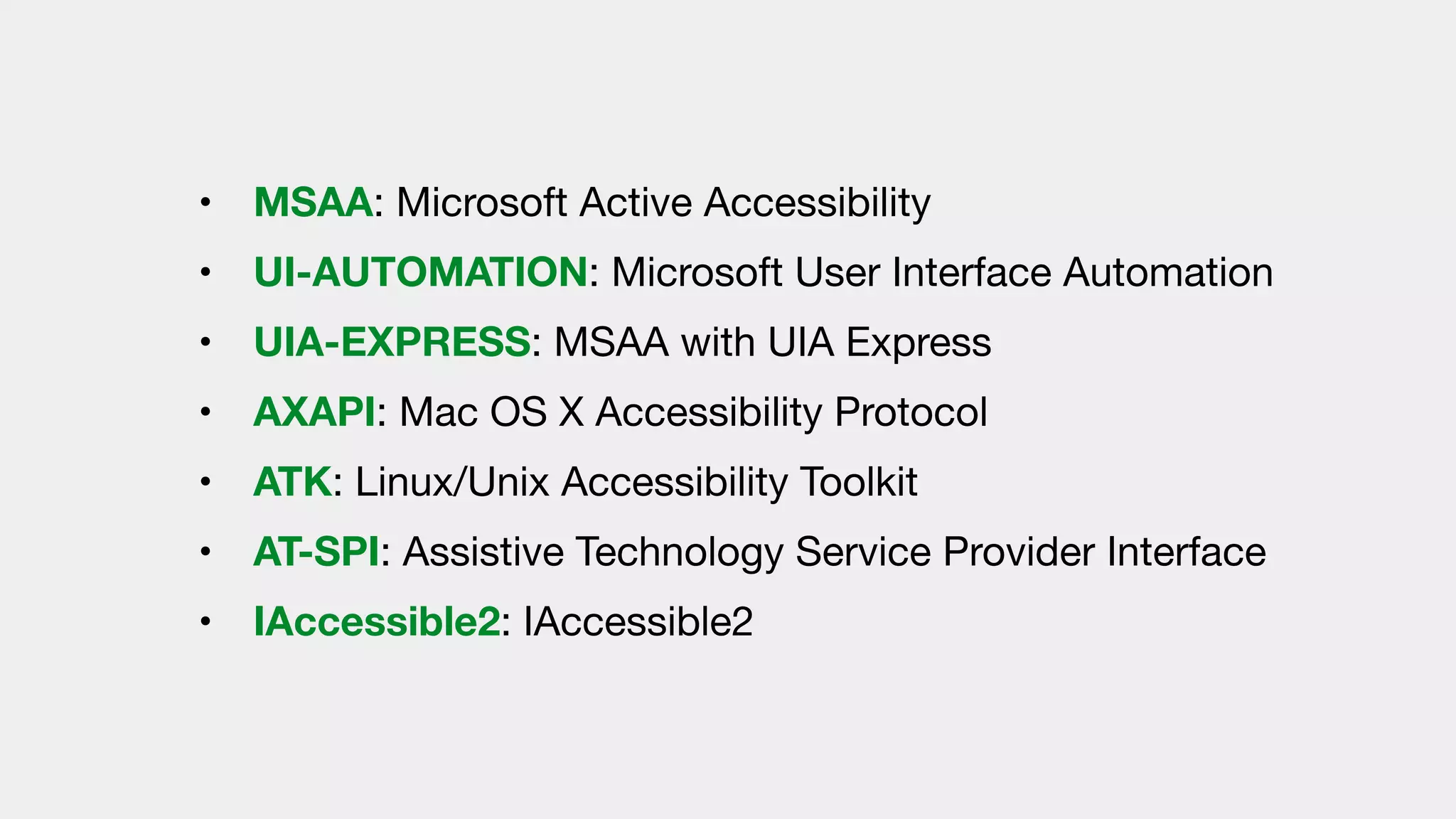
There are a wide range of
Accessibility APIs in use, including:
• MSAA: Microsoft Active Accessibility 

• UI-AUTOMATION: Microsoft User Interface Automation 

• UIA-EXPRESS: MSAA with UIA Express

• AXAPI: Mac OS X Accessibility Protocol

• ATK: Linux/Unix Accessibility Toolkit

• AT-SPI: Assistive Technology Service Provider Interface

• IAccessible2: IAccessible2
The DOM
Document Object Model
The DOM is an interface that treats
XML or HTML documents as tree
structures.
Each branch of the tree ends in a
node, and each node contains
objects.
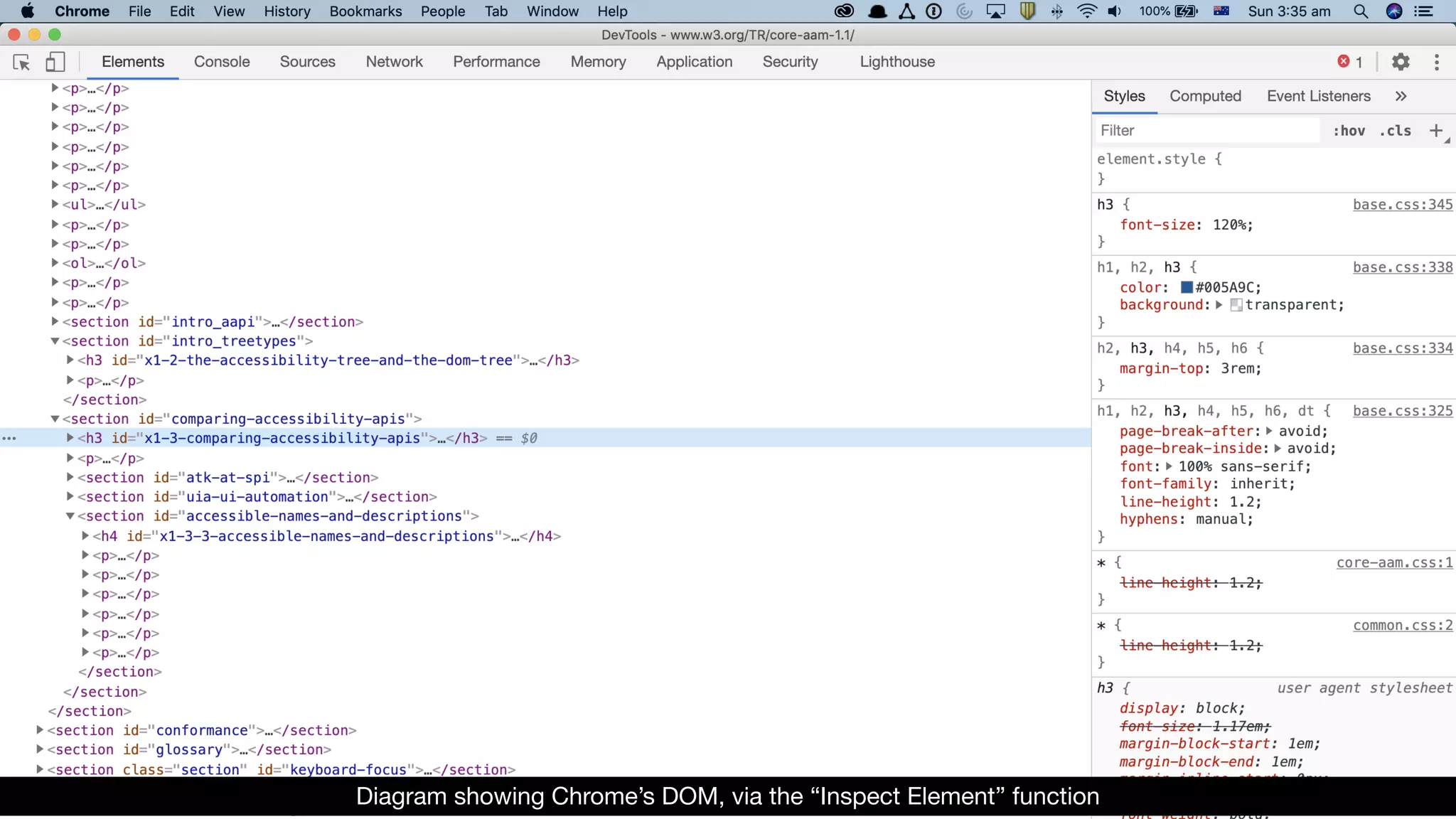
You can see the DOM tree in most
modern browsers by choosing the
“Inspect Element” functionality.
Diagram showing Chrome’s DOM, via the “Inspect Element” function
Accessibility Tree
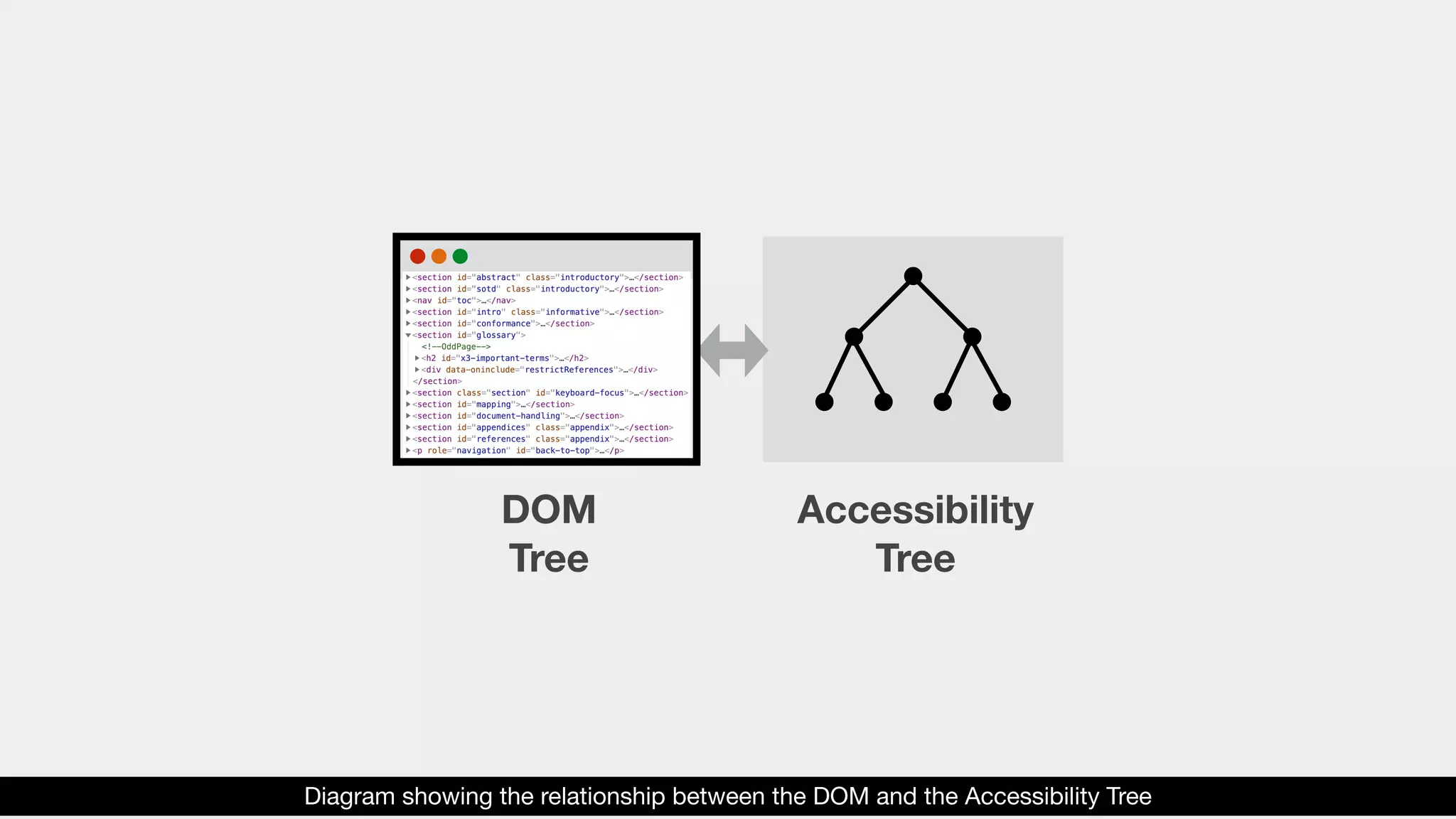
Browsers use the DOM tree to

create a second tree, called the
accessibility tree.
This accessibility tree is a
simplified version of the DOM
tree.
DOM
Tree
Accessibility
Tree
Diagram showing the relationship between the DOM and the Accessibility Tree
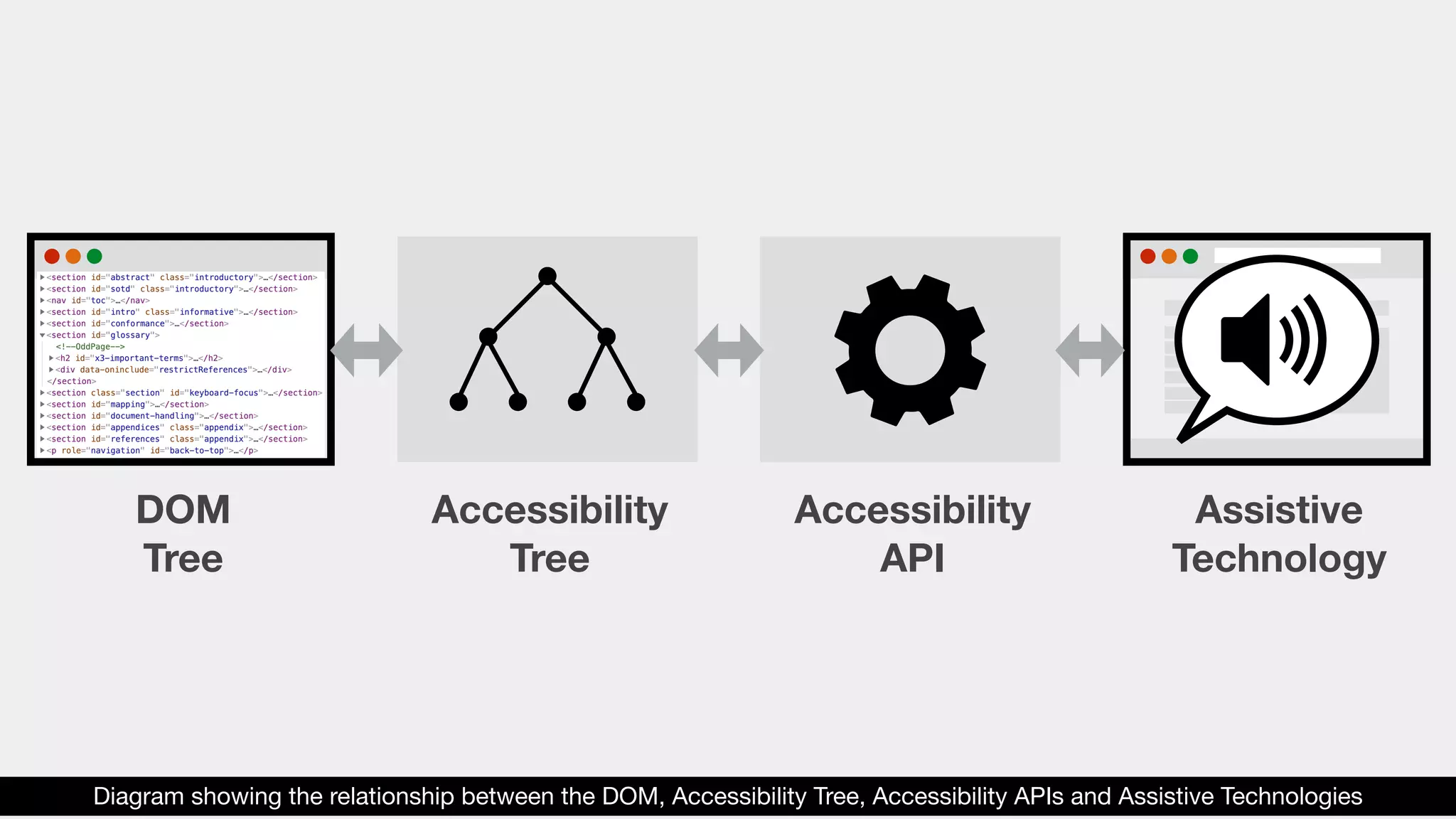
The accessibility tree is exposed to
assistive technologies via the
Accessibility API.
DOM
Tree
Accessibility
Tree
Accessibility
API
Assistive
Technology
Diagram showing the relationship between the DOM, Accessibility Tree, Accessibility APIs and Assistive Technologies
The accessibility tree contains only
“accessible objects”.
These are nodes that can receive
focus, or have states, properties
or events.
All other DOM nodes (that do not
have states, properties or events)
are not presented in the
accessibility tree.
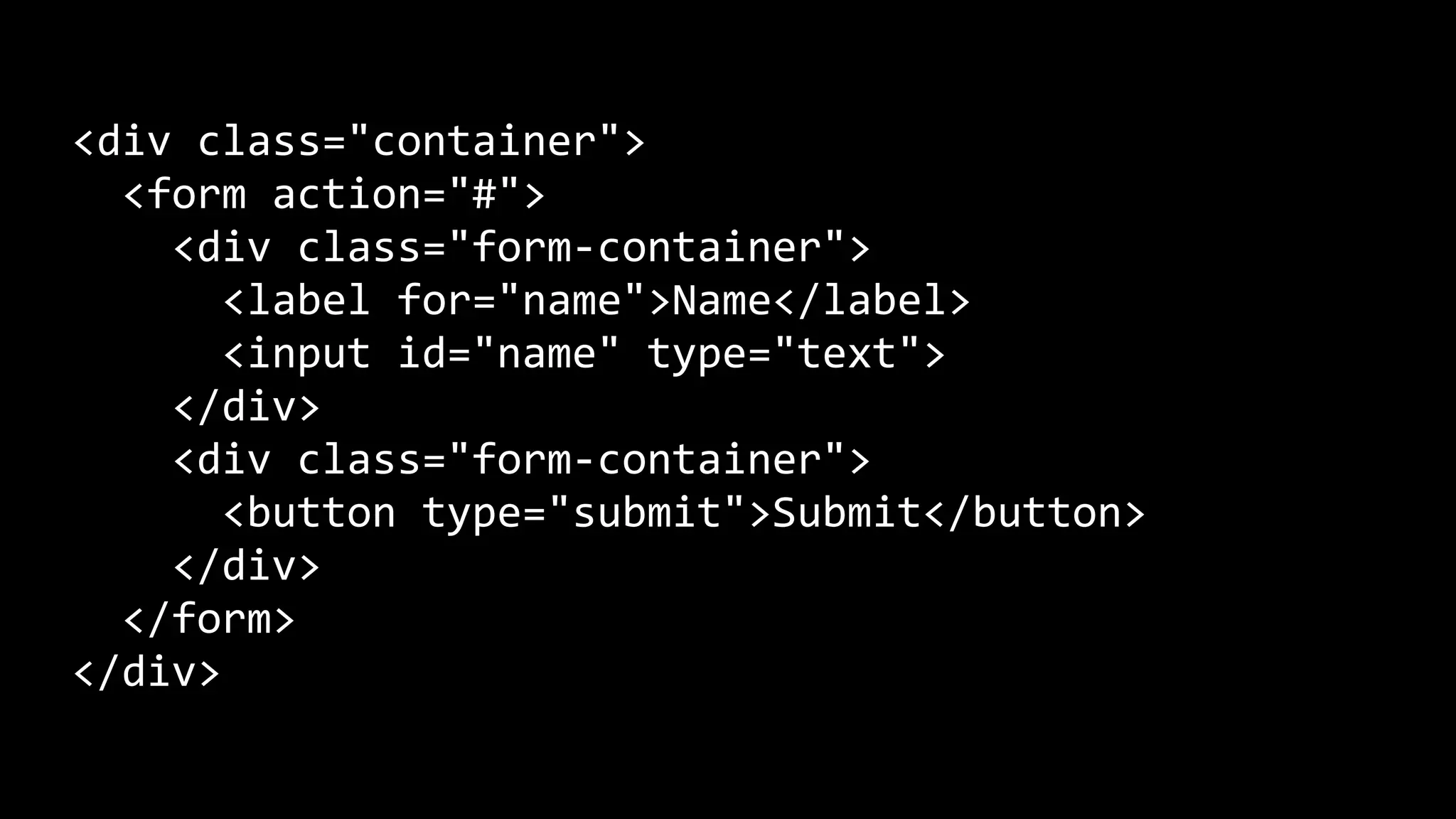
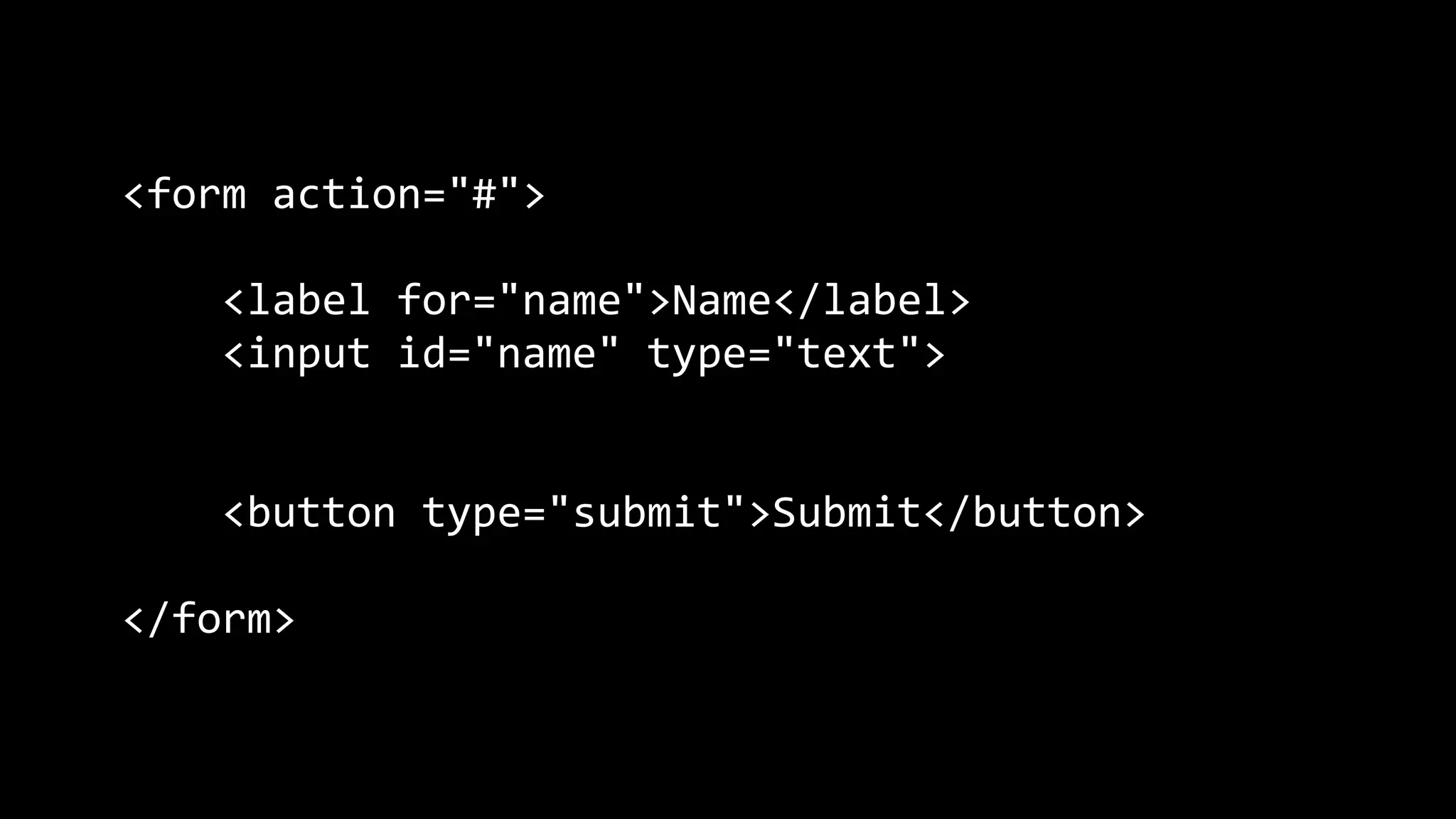
For example, a section within the
DOM tree could be:
<div class="container">
<form action="#">
<div class="form-container">
<label for="name">Name</label>
<input id="name" type="text">
</div>
<div class="form-container">
<button type="submit">Submit</button>
</div>
</form>
</div>
Depending on the browser, the
accessibility tree might only
present the following:
<div class="container">
<form action="#">
<div class="form-container">
<label for="name">Name</label>
<input id="name" type="text">
</div>
<div class="form-container">
<button type="submit">Submit</button>
</div>
</form>
</div>
Each browser could potentially
present a slightly different
accessibility tree.
The accessibility tree can be viewed
in a range of different ways,
including directly within the browser.
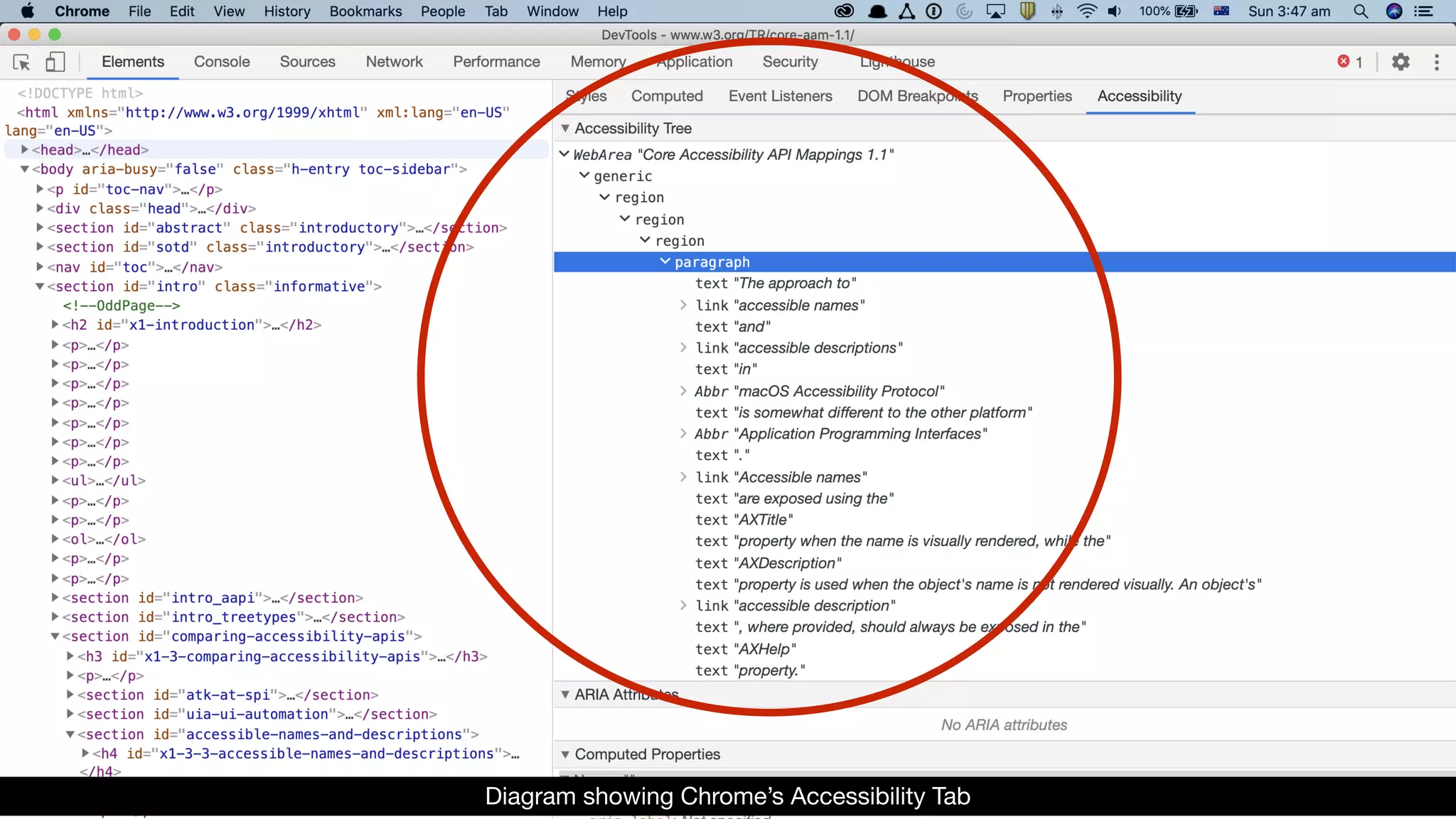
Using Chrome’s Developer Tools,
via the “Accessibility” Tab.
Diagram showing Chrome’s Accessibility Tab
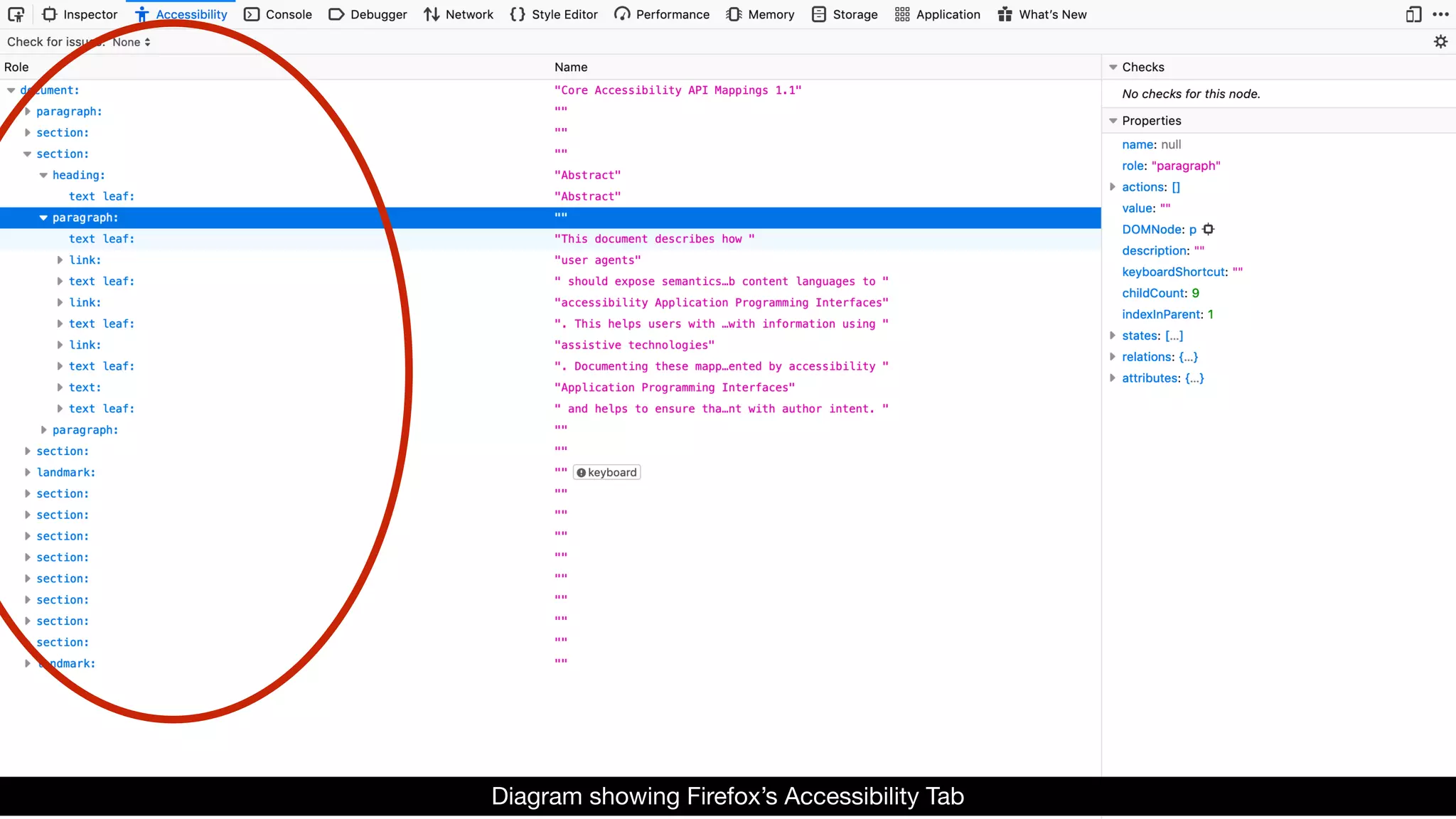
Using Firefox’s Developer Tools,
via the “Accessibility” Tab.
Diagram showing Firefox’s Accessibility Tab
Putting them all
together
Let's look at an example of the
Accessibility API, the DOM and
accessibility tree in action.
In the following example, we’ll go
through the steps of a screen reader
user going to a web application,
navigating the application and then
activating a button.
1. When the user types in a URL
and hits “ENTER”, an HTTP
request is sent by the browser.
2. The resulting HTML is delivered
to the browser.
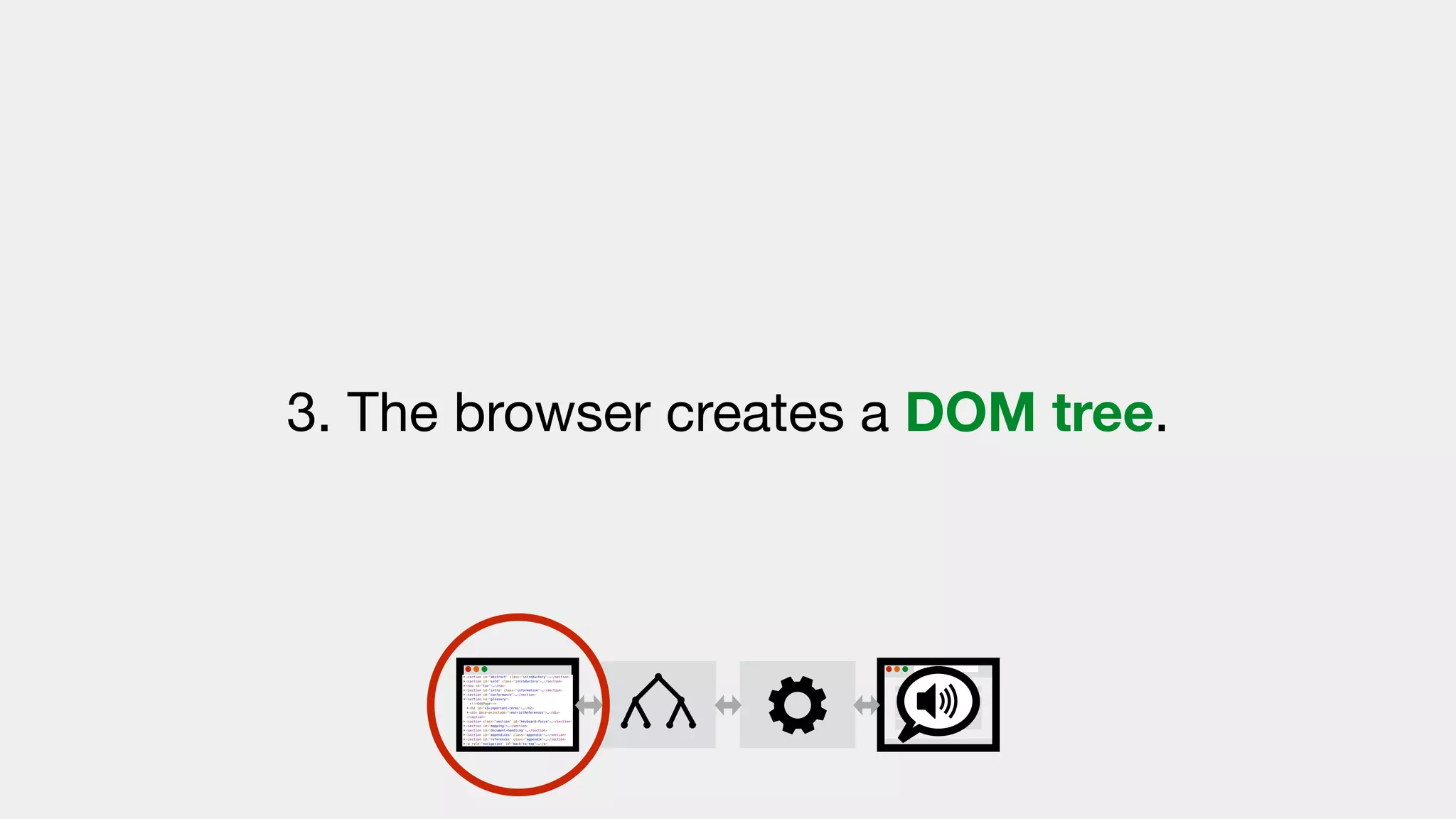
3. The browser creates a DOM tree.
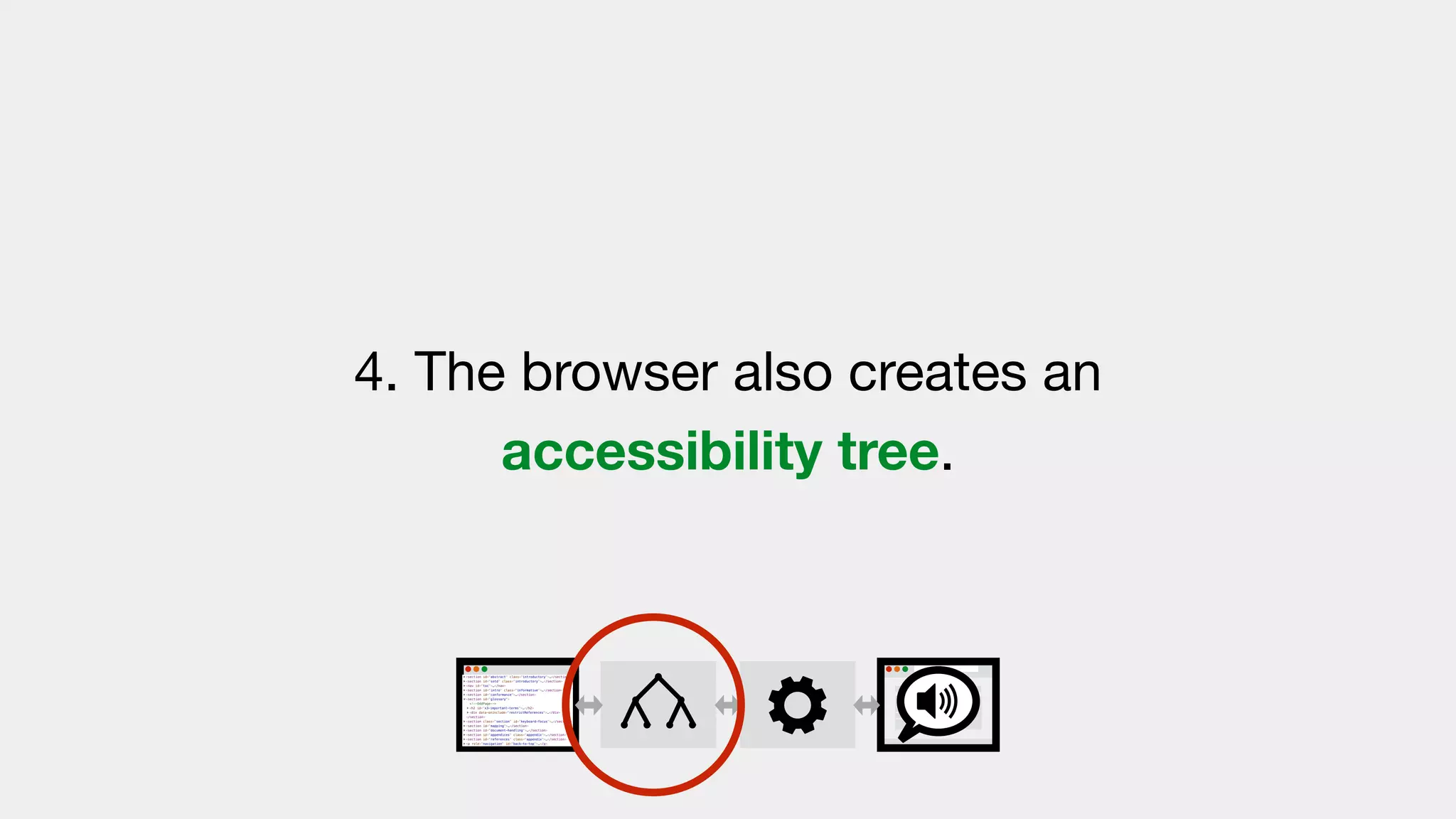
4. The browser also creates an
accessibility tree.
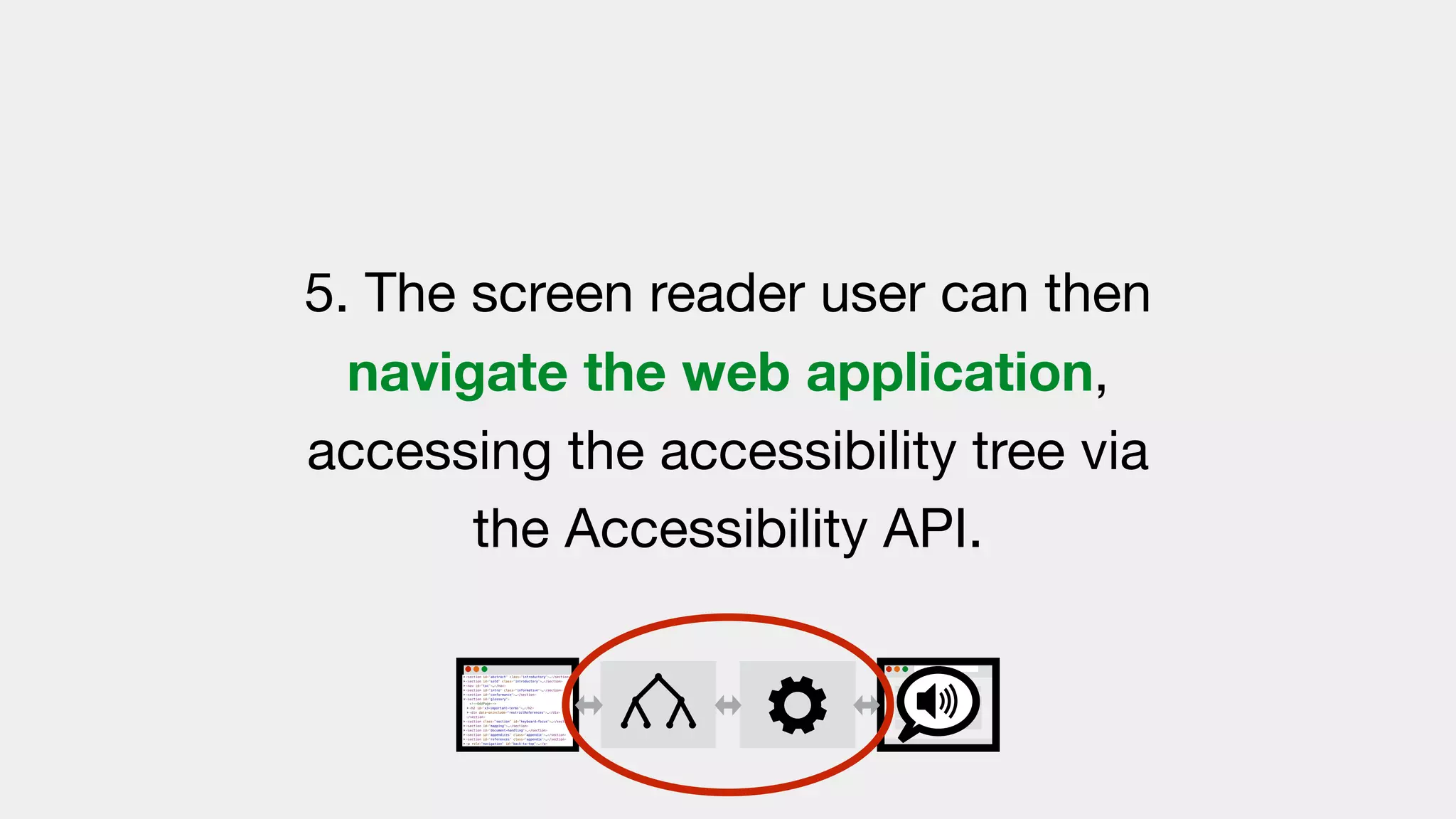
5. The screen reader user can then
navigate the web application,
accessing the accessibility tree via
the Accessibility API.
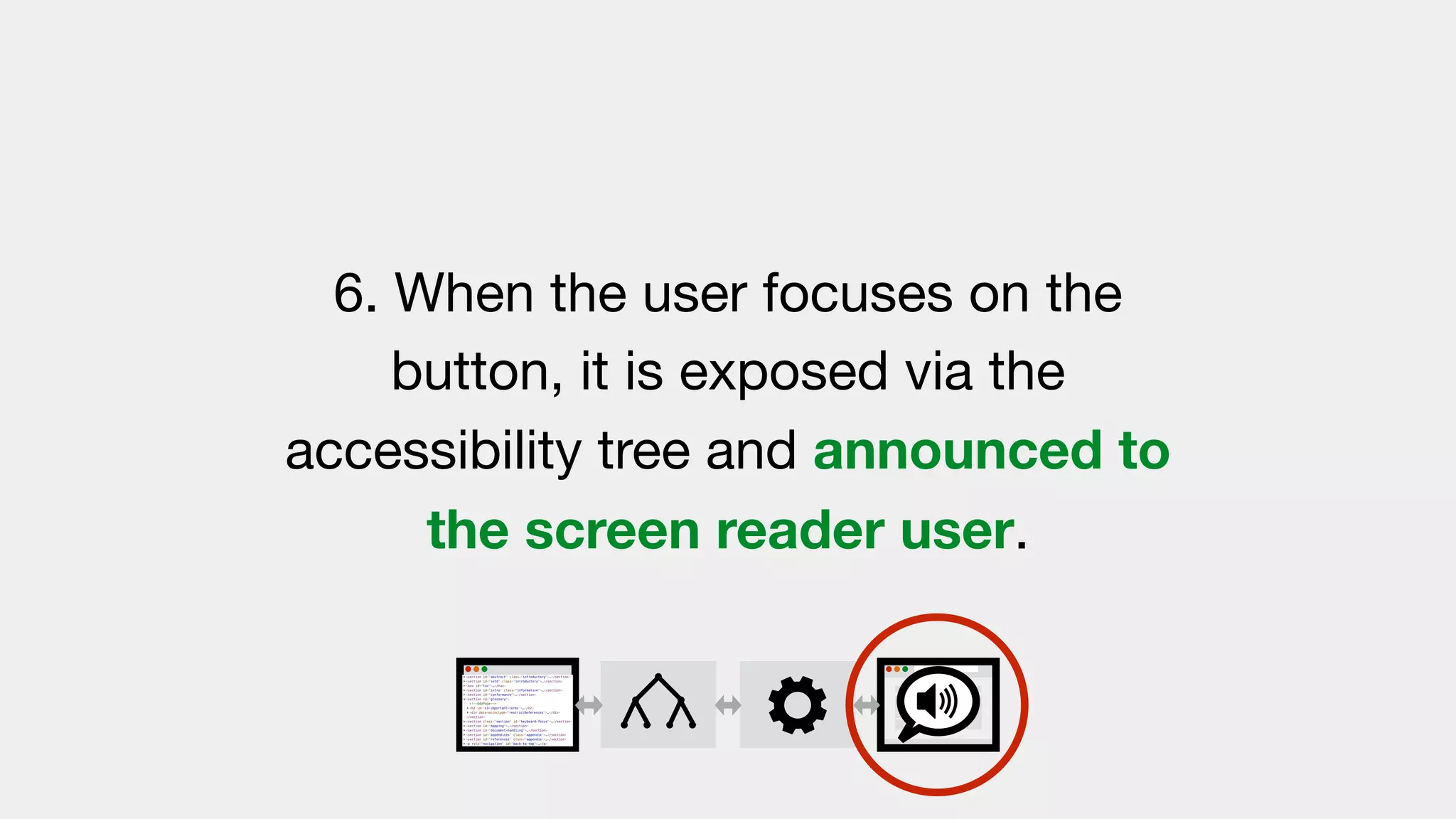
6. When the user focuses on the
button, it is exposed via the
accessibility tree and announced to
the screen reader user.
“Save, Button”
7. When the user activates the
button, the assistive technology
relays the action back to the app via
the Accessibility API.
8. The web application then
interprets the action appropriately
in the context of the original UI.
The key question is: “How did the
browser know to announce the
button as ‘Save’”?
That’s where accessible names
come into play.
Accessible names
All accessible objects in the
accessibility tree should have
meaningful, accessible names.
These names are used by assistive
technologies to identify the object.
You can see the name assigned to
accessible objects by viewing the
accessibility tree.
In the following example, a
<button> element has a text value
of “Save”.
<button>Save</button>
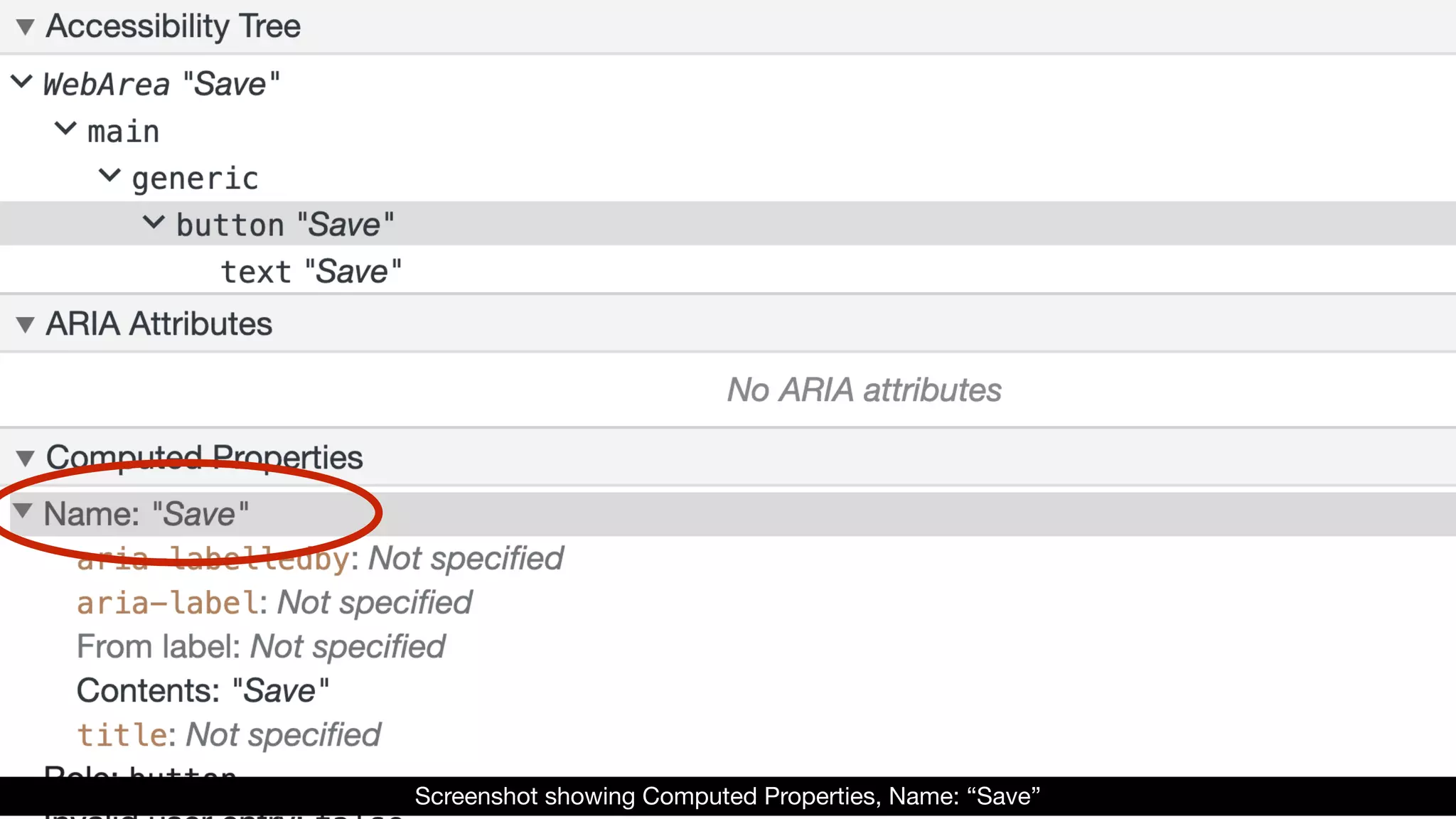
Using Chrome’s accessibility tree,
we can see that the computed
accessible name for the <button>
is “Save”.
Screenshot showing Computed Properties, Name: “Save”
How do browsers know how to
define the accessible name for
each object?
They use the W3C specification
“Accessible Name and
Description Computation”.

https://www.w3.org/TR/accname-1.1/
This specification describes how
browsers determine the names
and descriptions of accessible
objects.
The specification allows browsers to
create a name for each object as a
text string.
Stepping through the
Computation
We’re now going to go through the
steps of the “Accessible Name
and Description Computation”.
This is an extremely simplified
version of the steps. Otherwise
we’d be here all day.
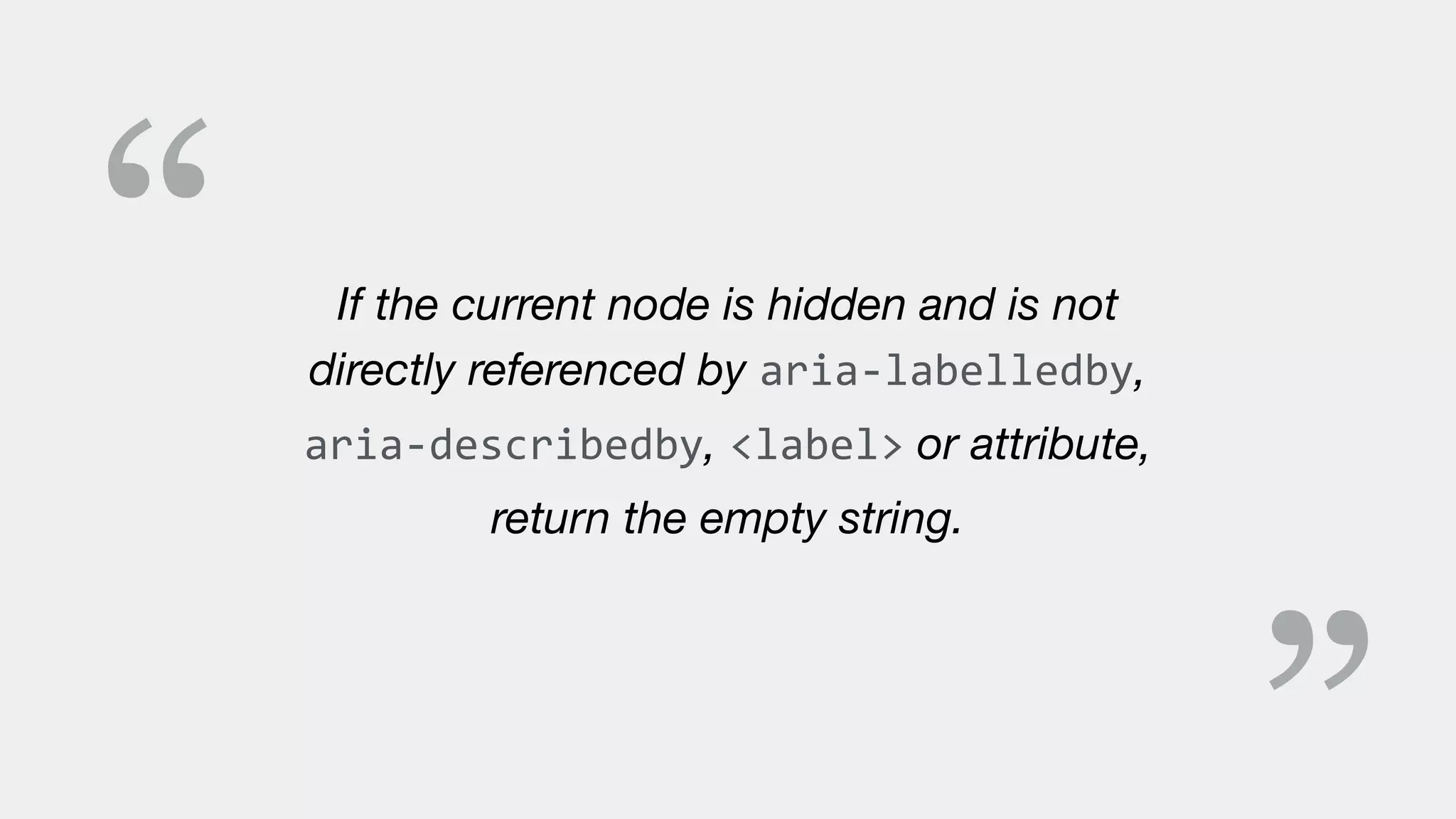
Step A.
“ If the current node is hidden and is not
directly referenced by aria-labelledby,
aria-describedby, <label> or attribute,
return the empty string.
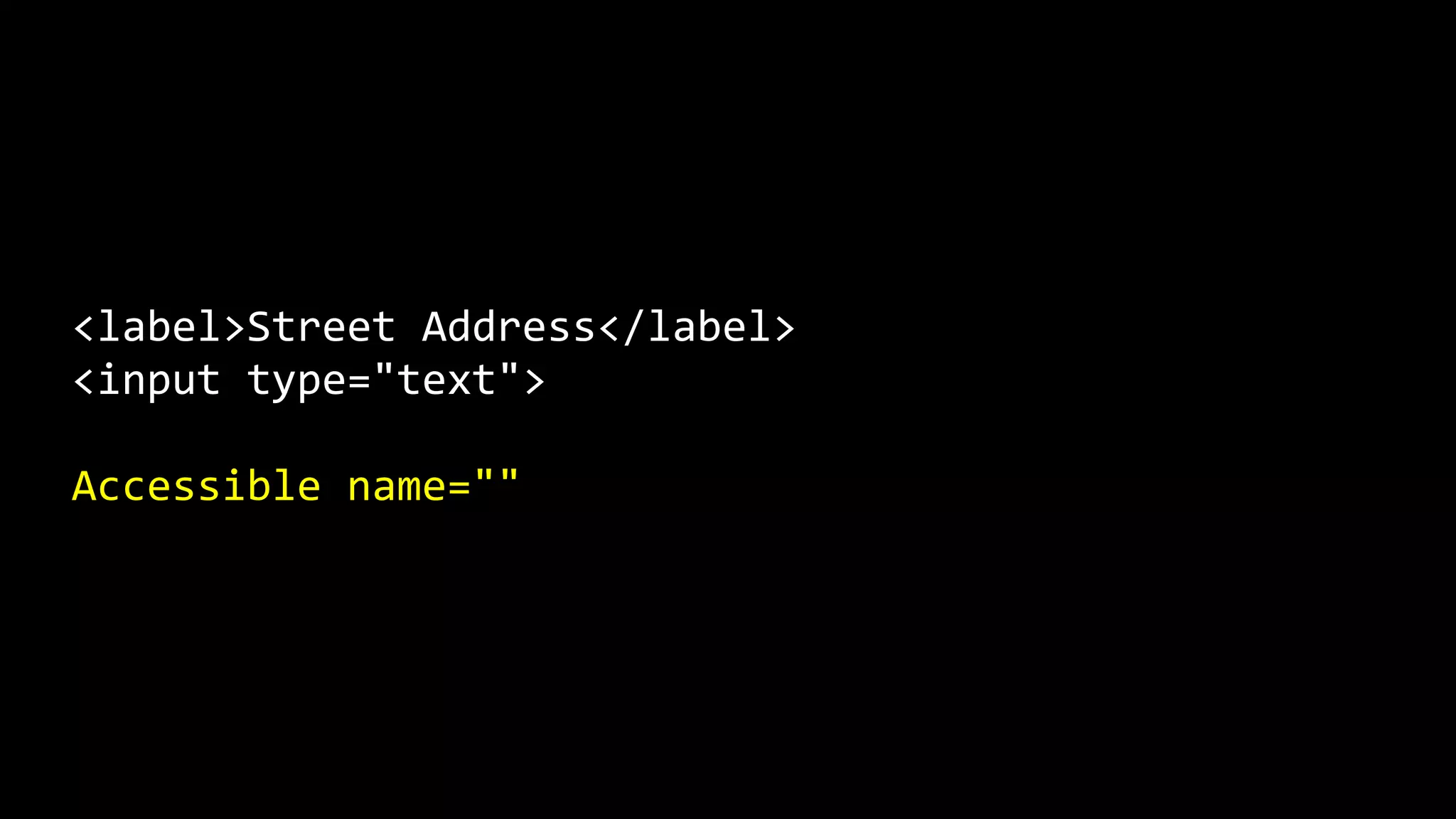
The following example has an
<input> with a <label> nearby.
However, the elements are not
explicitly associated using matching
FOR and ID values, and therefore
the <input> returns an empty
string for the accessible name.
<label>Street Address</label>
<input type="text">
Accessible name=""
Step B.
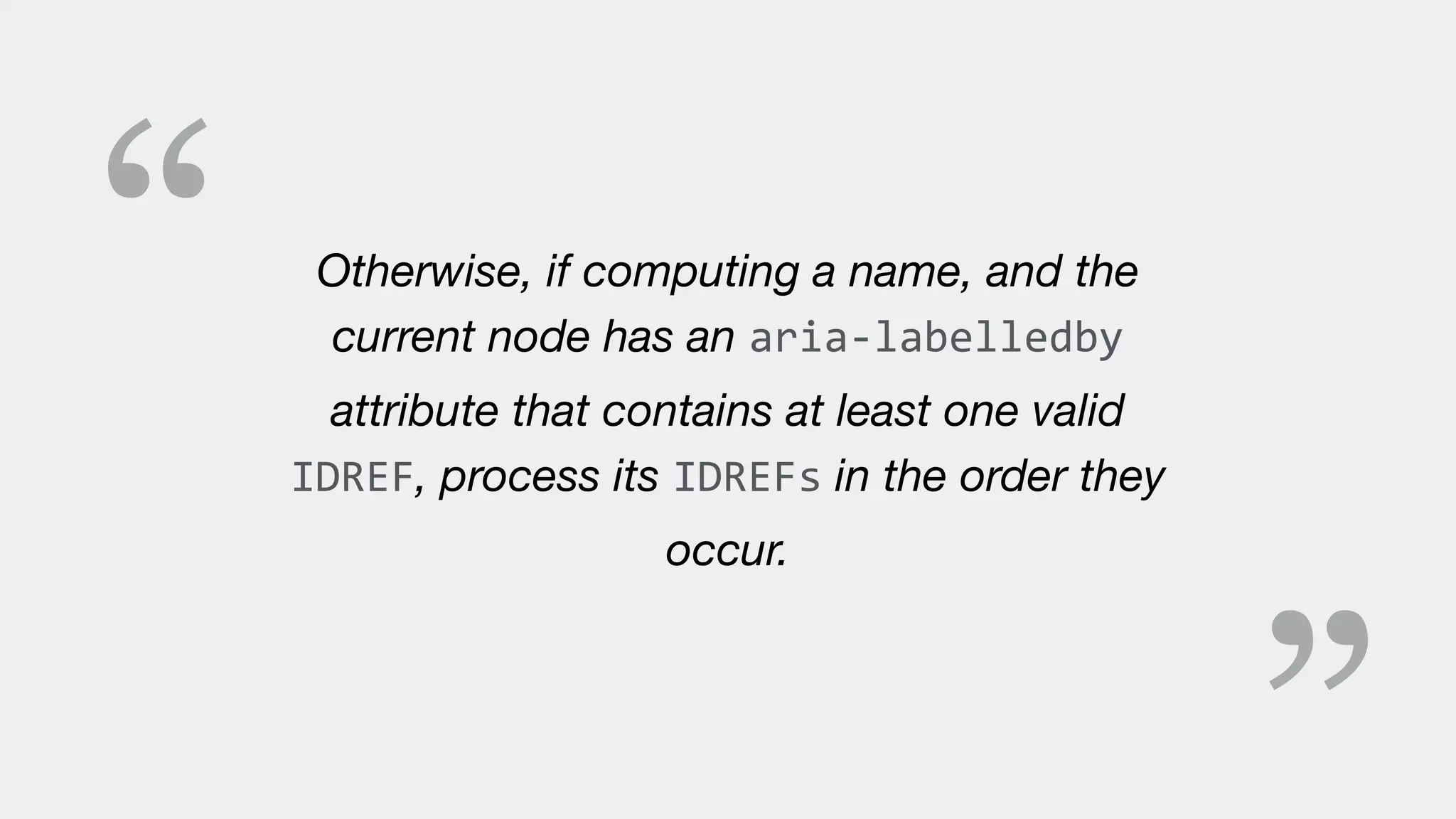
“ Otherwise, if computing a name, and the
current node has an aria-labelledby
attribute that contains at least one valid
IDREF, process its IDREFs in the order they
occur.
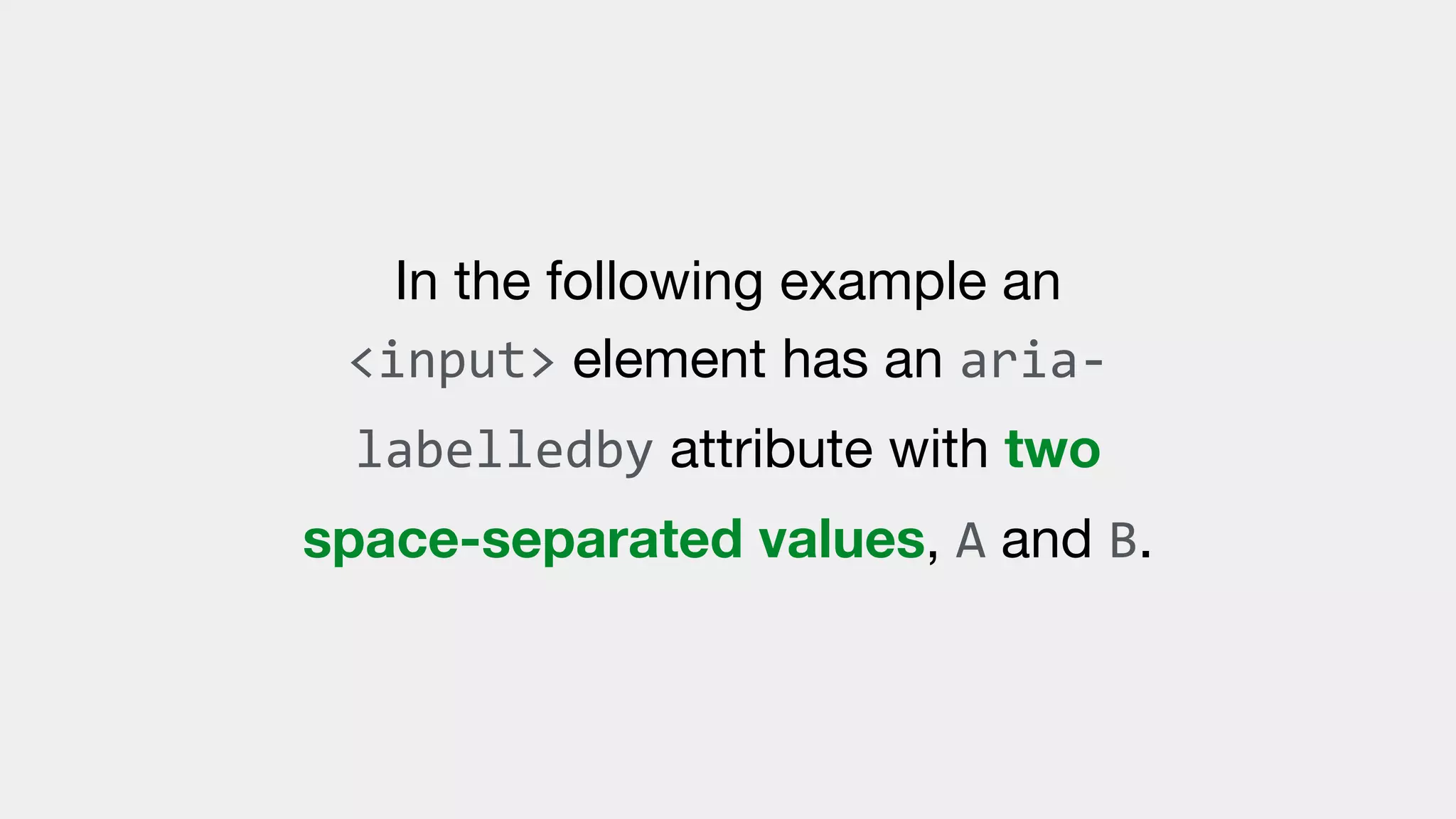
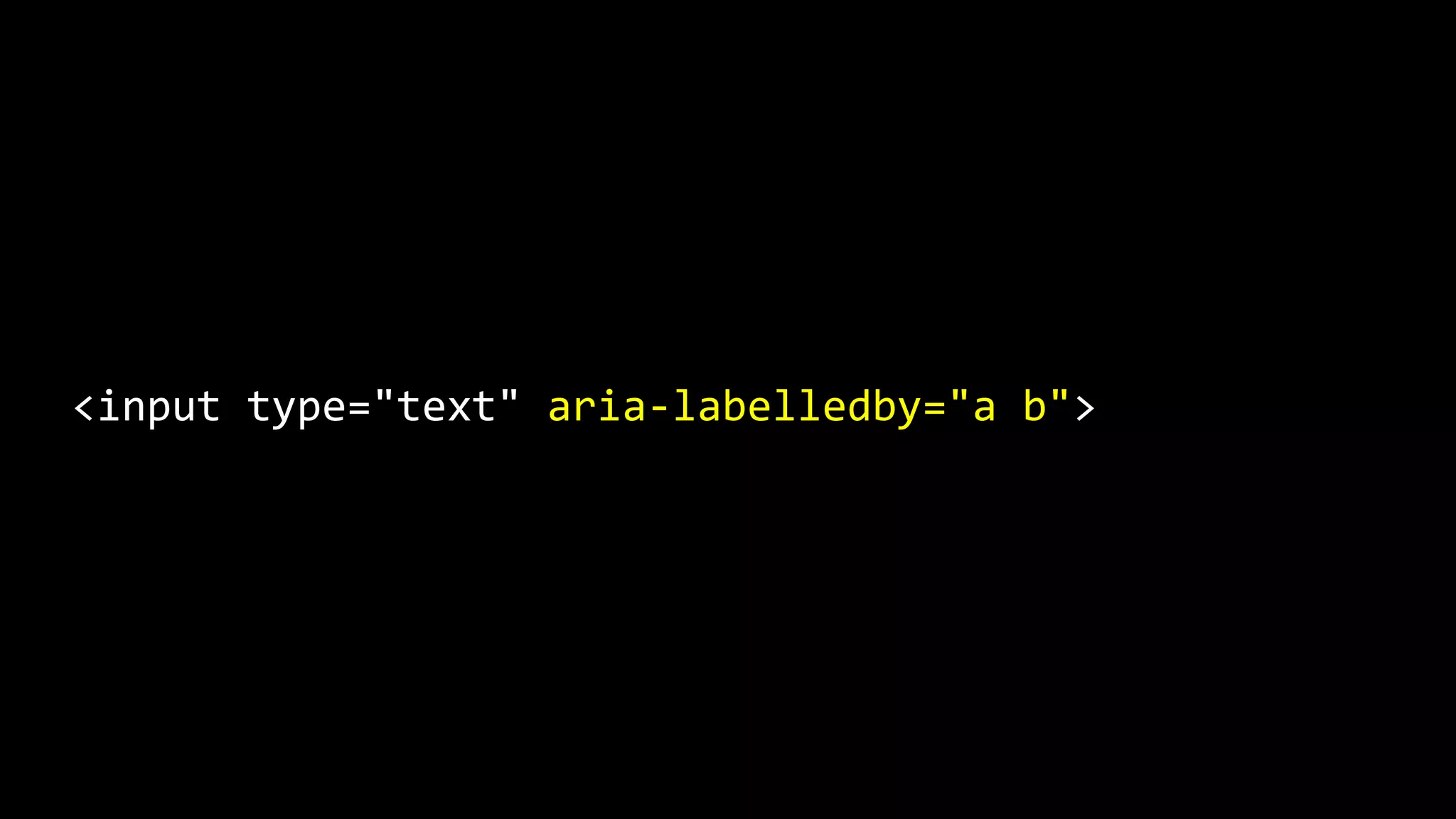
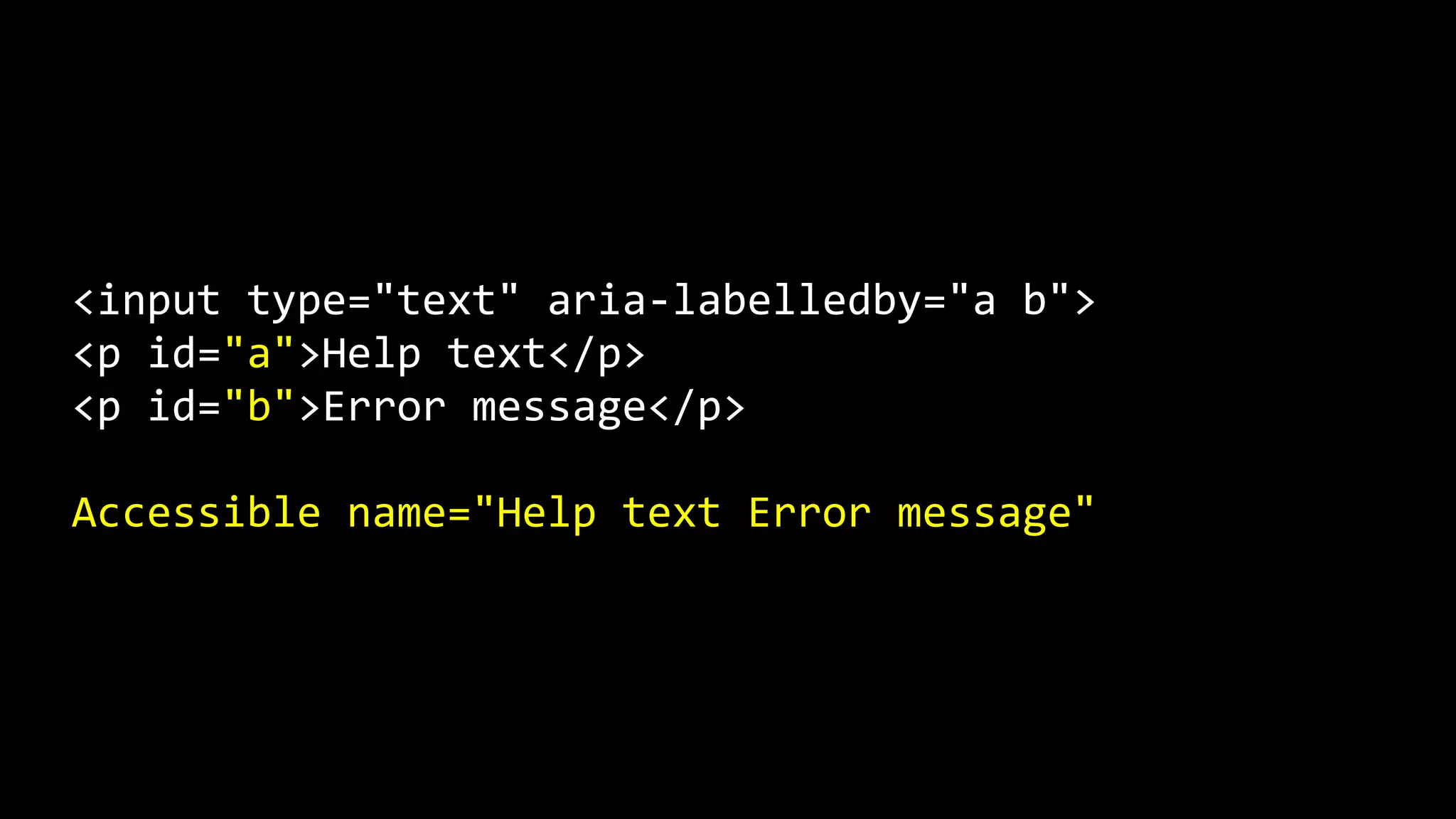
In the following example an
<input> element has an aria-
labelledby attribute with two
space-separated values, A and B.
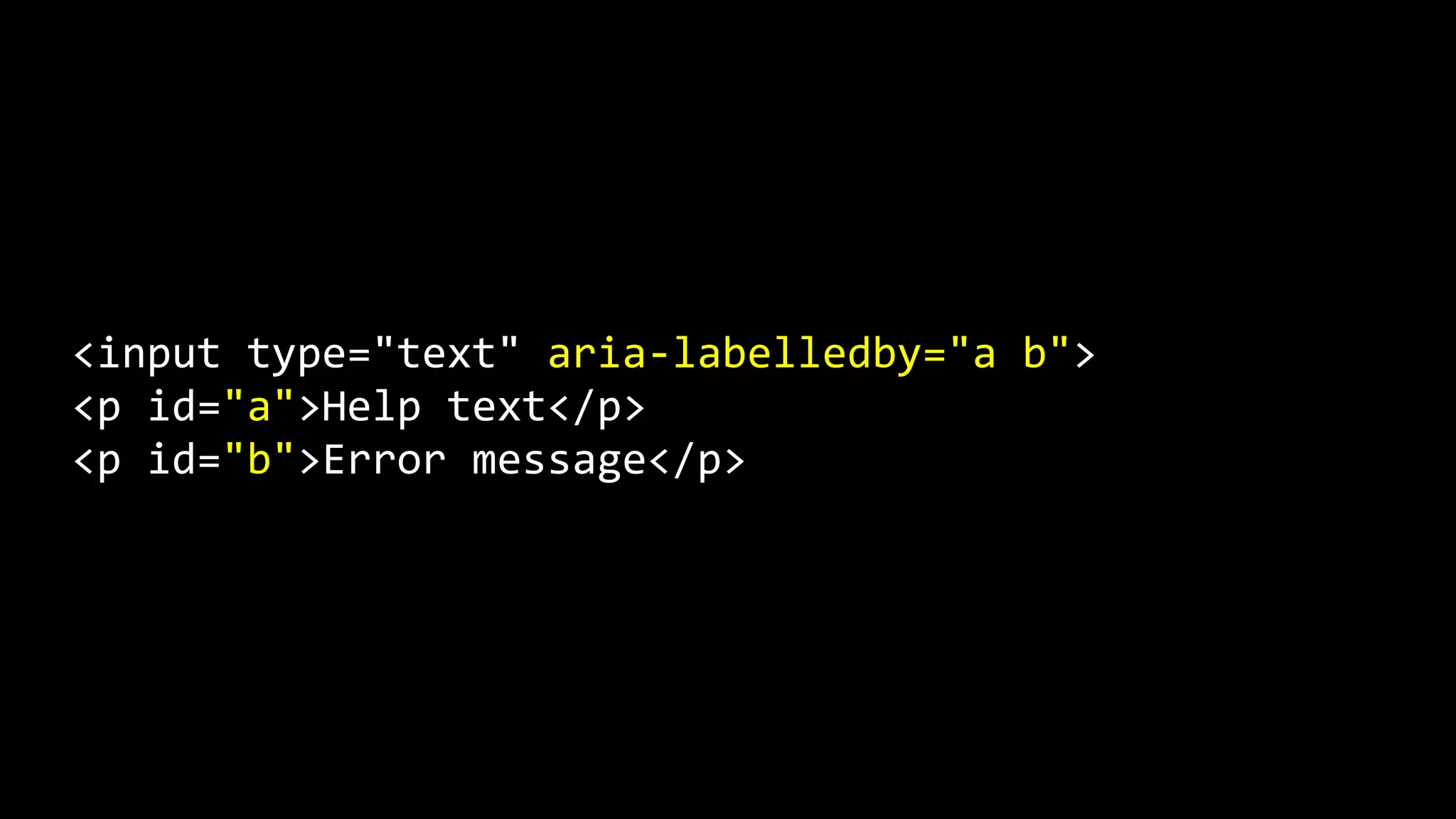
<input type="text" aria-labelledby="a b">
Within the document there are two
elements with ID values of A and B.
<input type="text" aria-labelledby="a b">
<p id="a">Help text</p>
<p id="b">Error message</p>
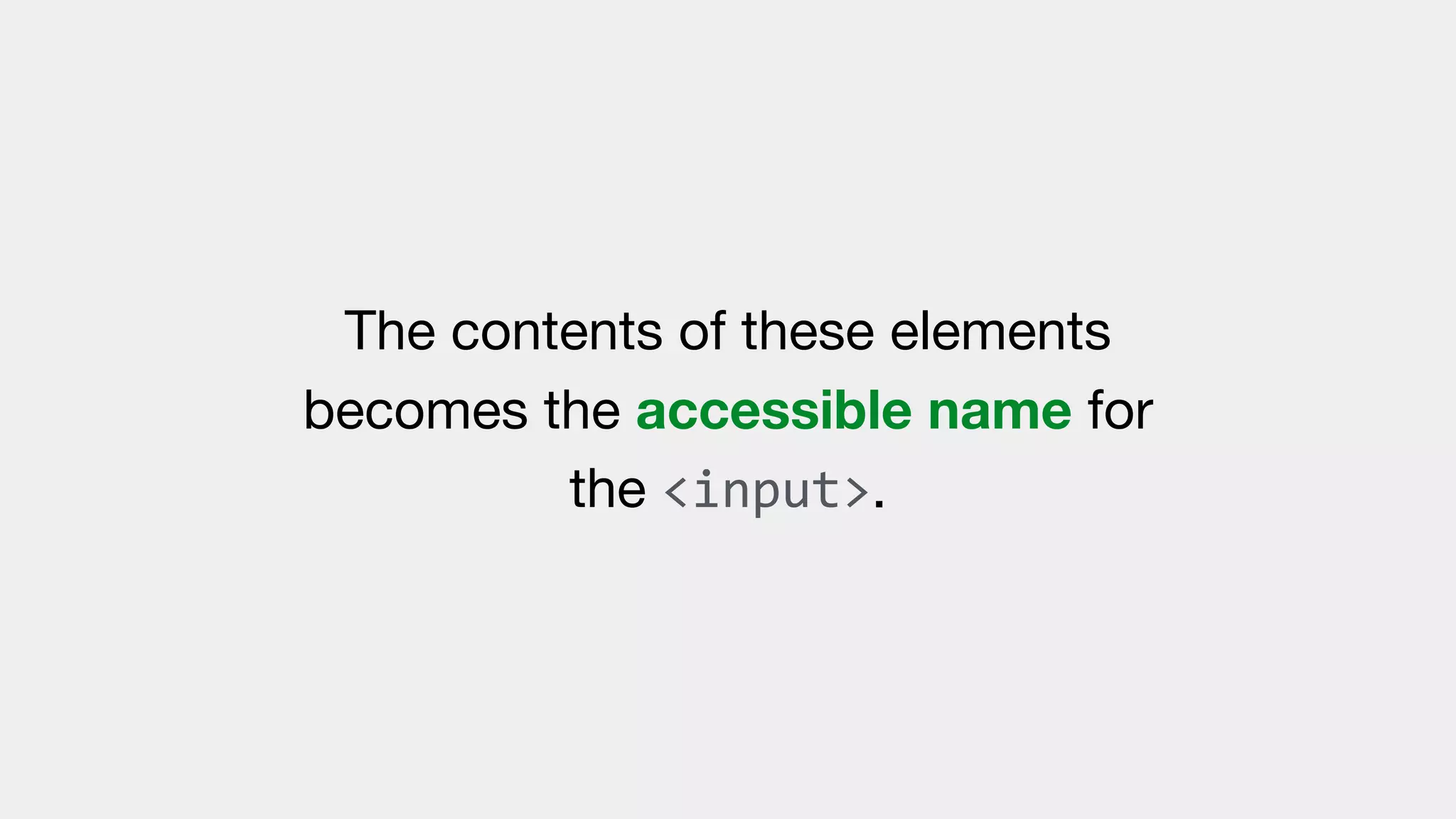
The contents of these elements
becomes the accessible name for
the <input>.
The accessible name is computed
based on the order the ID contents
are defined within the aria-
labelledby attribute.
<input type="text" aria-labelledby="a b">
<p id="a">Help text</p>
<p id="b">Error message</p>
Accessible name="Help text Error message"
Step C.
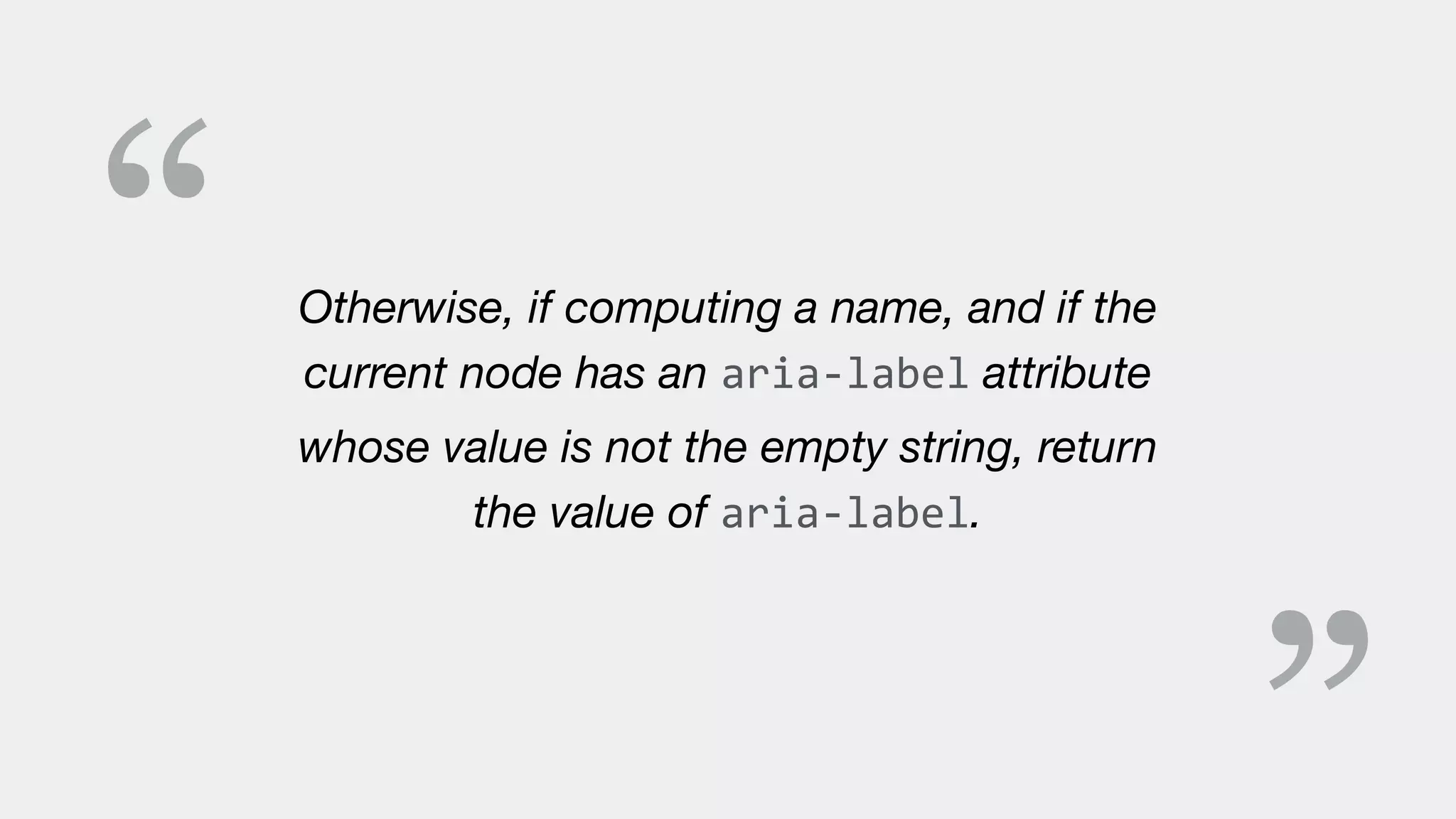
“ Otherwise, if computing a name, and if the
current node has an aria-label attribute
whose value is not the empty string, return
the value of aria-label.
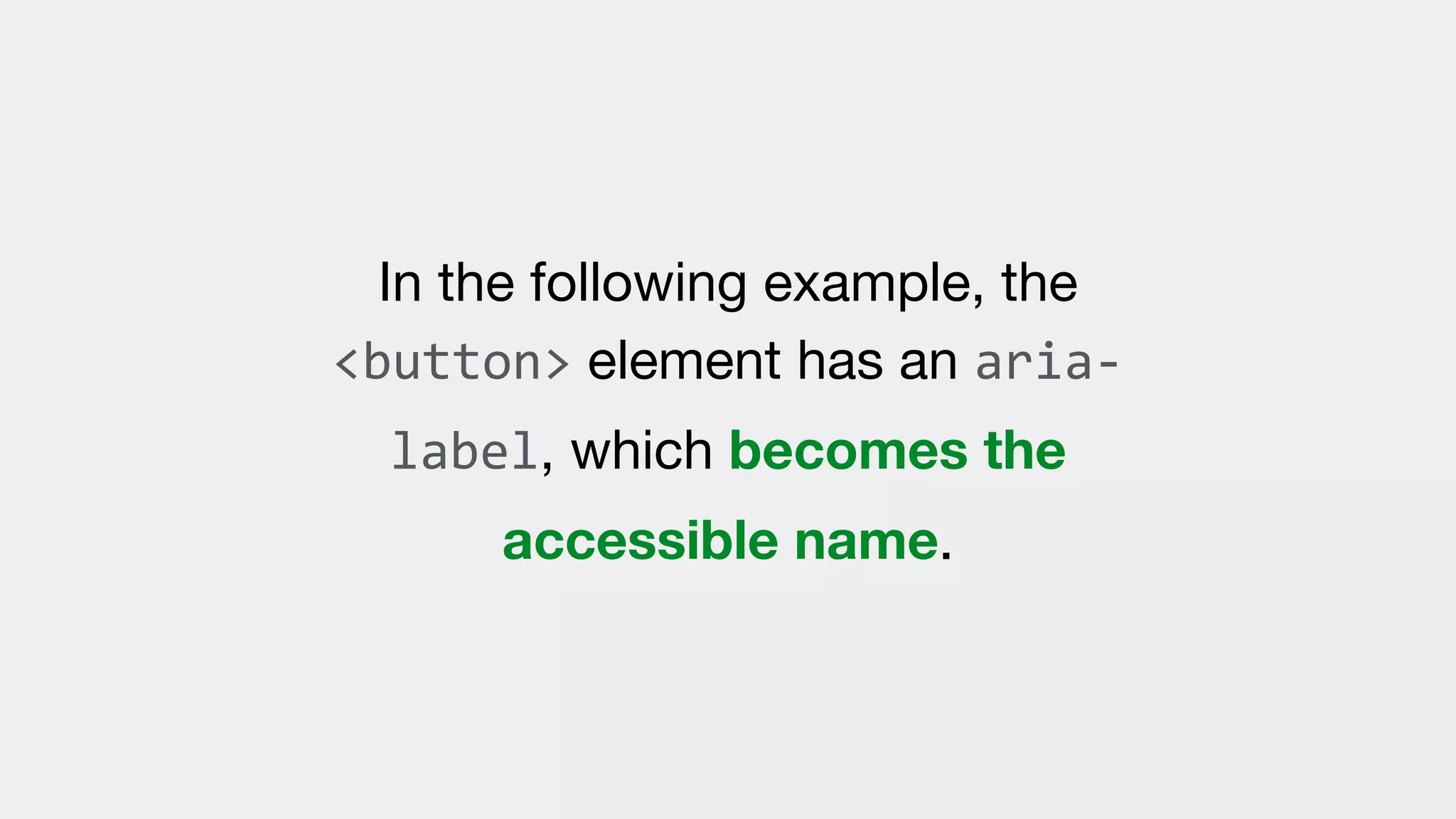
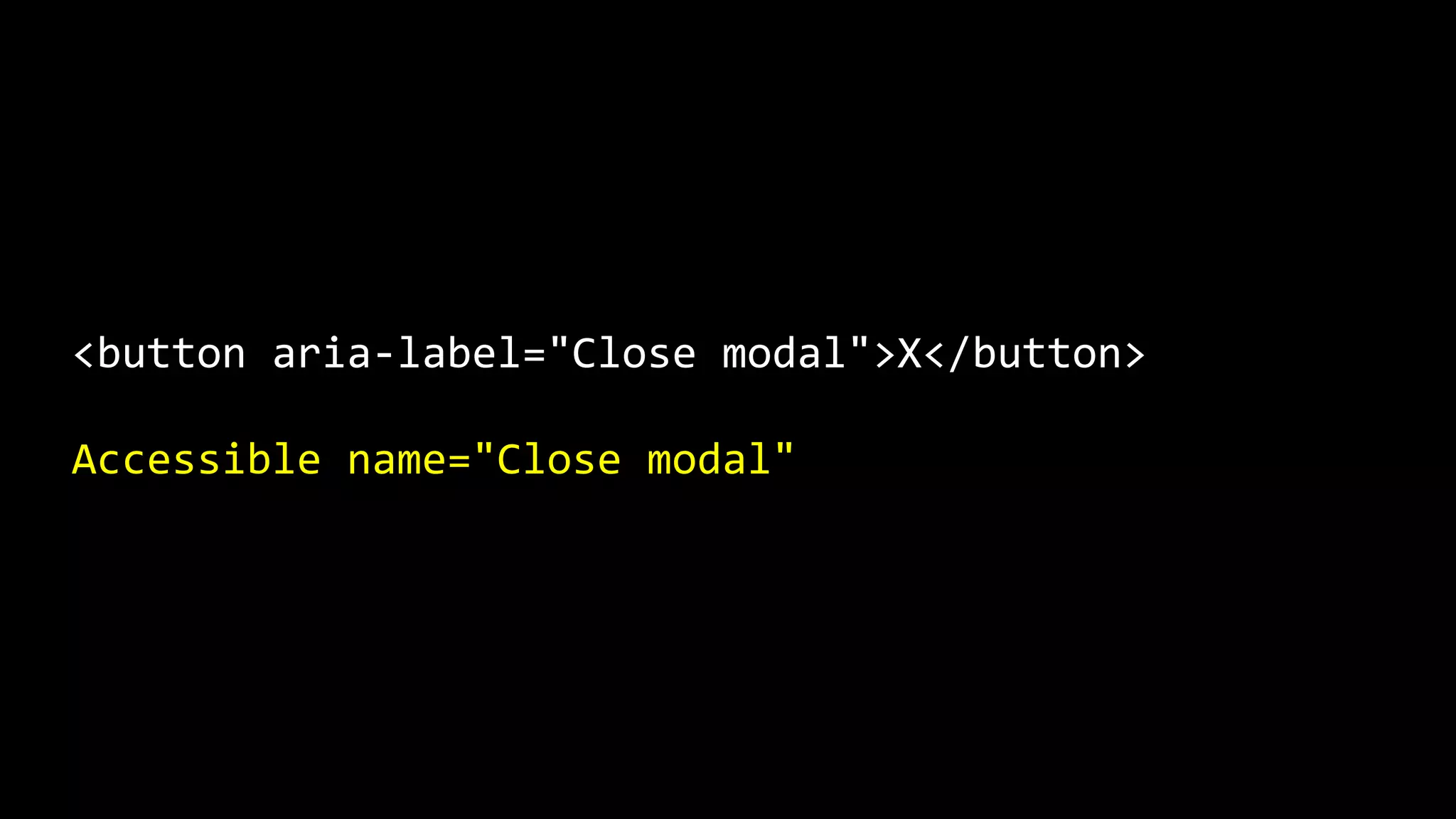
In the following example, the
<button> element has an aria-
label, which becomes the
accessible name.
<button aria-label="Close modal">X</button>
Accessible name="Close modal"
Step D.
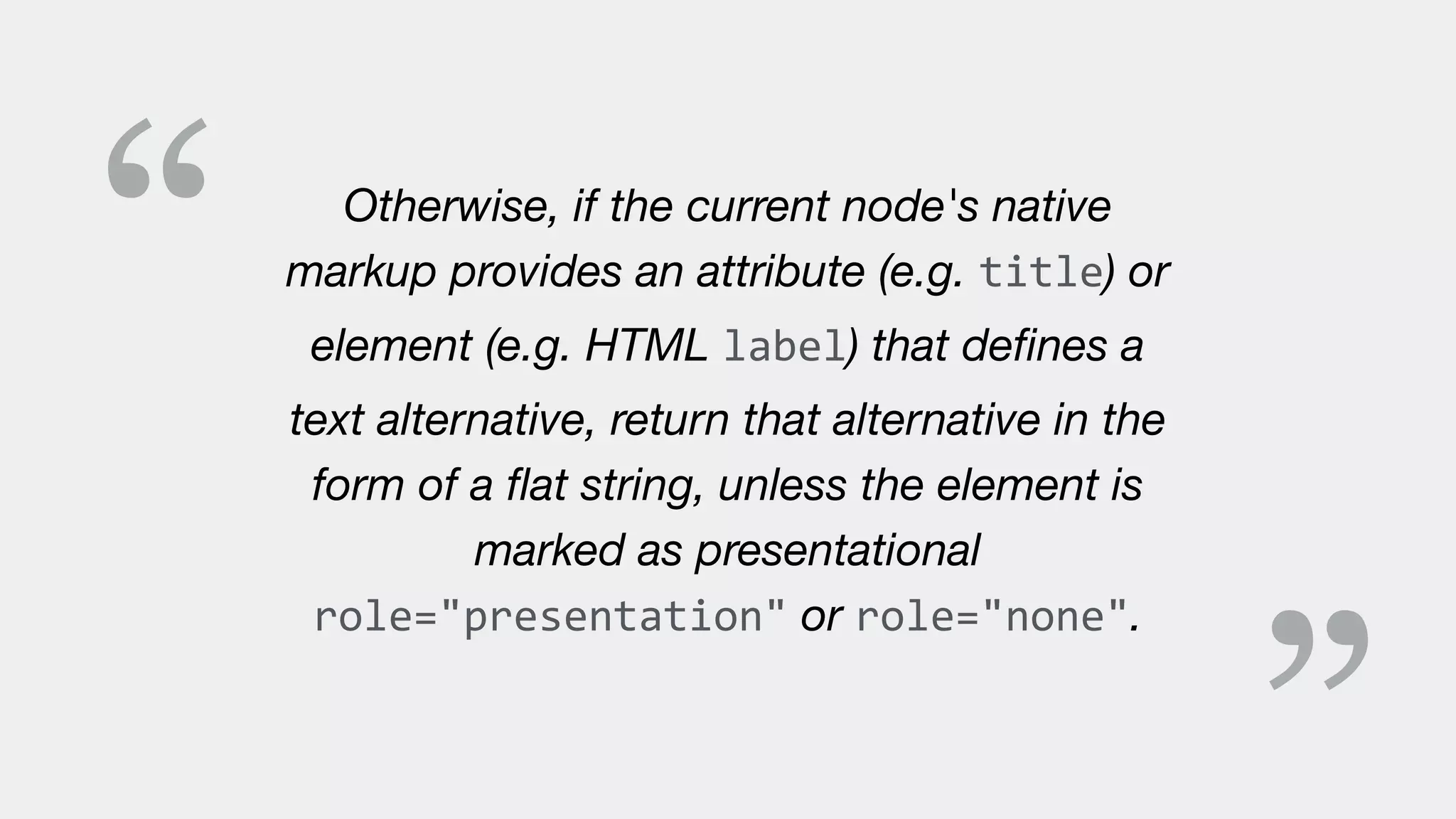
“ Otherwise, if the current node's native
markup provides an attribute (e.g. title) or
element (e.g. HTML label) that defines a
text alternative, return that alternative in the
form of a flat string, unless the element is
marked as presentational
role="presentation" or role="none".
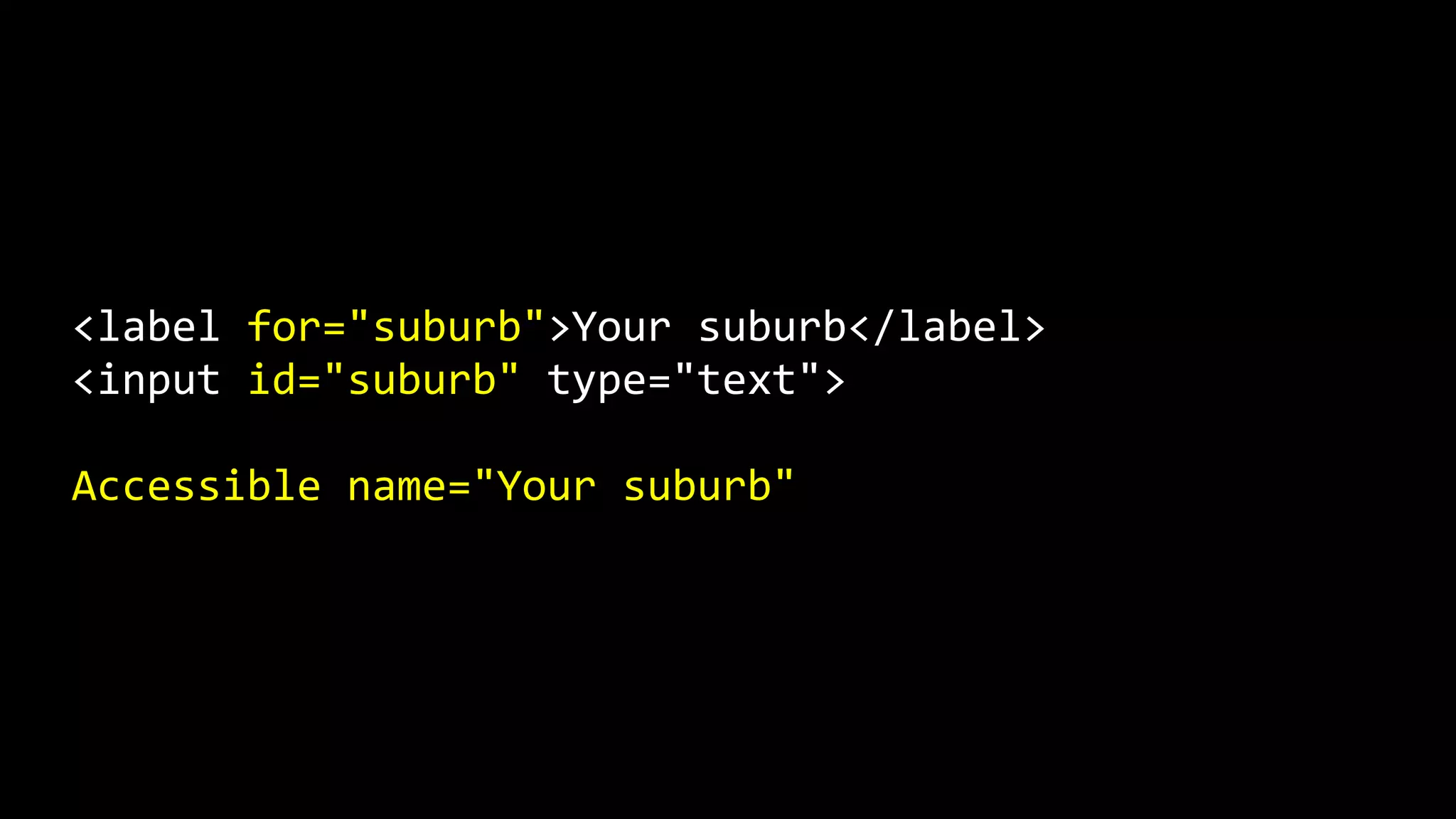
In the following example, the
<label> is explicitly associated
with the <input> using matching
FOR and ID values.
This means that the <label>
element provides a text alternative
for the <input> that can be used as
an accessible name.
<label for="suburb">Your suburb</label>
<input id="suburb" type="text">
Accessible name="Your suburb"
In the following example, the <img>
includes an alt attribute that
contains a text string.
This means that the alt attribute
provides a text alternative for the
<img> that can be used as an
accessible name.
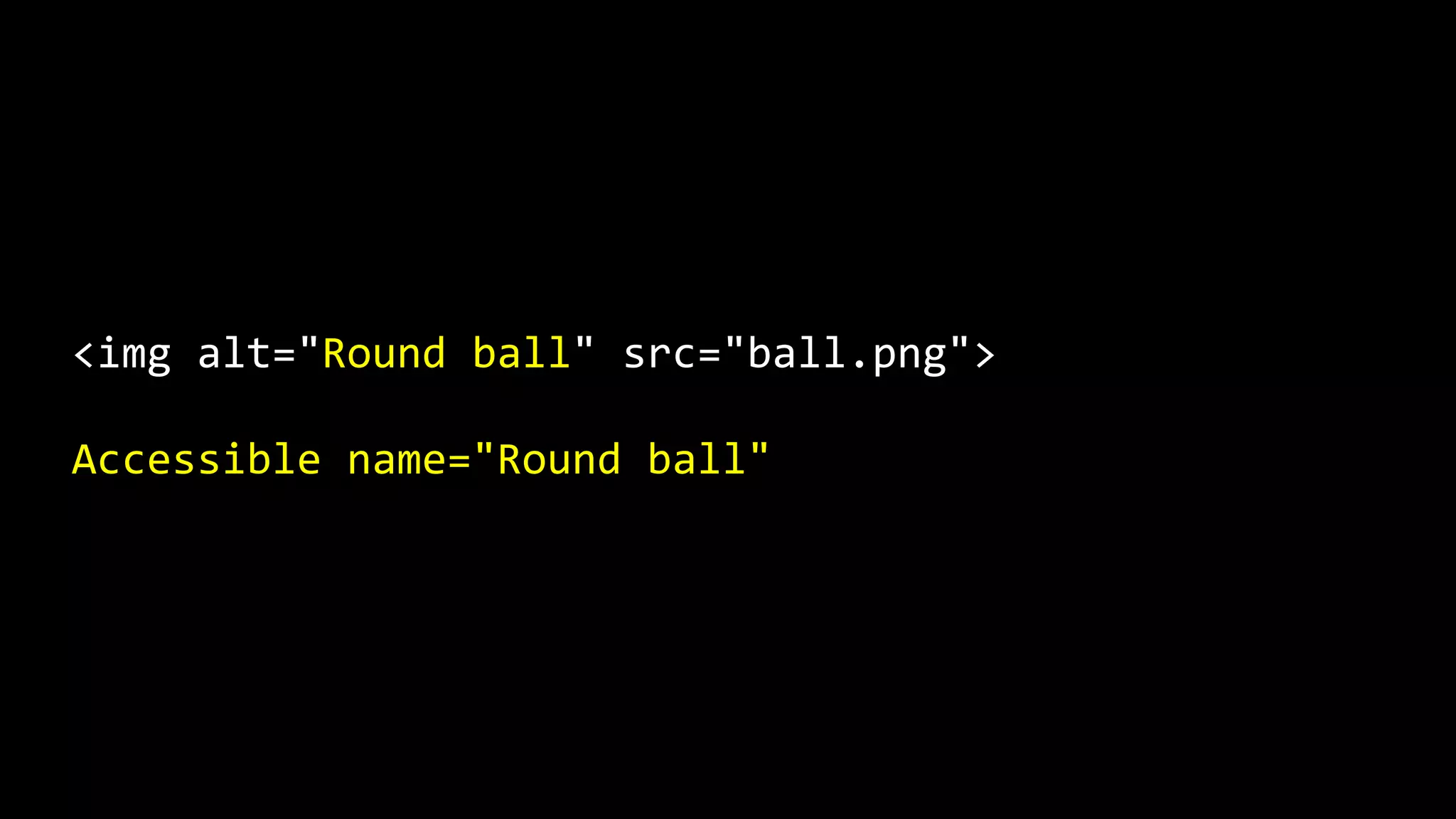
<img alt="Round ball" src="ball.png">
Accessible name="Round ball"
The title attribute is a special
case.
This attribute is considered
problematic and should be
avoided.

https://developer.paciellogroup.com/blog/2013/01/using-the-
html-title-attribute-updated/
In reality, the title attribute is
meant to be used as descriptive
text, rather than an accessible
name.
It is only promoted to an accessible
name in situations where there is no
other accessible name that can
be computed.
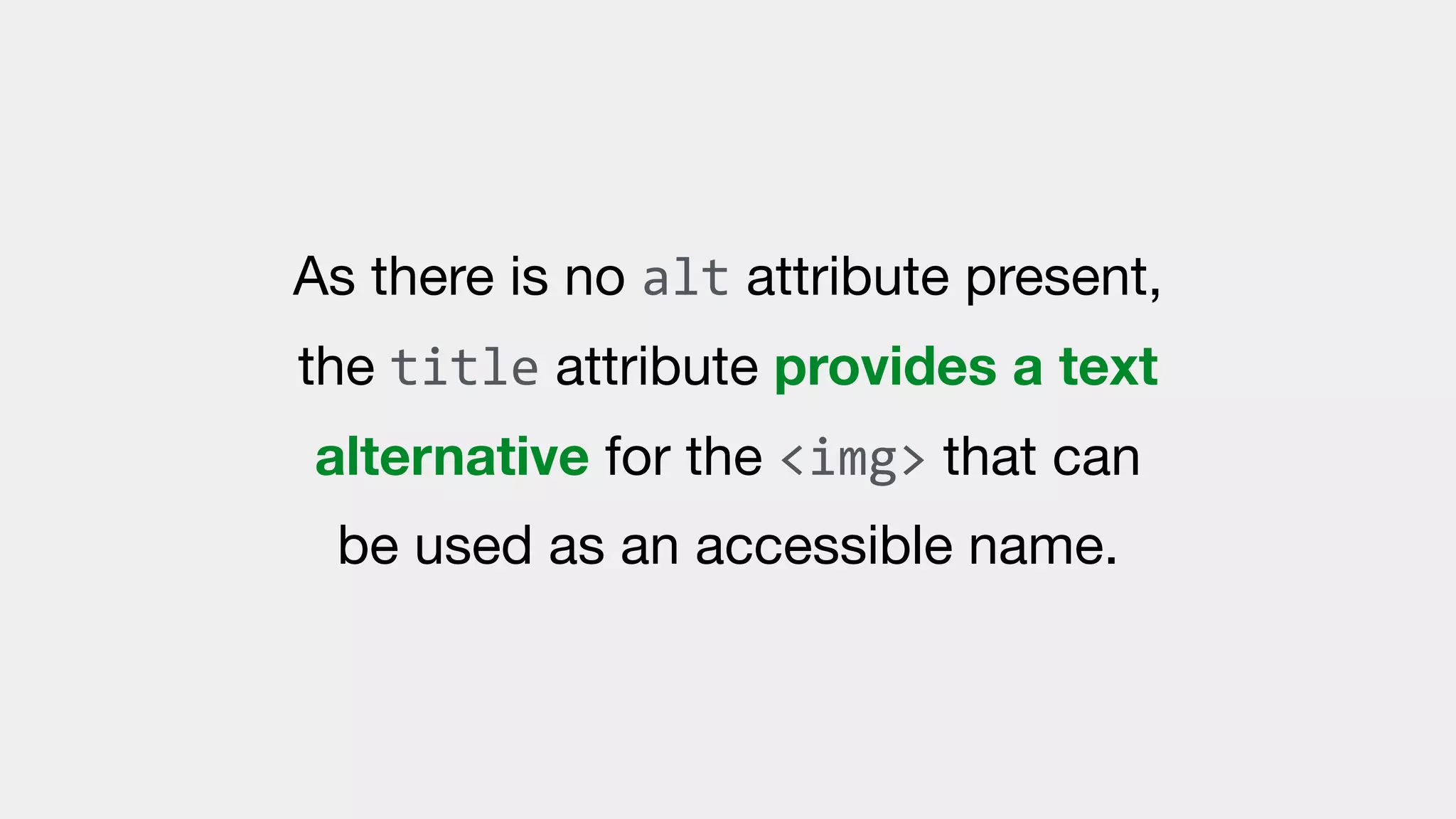
In the following example, the <img>
has no alt attribute. However, a
title attribute is present.
As there is no alt attribute present,
the title attribute provides a text
alternative for the <img> that can
be used as an accessible name.
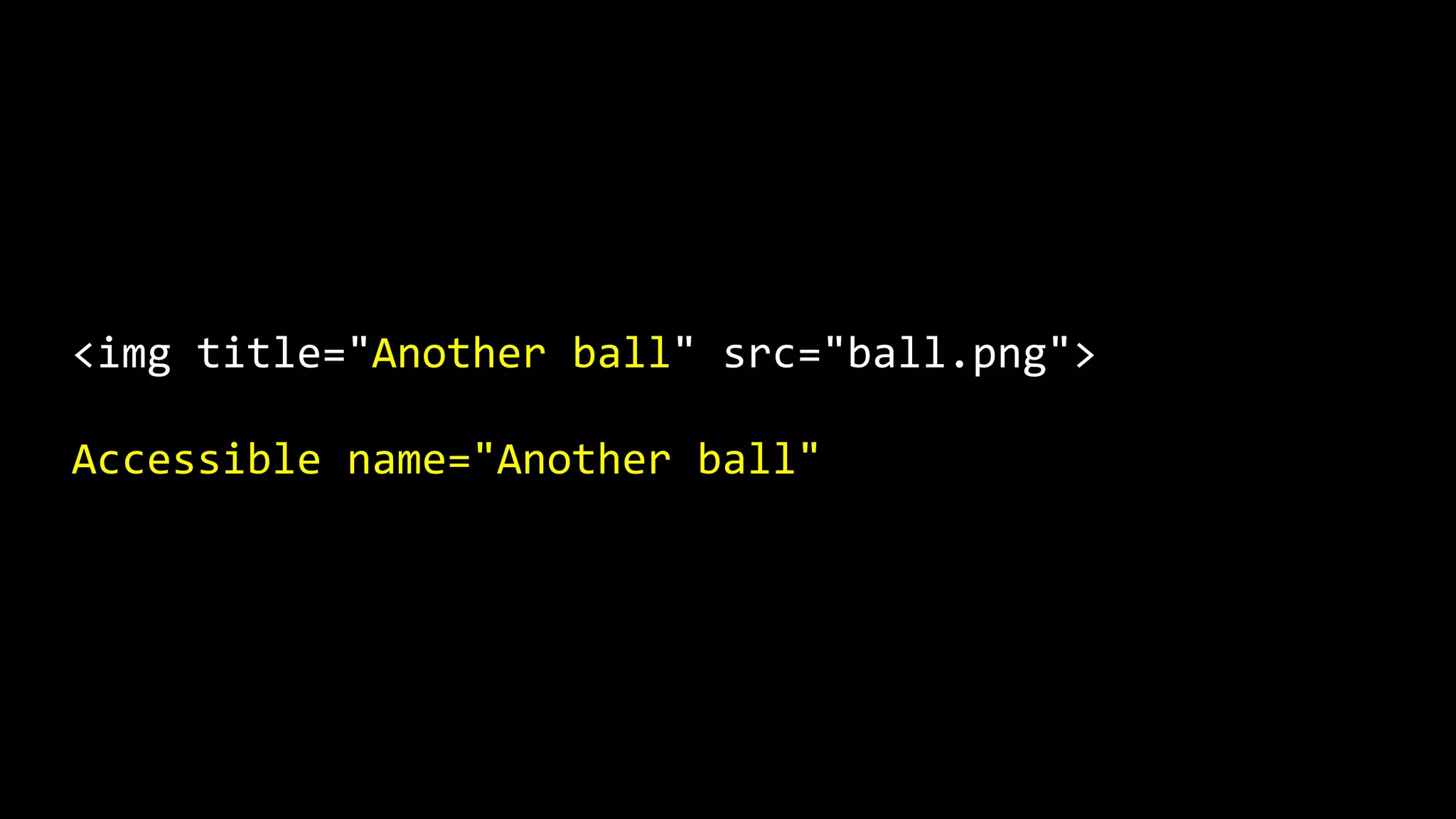
<img title="Another ball" src="ball.png">
Accessible name="Another ball"
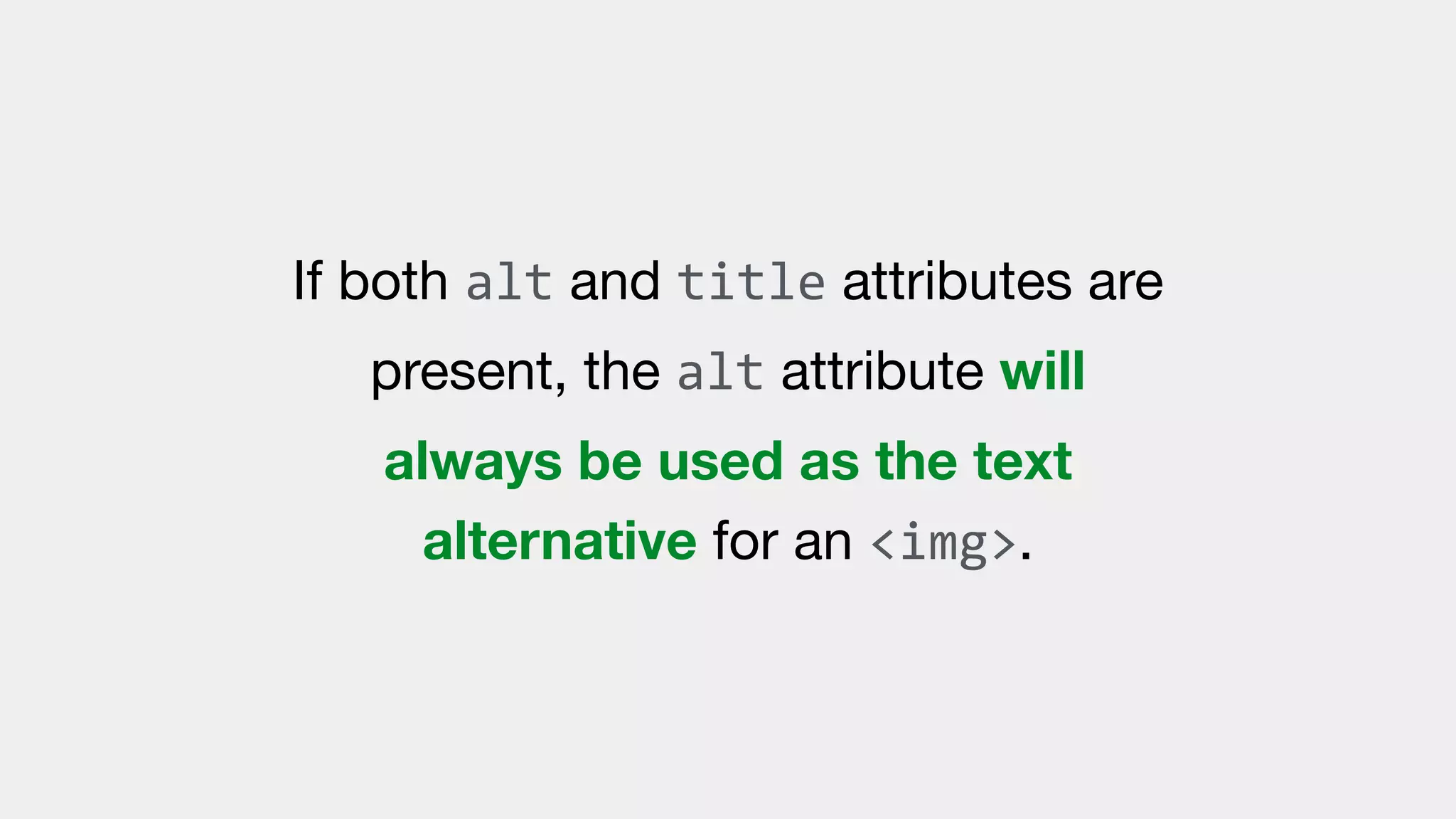
If both alt and title attributes are
present, the alt attribute will
always be used as the text
alternative for an <img>.
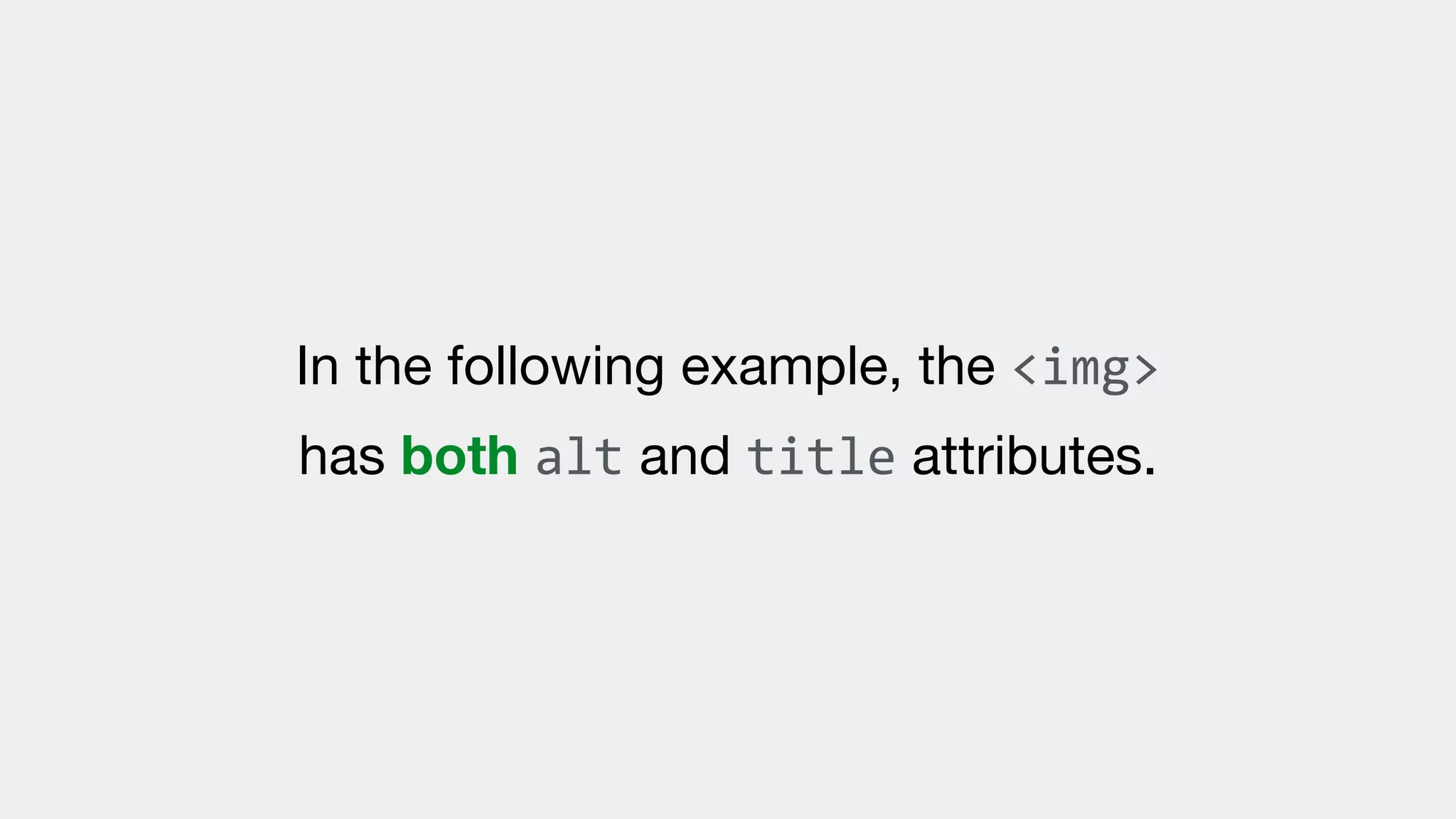
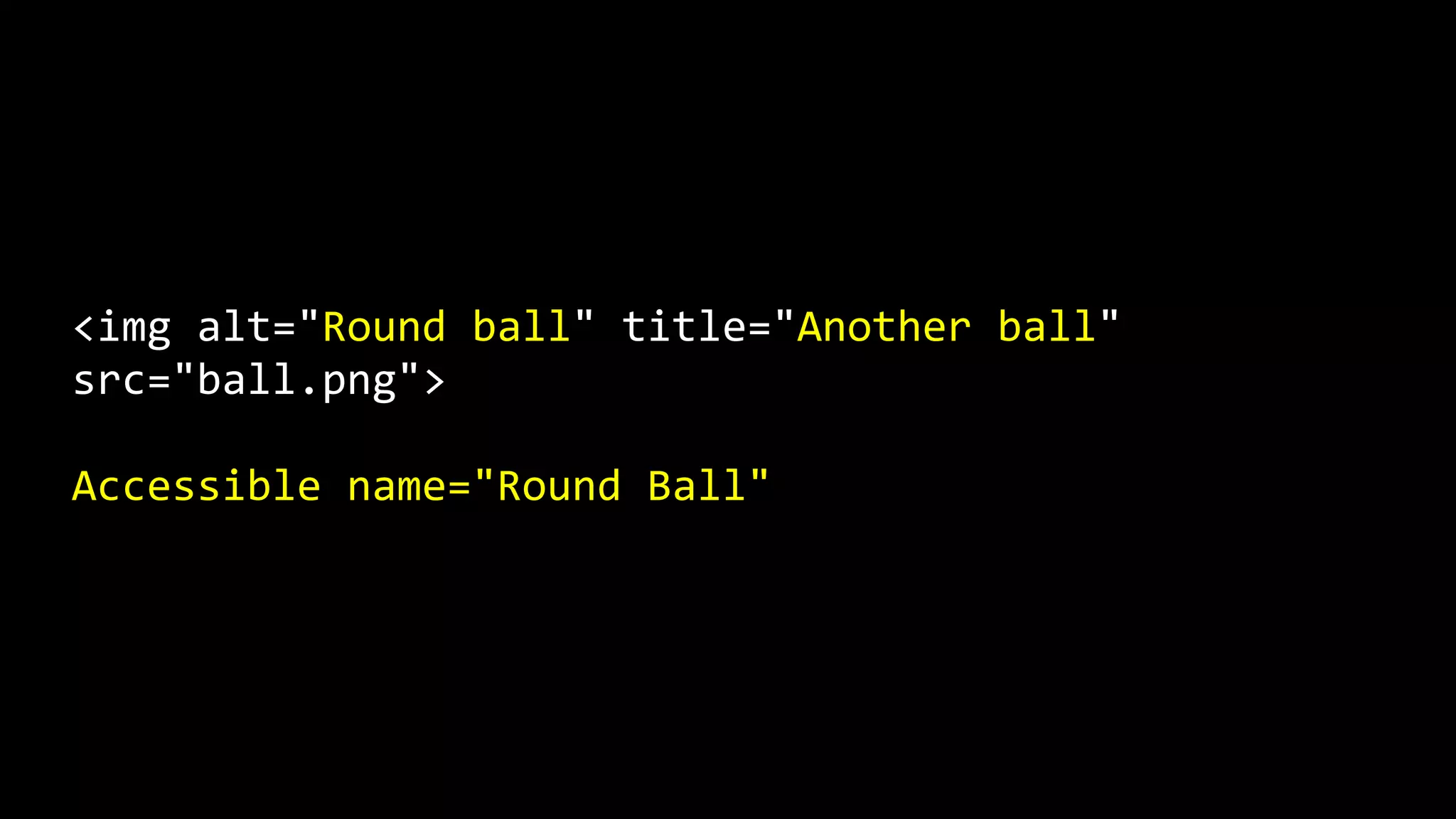
In the following example, the <img>
has both alt and title attributes.
The alt attribute’s text alternative
is used as the accessible name.
<img alt="Round ball" title="Another ball"
src="ball.png">
Accessible name="Round Ball"
Step E.
We’ll skip over Step E to avoid
complexity.
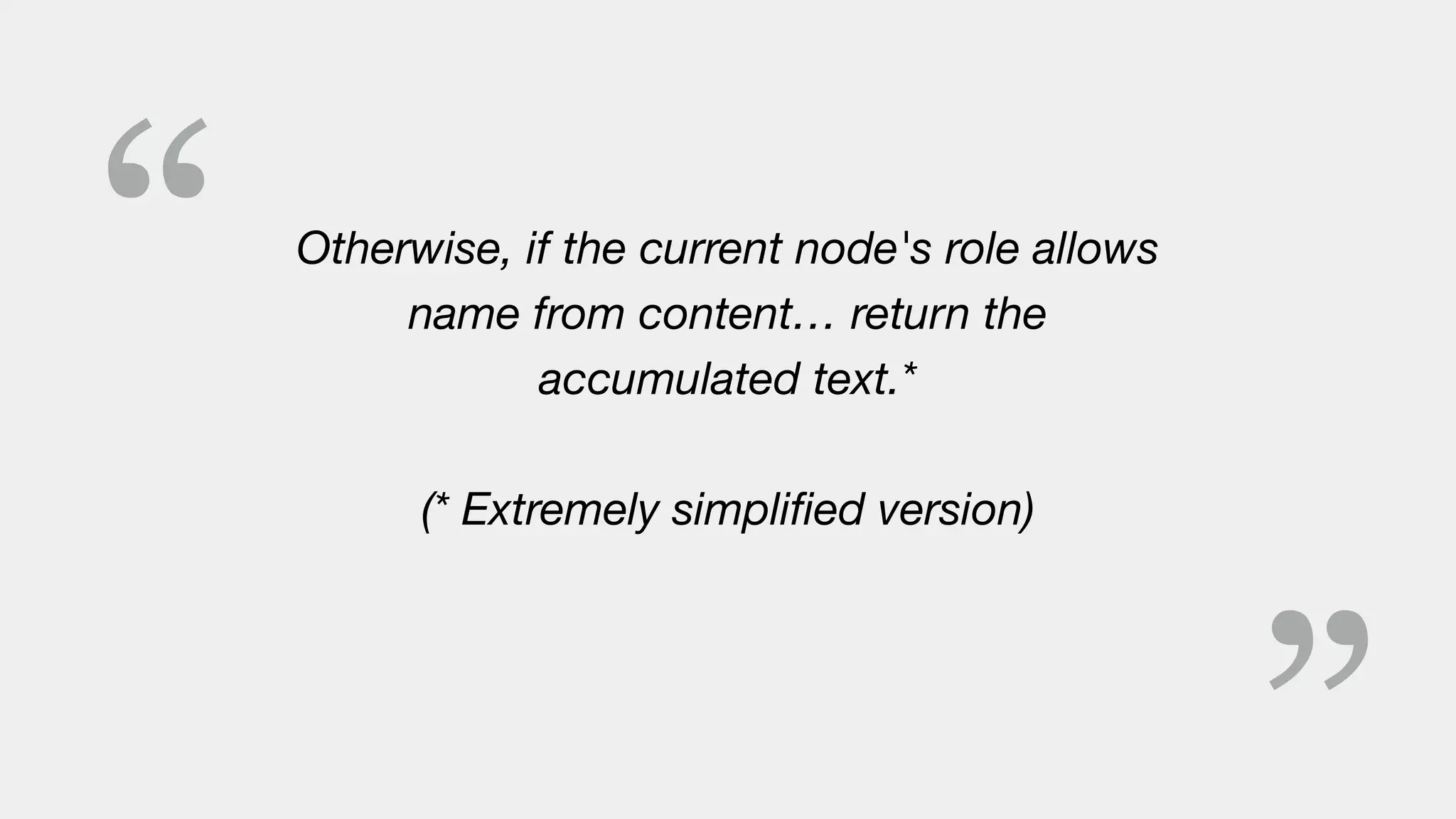
Step F.
“ Otherwise, if the current node's role allows
name from content… return the
accumulated text.*
(* Extremely simplified version)
Some ARIA role attributes allow
“Name from content”.
This means that the text within
these elements becomes the
accessible name.
The full list of “Roles Supporting
Name from Content”:

https://www.w3.org/TR/wai-aria/#namefromcontent
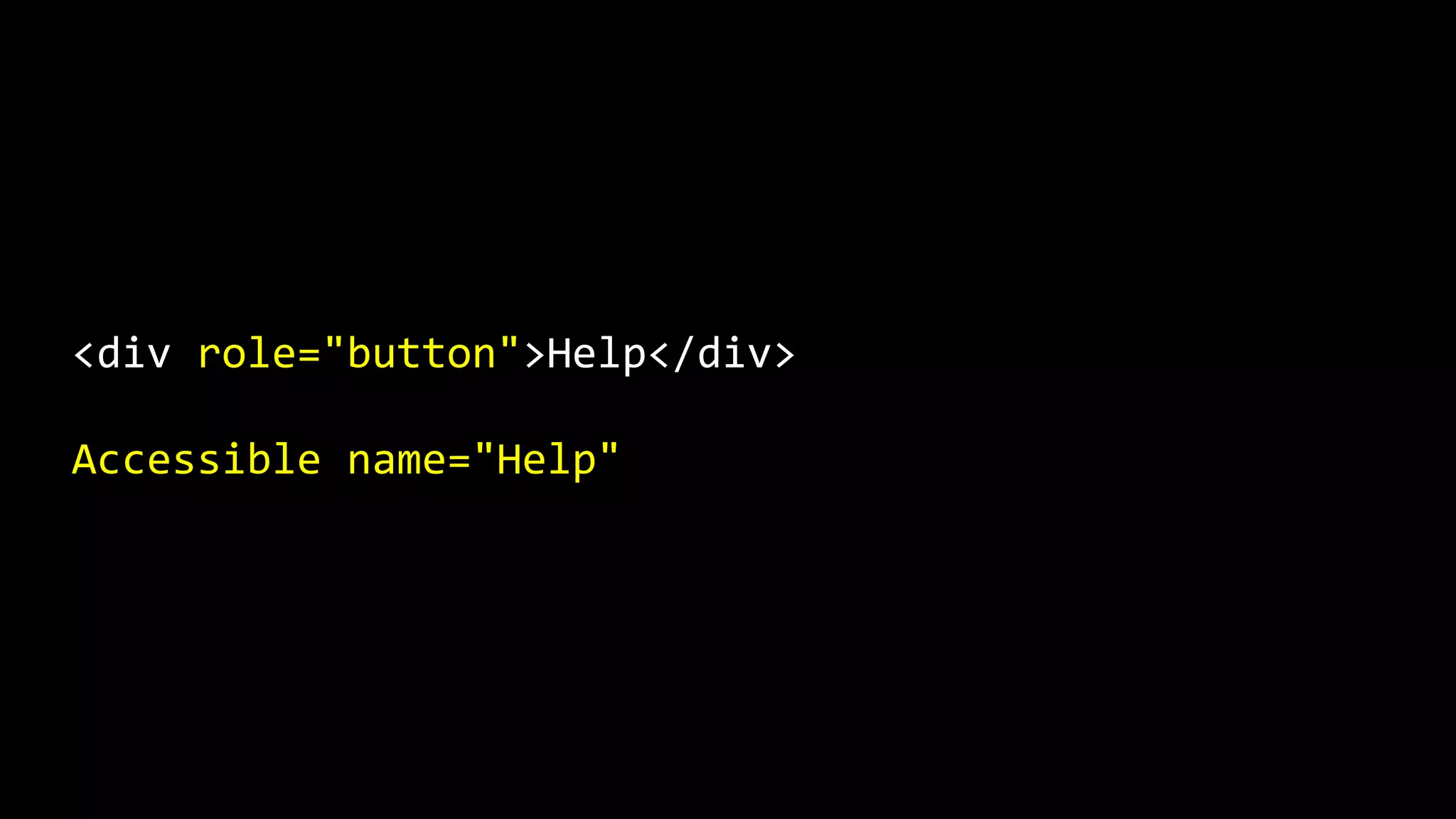
In the following example, an
element has been given a role of
button and therefore can produce
an accessible name.
<div role="button">Help</div>
Accessible name="Help"
Step G.
“ Otherwise, if the current node is a Text
node, return its textual contents.
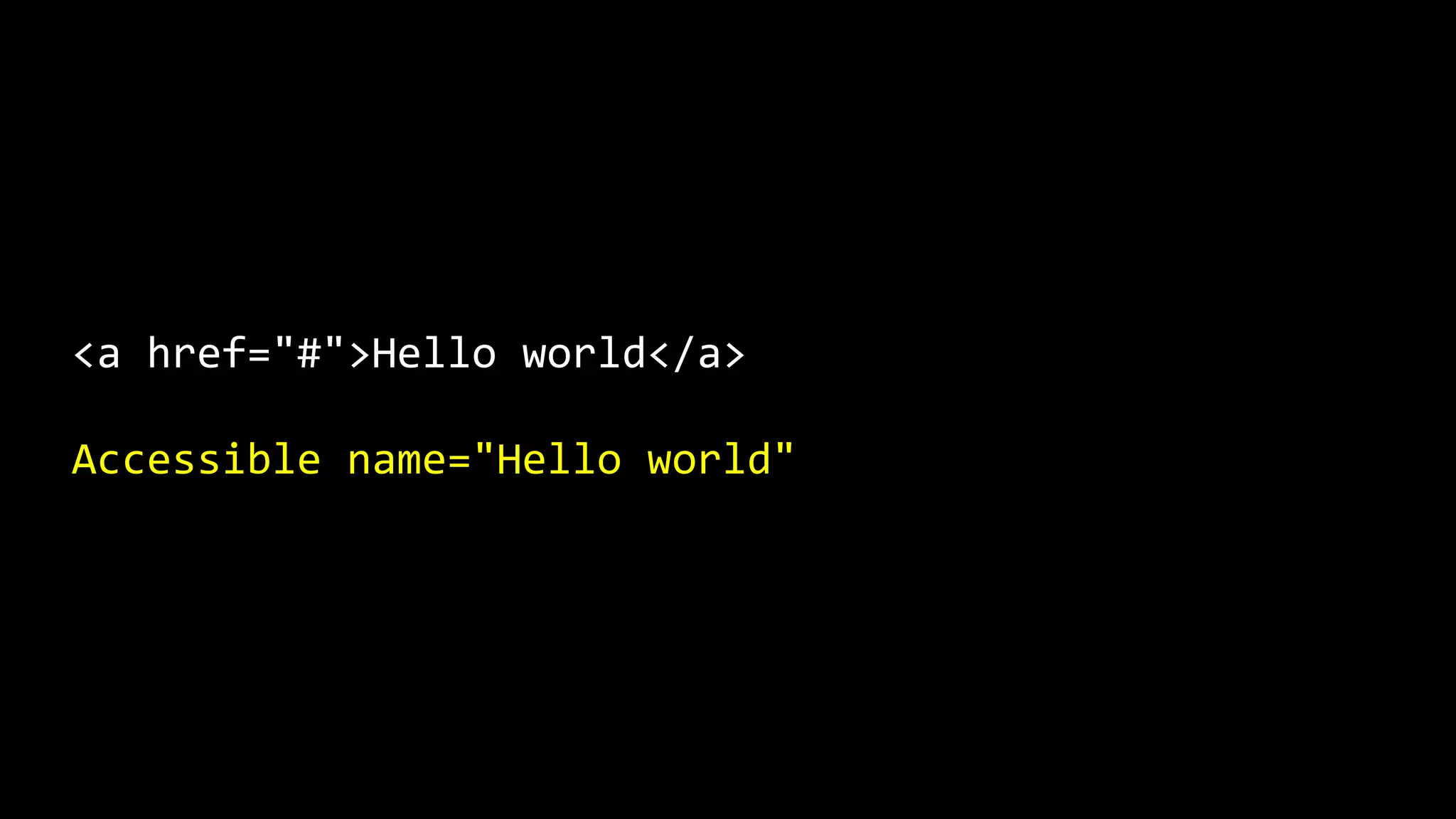
In the following example, the link
text is the accessible name.
<a href="#">Hello world</a>
Accessible name="Hello world"
The order
These steps are applied in priority
order from highest to lowest.
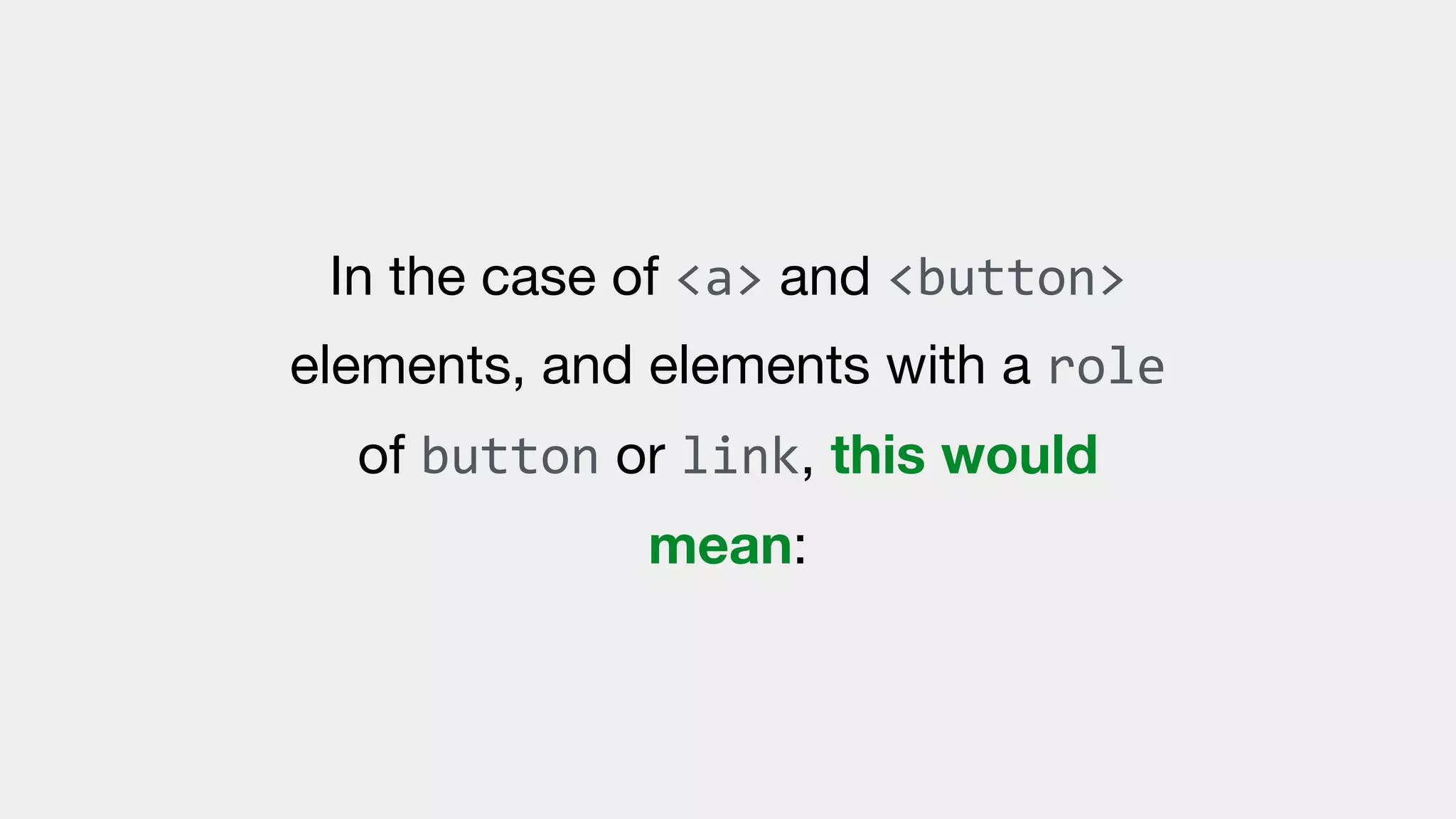
A and BUTTON elements
In the case of <a> and <button>
elements, and elements with a role
of button or link, this would
mean:
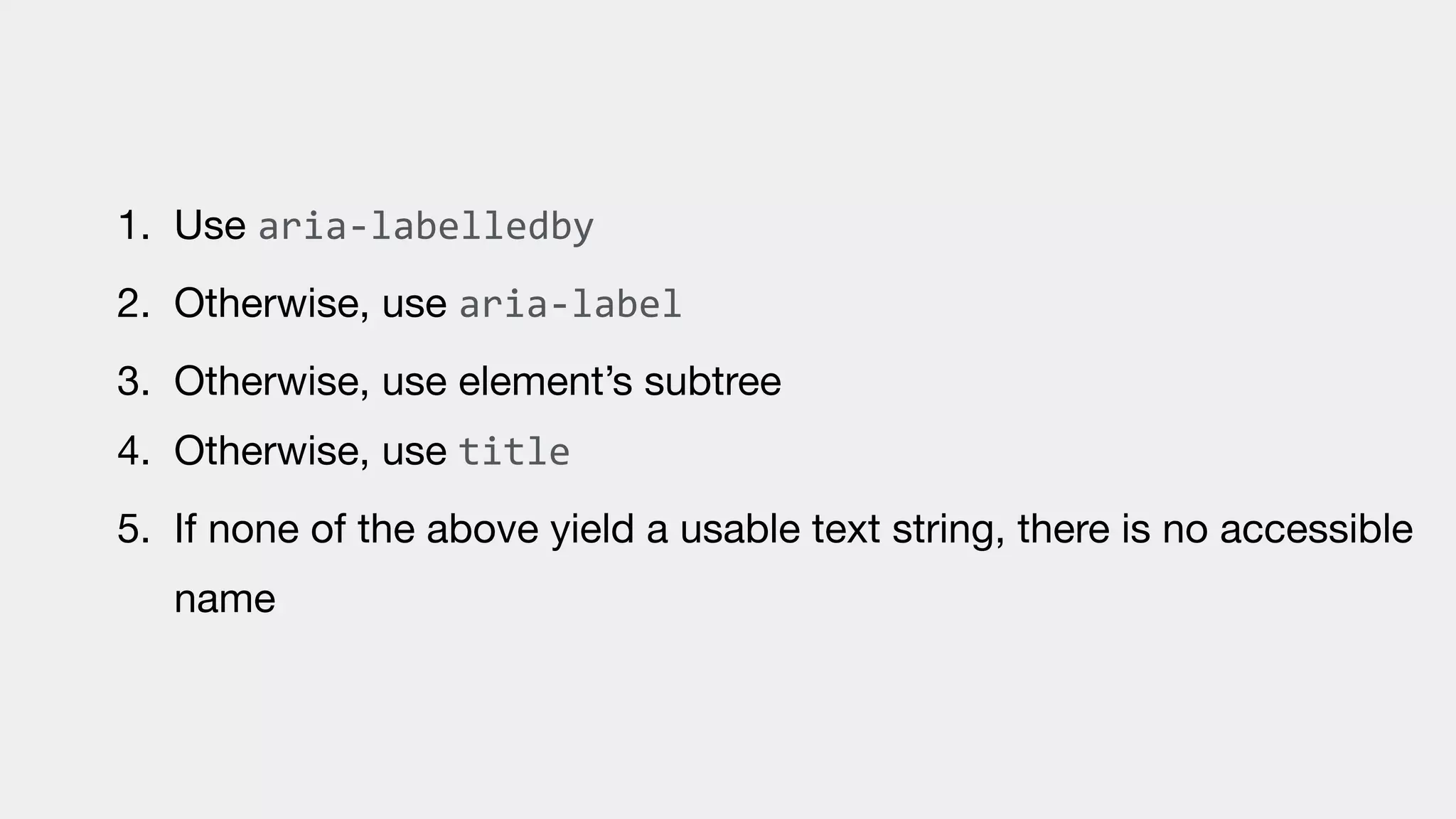
1. Use aria-labelledby

2. Otherwise, use aria-label

3. Otherwise, use element’s subtree

4. Otherwise, use title

5. If none of the above yield a usable text string, there is no accessible
name
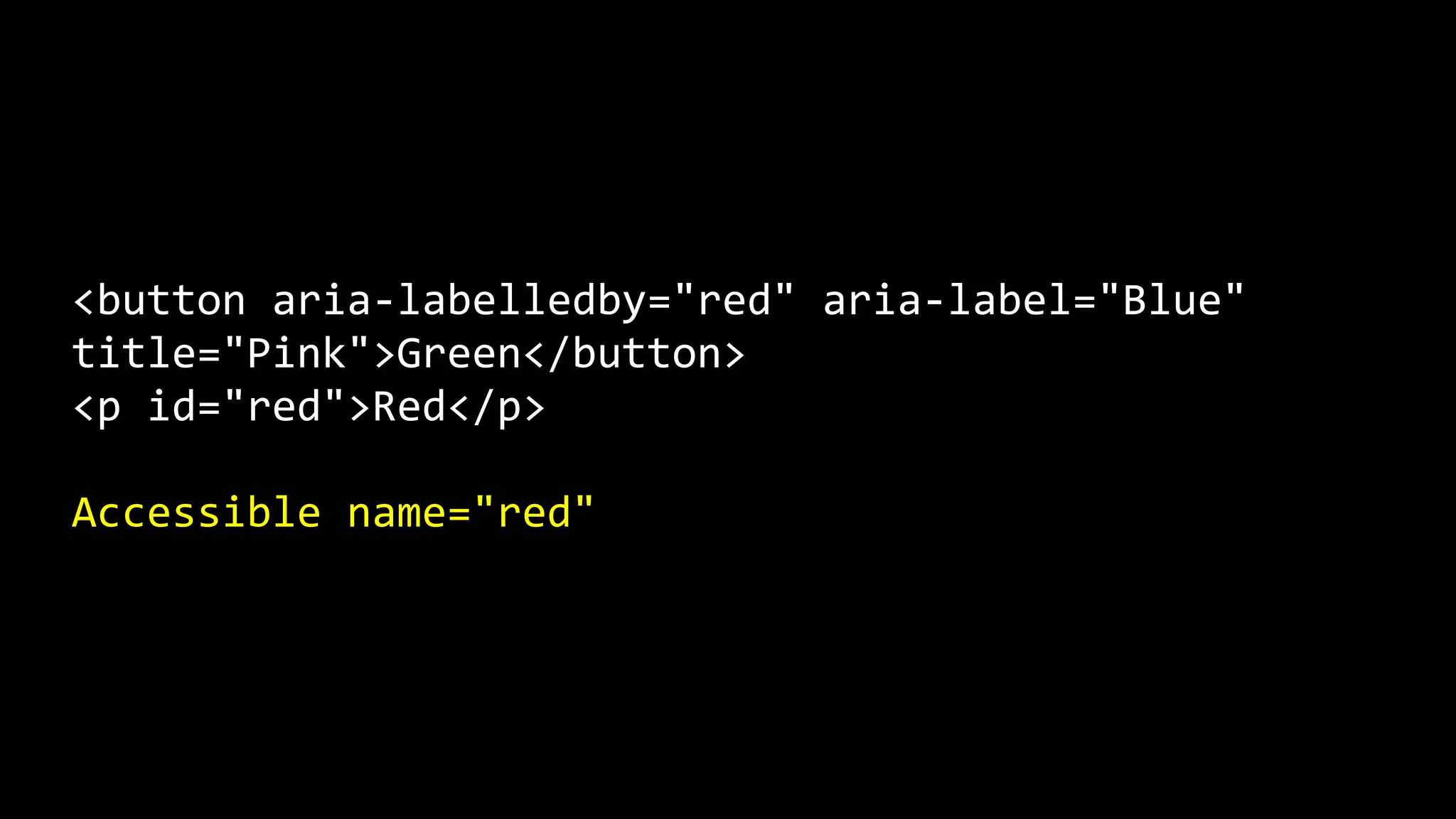
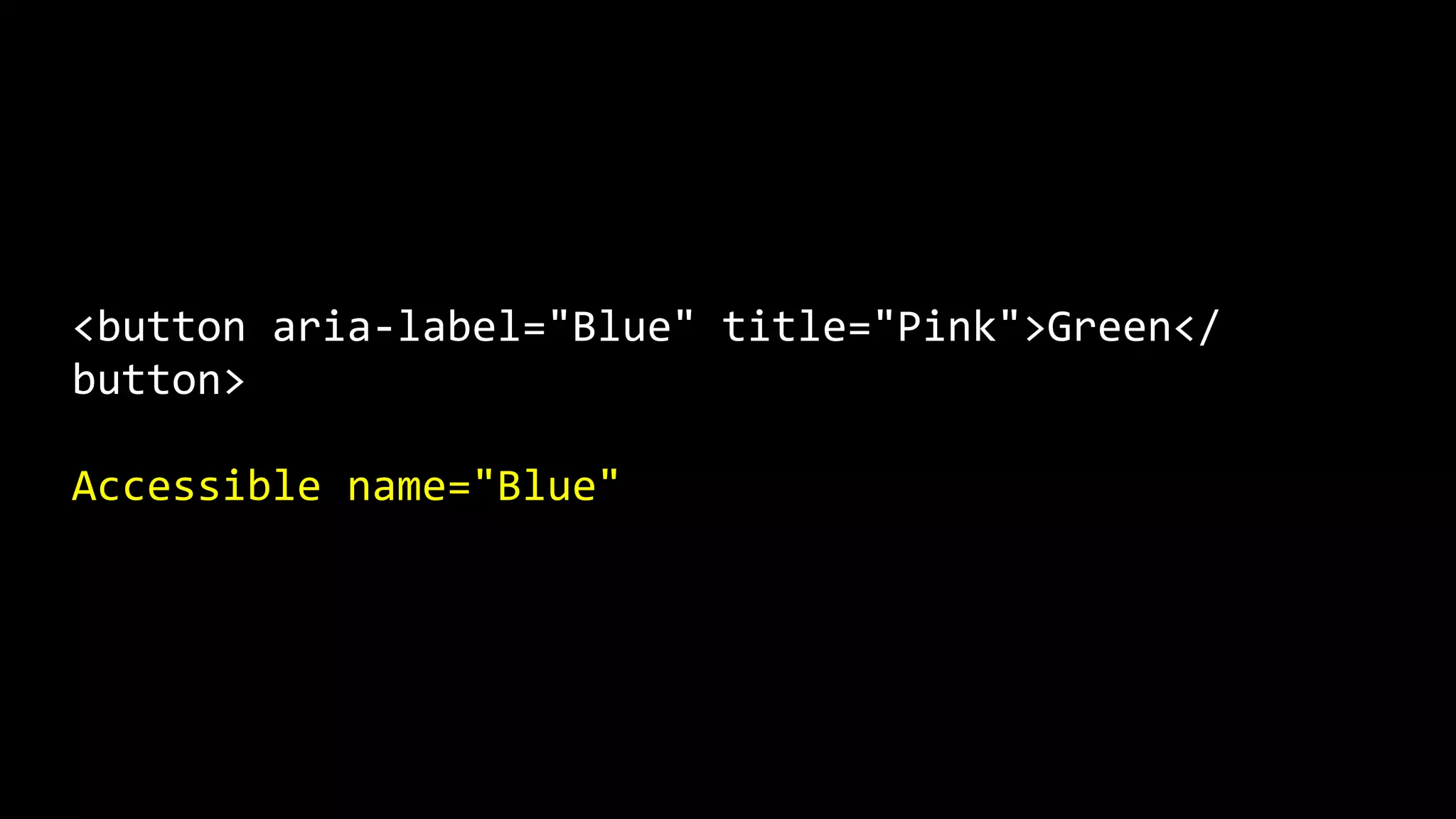
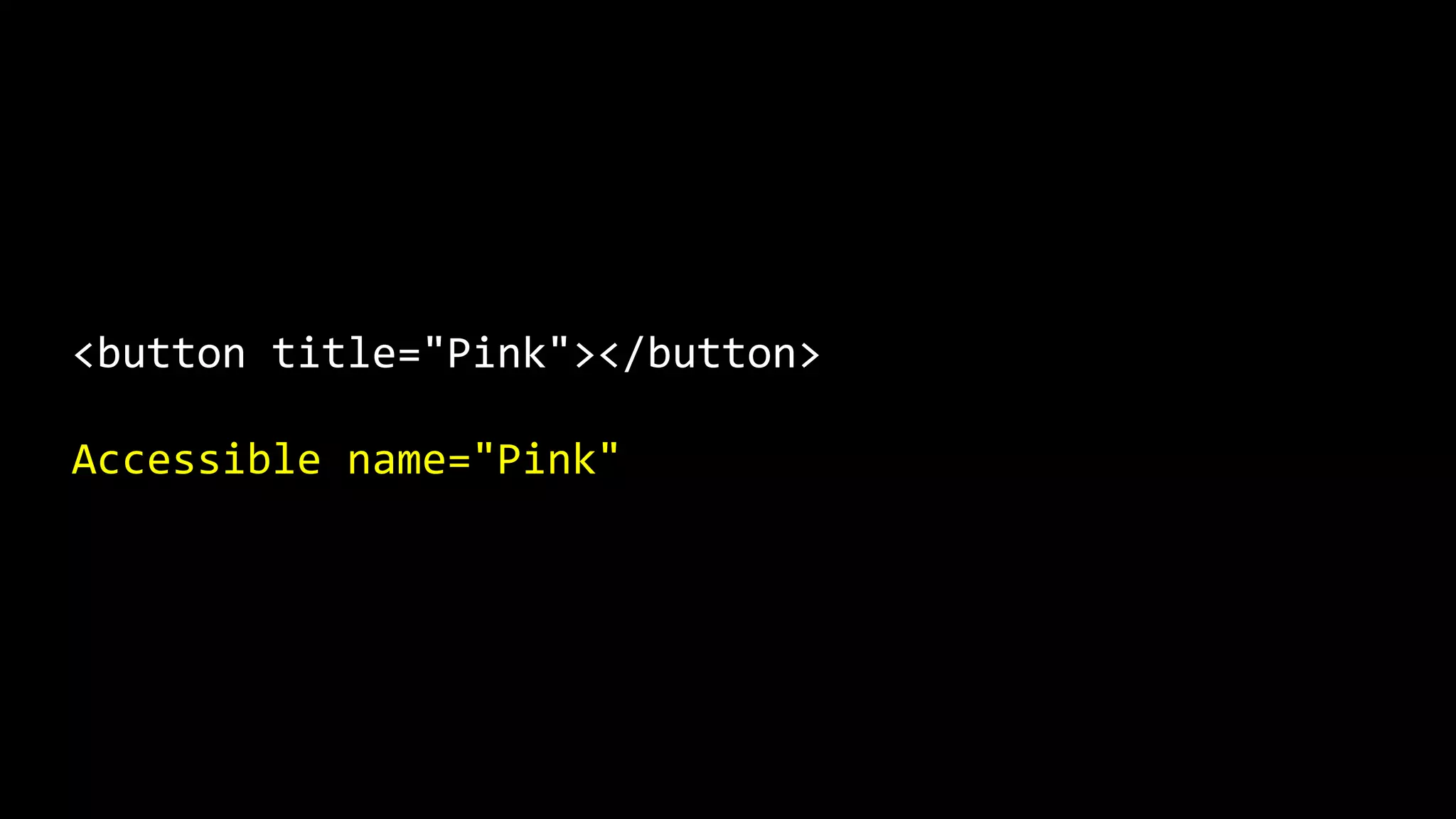
What happens if you apply multiple
name options to an object?
Let’s look at a series of weird
examples.
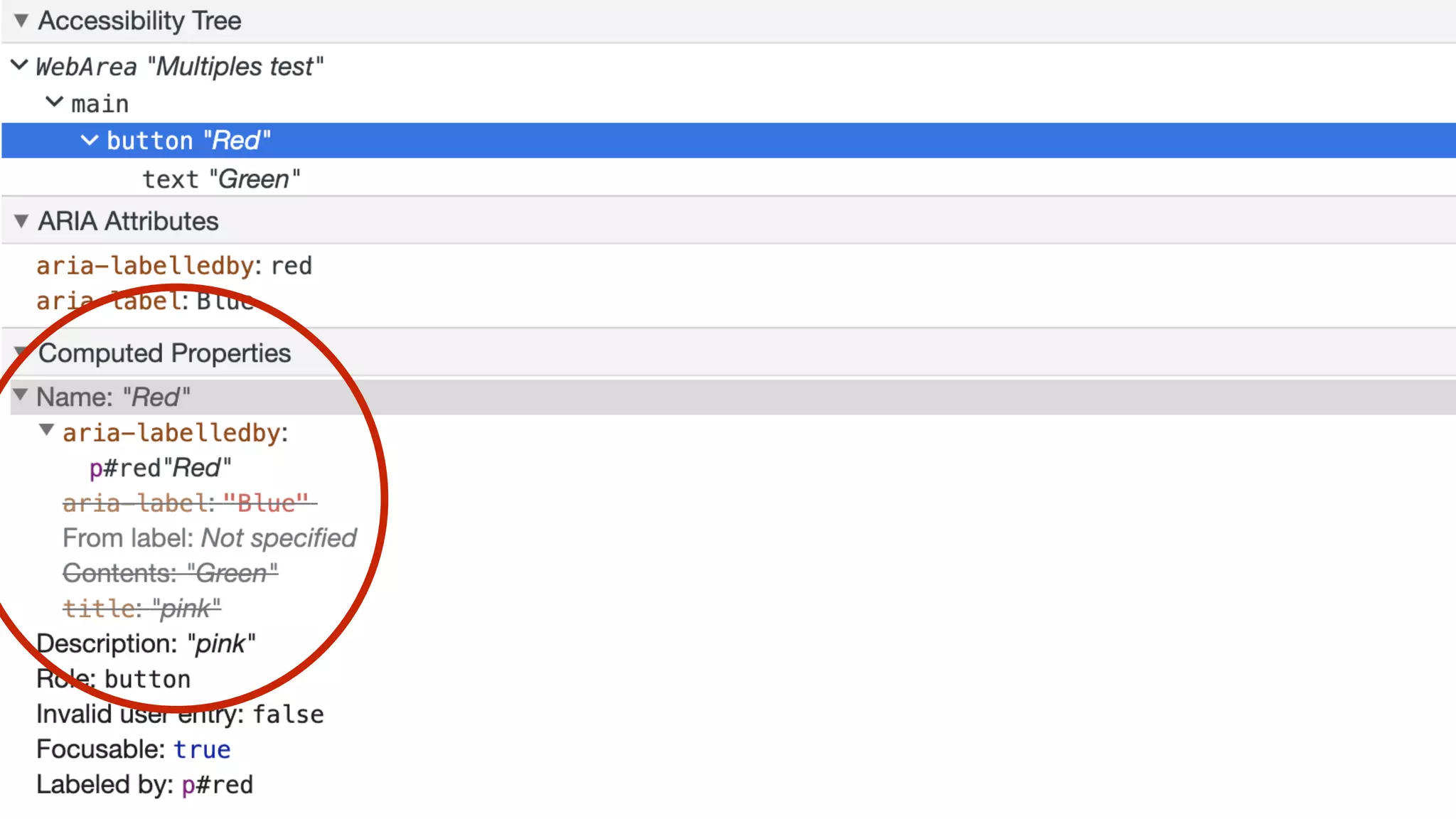
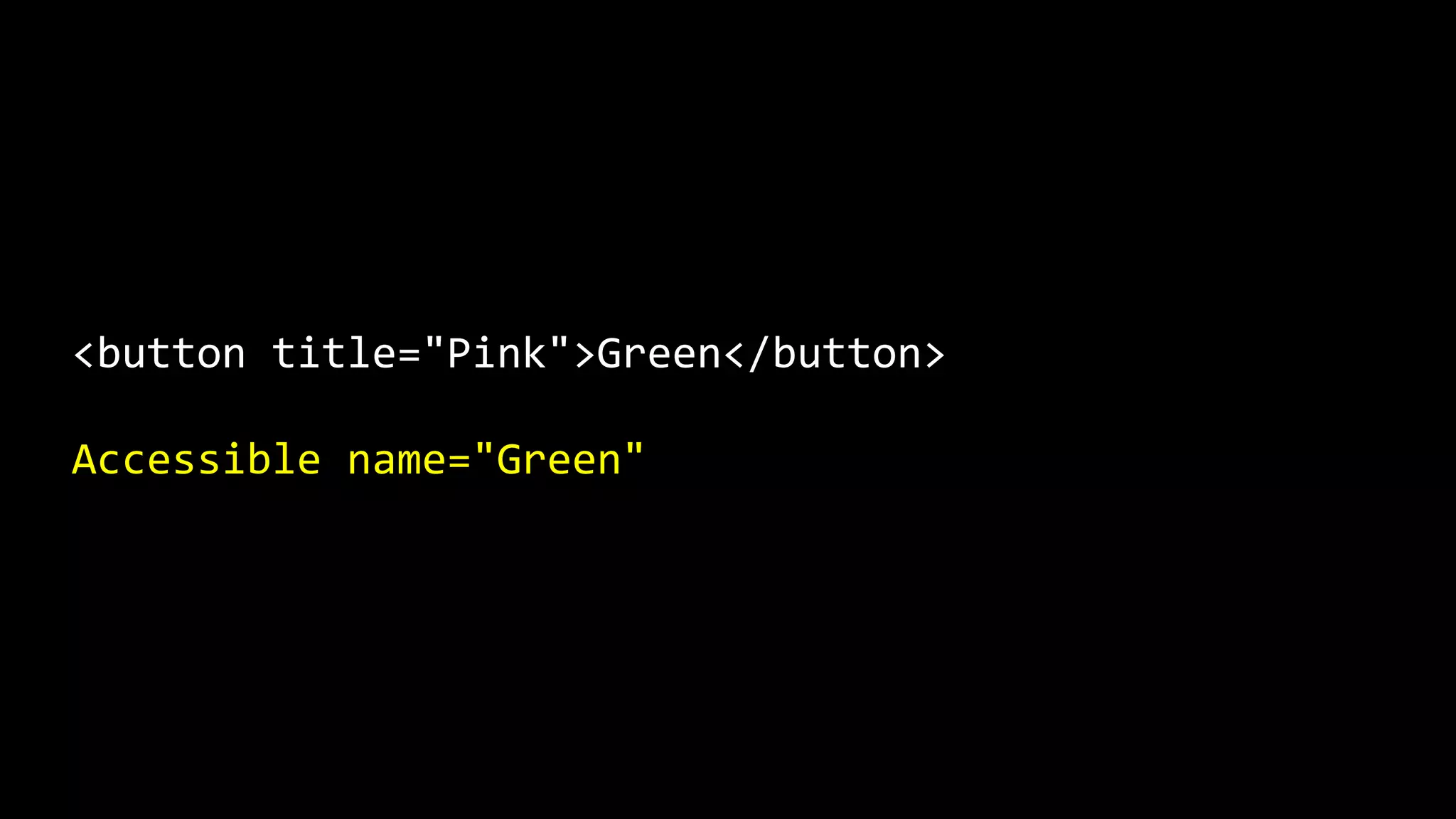
<button aria-labelledby="red" aria-label="Blue"
title="Pink">Green</button>
<p id="red">Red</p>
Accessible name="red"
This can be seen when viewing the
accessibility tree in Chrome.
<button aria-label="Blue" title="Pink">Green</
button>
Accessible name="Blue"
<button title="Pink">Green</button>
Accessible name="Green"
<button title="Pink"></button>
Accessible name="Pink"
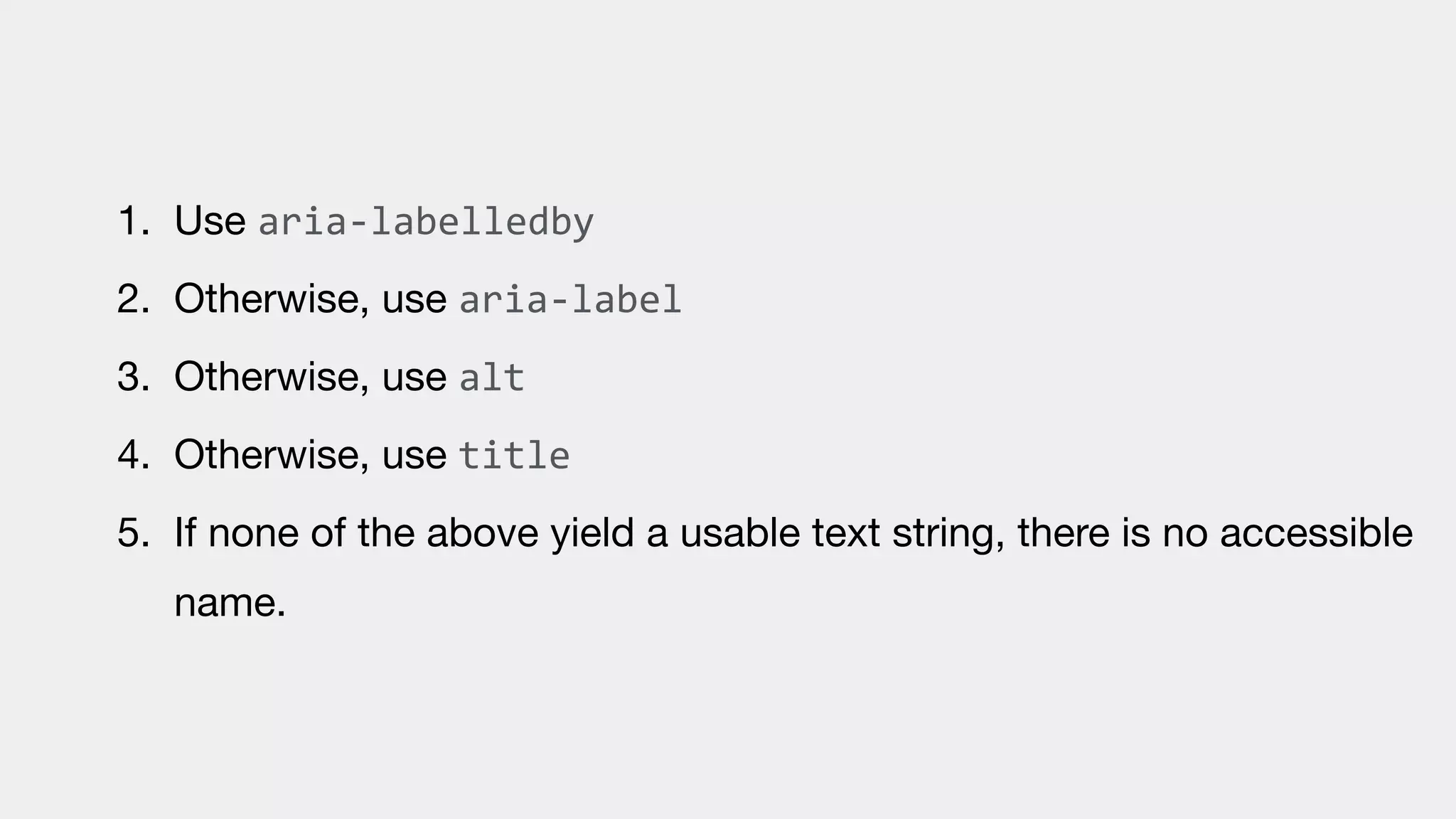
IMG elements
In the case of <img> elements, this
would mean:
1. Use aria-labelledby

2. Otherwise, use aria-label

3. Otherwise, use alt

4. Otherwise, use title

5. If none of the above yield a usable text string, there is no accessible
name.
INPUT, SELECT and
TEXTAREA elements
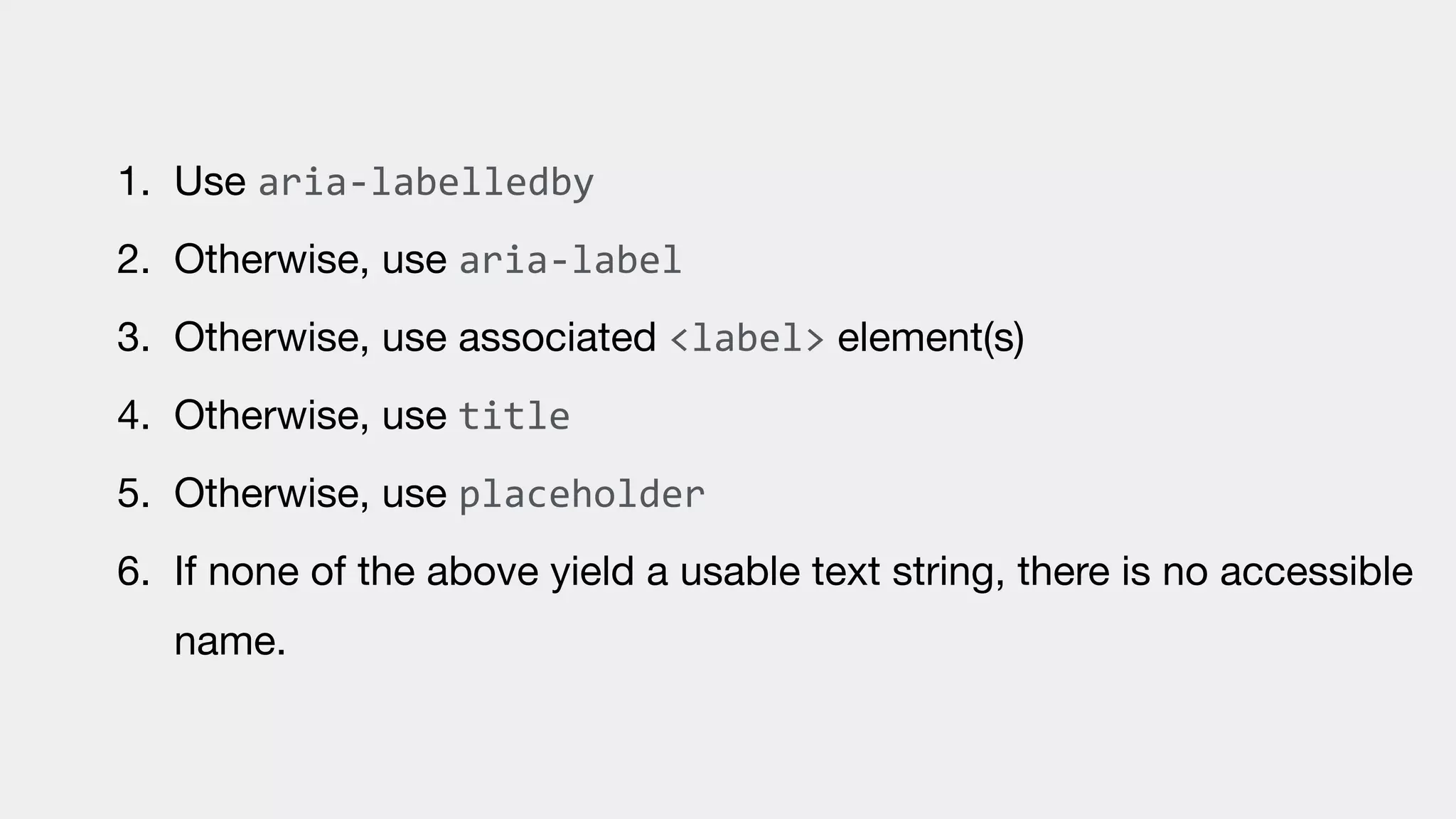
In the case of most of the common
<input> elements, <select> and
<textarea> elements, this would
mean:
1. Use aria-labelledby

2. Otherwise, use aria-label

3. Otherwise, use associated <label> element(s)

4. Otherwise, use title

5. Otherwise, use placeholder

6. If none of the above yield a usable text string, there is no accessible
name.
Fixing some poor
examples
Let's look at some examples of
where the accessible names could
be improved.
Buttons
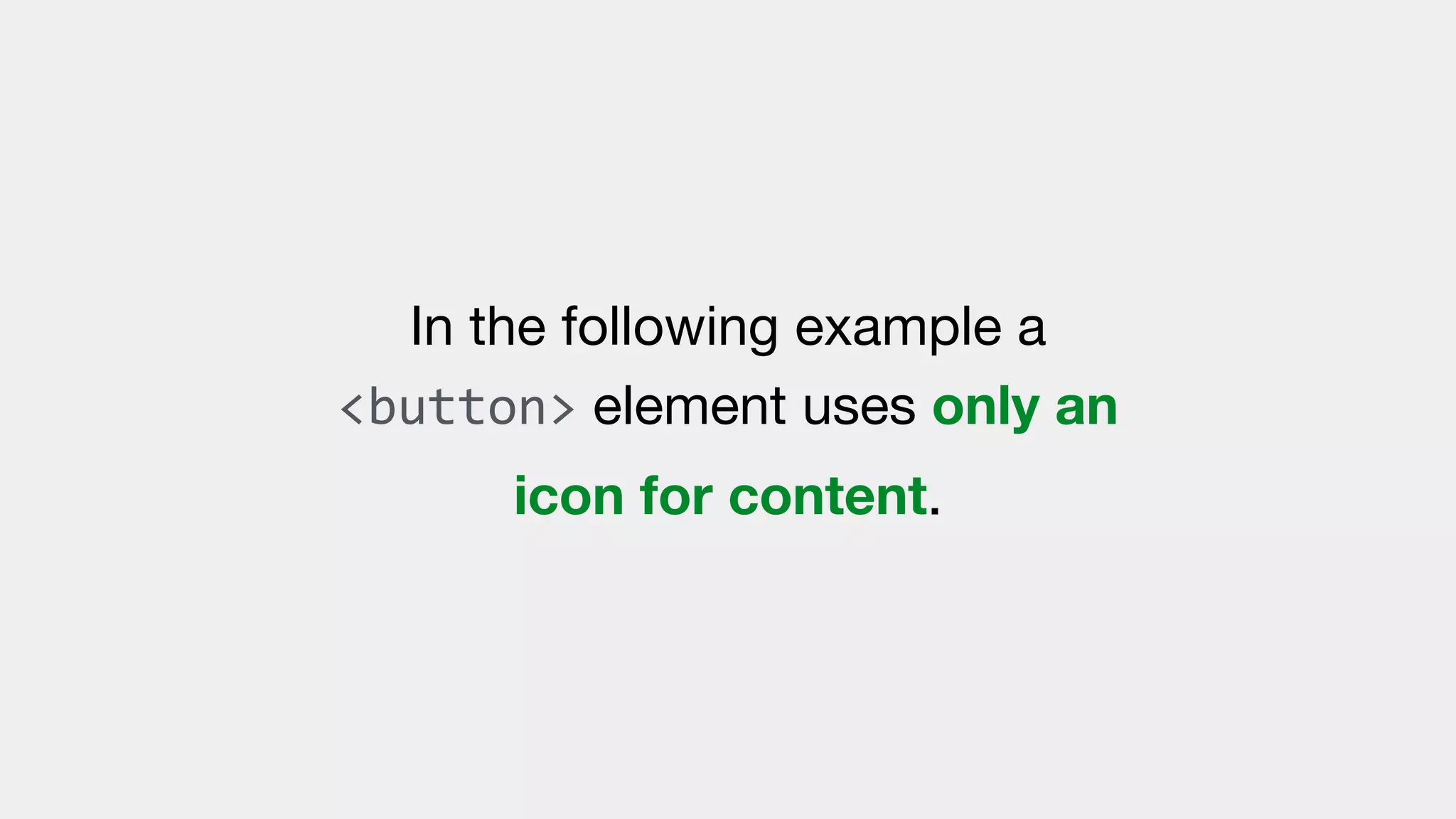
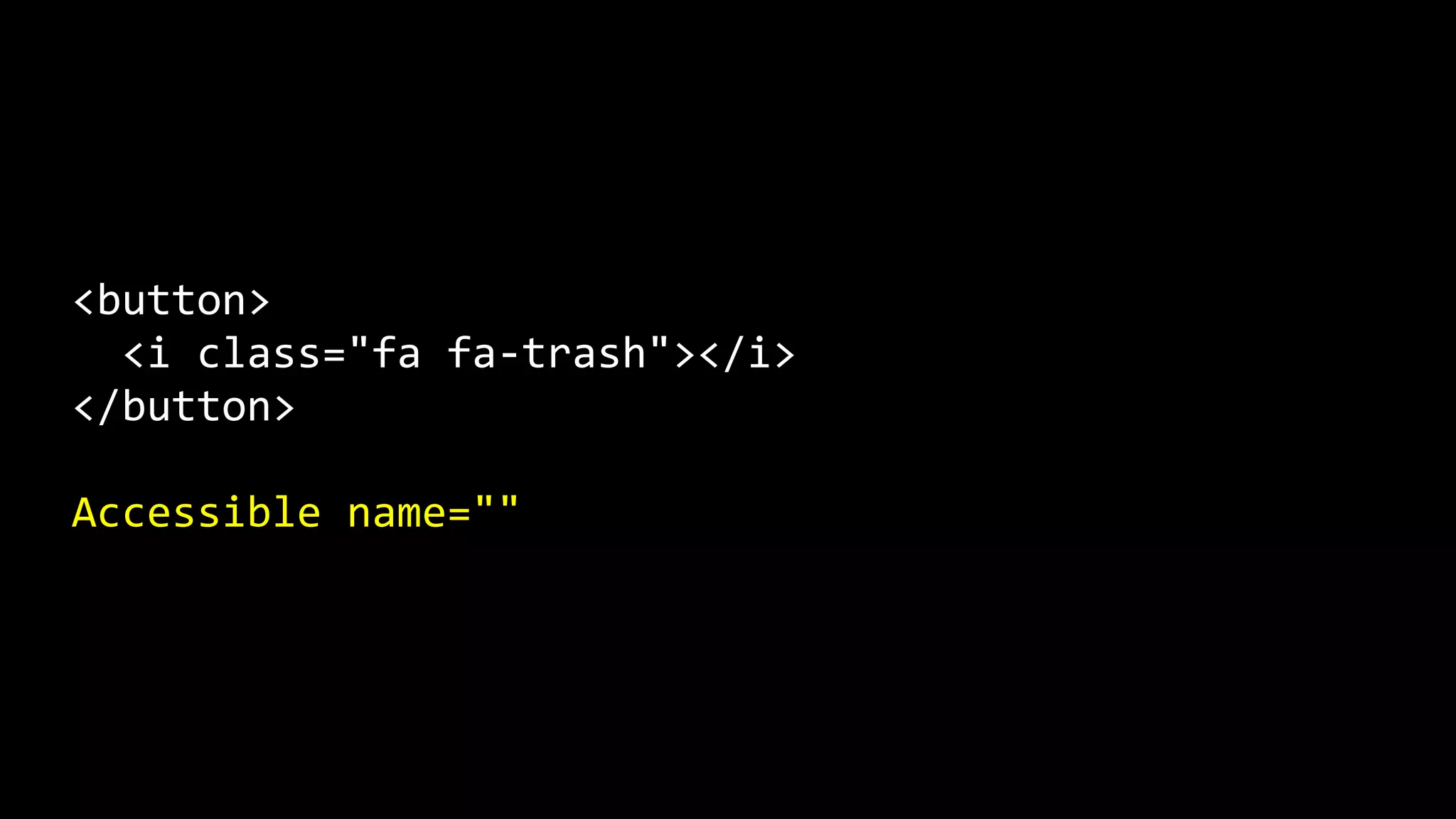
In the following example a
<button> element uses only an
icon for content.
This means that it has no text
string that can be used as an
accessible name.
<button>
<i class="fa fa-trash"></i>
</button>
Accessible name=""
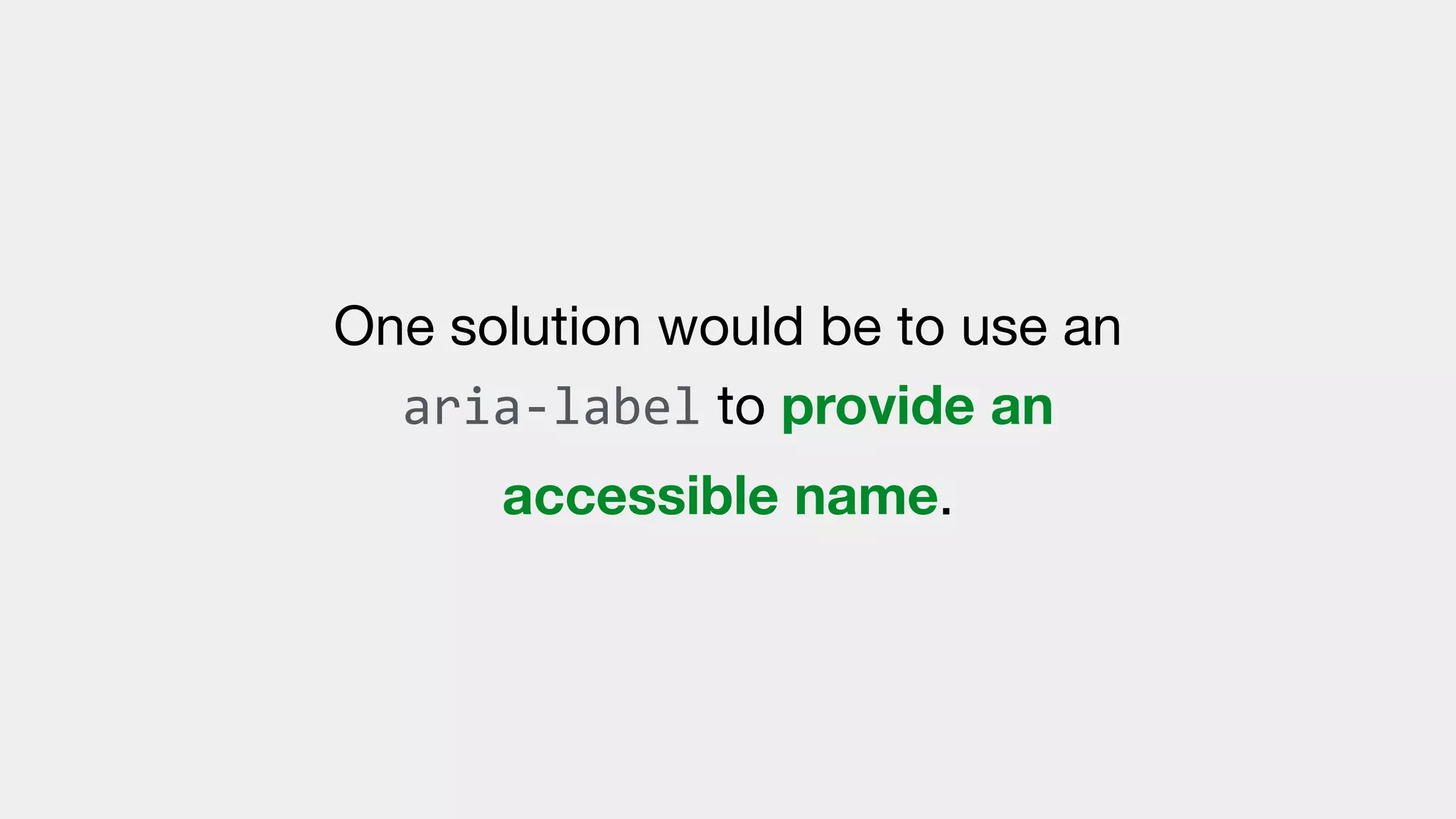
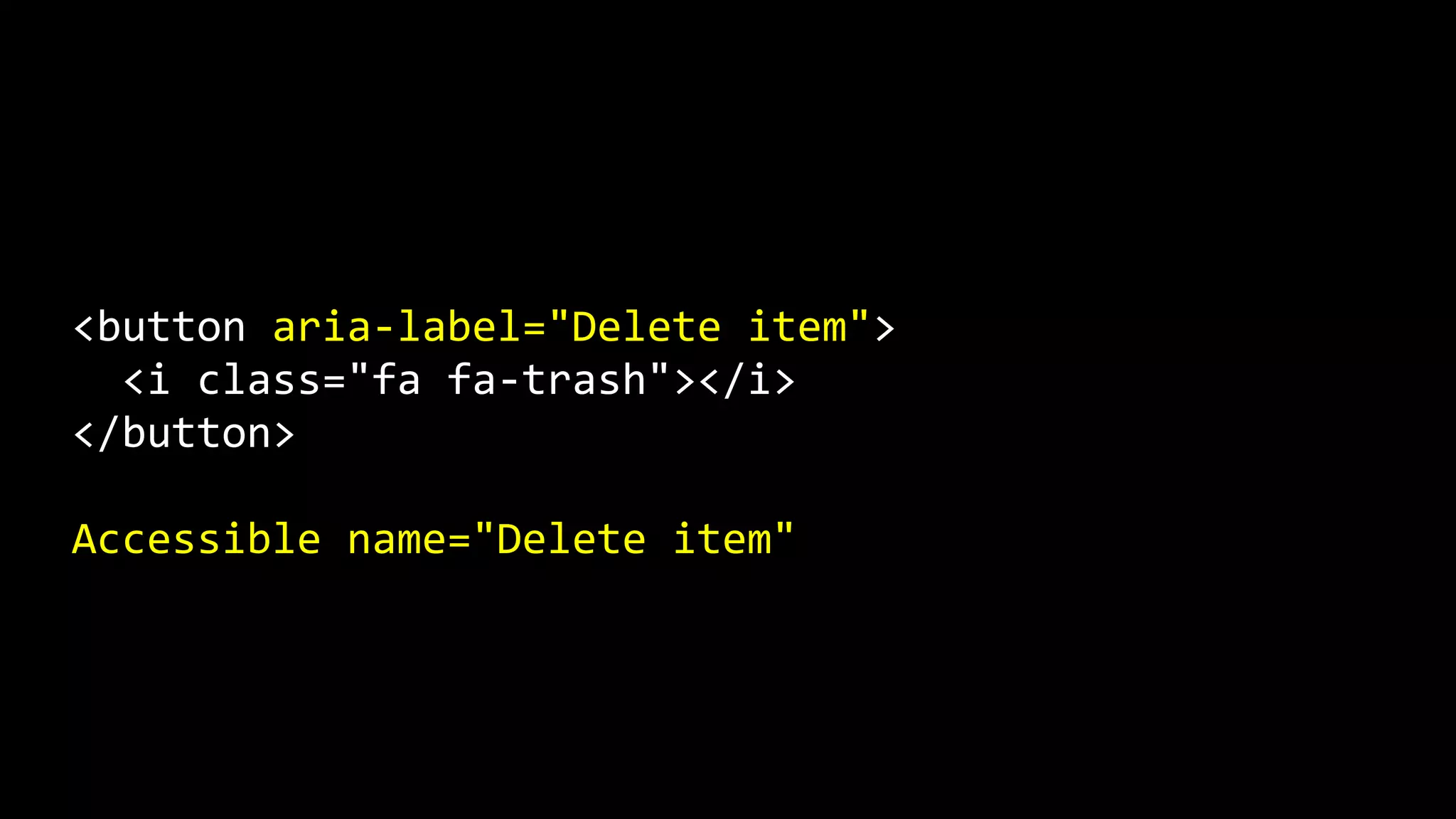
One solution would be to use an
aria-label to provide an
accessible name.
<button aria-label="Delete item">
<i class="fa fa-trash"></i>
</button>
Accessible name="Delete item"
Links
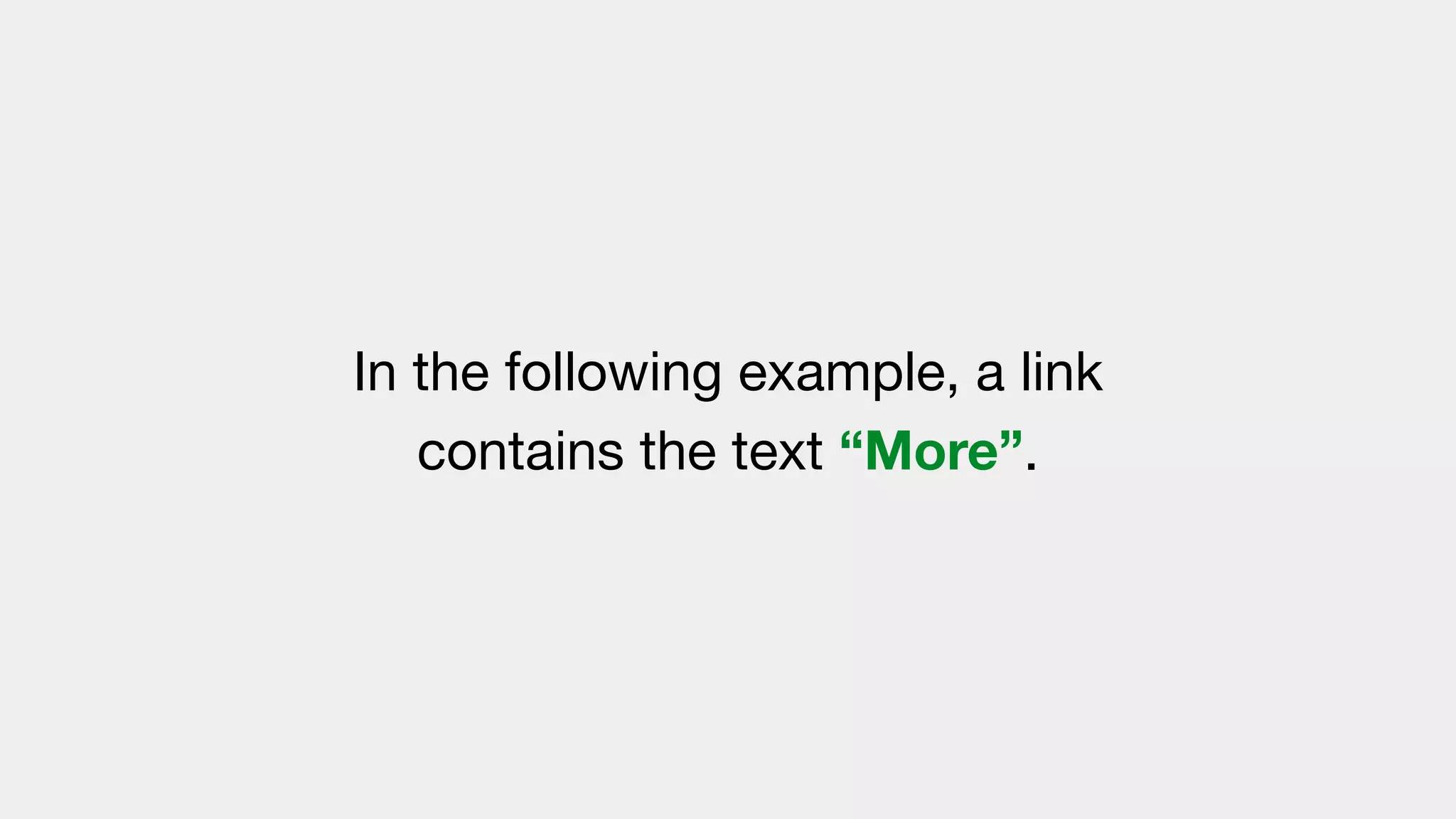
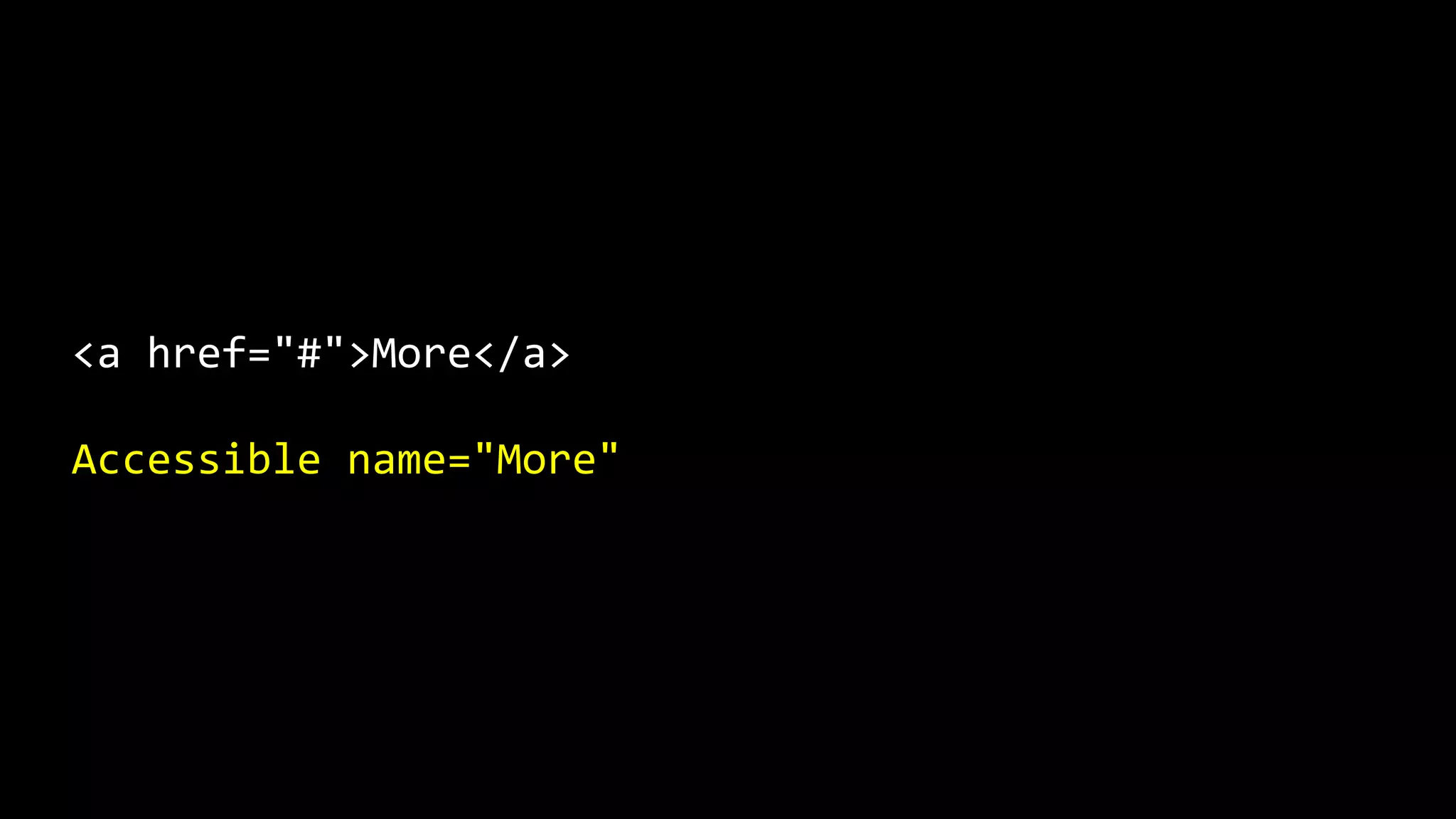
In the following example, a link
contains the text “More”.
<a href="#">More</a>
Accessible name="More"
While there is an accessible name
present, it does not provide any
context for assistive technologies.
Depending on the circumstances,
this link would probably fail
“Success Criterion 2.4.4 Link
Purpose”.

https://www.w3.org/TR/WCAG21/#link-purpose-in-context
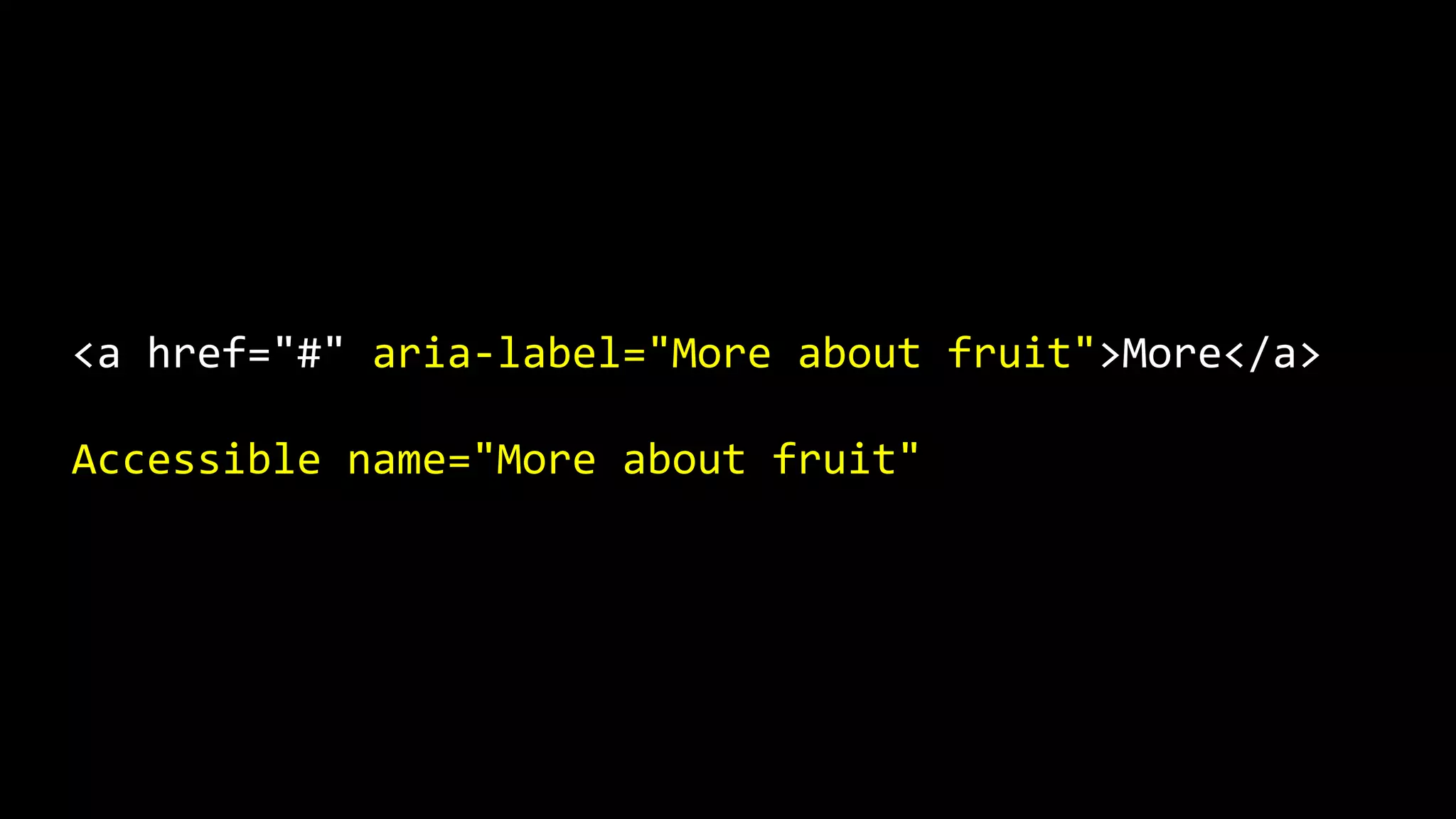
If the designer/developer did not
want a more descriptive link text to
be displayed, an aria-label could
be used to provide additional
context.
<a href="#" aria-label="More about fruit">More</a>
Accessible name="More about fruit"
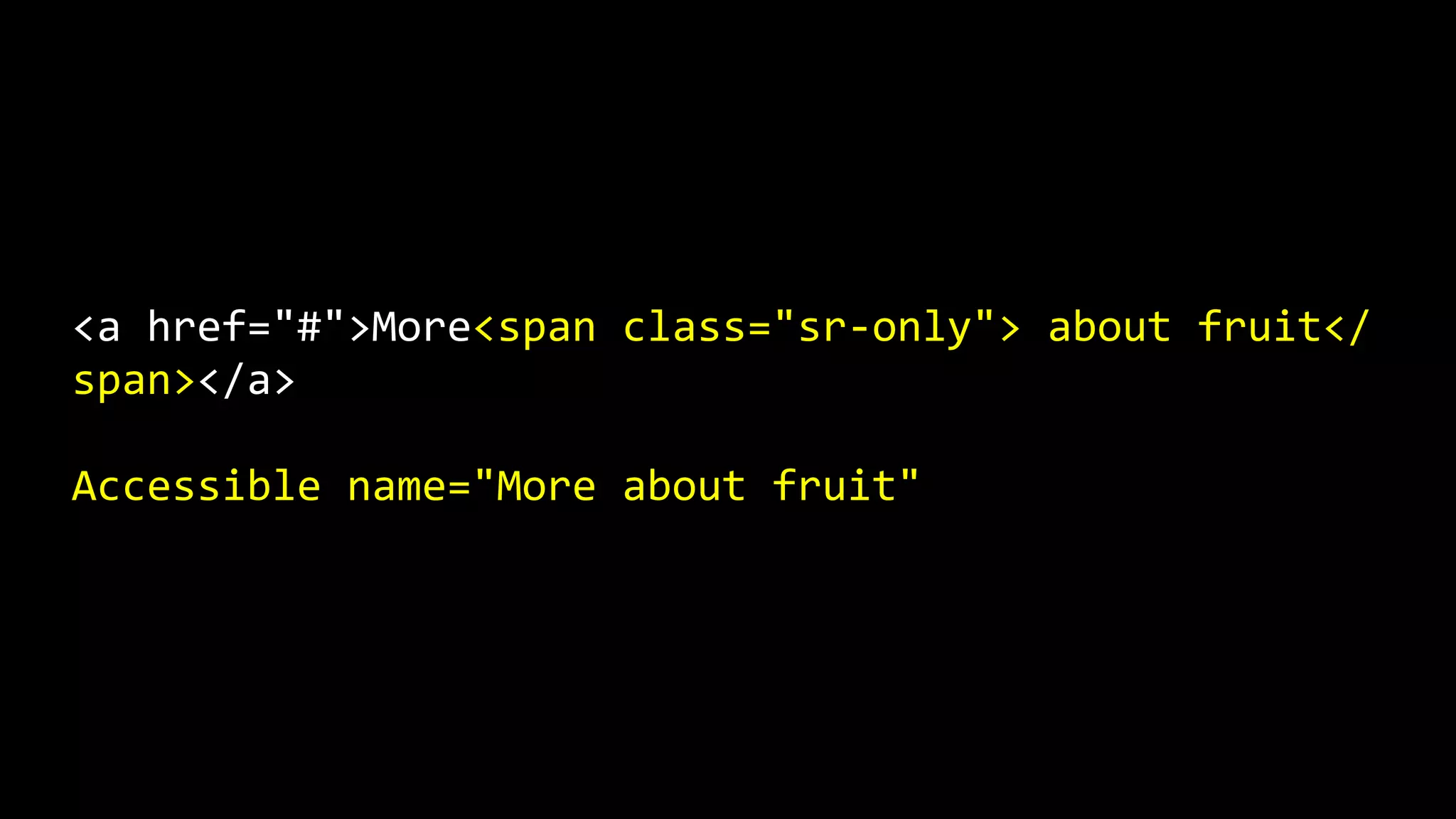
Alternatively, additional content
could be presented to screen
readers only, to provide additional
context.
<a href="#">More<span class="sr-only"> about fruit</
span></a>
Accessible name="More about fruit"
Placeholder
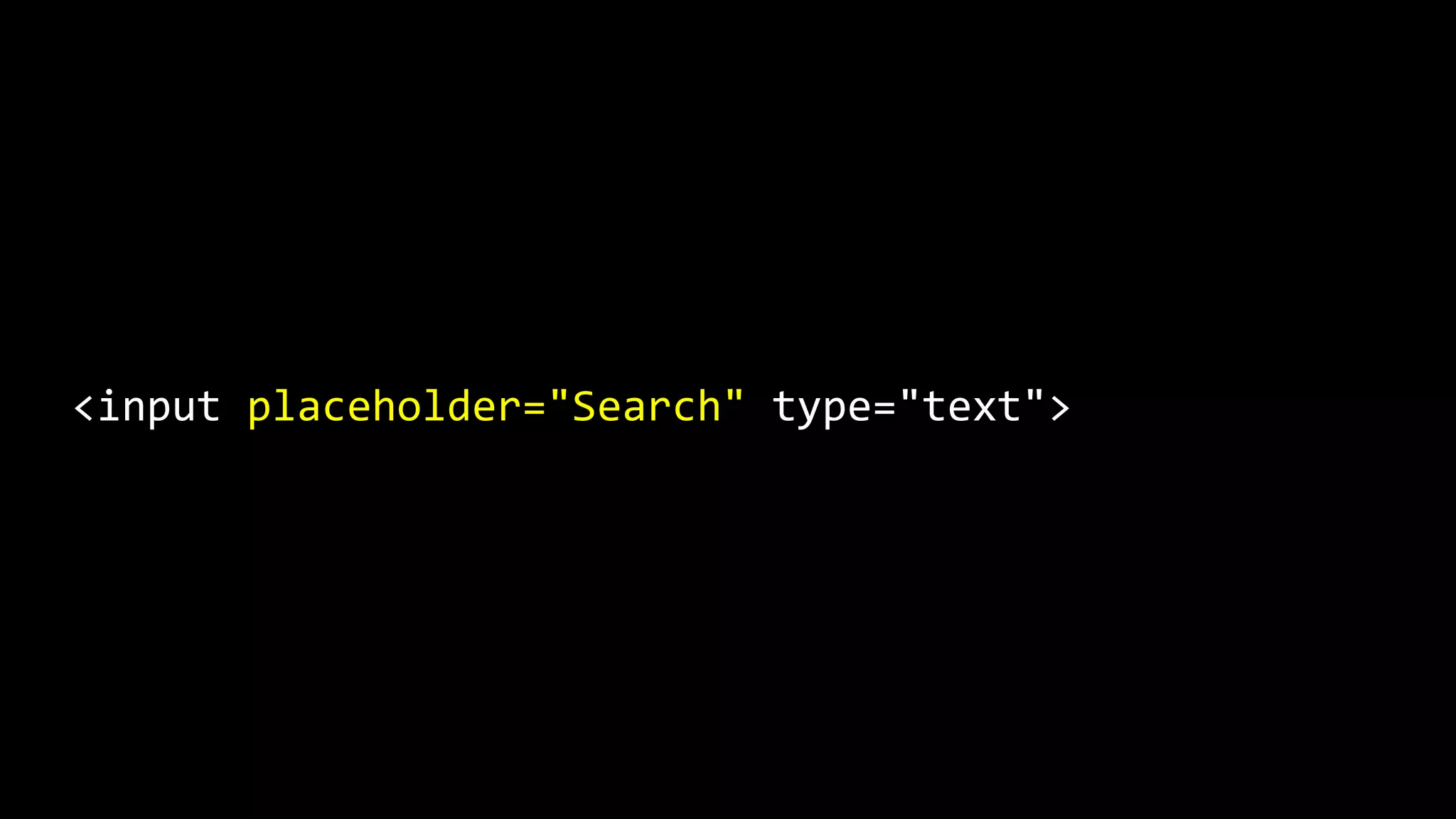
In the following example, the
placeholder is used to provide a
label for an <input>.
<input placeholder="Search" type="text">
Even though the placeholder
attribute can be treated as an
accessible name, it is not an
acceptable alternative to a
<label> element.
The HTML5 specification states that
the placeholder attribute should
not be used as an alternative to a
<label>.
The placeholder also has a range
of accessibility issues.
By default, the placeholder lacks
sufficient colour contrast.
The placeholder value 

disappears as soon as users start
typing, which can cause issues for
some cognitively impaired users.
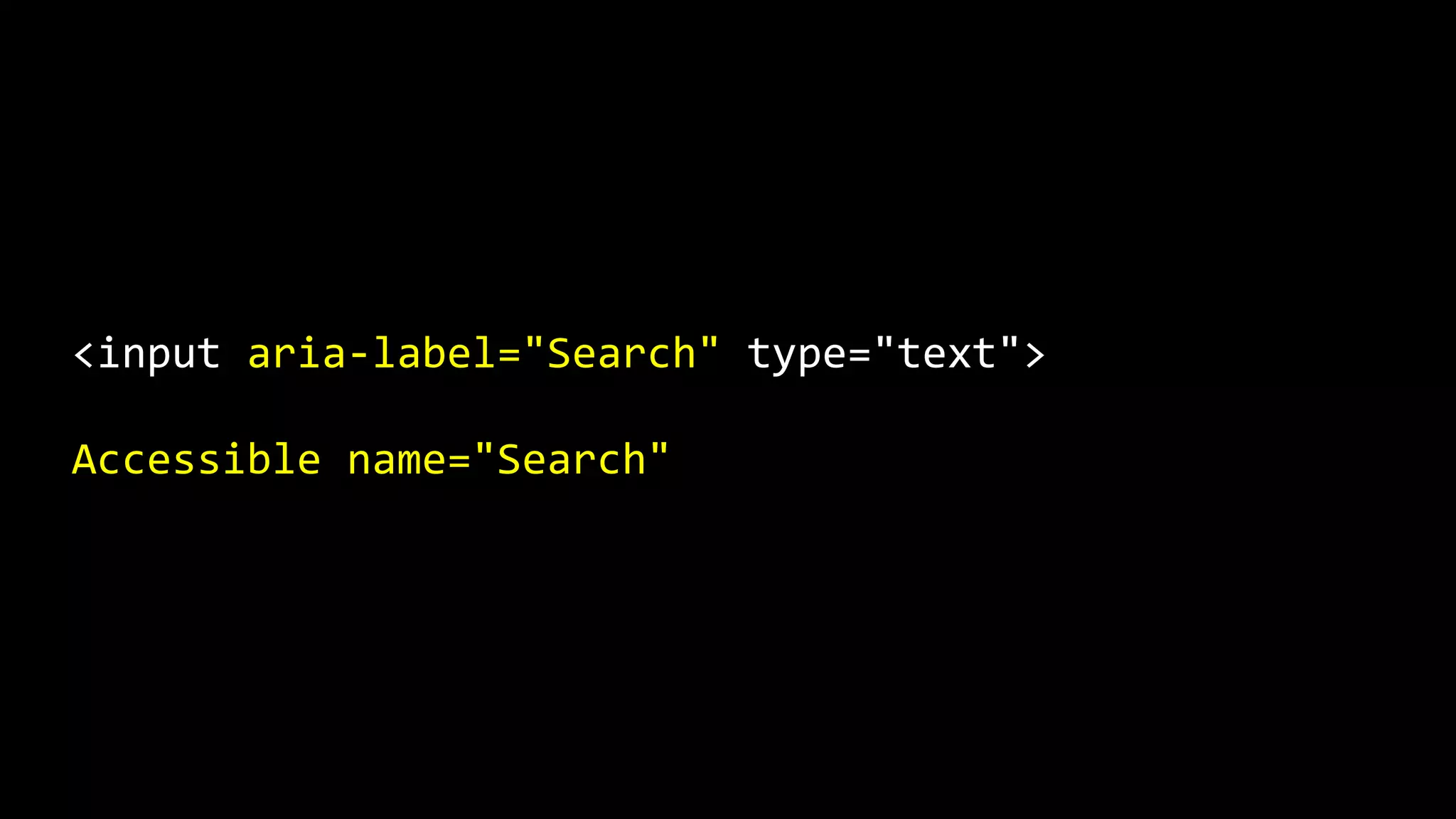
If you don’t want to display a label,
an aria-label could be used to
provide an accessible name.
<input aria-label="Search" type="text">
Accessible name="Search"
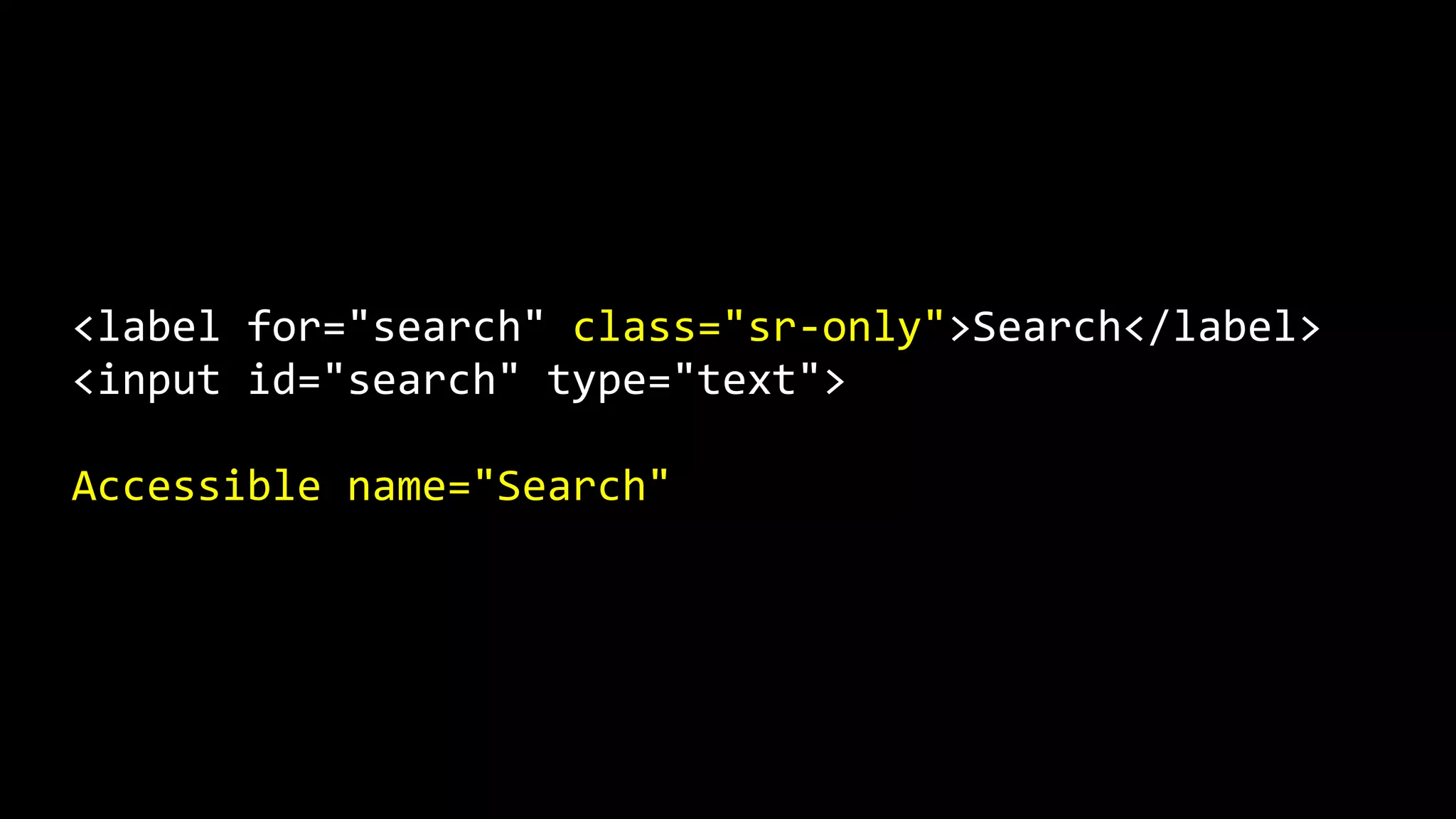
Or, a hidden <label> could be
used. This means it would be
available to screen readers only
but not presented on-screen.
<label for="search" class="sr-only">Search</label>
<input id="search" type="text">
Accessible name="Search"
These three examples show that
there are ways to provide
meaningful accessible names,
without affecting how the objects
are displayed.
Conclusion
By including meaningful accessible
names for all accessible objects,
you can provide a better
experience for everyone!
Thank you.

What are accessible names and why should you care?