BASIC HTML TAGS
Structural Tags
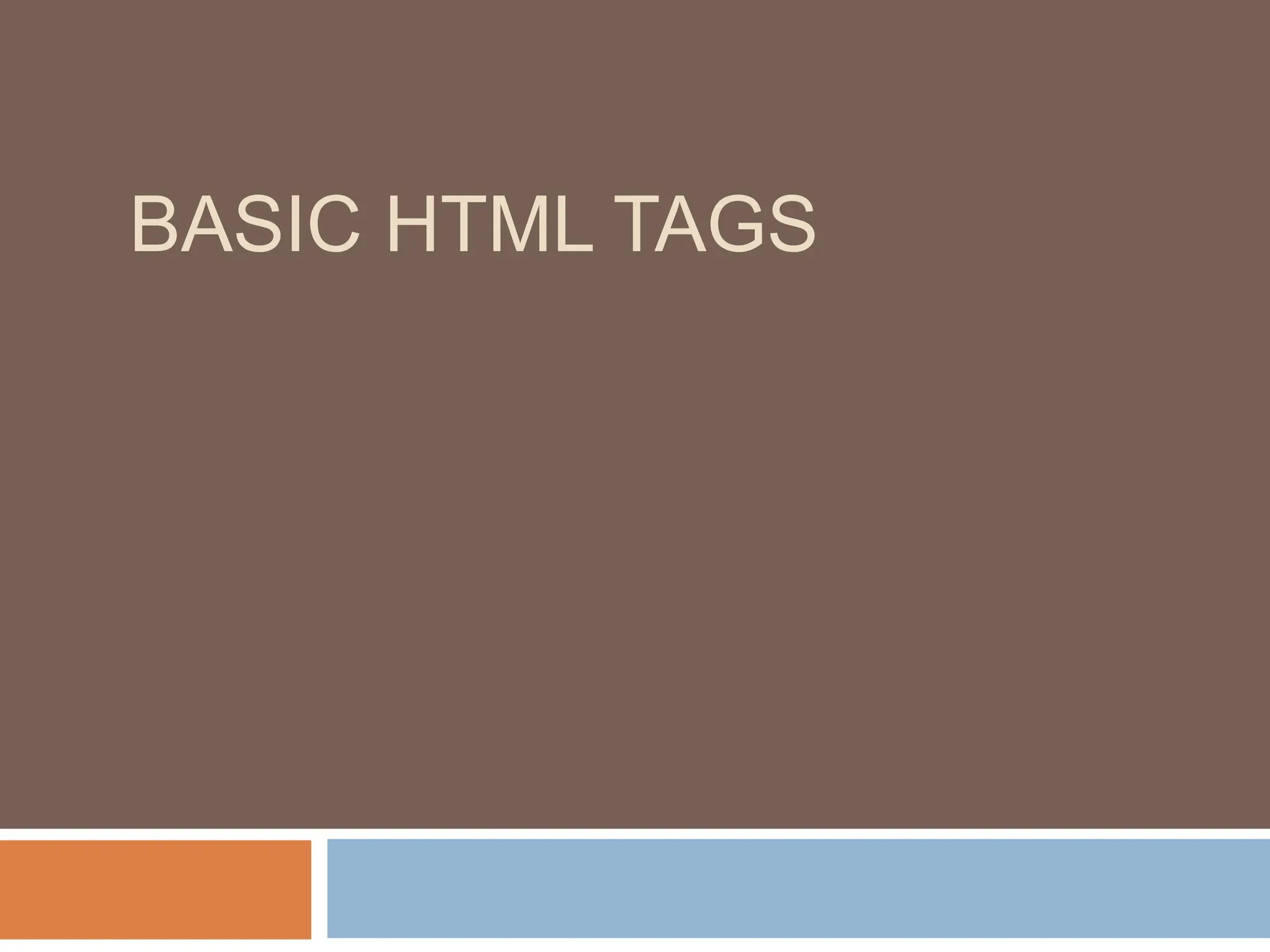
<HTML>
These tags enclose the entire Web page document.
</HTML>
<HEAD>
These tags enclose the Head part of the document
</HEAD>
<TITLE>
These tags enclose the title of the document. This text appears in the
title bar in the browser and on the bookmark list if someone bookmarks
your web page.
</TITLE>
Sample Structure of a Web Site
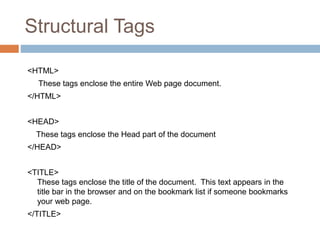
<HTML>
<HEAD>
<TITLE> John Q. Public's Web Page </TITLE>
</HEAD>
<BODY>
This is John Public's Webpage!
</BODY>
</HTML>
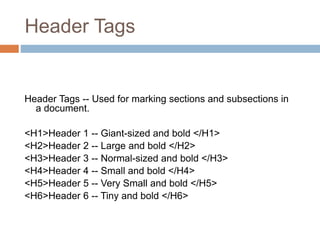
Header Tags
Header Tags -- Used for marking sections and subsections in
a document.
<H1>Header 1 -- Giant-sized and bold </H1>
<H2>Header 2 -- Large and bold </H2>
<H3>Header 3 -- Normal-sized and bold </H3>
<H4>Header 4 -- Small and bold </H4>
<H5>Header 5 -- Very Small and bold </H5>
<H6>Header 6 -- Tiny and bold </H6>
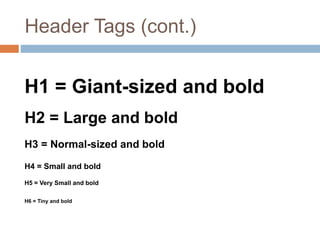
Header Tags (cont.)
H1 = Giant-sized and bold
H2 = Large and bold
H3 = Normal-sized and bold
H4 = Small and bold
H5 = Very Small and bold
H6 = Tiny and bold
Breaking Lines and Paragraphs
 <P> text </P>
 Paragraph tag
 Most browsers render (process) this with blank
lines between each paragraph
 <BR>
 Line break tag
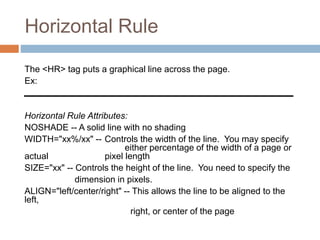
Horizontal Rule
The <HR> tag puts a graphical line across the page.
Ex:
Horizontal Rule Attributes:
NOSHADE -- A solid line with no shading
WIDTH="xx%/xx" -- Controls the width of the line. You may specify
either percentage of the width of a page or
actual pixel length
SIZE="xx" -- Controls the height of the line. You need to specify the
dimension in pixels.
ALIGN="left/center/right" -- This allows the line to be aligned to the
left,
right, or center of the page
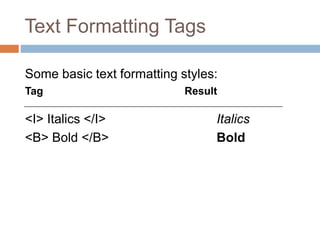
Text Formatting Tags
Some basic text formatting styles:
Tag Result
<I> Italics </I> Italics
<B> Bold </B> Bold
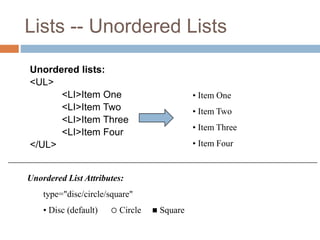
Lists -- Unordered Lists
Unordered lists:
<UL>
<LI>Item One
<LI>Item Two
<LI>Item Three
<LI>Item Four
</UL>
• Item One
• Item Two
• Item Three
• Item Four
Unordered List Attributes:
type="disc/circle/square"
• Disc (default)  Circle  Square
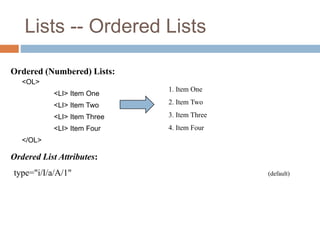
Lists -- Ordered Lists
<OL>
<LI> Item One
<LI> Item Two
<LI> Item Three
<LI> Item Four
</OL>
1. Item One
2. Item Two
3. Item Three
4. Item Four
type="i/I/a/A/1" (default)
Ordered (Numbered) Lists:
Ordered List Attributes:
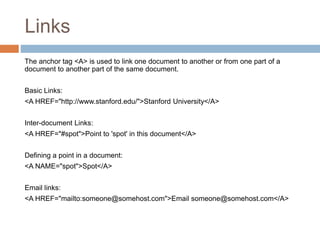
Links
The anchor tag <A> is used to link one document to another or from one part of a
document to another part of the same document.
Basic Links:
<A HREF="http://www.stanford.edu/">Stanford University</A>
Inter-document Links:
<A HREF="#spot">Point to 'spot' in this document</A>
Defining a point in a document:
<A NAME="spot">Spot</A>
Email links:
<A HREF="mailto:someone@somehost.com">Email someone@somehost.com</A>
Graphics
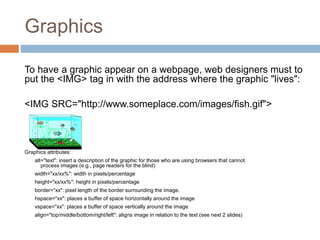
To have a graphic appear on a webpage, web designers must to
put the <IMG> tag in with the address where the graphic "lives":
<IMG SRC="http://www.someplace.com/images/fish.gif">
Graphics attributes:
alt="text": insert a description of the graphic for those who are using browsers that cannot
process images (e.g., page readers for the blind)
width="xx/xx%": width in pixels/percentage
height="xx/xx%": height in pixels/percentage
border="xx": pixel length of the border surrounding the image.
hspace="xx": places a buffer of space horizontally around the image
vspace="xx": places a buffer of space vertically around the image
align="top/middle/bottom/right/left": aligns image in relation to the text (see next 2 slides)
Table
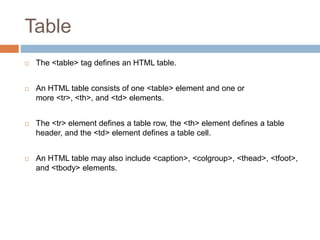
 The <table> tag defines an HTML table.
 An HTML table consists of one <table> element and one or
more <tr>, <th>, and <td> elements.
 The <tr> element defines a table row, the <th> element defines a table
header, and the <td> element defines a table cell.
 An HTML table may also include <caption>, <colgroup>, <thead>, <tfoot>,
and <tbody> elements.
Table
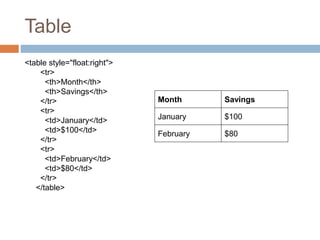
<table style="float:right">
<tr>
<th>Month</th>
<th>Savings</th>
</tr>
<tr>
<td>January</td>
<td>$100</td>
</tr>
<tr>
<td>February</td>
<td>$80</td>
</tr>
</table>
Month Savings
January $100
February $80
Table Caption
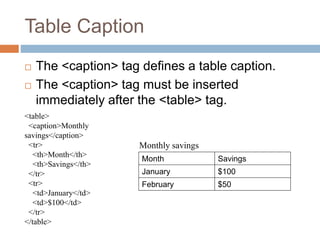
 The <caption> tag defines a table caption.
 The <caption> tag must be inserted
immediately after the <table> tag.
<table>
<caption>Monthly
savings</caption>
<tr>
<th>Month</th>
<th>Savings</th>
</tr>
<tr>
<td>January</td>
<td>$100</td>
</tr>
</table>
Month Savings
January $100
February $50
Monthly savings
Table Colgroup
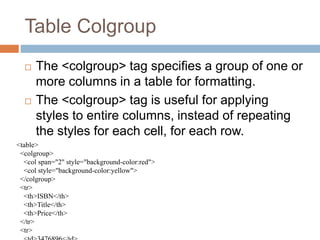
 The <colgroup> tag specifies a group of one or
more columns in a table for formatting.
 The <colgroup> tag is useful for applying
styles to entire columns, instead of repeating
the styles for each cell, for each row.
<table>
<colgroup>
<col span="2" style="background-color:red">
<col style="background-color:yellow">
</colgroup>
<tr>
<th>ISBN</th>
<th>Title</th>
<th>Price</th>
</tr>
<tr>
Table Colgroup
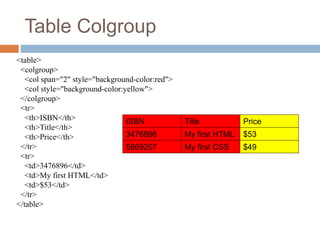
<table>
<colgroup>
<col span="2" style="background-color:red">
<col style="background-color:yellow">
</colgroup>
<tr>
<th>ISBN</th>
<th>Title</th>
<th>Price</th>
</tr>
<tr>
<td>3476896</td>
<td>My first HTML</td>
<td>$53</td>
</tr>
</table>
ISBN Title Price
3476896 My first HTML $53
5869207 My first CSS $49
Table
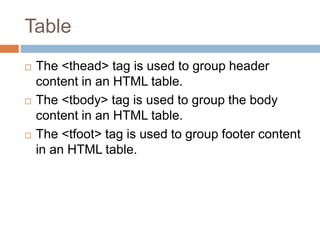
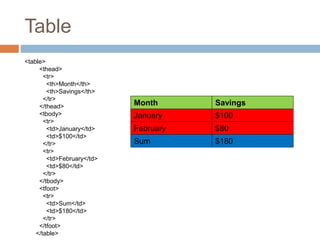
 The <thead> tag is used to group header
content in an HTML table.
 The <tbody> tag is used to group the body
content in an HTML table.
 The <tfoot> tag is used to group footer content
in an HTML table.
Table
<table>
<thead>
<tr>
<th>Month</th>
<th>Savings</th>
</tr>
</thead>
<tbody>
<tr>
<td>January</td>
<td>$100</td>
</tr>
<tr>
<td>February</td>
<td>$80</td>
</tr>
</tbody>
<tfoot>
<tr>
<td>Sum</td>
<td>$180</td>
</tr>
</tfoot>
</table>
Month Savings
January $100
February $80
Sum $180
HTML BLOCK ELEMENT
 A block-level element always starts on a new line, and
the browsers automatically add some space (a margin)
before and after the element.
 A block-level element always takes up the full width
available
 The <p> element defines a paragraph in an HTML
document.
 The <div> element defines a division or a section in an
HTML document.
 <address>,<article>,<aside>, <blockquote>, <canvas>,<dd>, <div>,
<dl>,<dt>, <fieldset>,<figcaption>, <figure>, <footer>,<form>,<h1>-
<h6>,<header>,<hr>,<li>,<main>,<nav>,<noscript>,<ol>,<p>,<pre>,
<section>,<table>,<tfoot>,<ul>,<video>
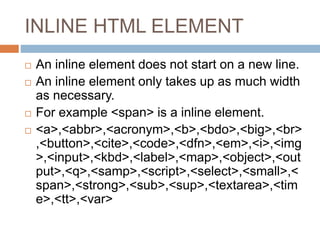
INLINE HTML ELEMENT
 An inline element does not start on a new line.
 An inline element only takes up as much width
as necessary.
 For example <span> is a inline element.
 <a>,<abbr>,<acronym>,<b>,<bdo>,<big>,<br>
,<button>,<cite>,<code>,<dfn>,<em>,<i>,<img
>,<input>,<kbd>,<label>,<map>,<object>,<out
put>,<q>,<samp>,<script>,<select>,<small>,<
span>,<strong>,<sub>,<sup>,<textarea>,<tim
e>,<tt>,<var>
THANKS

basic-tags.PPT

  • 1.
  • 2.
    Structural Tags <HTML> These tagsenclose the entire Web page document. </HTML> <HEAD> These tags enclose the Head part of the document </HEAD> <TITLE> These tags enclose the title of the document. This text appears in the title bar in the browser and on the bookmark list if someone bookmarks your web page. </TITLE>
  • 3.
    Sample Structure ofa Web Site <HTML> <HEAD> <TITLE> John Q. Public's Web Page </TITLE> </HEAD> <BODY> This is John Public's Webpage! </BODY> </HTML>
  • 4.
    Header Tags Header Tags-- Used for marking sections and subsections in a document. <H1>Header 1 -- Giant-sized and bold </H1> <H2>Header 2 -- Large and bold </H2> <H3>Header 3 -- Normal-sized and bold </H3> <H4>Header 4 -- Small and bold </H4> <H5>Header 5 -- Very Small and bold </H5> <H6>Header 6 -- Tiny and bold </H6>
  • 5.
    Header Tags (cont.) H1= Giant-sized and bold H2 = Large and bold H3 = Normal-sized and bold H4 = Small and bold H5 = Very Small and bold H6 = Tiny and bold
  • 6.
    Breaking Lines andParagraphs  <P> text </P>  Paragraph tag  Most browsers render (process) this with blank lines between each paragraph  <BR>  Line break tag
  • 7.
    Horizontal Rule The <HR>tag puts a graphical line across the page. Ex: Horizontal Rule Attributes: NOSHADE -- A solid line with no shading WIDTH="xx%/xx" -- Controls the width of the line. You may specify either percentage of the width of a page or actual pixel length SIZE="xx" -- Controls the height of the line. You need to specify the dimension in pixels. ALIGN="left/center/right" -- This allows the line to be aligned to the left, right, or center of the page
  • 8.
    Text Formatting Tags Somebasic text formatting styles: Tag Result <I> Italics </I> Italics <B> Bold </B> Bold
  • 9.
    Lists -- UnorderedLists Unordered lists: <UL> <LI>Item One <LI>Item Two <LI>Item Three <LI>Item Four </UL> • Item One • Item Two • Item Three • Item Four Unordered List Attributes: type="disc/circle/square" • Disc (default)  Circle  Square
  • 10.
    Lists -- OrderedLists <OL> <LI> Item One <LI> Item Two <LI> Item Three <LI> Item Four </OL> 1. Item One 2. Item Two 3. Item Three 4. Item Four type="i/I/a/A/1" (default) Ordered (Numbered) Lists: Ordered List Attributes:
  • 11.
    Links The anchor tag<A> is used to link one document to another or from one part of a document to another part of the same document. Basic Links: <A HREF="http://www.stanford.edu/">Stanford University</A> Inter-document Links: <A HREF="#spot">Point to 'spot' in this document</A> Defining a point in a document: <A NAME="spot">Spot</A> Email links: <A HREF="mailto:someone@somehost.com">Email someone@somehost.com</A>
  • 12.
    Graphics To have agraphic appear on a webpage, web designers must to put the <IMG> tag in with the address where the graphic "lives": <IMG SRC="http://www.someplace.com/images/fish.gif"> Graphics attributes: alt="text": insert a description of the graphic for those who are using browsers that cannot process images (e.g., page readers for the blind) width="xx/xx%": width in pixels/percentage height="xx/xx%": height in pixels/percentage border="xx": pixel length of the border surrounding the image. hspace="xx": places a buffer of space horizontally around the image vspace="xx": places a buffer of space vertically around the image align="top/middle/bottom/right/left": aligns image in relation to the text (see next 2 slides)
  • 13.
    Table  The <table>tag defines an HTML table.  An HTML table consists of one <table> element and one or more <tr>, <th>, and <td> elements.  The <tr> element defines a table row, the <th> element defines a table header, and the <td> element defines a table cell.  An HTML table may also include <caption>, <colgroup>, <thead>, <tfoot>, and <tbody> elements.
  • 14.
  • 15.
    Table Caption  The<caption> tag defines a table caption.  The <caption> tag must be inserted immediately after the <table> tag. <table> <caption>Monthly savings</caption> <tr> <th>Month</th> <th>Savings</th> </tr> <tr> <td>January</td> <td>$100</td> </tr> </table> Month Savings January $100 February $50 Monthly savings
  • 16.
    Table Colgroup  The<colgroup> tag specifies a group of one or more columns in a table for formatting.  The <colgroup> tag is useful for applying styles to entire columns, instead of repeating the styles for each cell, for each row. <table> <colgroup> <col span="2" style="background-color:red"> <col style="background-color:yellow"> </colgroup> <tr> <th>ISBN</th> <th>Title</th> <th>Price</th> </tr> <tr>
  • 17.
    Table Colgroup <table> <colgroup> <col span="2"style="background-color:red"> <col style="background-color:yellow"> </colgroup> <tr> <th>ISBN</th> <th>Title</th> <th>Price</th> </tr> <tr> <td>3476896</td> <td>My first HTML</td> <td>$53</td> </tr> </table> ISBN Title Price 3476896 My first HTML $53 5869207 My first CSS $49
  • 18.
    Table  The <thead>tag is used to group header content in an HTML table.  The <tbody> tag is used to group the body content in an HTML table.  The <tfoot> tag is used to group footer content in an HTML table.
  • 19.
  • 20.
    HTML BLOCK ELEMENT A block-level element always starts on a new line, and the browsers automatically add some space (a margin) before and after the element.  A block-level element always takes up the full width available  The <p> element defines a paragraph in an HTML document.  The <div> element defines a division or a section in an HTML document.  <address>,<article>,<aside>, <blockquote>, <canvas>,<dd>, <div>, <dl>,<dt>, <fieldset>,<figcaption>, <figure>, <footer>,<form>,<h1>- <h6>,<header>,<hr>,<li>,<main>,<nav>,<noscript>,<ol>,<p>,<pre>, <section>,<table>,<tfoot>,<ul>,<video>
  • 21.
    INLINE HTML ELEMENT An inline element does not start on a new line.  An inline element only takes up as much width as necessary.  For example <span> is a inline element.  <a>,<abbr>,<acronym>,<b>,<bdo>,<big>,<br> ,<button>,<cite>,<code>,<dfn>,<em>,<i>,<img >,<input>,<kbd>,<label>,<map>,<object>,<out put>,<q>,<samp>,<script>,<select>,<small>,< span>,<strong>,<sub>,<sup>,<textarea>,<tim e>,<tt>,<var>
  • 22.