
Integrated Development
Environment
MS Visual Basic 6.0 IDE

 Integrated Development
  Environment or IDE is the
  workbench on which you make
  your program in MS Visual Basic.
 It is a collection of menus, toolbars

  and windows, each of which has
  features that affects your
  programming activity.
The major components of MS
            Visual Basic
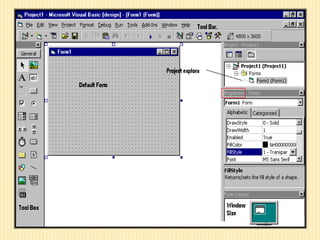
1.   Menu Bar – lets you direct the
     overall activity and management
     of your programming.
2.   Standard Toolbar- collection of
     all iconic buttons located
     underneath the menu bar. Offer
     access to the most commonly
     used functions.
3.    Toolbox- use to get the control
      needed in creating your user
      interface.
4.   Form- the main object you will
     use to create the user interface for
     your application.
5.   Project Explorer Window –
     displays a hierarchical list of all
     the components that makes up
     your application.
6. Properties Window – In this
window, you read, configure, and
control the initial settings of the
controls in your program.
7. Code Window- this window is
where you work with the Visual
Basic code that you write “behind”
your form.
8. Control- the building blocks of
your application
The ms visual basic 6

The ms visual basic 6

  • 1.
  • 2.
    MS Visual Basic6.0 IDE  Integrated Development Environment or IDE is the workbench on which you make your program in MS Visual Basic.  It is a collection of menus, toolbars and windows, each of which has features that affects your programming activity.
  • 4.
    The major componentsof MS Visual Basic 1. Menu Bar – lets you direct the overall activity and management of your programming. 2. Standard Toolbar- collection of all iconic buttons located underneath the menu bar. Offer access to the most commonly used functions.
  • 5.
    3. Toolbox- use to get the control needed in creating your user interface. 4. Form- the main object you will use to create the user interface for your application. 5. Project Explorer Window – displays a hierarchical list of all the components that makes up your application.
  • 6.
    6. Properties Window– In this window, you read, configure, and control the initial settings of the controls in your program. 7. Code Window- this window is where you work with the Visual Basic code that you write “behind” your form. 8. Control- the building blocks of your application