Visual Basic Programming
An Introduction
Why Visual Basic?
H Programming for the Windows User
Interface is extremely complicated.
H Other Graphical User Interfaces (GUI) are
no better.
H Visual Basic provides a convenient method
for building user interfaces.
H Visual Basic can interface with code written
in C, for efficiency.
What Visual Basic is not
H Visual Basic is not, a powerful
programming language that enables you to
do anything you want.
H Visual Basic is not, elegant or fast.
H Visual Basic is not, a replacement for C.
H Visual Basic is not, anything like any other
programming language you have ever used.
When You Program in VB:
H You draw pictures of your user interface.
H You draw buttons, text boxes, and other
user-interface items.
H You add little snippets of code to handle the
user interaction.
H You add initialization code, usually as the
last step.
H If you like, you can code more complex
functions. (But many do not.)
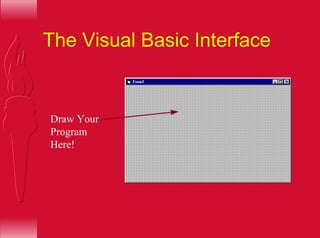
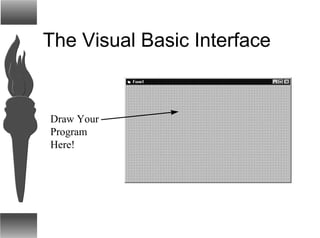
The Visual Basic Interface
Draw Your
Program
Here!
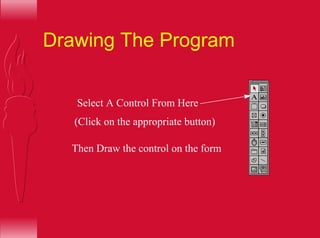
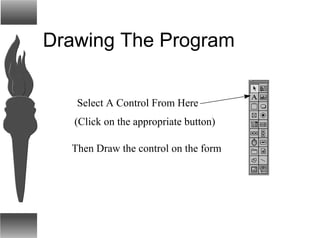
Drawing The Program
Select A Control From Here
(Click on the appropriate button)
Then Draw the control on the form
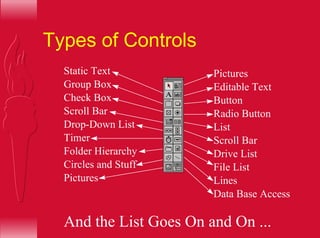
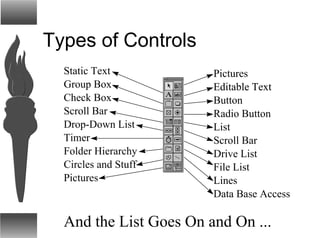
Types of Controls
Static Text
Group Box
Check Box
Scroll Bar
Timer
Folder Hierarchy
Circles and Stuff
Pictures
Pictures
Editable Text
Button
Radio Button
Drop-Down List List
Drive List
File List
Lines
Data Base Access
Scroll Bar
And the List Goes On and On ...
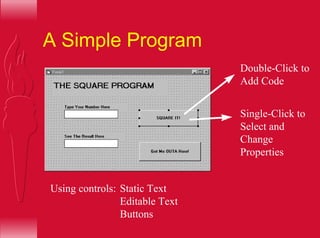
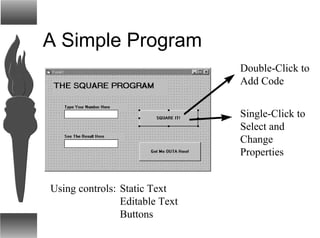
A Simple Program
Double-Click to
Add Code
Single-Click to
Select and
Change
Properties
Using controls: Static Text
Editable Text
Buttons
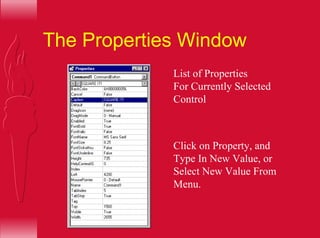
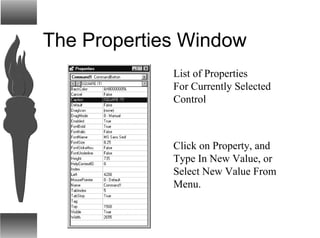
The Properties Window
List of Properties
For Currently Selected
Control
Click on Property, and
Type In New Value, or
Select New Value From
Menu.
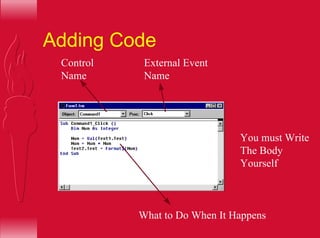
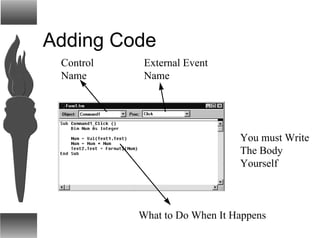
Adding Code
Control
Name
External Event
Name
What to Do When It Happens
You must Write
The Body
Yourself
More Complex Controls
H Complex Controls Have:
– Action Properties to Execute Commands
– Active Properties that Cause Actions When
Values Are Assigned to Them
– Many Types of Events for Program Interaction
H Examples:
– Spreadsheets
– Word Processors
– Web Browsers
Using C Code
H Write a DLL in C
H Use the _export Property on Appropriate
Functions
H Write Visual Basic Definitions for each
Function
H Add VB Definitions to The (general)
section of the VB Program
H Use Functions as if they were VB functions
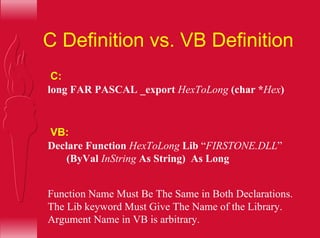
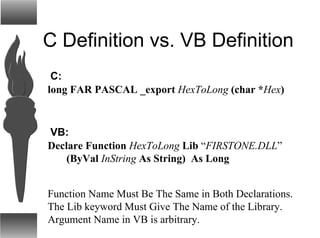
C Definition vs. VB Definition
Declare Function HexToLong Lib “FIRSTONE.DLL”
(ByVal InString As String) As Long
long FAR PASCAL _export HexToLong (char *Hex)
C:
VB:
Function Name Must Be The Same in Both Declarations.
The Lib keyword Must Give The Name of the Library.
Argument Name in VB is arbitrary.
A (Very Annoying) Problem
H It is sometimes difficult for VB to FIND the
.DLL file.
H If this occurs, copy the .DLL file to the
WINDOWS directory.
H Remember to Delete the file when you are
done.
Alternative Methods
H Some Versions of VB do not allow DLL
function definitions in the (general) section
of a form.
H To Get Around this Problem, Create a new
Module (File Menu)
H Add the declarations to the (general) section
of the module
H You can add your own VB functions to the
(general) section of a form or a module.
Syntax Considerations
H All Functions are Global in VB
H Variables are declared using the syntax:
– Dim <Name> As <Type>
– Every variable must have a type
– Dim A,B,C As <Type> will work, but gives
weird results
H Most Common Types: Integer, String, Long
More VB Syntax
H Use Integers for Booleans
– As in C, 0 = False, everything else = True
– Symbolic constants True and False may be used
– True = -1, False = 0
H Assignments are the same as in C
H The Val function converts strings to integers
H The Format$ function converts integers to
strings
VB Statements
H Assignments are the Same as in C
H Case is not significant
– Case will be adjusted for you on keywords
– For Variable Names, Case is ignored
H The Usual Operators can be used
– AND is the same as both & and && depending
on context
– OR = | and ||
– NOT = !
VB IF Statements
If <condition> Then
<List of Statements>
Else
<List of Statements>
EndIf
If <condition> Then
<List of Statements>
EndIf
DON’T FORGET THE ENDIF!
Comparators: =,<, >, <=, >=, < > (not equal)
Connectives: And, Or, Not
VB While Statements
While <condition> do
<List of Statements>
Wend
The VB Manual Recommends a different structure.
Use the alternative if you wish.
VB For Statements
For <Variable> = <start> to <finish>
<List of Statements>
Next <Variable>
For <Variable> = <start> to <finish> Step <increment>
<List of Statements>
Next <Variable>
Example:
For I = 1 to 10 do
A[I] = A[I] + 1
Next I
VB Arrays
H Indices Always Start With Zero
H Dim A[10] As Integer Declares 11 elements,
indexed from 0 through 10.
H Multi-Dimensional Arrays are Permitted.
H Arrays can be resized at run time (See VB
Help File for ReDim)
VB Strings
H Variable Length
H Compare using standard comparators
H Maximum length is about 64Kb
H Minimum length is zero
H Allocated from VB “String Space”, so may
run out of space even on systems with much
memory.
And in Conclusion ...
Go
Have
Fun!
Visual Basic Programming
An Introduction
Why Visual Basic?
H Programming for the Windows User
Interface is extremely complicated.
H Other Graphical User Interfaces (GUI) are
no better.
H Visual Basic provides a convenient method
for building user interfaces.
H Visual Basic can interface with code written
in C, for efficiency.
What Visual Basic is not
H Visual Basic is not, a powerful
programming language that enables you to
do anything you want.
H Visual Basic is not, elegant or fast.
H Visual Basic is not, a replacement for C.
H Visual Basic is not, anything like any other
programming language you have ever used.
When You Program in VB:
H You draw pictures of your user interface.
H You draw buttons, text boxes, and other
user-interface items.
H You add little snippets of code to handle the
user interaction.
H You add initialization code, usually as the
last step.
H If you like, you can code more complex
functions. (But many do not.)
The Visual Basic Interface
Draw Your
Program
Here!
Drawing The Program
Select A Control From Here
(Click on the appropriate button)
Then Draw the control on the form
Types of Controls
Static Text
Group Box
Check Box
Scroll Bar
Timer
Folder Hierarchy
Circles and Stuff
Pictures
Pictures
Editable TextEditable Text
Button
Radio Button
Drop-Down List List
Drive List
File List
Lines
Data Base Access
Scroll Bar
And the List Goes On and On ...
A Simple Program
Double-Click to
Add Code
Single-Click to
Select and
Change
Properties
Using controls: Static Text
Editable Text
Buttons
The Properties Window
List of Properties
For Currently Selected
Control
Click on Property, and
Type In New Value, or
Select New Value From
Menu.
Adding Code
Control
Name
External Event
Name
What to Do When It Happens
You must Write
The Body
Yourself
More Complex Controls
H Complex Controls Have:
– Action Properties to Execute Commands
– Active Properties that Cause Actions When
Values Are Assigned to Them
– Many Types of Events for Program Interaction
H Examples:
– Spreadsheets
– Word Processors
– Web Browsers
Using C Code
H Write a DLL in C
H Use the _export Property on Appropriate
Functions
H Write Visual Basic Definitions for each
Function
H Add VB Definitions to The (general)
section of the VB Program
H Use Functions as if they were VB functions
C Definition vs. VB Definition
Declare Function HexToLong Lib “FIRSTONE.DLL”
(ByVal InString As String) As Long
long FAR PASCAL _export HexToLong (char *Hex)
C:
VB:
Function Name Must Be The Same in Both Declarations.
The Lib keyword Must Give The Name of the Library.
Argument Name in VB is arbitrary.
A (Very Annoying) Problem
H It is sometimes difficult for VB to FIND the
.DLL file.
H If this occurs, copy the .DLL file to the
WINDOWS directory.
H Remember to Delete the file when you are
done.
Alternative Methods
H Some Versions of VB do not allow DLL
function definitions in the (general) section
of a form.
H To Get Around this Problem, Create a new
Module (File Menu)
H Add the declarations to the (general) section
of the module
H You can add your own VB functions to the
(general) section of a form or a module.
Syntax Considerations
H All Functions are Global in VB
H Variables are declared using the syntax:
– Dim <Name> As <Type>
– Every variable must have a type
– Dim A,B,C As <Type> will work, but gives
weird results
H Most Common Types: Integer, String, Long
More VB Syntax
H Use Integers for Booleans
– As in C, 0 = False, everything else = True
– Symbolic constants True and False may be used
– True = -1, False = 0
H Assignments are the same as in C
H The Val function converts strings to integers
H The Format$ function converts integers to
strings
VB Statements
H Assignments are the Same as in C
H Case is not significant
– Case will be adjusted for you on keywords
– For Variable Names, Case is ignored
H The Usual Operators can be used
– AND is the same as both & and && depending
on context
– OR = | and ||
– NOT = !
VB IF Statements
If <condition> Then
<List of Statements>
Else
<List of Statements>
EndIf
If <condition> Then
<List of Statements>
EndIf
DON’T FORGET THE ENDIF!
Comparators: =,<, >, <=, >=, < > (not equal)
Connectives: And, Or, Not
VB While Statements
While <condition> do
<List of Statements>
Wend
The VB Manual Recommends a different structure.
Use the alternative if you wish.
VB For Statements
For <Variable> = <start> to <finish>
<List of Statements>
Next <Variable>
For <Variable> = <start> to <finish> Step <increment>
<List of Statements>
Next <Variable>
Example:
For I = 1 to 10 do
A[I] = A[I] + 1
Next I
VB Arrays
H Indices Always Start With Zero
H Dim A[10] As Integer Declares 11 elements,
indexed from 0 through 10.
H Multi-Dimensional Arrays are Permitted.
H Arrays can be resized at run time (See VB
Help File for ReDim)
VB Strings
H Variable Length
H Compare using standard comparators
H Maximum length is about 64Kb
H Minimum length is zero
H Allocated from VB “String Space”, so may
run out of space even on systems with much
memory.
And in Conclusion ...
Go
Have
Fun!

Vbasic

  • 1.
  • 2.
    Why Visual Basic? HProgramming for the Windows User Interface is extremely complicated. H Other Graphical User Interfaces (GUI) are no better. H Visual Basic provides a convenient method for building user interfaces. H Visual Basic can interface with code written in C, for efficiency.
  • 3.
    What Visual Basicis not H Visual Basic is not, a powerful programming language that enables you to do anything you want. H Visual Basic is not, elegant or fast. H Visual Basic is not, a replacement for C. H Visual Basic is not, anything like any other programming language you have ever used.
  • 4.
    When You Programin VB: H You draw pictures of your user interface. H You draw buttons, text boxes, and other user-interface items. H You add little snippets of code to handle the user interaction. H You add initialization code, usually as the last step. H If you like, you can code more complex functions. (But many do not.)
  • 5.
    The Visual BasicInterface Draw Your Program Here!
  • 6.
    Drawing The Program SelectA Control From Here (Click on the appropriate button) Then Draw the control on the form
  • 7.
    Types of Controls StaticText Group Box Check Box Scroll Bar Timer Folder Hierarchy Circles and Stuff Pictures Pictures Editable Text Button Radio Button Drop-Down List List Drive List File List Lines Data Base Access Scroll Bar And the List Goes On and On ...
  • 8.
    A Simple Program Double-Clickto Add Code Single-Click to Select and Change Properties Using controls: Static Text Editable Text Buttons
  • 9.
    The Properties Window Listof Properties For Currently Selected Control Click on Property, and Type In New Value, or Select New Value From Menu.
  • 10.
    Adding Code Control Name External Event Name Whatto Do When It Happens You must Write The Body Yourself
  • 11.
    More Complex Controls HComplex Controls Have: – Action Properties to Execute Commands – Active Properties that Cause Actions When Values Are Assigned to Them – Many Types of Events for Program Interaction H Examples: – Spreadsheets – Word Processors – Web Browsers
  • 12.
    Using C Code HWrite a DLL in C H Use the _export Property on Appropriate Functions H Write Visual Basic Definitions for each Function H Add VB Definitions to The (general) section of the VB Program H Use Functions as if they were VB functions
  • 13.
    C Definition vs.VB Definition Declare Function HexToLong Lib “FIRSTONE.DLL” (ByVal InString As String) As Long long FAR PASCAL _export HexToLong (char *Hex) C: VB: Function Name Must Be The Same in Both Declarations. The Lib keyword Must Give The Name of the Library. Argument Name in VB is arbitrary.
  • 14.
    A (Very Annoying)Problem H It is sometimes difficult for VB to FIND the .DLL file. H If this occurs, copy the .DLL file to the WINDOWS directory. H Remember to Delete the file when you are done.
  • 15.
    Alternative Methods H SomeVersions of VB do not allow DLL function definitions in the (general) section of a form. H To Get Around this Problem, Create a new Module (File Menu) H Add the declarations to the (general) section of the module H You can add your own VB functions to the (general) section of a form or a module.
  • 16.
    Syntax Considerations H AllFunctions are Global in VB H Variables are declared using the syntax: – Dim <Name> As <Type> – Every variable must have a type – Dim A,B,C As <Type> will work, but gives weird results H Most Common Types: Integer, String, Long
  • 17.
    More VB Syntax HUse Integers for Booleans – As in C, 0 = False, everything else = True – Symbolic constants True and False may be used – True = -1, False = 0 H Assignments are the same as in C H The Val function converts strings to integers H The Format$ function converts integers to strings
  • 18.
    VB Statements H Assignmentsare the Same as in C H Case is not significant – Case will be adjusted for you on keywords – For Variable Names, Case is ignored H The Usual Operators can be used – AND is the same as both & and && depending on context – OR = | and || – NOT = !
  • 19.
    VB IF Statements If<condition> Then <List of Statements> Else <List of Statements> EndIf If <condition> Then <List of Statements> EndIf DON’T FORGET THE ENDIF! Comparators: =,<, >, <=, >=, < > (not equal) Connectives: And, Or, Not
  • 20.
    VB While Statements While<condition> do <List of Statements> Wend The VB Manual Recommends a different structure. Use the alternative if you wish.
  • 21.
    VB For Statements For<Variable> = <start> to <finish> <List of Statements> Next <Variable> For <Variable> = <start> to <finish> Step <increment> <List of Statements> Next <Variable> Example: For I = 1 to 10 do A[I] = A[I] + 1 Next I
  • 22.
    VB Arrays H IndicesAlways Start With Zero H Dim A[10] As Integer Declares 11 elements, indexed from 0 through 10. H Multi-Dimensional Arrays are Permitted. H Arrays can be resized at run time (See VB Help File for ReDim)
  • 23.
    VB Strings H VariableLength H Compare using standard comparators H Maximum length is about 64Kb H Minimum length is zero H Allocated from VB “String Space”, so may run out of space even on systems with much memory.
  • 24.
    And in Conclusion... Go Have Fun!
  • 25.
  • 26.
    Why Visual Basic? HProgramming for the Windows User Interface is extremely complicated. H Other Graphical User Interfaces (GUI) are no better. H Visual Basic provides a convenient method for building user interfaces. H Visual Basic can interface with code written in C, for efficiency.
  • 27.
    What Visual Basicis not H Visual Basic is not, a powerful programming language that enables you to do anything you want. H Visual Basic is not, elegant or fast. H Visual Basic is not, a replacement for C. H Visual Basic is not, anything like any other programming language you have ever used.
  • 28.
    When You Programin VB: H You draw pictures of your user interface. H You draw buttons, text boxes, and other user-interface items. H You add little snippets of code to handle the user interaction. H You add initialization code, usually as the last step. H If you like, you can code more complex functions. (But many do not.)
  • 29.
    The Visual BasicInterface Draw Your Program Here!
  • 30.
    Drawing The Program SelectA Control From Here (Click on the appropriate button) Then Draw the control on the form
  • 31.
    Types of Controls StaticText Group Box Check Box Scroll Bar Timer Folder Hierarchy Circles and Stuff Pictures Pictures Editable TextEditable Text Button Radio Button Drop-Down List List Drive List File List Lines Data Base Access Scroll Bar And the List Goes On and On ...
  • 32.
    A Simple Program Double-Clickto Add Code Single-Click to Select and Change Properties Using controls: Static Text Editable Text Buttons
  • 33.
    The Properties Window Listof Properties For Currently Selected Control Click on Property, and Type In New Value, or Select New Value From Menu.
  • 34.
    Adding Code Control Name External Event Name Whatto Do When It Happens You must Write The Body Yourself
  • 35.
    More Complex Controls HComplex Controls Have: – Action Properties to Execute Commands – Active Properties that Cause Actions When Values Are Assigned to Them – Many Types of Events for Program Interaction H Examples: – Spreadsheets – Word Processors – Web Browsers
  • 36.
    Using C Code HWrite a DLL in C H Use the _export Property on Appropriate Functions H Write Visual Basic Definitions for each Function H Add VB Definitions to The (general) section of the VB Program H Use Functions as if they were VB functions
  • 37.
    C Definition vs.VB Definition Declare Function HexToLong Lib “FIRSTONE.DLL” (ByVal InString As String) As Long long FAR PASCAL _export HexToLong (char *Hex) C: VB: Function Name Must Be The Same in Both Declarations. The Lib keyword Must Give The Name of the Library. Argument Name in VB is arbitrary.
  • 38.
    A (Very Annoying)Problem H It is sometimes difficult for VB to FIND the .DLL file. H If this occurs, copy the .DLL file to the WINDOWS directory. H Remember to Delete the file when you are done.
  • 39.
    Alternative Methods H SomeVersions of VB do not allow DLL function definitions in the (general) section of a form. H To Get Around this Problem, Create a new Module (File Menu) H Add the declarations to the (general) section of the module H You can add your own VB functions to the (general) section of a form or a module.
  • 40.
    Syntax Considerations H AllFunctions are Global in VB H Variables are declared using the syntax: – Dim <Name> As <Type> – Every variable must have a type – Dim A,B,C As <Type> will work, but gives weird results H Most Common Types: Integer, String, Long
  • 41.
    More VB Syntax HUse Integers for Booleans – As in C, 0 = False, everything else = True – Symbolic constants True and False may be used – True = -1, False = 0 H Assignments are the same as in C H The Val function converts strings to integers H The Format$ function converts integers to strings
  • 42.
    VB Statements H Assignmentsare the Same as in C H Case is not significant – Case will be adjusted for you on keywords – For Variable Names, Case is ignored H The Usual Operators can be used – AND is the same as both & and && depending on context – OR = | and || – NOT = !
  • 43.
    VB IF Statements If<condition> Then <List of Statements> Else <List of Statements> EndIf If <condition> Then <List of Statements> EndIf DON’T FORGET THE ENDIF! Comparators: =,<, >, <=, >=, < > (not equal) Connectives: And, Or, Not
  • 44.
    VB While Statements While<condition> do <List of Statements> Wend The VB Manual Recommends a different structure. Use the alternative if you wish.
  • 45.
    VB For Statements For<Variable> = <start> to <finish> <List of Statements> Next <Variable> For <Variable> = <start> to <finish> Step <increment> <List of Statements> Next <Variable> Example: For I = 1 to 10 do A[I] = A[I] + 1 Next I
  • 46.
    VB Arrays H IndicesAlways Start With Zero H Dim A[10] As Integer Declares 11 elements, indexed from 0 through 10. H Multi-Dimensional Arrays are Permitted. H Arrays can be resized at run time (See VB Help File for ReDim)
  • 47.
    VB Strings H VariableLength H Compare using standard comparators H Maximum length is about 64Kb H Minimum length is zero H Allocated from VB “String Space”, so may run out of space even on systems with much memory.
  • 48.
    And in Conclusion... Go Have Fun!