Simple Flash Animation
                For Websites

                       Tutorial


 Presentation by www.bubblefruit.com – Website design & development
Simple Flash Animation

For our demonstration we are going to use Macromedia Flash 8.
  This software is easy and cheap to acquire and is extremely
                           powerful.


   You can create very simple animations at a basic level to
 complicated photo slide shows. Your imagination is really your
                           only limit.


In this example we will be animating some simple text across a
                        small stage area.


    Presentation by www.bubblefruit.com – Website design & development
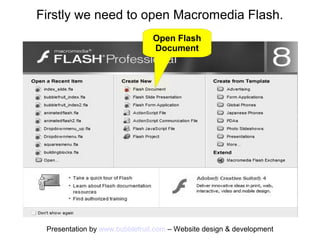
Firstly we need to open Macromedia Flash.
                               Open Flash
                               Document


 Presentation by www.bubblefruit.com – Website design & development
This will display the below layout.


                  This is the             This is the
                   time line              stage area


Presentation by www.bubblefruit.com – Website design & development
What is a time line & stage area?

1. The time line.

If you have ever used a video editing suite or
software like windows media maker then you will
have come across a time line. The time line is
made up of segments or frames, each second of
time that passes whilst playing a flash animation is
made up of frames per second. The more frames
per second the smoother the animation, but also
the greater the final file size. Your animation
sequence will run on this time line.


     Presentation by www.bubblefruit.com – Website design & development
What is a time line & stage area?
2. The stage area.

The stage is where your content will be added,
resized and created. In our example we will create
some text that will start in one area of the stage
and move smoothly to a different stage area. The
time this animation will run will be determined by
the length we decide to have the animation
running on the time line. Example.... if we create a
time line of 15 frames per second and allow the
animation to move over a 30 frame segment then
the animation will last 2 seconds... 30 divided by
15 frames a second.
     Presentation by www.bubblefruit.com – Website design & development
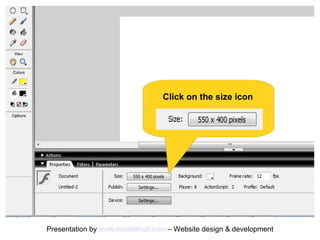
Click on the size icon


Presentation by www.bubblefruit.com – Website design & development
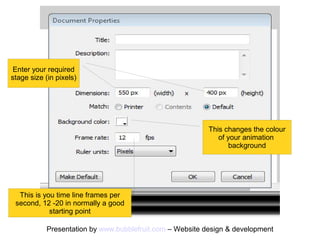
Enter your required
stage size (in pixels)


                                                           This changes the colour
                                                              of your animation
                                                                  background


  This is your time line frames per
 second, 12 -20 is normally a good
            starting point

            Presentation by www.bubblefruit.com – Website design & development
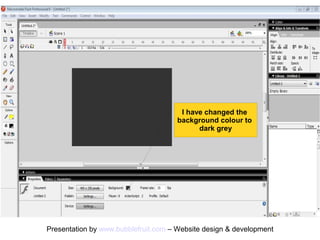
I have changed the
                                      background colour to
                                            dark grey


Presentation by www.bubblefruit.com – Website design & development
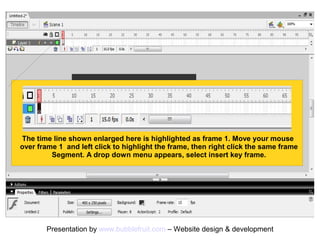
The time line shown enlarged here is highlighted as frame 1. Move your mouse
over frame 1 and left click to highlight the frame, then right click the same frame
         Segment. A drop down menu appears, select insert key frame.


       Presentation by www.bubblefruit.com – Website design & development
What is a key frame?

A key frame is a single frame / segment on the
time line that will incorporate a frame that will
be the start of something new on the animation.

Call it a starting point or an end point as you will
see on the next slide, another way is to view
them as important points within the animation
that can effect the way that frame is utilised.


     Presentation by www.bubblefruit.com – Website design & development
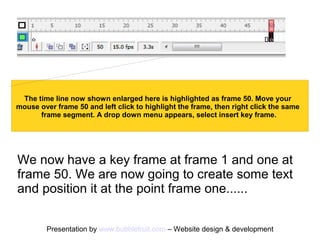
The time line now shown enlarged here is highlighted as frame 50. Move your
mouse over frame 50 and left click to highlight the frame, then right click the same
      frame segment. A drop down menu appears, select insert key frame.


We now have a key frame at frame 1 and one at
frame 50. We are now going to create some text
and position it at the point frame one......


         Presentation by www.bubblefruit.com – Website design & development
1. select frame 1 by left
                                 clicking on it leaving it
                                    Highlighted black.


2. Click on the text tool on the tools bar


                                      3. Type some text within the
                                     Stage area, anywhere to start
                                    With, location is not important yet


   Presentation by www.bubblefruit.com – Website design & development
At this stage set the font type, size, colour etc....

  Make sure you have the text highlight before you make the
 Changes, this is indicated in a blue box surrounding the text.


Presentation by www.bubblefruit.com – Website design & development
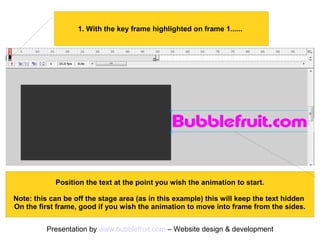
1. With the key frame highlighted on frame 1......


            Position the text at the point you wish the animation to start.

Note: this can be off the stage area (as in this example) this will keep the text hidden
on the first frame, good if you wish the animation to move into frame from the sides.


          Presentation by www.bubblefruit.com – Website design & development
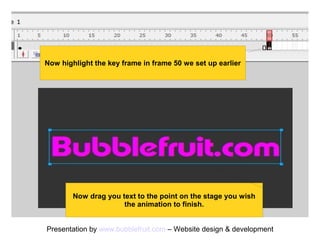
Now highlight the key frame in frame 50 we set up earlier


       Now drag your text to the point on the stage you wish
                     the animation to finish.


Presentation by www.bubblefruit.com – Website design & development
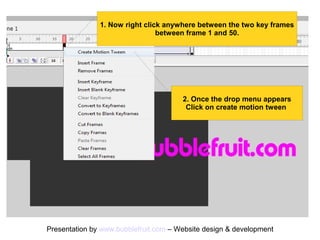
1. Now right click anywhere between the two key frames
                                between frame 1 and 50.


                                     2. Once the drop down menu appears
                                         click on create motion tween


Presentation by www.bubblefruit.com – Website design & development
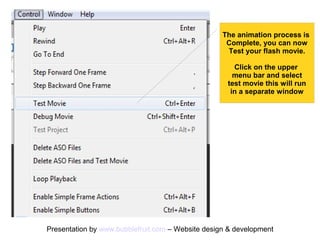
The animation process is
                                                    complete, you can now
                                                     test your flash movie.

                                                      Click on the upper
                                                      menu bar and select
                                                    test movie this will run
                                                     in a separate window


Presentation by www.bubblefruit.com – Website design & development
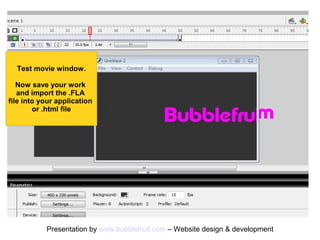
Test movie window.

   Now save your work
   and import the .FLA
file into your application
    Directory and java
script into your .html file


            Presentation by www.bubblefruit.com – Website design & development
If you need help importing the finished flash file
    into your remote directory and java script into
   your .html file to view on your website just pop
along to our “how to blogs” section on our website,
                       link below.
          Adding flash files to your html files


 Thank you for watching and I hope this helped.

 If you need any help or have a question please
  feel free to email us at paul@bubblefruit.com.

     Presentation by www.bubblefruit.com – Website design & development

Simple flash animation

  • 1.
    Simple Flash Animation For Websites Tutorial Presentation by www.bubblefruit.com – Website design & development
  • 2.
    Simple Flash Animation Forour demonstration we are going to use Macromedia Flash 8. This software is easy and cheap to acquire and is extremely powerful. You can create very simple animations at a basic level to complicated photo slide shows. Your imagination is really your only limit. In this example we will be animating some simple text across a small stage area. Presentation by www.bubblefruit.com – Website design & development
  • 3.
    Firstly we needto open Macromedia Flash. Open Flash Document Presentation by www.bubblefruit.com – Website design & development
  • 4.
    This will displaythe below layout. This is the This is the time line stage area Presentation by www.bubblefruit.com – Website design & development
  • 5.
    What is atime line & stage area? 1. The time line. If you have ever used a video editing suite or software like windows media maker then you will have come across a time line. The time line is made up of segments or frames, each second of time that passes whilst playing a flash animation is made up of frames per second. The more frames per second the smoother the animation, but also the greater the final file size. Your animation sequence will run on this time line. Presentation by www.bubblefruit.com – Website design & development
  • 6.
    What is atime line & stage area? 2. The stage area. The stage is where your content will be added, resized and created. In our example we will create some text that will start in one area of the stage and move smoothly to a different stage area. The time this animation will run will be determined by the length we decide to have the animation running on the time line. Example.... if we create a time line of 15 frames per second and allow the animation to move over a 30 frame segment then the animation will last 2 seconds... 30 divided by 15 frames a second. Presentation by www.bubblefruit.com – Website design & development
  • 7.
    Click on thesize icon Presentation by www.bubblefruit.com – Website design & development
  • 8.
    Enter your required stagesize (in pixels) This changes the colour of your animation background This is your time line frames per second, 12 -20 is normally a good starting point Presentation by www.bubblefruit.com – Website design & development
  • 9.
    I have changedthe background colour to dark grey Presentation by www.bubblefruit.com – Website design & development
  • 10.
    The time lineshown enlarged here is highlighted as frame 1. Move your mouse over frame 1 and left click to highlight the frame, then right click the same frame Segment. A drop down menu appears, select insert key frame. Presentation by www.bubblefruit.com – Website design & development
  • 11.
    What is akey frame? A key frame is a single frame / segment on the time line that will incorporate a frame that will be the start of something new on the animation. Call it a starting point or an end point as you will see on the next slide, another way is to view them as important points within the animation that can effect the way that frame is utilised. Presentation by www.bubblefruit.com – Website design & development
  • 12.
    The time linenow shown enlarged here is highlighted as frame 50. Move your mouse over frame 50 and left click to highlight the frame, then right click the same frame segment. A drop down menu appears, select insert key frame. We now have a key frame at frame 1 and one at frame 50. We are now going to create some text and position it at the point frame one...... Presentation by www.bubblefruit.com – Website design & development
  • 13.
    1. select frame1 by left clicking on it leaving it Highlighted black. 2. Click on the text tool on the tools bar 3. Type some text within the Stage area, anywhere to start With, location is not important yet Presentation by www.bubblefruit.com – Website design & development
  • 14.
    At this stageset the font type, size, colour etc.... Make sure you have the text highlight before you make the Changes, this is indicated in a blue box surrounding the text. Presentation by www.bubblefruit.com – Website design & development
  • 15.
    1. With thekey frame highlighted on frame 1...... Position the text at the point you wish the animation to start. Note: this can be off the stage area (as in this example) this will keep the text hidden on the first frame, good if you wish the animation to move into frame from the sides. Presentation by www.bubblefruit.com – Website design & development
  • 16.
    Now highlight thekey frame in frame 50 we set up earlier Now drag your text to the point on the stage you wish the animation to finish. Presentation by www.bubblefruit.com – Website design & development
  • 17.
    1. Now rightclick anywhere between the two key frames between frame 1 and 50. 2. Once the drop down menu appears click on create motion tween Presentation by www.bubblefruit.com – Website design & development
  • 18.
    The animation processis complete, you can now test your flash movie. Click on the upper menu bar and select test movie this will run in a separate window Presentation by www.bubblefruit.com – Website design & development
  • 19.
    Test movie window. Now save your work and import the .FLA file into your application Directory and java script into your .html file Presentation by www.bubblefruit.com – Website design & development
  • 20.
    If you needhelp importing the finished flash file into your remote directory and java script into your .html file to view on your website just pop along to our “how to blogs” section on our website, link below. Adding flash files to your html files Thank you for watching and I hope this helped. If you need any help or have a question please feel free to email us at paul@bubblefruit.com. Presentation by www.bubblefruit.com – Website design & development