By :- Nisarg raval
08BCA104
Introduction To Flash
F L A S H
β€’ Animation is a rapid display of a sequence
of images of 2-D artwork or model positions in
order to create an illusion of movement.
β€’ It is an optical illusion of motion due to the
phenomenon of persistence of vision.
F L A S H
β€’ Flash is a vector animation software,
originally designed to create animations for
display on web pages. Vector graphics are ideal
for the web because they are so lightweight.
β€’ Flash is a multimedia graphics program
specially for use on the Web .
β€’ Flash enables you to create interactive
"movies" on the Web .
F L A S H
β€’ Flash uses vector graphics, which means
that the graphics can be scaled to any size
without losing clarity/quality.
β€’ Flash does not require programming skills
and is easy to learn.
β€’ Macromedia has made Flash more and more
controllable via programming, where they have it
positioned as a competitor to HTML to build
interactive web sites and applications such as an e-
commerce store. Macromedia argues that Flash is the
way to go instead of HTML because of the following
F L A S H
β€’ Flash movies load faster and save on
download time because Flash is vector based
whereas HTML is not.
β€’ Flash intelligently β€˜caches’ it’s movies so
they don’t have to be reloaded.
β€’ Flash gives the user (the person
viewing/using the Flash movie) a more
responsive β€˜rich-client’ like experience.
F L A S H
β€’ Flash pages can be made to load faster, but most
of the time, the way they are designed in the real
world, they do not. That is not a Flash problem, it is
more an issue of the Flash developers going nuts with
fancy and heavy Flash movies.
β€’ HTML caches pages as well, once images are
downloaded they are held in your browser's cache.
The cached images are then used instead of
downloading them from the server again.
F L A S H
β€’ With new technology like ASP.net and Java
Server Faces, HTML now can react just like a β€˜rich-
client’ application. Even without these new tools,
properly designed HTML for most dynamic sites can
provide a good user experience.
β€’ Flash loads much faster than animated images .
β€’ Flash allows interactivity, animated images do not .
β€’ Flash does not require programming skills, java
applets do .
F L A S H – W O R K E N V I R O N M E N T
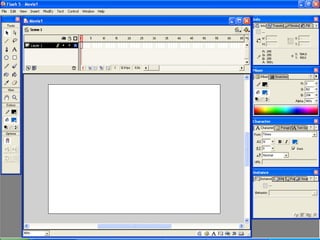
β€’The Stage, the rectangular area where the
movie plays.
β€’The Timeline, where graphics are animated
over time .
β€’Symbols, the reusable media assets of a movie
β€’The Library window, where symbols are
organized .
β€’The Movie Explorer, which gives an overview
of a movie and its structure.
F L A S H – W O R K E N V I R O N M E N T
β€’Floating, dockable panels, which enable
you to modify various elements in the
movie and configure the Flash authoring
environment to best suit your workflow .
The stage and Timeline :-
β€’Like films, Flash movies divide lengths of time into
frames. The Stage is where you compose the content
for individual frames in the movie, drawing artwork
on it directly or arranging imported artwork.
F L A S H – W O R K E N V I R O N M E N T
β€’ The Timeline is where you coordinate the
timing of the animation and assemble the
artwork on separate layers. The Timeline
displays each frame in the movie..
β€’ Layers act like stacked sheets of
transparent acetate, keeping artwork
separate so you can combine different
elements into a cohesive visual image.
F L A S H – W O R K E N V I R O N M E N T
Symbols and instances
β€’ Symbols are reusable elements that you use
with a movie. Symbols can be graphics, buttons,
movie clips, sound files, or fonts. When you create
a symbol, the symbol is stored in the file's library.
When you place a symbol on the Stage, you create
an instance of that symbol.
F L A S H – W O R K E N V I R O N M E N T
Symbols and instances
β€’ Symbols reduce file size because, regardless of
how many instances of a symbol you create, Flash stores
the symbol in the file only once. It is a good idea to use
symbols, animated or otherwise, for every element that
appears more than once in a movie. You can modify the
properties of an instance without affecting the master
symbol, and you can edit the master symbol to change all
instances .
F L A S H – W O R K E N V I R O N M E N T
The Library Window
β€’ The Library window is where you store and
organize symbols created in Flash, as well as imported
files, including sound files, bitmap graphics, and
QuickTime movies. The Library window lets you
organize library items in folders, see how often an item is
used in a movie, and sort items by type.
TOOLS IN FLASH
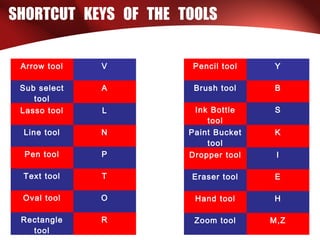
SHORTCUT KEYS OF THE TOOLS
Arrow tool V
Sub select
tool
A
Lasso tool L
Line tool N
Pen tool P
Text tool T
Oval tool O
Rectangle
tool
R
Pencil tool Y
Brush tool B
Ink Bottle
tool
S
Paint Bucket
tool
K
Dropper tool I
Eraser tool E
Hand tool H
Zoom tool M,Z
CREATING ANIMATION
F L A S H
β€’ You create animation by changing the content
of successive frames.
β€’You can make an object move across the Stage,
increase or decrease its size, rotate, change
color, fade in or out, or change shape.
β€’Changes can occur independently of, or in
concert with, other changes.
β€’For example, you can make an object rotate
and fade in as it moves across the Stage.
F L A S H
β€’There are two methods for creating an
animation sequence in Flash:
β€’Frame-by-frame animation
o In frame-by-frame animation you create the
image in every frame.
β€’Tweened animation
o In tweened animation, you create starting and
ending frames and let Flash create the frames in
between. Flash varies the object's size, rotation,
color, or other attributes evenly between the starting
and ending frames to create the appearance of
movement
F L A S H
β€’ Tweened animation is an effective way
to create movement and changes over time
while minimizing file size.
β€’ In tweened animation, Flash stores only
the values for the changes between frames.
β€’ In frame-by-frame animation, Flash
stores the values for each complete frame.
KEYFRAMES
F L A S H - K E Y F R A M E
β€’ A keyframe is a frame where you
define changes in the animation.
β€’ When you create frame-by-frame
animation, every frame is a keyframe.
β€’ In keyframe (tweened) animation, you
define keyframes at important points in
the animation and let Flash create the
content of frames in between.
F L A S H - K E Y F R A M E
β€’ Flash displays the interpolated frames
of a tweened animation as light blue or
green with an arrow drawn between
keyframes.
β€’ Flash redraws shapes in each keyframe.
You should create keyframes only at those
points in the artwork where something
changes.
F L A S H - K E Y F R A M E
β€’ Keyframes are indicated in the
Timeline: a keyframe with content on it is
represented by a solid circle, and an empty
keyframe is represented by a vertical line
before the frame.
β€’ Subsequent frames that you add to the
same layer will have the same content as
the keyframe.
F L A S H - K E Y F R A M E
β€’ To create a keyframe, do one of the
following:
oSelect a frame in the Timeline and choose
Insert > Keyframe.
oRight-click (Windows) a frame in the
Timeline and choose Insert Keyframe.
TWINING
M O T I O N T W E E N
β€’Creation of Motion tween using timeline is the
basics of Flash.
β€’Motion tween is nothing but tweening a
Symbol's movement from one position to
another.
β€’To implement Motion Tween all that you have
to do is, provide Flash with Symbol's initial
position and the end position.
S H A P E T W E E N
β€’Creation of Shape tween using timeline is
also the basics of Flash.
β€’By tweening shapes, you can create an
effect similar to morphing, making one
shape appear to change into another shape
over time.
β€’Flash can also tween the location, size, and
color of shapes.
Use of Movie Clips, Buttons, Graphics
F L A S H
β€’ Each symbol has a unique Timeline and
Stage, complete with layers. When you create a
symbol, you choose how the symbol will behave,
depending on how you want to use it in the
movie.
o Use graphic symbols for static images and to create
reusable pieces of animation that are tied to the
Timeline of the main movie. Graphic symbols operate
in sync with the Timeline of the main movie.
Interactive controls and sounds won't work in a
graphic symbol's animation sequence.
F L A S H
oUse button symbols to create interactive buttons in the movie
that respond to mouse clicks or rollovers or other actions. You
define the graphics associated with various button states, and
then assign actions to a button instance.
oUse movie clip symbols to create reusable pieces of animation.
Movie clips have their own multiframe Timeline that plays
independent of the main movie's Timelineβ€”think of them as
mini-movies inside a main movie that can contain interactive
controls, sounds, and even other movie clip instances. You can
also place movie clip instances inside the Timeline of a button
symbol to create animated buttons.

Introduction To Flash

  • 1.
    By :- Nisargraval 08BCA104 Introduction To Flash
  • 2.
    F L AS H β€’ Animation is a rapid display of a sequence of images of 2-D artwork or model positions in order to create an illusion of movement. β€’ It is an optical illusion of motion due to the phenomenon of persistence of vision.
  • 3.
    F L AS H β€’ Flash is a vector animation software, originally designed to create animations for display on web pages. Vector graphics are ideal for the web because they are so lightweight. β€’ Flash is a multimedia graphics program specially for use on the Web . β€’ Flash enables you to create interactive "movies" on the Web .
  • 4.
    F L AS H β€’ Flash uses vector graphics, which means that the graphics can be scaled to any size without losing clarity/quality. β€’ Flash does not require programming skills and is easy to learn. β€’ Macromedia has made Flash more and more controllable via programming, where they have it positioned as a competitor to HTML to build interactive web sites and applications such as an e- commerce store. Macromedia argues that Flash is the way to go instead of HTML because of the following
  • 5.
    F L AS H β€’ Flash movies load faster and save on download time because Flash is vector based whereas HTML is not. β€’ Flash intelligently β€˜caches’ it’s movies so they don’t have to be reloaded. β€’ Flash gives the user (the person viewing/using the Flash movie) a more responsive β€˜rich-client’ like experience.
  • 6.
    F L AS H β€’ Flash pages can be made to load faster, but most of the time, the way they are designed in the real world, they do not. That is not a Flash problem, it is more an issue of the Flash developers going nuts with fancy and heavy Flash movies. β€’ HTML caches pages as well, once images are downloaded they are held in your browser's cache. The cached images are then used instead of downloading them from the server again.
  • 7.
    F L AS H β€’ With new technology like ASP.net and Java Server Faces, HTML now can react just like a β€˜rich- client’ application. Even without these new tools, properly designed HTML for most dynamic sites can provide a good user experience. β€’ Flash loads much faster than animated images . β€’ Flash allows interactivity, animated images do not . β€’ Flash does not require programming skills, java applets do .
  • 9.
    F L AS H – W O R K E N V I R O N M E N T β€’The Stage, the rectangular area where the movie plays. β€’The Timeline, where graphics are animated over time . β€’Symbols, the reusable media assets of a movie β€’The Library window, where symbols are organized . β€’The Movie Explorer, which gives an overview of a movie and its structure.
  • 10.
    F L AS H – W O R K E N V I R O N M E N T β€’Floating, dockable panels, which enable you to modify various elements in the movie and configure the Flash authoring environment to best suit your workflow . The stage and Timeline :- β€’Like films, Flash movies divide lengths of time into frames. The Stage is where you compose the content for individual frames in the movie, drawing artwork on it directly or arranging imported artwork.
  • 11.
    F L AS H – W O R K E N V I R O N M E N T β€’ The Timeline is where you coordinate the timing of the animation and assemble the artwork on separate layers. The Timeline displays each frame in the movie.. β€’ Layers act like stacked sheets of transparent acetate, keeping artwork separate so you can combine different elements into a cohesive visual image.
  • 12.
    F L AS H – W O R K E N V I R O N M E N T Symbols and instances β€’ Symbols are reusable elements that you use with a movie. Symbols can be graphics, buttons, movie clips, sound files, or fonts. When you create a symbol, the symbol is stored in the file's library. When you place a symbol on the Stage, you create an instance of that symbol.
  • 13.
    F L AS H – W O R K E N V I R O N M E N T Symbols and instances β€’ Symbols reduce file size because, regardless of how many instances of a symbol you create, Flash stores the symbol in the file only once. It is a good idea to use symbols, animated or otherwise, for every element that appears more than once in a movie. You can modify the properties of an instance without affecting the master symbol, and you can edit the master symbol to change all instances .
  • 14.
    F L AS H – W O R K E N V I R O N M E N T The Library Window β€’ The Library window is where you store and organize symbols created in Flash, as well as imported files, including sound files, bitmap graphics, and QuickTime movies. The Library window lets you organize library items in folders, see how often an item is used in a movie, and sort items by type.
  • 15.
  • 17.
    SHORTCUT KEYS OFTHE TOOLS Arrow tool V Sub select tool A Lasso tool L Line tool N Pen tool P Text tool T Oval tool O Rectangle tool R Pencil tool Y Brush tool B Ink Bottle tool S Paint Bucket tool K Dropper tool I Eraser tool E Hand tool H Zoom tool M,Z
  • 18.
  • 19.
    F L AS H β€’ You create animation by changing the content of successive frames. β€’You can make an object move across the Stage, increase or decrease its size, rotate, change color, fade in or out, or change shape. β€’Changes can occur independently of, or in concert with, other changes. β€’For example, you can make an object rotate and fade in as it moves across the Stage.
  • 20.
    F L AS H β€’There are two methods for creating an animation sequence in Flash: β€’Frame-by-frame animation o In frame-by-frame animation you create the image in every frame. β€’Tweened animation o In tweened animation, you create starting and ending frames and let Flash create the frames in between. Flash varies the object's size, rotation, color, or other attributes evenly between the starting and ending frames to create the appearance of movement
  • 21.
    F L AS H β€’ Tweened animation is an effective way to create movement and changes over time while minimizing file size. β€’ In tweened animation, Flash stores only the values for the changes between frames. β€’ In frame-by-frame animation, Flash stores the values for each complete frame.
  • 22.
  • 23.
    F L AS H - K E Y F R A M E β€’ A keyframe is a frame where you define changes in the animation. β€’ When you create frame-by-frame animation, every frame is a keyframe. β€’ In keyframe (tweened) animation, you define keyframes at important points in the animation and let Flash create the content of frames in between.
  • 24.
    F L AS H - K E Y F R A M E β€’ Flash displays the interpolated frames of a tweened animation as light blue or green with an arrow drawn between keyframes. β€’ Flash redraws shapes in each keyframe. You should create keyframes only at those points in the artwork where something changes.
  • 25.
    F L AS H - K E Y F R A M E β€’ Keyframes are indicated in the Timeline: a keyframe with content on it is represented by a solid circle, and an empty keyframe is represented by a vertical line before the frame. β€’ Subsequent frames that you add to the same layer will have the same content as the keyframe.
  • 26.
    F L AS H - K E Y F R A M E β€’ To create a keyframe, do one of the following: oSelect a frame in the Timeline and choose Insert > Keyframe. oRight-click (Windows) a frame in the Timeline and choose Insert Keyframe.
  • 27.
  • 28.
    M O TI O N T W E E N β€’Creation of Motion tween using timeline is the basics of Flash. β€’Motion tween is nothing but tweening a Symbol's movement from one position to another. β€’To implement Motion Tween all that you have to do is, provide Flash with Symbol's initial position and the end position.
  • 29.
    S H AP E T W E E N β€’Creation of Shape tween using timeline is also the basics of Flash. β€’By tweening shapes, you can create an effect similar to morphing, making one shape appear to change into another shape over time. β€’Flash can also tween the location, size, and color of shapes.
  • 30.
    Use of MovieClips, Buttons, Graphics
  • 31.
    F L AS H β€’ Each symbol has a unique Timeline and Stage, complete with layers. When you create a symbol, you choose how the symbol will behave, depending on how you want to use it in the movie. o Use graphic symbols for static images and to create reusable pieces of animation that are tied to the Timeline of the main movie. Graphic symbols operate in sync with the Timeline of the main movie. Interactive controls and sounds won't work in a graphic symbol's animation sequence.
  • 32.
    F L AS H oUse button symbols to create interactive buttons in the movie that respond to mouse clicks or rollovers or other actions. You define the graphics associated with various button states, and then assign actions to a button instance. oUse movie clip symbols to create reusable pieces of animation. Movie clips have their own multiframe Timeline that plays independent of the main movie's Timelineβ€”think of them as mini-movies inside a main movie that can contain interactive controls, sounds, and even other movie clip instances. You can also place movie clip instances inside the Timeline of a button symbol to create animated buttons.