Adobe Flash CS4 – Illustrated Unit A:  Getting Started with Adobe Flash
Objectives Understand Adobe Flash Start Adobe Flash CS4 View the Flash workspace Arrange the workspace Open a document and play a movie Understand the Timeline Add a layer and element Use Help and exit Flash
Understanding Adobe Flash Multimedia program for: Creating and organizing media Applying animation and other effects to the media An authoring tool
Uses of Adobe Flash Add movies to Web pages Animation Persistence of vision Streaming Create interactive content Navigational components User interface Create self-running programs Rich Internet Applications (RIA)
Uses of Adobe Flash (cont’d) Develop content to create playable files Create documents with .fla file extension Save document as output file for users in .swf file format Use Flash Player plug-in (standard in most browsers) to play .swf files
Starting Adobe Flash CS4 Double-click Flash shortcut icon on desktop (Win) or in dock (Mac), or Use the Start menu
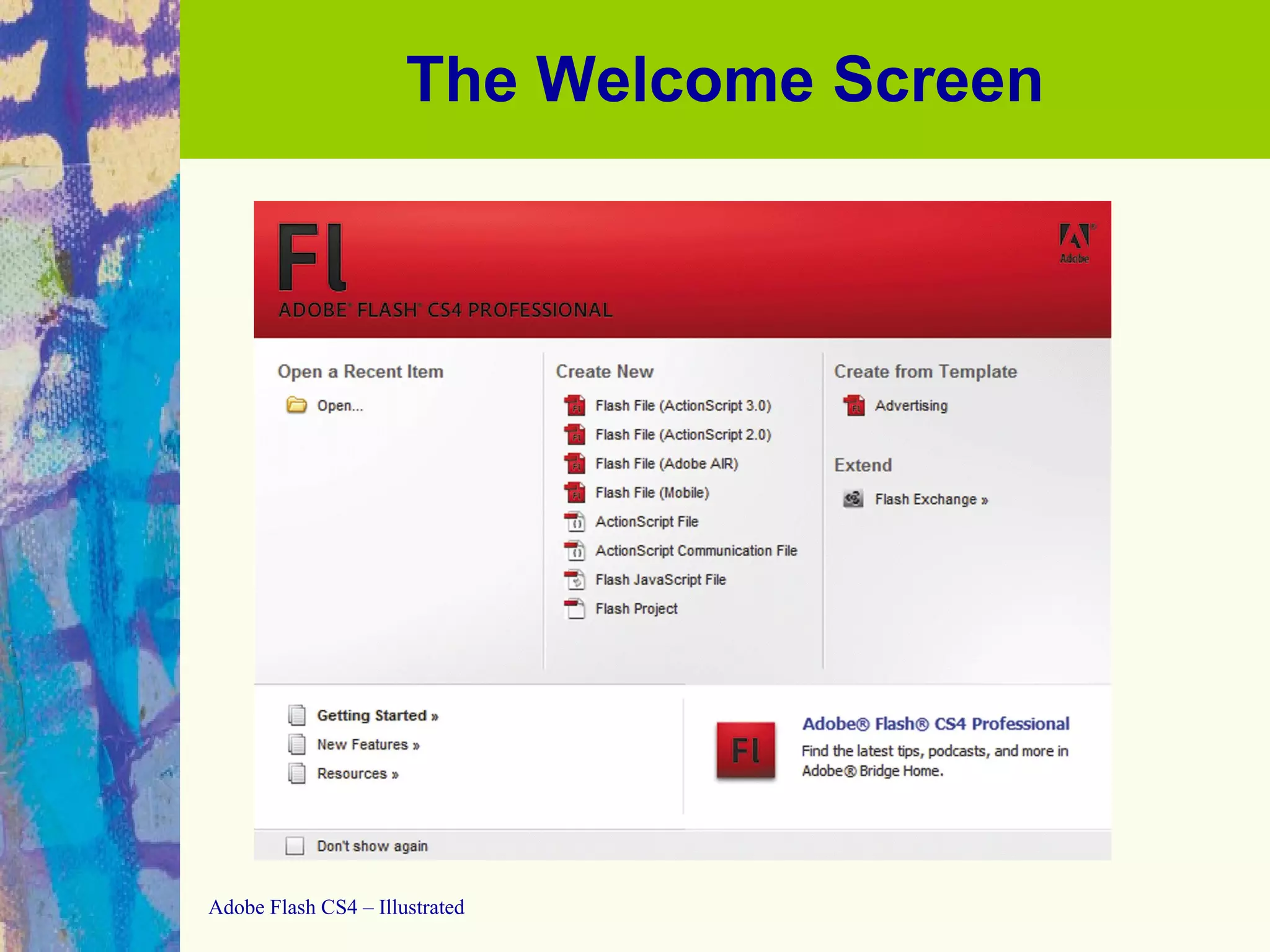
The Welcome Screen Open existing or recently used files Create new files of various types Create files from a template Access link to Flash Exchange Web site Access links to additional information and tutorials Turn off Welcome Screen
The Welcome Screen
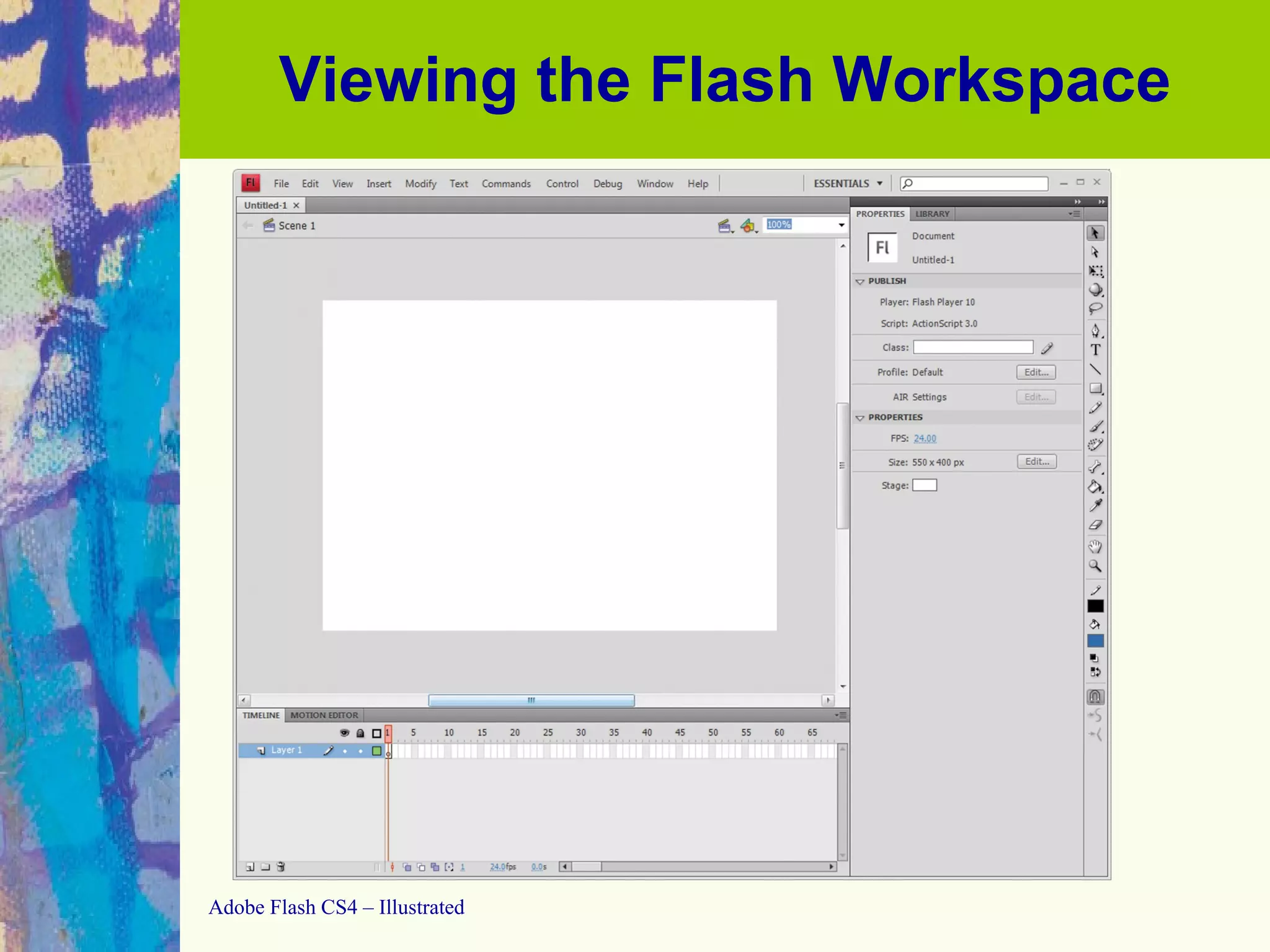
Viewing the Flash Workspace Workspace definition Screen area for working with elements of a movie Workspace elements Stage Timeline Panels Menu bar
Viewing the Flash Workspace
Flash Workspace: Stage Contains movie elements (text, images, graphics, drawings, video) Shows how elements interact with each other Shows how action plays in the movie Size corresponds to size of movie when it is played on the Web
Flash Workspace: Timeline Controls and organizes movie elements by using layers and frames
Flash Workspace: Panels Control aspects of a project with individual windows Display information and options for selected objects Select tools for creating and modifying objects Store media objects for the project
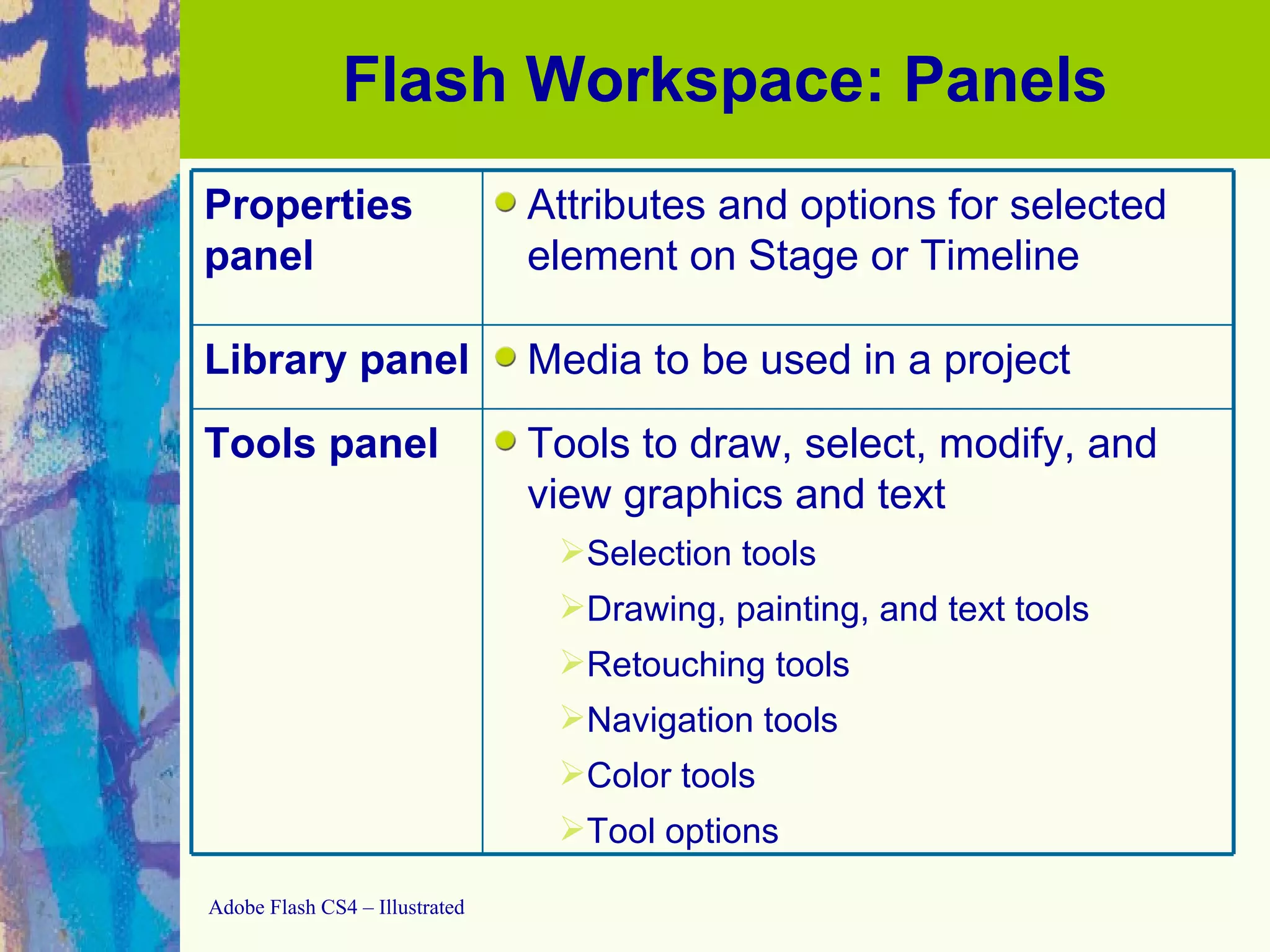
Flash Workspace: Panels Tools to draw, select, modify, and view graphics and text Selection tools Drawing, painting, and text tools Retouching tools Navigation tools Color tools Tool options Tools panel Media to be used in a project Library panel Attributes and options for selected element on Stage or Timeline Properties panel
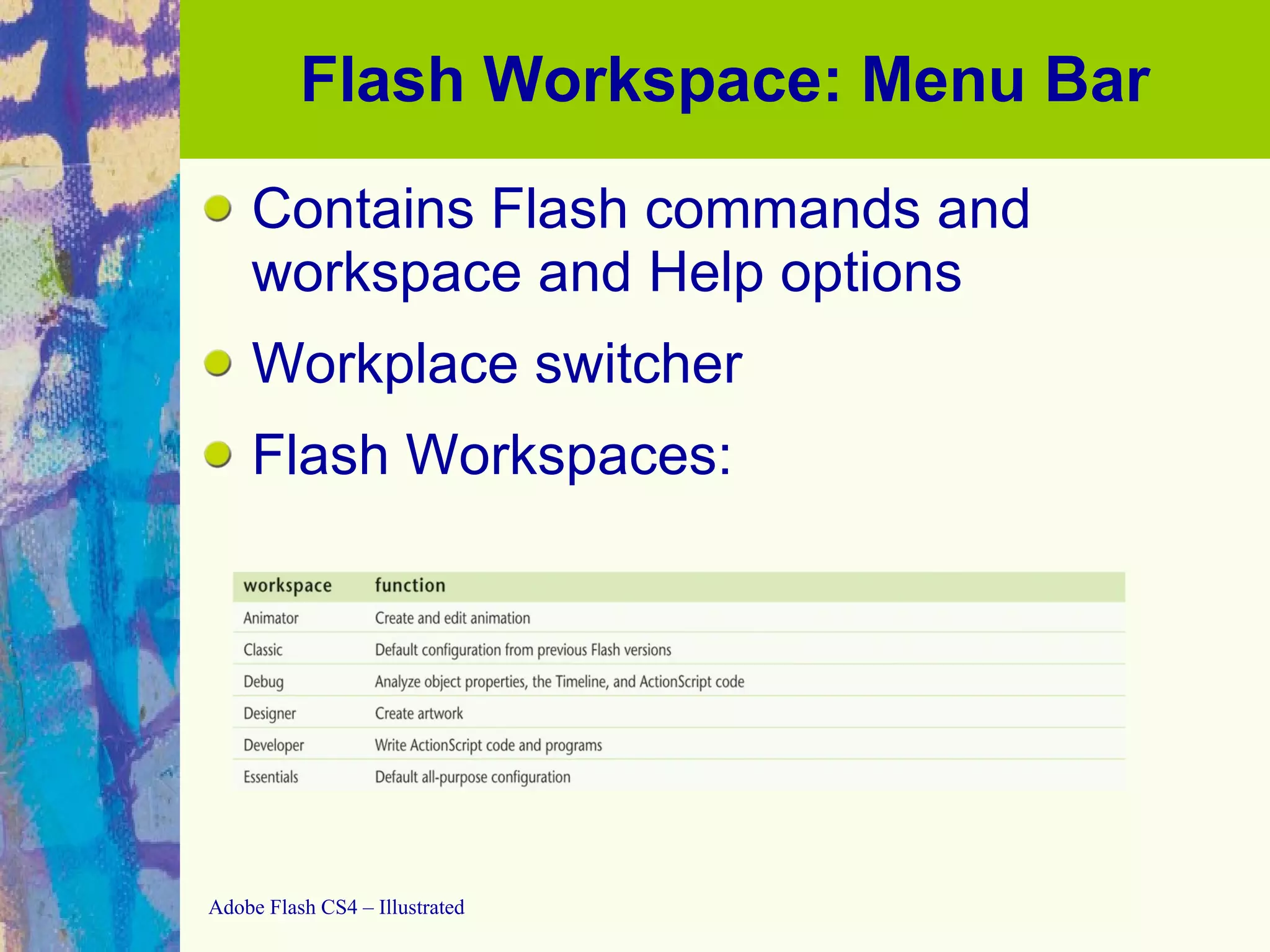
Flash Workspace: Menu Bar Contains Flash commands and workspace and Help options Workplace switcher Flash Workspaces:
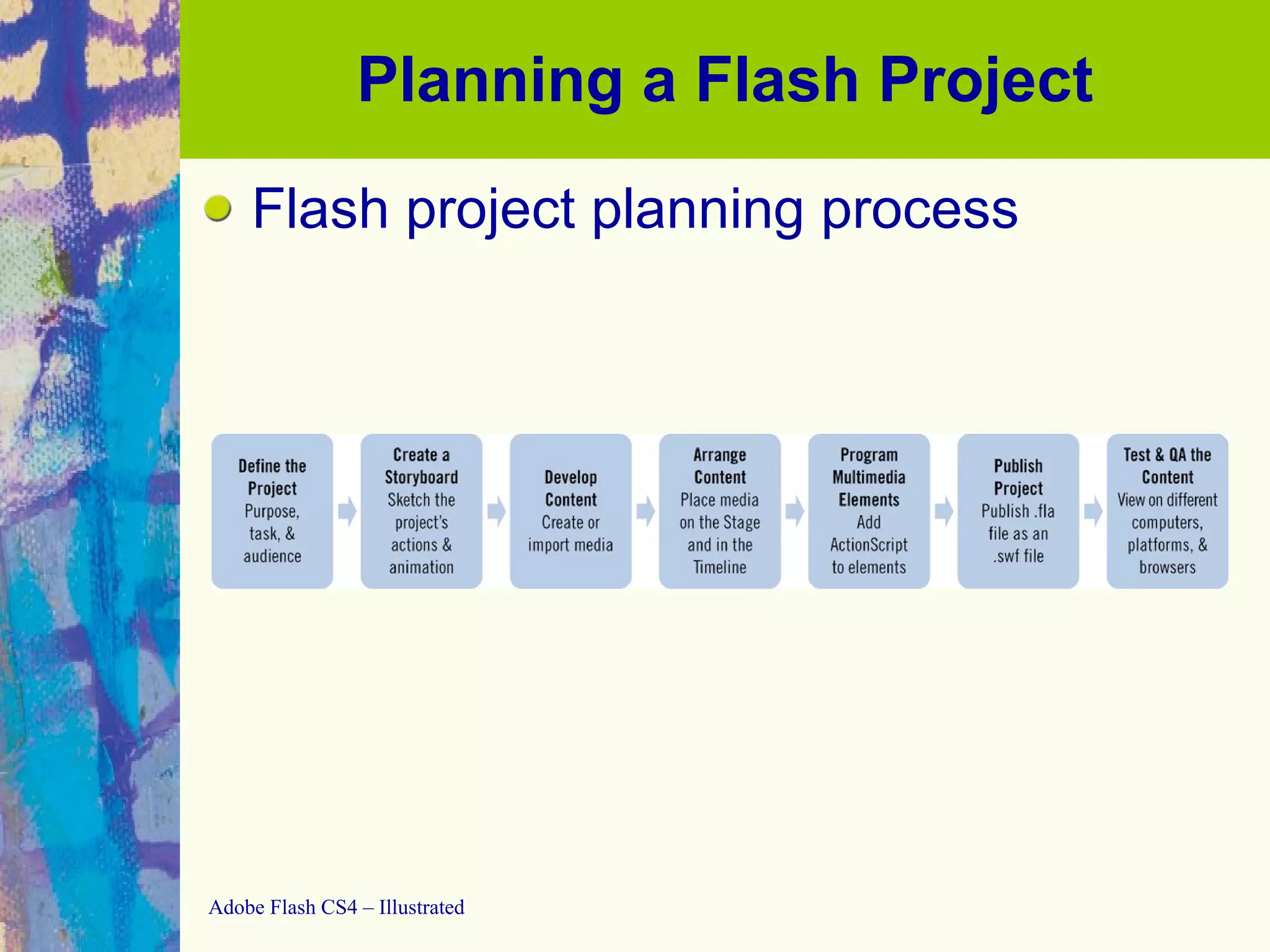
Planning a Flash Project Flash project planning process
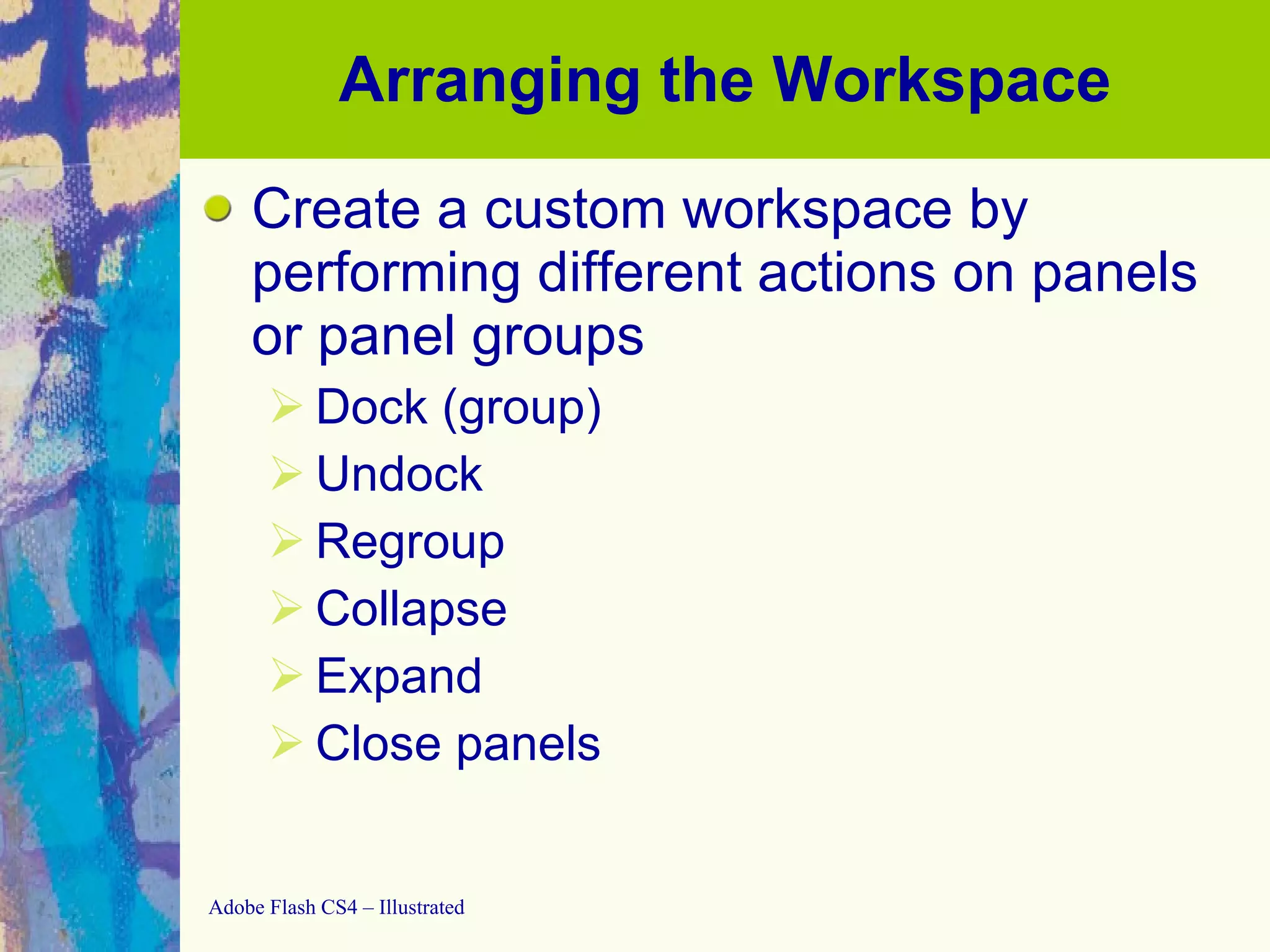
Arranging the Workspace Create a custom workspace by performing different actions on panels or panel groups Dock (group) Undock Regroup Collapse Expand Close panels
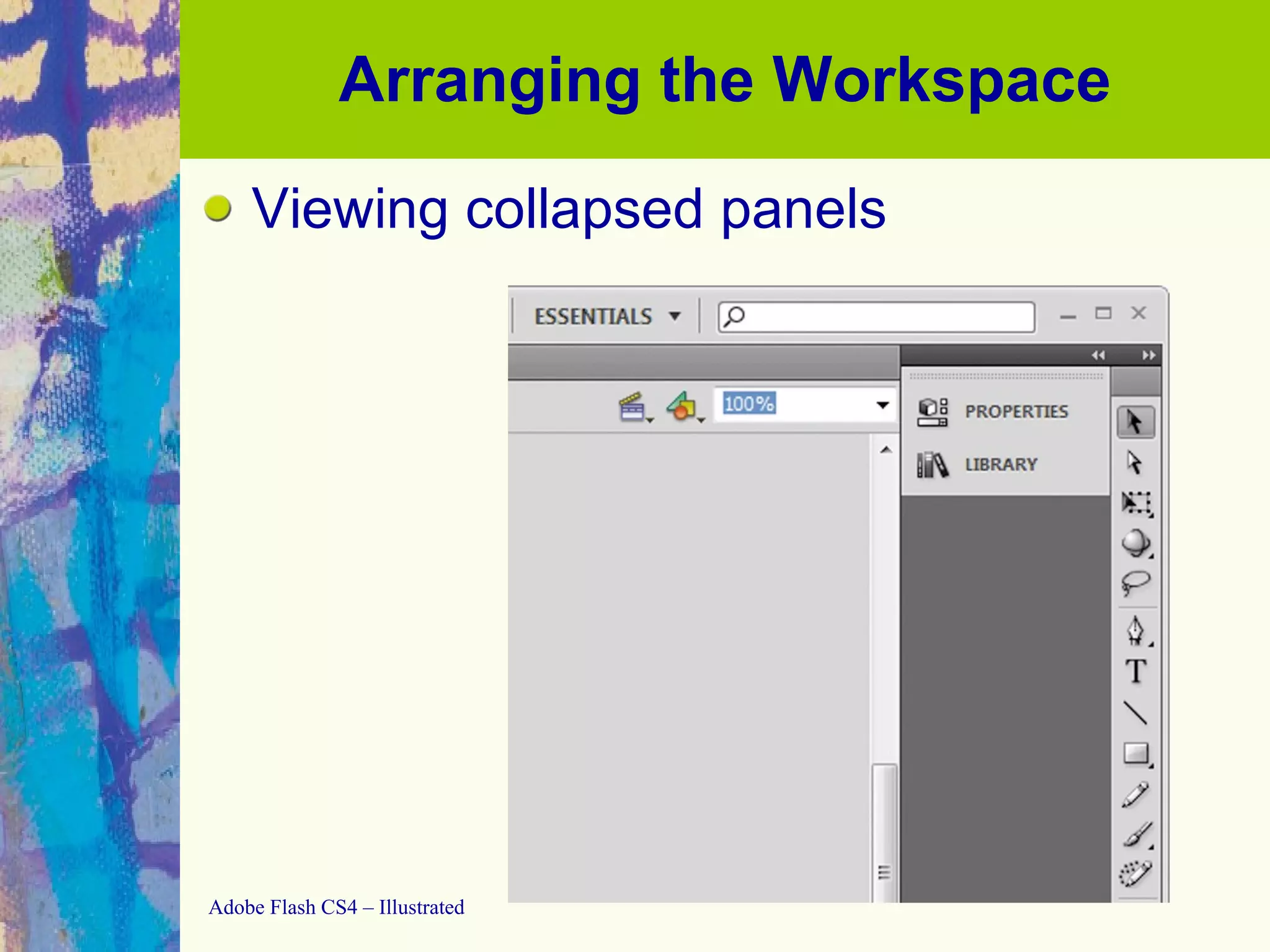
Arranging the Workspace Viewing collapsed panels
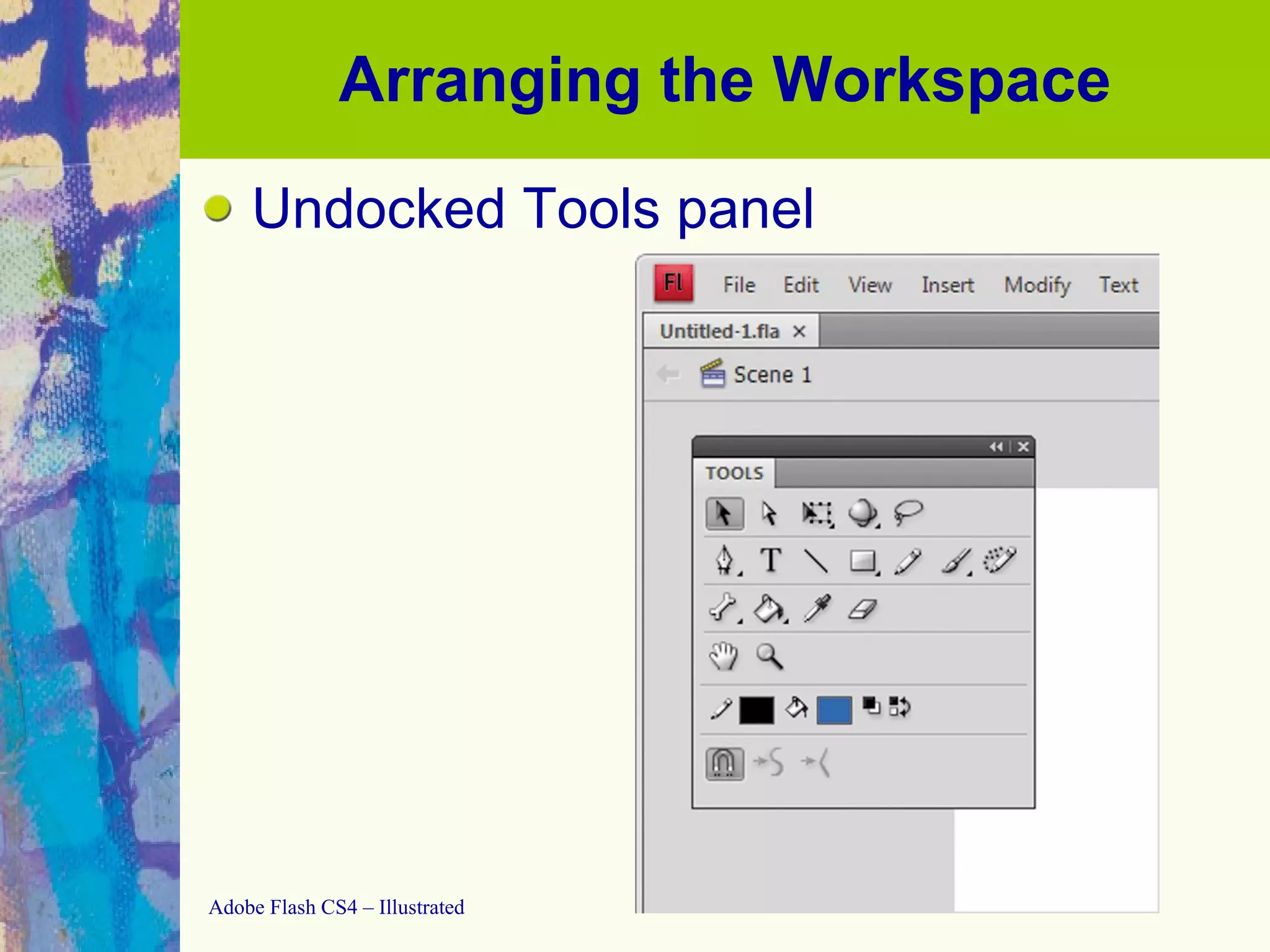
Arranging the Workspace Undocked Tools panel
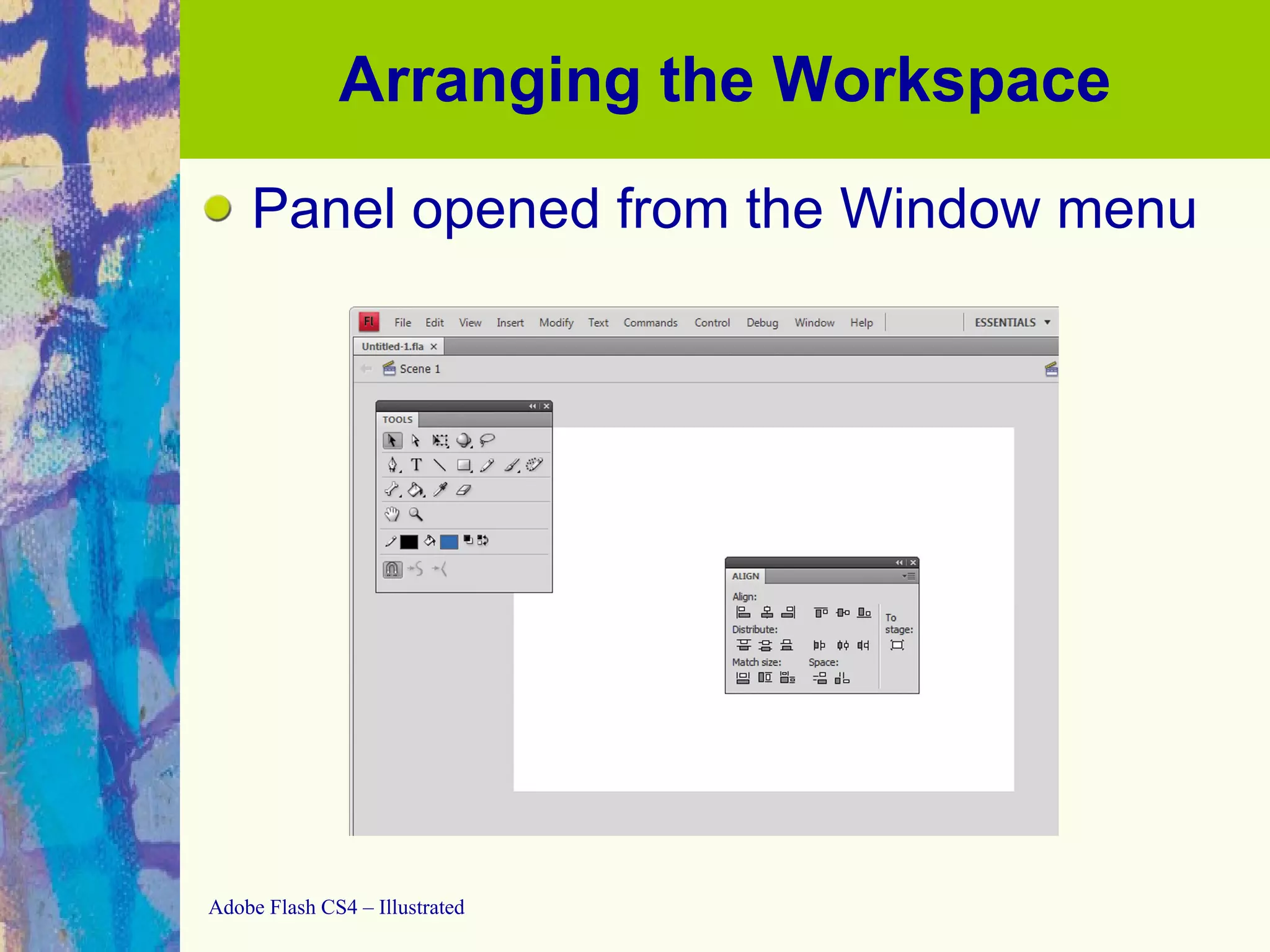
Arranging the Workspace Panel opened from the Window menu
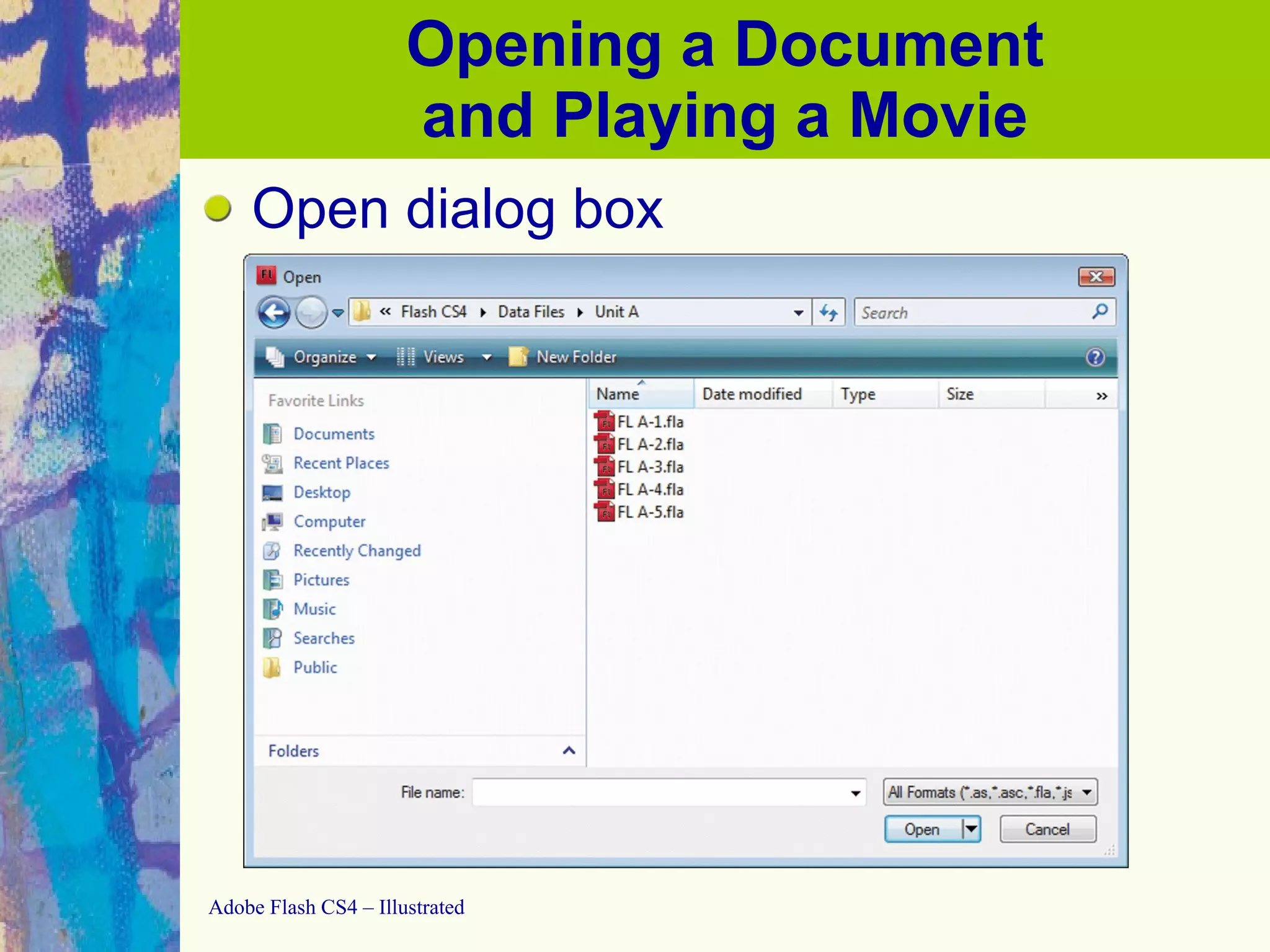
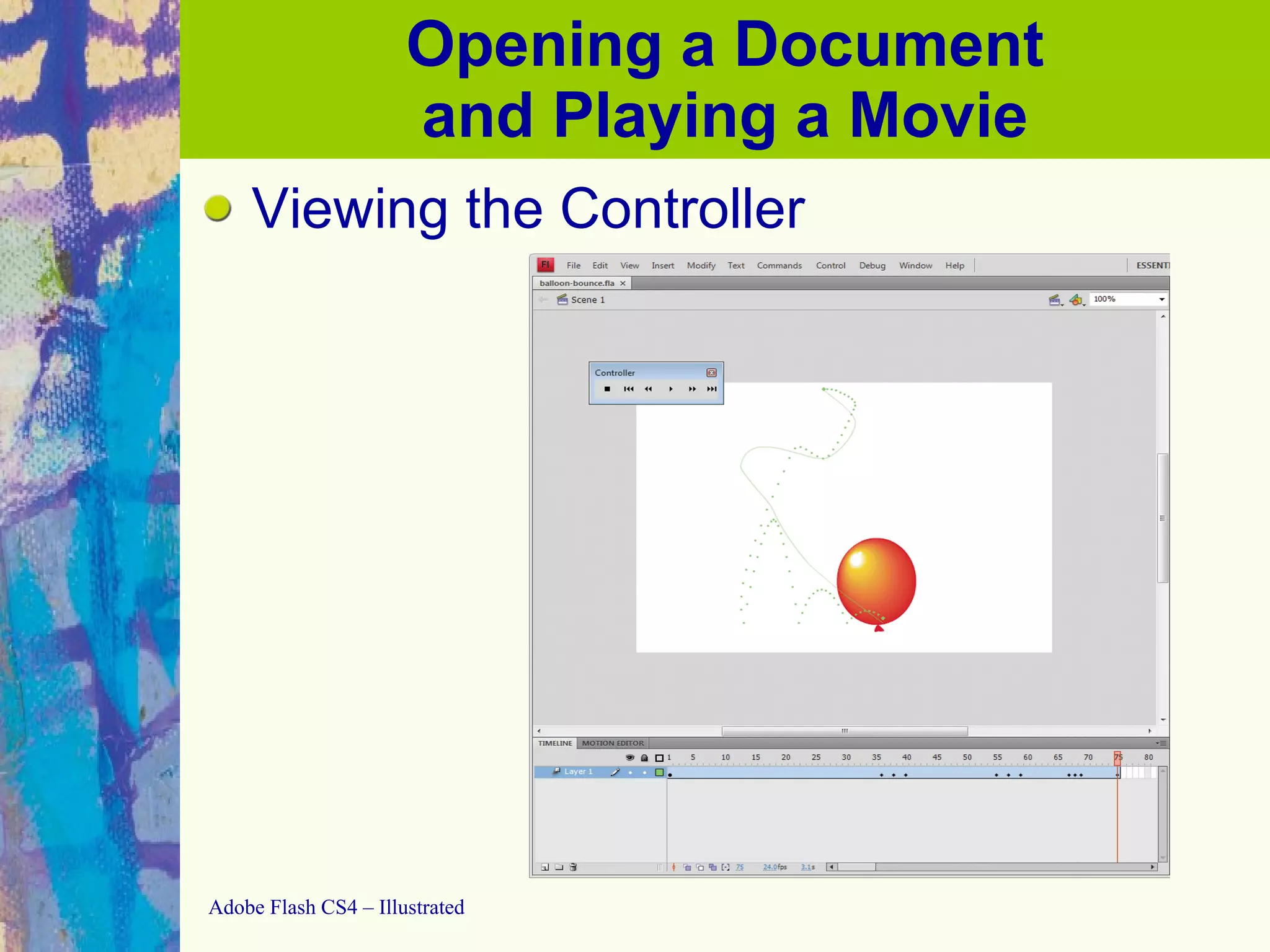
Opening a Document and Playing a Movie Options for opening a document From the location where  Data Files are stored   From the Welcome window Keyboard shortcuts Options for playing a movie On the Stage Commands on the Control menu Keyboard shortcuts Controller
Opening a Document and Playing a Movie Good practice Save file with a different file name to protect the original
Opening a Document and Playing a Movie Open dialog box
Opening a Document and Playing a Movie Viewing the Controller
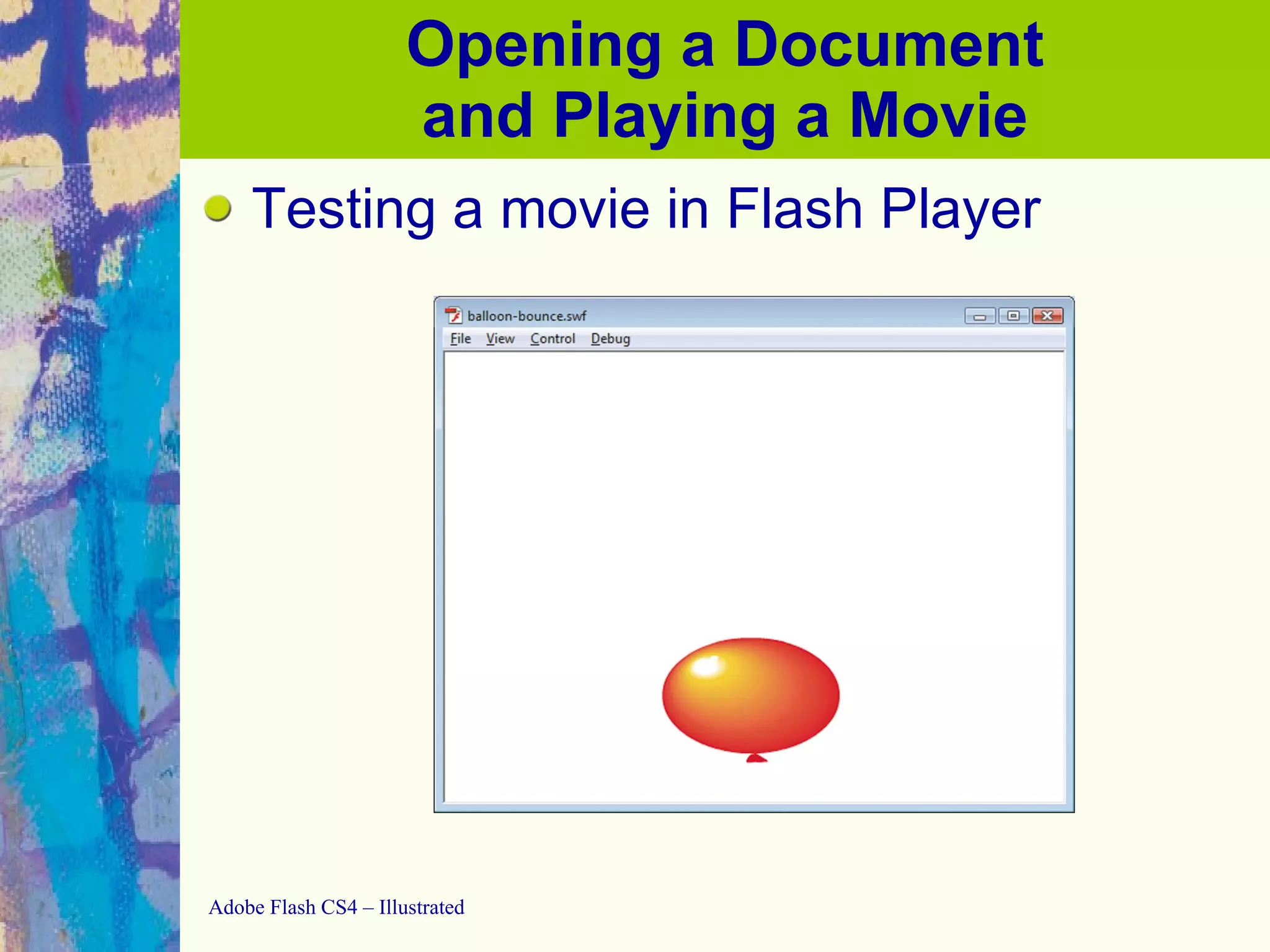
Opening a Document and Playing a Movie Testing a movie in Flash Player
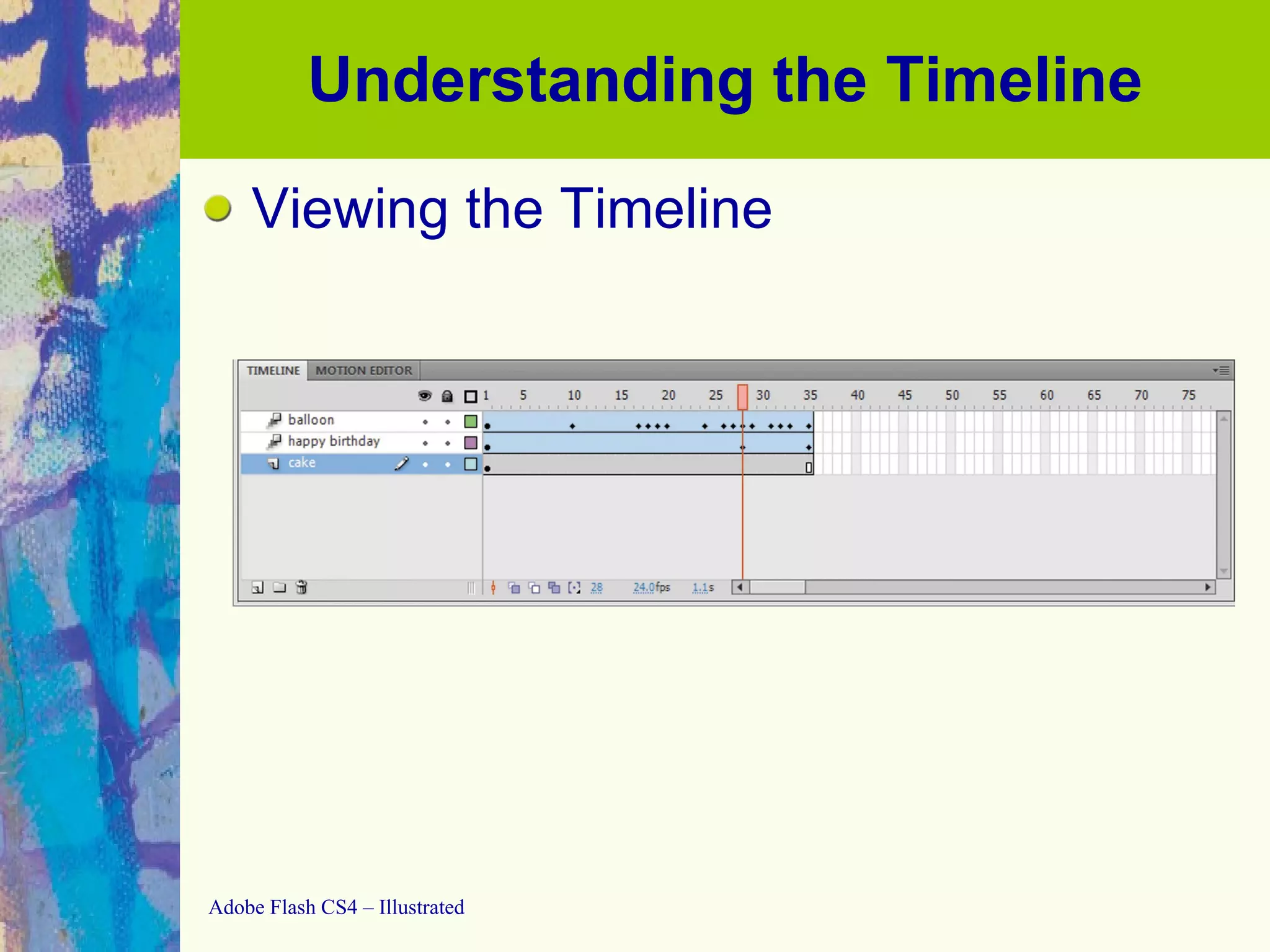
Understanding the Timeline Layers Appear in a column Contain elements of a movie and determine their position Frames Appear in a row Show elements in the project over time
Understanding the Timeline: Layers Ways to manipulate Show/hide Lock from editing Display as an outline Add/delete Create a folder (useful organizing tool)
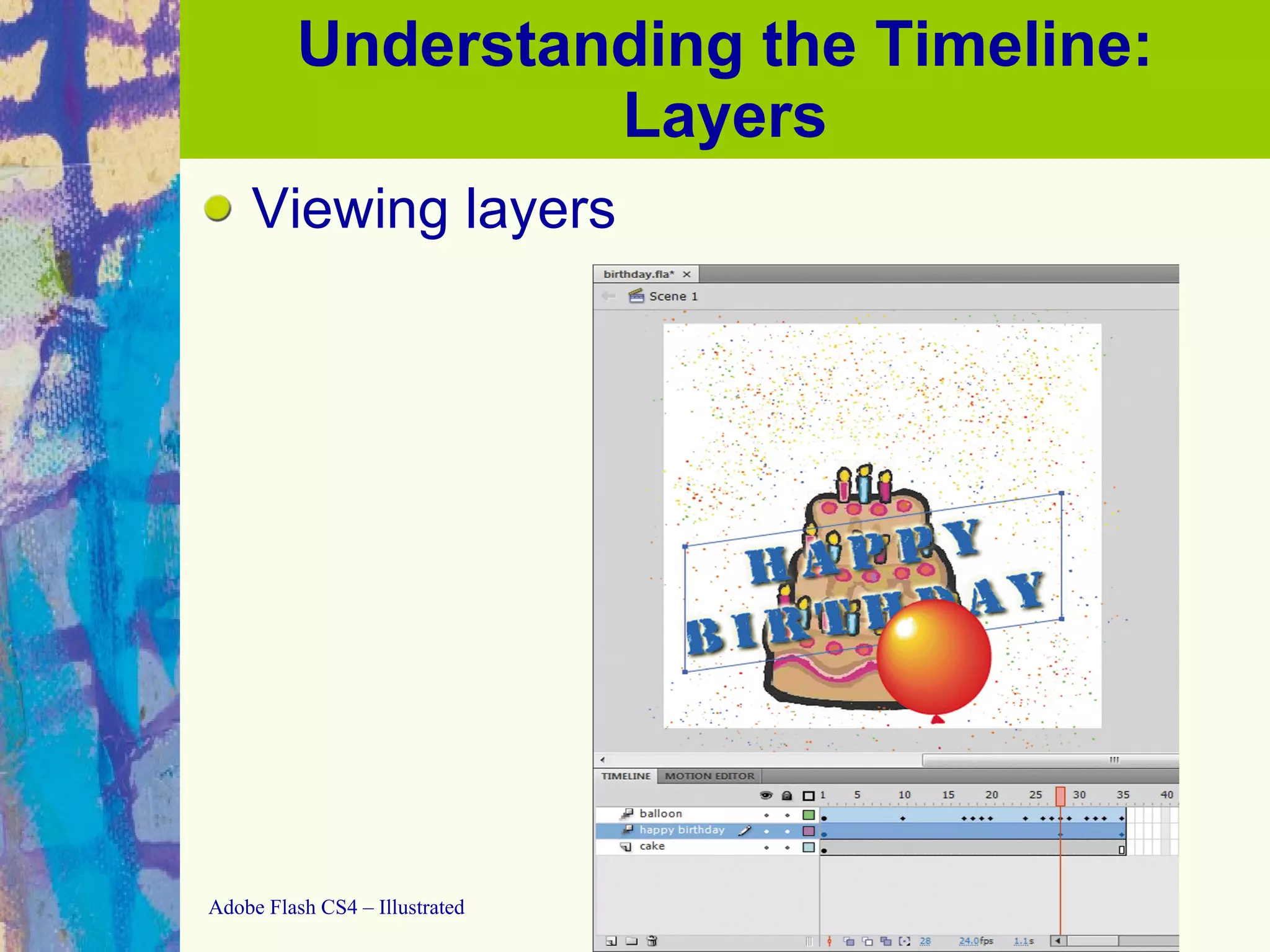
Understanding the Timeline: Layers Viewing layers
Understanding the Timeline: Frames Use to create animation Create different effects by using different frame types View status of a movie (current frame, frame rate [fps], total elapsed time) Scrubbing
Understanding the Timeline Viewing the Timeline
Understanding the Timeline Options for changing appearance Undock Move Resize Close
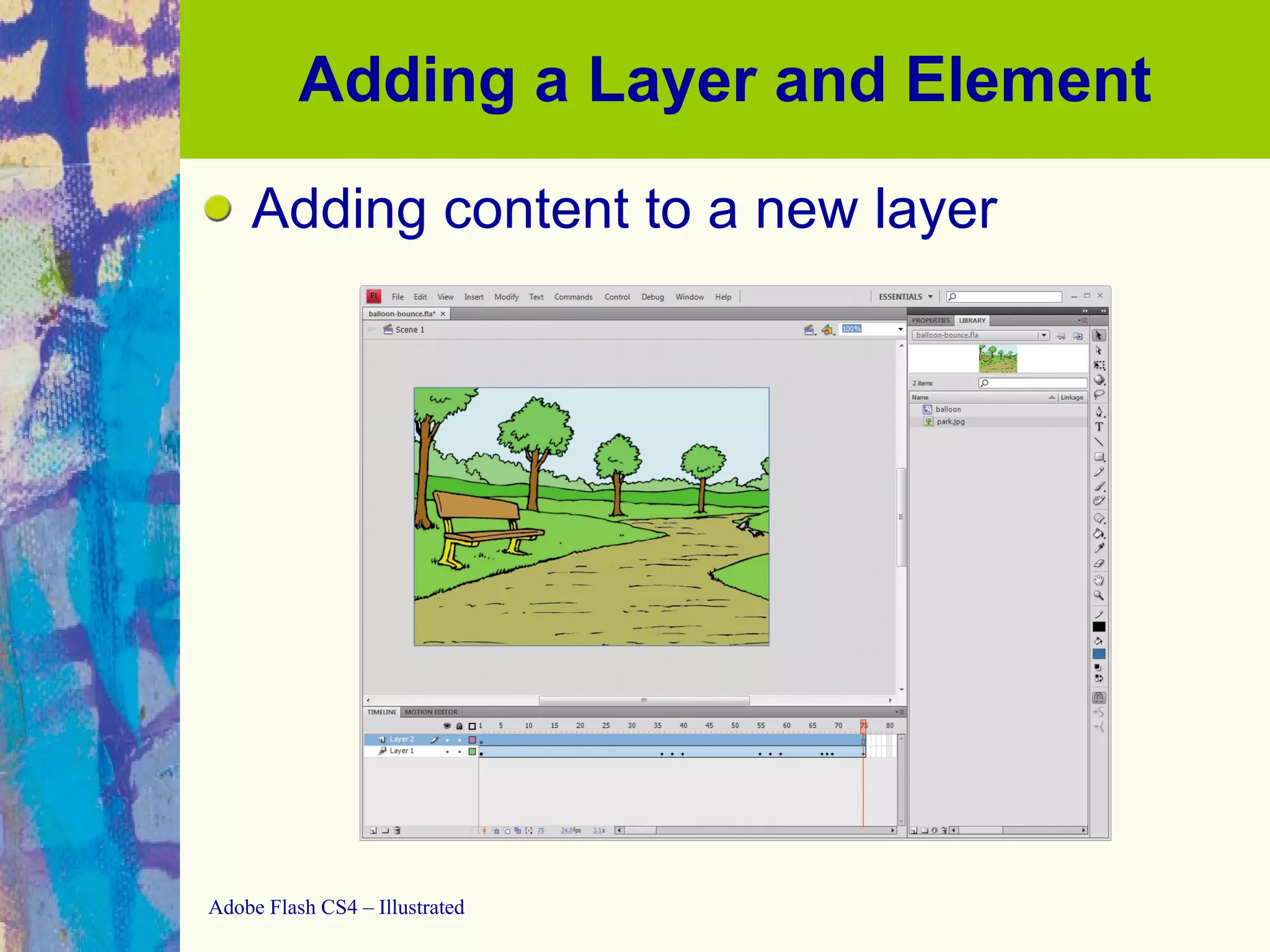
Adding a Layer and Element Each document has one layer by default Elements are added to layers by Importing them, or Dragging them from the Library panel to the Stage Rename layers as an organizing technique
Adding a Layer and Element Adding content to a new layer
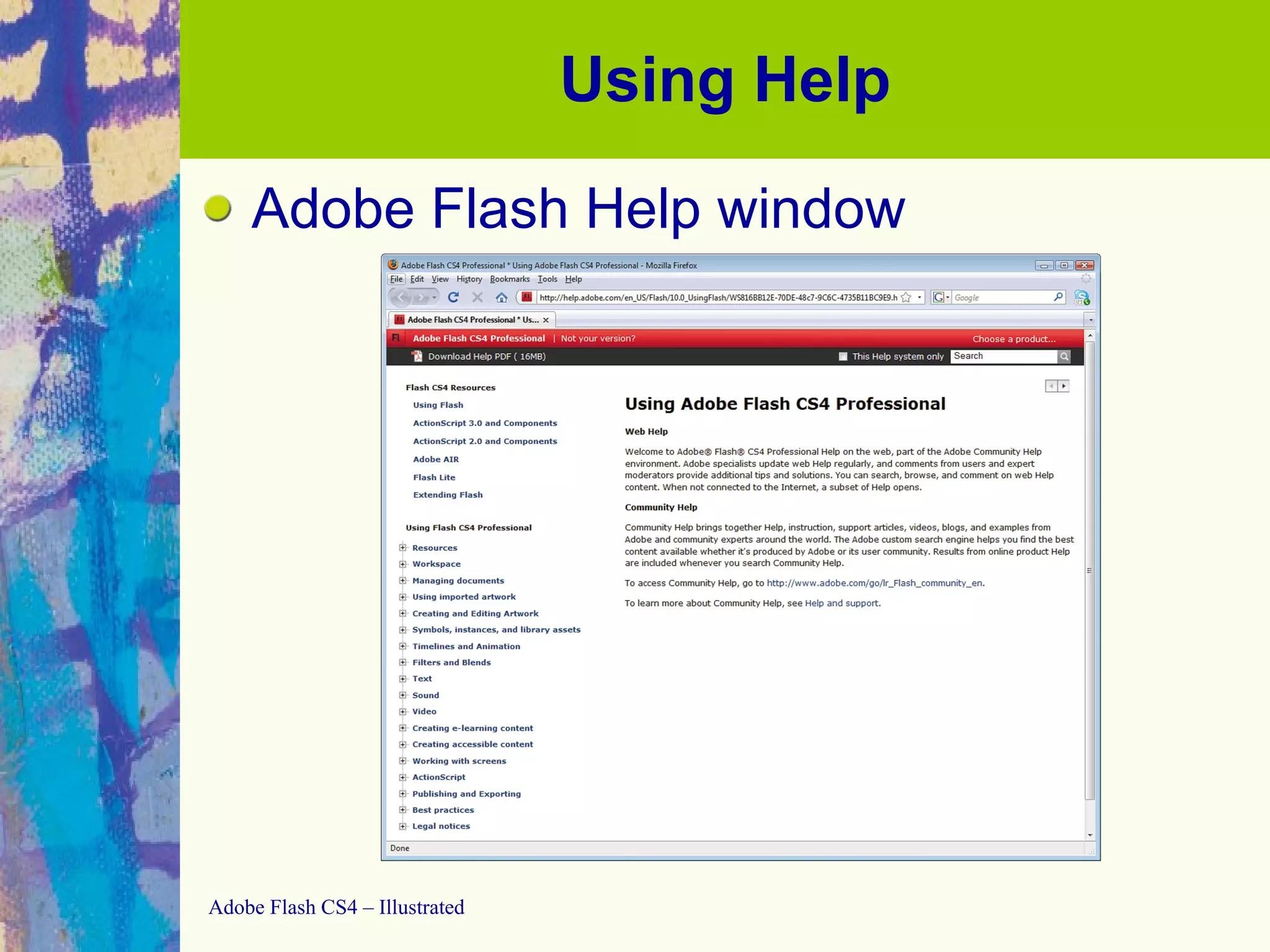
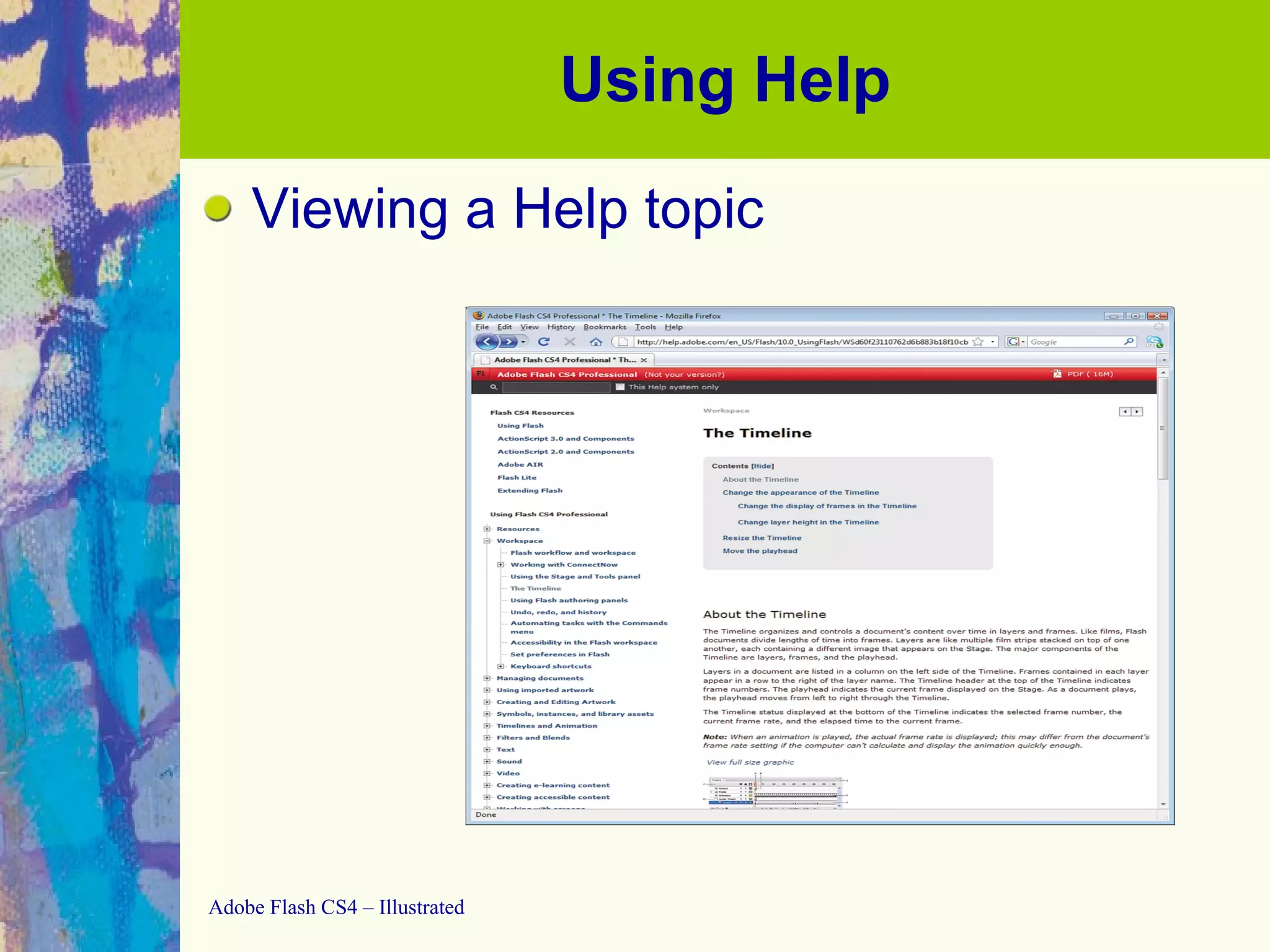
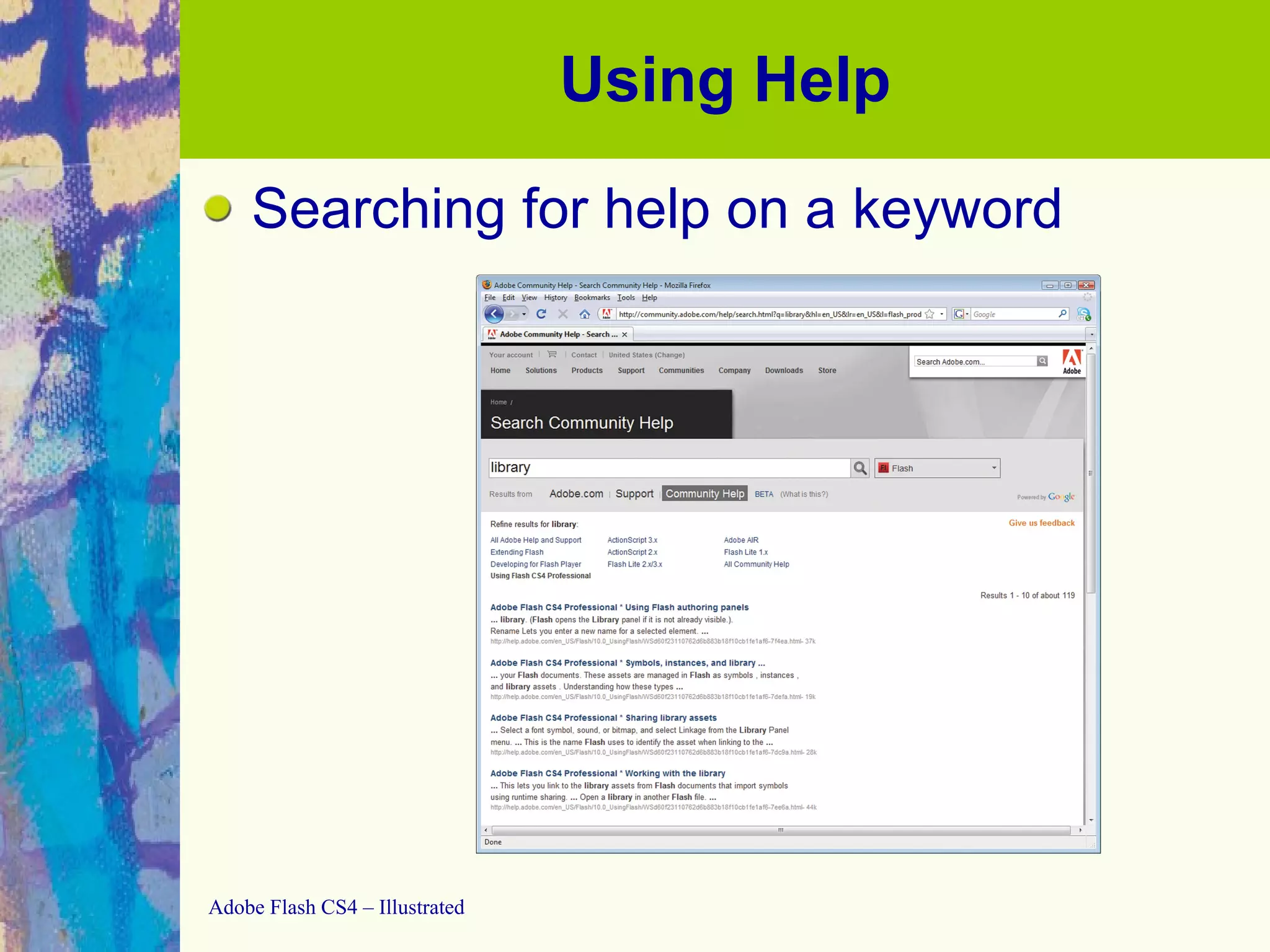
Using Help Find what you need by Looking up a subject by topic, or Searching for specific keywords, or Pressing [F1] Access Help by  Typing a search item in Help text box on the menu bar, or Opening Help from the Window menu
Exiting Flash Click Close button on the menu bar, or Use keyboard shortcuts
Using Help Adobe Flash Help window
Using Help Viewing a Help topic
Using Help Searching for help on a keyword

Unit a

  • 1.
    Adobe Flash CS4– Illustrated Unit A: Getting Started with Adobe Flash
  • 2.
    Objectives Understand AdobeFlash Start Adobe Flash CS4 View the Flash workspace Arrange the workspace Open a document and play a movie Understand the Timeline Add a layer and element Use Help and exit Flash
  • 3.
    Understanding Adobe FlashMultimedia program for: Creating and organizing media Applying animation and other effects to the media An authoring tool
  • 4.
    Uses of AdobeFlash Add movies to Web pages Animation Persistence of vision Streaming Create interactive content Navigational components User interface Create self-running programs Rich Internet Applications (RIA)
  • 5.
    Uses of AdobeFlash (cont’d) Develop content to create playable files Create documents with .fla file extension Save document as output file for users in .swf file format Use Flash Player plug-in (standard in most browsers) to play .swf files
  • 6.
    Starting Adobe FlashCS4 Double-click Flash shortcut icon on desktop (Win) or in dock (Mac), or Use the Start menu
  • 7.
    The Welcome ScreenOpen existing or recently used files Create new files of various types Create files from a template Access link to Flash Exchange Web site Access links to additional information and tutorials Turn off Welcome Screen
  • 8.
  • 9.
    Viewing the FlashWorkspace Workspace definition Screen area for working with elements of a movie Workspace elements Stage Timeline Panels Menu bar
  • 10.
  • 11.
    Flash Workspace: StageContains movie elements (text, images, graphics, drawings, video) Shows how elements interact with each other Shows how action plays in the movie Size corresponds to size of movie when it is played on the Web
  • 12.
    Flash Workspace: TimelineControls and organizes movie elements by using layers and frames
  • 13.
    Flash Workspace: PanelsControl aspects of a project with individual windows Display information and options for selected objects Select tools for creating and modifying objects Store media objects for the project
  • 14.
    Flash Workspace: PanelsTools to draw, select, modify, and view graphics and text Selection tools Drawing, painting, and text tools Retouching tools Navigation tools Color tools Tool options Tools panel Media to be used in a project Library panel Attributes and options for selected element on Stage or Timeline Properties panel
  • 15.
    Flash Workspace: MenuBar Contains Flash commands and workspace and Help options Workplace switcher Flash Workspaces:
  • 16.
    Planning a FlashProject Flash project planning process
  • 17.
    Arranging the WorkspaceCreate a custom workspace by performing different actions on panels or panel groups Dock (group) Undock Regroup Collapse Expand Close panels
  • 18.
    Arranging the WorkspaceViewing collapsed panels
  • 19.
    Arranging the WorkspaceUndocked Tools panel
  • 20.
    Arranging the WorkspacePanel opened from the Window menu
  • 21.
    Opening a Documentand Playing a Movie Options for opening a document From the location where Data Files are stored From the Welcome window Keyboard shortcuts Options for playing a movie On the Stage Commands on the Control menu Keyboard shortcuts Controller
  • 22.
    Opening a Documentand Playing a Movie Good practice Save file with a different file name to protect the original
  • 23.
    Opening a Documentand Playing a Movie Open dialog box
  • 24.
    Opening a Documentand Playing a Movie Viewing the Controller
  • 25.
    Opening a Documentand Playing a Movie Testing a movie in Flash Player
  • 26.
    Understanding the TimelineLayers Appear in a column Contain elements of a movie and determine their position Frames Appear in a row Show elements in the project over time
  • 27.
    Understanding the Timeline:Layers Ways to manipulate Show/hide Lock from editing Display as an outline Add/delete Create a folder (useful organizing tool)
  • 28.
    Understanding the Timeline:Layers Viewing layers
  • 29.
    Understanding the Timeline:Frames Use to create animation Create different effects by using different frame types View status of a movie (current frame, frame rate [fps], total elapsed time) Scrubbing
  • 30.
    Understanding the TimelineViewing the Timeline
  • 31.
    Understanding the TimelineOptions for changing appearance Undock Move Resize Close
  • 32.
    Adding a Layerand Element Each document has one layer by default Elements are added to layers by Importing them, or Dragging them from the Library panel to the Stage Rename layers as an organizing technique
  • 33.
    Adding a Layerand Element Adding content to a new layer
  • 34.
    Using Help Findwhat you need by Looking up a subject by topic, or Searching for specific keywords, or Pressing [F1] Access Help by Typing a search item in Help text box on the menu bar, or Opening Help from the Window menu
  • 35.
    Exiting Flash ClickClose button on the menu bar, or Use keyboard shortcuts
  • 36.
    Using Help AdobeFlash Help window
  • 37.
    Using Help Viewinga Help topic
  • 38.
    Using Help Searchingfor help on a keyword