Foundation Flash By : Mohd Faizol Sulaiman
Introduction Welcome to Flash live. You have seen a lot of the great stuff Flash can do and it is now time for you to get into the game. I also suspect you are here because Flash can be one great big, scary application to those unfamiliar with it.
What we’ll cover in this session: Exploring the Flash interface Using the Flash stage Working with panels Difference between a frame and a keyframe Using frames to arrange content on the stage Using layers to manage content on the stage Adding objects to the library Testing your movie
What we are going to do to begin with is take a walk through the authoring environment - called the Flash interface -pointing out the sights and giving you an opportunity to experiment with the features. By the end of the stroll, you should be fairly comfortable with this tool called Flash and have a fairly good idea of what tools you can use and how to use them as you start creating a Flash movie.
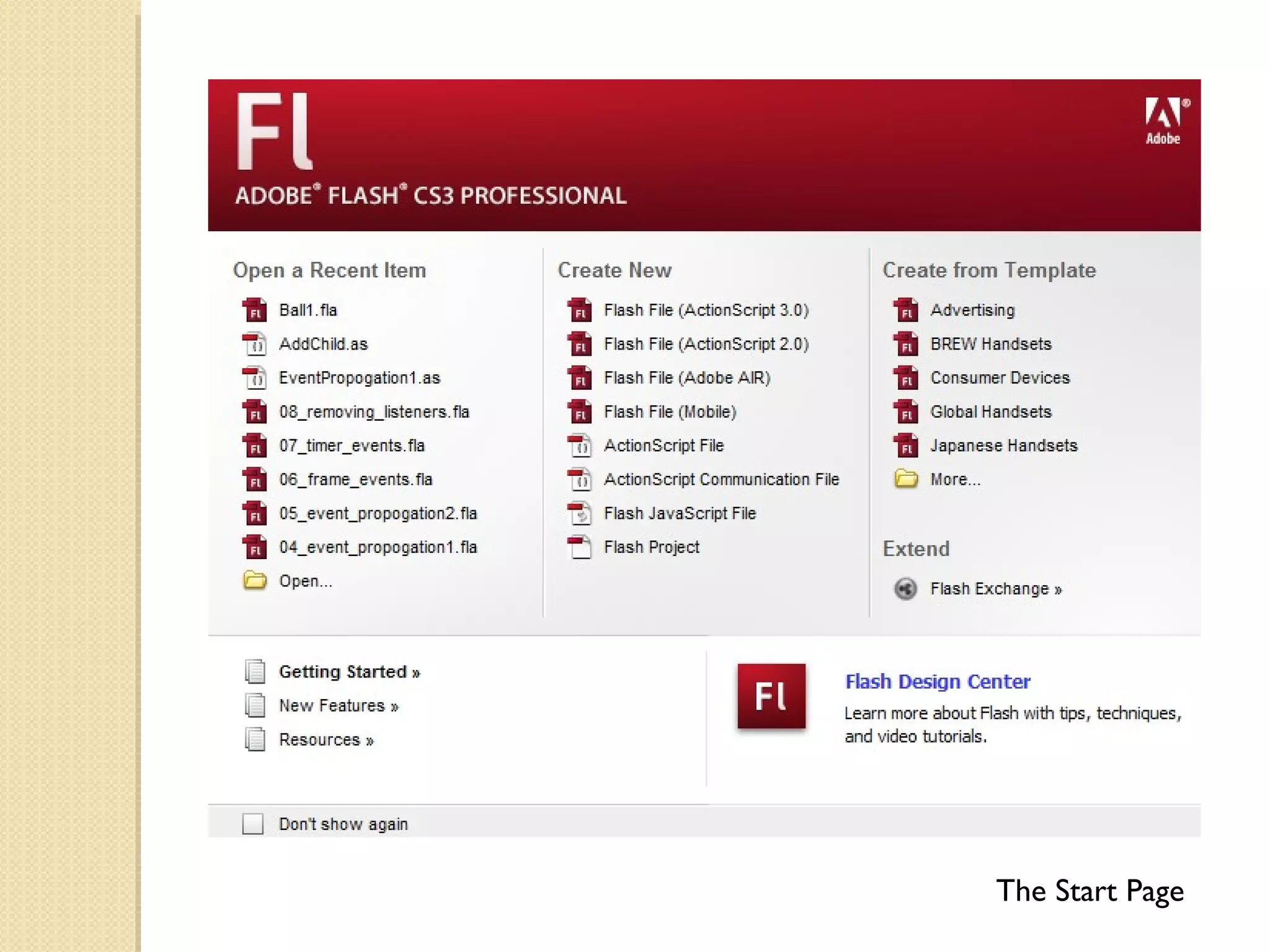
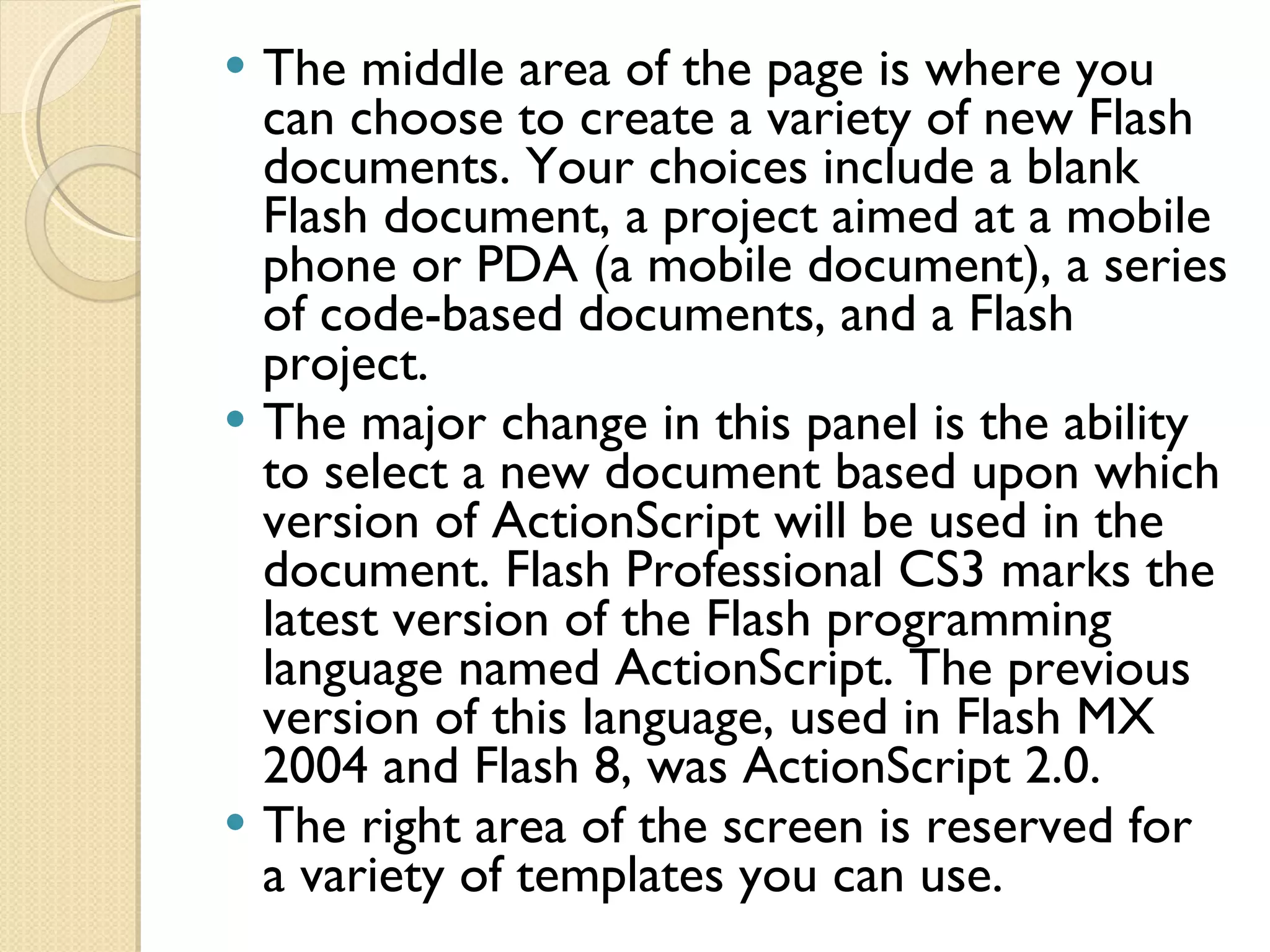
The Start page and Creating a Flash document The first thing you see when you launch Flash is the Start page. This interface, common to all of the Adobe CS3 applications, is divided into three areas. The area on the left side shows you a list of documents you have previously opened. Click one of them, and that document, provided it hasn’t been moved to another location on your computer, will open. The Open link at the bottom of the list lets you navigate to a document that isn’t on the list.
The Start Page
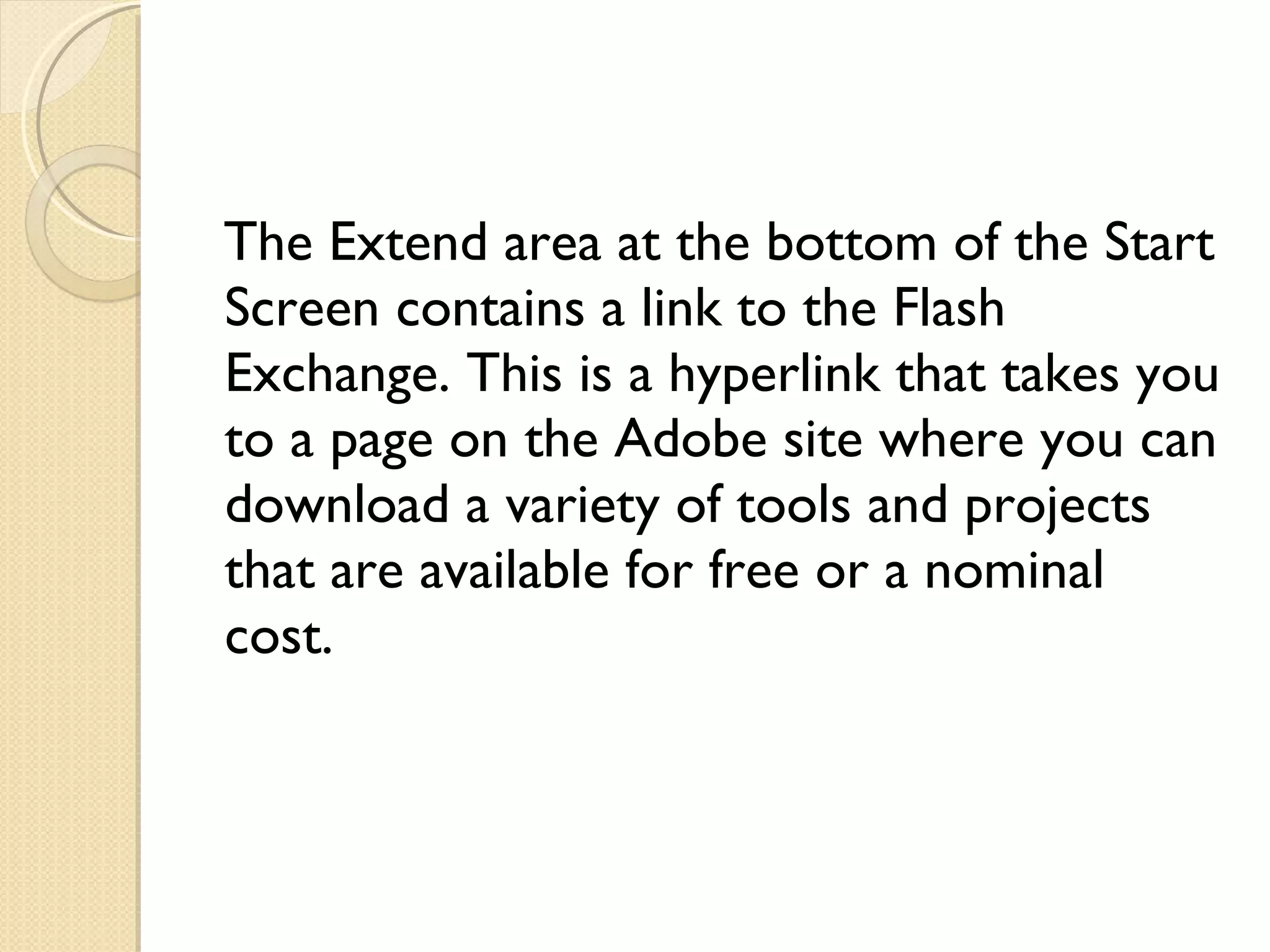
The middle area of the page is where you can choose to create a variety of new Flash documents. Your choices include a blank Flash document, a project aimed at a mobile phone or PDA (a mobile document), a series of code-based documents, and a Flash project. The major change in this panel is the ability to select a new document based upon which version of ActionScript will be used in the document. Flash Professional CS3 marks the latest version of the Flash programming language named ActionScript. The previous version of this language, used in Flash MX 2004 and Flash 8, was ActionScript 2.0. The right area of the screen is reserved for a variety of templates you can use.
The Extend area at the bottom of the Start Screen contains a link to the Flash Exchange. This is a hyperlink that takes you to a page on the Adobe site where you can download a variety of tools and projects that are available for free or a nominal cost.
What Can a Flash Animation Include? Vector-based graphics Has the ability to "tween" Automatically generates fill-in frames between a beginning and an ending image Bitmap-based graphics  Can be moved & rotated Embedded fonts Can be moved, resized, skewed, rotated, recolored Sound Can synchronize sounds with animation frames
Flash Environments Flash authoring environment Design environment (graphics tools) Scripting environment (create program code) You can download a free trial version at  http://www.adobe.com/ Flash player  Users must have this installed on their workstations If not present, automatically prompted to install when they start your animation
Flash Files ("Movies") Authoring file .fla  extension This file creates the design version of your animation Published file .swf  extension ("swiff" file) Can't be edited Can play on most operating systems Fairly small files
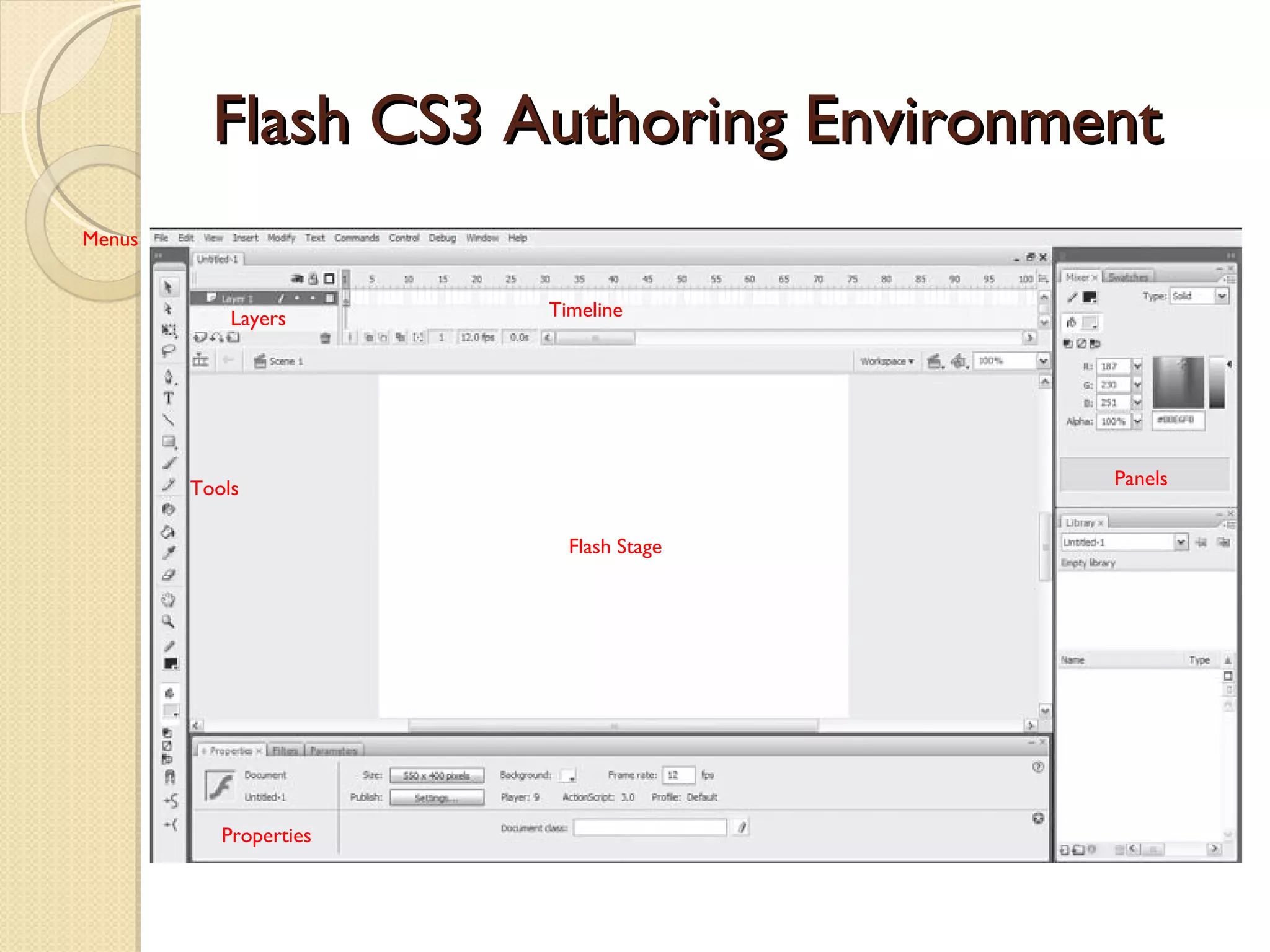
Flash CS3 Authoring Environment Flash Stage Tools Panels Timeline Menus Layers Properties
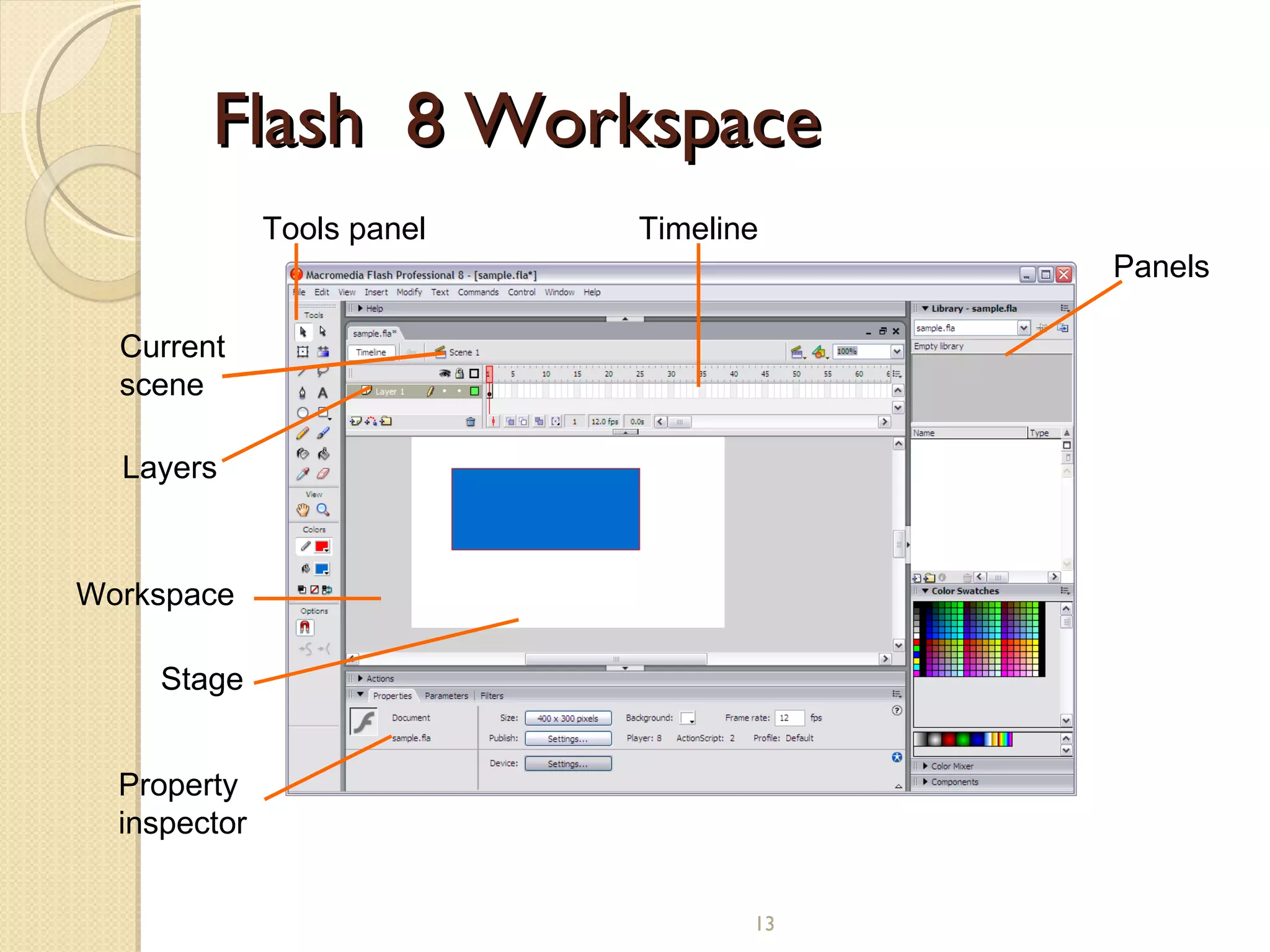
Flash  8 Workspace    Tools panel Timeline Panels Property inspector Stage Current scene Layers Workspace
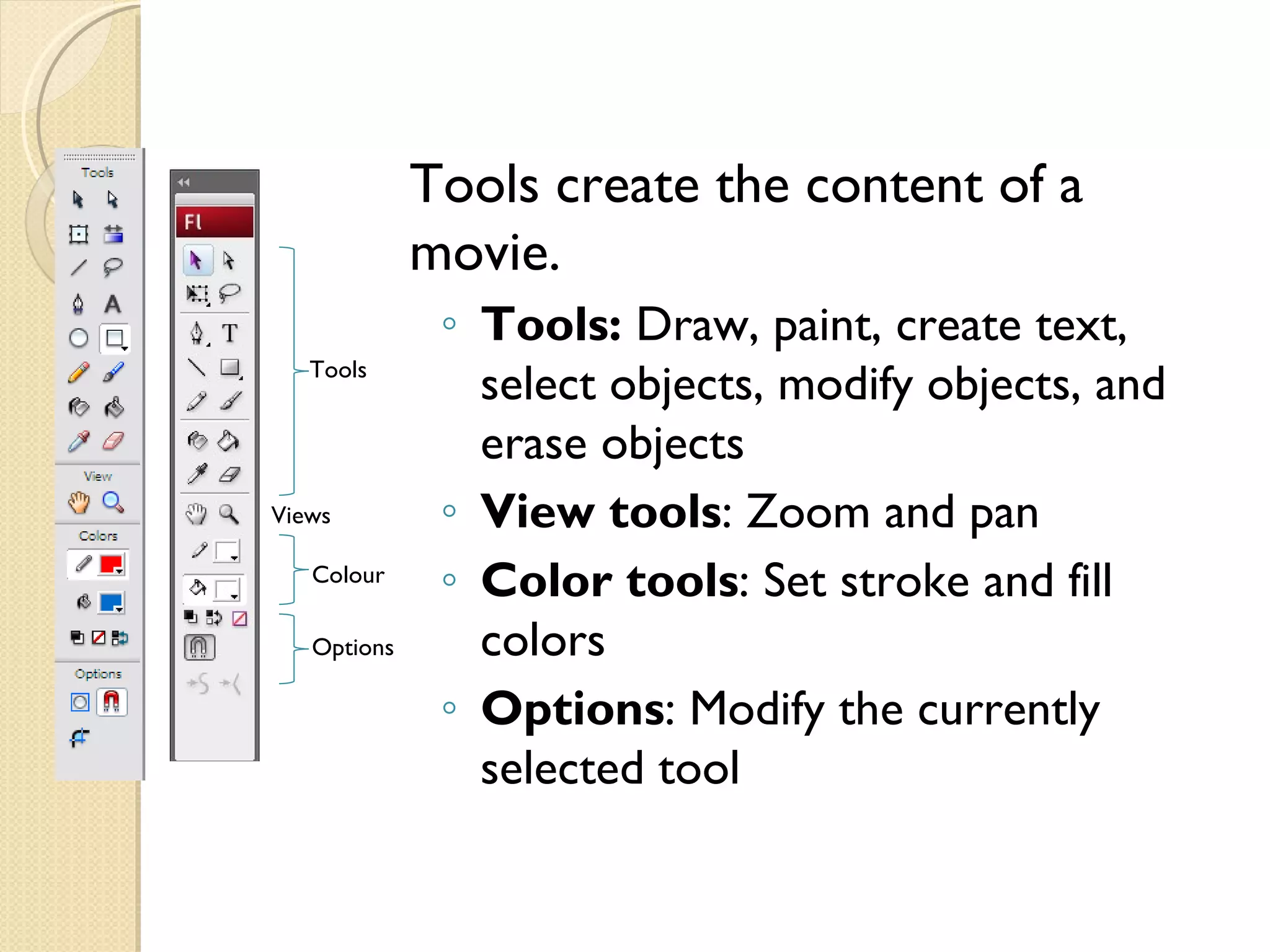
Tools create the content of a movie. Tools:  Draw, paint, create text, select objects, modify objects, and erase objects View tools : Zoom and pan Color tools : Set stroke and fill colors Options : Modify the currently selected tool Tools Views Colour Options
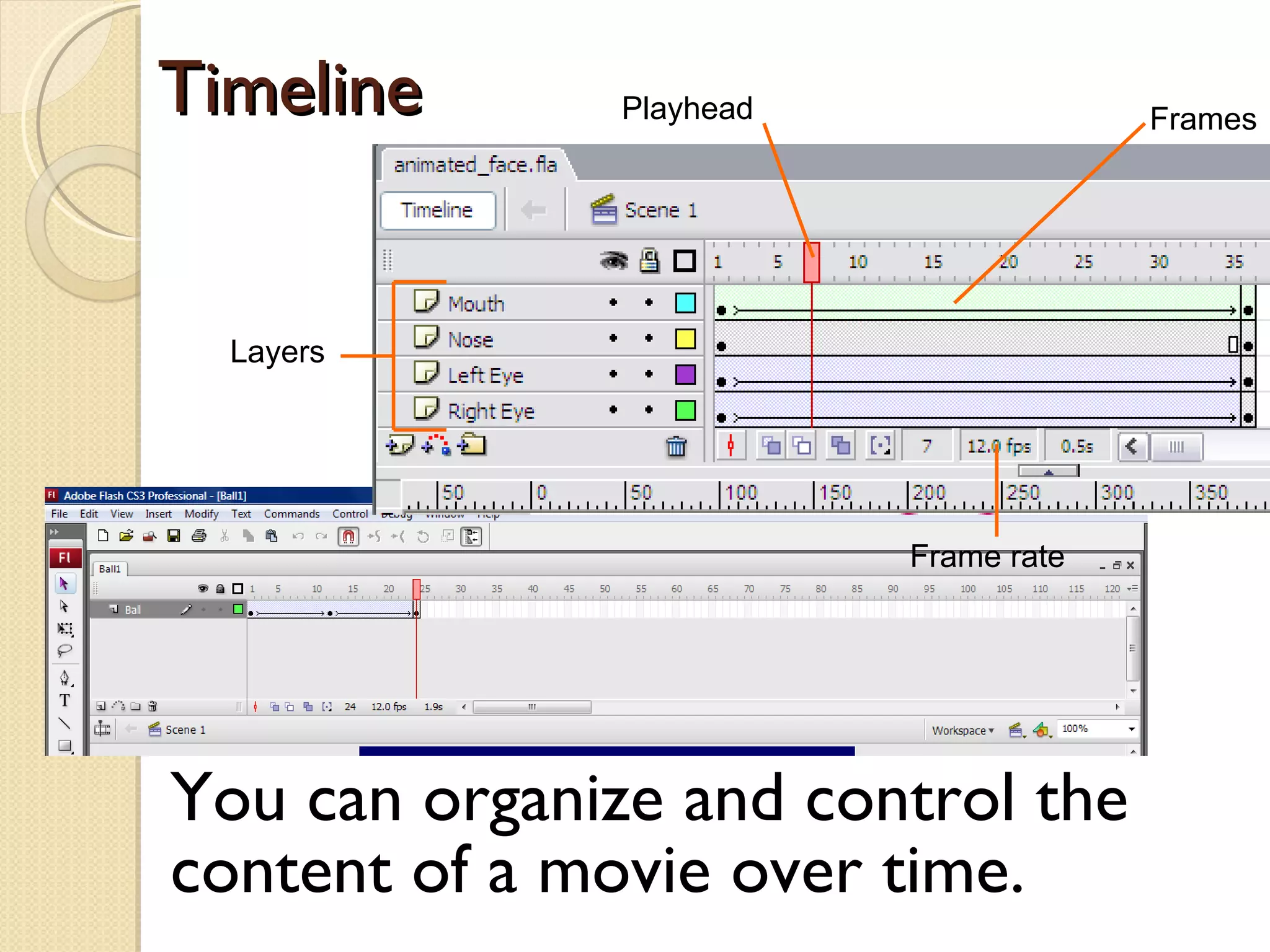
Timeline You can organize and control the content of a movie over time. Layers Frames Playhead Frame rate
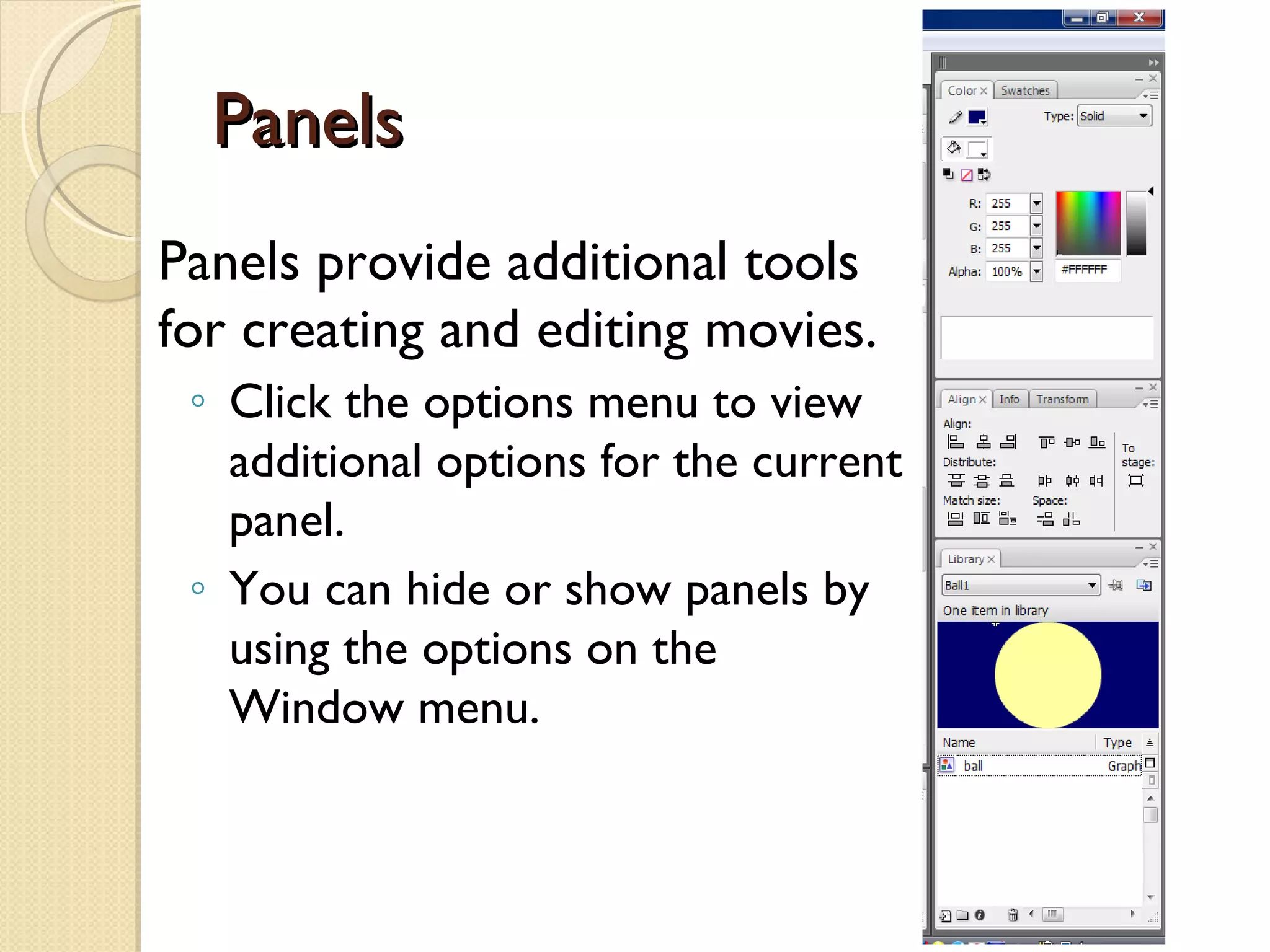
Panels Panels provide additional tools for creating and editing movies. Click the options menu to view additional options for the current panel. You can hide or show panels by using the options on the Window menu.
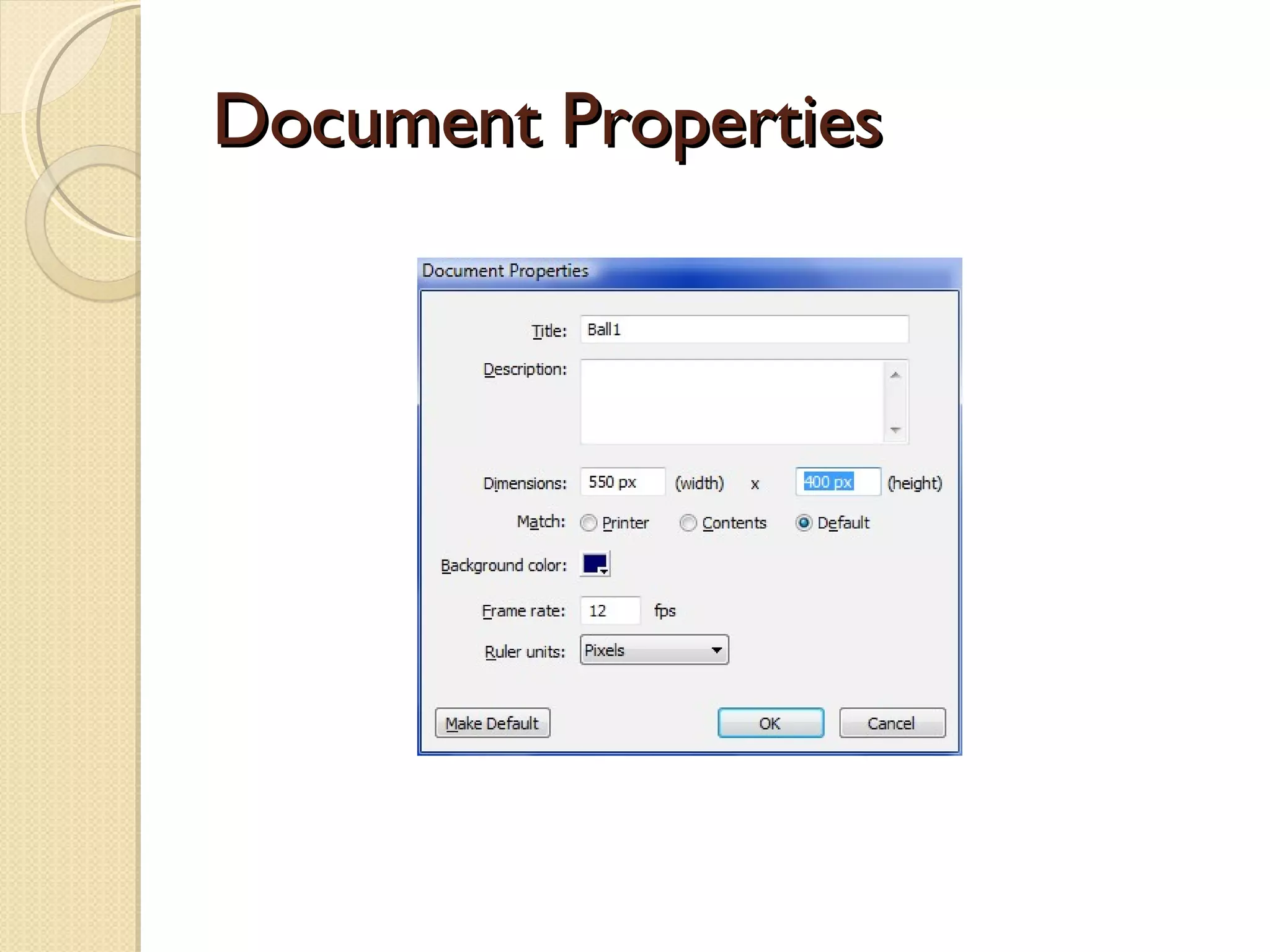
Document Properties
1. Enter the following values into the Document Properties dialog box: Title: Pond Description: My first Flash exercise Width: 400 Height: 300 Background colour: #000066 2. Click OK  and the stage will shrink to the new dimensions and change colour to a dark blue. These changes will also be shown in the Property inspector.
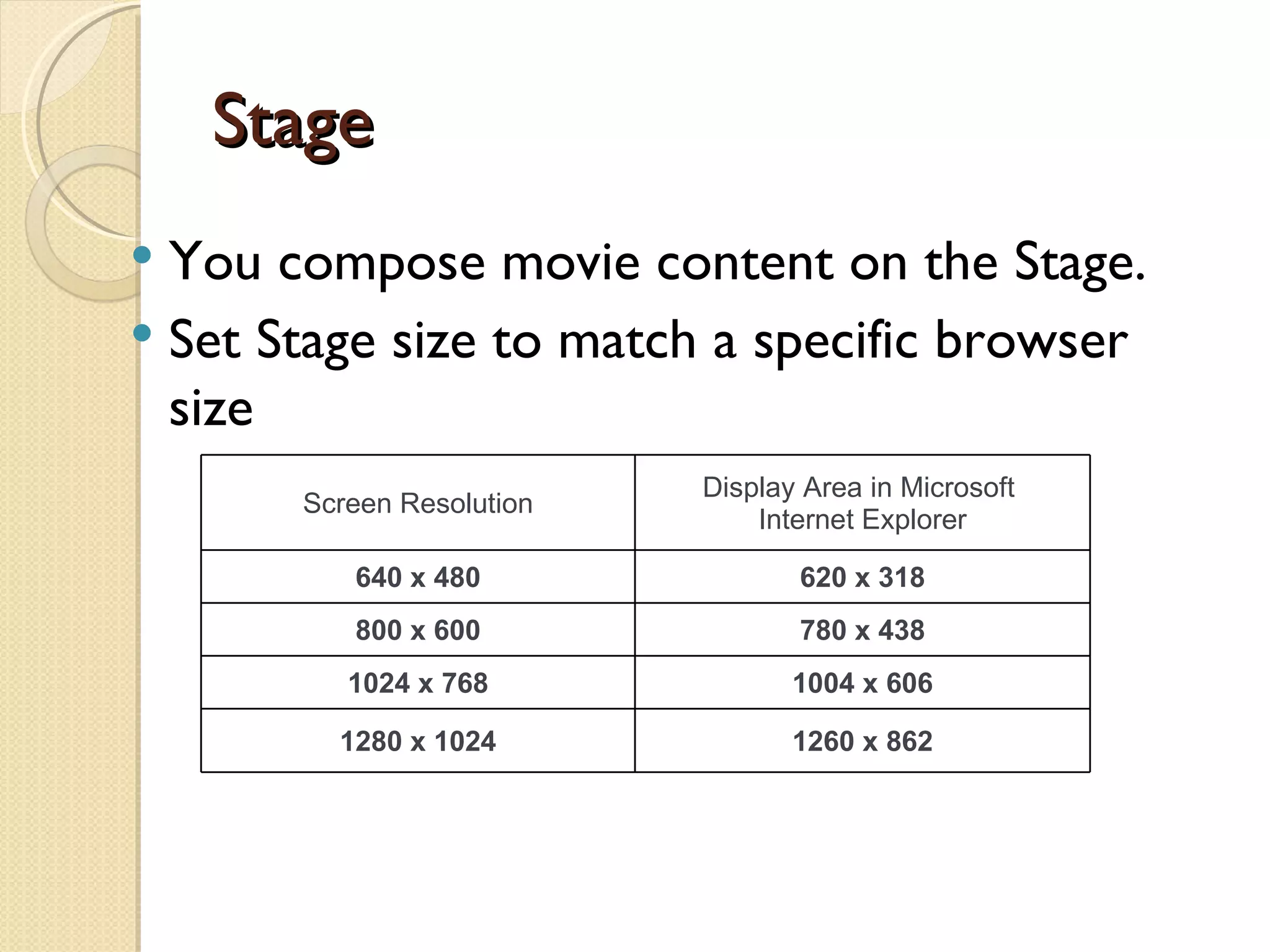
Stage You compose movie content on the Stage. Set Stage size to match a specific browser size Screen Resolution Display Area in Microsoft  Internet Explorer 640 x 480 620 x 318 800 x 600 780 x 438 1024 x 768 1004 x 606 1280 x 1024 1260 x 862
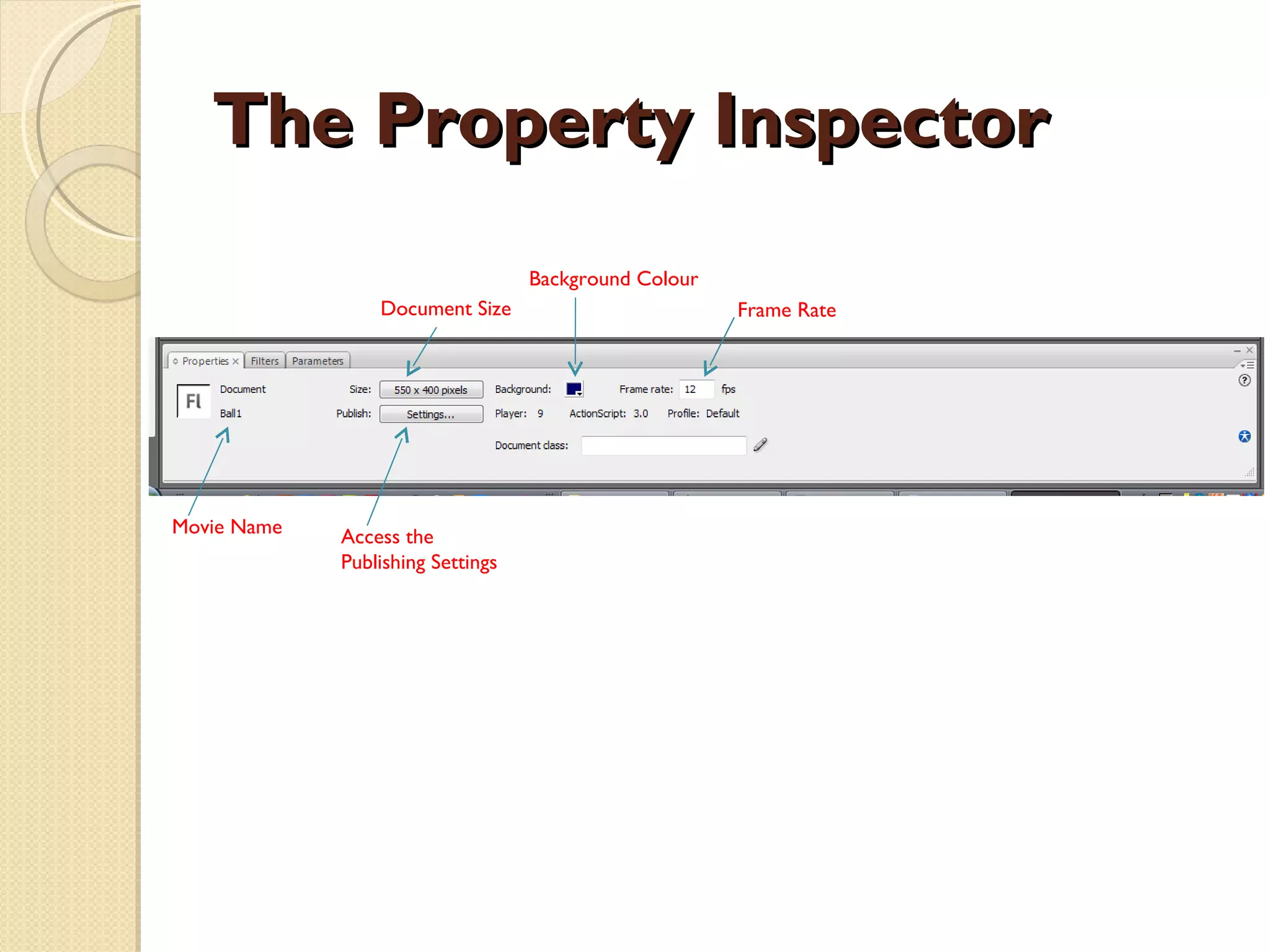
The Property Inspector Document Size Access the Publishing Settings Background Colour Frame Rate Movie Name
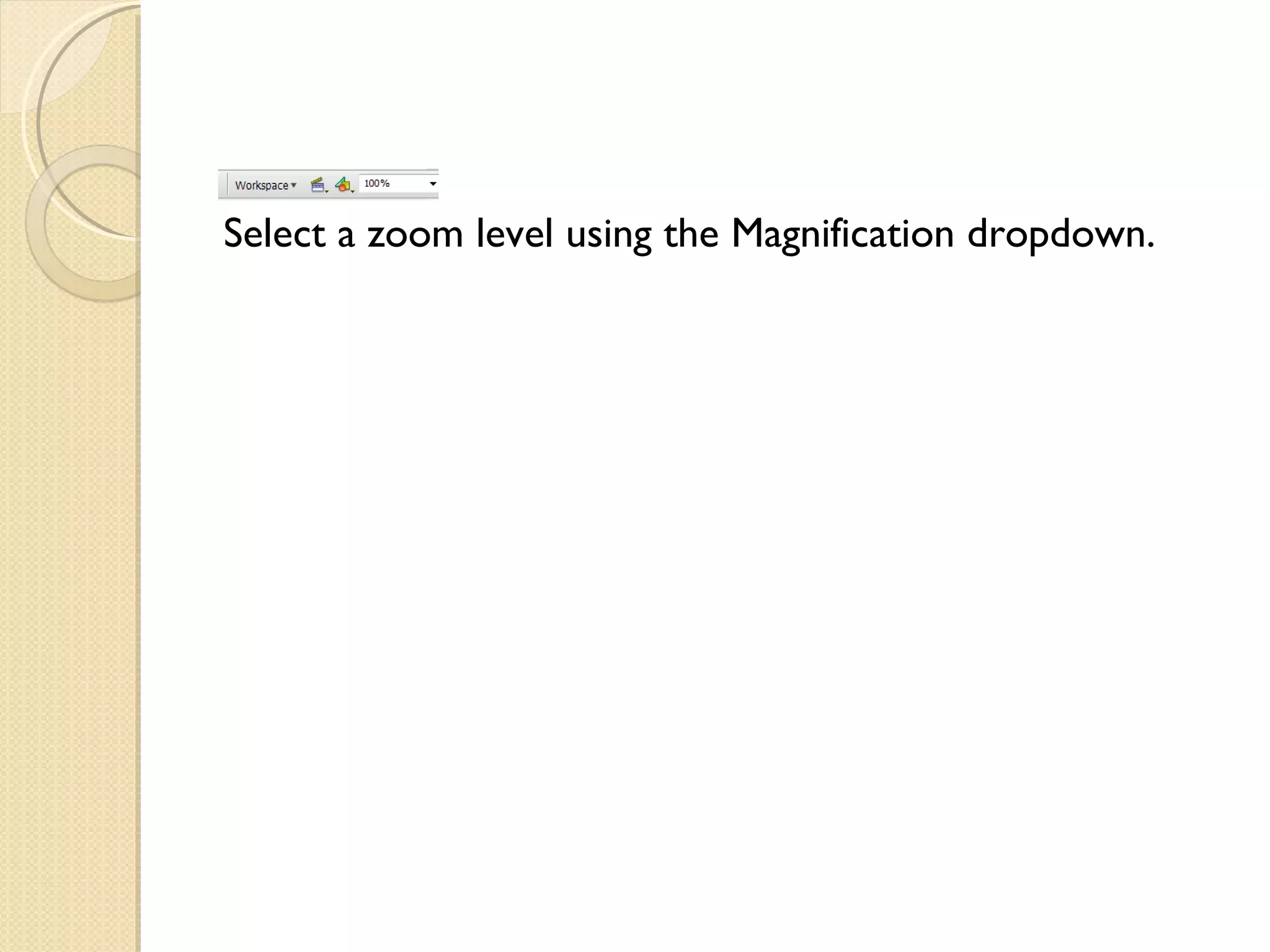
Zooming the Stage There will be occasions when you will discover that the stage is a pretty crowded place. In these situations, you’ll want to be sure that each item on the stage is in its correct position and is properly sized. Depending on the size of the stage, this could be difficult because the stage may fill the screen area. Fortunately, Flash allows you to reduce or increase the magnification of the stage through a technique called  zooming.  Zooming the stage has no effect upon the actual stage size.
Select a zoom level using the Magnification dropdown.
Exploring the Panels in the Flash Interface Panels can be moved around and opened or closed depending upon your workflow needs. We will now take a closer look at the more important panels that you will use every day. They include the following: Timeline  Library Property Inspector  Actions panel Tools panel  Help panel
The Timeline There is a fundamental truth to becoming proficient with Flash: master the timeline and you will master Flash. At its most basic, all animation is movement over time, and all animation has a start point  and an end point. The length of your timeline will determine when animations start and end, and the number of frames between those two points will determine the length of the animation.  As the author, you control those factors.
Frames and Keyframes  Frames:  Like films, Flash movies divide lengths of time into frames, which are organized on the Timeline. Keyframes:  Frames that define a change in what is displayed in a movie or include frame actions to modify a movie. When you open a new blank movie document, it contains one layer with one blank keyframe.
Frames and Keyframes    Keyframe with content Blank keyframe Empty frames Empty slots for new frames
Layers Layers  are like multiple film strips stacked on top of each other, each with a different element that appears on the Stage.  Graphics Animations Text Sounds Buttons Frame actions
Symbols and Libraries Symbols  are elements you reuse within a movie to reduce file size. Types of symbols include  graphics ,  buttons ,  movie clips ,  sound files , and  text . A  library  is where you store and organize symbols. When you drag a symbol from a library to the Stage, you create an  instance  of the symbol.
Symbols Symbol:  reusable object Save an animation image as a symbols  This saves file space because the symbol is only saved once Types of symbols: Graphics (can't be shape tweened) Movie clips (self-contained animation within a movie) Buttons (Up, Down, Over, OverWhileDown states)
Saving Symbols Create a graphic in Flash then convert it to a symbol Right-click the graphic – Convert to symbol Import an existing graphic into a Flash symbol library File – Import – Import to Library To view your symbol library:  Window - Library
Advantages of Using Symbols Easy editing : If you change the symbol in the library, all instances of the symbol are updated automatically. Smaller file sizes : Symbols are downloaded only once, regardless of the number of instances you’ve included in the movie. This reduces the size of your published movies and decreases download times.
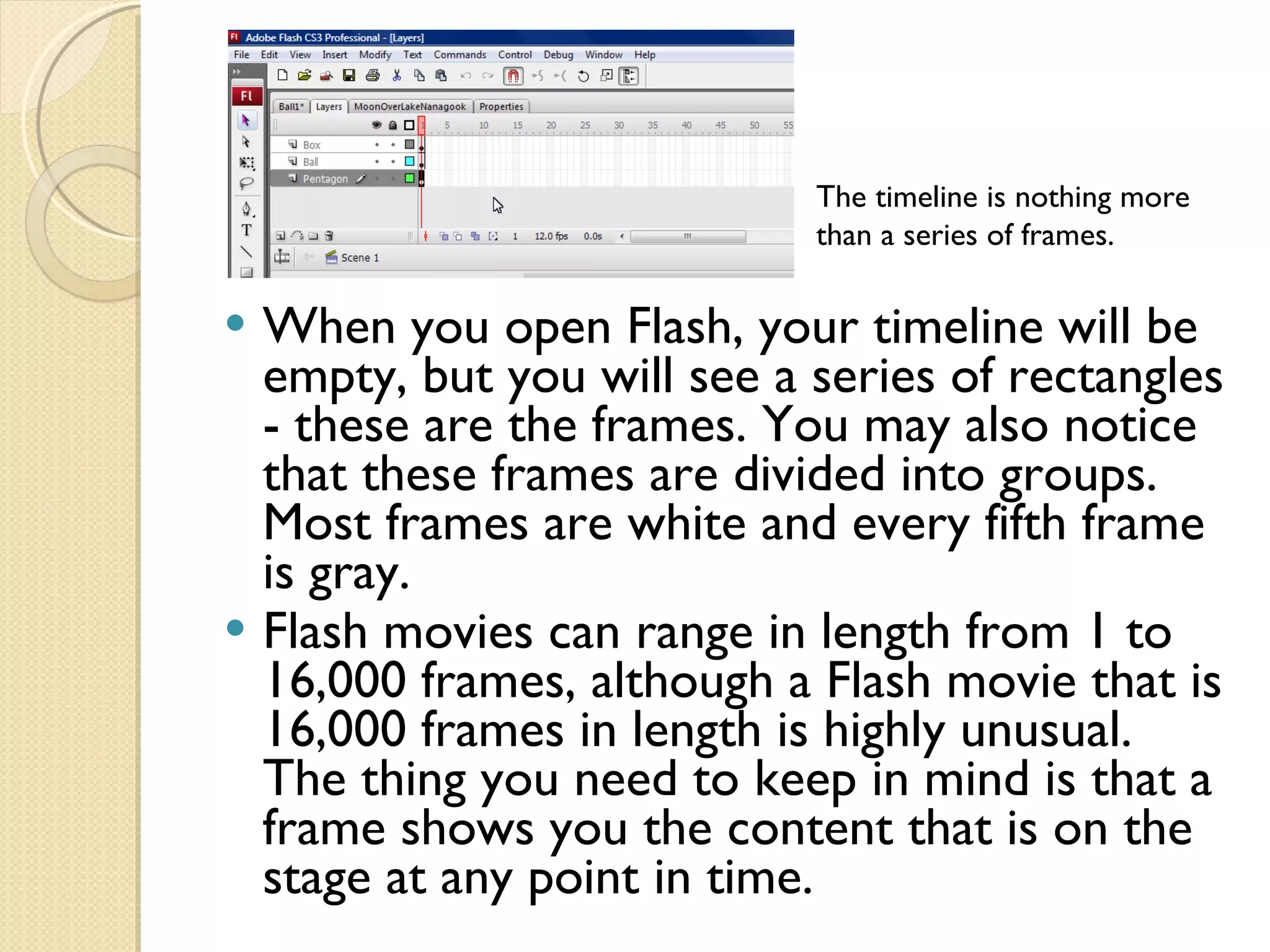
When you open Flash, your timeline will be empty, but you will see a series of rectangles - these are the frames. You may also notice that these frames are divided into groups. Most frames are white and every fifth frame is gray. Flash movies can range in length from 1 to 16,000 frames, although a Flash movie that is 16,000 frames in length is highly unusual. The thing you need to keep in mind is that a frame shows you the content that is on the stage at any point in time. The timeline is nothing more than a series of frames.
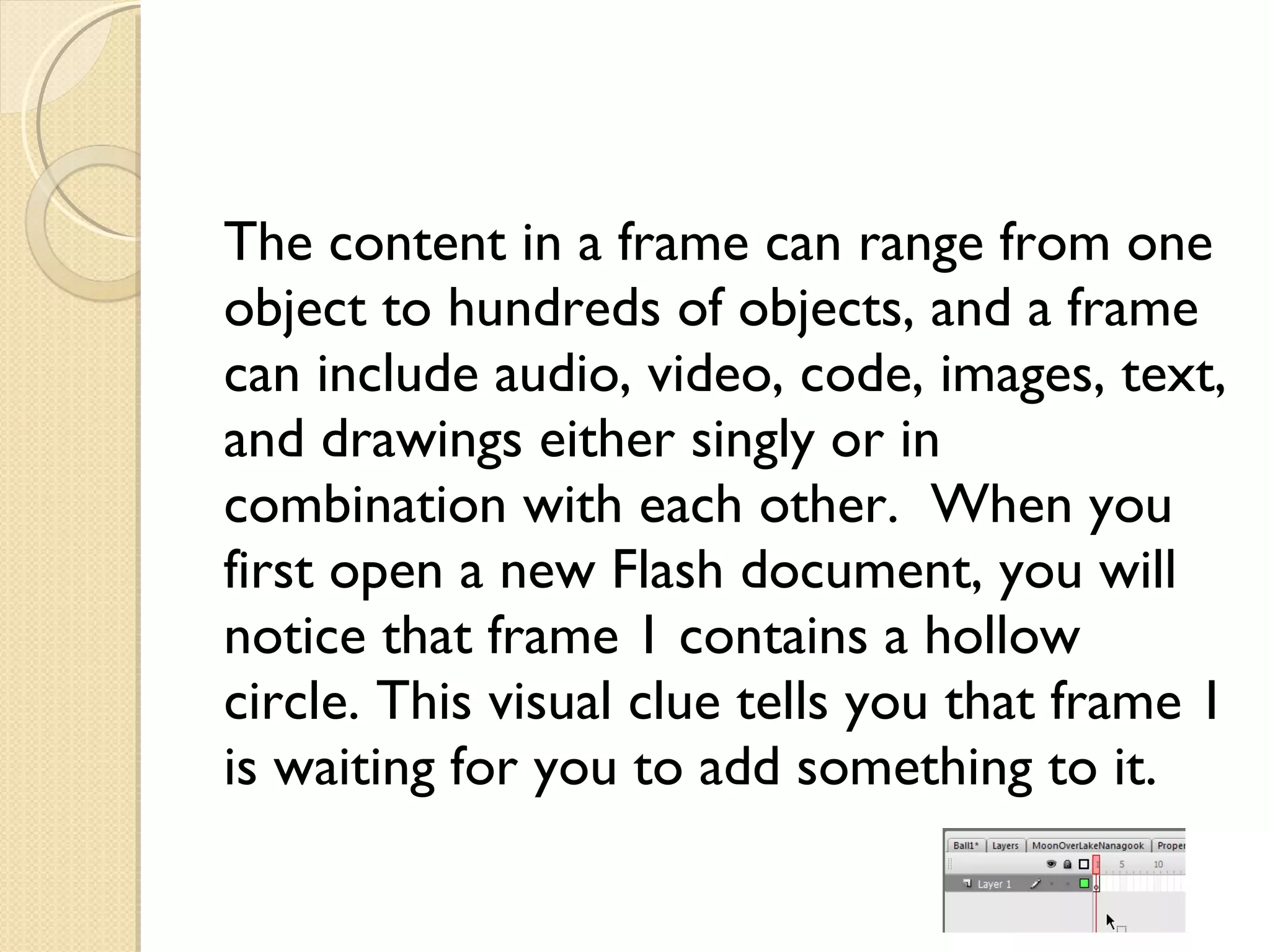
The content in a frame can range from one object to hundreds of objects, and a frame can include audio, video, code, images, text, and drawings either singly or in combination with each other.  When you first open a new Flash document, you will notice that frame 1 contains a hollow circle. This visual clue tells you that frame 1 is waiting for you to add something to it.
Creating Flash Animation Types of animation: Shape:  uses  shapes  you create in Flash Can change shape position and/or properties Creates straight-line animation between a start position and an end position Can only be used with vector images Motion:  uses  symbols  you create or import into Flash (bitmaps) Can create straight-line animation between a start position and an end position Can change the position or rotation of a symbol Can "kind of" make a symbol morph into a different symbol
Creating a Motion Tween Same as shape tweening, but uses a  symbol  rather than a shape Allows you to use bitmaps Can be moved, resized, rotated, morphed to a different symbol
Motion/Classic Tween The way motion tweens used to be done Allows more than one object to be tweened at a time Allows frame scripts over the tween span
Animation with Tweening Tweening : A series of frames that change incrementally to create smooth movement or change over time.  You can set the beginning and ending frames and have Flash automatically create the frames in between. Flash has  theree types of tweening:  shape tweening  and  motion tweening ,  guide tweening ,
Shape Tween Used for morphing shapes  Cannot be applied to symbols Can be used for broken-apart text (You have to select the text and do Modify/Break apart twice, or apply Ctrl-B twice).
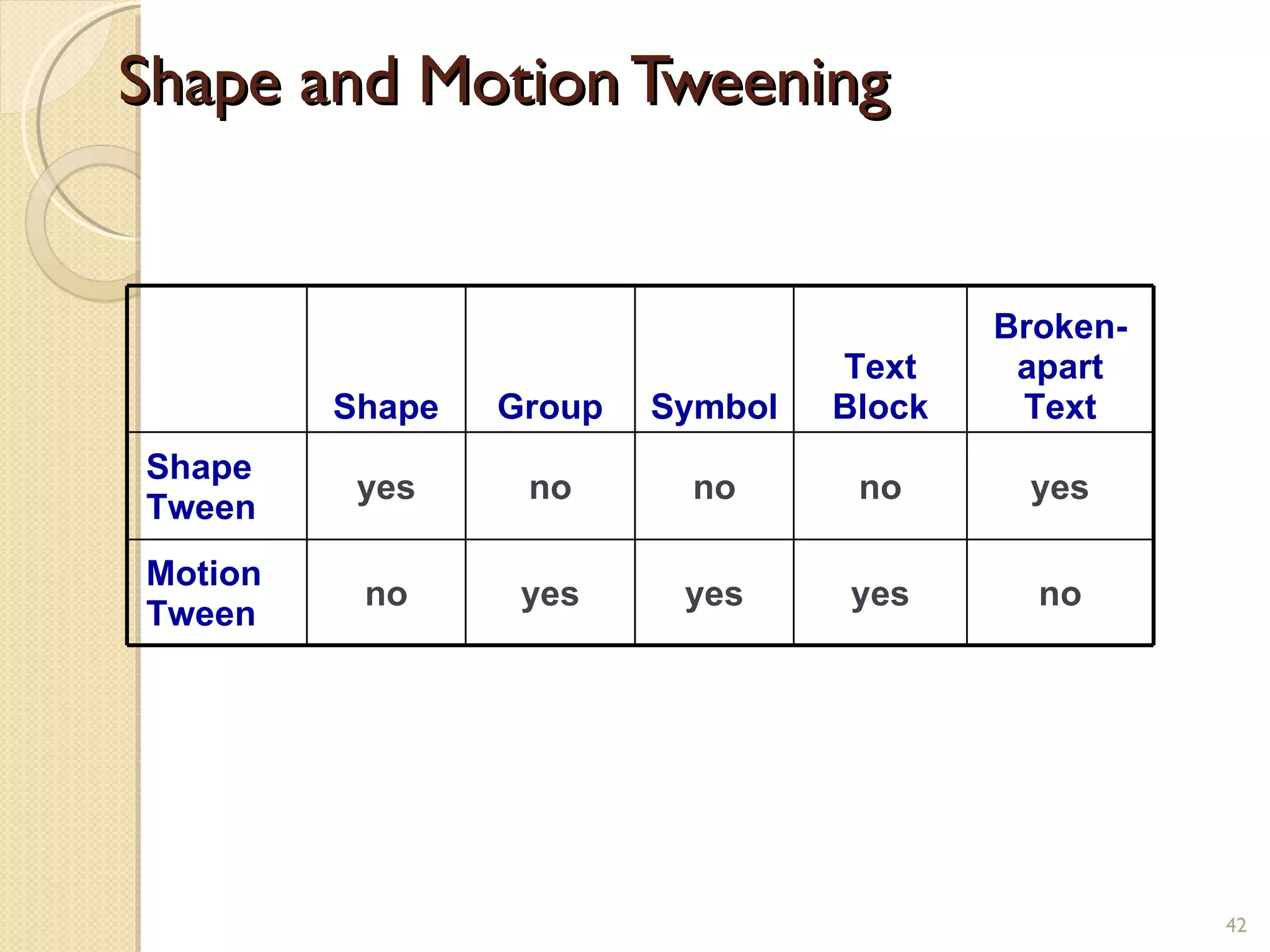
Shape and Motion Tweening In Flash, a  shape  is a vector-based object. You create a shape by using the drawing tools or by importing a vector drawing from another program. Use  shape tweening  to animate one shape into another. You cannot shape-tween grouped objects, bitmaps, text that has not been broken apart, or symbols. Use  motion tweening  to animate symbols, groups, and text blocks.
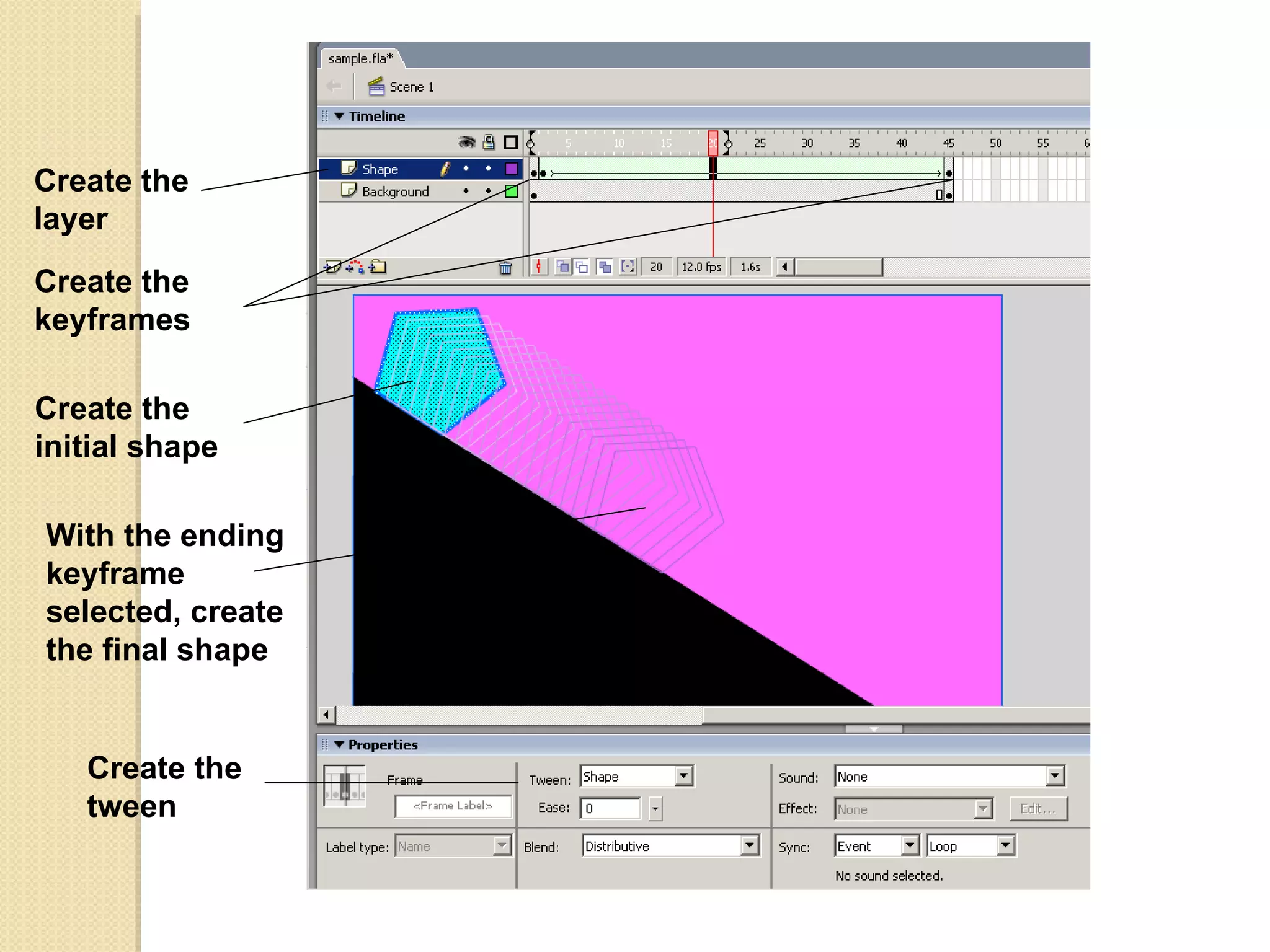
Creating a Shape Animation Create a new layer  Draw the shape at the start position Create a keyframe at the start time Create a keyframe at the end time  With the end keyframe selected, modify the shape to its end size, position, & properties Select any frame between the beginning and ending keyframes and then create a "tween"
Create the layer Create the keyframes Create the tween Create the initial shape With the ending keyframe selected, create  the final shape
Shape and Motion Tweening   Shape Group Symbol Text Block Broken- apart Text Shape Tween yes no no no yes Motion Tween no yes yes yes no
Adding Sounds Create a sound layer Create a keyframe when you want the sound to play With target keyframe selected, drag the sound onto the stage
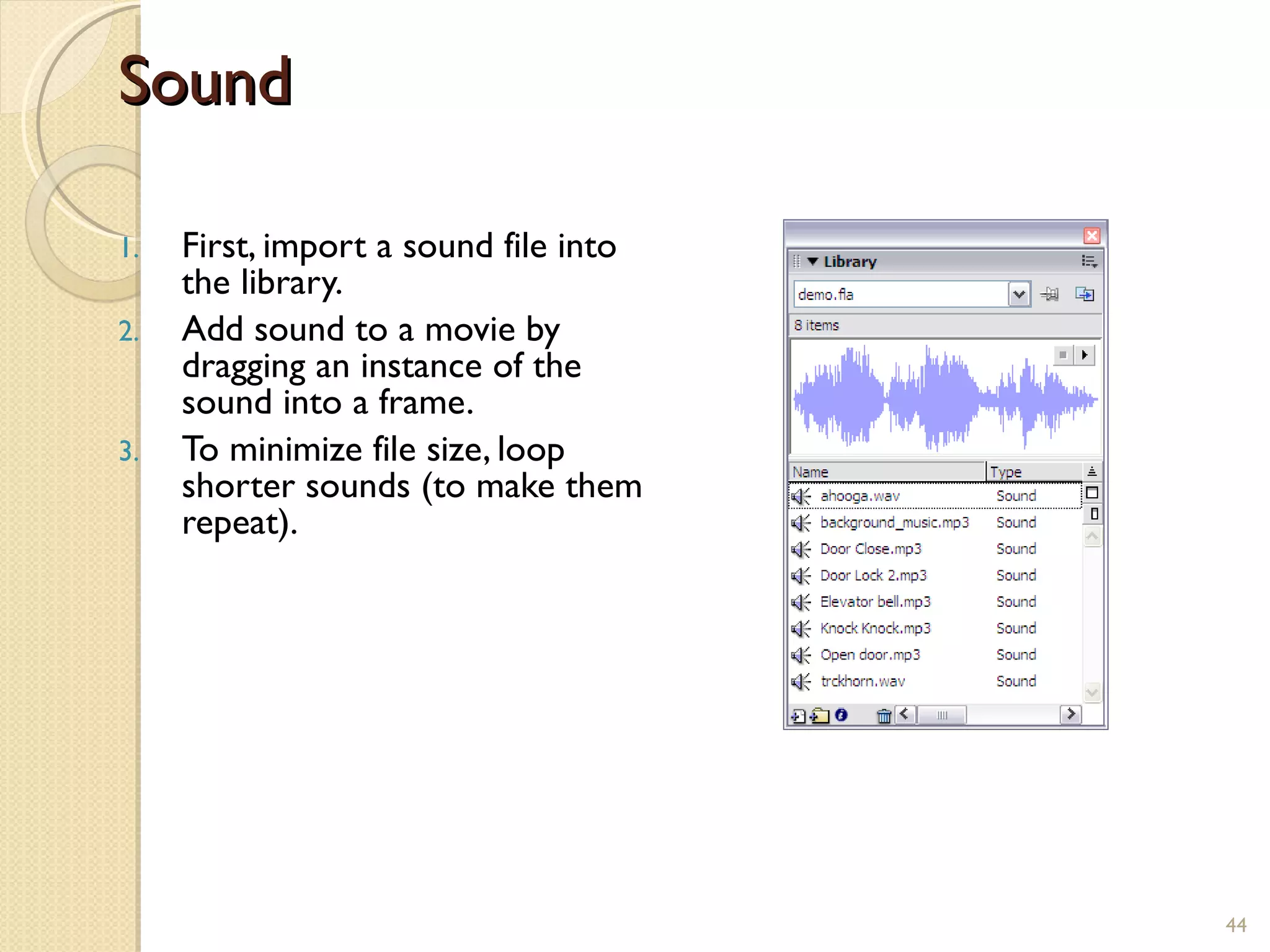
Sound First, import a sound file into the library. Add sound to a movie by dragging an instance of the sound into a frame. To minimize file size, loop shorter sounds (to make them repeat).
Actions ActionScript  statements instruct a movie to do something while it is playing. Frame action:  An action attached to a frame is triggered when the movie plays that frame. Object action:  An action attached to an object is triggered when the viewer interacts with the object, such as moving the pointer over a hotspot or clicking a button.
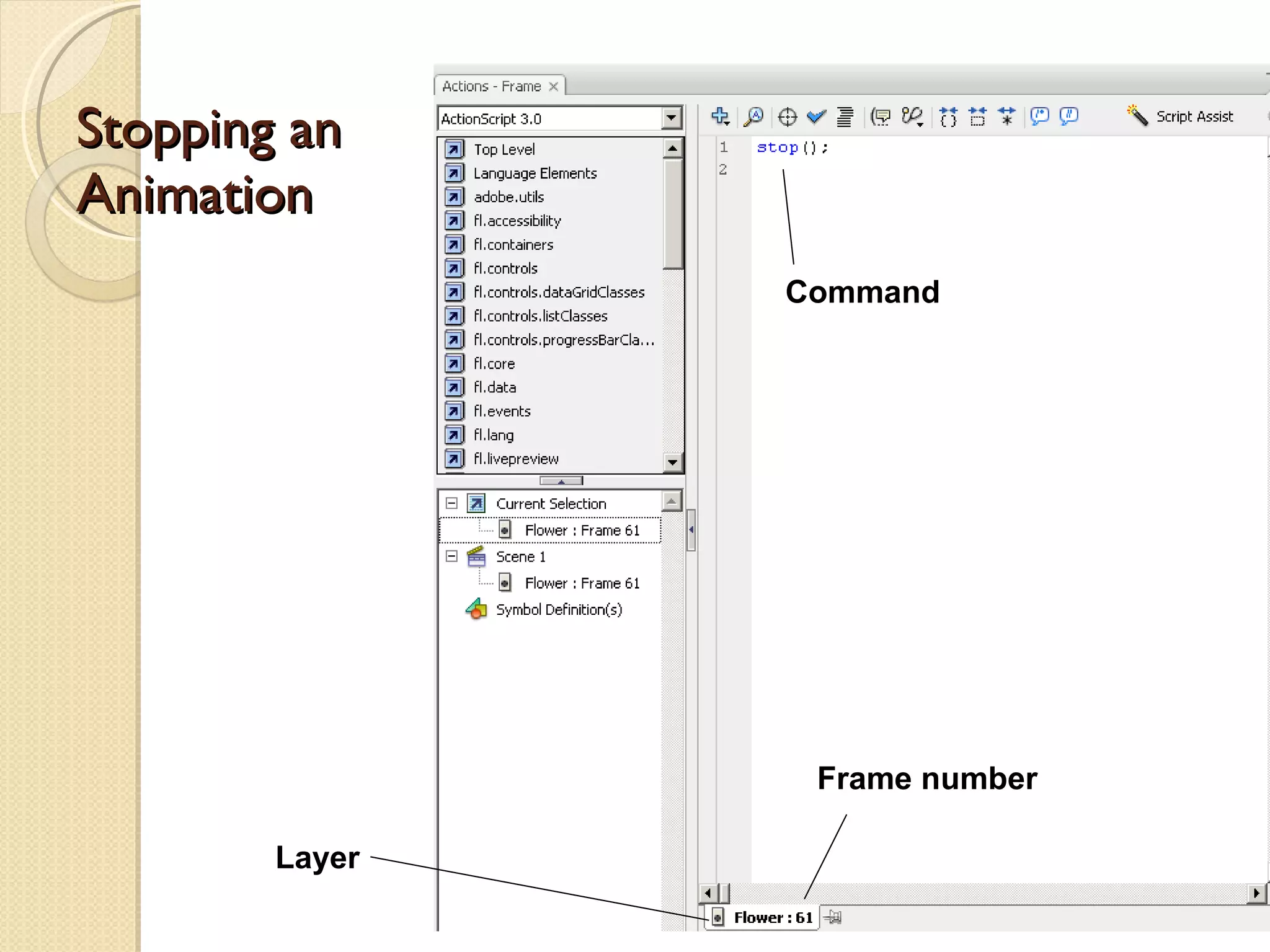
Stopping an Animation By default, animations play continuously when published To configure an animation to play once: Select the frame in which you want the animation to stop, right-click, click Actions In the ActionScript window, type  stop();
Stopping an Animation Layer Frame number Command
Publishing Save distribution files File – Publish Preview – Flash or HTML to preview File – Publish Settings to view file types .swf, .html, .gif, etc. Select desired settings File – Publish to actually save files Use HTML to create a new HTML document Use Flash (.swf) file to insert into an existing HTML document In Dreamweaver, Insert – Media - Flash
Using Flash to Create Embedded Multimedia You can embed audio and video files in Flash documents and then publish them on Web pages Advantages: Most people have a Flash player installed on their computer Gives you more control over object's appearance
Creating Embedded Flash Audio Import the audio file to a Flash document Create a timeline to stop the audio You can also create buttons to start and stop it, and add commands so it doesn't automatically play…
Creating Embedded Flash Video File – Import – Import Video You can import either a file or a URL to a streaming server You can also create buttons to start and stop it, and add commands so it doesn't automatically play…

Foundation flash

  • 1.
    Foundation Flash By: Mohd Faizol Sulaiman
  • 2.
    Introduction Welcome toFlash live. You have seen a lot of the great stuff Flash can do and it is now time for you to get into the game. I also suspect you are here because Flash can be one great big, scary application to those unfamiliar with it.
  • 3.
    What we’ll coverin this session: Exploring the Flash interface Using the Flash stage Working with panels Difference between a frame and a keyframe Using frames to arrange content on the stage Using layers to manage content on the stage Adding objects to the library Testing your movie
  • 4.
    What we aregoing to do to begin with is take a walk through the authoring environment - called the Flash interface -pointing out the sights and giving you an opportunity to experiment with the features. By the end of the stroll, you should be fairly comfortable with this tool called Flash and have a fairly good idea of what tools you can use and how to use them as you start creating a Flash movie.
  • 5.
    The Start pageand Creating a Flash document The first thing you see when you launch Flash is the Start page. This interface, common to all of the Adobe CS3 applications, is divided into three areas. The area on the left side shows you a list of documents you have previously opened. Click one of them, and that document, provided it hasn’t been moved to another location on your computer, will open. The Open link at the bottom of the list lets you navigate to a document that isn’t on the list.
  • 6.
  • 7.
    The middle areaof the page is where you can choose to create a variety of new Flash documents. Your choices include a blank Flash document, a project aimed at a mobile phone or PDA (a mobile document), a series of code-based documents, and a Flash project. The major change in this panel is the ability to select a new document based upon which version of ActionScript will be used in the document. Flash Professional CS3 marks the latest version of the Flash programming language named ActionScript. The previous version of this language, used in Flash MX 2004 and Flash 8, was ActionScript 2.0. The right area of the screen is reserved for a variety of templates you can use.
  • 8.
    The Extend areaat the bottom of the Start Screen contains a link to the Flash Exchange. This is a hyperlink that takes you to a page on the Adobe site where you can download a variety of tools and projects that are available for free or a nominal cost.
  • 9.
    What Can aFlash Animation Include? Vector-based graphics Has the ability to "tween" Automatically generates fill-in frames between a beginning and an ending image Bitmap-based graphics Can be moved & rotated Embedded fonts Can be moved, resized, skewed, rotated, recolored Sound Can synchronize sounds with animation frames
  • 10.
    Flash Environments Flashauthoring environment Design environment (graphics tools) Scripting environment (create program code) You can download a free trial version at http://www.adobe.com/ Flash player Users must have this installed on their workstations If not present, automatically prompted to install when they start your animation
  • 11.
    Flash Files ("Movies")Authoring file .fla extension This file creates the design version of your animation Published file .swf extension ("swiff" file) Can't be edited Can play on most operating systems Fairly small files
  • 12.
    Flash CS3 AuthoringEnvironment Flash Stage Tools Panels Timeline Menus Layers Properties
  • 13.
    Flash 8Workspace Tools panel Timeline Panels Property inspector Stage Current scene Layers Workspace
  • 14.
    Tools create thecontent of a movie. Tools: Draw, paint, create text, select objects, modify objects, and erase objects View tools : Zoom and pan Color tools : Set stroke and fill colors Options : Modify the currently selected tool Tools Views Colour Options
  • 15.
    Timeline You canorganize and control the content of a movie over time. Layers Frames Playhead Frame rate
  • 16.
    Panels Panels provideadditional tools for creating and editing movies. Click the options menu to view additional options for the current panel. You can hide or show panels by using the options on the Window menu.
  • 17.
  • 18.
    1. Enter thefollowing values into the Document Properties dialog box: Title: Pond Description: My first Flash exercise Width: 400 Height: 300 Background colour: #000066 2. Click OK and the stage will shrink to the new dimensions and change colour to a dark blue. These changes will also be shown in the Property inspector.
  • 19.
    Stage You composemovie content on the Stage. Set Stage size to match a specific browser size Screen Resolution Display Area in Microsoft Internet Explorer 640 x 480 620 x 318 800 x 600 780 x 438 1024 x 768 1004 x 606 1280 x 1024 1260 x 862
  • 20.
    The Property InspectorDocument Size Access the Publishing Settings Background Colour Frame Rate Movie Name
  • 21.
    Zooming the StageThere will be occasions when you will discover that the stage is a pretty crowded place. In these situations, you’ll want to be sure that each item on the stage is in its correct position and is properly sized. Depending on the size of the stage, this could be difficult because the stage may fill the screen area. Fortunately, Flash allows you to reduce or increase the magnification of the stage through a technique called zooming. Zooming the stage has no effect upon the actual stage size.
  • 22.
    Select a zoomlevel using the Magnification dropdown.
  • 23.
    Exploring the Panelsin the Flash Interface Panels can be moved around and opened or closed depending upon your workflow needs. We will now take a closer look at the more important panels that you will use every day. They include the following: Timeline Library Property Inspector Actions panel Tools panel Help panel
  • 24.
    The Timeline Thereis a fundamental truth to becoming proficient with Flash: master the timeline and you will master Flash. At its most basic, all animation is movement over time, and all animation has a start point and an end point. The length of your timeline will determine when animations start and end, and the number of frames between those two points will determine the length of the animation. As the author, you control those factors.
  • 25.
    Frames and Keyframes Frames: Like films, Flash movies divide lengths of time into frames, which are organized on the Timeline. Keyframes: Frames that define a change in what is displayed in a movie or include frame actions to modify a movie. When you open a new blank movie document, it contains one layer with one blank keyframe.
  • 26.
    Frames and Keyframes Keyframe with content Blank keyframe Empty frames Empty slots for new frames
  • 27.
    Layers Layers are like multiple film strips stacked on top of each other, each with a different element that appears on the Stage. Graphics Animations Text Sounds Buttons Frame actions
  • 28.
    Symbols and LibrariesSymbols are elements you reuse within a movie to reduce file size. Types of symbols include graphics , buttons , movie clips , sound files , and text . A library is where you store and organize symbols. When you drag a symbol from a library to the Stage, you create an instance of the symbol.
  • 29.
    Symbols Symbol: reusable object Save an animation image as a symbols This saves file space because the symbol is only saved once Types of symbols: Graphics (can't be shape tweened) Movie clips (self-contained animation within a movie) Buttons (Up, Down, Over, OverWhileDown states)
  • 30.
    Saving Symbols Createa graphic in Flash then convert it to a symbol Right-click the graphic – Convert to symbol Import an existing graphic into a Flash symbol library File – Import – Import to Library To view your symbol library: Window - Library
  • 31.
    Advantages of UsingSymbols Easy editing : If you change the symbol in the library, all instances of the symbol are updated automatically. Smaller file sizes : Symbols are downloaded only once, regardless of the number of instances you’ve included in the movie. This reduces the size of your published movies and decreases download times.
  • 32.
    When you openFlash, your timeline will be empty, but you will see a series of rectangles - these are the frames. You may also notice that these frames are divided into groups. Most frames are white and every fifth frame is gray. Flash movies can range in length from 1 to 16,000 frames, although a Flash movie that is 16,000 frames in length is highly unusual. The thing you need to keep in mind is that a frame shows you the content that is on the stage at any point in time. The timeline is nothing more than a series of frames.
  • 33.
    The content ina frame can range from one object to hundreds of objects, and a frame can include audio, video, code, images, text, and drawings either singly or in combination with each other. When you first open a new Flash document, you will notice that frame 1 contains a hollow circle. This visual clue tells you that frame 1 is waiting for you to add something to it.
  • 34.
    Creating Flash AnimationTypes of animation: Shape: uses shapes you create in Flash Can change shape position and/or properties Creates straight-line animation between a start position and an end position Can only be used with vector images Motion: uses symbols you create or import into Flash (bitmaps) Can create straight-line animation between a start position and an end position Can change the position or rotation of a symbol Can "kind of" make a symbol morph into a different symbol
  • 35.
    Creating a MotionTween Same as shape tweening, but uses a symbol rather than a shape Allows you to use bitmaps Can be moved, resized, rotated, morphed to a different symbol
  • 36.
    Motion/Classic Tween Theway motion tweens used to be done Allows more than one object to be tweened at a time Allows frame scripts over the tween span
  • 37.
    Animation with TweeningTweening : A series of frames that change incrementally to create smooth movement or change over time. You can set the beginning and ending frames and have Flash automatically create the frames in between. Flash has theree types of tweening: shape tweening and motion tweening , guide tweening ,
  • 38.
    Shape Tween Usedfor morphing shapes Cannot be applied to symbols Can be used for broken-apart text (You have to select the text and do Modify/Break apart twice, or apply Ctrl-B twice).
  • 39.
    Shape and MotionTweening In Flash, a shape is a vector-based object. You create a shape by using the drawing tools or by importing a vector drawing from another program. Use shape tweening to animate one shape into another. You cannot shape-tween grouped objects, bitmaps, text that has not been broken apart, or symbols. Use motion tweening to animate symbols, groups, and text blocks.
  • 40.
    Creating a ShapeAnimation Create a new layer Draw the shape at the start position Create a keyframe at the start time Create a keyframe at the end time With the end keyframe selected, modify the shape to its end size, position, & properties Select any frame between the beginning and ending keyframes and then create a "tween"
  • 41.
    Create the layerCreate the keyframes Create the tween Create the initial shape With the ending keyframe selected, create the final shape
  • 42.
    Shape and MotionTweening Shape Group Symbol Text Block Broken- apart Text Shape Tween yes no no no yes Motion Tween no yes yes yes no
  • 43.
    Adding Sounds Createa sound layer Create a keyframe when you want the sound to play With target keyframe selected, drag the sound onto the stage
  • 44.
    Sound First, importa sound file into the library. Add sound to a movie by dragging an instance of the sound into a frame. To minimize file size, loop shorter sounds (to make them repeat).
  • 45.
    Actions ActionScript statements instruct a movie to do something while it is playing. Frame action: An action attached to a frame is triggered when the movie plays that frame. Object action: An action attached to an object is triggered when the viewer interacts with the object, such as moving the pointer over a hotspot or clicking a button.
  • 46.
    Stopping an AnimationBy default, animations play continuously when published To configure an animation to play once: Select the frame in which you want the animation to stop, right-click, click Actions In the ActionScript window, type stop();
  • 47.
    Stopping an AnimationLayer Frame number Command
  • 48.
    Publishing Save distributionfiles File – Publish Preview – Flash or HTML to preview File – Publish Settings to view file types .swf, .html, .gif, etc. Select desired settings File – Publish to actually save files Use HTML to create a new HTML document Use Flash (.swf) file to insert into an existing HTML document In Dreamweaver, Insert – Media - Flash
  • 49.
    Using Flash toCreate Embedded Multimedia You can embed audio and video files in Flash documents and then publish them on Web pages Advantages: Most people have a Flash player installed on their computer Gives you more control over object's appearance
  • 50.
    Creating Embedded FlashAudio Import the audio file to a Flash document Create a timeline to stop the audio You can also create buttons to start and stop it, and add commands so it doesn't automatically play…
  • 51.
    Creating Embedded FlashVideo File – Import – Import Video You can import either a file or a URL to a streaming server You can also create buttons to start and stop it, and add commands so it doesn't automatically play…

Editor's Notes

  • #13 The stage, the large white area in the center of the screen, is where the action happens. A good way of regarding the stage in relation to Flash is this: if it isn’t on the stage, the user isn’t going to see it. On the left side of the screen is a set of tools that will allow you to draw, colour, and otherwise manipulate objects on the stage. At the bottom of the interface is the Property inspector. This panel will become a very important place for you.
  • #16 At the top of the interface is the timeline . This is the place where action occurs. As you can see, the timeline is broken into a series of boxes called frames. The best way of regarding frames is as individual frames of a film. When you put something on the stage, it will appear in a frame. If you want it to move from here to there, it will start in one frame and end in another a little further along the timeline. That red box you see in frame 1 is called the playhead . Its purpose is to show you the current frame being displayed. When a Flash movie is playing through a browser, the playhead is in motion and the user is seeing the frame where the playhead is located. This is how things appear to move in Flash. Another thing you can do with the playhead is drag it across the timeline while you are creating the Flash movie. This technique is known as scrubbing the timeline, and has its origins in film editing.
  • #17 On the right side of the interface are the panels. Panels are used to modify and manipulate whatever object you may have selected on the stage or to even add an object to the stage. These objects can be text, photographs, line art, short animations, video, or even interface elements called components. You can use the panels and the menus to change not only the characteristics of the objects, but also how the objects behave on the stage. Panels can be connected to each other (docked) or they can float freely in the interface (floating).
  • #18 Select Modify > Document. Press Ctrl+J (PC) or Cmd+J (Mac). Right-click (PC) or Ctrl-click (Mac) and select Document Properties from the context menu. Double-click the box that shows 12 fps under the timeline. The Title and Description boxes are where you can add a name for the document and write a brief description of the movie. The text you add to these two input boxes is used as the metadata that search engines can use to search your site. You can access this metadata by selecting Show Report in the Publish Options dialog box when the file that goes in the web page is created—the file is called a SWF (pronounced swiff). The Dimensions input area is where you can change the size of the stage. Enter the new dimensions, press the Enter (PC) or Return (Mac) key, and the stage will change. The Match area is commonly used to shrink the stage to the size of the content on the stage. You can also change the stage color and how fast
  • #21 The Property inspector is designed to make your life easy. When you select something on the stage, or select the stage itself, the panel will update to reflect the properties that can be changed in regard to what was just selected. As you become more proficient and comfortable with Flash, this panel will become an indispensable aid to your workflow. The panel is positioned, by default, at the bottom of the screen. You can move it elsewhere on the screen by simply dragging it into position and releasing the mouse. There are locations on the screen where you will see a shadow or darkening of the location when the panel is over it. This colour change indicates that the panel can be docked into that location. Otherwise, the panel will “float” above the screen. When an object is placed on the stage and selected, the Property inspector will change to reflect the properties of that object that can be manipulated.
  • #25 When somebody visits your site and an animation plays, Flash treats that animation as a series of still images. In many respects, those images are comparable to the images in a roll of film or one of those flip books you may have played with when you were younger. The ordering of those images on the film or in the book is determined by their placement on the film or in the book. In Flash, the order of images in an animation is determined by the timeline. The timeline, therefore, controls what the user sees, and more importantly, when he or she sees it.