
Virat Kothari
Introduction
• OneNote is a software product that is a part of Microsoft
Office and originally introduced as standalone application in
2003
• OneNote is a digital note-taking application i.e. a way to take
notes on computer so that they can be conveniently used later
• It is designed to make experience as close as possible to a real
paper notebook retaining all digital advantages
• Very good features like screen capture, audio & video
recording, sharing notes, live session etc.
• Tightly integrated with MS Outlook
With OneNote, all the information stays at one place. It is easy to
organize and search anything out of them
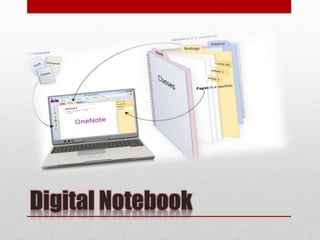
Digital Notebook
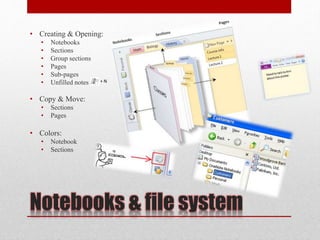
Notebooks & file system
• Creating & Opening:
• Notebooks
• Sections
• Group sections
• Pages
• Sub-pages
• Unfilled notes
• Copy & Move:
• Sections
• Pages
• Colors:
• Notebook
• Sections
+ N
Templates
Templates in OneNote are predefined readymade pages that
can be used as a base for further notes
• Template categories:
• Academic
• Blank
• Business
• Decorative
• Planners
• Custom
OneNote Basics
• Start from any where on the page
• Auto save
• Provides all necessary formatting just like word including hyper links
• Copy, Paste & Format painter
• Page size
• Print: Section, Notebook
• Formulae
• Tables
• Inserting files, images etc.
• Attachments
• Tags
Search
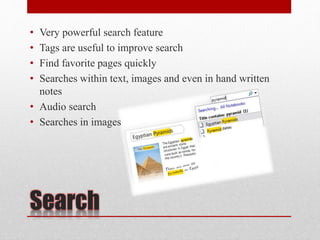
• Very powerful search feature
• Tags are useful to improve search
• Find favorite pages quickly
• Searches within text, images and even in hand written
notes
• Audio search
• Searches in images
Sharing notes - I
Useful to work with team by sharing notebook that everyone can
edit at the same time and can view even while not connected to
network. It seamlessly merges all the changes done by various
members to whom notebook is shared.
• A shared notebook can be created or existing notebook can be
shared
• Notebook can be shared with people locally or over the net
• Notebook can be accessed from anywhere
• Automatic sync
• Edit even while offline
Sharing notes - II
Screen, Audio & Video capturing
OneNote & Office
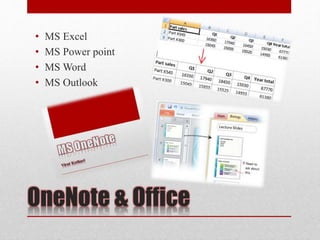
• MS Excel
• MS Power point
• MS Word
• MS Outlook
OneNote & Outlook - I
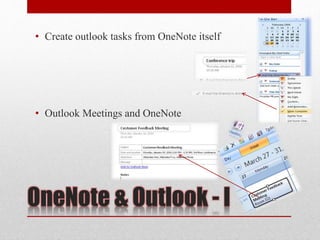
• Create outlook tasks from OneNote itself
• Outlook Meetings and OneNote
OneNote & Outlook - II
• Sending email message to OneNote
• Email, publish as PDF from OneNote
Drawing & Calculator
Lasso Select
Pen, lines, arrows, andshapes
Eraser:
Erase partsof shapes.For
example,make anarcfrom a
circle drawing. Line color
Duplicate Shapesmode:
You can draw the same shape overand
overwithoutswitchingto
Type/Selectionmode.Youcaneven
create a shape with one click inthis
mode.
Type/Selectionmode
• Place the cursor after the = (equal) sign in each example below and press SPACEBAR
• Let’s try few example:
1. 670/12=
2. 14*$39.99=
3. sin(30)=
4. (6+7) / (4*sqrt(3))=
5. 5^4=
Password protection
• Sections can be protect from password, it uses:
“3DES encryption standard”
• Files inserted in the page are not protected but makes
sense
• Practical scenario
Thanks !

Microsoft OneNote

  • 1.
  • 2.
    Introduction • OneNote isa software product that is a part of Microsoft Office and originally introduced as standalone application in 2003 • OneNote is a digital note-taking application i.e. a way to take notes on computer so that they can be conveniently used later • It is designed to make experience as close as possible to a real paper notebook retaining all digital advantages • Very good features like screen capture, audio & video recording, sharing notes, live session etc. • Tightly integrated with MS Outlook With OneNote, all the information stays at one place. It is easy to organize and search anything out of them
  • 3.
  • 4.
    Notebooks & filesystem • Creating & Opening: • Notebooks • Sections • Group sections • Pages • Sub-pages • Unfilled notes • Copy & Move: • Sections • Pages • Colors: • Notebook • Sections + N
  • 5.
    Templates Templates in OneNoteare predefined readymade pages that can be used as a base for further notes • Template categories: • Academic • Blank • Business • Decorative • Planners • Custom
  • 6.
    OneNote Basics • Startfrom any where on the page • Auto save • Provides all necessary formatting just like word including hyper links • Copy, Paste & Format painter • Page size • Print: Section, Notebook • Formulae • Tables • Inserting files, images etc. • Attachments • Tags
  • 7.
    Search • Very powerfulsearch feature • Tags are useful to improve search • Find favorite pages quickly • Searches within text, images and even in hand written notes • Audio search • Searches in images
  • 8.
    Sharing notes -I Useful to work with team by sharing notebook that everyone can edit at the same time and can view even while not connected to network. It seamlessly merges all the changes done by various members to whom notebook is shared. • A shared notebook can be created or existing notebook can be shared • Notebook can be shared with people locally or over the net • Notebook can be accessed from anywhere • Automatic sync • Edit even while offline
  • 9.
  • 10.
    Screen, Audio &Video capturing
  • 11.
    OneNote & Office •MS Excel • MS Power point • MS Word • MS Outlook
  • 12.
    OneNote & Outlook- I • Create outlook tasks from OneNote itself • Outlook Meetings and OneNote
  • 13.
    OneNote & Outlook- II • Sending email message to OneNote • Email, publish as PDF from OneNote
  • 14.
    Drawing & Calculator LassoSelect Pen, lines, arrows, andshapes Eraser: Erase partsof shapes.For example,make anarcfrom a circle drawing. Line color Duplicate Shapesmode: You can draw the same shape overand overwithoutswitchingto Type/Selectionmode.Youcaneven create a shape with one click inthis mode. Type/Selectionmode • Place the cursor after the = (equal) sign in each example below and press SPACEBAR • Let’s try few example: 1. 670/12= 2. 14*$39.99= 3. sin(30)= 4. (6+7) / (4*sqrt(3))= 5. 5^4=
  • 15.
    Password protection • Sectionscan be protect from password, it uses: “3DES encryption standard” • Files inserted in the page are not protected but makes sense • Practical scenario
  • 16.