SharePoint 2010
   Jumpstart


  Jan 8, 2011 Video Recording:

Part 1: http://vimeo.com/18638634

Part 2: http://vimeo.com/18650623
What Does This Mean?


8   5   4   9   1      7   6   3   2   0
What Does This Mean?


            SharePoint
Session Objectives
¡  In this session, we will:
  ¡  Evaluate the key new features of SharePoint 2010 and
      determine organizational benefits
  ¡  Take advantage of the enhanced user experience to increase
      collaboration and productivity
  ¡  Effectively store, share and manipulate information with the
      new tools in SharePoint 2010
  ¡  Effectively facilitate better collaboration with SharePoint 2010
Dux Raymond Sy, PMP, MVP
         ¡  Managing Partner, Innovative-E, Inc.

         ¡  Author, “SharePoint for Project
             Management” by O’Reilly Media

         ¡  For more information, connect with Dux

             ¡  E-Mail: dux.sy@innovative-e.com

             ¡  Twitter: twitter.com/meetdux

             ¡  LinkedIn: meetdux.com/li

             ¡  Blog: meetdux.com
SharePoint 2010 Jumpstart
¡  Hello, SharePoint 2010!

¡  Leveraging SharePoint Sites

¡  Effectively Managing Information

¡  Utilizing Web Parts

¡  SharePoint User Management
Share
 +
Point
In a Perfect World
¡  Collaboration tools should be appropriate to maturity, skill
    set and existing tools

¡  Accessibility
  ¡  Information needed can be
      accessible in a central location
  ¡  Traceability
  ¡  One-stop shop

¡  Team collaboration
  ¡  Easily work with colleagues
      whenever, wherever, and however
Business Collaboration Platform
¡  Key capabilities
  ¡  Collaboration
  ¡  Document Management
  ¡  Content Management
  ¡  Business Intelligence
  ¡  Process Automation

¡  Key components
  ¡  SharePoint Foundation
  ¡  SharePoint Server 2010
  ¡  SharePoint Designer 2010
What if SharePoint is a Car?
           Car                   SharePoint
Purpose:              Purpose:


What’s required?      What’s required?
SharePoint Geek Vagen
SF vs SS
¡  SF is the core technology of Microsoft SharePoint
  ¡  Considered as the “engine” of SharePoint
  ¡  Provides document management and team
      collaboration tools
  ¡  WF is available for free as long as your organization is
      utilizing Windows Server 2008

¡  SS extends the capabilities of SF
  ¡  Going back to our car analogy, SS provides extended
      capabilities such as GPS, a DVD system, Voice
      Commands, etc.
  ¡  Extended features include Enterprise search,
      Personalization, Enterprise Content Management, etc.
  ¡  Unlike SF, SS is not available for free
SharePoint Designer 2010
¡  Extends the ability to customize SharePoint without
    programming
  ¡  Custom branding
  ¡  Integrate external data sources
  ¡  Develop custom workflows

¡  Allows rapid development
    of custom SharePoint 2010
    applications
2007 vs 2010
¡  New key features
  ¡  Enhanced User Interface (UI)
  ¡  Access services
  ¡  Visio services
  ¡  Business connectivity services
  ¡  Sandboxed solutions
  ¡  Windows PowerShell
  ¡  PerformancePoint services
  ¡  Health monitoring
  ¡  Managed metadata
  ¡  Digital asset management
  ¡  Social computing
Cross Browser Compatibility
¡  SharePoint 2010 relies heavily on JavaScript & related tech

¡  SharePoint 2010 supports industry standard
  ¡  Adopted the Web Content Accessibility Guidelines 2.0 (WCAG
      2.0)
  ¡  Integrates Accessible Rich Internet Application (ARIA)
  ¡  Details: http://bit.ly/bv6QEl

¡  What does this mean?
  ¡  Non-IE browsers will
      almost have the same
      browsing experience
  ¡  Read “Maximizing SharePoint 2010
      on a Mac + iPhone or iPod + iPad”
    ¡  http://bit.ly/9IX851
Ribbon Interface
¡  Serves as a toolbar for
  ¡  Navigation
  ¡  Editing
  ¡  Updating settings


¡  Consistent with Microsoft Office ribbon interface
  ¡  Customizable
  ¡  Add or remove tools/icons
  ¡  ECMAScript is used to interact with these new UI controls, using
      Visual Studio 2010
SharePoint 2010 Jumpstart
¡  Hello, SharePoint 2010!

¡  Leveraging SharePoint Sites

¡  Effectively Managing Information

¡  Utilizing Web Parts

¡  SharePoint User Management
SharePoint Sites
¡  Web sites primarily intended for group collaboration

¡  Normally created for cross-functional teams and the like
  ¡  Departments
  ¡  User groups
  ¡  Project teams
Site Hierarchy
Site Hierarchy
¡  Top-level sites
  ¡  A top-level site is created upon installation of SharePoint
  ¡  New top-level sites can be created
  ¡  Aka Root Web Site

¡  Sub-sites
  ¡  Sites that are created beneath an existing site
     ¡  Beneath a top-level site
     ¡  Beneath an existing sub-site
  ¡  Top-level sites can have multiple levels of sub-sites

¡  Site collection
  ¡  Aggregation of the top-level site and its sub-sites
  ¡  Site collections are independent of one another
  ¡  A top-level site without any sub-sites = site collection
Example: Corporate Intranet
Site Templates
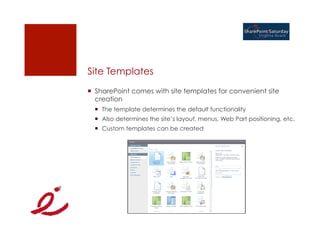
¡  SharePoint comes with site templates for convenient site
    creation
  ¡  The template determines the default functionality
  ¡  Also determines the site’s layout, menus, Web Part positioning, etc.
  ¡  Custom templates can be created
Site Interface
Site Interface
1.  Site Actions
2.  Ribbon interface

3.  Top link bar

4.  Quick Launch

5.  Page content
Navigating SharePoint

¡  Navigate Up folder icon


¡  Breadcrumb
Page Editing
¡  Typically, the homepage is a wiki page
SharePoint 2010 Jumpstart
¡  Hello, SharePoint 2010!

¡  Leveraging SharePoint Sites

¡  Effectively Managing Information

¡  Utilizing Web Parts

¡  SharePoint User Management
Lists
¡  A collection of shared information items displayed on a site
  ¡  Most of the information in a SharePoint site is organized and stored
      in lists
  ¡  Everyone who has access to the site will be able to view lists

¡  Viewing a list is comparable to viewing information in a
    spreadsheet
  ¡  Information is displayed in a tabular format made up of rows and
      columns
Common Lists
¡  Announcements

¡  Links

¡  Calendar

¡  Survey

¡  Tasks

¡  Contacts

¡  Issues
Managing Lists
¡  SharePoint lists can be
    managed from the
    ribbon interface


¡  List tools


¡  List Item Tools
Creating Lists
¡  Out-of-the-box lists and custom lists can be added to a site
  ¡  Only site members with the appropriate privileges can do so
Discussion Boards
¡  Similar to online message boards you may have seen on
    the Web
  ¡  Like news groups or Web logs

¡  Provides threaded-discussion capability
  ¡  Participants can reply to any message in the discussion
  ¡  Can view discussions hierarchically or as a flat list
Tasks Lists
¡  A list that is intended for task assignments that includes
  ¡  Start date
  ¡  Due date
  ¡  Task priority
  ¡  % Complete
  ¡  Description

¡  Indicate task status
  ¡  In progress
  ¡  Completed
  ¡  Deferred
  ¡  Waiting for someone else
Libraries
¡  Files are stored and organized in libraries
  ¡  Similar to storing files in folders

¡  Libraries are organized in lists
  ¡  Features and functionalities in lists are mostly applicable to libraries

¡  Multiple types of libraries
Document Libraries
¡  Provides a centralized location
  ¡  Document storage
  ¡  Controlled access of documents

¡  Shared Documents is a document library that is created by
    default whenever a site is created from a site template
Picture Libraries
¡  Used to manage digital images
  ¡  Although images can be stored in document libraries, image
      libraries have special features to view and use graphical content

¡  Picture libraries are
    created similarly to
    how lists or libraries
    are created
Populating Libraries
¡  In a library of a SharePoint site
  ¡  New Document option creates and stores a Word document
  ¡  Upload option allows single or multiple document uploads

¡  Using Microsoft Office
  ¡  Save a document to the document library that is set up as a
      network place

¡  Dragging and dropping documents into the library with
    Windows Explorer
  ¡  Can be enabled with
      “Open with Explorer” feature
Document Management Features
¡  Apart from centrally storing information and documents,
    lists and libraries provides several document management
    features
  ¡  Check-out/check-in
  ¡  Version history
  ¡  Content approval
Custom Views
¡  New views can be created to match user or group interest
Creating Views
¡  Custom views can be created
  ¡  Go to the list
  ¡  From List Tools, select the List tab,
      then click Create View

¡  View format
SharePoint 2010 Jumpstart
¡  Hello, SharePoint 2010!

¡  Leveraging SharePoint Sites

¡  Effectively Managing Information

¡  Utilizing Web Parts

¡  SharePoint User Management
What are Web Parts?
¡  Customizable software component that serves a particular
    purpose
  ¡  Created in a Microsoft development environment

¡  Examples:
  ¡  Displaying data from legacy systems
  ¡  Streaming stock quotations from an online Web service
  ¡  Geographically specific weather information

¡  Benefits
  ¡  Reduces complexity of integrating new site functionalities for non-
      programmers
  ¡  Common Web Parts are available from Microsoft and third-party
      providers
Web Part Zones
¡  Web Parts are stored in containers called web part zones
Adding Web Parts
¡  Site owners can add and customize Web Parts
  ¡  Must be in Edit Page mode

¡  To add Web Parts, from the ribbon interface, under Editing
    Tools, Insert, click Web Part

¡  To move a Web Part, select and drag the Web Part into
    another zone
Editing Web Part Properties
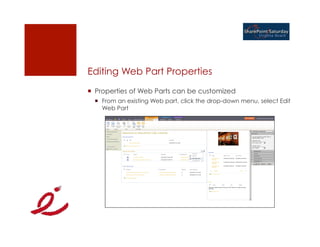
¡  Properties of Web Parts can be customized
  ¡  From an existing Web part, click the drop-down menu, select Edit
      Web Part
Custom Web Parts
¡  Although SharePoint comes with a number of useful Web
    Parts, it is unlikely to handle every situation
  ¡  Each organization has different unique systems to integrate

¡  Therefore, custom Web Parts need to be created

¡  Examples of custom Web Parts:
  ¡  Displaying reports (Crystal Reports, SQL Server Reports, etc.)
  ¡  Integration of Customer Relationship Management tools (CRM)
      (SAP, Siebel, etc.)
  ¡  Stream content from external sources

¡  Custom Web Parts can be downloaded from various online
    resources
SharePoint 2010 Jumpstart
¡  Hello, SharePoint 2010!

¡  Leveraging SharePoint Sites

¡  Effectively Managing Information

¡  Utilizing Web Parts

¡  SharePoint User Management
Who Can Access SharePoint Sites?
¡  SharePoint sites are intended for a community of users

¡  Site Membership is defined
  ¡  During site creation
  ¡  Even after the site is created

¡  In order to be added as a site member, a user has to be
    added to SharePoint first
  ¡  SharePoint users can come from various sources known
      as authentication providers
  ¡  Authentication providers are defined from SharePoint
      Central Administration
Authentication Providers

     Web SSO                        OpenID


Windows            SharePoint            OAuth

          FBA                     FB Connect


          Site 1     Site 2     Site 3
Site Membership
¡  How are site members added?
  ¡  Manually by site owner
  ¡  User request

¡  What are SharePoint groups?
  ¡  A convenient way to manage groups of people within a site or
      who collaborate frequently on many sites in a site collection

¡  How are user permissions defined?
  ¡  Site permissions
  ¡  Library/List Permissions
  ¡  Item-level permissions
Site Access
           C                    SharePoint Site
 Dux

                      Shared      Calendar        Tasks
           R
                    Documents

 Members

   Jerry   C
  Elaine                          Performance
 George                           Eval Meeting
           No
 Cosmo
           Access
Communication Planning is Key
¡  Determining communication needs and mapping to site
    access are essential
  ¡  Both incoming and outgoing

¡  Site owners/managers are responsible
  1.  Identify communication requirements
  2.  Group site users
  3.  Map communication requirements to site permissions
  4.  Enforce permission change management
  5.  Document & maintain site access information

¡  Watch Best Practices in Managing SharePoint Site Users:
    http://vimeo.com/16145876
Questions?

                 E-Mail: dux.sy@innovative-e.com

                 LinkedIn: meetdux.com/li

                 Blog: meetdux.com

                 Twitter: twitter.com/meetdux


        How did you like the presentation?
          http://meetdux.com/feedback
Thank You!

SharePoint 2010 101 @ SPSVB

  • 1.
    SharePoint 2010 Jumpstart Jan 8, 2011 Video Recording: Part 1: http://vimeo.com/18638634 Part 2: http://vimeo.com/18650623
  • 2.
    What Does ThisMean? 8 5 4 9 1 7 6 3 2 0
  • 3.
    What Does ThisMean? SharePoint
  • 4.
    Session Objectives ¡  Inthis session, we will: ¡  Evaluate the key new features of SharePoint 2010 and determine organizational benefits ¡  Take advantage of the enhanced user experience to increase collaboration and productivity ¡  Effectively store, share and manipulate information with the new tools in SharePoint 2010 ¡  Effectively facilitate better collaboration with SharePoint 2010
  • 5.
    Dux Raymond Sy,PMP, MVP ¡  Managing Partner, Innovative-E, Inc. ¡  Author, “SharePoint for Project Management” by O’Reilly Media ¡  For more information, connect with Dux ¡  E-Mail: dux.sy@innovative-e.com ¡  Twitter: twitter.com/meetdux ¡  LinkedIn: meetdux.com/li ¡  Blog: meetdux.com
  • 6.
    SharePoint 2010 Jumpstart ¡ Hello, SharePoint 2010! ¡  Leveraging SharePoint Sites ¡  Effectively Managing Information ¡  Utilizing Web Parts ¡  SharePoint User Management
  • 7.
  • 8.
    In a PerfectWorld ¡  Collaboration tools should be appropriate to maturity, skill set and existing tools ¡  Accessibility ¡  Information needed can be accessible in a central location ¡  Traceability ¡  One-stop shop ¡  Team collaboration ¡  Easily work with colleagues whenever, wherever, and however
  • 9.
    Business Collaboration Platform ¡ Key capabilities ¡  Collaboration ¡  Document Management ¡  Content Management ¡  Business Intelligence ¡  Process Automation ¡  Key components ¡  SharePoint Foundation ¡  SharePoint Server 2010 ¡  SharePoint Designer 2010
  • 10.
    What if SharePointis a Car? Car SharePoint Purpose: Purpose: What’s required? What’s required?
  • 11.
  • 12.
    SF vs SS ¡ SF is the core technology of Microsoft SharePoint ¡  Considered as the “engine” of SharePoint ¡  Provides document management and team collaboration tools ¡  WF is available for free as long as your organization is utilizing Windows Server 2008 ¡  SS extends the capabilities of SF ¡  Going back to our car analogy, SS provides extended capabilities such as GPS, a DVD system, Voice Commands, etc. ¡  Extended features include Enterprise search, Personalization, Enterprise Content Management, etc. ¡  Unlike SF, SS is not available for free
  • 13.
    SharePoint Designer 2010 ¡ Extends the ability to customize SharePoint without programming ¡  Custom branding ¡  Integrate external data sources ¡  Develop custom workflows ¡  Allows rapid development of custom SharePoint 2010 applications
  • 14.
    2007 vs 2010 ¡ New key features ¡  Enhanced User Interface (UI) ¡  Access services ¡  Visio services ¡  Business connectivity services ¡  Sandboxed solutions ¡  Windows PowerShell ¡  PerformancePoint services ¡  Health monitoring ¡  Managed metadata ¡  Digital asset management ¡  Social computing
  • 15.
    Cross Browser Compatibility ¡ SharePoint 2010 relies heavily on JavaScript & related tech ¡  SharePoint 2010 supports industry standard ¡  Adopted the Web Content Accessibility Guidelines 2.0 (WCAG 2.0) ¡  Integrates Accessible Rich Internet Application (ARIA) ¡  Details: http://bit.ly/bv6QEl ¡  What does this mean? ¡  Non-IE browsers will almost have the same browsing experience ¡  Read “Maximizing SharePoint 2010 on a Mac + iPhone or iPod + iPad” ¡  http://bit.ly/9IX851
  • 16.
    Ribbon Interface ¡  Servesas a toolbar for ¡  Navigation ¡  Editing ¡  Updating settings ¡  Consistent with Microsoft Office ribbon interface ¡  Customizable ¡  Add or remove tools/icons ¡  ECMAScript is used to interact with these new UI controls, using Visual Studio 2010
  • 17.
    SharePoint 2010 Jumpstart ¡ Hello, SharePoint 2010! ¡  Leveraging SharePoint Sites ¡  Effectively Managing Information ¡  Utilizing Web Parts ¡  SharePoint User Management
  • 18.
    SharePoint Sites ¡  Websites primarily intended for group collaboration ¡  Normally created for cross-functional teams and the like ¡  Departments ¡  User groups ¡  Project teams
  • 19.
  • 20.
    Site Hierarchy ¡  Top-levelsites ¡  A top-level site is created upon installation of SharePoint ¡  New top-level sites can be created ¡  Aka Root Web Site ¡  Sub-sites ¡  Sites that are created beneath an existing site ¡  Beneath a top-level site ¡  Beneath an existing sub-site ¡  Top-level sites can have multiple levels of sub-sites ¡  Site collection ¡  Aggregation of the top-level site and its sub-sites ¡  Site collections are independent of one another ¡  A top-level site without any sub-sites = site collection
  • 21.
  • 22.
    Site Templates ¡  SharePointcomes with site templates for convenient site creation ¡  The template determines the default functionality ¡  Also determines the site’s layout, menus, Web Part positioning, etc. ¡  Custom templates can be created
  • 23.
  • 24.
    Site Interface 1.  SiteActions 2.  Ribbon interface 3.  Top link bar 4.  Quick Launch 5.  Page content
  • 25.
    Navigating SharePoint ¡  NavigateUp folder icon ¡  Breadcrumb
  • 26.
    Page Editing ¡  Typically,the homepage is a wiki page
  • 27.
    SharePoint 2010 Jumpstart ¡ Hello, SharePoint 2010! ¡  Leveraging SharePoint Sites ¡  Effectively Managing Information ¡  Utilizing Web Parts ¡  SharePoint User Management
  • 28.
    Lists ¡  A collectionof shared information items displayed on a site ¡  Most of the information in a SharePoint site is organized and stored in lists ¡  Everyone who has access to the site will be able to view lists ¡  Viewing a list is comparable to viewing information in a spreadsheet ¡  Information is displayed in a tabular format made up of rows and columns
  • 29.
    Common Lists ¡  Announcements ¡ Links ¡  Calendar ¡  Survey ¡  Tasks ¡  Contacts ¡  Issues
  • 30.
    Managing Lists ¡  SharePointlists can be managed from the ribbon interface ¡  List tools ¡  List Item Tools
  • 31.
    Creating Lists ¡  Out-of-the-boxlists and custom lists can be added to a site ¡  Only site members with the appropriate privileges can do so
  • 32.
    Discussion Boards ¡  Similarto online message boards you may have seen on the Web ¡  Like news groups or Web logs ¡  Provides threaded-discussion capability ¡  Participants can reply to any message in the discussion ¡  Can view discussions hierarchically or as a flat list
  • 33.
    Tasks Lists ¡  Alist that is intended for task assignments that includes ¡  Start date ¡  Due date ¡  Task priority ¡  % Complete ¡  Description ¡  Indicate task status ¡  In progress ¡  Completed ¡  Deferred ¡  Waiting for someone else
  • 34.
    Libraries ¡  Files arestored and organized in libraries ¡  Similar to storing files in folders ¡  Libraries are organized in lists ¡  Features and functionalities in lists are mostly applicable to libraries ¡  Multiple types of libraries
  • 35.
    Document Libraries ¡  Providesa centralized location ¡  Document storage ¡  Controlled access of documents ¡  Shared Documents is a document library that is created by default whenever a site is created from a site template
  • 36.
    Picture Libraries ¡  Usedto manage digital images ¡  Although images can be stored in document libraries, image libraries have special features to view and use graphical content ¡  Picture libraries are created similarly to how lists or libraries are created
  • 37.
    Populating Libraries ¡  Ina library of a SharePoint site ¡  New Document option creates and stores a Word document ¡  Upload option allows single or multiple document uploads ¡  Using Microsoft Office ¡  Save a document to the document library that is set up as a network place ¡  Dragging and dropping documents into the library with Windows Explorer ¡  Can be enabled with “Open with Explorer” feature
  • 38.
    Document Management Features ¡ Apart from centrally storing information and documents, lists and libraries provides several document management features ¡  Check-out/check-in ¡  Version history ¡  Content approval
  • 39.
    Custom Views ¡  Newviews can be created to match user or group interest
  • 40.
    Creating Views ¡  Customviews can be created ¡  Go to the list ¡  From List Tools, select the List tab, then click Create View ¡  View format
  • 41.
    SharePoint 2010 Jumpstart ¡ Hello, SharePoint 2010! ¡  Leveraging SharePoint Sites ¡  Effectively Managing Information ¡  Utilizing Web Parts ¡  SharePoint User Management
  • 42.
    What are WebParts? ¡  Customizable software component that serves a particular purpose ¡  Created in a Microsoft development environment ¡  Examples: ¡  Displaying data from legacy systems ¡  Streaming stock quotations from an online Web service ¡  Geographically specific weather information ¡  Benefits ¡  Reduces complexity of integrating new site functionalities for non- programmers ¡  Common Web Parts are available from Microsoft and third-party providers
  • 43.
    Web Part Zones ¡ Web Parts are stored in containers called web part zones
  • 44.
    Adding Web Parts ¡ Site owners can add and customize Web Parts ¡  Must be in Edit Page mode ¡  To add Web Parts, from the ribbon interface, under Editing Tools, Insert, click Web Part ¡  To move a Web Part, select and drag the Web Part into another zone
  • 45.
    Editing Web PartProperties ¡  Properties of Web Parts can be customized ¡  From an existing Web part, click the drop-down menu, select Edit Web Part
  • 46.
    Custom Web Parts ¡ Although SharePoint comes with a number of useful Web Parts, it is unlikely to handle every situation ¡  Each organization has different unique systems to integrate ¡  Therefore, custom Web Parts need to be created ¡  Examples of custom Web Parts: ¡  Displaying reports (Crystal Reports, SQL Server Reports, etc.) ¡  Integration of Customer Relationship Management tools (CRM) (SAP, Siebel, etc.) ¡  Stream content from external sources ¡  Custom Web Parts can be downloaded from various online resources
  • 47.
    SharePoint 2010 Jumpstart ¡ Hello, SharePoint 2010! ¡  Leveraging SharePoint Sites ¡  Effectively Managing Information ¡  Utilizing Web Parts ¡  SharePoint User Management
  • 48.
    Who Can AccessSharePoint Sites? ¡  SharePoint sites are intended for a community of users ¡  Site Membership is defined ¡  During site creation ¡  Even after the site is created ¡  In order to be added as a site member, a user has to be added to SharePoint first ¡  SharePoint users can come from various sources known as authentication providers ¡  Authentication providers are defined from SharePoint Central Administration
  • 49.
    Authentication Providers Web SSO OpenID Windows SharePoint OAuth FBA FB Connect Site 1 Site 2 Site 3
  • 50.
    Site Membership ¡  Howare site members added? ¡  Manually by site owner ¡  User request ¡  What are SharePoint groups? ¡  A convenient way to manage groups of people within a site or who collaborate frequently on many sites in a site collection ¡  How are user permissions defined? ¡  Site permissions ¡  Library/List Permissions ¡  Item-level permissions
  • 51.
    Site Access C SharePoint Site Dux Shared Calendar Tasks R Documents Members Jerry C Elaine Performance George Eval Meeting No Cosmo Access
  • 52.
    Communication Planning isKey ¡  Determining communication needs and mapping to site access are essential ¡  Both incoming and outgoing ¡  Site owners/managers are responsible 1.  Identify communication requirements 2.  Group site users 3.  Map communication requirements to site permissions 4.  Enforce permission change management 5.  Document & maintain site access information ¡  Watch Best Practices in Managing SharePoint Site Users: http://vimeo.com/16145876
  • 53.
    Questions? E-Mail: dux.sy@innovative-e.com LinkedIn: meetdux.com/li Blog: meetdux.com Twitter: twitter.com/meetdux How did you like the presentation? http://meetdux.com/feedback
  • 54.