SharePoint 2010Team Site Overview 
Presented by: 
Ivor Davies 
Lee Robson 
4/7/2014 1
Introduction to SharePoint 2010 Team Sites 
Working with Lists 
Working with Libraries 
Working with Discussion Boards 
Team Site creation & maintenance 
SharePoint Workspaces 
Other SharePoint Goodies! 
Session Agenda:
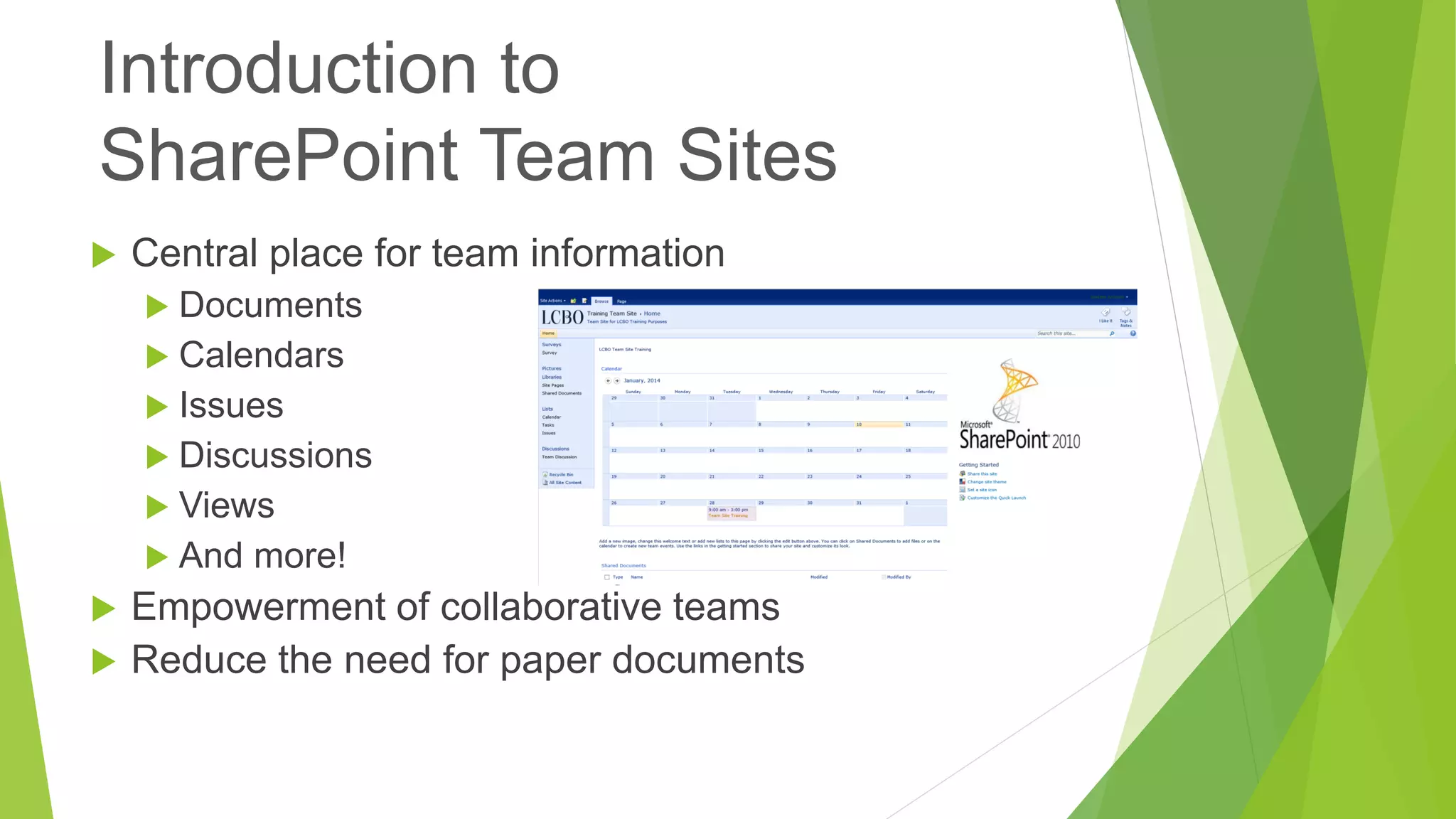
Central place for team information 
Documents 
Calendars 
Issues 
Discussions 
Views 
And more! 
Empowerment of collaborative teams 
Reduce the need for paper documents 
Introduction toSharePoint Team Sites
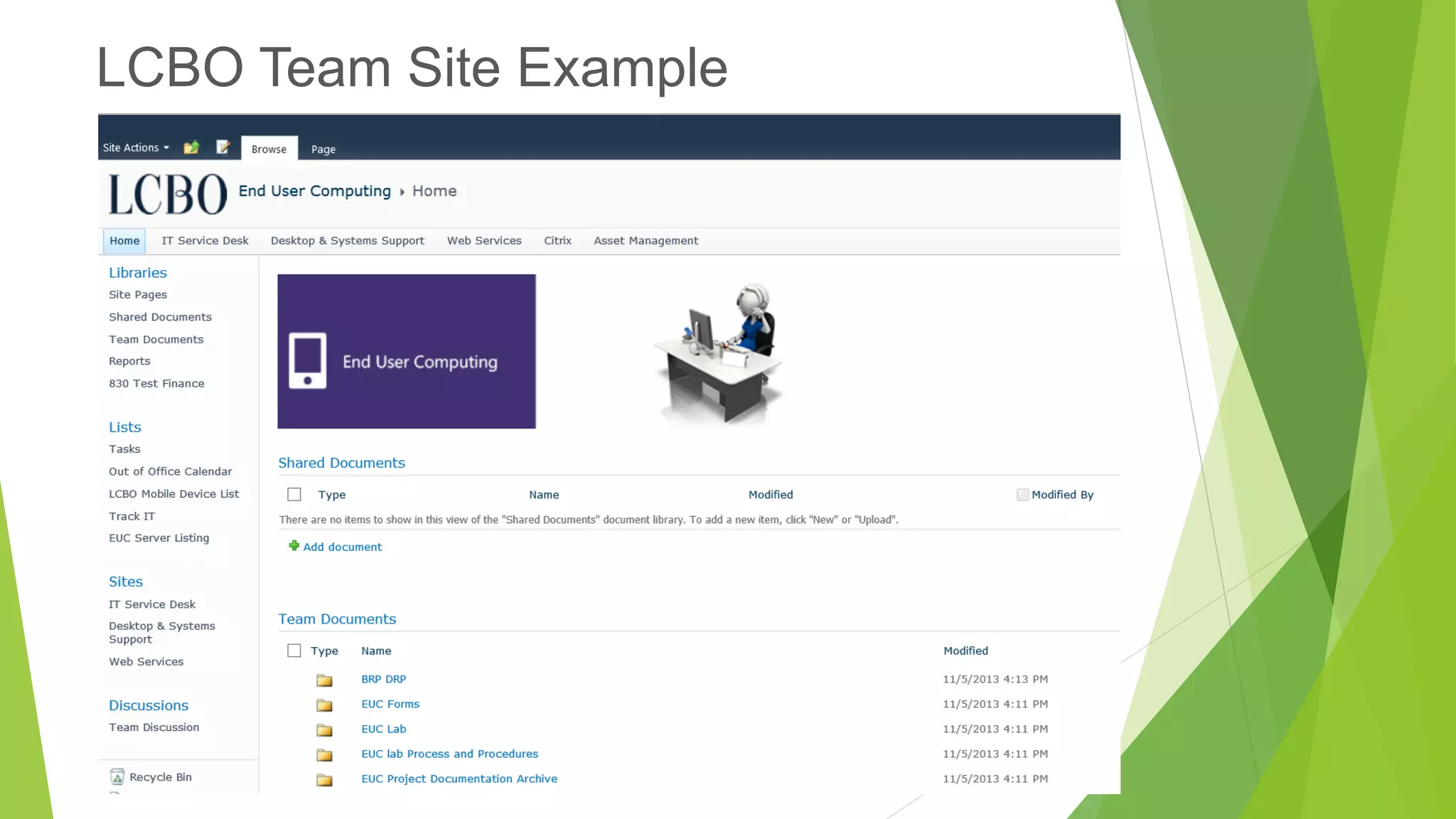
LCBO Team Site Example
Working with Lists
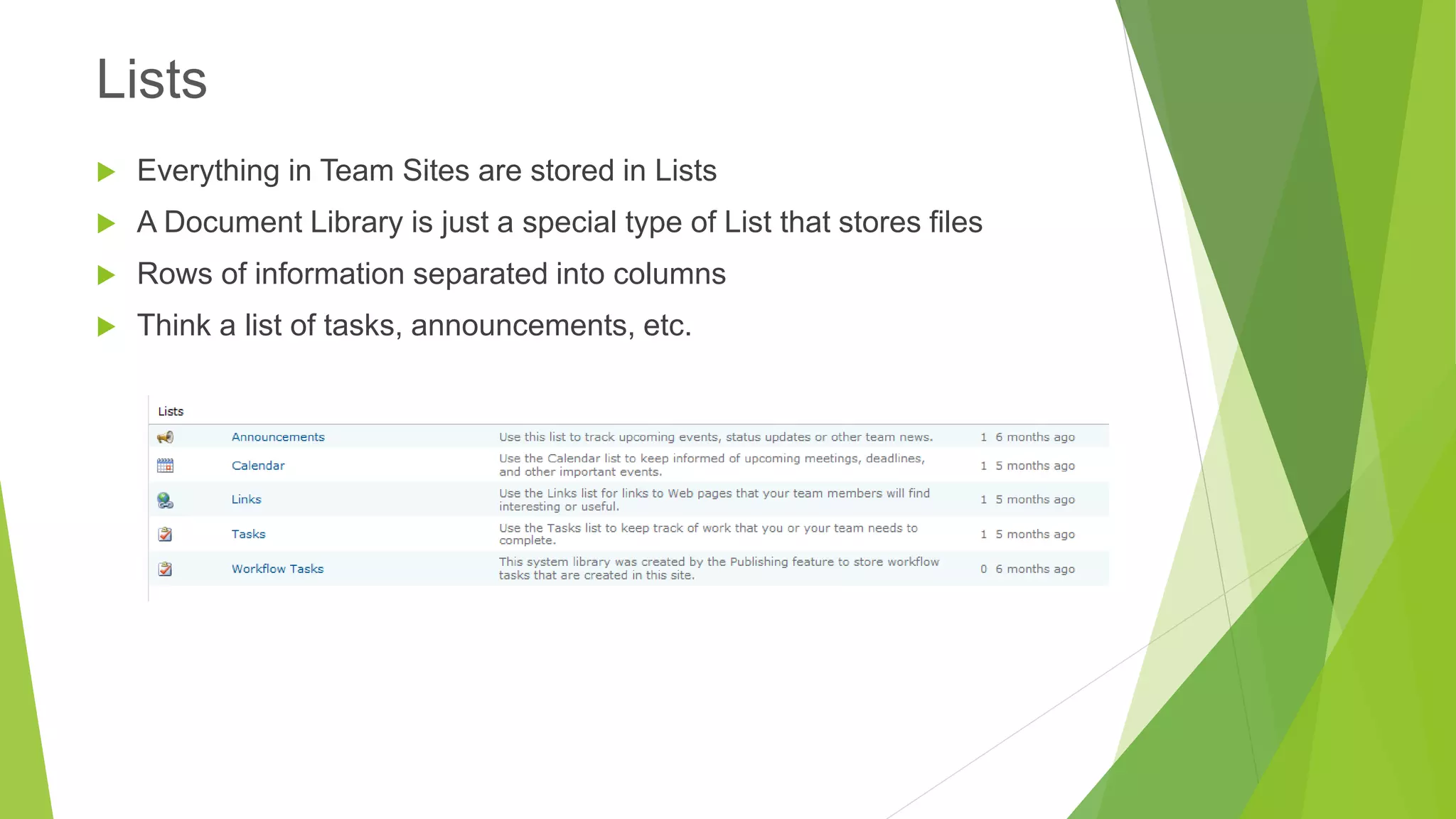
Everything in Team Sites are stored in Lists 
A Document Library is just a special type of List that stores files 
Rows of information separated into columns 
Think a list of tasks, announcements, etc. 
Lists
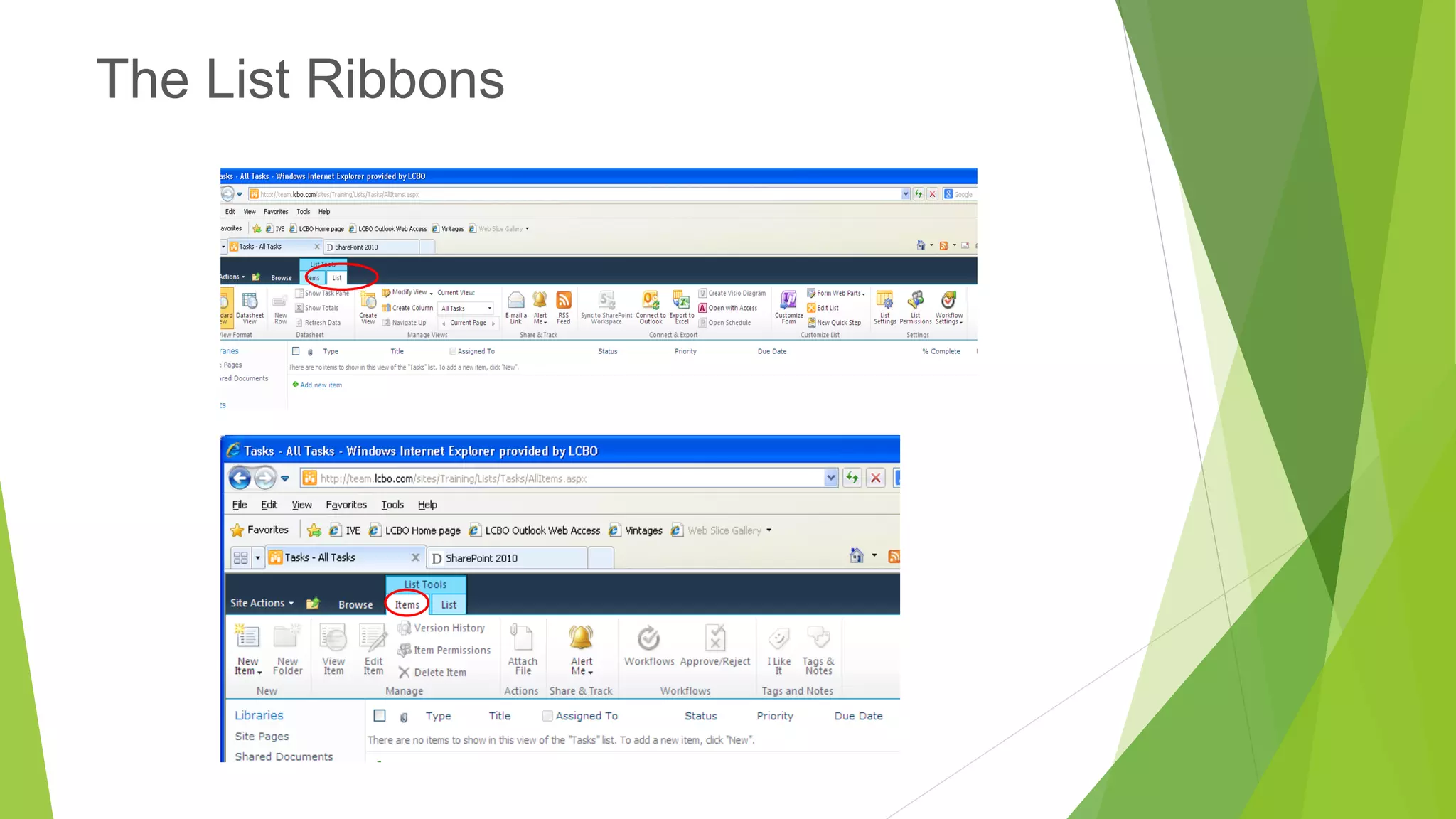
The List Ribbons
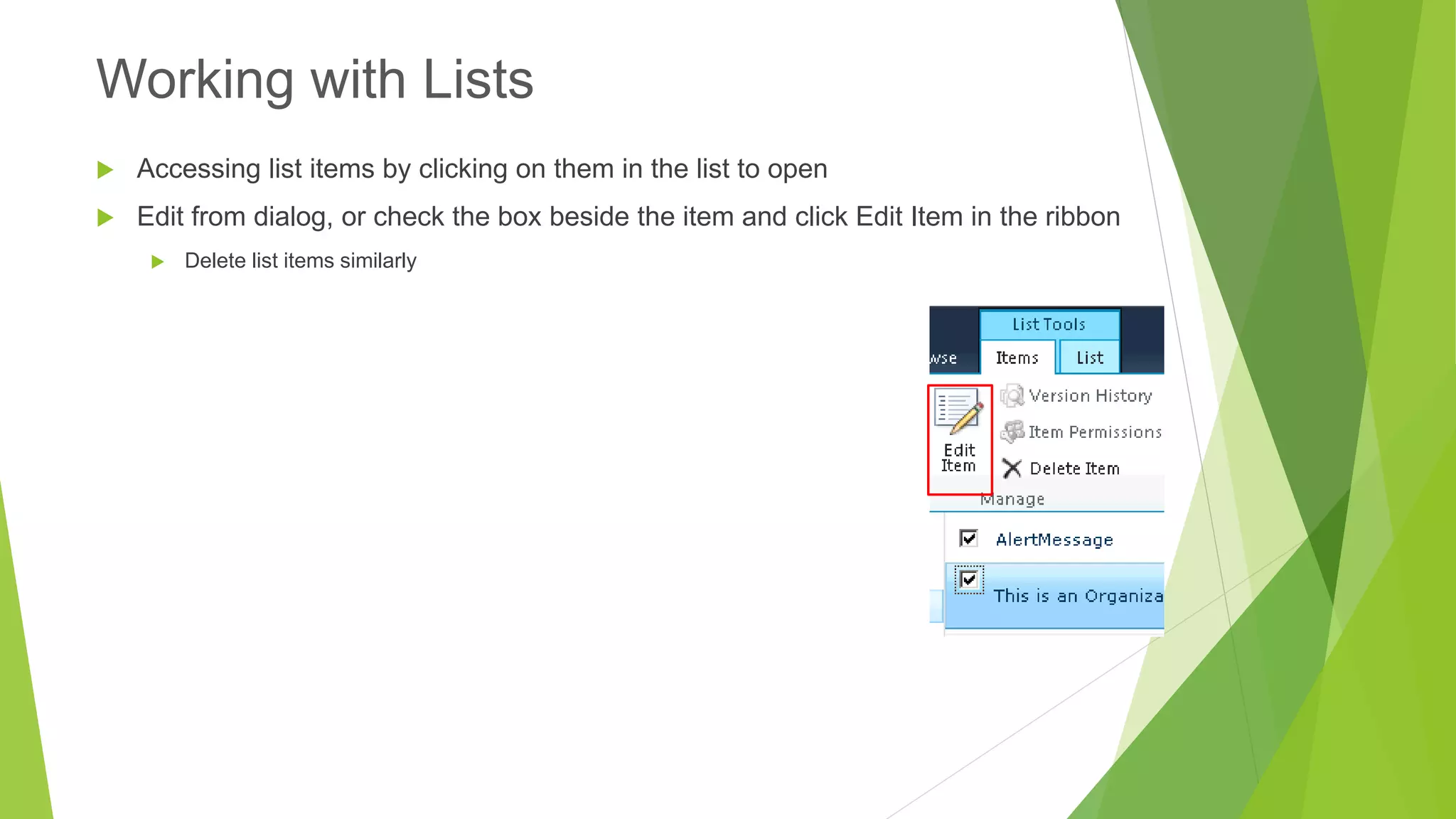
Accessing list items by clicking on them in the list to open 
Edit from dialog, or check the box beside the item and click Edit Item in the ribbon 
Delete list items similarly 
Working with Lists
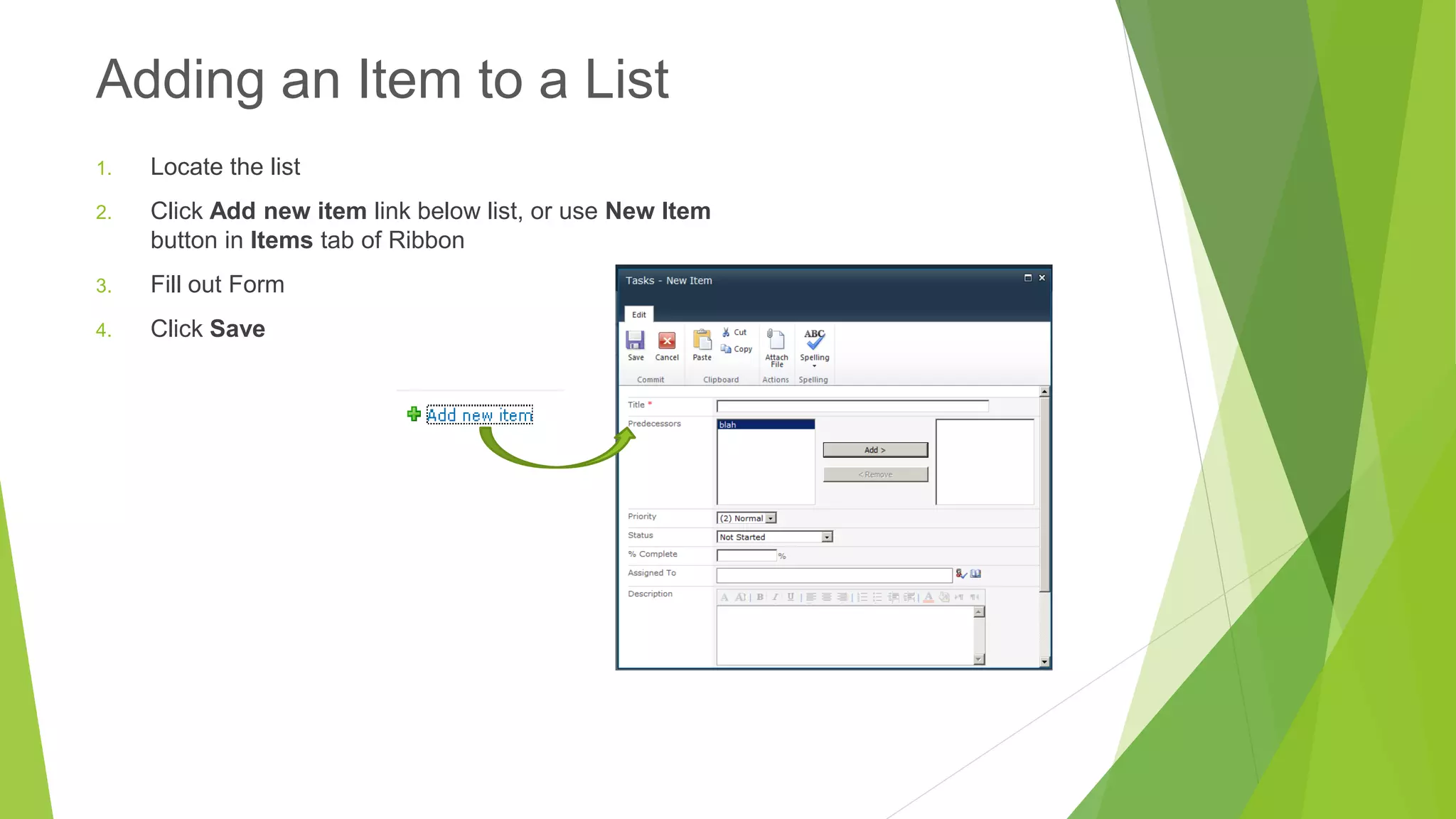
1.Locate the list 
2.Click Add new item link below list, or use New Item button in Itemstab of Ribbon 
3.Fill out Form 
4.Click Save 
Adding an Item to a List
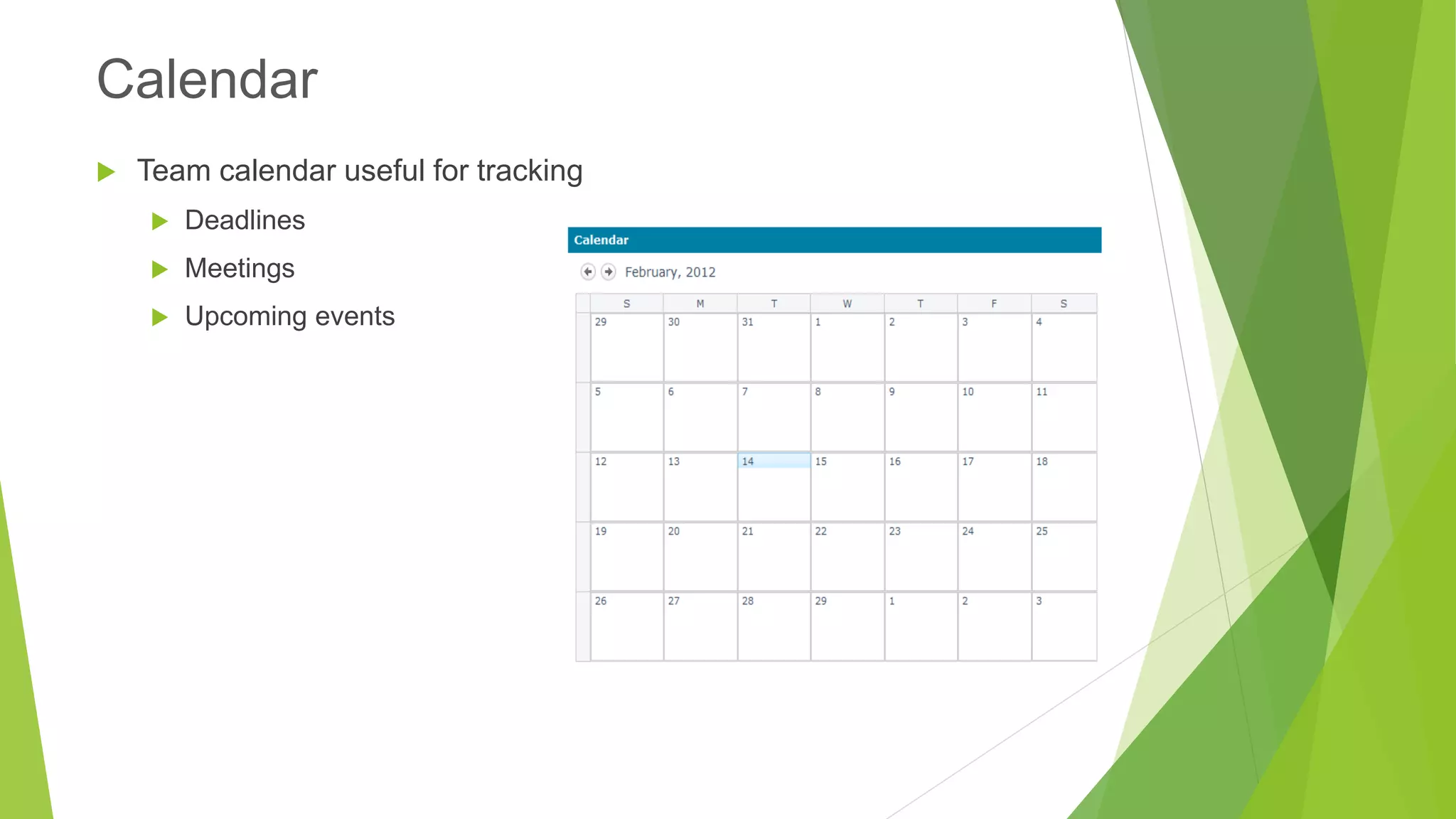
Team calendar useful for tracking 
Deadlines 
Meetings 
Upcoming events 
Calendar
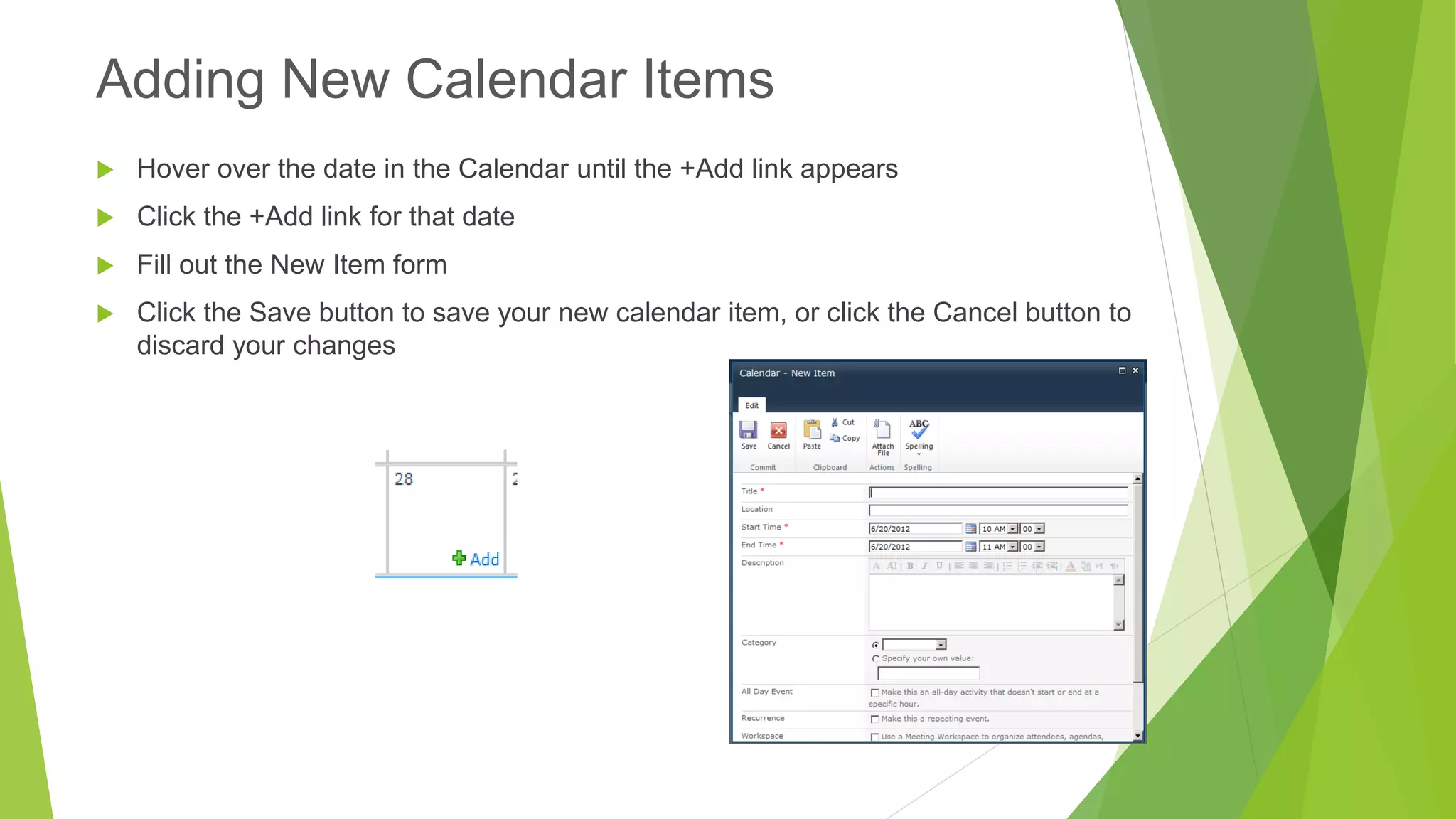
Hover over the date in the Calendar until the +Add link appears 
Click the +Add link for that date 
Fill out the New Item form 
Click the Save button to save your new calendar item, or click the Cancel button to discard your changes 
Adding New Calendar Items
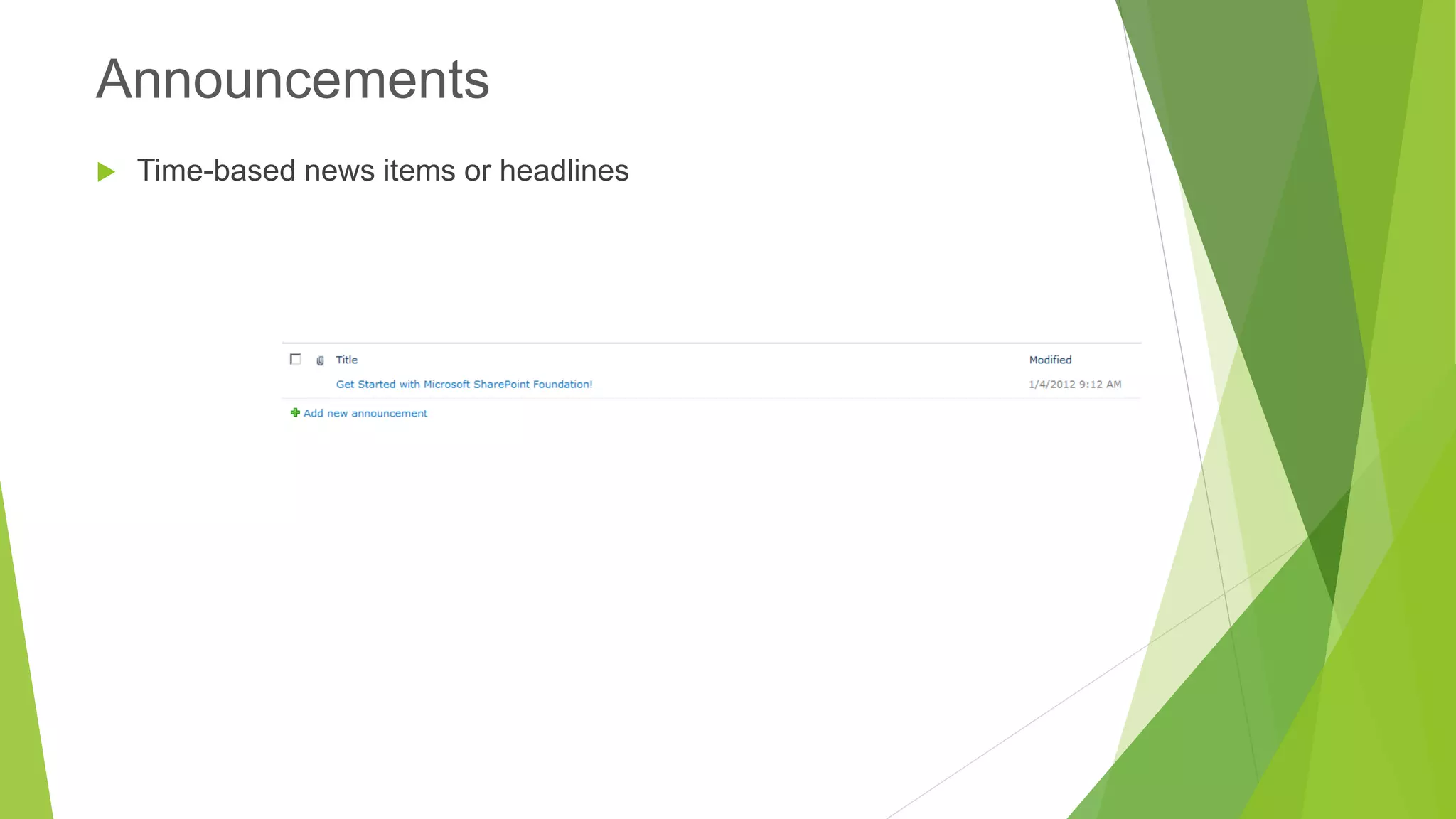
Time-based news items or headlines 
Announcements
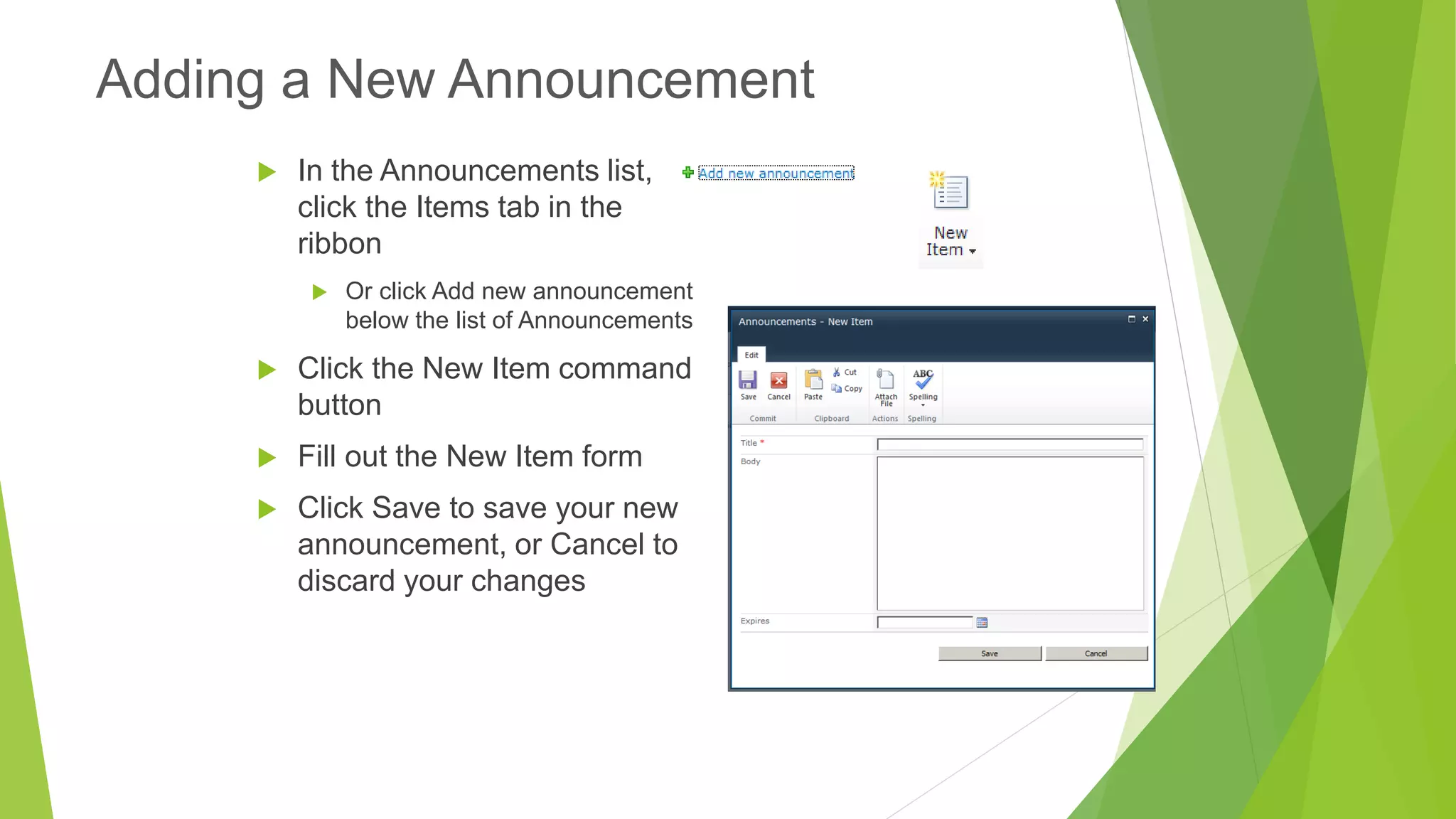
In the Announcements list, click the Items tab in the ribbon 
Or click Add new announcement below the list of Announcements 
Click the New Item command button 
Fill out the New Item form 
Click Save to save your new announcement, or Cancel to discard your changes 
Adding a New Announcement
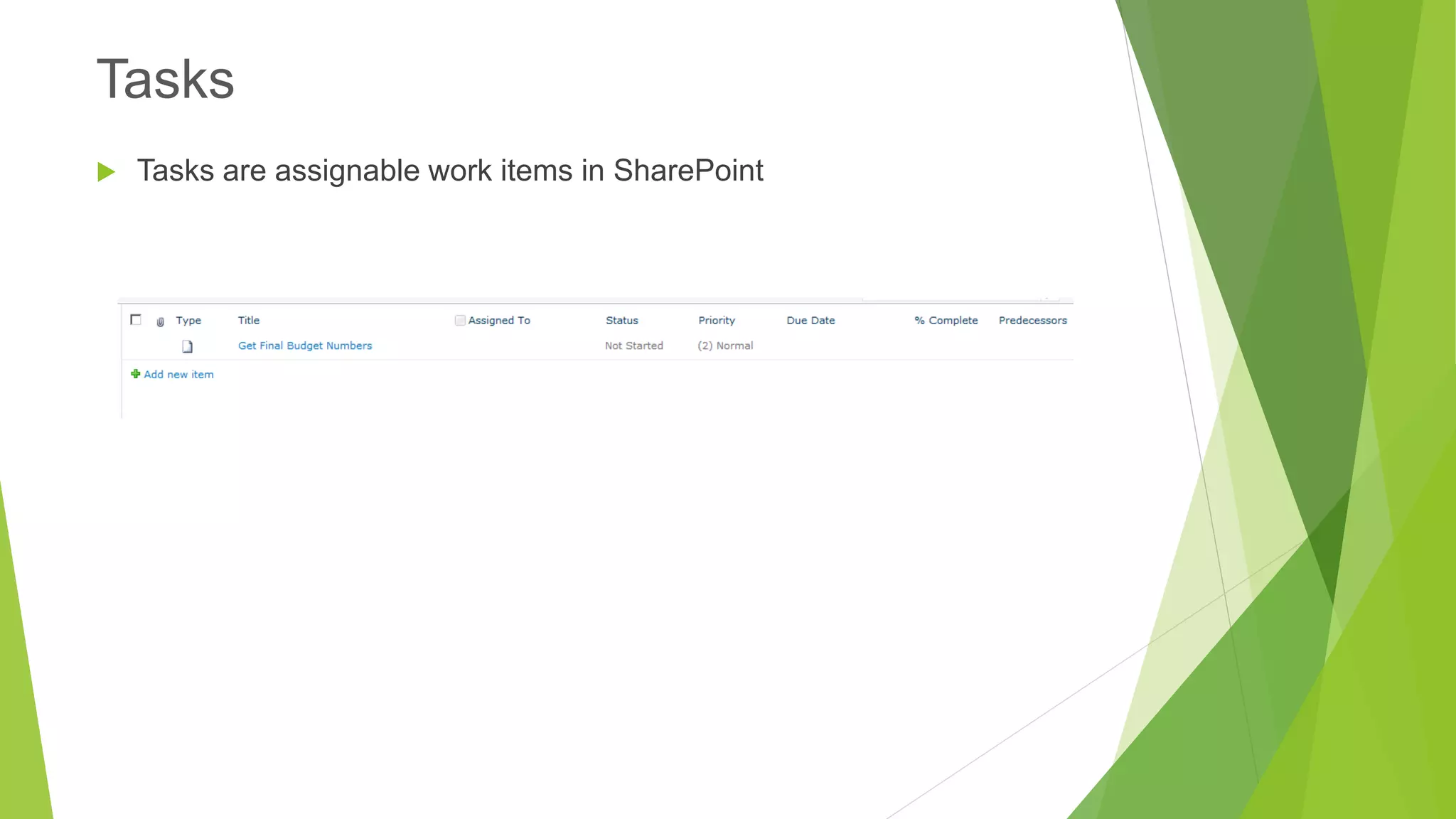
Tasks are assignable work items in SharePoint 
Tasks
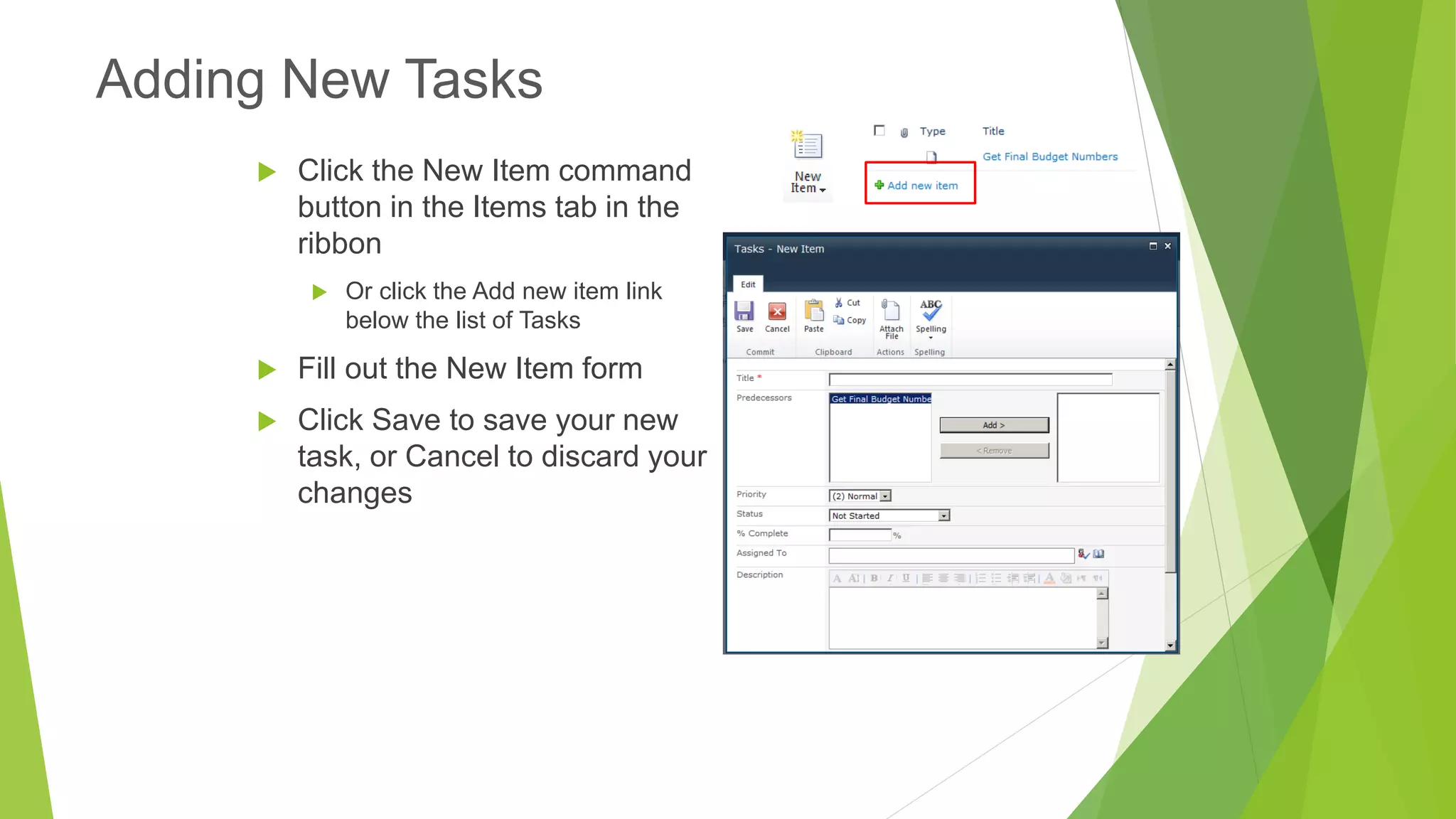
Click the New Item command button in the Items tab in the ribbon 
Or click the Add new item link below the list of Tasks 
Fill out the New Item form 
Click Save to save your new task, or Cancel to discard your changes 
Adding New Tasks
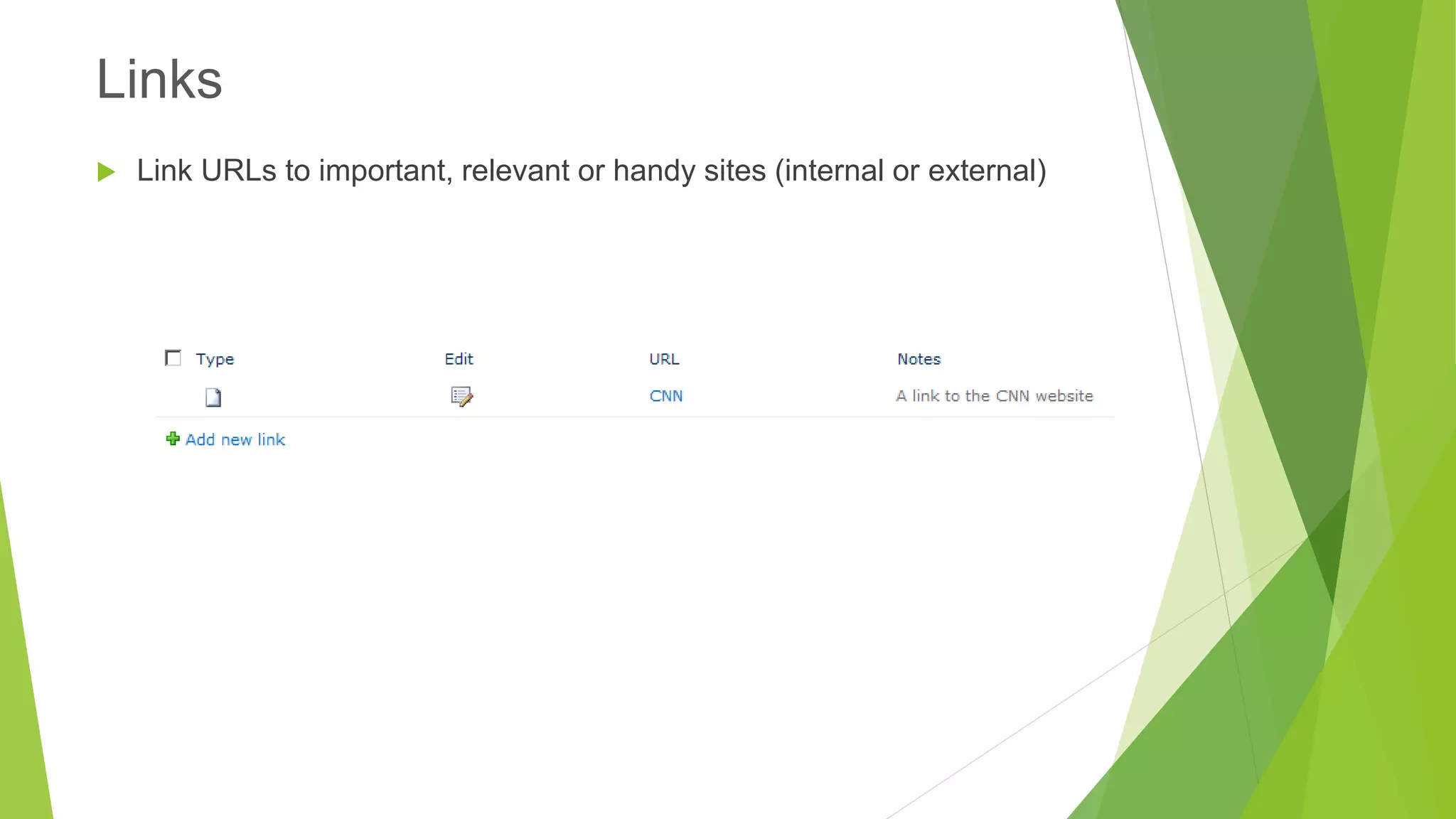
Link URLs to important, relevant or handy sites (internal or external) 
Links
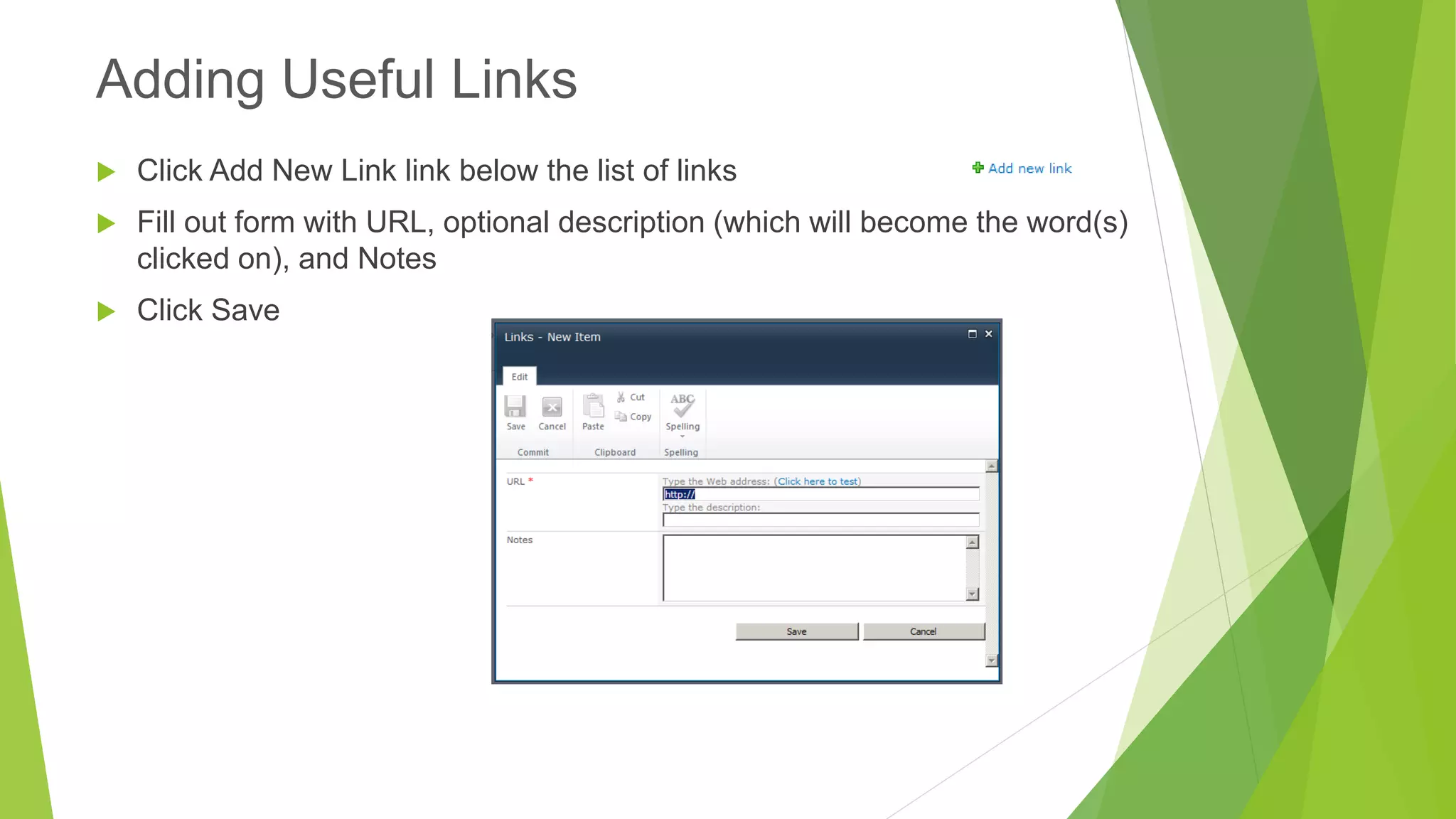
Click Add New Link linkbelow the list of links 
Fill out form with URL, optional description (which will become the word(s) clicked on), and Notes 
Click Save 
Adding Useful Links
Working with Libraries
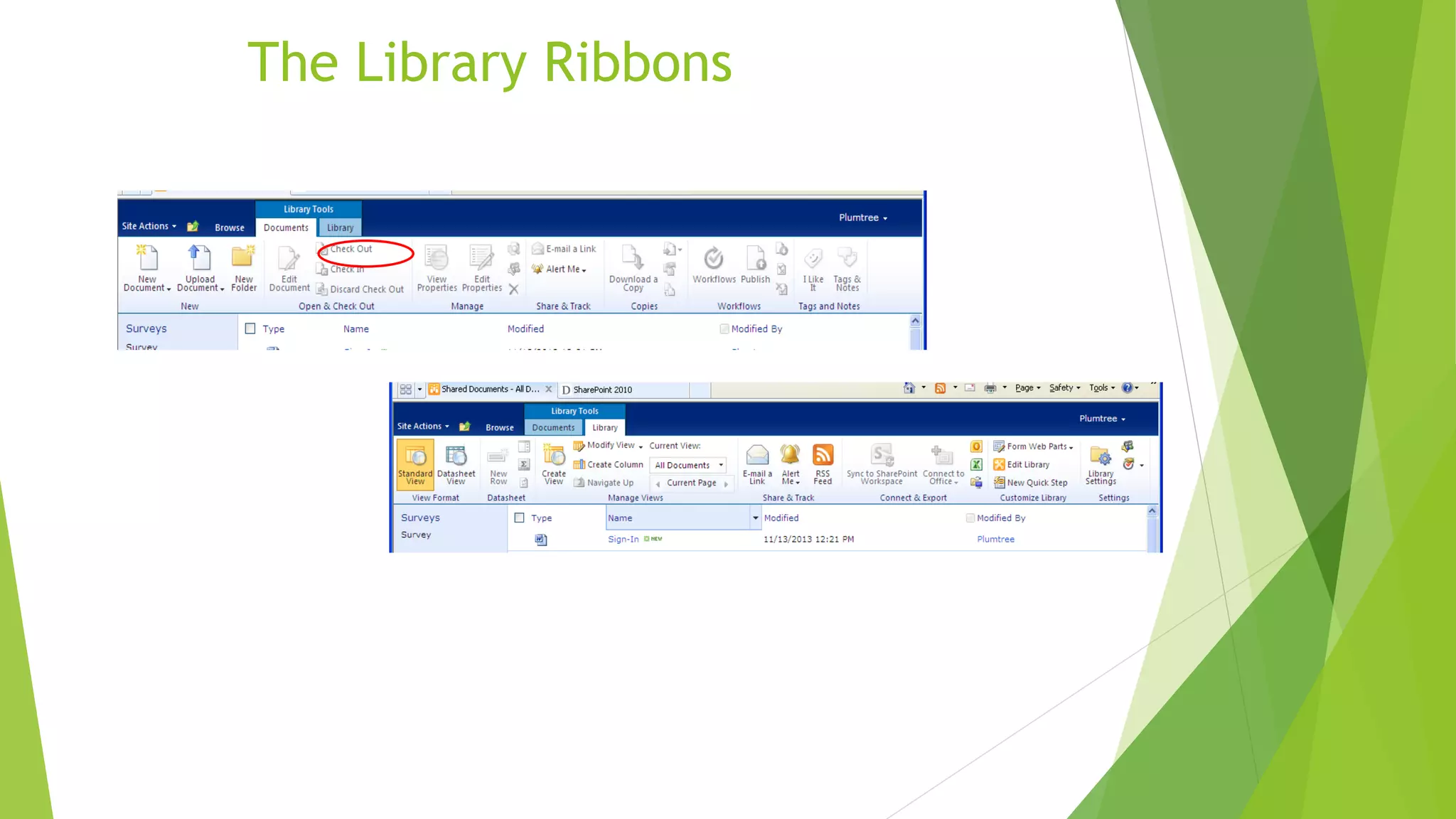
The Library Ribbons
Lists of Files 
Files uploaded into the Portal 
Can be Office documents, .pdfs, images, videos, etc. 
For Office documents, supports versioning and exclusive edit locks 
Document Libraries
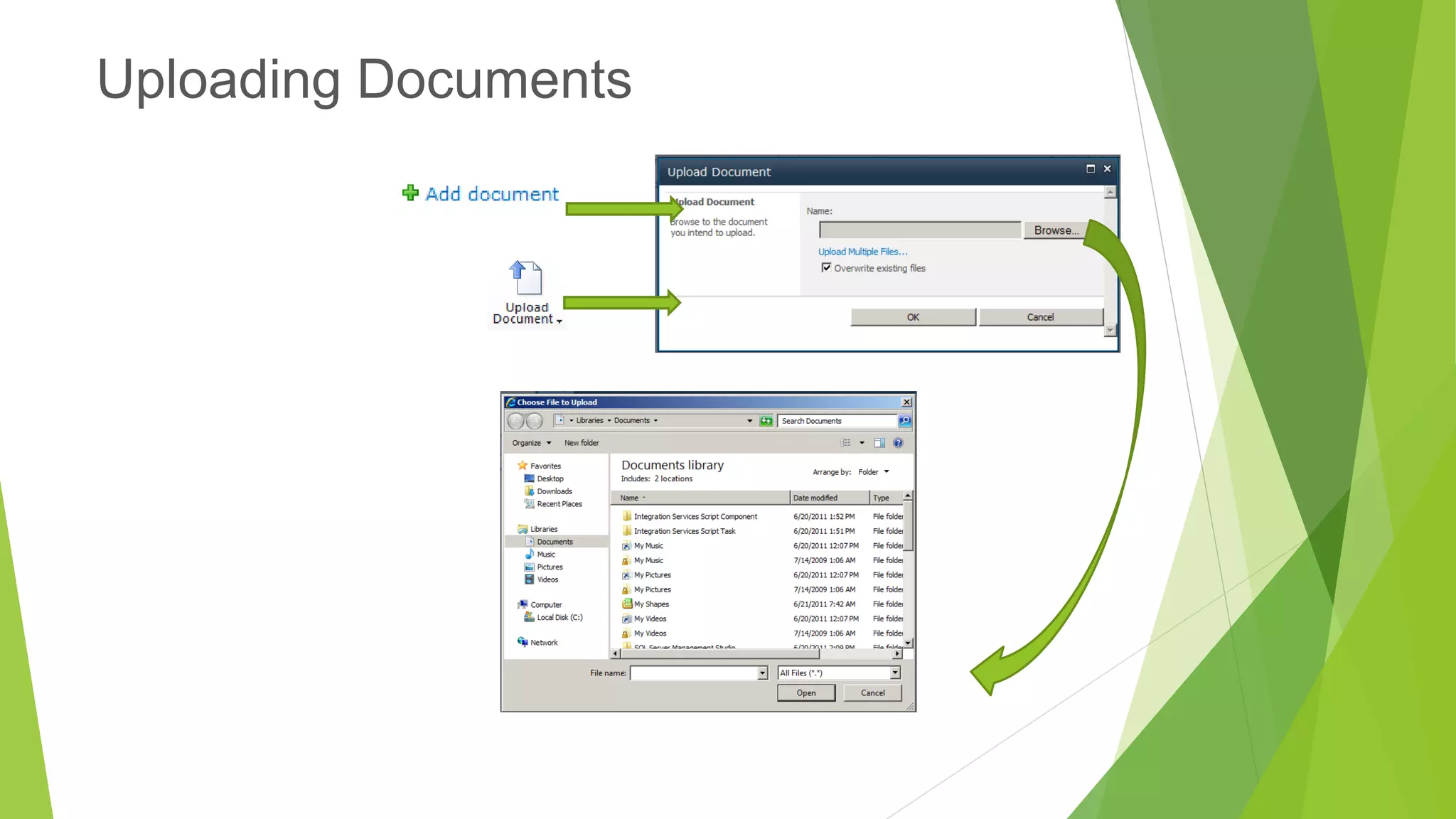
Uploading Documents
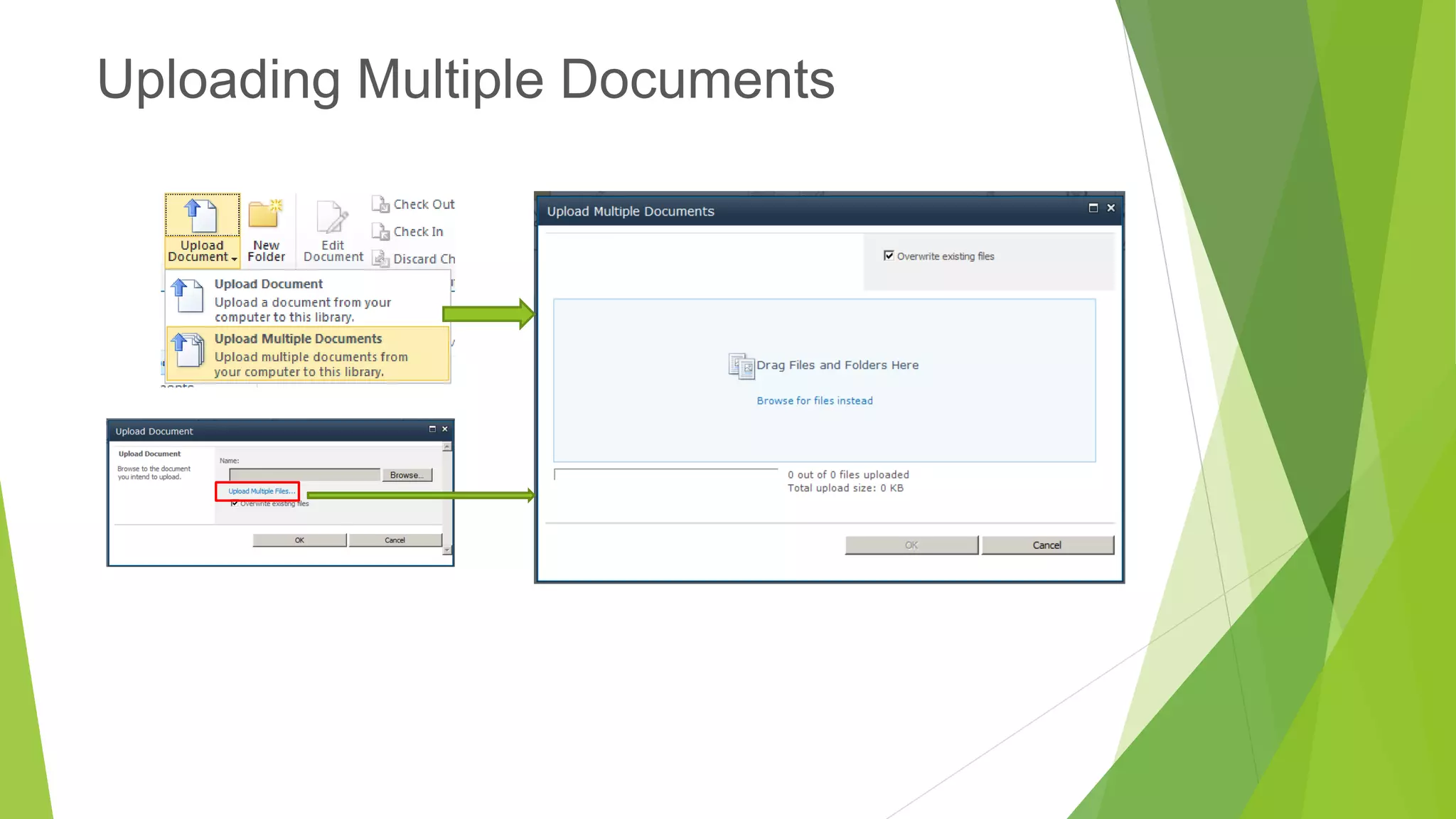
Uploading Multiple Documents
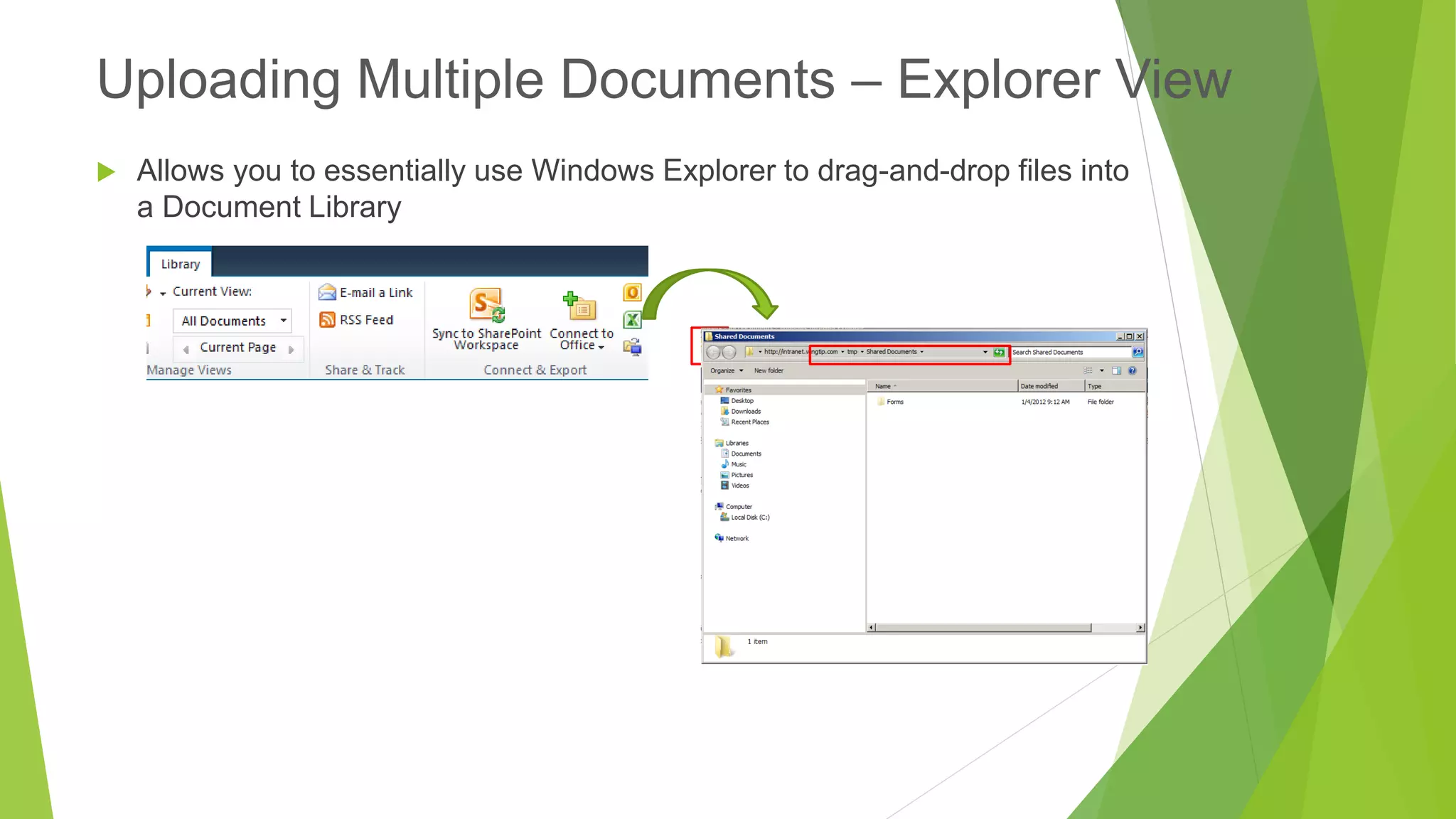
Allows you to essentially use Windows Explorer to drag-and-drop files into a Document Library 
Uploading Multiple Documents –Explorer View
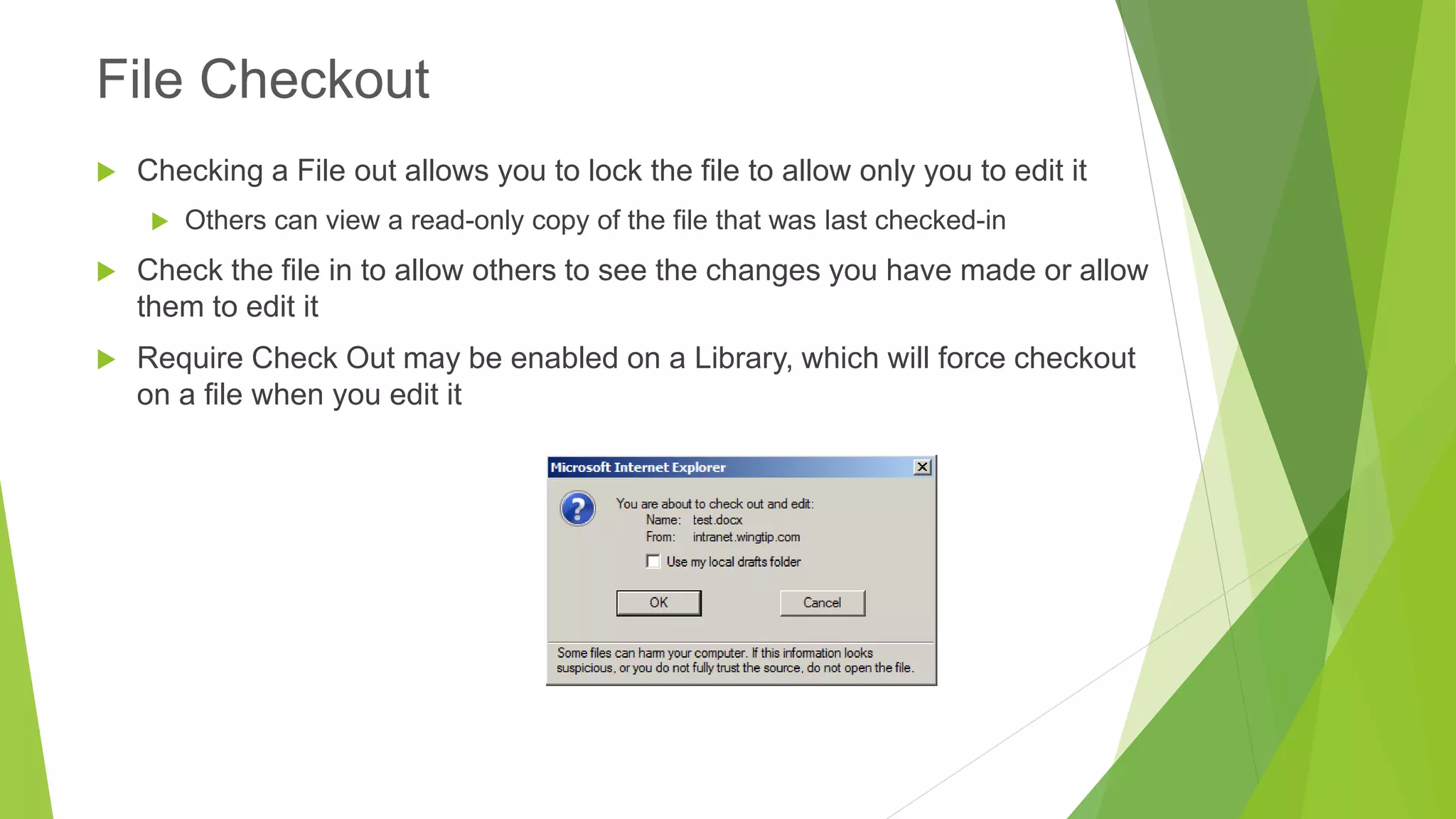
Checking a File out allows you to lock the file to allow only you to edit it 
Others can view a read-only copy of the file that was last checked-in 
Check the file in to allow others to see the changes you have made or allow them to edit it 
Require Check Out may be enabled on a Library, which will force checkout on a file when you edit it 
File Checkout
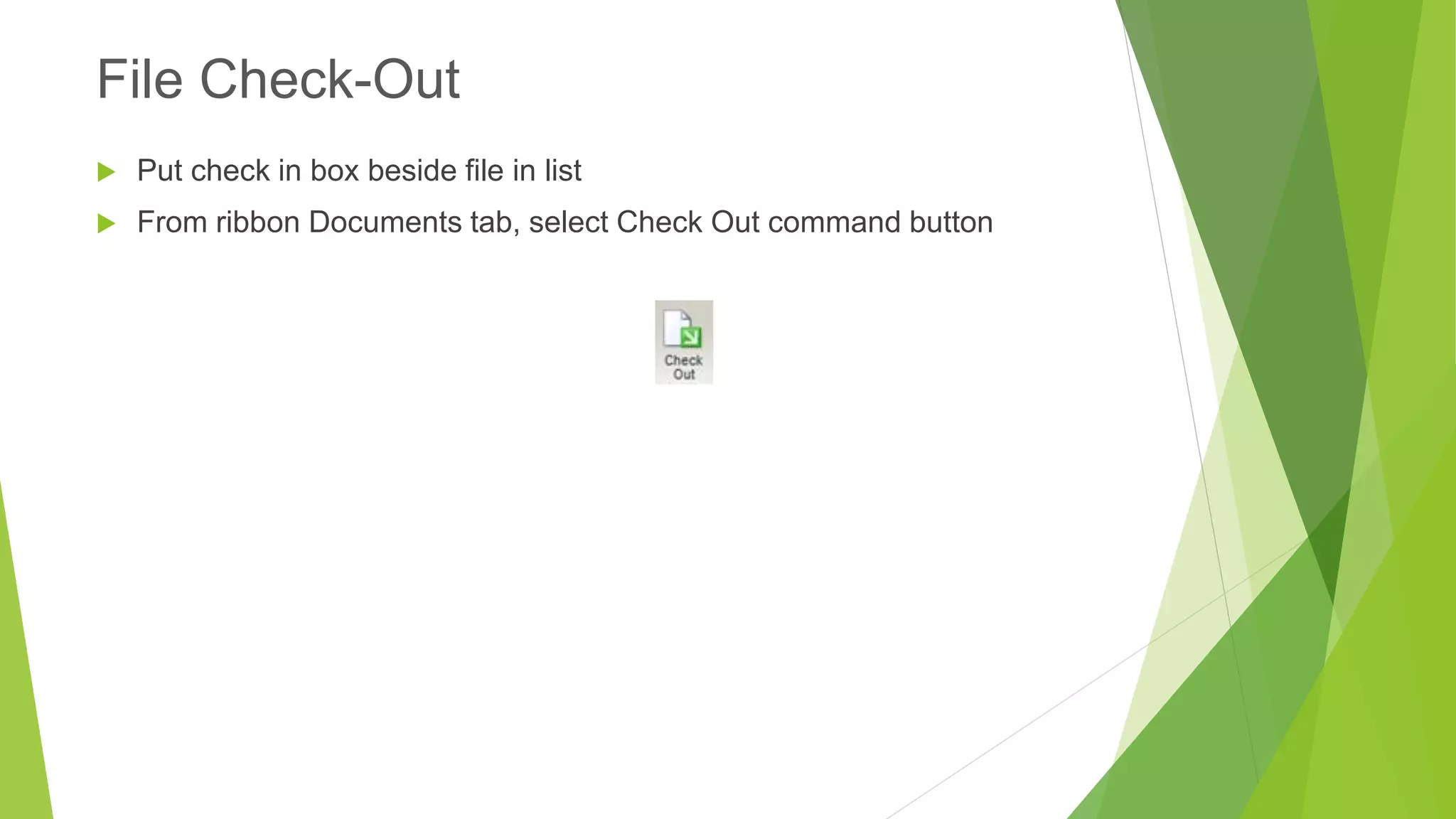
Put check in box beside file in list 
From ribbon Documents tab, select Check Out command button 
File Check-Out
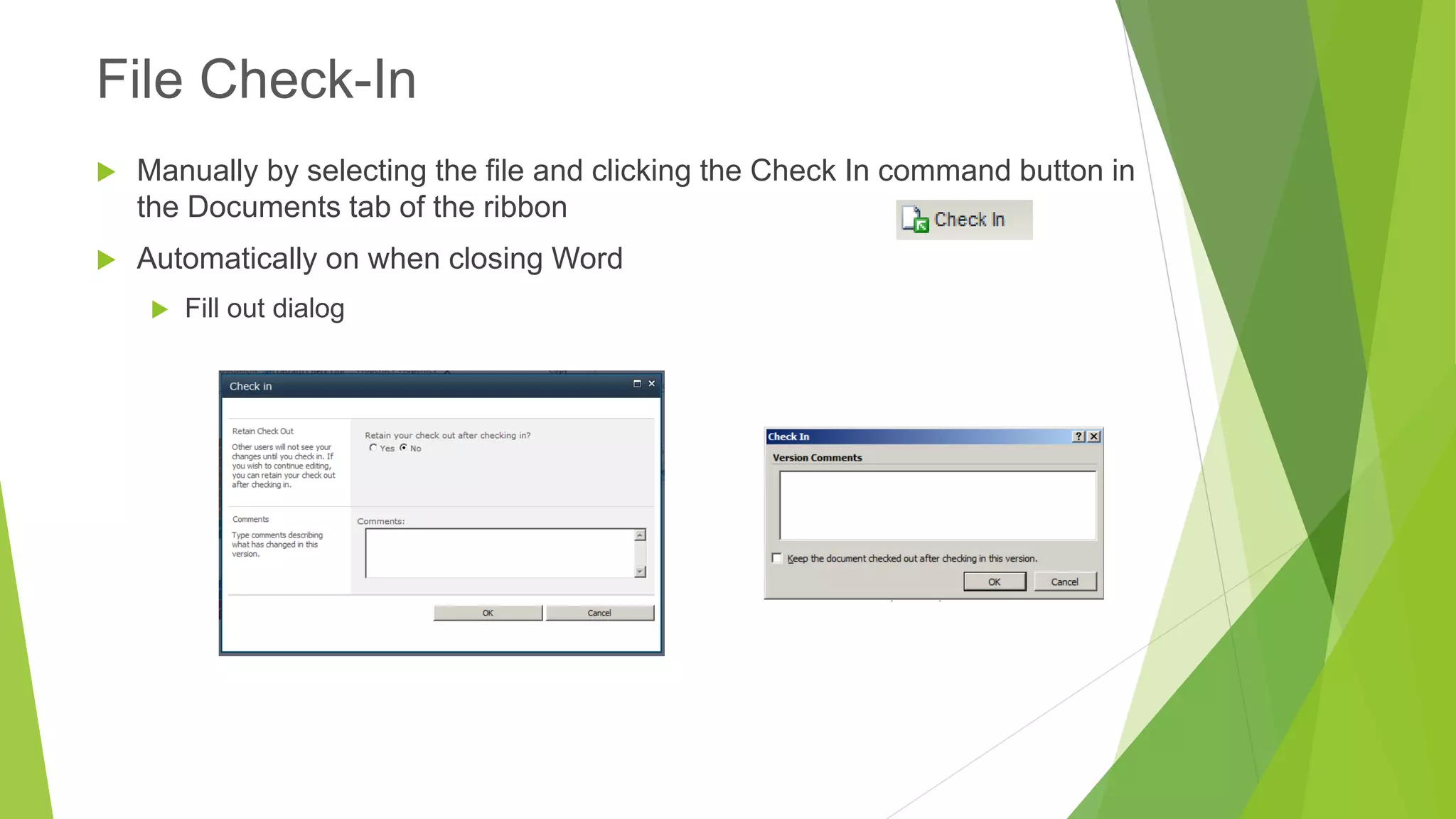
Manually by selecting the file and clicking the Check In command button in the Documents tab of the ribbon 
Automatically on when closing Word 
Fill out dialog 
File Check-In
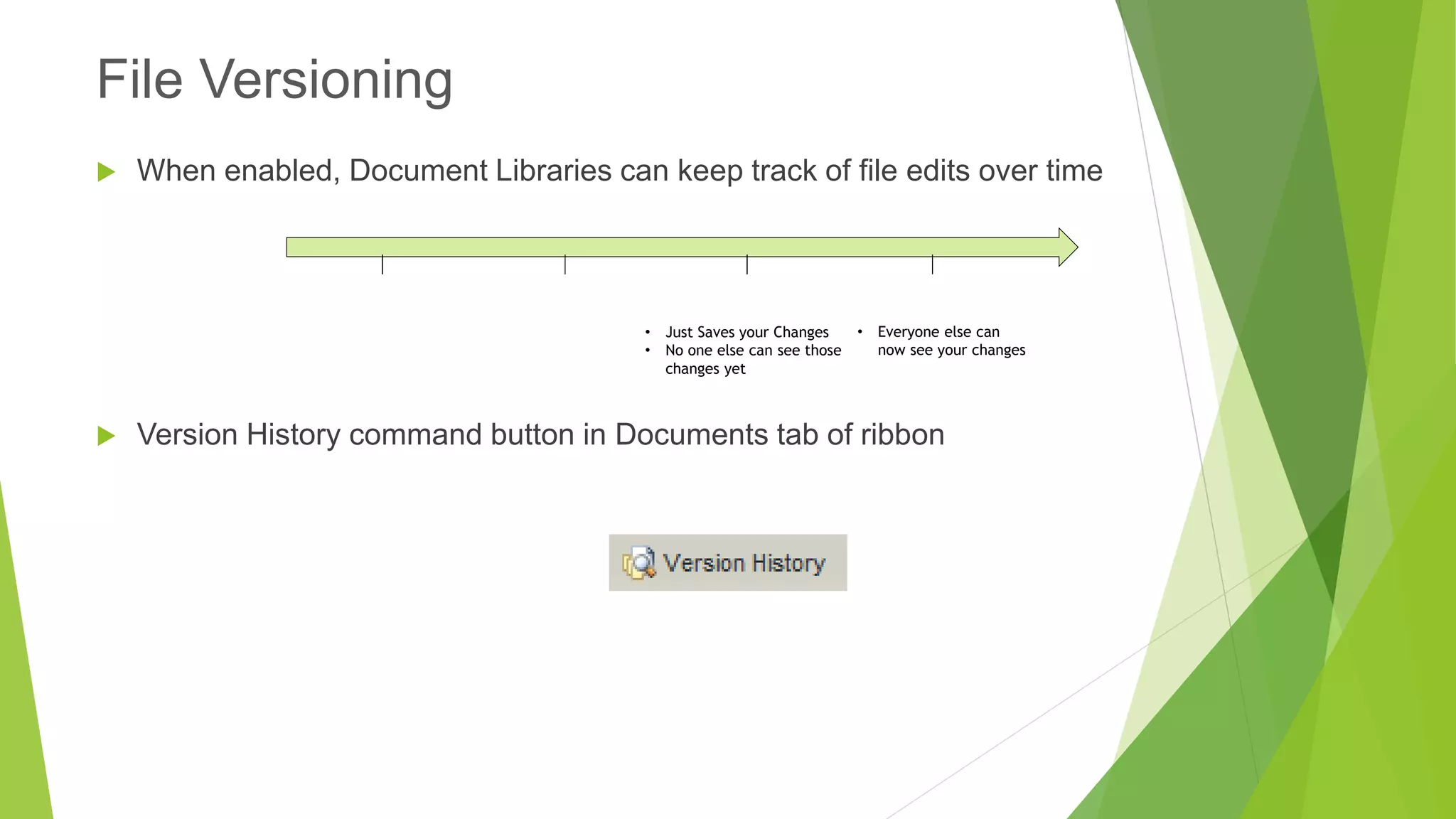
When enabled, Document Libraries can keep track of file edits over time 
Version History command button in Documents tab of ribbon 
File Versioning 
Check Out 
Edit 
Save 
•Just Saves your Changes 
•No one else can see thosechanges yet 
Check-In Draft/ Minor Version 
•Everyone else cannow see your changes
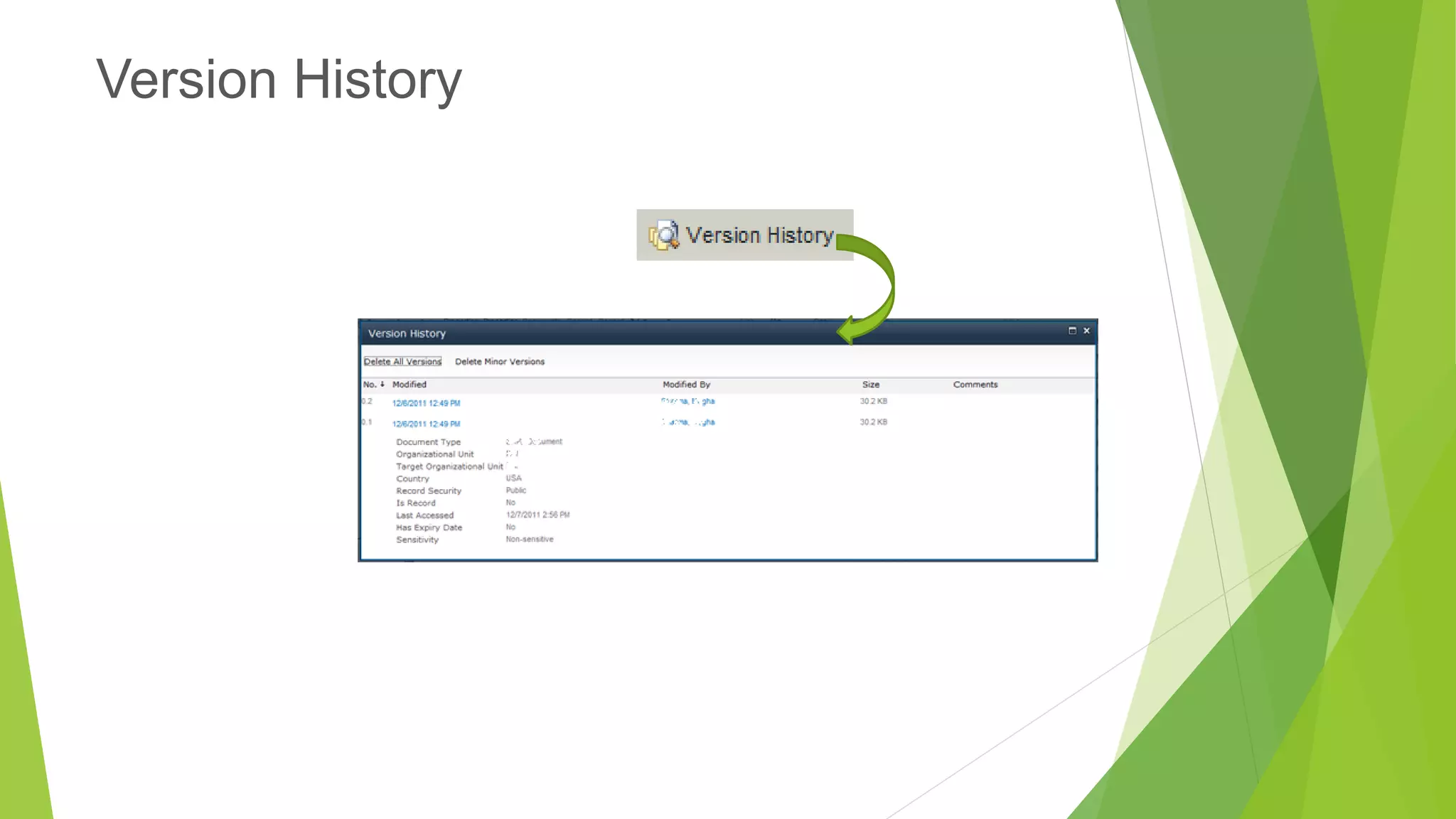
Version History
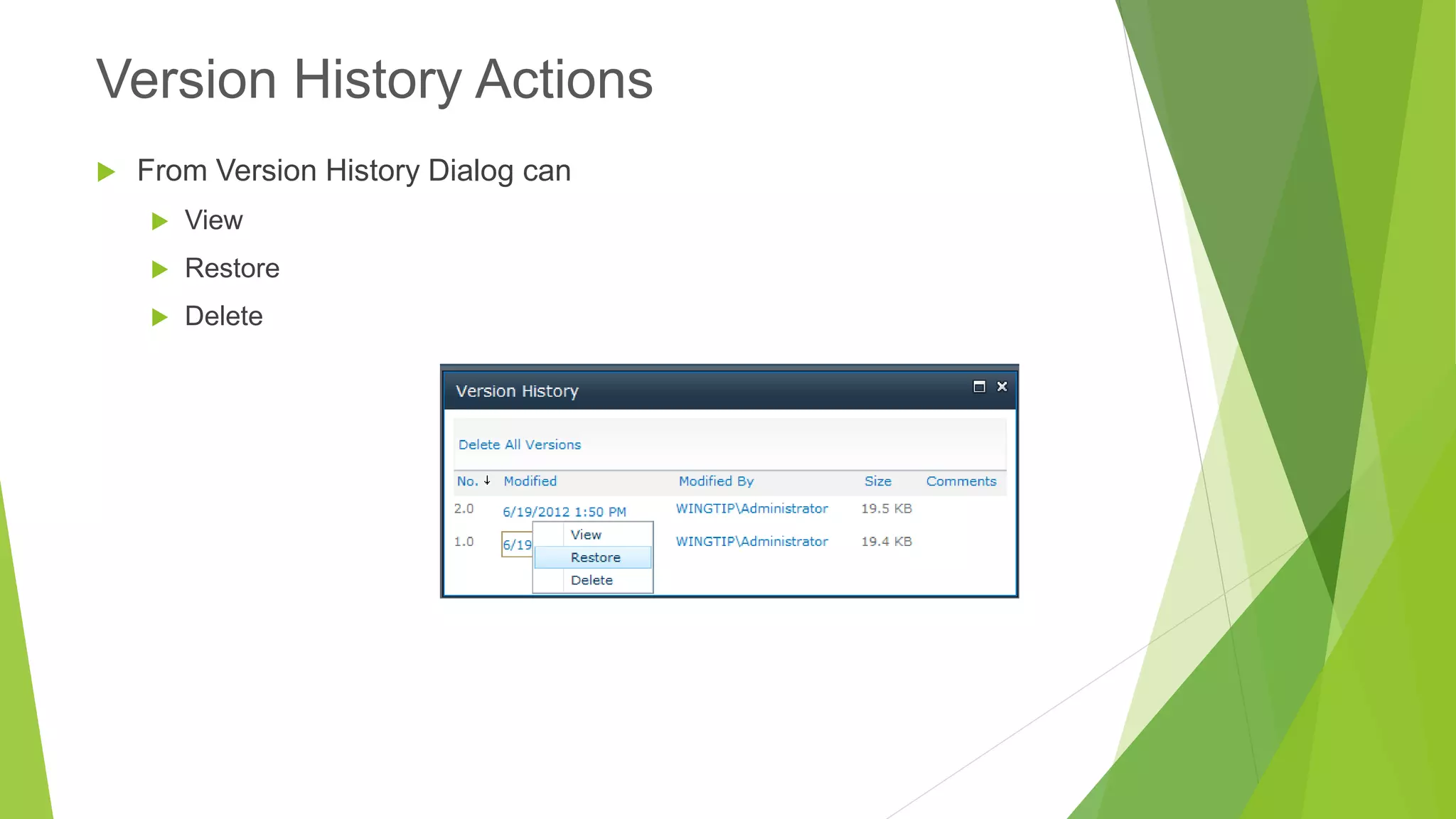
From Version History Dialog can 
View 
Restore 
Delete 
Version History Actions
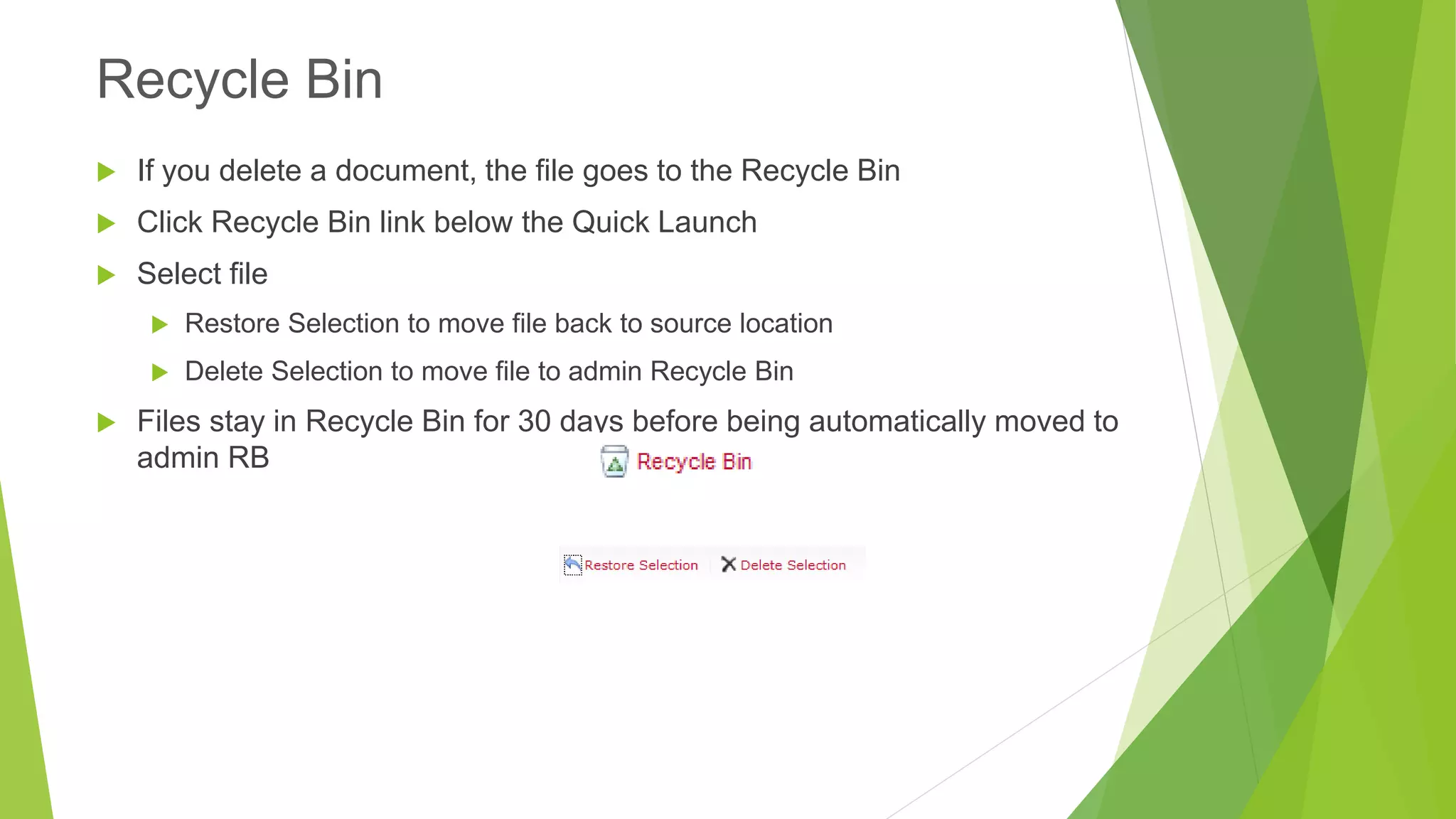
If you delete a document, the file goes to the Recycle Bin 
Click Recycle Bin link below the Quick Launch 
Select file 
Restore Selection to move file back to source location 
Delete Selection to move file to admin Recycle Bin 
Files stay in Recycle Bin for 30 days before being automatically moved to admin RB 
Recycle Bin
Working with Discussion Boards
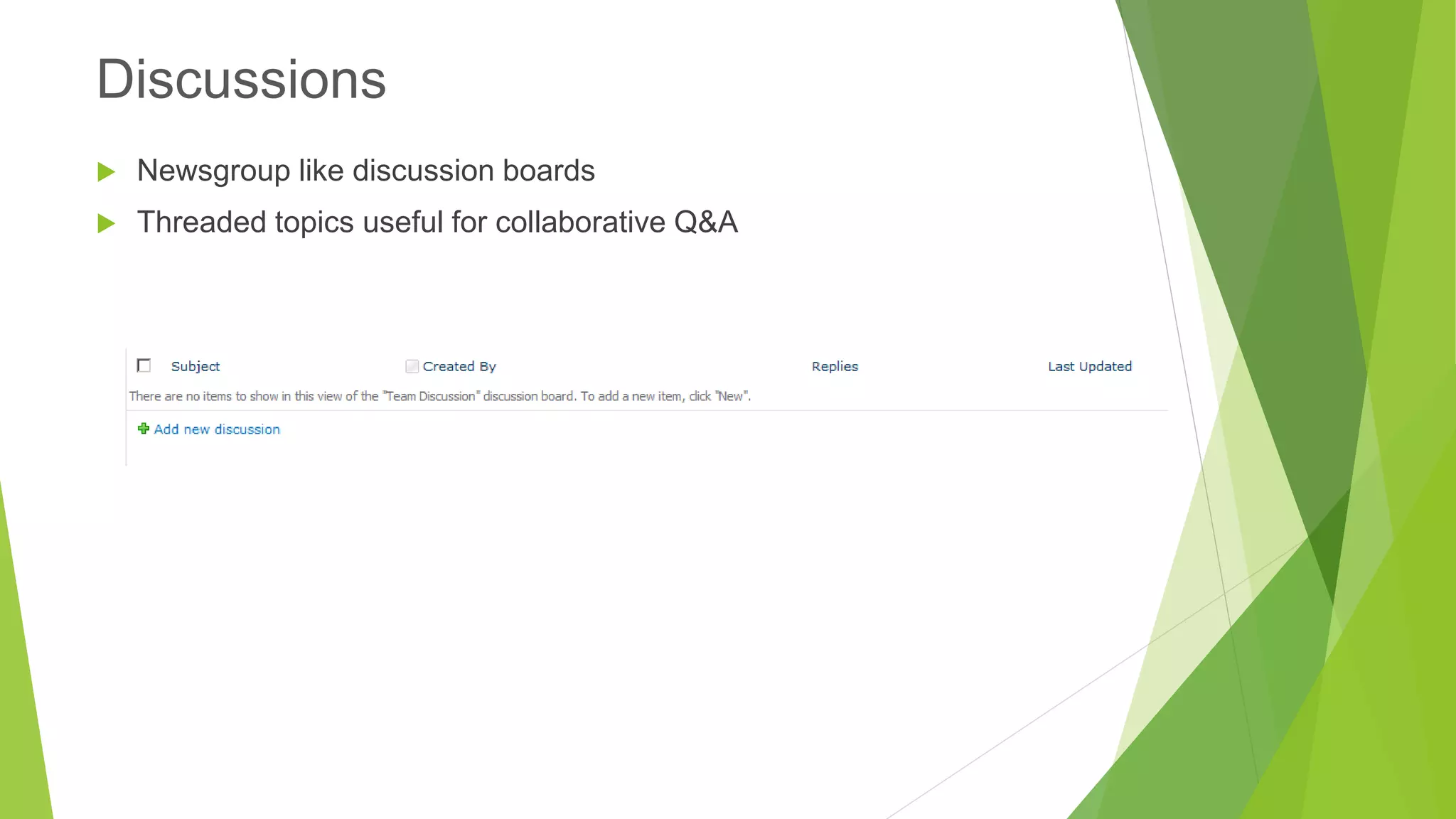
Newsgroup like discussion boards 
Threaded topics useful for collaborative Q&A 
Discussions
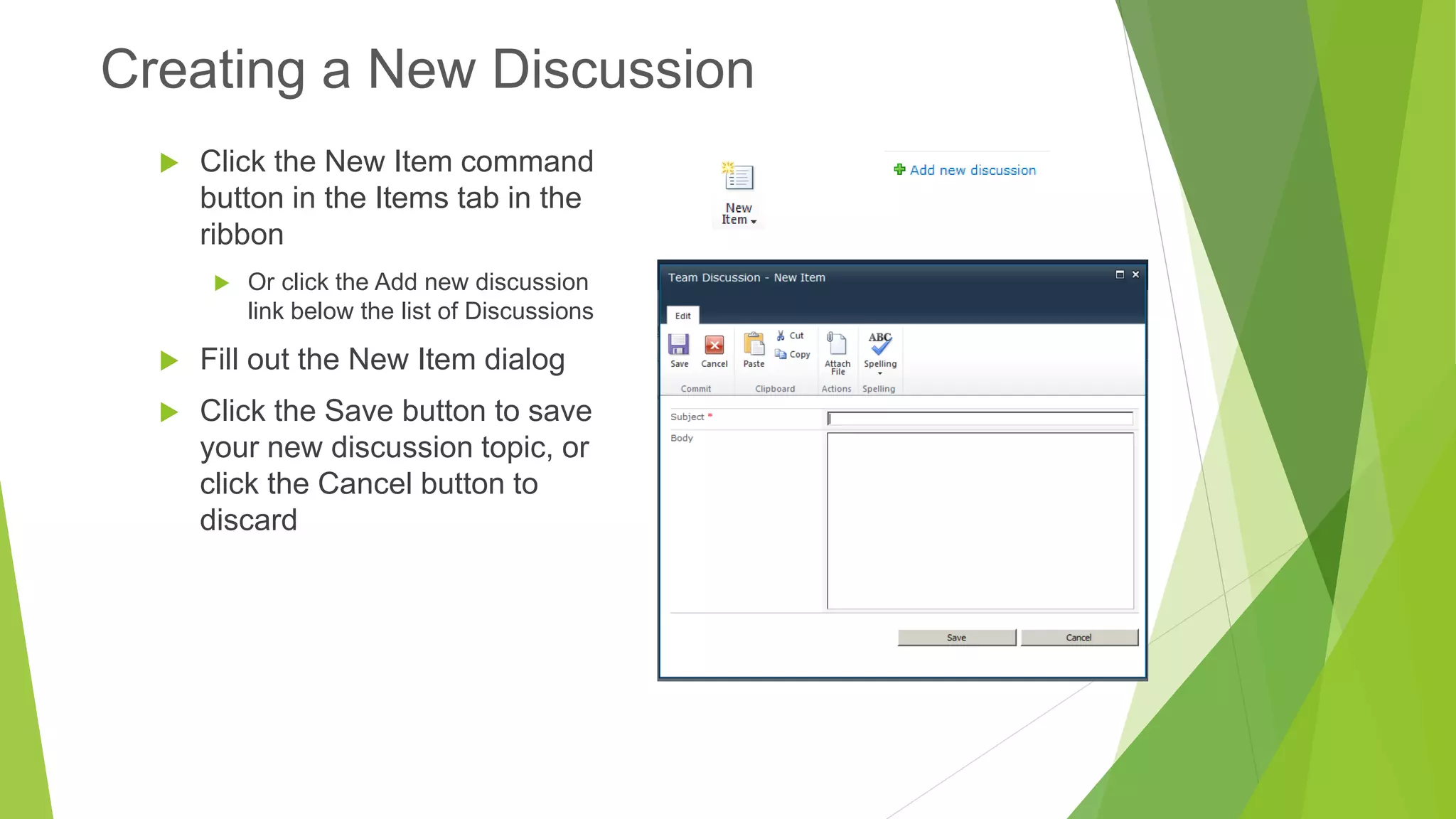
Click the New Item command button in the Items tab in the ribbon 
Or click the Add new discussion link below the list of Discussions 
Fill out the New Item dialog 
Click the Save button to save your new discussion topic, or click the Cancel button to discard 
Creating a New Discussion
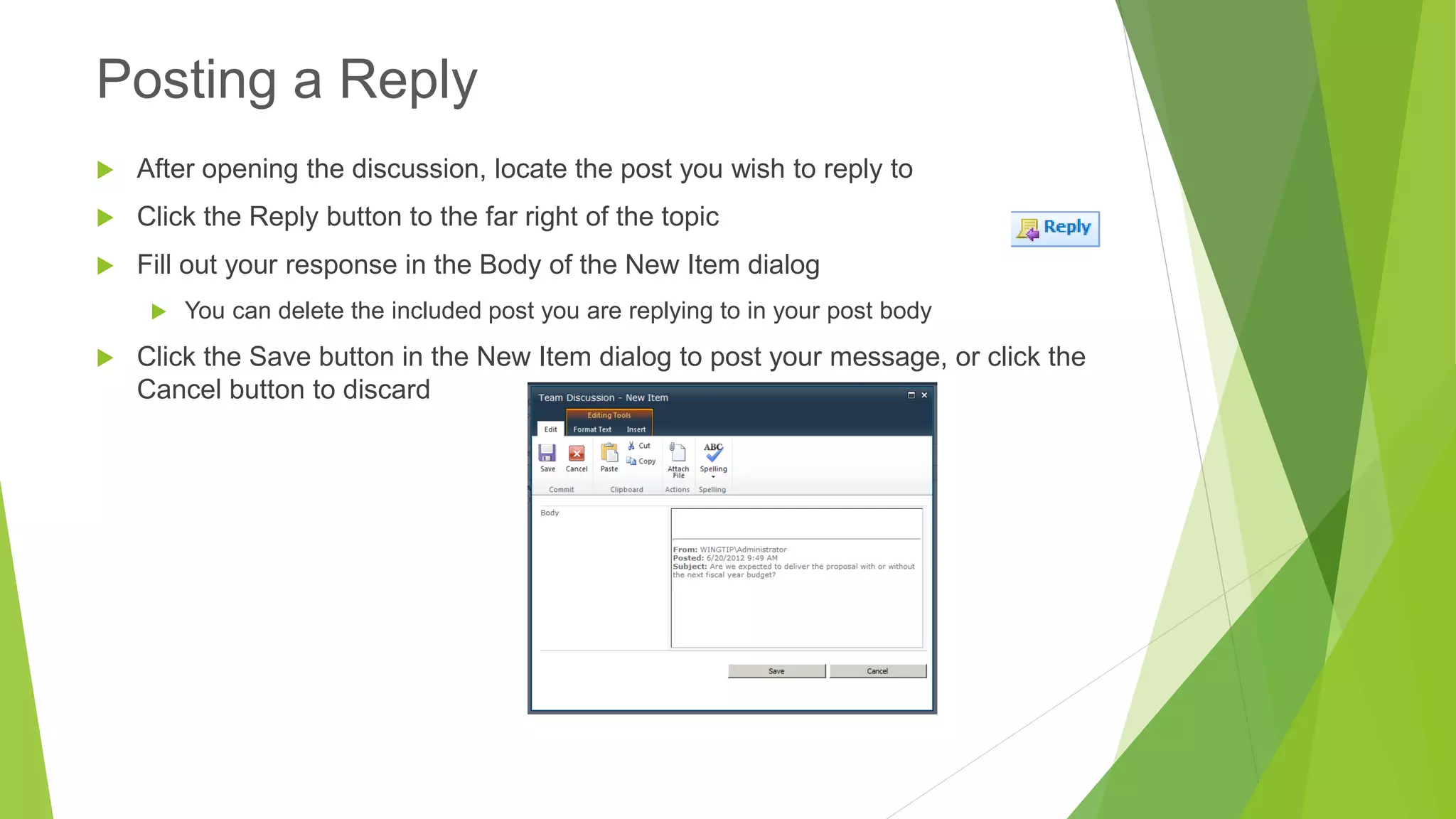
After opening the discussion, locate the post you wish to reply to 
Click the Reply button to the far right of the topic 
Fill out your response in the Body of the New Item dialog 
You can delete the included post you are replying to in your post body 
Click the Save button in the New Item dialog to post your message, or click the Cancel button to discard 
Posting a Reply
Team Site Creation & Administration
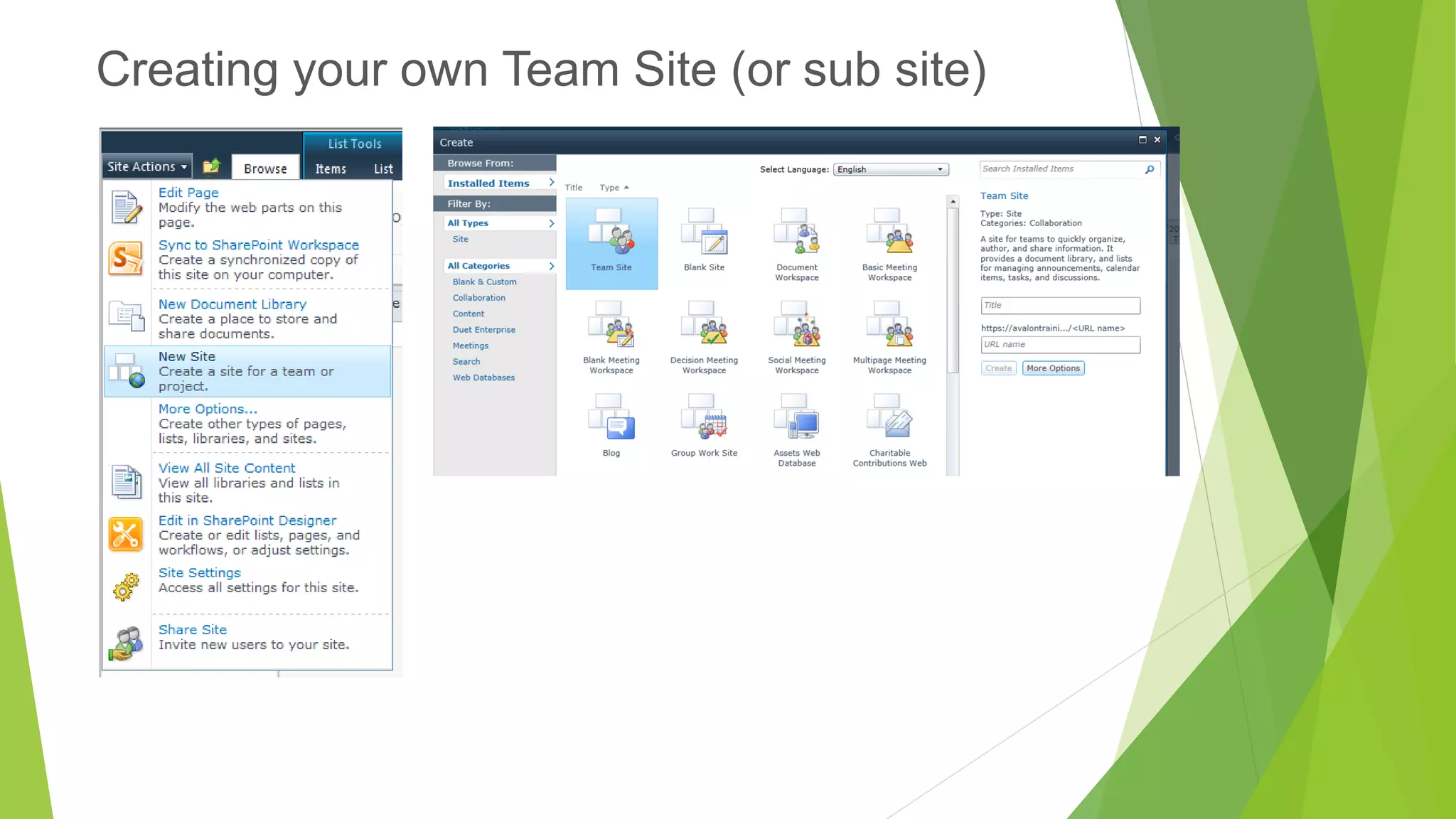
Creating your own Team Site (or sub site)
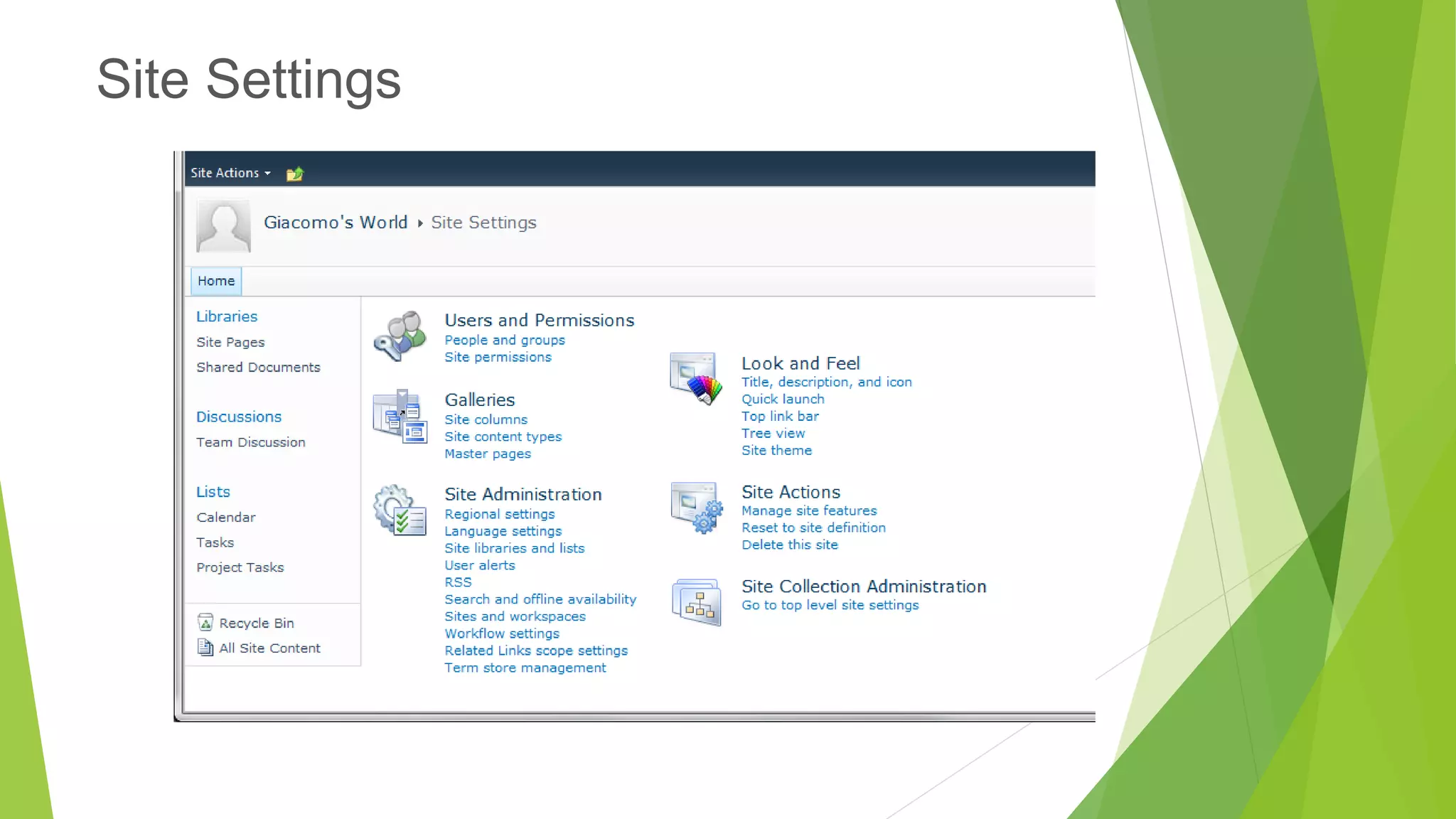
Site Settings
Site Actions …..View All Site Content 
All Lists and Libraries that are currently part of your site are listed 
Click on the Createlink to see what else is available. 
Adding Lists and Libraries
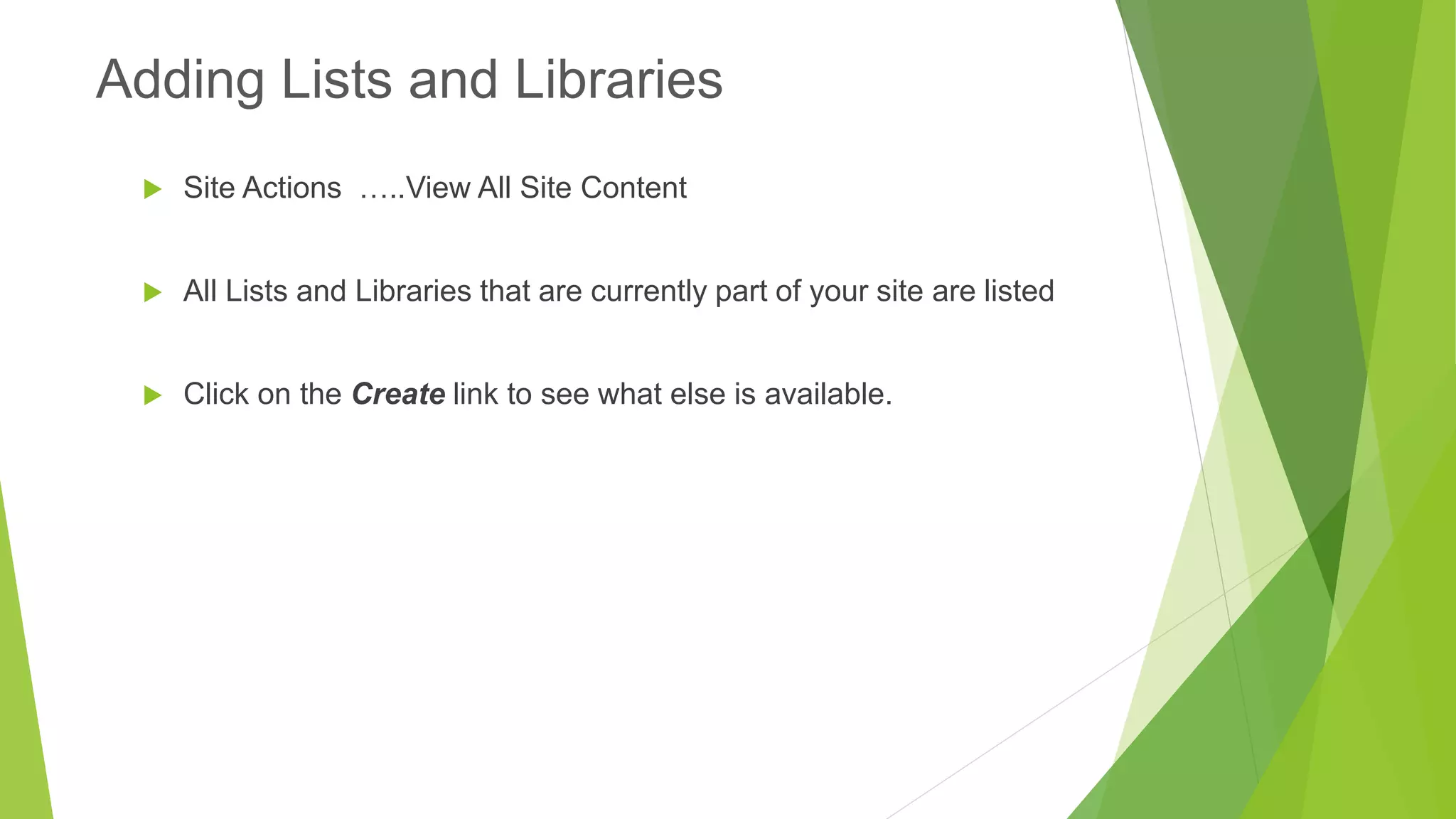
SharePoint Can notify you via email when changes are made to a library or a list or site 
Alerts
Working with Views
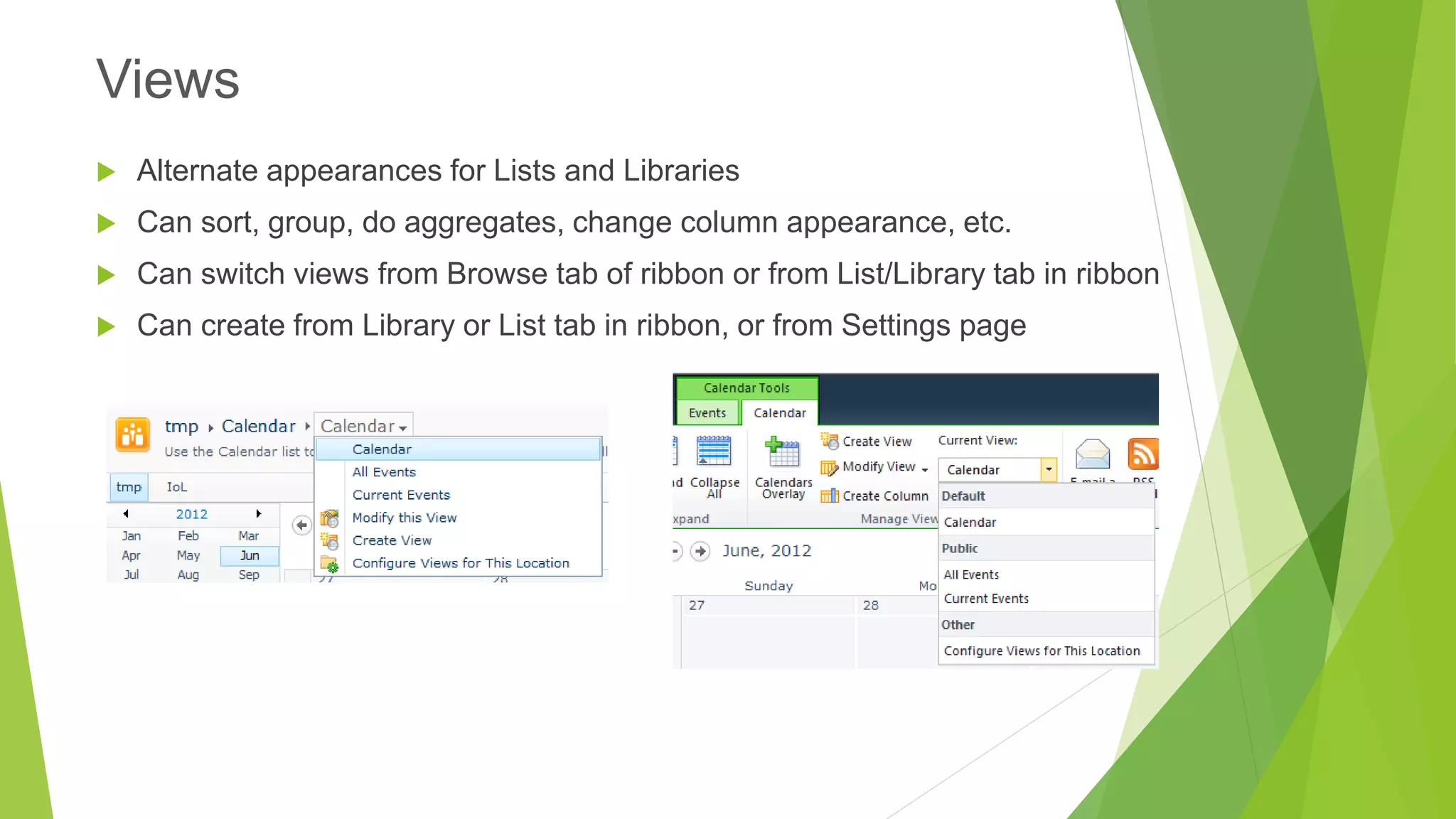
Alternate appearances for Lists and Libraries 
Can sort, group, do aggregates, change column appearance, etc. 
Can switch views from Browse tab of ribbon or from List/Library tab in ribbon 
Can create from Library or List tab in ribbon, or from Settings page 
Views
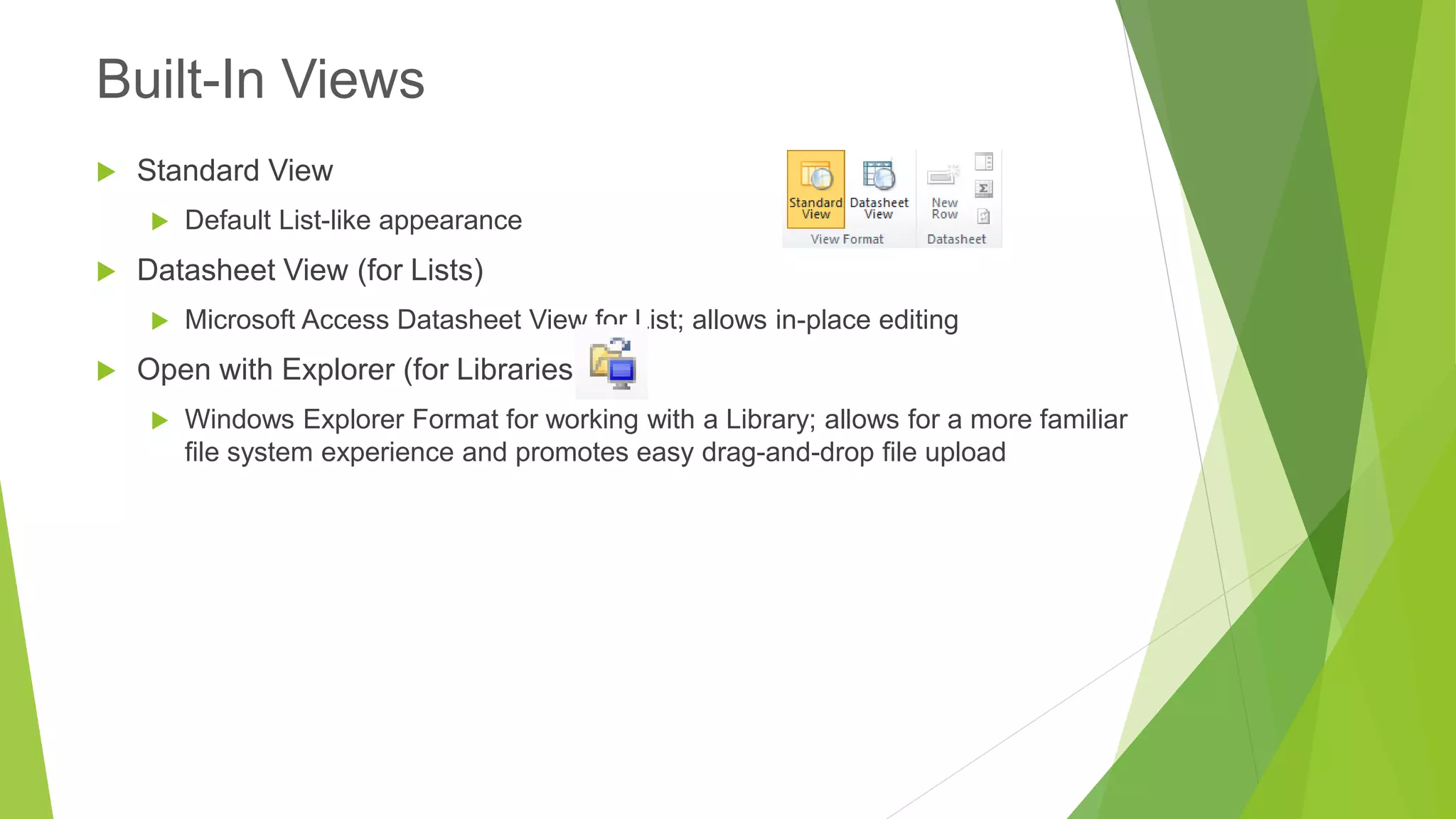
Standard View 
Default List-like appearance 
Datasheet View (for Lists) 
Microsoft Access Datasheet View for List; allows in-place editing 
Open with Explorer (for Libraries) 
Windows Explorer Format for working with a Library; allows for a more familiar file system experience and promotes easy drag-and-drop file upload 
Built-In Views
SharePoint Workspaces
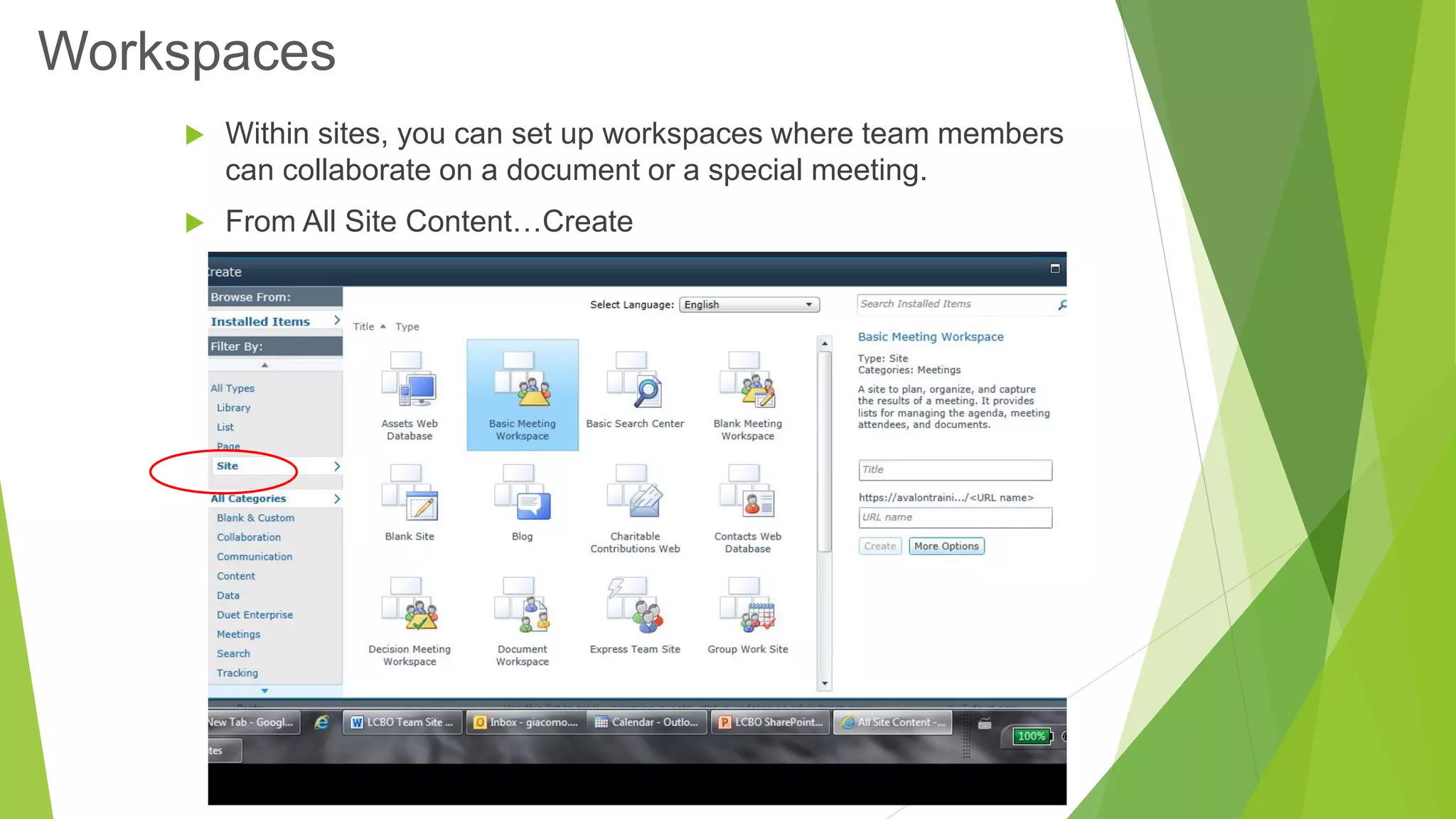
Within sites, you can set up workspaces where team members can collaborate on a document or a special meeting. 
From All Site Content…Create 
Workspaces
To share a TeamSite Calendar so others can view it in Outlook, click on the Connect to Outlook icon on the Calendar Ribbonand follow the prompts. 
Team Calendars and Outlook
Other SharePoint Goodies!
Slide Library 
Picture Library 
Contacts 
Other Goodies to try out
The key benefits of SharePoint 2010 Team Sites: 
•Set schedules, track data and create custom sub sites 
•Access SharePoint through your favorite internet browser 
•Track and publish any metric related to your team 
•Tap into the pulse of your team with faster results 
SharePoint 2010 offers a better alternative to managing your work team processes and communication. No more endless copies and attachments! 
It can also tame the “Calendar Beast” when it comes to arranging meetings and assigning tasks to your team members. And your team will spend more time collaborating than sorting through email and copies of documents. 
In closing…
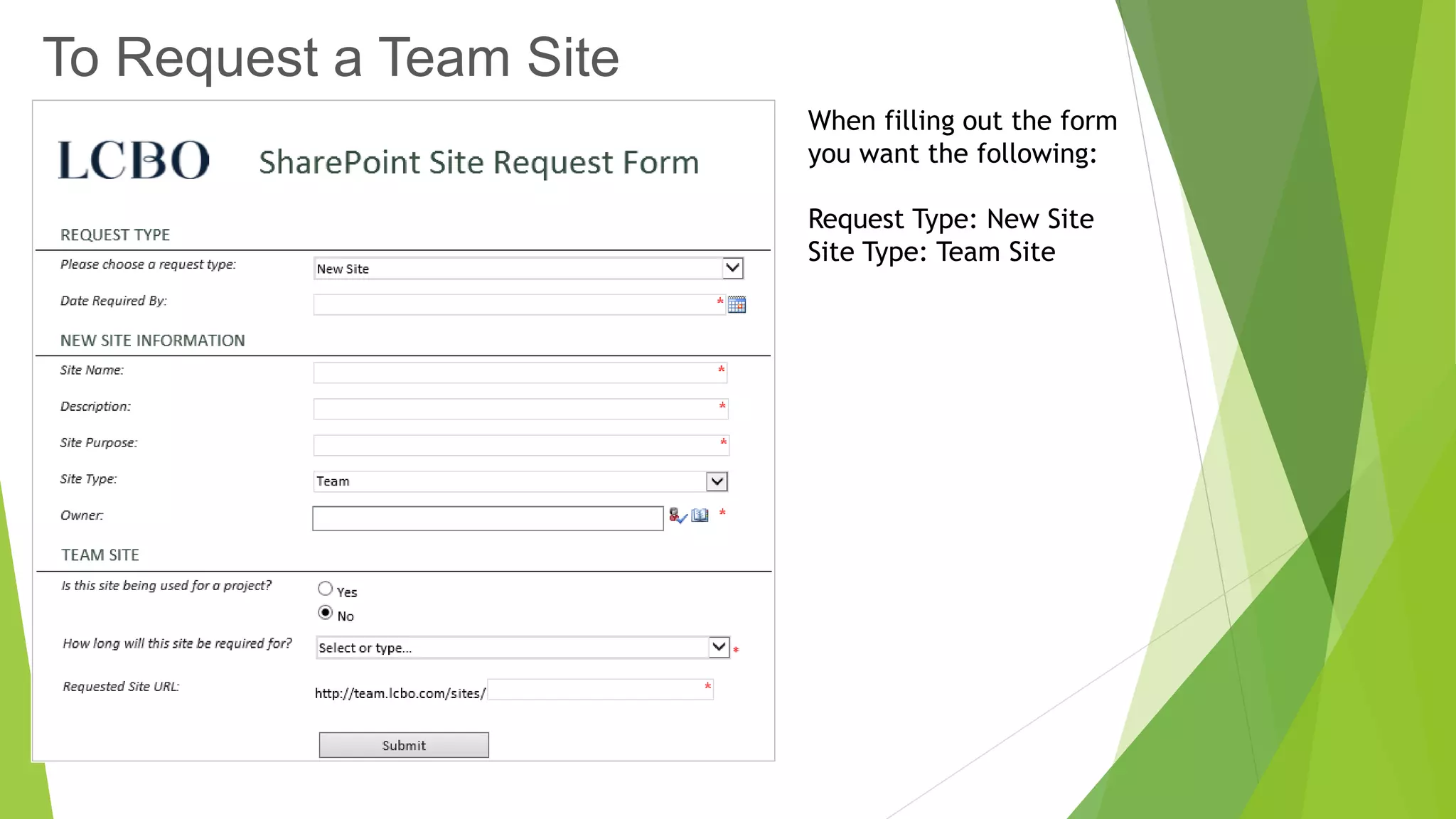
To Request a Team Site 
When filling out the form you want the following: 
Request Type: New Site 
Site Type: Team Site
Resources available to you: 
BrainStorm QuickHelp –http://officequickhelp 
LCBO Content Manager Team Site –http://team.lcbo.com/sites/cms 
Building a good SharePoint Team Site - http://www.glynblogs.com/2010/10/building-a-good-sharepoint-team-site.html 
SharePoint 2010 Team Sites -http://www.fpweb.net/sharepoint- hosting/2010/features/end-user/sites/team-site/ 
LCBO Governance Site - http://home.lcbo.com/governance/Pages/default.aspx 
Thank You for attention & participation.

SharePoint 2010 Team Site Overview

  • 1.
    SharePoint 2010Team SiteOverview Presented by: Ivor Davies Lee Robson 4/7/2014 1
  • 2.
    Introduction to SharePoint2010 Team Sites Working with Lists Working with Libraries Working with Discussion Boards Team Site creation & maintenance SharePoint Workspaces Other SharePoint Goodies! Session Agenda:
  • 3.
    Central place forteam information Documents Calendars Issues Discussions Views And more! Empowerment of collaborative teams Reduce the need for paper documents Introduction toSharePoint Team Sites
  • 4.
  • 5.
  • 6.
    Everything in TeamSites are stored in Lists A Document Library is just a special type of List that stores files Rows of information separated into columns Think a list of tasks, announcements, etc. Lists
  • 7.
  • 8.
    Accessing list itemsby clicking on them in the list to open Edit from dialog, or check the box beside the item and click Edit Item in the ribbon Delete list items similarly Working with Lists
  • 9.
    1.Locate the list 2.Click Add new item link below list, or use New Item button in Itemstab of Ribbon 3.Fill out Form 4.Click Save Adding an Item to a List
  • 10.
    Team calendar usefulfor tracking Deadlines Meetings Upcoming events Calendar
  • 11.
    Hover over thedate in the Calendar until the +Add link appears Click the +Add link for that date Fill out the New Item form Click the Save button to save your new calendar item, or click the Cancel button to discard your changes Adding New Calendar Items
  • 12.
    Time-based news itemsor headlines Announcements
  • 13.
    In the Announcementslist, click the Items tab in the ribbon Or click Add new announcement below the list of Announcements Click the New Item command button Fill out the New Item form Click Save to save your new announcement, or Cancel to discard your changes Adding a New Announcement
  • 14.
    Tasks are assignablework items in SharePoint Tasks
  • 15.
    Click the NewItem command button in the Items tab in the ribbon Or click the Add new item link below the list of Tasks Fill out the New Item form Click Save to save your new task, or Cancel to discard your changes Adding New Tasks
  • 16.
    Link URLs toimportant, relevant or handy sites (internal or external) Links
  • 17.
    Click Add NewLink linkbelow the list of links Fill out form with URL, optional description (which will become the word(s) clicked on), and Notes Click Save Adding Useful Links
  • 18.
  • 19.
  • 20.
    Lists of Files Files uploaded into the Portal Can be Office documents, .pdfs, images, videos, etc. For Office documents, supports versioning and exclusive edit locks Document Libraries
  • 21.
  • 22.
  • 23.
    Allows you toessentially use Windows Explorer to drag-and-drop files into a Document Library Uploading Multiple Documents –Explorer View
  • 24.
    Checking a Fileout allows you to lock the file to allow only you to edit it Others can view a read-only copy of the file that was last checked-in Check the file in to allow others to see the changes you have made or allow them to edit it Require Check Out may be enabled on a Library, which will force checkout on a file when you edit it File Checkout
  • 25.
    Put check inbox beside file in list From ribbon Documents tab, select Check Out command button File Check-Out
  • 26.
    Manually by selectingthe file and clicking the Check In command button in the Documents tab of the ribbon Automatically on when closing Word Fill out dialog File Check-In
  • 27.
    When enabled, DocumentLibraries can keep track of file edits over time Version History command button in Documents tab of ribbon File Versioning Check Out Edit Save •Just Saves your Changes •No one else can see thosechanges yet Check-In Draft/ Minor Version •Everyone else cannow see your changes
  • 28.
  • 29.
    From Version HistoryDialog can View Restore Delete Version History Actions
  • 30.
    If you deletea document, the file goes to the Recycle Bin Click Recycle Bin link below the Quick Launch Select file Restore Selection to move file back to source location Delete Selection to move file to admin Recycle Bin Files stay in Recycle Bin for 30 days before being automatically moved to admin RB Recycle Bin
  • 31.
  • 32.
    Newsgroup like discussionboards Threaded topics useful for collaborative Q&A Discussions
  • 33.
    Click the NewItem command button in the Items tab in the ribbon Or click the Add new discussion link below the list of Discussions Fill out the New Item dialog Click the Save button to save your new discussion topic, or click the Cancel button to discard Creating a New Discussion
  • 34.
    After opening thediscussion, locate the post you wish to reply to Click the Reply button to the far right of the topic Fill out your response in the Body of the New Item dialog You can delete the included post you are replying to in your post body Click the Save button in the New Item dialog to post your message, or click the Cancel button to discard Posting a Reply
  • 35.
    Team Site Creation& Administration
  • 36.
    Creating your ownTeam Site (or sub site)
  • 37.
  • 38.
    Site Actions …..ViewAll Site Content All Lists and Libraries that are currently part of your site are listed Click on the Createlink to see what else is available. Adding Lists and Libraries
  • 39.
    SharePoint Can notifyyou via email when changes are made to a library or a list or site Alerts
  • 40.
  • 41.
    Alternate appearances forLists and Libraries Can sort, group, do aggregates, change column appearance, etc. Can switch views from Browse tab of ribbon or from List/Library tab in ribbon Can create from Library or List tab in ribbon, or from Settings page Views
  • 42.
    Standard View DefaultList-like appearance Datasheet View (for Lists) Microsoft Access Datasheet View for List; allows in-place editing Open with Explorer (for Libraries) Windows Explorer Format for working with a Library; allows for a more familiar file system experience and promotes easy drag-and-drop file upload Built-In Views
  • 43.
  • 44.
    Within sites, youcan set up workspaces where team members can collaborate on a document or a special meeting. From All Site Content…Create Workspaces
  • 45.
    To share aTeamSite Calendar so others can view it in Outlook, click on the Connect to Outlook icon on the Calendar Ribbonand follow the prompts. Team Calendars and Outlook
  • 46.
  • 47.
    Slide Library PictureLibrary Contacts Other Goodies to try out
  • 48.
    The key benefitsof SharePoint 2010 Team Sites: •Set schedules, track data and create custom sub sites •Access SharePoint through your favorite internet browser •Track and publish any metric related to your team •Tap into the pulse of your team with faster results SharePoint 2010 offers a better alternative to managing your work team processes and communication. No more endless copies and attachments! It can also tame the “Calendar Beast” when it comes to arranging meetings and assigning tasks to your team members. And your team will spend more time collaborating than sorting through email and copies of documents. In closing…
  • 49.
    To Request aTeam Site When filling out the form you want the following: Request Type: New Site Site Type: Team Site
  • 50.
    Resources available toyou: BrainStorm QuickHelp –http://officequickhelp LCBO Content Manager Team Site –http://team.lcbo.com/sites/cms Building a good SharePoint Team Site - http://www.glynblogs.com/2010/10/building-a-good-sharepoint-team-site.html SharePoint 2010 Team Sites -http://www.fpweb.net/sharepoint- hosting/2010/features/end-user/sites/team-site/ LCBO Governance Site - http://home.lcbo.com/governance/Pages/default.aspx Thank You for attention & participation.