AdvancedSharePoint Features 
Facilitated by: 
Ivor Davies 
11/24/201 
4 
1
Working with SharePoint Lists and Forms 
InfoPath 2010 
Excel Services / Visio Services 
SharePoint Workspaces 
Slide Libraries / Picture Libraries / Surveys 
Agenda:
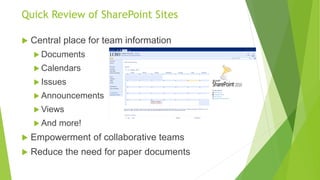
Central place for team information 
Documents 
Calendars 
Issues 
Announcements 
Views 
And more! 
Empowerment of collaborative teams 
Reduce the need for paper documents 
Quick Review of SharePoint Sites
Working with SharePoint Lists & Forms
Working with SharePoint Lists 
•There are different data types that can be used for each column. The standard types include text, number and date as well as link, user, choice, image and many other types. 
•The data in the list is displayed through views. A list will always have a default view that displays all items. You may create any number of views and choose which columns to display, what to filter by, how to order by and what to group on. 
•Security permissions are inherited from the site the list is created in unless you specify unique permissions. Each item's security permissions inherits from it's list's (parent) permission unless you specify unique permissions for it. 
•When you create a list for the first time –SharePoint creates two columns automatically. One is called “Title” and the other is “Attachment”. You can rename the title filed to some other name if you lake and the attachment column can be deleted. 
•All lists are populated / completed using an online form –this leads us into InfoPath.
InfoPath 2010 & SharePoint Lists
What is InfoPath? 
•Microsoft InfoPathis a software application for designing, distributing, filling and submitting electronic forms containing structured data. 
•Microsoft initially released InfoPathas part of Microsoft Office 2003 family. 
•Microsoft Office 2010 contains both InfoPath 2010 Designer and InfoPath 2010 Filler. 
•All LCBO Head Office users will eventually have Microsoft Office 2010 (including InfoPath -if not already). 
•Microsoft is discontinuing InfoPath after Office 2013 –it will be moving in a new direction for online forms. But….. 
•InfoPath will still be supported in SharePoint 2013 and Office 365 until 2023.
Designer (Create Online Forms) 
Filler (Fill out / Complete Online Forms) 
InfoPath Form Services in SharePoint(Complete Forms via the Browser (Internet Explorer)). 
InfoPath consists of:
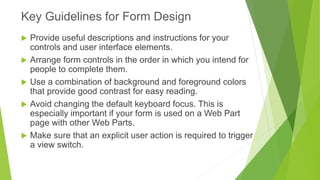
Provide useful descriptions and instructions for your controls and user interface elements. 
Arrange form controls in the order in which you intend for people to complete them. 
Use a combination of background and foreground colors that provide good contrast for easy reading. 
Avoid changing the default keyboard focus. This is especially important if your form is used on a Web Part page with other Web Parts. 
Make sure that an explicit user action is required to trigger a view switch. 
Key Guidelines for Form Design
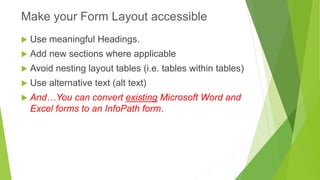
Use meaningful Headings. 
Add new sections where applicable 
Avoid nesting layout tables (i.e. tables within tables) 
Use alternative text (alt text) 
And…You can convert existingMicrosoft Word and Excel forms to an InfoPath form. 
Make your Form Layout accessible
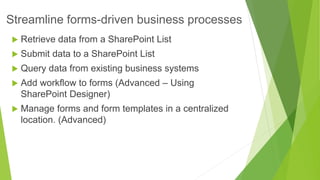
Retrieve data from a SharePoint List 
Submit data to a SharePoint List 
Query data from existing business systems 
Add workflow to forms (Advanced–Using SharePoint Designer) 
Manage forms and form templates in a centralized location. (Advanced) 
Streamline forms-driven business processes
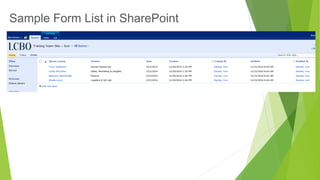
Sample Form List in SharePoint
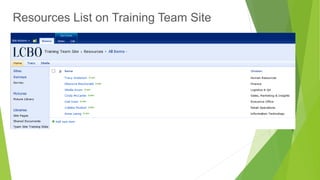
Resources List on Training Team Site
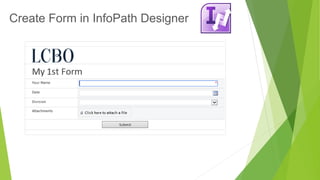
Create Form in InfoPath Designer
1.Site Request Form 
2.Receival Error Report Form 
3.Delivery Discrepancy Report 
4.STAR Nomination Form 
5.SMi Feedback Form 
6.Audit Survey Form 
7.BPG Project Request Form 
8.Name Badge Requisition Form (Sherry Smith) 
9.Business Card Requisition Form (Sherry Smith) 
Online Forms already in use..
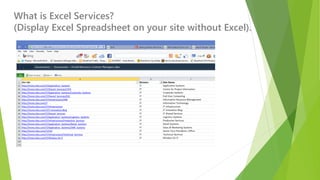
Excel Services
What is Excel Services? (Display Excel Spreadsheet on your site without Excel).
Visio Services
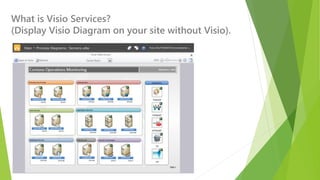
What is Visio Services? (Display Visio Diagram on your site without Visio).
SharePoint Workspaces
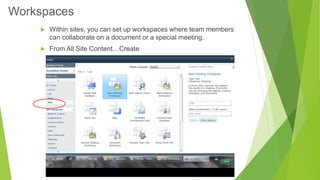
Within sites, you can set up workspaces where team members can collaborate on a document or a special meeting. 
From All Site Content…Create 
Workspaces
Slide Libraries 
You can share and reuse individual PowerPoint slides by storing them in a Slide Library on SharePoint 2010. 
You, or any colleagues that have access to the Slide Library, can add slides to the Slide Library, insert slides from the Slide Library into a presentation, make changes to the slides in the Slide Library, track changes that have been made to a slide, and locate the latest version of a slide. 
This actual presentation was built using an existing slide library on our Content Manager Team Site.
Picture Libraries 
A picture library enables you to share a collection of digital photos or graphics. Although photos can be stored in other types of SharePoint libraries, picture libraries have several advantages. 
From a picture library, you can view pictures in a slide show, download pictures in a specific size and format to your computer, and edit pictures with a picture editor that is compatible with SharePoint Technologies, such as Microsoft Office Picture Manager. 
You can also easily link to photos in your picture library from elsewhere on your site, such as pages, wikis, and blogs.
You can create a custom survey on either your portal or team site. 
You need to create the survey then assign custom permissions to allow users to save their responses. 
Surveys
Resources available to you: 
BrainStorm QuickHelp –http://officequickhelp 
Introduction to designing a form in InfoPath 2010 -http://office.microsoft.com/en- ca/infopath-help/introduction-to-designing-a-form-in-infopath-2010- HA101821252.aspx 
Learning Tree International -Developing InfoPath Forms for SharePoint Course 1507 (3 days) http://www.learningtree.ca/courses/1507/developing-infopath-forms- for-sharepoint/ 
Introduction to Form Templates and Forms -http://office.microsoft.com/en- ca/infopath-help/introduction-to-form-templates-and-forms-HA010062685.aspx 
Sherry Smith in Retail Operations is a great resource for creating forms with InfoPath. 
BrainStorm QuickHelp Online Videos for LCBO - http://quickhelp.brainstorminc.com/lcbo/Pages/QuickHelp.aspx 
Thank You for your attending today’s session!

Advanced SharePoint 2010 Features

  • 1.
    AdvancedSharePoint Features Facilitatedby: Ivor Davies 11/24/201 4 1
  • 2.
    Working with SharePointLists and Forms InfoPath 2010 Excel Services / Visio Services SharePoint Workspaces Slide Libraries / Picture Libraries / Surveys Agenda:
  • 3.
    Central place forteam information Documents Calendars Issues Announcements Views And more! Empowerment of collaborative teams Reduce the need for paper documents Quick Review of SharePoint Sites
  • 4.
  • 5.
    Working with SharePointLists •There are different data types that can be used for each column. The standard types include text, number and date as well as link, user, choice, image and many other types. •The data in the list is displayed through views. A list will always have a default view that displays all items. You may create any number of views and choose which columns to display, what to filter by, how to order by and what to group on. •Security permissions are inherited from the site the list is created in unless you specify unique permissions. Each item's security permissions inherits from it's list's (parent) permission unless you specify unique permissions for it. •When you create a list for the first time –SharePoint creates two columns automatically. One is called “Title” and the other is “Attachment”. You can rename the title filed to some other name if you lake and the attachment column can be deleted. •All lists are populated / completed using an online form –this leads us into InfoPath.
  • 6.
    InfoPath 2010 &SharePoint Lists
  • 7.
    What is InfoPath? •Microsoft InfoPathis a software application for designing, distributing, filling and submitting electronic forms containing structured data. •Microsoft initially released InfoPathas part of Microsoft Office 2003 family. •Microsoft Office 2010 contains both InfoPath 2010 Designer and InfoPath 2010 Filler. •All LCBO Head Office users will eventually have Microsoft Office 2010 (including InfoPath -if not already). •Microsoft is discontinuing InfoPath after Office 2013 –it will be moving in a new direction for online forms. But….. •InfoPath will still be supported in SharePoint 2013 and Office 365 until 2023.
  • 8.
    Designer (Create OnlineForms) Filler (Fill out / Complete Online Forms) InfoPath Form Services in SharePoint(Complete Forms via the Browser (Internet Explorer)). InfoPath consists of:
  • 9.
    Provide useful descriptionsand instructions for your controls and user interface elements. Arrange form controls in the order in which you intend for people to complete them. Use a combination of background and foreground colors that provide good contrast for easy reading. Avoid changing the default keyboard focus. This is especially important if your form is used on a Web Part page with other Web Parts. Make sure that an explicit user action is required to trigger a view switch. Key Guidelines for Form Design
  • 10.
    Use meaningful Headings. Add new sections where applicable Avoid nesting layout tables (i.e. tables within tables) Use alternative text (alt text) And…You can convert existingMicrosoft Word and Excel forms to an InfoPath form. Make your Form Layout accessible
  • 11.
    Retrieve data froma SharePoint List Submit data to a SharePoint List Query data from existing business systems Add workflow to forms (Advanced–Using SharePoint Designer) Manage forms and form templates in a centralized location. (Advanced) Streamline forms-driven business processes
  • 12.
    Sample Form Listin SharePoint
  • 13.
    Resources List onTraining Team Site
  • 14.
    Create Form inInfoPath Designer
  • 15.
    1.Site Request Form 2.Receival Error Report Form 3.Delivery Discrepancy Report 4.STAR Nomination Form 5.SMi Feedback Form 6.Audit Survey Form 7.BPG Project Request Form 8.Name Badge Requisition Form (Sherry Smith) 9.Business Card Requisition Form (Sherry Smith) Online Forms already in use..
  • 16.
  • 17.
    What is ExcelServices? (Display Excel Spreadsheet on your site without Excel).
  • 18.
  • 19.
    What is VisioServices? (Display Visio Diagram on your site without Visio).
  • 20.
  • 21.
    Within sites, youcan set up workspaces where team members can collaborate on a document or a special meeting. From All Site Content…Create Workspaces
  • 22.
    Slide Libraries Youcan share and reuse individual PowerPoint slides by storing them in a Slide Library on SharePoint 2010. You, or any colleagues that have access to the Slide Library, can add slides to the Slide Library, insert slides from the Slide Library into a presentation, make changes to the slides in the Slide Library, track changes that have been made to a slide, and locate the latest version of a slide. This actual presentation was built using an existing slide library on our Content Manager Team Site.
  • 23.
    Picture Libraries Apicture library enables you to share a collection of digital photos or graphics. Although photos can be stored in other types of SharePoint libraries, picture libraries have several advantages. From a picture library, you can view pictures in a slide show, download pictures in a specific size and format to your computer, and edit pictures with a picture editor that is compatible with SharePoint Technologies, such as Microsoft Office Picture Manager. You can also easily link to photos in your picture library from elsewhere on your site, such as pages, wikis, and blogs.
  • 24.
    You can createa custom survey on either your portal or team site. You need to create the survey then assign custom permissions to allow users to save their responses. Surveys
  • 25.
    Resources available toyou: BrainStorm QuickHelp –http://officequickhelp Introduction to designing a form in InfoPath 2010 -http://office.microsoft.com/en- ca/infopath-help/introduction-to-designing-a-form-in-infopath-2010- HA101821252.aspx Learning Tree International -Developing InfoPath Forms for SharePoint Course 1507 (3 days) http://www.learningtree.ca/courses/1507/developing-infopath-forms- for-sharepoint/ Introduction to Form Templates and Forms -http://office.microsoft.com/en- ca/infopath-help/introduction-to-form-templates-and-forms-HA010062685.aspx Sherry Smith in Retail Operations is a great resource for creating forms with InfoPath. BrainStorm QuickHelp Online Videos for LCBO - http://quickhelp.brainstorminc.com/lcbo/Pages/QuickHelp.aspx Thank You for your attending today’s session!