Screencasting with
STEP 1 
Go to http://www.screencast-o-matic.com
STEP 2 
Hit Start Recording 
Good to know 
You can 
download an app 
to your MAC or 
PC so you can 
always access 
Screencast-O-Matic 
See the next 2 
pages
Using a Mac? 
You can download and 
install the app directly 
on your computer. 
Follow the instructions 
here 
http://som.screencastho 
st.com/install-mac-help
Using a PC? 
You can download and 
install the app directly on 
your computer. 
Follow the instructions 
here 
http://som.screencasthost 
.com/channels/cXhI3EVT 
h#details-cIV0bfV6iR
Step 3 
Drag and resize the frame to surround the area you would 
like to record (have your document or program already open) 
OR
Step 3 
Select a predefined screen size setting.
Step 4 
Select the microphone you wish to use
Step 4 
If you are using a laptop and no headset select the IN BUILT 
microphone
Step 5 
Ensure the audio levels are adjusted correctly by clicking the 
button below
Step 5 
Hit Auto Adjust Volume and speak into the microphone
Step 6 
Ready to go. Hit record.
Good to know - You get a three second count down before 
recording begins.
Good to know - You can pause during recording by hitting the 
blue pause button on the bottom left
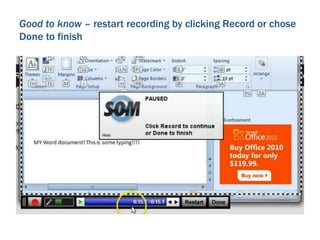
Good to know – restart recording by clicking Record or chose 
Done to finish
Step 7 
Click Done when you have finished recording
Good to know – You can preview your recording before 
exporting and sharing it
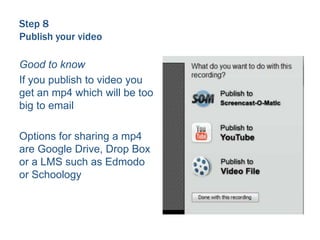
Step 8 
Publish your video 
Good to know 
If you publish to Sceencast-o- 
matic you will get a link to 
share video with your 
audience 
Anyone with this link can 
view your video
Step 8 
Publish your video 
Good to know 
You need a YouTube 
account to publish to 
YouTube and will have to 
enter your user name and 
password 
You can publish your video 
as public, private (viewers 
need permission) or unlisted 
(viewers need the URL)
Step 8 
Publish your video 
Good to know 
If you publish to video you 
get an mp4 which will be too 
big to email 
Options for sharing a mp4 
are Google Drive, Drop Box 
or a LMS such as Edmodo 
or Schoology

Screencastomatic

  • 1.
  • 2.
    STEP 1 Goto http://www.screencast-o-matic.com
  • 3.
    STEP 2 HitStart Recording Good to know You can download an app to your MAC or PC so you can always access Screencast-O-Matic See the next 2 pages
  • 4.
    Using a Mac? You can download and install the app directly on your computer. Follow the instructions here http://som.screencastho st.com/install-mac-help
  • 5.
    Using a PC? You can download and install the app directly on your computer. Follow the instructions here http://som.screencasthost .com/channels/cXhI3EVT h#details-cIV0bfV6iR
  • 6.
    Step 3 Dragand resize the frame to surround the area you would like to record (have your document or program already open) OR
  • 7.
    Step 3 Selecta predefined screen size setting.
  • 8.
    Step 4 Selectthe microphone you wish to use
  • 9.
    Step 4 Ifyou are using a laptop and no headset select the IN BUILT microphone
  • 10.
    Step 5 Ensurethe audio levels are adjusted correctly by clicking the button below
  • 11.
    Step 5 HitAuto Adjust Volume and speak into the microphone
  • 12.
    Step 6 Readyto go. Hit record.
  • 13.
    Good to know- You get a three second count down before recording begins.
  • 14.
    Good to know- You can pause during recording by hitting the blue pause button on the bottom left
  • 15.
    Good to know– restart recording by clicking Record or chose Done to finish
  • 16.
    Step 7 ClickDone when you have finished recording
  • 17.
    Good to know– You can preview your recording before exporting and sharing it
  • 18.
    Step 8 Publishyour video Good to know If you publish to Sceencast-o- matic you will get a link to share video with your audience Anyone with this link can view your video
  • 19.
    Step 8 Publishyour video Good to know You need a YouTube account to publish to YouTube and will have to enter your user name and password You can publish your video as public, private (viewers need permission) or unlisted (viewers need the URL)
  • 20.
    Step 8 Publishyour video Good to know If you publish to video you get an mp4 which will be too big to email Options for sharing a mp4 are Google Drive, Drop Box or a LMS such as Edmodo or Schoology