Getting starting with Screencasts  Michael Paskevicius This work is licenced under the Creative Commons Attribution-ShareAlike 2.5 South Africa License. To view a copy of this licence, visit http://creativecommons.org/licenses/by-sa/2.5/za/ or send a letter to Creative Commons, 171 Second Street, Suite 300, San Francisco, California 94105, USA.
So what is a screencast? A digital recording of a computer screen output often containing audio narration and/or subtitles  As opposed to a screen shot , a screen cast  is a movie of the changes over time that a user sees on their monitor Screencasts are useful for demonstrating and teaching processes which one does in front of a computer To show how a task is accomplished in a specific software, desktop or web environment   Useful to show how to perform a tricky yet often performed task or process 
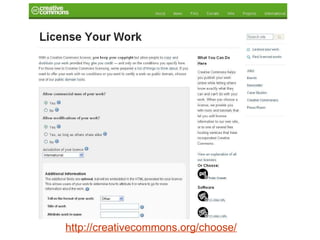
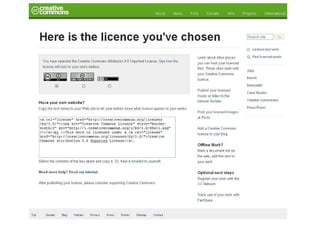
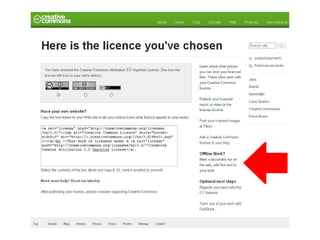
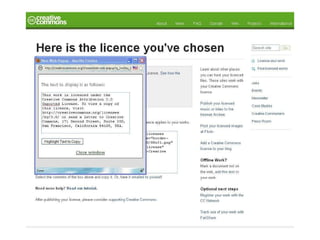
Screencasting to address a common issue   How do I license my offline document or presentation using a Creative Commons license??? Do I have to call someone?  Do I need to register? Do I need to get a license number?
http://creativecommons.org/choose/


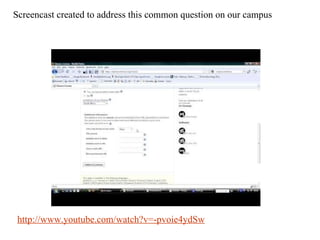
http://www.youtube.com/watch?v=-pvoie4ydSw Screencast created to address this common question on our campus
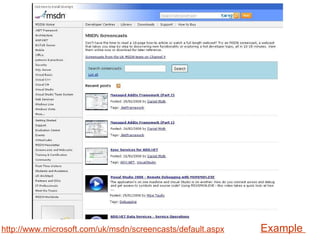
http://www.microsoft.com/uk/msdn/screencasts/default.aspx Example
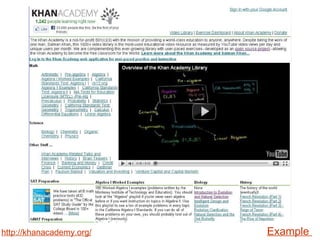
http://khanacademy.org/ Example
 
Tips for creating screencasts Be conversational  Know your audience   Use appropriate language and terminology Emphasize parts of the screen as you demo (by selecting text or mousing over areas of the screen)  Use a microphone  Limit avoidable noise ( don't be like this guy )  Don't be shy -  this is a web 2.0 contributory world  
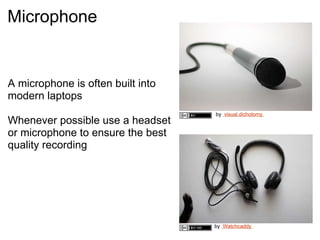
  by   Watchcaddy   by   visual.dichotomy   Microphone  A microphone is often built into modern laptops  Whenever possible use a headset or microphone to ensure the best quality recording
Freely available software options  Camstudio -  Web  CamStudio is able to record all screen and audio activity on your computer and create industry-standard AVI video files and using its built-in SWF Producer can turn those AVIs into lean, mean, bandwidth-friendly Streaming Flash videos (SWFs)   Debut Video Capture Software  Web Record from your webcam, screen or video input device.  Record almost anything - anything you can see on your monitor can be recorded  Record video and audio simultaneously  See 'Further reference' for more options
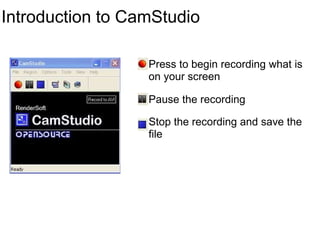
Introduction to CamStudio  Press to begin recording what is on your screen  Pause the recording  Stop the recording and save the file
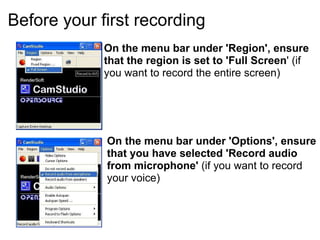
Before your first recording  On the menu bar under 'Region', ensure that the region is set to 'Full Screen ' (if you want to record the entire screen) On the menu bar under 'Options', ensure that you have selected 'Record audio from microphone'  (if you want to record your voice)
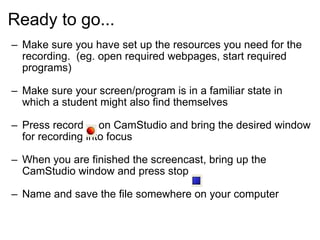
Ready to go... Make sure you have set up the resources you need for the recording.  (eg. open required webpages, start required programs)  Make sure your screen/program is in a familiar state in which a student might also find themselves  Press record     on CamStudio and bring the desired window for recording into focus When you are finished the screencast, bring up the CamStudio window and press stop  Name and save the file somewhere on your computer  
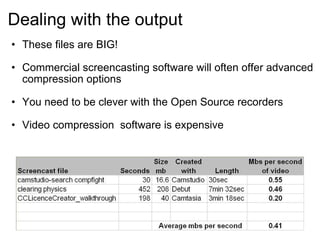
Dealing with the output  These files are BIG!   Commercial screencasting software will often offer advanced compression options  You need to be clever with the Open Source recorders Video compression  software is expensive  
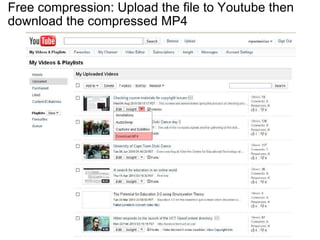
Free compression: Upload the file to Youtube then download the compressed MP4
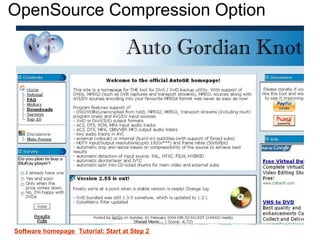
OpenSource Compression Option  Software homepage  Tutorial: Start at Step 2
Further reference Screencasting 101 - slideshare presentation with podcast  Introduction to screencasting -  slideshare presentation     Wikipedia list of screencasting software programs    Wikipedia comparison of screencasting software programs       
This work is licensed under the Creative Commons Attribution-Share Alike 2.5 South Africa License. To view a copy of this license, visit http://creativecommons.org/licenses/by-sa/2.5/za/ or send a letter to Creative Commons, 171 Second Street, Suite 300, San Francisco, California, 94105, USA. Prepared by: Michael Paskevicius  Contact me:  [email_address] OpenContent Directory :  http://opencontent.uct.ac.za OER UCT project blog:   http://blogs.uct.ac.za/blog/oer-uct Follow us:   http://twitter.com/openuct Follow me:   http://twitter.com/mpaskevi Presentations:   http://www.slideshare.net/mpaskevi

Starting with screencasts

  • 1.
    Getting starting withScreencasts Michael Paskevicius This work is licenced under the Creative Commons Attribution-ShareAlike 2.5 South Africa License. To view a copy of this licence, visit http://creativecommons.org/licenses/by-sa/2.5/za/ or send a letter to Creative Commons, 171 Second Street, Suite 300, San Francisco, California 94105, USA.
  • 2.
    So what isa screencast? A digital recording of a computer screen output often containing audio narration and/or subtitles As opposed to a screen shot , a screen cast is a movie of the changes over time that a user sees on their monitor Screencasts are useful for demonstrating and teaching processes which one does in front of a computer To show how a task is accomplished in a specific software, desktop or web environment  Useful to show how to perform a tricky yet often performed task or process 
  • 3.
    Screencasting to addressa common issue   How do I license my offline document or presentation using a Creative Commons license??? Do I have to call someone?  Do I need to register? Do I need to get a license number?
  • 4.
  • 5.
  • 6.
  • 7.
  • 8.
    http://www.youtube.com/watch?v=-pvoie4ydSw Screencast createdto address this common question on our campus
  • 9.
  • 10.
  • 11.
  • 12.
    Tips for creatingscreencasts Be conversational Know your audience  Use appropriate language and terminology Emphasize parts of the screen as you demo (by selecting text or mousing over areas of the screen) Use a microphone Limit avoidable noise ( don't be like this guy ) Don't be shy - this is a web 2.0 contributory world  
  • 13.
      by   Watchcaddy  by   visual.dichotomy   Microphone A microphone is often built into modern laptops Whenever possible use a headset or microphone to ensure the best quality recording
  • 14.
    Freely available softwareoptions Camstudio - Web CamStudio is able to record all screen and audio activity on your computer and create industry-standard AVI video files and using its built-in SWF Producer can turn those AVIs into lean, mean, bandwidth-friendly Streaming Flash videos (SWFs)   Debut Video Capture Software Web Record from your webcam, screen or video input device.  Record almost anything - anything you can see on your monitor can be recorded  Record video and audio simultaneously See 'Further reference' for more options
  • 15.
    Introduction to CamStudio Press to begin recording what is on your screen Pause the recording Stop the recording and save the file
  • 16.
    Before your firstrecording On the menu bar under 'Region', ensure that the region is set to 'Full Screen ' (if you want to record the entire screen) On the menu bar under 'Options', ensure that you have selected 'Record audio from microphone' (if you want to record your voice)
  • 17.
    Ready to go...Make sure you have set up the resources you need for the recording.  (eg. open required webpages, start required programs) Make sure your screen/program is in a familiar state in which a student might also find themselves Press record     on CamStudio and bring the desired window for recording into focus When you are finished the screencast, bring up the CamStudio window and press stop Name and save the file somewhere on your computer  
  • 18.
    Dealing with theoutput These files are BIG!  Commercial screencasting software will often offer advanced compression options You need to be clever with the Open Source recorders Video compression  software is expensive  
  • 19.
    Free compression: Uploadthe file to Youtube then download the compressed MP4
  • 20.
    OpenSource Compression Option Software homepage Tutorial: Start at Step 2
  • 21.
    Further reference Screencasting101 - slideshare presentation with podcast Introduction to screencasting -  slideshare presentation     Wikipedia list of screencasting software programs  Wikipedia comparison of screencasting software programs       
  • 22.
    This work islicensed under the Creative Commons Attribution-Share Alike 2.5 South Africa License. To view a copy of this license, visit http://creativecommons.org/licenses/by-sa/2.5/za/ or send a letter to Creative Commons, 171 Second Street, Suite 300, San Francisco, California, 94105, USA. Prepared by: Michael Paskevicius Contact me: [email_address] OpenContent Directory : http://opencontent.uct.ac.za OER UCT project blog: http://blogs.uct.ac.za/blog/oer-uct Follow us: http://twitter.com/openuct Follow me: http://twitter.com/mpaskevi Presentations: http://www.slideshare.net/mpaskevi

Editor's Notes

  • #11 Kahn uses Camtasia Recorder ($200) + SmoothDraw3(Free) + a Wacom Bamboo Tablet ($80) on a PC.    Before he was famous he used ScreenVideoRecorder($20) and Microsoft Paint (Free).    http://khanacademy.org/faq.jsp