Screencasting: Creating Online
          Tutorials
                     Andrew Youngkin
      Emerging Technologies/Evaluation Coordinator
             University of Maryland, Baltimore
  National Network of Libraries of Medicine, Southeastern
                      Atlantic Region
Agenda

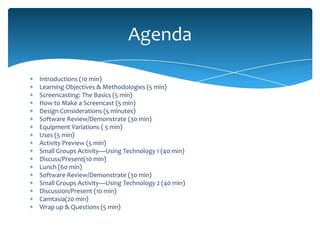
Introductions (10 min)
Learning Objectives & Methodologies (5 min)
Screencasting: The Basics (5 min)
How to Make a Screencast (5 min)
Design Considerations (5 minutes)
Software Review/Demonstrate (30 min)
Equipment Variations ( 5 min)
Uses (5 min)
Activity Preview (5 min)
Small Groups Activity—Using Technology 1 (40 min)
Discuss/Present(10 min)
Lunch (60 min)
Software Review/Demonstrate (30 min)
Small Groups Activity—Using Technology 2 (40 min)
Discussion/Present (10 min)
Camtasia(20 min)
Wrap up & Questions (5 min)
Objectives


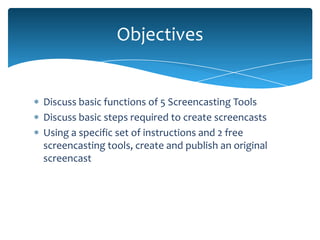
Discuss basic functions of 5 Screencasting Tools
Discuss basic steps required to create screencasts
Using a specific set of instructions and 2 free
screencasting tools, create and publish an original
screencast
Methodology


Combination of Demonstration, Discussion, and
Hands-on Practice/Application
Collaborative & Interactive
Facilitator, not Instructor
Have Fun
Intro


http://www.youtube.com/watch?v=6gmP4nk0EOE
The Basics

Why?
What is this?
What is valuable?
What’s needed?
Essential Tools


PC/Mac/Laptop
Internet Connection
Microphone
Audio/speakers
Java?
Screencasting Software/Subscription/Access
Video camera/Web cam (optional)
4 Essential Steps


Design
Record
Edit/Enhance
Publish
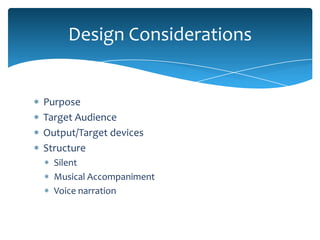
Design Considerations


Purpose
Target Audience
Output/Target devices
Structure
  Silent
  Musical Accompaniment
  Voice narration
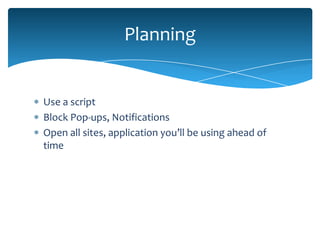
Planning


Use a script
Block Pop-ups, Notifications
Open all sites, application you’ll be using ahead of
time
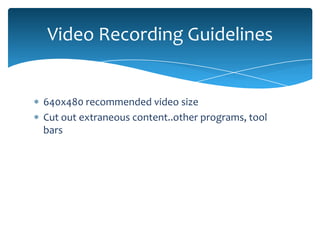
Video Recording Guidelines


640x480 recommended video size
Cut out extraneous content..other programs, tool
bars
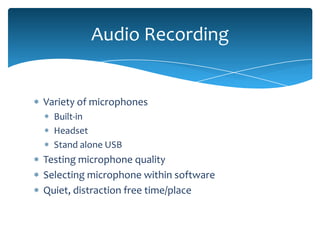
Audio Recording


Variety of microphones
  Built-in
  Headset
  Stand alone USB
Testing microphone quality
Selecting microphone within software
Quiet, distraction free time/place
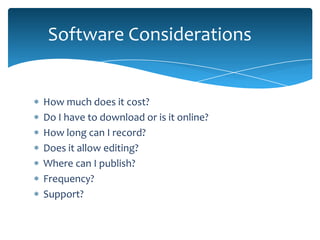
Software Considerations


How much does it cost?
Do I have to download or is it online?
How long can I record?
Does it allow editing?
Where can I publish?
Frequency?
Support?
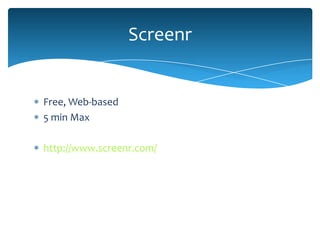
Screenr


Free, Web-based
5 min Max

http://www.screenr.com/
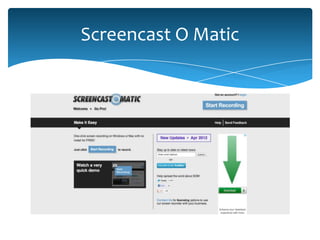
Screencast O Matic
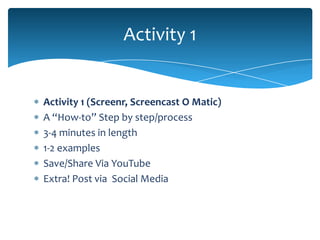
Activity 1


Activity 1 (Screenr, Screencast O Matic)
A “How-to” Step by step/process
3-4 minutes in length
1-2 examples
Save/Share Via YouTube
Extra! Post via Social Media
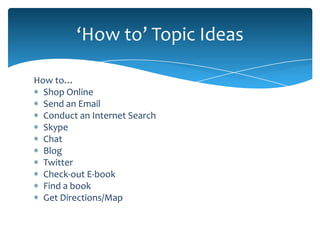
‘How to’ Topic Ideas

How to…
  Shop Online
  Send an Email
  Conduct an Internet Search
  Skype
  Chat
  Blog
  Twitter
  Check-out E-book
  Find a book
  Get Directions/Map
Screencasting Presentations


Quick Discussion
Individual Presentations
Lunch Break
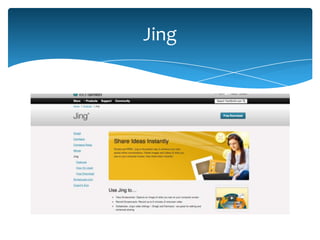
Jing
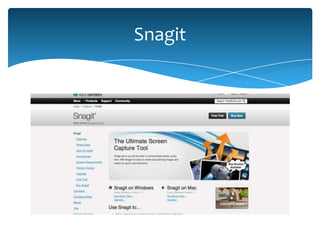
Snagit
Activity 2


Using Jing:
  Topic: ‘How to create a screencast”
  Use shots from 2-3 mediums
  (webpages, document, powerpoint)
  Save/Share Screencast.com
  Email Presentation
  Extra! Post via Social Media
Screencasting Presentations


Quick Discussion
Individual Presentations
Accessibility


Speech to Text Transcription
Import Captioning Files
Create Searchable content
Output Friendly
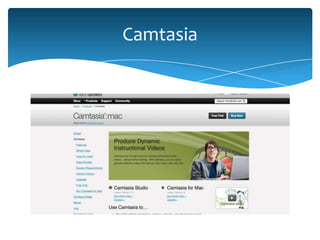
Camtasia
Review


Remember your Audience
Simplify
Keep tutorials short, 3 minutes
Break-up larger content /Sequence
Use a script
Practice, Practice, Practice
Resources


DeSilets L. Administrative angles. Using objectives as a road map. Journal of Continuing Education in
Nursing [serial online]. September 2007;38(5):196-197. Available from: CINAHL Plus with Full
Text, Ipswich, MA. Accessed February 10, 2009.
Kerns S. Technological Tools for Library User Education: One Library's Experience. Medical Reference
Services Quarterly. Fall 2007;26(3):105-114. Available from: Library, Information Science & Technology
Abstracts, Ipswich, MA. Accessed February 10, 2009.
Long H, Culshaw J. How We Used Demonstration Authoring Software to Create Tutorials.
Computers in Libraries [serial online]. September 2005;25:6-8,62-64. Accessed February 10, 2009.
Notess, G. (2005). Casting the Net: Podcasting and Screencasting. Online, 29(6), 43-45.
Roberts, G. (2005). Instructional Technology that's Hip High-Tech. Computers in Libraries, 25(10), 26-
28.
Udell, J. (2005). Secrets of Screencasting. InfoWorld,27(20), 34.
Contact
Andrew Youngkin
University of Maryland, Baltimore
Health Sciences & Human Services Library
NNLM, SE/A, Suite 508
601 West Lombard Street
Baltimore, Maryland 21201
800.338.7657 (in region)
410.706.2855
Email: ayoungki@hshsl.umaryland.edu
Skype: andrew.youngkin1


Blog: http://nnlm.gov/sea/newsletter/
Web: www.nnlm.gov/sea

Screencasting: Creating Online Tutorials

Editor's Notes

  • #2 In addition to pulling upPowerpoint, following need to be accessible:Screenr website http://www.screenr.com Screencast O Matic website http://screencast-o-matic.com/ Jing softwareYoutube siteScreencast.com siteGreg Notess site.. http://www.notess.com/screencasting/software/
  • #3 Sign-in sheetFolders, information packetsContact information
  • #4 Ask participants level of experience, what software has been used, etc. What were experiences?In this class, you will be able to learn about what screencast are, some uses, and take some time to develop or start developing you own—you’ll have the tools at least to create some very useful, funcitonal screencasts…specifically, the class objectives are:
  • #6 Show screencast example right away…something meaningful to me as a personal example along with overview explanation….one of favorite examples..been viewed on Youtube 11 million + times since 2008, so many of you may have seen it, but it’s still relevant and uses screencasting to not only communicate a difficult concept (web 2.0 and the impact it has on humans relationship to information and to each other) but it demonstrates using screencasts to record and share many different web 2.0 concepts—in itself examples of how this technology may be valuable
  • #7 Who has used screencasts before? What software was used? What was the content—how was the presentation used?Benefits: Most software—easy, low/no cost to create web accessible online tutorials, accessible 24/7Creates opportunities to teach by example—often things that are difficult to explain and are better understood/easier to communicate w/demonstration Screencasts allow viewers to go at own pace of materials, pause, repeat as neededApplications include:“Let me show you how” instructionFollow-up step-by-step reference interview/demonstration—follow-up or remoteEspecially helpful for FAQs, knowledge that needs to be reiterated and repeated frequently Narrated slide-show, presentationDistance learning/teachingTele-commuting Requirements: Computer, Browser, Internet Connection, Java?—Recording Device, speakersOnline accounts, software download, software purchase (depending on the software you choose to use)
  • #9 Process:Plan what you’ll be showing/demonstrating Record screen actions and describe the action verbally If option available, edit, enhance, etc.)Publish (Online hosting site such as screencast.com, youtube..or host/publish on a private website)Once ‘published’…share
  • #10 For this class, we will focus on the more involved, with using voice narration
  • #11 Using a script allows for consistent rehearsal, and to focus not only on content, but on tone
  • #12 640x 480 reccomended size…take advantage of some advanced options, if available to specify output on web, CD, mobile site
  • #13 Variety of microphones…stand alone as well as built in…also head sets available, which may be preferred for longer screenscasts providing more consistency as distance of mic to mouth remains same
  • #15 Screenr is the most or one of the more free, quick, easy, to frills, ready to go options…no downloading required…just sign-in, and press record…very easyDiscuss overview of software, walk through steps---show how it works—just do itSign in with Google account…point out also able to sign in with other accounts (don’t necessarily need to sign in to create, but you need to sign in to save, share, publish etc.) Discuss hardware being used..computer, software, mic, cameraPull up logged in account, go through steps—design, record, edit/delete, publishI’ve received a request from a Physicians assistant who would like to do their own search in pubmed, but would like to get a quick tutorial on how a search is doneGreat, I say. When could you be available? Not for a few days—I’m in rotations, seeing patients, can’t get away. No, problem I say. How about I put together a quick screencast tutorial that walks you through the steps and send you a web link to watch?Perfect, he says.What’s the topic?Ok, let’s do a search, but capture it with Screenr so we can email them the link, so they’ll have a basic understanding of how a pubmed search is done. Let’s do it. Great to use to supplement a reference interview.record the reference interview, email the patron afterwardSmall window..use appropriate size..bigger window, more file neededDetect correct microphoneClick red buttom…3..2..1.. Save, Published in Screenr—also can publish on You tube—and directly share to social networks via Twitter and FB Easy, by yourself, free, quick and published on same platform Great to use to supplement a reference interview.record the reference interview, email the patron afterwardNo editing option…but you can pauseHosted at Screener…able to publish to Twitter, FB, point to Url, embedded code for placing into other websites When doing full screen..need to press Alt-D to stop Need to consider audience in terms of what technology they’ll be using to view the file..afullsize screen may not be preferable, appropriate
  • #16 Discuss overview of software, walk through steps---show how it works—just do itSimilar to Screenr..online, basic version is free, 12$ for Pro, Online Java basedLogin: Usrname= ayoungki@hshs.umaryland.eduUp to 15 minutes in lengthAble to place video of speaker into screencast ****Presenter is demonstrating program while teaching**** Able to publish to screen cast o maticOptions to remove audio, webcam, allow user to find, add comments, etc. Screencast o Matic Pro version---editing abilities, resizing, audio, watermark removed.. http://screencast-o-matic.com/gopro Pull up logged in account, go through steps—design, record, edit/delete, publish
  • #17 40 minActivity 1Specific set of instructions/scenerioUses Screenr or Screencast O MaticFocus on Basics, PracticeHost on YouTubeBonus Option—Share on FB or Twitter
  • #19 20 min
  • #21 Discuss overview of software, walk through steps---show how it works—just do itUsername—ayoungki@hshsl.umaryland.eduFrom TechSmith,Free download, quick set-up, registration No editingScreencast.com for hosting/publishing Can also save, upload screencast as flash file to webpage…cannot be uploaded to youtube Bandwidth and Storage limits…account info will show usageScreencast.com Upgrade to Pro—9.99/month or 100.00/year---25GB storage, 200Gb bandwidth Tabs—Details, Share, Email, attachmentsPull up logged in account, go through steps—design, record, edit/delete, publish
  • #22 Discuss overview of software, walk through steps---show how it works—just do itUsername—ayoungki@hshsl.umaryland.edu50.00 for individual account..no editing—need to use camtasia to editAble to combine with youtubeDirect upload to Screencast.com, input into camtasia studio, upload to youtube (set privacy level..private..)You tube allows for addition add-ins…speech bubbles.. can input whole transcripts..think 508 compliance.. You tube option Go to embed code…privacy enhance code..sizes, etcPull up logged in account, go through steps—design, record, edit/delete, publish
  • #23 45 minActivity 2Specific set of instructions/scenerioUse Jing Host Using Screencast.com
  • #24 20 min
  • #25 It’s also important to remember that our audience may include individuals with any number of physical or cognitive disabilities…we want to be sure that we take a few steps to ensure that these individuals are able to participate, experience or use the information within our screencasts. Some guidelines to ensure an accessible screencast include:Camtasia offers features such as speech to text transcription, captioning import, creating searchable content, and creating content intended for specific devices such as iPadScreencast.com offers captioning in it’s Pro version (9.95/mo, 99.95/yr)Screen cast O Matic offers captioning in their standard and pro versions…more automatic while recording with pro version (12.00/yr)
  • #27 Remember audience…who will be using this information, what devices will they be using to view content, what sorts of internet technologies are being used, what software do they have?Simplify…what can be cut out with out the message being kept in tact? Because just like writing an article, or an essay, or other written product, if the language is too verbose, the message will get lost and the point of the screen cast will be lost, so be sure to refine, simplify, condense where possible.