How to use this presentation
This presentation is a tutorial to help guide you through using
Hangouts and its features.

You can view this presentation by pressing F5 and scroll through
by using the link buttons or by using the left and right keys on
your keyboard. (Links and buttons only work in this mode).

Click the button on the top right to go back to the menu slide.

If you have any questions or would like more help using
Hangouts, please contact me at jon@oppsdevelopments.com
Menu

How to use this presentation

What are Hangouts?

Tutorial – Setting up

Tutorial – Basic features

Tutorial – inviting people

Tutorial – Changing settings and using Chat
What are Hangouts?

‘Hangouts’ are places used to facilitate group video chat. There
is a maximum of 10 people participating in a single Hangout at
any point in time, however, anyone on the web could join the
‘Hangout’ if it is made public.
Other features include ‘Screen Share’ which allows the
participants of the chat to view your screen and ‘Youtube’, which
allows all of the participants to watch a Youtube video together.

All participants of a ‘Hangout’ must have a Google+ account. To
find out more about ‘Hangouts’ visit:
www.google.com/+/learnmore/hangouts
1. Using your login details, log on to Google+ www.plus.google.com
2. It will ask you to create an account, fill in your details
3. Click ‘Upgrade’ on the bottom right of the page
4. Click ‘Continue’ until you reach the next page…
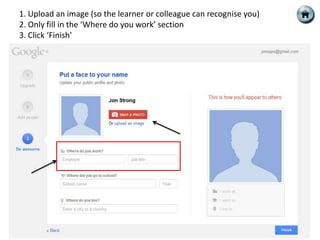
1. Upload an image (so the learner or colleague can recognise you)
2. Only fill in the ‘Where do you work’ section
3. Click ‘Finish’
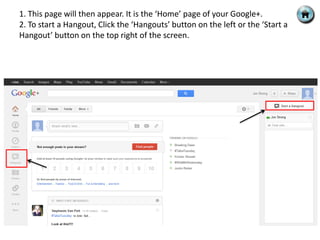
1. This page will then appear. It is the ‘Home’ page of your Google+.
2. To start a Hangout, Click the ‘Hangouts’ button on the left or the ‘Start a
Hangout’ button on the top right of the screen.
1. A page may come up asking you to install a plugin, simply follow the
instructions given to install it until you reach a screen similar to below.
2. Make sure the top box is empty by removing ‘your circles’ (shown below)
3. Name the Hangout. (E.G. [tutor name] CT256 tutorial.)
4. Click Hang out!
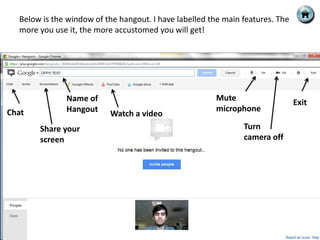
Below is the window of the hangout. I have labelled the main features. The
  more you use it, the more accustomed you will get!


              Name of                                  Mute
                                                                               Exit
Chat          Hangout                                  microphone
                          Watch a video
       Share your                                              Turn
       screen                                                  camera off
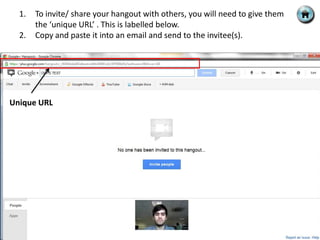
1.   To invite/ share your hangout with others, you will need to give them
       the ‘unique URL’ . This is labelled below.
  2.   Copy and paste it into an email and send to the invitee(s).


Unique URL
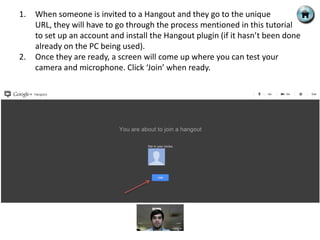
1.   When someone is invited to a Hangout and they go to the unique
     URL, they will have to go through the process mentioned in this tutorial
     to set up an account and install the Hangout plugin (if it hasn’t been done
     already on the PC being used).
2.   Once they are ready, a screen will come up where you can test your
     camera and microphone. Click ‘Join’ when ready.
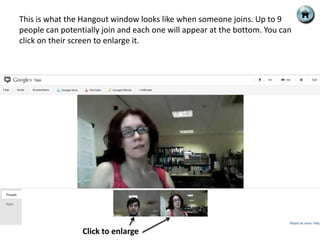
This is what the Hangout window looks like when someone joins. Up to 9
people can potentially join and each one will appear at the bottom. You can
click on their screen to enlarge it.


                 Click to enlarge
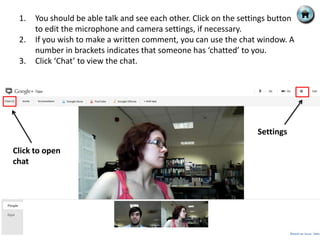
1.   You should be able talk and see each other. Click on the settings button
      to edit the microphone and camera settings, if necessary.
 2.   If you wish to make a written comment, you can use the chat window. A
      number in brackets indicates that someone has ‘chatted’ to you.
 3.   Click ‘Chat’ to view the chat.


                                                                   Settings

Click to open
chat
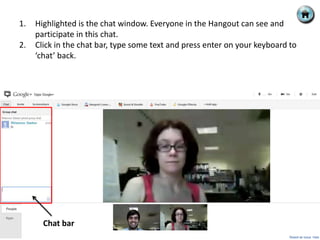
1.   Highlighted is the chat window. Everyone in the Hangout can see and
     participate in this chat.
2.   Click in the chat bar, type some text and press enter on your keyboard to
     ‘chat’ back.


       Chat bar

Google+ Hangouts Tutorial

  • 2.
    How to usethis presentation This presentation is a tutorial to help guide you through using Hangouts and its features. You can view this presentation by pressing F5 and scroll through by using the link buttons or by using the left and right keys on your keyboard. (Links and buttons only work in this mode). Click the button on the top right to go back to the menu slide. If you have any questions or would like more help using Hangouts, please contact me at jon@oppsdevelopments.com
  • 3.
    Menu How to usethis presentation What are Hangouts? Tutorial – Setting up Tutorial – Basic features Tutorial – inviting people Tutorial – Changing settings and using Chat
  • 4.
    What are Hangouts? ‘Hangouts’are places used to facilitate group video chat. There is a maximum of 10 people participating in a single Hangout at any point in time, however, anyone on the web could join the ‘Hangout’ if it is made public. Other features include ‘Screen Share’ which allows the participants of the chat to view your screen and ‘Youtube’, which allows all of the participants to watch a Youtube video together. All participants of a ‘Hangout’ must have a Google+ account. To find out more about ‘Hangouts’ visit: www.google.com/+/learnmore/hangouts
  • 5.
    1. Using yourlogin details, log on to Google+ www.plus.google.com 2. It will ask you to create an account, fill in your details 3. Click ‘Upgrade’ on the bottom right of the page 4. Click ‘Continue’ until you reach the next page…
  • 6.
    1. Upload animage (so the learner or colleague can recognise you) 2. Only fill in the ‘Where do you work’ section 3. Click ‘Finish’
  • 7.
    1. This pagewill then appear. It is the ‘Home’ page of your Google+. 2. To start a Hangout, Click the ‘Hangouts’ button on the left or the ‘Start a Hangout’ button on the top right of the screen.
  • 8.
    1. A pagemay come up asking you to install a plugin, simply follow the instructions given to install it until you reach a screen similar to below. 2. Make sure the top box is empty by removing ‘your circles’ (shown below) 3. Name the Hangout. (E.G. [tutor name] CT256 tutorial.) 4. Click Hang out!
  • 9.
    Below is thewindow of the hangout. I have labelled the main features. The more you use it, the more accustomed you will get! Name of Mute Exit Chat Hangout microphone Watch a video Share your Turn screen camera off
  • 10.
    1. To invite/ share your hangout with others, you will need to give them the ‘unique URL’ . This is labelled below. 2. Copy and paste it into an email and send to the invitee(s). Unique URL
  • 11.
    1. When someone is invited to a Hangout and they go to the unique URL, they will have to go through the process mentioned in this tutorial to set up an account and install the Hangout plugin (if it hasn’t been done already on the PC being used). 2. Once they are ready, a screen will come up where you can test your camera and microphone. Click ‘Join’ when ready.
  • 12.
    This is whatthe Hangout window looks like when someone joins. Up to 9 people can potentially join and each one will appear at the bottom. You can click on their screen to enlarge it. Click to enlarge
  • 13.
    1. You should be able talk and see each other. Click on the settings button to edit the microphone and camera settings, if necessary. 2. If you wish to make a written comment, you can use the chat window. A number in brackets indicates that someone has ‘chatted’ to you. 3. Click ‘Chat’ to view the chat. Settings Click to open chat
  • 14.
    1. Highlighted is the chat window. Everyone in the Hangout can see and participate in this chat. 2. Click in the chat bar, type some text and press enter on your keyboard to ‘chat’ back. Chat bar