Jing:
Developed by TechSmith Corporation, Jing is a computer software program used to share
images or movies with others on the Internet.
Use Jing to :
Take Screenshots: Capture an image of what you see on your computer screen
Record Screencasts: Record up to 5 minutes of onscreen video
This program can be used for education too, by using Jing to record your feedback as you
grade papers, or take a snapshot to share with your class. Your students can even use it to
collaborate, or ask questions!
Jing is available for both Mac OS X and Windows-based computers
I can also use Jing in education.
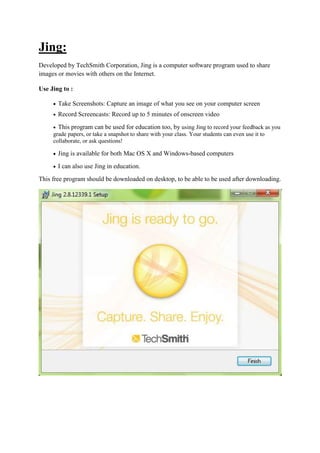
This free program should be downloaded on desktop, to be able to be used after downloading.
Create an account:
If I click on more
details I get:
Than the icon of Jing appear on the top of the screen of my laptop.
Jing has many features:
How to capture an image?
I click capture than I drag on the screen to get the image I want to capture.
Finish
Send
feed
back
Preferences
Help
Exit Jing
Capture
image
Redo capture
Capture
video
Cancel
Size of the image
This is
the
limit of
the
captur
e
These
are the
options
Then I get
Then I choose what I want to add: text, frame… because later I can’t make any changes.
And save.
In history I find all the images and videos I captured.
Arrow
text
Frame
Highlight
s
Tool color
Name of the image
Share Copy
Save Cancel
Customize Jing buttons
I realized that I can’t zoom; the picture loses its quality.
Here I captured a video; I can record up to 5 min of onscreen video.
And it records all the voices around, if I spoke it record my voice in the video.
I can share my images and videos on the internet on screencast.com.
When I take the capture, automatically a folder is created on my pc and the images are also
saved there, so now I have the captured images saved in jing file and in new folder on my
laptop.

Jing

  • 1.
    Jing: Developed by TechSmithCorporation, Jing is a computer software program used to share images or movies with others on the Internet. Use Jing to : Take Screenshots: Capture an image of what you see on your computer screen Record Screencasts: Record up to 5 minutes of onscreen video This program can be used for education too, by using Jing to record your feedback as you grade papers, or take a snapshot to share with your class. Your students can even use it to collaborate, or ask questions! Jing is available for both Mac OS X and Windows-based computers I can also use Jing in education. This free program should be downloaded on desktop, to be able to be used after downloading.
  • 2.
    Create an account: IfI click on more details I get:
  • 3.
    Than the iconof Jing appear on the top of the screen of my laptop. Jing has many features:
  • 4.
    How to capturean image? I click capture than I drag on the screen to get the image I want to capture. Finish Send feed back Preferences Help Exit Jing Capture image Redo capture Capture video Cancel Size of the image This is the limit of the captur e These are the options
  • 5.
    Then I get ThenI choose what I want to add: text, frame… because later I can’t make any changes. And save. In history I find all the images and videos I captured. Arrow text Frame Highlight s Tool color Name of the image Share Copy Save Cancel Customize Jing buttons
  • 6.
    I realized thatI can’t zoom; the picture loses its quality. Here I captured a video; I can record up to 5 min of onscreen video. And it records all the voices around, if I spoke it record my voice in the video. I can share my images and videos on the internet on screencast.com. When I take the capture, automatically a folder is created on my pc and the images are also saved there, so now I have the captured images saved in jing file and in new folder on my laptop.