Screencasting Simmons College Graduate School of Library and Information Science Class of 2011 Reference Assistant Westfield State College Ely Library Patrick Hartsfield
Screencasting: Overview What is it? Why now? What can I do with it? What does a screencast look like? What products are available? What is the process to make one? What are some best practices?
Screencasting: What is it? Basic definition: A video recording of your computer screen Term credited to Jon Udell  “Heavy Metal Umlaut”
Screencasting: Why now? Increased computing power and storage Complementary hardware availability Microphones Webcams Accessible software tools Windows Movie Maker iMovie Flash
Screencasting: Why now? Faster Internet connections Easy-to-use distribution methods Course management systems YouTube Screencast.com
Screencasting: What are the uses? Tutorials Lectures Demos FAQ Problem reporting
Examples Heavy Metal Umlaut ( http://jonudell.net/udell/gems/umlaut/umlaut.html ) Developing a good Research question / thesis statement ( http://hdl.handle.net/1880/46628 )  Linking to Full-Text Articles ( http://www.lib.wsc.ma.edu/tutorials/linkfulltext/linkfulltext.htm )
Screencasting: Programs Windows CamStudio (open source) http://camstudio.org/ Jing/Jing Pro (also for Mac) http://www.jingproject.com/ Captivate http://www.adobe.com/products/captivate/ Camtasia Studio http://www.techsmith.com/camtasia.asp
Screencasting: Programs Mac IShowU http://store.shinywhitebox.com/home/home.html Snapz Pro X http://www.ambrosiasw.com/utilities/snapzprox/ ScreenFlow http://www.telestream.net/screen-flow/overview.htm
Screencasting: The Process Seven basic steps Dry run Storyboard Script Record the video Record the audio Edit Distribute
Screencasting: The Process Dry Run Capture the task without audio, but… Talk through what you’re doing Storyboard Watch the dry run and break it into scenes Scenes should be short and focus on one task
Screencasting: The Process Script Write a script for each scene Read it aloud for timing Re-record the video No audio yet Do it all in one take or break it up by scene or group of scenes Multiple takes allows for later editing
Screencasting: The Process Record the audio Watch the video while recording Use either the screencasting software or another audio recording program Audacity (http://audacity.sourceforge.net/) If using a separate program, import the results into the screencasting program
Screencasting: The Process Put it all together Find the best takes and combine them using the editor of your choice Camtasia iMovie Movie Maker Export the results Flash QuickTime mp4
Screencasting: The Process Distribute it Course management system Departmental web site Screencast.com YouTube
Screencasting: Best Practices Brevity Tutorials should be 2-3 minutes long Break longer presentation into more manageable chunks Be methodical Stay focused on the topic Avoid extraneous movements Speak clearly and at a comfortable pace
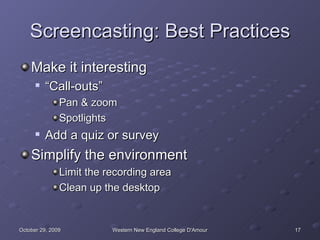
Screencasting: Best Practices Make it interesting “Call-outs” Pan & zoom Spotlights Add a quiz or survey Simplify the environment Limit the recording area Clean up the desktop
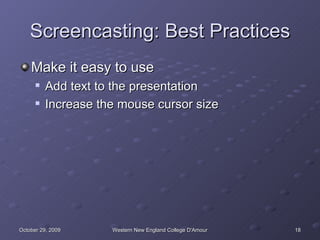
Screencasting: Best Practices Make it easy to use Add text to the presentation Increase the mouse cursor size
Thank You http://www.lolcats.com/view/28759

Screencasting

  • 1.
    Screencasting Simmons CollegeGraduate School of Library and Information Science Class of 2011 Reference Assistant Westfield State College Ely Library Patrick Hartsfield
  • 2.
    Screencasting: Overview Whatis it? Why now? What can I do with it? What does a screencast look like? What products are available? What is the process to make one? What are some best practices?
  • 3.
    Screencasting: What isit? Basic definition: A video recording of your computer screen Term credited to Jon Udell “Heavy Metal Umlaut”
  • 4.
    Screencasting: Why now?Increased computing power and storage Complementary hardware availability Microphones Webcams Accessible software tools Windows Movie Maker iMovie Flash
  • 5.
    Screencasting: Why now?Faster Internet connections Easy-to-use distribution methods Course management systems YouTube Screencast.com
  • 6.
    Screencasting: What arethe uses? Tutorials Lectures Demos FAQ Problem reporting
  • 7.
    Examples Heavy MetalUmlaut ( http://jonudell.net/udell/gems/umlaut/umlaut.html ) Developing a good Research question / thesis statement ( http://hdl.handle.net/1880/46628 ) Linking to Full-Text Articles ( http://www.lib.wsc.ma.edu/tutorials/linkfulltext/linkfulltext.htm )
  • 8.
    Screencasting: Programs WindowsCamStudio (open source) http://camstudio.org/ Jing/Jing Pro (also for Mac) http://www.jingproject.com/ Captivate http://www.adobe.com/products/captivate/ Camtasia Studio http://www.techsmith.com/camtasia.asp
  • 9.
    Screencasting: Programs MacIShowU http://store.shinywhitebox.com/home/home.html Snapz Pro X http://www.ambrosiasw.com/utilities/snapzprox/ ScreenFlow http://www.telestream.net/screen-flow/overview.htm
  • 10.
    Screencasting: The ProcessSeven basic steps Dry run Storyboard Script Record the video Record the audio Edit Distribute
  • 11.
    Screencasting: The ProcessDry Run Capture the task without audio, but… Talk through what you’re doing Storyboard Watch the dry run and break it into scenes Scenes should be short and focus on one task
  • 12.
    Screencasting: The ProcessScript Write a script for each scene Read it aloud for timing Re-record the video No audio yet Do it all in one take or break it up by scene or group of scenes Multiple takes allows for later editing
  • 13.
    Screencasting: The ProcessRecord the audio Watch the video while recording Use either the screencasting software or another audio recording program Audacity (http://audacity.sourceforge.net/) If using a separate program, import the results into the screencasting program
  • 14.
    Screencasting: The ProcessPut it all together Find the best takes and combine them using the editor of your choice Camtasia iMovie Movie Maker Export the results Flash QuickTime mp4
  • 15.
    Screencasting: The ProcessDistribute it Course management system Departmental web site Screencast.com YouTube
  • 16.
    Screencasting: Best PracticesBrevity Tutorials should be 2-3 minutes long Break longer presentation into more manageable chunks Be methodical Stay focused on the topic Avoid extraneous movements Speak clearly and at a comfortable pace
  • 17.
    Screencasting: Best PracticesMake it interesting “Call-outs” Pan & zoom Spotlights Add a quiz or survey Simplify the environment Limit the recording area Clean up the desktop
  • 18.
    Screencasting: Best PracticesMake it easy to use Add text to the presentation Increase the mouse cursor size
  • 19.