Blackboard Collaborate
DIGITAL LITERACY & PROFESSIONALISM
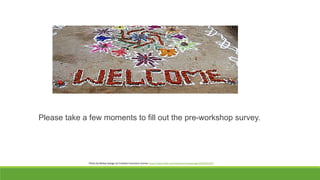
Please take a few moments to fill out the pre-workshop survey.
Photo by McKay Savage via Creative Commons License https://www.flickr.com/photos/mckaysavage/2225262197/
Web Conferencing
What is web conferencing?
How is it used for meetings and professional
development?
How is web conferencing used in eLearning
How to access Blackboard Collaborate at BTC
How to be a participant
Participate in a web conference
What is Web Conferencing?
Also called webinar software
Other types: WebEX
Live video connection between two or more locations for
communication or interaction
Needs a computer, headset or speakers, microphone, and
plug-ins
Can be used for small or large groups, meetings, or classes
What does Collaborate include?
Web conferencing
Whiteboard
Chat
Application sharing
Web tour
File sharing
Live Video
File sharing
Mobile access
Telephony (Coming soon)
Meetings and Professional Development Use
Small or large meetings or seminars
View material (usually PowerPoint) or collaborate on
documents
Easy to record and send links to the recording
Can use chat or the microphone for comments
If a large meeting or class, it helps the leader to have a
moderator
How is it used in eLearning at BTC
 Radiologic Technology used it with videoconferencing.
(Transitioned to Blackboard Collaborate only)
• Group projects and presentations
• Online office hours
How to access Blackboard Collaborate at BTC
Before the meeting time, a
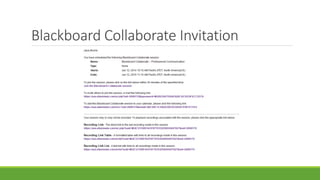
meeting link is sent via email
Test your computer and update
software or plug-ins before the
meeting
Click on link at least 15 minutes
before the conference starts
On Canvas, sign in to your
course, then look for the
Blackboard Collaborate Link on
the left (or directions from your
instructor).
https://btc.instructure.com/
Blackboard Collaborate Invitation
How to be a Participant
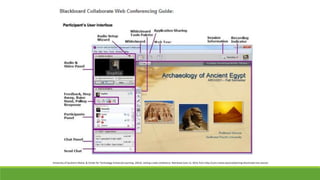
When logging in give both name and school
Run the Audio Set-up Wizard
Best to use a headset with a microphone instead of speakers and a
separate microphone
Often there is feedback with a speaker/microphone set-up
Mute your microphone when not speaking
Raise your hand when you want to speak
How to be a Participant (continued)
There can be a delay between speaking and hearing because of
network traffic
When there is a network delay resulting in a long pause, the voice
will speed up and sound like Donald Duck
Participate when asked to answer a poll or vote
Large conferences sometimes only allow written questions in the
chat box
Smaller meetings are more likely to use the microphone
University of Southern Maine, & Center for Technology Enhanced Learning. (2014). Joining a web conference. Retrieved June 12, 2014, from http://usm.maine.edu/ctel/joining-elluminate-live-session
Questions?
Let’s Practice
Please complete the post-workshop survey before you go.
Photo by David Feng via Creative Commons License https://www.flickr.com/photos/fenng/4134953185/

Collaborate Digital Literacy Workshop

  • 1.
  • 2.
    Please take afew moments to fill out the pre-workshop survey. Photo by McKay Savage via Creative Commons License https://www.flickr.com/photos/mckaysavage/2225262197/
  • 3.
    Web Conferencing What isweb conferencing? How is it used for meetings and professional development? How is web conferencing used in eLearning How to access Blackboard Collaborate at BTC How to be a participant Participate in a web conference
  • 4.
    What is WebConferencing? Also called webinar software Other types: WebEX Live video connection between two or more locations for communication or interaction Needs a computer, headset or speakers, microphone, and plug-ins Can be used for small or large groups, meetings, or classes
  • 5.
    What does Collaborateinclude? Web conferencing Whiteboard Chat Application sharing Web tour File sharing Live Video File sharing Mobile access Telephony (Coming soon)
  • 6.
    Meetings and ProfessionalDevelopment Use Small or large meetings or seminars View material (usually PowerPoint) or collaborate on documents Easy to record and send links to the recording Can use chat or the microphone for comments If a large meeting or class, it helps the leader to have a moderator
  • 7.
    How is itused in eLearning at BTC  Radiologic Technology used it with videoconferencing. (Transitioned to Blackboard Collaborate only) • Group projects and presentations • Online office hours
  • 8.
    How to accessBlackboard Collaborate at BTC Before the meeting time, a meeting link is sent via email Test your computer and update software or plug-ins before the meeting Click on link at least 15 minutes before the conference starts On Canvas, sign in to your course, then look for the Blackboard Collaborate Link on the left (or directions from your instructor). https://btc.instructure.com/
  • 9.
  • 10.
    How to bea Participant When logging in give both name and school Run the Audio Set-up Wizard Best to use a headset with a microphone instead of speakers and a separate microphone Often there is feedback with a speaker/microphone set-up Mute your microphone when not speaking Raise your hand when you want to speak
  • 11.
    How to bea Participant (continued) There can be a delay between speaking and hearing because of network traffic When there is a network delay resulting in a long pause, the voice will speed up and sound like Donald Duck Participate when asked to answer a poll or vote Large conferences sometimes only allow written questions in the chat box Smaller meetings are more likely to use the microphone
  • 12.
    University of SouthernMaine, & Center for Technology Enhanced Learning. (2014). Joining a web conference. Retrieved June 12, 2014, from http://usm.maine.edu/ctel/joining-elluminate-live-session
  • 13.
  • 14.
  • 15.
    Please complete thepost-workshop survey before you go. Photo by David Feng via Creative Commons License https://www.flickr.com/photos/fenng/4134953185/