
Technology in Training Trainers:   David Lisa Scherelene Schatz Karen Vaias
Review of Previous Lessons
Lesson Overview In this lesson we will cover:  Choosing the right technology for your particular training need New technology tools Giving old tools new purpose
Objectives By the end of this lesson you will be able to: Maximize the effectiveness of technology in training. Incorporate new technologies into your training. Employ technology in lab situations and remotely.
Why use technology in training? Cheaper (no travel costs/time) Convenient Formats appeal to different learning styles: Audio/ Visual Hands-on Written
Don’t use technology if… It doesn’t enhance learning. Students are not receptive to technology. Setting is not technology friendly.
Using Technology in the Classroom
What is PowerPoint? Presentation Software Slideshows Classroom presentations Display Text, graphs, tables & charts Other images
When to use PowerPoint Large groups Auditoriums Demonstrations Screenshots & Graphics Graphic representations of data Charts, graphs & diagrams
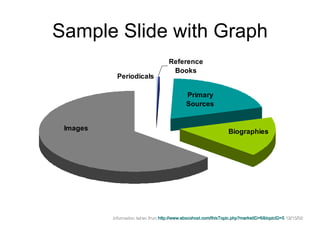
Sample Slide with Graph Information taken from  http://www.ebscohost.com/thisTopic.php?marketID=6&topicID=5  12/15/08
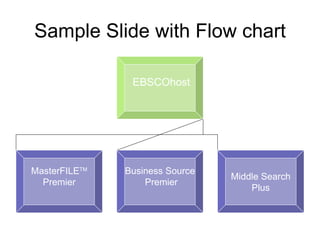
Sample Slide with Flow chart EBSCOhost MasterFILE TM Premier Business Source Premier Middle Search Plus
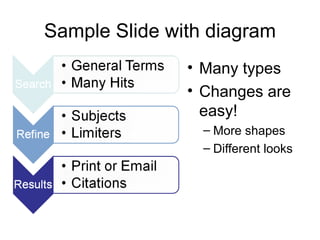
Sample Slide with diagram Many types Changes are easy! More shapes Different looks
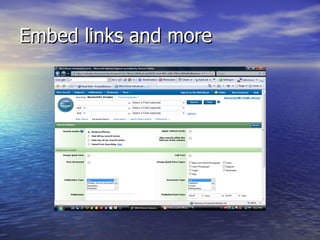
Embed links and more
And now for a little  bad  PowerPoint…
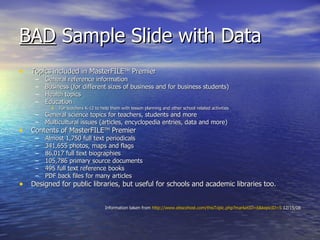
BAD  Sample Slide with Data Topics included in MasterFILE TM  Premier General reference information Business (for different sizes of business and for business students) Health topics Education  For teachers K-12 to help them with lesson planning and other school related activities General science topics for teachers, students and more Multicultural issues (articles, encyclopedia entries, data and more) Contents of MasterFILE TM  Premier Almost 1,750 full text periodicals 341,655 photos, maps and flags 86,017 full text biographies 105,786 primary source documents 495 full text reference books PDF back files for many articles Designed for public libraries, but useful for schools and academic libraries too. Information taken from  http://www.ebscohost.com/thisTopic.php?marketID=6&topicID=5  12/15/08
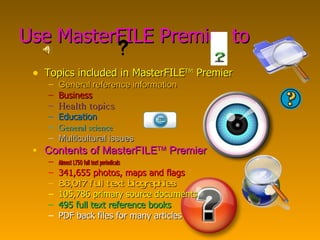
Use MasterFILE Premier to Topics included in MasterFILE TM  Premier General reference information Business Health topics Education  General science Multicultural issues Contents of MasterFILE TM  Premier Almost 1,750 full text periodicals 341,655 photos, maps and flags 86,017 full text biographies 105,786 primary source documents 495 full text reference books PDF back files for many articles
Tips and Tricks Organize first Use PowerPoint to Reinforce major points Supplement your presentation Provide visual support Practice!
Tips and Tricks Use 6x6 rule for text: 6 words per line 6 lines per slide Keep it simple! 2-3 colors Use Clip Art judiciously
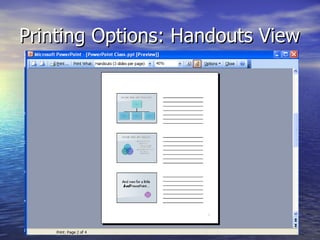
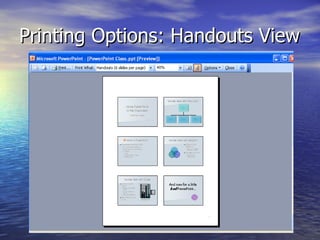
Printing Options: Handouts View
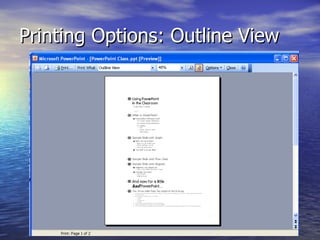
Printing Options: Outline View
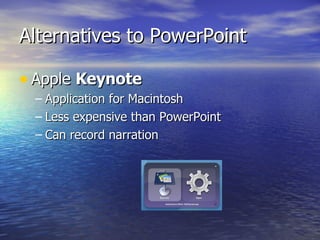
Alternatives to PowerPoint Apple  Keynote Application for Macintosh Less expensive than PowerPoint Can record narration
Alternatives to PowerPoint Open Office  Impress Free! Very similar to PowerPoint Download Open Office Suite to computer Few bells & whistles
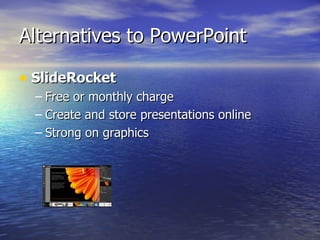
Alternatives to PowerPoint SlideRocket   Free or monthly charge Create and store presentations online Strong on graphics
Alternatives to PowerPoint Google  Presentation Free! Easy to use Features are limited Presentations stored online
Alternatives to PowerPoint Zoho  Show Free! Can be slow Features are limited Presentations stored online
Evaluating your Training Site
Consider the following when training: Equipment Environment Access Visibility
Consider the following when training: What ifs:  Equipment failure Connectivity problems Compatibility issues Plan backups!
Think about your audience How many? How old? Cultural considerations Physical limitations Interest in topic
What is a webinar? Web based, interactive presentation, lecture, or workshop transmitted via the internet.  Involve three methods of communication Phone online presentation chat window
Advantages of Webinars Cost effective Convenient Flexible High-touch, interactive experience
Advantages of Webinars Slides you can see while the speaker is talking  Ability to ask questions of the speaker  Ability of the speaker to ask questions of the audience to assure comprehension  Survey at the end of the presentation for feedback to improve your presentation
How are webinars used? Present information to a geographically dispersed audience Interact via a live discussion between an organizer and audience members
Webinar Software Vendors iLinc Citrix – GoToWebinar Webex Microsoft Office Live Meeting
 
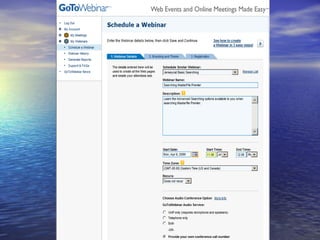
Setting Up a Webinar Know the dates and times Toll-free number for participants Set up the software to accommodate  Set up registration form and  e-mail messages
 
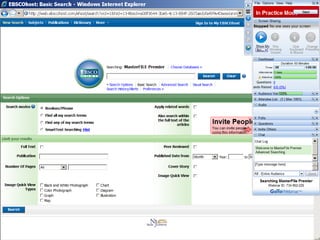
Leading the Session Presenter can see the list of  participants Participants see what is on presenter’s screen Polling questions make the presentation interactive
Leading the Session Survey evaluation is sent automatically Presenter receives statistical reports
Using Screencasting to Create Tutorials and Remote Learning Tools
What is Screencasting? Creating a digital presentation using computer screens combined with narration. Personalizing presentations Narration Manipulation of screens Live interaction with screens (ie. Websites, PowerPoint presentations)
Camtasia Sample Tutorial Video
Screencasting Advantages Interaction involves the learner. Cause and effect demonstration. Screencast can be repeated to learn the concept.
Screencasting Advantages Screencasts can be posted on web sites. Screencasting formats are very popular.
Screencasting Essentials Personal Computer Software Camtasia Studio Headset with microphone Screen content Web sites (Internet connection) PowerPoint presentation Graphics
Screencasting Essentials Site to house video tutorial Independent web site YouTube Screencast.com (Show Screencast.com opening video from website)
Time for a demonstration of Camtasia!
Resources Screencast.com Post your creations and share with others. Camtasia Studio 6 Techsmith.com CamStudio (Open Source) Camstudio.org David Lisa [email_address]
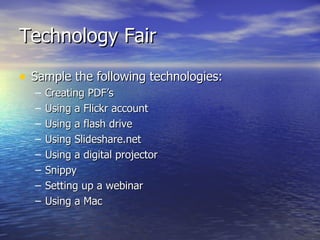
Technology Fair Sample the following technologies: Creating PDF’s Using a Flickr account Using a flash drive Using Slideshare.net Using a digital projector Snippy Setting up a webinar Using a Mac
Time for an Exercise
Discussion: Some Possible Uses for Technology in Your Lessons
Summary You learned how to use technology in training. You were exposed to technology you might not have used before. You learned about technology as used in labs and remotely.
Coming up next… 5:30 – 6:30 p.m. - Dinner 7:00 – 8:30 p.m. – Steve Garwood Technology Presentation

Ttt Techfinal

  • 1.
    Technology in TrainingTrainers: David Lisa Scherelene Schatz Karen Vaias
  • 2.
  • 3.
    Lesson Overview Inthis lesson we will cover: Choosing the right technology for your particular training need New technology tools Giving old tools new purpose
  • 4.
    Objectives By theend of this lesson you will be able to: Maximize the effectiveness of technology in training. Incorporate new technologies into your training. Employ technology in lab situations and remotely.
  • 5.
    Why use technologyin training? Cheaper (no travel costs/time) Convenient Formats appeal to different learning styles: Audio/ Visual Hands-on Written
  • 6.
    Don’t use technologyif… It doesn’t enhance learning. Students are not receptive to technology. Setting is not technology friendly.
  • 7.
    Using Technology inthe Classroom
  • 8.
    What is PowerPoint?Presentation Software Slideshows Classroom presentations Display Text, graphs, tables & charts Other images
  • 9.
    When to usePowerPoint Large groups Auditoriums Demonstrations Screenshots & Graphics Graphic representations of data Charts, graphs & diagrams
  • 10.
    Sample Slide withGraph Information taken from http://www.ebscohost.com/thisTopic.php?marketID=6&topicID=5 12/15/08
  • 11.
    Sample Slide withFlow chart EBSCOhost MasterFILE TM Premier Business Source Premier Middle Search Plus
  • 12.
    Sample Slide withdiagram Many types Changes are easy! More shapes Different looks
  • 13.
  • 14.
    And now fora little bad PowerPoint…
  • 15.
    BAD SampleSlide with Data Topics included in MasterFILE TM Premier General reference information Business (for different sizes of business and for business students) Health topics Education For teachers K-12 to help them with lesson planning and other school related activities General science topics for teachers, students and more Multicultural issues (articles, encyclopedia entries, data and more) Contents of MasterFILE TM Premier Almost 1,750 full text periodicals 341,655 photos, maps and flags 86,017 full text biographies 105,786 primary source documents 495 full text reference books PDF back files for many articles Designed for public libraries, but useful for schools and academic libraries too. Information taken from http://www.ebscohost.com/thisTopic.php?marketID=6&topicID=5 12/15/08
  • 16.
    Use MasterFILE Premierto Topics included in MasterFILE TM Premier General reference information Business Health topics Education General science Multicultural issues Contents of MasterFILE TM Premier Almost 1,750 full text periodicals 341,655 photos, maps and flags 86,017 full text biographies 105,786 primary source documents 495 full text reference books PDF back files for many articles
  • 17.
    Tips and TricksOrganize first Use PowerPoint to Reinforce major points Supplement your presentation Provide visual support Practice!
  • 18.
    Tips and TricksUse 6x6 rule for text: 6 words per line 6 lines per slide Keep it simple! 2-3 colors Use Clip Art judiciously
  • 19.
  • 20.
  • 21.
  • 22.
    Alternatives to PowerPointApple Keynote Application for Macintosh Less expensive than PowerPoint Can record narration
  • 23.
    Alternatives to PowerPointOpen Office Impress Free! Very similar to PowerPoint Download Open Office Suite to computer Few bells & whistles
  • 24.
    Alternatives to PowerPointSlideRocket Free or monthly charge Create and store presentations online Strong on graphics
  • 25.
    Alternatives to PowerPointGoogle Presentation Free! Easy to use Features are limited Presentations stored online
  • 26.
    Alternatives to PowerPointZoho Show Free! Can be slow Features are limited Presentations stored online
  • 27.
  • 28.
    Consider the followingwhen training: Equipment Environment Access Visibility
  • 29.
    Consider the followingwhen training: What ifs: Equipment failure Connectivity problems Compatibility issues Plan backups!
  • 30.
    Think about youraudience How many? How old? Cultural considerations Physical limitations Interest in topic
  • 31.
    What is awebinar? Web based, interactive presentation, lecture, or workshop transmitted via the internet. Involve three methods of communication Phone online presentation chat window
  • 32.
    Advantages of WebinarsCost effective Convenient Flexible High-touch, interactive experience
  • 33.
    Advantages of WebinarsSlides you can see while the speaker is talking Ability to ask questions of the speaker Ability of the speaker to ask questions of the audience to assure comprehension Survey at the end of the presentation for feedback to improve your presentation
  • 34.
    How are webinarsused? Present information to a geographically dispersed audience Interact via a live discussion between an organizer and audience members
  • 35.
    Webinar Software VendorsiLinc Citrix – GoToWebinar Webex Microsoft Office Live Meeting
  • 36.
  • 37.
    Setting Up aWebinar Know the dates and times Toll-free number for participants Set up the software to accommodate Set up registration form and e-mail messages
  • 38.
  • 39.
    Leading the SessionPresenter can see the list of participants Participants see what is on presenter’s screen Polling questions make the presentation interactive
  • 40.
    Leading the SessionSurvey evaluation is sent automatically Presenter receives statistical reports
  • 41.
    Using Screencasting toCreate Tutorials and Remote Learning Tools
  • 42.
    What is Screencasting?Creating a digital presentation using computer screens combined with narration. Personalizing presentations Narration Manipulation of screens Live interaction with screens (ie. Websites, PowerPoint presentations)
  • 43.
  • 44.
    Screencasting Advantages Interactioninvolves the learner. Cause and effect demonstration. Screencast can be repeated to learn the concept.
  • 45.
    Screencasting Advantages Screencastscan be posted on web sites. Screencasting formats are very popular.
  • 46.
    Screencasting Essentials PersonalComputer Software Camtasia Studio Headset with microphone Screen content Web sites (Internet connection) PowerPoint presentation Graphics
  • 47.
    Screencasting Essentials Siteto house video tutorial Independent web site YouTube Screencast.com (Show Screencast.com opening video from website)
  • 48.
    Time for ademonstration of Camtasia!
  • 49.
    Resources Screencast.com Postyour creations and share with others. Camtasia Studio 6 Techsmith.com CamStudio (Open Source) Camstudio.org David Lisa [email_address]
  • 50.
    Technology Fair Samplethe following technologies: Creating PDF’s Using a Flickr account Using a flash drive Using Slideshare.net Using a digital projector Snippy Setting up a webinar Using a Mac
  • 51.
    Time for anExercise
  • 52.
    Discussion: Some PossibleUses for Technology in Your Lessons
  • 53.
    Summary You learnedhow to use technology in training. You were exposed to technology you might not have used before. You learned about technology as used in labs and remotely.
  • 54.
    Coming up next…5:30 – 6:30 p.m. - Dinner 7:00 – 8:30 p.m. – Steve Garwood Technology Presentation