Creating “How-To” Tutorials Tips for Screencasting
Different Kinds of Screencasts “ How-To” – short “just-in-time” tutorials Quick “how-to” response to a specific request Done in just a few minutes (with practice or on the fly) Simple software or online capture tool (Jing, Screenjelly, Screencast-o-matic  online or download CamStudio.org) Little editing – quick callouts/captions More in Depth for Teaching or Training  Require more planning and time Full-featured software (Camtasia Studio  - more professional software) May include more special effects Some interactivity or quizzes
Storyboarding is Important! Sketch out the major scenes/script Saves time later with less “do-overs” Plan ahead for mouse clicks, what to say, what to skip Plan where to bring in title slides, still shots, webcam images, arrows or callouts, zoom in and pan Several storyboarding templates online available for download – see 21Things4Students Resources Be creative – use blank PowerPoint slides or Google Docs presentation slides and print as handout for your notes, or even use Post-Its  for quickly mapping out script/storyboard
What makes a  bad  screencast? Zooming around too much – distracting! Pointer not controlled – all over the place Moving or speaking too fast Mumbling or sounding bored  - put a smile in your voice! TMI (too much information) Overuse of webcam – show what they need to see Website being shown is not easy to navigate Not enough narration for clarity
What makes a  good  screencast? Focus on one specific task only – don’t get sidetracked Speak clearly Use a pleasant voice Good view of website Zoom  Be yourself Humor is okay Repetition – show them more than once to review Highlight pointer or callouts
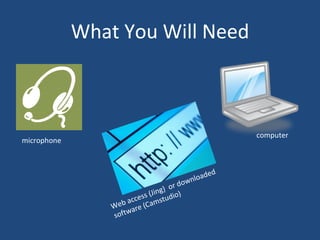
What You Will Need microphone computer Web access (Jing)  or downloaded software (Camstudio)
Practice  First Remember to unmute microphone Slow down  Pay attention to screen size (not too big) Use “Pause” button to re-collect thoughts Practice – a dry run Save project for editing/future use

21Things4Students - Tips for Creating a Screencast

  • 1.
    Creating “How-To” TutorialsTips for Screencasting
  • 2.
    Different Kinds ofScreencasts “ How-To” – short “just-in-time” tutorials Quick “how-to” response to a specific request Done in just a few minutes (with practice or on the fly) Simple software or online capture tool (Jing, Screenjelly, Screencast-o-matic online or download CamStudio.org) Little editing – quick callouts/captions More in Depth for Teaching or Training Require more planning and time Full-featured software (Camtasia Studio - more professional software) May include more special effects Some interactivity or quizzes
  • 3.
    Storyboarding is Important!Sketch out the major scenes/script Saves time later with less “do-overs” Plan ahead for mouse clicks, what to say, what to skip Plan where to bring in title slides, still shots, webcam images, arrows or callouts, zoom in and pan Several storyboarding templates online available for download – see 21Things4Students Resources Be creative – use blank PowerPoint slides or Google Docs presentation slides and print as handout for your notes, or even use Post-Its for quickly mapping out script/storyboard
  • 4.
    What makes a bad screencast? Zooming around too much – distracting! Pointer not controlled – all over the place Moving or speaking too fast Mumbling or sounding bored - put a smile in your voice! TMI (too much information) Overuse of webcam – show what they need to see Website being shown is not easy to navigate Not enough narration for clarity
  • 5.
    What makes a good screencast? Focus on one specific task only – don’t get sidetracked Speak clearly Use a pleasant voice Good view of website Zoom Be yourself Humor is okay Repetition – show them more than once to review Highlight pointer or callouts
  • 6.
    What You WillNeed microphone computer Web access (Jing) or downloaded software (Camstudio)
  • 7.
    Practice FirstRemember to unmute microphone Slow down Pay attention to screen size (not too big) Use “Pause” button to re-collect thoughts Practice – a dry run Save project for editing/future use