Amy Chase Martin
Towson University
“The content of instruction should
address the same concepts with all
students, but the degree of complexity
should be adjusted to suit diverse
learners.”
Hall, T., Strangman, N., & Meyer, A. (2003). Differentiated instruction and implications for UDL
implementation. Wakefield, MA: National Center on Accessing the General Curriculum.
Retrieved October 2, 2009 from
http://www.cast.org/publications/ncac/ncac_diffinstructudl.html
 Review Worksheet/Chapter
 Collaborative Jigsaw activity
 Reflection activity
 No-tech, low-tech and high tech options
 Myth or Fact about Technology Use
 Sample Technologies
◦ Digital Stories
◦ Podcasts
◦ Promethean Boards
 Form teams of 3 or 4
 You will be given an activity and a role
 Do the activity
 Discuss what you observed/learned through
the activity
 How could technology address some of your
challenges?
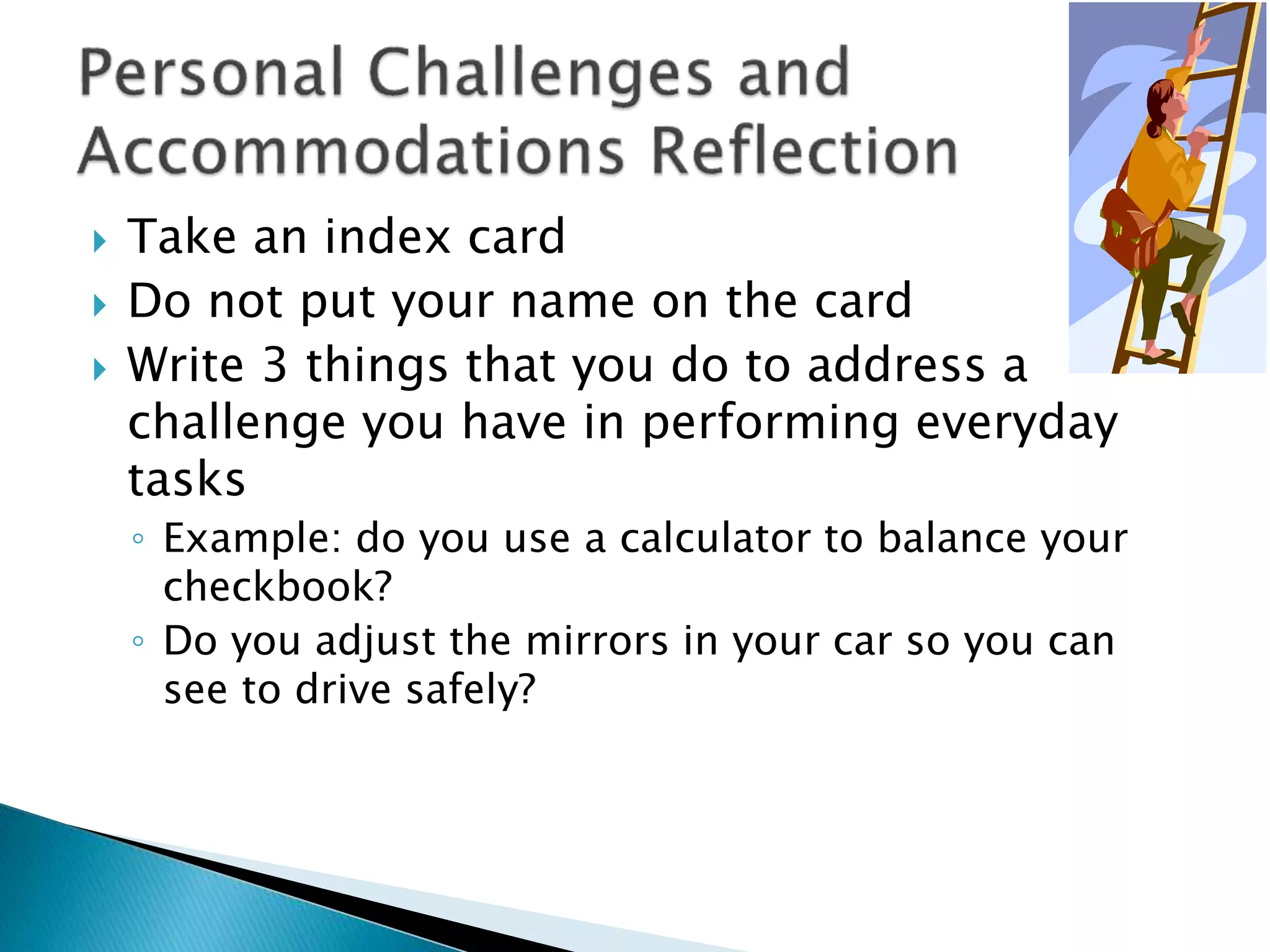
 Take an index card
 Do not put your name on the card
 Write 3 things that you do to address a
challenge you have in performing everyday
tasks
◦ Example: do you use a calculator to balance your
checkbook?
◦ Do you adjust the mirrors in your car so you can
see to drive safely?
 No-tech?
 Low-tech?
 High-tech?
Nice Job!
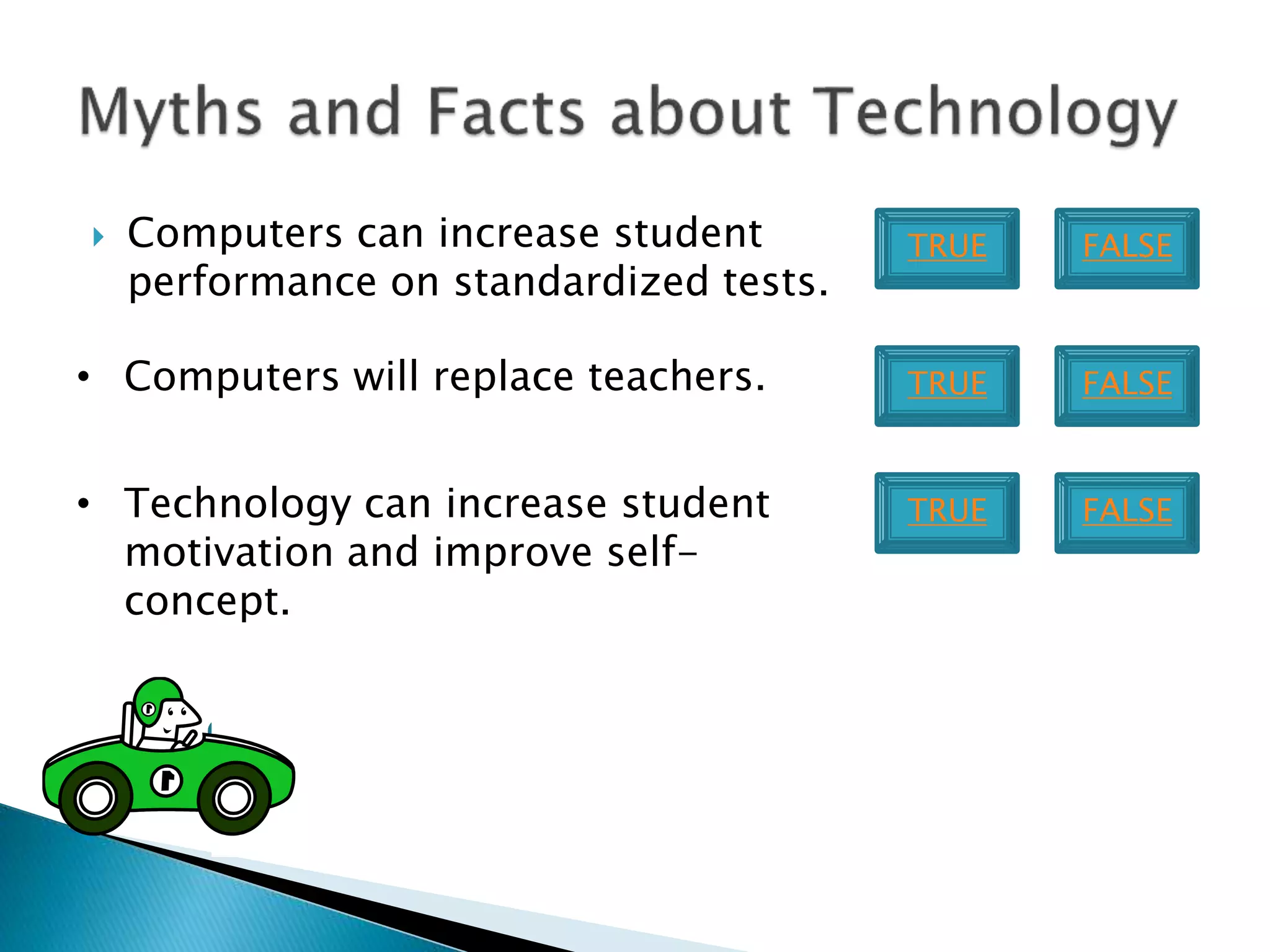
 Computers can increase student
performance on standardized tests.
• Computers will replace teachers.
• Technology can increase student
motivation and improve self-
concept.
TRUE FALSE
TRUE FALSE
TRUE FALSE
 Motion Paths in PowerPoint
 Playing a YouTube video in PowerPoint 2007
1. Focus on Function
◦ Consider what the student may want or need to do that he
or she currently cannot do.
2. Think in General Terms
◦ Select devices to purchase by considering who, when,
where, why and how aspects of the technology . This can
help the user find a product that meets many needs
instead of just a specific need.
3. Strive for Simplicity
◦ This reduces maintenance and repair costs. Simple
solutions are often easier to use and, therefore, will be
used such as a device to help a studentbutton his ownshirt.
Adapted from Pierce, K. (2008). Overview: How to choose appropriate
adaptive technology. Retrieved October 2, 2009 from
http://www.esight.org/view.cfm?x=151&room=n0j&id=0
 Voting devices
 Pictures
 Auditory messages
 Text messages
 Free!
 Compatible on either Windows XP or Vista
machines
 Can be used with or without audio
 Can be used with or without text
 Can be employed for student and/or teacher
use to create media
 Sample – High School Math
 Sample – Making Sushi
 Using pre-selected resources, we will
collaborate on creating a simple movie to
teach children about where we expect to find
water.
 Associated Resources
 http://www.towson.edu/adminfinance/ots/Training/documentation/MovieMaker/Movie
Maker_Basics.pdf
 Free to do using Audacity
 Export as mp3 files to play on iPods and
other portable devices
 Create original recordings to include in
PowerPoint and MovieMaker projects
 Import free, copyright-free music to
incorporate in file
Resource
 Download page for Audacity
 Download page for LAME encoder
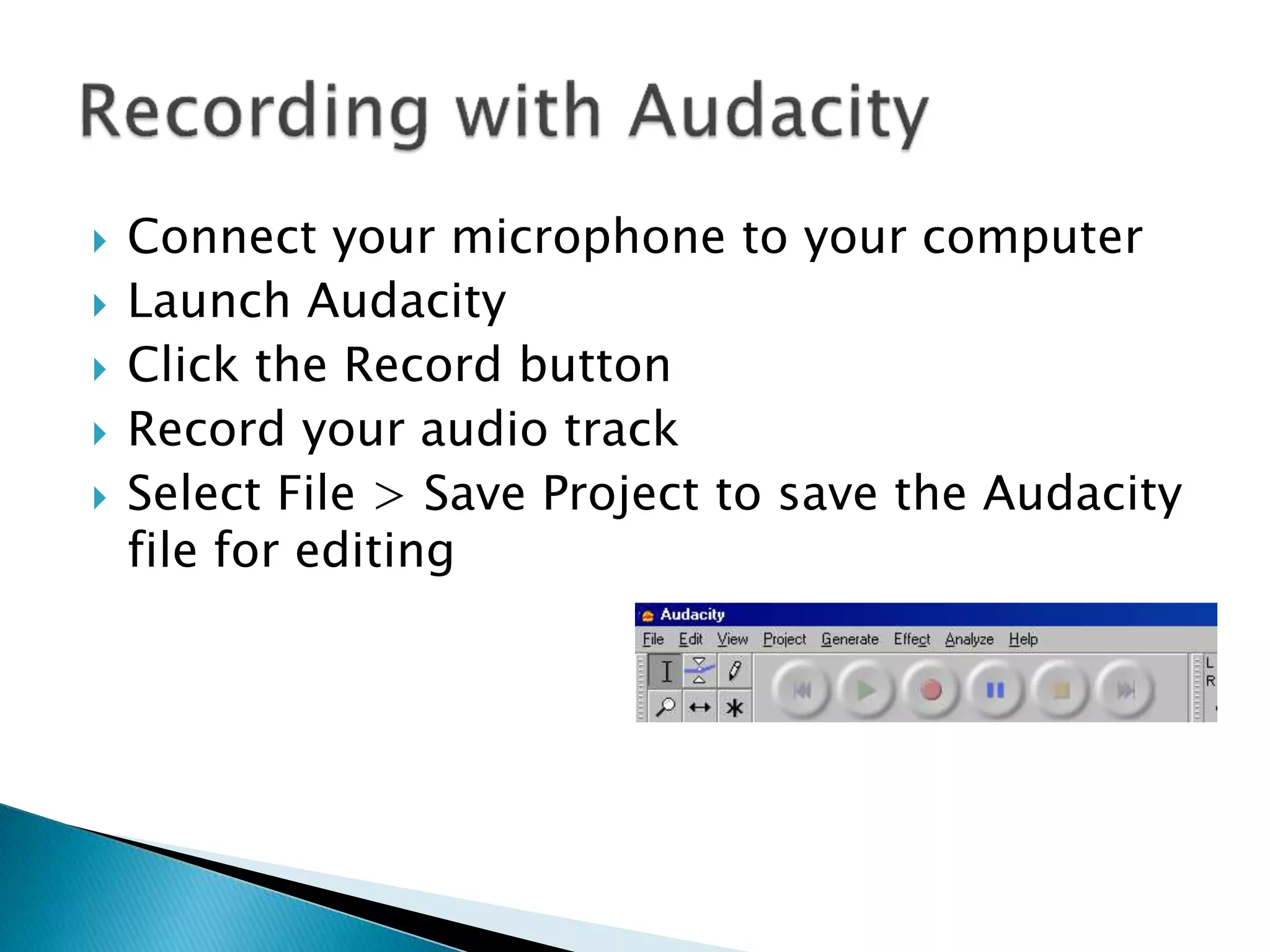
 Connect your microphone to your computer
 Launch Audacity
 Click the Record button
 Record your audio track
 Select File > Save Project to save the Audacity
file for editing
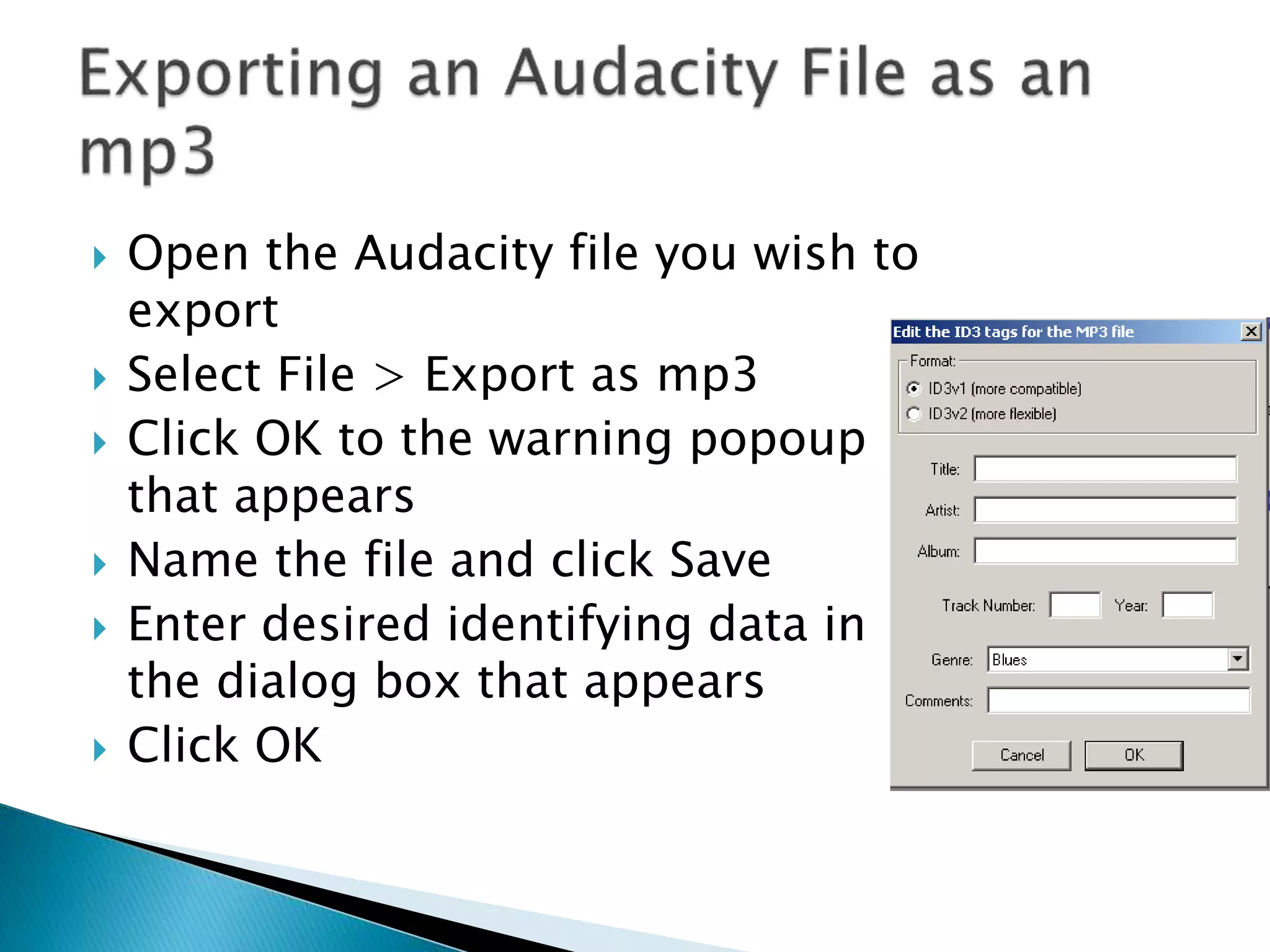
 Open the Audacity file you wish to
export
 Select File > Export as mp3
 Click OK to the warning popoup
that appears
 Name the file and click Save
 Enter desired identifying data in
the dialog box that appears
 Click OK
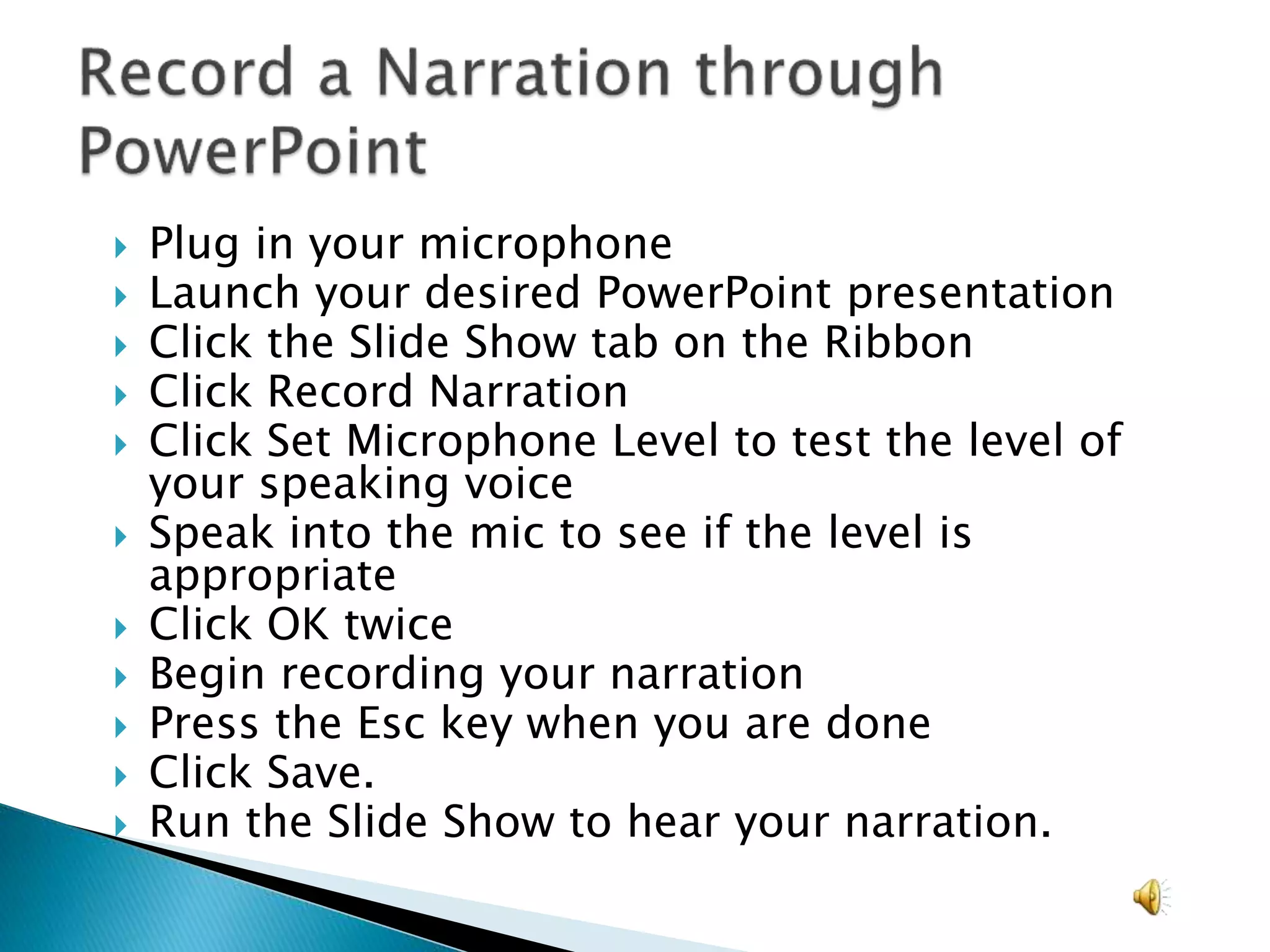
 Plug in your microphone
 Launch your desired PowerPoint presentation
 Click the Slide Show tab on the Ribbon
 Click Record Narration
 Click Set Microphone Level to test the level of
your speaking voice
 Speak into the mic to see if the level is
appropriate
 Click OK twice
 Begin recording your narration
 Press the Esc key when you are done
 Click Save.
 Run the Slide Show to hear your narration.
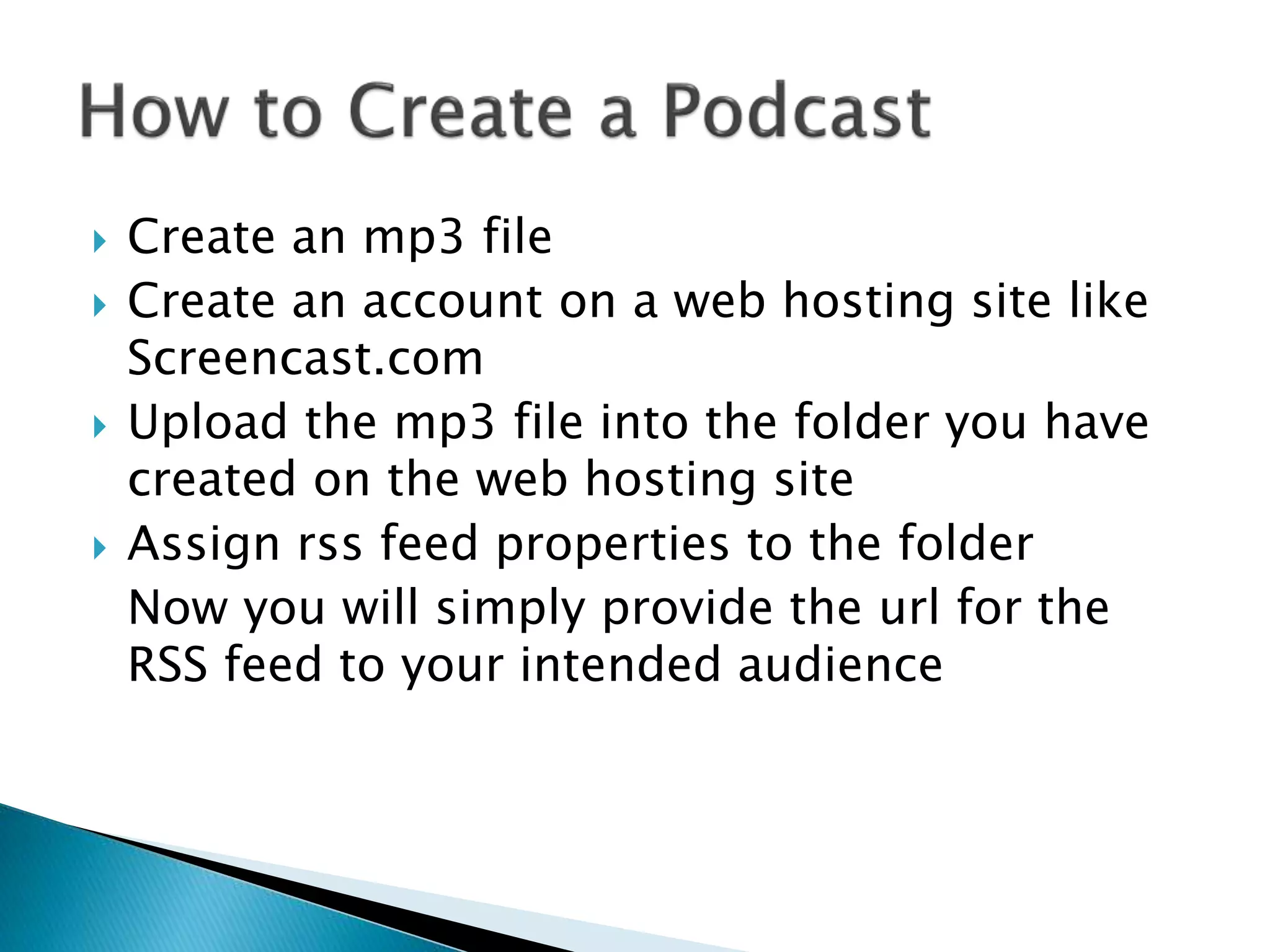
 Create an mp3 file
 Create an account on a web hosting site like
Screencast.com
 Upload the mp3 file into the folder you have
created on the web hosting site
 Assign rss feed properties to the folder
Now you will simply provide the url for the
RSS feed to your intended audience
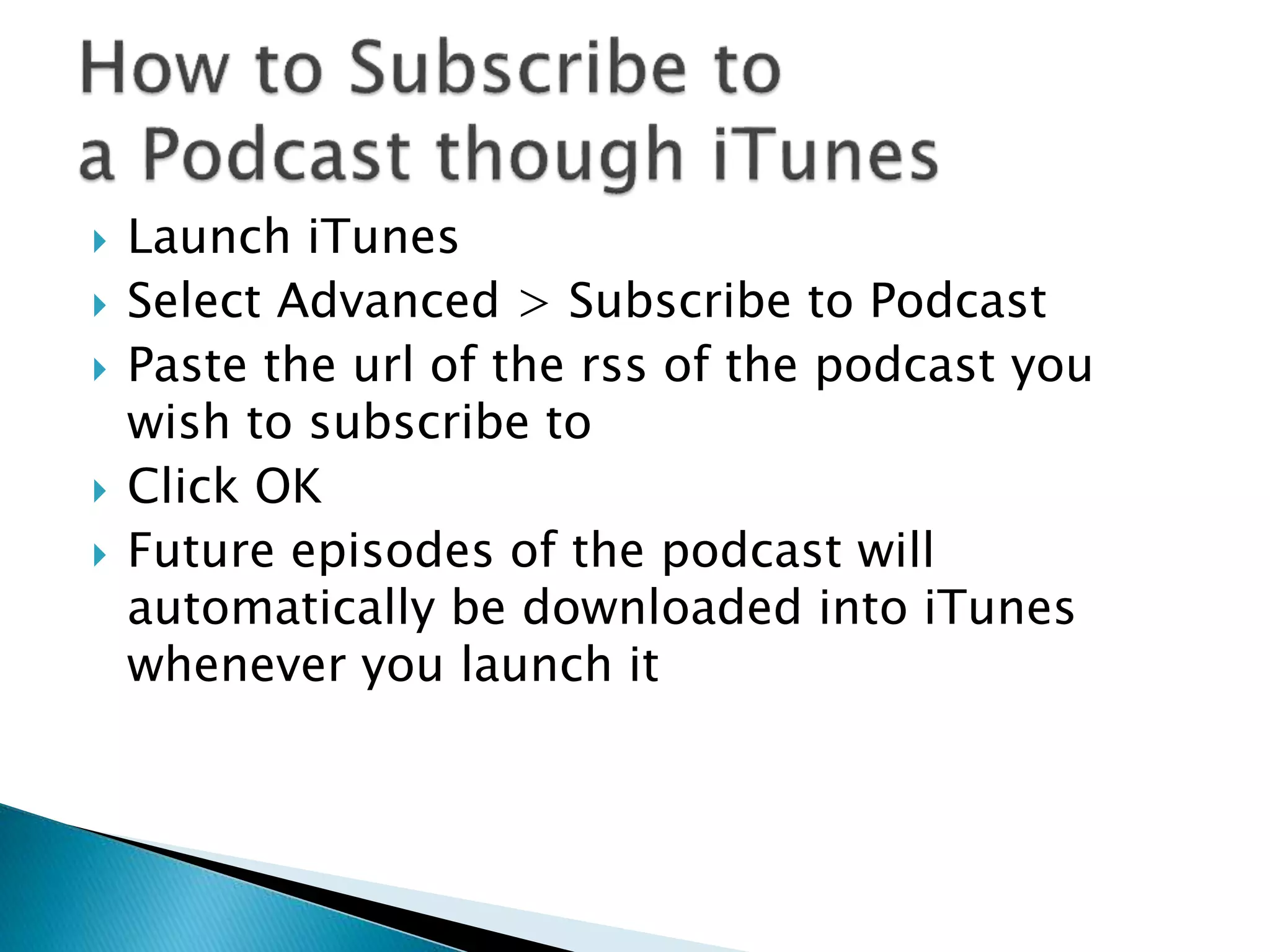
 Launch iTunes
 Select Advanced > Subscribe to Podcast
 Paste the url of the rss of the podcast you
wish to subscribe to
 Click OK
 Future episodes of the podcast will
automatically be downloaded into iTunes
whenever you launch it
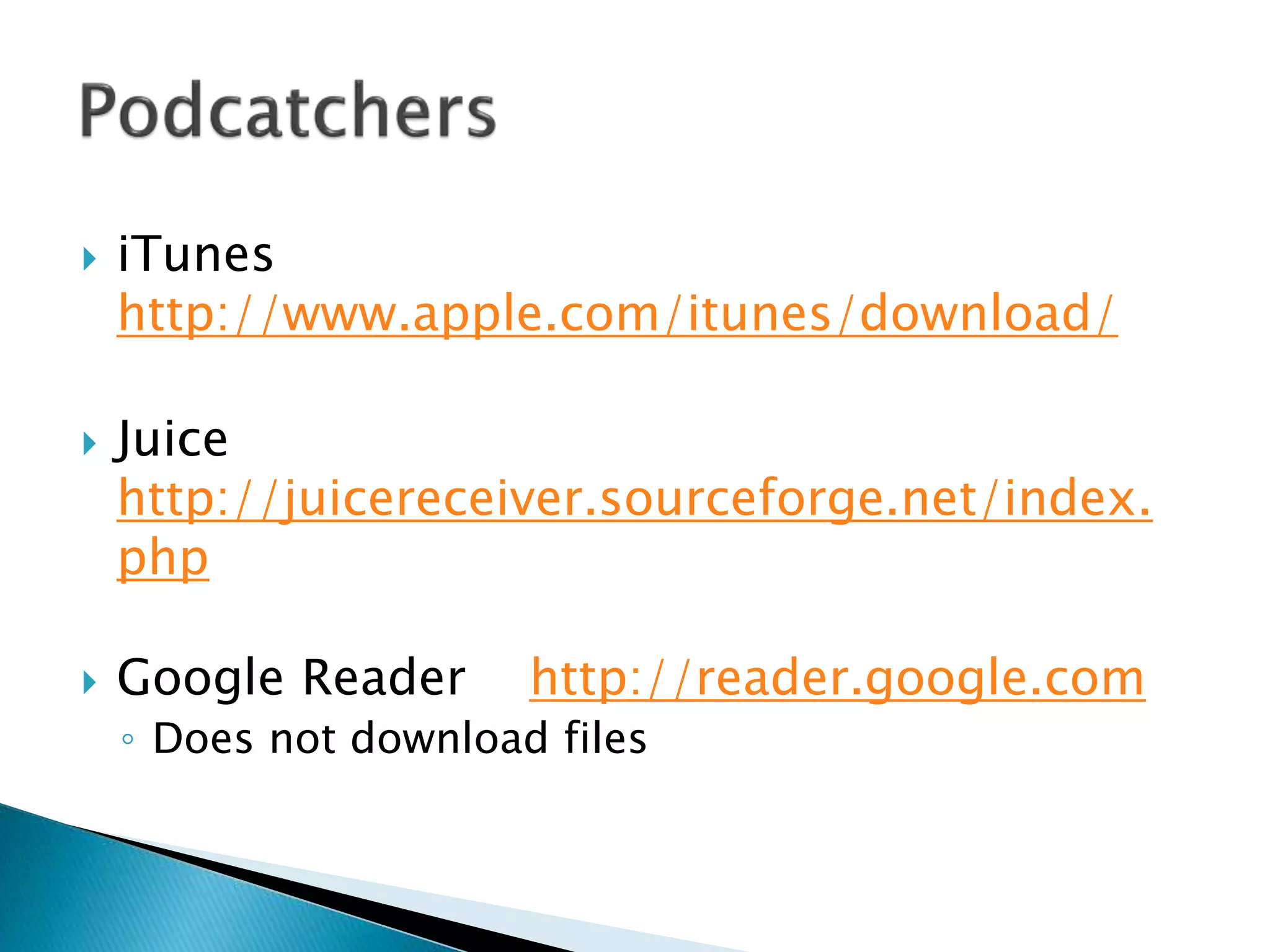
 iTunes
http://www.apple.com/itunes/download/
 Juice
http://juicereceiver.sourceforge.net/index.
php
 Google Reader http://reader.google.com
◦ Does not download files
 Free sound effects
 http://www.a1freesoundeffects.com/
 Copyright free music
 http://www.jamendo.com/en/
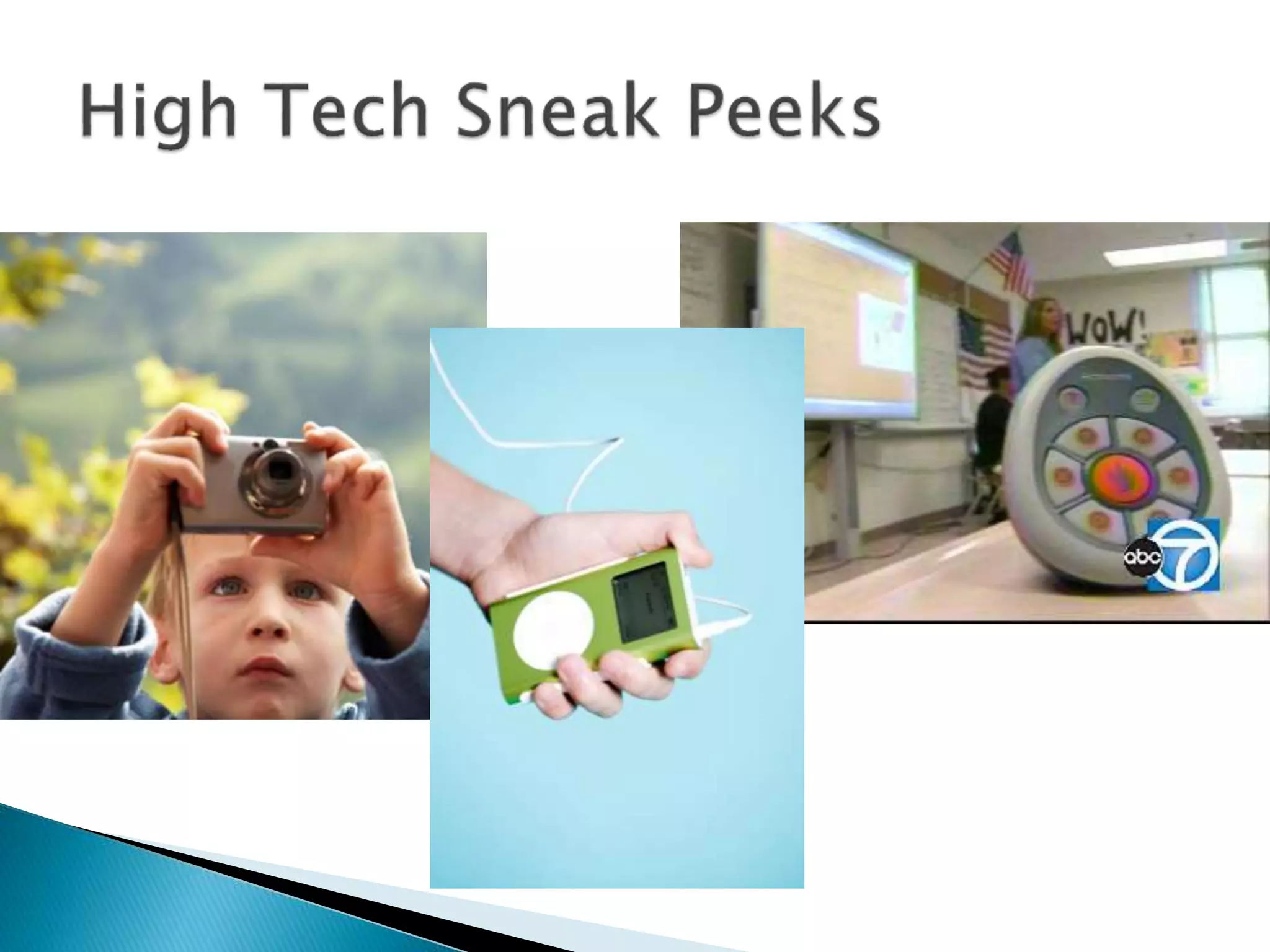
This interactive whiteboard interfaces with a
computer station, a portable tablet and
individual “clickers” to collect student feedback.
Resources
 Promethean Tutorial
 Short vowels lesson for students with autism
 Food chains lesson with third graders
 Biology lesson for high school students
 Assistive Technology may have nothing to do with
computers or the internet.
 Recognizing your own need for accommodations may
help you to consider those of your students.
 Free creative software and online resources exist for
you to use!
 Read the professional journals associated with your
teaching interests to stay aware of the new tools and
their uses.
 Try EVERYTHING!

Assistive technology to support differentiated instruction2

  • 1.
  • 2.
    “The content ofinstruction should address the same concepts with all students, but the degree of complexity should be adjusted to suit diverse learners.” Hall, T., Strangman, N., & Meyer, A. (2003). Differentiated instruction and implications for UDL implementation. Wakefield, MA: National Center on Accessing the General Curriculum. Retrieved October 2, 2009 from http://www.cast.org/publications/ncac/ncac_diffinstructudl.html
  • 3.
     Review Worksheet/Chapter Collaborative Jigsaw activity  Reflection activity  No-tech, low-tech and high tech options  Myth or Fact about Technology Use  Sample Technologies ◦ Digital Stories ◦ Podcasts ◦ Promethean Boards
  • 4.
     Form teamsof 3 or 4  You will be given an activity and a role  Do the activity  Discuss what you observed/learned through the activity  How could technology address some of your challenges?
  • 5.
     Take anindex card  Do not put your name on the card  Write 3 things that you do to address a challenge you have in performing everyday tasks ◦ Example: do you use a calculator to balance your checkbook? ◦ Do you adjust the mirrors in your car so you can see to drive safely?
  • 6.
  • 7.
    Nice Job!  Computerscan increase student performance on standardized tests. • Computers will replace teachers. • Technology can increase student motivation and improve self- concept. TRUE FALSE TRUE FALSE TRUE FALSE
  • 8.
     Motion Pathsin PowerPoint  Playing a YouTube video in PowerPoint 2007
  • 9.
    1. Focus onFunction ◦ Consider what the student may want or need to do that he or she currently cannot do. 2. Think in General Terms ◦ Select devices to purchase by considering who, when, where, why and how aspects of the technology . This can help the user find a product that meets many needs instead of just a specific need. 3. Strive for Simplicity ◦ This reduces maintenance and repair costs. Simple solutions are often easier to use and, therefore, will be used such as a device to help a studentbutton his ownshirt. Adapted from Pierce, K. (2008). Overview: How to choose appropriate adaptive technology. Retrieved October 2, 2009 from http://www.esight.org/view.cfm?x=151&room=n0j&id=0
  • 10.
     Voting devices Pictures  Auditory messages  Text messages
  • 12.
     Free!  Compatibleon either Windows XP or Vista machines  Can be used with or without audio  Can be used with or without text  Can be employed for student and/or teacher use to create media  Sample – High School Math  Sample – Making Sushi
  • 13.
     Using pre-selectedresources, we will collaborate on creating a simple movie to teach children about where we expect to find water.  Associated Resources  http://www.towson.edu/adminfinance/ots/Training/documentation/MovieMaker/Movie Maker_Basics.pdf
  • 14.
     Free todo using Audacity  Export as mp3 files to play on iPods and other portable devices  Create original recordings to include in PowerPoint and MovieMaker projects  Import free, copyright-free music to incorporate in file Resource  Download page for Audacity  Download page for LAME encoder
  • 15.
     Connect yourmicrophone to your computer  Launch Audacity  Click the Record button  Record your audio track  Select File > Save Project to save the Audacity file for editing
  • 16.
     Open theAudacity file you wish to export  Select File > Export as mp3  Click OK to the warning popoup that appears  Name the file and click Save  Enter desired identifying data in the dialog box that appears  Click OK
  • 17.
     Plug inyour microphone  Launch your desired PowerPoint presentation  Click the Slide Show tab on the Ribbon  Click Record Narration  Click Set Microphone Level to test the level of your speaking voice  Speak into the mic to see if the level is appropriate  Click OK twice  Begin recording your narration  Press the Esc key when you are done  Click Save.  Run the Slide Show to hear your narration.
  • 18.
     Create anmp3 file  Create an account on a web hosting site like Screencast.com  Upload the mp3 file into the folder you have created on the web hosting site  Assign rss feed properties to the folder Now you will simply provide the url for the RSS feed to your intended audience
  • 19.
     Launch iTunes Select Advanced > Subscribe to Podcast  Paste the url of the rss of the podcast you wish to subscribe to  Click OK  Future episodes of the podcast will automatically be downloaded into iTunes whenever you launch it
  • 20.
  • 21.
     Free soundeffects  http://www.a1freesoundeffects.com/  Copyright free music  http://www.jamendo.com/en/
  • 22.
    This interactive whiteboardinterfaces with a computer station, a portable tablet and individual “clickers” to collect student feedback. Resources  Promethean Tutorial  Short vowels lesson for students with autism  Food chains lesson with third graders  Biology lesson for high school students
  • 23.
     Assistive Technologymay have nothing to do with computers or the internet.  Recognizing your own need for accommodations may help you to consider those of your students.  Free creative software and online resources exist for you to use!  Read the professional journals associated with your teaching interests to stay aware of the new tools and their uses.  Try EVERYTHING!