David Scott Oromaner Touro College Instructor: Dr. Issac Herskowitz  EDIT 692 Scratch 1.4  Lesson 3 - Interactivity
Open Scratch  Double click scratch.exe icon located on your desktop. Open your scratch file that was saved from the previous lesson
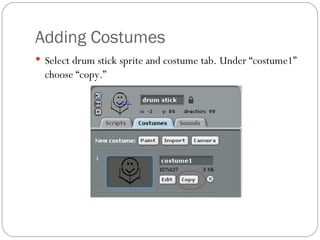
Adding Costumes Select drum stick sprite and costume tab. Under “costume1” choose “copy.”
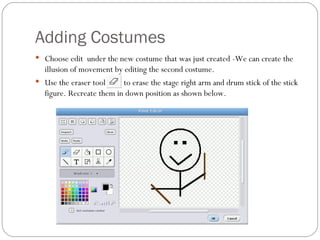
Adding Costumes Choose edit  under the new costume that was just created -We can create the illusion of movement by editing the second costume. Use the eraser tool  to erase the stage right arm and drum stick of the stick figure. Recreate them in down position as shown below.
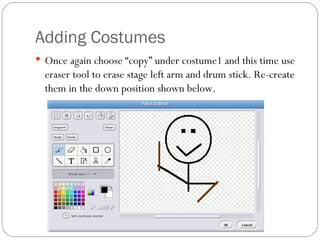
Adding Costumes Once again choose “copy” under costume1 and this time use eraser tool to erase stage left arm and drum stick. Re-create them in the down position shown below.
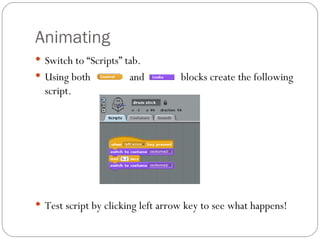
Animating Switch to “Scripts” tab. Using both  and  blocks create the following script. Test script by clicking left arrow key to see what happens!
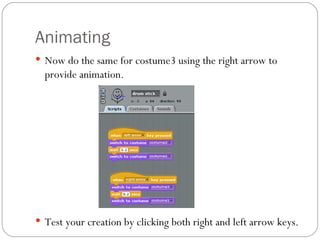
Animating Now do the same for costume3 using the right arrow to provide animation. Test your creation by clicking both right and left arrow keys.
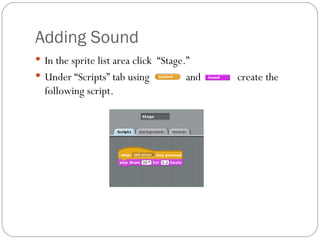
Adding Sound In the sprite list area click  “Stage.”  Under “Scripts” tab using  and  create the following script.
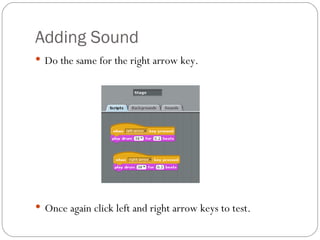
Adding Sound Do the same for the right arrow key. Once again click left and right arrow keys to test.
Class Assignment Open up a new scratch project  Experiment with creating animation from scratch. First define your concept Second draw your costumes this time experimenting with four costumes per movement. You can create multiple sprites if needed Create the script to animate Save work as your name_scratch_assignment3.

Scratch Lesson 3 - Interactivity

  • 1.
    David Scott OromanerTouro College Instructor: Dr. Issac Herskowitz EDIT 692 Scratch 1.4 Lesson 3 - Interactivity
  • 2.
    Open Scratch Double click scratch.exe icon located on your desktop. Open your scratch file that was saved from the previous lesson
  • 3.
    Adding Costumes Selectdrum stick sprite and costume tab. Under “costume1” choose “copy.”
  • 4.
    Adding Costumes Chooseedit under the new costume that was just created -We can create the illusion of movement by editing the second costume. Use the eraser tool to erase the stage right arm and drum stick of the stick figure. Recreate them in down position as shown below.
  • 5.
    Adding Costumes Onceagain choose “copy” under costume1 and this time use eraser tool to erase stage left arm and drum stick. Re-create them in the down position shown below.
  • 6.
    Animating Switch to“Scripts” tab. Using both and blocks create the following script. Test script by clicking left arrow key to see what happens!
  • 7.
    Animating Now dothe same for costume3 using the right arrow to provide animation. Test your creation by clicking both right and left arrow keys.
  • 8.
    Adding Sound Inthe sprite list area click “Stage.” Under “Scripts” tab using and create the following script.
  • 9.
    Adding Sound Dothe same for the right arrow key. Once again click left and right arrow keys to test.
  • 10.
    Class Assignment Openup a new scratch project Experiment with creating animation from scratch. First define your concept Second draw your costumes this time experimenting with four costumes per movement. You can create multiple sprites if needed Create the script to animate Save work as your name_scratch_assignment3.